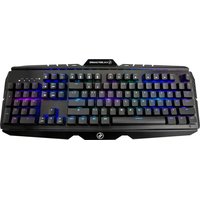
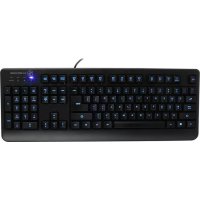
GKM558R - Keyboard IOGEAR - Free user manual and instructions
Find the device manual for free GKM558R IOGEAR in PDF.


| Product Type | Wireless Keyboard |
| Model | GKM558R |
| Brand | IOGEAR |
| Connectivity | 2.4 GHz Wireless via USB Receiver |
| Wireless Range | Up to 10 meters |
| Number of Keys | 104 (Full-size) |
| Multimedia Keys | Yes, dedicated hotkeys |
| Power Source | 2 x AAA batteries (not included) |
| Battery Life | Approximately 12 months (depending on usage) |
| Dimensions (L x W x H) | 440 x 130 x 25 mm |
| Weight | 500 g (with batteries) |
| Color | Black |
| Material | Plastic |
| Compatibility | Windows, Mac OS, Linux |
| Interface | USB Type-A receiver |
| Cleaning Instructions | Wipe with a soft, dry cloth. Do not use liquid cleaners. |
| Safety Precautions | Keep away from liquids and excessive heat. Do not disassemble. |
| Spare Parts Availability | Contact IOGEAR support for replacement receivers or batteries. |
| Repairability | Not user-serviceable; refer to qualified technician. |
Frequently Asked Questions - GKM558R IOGEAR
User questions about GKM558R IOGEAR
0 question about this device. Answer the ones you know or ask your own.
Ask a new question about this device
Download the instructions for your Keyboard in PDF format for free! Find your manual GKM558R - IOGEAR and take your electronic device back in hand. On this page are published all the documents necessary for the use of your device. GKM558R by IOGEAR.
USER MANUAL GKM558R IOGEAR
Designed in California, USA ©2015 IOGEAR® All rights reserved. ATEN is a registered trademark of ATEN International Co., LTD. All other trademarks are the properties of their respective owners. Reproduction in whole or in part without permission is prohibited. Tested to Comply With FCC and CE Standards. FOR HOME OR OFFICE USE. Mac and the Mac logo are trademarks of Apple Computer, Inc. registered in the U.S. and other countries. Specifications subject to change without notice.
Table of Contents
Introduction 4
Package Contents 4
System Requirements 4
Overview 5
Software Installation 6
Operation 9
Compliance Information 13
Limited Warranty 13
Contact 14
Introduction
This manual provides instruction on downloading and operating GME581R driver
Package Contents
1 x GME581R
1 x AA Battery
1 x Quick Start Guide
1 x Warranty Card
System Requirements
- Windows Vista®, Windows® 7, Windows® 8, Windows® 8.1
• Mac OS X 10.3+* - USB
*Some function keys may not work with older Mac OS Systems
Overview
- Left Button
2.Middle Button - Right Button
- Touch Pad
- Windows Button
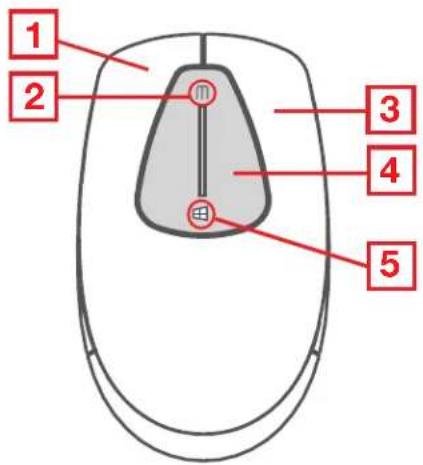
text_image
1 2 3 4 5- ON / OFF Switch
- Battery Compartment
- USB Receiver Storage Slot
- USB Receiver
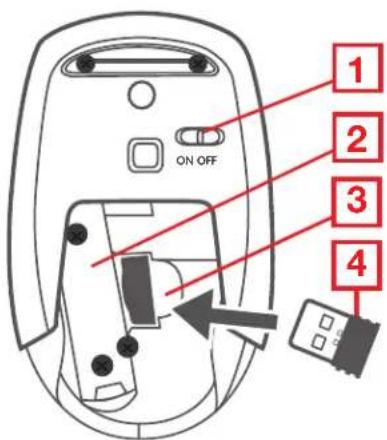
text_image
1 2 3 4 ON OFFSoftware Installation
- Download Tacturus™ driver from http://www.iogear.com/support/dm/driver/GME581R
- Once driver is downloaded, install the driver to your computer by double clicking
and click Next.
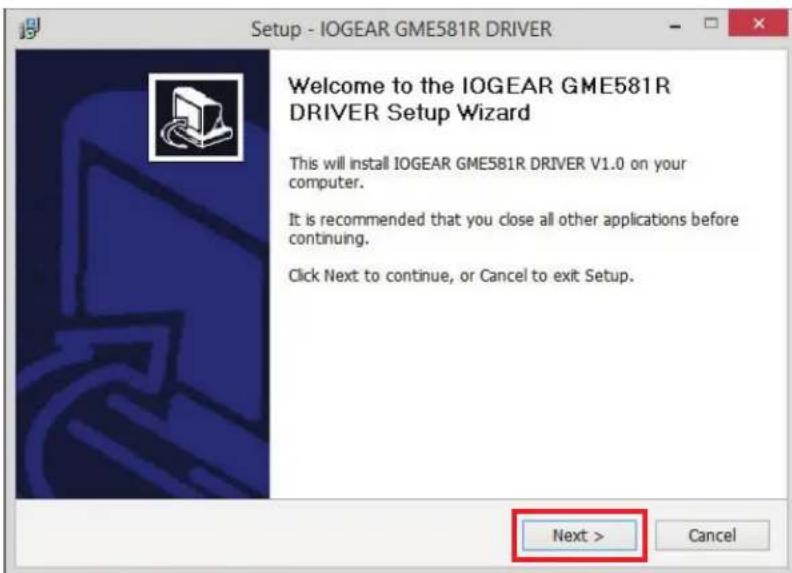
text_image
Setup - IOGEAR GME581R DRIVER Welcome to the IOGEAR GME581R DRIVER Setup Wizard This will install IOGEAR GME581R DRIVER V1.0 on your computer. It is recommended that you close all other applications before continuing. Click Next to continue, or Cancel to exit Setup. Next > Cancel- Select destination folder for the driver and click Next to continue.
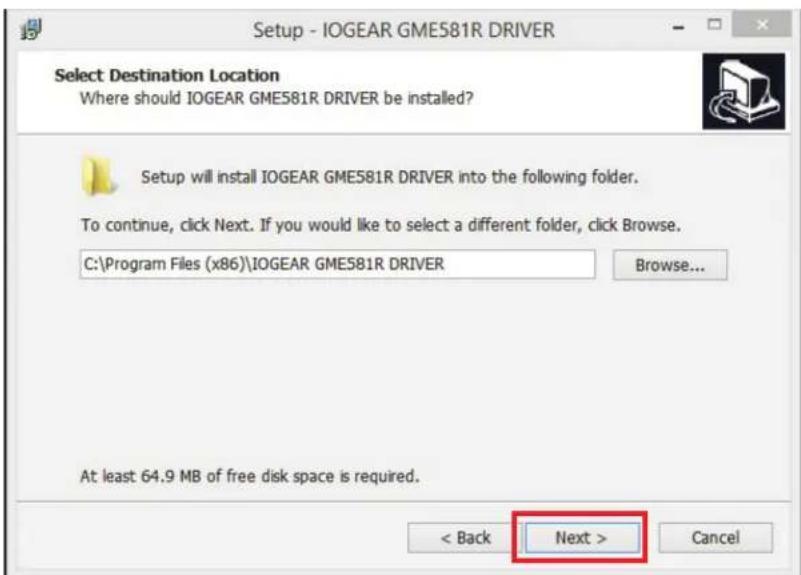
text_image
Setup - IOGEAR GME581R DRIVER Select Destination Location Where should IOGEAR GME581R DRIVER be installed? Setup will install IOGEAR GME581R DRIVER into the following folder. To continue, click Next. If you would like to select a different folder, click Browse. C:\Program Files (x86)\IOGEAR GME581R DRIVER Browse... At least 64.9 MB of free disk space is required. < Back Next > Cancel- Create program shortcut and click Next to continue.
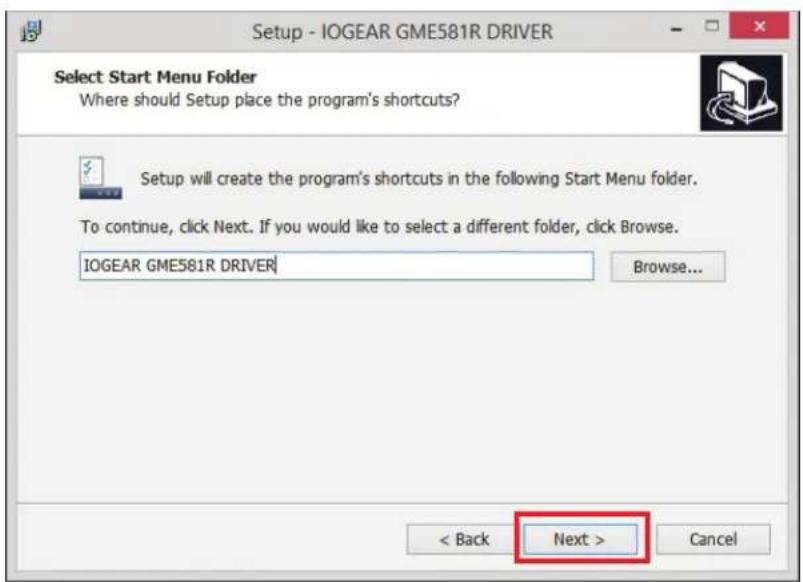
text_image
Setup - IOGEAR GME581R DRIVER Select Start Menu Folder Where should Setup place the program's shortcuts? Setup will create the program's shortcuts in the following Start Menu folder. To continue, click Next. If you would like to select a different folder, click Browse. IOGEAR GME581R DRIVER Browse... < Back Next > Cancel- Click Install to begin installation process.
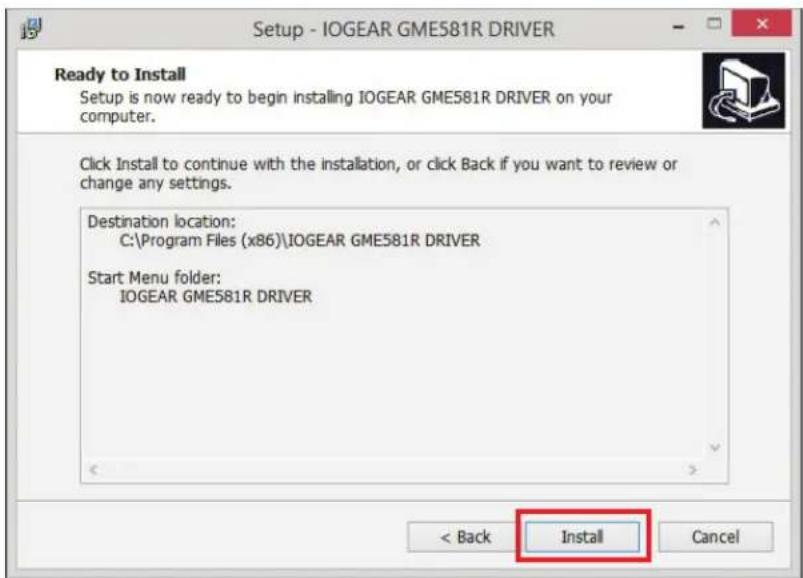
text_image
Setup - IOGEAR GME581R DRIVER Ready to Install Setup is now ready to begin installing IOGEAR GME581R DRIVER on your computer. Click Install to continue with the installation, or click Back if you want to review or change any settings. Destination location: C:\Program Files (x86)\IOGEAR GME581R DRIVER Start Menu folder: IOGEAR GME581R DRIVER < Back Install Cancel- Please wait until installation process is complete.
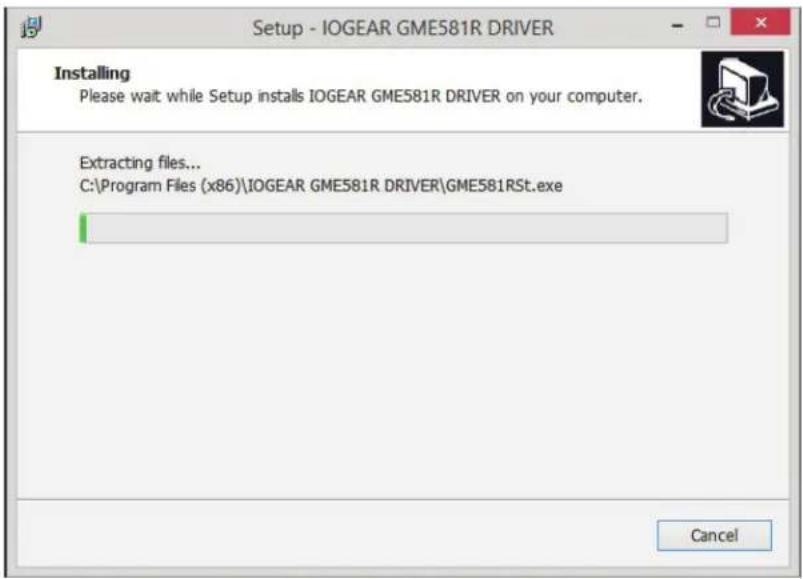
text_image
Setup - IOGEAR GME581R DRIVER Installing Please wait while Setup installs IOGEAR GME581R DRIVER on your computer. Extracting files... C:\Program Files (x86)\IOGEAR GME581R DRIVER\GME581RSt.exe Cancel- Once GME581R driver has been installed, click the Launch box and Finish to open the driver.
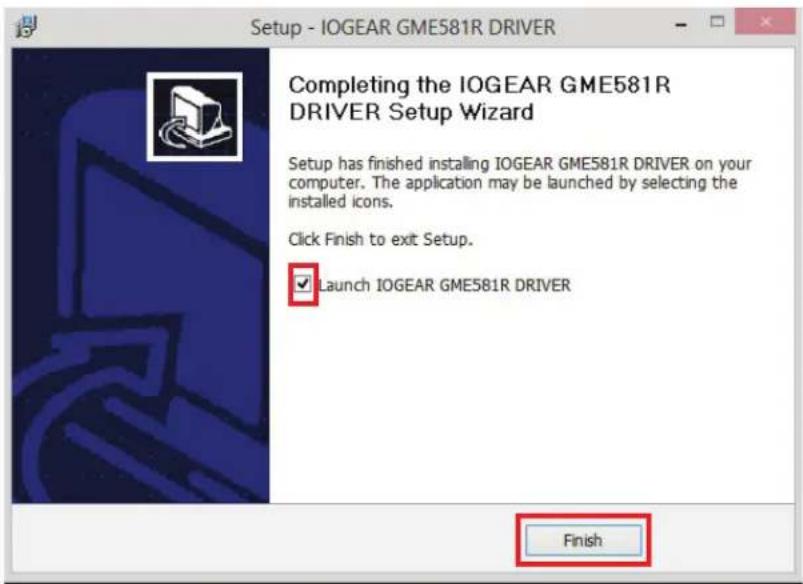
text_image
Setup - IOGEAR GME581R DRIVER Completing the IOGEAR GME581R DRIVER Setup Wizard Setup has finished installing IOGEAR GME581R DRIVER on your computer. The application may be launched by selecting the installed icons. Click Finish to exit Setup. ✓ Launch IOGEAR GME581R DRIVER FinishOperation
Open the GME581R driver by clicking symbol, located on menu bar on the bottom.
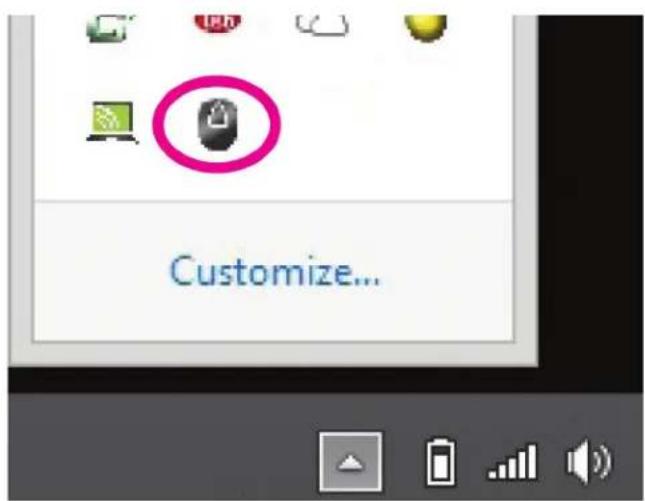
text_image
Customize...Middle Button Setting
- Open Middle Button menu window to customize middle button on the GME581R.
- Click desired command for your middle button and click OK.
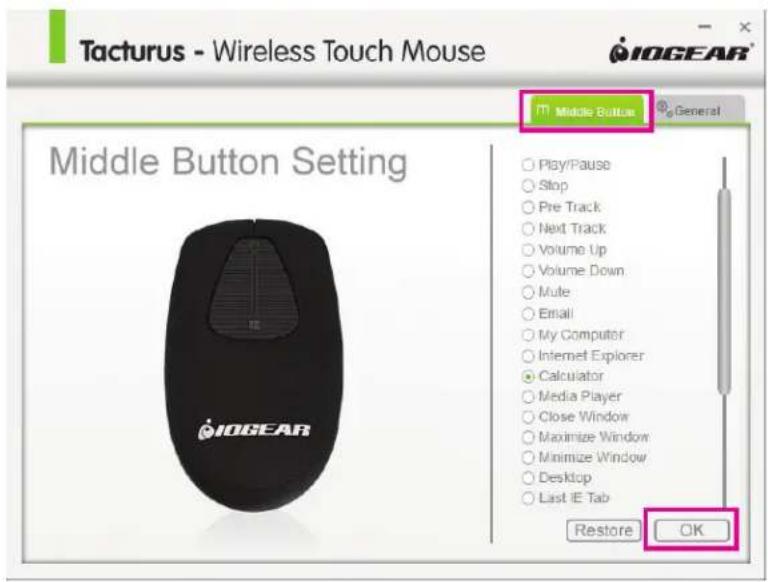
text_image
Tacturus - Wireless Touch Mouse IOGEAR® Middle Button Setting Play/Pause Stop Pre Track Next Track Volume Up Volume Down Mute Email My Computer Internet Explorer Calculator Media Player Close Window Maximize Window Minimize Window Desktop Last IE Tab Restore OK- Click OK to confirm changes made to the setting.
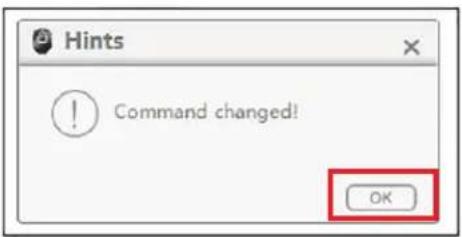
text_image
Hints ! Command changed! OK- Click Restore to return to default setting and click OK to confirm.
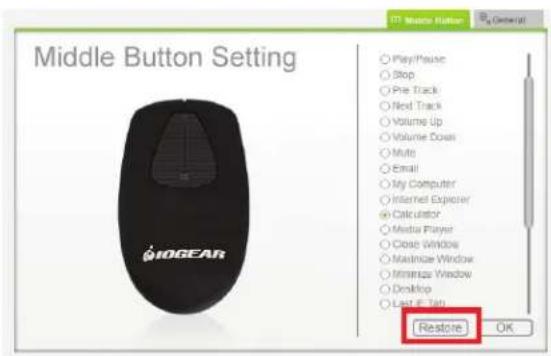
text_image
Middle Button Setting IOGEAR Play/Phase Stop Pre Track Next Track Volume Up Volume Down Multi Email My Computer Internet Explorer Calculator Media Player Close Window Maximize Window Minimize Window Desktop Last 6.7a Restore OK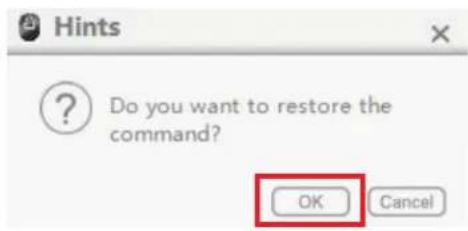
text_image
Hints Do you want to restore the command? OK Cancel- Default factory setting.
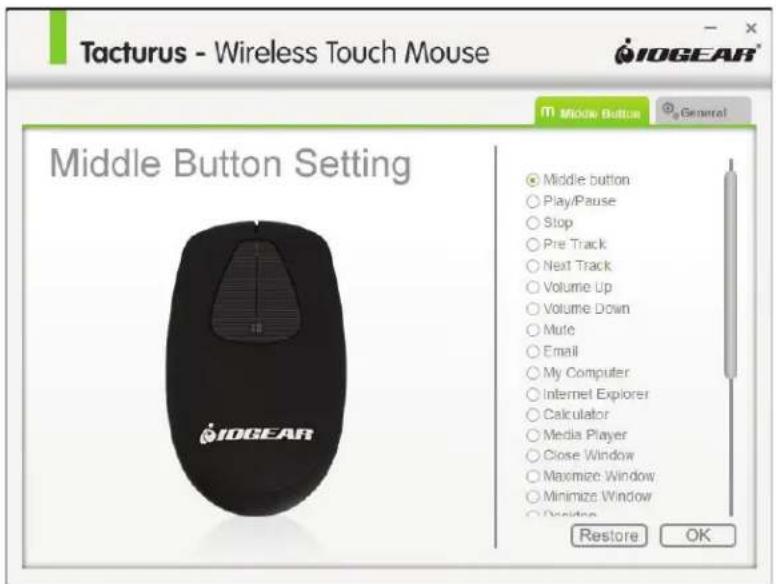
text_image
Tacturus - Wireless Touch Mouse IOGEAR® Middle Button Setting ● Middle button ○ Play/Pause ○ Stop ○ Pre Track ○ Next Track ○ Volume Up ○ Volume Down ○ Mute ○ Email ○ My Computer ○ Internet Explorer ○ Calculator ○ Media Player ○ Close Window ○ Maximize Window ○ Minimize Window ○ Decorate Restore OKGeneral Setting
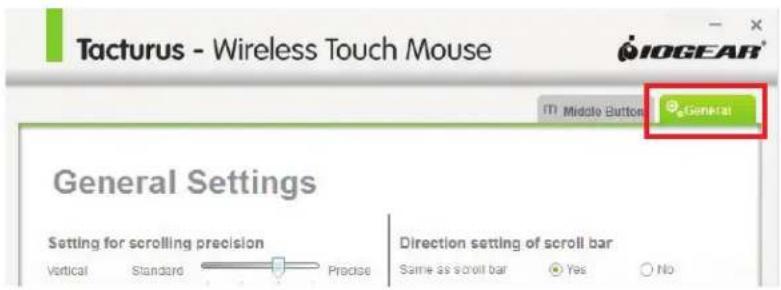
- Open General tab to customize further functionality of the GME581R.
text_image
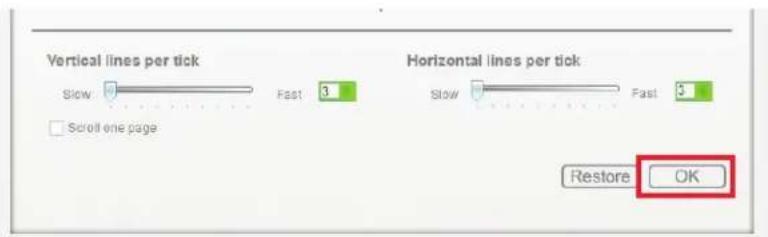
Tacturus - Wireless Touch Mouse IOGEAR® General Settings Setting for scrolling precision Vertical Standard Practice Direction setting of scroll bar Same as scroll bar Yes No- Adjust GME581R settings as desired and click OK.
text_image
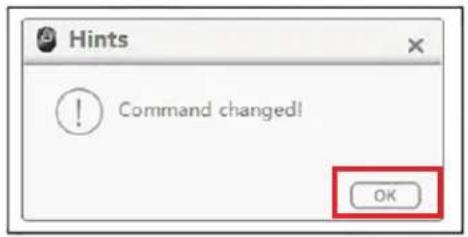
Vertical lines per tick Slow Fast 3.1 Scroll one page Horizontal lines per tick Slow Fast 5.1 Restore OK- Click OK to confirm changes made to the setting.
text_image
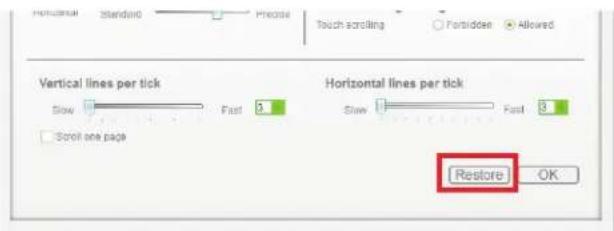
Hints Command changed! OK- Click Restore to return to default setting and click OK to confirm.
text_image
Horizontal Standard Precise Touch scrolling Forbidden Allowed Vertical lines per tick Slow Fast 3 Horizontal lines per tick Slow Fast 3 Scroll one page Restore OK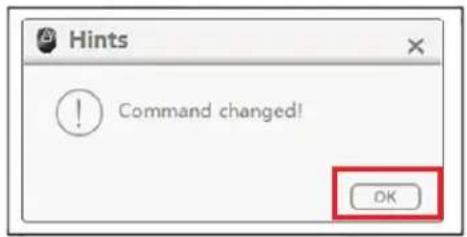
text_image
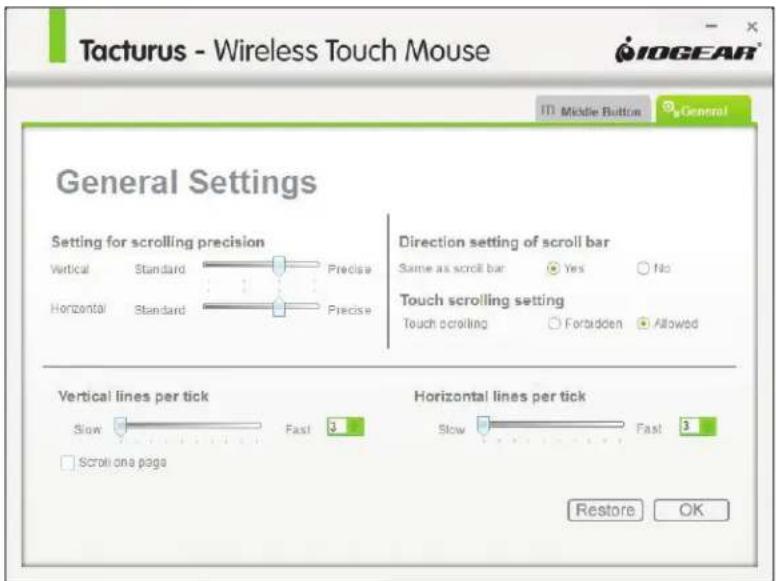
Hints ! Command changed! OK- Default factory setting.
text_image
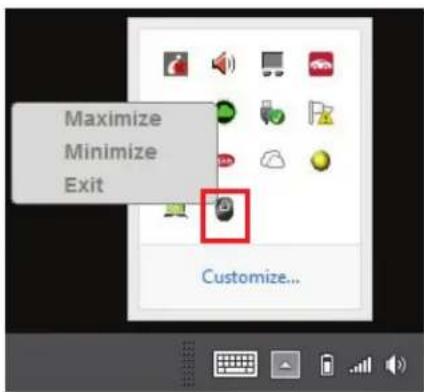
Tacturus - Wireless Touch Mouse General Settings Setting for scrolling precision Vertical Standard Precise Horizontal Standard Precise Direction setting of scroll bar Same as scroll bar Yes No Touch scrolling setting Touch scrolling Forbidden Allowed Vertical lines per tick Slow Fast 3 Scroll one page Horizontal lines per tick Slow Fast 3 Restore OKMaximize, minimize, or exit by right clicking the GME581R mouse icon.
text_image
Maximize Minimize Exit Customize...Compliance Information
FCC Statement
This equipment has been tested and found to comply with the limits for a Class B digital device, pursuant to Part 15 of the FCC Rules. These limits are designed to provide reasonable protection against harmful interference in a residential setting. This product generates, uses, and can radiate radio frequency energy and, if not installed and used as directed, it may cause harmful interference to radio communications. Although this product complies with the limits for a Class B digital device, there is no guarantee that interference will not occur in a particular installation.
CE Statement
This device has been tested and found to comply with the following European Union directives: Electromagnetic Capability (2004/108/EC), Low Voltage (2006/95/EC) and R&TTED (1999/5/EC).
Limited Warranty
WE'RE HERE TO HELP YOU!
NEED ASSISTANCE SETTING UP THIS PRODUCT?
Make sure you:
- Visit www.iogear.com for more product information
- Visit www.iogear.com/support for live help and product support
Warranty Information
This product carries a 3 Year Limited Warranty. For the terms and conditions of this warranty, please go to http://www.iogear.com/support/warranty
Register online at
http://www.iogear.com/register
Important Product Information
Product Model ____
Serial Number
Contact
iogear.custhelp.com
support@iogear.com
www.iogear.com
19641 Da Vinci, Foothill Ranch, CA 92610