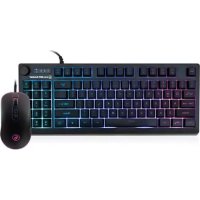
Korona Kore II GKM601 - Keyboard IOGEAR - Free user manual and instructions
Find the device manual for free Korona Kore II GKM601 IOGEAR in PDF.



| Product type | Gaming keyboard and mouse |
| Brand | IOGEAR |
| Model | Korona Kore II GKM601 |
| Package contents | 1 KORE II keyboard, 1 KORONA II mouse, 1 quick start guide, 1 warranty card |
| System requirements | Windows 8.1 or 10, USB 2.0 port |
| Connectivity | USB wired |
| Power | USB bus |
| Keyboard backlighting | Multi-zone RGB with brightness and speed control |
| Shortcut keys | 12 F keys (Fn+F1 to F12) with multimedia and system functions |
| Windows key lock | Yes, via Fn+Win combination |
| Keyboard lock | Yes, via Fn+F11 combination |
| Interchangeable WASD keys | Yes, via Fn+W combination (switches to arrow keys) |
| Anti-ghosting | 25 simultaneous keys (limited list) |
| Control knob | Knob for volume and backlight adjustment depending on mode |
| Mouse - DPI resolution | 5 levels: 400, 800, 1600, 3200, 6200 DPI |
| Mouse - Report rate | 250, 500, or 1000 reports per second |
| Mouse - Number of buttons | 7 programmable buttons |
| Warranty | 2-year limited |
Frequently Asked Questions - Korona Kore II GKM601 IOGEAR
User questions about Korona Kore II GKM601 IOGEAR
0 question about this device. Answer the ones you know or ask your own.
Ask a new question about this device
Download the instructions for your Keyboard in PDF format for free! Find your manual Korona Kore II GKM601 - IOGEAR and take your electronic device back in hand. On this page are published all the documents necessary for the use of your device. Korona Kore II GKM601 by IOGEAR.
USER MANUAL Korona Kore II GKM601 IOGEAR
Compact Gaming Keyboard and Mouse
System Requirements 4
Mouse Overview 5
Keyboard Overview 6
Installation 7
Operation for Mouse 8
Operation for Keyboard 9
Compliance Information 11
Limited Warranty 12
Contact 12
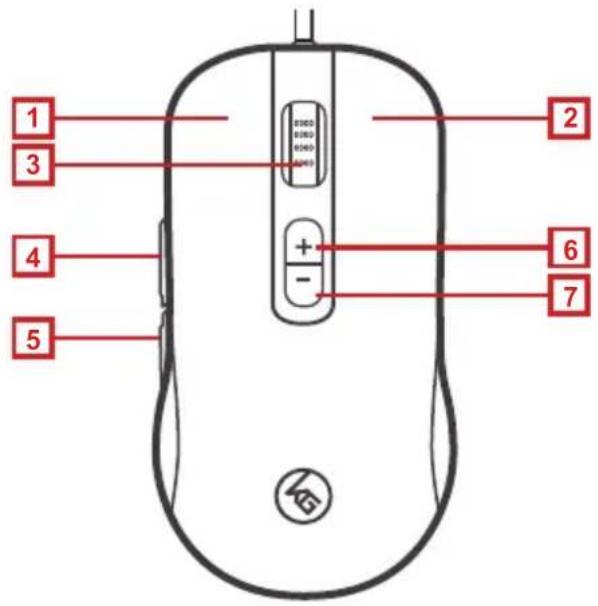
- Left button / Select
- Right button / Menu
- Scroll wheel / 3rd button
- 4th button / Forward
- 5th button / Backward
- DPI + / 6th button
- DPI - / 7th button
text_image
1 2 3 4 5 6 7Mouse Back View
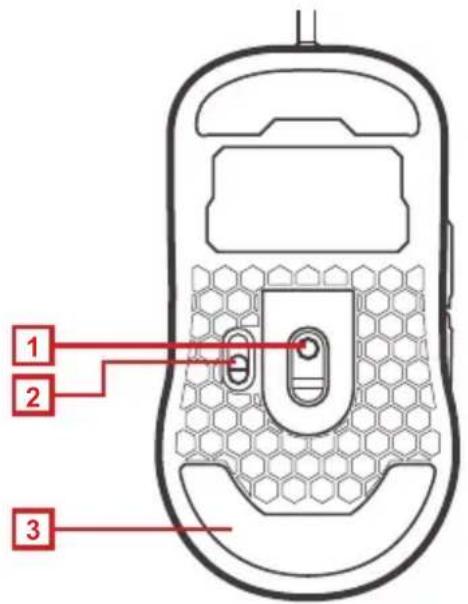
- Optical sensor
- Reporting rate switch 250/500/1000 rps
- Anti-friction base pad
text_image
1 2 3Keyboard Overview
Keyboard Front view
- Windows Lock LED – turns on when Fn + win is pressed
- Caps Lock LED – turns on when Caps Lock key is pressed
- Scroll Lock LED – turns on when Scroll Lock key is pressed
- Control Knob – adjusts volume and backlighting
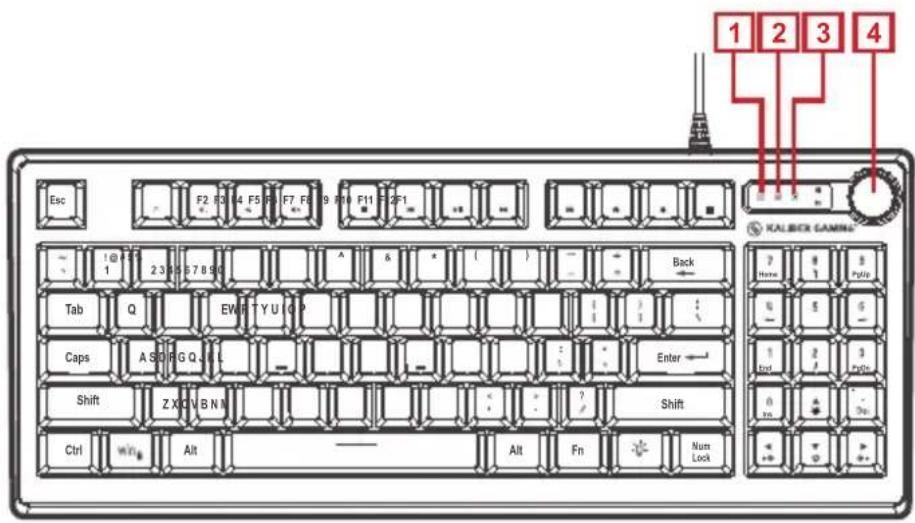
text_image
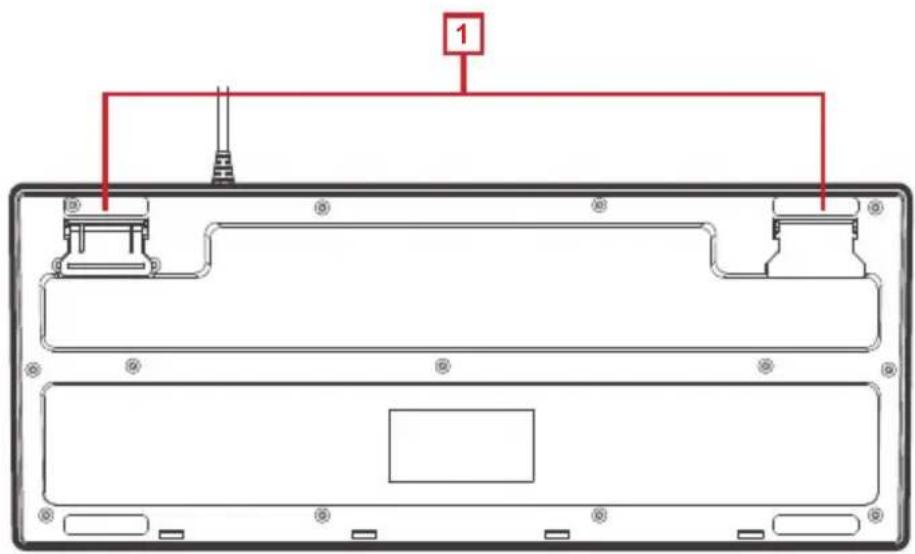
Esc F2 F3 F4 F5 F6 F7 F8 F9 F10 F11 F12 F13 1 2 3 4 KALIBCK GAMME 1 2 3 4 1 2 3 4 2 3 4 Tab Q EWHT Y U U P Caps A S D R G Q J L L Shift Z X O V B N M Ctrl W T I B Alt Alt Fn Num LockKeyboard Back view
- Foldable Legs – allow user to adjust the angle of keyboard
text_image
Technical diagram of a device rear panel with labeled components and connection linesInstallation
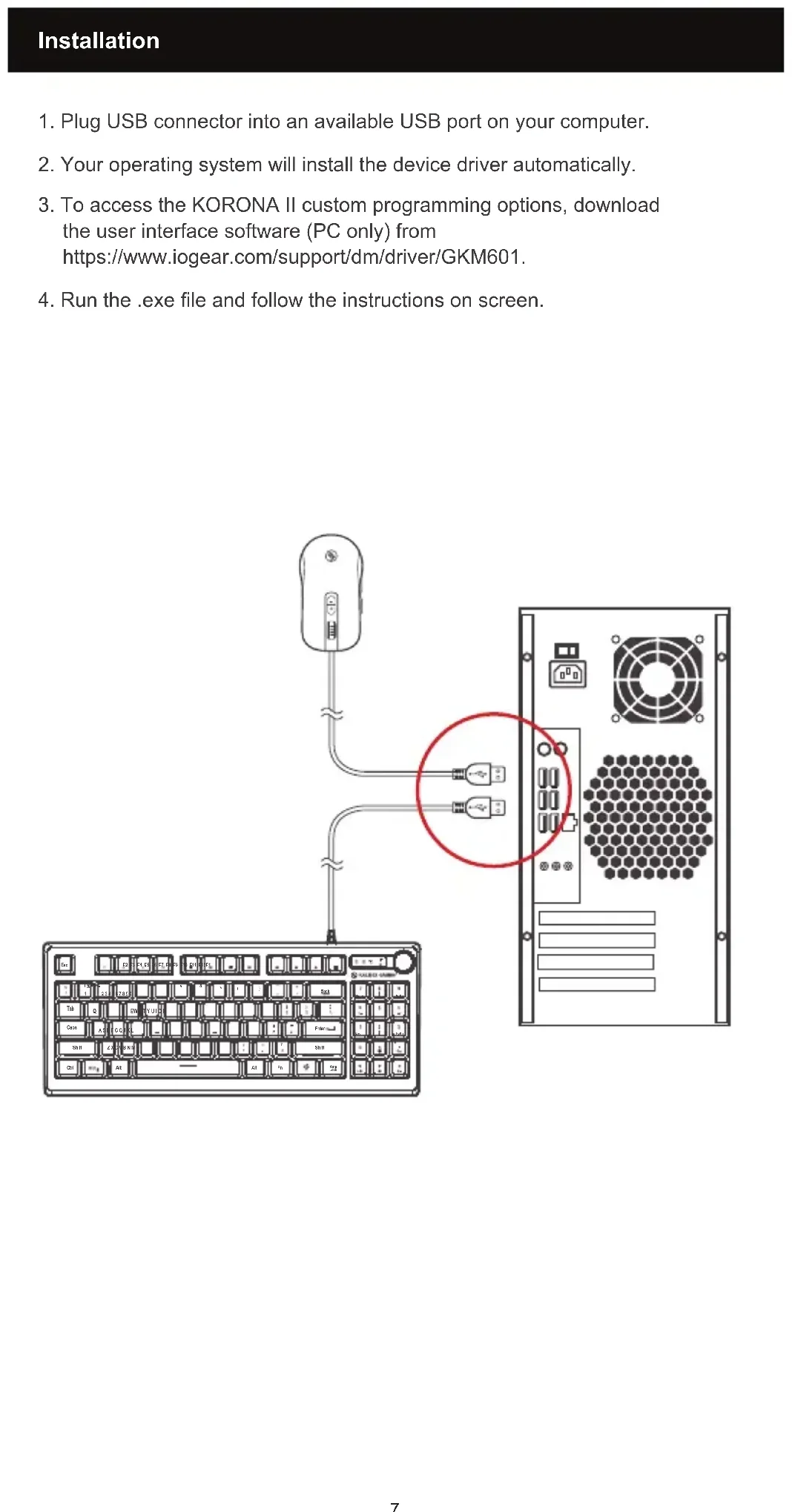
- Plug USB connector into an available USB port on your computer.
- Your operating system will install the device driver automatically.
- To access the KORONA II custom programming options, download the user interface software (PC only) from https://www.iogear.com/support/dm/driver/GKM601.
- Run the .exe file and follow the instructions on screen.
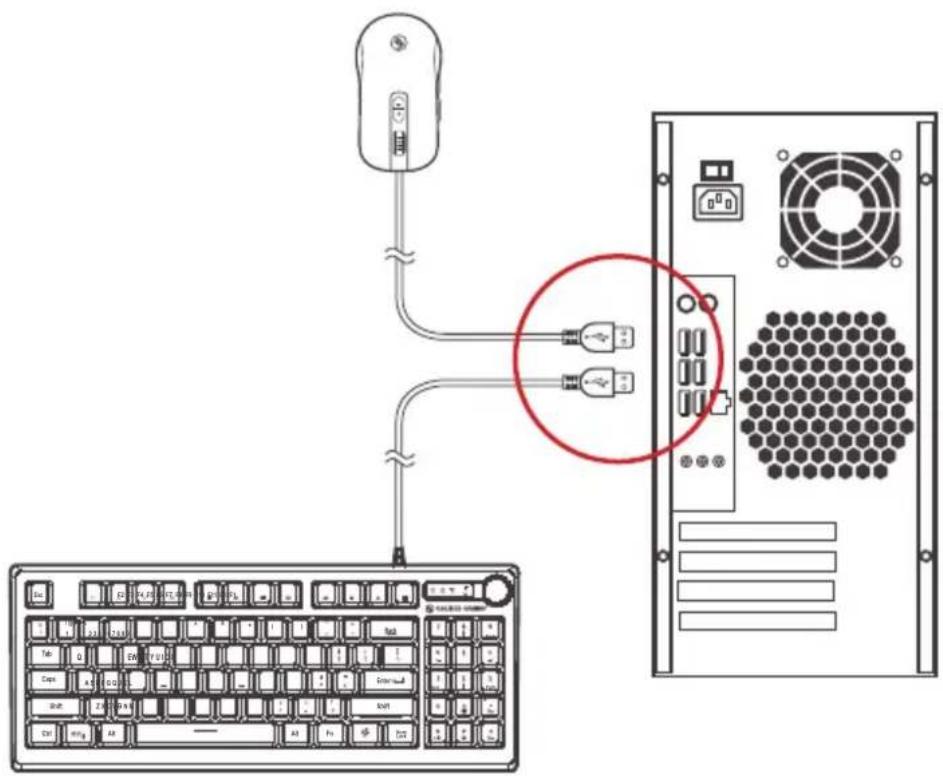
text_image
Diagram showing connection between a computer keyboard and a server rack, with labeled ports and a red circle highlighting the connection point.Operation for Mouse
DPI Setting:
The KORONA II's dpi buttons cycles through 5 preset resolution settings or through 5 custom settings that can be programmed with the user interface software. Press the + or - dpi button to increase or decrease to the next resolution setting. The illumination changes color to indicate the DPI has been changed.
Default DPI Resolution LED Color
| 400 Red |
| 800 Green |
| 1600 Blue |
| 3200 Yellow |
| 6200 Purple |
Report Rate Setting:
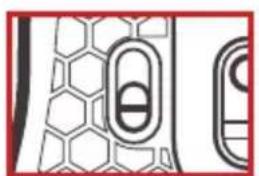
The KORONA II features an adjustable reporting rate 250, 500 or 1000 reports per second (rps) to better tailor the mouse to your system. Theoretically speaking, the highest 1000 rps settings should be the best setting for gaming, however due to the difference between system polling rates and refresh rates, and availability of system resources, a lower setting of 500 or sometimes even 250 rps may provide improved motion smoothness with some games. Try the different settings by moving the Report Rate Switch on the bottom of the KORONA II, and see which works best for you.
natural_image
Pure electrical circuit lines without any symbols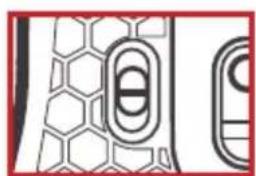
natural_image
Pure geometric pattern with hexagonal and oval shapes, no text or symbols present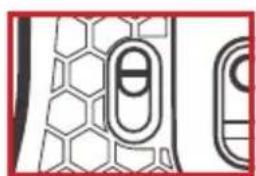
natural_image
Pure electrical circuit lines without any symbols1000 rps 500 rps 250 rps
Windows Key Lockout
The Windows key lockout prevents the Windows menu from popping up and interfering with your game if accidentally pressed while gaming. Press Fn + win key to lockout the Windows menu function. The Windows Lock LED will light up to confirm the Windows key is locked out. Press Fn + win again to unlock the Windows key.
All-Keys Lockout
If you take a break from gaming but wish to leave your system running, you can lock your keyboard to prevent unwanted keystrokes while away. Press Fn + F11 to lock the keys, and press Fn + F11 again to unlock.
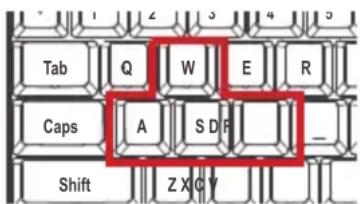
WASD Key Swap
The W, A, S, and D key functions can be swapped with the arrow keys for better functionality with certain games, especially MMO (Massively Multiplayer Online) games. Press Fn + W to swap key functions, and press Fn + W again to swap back to normal operation.
text_image
Tab Q W E R Caps A S D F _ Shift Z X Q YHotkeys
There are 12 hotkeys, each with two different functions depending on the keyboard mode. In Windows Mode (default) the F keys provide access to the standard window functions listed below:
| Windows Hotkeys | Function | |
| Fn + F1 | [0398] | Media Player |
| Fn + F2 |  | Volume Down |
| Fn + F3 |  | Volume up |
| Fn + F4 | [0400] | Mute |
| Fn + F5 |  | Stop |
| Fn + F6 |  | Previous Track |
| Fn + F7 |  | Play/Pause |
| Fn + F8 |  | Next Track |
| Fn + F9 |  | |
| Fn + F10 |  | Web/Home |
| Fn + F11 |  | All functions keys locked/unlocked |
| Fn + F12 | [0000] | Calculator |
Control Knob
The Control Knob allows switching between adjustment of system volume and keyboard backlight effects by pressing the Function key and the Control Knob. When entering Volume Adjustment mode, the status LED will change from [light icon] to [speaker icon] indicating you can now make changes to the system volume. Turn the Control Knob to increase or decrease the system volume.
Anti-Ghosting Keys
Your KORE II features 25 full anti-ghosting keys to ensure all your keystrokes are registered, especially during intense gaming sessions. These keys are: Q, A, Z, W, S, X, E, D, C, F, B, T, Y, U, 0, 6, 4, F9, ], /, Space, Tab, Backspace, Esc, Enter
RGB Backlight Functions
The multi-zone RGB LED backlight has multiple lighting options which are adjusted by pressing Fn + Control Knob to switch from Volume Control mode to Backlight Adjustment mode. When entering Backlight Adjustment mode, the status LED will change from [speaker icon] to [light icon] indicating you can now make changes to the lighting. Press down on the volume know to change lighting colors/patterns, and turn the Control Knob to increase or decrease the light intensity/pattern speed. Press the backlight key to toggle the lighting on or off.
In addition to the Control Knob, the backlighting can also be adjusted using the Function key plus the arrow keys as noted below:
Fn + ↑ = to increase brightness
Fn + ↓ = to decrease brightness
Fn + ← = to increase light speed
Fn + → = to decrease light speed
Federal Communication Commission Interference Statement
This equipment has been tested and found to comply with the limits for a Class B digital service, pursuant to Part 15 of the FCC rules. These limits are designed to provide reasonable protection against harmful interference in a residential installation. Any changes or modifications made to this equipment may void the user's authority to operate this equipment. This equipment generates, uses, and can radiate radio frequency energy. If not installed and used in accordance with the instructions, may cause harmful interference to radio communications. However, there is no guarantee that interference will not occur in a particular installation. If this equipment does cause harmful interference to radio or television reception, which can be determined by turning the equipment off and on, the user is encouraged to try to correct the interference by one or more of the following measures:
• Reorient or relocate the receiving antenna
- Increase the separation between the equipment and receiver
- Connect the equipment into an outlet on a circuit different from that to which the receiver is connected
- Consult the dealer or an experienced radio/TV technician for help
FCC Caution: Any changes or modifications not expressly approved by the party responsible for compliance could void the user's authority to operate this equipment.
Limited Warranty
This product carries a 2 Year Limited Warranty. For the terms and conditions of this warranty, please go to https://www.iogear.com/support/warranty
Register online at https://www.iogear.com/register
Important Product Information
Product Model ____
Serial Number ____
Contact
WE'RE HERE TO HELP YOU!
NEED ASSISTANCE SETTING UP THIS PRODUCT?
Make sure you:
- Visit www.iogear.com for more product information
- Visit www.iogear.com/support for live help and product support
IOGEAR
https://iogear.custhelp.com
support@iogear.com
www.iogear.com
www.kalibergaming.com
text_image
Technical diagram of a device rear panel with labeled components and connection linesInstallation
text_image
Diagram showing connection between a computer keyboard and a server rack, with labeled ports and a red circle highlighting the connection point.natural_image
Abstract geometric pattern with hexagonal and oval shapes (no text or symbols)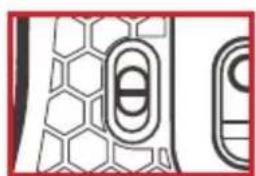
natural_image
Pure geometric pattern with hexagonal and oval shapes, no text or symbols present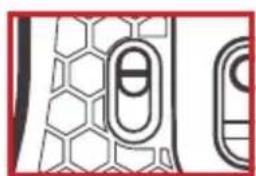
natural_image
Pure electrical circuit lines without any symbols1000 rps 500 rps 250 rps
text_image
1 ! @ 9 S % 2 3 4 5 Tab Q W E R Caps A S D F _ Shift Z X Q Yhttps://iogear.custhelp.com
support@iogear.com
www.iogear.com
text_image
Technical diagram of a device rear panel with labeled components and connection linesInstalación
text_image
Diagram showing connection between a computer keyboard and a server rack, with a magnified inset highlighting internal components.natural_image
Pure electrical circuit lines without any symbols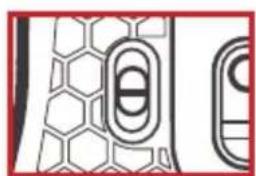
natural_image
Pure geometric pattern with hexagonal and oval shapes, no text or symbols present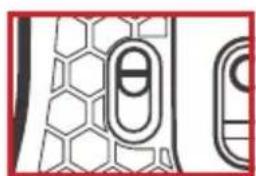
natural_image
Pure electrical circuit lines without any symbols1000 rps 500 rps 250 rps
text_image
Tab Q W E R Caps A S D F - Shift Z X Qhttps://iogear.custhelp.com
support@iogear.com
www.iogear.com
www.kalibergaming.com
