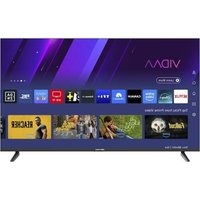
ED40A05FHD-MM - TV EDENWOOD - Free user manual and instructions
Find the device manual for free ED40A05FHD-MM EDENWOOD in PDF.


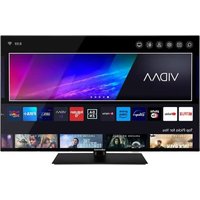
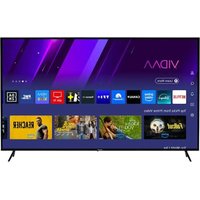
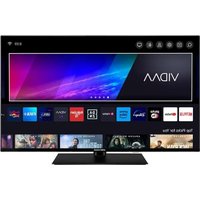
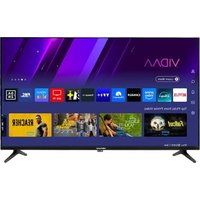
| Product type | Full HD LED TV |
| Brand | Edenwood |
| Model | ED40A05FHD-MM |
| Screen size | 40 inches (100 cm diagonal) |
| Screen resolution | 1920 x 1080 pixels (Full HD) |
| Panel type | LED, 8-bit |
| Aspect ratio | 16:9 |
| Typical contrast | 1200:1 |
| Energy class | D |
| Power consumption (on) | 75 W (29 kWh/1000h) |
| Standby consumption | < 0.5 W |
| Power supply | AC 100-240 V~50/60 Hz |
| Tuner | DVB-T/T2 |
| Audio power | 2 x 8 W |
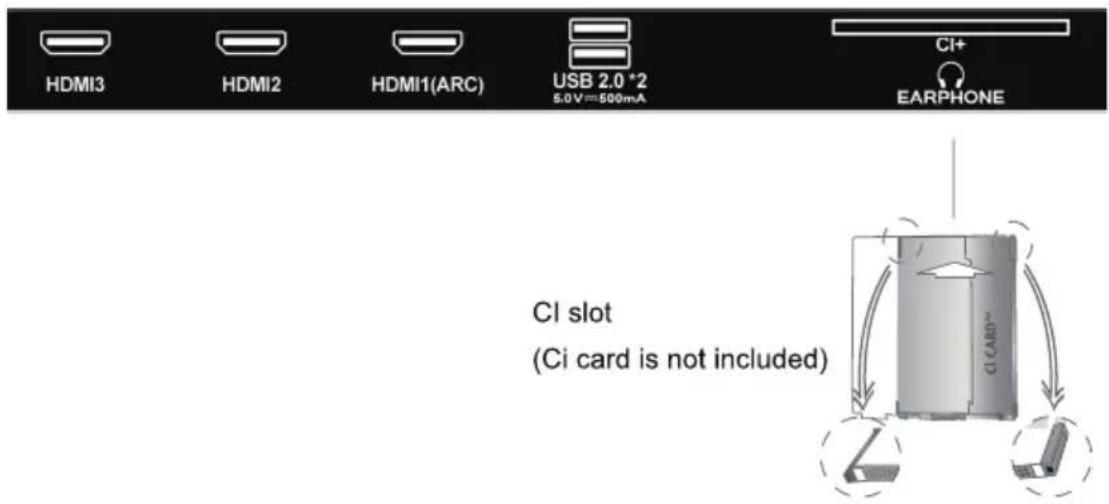
| Input connectors | RF, HDMI (3 including 1 ARC), AV (composite), USB 2.0 (2), CI+, RJ45 |
| Output connectors | Optical, Headphone (3.5 mm) |
| USB functions | PVR (recording), multimedia playback (AVI, MPG, MP3, JPG, PNG, TXT) |
| Dimensions (with stand) | 892.6 (W) x 212.2 (D) x 551.5 (H) mm |
| Weight (with stand) | Approximately 4.6 kg |
| Operating temperature | 0 °C to 45 °C |
| Wall mount | VESA M6 x 8 mm (screws included) |
| Accessories included | User guide, remote control, stand (2 parts), batteries (not included) |
| Warranty | 2 years (legal conformity) |
| Maintenance | Soft dry cloth; do not use chemicals |
Frequently Asked Questions - ED40A05FHD-MM EDENWOOD
User questions about ED40A05FHD-MM EDENWOOD
0 question about this device. Answer the ones you know or ask your own.
Ask a new question about this device
Download the instructions for your TV in PDF format for free! Find your manual ED40A05FHD-MM - EDENWOOD and take your electronic device back in hand. On this page are published all the documents necessary for the use of your device. ED40A05FHD-MM by EDENWOOD.
USER MANUAL ED40A05FHD-MM EDENWOOD
ED40A05FHD-MM-10007578
GUIDE D'UTILISATION
USER MANUAL
HANDLEIDING
INSTRUCCIONESDEUSO
edenwood
Merci !
RISQUE D'ÉLECTROCUTION NE PAS OUVRIR
ATTENTION : POUR ÉVITER TOUT RISQUE D'ÉLECTROCUTION, NE RETIREZ PAS LE COUVERCLE (NI LE PANNEAU ARRIÈRE). AUCUNE PIÈCE N'EST REMPLAÇABLE PAR L'UTILISATEUR. CONTACTEZ UN PERSONNEL QUALIFIÉ EN CAS DE PANNE.
natural_image
Symbol of a trash bin crossed out by two crossed lines, with a solid black rectangle below (no text or labels)natural_image
Line drawing of a flat-screen TV and its rear panel showing internal components (no text or symbols)Heure
Vidéo
INSTALLATION DU SUPPORT
natural_image
Architectural floor plan showing room layout and door placement (no text or labels)①
natural_image
Architectural floor plan showing room layout and door placement (no text or labels)②
natural_image
Technical line drawing of a mechanical or electronic component with mounting flanges and a central control unit (no text or symbols)CARACTÉRISTIQUES TECHNIQUES
Thank you for choosing Edenwood product. Edenwood products are chosen, tested, and recommended by the ELECTRONIC DEPOT, so you be sure you are getting a top-quality, easy-to-use product that won't let you down. We're confident your new device will be a pleasure to use every day.
Welcome to ELECTRO DEPOT.

ELECTRO DEPOT
Table of contents
English
| AGETTING STARTED | IMPORTANT INSTRUCTIONSACCESSORIESFEATURESGENERAL PARTSREMOTE CONTROLREMOTE CONTROL PREPARATIONBASIC CONNECTION |
| BOPERATIONS | BASIC OPERATIONSFIRST TIME INSTALLATIONMEDIA PLAYBACKMAIN MENUATV AND OTHER MODES |
| CFOR REFERENCE | MAINTENANCEWALL MOUNTINGSTAND INSTALLATIONSPECIFICATIONSTROUBLESHOOTING |
SAFETY PRECAUTIONS

The warning sign showing a lightning b in a triangle indicates that this product contains "dangerous electrical voltages".
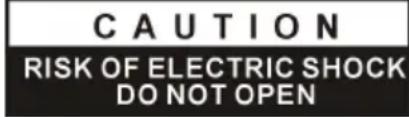
CAUTION: TO AVOID THE RISK ELECTROCUTION, DO NOT REMOVE THE COVER (OR THE BACK OF THE DEVICE). NO PARTS ARE REPLACEABLE THE USER. PLEASE CONTACT QUALIFIED PERSONNEL IN CASE OF FAILURE.

The warning sign showing an exclamation point in a triangle indicates that this point of manual requires special attention.

CAUTION: - TO REDUCE THE RISK OF FIRE, ELECTRIC SHOCK OR SERIOUS INJURY:
Read these safety instructions before using your device and store them for pos reference.
- This device must only be connected to a mains network whose characterist identical to those shown on the device identification plate.
- The mains plug must always be easily accessible. It serves as a mains switch of the device.
- To disconnect the device from the mains, the plug must be disconnected. mains cable by its plug. Do not pull on the mains cable to disconnect it
- The mains cables must be routed so that they are not trampled upon or objects placed on or against them.
- If the mains cable of the device is damaged, it must be replaced by the its after-sales service or a similarly qualified person to avoid any danger.
- The device must not be exposed to dripping or splashing water, moisture
- Do not place the device near water, for example in a bathroom or near
- No objects filled with liquids such as vases should be placed on or abov
- Never touch the mains cable with wet hands, this could cause a short ci shock.
- To avoid the risk of fire, do not place sources of open flames, such as or heat sources such as radiators, on or near the device.
A
GETTING STARTED
English
- The device is intended for use only in a temperate climate.
- If smoke, an unusual odour or strange noise is emitted by the device: ur mains cable from the electrical outlet and consult the after-sales service or centre. Never attempt to make repairs yourself, this could be potentially da
- Do not attempt to open or disassemble the device. This would expose you dangerous voltages.
- The slots and openings of the device are intended for ventilation and to operation. To prevent overheating, these openings must not be obstructed in any way, such as by newspapers, tablecloths or curtains.
● Always leave a minimum distance of 10 cm around the device for sufficient - Never push any object into the device through one of its openings, as it contact with electrical components, which can cause an electric shock or fi
- In case of thunderstorm or lightning, immediately unplug the mains cable from outlet.
- Always turn off the device when not in use. Unplug the mains cable from outlet when the device will not be used for a long period of time.
- Unplug the device from the electrical outlet before cleaning. Do not use lic aerosol cleaners. Use a dry, soft cloth for cleaning.
- If the product does not bear the logo, it is a Class I device. It must be connected to a mains socket with a protective earth connection.
!
CAUTION -: TO AVOID RISK OF INJURY OR DAMAGE TO THE PRO OTHER EQUIPMENT:
- This product is intended for household and personal use only. Do not use for commercial, industrial or other purposes.
- Do not subject the product to strong shocks, extreme temperatures or direc for prolonged periods.
- Keep the product away from magnetic objects, motors and transformers.
- Do not use the product outdoors, regardless of weather conditions.
- Install the device only on a stand (furniture, wall...) that can support its v (Danger of instability: The TV may fall and cause serious bodily injury)
DISPOSAL OF OLD ELECTRICAL APPLIANCES
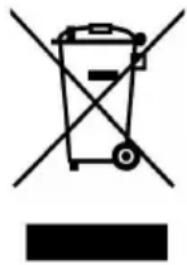
The European directive 2012/19/EU on Waste Electrical and Electronic Equipment (WEPA), that old household electrical appliances must not be disposed of in the normal unsold waste stream. Old appliances must be collected separately in order to optimize the recovery of the materials they contain, and reduce the impact on human health and the The crossed out “wheeled bin” symbol product reminds you of your obligation, when you of the appliance, it must be separately collected.
$$ \bar{C}\in $$
natural_image
Symbol of a trash bin crossed with two crossed lines, no text or labels presentFor equipment covered by the Radio Equipment Directive:
Renaissance Public Service SRL hereby declares that the type of radio equipme is in compliance with Directive 2014/53 /EU.
The full text of the EU declaration of conformity is available at the following i www.rserv.ro
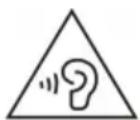
To avoid possible hearing damage, do not listen at high audio volume for long periods of time.
Occasionally, a few non-active pixels may appear on the screen as a fixed black green or red point. Please note that this does not affect the performance of: Take care not to scratch the screen with fingernails or other hard objects.
ACCESSOIRES
User Manual....1
Remote Control....1
Stand....2
All the pictures in this manual are just for your reference, appearance and dis subject to the final product.
FEATURES
40" LED Display
This unit has a built-in LED display window to provide clear vision and radiation.
Support Auto TV Scanning
Support Digital Broadcasting Reception
Support TV Guide Function
Support TELETEXT (Europe) Function
Support USB Multimedia Playback
Support Multi-languages On Screen Display
Support Full Function Remote Control
Support HDMI, AV, and CI Input
Support EARPHONE and OPTION
Support PVR Function
Support TIME SHIFT Function
With Detachable Standolder
With External Antenna Jack
With Built-in Speakers
GENERALPARTS
MAINUNIT
natural_image
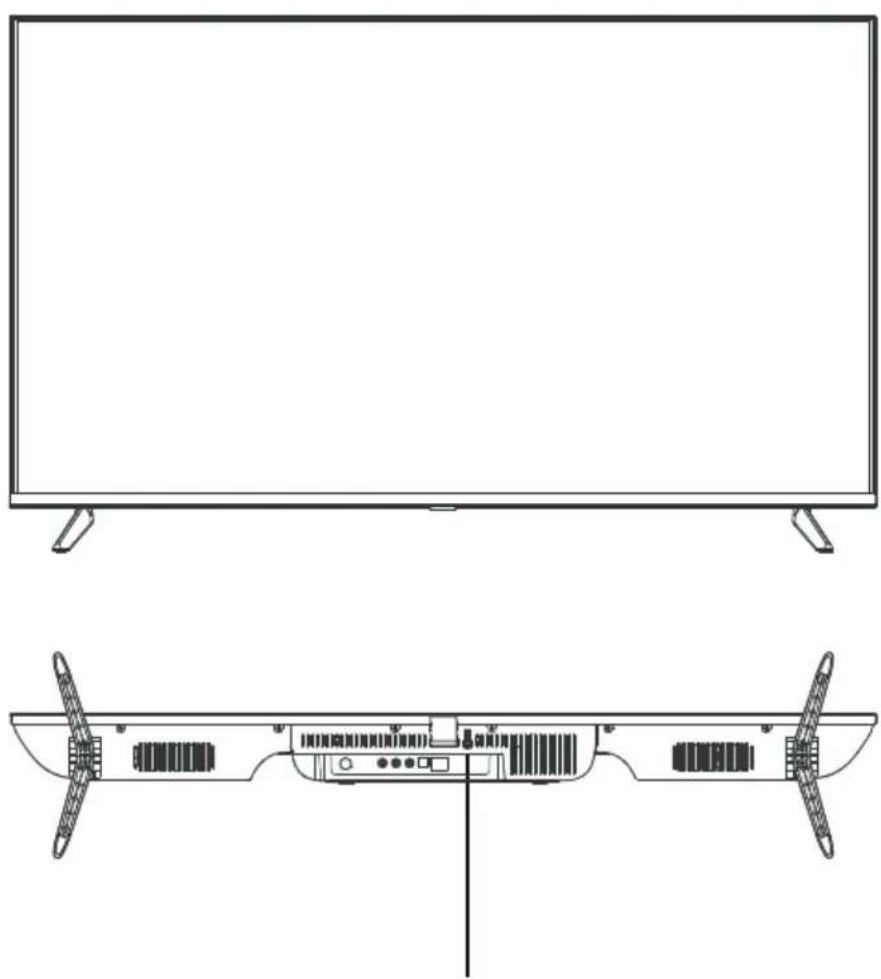
Line drawing of a flat-screen TV with rear panel and side view showing internal components (no text or symbols)POWER (⏻): Turns the TV on and off.
GENERALPARTS
BackView
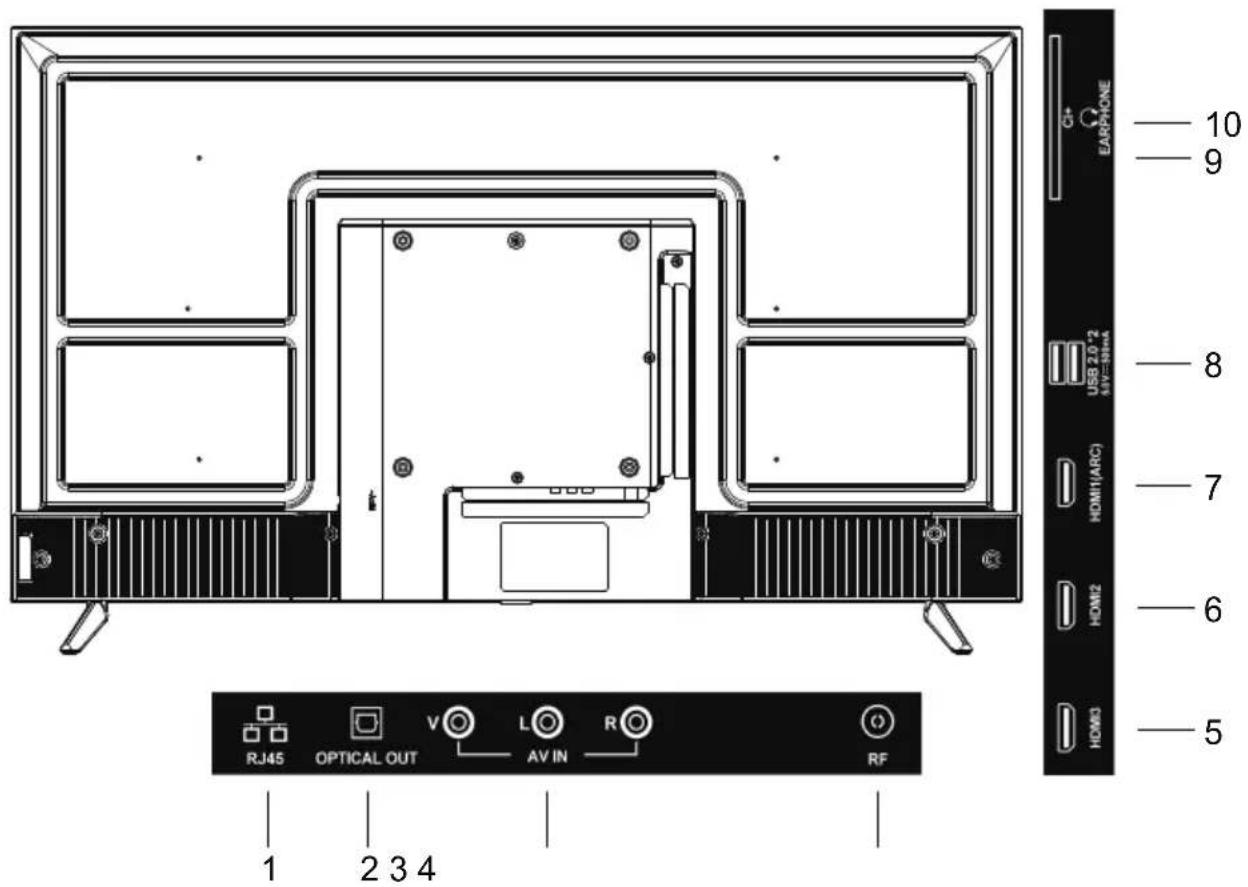
- RJ45
- OPTICAL output terminal
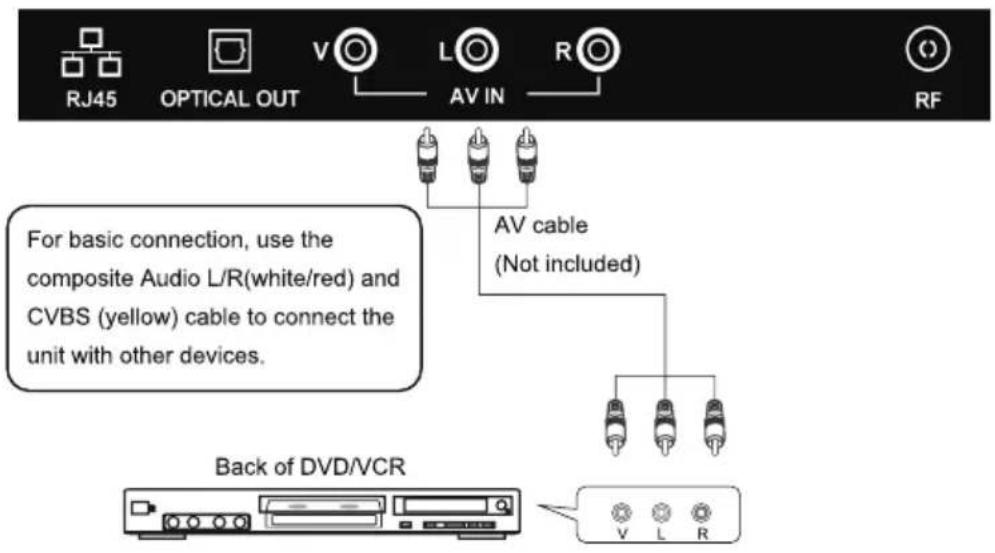
- AV input terminal
- ANTENNA input terminal-Pour connecter une antenne externe.
- HDMI3 input terminal
- HDMI2 input terminal
- HDMI1 input terminal(ARC)
- USB1/USB2 input terminal
- Cl+ input terminal
- EARPHONE output terminal
REMOTE CONTROL
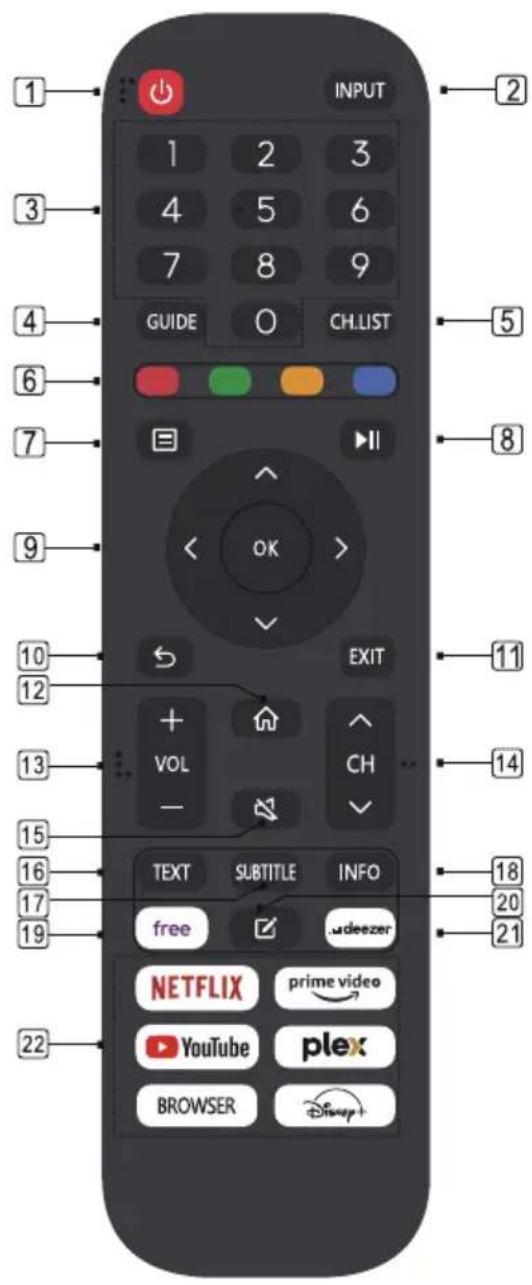
- STANDBY(⏻) : Standby turn on and off.
- INPUT: Choose input source.
- 0\~9 : Continue to press the keys to select.
- GUIDE: Enter GUIDE.
- CH.LIST: Channel list.
- 4 Color: Customized in different page.
- MENU: Enter or exit menu.
- ▶I: Press one time to pause, press again to playback.
- Direction/OK:Move up,down,left,right/Confiem.
- Back: Return to the previous interface or menu.
- Exit: Exit currentinterface or menu.
- Home: Enter home page.
- Volume:Volume up/down
- Channel: Change channel.
- Mute: Mute sound.
- TEXT: Enter or exit teletext.
- SUBTITLE:USB convert video subtitles
- INFO: Diaplay info inlive TV.
- free: Upload your artwork or family phototo website, you will be able to take them as ascreen saver once you enable art mode.
- ☑: Long press to select an application as a shortcut application, after setting, short press to directly access the selected application.
- deezer:deezer.
- Contenarea: Six button for CSP APPS.
REMOTECONTROLPREPARATION
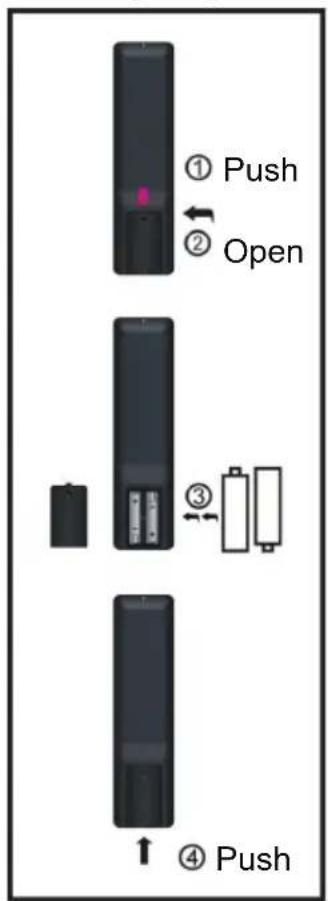
BATTERYINSTALLATION
Install the batteries as the following pictures. Be sure + and – terminals are positioned as indicated in the battery compartment (Fig1).
SERVICELIFEOF BATTERIES
- The batteries normally last for one year although this depends on how often the remote control is used.
- If the remote control fails to work even when it is operated near the player, replace the batteries.
- Use two size AAA dry batteries.
NOTE:
- Do not drop, step on or otherwise impact the remote control. This may damage the parts or lead to malfunction.
- If the remote control is not going to be used for a long time, remove the batteries.
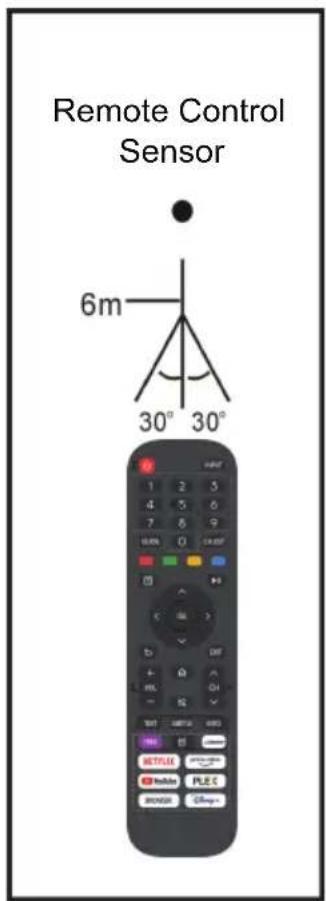
Point the remote control from no more than about 6m from the remote control sensor and within about 60° of the front of the player (Fig2).
NOTES:
- The operating distance may vary according to the brightness of the room.
- Do not point bright light at remote control sensor.
- Do not place objects between the remote control and the remote control sensor.
- Do not use this remote control while simultaneously operating the remote control of any other equipments.
Fig1Fig2
BASICCONNECTION
- Ensure all the cables are disconnected from the main unit before connecting to AC power source.
- Read through the instructions before connecting other equipment.
CONNECTINGTOACPOWERSOURCE

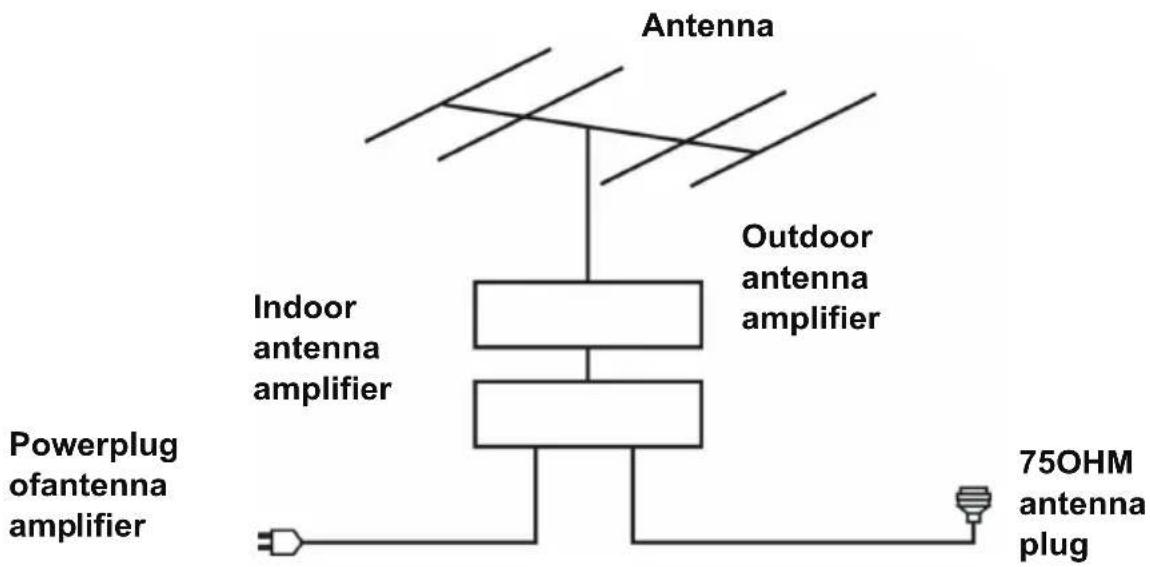
CONNECTEXTERNALANTENNATOUNIT
Install external antenna into antenna jack for best picture.
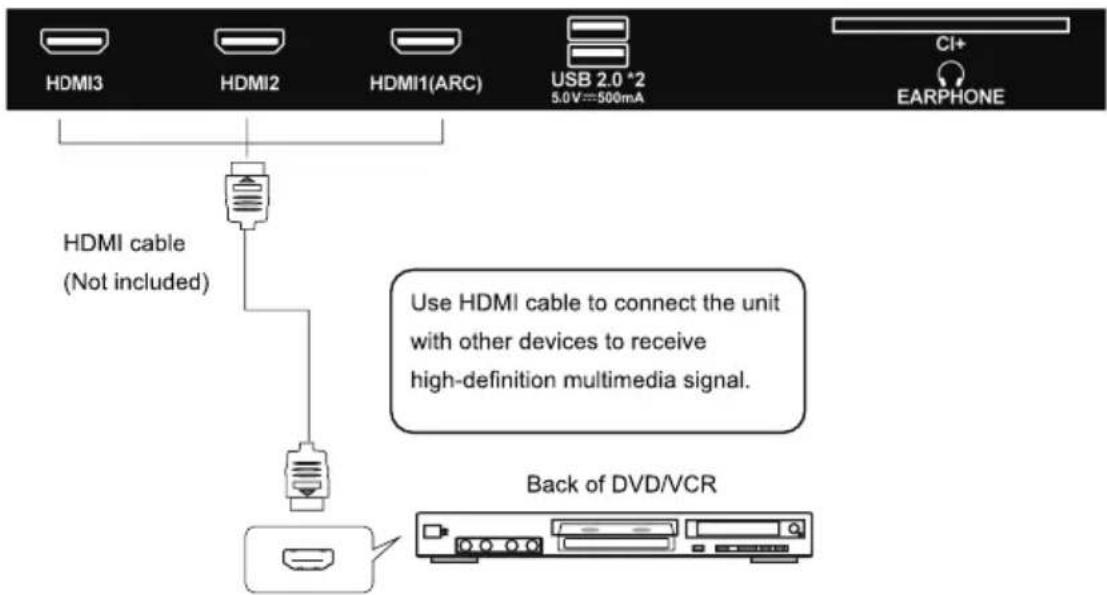
HDMI CONNECTION
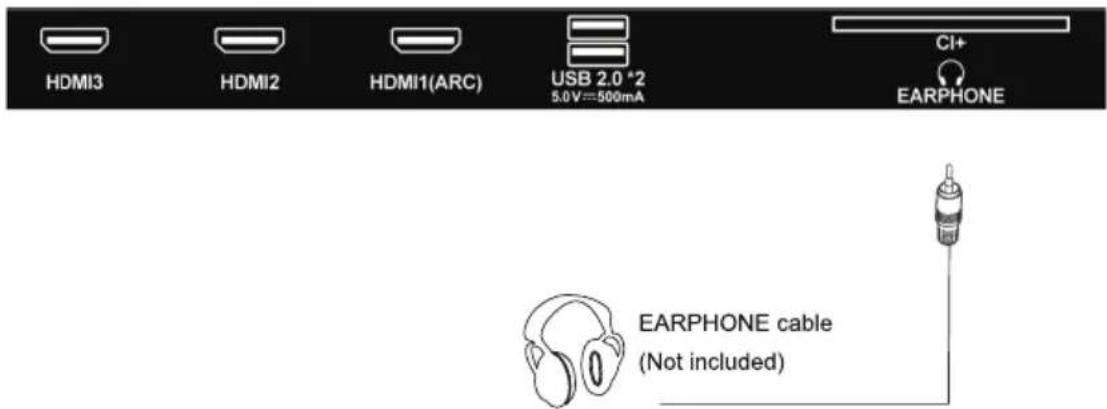
EARPHONE CONNECTION
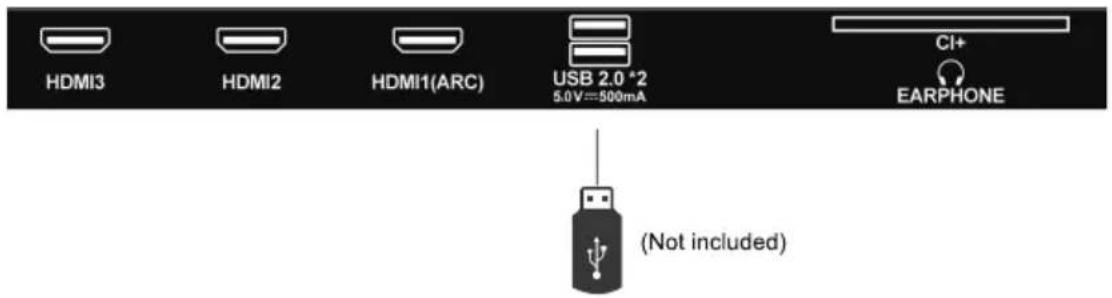
USB CONNECTION
INSERT A CI CARD
AV (COMPOSITE VIDEO) CONNECTION
MAKE SURE ALL THE EQUIPMENTS AND POWER CORD ARE CONNECTED PROPERLY AND THE UNITIS SET IN CORRECT MODE BEFORE KINDS OF OPERATIONS
MAKESUREALLTHEEQUIPMENTSANDPOWERPLUGARE CONNECTEDPROPERLYANDTHEUNITISSETINCORRECTMODE BEFOREKINDSOFOPERATIONS.
BASICOPERATIONS
-PressSTANDBYbuttonontheunitorremotecontroltopowerONtheunit pressitagaintopowerOFF(standbymode)theunit
SELECTDESIREDPROGRAM
- Press CH+ button to play next channel.
- Press CH- button to play previous channel.
- Press number buttons on remote control directly to select desired program.
NOTE: Press -/-- button repeatedly to switch the digit.
VOLUMECONTROL
- Press VOL+ or VOL- to adjust the level of current volume.
Available range: 0-100.
MUTECONTROL
- Press MUTE button to mute the sound, press it again to turn on the sound.
SOURCESETTING
- Press SOURCE button on the remote control to display the sources list.
- Press UP or DOWN navigation button to select desired input source, and then press OK button to confirm selection.
Home
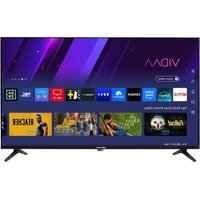
When finish First Time setup, you can enter HOME screen.
Press [▼] / [▲] / [◀] / [▶buton to select HOME screen.
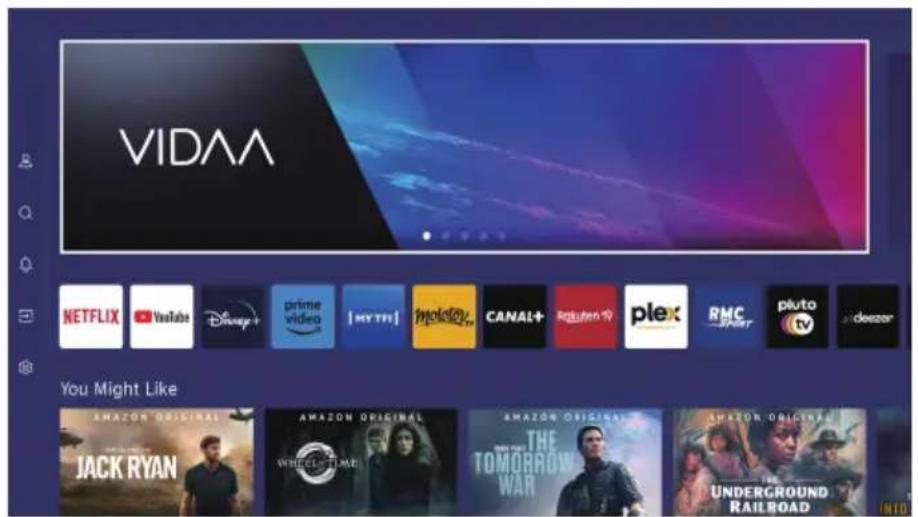
(Availability of applications may vary per country.)
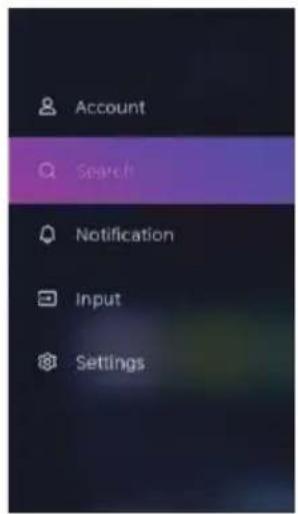
Account
Press [▼] / [▲] / [◀] / [▶] button to select account. You can sign into your VIDAA account or create account.
Search
Press [▼] / [▲] / [◀] / [▶] button to select search and enter the Search interface.
In this interface, you can search by manually entering the search content.
Press [▼] / [▲] / [◀] / [▶] to select the content recommended on this page, and press OK to view it.
Notification
Press [▼] / [▲] / [◀] / [▶] button to select notifications.
In this interface, you can choose which types of notifications you would like to receive.
Input
Press [▼] / [▲] / [◀] / [▶] button to select Input. Press [▼] / [▲] to select, and then press OK to enter.
Settings
Press [▼] / [▲] / [◀] / [▶] button to select Settings on the Home page, and press OK button to enter the Setting Center. Press [▼] / [▲] / [◀] / [▶] button to select.
Picture
Press【▼】/【▲】button to select the option that you want to adjust in the PICTURE menu.
Press OK button to adjust.
After finishing your adjustment, Press OK button to save and return to the previous menu.
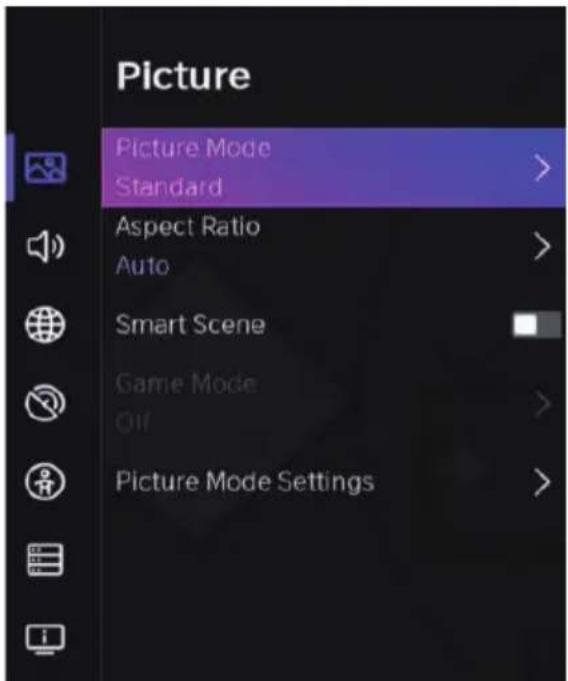
Picture Mode
Press [▼] / [▲] button to select Picture Mode, then press [▼] / [▲] & OK button to select.
| Standard | The default mode, to make users experience high-quality images under normal light. |
| Cinema day | Enhance the contrat , color and clarity of the screen to make the color more vivid. |
| Cinema night | Reduce the screen contrast , color and clarity to make the screen looks soft. |
| Dynamic | Enhance the contrast ,color and clarity of the screen, so that the picture in the dynamic will balance the color. |
| Sports | This mode is more suitable for watching sport video. |
Aspect Ratio
Adjust the Picture size to stretch or zoom in on your picture.
Press [▼] / [▲] button to select Aspect Ratio.
Press【◀】/【▶】button to select.
Smart Scene/Game Mode
Press[▼] / [▲] to select, and press[◀] / [▶] / OK to select On/Off.
Picture Mode Settings
Press [▼] / [▲] to select Picture Mode Settings, and press [▼] / [▲] to select and press OK to enter.
Apply Picture Settings
In this menu, you can adjust current picture mode to apply to all sources or just current source.
Press【◀】/【▶】to select and press OK to enter.
Backlight/Brightness/Contrast/Colour Saturation/Sharpness
Press [▼] / [▲] to select, and press [◀] / [▶] to adjust.
Backlight Adjust the image backlight.
Brightness Adjust the image brightness.
Contrast Adjust the image contrast.
Colour Saturation Adjust the image color density.
Sharpness Adjust the image edge sharpness.
Adaptive Contrast
In this menu, you can automatically darken dark areas and lighten light areas of images to see more details.
Press【▼】/【▲】to Adaptive Contrast, and press【◀】/【▶】to select.
Noise Reduction
Improve how clear the pictu re appears by reducing noise.
Press【▼】/【▲】button to select Noise Reduction. Press【◀】/【▶】button to select.
MPEG Noise Reduction
Reduces MPEG block noise and provides clearer edge transitions.
Press [▼] / [▲] button to select Noise Reduction. Press [◀] / [▶] button to select.
Colour Temperature
Adjust the overall color of the image.
Press【▼】/【▲】button sto elect Color Temperature. Press【◀】/【▶】button to select.
Expert Settings
Adjust the color space and Gamma to bestsuit the content you're viewing.
Press【▼】/【▲】button to select Expert settings. Press【◀】/【▶】button to enter sub-menu.
Colour Tuner
Adjust the Hue, saturation and brightness of color settings.
Press [▼] / [▲] button to select Colour Tuner.
Press [◀] / [▶] button to enter sub-menu and adjust.
White Balance
Adjust the intensity of red, green and bule lights to view the ture colors of all images in the picture.
Press【▼】/【▲】button to select White Balance. Press【◀】/【▶】button to enter and adjust.
Black Level (Only available on HDMI source)
In this menu, you can adjust the HDMI signal range to be more suitable for content.
Press [▼] / [▲] button to select Black Level. Press [◀] / [▶] button to select.
Gamma Adjustment
Press [▼] / [▲] button to select Gamma Adjustment. Press [◀] / [▶] button to select.
Gamma Calibration
In this menu, you can adjust the Gamma curve which one you selected.
Press [▼] / [▲] button to select Gamma Calibration.
Press [◀] / [▶] button to enter sub-menu to adjust.
RGB Only Mode
Press【▼】/【▲】button to select RGB Only Mode .Press【◀】/【▶】button to select.
Low Blue Light
Press【▼】/【▲】button to select Low Blue Light. Press【◀】/【▶】button to select On/Off.
Overscan
Press【▼】/【▲】button to select Overscan. Press【◀】/【▶】button to select.
Reset Current Mode
Press【▼】/【▲】button to select Reset Current Mode. Press ENTER /【▶】button to enter sub-menu.
Sound
Press [▼] / [▲] button to select the option that you want to adjust in the SOUND menu. Press OK button to adjust.
After finishing your adjustment, Press OK button to save and return to the previous menu.
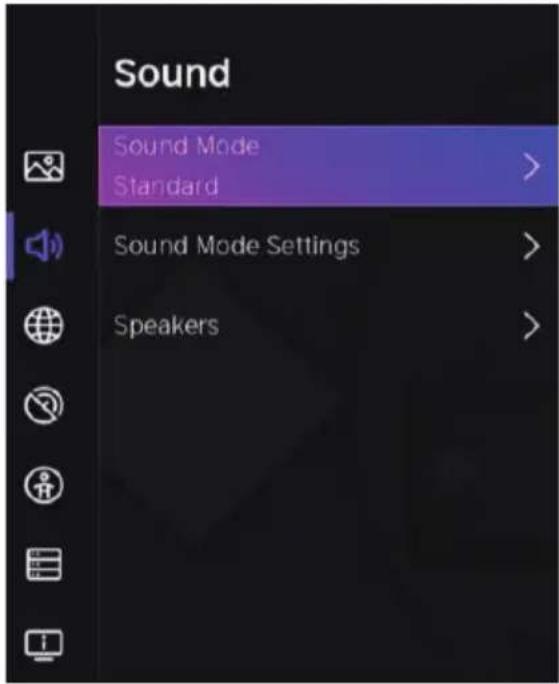
Sound Mode
Press【▼】/【▲】button to select your favorite Sound Mode.
Standard Produces a balanced sound in all environments.
Theatre Theatre mode increases the surround sound effect and provides a more prominent subwofer response.
Music Preserves the original sound.Good for musical programs.
Speech Low and high frequencies are attenuated to improve thereproduction and clarity of the human voice.
Late Night Improve the reproduction and clarity of the human voice with a low volume level.
Sports Optimised sound for watching football game.
Sound Mode Settings
Press【▼】/【▲】button to select sound Mode Settings. Press【◀】/【▶】button to enter sub-menu.
Apply Audio Settings
Adjust the Curren sound mode to apply to all source or just current source.
Press [▼] / [▲]button to select select, then press OK / [▶]button to select.
Equalizer
Press [◀] / [▶] button to select select, and adjust Equalizer detail.
Wall Mount Setup/Auto Volume Control
Press [▼] / [▲] button to select select, and press [◀] / [▶] button to select choose.
Reset Current Mode
Press [▼] / [▲] button to select select, and press [◀] / [▶] button to select choose restore or not.
Speakers
Press【▼】/【▲】button to select Speakers. Press OK button to enter sub-menu.
Network
Press [MENU] to enter the main menu, press [▼] / [▲] button to select settings.
- Press [▼] / [▲] button to select the option that you want to adjust in the Network menu.
- Press OK button to adjust.
- After finishing your adjustment, Press OK button to save and return to the previous menu.
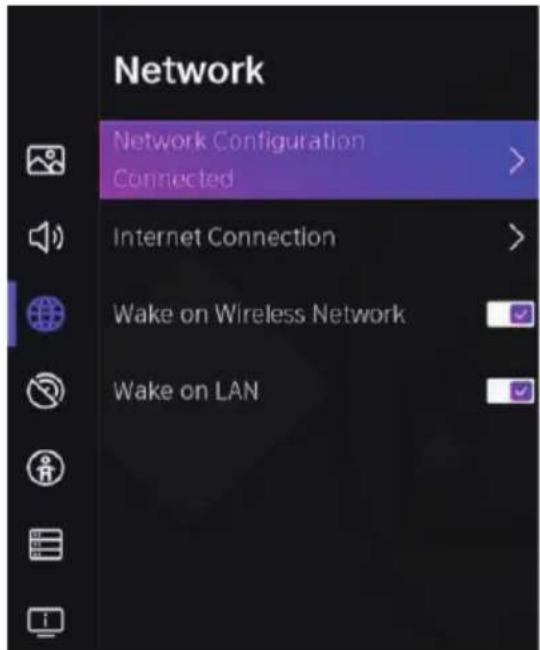
Network Configuration
Press [▼] / [▲]button to select Network Configuration to set up the network.
Internet Connection
Press [▼] / [▲] button to select Internet Connection to check Internet Connection.
Wake on Wireless Network
Press [▼] / [▲]button to select Wake on Wireless Network, then press [◀] / [▶]button to select.
Wake on LAN
Press【▼】/【▲】button to select Wake on LAN. Press【◀】/【▶】button to select.
Channel
Press [▼] / [▲] button to select the option that you want to adjust in the Channel menu.
Press OK button to adjust.
After finishing your adjustment, Press OK button to save and return to the previous menu.
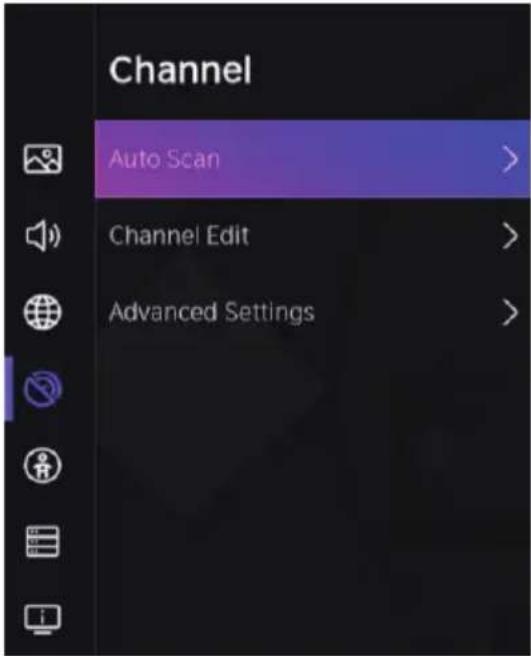
Auto Scan
Automatic search can search for effective program channel automatically.
Press [▼] / [▲] button to select Auto Scan, then press OK button to setup.
Channel Edit
Press [▼] / [▲] button to select Channel Edit, then press OK / [▶] button to enter.
Manual Scan
Press [▼] / [▲] button to select Manual Scan, then press OK / [▶] button to enter.
Press [▼] / [▲] button to select DTV Manual Scan/ATV Manual Scan.
DTV Manual Scan
Press [▼] / [▲]button to select DTV Manual Scan.then press OK button to enter.
ATV Manual Scan
Press [▼] / [▲] button to select ATV Manual Scan, then press OK button to enter.
Channel List Auto-Update
Press [▼] / [▲] button to select Channel List Auto-Update, then press OK button to to select.
Programme Guide Auto Update
Press[▼] / [▲] button to select Programme Auto Update.
CI+ Module Settings
Press[▼] / [▲]button to select Cl+ Module Settings and you can review the advanced settings menu.
Accessibility
Press [▼] / [▲] button to select the option that you want to adjust in the Accessibility menu.
Press OK button to adjust.
After finishing your adjustment, Press OK button to save and return to the previous menu.
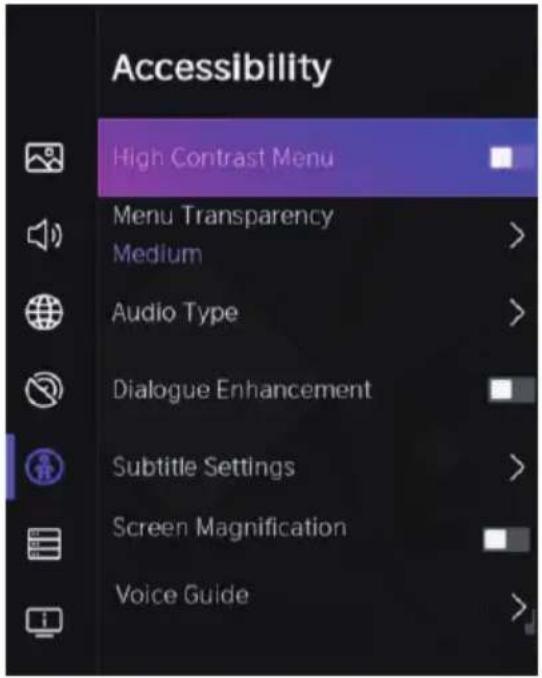
High Contrast Menu
Press [▼] / [▲] button to select High Contrast Menu, then press OK / [▶] button to select On/Off.
MenuTransparency
Press [▼] / [▲]button to select MenuTransparency, then press [◀] / [▶]button to choose.
Audio Type
Press [▼] / [▲]button to select Audio Type, then press [▼] / [▲]button to select AudioType/Audio Format/Fader Control.
Press [▼] / [▲] button to select Dialogue Enhancement, then press OK / [▶] button to enter sub-menu.
Subtitles Settings
Press [▼] / [▲] button to select Subtitles Settings, then press [◀] / [▶] button to select.
Screen Magnification
Press[▼] / [▲] button to select Screen Magnification, then press OK / [▶] button to select On/Off.
Voice Guide
Press [▼] / [▲] button to select Voice Guide, then press OK button to setup Voice Guide.
System
Press [▼] / [▲] button to select the option that you want to adjust in the System menu.
Press OK button to adjust.
After finishing your adjustment, Press OK button to save and return to the previous menu.
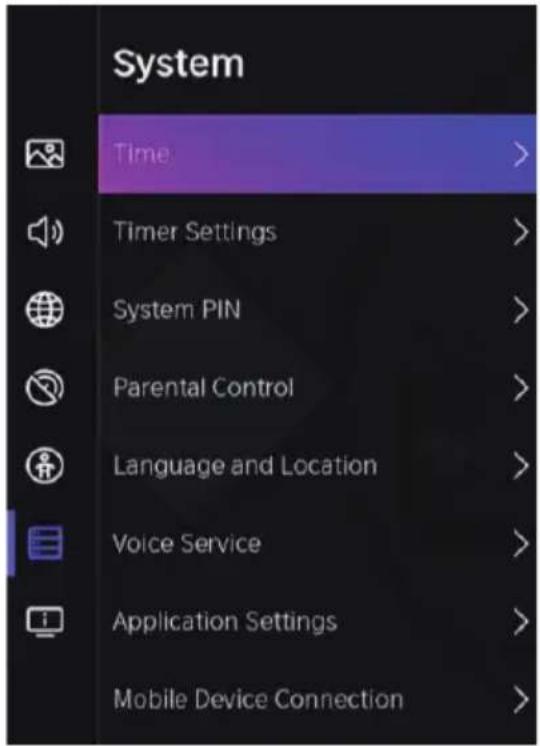
Time
Press【▼】/【▲】button to select Time.
Timer Settings
Press【▼】/【▲】button to select Timer Settings.
System PIN
Press [▼] / [▲] button to select System PIN.
Change your PIN that you use to access Parental Controls.
Auto Channel Scan and Reset To Factory Defaults.
Parental Control
Press [▼] / [▲] button to select Parental Control.
Turn on Parental Controls to prevent children from being able to view certain content.
Language and Location
Press [▼] / [▲] button to select Language and Location.
Voice Service
Press[▼] / [▲] button to select Voice Service.
And press [▼] / [▲] button to enter sub-menu and setup.
Application Settings
Press【▼】/【▲】button to select Application Settings.
Mobile Device Connection
Press[▼] / [▲] button to select Mobile Device Connection, then press Ok/ [▶] to select.
HDMI&CEC
Press[▼] / [▲] button to select HDMI&CEC, then press OK button to enter sub-menu to select.
Advanced Settings
Press[▼] / [▲] button to select Advanced Settings, then press Ok/ [▶] button to enter.
Support
Press[▼] / [▲] button to select the option that you want to adjust in the Support menu.
Press OK button to adjust.
After finishing your adjustment, Press OK button to save and return to the previous menu.
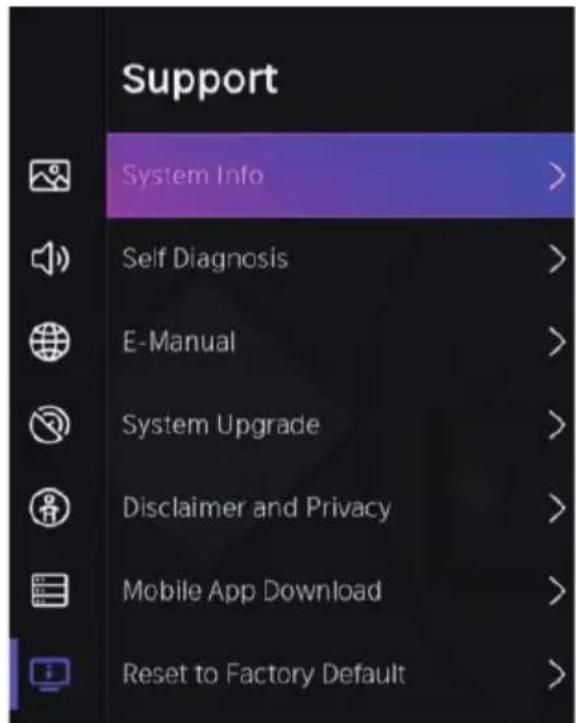
System Info
View System information
Press[▼] / [▲] button to select System Info, then press Ok/ [▶] button to enter sub-menu
Self Diagnosis
Perform self diagnosis to test sound, picture and connections.
Press [▼] / [▲] button to select Self Diagnosis then press Ok/ [▶] button to enter sub menu.
E-Manual
Launch the E-Manual and get to know more about your TV.
Press [▼] / [▲] button to select E-Manual, then press Ok/ [▶] button to enter sub-menu.
System Upgrade
Set your TV to receive the latest firmware.
Press [▼] / [▲] button to select System Upgrade, then press Ok / [▶] button to entersub-menu.
Disclaimer and Privacy
Click to read the Disclaimer details.
Press [▼] / [▲] button to select Disclaimer and Privacy, then press Ok / [▶] button to enter sub-menu.
Mobile App Download
Install mobile app on your smartphone to control your TV.
Press [▼] / [▲] button to select Mobile App Download, then press Ok/ [▶] button to enter sub-menu.
Reset to Factory Default
Restore your TV to the factory default.
Press [▼] / [▲] button to select Reset to Factory Default, then press Ok / [▶] button to enter sub-menu and select.
Media
Press [▼] / [▲] / [◀] / [▶] button to select Media on the Home page or press MEDIA button on the remote, and press OK button to enter the Media Center.
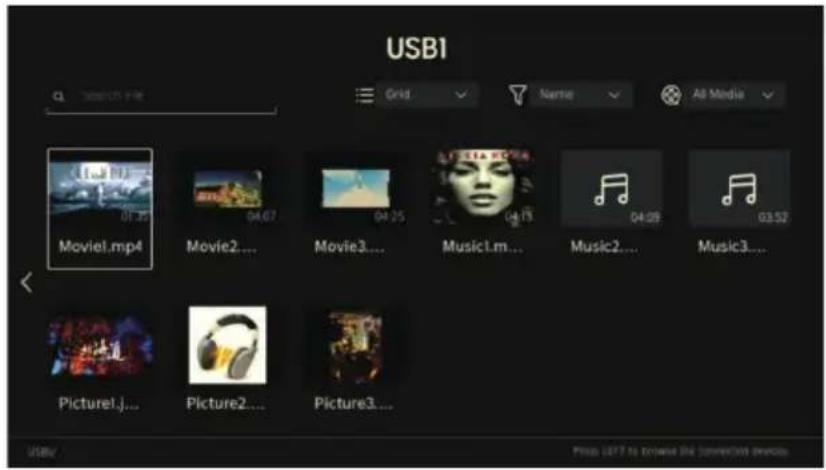
Video
Press [▼] / [▲] button to select Video or All, and press [▼] / [▲] / [◀] / [▶] button to select Movies. Press MENU button to display the setting options on the left side.
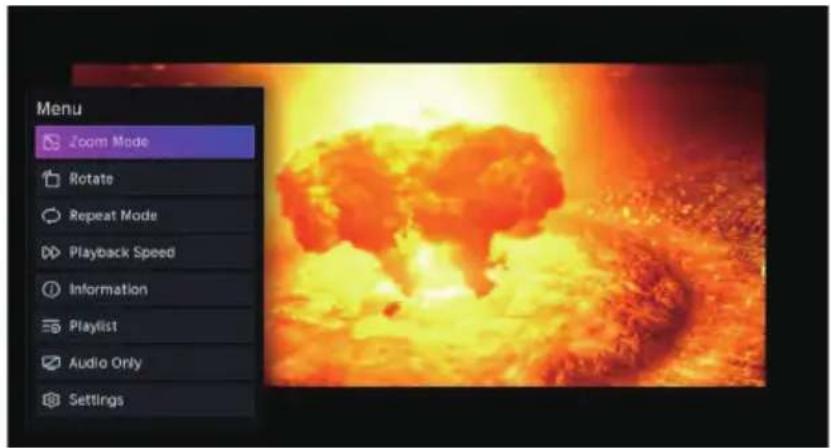
Zoom Mode
Press [▼] / [▲]button to select Zoom Mode, and press OK button to select.
Rotate
Press [▼] / [▲] button to select Rotate, and press OK button to select.
Repeat Mode
Press [▼] / [▲] button to select Repeat Mode, and press OK button to select.
Playback Speed
Press [▼] / [▲] button to select Playback Speed, and press OK button to select.
Information
Press [▼] / [▲] button to select information, and press OK button to view.
Playlist
Press [▼] / [▲] button to select Playlist, and press OK button to display all available videos.
Audio Only
Press【▼】/【▲】buttonto select Audio Only, and press OK button to select.
Settings
Press[▼] / [▲] button to select Settings. Press OK button enter the sub-menu. Pleaserefer to the home page-Setting part.
Music
Press [▼] / [▲] button to select Music or All, and press [▼] / [▲] / [◀] / [▶] button to select Music.
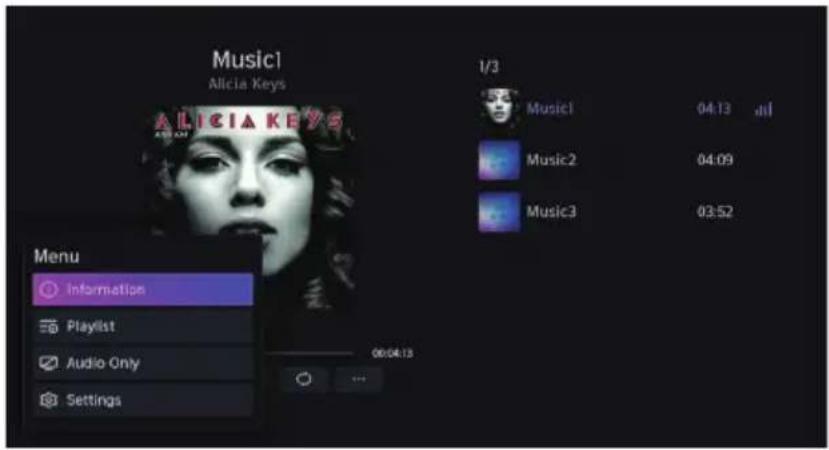
Information
Press [▼] / [▲] button to select information, and press OK button to view.
Playlist
Press [▼] / [▲] button to select Playlist, and press OK button to display all available Music.
Audio Only
Press [▼] / [▲] button to select Audio Only, and press OK button to select.
Settings
Press [▼] / [▲] button to select Settings. Press OK button enter the sub-menu. Pleaserefer to the page8-25 for this part.
Photo
Press [▼] / [▲] button to select Photo or All, and press [▼] / [▲] / [◀] / [▶] button to select Picture.
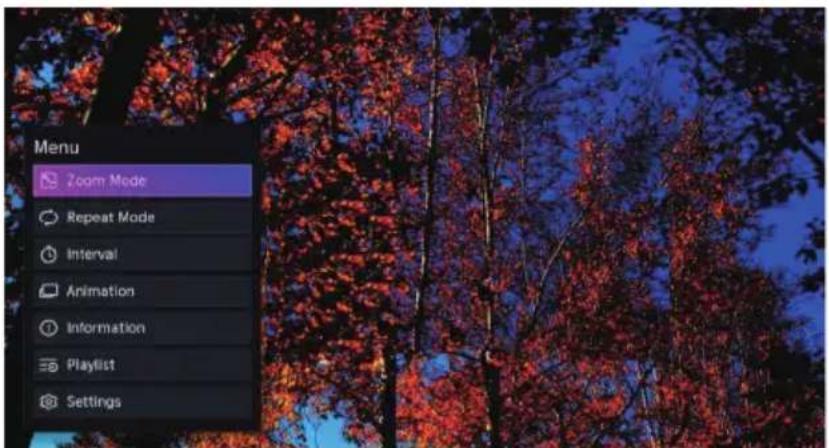
Zoom Mode
Press [▼] / [▲] button to select Zoom Mode, and press OK button to select.
Repeat Mode
Press [▼] / [▲] button to select Repeat Mode, and press OK button to select.
Interval
Press [▼] / [▲] button to select Interval, and press OK button to select.
Animation
Press【▼】/【▲】buttonto select Animation. Press OK button to setup.
Information
Press [▼] / [▲] button to select information, and press OK button to view.
Playlist
Press [▼] / [▲] button to select Playlist, and press OK button to display all available Music.
Settings
Press [▼] / [▲] button to select Settings. Press OK button enter the sub-menu.
MAINTENANCE
- Be sure to press POWER button to set the player to the standby mode and disconnect the power plug before maintaining the player.
- If the surface is extremely dirty, wipe clean with a cloth which has been dipped in a weak soap-water solution and wrung out thoroughly, and then wipe again with a dry cloth.
- Never use alcohol, benzene, thinner, cleaning fluid or other chemicals. And do not use compressed air to remove dust.
- Wipe the player with a dry, soft cloth IN CASE there are scratches on the display panel the warranty is void.
WALL MOUNTING
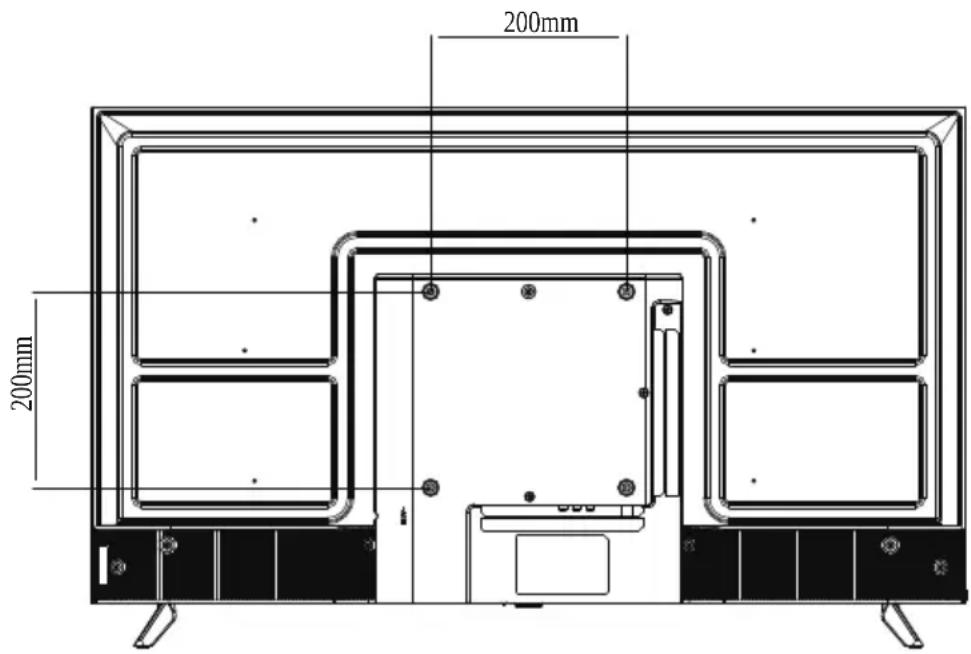
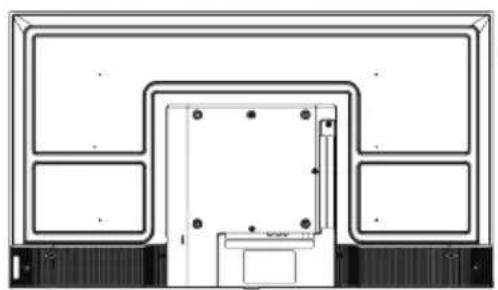
- Contact a professional for assistance when wall mounting your TV. We are not responsible for any damage to the product or injury to yourself, if you mount the TV on your own.
- Do not wall mount the TV while TV is turned on. It may cause personal injury due to electric shock.
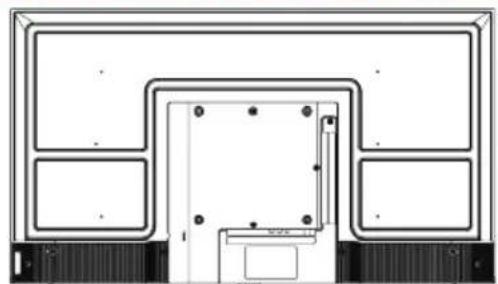
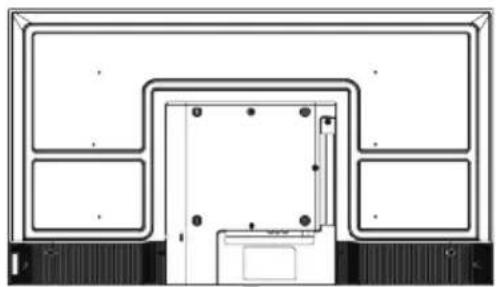
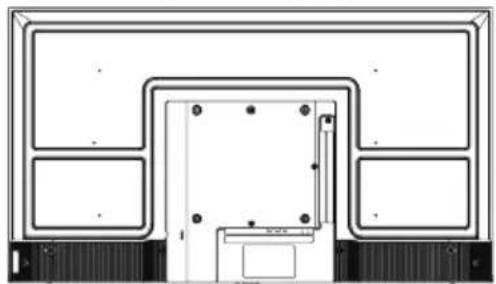
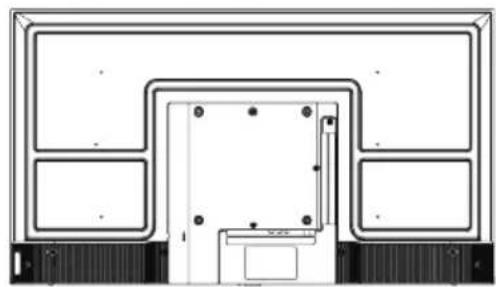
- Use standard M6* 8 mm screws (4 pieces) to mount this TV.
Back of your TV
STANDINSTALLATION
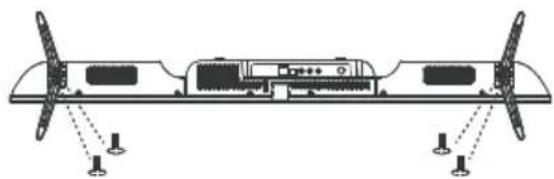
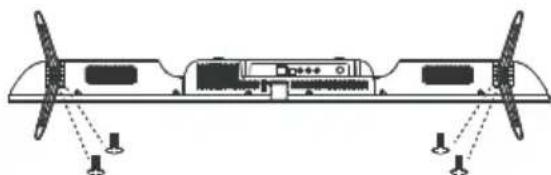
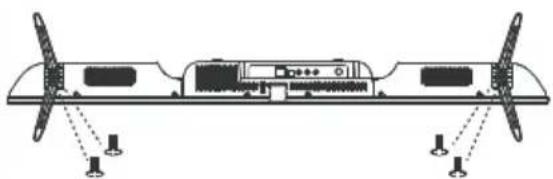
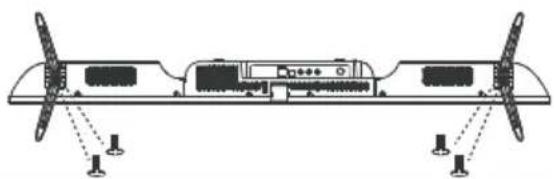
Your TV may be packaged with the Stand and the Cabinet separated. Before enjoying this TV, please carry out the Stand Installation according to the instructions below.
Step 1
Place the TV faced down on a soft cloth or cushion to prevent the panel from being damaged.
Step 2
Align the Stand with TV bottom and then force the end of stand until the TV is fully seated on the stand.
Step 3
Tighten the included screws with a screw driver.
NOTES:
1) Unplug the power plug first when installing or removing the TV Stand.
2) To avoid any damage to this TV, contact one or more partner for assistance when installing or removing the TV stand.
natural_image
Architectural floor plan showing room layout and door placement (no text or labels)①
natural_image
Architectural floor plan showing room layout and door placement (no text or labels)②
natural_image
Technical line drawing of a mechanical or electronic component with mounting flanges and a central control panel (no text or symbols)③
SPECIFICATIONS
| Article number | ED40A05FHD-MM-10007578 |
| Model | TV |
| Display 40 " LED FHD | |
| Resolution | 1920 x 1080 pixels |
| Colour display | 8 bit |
| Contrast | 1200:1 Typical |
| Ratio | 16 :9 |
| Tuner | DVB-T/T2 |
| TV power supply | AC 100-240V~50/60Hz |
| Consumption 75W | |
| Dimensions | 892.6 (W)×212.2(D)×551.5(H)mm |
| Weight | Approx. 4.6 Kg |
| Stand | 2 piece dismountable |
| Operating temperature range | 0°C to 45°C |
| Remote control power supply | DC 1.5Vx2 (2 x LR03/AAA 1.5V batteries not included) |
| USB ports voltage and current | 5V --- 0.5A |
| Hotel Lock | Yes |
| Speaker | 2 x 8W |
| Inputs | RF, HDMI, AV,RJ45,USB, CI+ |
| Outputs | OPTICAL, EARPHONE |
| USB functions | PVR (digital video recorder) |
| USB multimedia playback formats | Video : AVI, MPG (MPEG 1/2) |
| Music : MP3 | |
| Photos : JPG/PNG | |
| Text : TXT |
English
| PRODUCT DATA SHEET RELATING TO ENERGY | |
| Brand | Edenwood |
| Refrence | ED40A05FHD-MM-10007578 |
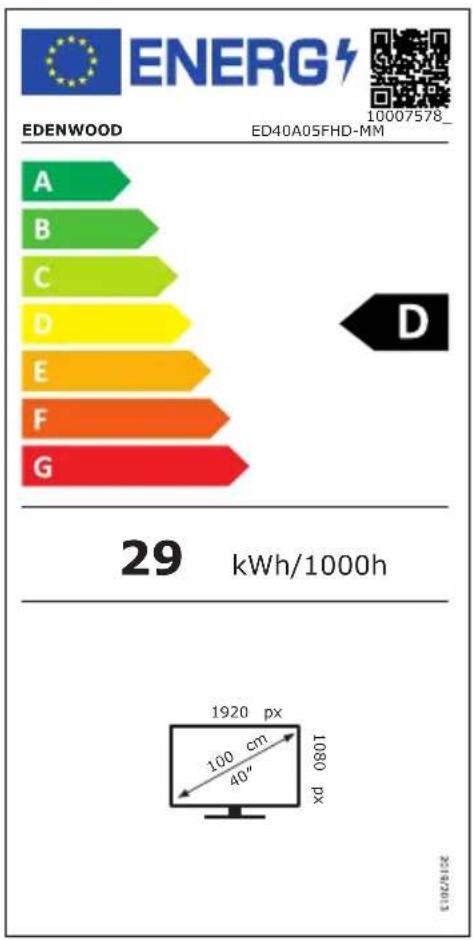
| Energy Efficiency Grade | D |
| Visual Screen Diagonal | 100 cm |
| Power consumption in Operation mode (kWh/1000h) | 29 kWh/1000h |
| Power consumption in Standby mode (W) | <0.5W |
| Power consumption in Shutdown mode (W) | - |
| Screen resolution (pixels) | 1920*1080 |
bar
| Category | Energy Consumption (kWh/1000h) | |---|---| | A | 1920 px | | B | 100 cm | | C | 40" | | D | 1080 px | | E | 10007578 | | F | 10007578 | | G | 10007578 | EDENWOOD ED40A05FHD-MM 29 kWh/1000h 2018-2023
Specificationsaresubjecttochangewithoutnotice.
FHD
TV
HDMI®
HIGH DEFINITION MULTIMEDIA INTERFACE
The terms HDMI and HDMI High-Definition Multimedia Interface, and the HDMI I trademarks or registered trademarks of HDMI.
 | This symbol indicates DC Voltage (for USB only). |
 | This symbol indicates AC Voltage. |
 | This symbol indicates “Indoor use only”. |
CE
The CE marking indicates that the product meets the main requirements of the Directives 2014/35/EU (Low Voltage), 2014/30/EU (Electromagnetic Compatibility), 2014/53/EU (Radio Equipment), 2011/65/EU (Restriction of the use of certain hazard substances in electronic equipment).
To avoid possible hearing damage, do not listen at high audio volume for long time.

Cadmiumfree;concentrationvaluesofCadmium(Cd)byweightinany homogeneousmaterialpartofthedisplaydonotexceedo,01%asdefinedinDirective 2011/65/EU.
For more information on the energy labeling of the appliance, please refer to 1 information sheet on the leaflet attached to the instructions and also present in product database (European Product Database for Energy Labeling) from the Euro Commission available via the QR code of the energy label version 2019/2016 s the device or by entering the 6-digit product code separated by a space by t reference under the website: /http://ec.europa.eu/
* : 6 digits Code_reference
GENERAL TROUBLESHOOTING
Check the following points before assuming malfunctions of this unit:
| Symptom Remedy | |
| No power. Insert the power | plug securely into the power outlet. |
| No picture. Ensure that the | equipment is connected properly. |
| ● No sound.● Distorted sound. | ● Ensure that the equipment is connected proper● Ensure that the input setting for the TV and system are correct.● Adjust the master volume to a suitable volum pressing VOL+/VOL- button. |
| No operations can be performed with the remote control unit. | ● Check the batteries are installed with the cor polarities.● The batteries are exhausted: Replace them wit ones.● Point remote control at the remote control sens operate it again.● Operate the remote control unit at a distance more than 6m from the remote control sensor.● Remove the obstacles between the remote cor and remote control sensor. |
| No key operation (by the m and/or the remote control unit effective. | ● Disconnect the power plug and then reconnect it.● Player may not be operating properly due to light static electricity or some other factors.) |
| Symptom(TV) Remedy | |
| No or poor picture. | ● Adjust antenna or use an external antenna.● Relocate the unit near a window (if inside a● Move units away from this product that cause interference.● Do Auto Tuning again.● Try another channel. |
| No sound or poor sound. | ● Check the audio settings.● Press MUTE button on co-mote to cancel mute function.● Unplug the headphone. |
| Noise or other interface. | Electronic equipment near the unit is causing inter Relocate the unit or move the equipment. |
After Sales Service
If you have a problem using your device, please complete the steps first follow
- Make sure that the operating instructions are followed, including the chapters cleaning, maintenance and maintenance.
- Consult the diagnostic tool to help resolve problems via the website:
If, despite the steps, the problem is not resolved:
Device under warranty
- Request support for your device through the website above.
- Call the service via the telephone number specified on your receipt / invoice The warranty set at a minimum of 2 years * after the new purchase of the travel costs to your home, intervention and spare parts.
* Excluding the peace of mind guarantee or extended guarantee.
WARNING: Defects and their consequences resulting from interventions repairs to the product carried out by the user or a non-professional third party cannot give application of the legal guarantee or commercial.
Device out of warranty
- Coverage of costs is no longer covered, but intervention at home remains p
- If you wish to work on the device by your own means, the spare parts are the site web: www .elect rodepot.fr / sav/piècesdétachées
CAUT ION: Any intervention and/or repair of the product rbya theirdus party not professional can jeopardize the safety of people and property.
- For individuals and professional repairers, these parts are available at least 7 the date purchase of the new device and according to the specificities of the
- External power sources
- Remote controls
- For professional repairers, these parts are available at least 7 years after the purchase of the new device and according to the specific features of the device
- Internal power sources
- Capacitors
- Batteries and accumulator
- DVD/ Blue-Ray modules if applicable
- HD/ SSD modules if applicable
- Connectors to connect external equipment (cable, ad&Dn DVD and Blue-Ray)
Bedankt!
natural_image
Line drawing of a flat-screen TV with rear panel and side view showing internal components (no text or symbols)Netwerkconfiguratie
Automatische scan
Tijd
Systeeminformatie
natural_image
Architectural floor plan showing room layout with door, windows, and furniture (no text or labels)①
natural_image
Architectural floor plan showing room layout and doorways (no text or labels)②
natural_image
Technical line drawing of a mechanical or electronic component with mounting flanges and a central control panel (no text or symbols)③
SPECIFICATIES
Manufactured under license from Dolby Laboratories. Dolby, Dolby Audio, and the double-D symbol are trademarks of Dolby Laboratories Licensing Corporation.
Nederlands
ALGEMENE PROBLEEMOPLOSSING
natural_image
Line drawing of a flat-screen TV with rear panel and side view showing internal components (no text or symbols)Búsqueda automática
Hora
Align the Stand with TV bottom and then force the end of stand until the TV is fully seated on the stand.
Paso 3
natural_image
Architectural floor plan showing room layout and door placement (no text or labels)①
natural_image
Architectural floor plan showing room layout and door structure (no text or labels)②

③
natural_image
Technical line drawing of a mechanical or electronic device with mounting flanges and a central control panel (no text or symbols)ESPECIFICACIONES
Manufactured under license from Dolby Laboratories. Dolby, Dolby Audio, and the double-D symbol are trademarks of Dolby Laboratories Licensing Corporation.
This product is guaranteed against faults caused by defects in manufacturing or the materials used for a period of 2 years, starting from the date of purchase*. This warranty does not cover defects or damage caused by failure to install the device correctly, incorrect use of the product, or excessive wear and tear. *on presentation of the receipt.
CONDITION DE GARANTIE
FR
Hereby, ELECTRO DEPOT declares that this device is in compliance with the essential requirements and other relevant provisions of Directive 2014/S3 / EU. The declaration of conformity can be consulted on the site: http://www.electrodepot.fr/sav/notices
- Merci !
- RISQUE D'ÉLECTROCUTION NE PAS OUVRIR
- Heure
- Vidéo
- INSTALLATION DU SUPPORT
- Table of contents
- SAFETY PRECAUTIONS
- CAUTION: - TO REDUCE THE RISK OF FIRE, ELECTRIC SHOCK OR SERIOUS INJURY:
- A
- GETTING STARTED
- English
- !
- CAUTION -: TO AVOID RISK OF INJURY OR DAMAGE TO THE PRO OTHER EQUIPMENT:
- DISPOSAL OF OLD ELECTRICAL APPLIANCES
- ACCESSOIRES
- FEATURES
- 40" LED Display
- GENERALPARTS
- MAINUNIT
- BackView
- REMOTE CONTROL
- REMOTECONTROLPREPARATION
- BATTERYINSTALLATION
- SERVICELIFEOF BATTERIES
- NOTE:
- NOTES:
- BASICCONNECTION
- CONNECTINGTOACPOWERSOURCE
- CONNECTEXTERNALANTENNATOUNIT
- HDMI CONNECTION
- EARPHONE CONNECTION
- USB CONNECTION
- INSERT A CI CARD
- AV (COMPOSITE VIDEO) CONNECTION
- MAKESUREALLTHEEQUIPMENTSANDPOWERPLUGARE CONNECTEDPROPERLYANDTHEUNITISSETINCORRECTMODE BEFOREKINDSOFOPERATIONS.
- BASICOPERATIONS
- SELECTDESIREDPROGRAM
- VOLUMECONTROL
- MUTECONTROL
- SOURCESETTING
- Home
- Account
- Search
- Notification
- Input
- Settings
- Picture
- Picture Mode
- Aspect Ratio
- Smart Scene/Game Mode
- Picture Mode Settings
- Apply Picture Settings
- Backlight/Brightness/Contrast/Colour Saturation/Sharpness
- Adaptive Contrast
- Noise Reduction
- MPEG Noise Reduction
- Colour Temperature
- Expert Settings
- Colour Tuner
- White Balance
- Black Level (Only available on HDMI source)
- Gamma Adjustment
- Gamma Calibration
- RGB Only Mode
- Low Blue Light
- Overscan
- Reset Current Mode
- Sound
- Sound Mode
- Sound Mode Settings
- Apply Audio Settings
- Equalizer
- Wall Mount Setup/Auto Volume Control
- Speakers
- Network
- Network Configuration
- Internet Connection
- Wake on Wireless Network
- Wake on LAN
- Channel
- Auto Scan
- Channel Edit
- Manual Scan
- DTV Manual Scan
- ATV Manual Scan
- Channel List Auto-Update
- Programme Guide Auto Update
- CI+ Module Settings
- Accessibility
- High Contrast Menu
- MenuTransparency
- Audio Type
- Subtitles Settings
- Screen Magnification
- Voice Guide
- System
- Time
- Timer Settings
- System PIN
- Parental Control
- Language and Location
- Voice Service
- Application Settings
- Mobile Device Connection
- HDMI&CEC
- Advanced Settings
- Support
- System Info
- Self Diagnosis
- E-Manual
- System Upgrade
- Disclaimer and Privacy
- Mobile App Download
- Reset to Factory Default
- Media
- Video
- Zoom Mode
- Rotate
- Repeat Mode
- Playback Speed
- Information
- Playlist
- Audio Only
- Music
- Photo
- Interval
- Animation
- MAINTENANCE
- WALL MOUNTING
- STANDINSTALLATION
- Step 1
- Step 2
- Step 3
- FHD
- TV
- HDMI®
- CE
- GENERAL TROUBLESHOOTING
- After Sales Service
- Device under warranty
- Device out of warranty
- Bedankt!
- Netwerkconfiguratie
- Automatische scan
- Tijd
- Systeeminformatie
- ALGEMENE PROBLEEMOPLOSSING
- Búsqueda automática
- Hora
- Paso 3
- CONDITION DE GARANTIE
Brand : EDENWOOD
Model : ED40A05FHD-MM
Category : TV