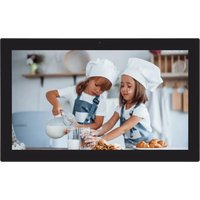
DFM-2200 - Digital photo frame Impecca - Free user manual and instructions
Find the device manual for free DFM-2200 Impecca in PDF.


| Product Type | Digital Photo Frame |
| Brand | Impecca |
| Model | DFM-2200 |
| Screen Size | 21.5 inches (54.6 cm) |
| Screen Resolution | 1920 x 1080 pixels (Full HD IPS) |
| Touch Screen Type | 5-point Capacitive |
| Operating System | Android 6.0 |
| Processor | Rockchip RK3128 |
| RAM | 2 GB DDR3 |
| Internal Storage | 64 GB (ROM) |
| Wi-Fi Connectivity | 802.11 b/g/n |
| Supported Photo Formats | JPG, JPEG, PNG, WEBP, HEIC (Android 10+) |
| Supported Video Formats | MP4, 3GP |
| Ports | USB (data transfer), Mini USB (service), headphone jack (3.5mm) |
| External Storage | SD card up to 128 GB |
| Power Supply | DC power adapter (included) |
| Included Accessories | Adapter, stand, user manual |
| Software Features | Frameo app, slideshow, reactions, sleep mode, backup |
| Maintenance and Cleaning | Clean with a soft dry cloth; avoid alcohol, solvents |
| Safety Precautions | Do not disassemble, avoid shocks and dust, use original charger |
Frequently Asked Questions - DFM-2200 Impecca
User questions about DFM-2200 Impecca
0 question about this device. Answer the ones you know or ask your own.
Ask a new question about this device
Download the instructions for your Digital photo frame in PDF format for free! Find your manual DFM-2200 - Impecca and take your electronic device back in hand. On this page are published all the documents necessary for the use of your device. DFM-2200 by Impecca.
USER MANUAL DFM-2200 Impecca
natural_image
Two children in chef hats preparing food together in a kitchen setting (no visible text or symbols)21.5" Smart Photo Frame — User Manual 21.5" Marco de fotos inteligente — Manual del Usuario Cadre photo intelligent de 21,5 pouces - Manuel de l'utilisateur
Model: DFM-2200
TABLE OF CONTENTS
SAFETY AND WARNINGS....3
UNIT DIAGRAM AND OPERATION....4
GETTING STARTED .5
FRAMEO QUICK SETUP....6
START USING FRAMEO....6
NAVIGATING YOUR FRAMEO....7
SETTINGS....10
PRODUCT SPECIFICATIONS....16
CUSTOMER SUPPORT ....17
90 DAYS LIMITED WARRANTY....18
NOTES....19
This manual contains essential safety measures and correct operating methods for the DFM-2200 Smart Photo Frame. Please read it thoroughly before use to ensure your personal safety.
- The device features a capacitive touch screen which can be operated with a finger or a capacitive pen. Avoid using sharp objects on the screen to prevent damage.
- Avoid placing the device in environments with high temperatures, humidity, or dust.
- Protect the device from drops and impacts to prevent damage to the screen and touch interface. Any resulting damage will be the user's responsibility.
- Use the provided charger only. Using a different charger could cause damage, for which we are not liable. Contact our agent for an original adaptor if needed.
- Avoid disconnecting the device during formatting to prevent errors. Our company is not responsible for data loss due to damage, repairs, or other reasons. Always operate the device as per the user manual and regularly back up important data.
- Do not attempt to dismantle or clean the device with alcohol, thinners, or benzene.
- Avoid using the device in areas where electronics are prohibited, such as on airplanes.
- Refrain from using the device while walking or driving to avoid accidents.
- The USB port is intended for data transfer only and does not support charging.
- Protect the device from viruses by using updated antivirus software on connected computers.
PACKAGING CONTENTS
- 1x Photo Frame
- 1x Adapter
- 1x Stand
- 1x User Manual
All images in this document are for demonstration, your unit may differ in appearance slightly.
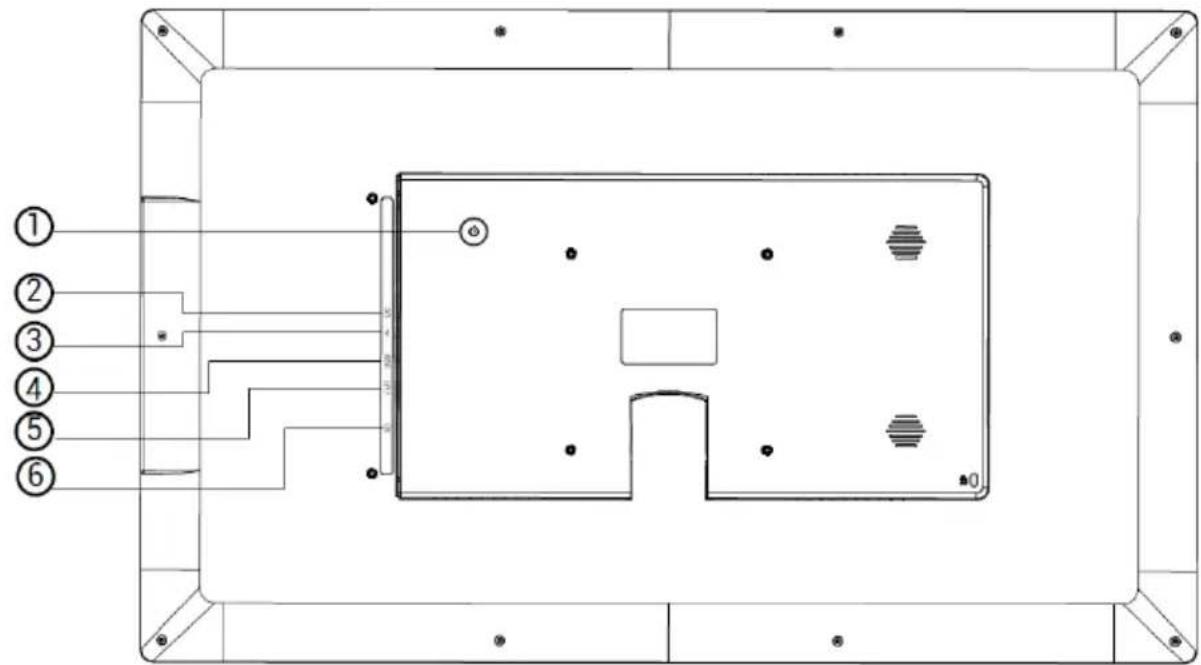
1. Power
- To access the reboot or power-off menu, press and hold the power button for approximately 3 seconds. A short press will turn the screen off or on, while leaving the photo frame powered on.
2. DC Input
- Connect the DC adapter to power on the device.
3. USB Port
- Insert a USB stick here to import pictures.
4. Service Port
- Connect a USB flash drive to this port for service software updates or file transfers.
- Note: Do not use a Mini USB power adapter with the Mini USB port to power on the frame; doing so could damage the frame and is not covered by the warranty. Always use the included DC power adapter.
5. Audio Output
- Headphone: Use this port to connect headphones for audio output.
6. SD Card Slot
- Insert an external SD memory card (up to 128GB) here.
Congratulations on your brand new Frameo photo frame!
If you are new to using Frameo then start by following the Frameo quick setup or follow the on-screen guide when powering it on for the first time.
Once you have set up your Frameo frame, you can start connecting it to your friends and family.
Frameo app
To send photos to your frame, use the Frameo app for iOS or Android.


Scan code to find the app
Video tutorials
Check out our "Frameo Tutorials" playlist on YouTube with informative videos where we guide you on how to get started using Frameo. Scan the code to the right or use the link to find the playlist.

bit.ly/3zKtxWX
When starting your frame for the first time, you will need to set up the frame.
- Select a language. This will be the language used on the Frameo.
- Connect your frame to the internet by connecting it to Wi-Fi.
- Verify or correct the date and time.
- Frameo may ask you to update to the latest version. It is recommended to update yourframe before continuing if asked to.
- Enter your name, and the location where you have placed your frame e.g. "John Doe" and "Living room", "Kitchen" or "Office". Finally set the timezone if not already correct.
START USING FRAMEO
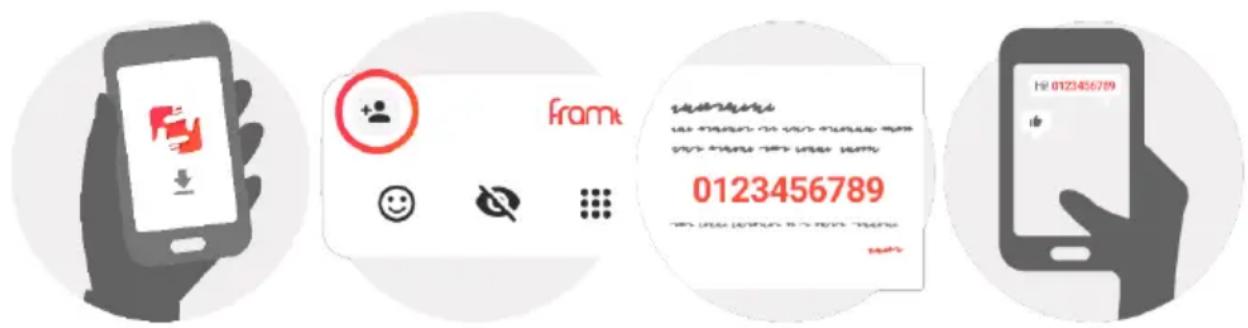
Next step is to connect Frameo with your friends and family by providing them with a code from your frame.
If you want to be able to send photos to the frame yourself, start by downloading the app for iOS or Android on App Store or Google Play. Then use the code to connect your frame and app as described below.
Connecting a new friend
Make sure that your friend has downloaded and installed the Frameo app.
Click the add friend icon on your frame . A dialog will appear showing a connection code, which is valid for 12 hours.
Now share this code in whatever fashion you prefer e.g. SMS, E-Mail, IM, phone call, to your friend.
Once your friends have added the code in their Frameo app, they will automatically appear on your frame and be able to send you photos.
Read chapter Change options for a friend to allow connected friends, to retrieve and share the connection code via the smartphone app.
Swipe left or right to go through your photos.
To access the menu, simply tap once on the screen.
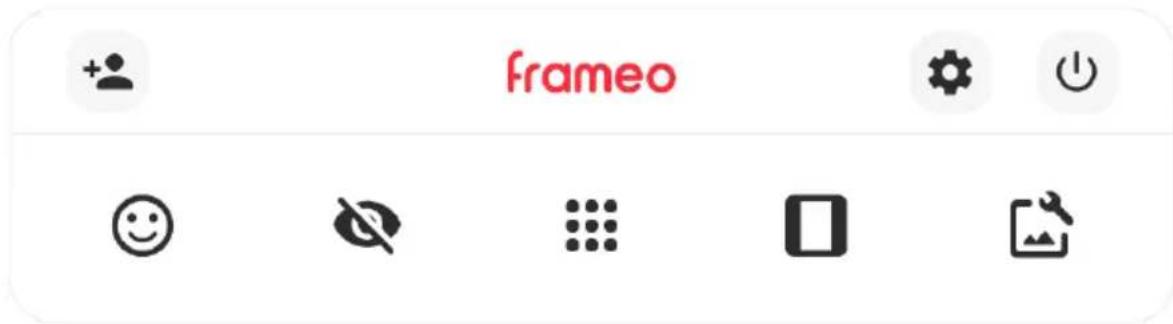
In the menu you will find the most used features.

Add friend
This will generate a code that you can share with your friends and family so they can connect and send photos to your frame.

Settings
Opens the Settings.

Power menu
Opens the Power menu.

React
Opens the React menu.
Note: The React menu can also be accessed by double-tapping on the screen.

Hide photo
Hides the current photo. This means that the photo will no longer be shown in the slideshow. If needed the photo can be shown again through the settings menu.

Gallery
Opens a gallery which allows for easy and fast navigation through your photos.

Fit to frame/Fill frame
This toggles how the photo is shown.
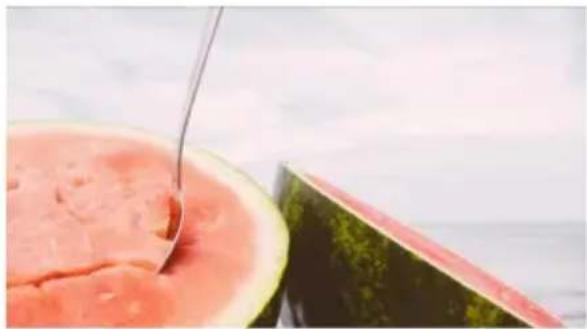
The Fill frame option is the default. The photo is scaled so that it fills the whole screen. It will be centered around what is selected as the most important part. See the first picture below.
Fit to frame will make sure that the entire photo is shown on the screen. See the second picture below.
natural_image
Close-up of a spoon dipping into a bowl of red sauce next to a cut watermelon slice (no text or symbols visible)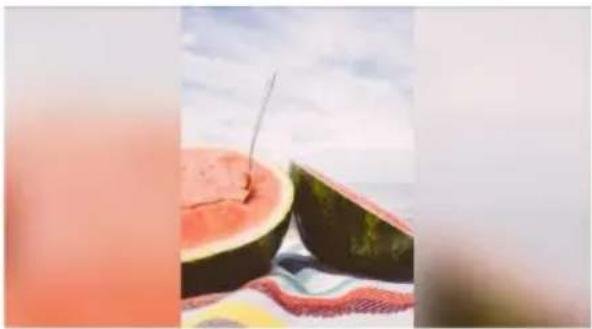
natural_image
Close-up of a whole watermelon cut with a straw, placed on a patterned cloth against a cloudy sky (no text or symbols visible)
Adjust photo
Allows you to adjust the position of the photo in the frame for an even better fit. Here
you can also use to rotate your photo, and you can use to edit the caption on imported photos. For received photos, please ask the sender to edit the caption in the Frameo app.
Interacting with videos
When a video is shown two additional controls are shown. One for play/pause of the video and one to control the volume level for video sounds.
Press to start the video playback. Pressing will pause the video playback.
Press to open the volume slider. Use the slider to adjust the volume level for video sounds.
Pressing will mute the video while pressing will unmute the video.
Power menu
Tap the power icon to access the power menu. Here you can power off using ,

restart your frame using or enter sleep mode using .


Note: Make sure to always use the power off button on the device or in the power menu to turn Frameo off. Never disconnect power when Frameo is running.
React menu
Tap one of the reactions to let the sender know how it made you feel.




External storage menu
When inserting an external storage (e.g. a microSD card) a menu will automatically appear with three options: Press to play photos directly from the external storage,
press to import photos to the internal memory of your frame or press to make a backup of your frame.


Through the settings, you can personalize your frame to your needs.
My frame
Frame name
Changes the name of your frame. This is also the name that connected friends and family will see in their list of connected frames in the smartphone app.
Frame location
Changes the location of your frame. This is the location displayed on your friends' and family's list of connected frames which can help to distinguish frames from each other.
Set language
Sets the language used on the frame.
Date
Sets the date used on the frame.
Time
Sets the time used on the frame.
Frameo will automatically try to set the correct date and time when connected to the internet.
Time zone
Sets the time zone used on the frame.
Enable/Disable 24-hour format
Enables, and disables, 24-hour time format.
Manage photos
In the manage photos menu you can see how many photos are on your frame and the storage they use. You can also see the amount of storage left available on your device for storing new photos.
Show/hide photos
Select which photos to hide by tapping them. Hidden photos will NOT be deleted from your frame and you can always select them to be shown again.
Use to hide or show all photos.
Delete photos
Select photos that you want to permanently delete from your frame by tapping the photo.
Use to select or deselect all and to permanently delete the selected photos.
Import photos
Allows you to import photos from an external storage (e.g. microSD card).
Before you try to import photos, make sure you have an external storage (e.g. microSD card) inserted into your frame with the photos you wish to import.
Start by selecting the photos that you want to import onto your frame. Once selected tap the import button to start the import process.
Use to select or deselect all photos on the external storage (e.g. microSD card).
Use to set the sort order of photos before import and to order by ascending/descending.
Export photos
Allows you to export photos from the frame to external storage (e.g. microSD card).
The export function will export all photos on the frame as well as profile pictures.
Play from external storage
Enables / disables playback of photos and videos directly from an external storage (e.g. microSD card) without taking up space on the frame.
My Friends
This list contains all the connected friends that are allowed to send photos to your frame.
Change options for a friend
Click the options icon to open the friend options menu. From here you can allow / disallow if a friend may share the code to the frame. If this is enabled the friend can retrieve and share the code to the frame from his/her app.
From the options menu you can also delete a friend, by pressing the DELETE FRIEND button. This will remove the friend from the list and thereby remove their permission to send photos to the
frame. You will then be asked to confirm the removal and if you would like to remove all photos previously received from this friend.
Add person

To allow a new person to send you photos, simply tap the add friend button and share the presented code in whatever way you prefer.
Display
Brightness level
Adjust the brightness level of the screen.
Sleep mode
Frameo offers a sleep mode which turns off the screen to reduce power consumption. The default setting is to turn off the screen at 23:00 and turn on the screen again at 07:00. To change this just set the sleep mode start/end time.
Your frame is not powered down or in standby, so you will still be able to receive photos during sleep mode.
Slideshow
Timer
Set the duration that a photo should be displayed before showing the next photo.
Show caption
Set whether or not to display the captions that your friends have sent with the photo. Check to display captions. Uncheck to hide captions.
Fill frame
Set the default frame photo setting. Check to set default to fill which makes the photos fit the device screen according to the most important part of the photo. Uncheck to make the photo fit inside the screen of the device, adding background bars on the sides or top/bottom.
Frame background
Choose between several different frame background options to be shown as bars if the photo does not fill the screen.
Photo display order
Sets the order in which your photos are displayed on the frame.
- By date taken: Photos are shown in order of when it was taken.
- By date received: Photos are shown in order of when it was received.
- Shuffle: Photos are shuffled and shown in a random order.
Reverse photo display order
Sets if photos are displayed newest to oldest or oldest to newest.
Autoplay
Enables/disables autoplay of videos in the slideshow. Videos can always be manually started regardless of this setting.
Video playback
Determines how videos should be played when autoplay is enabled.
- Loop videos: The video will loop until the slideshow timer is up.
- Play once: The video will play once and show its thumbnail until the timer is up.
- Play once and continue: The video will play once and continue to the next photo, or video, once it completes.
Auto mute
Enable to automatically mute the video volume after a short period of time of not interacting with the frame.
Video volume
Adjust the volume level for video sounds on the frames.
Wi-Fi
Set which Wi-Fi the frame connects to. If you are connecting to a network with a
captive portal Connection status will say that Wi-Fi login is required and show. Tap this to open a login screen where you can enter credentials to access the network.
Wi-Fi details
Use to show details about the current connected Wi-Fi.
Reset Wi-Fi
Use to delete all Wi-Fi information and restart your frame.
Notifications
Show notifications
Enables/disables whether notifications are shown in the slideshow (e.g. when a new photo is received).
Notification volume
Adjust the volume level for notification sounds.
Storage space
Enables/disables notifications shown when frame storage is low.
Backup
Enables/disables notifications shown if automatic backup has failed.
Network connection
Enables/disables notifications showing network connection status.
New photos
Enables/disables notifications shown when receiving new photos.
New friends
Enables/disables notifications shown when new friends are added.
Software update
Enables/disables notifications shown when a software update has been installed.
Feature news
Enables/disables notifications shown when new exciting features are added.
Date and time
Enables/disables notifications shown if time or date is not set correctly.
Backup and Restore
Backup frame to external storage (e.g. microSD card)
Tap to make a backup of your photos, friends and settings. The time of the latest successful backup is also displayed here.
Any existing backup on the external storage will be overridden!
Automatic backup
If checked, your frame will automatically take a backup within 30 hours of receiving new photos or making changes to your frame.
Restore from backup
Before you attempt to restore your frame, start by confirming that your backup is up-to-date. This is done by confirming the date under "Backup frame to external storage (e.g. microSD card)". If e.g. the last backup is too old or if no backup is made, then press the "Backup frame to external storage (e.g. microSD card)" button to make a new backup.
Note: To keep both the old and the new frame operational at the same time after restoring from backup, please make sure that both frames are updated to the latest version beforehand.
If you wish to restore a backup on a frame that has already been setup, then you must first reset the frame. This is done by pressing the "Reset frame" button. This will delete all data on the Frameo and reset the Frameo to its setup screen.
On the setup screen you can select the "Restore from backup" button which will restore your frame according to the backup.
If the "Restore from backup" button isn't visible, then confirm that the external storage (e.g. microSD card) is correctly mounted.
Reset frame
Removes all data from your frame.
This will permanently remove all your photos, friends/connections and settings.
Help
Open source libraries
Opens a list of open source libraries used in the app and their licenses.
Share anonymous analytics data
Sharing anonymous analytics data helps us tremendously to improve the Frameo software. We understand if you do not wish to share this data with us. Keep it checked if you wish to help us improve Frameo. Set unchecked to deny the sharing of anonymous analytics data.
Guide
Opens the quick start guide, that was shown when you first started the frame.
About
Android version
See what version of Android that is installed on the frame.
Peer ID
This is a unique ID for your photo frame. When contacting our support, please provide this ID with your message.
MAC
Shows the MAC address of your frame.
Frameo version
Shows what version of the Frameo software is currently installed on your frame.
Up time
Shows how long the photo frame has been powered on.
Check for update
Check if an update is available for your frame.
Beta program
If checked the device will join the Beta program where it will receive updates more frequently and before normal release devices.
Privacy
For more information regarding privacy, please visit http://privacy.frameo.net
PRODUCT SPECIFICATIONS
DFM-2200 — 21.5" Screen
| OS AndroidTM 6.0 | |
| CPU Rockchip RK3128 | |
| System RAM 2GB RAM | |
| Memory 64GB ROM | |
| LCD 21.5" LCD 1920x1080 IPS | |
| Touch Panel 5 Point Capacitive Touch Screen | |
| Wi-Fi 802.11 b/g/N | |
| Picture Format JPG/JPEG/PNG/WEBP/HEIC (Android 10+) | |
| Video MP4/3GP .mp4 or .3pg |
Visit our website to contact us, find answers to Frequently Asked Questions, and for other resources which may include an updated version of this user's guide.

www.impecca.com
If you wish to contact us by phone, please be sure to have your model number and serial number ready and call us between 9:00am and 6:00pm ET, at +1 888-943-2111.
Keep tabs on Courant's newest innovations & enter contests via our social network feeds:

IMPECCA 90 DAYS LIMITED WARRANTY
Impecca® warrants this product against defects in material and workmanship to the original purchaser as specified below. Please register your product online within fourteen (14) days of purchase.
If the product is determined to have a manufacturing defect, within a period of ninety (90) days from the date of the original purchase, Impecca® will repair or replace the product parts at no charge (for parts) to consumers in the U.S.A.
Shipping costs to and from our warranty service center are the sole responsibility of the consumer.
To obtain warranty service by an authorized Impecca® service center, please email us at: service@impecca.com to obtain a Repair and Maintenance Authorization (RMA) number and to locate the Warranty Service Center nearest you. Once authorized, you must mail the product to the authorized Impecca® service center in its original product packaging materials or equivalent, to prevent damage while in transit.
Further, should Impecca® determine that the product is outside of the Warranty terms, Impecca® will return the product to sender at sender's expense without being repaired or replaced, unless authorized by the consumer to service the out-of-warranty product at consumer's expense. All handling or restocking charges for returns and/or replacements shall be non-refundable.
Impecca ^® specifically excludes from this warranty any non-electric/mechanical attachments, accessories, and disposable parts including, but not limited to, outside case, connecting cables, batteries, and AC adapters. Impecca ^® reserves the right to repair or replace defective products with the same, equivalent, or newer models.
We reserve the right to either repair or replace product at our discretion. Replacement may be either new or refurbished and while every endeavor will be made to ensure it is the same model, if same model is not available, it will be replaced with a model of equal or higher specification.
Normal "Wear and Tear" is not covered by this, or any other, warranty. Further, Impecca® hereby reserves the right to determine "Wear and Tear" on any and all products. Tampering or opening the product casing or shell will void this warranty in its entirety.
In addition, this warranty does not apply if the product has been damaged by accident, abuse, misuse, or misapplication; has been altered or modified without
the written permission of Impecca ^® ; has been serviced by a non-authorized repair center of Impecca ^® ; has not been properly maintained or operated according to the operation manual; has been used for commercial, non-household purposes; has been cosmetically damaged; was not imported by Impecca ^® ; was not manufactured according to specification of the United States market; was damaged due to improper installation or neglect by the consumer; was damaged due to improper packaging in shipment to the Warranty Service Center; was damaged due to natural disasters; or if the serial number for the product has been removed or defaced.
ALL IMPLIED WARRANTIES, INCLUDING IMPLIED WARRANTIES OF MERCHANTABILITY AND FITNESS FOR A PARTICULAR PURPOSE ARE LIMITED IN DURATION TO ONE (1) YEAR PARTS AND NINETY (90) DAYS LABOR FROM THE DATE OF THE ORIGINAL RETAIL PURCHASE OF THIS PRODUCT.
THESE WARRANTIES AND REMEDIES ARE THE SOLE AND EXCLUSIVE WARRANTIES AND REMEDIES IN CONNECTION WITH THE SALE AND USE OF THE PRODUCT. NO OTHER WARRANTIES, ORAL OR WRITTEN, EXPRESSED OR IMPLIED, ARE GIVEN.
IMPECCA® IS NOT RESPONSIBLE OR LIABLE FOR ANY DAMAGE, WHETHER SPECIAL, INCIDENTAL, CONSEQUENTIAL, DIRECT OR OTHERWISE, OR WHETHER KNOWN OR SHOULD HAVE BEEN KNOWN TO IMPECCA®, INCLUDING LOST PROFITS, GOODWILL, AND PROPERTY AND PERSONAL INJURY RESULTING FROM ANY BREACH OF WARRANTY, THE INABILITY TO USE THE PRODUCT OR UNDER ANY LEGAL THEORY IN CONTRACT OR TORT. IMPECCA LIABILITY IS LIMITED TO THE ACTUAL PURCHASE PRICE PAID TO THE RETAIL SELLER OF THE DEFECTIVE PRODUCT.
No Impecca® dealer, agent, or employee is authorized to make any modification, extension, change or amendment to this warranty without the written consent and authorization from Impecca®.
Some states do not allow the exclusion or limitation of implied warranties or liability for incidental or consequential damages, or do not allow a limitation on how long an implied warranty lasts, so the above limitations or exclusions may not apply to you. This warranty gives you specific legal rights, and you may have other rights, which vary from state to state.
Important: Be Sure to Register Your Product at WWW.IMPECCA.COM within 14 Days
Impecca® USA • PA 18711 • www.impecca.com • service@impecca.com
*Do not send any returns to this address, as they may be lost and this will delay your repair and service process.
NOTES
TABLA DE CONTENIDO

natural_image
Close-up of a bowl of red sauce being filled with a spoon, next to a cut of watermelon (no text or symbols visible)
natural_image
Close-up of a halved watermelon cut with a spoon, set against a cloudy sky background (no text or symbols visible)
Ajustar foto
www.instagram.com/impecca/
@impeccausa
IMPECCA
GARANTÍA LIMITADA DE 90 DÍAS
SPÉCIFICATIONS DU PRODUIT .....53
SERVICE TECHNIQUE....53
GARANTIE LIMITÉE DE 90 JOURS (US) .....54
NOTES....55

natural_image
Close-up of a bowl of red sauce being stirred with a spoon, next to a cut of watermelon (no text or symbols visible)
natural_image
Close-up of a whole watermelon cut with a needle inserted, set against a cloudy sky background (no text or symbols visible)
Ajuster la photo
© www.instagram.com/impecca/
@impeccausa

IMPECCA
GARANTIE LIMITÉE DE 90 JOURS
- TABLE OF CONTENTS
- PACKAGING CONTENTS
- Power
- DC Input
- USB Port
- Service Port
- Audio Output
- SD Card Slot
- Frameo app
- Video tutorials
- START USING FRAMEO
- Connecting a new friend
- Add friend
- Settings
- Power menu
- React
- Hide photo
- Gallery
- Fit to frame/Fill frame
- Adjust photo
- Interacting with videos
- React menu
- External storage menu
- My frame
- Frame name
- Frame location
- Set language
- Date
- Time
- Time zone
- Enable/Disable 24-hour format
- Manage photos
- Show/hide photos
- Delete photos
- Import photos
- Export photos
- Play from external storage
- My Friends
- Change options for a friend
- Add person
- Display
- Brightness level
- Sleep mode
- Slideshow
- Timer
- Show caption
- Fill frame
- Frame background
- Photo display order
- Reverse photo display order
- Autoplay
- Video playback
- Auto mute
- Video volume
- Wi-Fi
- Wi-Fi details
- Reset Wi-Fi
- Notifications
- Show notifications
- Notification volume
- Storage space
- Backup
- Network connection
- New photos
- New friends
- Software update
- Feature news
- Date and time
- Backup and Restore
- Backup frame to external storage (e.g. microSD card)
- Automatic backup
- Restore from backup
- Reset frame
- Help
- Open source libraries
- Share anonymous analytics data
- Guide
- About
- Android version
- Peer ID
- MAC
- Frameo version
- Up time
- Check for update
- Beta program
- Privacy
- PRODUCT SPECIFICATIONS
- www.impecca.com
- IMPECCA 90 DAYS LIMITED WARRANTY
- NOTES
- TABLA DE CONTENIDO
- Ajustar foto
- IMPECCA
- GARANTÍA LIMITADA DE 90 DÍAS
- Ajuster la photo
- GARANTIE LIMITÉE DE 90 JOURS
Brand : Impecca
Model : DFM-2200
Category : Digital photo frame