SAT90A1 - Activity tracker SILVERCREST - Free user manual and instructions
Find the device manual for free SAT90A1 SILVERCREST in PDF.


| Product Type | Activity tracker (connected watch) |
| Brand and model | SilverCrest SAT90A1 |
| Dimensions (approx.) | 4.2 x 2 x 1 cm |
| Weight (approx.) | 24 g |
| Power supply | Integrated Li-Po battery 3.7 V, 90 mAh, 0.333 Wh, not user-replaceable |
| Charging | Via integrated USB plug, voltage 5 V, current 85 mA, duration ~1.5 h |
| Battery life (approx.) | About 4 days |
| Connectivity | Bluetooth 5.0, range ≤10 m |
| Compatibility | iOS 8.0+ / Android 6.0+ with SilverCrest Watch app |
| Protection rating | IP67 (water and dust resistant, brief immersion) |
| Main functions | Pedometer, distance, calories, sleep, sport tracking (walk, run, cycling, hiking), notifications, goals, reminders, photo shutter, weather, smart alarm |
| Sensors | Accelerometer (not detailed) |
| Display | Digital display with backlight, button touch |
| Operating temperature | +5 to +35 °C |
| Storage temperature | 0 to +45 °C |
| Allowed humidity | 25 to 90 % (non-condensing) |
| Frequency band | 2402-2480 MHz, max power -3 dBm |
| Care and cleaning | Dry lint-free cloth; band washed with lukewarm water or mild soap solution; no solvents or abrasive objects |
| Safety | Do not use while driving or near medical devices; avoid strong magnetic fields; do not open |
| Band material | Silicone (not specified, assumed) |
| Warranty | 3 years |
| Repairability | Not user-repairable; battery not replaceable; repair by specialist only |
| Package contents | 1 activity tracker, 1 quick start guide |
Frequently Asked Questions - SAT90A1 SILVERCREST
User questions about SAT90A1 SILVERCREST
0 question about this device. Answer the ones you know or ask your own.
Ask a new question about this device
Download the instructions for your Activity tracker in PDF format for free! Find your manual SAT90A1 - SILVERCREST and take your electronic device back in hand. On this page are published all the documents necessary for the use of your device. SAT90A1 by SILVERCREST.
USER MANUAL SAT90A1 SILVERCREST
ACTIVITY TRACKER SAT90A1
GB IE NI
ACTIVITY TRACKER
Operation and safety notes
DK
AKTIVITETSMÅLER
GB/IE/NI Operation and safety notes Page 3
Warnings and symbols used Page 5
Introduction Page 6
Intended use....Page 6
Scope of delivery.... Page 6
Trademark notices Page 6
Technical data Page 6
Description of parts....Page 7
Safety instructions....Page 8
Safety instructions for rechargeable batteries Page 9
General information about this product...... Page 10
Waterproofing (IP67) Page 10
Before first use Page 10
Charging the battery Page 10
Initial app setup...... Page 11
Operation...... Page 12
Watch face. Page 12
Navigation....Page 13
Sleep Page 14
Influences on measuring accuracy.... Page 14
Sports. Page 14
Daily Goal Page 15
Message Page 16
More Page 17
About Page 17
Find Phone Page 17
Power off Page 17
Reset. Page 17
Bluetooth ON/OFF Page 17
Reminder Page 17
Connect Smartwatch Page 19
Camera Shutter Page 19
System settings Page 19
Connect to Google Fit (Android) Page 22
Connect to Apple Health (iOS) Page 22
Weather Page 22
About Page 22
Firmware update Page 22
Reset Activity Tracker Page 22
Privacy Policy Page 22
Device user manual Page 22
Troubleshooting Page 23
Cleaning and care Page 23
Storage when not in use.... Page 23
Disposal Page 24
Simplified EU declaration of conformity ...... Page 24
Warranty Page 25
Appendix Page 26
Flowchart of the display icons....Page 26
| Warnings and symbols usedThe following warnings are used in this user manual and on the packaging: | |||
 | DANGER! This symbol in combination with the signal word “Danger” marks a high-risk hazard that if not prevented could result in death or serious injury. |  | WARNING! EXPLOSIONHAZARD! A warning with this symbol and the words “WARNING! EXPLOSION HAZARD” indicates the potential threat of explosion.Failure to observe this warning may result in serious or fatal injuries and potential property damage. Follow the instructions in this warning to prevent serious injuries, a danger to life or property damage! |
 | WARNING! This symbol in combination with the signal word “Warning” marks a medium-risk hazard that if not prevented could result in death or serious injury. | ||
 | CAUTION! This symbol in combination with the signal word “Caution” marks a low-risk hazard that if not prevented could result in minor or moderate injury. |  | This mandatory sign indicates to wear suitable protective gloves! Follow the instructions of this warning to avoid hand injuries caused by objects or contact with hot or chemical materials. |
 | ATTENTION! This symbol with the signal word “Attention” indicates a possible property damage. |  | Direct current/voltage |
 | NOTE: This symbol in combination with “Note” provides additional useful information. |  | CE mark indicates conformity with relevant EU directives applicable for this product. |
ACTIVITY TRACKER
Introduction
We congratulate you on the purchase of your new product. You have chosen a high quality product. The instructions for use are part of the product. They contain important information concerning safety, use and disposal. Before using the product, please familiarise yourself with all of the safety information and instructions for use. Only use the product as described and for the specified applications. If you pass the product on to anyone else, please ensure that you also pass on all the documentation with it.
Intended use
The product is a product of information electronics. After you have connected the product with a mobile device, you can use its full scope of functions. The product records the steps, kilometres and calories consumed, and records the duration of activities and sleep.
The product is suitable for use with the following systems: iOS from version 8.0, Android TM version 6.0 or higher, Bluetooth V 5.0. The product is only intended for the private usage, the commercial usage is not permitted.
- Scope of delivery
■ After unpacking the product, check if the delivery is complete and if all parts are in good condition.
If you find any damage or missing parts, contact the supplier from whom you purchased this product.
■ Remove all packaging materials before use.
1 Activity tracker
1 Quick start guide
Trademark notices
■ USBa registered trademark of USB Implementers Forum, Inc.
The Bluetooth® word mark and logos are registered trademarks owned by Bluetooth SIG, Inc.
Any use of such marks by OWIM GmbH & Co. KG is under license.
The SilverCrest trademark and trade name is the property of their respective owners.
■ Apple, iOS and App Store are trademarks of Apple Inc. registered in the U.S. and other countries.
■ Android, Gmail, Google Play and Google Assistant* are registered trademarks of Google Inc.
Any other names and products may be trademarks or registered trademarks of their respective owners.
- Technical data
Bluetooth version: V 5.0
Bluetooth range: ≤ 10 m
Charging voltage: 5 V
Charging current: approx. 85 mA
Charging time: approx. 1.5 h
Chip set: PAR2860QN (from PIXART)
Frequency bands: 2402-2480 MHz
Max. power transmitted: -3 dBm
Operating time: approx. 4 days
Battery: Rechargeable 3.7 V, 90 mAh, 0.333 Wh Li Polymer battery (not replaceable)
Dimensions: approx. 4.2 × 2 × 1 cm
Weight: approx. 24 g
Operating temperature: +5 to +35 °C
Storage temperature: 0 to +45 °C
Humidity
(no condensation): 25 to 90 %
Ingress protection: IP67
● Description of parts
A
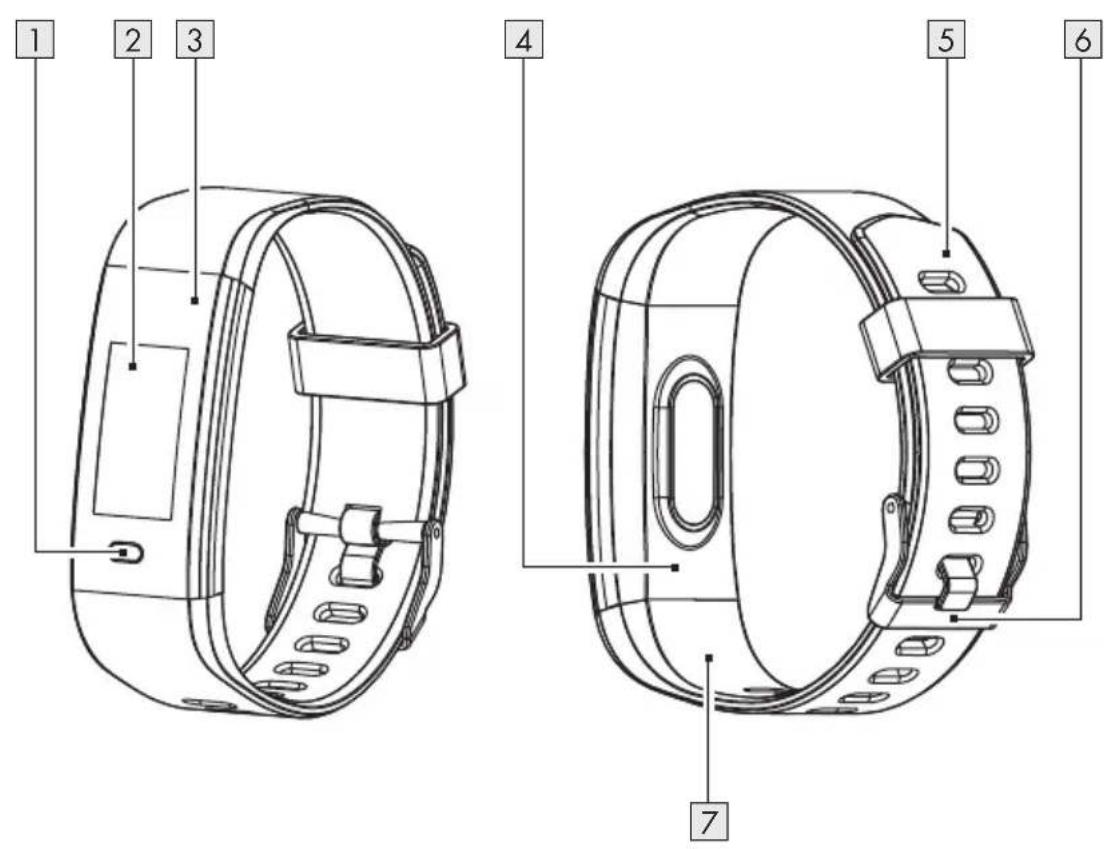
1 Touch button
2 Display
3 Housing
4 ▲ USB mark
5 Watch strap
6 Clasp
7 USB plug (not visible)

Safety instructions
BEFORE USING THE PRODUCT, PLEASE FAMILIARISE YOURSELF WITH ALL OF THE SAFETY INFORMATION AND INSTRUCTIONS FOR USE! WHEN PASSING THIS PRODUCT ON TO OTHERS, PLEASE ALSO INCLUDE ALL THE DOCUMENTS!
In the case of damage resulting from non-compliance with these operating instructions the warranty claim becomes invalid! No liability is accepted for consequential damage! In the case of material damage or personal injury caused by incorrect handling or non-compliance with the safety instructions, no liability is accepted!
Before each use: Check the product for damages. Do not use a damaged product.
This product can be used by children aged from 8 years and above and persons with reduced physical, sensory or mental capabilities or lack of experience and knowledge if they have been given supervision or instruction concerning use of the product in a safe way and understand the hazards involved.
The product is not a toy for children.
- Cleaning and user maintenance must not be carried out by children.

DANGER! Risk of suffocation! Never
leave children unsupervised with the packaging material. The packaging material represents a danger of suffocation. Children frequently underestimate the dangers. Always keep children away from the packaging material. Packaging material is not a toy.
■ Never open the product! Improper repairs may result in considerable danger to the user. Always have repairs performed by an appropriate specialist.
Do not operate the product while driving a vehicle. It is dangerous to turn your gaze away from the road and to let yourself be distracted.
The product is not suitable for medical use. The product helps to calculate distances covered and calories burned during training. Consult a doctor before starting regular training.
■ Protect the product from strong impacts, vibrations, direct sunlight, and dirt.
The guarantee does not cover damage caused by incorrect handling, non-compliance with the instructions for use or interference with the product by unauthorised individuals.
- Do not insert objects into the product and keep sharp objects away from the product.
If you have a heart pacemaker fitted or an implanted defibrillator, consult your doctor before wearing the product for the first time.
Do not place heavy objects on the product. Do not exert pressure on the product.
- Avoid strong magnetic fields (e.g. loudspeakers). Failure to observe this may result in inaccurate measurements.
Salt and thermal water can lead to the corrosion of metal parts. Remove the product before using saunas, as the temperature difference can cause condensation to build. There is a risk of product damage.

Safety instructions for rechargeable batteries
⚠ WARNING! DANGER OF EXPLOSION!
The integrated rechargeable battery cannot be removed or exchanged by the user. Never open the housing.
- Never throw this product with built-in rechargeable battery into fire.
- Do not exert mechanical loads to this product with built-in rechargeable battery.
Risk of leakage of rechargeable batteries
- Avoid extreme environmental conditions and temperatures, which could affect this product with built-in rechargeable battery, e.g. radiators / direct sunlight.
- Avoid contact of leaking chemicals with the skin, eyes and mucous membranes. In the event of contact with battery acid, thoroughly flush the affected area with plenty of clean water and seek immediate medical attention.
WEAR PROTECTIVE GLOVES!
Leaked or damaged rechargeable batteries can cause burns on contact with the skin. Wear suitable protective gloves at all times if such an event occurs.
- When disposing of the product, it should be noted that this product contains a rechargeable battery.
Risk of property damage
This product does not contain any parts which can be serviced by the user.
- Do not place burning candles or other open fire on or next to the product.
If you notice smoke or unusual noise or odour, switch the product off immediately. Immediately disconnect any connected USB charger.
■ Sudden temperature changes may cause condensation inside the product. In this case, allow the product to acclimate for some time before using it again to prevent short circuits!
WARNING!
During operation or charging, do not cover the product. Otherwise the product might heat up.
⚠ WARNING! Radio interference
Do not use the product on airplanes, in hospitals or near medical electronic systems. The wireless signals transmitted could impact the functionality of sensitive electronics.
- Keep the product at least 20 cm from pacemakers or implantable cardioverter defibrillators, as the electromagnetic radiation may impair the functionality of pacemakers.
■ The radio waves transmitted could cause interference in hearing aids.
The OWIM GmbH & Co KG is not responsible for interference with radios or televisions due to unauthorised modification of the product.
The OWIM GmbH & Co KG further assumes no liability for using products not distributed by OWIM. The user of the product is fully responsible for correcting interference caused by such unauthorised modification of the product, as well as replacement of such products.

ATTENTION! Ensure that:
- No foreign objects penetrate the product. - When using an optional USB power supply, its operating instructions are observed.
In the event of wireless data transmission, unauthorised third parties receiving the data cannot be excluded.

Operating system updates
In order to keep the product up to date, it is necessary that you always keep the operating system of your smartphone up to date.
Update the operating system regularly.
● General information about this product
Waterproofing (IP67)
Resistant to splashes, water and dust (IEC Standard 60529: IP67 rating)
NOTE: Waterproofing is not an everlasting feature, you can wear the product in everyday life. Washing hands, showers, rain or similar situations / activities are not harmful to the product. The product is protected against short immersion.

Before first use
After unpacking the product:
- Charge the product (for details please refer to the "Charging the battery" section).
- Charge the product in time. The battery performance will degrade if the voltage is too low for a long time.

Charging the battery
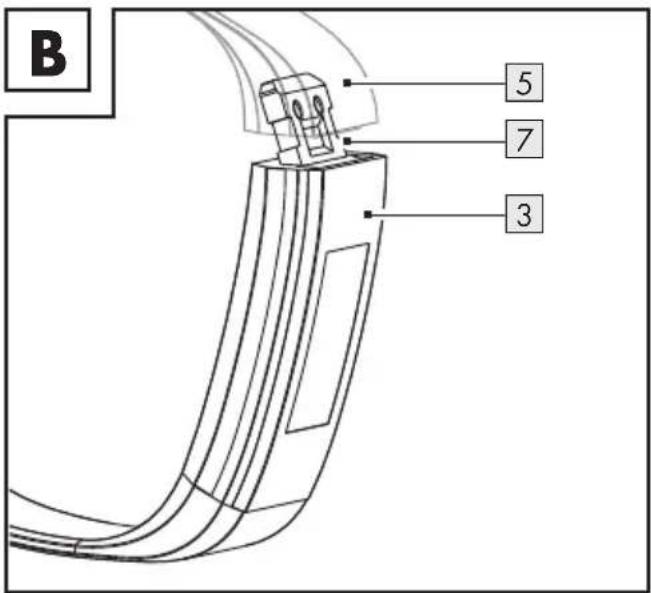
- Hold the housing 3 with one hand. Hold the watch strap 5 with the other hand.
- Pull the housing 3 and the watch strap 5 apart at the ▲ USB mark 4.
- Connect the revealed USB plug 7 to a free USB port.
- When the battery is fully charged: Disconnect the USB plug 7 from the USB port.
- Connect the USB plug 7 to the watch strap 5.
i NOTES:
■ Make sure that the contacts of the USB plug 7 correctly engage with the contacts in the USB port. If the product does not charge, turn the USB plug 180° and plug it into the USB port again.
The product turns on automatically as soon as it is connected with the USB port.
The product cannot be operated during charging.
The charging status is shown in the display 2.
A charging cycle with a charging current of approx. 85 mA takes approx. 1.5 hours.
- Initial app setup
i NOTES:
■ Screenshots are from Android 10 version or from iOS 13.3 version.
Older versions may have functional limitations.
- Updating the firmware might result in changes to the app's functionality.
■ Screenshots are for reference only. There may be slight deviations between iOS and Android versions.
Preparation
Download the SilverCrest Watch app by using the QR code on the packaging.
The QR code is also on the sticker on the display of the product.
■ Install SilverCrest Watch app.
■ Switch on Bluetooth function on the mobile device.
- Open the app.
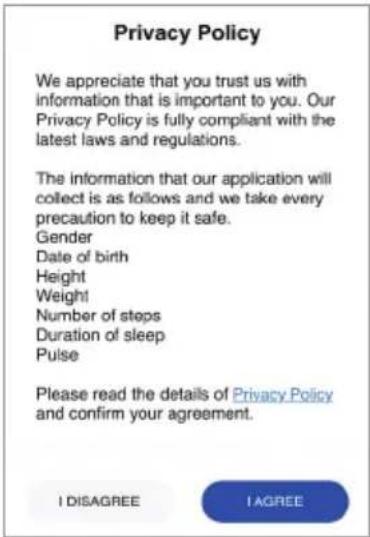
-
Read the Privacy Policy.
-
Tap I agree.
NOTE: The product's full functions can only be used when the I agree option is selected.
- Follow the app to setup your personal information (Goals, name, gender, birthday, weight, height, stride length, etc.).
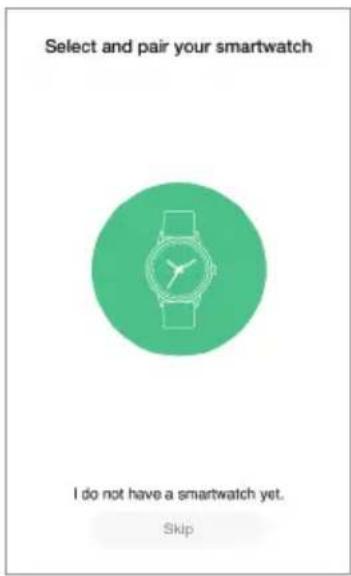
-
Tap to start pairing the product with the app.
-
Activate the Bluetooth function of the product: Touch the touch button 1.
The last 4 digits of the product's MAC address are shown in the display 2. This means that you have to bind the product with the app first before use.
NOTE: If no product is found after the scan, scroll down the app screen to refresh. Touch the touch button 1 to activate the Bluetooth function again.
- Connect to the product: Tap SAT90A1.
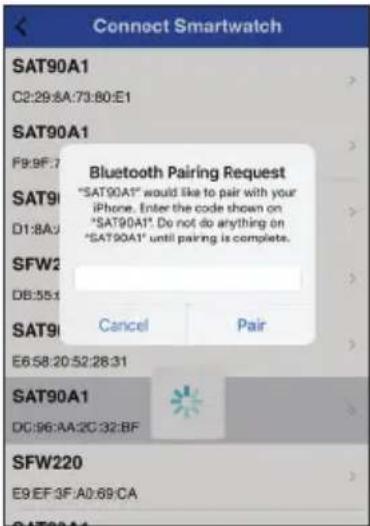
-
Enter the 6-digit key in the app to complete the pairing process.
-
Tap Pair.
NOTE: Different smartphones will prompt a different Bluetooth-pairing user interface.
Operation
NOTE: Screenshots are for reference only. There may be slight deviations between iOS and Android versions.
Watch face
Briefly tap the touch button 1 to activate the display 2.
When in time mode, long tap and hold the touch button 1 to switch to one of the 6 different watch faces available.
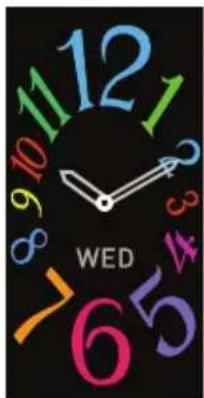
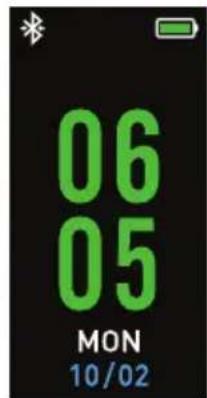
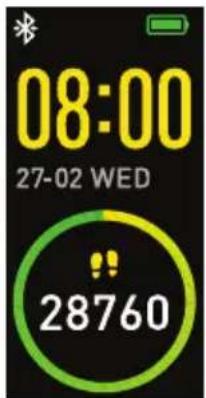
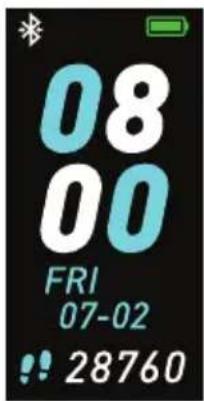
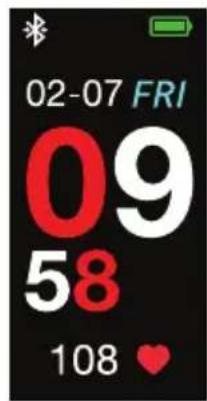
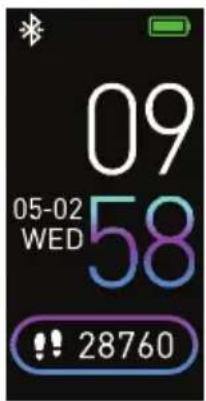
Long tap the touch button 1 repeatedly to select your favourite dial.
Navigation
Pedometer Distance Calories
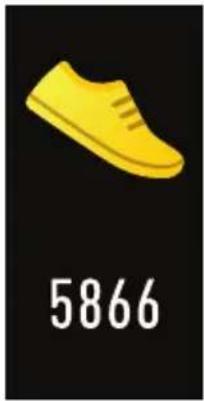
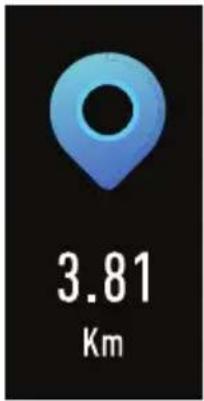
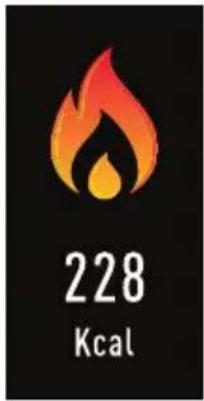
Tap the touch button 1 to toggle through the menu. The amount of steps, distance, calories burned, sleep pattern, sports sub-menu, messages etc. are displayed.
The product records your daily activity data automatically.
NOTE: If you briefly tap the touch key 1, the display 2 is activated.
Tap the touch button 1 to toggle between steps, distance and calories interfaces.
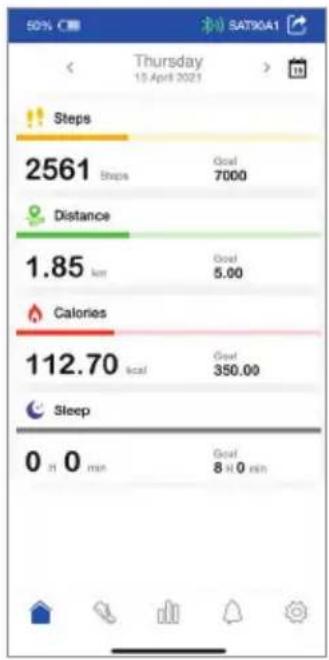
Tap on various parameters, e.g. number of steps, distance, calories burned, sleep pattern, to view the data as a graph.
The app gives you a weekly or monthly overview of your data.
■ Synchronize the mobile device with the SilverCrest Watch app and check your activity data on the mobile device.
Manual synchronization of the product
■ Make sure the product is connected to your mobile device.
■ Open the SilverCrest Watch app.
■ Select the Home tab.
- Swipe down across the display to synchronize data from the product to the app.
Sleep
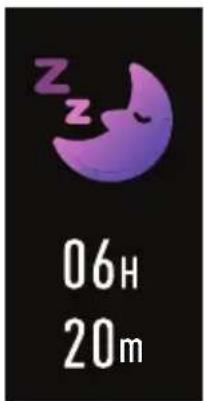
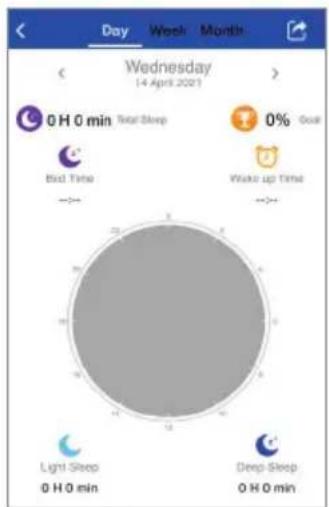
This product records your sleeping activity data automatically.
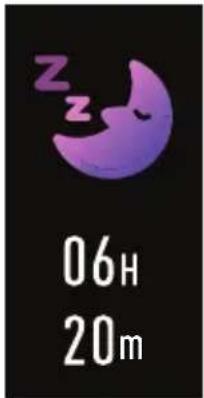
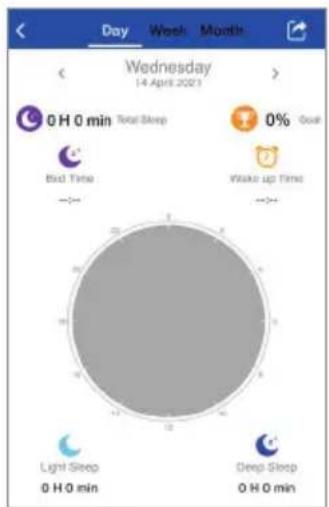
NOTE: If you briefly tap the touch key 1, the display 2 is activated.
■ Synchronize the mobile device with the SilverCrest Watch app to check your sleeping data on the mobile device.
● Influences on measuring accuracy
■ Wearing the product incorrectly causes measurement errors:
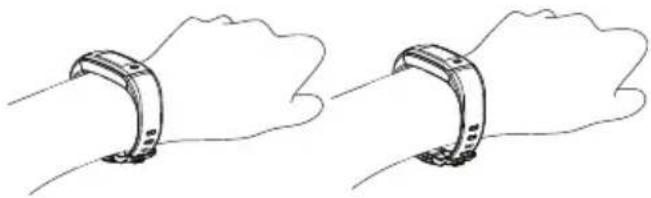
Strap nice and tight on Too loose wrist
Adjust the product's strap so that the product sits correctly around your wrist.
Sports
Briefly tap the touch key 1 to activate the display 2.
Enter Sports mode.
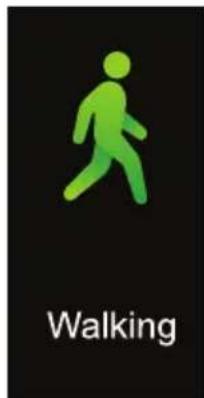
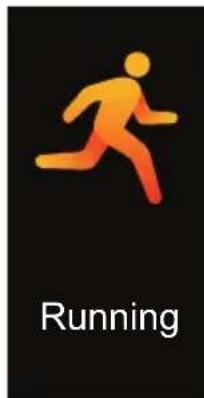
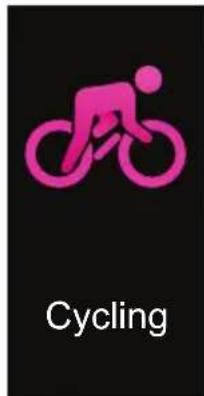
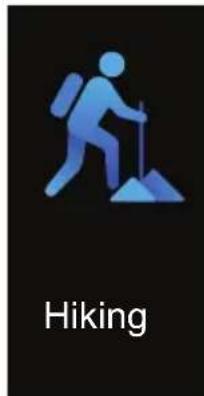
Tap and hold the touch button 1 to enter the sub menu. The product offers recording of following activities:
- Walking
- Running
- Cycling
- Hiking
■ Select the mode matching your activity by briefly tapping the touch button 1.
Long tap the touch button 1 and start your activity. The product records the data.
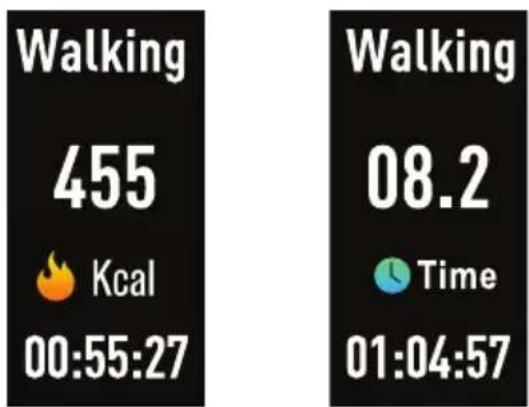
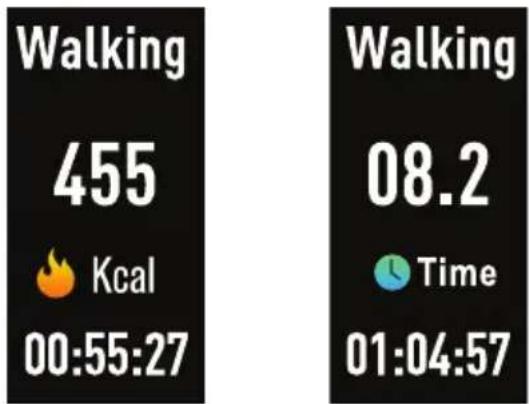
Burned calories Time
Steps Distance
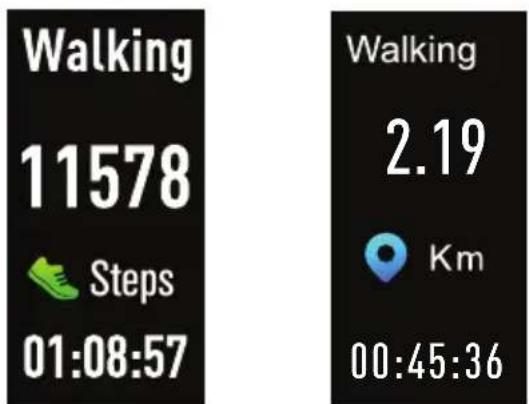
- Briefly tap the touch button 1 to display the next value (Burned calories, Time, Steps, Distance).
■ Synchronise your mobile device with the SilverCrest Watch app to check your recorded data on the mobile device.
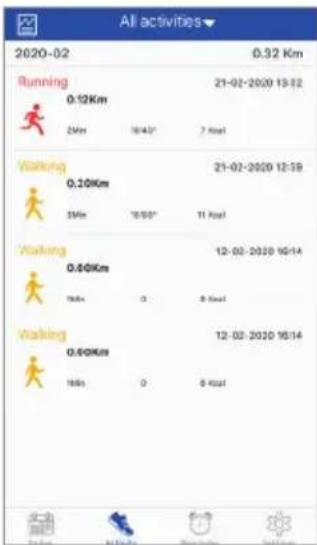
After you finished your activity, tap and hold the touch button 1 to stop recording. The data is saved on the product and can be traced in the SilverCrest Watch app.
NOTE: If the recording time is less than 2 minutes and if less than 200 steps have been taken, no data will be saved.
Daily Goal
Open the Settings menu.
Tap on Daily Goal.
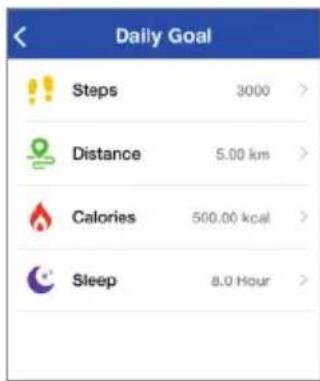
This functions allows you to set your goals, such as number of Steps, Distance covered, Calories burned as well as Sleep duration and quality.
Message
Tap the touch button 1 to switch to the Message mode.
- Checking message texts: Tap and hold the touch button 1 to enter the sub menus incoming call, SMS, WhatsApp, e-mail, etc.

NOTE: If there are multiple notifications, tapping the touch key 1 will display them one after the other. The notifications are displayed once, it is not possible to repeat them.
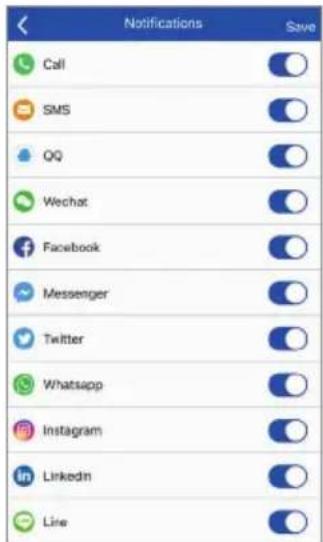
You can select the apps you want to receive a notice from. Open the SilverCrest Watch app on your mobile device and enter the Settings menu.
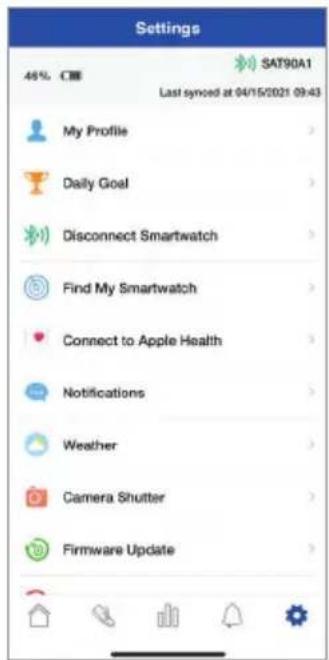
Tap on Notifications and activate or deactivate receiving notices from the displayed apps.
More
Tap and hold the touch button 1 to enter the More function interface and its sub menus.
Sub menus:
- About
- Find phone
- Power off
- Reset
- Bluetooth ON/OFF

About

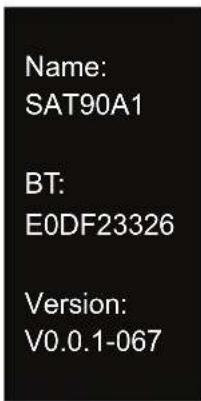
Tap and hold the touch button 1 to show the following information:
- Bluetooth MAC address
- Firmware version number
- Device name
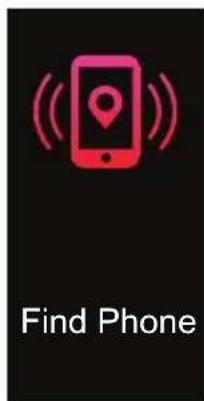
Find Phone
Tap and hold the touch button 1 until your mobile device vibrates. Your mobile device will emit an alarm so you can locate it.
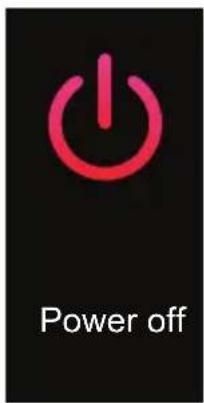
Power off
Tap and hold the touch button 1 to turn off the product.
Reset
This function is used to reset the product to the factory settings.
Bluetooth ON/OFF
If required, the Bluetooth function can be switched on or off at any time.
Reminder
NOTE: You can set up to 5 reminders in the SilverCrest Watch app.
How to set
■ Open the app and enter the Reminder function.
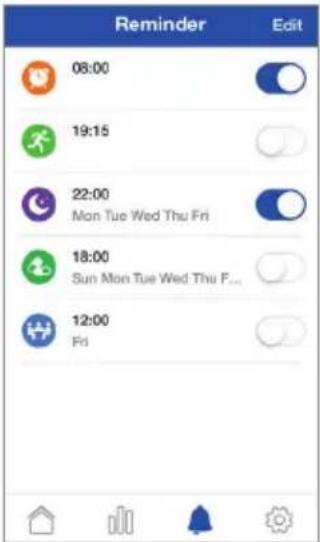
■ Add a new reminder:
Tap brAdd a new reminder.
■ Select the Reminder type:
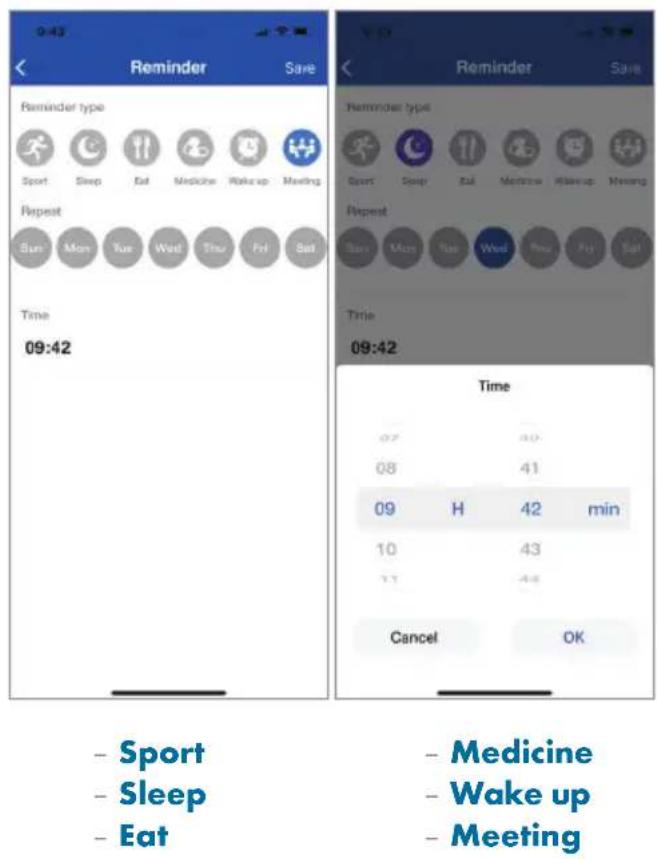
Enter the day of week and the time of day. Tap on OK to confirm.
Tap on Save to activate the alarm. When the alarm starts, a clock icon will be shown on the display 2 and the product vibrates.
NOTE: The setting will only be available after the next synchronization of the product.
How to delete
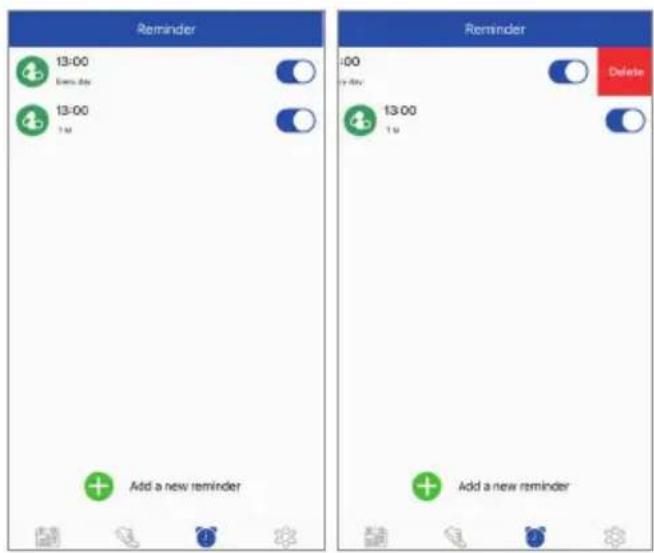
iOS:
- Swipe left on the reminder.
- Press Delete.
Android:
- Tap on Edit.
- Tap on - to delete the reminder.
Connect Smartwatch
Enter Settings and tap on Connect Smartwatch.
NOTE: This function only works within Bluetooth range and if no activity tracker is paired with the app.
Camera Shutter
Enter Settings and tap on Camera Shutter to enter the camera mode on the product and on your mobile device.
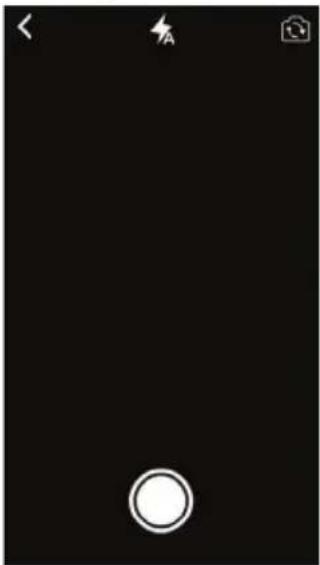
Tap on the touch button 1 to take a photo, which will be saved on your mobile device.
You may also press the photo button on your mobile device to take a photo. The photo might then be stored at a different location on your mobile device.
System settings
Open the Settings menu.
Tap on System Settings.
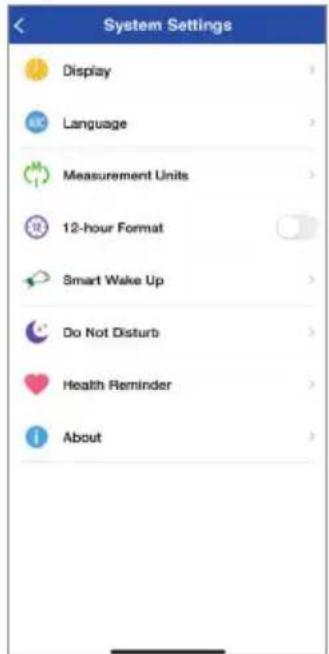
You can set the following:
- Display
- Language
- Measurement Units
- 12-hour Format
- Smart Wake Up
- Do Not Disturb
- Health Reminder
- About
Display
■Select your favourite pattern to change the app display.
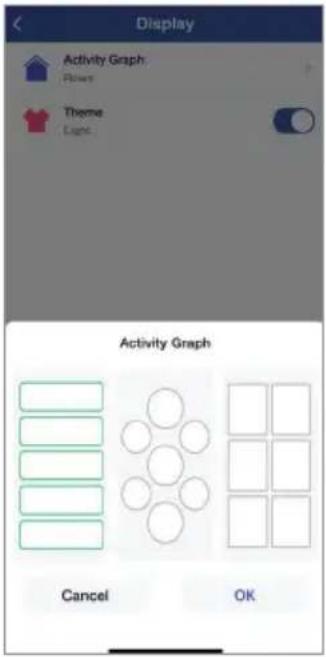
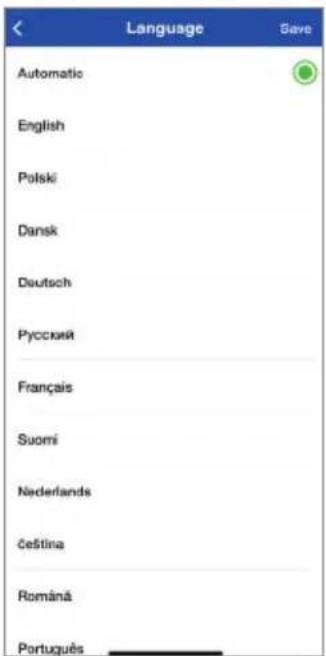
Language
Select the language that is used in the app.
Measurement Units
Select your desired units for distance and temperature.

① NOTE: The setting will only be available after the next synchronization of the product.
12-hour Format
Select the desired format to display the time.
ⓞ = 1 2 - hourformat
ⓞ = 2 4 - hourformat
NOTE: With the 12-hour format, AM or PM appears in the display.
AM = ante meridiem = before noon
PM = post meridiem = after noon
Smart Wake Up
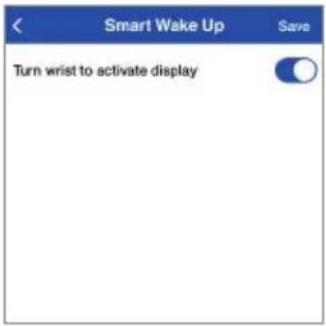
This function allows you to turn on the display 2 using gesture control. If activated, you can raise your hand to turn on the display.
Do Not Disturb
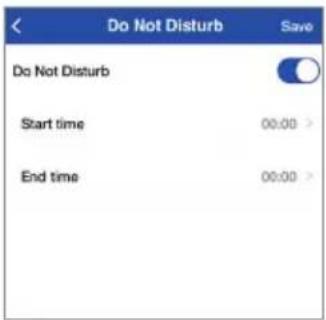
Enter the Start time and End time of a period, during which you do not want to be disturbed (e.g. during the night).
The product enters silent mode within the set period.
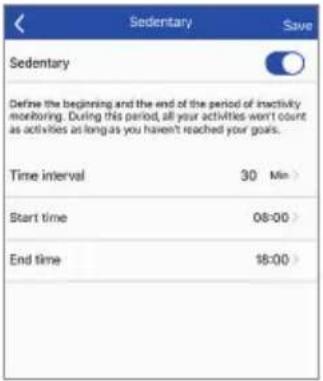
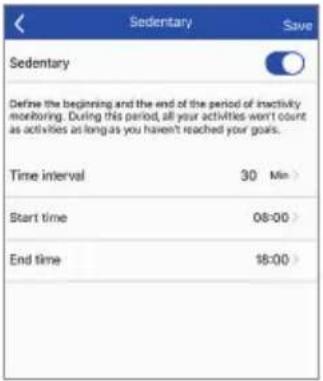
Health Reminder: Sedentary
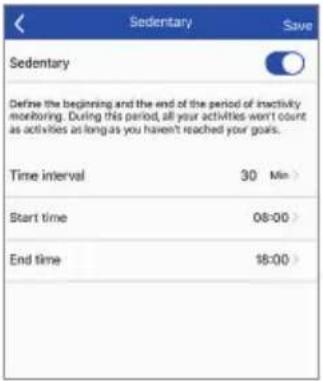
Enter the Start time and End time of a period, during which the product should monitor your inactivity time.
- Set the Time interval (e.g. 30 minutes) in which the product will emit a vibrating signal to remind you to start your activity.
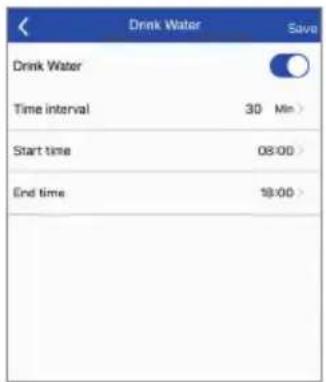
Health Reminder: Drink Water
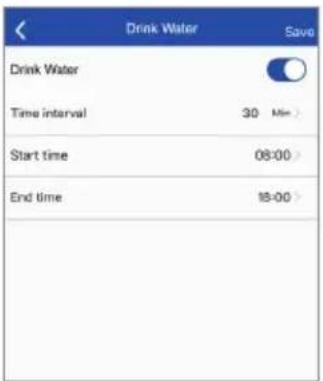
Enter the Start time and End time to allow enabled apps to send water intake reminders to you (for details please refer to the "Notification" section).
■ Set the Time interval (e.g. every 30 minutes) in which you receive reminders about your water intake.
The product vibrates whenever you should drink water within the set period.
- Connect to Google Fit (Android)
- When you select this function, you will be asked to enter your e-mail address.
- Your recorded data will be exported to Google Fit (which requires setting up an account first). Your activities will be tracked automatically.
Connect to Apple Health (iOS)
- When you select this function, you can export data from the product (e.g. steps, sleep, walking, running) to the Apple Health app.
Weather
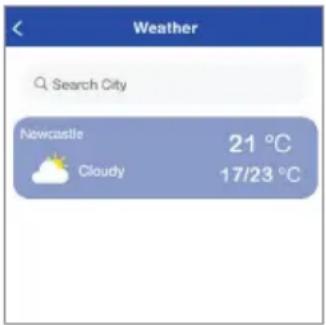
Enter your current location to update the exact weather conditions at your location.
About
This tab (on the System Settings page) shows the version number of the app.
Firmware update
■ Whenever a new firmware version is released, the app will notify you.
Reset Activity Tracker
This function erases all data on the product to restore the factory default settings.
Privacy Policy
■ View our privacy policy: Tap Privacy Policy (on the System settings page).
Device user manual
■ View the full user manual: Tap Device user manual (on the System settings page).
The product redirects to the Lidl website and opens the full user manual.
● Troubleshooting
The following table will help you to rectify minor problems:
Fault Remedy
| There is no connection between the product and the mobile device. | Switch the Bluetooth function on your mobile device off and back on again. Then restart the connection process to the product.Switch the mobile device off and on again.Switch on the visibility of the mobile device in the Bluetooth menu.Reinstall theSilverCrest Watchapp on the mobile device. |
| Not all of the measured data are transferred. | If you have not synced the product within the last 7 days with theSilverCrest Watchapp, any data older than this will be overwritten. Sync the product regularly with the app. |
Incorrect calculation of distances. Check if you have entered your height and stride length correctly. The product calculates approximate distances based on the height of the user.
● Cleaning and care
- Clean the product with a dry and lint-free cloth. A glasses cleaning cloth is ideal.
■ After each use, clean the watch strap using lukewarm water or a mild soap solution and a sponge. Dry all parts with a towel.
■ Sweat and contaminants are detrimental to the function of the sensor. - Do not use hard, abrasive objects, detergents, or solvents to clean the product.
● Storage when not in use
■ Store the product in a dry, dust-free location, protected from direct sunlight.
If the product is not used for a long time, the built-in battery should be fully charged to prolong its operating life. Regularly charge the built-in battery if you do not use the product for a long period of time. This is necessary to preserve the battery.
- Disposal
NOTE: Before passing on, disposing of or returning the product to the manufacturer: Delete all data from the product. This so-called "Reset Activity Tracker" process will erase all data from the product (see "Reset Activity Tracker").
The packaging is made entirely of recyclable materials, which you may dispose of at local recycling facilities.
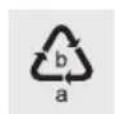
Observe the marking of the packaging materials for waste separation, which are marked with abbreviations (a) and numbers (b) with following meaning: 1-7: plastics / 20-22: paper and fibreboard / 80-98: composite materials.

The product and packaging materials are recyclable, dispose of it separately for better waste treatment.
The Triman logo is valid in France only.
Contact your local refuse disposal authority for more details of how to dispose of your worn-out product.
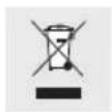
To help protect the environment, please dispose of the product properly when it has reached the end of its useful life and not in the household waste. Information on collection points and their opening hours can be obtained from your local authority.
Faulty or used batteries / rechargeable batteries must be recycled in accordance with Directive 2006/66/EC and its amendments. Please return the batteries / rechargeable batteries and / or the product to the available collection points.
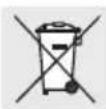
Environmental damage through incorrect disposal of the batteries / rechargeable batteries!
Batteries / rechargeable batteries may not be disposed of with the usual domestic waste. They may contain toxic heavy metals and are subject to hazardous waste treatment rules and regulations. The chemical symbols for heavy metals are as follows: Cd = cadmium, Hg = mercury, Pb = lead. That is why you should dispose of used batteries / rechargeable batteries at a local collection point.
● Simplified EU declaration of conformity
Hereby, OWIM GmbH & Co. KG, Stiftsbergstraße 1, 74167 Neckarsulm, GERMANY, declares that the product ACTIVITY TRACKER HG07789A / HG07789B is in compliance with Directives 2014/53/EU and 2011/65/EU.
The full text of the EU declaration of conformity is available at the following internet address: www.owim.com
Warranty
The product has been manufactured to strict quality guidelines and meticulously examined before delivery. In the event of product defects you have legal rights against the retailer of this product. Your legal rights are not limited in any way by our warranty detailed below.
The warranty for this product is 3 years from the date of purchase. The warranty period begins on the date of purchase. Please keep the original sales receipt in a safe location. This document is required as your proof of purchase.
Should this product show any fault in materials or manufacture within 3 years from the date of purchase, we will repair or replace it – at our choice – free of charge to you. This warranty becomes void if the product has been damaged, or used or maintained improperly.
The warranty applies to defects in material or manufacture. This warranty does not cover product parts subject to normal wear, thus possibly considered consumables (e.g. batteries) or for damage to fragile parts, e.g. switches, rechargeable batteries or glass parts.
The warranty further excludes a reduction in water tightness. The state of water tightness is not a permanent property and should therefore be regularly maintained. Please note, opening and repairs performed by unauthorised individuals will void any warranty.
Warranty claim procedure
To ensure quick processing of your case, please observe the following instructions:
Please have the till receipt and the item number (IAN 123456_7890) available as proof of purchase.
You will find the item number on the rating plate, an engraving, on the front page of the instructions for use (bottom left), or as a sticker on the rear or bottom of the product.
If functional or other defects occur, please contact the service department listed either by telephone or by e-mail.
You can return a defective product to us free of charge to the service address that will be provided to you. Ensure that you enclose the proof of purchase (till receipt) and information about what the defect is and when it occurred.
Service
GB
Service Great Britain
Tel.: 08000569216
E-Mail: owim@lidl.co.uk
IE
Service Ireland
Tel.: 1800 200736
NI
Service Northern Ireland
Tel.: 0800 0927852
E-Mail: owim@lidl.ie
CE
Appendix
- Flowchart of the display icons
![graph TD A["06:00 08:00 09:00"] --> B["Walking 3378 Steps 00:45:36"] C["08:00 09:00"] --> D["Walking 132 Steps 00:45:36"] E["12:00 16:00"] --> F["Walking 16:20 Time 00:45:36"] G["16:00 18:00"] --> H["Walking 2.19 Steps 00:45:36"] I["18:00 19:00"] --> J["Walking 1.24 Steps 00:45:36"] K["19:00 20:00"]…](/content/2026/04/727693/images/77431315738833aad497ca733758dc927592803c3bd3c23b5bf7d0933cb14ed4.jpg)
Find phone.... Side 41
Power off Side 41
Reset. Side 41
Bluetooth ON/OFF Side 41
Reminder Side 41
Connect Smartwatch Side 43
Camera Shutter Side 43
System settings.... Side 43
Forbindelse med Google Fit (Android) Side 46
Forbindelse med Apple Health (iOS) Side 46
Weather.... Side 46
About.... Side 46
Firmware update Side 46
Reset Activity Tracker Side 46
Privacy Policy .... Side 46
Device user manual Side 46
-
Laes Privacy Policy.
-
Tryk på agree.
- Åbn appen SilverCrest Watch.
Vælg fanen Home.
■ Stryg displayet nedad for at synkronisere produktets data med appen.
Søvn
Produktet registrerer automatisk data om din søvn.
i BEMÆRK: Når du kort trykker på knappen 1, aktiveres displayet 2.
- Walking
- Running
- Cycling
- Hiking
Vælg den tilstand, som svarer til din aktivitet ved kort at trykke på knappen 1.
Power off
Reset
- Tilføj en ny påmindelse: Tryk påAdd a new reminder.
Tryk på knappen 1 for at tage et foto, som gemmes på din mobile enhed.
Language
Health Reminder: Sedentary
Connectez Smartwatch Page 67
Arrêt de l'appareil
Réinitialiser
Connectez Smartwatch
Langue
-
Voer de zescijferige code in de app in om de koppelingsprocedure af te ronden.
-
Tik opPair.
- Walking
- Running
- Cycling
- Hiking
Burned calories Time
Steps Distance

Power off
Reset
Language
Health Reminder: Sedentary
Health Reminder: Drink Water
⚠️ WARNUNG! EXPLOSIONSGEFAHR!
Ausschalten
Zurücksetzen
OWIM GmbH & Co. KG
Stiftsbergstraße 1
74167 Neckarsulm
GERMANY
Model No.: HG07789A / HG07789B
Version: 08/2021
IAN 364478_2010
- ACTIVITY TRACKER SAT90A1
- ACTIVITY TRACKER
- AKTIVITETSMÅLER
- WARNINGS AND SYMBOLS USED PAGE 5
- INTRODUCTION PAGE 6
- DESCRIPTION OF PARTS....PAGE 7
- SAFETY INSTRUCTIONS....PAGE 8
- GENERAL INFORMATION ABOUT THIS PRODUCT...... PAGE 10
- BEFORE FIRST USE PAGE 10
- CHARGING THE BATTERY PAGE 10
- INITIAL APP SETUP...... PAGE 11
- OPERATION...... PAGE 12
- TROUBLESHOOTING PAGE 23
- INTRODUCTION
- INTENDED USE
- SCOPE OF DELIVERY
- TRADEMARK NOTICES
- TECHNICAL DATA
- ● DESCRIPTION OF PARTS
- SAFETY INSTRUCTIONS
- DANGER! RISK OF SUFFOCATION! NEVER
- SAFETY INSTRUCTIONS FOR RECHARGEABLE BATTERIES
- ⚠ WARNING! DANGER OF EXPLOSION
- RISK OF LEAKAGE OF RECHARGEABLE BATTERIES
- WEAR PROTECTIVE GLOVES
- RISK OF PROPERTY DAMAGE
- WARNING
- ⚠ WARNING! RADIO INTERFERENCE
- ATTENTION! ENSURE THAT
- OPERATING SYSTEM UPDATES
- ● GENERAL INFORMATION ABOUT THIS PRODUCT
- WATERPROOFING (IP67)
- BEFORE FIRST USE
- CHARGING THE BATTERY
- I NOTES
- INITIAL APP SETUP
- PREPARATION
- OPERATION
- WATCH FACE
- NAVIGATION
- PEDOMETER DISTANCE CALORIES
- MANUAL SYNCHRONIZATION OF THE PRODUCT
- SLEEP
- ● INFLUENCES ON MEASURING ACCURACY
- SPORTS
- DAILY GOAL
- MESSAGE
- MORE
- ABOUT
- FIND PHONE
- POWER OFF
- RESET
- BLUETOOTH ON/OFF
- REMINDER
- HOW TO SET
- IOS
- ANDROID
- CONNECT SMARTWATCH
- CAMERA SHUTTER
- SYSTEM SETTINGS
- DISPLAY
- LANGUAGE
- MEASUREMENT UNITS
- 12-HOUR FORMAT
- SMART WAKE UP
- DO NOT DISTURB
- HEALTH REMINDER: SEDENTARY
- HEALTH REMINDER: DRINK WATER
- CONNECT TO GOOGLE FIT (ANDROID)
- CONNECT TO APPLE HEALTH (IOS)
- WEATHER
- FIRMWARE UPDATE
- RESET ACTIVITY TRACKER
- PRIVACY POLICY
- DEVICE USER MANUAL
- ● TROUBLESHOOTING
- ● CLEANING AND CARE
- ● STORAGE WHEN NOT IN USE
- DISPOSAL
- ENVIRONMENTAL DAMAGE THROUGH INCORRECT DISPOSAL OF THE BATTERIES / RECHARGEABLE BATTERIES
- ● SIMPLIFIED EU DECLARATION OF CONFORMITY
- WARRANTY
- WARRANTY CLAIM PROCEDURE
- SERVICE
- SERVICE GREAT BRITAIN
- SERVICE IRELAND
- SERVICE NORTHERN IRELAND
- APPENDIX
- FLOWCHART OF THE DISPLAY ICONS
- SØVN
- ARRÊT DE L'APPAREIL
- RÉINITIALISER
- CONNECTEZ SMARTWATCH
- LANGUE
- ⚠️ WARNUNG! EXPLOSIONSGEFAHR
- AUSSCHALTEN
- ZURÜCKSETZEN
Brand : SILVERCREST
Model : SAT90A1
Category : Activity tracker