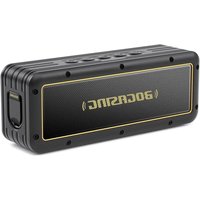
G4 - Speaker BOGASING - Free user manual and instructions
Find the device manual for free G4 BOGASING in PDF.


User questions about G4 BOGASING
0 question about this device. Answer the ones you know or ask your own.
Ask a new question about this device
Download the instructions for your Speaker in PDF format for free! Find your manual G4 - BOGASING and take your electronic device back in hand. On this page are published all the documents necessary for the use of your device. G4 by BOGASING.
USER MANUAL G4 BOGASING
text_image
(BOCASING)G4
Wireless bluetooth speaker
User Manual
Made in China
CONTENTS
English 01-11
中文 12-22
Italiano 23-33
Español 34-44
Deutsch 45-55
Français 56-66
Русский 67-77
日本語 78-88
English
Thank you for purchasing the BOGASING-G4 Bluetooth speaker. Please read the User Manual before use and keep it properly for future reference. If you have any questions or comments, please contact us by email: bogasing@hotmail.com
Specifications
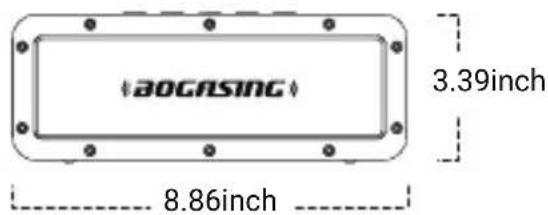
text_image
aOGASING 3.39inch 8.86inch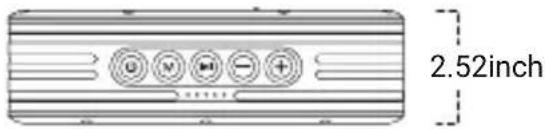
text_image
2.52inch| Model: | G4 |
| Bluetooth Range: | Up to 18m/60ft(Unobstructed) |
| Output Power: | 50W |
| Battery Capacity: | 8000 mAh |
| Bluetooth Version: | 5.3 |
| Frequency Response: | 48Hz-20KHz |
| Input Power: | 5V 2A |
| Charging Time: | 3 - 4 hours |
| Dimension: | 8.86*2.52*3.39inch |
| Weight: | 830g |
Accessories
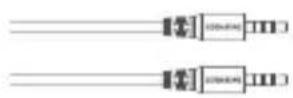
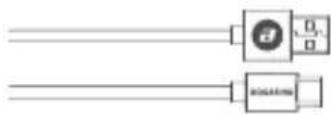
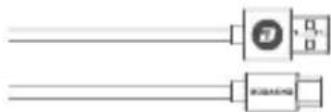
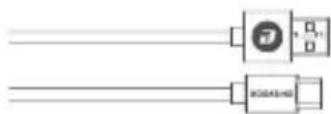
3.5 mm AUX cable USB-C cable
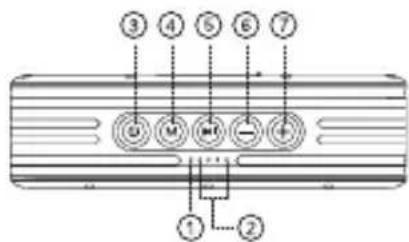
Button Configuration
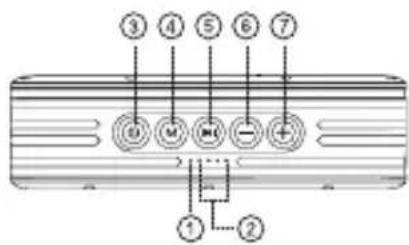
text_image
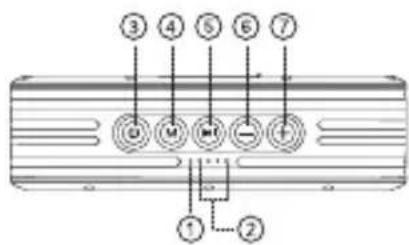
③ ④ ⑤ ⑥ ⑦ ① ②03EN
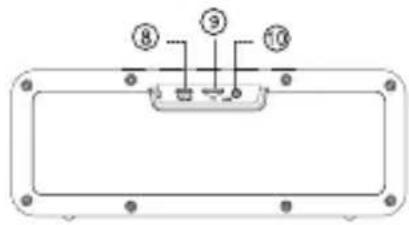
text_image
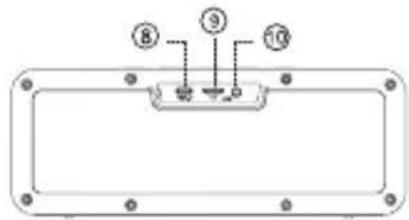
⑧ ⑨ ⑩① Status indicator light
② Battery indicator light
③ Power ON/OFF/Sound effect mode
④ Switch modes/Reset
⑤ Play/Pause/Answer/End a call
⑥ Volume down/Previous track
⑦ Volume up/Next track
⑧ USB-C charging port
⑨ TF-card slot
⑩ Aux-in port
LED Indicator
① Status Indicator
a. Bluetooth light
- Ready to connect: Red and blue lights blinking alternately;
- Connected: Glows solid.
b. Sound effects indicator
- 3D: Glows solid blue
- Vocal: Glows solid red
- Super Bass: Glows solid green
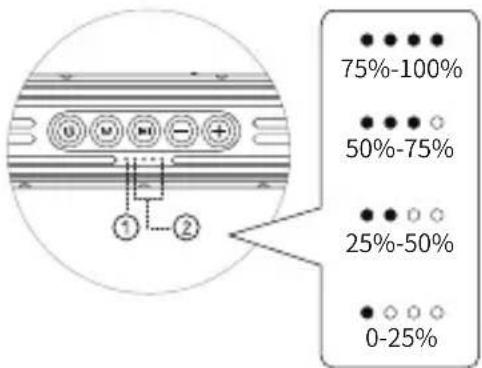
text_image
75%-100% 50%-75% 25%-50% 0-25%(Note: The sound effect indicator has a memory function, and it will default to the last sound effect you used when connecting again.)
② Battery Indicator
- When the battery runs low, the speaker make the sound of "beep beep" to prompt the speaker needs to be charged at this time.
- The battery light blinks while charging. When the battery is fully charged, the blinking stops and the battery light glows solid.
| BUTTON OPERATION FUNCTION DESCRIPTION | ||
| Press and hold Turn ON/OFF. | ||
| ➊ | Press twice quickly Enter into True Wireless Stereo (TWS) mode | |
| Press Switch sound effect modes in turn (3D, Vocal, and Super Bass). | ||
| M | Press Switch the playing modes (Bluetooth, Aux-in, USB-C or TF-card) | |
| Press and hold | Press and hold it until you hear a prompt tone to clear all paired devices or restore to factory settings. | |
| Press | 1. Play/Pause.2. Answer the incoming calls.3. End the current call. | |
| ▶I | Press twice quickly Call back the last call. | |
| Press and hold | 1. Press and hold for 2s, decline an incoming call.2. Press and hold for 3s, disconnect the bluetooth device. | |
| - | Press Volume down, total 16 levels |
| Press and hold Previous track | |
| + | Press Volume up, total 16 levels |
| Press and hold Next track |
Bluetooth Connection
text_image
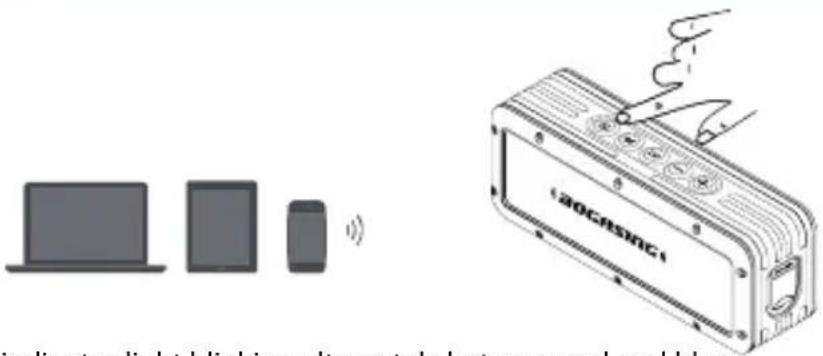
20GASNCI Indicate light tabled is converted to an open panel- Power on the speaker and the indicator light blinking alternately between red and blue.
- On your device, enable the Bluetooth feature. Select the speaker which named is "BOGASING-G4" from the device list.
- Once connected, you will hear a prompt tone and the indicator light glows solid.
Wired Connection
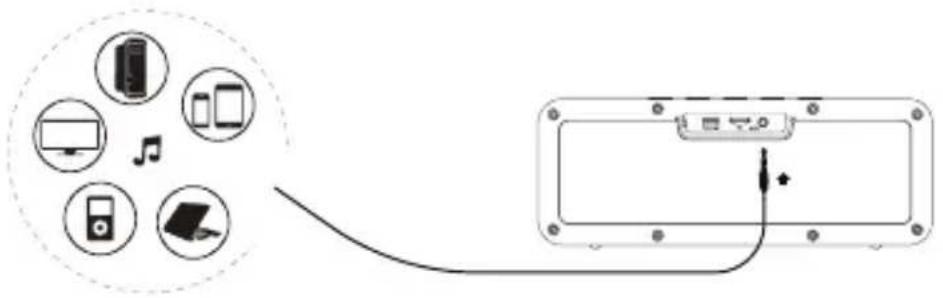
Connect your device with the speaker via 3.5mm audio in cable. When aux cable is plugged, play mode will automatically switch to AUDIO IN mode.
text_image
Diagram showing connected devices and a device panel with an attached cable, including icons for devices like desktops, laptops, and audio.Multiple Play Modes
- This speaker supports up to 128GB TF-card; Supports music format: APE/FLAC/WAV/MP3.
- Insert the TF card into the slot and automatically play the audio file in sequence after recognition.
- When AUX or USB-C cable is plugged, play mode will automatically switch to AUDIO IN or USB-C mode. If the bluetooth is connected, press "M" button to switch the play mode.
07EN
TWS Pairing
- Make sure both speakers are powered on and they are disconnect with other devices;
- Press the " 🔊 " button twice quickly on one of the speakers to enter TWS pairing mode;
- After two speakers are paired, you will hear a prompt tone. At this time, the indicator light of first speaker is blinking, the other one is solid;
- Enable the Bluetooth feature of your cell phone or other devices, find and connect the speaker which named of "BOGASING-G4";
- After the two speakers are successfully paired, it will automatically enter the TWS mode when the next time you turning ON, no need to re-pair;
- If the speaker was ever paired with other speakers, Please press and hold the "M" button to reset it. Restart the speaker after reset, and then refer to steps 1-4 to enter the TWS pairing.
- In TWS mode, only the main speaker can be use for hands-free calling when there is a call, the other speaker has no sound.
Troubleshooting
| Problem Solution | |
| Speaker does not charge | 1. Please use 5V/2A charger to charge the speaker, or try another charging source or cable.2. If your speaker has been exposed to high or low temperatures, let it return to room temperature and then try charging again.3. If you have not used it for a long time or the battery exhausted, please charge it for 20 minutes to activate the battery.4. Please charge it every three months if you do not use it for a long time. |
| Speaker does not connect with mobile device | 1. On your device:– Disable and then enable the Bluetooth feature.– Delete your speaker from the Bluetooth list on your device, Connect again (see page 06).2. Connect a different device.3. Clear the speaker pairing list (Press and hold the "M" button to reset it). Connect again. |
| No sound or the volume abnormal | 1. Check the volume setting of the mobile device2. Reduce the volume to minimum on your speaker, and then increase it to maximum.3. Use a different music source.4. Connect a different mobile device |
| Stuck in Bluetooth mode while playing | 1. Make sure that the mobile device is within the effective transmission range of the Bluetooth speaker (18m/60ft), and that Bluetooth has been enabled on it.2. Make sure there are no obstacles between the speaker and the device, or no interference from other wireless signals. |
| Cannot be played in TF card mode | 1. Refer to the user manual to confirm if it is in TF card playback mode.2. Make sure the audio files in the memory card are supported by the speaker. |
| The speaker can't be operated | Press and hold the power button for 10 seconds to force shutdown. |
| Other issues | Contact BOGASING customer service at: bogasing@hotmail.com |
Warranty Card
| Dear customer, thank you for purchasing our products.Please keep this warranty card properly in order to serve you better. | ||
| Maintenance records | Malfunctions and causes Date | |
| Product | ||
| Model | ||
| Name | ||
| TEL/Phone | ||
| Purchase date | ||
| Address | ||
简体中文
natural_image
Technical line drawing of a 20CrSNC1 electronic device with ports and wiring (no readable text or symbols)text_image
Diagram showing connected devices including desktops, laptops, and a device with a cable or connectorTF卡/音频模式
text_image
20CASING 86mm 225mm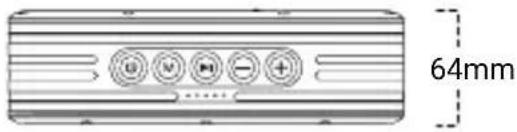
text_image
64mmtext_image
③ ④ ⑤ ⑥ ⑦ G M H - + ① ②25
text_image
⑧ ⑨ ⑩natural_image
Three gray devices: laptop, tablet, and smartphone with a wireless signal icon (no text or symbols)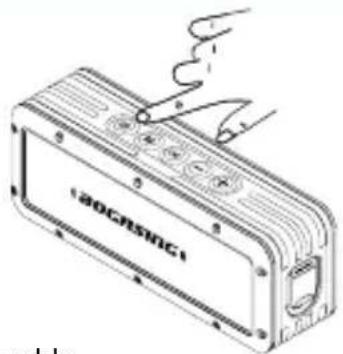
natural_image
Line drawing of a device casing with buttons and ports, no readable text or symbolstext_image
Diagram showing connections between devices and a device panel with labeled icons and an arrow indicating connection point.text_image
BOCASINC 86mm 225mm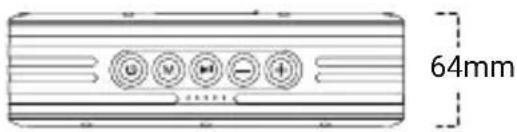
text_image
64mm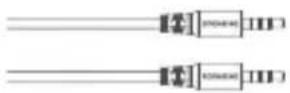
3.5mm Cable AUX Cable USB-C
Botón de función
text_image
③ ④ ⑤ ⑥ ⑦ G M H - + ① ②
text_image
⑧ ⑨ ⑩natural_image
Technical line drawing of a 120CrSNC1 electronic device with no visible text or symbols on the body itselftext_image
Diagram showing connected devices including desktops, laptops, and a device with an LED indicatortext_image
aOGASING 86mm 225mm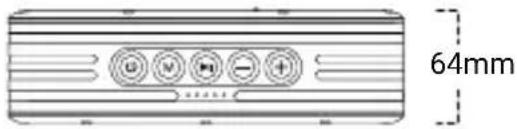
text_image
64mmtext_image
③ ④ ⑤ ⑥ ⑦ G M H - + ① ②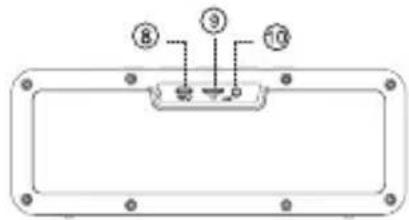
text_image
⑧ ⑨ ⑩natural_image
Three gray devices: a laptop, a tablet, and a smartphone with a wireless signal icon (no text or symbols)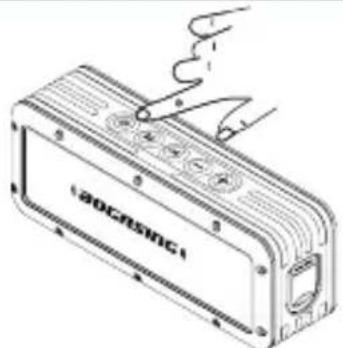
natural_image
Illustration of a device labeled 'ADCRSING' with a coiled cable and ports, no readable text or symbols beyond the label.text_image
Diagram showing connected devices and a device panel with labeled icons and connection linetext_image
BOCASINC 86mm 225mm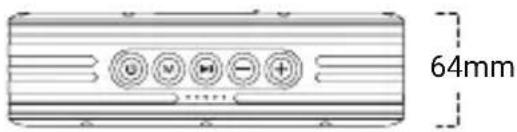
text_image
64mm
3.5mm Câble AUX Câble USB-C
Configuration des boutons
text_image
③ ④ ⑤ ⑥ ⑦ G M H - F ① ②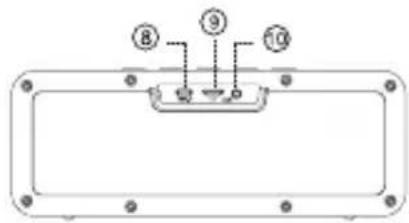
text_image
⑧ ⑨ ⑩natural_image
Three electronic devices: a laptop, a tablet, and a smartphone with a wireless signal icon (no text or symbols)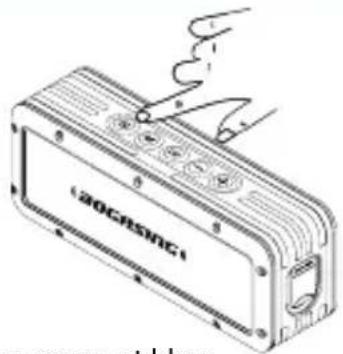
natural_image
Line drawing of a 20GRSNC1 electronic device with ports and wiring (no readable text or symbols)text_image
Diagram showing connected devices and a device panel with an arrow indicating connection to the panel.text_image
80GASING 225mm 86mm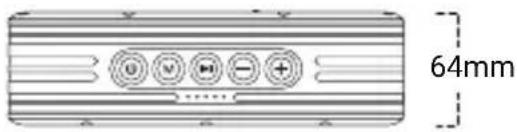
text_image
64mmtext_image
Diagram showing connected devices and a device panel with an LED indicator, alongside circular icons representing devices like desktops, laptops, and music.text_image
③ ④ ⑤ ⑥ ⑦ G M H - + ① ②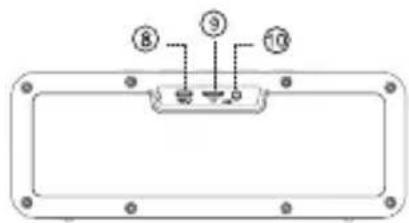
text_image
⑧ ⑨ ⑩natural_image
Three grayscale icons: laptop, tablet, and smartphone with a wireless signal icon (no text or symbols)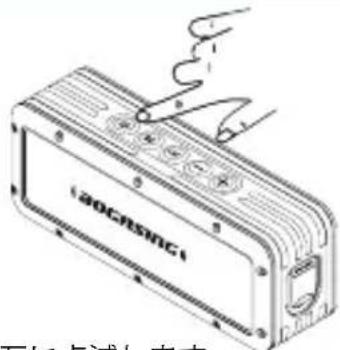
text_image
(20Casing)text_image
Diagram showing connected devices including desktops, mobile phones, and a device with an LED indicator複数のプレイモード
Enterprise Life Artificial Intelligence Yousong Industrial Park, Yousong Community, Longhua District, Shenzhen, China
Email: bogasing@hotmail.com

R 219 - 239060
RoHS

FC
CE

Made in China