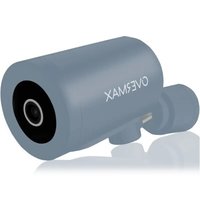
Camspot 5.1 - Mirrorless cameras Overmax - Free user manual and instructions
Find the device manual for free Camspot 5.1 Overmax in PDF.


| Brand | Overmax |
| Model | Camspot 5.1 |
| Product type | WiFi surveillance camera |
| Power supply | USB power adapter (5V) |
| Connectivity | Wi-Fi 2.4 GHz and 5 GHz |
| Video resolution | Full HD (1080p) |
| Night vision | Yes, with IR LEDs |
| Audio | Two-way audio communication |
| Storage | microSD card up to 128 GB (FAT32 format) |
| Motion detection | Yes |
| Sound detection | Yes |
| Features | Overmax Control / Tuya Smart app, privacy mode, patrol, alarm |
| Operating temperature | 0°C to +50°C |
| RF frequency | 2.412-2.472 GHz and 5.180-5.805 GHz |
| RF power | 9.06 dBm (2.4G), 8.26 dBm (5G) |
| Maintenance | Clean with a dry cloth, avoid moisture |
| Safety | Compliant with EU directives, separate collection (WEEE) |
Frequently Asked Questions - Camspot 5.1 Overmax
User questions about Camspot 5.1 Overmax
0 question about this device. Answer the ones you know or ask your own.
Ask a new question about this device
Download the instructions for your Mirrorless cameras in PDF format for free! Find your manual Camspot 5.1 - Overmax and take your electronic device back in hand. On this page are published all the documents necessary for the use of your device. Camspot 5.1 by Overmax.
USER MANUAL Camspot 5.1 Overmax
PL|EN|DE|IT|FR|ES|NL|LT|HR|HU|CS|SK
Camspot 5.1
EN: The product complies with requirements of EU directives. Pursuant to the Directive 2012/19/EU, this product is subject to selective collection. The product must not be disposed of along with domestic waste as it may pose a threat to the environment and human health. The worn-out product must be handed over to the electrics and electronics recycling center.

2

4
From the decision and reference that indicators for feasibility to determine system status
Prenastimjedos H2PO™ 960032 telefon kormaktikeye
svilwajti KsUFOR. Diapitazmembek v (dottaglott)
F1/45 dev.rot solutions, kormaktikeye. Any
kormaktikeye resk M2B
Ensure that the decision is essential as

natural_image
Blank white image with no visible content, text, or symbols5
natural_image
Close-up of a medical device with a perforated vent and a white tool, labeled 'a' (no visible text or symbols on the device itself)6
6
other
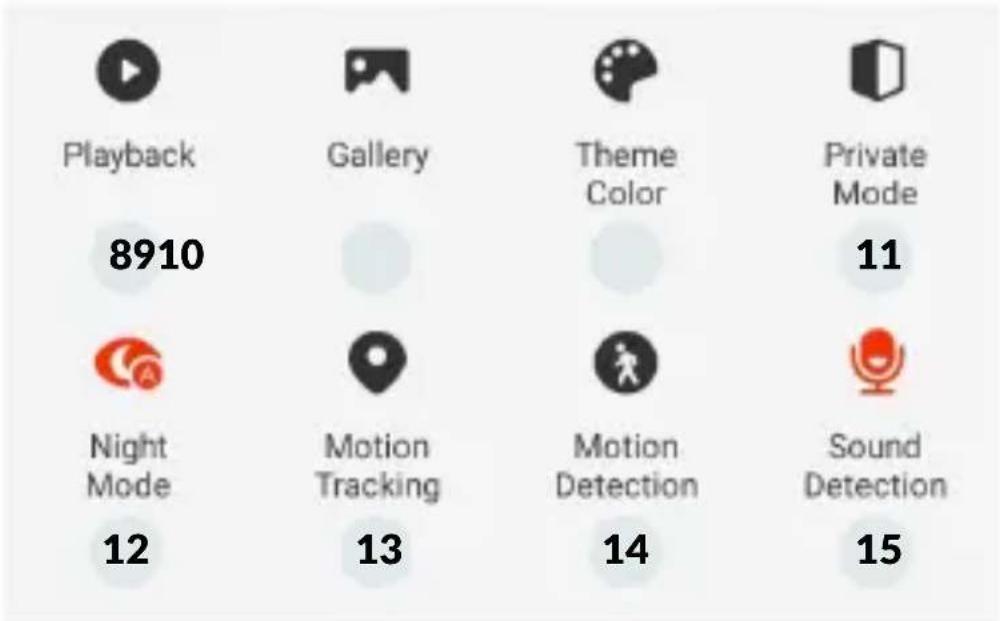
| Category | Value | |---|---| | Playback | 8910 | | Gallery | | | Theme Color | | | Private Mode | 11 | | Night Mode | 12 | | Motion Tracking | 13 | | Motion Detection | 14 | | Sound Detection | 15 |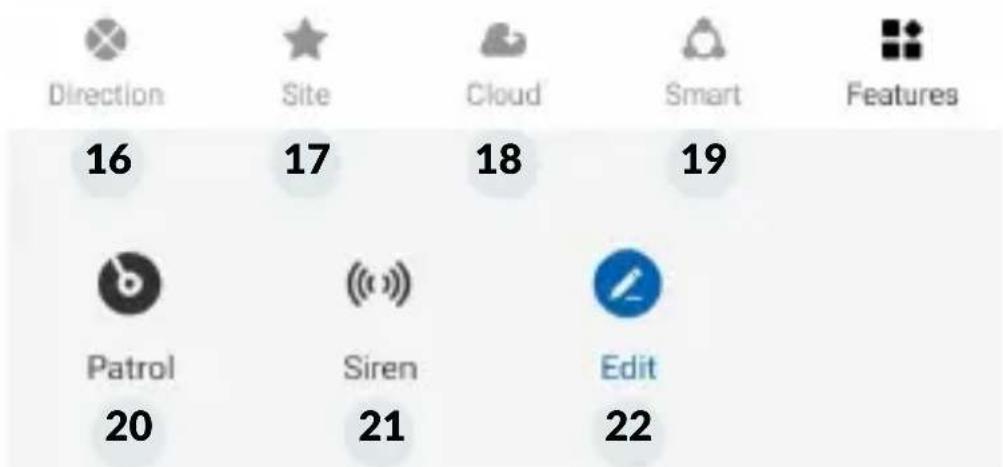
other
| Feature | Value | | :--- | :--- | | Direction | 16 | | Site | 17 | | Cloud | 18 | | Smart | 19 | | Features | | | Patrol | 20 | | Siren | 21 | | Edit | 22 |Wprowadzenie
PL
Drogi Kliencie!
https://ipc-eu.ismartlife.me/login
Thank you for placing trust in us and choosing Overmax.
Thanks to high-quality materials and modern solutions, we provide you with a product perfect for everyday use. We are convinced that the product will satisfy your requirements as it has been manufactured with utmost care. Before you use the product, please read this manual carefully.
Should you have any remarks or questions concerning the product, please do not hesitate to contact us:
Frequency range: 2.412–2.472 GHz, 5.180–5.805 GHz RF output power: 9.06 dBm (2.4G), 8.26 dbm (5G)
Important! The power cord plug serves as a disconnecting device for the camera, so make sure the socket is easily accessible during installation.
Important! It is advisable to use the power adapter that comes with the product.
EN
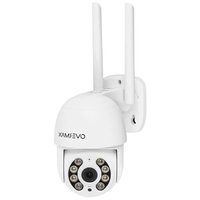
Description (Fig. A)
- IR LEDs
- Camera lens
-
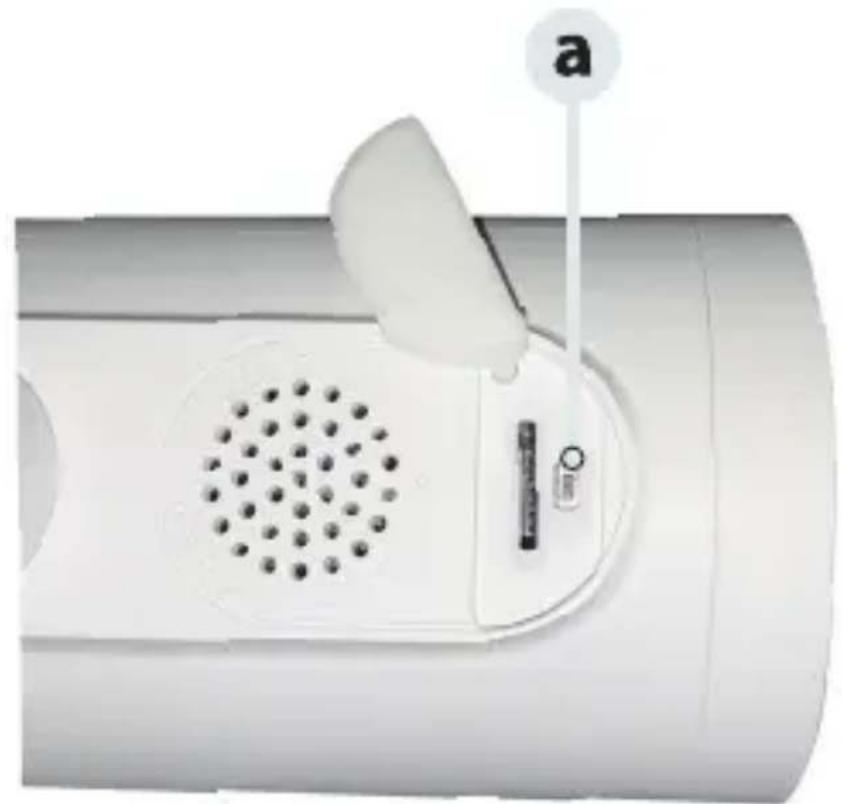
Reset
-
MicroSD card slot
- Speaker
- USB power adapter
1. Downloading via app (Fig. 1)
- Search the iOS Store/Google Play for the “Overmax Control” app or scan the QR code and download the app. The app is supported by iOS and Android.
The device is also compatible with the Tuya Smart app.
2. New user registration (Fig. 2 and 3)
- To register for the app, click the 'Register' button, then read and accept the Privacy Policy.
- Enter your phone number or email address to receive a verification code.
- Enter the verification code into the designated field.
- Enter your individual password and select 'Finish'.
3. Logging in to existing account (Fig. 3)
- To access your existing account, select the option 'Log in using an existing account'.
- Select the Country/Region.
- Enter a valid phone number or email address and password; then proceed to log in.
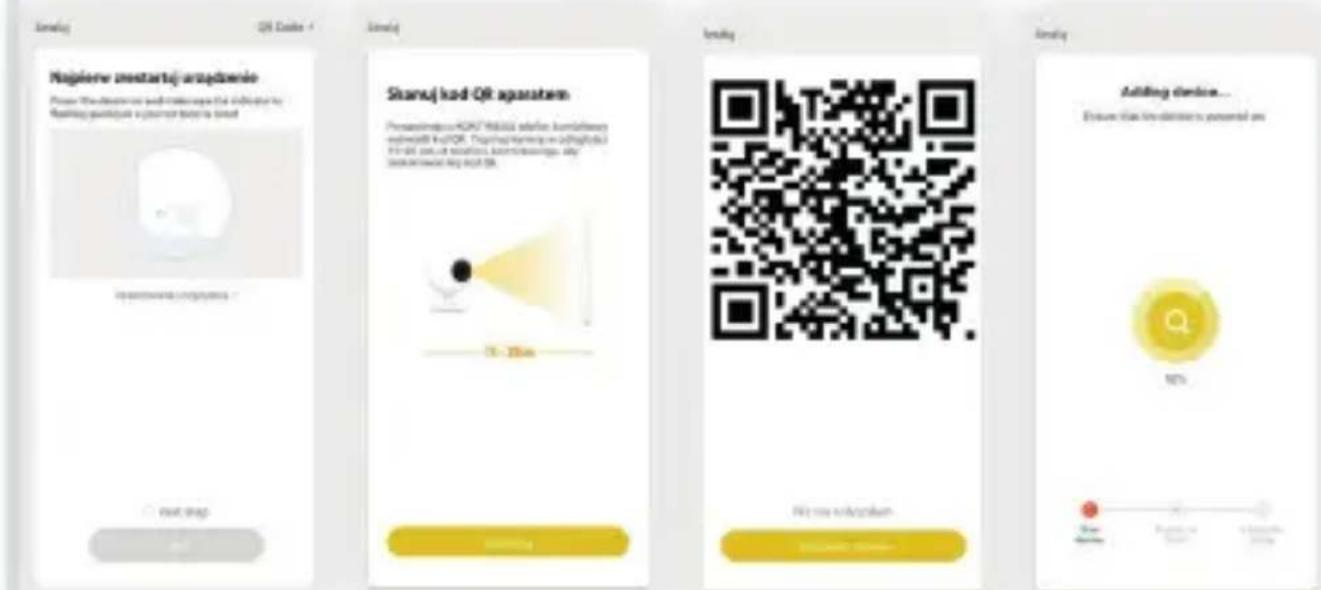
4. Manual addition of device (Fig. 4)
- Ensure that the device with the app installed is connected to Wi-Fi.
- Connect your mobile device to the same Wi-Fi network that the camera will be using. Once connected, tap on the 'My home' option. Select the 'Add device' box, choose 'Add manually', and then pick 'Camspot 5.1'.
- Next, input a valid Wi-Fi network name and password.
5. Scanning the camera with QR code (Fig. 4)
- Reset the camera by pressing 'Reset' (a, Fig. 5) to restore the factory settings. Choose the next step and proceed.
- To pair the camera, hold the phone screen with the QR code 15–20 cm away from the camera lens and scan it. Avoid shaking the mobile phone while scanning.
- When you hear a 'sound', tap the 'I can hear sound' box. Wait for the device to complete the configuration.
- After adding the device, tap 'Finish' to complete the process.
EN
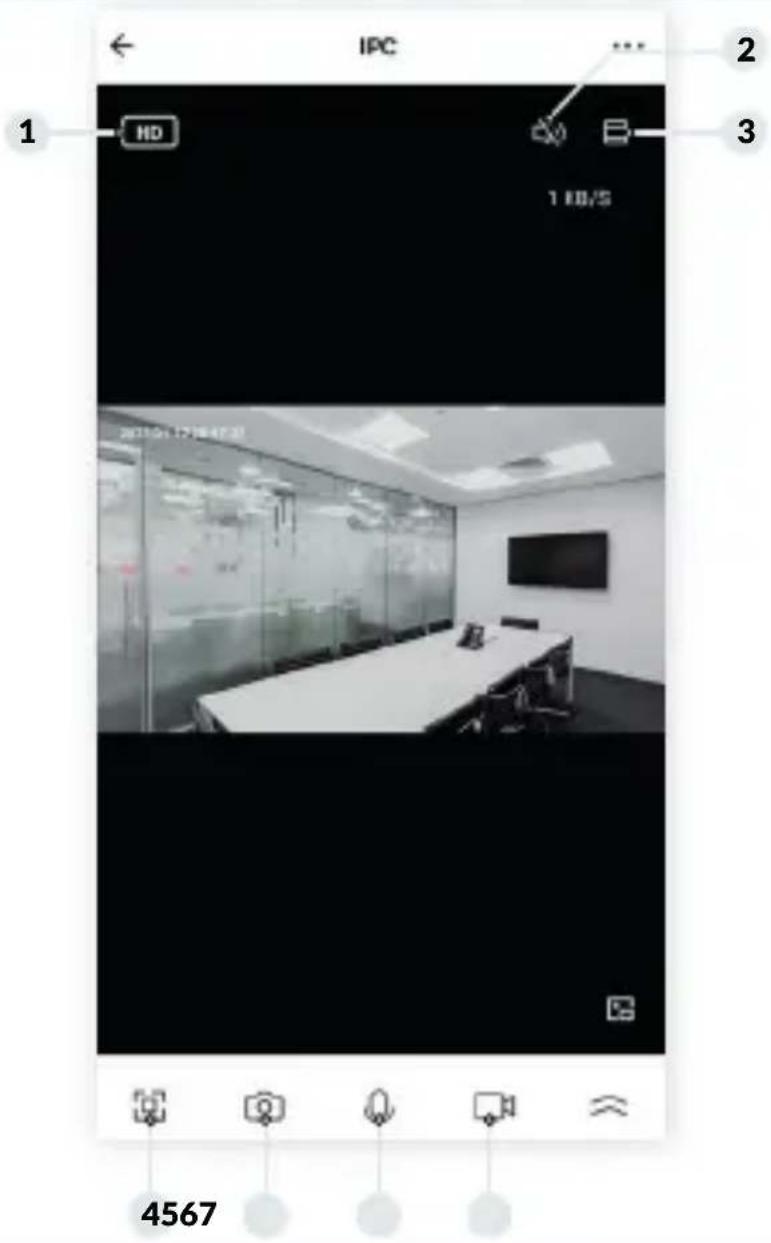
6. Description of mobile app functions (Fig. 6)
Real-time preview interface:
- HD - highest resolution/SD - lower resolution - change of resolution and recording: FullHD /HD
- Mute
- Zoom
- Full screen
- Photo
- Two-way audio communication
- Video recording
- Play (microSD (FAT32) card required, max. 128 GB)
- Gallery
- Light/dark mode in the app
- Private mode (for reducing data transfer by switching off the camera)
- Night mode
- Motion tracking
- Motion sensor
- Sound sensor
- Control
- Locations
- Cloud
-
Smart function
-
Patrol function
- Alarm
- Editing of function panel
To access the camera view via a web browser, activate the “Overmax Control” app, tap ‘Add device’ and then scan the QR code displayed in the browser.
Live camera preview is available at:
https://ipc-eu.ismartlife.me/login
7. Saving recordings
Videos stored on the memory card should first be transferred to the mobile device's memory using the Smart Life app. Data on the card is encrypted, if it is not saved to the device's memory, it will not be accessible later.
8. Troubleshooting
| Question Answer | |
| Why is it not possible to add a device during network pairing? | Make sure that both the phone and the camera are connected to the same Wi-Fi network. |
| What should be done if a device still cannot be added after rescanning? | Reset or switch off the camera and try again. |
| Why is the device unable to display the preview? | Wi-Fi signal strength. Position the camera near the router. If this does not resolve the issue, reset the device and try again. |
| Why does the device remain on the list even after performing a reset? | The ‘Device reset’ option only restores the camera’s network settings and does not change the app’s configuration. You need to log in to the app to remove the camera from the list. |
| How can I connect the camera to a different Wi-Fi network? | Log into the app to delete and reset the device first, then reconfigure it through the app. |
| Why is the camera unable to identify the SD card? | Switch off the device before removing the SD card to avoid damaging the memory card and/or the camera's motherboard.Before inserting or removing the card ensure the camera is disconnected from the power source. Verify that the SD card is working properly and formatted as FAT32. If the mobile phone or device network is unstable, the app may display the message 'SD card cannot be found'. |
| The device is online and has triggered an alarm, but my phone does not receive any notifications. | Grant the app permission to send notifications to your smartphone.Typically, a notification will appear in the smartphone's notification bar when an anomaly is detected. Configure the notification sound or vibration on your smartphone. In addition, the camera alarm will not activate while watching live video through the app. By default, the device detects that the user is actively watching the video feed, eliminating the need for an alarm. |
EN
Caution: Sudden temperature changes may result in condensation forming inside the device. Operating temperature range: -10^ to +50^ .
The photos are for reference only; the actual appearance of products may differ from the photos.
Einführung
Live-Kameravorschau unter dem Link:
https://ipc-eu.ismartlife.me/login
DE
7. Aufnahme
https://ipc-eu.ismartlife.me/login
https://ipc-eu.ismartlife.me/login
https://ipc-eu.ismartlife.me/login
1. Via app downloaden (afb. 1)
Real-time interface:
https://ipc-eu.ismartlife.me/login
https://ipc-eu.ismartlife.me/login
https://ipc-eu.ismartlife.me/login
7. Spremanje snimaka
Videozapise snimljene na memorijskoj kartici prvo treba spremiti u memoriju mobilnog uređaja putem Smart Life aplikacija. Podaci na kartici su šifrirani i ako ih ne pohranite u memoriju uređaja, spriječit ćete njihovo kasnije čitanje.
8. Rješavanje problema
| Pitanje Odgovor | |
| Zašto ne mogu dodati uređaj tijekom mrežnog uparivanja? | Provjerite jesu li vaš telefon i kamera povezani na istu WiFi mrežu. |
| Što učiniti ako i dalje ne možete dodati uređaje nakon ponovnog skeniranja? | Resetirajte ili isključite kameru i pokušajte ponovno. |
| Zašto moj uređaj ne može pregledati? | Jačina Wi-Fi signala. Kameru možete postaviti blizu rutera. Ako ovo ne pomogne, resetirajte svoj uređaj i pokušajte ponovo. |
| Zašto je moj uređaj još uvijek naveden nakon ponovnog postavljanja uređaja? | Opcija "poništavanje uređaja" samo resetira mrežnu konfiguraciju kamere i ne može promijeniti konfiguraciju u aplikaciji. Morate se prijaviti u aplikaciju kako biste uklonili kameru s popisa. |
| Kako povezati kameru s drugom WiFi mrežom? | Najprije se prijavite u aplikaciju kako biste izbrisali i resetirali svoj uređaj, a zatim ponovno postavite uređaj putem aplikacije. |
| Zašto kamera ne može identificirati SD karticu? | Nakon što isključite uređaj, izvadite SD karticu iz uređaja jer u protivnom možete oštetiti memorijsku karticu i/ ili matičnu ploču fotoaparata. Postupak umetanja ili uklanjanja kartice treba izvesti kada je kamera odspojena od izvora napajanja. Provjerite funkcionira li SD kartica ispravno i je li u formatu FAT32. Aplikacija će predložiti "SD karticu nije moguće pronaći" u slučaju nestabilne mreže vašeg mobitela ili uređaja. |
| Uređaj je na mreži i ima događaj alarma, ali telefon ne prima obavijesti. | Aplikaciji dajte dopuštenja za slanje poruka na vašem telefonu. U normalnim okolnostima, poruka će se pojaviti na traci obavijesti vašeg telefona kada se otkrije abnormalnost. Trebali biste postaviti zvuk obavijesti ili vibraciju na svom telefonu. Dodatno, alarm kamere neće se uključiti prilikom gledanja video u aplikaciji za stvarno vrijeme. Uređaj prema zadanim postavkama prepoznaje da je korisnik fokusiran na nadzirani video i ne ma potrebe za upozorenje. |
https://ipc-eu.ismartlife.me/login
https://ipc-eu.ismartlife.me/login
https://ipc-eu.ismartlife.me/login
SK
natural_image
Blank white image with no visible content, text, or symbols
natural_image
Blank white image with no visible content, text, or symbols
natural_image
Blank white image with no visible content, text, or symbols
natural_image
Blank white image with no visible content, text, or symbolsOVERMAX
www.overmax.eu

- Camspot 5.1
- Wprowadzenie
- Drogi Kliencie!
- EN
- Description (Fig. A)
- Downloading via app (Fig. 1)
- New user registration (Fig. 2 and 3)
- Logging in to existing account (Fig. 3)
- Manual addition of device (Fig. 4)
- Scanning the camera with QR code (Fig. 4)
- Description of mobile app functions (Fig. 6)
- Real-time preview interface:
- Saving recordings
- Troubleshooting
- Einführung
- DE
- Aufnahme
- Via app downloaden (afb. 1)
- Spremanje snimaka
- Rješavanje problema
- SK
- OVERMAX
Brand : Overmax
Model : Camspot 5.1
Category : Mirrorless cameras