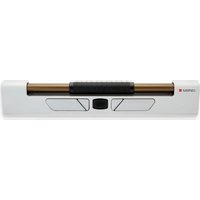
RollerMouse Mobile - Mouse Contour Design - Free user manual and instructions
Find the device manual for free RollerMouse Mobile Contour Design in PDF.


User questions about RollerMouse Mobile Contour Design
0 question about this device. Answer the ones you know or ask your own.
Ask a new question about this device
Download the instructions for your Mouse in PDF format for free! Find your manual RollerMouse Mobile - Contour Design and take your electronic device back in hand. On this page are published all the documents necessary for the use of your device. RollerMouse Mobile by Contour Design.
USER MANUAL RollerMouse Mobile Contour Design
natural_image
Technical line drawing of a mechanical component with no visible text or symbolswww.contourdesign.com
Quick Start
1. To connect via Bluetooth:
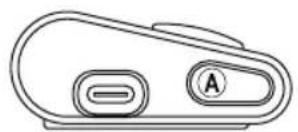
Power on RollerMouse Mobile (button A, see pg. 4). On your computer, navigate to the area of settings regarding Bluetooth connections (varies depending on operating system). Select the option to add or discover a Bluetooth device. Your RollerMouse Mobile should automatically be recognized, select it for the computer to start Bluetooth connection.
Quick Start Cont'd
2. To connect via USB dongle:
Insert USB dongle into available USB port and power on your RollerMouse Mobile. Your computer will recognize your new device and connect automatically.
3. To connect via a wired USB connection:
Connect USB cable to your RollerMouse Mobile and into an available USB port on your computer. Power on your RollerMouse Mobile. Your computer will recognize your new device and connect automatically.
What's in the Box?
- RollerMouse Mobile
- Travel wrap (for RollerMouse Mobile)
- Rubber feet (to raise keyboard height)
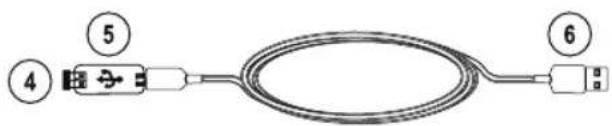
- Dongle*
- USB extender*
- USB charging cable*
Functions
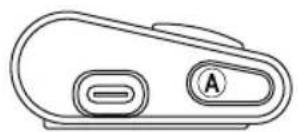
A. On/Off switch
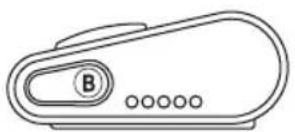
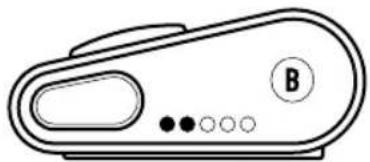
B. Cursor speed/Settings*
C. Left-click
D. Right-click
E. Copy
F. Paste
G. Scroll wheel
H. Rollerbar
* The cursor speed button is multifunctional: On its own, it controls cursor speed. Used in a sequence with other buttons, it adjusts device settings. Please read on to learn more about the functionality of this button.
- The LED indicators have corresponding tones to indicate a settings status. An ascending tone indicates successful activation of a setting. A descending tone indicates a setting was not successfully activated.

text_image
contour H ① C E G F DTop side
natural_image
Simple line drawing of a device handle with two buttons labeled A (no text or symbols beyond the label)Left side Right side
text_image
④ ⑤ ⑥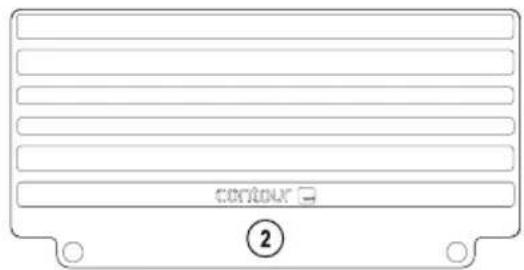
text_image
CONTROL ②
natural_image
Simple geometric shapes: a semicircle, a rectangle, and two circles (no text or symbols)Battery

20% 40% 60% 80% 100%
- Battery level is shown when the device is powered on or plugged in.
- If battery is below 20%, a single light will blink to indicate the need to charge the device.
Cursor Speed (DPI)

600 900 1200 1500 3000
Charging / Extension
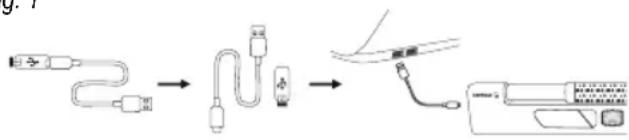
To charge your RollerMouse remove the USB extender and dongle from the charging cable. Plug the USB-C end into the RollerMouse. Your RollerMouse will charge in 4 hours. You may continue to use your RollerMouse as it charges. We recommend charging your RollerMouse once a month based on average daily office use. See fig. 1.
fig. 1
flowchart
graph LR
    A[" connector"] --> B["Internal Component"]
    B --> C["Device with Internal Link"]
    C --> D["Final Device"]
Wireless Connection
Once powered on, the device is in automatic mode which will pair to the first available connection. The device will attempt to connect to the dongle first. If no connection is made, the device will attempt to connect via Bluetooth using the pairing information that is already in the unit. If no pairing information is available, it will start Bluetooth pairing mode and remain in that pairing mode for about two minutes. If device is left in automatic pairing mode, RollerMouse Mobile will cycle through the above steps each time it's powered off then powered back on again.
Pairing and Secondary Options
1. Restart Bluetooth pairing:
Press button B. While continuing to hold B, press and release button C two times, then release button B.
2. Select Bluetooth-only connectivity:
Press button B. While continuing to hold B, press and release button C three times, then release button B.
3. Select dongle-only connectivity:
Press button B, while continuing to hold B, press and release button D three times, then release button B.
4. Restore pairing with dongle:
Unplug then re-plug the dongle to the unit to enable pairing. Hold the device close to dongle and press button B. While continuing to hold B, press and release button D two times, then release button B.
5. Reset wireless function to automatic pairing mode:
PressbuttonB. While continuing to hold B, Press and release button C, then release button B.
- When the device is plugged in through the USB cable, this connection overrides wireless connectivity.
- Please visit contourdesign.com/BT for further information regarding your Bluetooth connection.
- If Bluetooth- or dongle-only connectivity is activated, the RollerMouse Mobile will retain connection when the device is powered off then powered back on again.

text_image
contour C D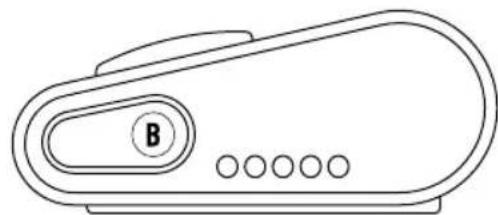
natural_image
Line drawing of a portable electronic device with a labeled button (B) and circular buttons below (no text or symbols beyond the label)Right Side
Rollerbar Click Function (see figures 1&2)
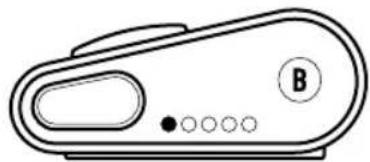
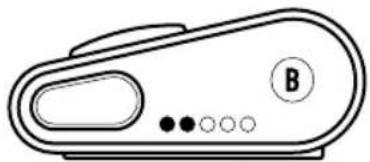
Click force refers to the level of resistance when clicking the Rollerbar. To adjust click force, press and hold button B then press and release button H. Move button G up and down to adjust the click force settings. The current click force level will be displayed by the LEDs on the right side of the unit. To disable the Rollerbar click, adjust the click tension until all LEDs are illuminated.

text_image
fig. 1 contour H GRollerbar Click Sound (see figures 1&2)
fig. 2
natural_image
Line drawing of a handheld device with a handle and circular button labeled B (no text or symbols beyond basic markings)Disable Enable
natural_image
Line drawing of a handheld electronic device with labeled ports and indicator lights (no text or symbols beyond basic markings)Hold button B. While continuing to hold B, press and release button G, then roll G to enable or disable click sound. LED lights will indicate the setting was successfully activated.
AppendixforRMMobileAccessories: Rubber Feet & Travel Wrap
Rubber Feet
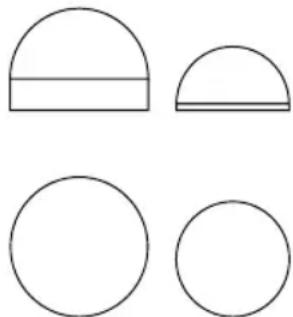
Your RollerMouse Mobile device comes with 2 sets of rubber feet which can be optionally adhered to the bottom of your keyboard. You will find each set gives a slightly different height option for your keyboard. For optimal positioning, your space bar should be slightly higher than the Rollerbar of your device. Please use the set of adhesive rubber feet that is most comfortable for use with your RollerMouse Mobile.
natural_image
Four geometric shapes: a semicircle, a rectangle, a circle, and a semi-circular shape (no text or symbols)Appendix for RM Mobile Accessories: Rubber Feet & Travel Wrap Cont'd
Travel Wrap
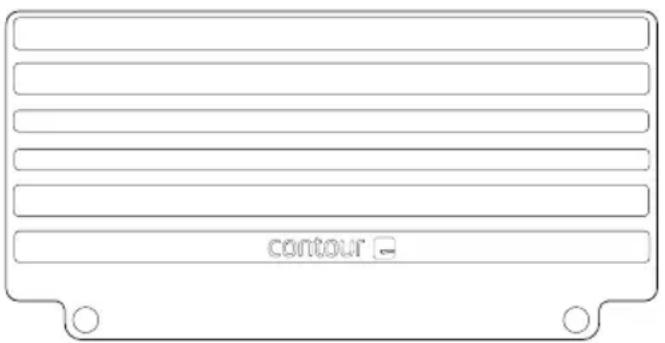
This accessory is to be used during travel to protect your device from dust and debris. While attached to the RollerMouse Mobile, the Wrap can also be folded in half and used as a wrist rest while operating your device. Another option for this is to fold it in half and prop it under the front edge of your laptop to raise the height of your keypad.
text_image
contourSchnellstart
natural_image
Simple line drawing of a device handle with two buttons labeled A (no text or symbols beyond the label)text_image
contour ②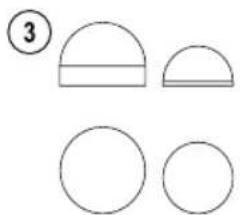
natural_image
Simple geometric shapes: a semicircle, a rectangle, and two circles (no text or symbols)Akku

20% 40% 60% 80% 100%
flowchart
graph LR
    A[" laparoscopic cable "] --> B[" catheter insertion "]
    B --> C[" endoscopic device with catheter insertion"]
text_image
contour C Dnatural_image
Line drawing of a portable electronic device with a labeled button (B) and control buttons at the bottom (no text or symbols beyond basic design)text_image
contour H Gnatural_image
Line drawing of a handheld electronic device with a handle and control knob (no text or symbols)natural_image
Line drawing of a handheld electronic device with labeled ports (no text or symbols beyond basic markings)text_image
contour H ① C E G F DFace supérieure
natural_image
Simple line drawing of a device handle with two buttons labeled A (no text or symbols beyond the label)text_image
Diagram showing a cable with labeled components and connection points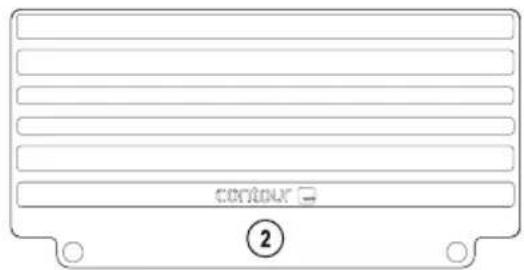
text_image
CONTROL ②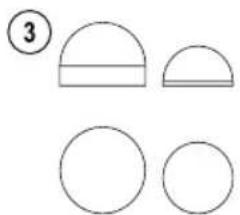
natural_image
Simple geometric shapes: a semicircle, a rectangle, and two circles (no text or symbols)Batterie

20% 40% 60% 80% 100%
flowchart
graph LR
    A[" laparoscopic cable "] --> B[" catheter insertion "]
    B --> C[" endoscopic device with catheter insertion"]
Connexion sans fil
text_image
contour C Dnatural_image
Line drawing of a portable electronic device with a labeled button (B) and control buttons at the bottom (no text or symbols on the device itself)Côté droit
natural_image
Line drawing of a handheld device with a handle and circular button labeled B (no text or symbols beyond basic markings)Désactiver Activer
natural_image
Line drawing of a handheld electronic device with labeled ports and indicator lights (no text or symbols beyond basic markings)natural_image
Four geometric shapes: a semicircle, a rectangle, a circle, and a semi-circular shape (no text or symbols)www.contourdesign.com
2-year Warranty
All Contour Design products come with a 2-year Warranty.
2 Jahre Garantie
natural_image
Simple line drawing of a monitor with a downward arrow icon (no text or symbols)Product Support
For information on software drivers, product manuals, and advanced product settings such as thin client mode, please visit contourdesign.com/support
Produktsupport
If you have questions about your recent purchase, email us: United States: ergoinfo@contourdesign.com All other countries: support@contour-design.com