
ATS-1080 - Soundbar YAMAHA - Free user manual and instructions
Find the device manual for free ATS-1080 YAMAHA in PDF.


User questions about ATS-1080 YAMAHA
0 question about this device. Answer the ones you know or ask your own.
Ask a new question about this device
Download the instructions for your Soundbar in PDF format for free! Find your manual ATS-1080 - YAMAHA and take your electronic device back in hand. On this page are published all the documents necessary for the use of your device. ATS-1080 by YAMAHA.
USER MANUAL ATS-1080 YAMAHA
Part names and functions.... 16
PREPARATION 20
1 Installation.... 20
Installing the unit on a TV stand, etc.... 20
2 Connecting a TV.... 21
Connecting a TV that supports Audio Return Channel (ARC).... 21
Connecting a TV that does not support Audio Return Channel (ARC).... 22
3 Connecting playback devices.... 23
HDMI connection with a playback device.... 23
Analog connection with a playback device.... 23
4 Connecting an external subwoofer.... 24
Connecting an external subwoofer.... 24
5 Connecting the power cord.... 24
Connecting the power cord....24
PLAYBACK 25
Basic operations.... 25
Basic procedure for playback.... 25
Enjoying your favorite sound.... 27
Playback with 3D surround sound.... 27
Playback with surround sound.... 27
Playback with 2-channel stereo sound....27
Playback of human voices clearly (clear voice).... 28
Enjoying enhanced bass sound (bass extension).... 28
Use of a Bluetooth ^® device.... 29
Listening to music stored on a Bluetooth® device 29
Connecting the unit to two Bluetooth devices simultaneously (multipoint connection).... 31
Useful features for playback.... 32
Using a TV's remote control to operate the unit (HDMI control).... 32
Showing audio information with playback.... 33
Operating the unit with the HOME THEATER CONTROLLER app.... 34
CONFIGURATIONS 35
Configuring various functions.... 35
Changing the brightness of the indicators (DIMMER).... 35
Configuring the HDMI control function.... 35
Configuring HDMI audio output....36
Setting the auto power standby function.... 36
Enabling/disabling touch panel control (child lock function).... 37
Configuring the Bluetooth standby function.... 37
Initializing the unit.... 38
APPENDIX 39
When any problem appears (General).... 39
When any problem appears (Power and system function).... 39
When any problem appears (Audio)...... 42
When any problem appears (Bluetooth®)...... 44
Specifications.... 46
Specifications.... 46
Supported HDMI audio and video formats....47
Supported digital audio formats....48
Information for qualified contractors or dealers...... 49
Mounting the unit on a wall.... 49
PRECAUTIONS
PLEASE READ CAREFULLY BEFORE USE. BE SURE TO FOLLOW THESE INSTRUCTIONS.
The precautions listed below are to prevent risk of harm to the user and others, as well as to prevent property damage, and to help the user use this unit properly and safely. Be sure to follow these instructions.
After reading this manual, be sure to keep it in a safe place where it can be referenced at any time.
- Be sure to request inspections or repairs from the dealer where you purchased the unit or from qualified Yamaha service personnel.
- Yamaha cannot be held responsible for injury to you or damage of the products caused by improper use or modifications to the unit.
- This product is for ordinary homes. Do not use for applications requiring high reliability, such as managing lives, health care or high-value assets.

WARNING
This content indicates "risk of serious injury or death."
If you notice any abnormality
- If any of the following abnormalities occur, immediately turn off the power and disconnect the power plug. If you are using batteries, remove the batteries from this unit.
– The power cord/plug is damaged. - An unusual smell, unusual sound or smoke is emitted from the unit.
– Foreign material or water gets into the interior of the unit.
– There is a loss of sound during use.
– There is a crack or damage in the unit.
Continued use could cause electric shocks, a fire, or malfunctions. Immediately request an inspection or repair from the dealer where you purchased the unit or from qualified Yamaha service personnel.
Power supply
- Do not do anything that could damage the power cord.
- Do not place it near a heater.
- Do not bend it excessively or alter it.
- Do not scratch it.
- Do not place it under a heavy object.
Using the power cord with the core of the cord exposed could cause electric shocks or a fire. - Do not touch the power plug or cord if there is a chance of lightning. Failure to observe this may cause electric shocks.
-
Use this unit with the power supply voltage printed on it. Failure to connect to an appropriate AC outlet may cause a fire, electric shocks, or malfunctions.
-
Be sure to use the supplied power cord. Also, do not use the supplied power cord for other units.
Failure to observe the above may cause a fire, burns, or malfunctions. - Check the electric plug periodically and remove any dirt or dust which may have accumulated on it.
Failure to observe this may cause a fire or electric shocks. - When setting up the unit, make sure that the AC outlet you are using is easily accessible.
If some trouble or malfunction occurs, immediately turn off the power switch and disconnect the plug from the AC outlet. Even when the power switch is turned off, as long as the power cord is not unplugged from the wall AC outlet, the unit will not be disconnected from the power source. - If you hear thunder or suspect approaching lightning, quickly turn off the power switch and pull the power plug from the AC outlet.
Failure to observe this may cause a fire or malfunctions. - If not using the unit for long periods of time, be sure to pull the power plug from the AC outlet.
Failure to observe this may cause a fire or malfunctions.
Installation
• Install in the manner instructed in the manual.
Falling or toppling may result in injury or damage.
- Confirm that the finished installation is safe and secure. Also, carry out safety inspections periodically.
Failure to observe this may cause devices to fall and result in injury.
Do not disassemble
- Do not disassemble or modify this unit.
Failure to observe this may cause a fire, electric shocks, injury, or malfunctions.
Water warning
- Do not expose the unit to rain, use it near water or in damp or wet conditions, or place on it any containers (such as vases, bottles or glasses) containing liquids which might spill into any openings or places where water may drop. A liquid such as water getting into the unit may cause a fire, electric shocks, or malfunctions.
- Never insert or remove an electric plug with wet hands. Do not handle this unit with wet hands.
Failure to observe this may cause electric shocks or malfunctions.
Fire warning
- Do not place any burning items or open flames near the unit, since they may cause a fire.
Maintenance and care
- Do not use aerosols or spray-type chemicals that contain combustible gas for cleaning or lubrication.
The combustible gas will remain inside the unit, which may cause explosion or fire.
Handling caution
- Be careful not to drop or apply strong impact to this unit.
Failure to observe this may cause electric shocks, a fire, or malfunctions.
Battery use
• DO NOT INGEST BATTERY, CHEMICAL BURN HAZARD
The remote control supplied with this product contains a coin/button cell battery. If the coin/button cell battery is swallowed, it can cause severe internal burns in just 2 hours and can lead to death.
Keep new and used batteries away from children. If the battery compartment does not close securely, stop using the product and keep it away from children.
If you think batteries might have been swallowed or placed inside any part of the body, seek immediate medical attention.
- Do not disassemble a battery. If the contents of the battery get on your hands or in your eyes, it can cause blindness or chemical burns.
- Do not dispose of a battery in fire. Do not expose a battery to high temperatures, such as direct sunlight or a fire. Doing so may result in the battery bursting, causing a fire or injury.
- Do not attempt to recharge batteries that are not intended to be charged. Charging could cause the battery to burst or leak, which can cause blindness, chemical burns, or injury.
- If the batteries do leak, avoid contact with the leaked fluid. Battery fluid is corrosive and may possibly cause loss of sight or chemical burns. If the batteries do leak, avoid contact with the leaked fluid. If the battery fluid should come in contact with your eyes, mouth, or skin, wash immediately with water and consult a doctor.
Wireless unit
- Do not use this unit near medical devices or inside medical facilities. Radio waves from this unit may affect electro-medical devices.
- Do not use this unit within 15 cm (6 in) of persons with a heart pacemaker implant or a defibrillator implant. Radio waves from this unit may affect electro-medical devices, such as a heart pacemaker implant or defibrillator implant.

CAUTION
This content indicates "risk of injury."
Power supply
- Do not use an AC outlet where the power plug fits loosely when inserted. Failure to observe this may cause a fire, electric shocks, or burns.
- When disconnecting the power plug, always hold the plug itself and not the cord. Pulling by the cord can damage it and cause electric shocks or a fire.
- Insert the power plug firmly all the way into the AC outlet. Using the unit when it is not plugged in sufficiently can cause dust to accumulate on the plug, causing a fire or burns.
Installation
- Do not place the unit in an unstable position where it might accidentally drop or fall over and cause injuries.
- When installing this unit, do not obstruct heat dissipation.
- Do not cover it with any cloth.
- Do not install it on a carpet or rug.
- Do not block this unit's ventilation holes (cooling slits).
- Do not install the unit in other ways than indicated.
- Do not use the device in a confined, poorly-ventilated location.
Failure to observe the above may trap heat inside the unit, causing a fire or malfunctions. Ensure that there is adequate space around the unit: at least 10 cm (4 in) on top, 10 cm (4 in) on the sides, and 10 cm (4 in) on the rear. - Do not install the unit in other ways than indicated.
Failure to observe this may cause malfunctions or for the unit to fall and cause injury. - Do not install the unit in places where it may come into contact with corrosive gases or salt air or places that have excessive smoke or steam. Doing so may result in malfunction.
- Avoid being near the unit during a disaster, such as an earthquake. Since the unit may turn over or fall and cause injury, quickly move away from the unit and go to a safe place.
- Before moving this unit, be sure to turn off the power switch and disconnect all connection cables.
Failure to observe this may damage the cables or cause you or someone else to trip and fall. - For proper mounting the unit on a wall, make sure to have it done by the dealer from where you purchased the unit or by qualified service personnel.
Failure to observe this may cause the installation to fall and result in injury. Installation requires special skills and experience.
Hearing loss
- Do not use the unit for a long period of time at a high or uncomfortable volume level, since this can cause permanent hearing loss. If you experience any hearing loss or ringing in the ears, consult a physician.
- Before connecting the unit to other devices, turn off the power for all devices.
Failing to do so may result in hearing loss, electric shock, or device damage.
Maintenance and care
- Remove the power plug from the AC outlet before cleaning the unit. Failure to observe this may cause electric shocks.
Handling caution
- Do not insert foreign materials such as metal or paper into the openings of this unit.
Failure to observe this may cause a fire, electric shocks, or malfunctions. - Keep small parts out of the reach of infants.
Your children may accidentally swallow them. - Do not do the following:
- stand on or sit on the equipment.
- put heavy items on top of the equipment.
- place the equipment in a stack.
- apply unreasonable force to buttons, switches, input/output terminals, etc.
- hang on the equipment.
- lean against the equipment.
Failure to observe this may cause injuries or damage to the equipment. - Avoid pulling the connected cables to prevent injuries or damage to the unit by causing it to fall.
Battery use
-
Do not use batteries other than specified batteries.
Doing so cause fire, burns, or inflammation due to leakage. -
Keep batteries away from children.
A child could accidentally swallow a battery. Failure to observe this may also cause inflammation due to battery fluid leaks. - Do not put in a pocket or bag, carry, or store batteries together with pieces of metal.
The battery could short, burst, or leak, causing a fire or injury. - Always make sure all batteries are inserted in conformity with the +/- polarity markings.
Failure to do so might result in a fire, burns, or inflammation due to fluid leaks. - When the batteries run out, or if the unit is not to be used for a long time, remove the batteries from the remote control to prevent possible leakage of the battery fluid.
- When storing or discarding batteries, insulate the terminal area by applying tape, or some other protection.
Mixing them with other batteries or metal objects can cause a fire, burns, or inflammation due to fluid.
NOTICE AND INFORMATION
Notice
Indicates points that you must observe in order to prevent product failure, damage or malfunction and data loss.
Power supply
- If not using the unit for a long period of time, be sure to pull the power plug from the outlet. Even if this unit is turned off by [⏻] (Standby/On), a minute current is still flowing.
Installation
- Do not use this unit in the vicinity of other electronic equipment, such as a TV, radio, or mobile phone. Failure to observe this may cause this unit or the TV or radio to produce noise.
- Do not use this unit in a location that is exposed to direct sunlight that becomes extremely hot, such as near a heater, or extremely cold, or that is subject to excessive dust or vibration. Failure to observe this may cause the unit's panel to become deformed; the internal components to malfunction, or for operation to become unstable.
- If using a wireless function, avoid installing this unit near metal walls or desks, microwave ovens, or other wireless network devices.
Obstructions could shorten the transmission distance.
Connections
- If connecting external units, be sure to thoroughly read the manual for each unit and connect them in accordance with the instructions.
Failure to properly handle a unit in accordance with the instructions could cause malfunctions.
- Do not connect this unit to industrial units.
Digital audio interface standards for consumer use and industrial use are different. This unit has been designed to connect to a consumer-use digital audio interface. Connections to an industrial-use digital audio interface could not only cause this unit to malfunction, but could also damage the speakers.
Handling
- Do not place vinyl, plastic, or rubber products on this unit. Failure to observe this may cause discoloration or deformation in the panel of this unit.
- If the ambient temperature changes drastically (such as during unit transportation or under rapid heating or cooling) and there is a chance condensation may have formed in the unit, leave the unit for several hours without turning on the power until it is completely dry before use. Using the unit while there is condensation can cause malfunctions.
Maintenance and care
- When cleaning the unit, use a dry, soft cloth. Using chemicals such as benzine or thinner, cleaning agents, or chemical scrubbing cloths can cause discoloration or deformation.
Speakers
- Do not touch the speaker units. Failure to observe this may damage the speaker units.
About disposal
- Be sure to discard used batteries in accordance with local regulations.
Information for users on collection and disposal of old equipment and used batteries:
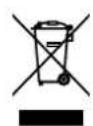
These symbols on the products, packaging, and/or accompanying documents mean that used electrical and electronic products and batteries should not be mixed with general household waste. For proper treatment, recovery and recycling of old products and used batteries, please take them to applicable collection points, in accordance with your national legislation.

By disposing of these products and batteries correctly, you will help to save valuable resources and prevent any potential negative effects on human health and the environment which could otherwise arise from inappropriate waste handling.

For more information about collection and recycling of old products and batteries, please contact your local municipality, your waste disposal service or the point of sale where you purchased the items.
Pb
For business users in the European Union:
If you wish to discard electrical and electronic equipment, please contact your dealer or supplier for further information.
Information on Disposal in other Countries outside the European Union:
These symbols are only valid in the European Union. If you wish to discard these items, please contact your local authorities or dealer and ask for the correct method of disposal.
Note for the battery symbol (bottom two symbol examples):
This symbol might be used in combination with a chemical symbol. In this case it complies with the requirement set by the EU Battery Directive for the chemical involved.
(weee_battery_eu_en_02)
Information
Indicates notes on instructions, restrictions on functions, and additional information that may be helpful.
About the name plate of the unit
The model number, serial number, power requirements, etc., may be found on or near the name plate, which is at the bottom of the unit.
You should note this serial number in the space provided below and retain this manual as a permanent record of your purchase to aid identification in the event of theft.
Model No.
Serial No.
(bottom_en_01)
Trademarks
DOLBY AUDIO
Manufactured under license from Dolby Laboratories. Dolby, Dolby Audio, Pro Logic, and the double-D symbol are trademarks of Dolby Laboratories.



For DTS patents, see http://patents.dts.com.
Manufactured under license from DTS, Inc. DTS, the Symbol, DTS and the Symbol together, DTS Digital Surround, and DTS Virtual:X are registered trademarks or trademarks of DTS, Inc. in the United States and/or other countries.
© DTS, Inc. All Rights Reserved.
App Store ^SM
App Store is a service mark of Apple Inc.
HDMI™
The terms HDMI, the HDMI Logo, and High-Definition Multimedia Interface are trademarks or registered trademarks of HDMI Licensing LLC in the United States and other countries.
x.v.Color™
"x.v.Color" is a trademark of Sony Corporation.

Bluetooth®
The Bluetooth ^® word mark and logos are registered trademarks owned by Bluetooth SIG, Inc. and any use of such marks by Yamaha Corporation is under license.
Blu-ray™
"Blu-ray Disc™", "Blu-ray™", and the logos are trademarks of the Blue-ray Disc Association.
About content in this manual
• This manual is for the following readers:
– the users of the unit
- the constructor, builder and dealer that mount the unit on the wall
- This manual uses the following signal words for the important information:
- ⚠️ WARNING
This content indicates "risk of serious injury or death."
- ⚠️ CAUTION
This content indicates "risk of injury."
- NOTICE
Indicates points that you must observe in order to prevent product failure, damage or malfunction and data loss, as well as to protect the environment.
- NOTE
Indicates notes on instructions, restrictions on functions, and additional information that may be helpful.
- The illustrations and screens in this manual are for instructional purposes only.
- The company names and product names in this manual are the trademarks or registered trademarks of their respective companies.
- Software may be revised and updated without prior notice.
BEFORE USING THE UNIT
Features
Introduction
This front surround system with its built-in subwoofers allows for the enjoyment of dynamic sound with video played on a TV.
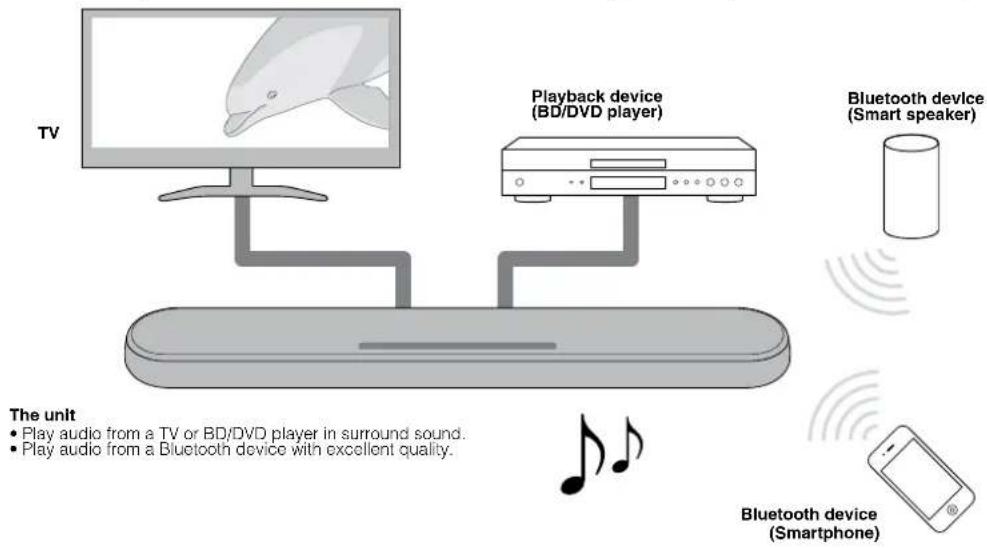
flowchart
graph TD
    TV["TV"] -->|Play audio from a TV or BD/DVD player in surround sound.| Flash["Playback device (BD/DVD player)"]
    Flash -->|Play audio from a Bluetooth device with excellent quality.| Bluetooth["Bluetooth device (Smart speaker)"]
    Bluetooth --> Smartphone["Bluetooth device (Smartphone)"]
    subgraph Flash
        Flash1["Play audio from a TV or BD/DVD player"]
        Flash2["Play audio from a Bluetooth device"]
    end
    subgraph Bluetooth
        Bluetooth1["Bluetooth device (Smart speaker)"]
        Bluetooth2["Bluetooth device (Smartphone)"]
    end
3D surround playback
Surround sound can be heard not only from horizontal directions, but also from varying heights when DTS Virtual:X is used. For details, see the following:
- "Playback with 3D surround sound" (p.27)
Transmission of 4K high dynamic range (HDR) video
Enjoy high-resolution video from a cable or satellite set top box, or a BD/DVD player. When a TV that supports Audio Return Channel (ARC) is used, this ARC-compatible unit can be connected to the TV via a single HDMI cable. For details, see the following:
- "Connecting a TV that supports Audio Return Channel (ARC)" (p.21)
• "Supported HDMI audio and video formats" (p.47)
HDMI control function
Link functions of a TV and the unit are available using the TV's remote control. For details, see the following:
- "Using a TV's remote control to operate the unit (HDMI control)" (p.32)
Support for multipoint connection of Bluetooth devices
Easily play content from a Bluetooth-compatible smartphone, tablet, or PC. In addition, the unit supports multipoint connection and can switch between two Bluetooth devices for playback. Our exclusive
Compressed Music Enhancer technology improves sound quality and characteristics, and can be used to enjoy realistic and impressive sound. For details, see the following:
- "Connecting the unit to two Bluetooth devices simultaneously (multipoint connection)" (p.31)
HOME THEATER CONTROLLER app
HOME THEATER CONTROLLER, a free app for smartphones, allows you to easily operate the unit using a smartphone. For details, see the following:
- "Operating the unit with the HOME THEATER CONTROLLER app" (p.34)
Bass extension
The bass extension function boosts low bass levels to enjoy more powerful sound. For details, see the following:
- "Enjoying enhanced bass sound (bass extension)" (p.28)
Clear voice
The clear voice function makes speech, such as dialog and narration, clearer. For details, see the following:
- "Playback of human voices clearly (clear voice)" (p.28)
Accessories
Checking the accessories
Make sure you have received all of the following accessories.
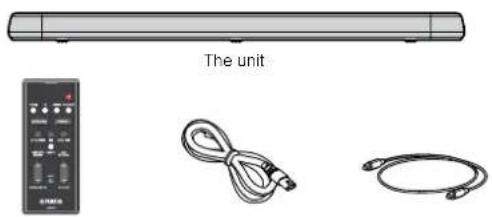
Remote control
* A CR2025 Lithium
battery has already
been inserted into the
remote control.
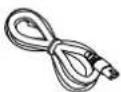
Power cord
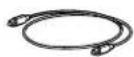
Optical digital audio cable

Mounting template
Use when mounting the unit on awall.

Spacers (x 2/sheet)
* Use when mounting
the unit on a wall.
Owner's Manual
(this booklet)
Using the remote control
Preparing the remote control
Remove the battery's insulating strip before attempting to use the remote control.
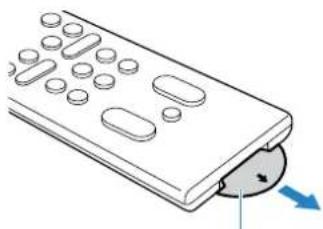
natural_image
Illustration of a remote control with a circular button and blue arrow indicating direction (no text or symbols)Battery's insulating strip
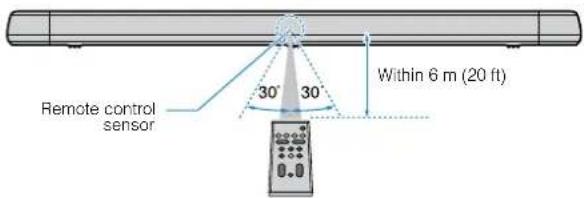
Operating range of the remote control
Operate the remote control within the range shown in the following figure.
NOTE
When the unit is mounted on a wall, point the remote control at the remote control sensor on the top panel. For details, see the following:
- "Part names and functions of the front/top panel" (p.16)
- "Mounting the unit on a wall" (p.49)
Replacing the battery in the remote control
Press and hold the release tab firmly in the direction indicated by [A], and slowly slide the battery holder out in the direction indicated by [B].
![Battery holder Release tab [A] [B] ↓ CR2025 Lithium battery](/content/2026/04/716139/images/957413d8e932be9b701dbc834daad7f632eec3cdb25a6df5e057aef13c2bbe15.jpg)
Part names and functions
Part names and functions of the front/top panel
The part names and functions of the front and top panels are as follows.
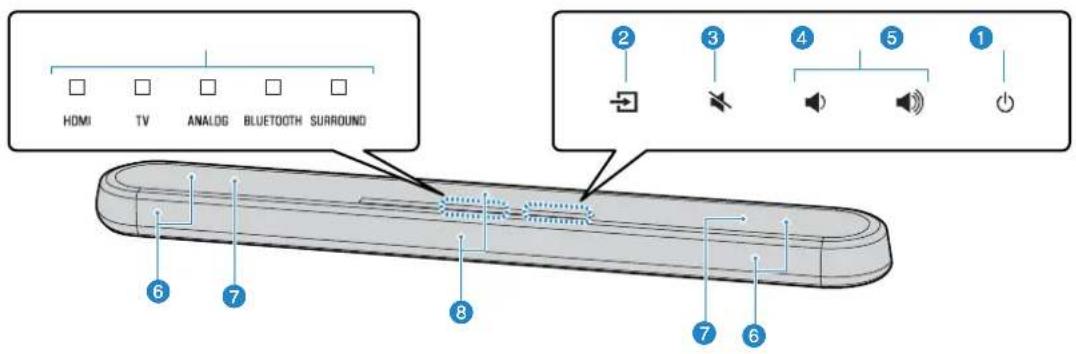
1 Indicators
The indicators on the top panel flash or glow, to show the operation and setting status. In this manual, indicators status, such as off, glowing, and flashing, are shown as the illustrations below.

Off

Glows

Flashes
NOTE
The brightness of the indicators can be changed using DIMMER on the remote control. For details, see the following:
- “Changing the brightness of the indicators (DIMMER)” (p.35)
② → (input)
Select an input source to be played back (p.25).
3 (mute)
Mute the audio output (p.25). Touch again to unmute.
/volume +/-
Adjust the volume (p.25).
(power)
Turn on or off the unit.
NOTE
The unit may automatically turn off when the auto power standby function is enabled (p.36).
6 Speakers
7 Dual built-in subwoofers
The built-in subwoofers are located in the top part of the unit.
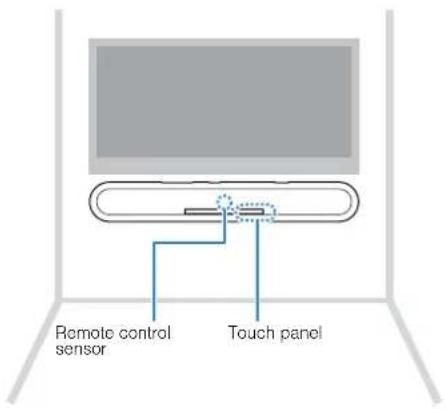
8 Remote control sensors
Receive infrared signals from the remote control of the unit (p.15).
NOTE
• 2, 3, 4 and 5 are touch sensors. Touch icons with your finger to control functions.
- Do not place any objects on the touch panel as doing so may result in unintended operations.
- When touch panel control is disabled, no operations can be performed using the unit's touch panel. This prevents accidental operation of the unit. For details, refer to the following:
- "Enabling/disabling touch panel control (child lock function)" (p.37)
Part names and functions of the rear panel
The part names and functions of the rear panel are as follows.
The illustrations in this manual include labels next to the jacks on the bottom of the unit for easy identification.

1 AC IN jack
Connect the power cord of this unit (p.24).
2 UPDATE ONLY jack
Use to update this unit's firmware. The jack is located inside the cover.
Refer to the instructions supplied with the firmware for details.
3 ANALOG Input jack
For connecting to an external device with a 3.5 mm stereo mini plug cable and inputting audio signals (p.23).
4 TV input jack
For connecting to a TV with an optical digital audio cable and inputting audio signals (p.22).
5 SUBWOOFER OUT jack
For connecting to an external subwoofer with an RCA mono cable (p.24).
6 HDMI IN jack
For connecting to an HDMI-compatible playback device, such as a BD/DVD player, a satellite and cable TV tuner, and a game console, and inputting video/audio signals (p.23).
7 HDMI OUT (ARC) jack
For connecting to an HDMI-compatible TV and outputting video/audio signals (p.21). When a TV that supports Audio Return Channel (ARC) is used, TV audio signal can also be input through this jack.
Part names and functions of the remote control
The part names and functions of the supplied remote control are as follows.
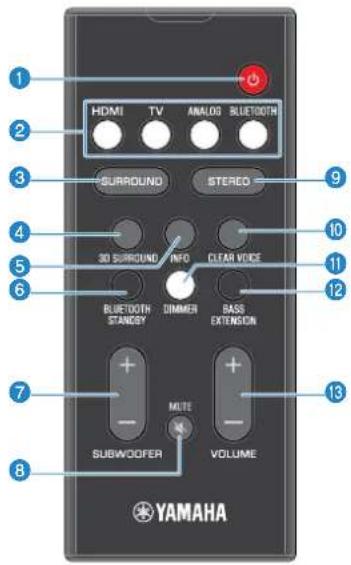
(i) (power) button
Turn on/off the unit.
Turned on
Turned off (Bluetooth standby function enabled) (p.37)

2 Input buttons
Select an input source to be played back.
- HDMI: Sound from a device connected to the HDMI IN jack (p.23)
• TV : TV audio (p.21)
• ANALOG : Sound from a device connected to the ANALOG input jack (p.23) - BLUETOOTH: Sound from a Bluetooth device (p.31)
3 SURROUND button
Switch to surround playback (p.27).
3D SURROUND button
Switch to 3D surround playback (p.27).
5 INFO button
Indicate audio signal information of the input source being played or bass extension setting (p.33).
6 BLUETOOTH STANDBY button
Hold down the key for more than 3 seconds to enable/disable the Bluetooth standby function (p.37).
7 SUBWOOFER (+/-) button
Adjust the volume of the subwoofer (p.25).
8 MUTE button
Mute the audio output (p.25). Press the key again to unmute.
9 STEREO button
Switch to stereo (2-channel) playback (p.27).
10 CLEAR VOICE button
Enable/disable the clear voice function (p.28).
11 DIMMER button
Change the brightness of the indicators (p.35).
BASS EXTENSION button
Enable/disable the bass extension function (p.28).
⑬ VOLUME (+/-) button
Adjust the volume of the unit (p.25).
PREPARATION
1 installation
Installing the unit on a TV stand, etc.
Position the unit with the touch panel facing up on a TV stand, etc.
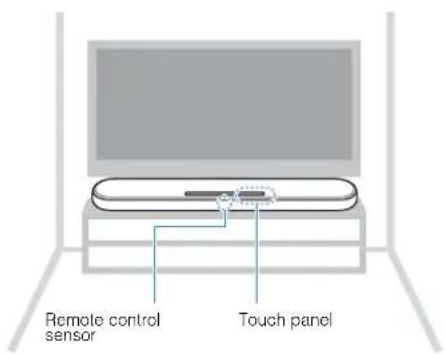
NOTICE
- Do not stack the unit and a BD/DVD player or other device directly on each other. Doing so may cause a malfunction due to vibrations.
- Avoid touching, and never place any weight or pressure on the speakers (portion covered with fabric) on the top of the unit. Doing so may damage the speakers.
- The unit contains non-magnetic shielding speakers. Do not place magnetically sensitive items (hard disk drive, etc.) near the unit.
NOTE
The unit can also be mounted on a wall. Some knowledge of building construction is required for safe installation. Please have a qualified contractor or dealer install the unit on a wall. For details, refer to the following:
• "Information for qualified contractors or dealers" (p.49)
2 onnecting a TV
Connecting a TV that supports Audio Return Channel (ARC)
Connect the TV, which supports Audio Return Channel (ARC), to the unit with an HDMI cable (sold separately).
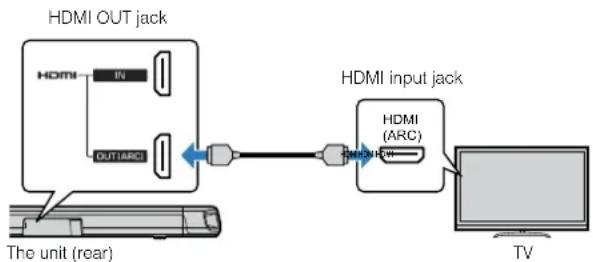
flowchart
graph LR
    A["HDMI OUT jack"] --> B["The unit (rear)"]
    B --> C["OUT/ARC"]
    C --> D["HDMI input jack"]
    D --> E["HDMI (ARC)"]
    E --> F["TV"]
What is Audio Return Channel (ARC)?
In order for the unit to play audio from a TV, the TV must usually be connected to the unit via an audio cable as well as an HDMI cable. If, however, the TV supports Audio Return Channel (ARC), TV audio signals can be input to the unit via the HDMI cable that outputs video signals from the unit to the TV.
NOTE
- Connect an HDMI cable to the audio return channel supported jack (the jack with "ARC" indicated) on TV.
- Enable the HDMI control function of the unit to activate the Audio Return Channel (ARC). For details, see the following:
- "Configuring the HDMI control function" (p.35)
- Use a 19-pin HDMI cable with the HDMI logo printed on it. A cable with a maximum length of 5m (16 ft) is recommended to prevent degradation of signal quality.
- Use a premium high-speed HDMI cable for playback of 3D and 4K video content.
- The unit supports HDCP version 2.2, a copy protection technology. For playback of 4K video, connect the unit to the HDMI input jack (one compatible with HDCP 2.2) on an HDCP 2.2-compliant TV.
- The TV input jack cannot be used when a TV that supports the Audio Return Channel is connected to the unit.
Connecting a TV that does not support Audio Return Channel (ARC)
Connect the TV to the unit with an HDMI cable (sold separately) and an optical digital audio cable (supplied).
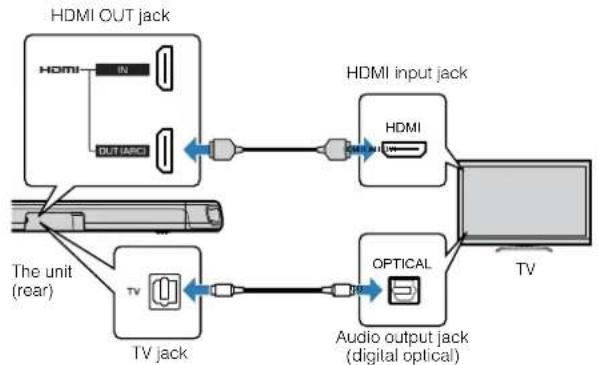
flowchart
graph TD
    A["HDMI OUT jack"] --> B["Home"]
    B --> C["Out/ARC"]
    C --> D["Switch"]
    D --> E["HDMI input jack"]
    E --> F["TV"]
    G["The unit (rear)"] --> H["TV jack"]
    I["TV jack"] --> J["Switch"]
    J --> K["Optical"]
    K --> L["Audio output jack (digital optical)"]
NOTE
- Use a 19-pin HDMI cable with the HDMI logo printed on it. A cable with a maximum length of 5m (16 ft) is recommended to prevent degradation of signal quality.
- Use a premium high-speed HDMI cable for playback of 3D and 4K video content.
- The unit supports HDCP version 2.2, a copy protection technology. For playback of 4K video, connect the unit to the HDMI input jack (one compatible with HDCP 2.2) on an HDCP 2.2-compliant TV.
- When connecting the supplied optical digital audio cable, be sure to remove the cap and check the plug's orientation before connecting it.
- If the TV has no optical jack, connect the audio output jack on the TV to the ANALOG input jacks on the unit. For details, see the following:
- "Analog connection with a playback device" (p.23)
3 onnecting playback devices
HDMI connection with a playback device
Connect a playback device such as a BD/DVD player to the unit with an HDMI cable (sold separately). Use the HDMI cable to best connect a playback device equipped with the HDMI output jack.
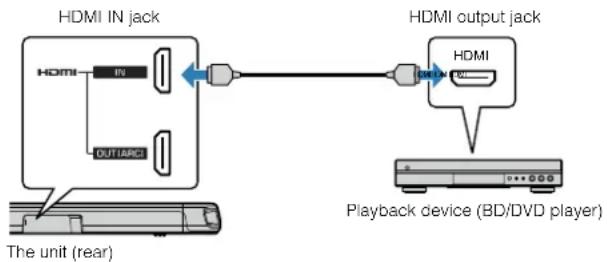
flowchart
graph LR
    A["HDMI IN jack"] --> B["Out/ARC1"]
    B --> C["HDMI"]
    C --> D["Playback device (BD/DVD player)"]
    style A fill:#f9f,stroke:#333
    style D fill:#ccf,stroke:#333
NOTE
- Once the HDMI control function has been activated, video and audio contents from playback devices can be output from the TV even when the unit is turned off (HDMI signal pass-through). For details, see the following:
- "Configuring the HDMI control function" (p.35)
- Use a 19-pin HDMI cable with the HDMI logo printed on it. A cable with a maximum length of 5m (16 ft) is recommended to prevent degradation of signal quality.
- Use a premium high-speed HDMI cable for playback of 3D and 4K video content.
- The unit supports HDCP version 2.2, a copy protection technology. For playback of 4K video, connect the unit to the HDMI output jack on a HDCP 2.2-compliant BD/DVD player.
Analog connection with a playback device
Connect a playback device, such as a game console or a TV that does not have an optical digital audio output, to the unit via a 3.5 mm stereo mini plug cable (sold separately).
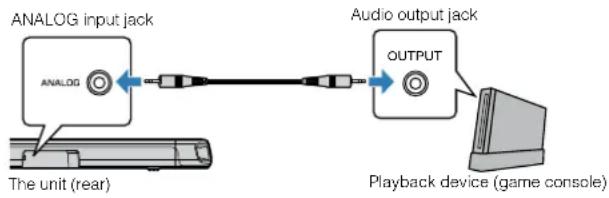
flowchart
graph LR
    A["ANALOG input jack"] --> B["Analog"]
    B --> C["Audio output jack"]
    C --> D["OUTPUT"]
    D --> E["Playback device (game console)"]
    F["The unit (rear)"] --> B

CAUTION
- If volume can be adjusted on the device connected to the unit's ANALOG input jack, set that device's volume to the same level as that of other devices connected to the unit's HDMI IN jack to prevent volume from being louder than expected.
NOTE
When connecting the video device, connect the video device's video output to the TV's video input directly.
4
Connecting an external subwoofer
Connecting an external subwoofer
The unit has dual built-in subwoofers; however you can connect a subwoofer equipped with built-in amplifier when you want to enhance low frequency sound.
Connect an external subwoofer to the unit via an RCA mono cable (sold separately).
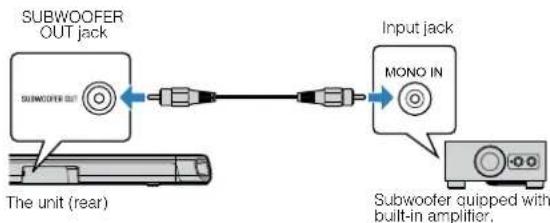
flowchart
graph LR
    A["The unit (rear)"] --> B["SUBWOOFER OUT jack"]
    B --> C["Input jack"]
    C --> D["MONO IN"]
    D --> E["Subwoofer quipped with built-in amplifier"]
NOTE
Sound is output from both the built-in subwoofers and external subwoofer.
5 onnecting the power cord
Connecting the power cord
After all connections are complete, connect the supplied power cord to the AC IN jack on the unit and plug the power cord into an AC wall outlet.
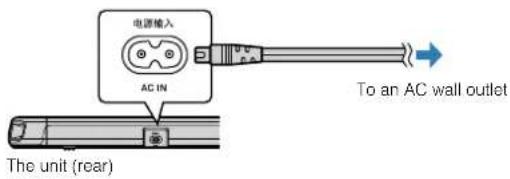
PLAYBACK
Basic operations
Basic procedure for playback
Basic procedure for playing back music is as follows.
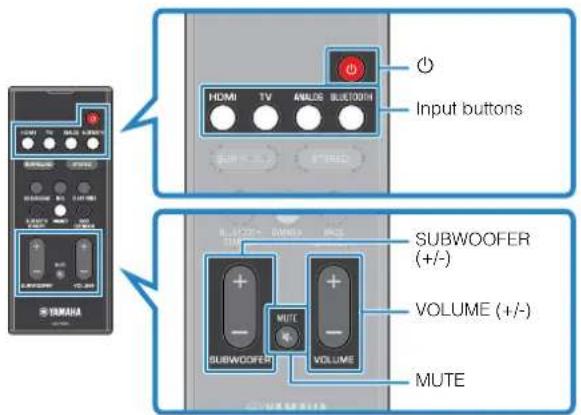
1 Press ⏻ to turn on the unit.
2 Turn on the external devices (such as a TV or BD/DVD player, game console) connected to the unit.
3 Use the input buttons to select an input source to be played back.
HDMI: Sound from a device connected to the HDMI IN jack
TV: TV audio
ANALOG: Sound from a device connected to the ANALOG input jack
BLUETOOTH: Sound from a Bluetooth device
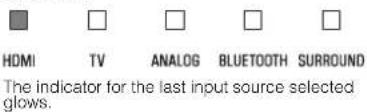
The indicator for the selected input source glows.
Example When TV is selected

HDMI

TV

ANALOG

BLUETOOTH

SURROUND
Glows
4 Start playback on the external device selected in step 3.
5 Press VOLUME (+/-) to adjust the volume.


Volume down (-) Volume up (+)
When audio is output from both TV speaker and the unit, mute the TV sound.
6 Adjust sound settings to suit individual preferences.
NOTE
- For details on adjusting sound settings, see the following:
- "Playback with 3D surround sound" (p.27)
- "Playback with surround sound" (p.27)
- "Playback with 2-channel stereo sound" (p.27)
- "Playback of human voices clearly (clear voice)" (p.28)
- "Enjoying enhanced bass sound (bass extension)" (p.28)
- For details on playback music files stored on a Bluetooth device, see the following:
- "Listening to music stored on a Bluetooth" device" (p.29)
• To mute the sound, press MUTE. Press MUTE again to unmute.


Flash (on mute)
- When sound input to the HDMI IN jack is output from the TV, the volume level does not change even if you press VOLUME (+/-) or MUTE.
- To adjust the subwoofer volume, press SUBWOOFER (+/-). The subwoofer volume can be adjusted separately from the whole volume.

HDMI

TV

ANALOG

BLUETOOTH

SURROUND
Volume down (-) Volume up (+)
- When playing audio/video from a device connected to the TV, select TV as the unit's input source, and select the playback device with the input selector on the TV.
Enjoying your favorite sound
Playback with 3D surround sound
Press 3D SURROUND to switch to 3D surround playback according to the input source or your individual preference.
When 3D surround playback is selected, DTS Virtual:X makes it possible to hear sound not only from horizontal directions, but also from varying heights.
The SURROUND indicator glows blue.


NOTE
The TV Program, Movie, Music, Sports, or Game surround mode can be selected using the HOME THEATER CONTROLLER app installed on a smartphone that supports the Bluetooth function. For details, see the following:
- "Operating the unit with the HOME THEATER CONTROLLER app" (p.34)
Playback with surround sound
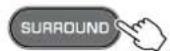
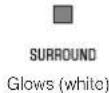
Press SURROUND to switch to surround playback according to the input source or your individual preference.
The SURROUND indicator glows white.
NOTE
The TV Program, Movie, Music, Sports, or Game surround mode can be selected using the HOME THEATER CONTROLLER app installed on a smartphone that supports the Bluetooth function. For details, see the following:
- "Operating the unit with the HOME THEATER CONTROLLER app" (p.34)
Playback with 2-channel stereo sound
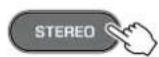
Press STEREO to switch to 2-channel stereo playback. You can enjoy playback sources with your favorite sound mode.
When stereo playback is enabled, the SURROUND indicator goes out.

Playback of human voices clearly (clear voice)
Press CLEAR VOICE to turn on the clear voice function. Human voices such as lines in movies and TV shows, or news and sport commentary, are played clearly.
Press the button again to disable the function.

NOTE
Press INFO to confirm whether the clear voice function is enabled or disabled. For details, refer to the following:
- "Showing audio information with playback" (p.33)
Enjoying enhanced bass sound (bass extension)
Press BASS EXTENSION to turn on the bass extension function. You can enjoy enhanced bass sound and more powerful sound.
Press the button again to disable the function.

NOTE
Press INFO to confirm whether the bass extension function is enabled or disabled. For details, refer to the following:
- "Showing audio information with playback" (p.33)
Use of a Bluetooth® device
Listening to music stored on a Bluetooth® device
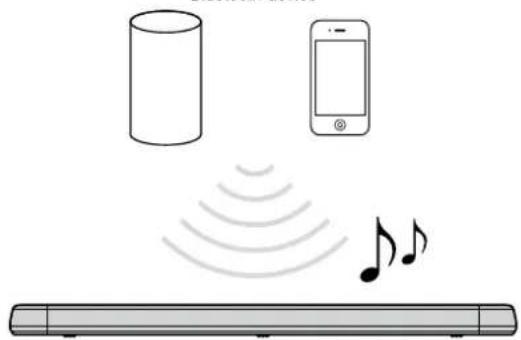
Music files stored on a Bluetooth device, such as a smartphone, smart speaker, or digital music player, can be played back on the unit over a wireless connection.
The unit can be connected to two Bluetooth devices simultaneously (Music cannot be played from both devices simultaneously).
Bluetooth device
natural_image
Diagram showing a smartphone, a cylindrical device, and a rectangular electronic device emitting sound waves (no text or symbols)NOTE
The Bluetooth standby function is enabled by default. When a Bluetooth device is connected to this unit while the unit is off, the unit will be turned on and will be immediately ready to play sound from the Bluetooth device. For details, refer to the following:
- "Configuring the Bluetooth standby function" (p.37)
1 Press BLUETOOTH to select "Bluetooth" as the input source.
The BLUETOOTH indicator on the unit flashes.

Flashes
NOTE
If Bluetooth devices have been connected before, the unit will connect to the last played device when BLUETOOTH is pressed.
2 On the Bluetooth device, enable the Bluetooth function.
The Bluetooth device list appears on the Bluetooth device.
3 Select "YAS-108 Yamaha" (or "YamahaAV") in the list.
If a passkey (PIN) is required, enter the number "0000".
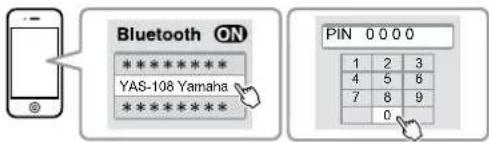
When the connection between the Bluetooth device and the unit is established, a completion message is displayed on the Bluetooth device, and the BLUETOOTH indicator on the unit glows.

BLUETOOTH
Glows
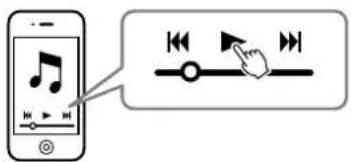
4 Play back a song on the Bluetooth device.
The unit will begin playing audio from the Bluetooth device.
NOTE
- To terminate the Bluetooth connection, perform one of the following operations.
- Turn off the Bluetooth function on the Bluetooth device.
- Hold down BLUETOOTH for more than 3 seconds.
- Select an input source other than Bluetooth using the input buttons on the unit.
- Turn off the unit.
- If the Bluetooth connection is terminated when the unit's input is BLUETOOTH, the BLUETOOTH indicator flashes and the unit enters the connection wait status.
- Adjust the volume level of the Bluetooth device as required.
- Perform Bluetooth connection with the Bluetooth device and unit within 10 m (33 ft) of each other.
• See documentation supplied with your Bluetooth device for more information.
Connecting the unit to two Bluetooth devices simultaneously (multipoint connection)
The unit can be connected to two Bluetooth devices at the same time.
Follow these instructions to switch between the Bluetooth devices for playback.
1 Stop playback on the Bluetooth device from which audio is currently being played.
2 Start playback on the other Bluetooth device.
The unit will begin playing audio from the other Bluetooth device.
NOTE
When connecting a Bluetooth device that has not previously been connected to the unit, disconnect the Bluetooth device currently connected to the unit and connect the new Bluetooth device.
Useful features for playback
Using a TV's remote control to operate the unit (HDMI control)
The HDMI control function coordinates TV and unit operation so that the unit can be operated using the TV's remote control.
When the unit is connected to a TV via HDMI cable, the TV's remote control can be used to perform the following operations.
Operations that can be controlled via the TV's remote control

1 Turn on/off
Both the TV and the unit turn on/off at the same time.
2 Switch input sources
The unit's input source switches accordingly when the TV's input source is switched.
For example, when a TV program is selected on the TV, the unit's audio input source is switched to the HDMI OUT (ARC) jack using the ARC function or TV input jack.
And also, when a BD/DVD player is connected to the HDMI IN jack on the unit, the unit's input source switches to HDMI when the BD/DVD player is selected with the TV's remote control.
3 Switch the audio output device
You can switch the audio output device to the TV or the unit.
Adjust volume
The unit's volume can be adjusted when the TV's audio output is set to the unit.
NOTE
- If you are unable to operate the unit with your TV's remote control, configure the HDMI control function of your TV and the unit. For details, see the following:
- "Configuring the HDMI control function" (p.35)
- The input source can be switched while the unit is off (HDMI signal pass-through).
• The volume displays on the TV and unit may not be the same.
Showing audio information with playback
The type of audio signal being played, whether Dolby Pro Logic II is enabled or disabled, and bass extension and clear voice settings can be confirmed by the status of indicators.
1 Press INFO on the remote control.
The indicators on the unit will show the following audio information for three seconds immediately after INFO is pressed.
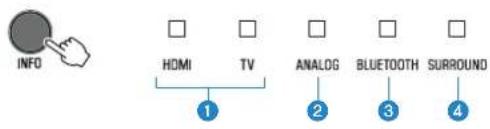
1 Show the type of audio signal.
HDMI glows (white): Dolby Digital
HDMI glows (red): DTS
TV glows (white): AAC
HDMI and TV off: PCM/analog input/no input
2 Show whether Dolby Pro Logic II is enabled or disabled. Dolby Pro Logic II is enabled automatically when 2-channel stereo signals are played in surround sound.
Glows: Enabled
Off: Disabled
3 Show the bass extension function setting.
Glows: Enabled
Off: Disabled
Show the clear voice function setting.
Glows: Enabled
Off: Disabled
Operating the unit with the HOME THEATER CONTROLLER app
When the free HOME THEATER CONTROLLER app is installed on a mobile device such as a smartphone, the unit can be operated using the mobile device. In addition to basic unit operation, various functions, including surround mode selection and tone adjustment, can be more precisely configured using the app than is possible using the remote control.
For details on the HOME THEATER CONTROLLER app, see the product information on the Yamaha website.
CONFIGURATIONS
Configuring various functions
Changing the brightness of the indicators (DIMMER)
Change the brightness of the indicators on the unit.
Each time DIMMER is pressed, the brightness of the indicators changes as follows.
Dim (default setting) → Off → Bright → Dim → ...
Indicators glow brightly just after operation and change to the specified brightness after a few seconds.
Configuring the HDMI control function
Enable or disable the unit's HDMI control function (link function). This function coordinates TV and unit operation so that the unit can be operated using the TV's remote control.
This function is enabled by default.
1 Turn off the unit.
2 Press and hold HDMI at least three seconds.
The HDMI control function is enabled or disabled, and the unit turns on. The indicator shows HDMI control function status for several seconds immediately after the unit is turned on.


TV
Glows (enabled; default)
Off (disabled)
NOTE
- Enable the HDMI control function when connecting a TV that supports Audio Return Channel (ARC), or when using HDMI signal pass-through. For details, see the following:
- "Connecting a TV that supports Audio Return Channel (ARC)" (p.21)
- "Using a TV's remote control to operate the unit (HDMI control)" (p.32)
- If the unit cannot be operated with the TV's remote control, confirm that the HDMI control function of this unit is enabled and the HDMI control function is enabled on the TV. For details, see the following:
- "The unit cannot be operated using the TV's remote control" (p.41)
- The unit's power consumption will be reduced if the HDMI control function is disabled.
Configuring HDMI audio output
Select the device from which audio input via the unit's HDMI IN jack will be played when the HDMI control function is disabled. HDMI audio is output from this unit by default.
Settings
The unit (default) Play HDMI audio input signal from the unit.
TV Play HDMI audio input signal from the TV.
1 Turn off the unit.
2 Press and hold SURROUND at least three seconds.
HDMI audio output switches between the unit and the TV, and the unit turns on. The indicator shows HDMI audio output status for several seconds immediately after the unit is turned on.

Glows (audio is played from the unit: default) Off (audio is played from the TV)
NOTE
- When playing back HDMI audio input signal from the TV, the unit cannot be used to adjust volume. Use TV controls to adjust volume.
- For details on the HDMI control function, see the following:
- "Configuring the HDMI control function" (p.35)
- To configure HDMI audio output with the HDMI control function enabled, select the audio output device configured for the TV connected to the unit.
- HDMI video signals input to the HDMI IN jack of this unit are always output from the HDMI OUT (ARC) jack of the unit.
Setting the auto power standby function
Enabling the auto power standby function prevents the unit from remaining on when not in use. When the auto power standby function is enabled, the unit automatically turns off in any of the following situations.
• No operations for 8 hours
- No audio input and no operations for 20 minutes when Bluetooth or HDMI is selected as the input source.
1 Turn off the unit.
2 Touch and hold ➕ and touch ⏻ on the unit to turn on the unit.
The auto power standby function is enabled or disabled. The indicator shows auto power standby function status for several seconds immediately after the unit is turned on.
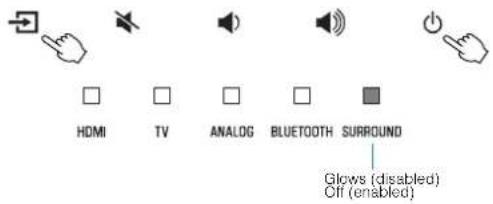
NOTE
The default setting for the auto power standby function varies by country or region.
• U.K., Europe, and Korea models: enabled
- Other models: disabled
Enabling/disabling touch panel control (child lock function)
Disable touch panel control to prevent children from accidentally operating the unit. When touch panel control is disabled, operations can be performed only via the remote control or dedicated free "HOME THEATER CONTROLLER" app. This function is enabled by default.
1 Turn off the unit.
2 Press and hold the INFO key at least three seconds.
The touch panel control is enabled or disabled, and the unit is turned on. The indicator shows touch panel control status for several seconds immediately after the unit is turned on.


HDMI
Glows (enabled; default) Off (disabled)
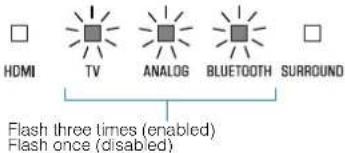
Configuring the Bluetooth standby function
If the Bluetooth standby function is enabled, the unit will be turned on and will be ready to play sound from the Bluetooth device when Bluetooth connection is made on a Bluetooth device. This function is enabled by default.
Press and hold BLUETOOTH STANDBY at least three seconds to switch function status between enabled and disabled.
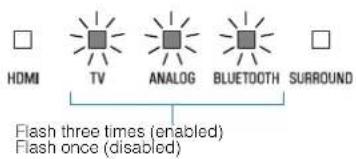
The indicators on the unit show Bluetooth standby function status for several seconds immediately after switching function status.
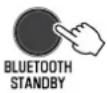

HDMI


ANALOG

BLUETOOTH

SURROUND
Flash 3 times (enabled; default) Flash once (disabled)
Initializing the unit
Reset the settings of the unit to the factory presets.
1 Turn off the unit.
2 Touch and hold ✕ and ⏻ on the unit until all indicators flash.
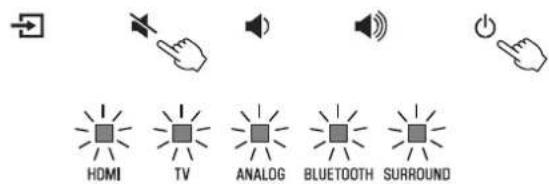
Flash (initialized)
APPENDIX
When any problem appears (General)
First in trouble, check the following:
Refer to the following when the unit does not function properly.
- The power cord of the unit, TV and playback devices (such as BD/DVD players) are connected to AC wall outlets securely.
- The unit, TV and playback devices (such as BD/DVD players) are turned on.
- The connectors of each cable are securely inserted into jacks on each device.
If there is no problem with the power and cables, see the following:
- "When any problem appears (Power and system function)" (p.39)
- "When any problem appears (Audio)" (p.42)
- "When any problem appears (Bluetooth ^® )" (p.44)
If the problem you are experiencing is not listed or if the instructions do not help, turn off the unit, disconnect the power cord, and contact the nearest authorized Yamaha dealer or service center.
When any problem appears (Power and system function)
The power turns off suddenly
● The auto power standby function activated.
When the auto power standby function is enabled, the unit automatically turns off in any of the following situations:
- No operations have been performed for 8 hours - BLUETOOTH or HDMI is selected as the input source, but no audio has been input to the unit or no operations have been performed with the unit for more than 20 minutes.
Turn on the unit again. If the auto power standby function is not used, disable the function. For details, see the following:
- "Setting the auto power standby function" (p.36)
● The protection circuitry has been activated. (The HDMI indicator flashes white or red.)
After confirming that all connections are made properly, turn on the unit again. If the power still turns off frequently, unplug the power cord from the AC wall outlet and contact the nearest authorized Yamaha dealer or service center.
The power cannot be turned on
- The protection circuitry has been activated three times consecutively. (If you try to turn on the power in this condition, the HDMI indicator will flash red.)
To protect the product, the power cannot be turned on. Unplug the power cord from the AC wall outlet and contact the nearest authorized Yamaha dealer or service center.
No operations can be performed from the unit's touch panel
● The touch panel control is disabled.
Enable the touch panel control. For details, see the following: - "Enabling/disabling touch panel control (child lock function)" (p.37)
All indicators go out although the unit is turned on (it may seem that the unit is turned off)
- The unit is configured so that indicators do not glow or flash unless the unit is being operated.
Press DIMMER to select the desired brightness. For details, see the following:
- "Changing the brightness of the indicators (DIMMER)" (p.35)
The unit does not function correctly
- The internal microcomputer is frozen, due to an external electric shock (such as lightning or excessive static electricity) or to a drop in the power supply voltage.
Unplug the power cord from the AC wall outlet and plug it again.
The unit turns on by itself
● Another Bluetooth device is being operated nearby.
Terminate Bluetooth connection with the unit. For details, see the following:
- “Connecting the unit to two Bluetooth devices simultaneously (multipoint connection)” (p.31)
The TV's 3D glasses do not work
● The unit is blocking the TV's 3D glasses transmitter.
Confirm the position of the TV's 3D glasses transmitter, and position the unit so that it does not obstruct the transmitter.
HDMI video is not displayed on TV screen
● The HDMI cable is not securely connected.
Connect the HDMI cable properly. For details, see the following:
- “Connecting a TV that supports Audio Return Channel (ARC)” (p.21)
- "Connecting a TV that does not support Audio Return Channel (ARC)" (p.22)
When the unit is turned off, video and/or audio from a playback device are not output to the TV
● The HDMI control function is disabled.
Enable the HDMI control function. For details, see the following:
- "Configuring the HDMI control function" (p.35)
The unit cannot be operated using the remote control
- The unit is out of the operating range.
Use the remote control within the operating range. For details, see the following:
- "Operating range of the remote control" (p.15)
● The batteries are weak.
Replace with new batteries. For details, see the following:
- "Replacing the battery in the remote control" (p.15)
● The remote control sensor of the unit is exposed to direct sunlight or strong lighting.
Adjust the lighting angle, or reposition the unit.
The TV cannot be operated using the TV's remote control
- The unit is blocking the TV's remote control sensor.
Position the unit so that it does not obstruct the TV's remote control sensor.
The unit cannot be operated using the TV's remote control
● The HDMI control function is incorrect.
Confirm the settings are properly configured as follows.
- The HDMI control function of the unit is enabled.
- The HDMI control function is enabled on the TV.
- Set audio output to any option other than TV.
If the unit cannot be operated with the TV's remote control, even after the settings have been applied correctly:
– Turn off the unit and the TV, and then turn them back on again.
- Disconnect the power cord of the unit and external devices connected to the unit via HDMI cable. Plug them in again after about 30 seconds.
● The TV and BD/DVD player are not from the same manufacturer.
We suggest using devices such as a TV and BD/DVD player from the same manufacturer.
- The TV does not support the unit's functions.
Even if your TV supports the HDMI control function, some functions may not be available. For details, refer to documentation supplied with your TV.
When any problem appears (Audio)
No sound
- Another input source is selected.
Select an appropriate input source. For details, see the following:
- "Basic procedure for playback" (p.25)
- The mute function is activated.
Cancel the mute function. For details, see the following:
- "Basic procedure for playback" (p.25)
● The volume is too low.
Turn up the volume. For details, see the following:
- "Basic procedure for playback" (p.25)
● The power cord of the unit is not connected properly.
Make sure that the power cord of the unit is connected to an AC wall outlet securely. For details, see the following:
- "Connecting the power cord" (p.24)
- Input jacks on a playback device are connected.
Connect the input jack on the unit and the output jack on the playback device.
● Signals that the unit cannot play back are being input.
Change the digital audio output setting on the playback device to PCM, Dolby Digital or DTS.
- The unit is configured so that HDMI audio input signals are output from the TV.
Configure the unit so that HDMI audio input signals are output from the unit. For details, see the following:
- "Configuring HDMI audio output" (p.36)
● The HDMI control function is disabled.
When connecting a TV that supports ARC (Audio Return Channel) to the unit using an HDMI cable only, enable the HDMI control function.
To output audio signals from the unit with the HDMI control function disabled, connect the TV's audio output jack to the unit's TV input jack (optical digital) via the optical digital audio cable.
For details, see the following:
- "Configuring the HDMI control function" (p.35)
- "Connecting a TV that does not support Audio Return Channel (ARC)" (p.22)
- Sound from an HDMI control-enabled TV is set for output from the TV's built-in speakers.
Use the TV's HDMI settings to set audio output to any option other than the TV's built-in speakers.
No sound is coming from the subwoofer
● The volume of the subwoofer is too low.
Turn up the volume of the subwoofer. For details, see the following:
- "Basic procedure for playback" (p.25)
● The playback source does not contain low-frequency signals.
Play back a sound source containing low-frequency signals, and confirm that the sound is output from the subwoofer.
The volume decreases when the unit is turned on
● The automatic volume adjustment function is activated.
To prevent excessive loudness, the unit automatically controls its volume within a certain level when the unit is turned on. Turn up the volume as required. For details, see the following:
- "Basic procedure for playback" (p.25)
No surround effect
- Stereo playback is selected.
Select surround playback or 3D surround playback. For details, see the following:
- "Playback with 3D surround sound" (p.27)
- "Playback with surround sound" (p.27)
● The volume is too low.
Turn up the volume. For details, see the following:
- "Basic procedure for playback" (p.25)
● The TV or playback device is set to output 2 channel audio (such as PCM) only.
Change the digital audio output setting on the TV or playback device to Bitstream.
● Sound is also heard from the TV built-in speakers.
Set the TV volume to minimum. For details, see the following:
- "Basic procedure for playback" (p.25)
● The listening position is too close to the unit.
The listening position should be at some distance from the unit.
Noise is heard
- The unit is too close to another digital or high-frequency device.
Move those devices away from the unit.
When any problem appears (Bluetooth®)
The unit cannot be connected to a Bluetooth® device
- Bluetooth is not selected as the input source.
Select Bluetooth as the input source. For details, see the following: - "Connecting the unit to two Bluetooth devices simultaneously (multipoint connection)" (p.31)
● The unit is too far away from the Bluetooth device.
Move the Bluetooth device closer to the unit. - A device emitting electromagnetic waves (such as a microwave oven, a wireless device and so on) may be located nearby.
Do not use the unit near devices that emit electromagnetic waves.
● The Bluetooth device you are using may not support the A2DP profile.
Use a Bluetooth device that supports the A2DP profile.
● The connection profile registered in the Bluetooth device may not be functioning correctly for some reason.
Delete the connection profile in the Bluetooth device, and then connect the Bluetooth device to the unit. -
The passkey for devices such as a Bluetooth adapter is not "0000".
Use a Bluetooth device with a passkey of "0000". -
The unit is already connected to another Bluetooth device. (Using a Bluetooth device that has never been connected to the unit.)
Terminate the current Bluetooth connection, and then connect to the new device. - The unit is already connected to two Bluetooth devices. (Using a Bluetooth device that has been connected to the unit.)
Terminate one of the Bluetooth connections, and then connect to the new device.
No sound can be heard, or the sound cuts off intermittently from a Bluetooth® device
● The volume on the Bluetooth device may be too low.
Raise the volume on the Bluetooth device.
- Bluetooth is not selected as the input source.
Select Bluetooth as the input source. For details, see the following:
- "Connecting the unit to two Bluetooth devices simultaneously (multipoint connection)" (p.31)
● Playback on the Bluetooth device has not been performed.
Perform playback on the Bluetooth device.
● The sound output on the Bluetooth device may not be set to the unit.
Select the unit as the output destination on the Bluetooth device.
● The connection to the Bluetooth device was terminated. Connect with the Bluetooth device one more time.
● The unit may be too far away from the Bluetooth device.
Move the Bluetooth device near the unit.
- A device emitting electromagnetic waves (such as a microwave oven, a wireless device and so on) may be located nearby.
Do not use the unit near devices that emit electromagnetic waves.
● Audio from another Bluetooth device is playing.
Stop playback on the Bluetooth device from which audio is currently being played, and start playback on the other Bluetooth device.
Specifications
Specifications
The specifications of the unit are as follows.
Amplifier Section
Maximum Rated Output Power
- Front L/R 30 W × 2ch
- Subwoofer 60 W
Speaker Section
Front L/R
- Type
Acoustic suspension type (non-magnetic shielding)
- Driver 5.5 cm (2-1/8") cone × 2
• Frequency Response 160 Hz to 20 kHz - Impedance 6
Tweeter
- Driver 25 mm (1') dome × 2
• Frequency Response 4 kHz to 23 kHz - Impedance 6 Ω
Subwoofer
- Type
Bass reflex type
- Driver 7.5 cm (3') cone × 2
• Frequency Response 60 Hz to 160 Hz - Impedance 3 (6 × 2 )
(non-magnetic shielding)
Decoder
Supported audio signal PCM (up to 5.1ch)
Dolby Digital (up to 5.1ch)
DTS Digital Surround (up to 5.1ch)
Input Jacks
HDMI 1 (HDMI IN)
Digital (Optical) 1 (TV)
Analog (3.5 mm stereo mini) 1 (ANALOG)
Output Jacks
HDMI 1 (HDMI OUT (ARC))
Analog (RCA/monaural) 1 (SUBWOOFER OUT)
Other Jacks
USB
1 (UPDATE ONLY)
Bluetooth
Bluetooth version
Ver 5.0
Supported profiles
A2DP
Supported codecs
SBC, MPEG-4 AAC
| Bluetooth class | Bluetooth Class2 |
| Range (line-of-sight) | Approx. 10 m (33 ft) |
| Supported content protection method | SCMS-T |
| [U.K. and Europe models] | |
| • Radio frequency (Operational frequency) | 2402 MHz to 2480 MHz |
| • Maximum Output Power (EIRP) | 20 dBm (100 mW) |
General
| Power Supply | |
| • [U.S.A. and Canada models] | AC 120 V, 60 Hz |
| • [Australia model] | AC 240 V, 50/60 Hz |
| • [Europe, Central and South America and Asia models] | AC 110 to 240 V, 50/60 Hz |
| • [U.K. model] | AC 230 V, 50 Hz |
| • [Taiwan model] | AC 110 V, 60 Hz |
| • [China model] | AC 220 V, 50 Hz |
| • [Korea model] | AC 220 V, 60 Hz |
| Power Consumption | 27 W |
Standby Power Consumption
| • [U.S.A., Canada and Taiwan models] | |
| - HDMI Control Off | 0.3 W |
| - HDMI Control On | 1.2 W |
| • [U.K. and Europe models and other models] | |
| - HDMI Control Off | 0.4 W |
| - HDMI Control On | 1.2 W |
| Dimensions (W x H x D) | |
| • Installing the unit in front of a TV, etc. | 890 × 53 × 131 mm(35' × 2-1/8" × 5-1/8") |
| • Mounting the unit on a wall, with spacers | 890 × 131 × 62 mm(35' × 5-1/8" × 2-1/2") |
| Weight | 3.2 kg (7.1 lbs) |
NOTE
The contents of this manual apply to the latest specifications as of the publishing date. To obtain the latest manual, access the Yamaha website then download the manual file.
Supported HDMI audio and video formats
The following HDMI audio and video formats can be used by the unit.
Audio signals
| Audio signal types | Audio signal formats | Compatible media |
| 2ch Linear PCM | 2ch, 32 kHz to 192 kHz, 16/20/24 bit | CD, DVD-Video, DVD Audio, etc. |
| Multi-ch Linear PCM | 6ch, 32 kHz to 192kHz, 16/20/24 bit | DVD-Audio, Blu-ray disc, HD DVD, etc. |
| Bitstream | Dolby Digital, DTS | DVD-Video, etc. |
Video signals
The unit is compatible with the following video signals.
- Deep Color
• x.v.Color - 3D video signal
• High Dynamic Range (HDR) video
-HDR10
- HLG
The unit is compatible with the following resolutions.
• VGA
• 480i/60 Hz
• 480p/60 Hz
- 576i/50 Hz
- 576p/50 Hz
- 720p/60 Hz, 50 Hz
• 1080i/60 Hz, 50 Hz
• 1080p/60 Hz, 50 Hz, 30 Hz, 25 Hz, 24 Hz
• 4K/60 Hz, 50 Hz, 30 Hz, 25 Hz, 24 Hz
NOTE
- Refer to documentation supplied with the playback device, and set the device appropriately.
- When CPPM copy-protected DVD-Audio is played back, video and audio signals may not be output depending on the type of the DVD player.
- The unit is not compatible with HDCP-incompatible HDMI or DVI devices. Refer to documentation supplied with the HDMI or DVI device for HDCP compatibility.
- To decode audio bitstream signals on the unit, set the input source device appropriately so that the device outputs the bitstream audio signals directly (does not decode the bitstream signals on the device). Refer to documentation supplied with the device for details.
- The resolution of transmitted video signal varies according to specifications of the TV connected to the unit.
- The contents of this manual apply to the latest specifications as of the publishing date. To obtain the latest manual, access the Yamaha website then download the manual file.
Supported digital audio formats
The following digital audio formats can be used by the unit.
Optical
| Audio signal types | Audio signal formats | Compatible media |
| 2ch Linear PCM | 2ch, 32 kHz to 96 kHz, 16/20/24 bit | CD, DVD-Video, DVD Audio, etc. |
| Bitstream Dolby Digital | DTS DVD-Video, etc. |
HDMI (ARC)
| Audio signal types A | Audio signal formats Compatible media | |
| 2ch Linear PCM | 2ch, 32 kHz to 96 kHz, 16/20/24 bit | TV |
| Bitstream Dolby Digital | DTS TV | |
NOTE
The contents of this manual apply to the latest specifications as of the publishing date. To obtain the latest manual, access the Yamaha website then download the manual file.
Information for qualified contractors or dealers
Mounting the unit on a wall
Mount the unit on a wall so that the touch panel faces forward.

CAUTION
- To prevent the unit from falling, attach it to a wall constructed of drywall (plasterboard).
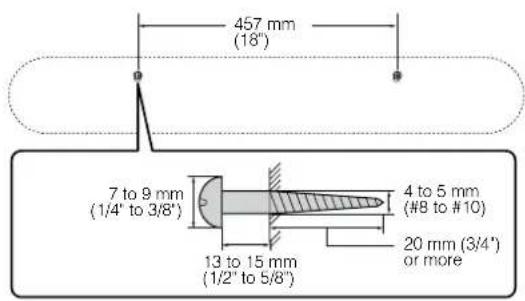
- Make sure you use screws (sold separately) that can support the weight of the installation. Using clamps other than specified screws, such as short screws, nails, and two-sided tape, may cause the unit to fall.
- Fix the cables in place where they will not become loose. If your foot or hand accidentally gets caught on a loose cable, the unit may fall.
- Do not lean on the unit or apply excessive force to the top of the unit. Doing so may cause the unit to fall.
- Check that the unit is fixed securely after the installation. Yamaha will bear no responsibility for any accidents caused by improper installations.
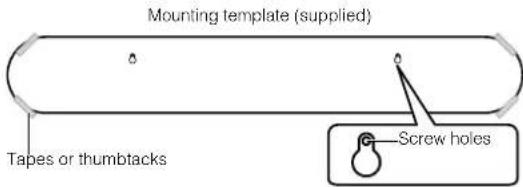
1 Attach the mounting template (supplied) on a wall and mark for the screw holes.
2 Remove the mounting template from the wall, and then install screws (sold separately) at the points marked on the wall.
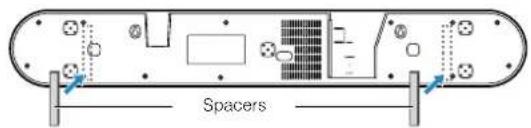
3 Peel off the backing paper from the spacers (supplied) and attach the adhesive face to the bottom of the unit.
4 Hang the unit on the screws.
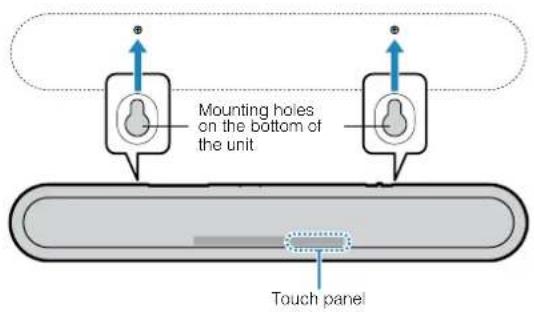
TABLE DES MATIÈRES
PRÉCAUTIONS D'USAGE 4
AVIS ET INFORMATIONS 9
AVANT D'UTILISER L'UNITÉ 13
1 Installation....21
Accentuation des graves
natural_image
Illustration of a remote control with a circular button and blue arrow indicating direction (no text or symbols)5 Prise SUBWOOFER OUT
1 Touche ⏻ (alimentation)
NOTE
Dimensions (L x H x P)
4K High Dynamic Range (HDR)-Sendungen
natural_image
Illustration of a remote control with a mouse and scroll wheel (no text or symbols)5 Buchse SUBWOOFER OUT
HINWEIS
• High Dynamic Range (HDR)-Video
-HDR10
- HLG
INNEHÅLLSFÖRTECKNING
FÖRSIKTIGHETSÅTGÄRDER 4
MEDDELANDE OCH INFORMATION
8
INNAN DU ANVÄNDER ENHETEN
12
Egenskaper.... 12
Tillbehör....14
1 Installation....20
natural_image
Illustration of a remote control with a circular button and blue arrow indicating action (no text or symbols)5 SUBWOOFER OUT-jack
7 SUBWOOFER (+/-)-knapp
8 MUTE-knapp
STEREO-knapp
10 CLEAR VOICE-knapp
11 DIMMER-knapp
BASS EXTENSION-knapp
VOLUME (+/-)-knapp
FÖRBEREDELSER
1 installation
OBS!
natural_image
Illustration of a remote control with a mouse and scroll wheel (no text or symbols)NOTA
Dimensioni (L x H x P)
natural_image
Illustration of a remote control with a mouse and scroll wheel (no text or symbols)5 Toma SUBWOOFER OUT
NOTA
KENNISGEVING EN INFORMATIE
9
VOOR U HET TOESTEL GAAT GEBRUIKEN 13
Kenmerken.... 13
Accessoires.... 15
(multipointverbinding).... 32
KENNISGEVING EN INFORMATIE
Kennisgeving
Wat is Audio Return Channel (ARC)?
natural_image
Diagram showing a smartphone, a cylindrical device, and a speaker emitting sound waves (no text or symbols)OPMERKING
OPMERKING
TV brandt (wit): AAC
注
Important Notice: Guarantee Information for customers in EEA\* and Switzerland English
For detailed guarantee information about this Yamaha product, and Pan-EEA ^a and Switzerland warranty service, please either visit the website address below (Printable file is available at our website) or contact the Yamaha representative office for your country. ^* EEA: European Economic Area
Manual Development Group
© 2018 Yamaha Corporation
Published 04/2018 发行 ODNV-A0
Printed in China
AV17-0072
YAMAHA CORPORATION
10-1 Nakazawa-cho, Naka-ku, Hamamatsu, 430-8650 Japan