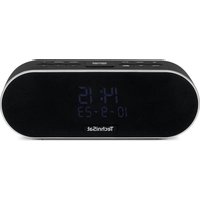
DIGITRADIO 53 BT - Radio TECHNISAT - Free user manual and instructions
Find the device manual for free DIGITRADIO 53 BT TECHNISAT in PDF.


| Product Type | DAB+/FM radio alarm clock with Bluetooth and USB port |
| Brand | TechniSat |
| Model | DIGITRADIO 53 BT |
| Dimensions (W x H x D) | 240 x 90 x 80 mm |
| Weight | 0.9 kg |
| Power supply | External power adapter 12 V, 3 A |
| Power consumption | Operation max. 36 W, standby 0.8 W |
| Frequency ranges | DAB+: 174–240 MHz; FM: 87.5–108 MHz; Bluetooth: 2.402–2.480 GHz |
| Audio power | 2 x 10 W RMS |
| Bluetooth version | 5.0 (A2DP, AVRCP) |
| Display | Digital display with brightness sensor and dimmer |
| Station memory | 30 DAB+ and 30 FM stations |
| Main functions | DAB+ and FM (RDS), Bluetooth, dual alarm, sleep timer, snooze, equalizer, USB charger (5 V/1 A), headphone jack |
| USB port | 5 V, 1 A for charging external devices |
| Headphone jack | 3.5 mm stereo jack |
| Antenna | Built-in, adjustable |
| Operating temperature | 0 °C to 35 °C |
| Maintenance and cleaning | Clean with a soft, slightly damp cloth; do not use solvents |
| Safety | Protection class II; indoor use only; do not open |
| Included accessories | Power adapter, instruction manual |
| Repairability | Do not repair yourself; contact customer service |
Frequently Asked Questions - DIGITRADIO 53 BT TECHNISAT
User questions about DIGITRADIO 53 BT TECHNISAT
0 question about this device. Answer the ones you know or ask your own.
Ask a new question about this device
Download the instructions for your Radio in PDF format for free! Find your manual DIGITRADIO 53 BT - TECHNISAT and take your electronic device back in hand. On this page are published all the documents necessary for the use of your device. DIGITRADIO 53 BT by TECHNISAT.
USER MANUAL DIGITRADIO 53 BT TECHNISAT
Operating instructions
DIGITRADIO 53 BT
DAB+/UKW premium clock radio with USB charging function
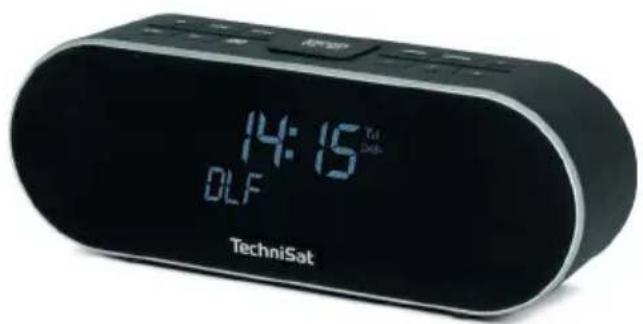
TechniSat
1 Illustrations
1.1 Front/top view
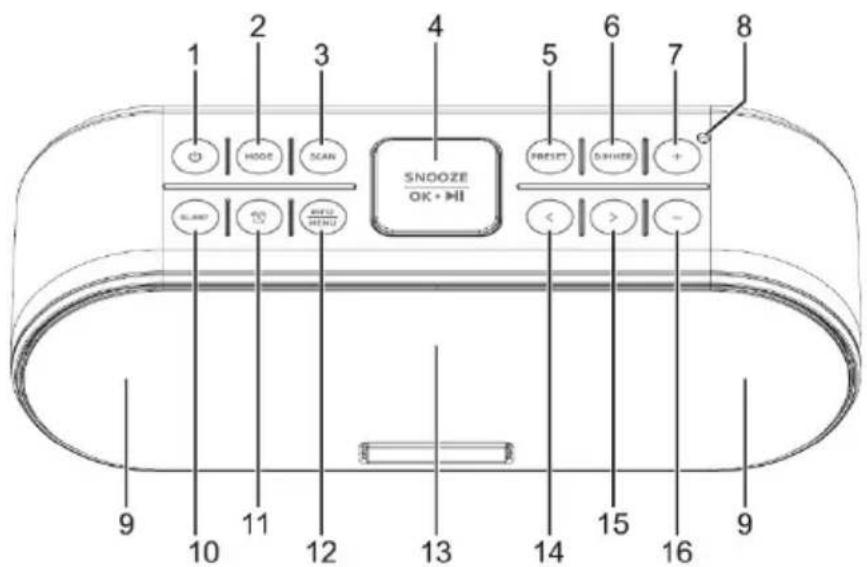
1 ⏻ Switch on/off
2 MODE Source switching
3 SCAN Channel scan
4 SNOOZE/OK/▶II.
5 PRESET
6 DIMMER
7 Volume +
8 Brightness sensor
9 Loudspeaker
10 SLEEP
11 Alarm clock
12 INFO/MENU
13 Display
14 / Back
15 ▶ / Next
16 Volume -
1.2 View from behind
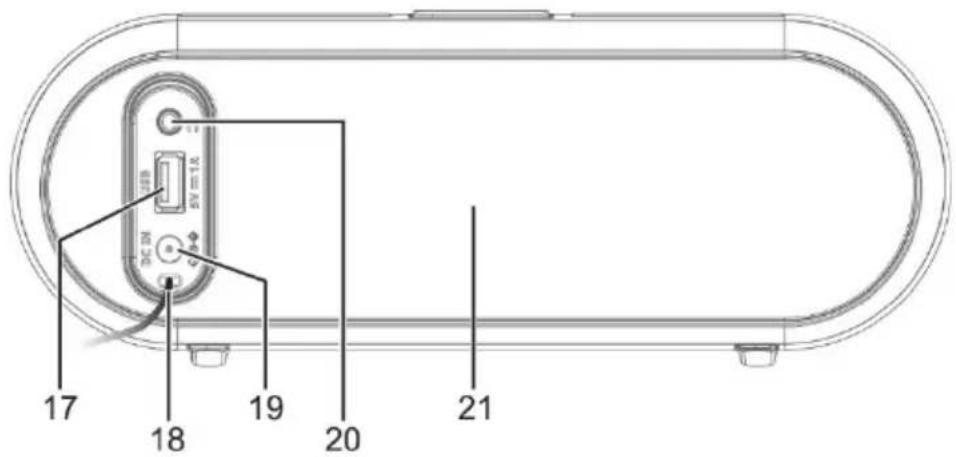
17 USB connection 5 V/1 A
18 Antenna
19 Power supply connection DC-IN 12 V, 3 A
20 Headphone connection 3.5 mm stereo jack
21 Passive bass diaphragm
2 Table of contents
1 Figures....2
1.1 Front/top view 2
1.2 View from behind....4
2 Table of contents ....5
3 Safety instructions 9
3.1 Foreword....9
3.2 Characters and symbols used 10
3.3 Intended use....12
3.4 Safe handling of the product....12
3.4.1 Legal information 16
3.4.2 Service notes 18
4 Description of the DIGITRADIO 53 BT....20
4.1 The scope of delivery....20
4.2 The special features of the DIGITRADIO 53 BT....20
4.3 Preparing the DIGITRADIO 53 BT for operation .....21
4.3.1 Aligning the antenna 21
4.3.2 Connecting the power supply unit....22
4.4 Use headphones ....23
4.5 General device functions 24
4.5.1 Switch on the device....24
4.5.2 Switch off the device 25
4.5.3 Source selection 25
4.5.4 Setting the volume 25
5 Menu operation....26
6 The DAB+ (digital radio) function 27
6.1 What is DAB+ 27
6.2 DAB+ (digital radio) reception....27
6.2.1 Carry out a complete search....28
6.2.2 Set manually....29
6.2.3 Select transmitter....31
6.2.4 Store DAB+ stations in a memory location....31
6.2.5 Recall DAB+ stations from a memory location 32
6.2.6 Overwriting/deleting a programme position memory 32
6.2.7 Volume adjustment (DRC)....32
6.2.8 Delete inactive transmitters ....33
7 FM (VHF) operation....34
7.1 Switch on FM radio mode....34
7.2 FM (VHF) reception with RDS information ....34
7.3 Automatic station search .... 35
7.4 Manual station search....35
7.5 Search setting....36
7.6 Audio setting....37
7.7 Storing FM stations in a memory location 37
7.8 Recalling FM stations from a memory location....38
7.9 Overwriting/deleting a programme position memory 38
8 Bluetooth....39
8.1 Switch on Bluetooth operation 39
8.2 Pairing an external device ....39
8.3 Slide on coupling 41
9 Further functions ....42
9.1 Alarm clock 42
9.1.1 Switch off alarm clock after alarm....44
9.2 Sleep timer....44
9.3 Equaliser....45
9.4 Dimmer....45
10 System settings....45
10.1 Time....45
10.1.1 Set time/date manually....46
10.1.2 Time update....46
10.1.3 Setting the time format....47
10.1.4 Set date format....48
10.2 Language....48
10.3 Factory setting 49
10.4 SW version 49
11 Cleaning....50
12 Eliminate errors ....51
13 Technical data....53
14 Disposal instructions....55
3 Safety instructions
3.1 Foreword
Dear customers,
Thank you for purchasing a TechniSat digital radio. These operating instructions are intended to help you familiarise yourself with the extensive functions of your new device and make optimum use of them. It will help you to use the device safely and as intended. It is intended for any person who installs, operates, cleans or disposes of the device.
Keep the operating instructions in a safe place for future reference.
You can find a current version of the operating instructions in the download area of your product on the TechniSat website www.technisat.de.
We hope you enjoy your TechniSat digital radio!
Yours
TechniSat Team
3.2 Signs and symbols used
in these operating instructions:

Indicates a safety instruction which, if disregarded, can lead to serious injuries. can lead to injuries or death. Observe the following signal words:
DANGER - Serious injuries with fatal consequences
WARNING - Serious injuries, possibly fatal
ATTENTION - Injuries

Indicates a note that you must observe to avoid device defects, data loss/misuse or unintentional operation. It also describes additional functions for your device.

Warning of electrical voltage. Follow all safety instructions to avoid electric shock. Never open the appliance.
On the device:

Indoor use - Appliances with this symbol are only suitable for indoor use.

Protection class II - Electrical appliances in protection class II are electrical appliances that have continuous double and/or reinforced insulation and no connection options for a protective conductor. The housing of an insulated electrical appliance of protection class II can partially or completely form the additional or reinforced insulation.

Your appliance bears the CE mark and fulfils all required EU standards.

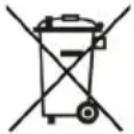
Electronic devices/equipment do not belong in household waste, but must be disposed of properly in accordance with Directive 2012/19/EU of the European Parliament and of the Council of 4 July 2012 on waste electrical and electronic equipment (WEEE). At the end of its life, please take this device to the designated public collection points for disposal.
Batteries/rechargeable batteries must be removed before disposing of the device and disposed of separately from the device.

Observe all notes and safety instructions in these operating instructions. Keep the operating instructions in a safe place for future reference. Pass the operating instructions on to the buyer when selling the product.

Direct current symbol. This device is operated with direct current and/or converts alternating current into direct current.
3.3 Intended use
The DIGITRADIO 53 BT is designed to receive DAB+/UKW radio programmes. Music media can be streamed via a Bluetooth connection. The device may only be operated with the accessories supplied (power supply unit, cable, aerial, etc.). Any other use of these accessories is not permitted. The device is designed for private use and is not suitable for commercial purposes.
3.4 Safe handling of the product
Please observe the following instructions to minimise safety risks, avoid damage to the appliance and contribute to environmental protection.
Please read all safety instructions carefully and keep them for future reference.
Always follow all warnings and instructions in these operating instructions and on the back of the appliance.

WARNING!
Never open the appliance!
Touching live parts is life-threatening!

WARNING!
Choking hazard! Do not leave the packaging and its parts to children. Choking hazard due to film and other packaging materials.

Observe all the following instructions to use the appliance as intended and to prevent appliance defects and personal injury.
- Do not repair the appliance yourself. Repairs may only be carried out by trained specialists. Please contact our customer service centres.
- The device may only be operated in the specified ambient conditions.
- Do not expose the appliance to dripping or splashing water. If water has got into the
device, disconnect it from the power supply and contact the service centre
- Do not expose the appliance to heat sources that heat the appliance in addition to normal use.
- In the event of a conspicuous appliance defect, odour or smoke development, significant malfunctions or damage to the housing, contact Service immediately.
- The appliance may only be operated with the mains voltage printed on the rating plate. Never attempt to operate the appliance with a different voltage. Only use the original mains adapter supplied.
- As this appliance is disconnected from the mains by pulling out the mains adapter/plug, it is essential that it is easily accessible at all times.
- If the appliance or the power supply unit is damaged, it must not be put into operation.
- Do not operate the appliance near bathtubs, showers, swimming pools or running/splashing water. There is a risk of electric shock and/or device defects.
- This appliance is not intended for use by persons (including children) with reduced physical, sensory or mental capabilities, or lack of experience and/or knowledge, unless they have been given supervision or instruction concerning use of the appliance by a person responsible for their safety. Never allow children to use this appliance unsupervised.
- Modifications to the appliance are prohibited.
3.4.1 Legal information

Hereby, TechniSat declares that the radio equipment type DIGITRADIO 53 BT is in compliance with Directive 2014/53/EU. The full text of the EU Declaration of Conformity is available at the following internet address:
TechniSat is not liable for product damage due to external influences, wear and tear or improper handling, unauthorised repairs, modifications or accidents.

Subject to changes and printing errors. Status 02/23.
Reproduction and duplication only with the authorisation of the publisher. The latest version of the manual is available in PDF format in the download area of the TechniSat homepage at www.technisat.de.

DIGITRADIO 53 BT and TechniSat are registered trademarks of:
This product is quality-tested and comes with a statutory warranty period of 24 months from the date of purchase. Please keep the invoice as proof of purchase. With
For warranty claims, please contact the dealer of the product.

Please note!
For questions and information or if there is a problem with this device, please contact our technical hotline:
Mon. - Fri. 8:00 - 18:00 under Tel.: 03925/9220 1800.

Repair orders can also be ordered directly online at www.technisat.de/reparatur.
If you need to return the device, please use only the following address:
The names of the companies, institutions or brands mentioned are trademarks or registered trademarks of their respective owners.

Images shown are for illustrative purposes only and may differ from the actual product.
4 Description of the DIGITRADIO 53 BT
4.1 The scope of delivery
Please check that the scope of delivery is complete before commissioning: 1x DIGITRADIO 53 BT 1x power supply unit 1x operating instructions
4.2 The special features of the DIGITRADIO 53 BT
The DIGITRADIO 53 BT consists of a DAB+/UKW receiver with the following functions:
- You can store up to 30 DAB+ and 30 FM stations.
- The radio receives on the frequencies FM 87.5-108 MHz (analogue) and DAB+ 174.9-239.2 MHz (digital).
- Music playback via a Bluetooth connection.
- Alarm clock and sleep timer
- Charging function for external devices via USB with max. 5 V, 1 A
4.3 Preparing the DIGITRADIO 53 BT for operation
4.3.1 Align antenna
The number and quality of stations that can be received depends on the reception conditions at the installation site. Excellent reception can be achieved with the aerial.

It is important to install the antenna precisely, especially in the peripheral areas of DAB+ reception. On the Internet, for example, you can find "www.dabplus.de" to quickly find the location of the nearest transmitter mast.

Start the first scan outdoors in the direction of the transmitter mast. If the weather is poor, DAB+ reception may only be possible to a limited extent.

Do not touch the aerial while a station is playing. This can lead to impaired reception and audio dropouts.
4.3.2 Connecting the power supply unit

Make sure that the operating voltage of the power supply unit matches the local mains voltage before plugging it into the wall socket.

WARNING!
Do not touch the mains plug with wet hands, risk of electric shock!

ATTENTION!
Lay the mains cable so that nobody can trip over it.
Connect the supplied mains adapter to the socket labelled DC-IN (19) on the rear of the DIGITRADIO 53 BT.
44 Use headphones

ATTENTION!
Do not listen to the radio at high volume via headphones. This can lead to permanent hearing damage. Before using headphones, adjust the device volume to the minimum level.
If you connect a headset (not supplied), the device loudspeakers are muted.
Only use headphones with a 3.5 mm stereo jack plug.
Insert the plug of the headphones into the headphone socket (20) on the back of the device. The sound is now reproduced exclusively via the headphones.
If you want to listen via the loudspeaker again, unplug the headset from the headset socket on the device.
4.5 General device functions
4.5.1 Switch on the device
Press the ⏻ On/Off button (1) to switch the DIGITRADIO 53 BT on.

After switching on for the first time, the device automatically performs a complete search in DAB+ mode. During the scan, the display information shows the progress and the number of digital radio stations found.
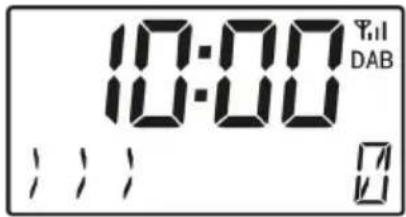
Once the station search is complete, the first DAB+ programme is played.
4.5.2 Switch off the device
Press the On/Off button (1) to switch the device to standby. The time and date are shown on the display.
4.5.3 Source selection
The MODE button (2) can be used to switch between the sources DAB+ (digital radio), FM (FM) and Bluetooth. To do this, briefly press the button until the desired source is shown on the display.
4.5.4 Setting the volume
Set the volume using the Volume + and - buttons (7, 16). The set volume is shown on the display.
5 Menu operation
You can access all functions and settings of the DIGITRADIO 53 BT via the menu. The menu is navigated using the INFO/MENU, ◀, ▶ and OK/ buttons.
▶II. The menu is divided into submenus and contains different menu items or functions that can be activated depending on the selected source. To open the menu, simply press and hold the INFO/MENU button (12) briefly. The ◀, ▶ buttons can be used to you select a function/option and then call it up using the OK/√button.

Close the menu: Press the INFO/MENU button several times (depending on which submenu you arein) until the current radio programme is displayed again.

Settings are only saved by pressing the OK/▶ button. If the INFO/MENU button is pressed in the meantime, the settings are not accepted and saved (the INFO/MENU button takes on the function of a "Back" button and the menu is exited).

Functions and buttons to be pressed are described in these operating instructions
in
feU is shown. Display indications in [square brackets].

Some texts (e.g. menu entries, station information) may be too long to be shown on the display. After a short time, these will then be displayed as a loud text.
6 The DAB+ (digital radio) function
6.1 What is DAB+
DAB+ is a digital format that allows you to listen to crystal-clear sound without noise. Unlike conventional analogue radio stations, DAB+ broadcasts several stations on the same frequency. Further information can be found at www.dabplus.de or www.dabplus.ch.
6.2 DAB+ (digital radio) reception
Press the MODE button several times until [DAB+] appears on the display.

When DAB+ is started for the first time, a complete station search is performed. Once the scan is complete, the first station is played in alphanumeric order.
6.2.1 Carry out a complete search

The automatic scan Full scan scans all DAB+ bands III channels and thus finds all stations broadcast in the reception area.

Once the search is complete, the first station is played in alphanumeric order.
Press the SCAN button (3).
Alternatively:
Open the menu and then use the ◀, ▶ buttons to select the [FULL SEARCH] entry. Press the OK/▶ button.
During the search, the display information shows the progress and the number of digital radio stations found.
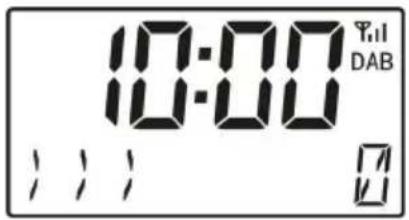
Once the station search is complete, the first DAB+ programme is played.
6.2.2 Set manually
This menu item is used to check the reception channels and can be used to align the aerial. Furthermore, transmitters can be added manually.
Open the menu and use the ◀, ▶ buttons to select the entry [MANUAL] and press the OK/ button
Use the ◀, ▶ and OK/▶II buttons to select a channel (5A to 13F). The signal strength is now shown on the display. If a DAB+ station is received on a channel, the ensemble name of the station is displayed.
The antenna can now be aligned for maximum signal strength. The more "zeros" to the right of the minimum signal strength, the stronger the signal.
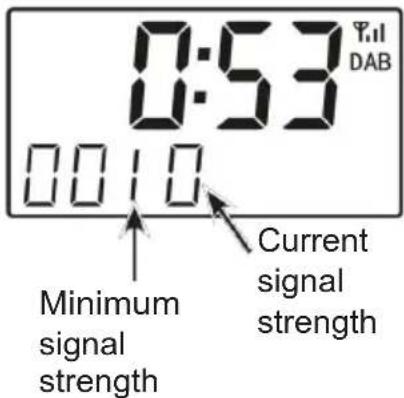

Transmitters whose signal strength is below the required minimum signal strength are not transmitting a sufficient signal. If necessary, realign the aerial or change the location.

If there are stations on the set frequency or channel that have not yet been saved in the station list, these will now also be saved.
6.2.3 Select transmitter
Press the ◀, ▶ buttons to switch between the available stations. Press OK/▶ to play the station.
6.2.4 Store DAB+ stations in a memory location

The favourites memory can store up to 30 stations in the DAB+ range.
First select the desired channel (see point 6.2.3).
To store this station in a memory location, press and hold the PRESET button (5) during playback until the first memory location is displayed. Then use the ◀, ▶ buttons to select a favourite memory (1...30). Press the OK/▶ button to save.
Repeat this procedure to save additional transmitters.
6.2.5 Recall DAB+ stations from a memory location
To recall a station that you have previously stored in the favourite memory, briefly press the PRESET button (5) and use the ◀, ▶ buttons to select a station memory (1...30). Press the OK/▶ button to play the station.
If no station is stored in the selected programme position, [EMPTY] appears in the display.
6.2.6 Overwriting/deleting a programme position memory
Simply save a new channel to a favourite memory location as described.
All memory locations are deleted when the factory settings are called up.
6.2.7 Volume control (DRC)
The [DRC] menu item is used to set the compression rate, which compensates for dynamic fluctuations and the associated volume variations.
Open the menu and use the ◀, ▶ buttons to select the [DRC] entry.
Press the OK▶button.
DRC high -High compression
DRC low -Low compression
DRC off -compression switched off.
Confirm by pressing the OK/▶ button.
6.2.8 Delete inactive transmitters
This menu item is used to remove old and no longer receivable channels from the channel list.
Open the menu and use the ◀, ▶ buttons to select the entry [DELETE INACTIVE SENDERS].
Press the OK button.
You will be prompted to [DELETE] whether the inactive transmitters should be deleted.
Use ◀, ▶ to select the entry [Y] (Yes) and confirm by pressing the OK/▶ button.
7 FM (VHF) operation
7.1 Switch on FM radio mode
Press the MODE button several times until [FM] appears on the display.
When switching on for the first time, the frequency 87.5 MHz is set.
If you have already set or saved a station, the radio will play the last station set.
The station name appears for RDS stations.
7.2 FM (VHF) reception with RDS information
RDS is a procedure for transmitting additional information about FM stations. Broadcasters with RDS transmit their station name or programme type, for example. This is shown on the display. The device can display the RDS information RT (radio text), PS (station name), PTY (programme type).
7.3 Automatic station search
Press the SCAN button (3) to start the channel scan. Alternatively:
Press and hold the ◀, ▶ buttons to start the channel scan.

If an FM station with a sufficiently strong signal is found, the search stops and the station is played. If an RDS station is received, the station name and, if applicable, the radio text will appear.

To tune to weaker stations, please use the manual station search.
74 Manual station search
Briefly press the ◀, ▶ buttons several times to set the desired transmitter or frequency.

The display shows the frequency in steps of 0.05 MHz.
7.5 Search setting
The sensitivity of the search run can be set in this menu item.
Open the menu and use the ◀, ▶ buttons to select the entry [SEARCH SETTING]. Press OK/▶
Select whether the search should only stop for strong channels [ONLY STRONG CHANNELS] or for all channels (including weak channels) [ALL CHANNELS].
With the All channels setting, the automatic search stops at every available channel. This can result in weak stations being played back with noise. However, more stations are also found in this way than with the "Only strong stations" setting.
Confirm by pressing the OK/▶ button.
7.6 Audio setting
Open the menu and use the ◀, ▶ buttons to select the entry [AUDIO SETTING]. Press OK/▶
Use ◀, ▶ to select the entry [STEREO ALLOWED] or [MONO ONLY] to play back in stereo or only in mono sound when FM reception is weak.
Confirm by pressing the OK/▶button.
7.7 Store FM stations in a memory location

The programme memory can store up to 30 stations in the FM range.
First select the desired channel.
To store this station in a memory location, press and hold the PRESET button (5) during playback until the first memory location is displayed. Then use the ◀, ▶ buttons to select a favourite memory (1...30). Press the OK/▶ button to save.
Repeat this procedure to save additional transmitters.
7.8 Recalling FM stations from a memory location
To recall a station that you have previously stored in the favourite memory, briefly press the PRESET button (5) and use the ◀, ▶ buttons to select a station memory (1...30). Press the OK/▶ button to play the station.
If no station is stored in the selected programme position, [EMPTY] appears in the display.
7.9 Overwriting/deleting a programme position memory
Simply save a new channel to the respective memory location as described.
All memory locations are deleted when the factory settings are called up.
8 Bluetooth
In Bluetooth mode, you can play music from a connected smartphone or tablet via the speakers of the DIGITRADIO 53 BT. To do this, both devices must first be "paired" with each other.
8.1 Switch on Bluetooth operation
Press the MODE button several times until [BT] appears on the display. When switching on for the first time, an external device (smartphone/tablet) can be coupled.
If an external device that is within range has already been paired, the connection is established automatically. Depending on the connected device, music playback may start automatically.
8.2 Pairing an external device
To pair an external device, e.g. a smartphone or tablet, with the DIGITRADIO 53 BT, proceed as follows:
Start Bluetooth mode as described in section 8.1.
PLEASE CONNECT] appears on the display.Press and hold the OK/▶ button until [CONNECT] appears on the display.
Now start the search for n e a r b y Bluetooth devices on your external device. You may need to activate the Bluetooth function on your external device first.
To activate the Bluetooth function on your external device and perform a search, please refer to the operating instructions for your external device.
During the pairing process, both devices should be within 10cm of each other.
The DIGITRADIO 53 BT entry should now appear in the list of Bluetooth devices found on your external device. Tap on it to complete the pairing process. Once the pairing process has been successfully completed, you will hear a confirmation tone.
Depending on the Bluetooth protocol of your external device, you can control the music playback using the playback buttons on the DIGITRADIO 53 BT: Play/Pause buttonOKHI Next title button ▶
Previous title
- 2x button

Title from the beginning
- Button

Volume
- Keys
Volume +/-

Alternatively, you can use the playback controls of the music app on your external device.
8.3 Revive coupling
To cancel an active pairing, press and hold the OK/II button until [CONNECT] appears on the display. Note that the device to be unpaired must be connected to the DIGITRADIO 53 BT if you want to unpair it. You can then pair a new device as described in section 8.2.

Alternatively, you can also set up the pairing on your external device. Follow the instructions in the operating instructions for your external device.
9 Further functions
9.1 Alarm clock
The DIGITRADIO 53 BT has 2 alarm clocks ALARM 1 and ALARM 2. The ALARM 1 alarm configuration is explained below.
Press the Alarm clock button (11) > [ALARM 1] appears on the display. Press the OK/▶ button to start the configuration.
To configure the ALARM 2, press the alarm button twice.
Now go through all the settings in sequence. Use the ◀ buttons, A value can be changed by pressing the OK/▶ button to confirm and move on to the next setting.
[ON TIME]
Enter the switch-on time of the alarm clock.
[DURATION]
Enter the duration of the alarm tone.
[SOURCE]
Enter the alarm sound source (DAB+, FM or buzzer).
[STATION]
Enter the station (only for DAB+ or FM) with which you want to be woken up. The "last listened to station" or one from the favourites list can be selected.
[INTERVAL]
Specify the days on which the alarm clock should be active.
DAILY > Daily.
ONCE > Once.
WEEKEND > Weekend (SA - SO).
WEEKDAY > Weekdays (MO - FR).
[DATE]
If [ONCE] was previously selected, enter the date on which the alarm clock should be active.
[VOLUME]
Enter the alarm tone volume.
[ALARM]
Switch the alarm clock on [ON] or off [OFF].
9.1.1 Switch off alarm clock after alarm
Press the ⏻ On/Off button (1) to switch off the alarm tone.
Press SNOOZE/OK/▶to activate the snooze function. The time is increased each time the button is pressed. The alarm tone stops and sounds again after the set snooze time.
To deactivate an alarm clock, press the Alarm clock button and select ALARM 1 or ALARM 2. Use ◀, ▶ to select [OFF] and press OK/▶II. A saved alarm clock can also be reactivated in this way. To do this, select [ON] and press the OK/▶button.
9.2 Sleep timer
The sleep timer automatically switches the DIGITRADIO 53 BT to standby mode after the set time.
Press the SLEEP button (9).
Use ◀, ▶ to select a time period after which the DIGITRADIO 53 BT should switch off. You can choose between Off, 10, 20, 30, 60, 70, 80 and 90 minutes.
Press the OK/▶ button to accept the setting.
9.3 Equaliser
You can use the equaliser to adjust the sound to suit your preferences.
Open the menu and use the ◀, ▶ buttons to select the entry
[MAIN MENU] > [EQ]. Press OK/▶II
Use the ◀, ▶ buttons to select an EQ preset and confirm with OK/▶II.
9.4 Dimmer
The display brightness can be set using the DIMMER button (6).
If the [AUTO] option is selected, the display brightness is set via the
Brightness sensor controlled. In bright surroundings, the display is bright, in dark surroundings
environment, the display goes dark or is switched off completely.
10 System settings
10.1 Time of day
Open the menu and use the ◀, ▶ buttons to select the entry [MAIN MENU] > [TIME]. Press OK/▶
10.1.1 Set time/date manually
Depending on the time update setting (point 10.1.2), you must set the time and date manually.
In the [Time] submenu, use the ◀, ▶ buttons to select the [Set time/date] entry. Press the OK▶button.
The first digits (hours) of the time flash and can be changed using the ◀, ▶ can be changed.
Press the OK/▶ button to accept the setting.
The next digits (minutes) of the time then flash and can also be changed as described above.
After each additional setting, press the OK/▶button to skip to the next setting.
Proceed as described above for the date.
10.1.2 Time update
In this submenu, you can specify whether the time update should be automatic, via DAB+ or FM (FM) or whether you want to enter it manually (point 10.1.1).
In the [Time] submenu, use the ◀, ▶ buttons to select the entry [AUTOM. UPDATE]. Press the OK/▶ button.
Use the ◀, ▶ buttons to select the following options:
[UPDATE FROM ALL] (update via DAB+ and FM)
[DAB+] (update only via DAB+)
[FM] (update only via FM)
[NO UPDATE] (time/date must be entered manually, see point 10.1.1).
Press the OK/▶ button to save the setting.
10.1.3 Setting the time format
In the Set 12/24 hours submenu, you can activate the 12 or 24 hour format.
In the [Time] submenu, use the ◀, ▶ buttons to select the [SELECT 12/24 HOUR FORMAT] entry. Press the OK/ button.
Use ◀, ▶ to select one of the following options:
[24 STD]
[12 STD]
Press the OK/▶ button to save.
10.1.4 Set date format
In the Date format submenu, you can specify the format for displaying the date.
In the [Time] submenu, use the ◀, ▶ buttons to select the entry [DATE FORMAT]. Press the OK/▶Button.
Use ◀, ▶ to select one of the following options: [DD-MM-YYYY] (day, month, year) [MM-DD-YYYY] (month, day, year)
Press the OK/▶ button to save.
10.2 Language
Open the menu and use the ◀, ▶ buttons to select the entry [MAIN MENU] > [LANGUAGE] and press OK/▶U
Use ◀, ▶ to select one of the available languages and confirm your selection by pressing the OK/▶ button.
10.3 Factory setting
If you change the location of the device, e.g. if you move house, you may no longer be able to receive the saved channels. In this case, you can delete all saved channels by resetting to factory settings and then start a new channel search.
Open the menu and use the ◀, ▶ buttons to select the entry [MAIN MENU] > [Factory setting]. Press OK/▶II
Use ◀, ▶ to select the entry [J] to carry out the factory setting and press OK/▶II
All previously saved channels and settings are deleted. The device is now in the factory settings.
104 SW version
Under SW version you can query the currently installed SW version.
Open the menu and use the ◀, ▶ buttons to select the entry [MAIN MENU] > [BW-VERSION].
Press OK/▶. The current SW version is displayed.
11 Cleaning

To avoid the risk of electric shock, do not clean the appliance with a wet cloth or under running water. Disconnect the mains plug and switch off the appliance before cleaning!

Do not use scouring pads, scouring powder or solvents such as alcohol or petrol.

Do not use any of the following substances: Salt water, insecticide ammonia, chlorinated or acidic solvents (ammonia).

Clean the housing with a soft cloth moistened with water. Do not use spirits, thinners, etc.; they could damage the surface of the device.

Rub the cotton cloth gently over the surface.
12 Eliminate errors
If the device does not work as intended, check it using the following table.
| Symptom | Possible cause/remedy |
| Device cannot be switched on. | The device is not supplied with power. Connect the power supply unit correctly to the socket and to the device. |
| No sound can be heard. | Increase the volume. |
| The display does not switch on. | Disconnect the appliance from the mains and reapply power. |
| Reception via DAB+/FM is poor. | Change the position of the antenna or the DIGITRADIO 53 BT. |
| Device cannot be operated. | Disconnect the appliance from the mains and reapply power. |
| Poor Bluetooth connection and dropouts | Do not exceed the maximum range of 8 metres via Bluetooth. |
| Device switches off automatically. | In DAB+ and Bluetooth mode, the device is switched off to save power. switched off if no sound has been played for 15 minutes. |
If you are still unable to rectify the fault after the checks described, please contact the technical hotline.
13 Technical data
| Reception paths | DAB+, FM, Bluetooth, |
| Power supply | Via external power supply unit supplied |
| Frequencies | FM: 87.5-108 MHzDAB+: 174-240 MHzBluetooth: 2.402-2.480 GHz Transmissionpower: 5.12 dbm EIRP |
| Bluetooth version | 5.0A2DP, AVRCP |
| Power consumption (mains operation) | Operation: max. 36 WStandby: 0.8 W |
| Music performance | 2 X 10 W RMS |
| Working temperature | 0 °C ~ 35 °C |
| Storage conditions | -10°C ~ 50°C / < 95% air humidity |
| Weight (kg) | 0,9 |
| Dimensions (WxHxD) mm | 240 x 90 x 80 |
Technical data of the supplied power supply unit
| Manufacturer | TechniSat Digital GmbH, Julius-Saxler-Straße 3, D-54550 Daun |
| Model identifier | R361-1203000E |
| Input voltage | AC 100 - 240 V |
| Input alternating current frequency | 50/60 Hz |
| Output voltage | DC 12.0 V |
| Output current | 3,0 A |
| Output power | 36,0 W |
| Consistent efficiency in operation | 88,2 % |
| Efficiency at low load | 84.9 % |
| Power consumption at no load | 0,06 W |
Technical changes and errors excepted.
14 Disposal instructions
The packaging of your appliance consists exclusively of recyclable materials. Please sort them accordingly and return them to the "Dual System". This product is labelled in accordance with Directive 2012/19/EU on waste electrical and electronic equipment (WEEE) and must not be disposed of with normal household waste at the end of its service life, but must be handed in at a collection point for the recycling of electrical and electronic equipment.
The symbol on the product, the instructions for use or the packaging indicates this. The materials are recyclable according to their labelling. By reusing, material recycling or other forms of recycling old appliances, you are making an important contribution to protecting our environment.

Please ask your local authority for the responsible disposal centre. Make sure that the empty batteries and electronic scrap are not disposed of in
The product must not be disposed of with household waste, but must be disposed of properly (take back by specialised dealers, hazardous waste).
We hereby advise you to delete all personal data stored on the device on your own responsibility before disposing of the device.
1 Illustrations ......2
INFO/MENU, ◀, ▶ et OK/.
7 FM-bediening (VHF)....34
7.1 FM-radiomodus inschakelen....34
7 FM-bediening (VHF)
7.1 Schakel de FM-radiomodus in
Voer de alarmtoonbron in (DAB+, FM of zoemer).
[STATION]
- Operating instructions
- Illustrations
- Front/top view
- View from behind
- Table of contents
- Figures....2
- Table of contents ....5
- Safety instructions 9
- Description of the DIGITRADIO 53 BT....20
- Menu operation....26
- The DAB+ (digital radio) function 27
- FM (VHF) operation....34
- System settings....45
- Cleaning....50
- Safety instructions
- Foreword
- Dear customers,
- Signs and symbols used
- in these operating instructions:
- On the device:
- Intended use
- Safe handling of the product
- WARNING!
- Legal information
- Description of the DIGITRADIO 53 BT
- The scope of delivery
- The special features of the DIGITRADIO 53 BT
- Preparing the DIGITRADIO 53 BT for operation
- Align antenna
- Connecting the power supply unit
- ATTENTION!
- Use headphones
- General device functions
- Switch on the device
- Switch off the device
- Source selection
- Setting the volume
- Menu operation
- The DAB+ (digital radio) function
- What is DAB+
- DAB+ (digital radio) reception
- Carry out a complete search
- Set manually
- Select transmitter
- Store DAB+ stations in a memory location
- Recall DAB+ stations from a memory location
- Overwriting/deleting a programme position memory
- Volume control (DRC)
- Delete inactive transmitters
- FM (VHF) operation
- Switch on FM radio mode
- FM (VHF) reception with RDS information
- Automatic station search
- Manual station search
- Search setting
- Audio setting
- Store FM stations in a memory location
- Recalling FM stations from a memory location
- Overwriting/deleting a programme position memory
- Bluetooth
- Switch on Bluetooth operation
- Pairing an external device
- Revive coupling
- Further functions
- Alarm clock
- [ON TIME]
- [DURATION]
- [SOURCE]
- [STATION]
- [INTERVAL]
- [DATE]
- [VOLUME]
- [ALARM]
- Switch off alarm clock after alarm
- Sleep timer
- Equaliser
- Dimmer
- System settings
- Time of day
- Set time/date manually
- Time update
- Setting the time format
- Set date format
- Language
- Factory setting
- SW version
- Cleaning
- Eliminate errors
- Technical data
- Disposal instructions
- Illustrations ......2
- FM-bediening (VHF)....34
- FM-bediening (VHF)
- Schakel de FM-radiomodus in
Brand : TECHNISAT
Model : DIGITRADIO 53 BT
Category : Radio