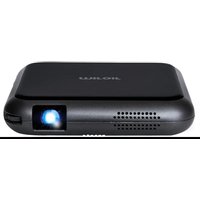
M76 - Projector Miroir - Free user manual and instructions
Find the device manual for free M76 Miroir in PDF.


User questions about M76 Miroir
0 question about this device. Answer the ones you know or ask your own.
Ask a new question about this device
Download the instructions for your Projector in PDF format for free! Find your manual M76 - Miroir and take your electronic device back in hand. On this page are published all the documents necessary for the use of your device. M76 by Miroir.
USER MANUAL M76 Miroir
© 2019 Miroir USA, LLC. All rights reserved. Miroir and the Miroir Logo, are owned by Miroir USA, LLC. All other trademarks are the property of their respective owners. Miroir USA, LLC assumes no responsibility for any errors that may appear in this manual. Information contained herein is subject to change without notice.
Cooling Vent - IMPORTANT: Do not cover or block airflow to the vent.
Focus Controls - Turn wheel to adjust focus.
Tripod Mount - Will fit a standard sized tripod screw. Tripod not included.
Rubber Foot Pads - Provides stability and proper airflow to cooling vents.
Battery Indicator Lights - Lights flash in turn as the device charges. The battery is fully charged when all the lights illuminate and no longer flash.
Volume Controls - Increase/decrease the volume output of the projector.
Power Button - Press and hold for 3 seconds to power the projector on or off. Briefly press to check battery life on the projector. Battery life will be displayed by the number of lit battery indicator lights.
Power Port - Connect included AC Adapter/Charger for power. Fully charge battery before the first use (approx. 4-5 hours).
Reset Button - Press to reset projector.
Audio Out (3.5mm) - (Optional) Connect an external speaker or headphones.
HDMI Video Input - Connect an HDMI cable to a device that supports HDMI video output.
USB Power Output - Connect a USB power cable to provide power to a HDMI streaming stick. Cannot be used for video input.
Connect To Your Laptop HDMI
HDMI Cable (Included)
Connect To Your Device
HDMI Adapter may be required for your device. (not included)
HDMI Cable (Included)
Screen Mirroring
2009
- Scan the QR code to connect M76 to your device.
Connect To Your MacBook USB-C
USB-C Adapter is required for SB-C connection (not included)
Connect To Your Apple Device Lightning
HDMI Cable (Included)
Apple Lightning Digital AV Adapter is required for iPhone. (not included)
HDMI Cable (Included)
ENTER
SCAN
USB-C Charging
Plug the included USB Type-A cable into the USB Type-A charging block (not included). 10 Watt or higher rating for fast charge. Any Android, iPhone, Laptop, or Tablet charging block.
-
Select M76 from the WIFI list
-
Enter your Network Password
-
Start sharing Photos and Videos you've created on your device
4
YouTube; TikTok is supported to play content. *Netflix and other streaming services are not supported
5
Troubleshooting
No sound
- Check the volume control on your source device to ensure the volume is turned up.
- Check the volume control on the projector to ensure the volume is turned up.
- If you are using an adapter, verify that the adapter supports audio.
- Check that the HDMI cable is fully plugged into the HDMI port.
The image is not square
- Check that the projector's lens is parallel to your projection surface and that your projection surface is flat.
The image is blurry
- Adjust the projected image's focus by rolling the focus wheel forwards or backwards.
- Check that the surface you are projecting on is smooth and non-reflective.
- Check that the projector's lens is clean and free of debris.
No Signal Message
- Check that you are using the required cable and/or adapter.
- If you are using a digital AV adapter, check that the adapter is an authentic Apple adapter and is compatible with your model phone or tablet.
- If you are connected to a laptop or computer, check your computer display settings to ensure a multiple display option is selected (such as "duplicate these displays").
- Check that your source device supports HDMI video out.
Projector will not power on, or stay powered on
- Check the battery life of the projector by briefly pressing the power button on the projector. If one or fewer lights illuminate, charge the battery with the AC adapter.
Learn More
To learn more about your Miroir HD Pro Projector and its operations, to review specs, and find answers to frequently asked questions, please visit: www.miroirusa.com/M76