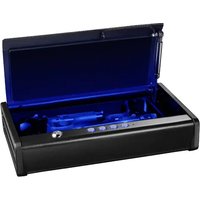
QAP2EL - Safe SentrySafe - Free user manual and instructions
Find the device manual for free QAP2EL SentrySafe in PDF.


| Product Type | Quick-access gun safe |
| Brand | SentrySafe |
| Model | QAP2EL |
| Power Source | 4 AA alkaline batteries (non-rechargeable) |
| Programming Capacity | User code of 4 to 6 digits (default: 1-2-3-4-1) |
| Interior LED Lighting | Programmable (0, 10 or 20 seconds) |
| Main Functions | Code unlocking, backup key, standby mode, wall or floor mounting |
| Security | Override key lock, California State approved for firearms |
| Material | Steel |
| External Dimensions (approx.) | 38 x 36 x 19 cm (estimate) |
| Weight (approx.) | 13 kg (estimate) |
| Included Accessories | 2 screws, 2 washers, backup key |
| Mounting | Horizontal mounting, pre-drilled holes at the back |
| Maintenance and Cleaning | Replace batteries with new AA alkaline batteries; clean with a soft cloth |
| Spare Parts and Repairability | Replacement keys available via customer service (1-800-828-1438 or www.sentrysafe.com) |
| General Information | Registration possible at www.registermysafe.com to retrieve lost combination |
Frequently Asked Questions - QAP2EL SentrySafe
User questions about QAP2EL SentrySafe
0 question about this device. Answer the ones you know or ask your own.
Ask a new question about this device
Download the instructions for your Safe in PDF format for free! Find your manual QAP2EL - SentrySafe and take your electronic device back in hand. On this page are published all the documents necessary for the use of your device. QAP2EL by SentrySafe.
USER MANUAL QAP2EL SentrySafe
XL Quick Access Pistol Safe Owner's Manual
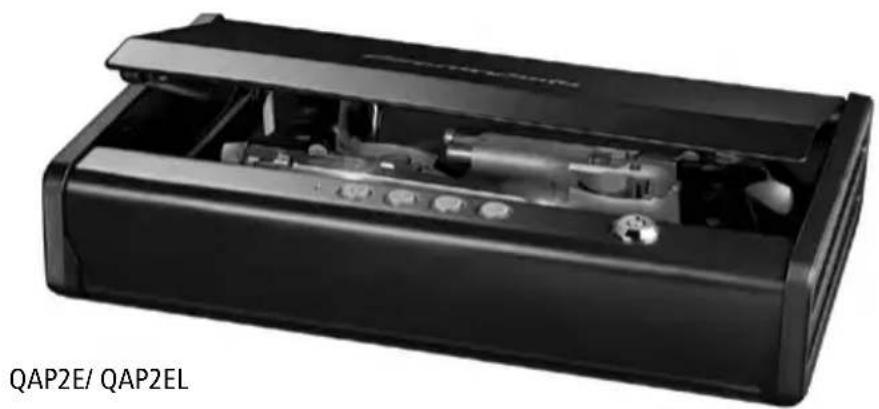
natural_image
Black industrial device with open lid and internal components (no visible text or symbols)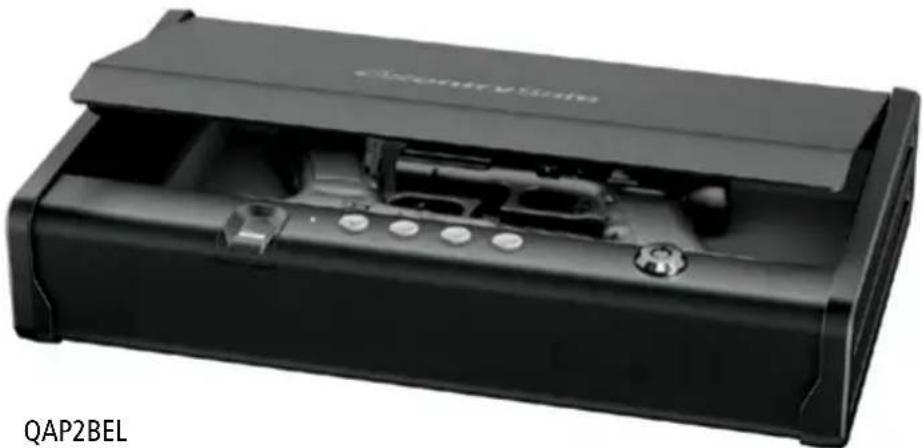
natural_image
Black QAP2BEL portable electronic device with open lid and internal components (no visible text or symbols)SentrySafe
Table of ContentsWarnings
WARNING
SentrySafe recommends that you do not store loaded guns in this unit.
NOTICE
YOUR SAFE IS ONLY PART OF YOUR TOTAL SECURITY PROTECTION.
SentrySafe recommends that you store your safe in a closet, office, basement, bedroom or any other location that is convenient for you but out of direct line of sight from prying eyes.
The location of the safe does not affect the safe's ability to protect your valuables inside.
This is a California-approved firearm safety device that meets the requirements of Penal Code section 23655 and the regulations issued thereunder.
Thank you for your purchase of a Sentry®Safe Product. SentrySafe is committed to securing, organizing and protecting your most important documents, valuables and keepsakes.
Français 11
Español 23
English
Warnings 2
Registration 3
Prepare for First Time Use 4
Programming Your Safe 4-5
Programming Interior LED Light (QAP2EL and QAP2BEL)....6
Locking and Unlocking Your Safe 7
Bolt-Down Instructions 8
Troubleshooting 9
Customer Service.... 10
IMPORTANT
If you experience problems or challenges with your safe, please contact us.
Many issues can be quickly resolved without the product being returned.
REGISTRATION
www.registermysafe.com
Reasons to register: By registering your SentrySafe Product you can easily retrieve forgotten codes and combinations, which would otherwise require a notary letter and payment.
For videos, instructions & Frequently Asked Questions (FAQs),
visit: www.sentrysafe.com
SentrySafe
Programming Your Safe
NOTE: Store code and keys in a secure location (other than in the safe).
NOTE: SentrySafe offers a secure on-line location for the entry and retrieval of your code. Go to www.registermysafe.com and register your safe.
Preparing your safe for first-time use
A Insert key into keyhole and turn clockwise.
NOTE: Do not lock key inside safe – this is an override key and will open the safe in the event that you have lost your code.
Programming your safe
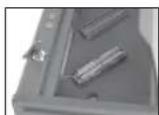
A Remove the battery pack cover.
B Pull out battery pack (keep battery pack connected to wires).
Insert four NEW AA alkaline batteries.
NOTE: Do not use rechargeable batteries or any other type of non-alkaline battery. Do not mix old and new batteries. Do not mix alkaline and standard batteries.
IMPORTANT
All safe models initially work with the factory code 1, 2, 3, 4, 1. It is therefore important to re-program your safe with a new user code you have personally selected to provide maximum security.
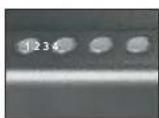
The XL Quick Access Pistol Safe comes with a built-in code. Factory code 1, 2, 3, 4, 1.
Press any button once to bring the safe out of standby mode, then enter the Factory Code 1, 2, 3, 4, 1.
The Green LED will light.
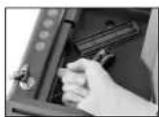
To Program an Electronic Code
A Find the Reset button located behind the battery pack.
B Press and hold the Reset button until the keypad flashes 3 times. The LEDs remain on to indicate it is ready to accept a new user code.
Enter a user code that is four, five or six digits long.
A successful programming of the user code is indicated when the LED light flashes green three times.
Programming Your Safe
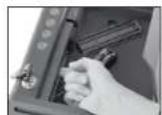
To Change an Electronic Code
A Press and hold the Reset button until the keypad flashes 3 times.
Enter a new user code that is four, five or six digits long. The safe will then automatically erase the previous user code.
NOTE: Write down your user code, and keep it in a secure location.
Or visit www.registermysafe.com to store your user code.
-OR-
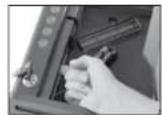
To Program Primary User Fingerprints on Models with Biometric Lock
(Up to four fingerprints can be programmed)
A Press and hold the Reset button until the keypad flashes 3 times. The LEDs will remain on to indicate that the safe is ready to accept two new fingerprints.
8 Swipe the first finger across the fingerprint scanner multiple times. The LED light will flash green once for each valid scan.
When enough valid scans have been recorded (usually 5-10 scans), there will be a brief pause and the LED light will flash green 3 times to indicate successful programming.
D Immediately add a second fingerprint following the registration of the previous one. Repeat steps B and C as indicated above.
To Program Secondary User Fingerprints
A Press and hold the Reset button until the keypad flashes 3 times. Once the LEDs remain on, press and hold the Reset button again until the LEDs flash. The LEDs will remain on to indicate that the safe is ready to accept two new fingerprints.
8 Repeat steps B, C and D as indicated under: To Program Primary User Fingerprints
To Erase Fingerprints
A Press and hold the Reset button until the keypad flashes 3 times. The LEDs remain on to indicate the safe is ready to erase fingerprints.
8 Swipe a programmed fingerprint once and wait 10 seconds. The red LED will flash 3 times to indicate all programmed fingerprints have been erased.
NOTE:
- The user code or fingerprint programmed will not be erased when the battery power is removed.
- If you program a four or five digit user code, then you will need to wait 10 seconds until your code is accepted. This is only valid during the setup of your safe. If you program a six digit user code, then the light will immediately turn green.
- If the red LED flashes 3 times, programming failed.
- When you are finished programming your safe, replace the battery pack cover.
SentrySafe Programming Interior LED Light (QAP2EL and QAP2BEL)
Programming Method for the Interior LED Interval:
- The interior LED light interval is programmable for three different time intervals: 0, 10, or 20 seconds.
- The factory preset interior light interval is 10 seconds.
NOTES:
- Prior to changing the interior LED light interval, reference the chart below (Table 1) and select your desired electronic time interval. It is important that you select a code in advance, and understand the keypad sequences.
- The chosen interval setting is stored in non-volatile memory, until changed again using this method.
- Your registered user code and fingerprints are unaffected by programming or changing the interior LED light interval.
TABLE 1: Programming the Interior LED Interval
| Keypad Keys Interior LED Interval | |
| 1 and 20 seconds (or 2 not illustrate) | |
| 1 and 3 10 seconds 2 3 4 | |
| 1 and 4 20 seconds 2 3 4 |

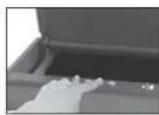
Programming Interior LED Light:
A Open the safe using your programmed user code, programmed fingerprint, or override key. Wait the factory preset time interval of 10 seconds for the interior lights to turn off.
8 Hold down any button on the keypad for 3 seconds. The green LED light will turn on indicating the safe is ready to accept a new time interval.
Press and hold the designated keypad buttons as shown, to set your desired time interval (Table 1). The green LED light will flash two times and the interior LEDs will illuminate indicating successful programming. If the light interval is incorrectly programmed, a red LED light will flash one time.
Locking and Unlocking Your Safe
NOTICE
Test your code several times before putting valuables inside.
Locking your safe
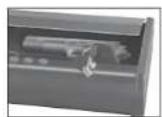
A Close the lid. Once the lid is closed, the safe is securely locked.
NOTE: The override key needs to be in the locked position. Remove and store in a secure location.
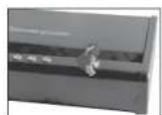
NOTE: When not in use – the safe will go into standby mode. This is a lower power mode. Pressing a button will end the standby mode.
Unlocking your safe
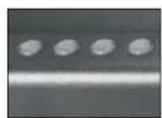
A Press any button once to bring the safe out of standby mode.
B Enter your programmed user code.
-OR-
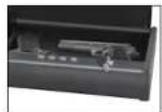
Insert the override key into the keyhole and turn clockwise.
-OR-
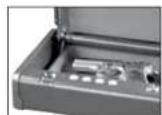
For Select Biometric Lock Models Only:
A Press any button once or touch the fingerprint scanner to bring the safe out of standby mode.
6 Swipe a programmed finger.

SentrySafe
Bolt-Down Instructions
Troubleshooting
Bolting down your safe
Bolt-Down kit contents:
2 Screws
2 Washers
Tools needed to bolt safe to a surface:
Drill
Wrench
9/32in (7.2 mm) drill bit – for drilling into wood
3/8in (9.5 mm) drill bit – for drilling into masonry
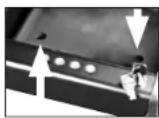
Select a suitable location for your XL Quick Access Pistol Safe. Set the safe in place, and use the pre-drilled holes provided on the bottom of the safe to mark the location of the holes to be drilled in the surface.
NOTICE
Do NOT drill from any location inside the safe.
NOTE: This product is intended to be mounted with a horizontal orientation.
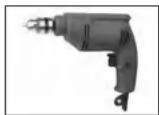
Move the XL Quick Access Pistol Safe while you drill the marked holes in the surface.
Drill the holes in the surface using the appropriate diameter and depth for the type of hardware and the mounting surface being used.
A Replace the safe over the newly created holes.
B Install the screws and washers as required.
NOTICE
Sentry®Safe is not responsible for costs incurred if the unit is to be replaced.
Bolting/unbolting the unit is at a consumer's expense and discretion.
| The Problem: Why It Is Happening: The Solution: | ||
| Red LED blinks three times | Incorrect code or fingerprint has been entered | Verify the code/fingerprint and re-enter or reprogram (see page 4-5) |
| Programming error | ||
| Red LED slowly blinks for two minutes | An incorrect code or fingerprint has been entered five times | Wait for two minutes or use the override key to access the safe (see page 7) |
| Red LED blinks once every ten seconds | Battery power is low Replace with four AA system error: power failure | alkaline batteries (do not use rechargeable batteries or any other type of non-alkaline battery) (see page 4) |
| Red LED blinks five times System | Batteries have reached end of life | |
| Cannot open the lid after entering the code | Batteries have reached end of life | |
| Lid does not open when using override key | Gas strut has stopped working | Use a magnet to open the lid. Turn the unlocked unit upside down for lid to open. Contact SentrySafe Customer Service for support. |
| LED interval will not reprogram | Incorrect code entry Close the lid and follow Programming Method for Interior LED Interval instructions (page 6) | |
SentrySafe Customer Service
Customer Service
www.sentrysafe.com
Phone Number: 1-800-828-1438
How to obtain a replacement key
To order replacement keys, you must have the correct model and serial number for your safe. Find your safe's serial number on the small label located on the outside of your safe or visit www.sentrysafe.com under the support section. Once you locate this information, please visit www.sentrysafe.com or call customer service at 1-800-828-1438 to order your replacement key.
SentrySafe
natural_image
Black electronic device with open lid and internal components (no visible text or symbols)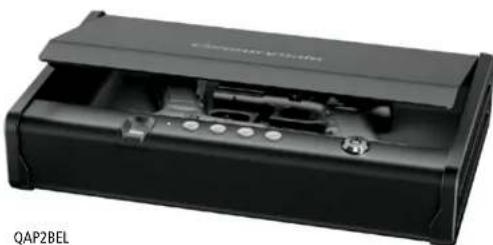
natural_image
Black industrial printer with open lid and internal components (no visible text or symbols)SentrySafe
Avertissements
Table des matières

AVERTISSEMENT
www.registermysafe.com
natural_image
Black open electronic device with internal components, labeled QAP2E/ QAP2EL (no other text or symbols visible)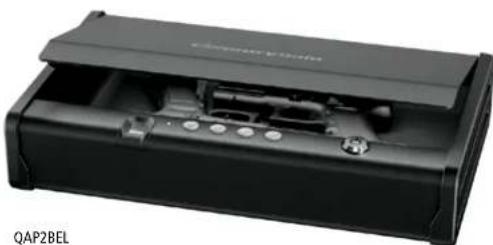
natural_image
Black QAP2BEL printer with open lid and internal circuitry (no visible text or symbols)
entrySafe
Advertencias
Índice

ADVERTENCIA
www.registermysafe.com
- XL Quick Access Pistol Safe Owner's Manual
- SentrySafe
- Table of ContentsWarnings
- WARNING
- NOTICE
- YOUR SAFE IS ONLY PART OF YOUR TOTAL SECURITY PROTECTION.
- English
- IMPORTANT
- REGISTRATION
- www.registermysafe.com
- Programming Your Safe
- Preparing your safe for first-time use
- To Program an Electronic Code
- To Change an Electronic Code
- -OR-
- To Program Primary User Fingerprints on Models with Biometric Lock
- (Up to four fingerprints can be programmed)
- To Program Secondary User Fingerprints
- To Erase Fingerprints
- NOTE:
- SentrySafe Programming Interior LED Light (QAP2EL and QAP2BEL)
- Programming Method for the Interior LED Interval:
- NOTES:
- Programming Interior LED Light:
- Locking and Unlocking Your Safe
- For Select Biometric Lock Models Only:
- Bolt-Down Instructions
- Troubleshooting
- Bolting down your safe
- Bolt-Down kit contents:
- Tools needed to bolt safe to a surface:
- SentrySafe Customer Service
- How to obtain a replacement key
- Avertissements
- Table des matières
- AVERTISSEMENT
- entrySafe
- Advertencias
- Índice
- ADVERTENCIA
Brand : SentrySafe
Model : QAP2EL
Category : Safe