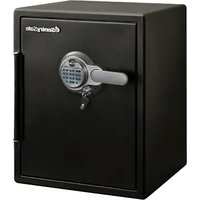
SFW205BWC - Safe SentrySafe - Free user manual and instructions
Find the device manual for free SFW205BWC SentrySafe in PDF.


| Product Type | Water and fire resistant digital safe |
| Brand | SentrySafe |
| Model | SFW205BWC |
| Power Supply | 4 AAA alkaline batteries (not included) |
| Lock Type | Digital keypad + fingerprint reader |
| Code Capacity | 1 fixed factory code, 1 master code, 1 secondary code (5 digits each) |
| Fingerprint Capacity | 2 primary + 8 secondary (max 10 fingerprints total) |
| Fire Protection | UL classified, resists 177°C interior during fire |
| Water Protection | Yes, waterproof seal |
| Digital Media Protection | Yes (hard drives, USB keys, etc.) |
| Interior Lighting | Programmable (off, 30s or 60s) |
| Keypad Sound | Enable/disable |
| Security Lockout | 2-minute delay mode after 3 incorrect attempts |
| Security Key Lock | Optional (allows locking/unlocking access, not emergency opening) |
| Exterior Dimensions (approx.) | Approximately 33 × 45 × 37 cm (height × width × depth) – estimate |
| Weight (approx.) | Approximately 25 kg – estimate |
| Material | Steel with fire-resistant coating |
| Maintenance | Clean the fingerprint reader with a dry lint-free cloth; replace the desiccant bag every 6 months |
| Included Accessories | Desiccant bag, lock keys (depending on version), user manual |
| Warranty | Limited lifetime fire replacement program (subject to registration) |
| Customer Service | 1-800-828-1438 (USA) or SentrySafe.com |
Frequently Asked Questions - SFW205BWC SentrySafe
User questions about SFW205BWC SentrySafe
0 question about this device. Answer the ones you know or ask your own.
Ask a new question about this device
Download the instructions for your Safe in PDF format for free! Find your manual SFW205BWC - SentrySafe and take your electronic device back in hand. On this page are published all the documents necessary for the use of your device. SFW205BWC by SentrySafe.
USER MANUAL SFW205BWC SentrySafe
natural_image
Black Sentry Safe safe with a rotary key and keypad (no visible text or symbols on the main body): SentrySafe.com
: 1-800-828-1438
Water/Fire-Resistant Digital Safe with Fingerprint Scanner
Thank you for choosing SentrySafe to store all your important documents and valuables.
We hope that this product will help you stay organized and provide you with the peace-of-mind of knowing the things most important to you are protected.
Your SentrySafe Product
Your SentrySafe product has a number of features to keep your important documents and valuables protected including:

Water Protection UL Classified

Fire Protection

Digital Media Protection
Using Your SentrySafe
Preparing Your Safe for First Time Use
1 Slide out the battery drawer on the side of the keypad. Insert 4 AAA alkaline batteries (not included). DO NOT use rechargeable batteries or any other type of non-alkaline battery. Do not mix old and new batteries. Do not mix alkaline and standard batte
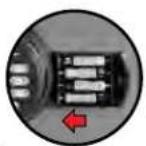
② Slide battery drawer back into keypad until it clicks into place.
Using Your Safe
3 Enter the 5 digit factory code found on the back of this owner's manual.
4 Turn handle downward to open safe.
IMPORTANT: Test your code several times before putting valuables inside.
IMPORTANT: If you exert too much force on the handle, the handle will move without moving the bolts. When this happens, you will hear a 'click.' DO NOT be alarmed. This feature is designed to protect the bolts from being overpowered by force. Simply exert force in the opposite direction (lifting up) until the handle clicks back into place.
Dual Key Lock

IMPORTANT: A dual key lock option is included in your safe. Using this key can disable/enable entry into the safe. This is NOT an override key. Key must be in horizontal position to access safe.

Your Digital Fingerprint Lock
The digital lock on your safe comes with two flexible solutions for entry: a digital keypad and fingerprint scanner. You will be able to program two 5 digit codes in addition to the factory code found on the back of this owner's manual. The fingerprint scanner can also be programmed for up to two primary fingerprints and eight secondary fingerprints.
NOTE: To add or delete a secondary user's fingerprint, you must have previously programmed a 5 digit primary user code.
NOTE: Factory code cannot be deleted.
Programming Digital Keypad Entry
NOTE: Green light will flash blue then back to green to indicate the safe is in program mode.
To Add a Primary User Code
Only 1 primary user code can be programmed at a time.
1 Press: "P"
② Enter the 5 digit "FACTORY CODE" (found on the back of this owner's manual)
3 Press a 5 digit primary user code you have chosen for your safe
Deleting a Primary User Code
1 Press: "P"
2 Enter the 5 digit "FACTORY CODE" (found on the back of this owner's manual).
3 Press: "0" - "0" - "0" - "0" - "0"
NOTE: The electronic lock will NOT indicate that it has deleted the user code—please test code to make sure it has been deleted.
NOTE: A primary user code is necessary to adding/deleting a secondary user code/fingerprint.
Programming the Secondary Code
Only 1 secondary user code can be programmed at a time.
1 Press: "P" two times
② Enter your programmed 5 digit primary user code.
3 Press a personal 5 digit secondary user code.
Deleting a Secondary Code
1 Press: "P" two times
2 Enter your programmed 5 digit primary user code.
3 Press: "0" - "0" - "0" - "0" - "0"
NOTE: The electronic lock will NOT indicate that it has deleted the user code—please test code to make sure it has been deleted.

Tips for Using Your Fingerprint Scanner
- Do not choose a finger with a cut or scar.
- Make sure hands are clean and dry before programming or operating the fingerprint scanner.
- For optimal performance, clean the fingerprint sensor periodically with a dry, lint-free cloth.
• The fingerprint sensor may not work well when cold.
Programming Your Fingerprint Scanner
NOTE: Green light will flash blue then back to green to indicate the safe is in program mode.
NOTE: Each user will have the ability to program two fingerprints.
NOTE: Turning the keypad sound off may make it more difficult to use fingerprint scanner as a single beep indicates your finger has been scanned.
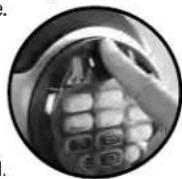
To Add a Primary Fingerprint User
1 Press: "P"
② Enter the 5 digit "FACTORY CODE" (found on the back of this owner's manual).
3 Place finger on sensor. Once LED light turns green and beeps once, remove finger from sensor.
4 When LED light turns blue, place same finger back on sensor. LED light will change green and beep once for each valid scan.
5 Repeat this process until the sensor beeps 2 times (usually 5-10 successful scans), indicating primary fingerprint enrollment complete.
6 Repeat steps 1-5 in order to add second primary fingerprint.
Deleting all Primary Fingerprint User
1 Press: "P"
② Enter the 5 digit "FACTORY CODE" (found on the back of this owner's manual).
3 Place any finger on the sensor.
4 Press: "C"
NOTE: The electronic lock will NOT indicate that it has deleted the user's fingerprint—please test to make sure it has been deleted.
NOTE: This will delete both fingerprints for this user.

SentrySafe®
English
To Add a Secondary Fingerprint User
1 Press: "P" two times
② Enter your programmed 5 digit primary user code.
NOTE: Blue light will blink to indicate the fingerprint sensor is ready to scan a new fingerprint.
3 Place finger on sensor. Once LED light turns green and beeps once, remove finger from sensor.
4 When LED light turns blue, place same finger back on sensor. LED light will change green and beep once for each valid scan.
5 Repeat this process until the sensor beeps 2 times (usually 5-10 successful scans), indicating primary fingerprint enrollment complete.
6 Repeat steps 1-5 in order to add multiple secondary fingerprints.
Deleting all Secondary Fingerprint Users
1 Press: "P" two times
2 Enter your programmed 5 digit primary user code.
3 Place any finger on the sensor.
4 Press: "C"
NOTE: The electronic lock will NOT indicate that it has deleted the user's fingerprint—please test to make sure it has been deleted.
NOTE: This will delete both fingerprints for this user.

Unlocking the Safe Using the Fingerprint Scanner
1 Place your programmed finger on sensor. A green light and one beep indicate your finger has been scanned.
2 Rotate the handle downward to open the door
natural_image
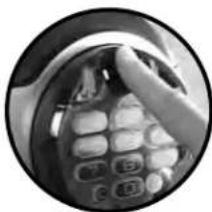
Close-up of a hand holding a phone with visible keypad (no text or symbols)NOTE: Delay mode will occur if 3 consecutive invalid entries have been tried. The red LED will blink on and off to let you know the safe is in delay mode. This will cause the system to shutdown for two minutes. DO NOT remove the batteries to restart the system; it will only increase the length of time for the system shutdown.
Programming Safe Features
Digital Keypad Sound On/Off
To turn keypad sound off: Press: "0" - "P" - "0"
To turn keypad sound on: Press: "0" - "P" - "1"
NOTE: Turning the keypad sound off may make it more difficult to use fingerprint scanner as a single beep indicates your finger has been scanned.
Interior Light
The interior light in your safe can be programmed to illuminate for various time intervals upon opening your safe.
To turn the light feature off: Press: "0" - "P" - "2"
To program the light on for 30 seconds: Press: "0" - "P" - "3"
To program the light on for 60 seconds: Press: "0" - "P" - "4"

Safe Warnings and Important Information

- This product is not intended for the secure storage of all materials. Items such as firearms, other weapons, combustible materials and medication should not be stored in this unit.
• DO NOT store delicate items directly in your safe.
- In order to protect your valuables from potential threats of flood, your safe is equipped with an airtight gasket. Because of this gasket, moisture in the air could potentially be locked inside your safe and accumulate inside your safe.
- The desiccant bag included in your safe during shipment should be left inside your safe. DO NOT DISCARD IT. It is intended to help absorb moisture. Replace or recharge your desiccant bag every 6 months or as needed for optimum performance.
- If you choose to store delicate items such as jewelry with working parts, watches, stamps or photos in your safe, we recommend putting them in an air-tight container prior to placing in the safe for storage.
- NOTE: SentrySafe will not be responsible for any damage or loss of items placed in the unit due to moisture.
- DO NOT store pearls in this safe. In the event of a fire, the interior of your safe may reach up to 350°F. While this temperature is safe for your paper documents, digital media and other valuables, pearls can be damaged at much lower temperatures.
- DO NOT store any film based technology or media in this safe.
- This product is not intended to protect computer floppy disks or diskettes, film cartridges, tapes, audio/video cassettes or photo negatives.
- Your safe is only part of your total security protection.
- SentrySafe recommends that you store your safe in closets, offices, basements, bedrooms and any other locations that are convenient for you but out of direct line of sight from prying eyes. The location of the safe does not affect the safe's ability to protect your valuables inside.

Limited Lifetime After-Fire Replacement Program
If your SentrySafe product is in a fire, it will be sealed shut making it necessary for it to be pried open. To help your family begin again, SentrySafe will ship a replacement free of charge. To be eligible for the Limited Lifetime After Fire Replacement Program, you (the original owner) must register your product using the included registration form or by visiting www.registermysafe.com.
For more information about the Limited Lifetime After-Fire Replacement Program, visit SentrySafe.com
Troubleshooting
| THE PROBLEM: WHY IT IS HAPPENING: THE SOLUTION: | ||
| The door will not lock. | Confirm that there is no obstruction in the door. | Remove all items and accessories from inside the safe.If this resolves the issue, reset the accessories and organize items to properly fit. |
| The handle is not in the horizontal position when the safe is locked. | The clutch mechanism has been engaged. Rotate the handle up or down until it clicks into the horizontal position. | |
| Cannot open door after inputting the electronic code. | 1. Safe doors equipped with a water-resistant gasket may initially be tight.2. Key lock is in the locked position.3. Battery power is low. | 1. Hold the handle up while inputting the code and then pull down on the handle.2. If your safe is equipped with a key lock ensure that the key is in the unlocked position (select models only).3. Replace batteries. |
| Red indicator light blinks three times and there are three beeps. | 1. An incorrect code has been entered.2. Battery power is low. | 1. Verify code and re-enter. If the programmable code you are using doesn't work then use the factory code. If successful re-program your programmable code.2. Replace batteries. |
| Red indicator light blinks five times and there are five beeps. | Keypad communication error. Please call our Customer Care team. | |
| Red indicator light blinks once and there is one beep. | Program button is pressed out of sequence.-DR-Sensor failed to read fingerprint. | Repeat steps to open safe. |
| Red indicator light blinks continuously. Safe is in lockout mode. Wait two minutes and repeat steps to open safe. | ||
| Yellow indicator light is on while using safe lock. | Battery power is low. Replace batteries. | |
| Cannot open door after inputting code and yellow "low battery" light is on. | Battery power is low. Lock may not function properly. Replace batteries. | |
| Can't enroll finger. Refer to fingerprint scanner tips section of owner's manual. | ||
| Fingerprint swipe will not unlock the safe. Refer to fingerprint scanner tips section of owner's manual. | ||
SentrySafe®
Français
natural_image
Close-up of a hand holding a phone receiver with teeth (no visible text or symbols)natural_image
Close-up of a hand holding a phone with visible keypad and buttons (no text or symbols)natural_image
Close-up of a hand holding a phone receiver with visible keypad (no text or symbols)natural_image
Close-up of a hand holding a phone receiver with visible teeth and buttons (no text or symbols)Thank you for choosing SentrySafe!
Our US-based customer care team is happy to help.
: SentrySafe.com
:1-800-828-1438
Got a question? We're happy to help!
If you ever have any questions regarding your SentrySafe product, please give us a call at 1-800-828-1438 or visit our website at SentrySafe.com. Many concerns can be resolved quickly over the phone.
Never forget your combination again!
Registering your SentrySafe allows you to securely store your combination online, access your owner's manual, and more. So you can always have reliable access to the things that matter most to you. Visit SentrySafe.com to learn more.
Organize Your Safe to Fit Your Needs
Need help getting organized? SentrySafe has a variety of organizational features available to help you personalize your safe to fit the needs of your home and business. Visit SentrySafe.com or call our customer care team at 1-800-828-1438 for more information.
Key No. (Not All Models)
- Water/Fire-Resistant Digital Safe with Fingerprint Scanner
- Thank you for choosing SentrySafe to store all your important documents and valuables.
- Your SentrySafe Product
- Using Your SentrySafe
- Preparing Your Safe for First Time Use
- Using Your Safe
- Dual Key Lock
- Your Digital Fingerprint Lock
- Programming Digital Keypad Entry
- To Add a Primary User Code
- Deleting a Primary User Code
- Programming the Secondary Code
- Deleting a Secondary Code
- Tips for Using Your Fingerprint Scanner
- Programming Your Fingerprint Scanner
- To Add a Primary Fingerprint User
- Deleting all Primary Fingerprint User
- SentrySafe®
- To Add a Secondary Fingerprint User
- Deleting all Secondary Fingerprint Users
- Unlocking the Safe Using the Fingerprint Scanner
- Programming Safe Features
- Digital Keypad Sound On/Off
- Interior Light
- Safe Warnings and Important Information
- • DO NOT store delicate items directly in your safe.
- - DO NOT store any film based technology or media in this safe.
- - Your safe is only part of your total security protection.
- Limited Lifetime After-Fire Replacement Program
- Got a question? We're happy to help!
- Never forget your combination again!
- Organize Your Safe to Fit Your Needs
Brand : SentrySafe
Model : SFW205BWC
Category : Safe