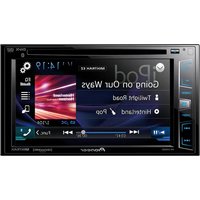
AVH-1330NEX - Car stereo PIONEER - Free user manual and instructions
Find the device manual for free AVH-1330NEX PIONEER in PDF.


User questions about AVH-1330NEX PIONEER
0 question about this device. Answer the ones you know or ask your own.
Ask a new question about this device
Download the instructions for your Car stereo in PDF format for free! Find your manual AVH-1330NEX - PIONEER and take your electronic device back in hand. On this page are published all the documents necessary for the use of your device. AVH-1330NEX by PIONEER.
USER MANUAL AVH-1330NEX PIONEER
Your new product and this manual
- Do not operate this product, any applications, or the rear view camera option (if purchased) if doing so will divert your attention in any way from the safe operation of your vehicle. Always observe safe driving rules and follow all existing traffic regulations. If you experience difficulty in operating this product or reading the display, park your vehicle in a safe location and apply the parking brake before making the necessary adjustments.
- Do not install this product where it may (i) obstruct the driver's vision, (ii) impair the performance of any of the vehicle's operating systems of safety features, including airbags, hazard lamp buttons, or (iii) impair the driver's ability to safely operate the vehicle. In some cases, it may not be possible to install this product because of the vehicle type or the shape of the vehicle interior.
Important safeguards
WARNING
Pioneer does not recommend that you install this product yourself. This product is designed for professional installation only. We recommend that only authorized Pioneer service personnel, who have special training and experience in mobile
electronics, set up and install this product. NEVER SERVICE THIS PRODUCT YOURSELF. Installing or servicing this product and its connecting cables may expose you to the risk of electric shock or other hazards, and can cause damage to this product that is not covered by warranty.
Precautions before connecting the system
WARNING
Do not take any steps to tamper with or disable the parking brake interlock system which is in place for your protection. Tampering with or disabling the parking brake interlock system could result in serious injury or death.
CAUTION
- Secure all wiring with cable clamps or electrical tape. Do not allow any bare wiring to remain exposed.
- Do not directly connect the yellow lead of this product to the vehicle battery. If the lead is directly connected to the battery, engine vibration may eventually cause the insulation to fail at the point where the wire passes from the passenger compartment into the engine compartment. If the yellow lead's insulation tears as a result of contact with metal parts, short-circuiting can occur, resulting in considerable danger.
-
It is extremely dangerous to allow cables to become wound around the steering column or shift lever. Be sure to install this product, its cables, and wiring away in such so that they will not obstruct or hinder driving.
-
Make sure that the cables and wires will not interfere with or become caught in any of the vehicle's moving parts, especially the steering wheel, shift lever, parking brake, sliding seat tracks, doors, or any of the vehicle's controls.
- Do not route wires where they will be exposed to high temperatures. If the insulation heats up, wires may become damaged, resulting in a short circuit or malfunction and permanent damage to the product.
- Do not shorten any leads. If you do, the protection circuit (fuse holder, fuse resistor or filter, etc.) may fail to work properly.
- Never feed power to other electronic products by cutting the insulation of the power supply lead of this product and tapping into the lead. The current capacity of the lead will be exceeded, causing overheating.
Before installing this product
- Use this unit with a 12-volt battery and negative grounding only. Failure to do so may result in a fire or malfunction.
- To avoid shorts in the electrical system, be sure to disconnect the (−) battery cable before installation.
To prevent damage
WARNING
- When speaker output is used by 4 channels, use speakers over 50 W (Maximum input power) and between 4 Ω to 8 Ω (impedance value). Do not use 1 Ω to 3 Ω speakers for this unit.
- When rear speaker output is used by 2 Ω of subwoofer, use speakers over 70 W (Maximum input power).
*Please refer to connection for a connection method.
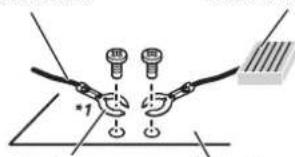
- The black cable is ground. When installing this unit or power amp (sold separately), make sure to connect the ground wire first. Ensure that the ground wire is properly connected to metal parts of the car's body. The ground wire of the power amp and the one of this unit or any other device must be connected to the car separately with different screws. If the screw for the ground wire loosens or falls out, it could result in fire generation of smoke or malfunction.
Ground wire
POWER AMP
natural_image
Diagram showing two hands holding small components with a label '1' and a grid bar on the right (no text or symbols on components)Other devices (Another electronic device in the car)
Metal parts of car's body
*1 Non supplied for this unit
- When replacing the fuse, be sure to only use a fuse of the rating prescribed on this product.
- This product cannot be installed in a vehicle without ACC (accessory) position on the ignition switch.

ACC position

No ACC position
• To avoid short-circuiting, cover the disconnected lead with insulating tape. It is especially important to insulate all
unused speaker leads, which if left uncovered may cause a short circuit.
- For connecting a power amp or other devices to this product, refer to the manual for the product to be connected.
• The graphical symbol placed on the product means direct current.
Notice for the blue/white lead
- When the ignition switch is turned on (ACC ON), a control signal is output through the blue/white lead. Connect to an external power amp's system remote control terminal, the auto-antenna relay control terminal, or the antenna booster power control terminal (max. 300 mA 12 V DC). The control signal is output through the blue/white lead, even if the audio source is switched off.
This product
text_image
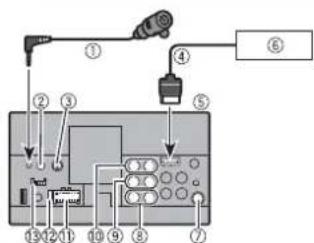
Diagram of a device panel with numbered components and labeled parts, likely for electrical or electronic control.① Microphone 3 m (9 ft. 10-1/8 in.)
② Wired remote input
Hard-wired remote control adapter can be connected (sold separately).
③ SiriusXM Connect Vehicle Tuner Refer to the instruction manual for SiriusXM Connect Vehicle Tuner (sold separately).
④ RGB cable (supplied with Navigation system)
⑤ This product
⑥ Pioneer navigation system
Contact your dealer to inquire about
the connectable navigation unit.
⑦ Antenna jack
⑧ Subwoofer output (STD)/Low range output (NW)
⑨ Rear output (STD)/Middle range output (NW)
⑩ Front output (STD)/High range output (NW)
⑪ Power supply
⑫ Fuse (10 A)
⑬ iDatalink adapter input
NOTE
Before using and/or connecting the iDatalink Maestro adapter, you will need to first flash the Maestro module with the appropriate vehicle and head unit firmware. You can find the device number that is required for the activation on the followings (refer to the Operation Manual).
• The label on the packaging of this product
• The label on this product
• The[Firmware Information] screen
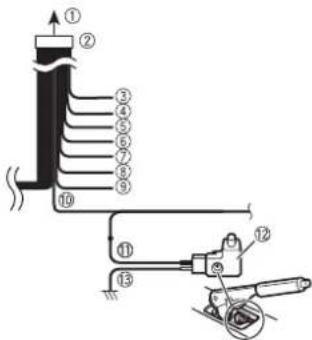
Power cord
text_image
Technical diagram of a mechanical or electrical device with numbered components and directional arrows indicating flow or movement.① To power supply
② Power cord
③ Yellow
To terminal supplied with power regardless of ignition switch position.
④ Red
To electric terminal controlled by ignition switch (12 V DC) ON/OFF
⑤ Orange/white
To lighting switch terminal.
⑥ Black (ground)
To vehicle (metal) body.
⑦ Violet/white
Of the two lead wires connected to the back lamp, connect the one in which the voltage changes when the gear shift is in the REVERSE (R) position. This connection enables the unit to sense whether the car is moving forward or backward.
⑧ Yellow/black
If you use an equipment with Mute function, wire this lead to the Audio Mute lead on that equipment. If not, keep the Audio Mute lead free of any connections.
⑨ Blue/white
Connect to system control terminal of the power amp (max. 300 mA 12 V DC).
⑩ Light green
Used to detect the ON/OFF status of the parking brake. This lead must be connected to the power supply side of the parking brake switch.
⑪ Power supply side
⑫ Parking brake switch
⑬ Ground side
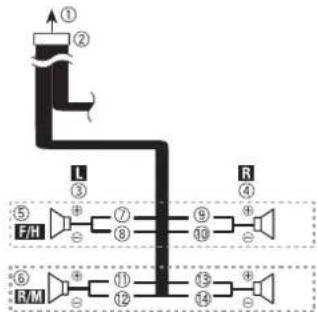
Speaker leads
flowchart
graph TD
    A["Source"] --> B["L"]
    B --> C["R"]
    C --> D["F/H"]
    D --> E["Segment ⑤"]
    E --> F["Segment ⑥"]
    F --> G["R/M"]
    G --> H["Segment ⑦"]
    H --> I["Segment ⑧"]
    I --> J["Segment ⑨"]
    J --> K["Segment ⑩"]
    K --> L["Segment ⑪"]
    L --> M["Segment ⑫"]
    M --> N["Segment ⑬"]
    N --> O["Segment ⑭"]
    O --> P["Segment ⑮"]
    P --> Q["Segment ⑯"]
    Q --> R["Segment ⑰"]
    R --> S["Segment ⑱"]
    S --> T["Segment ⑲"]
    T --> U["Segment ⑳"]
    U --> V["Segment ㉑"]
    V --> W["Segment ㉒"]
    W --> X["Segment ㉓"]
    X --> Y["Segment ㉔"]
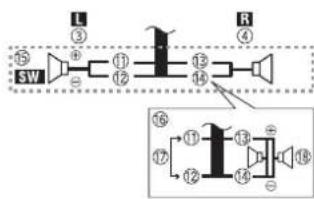
Perform these connections when using a subwoofer without the optional amplifier.
text_image
L ③ SW ① ② ⑬ ⑭ ⑮ ⑯ ⑰ ⑱ ⑲ ⑳ ㉑ ㉒ ㉓ ㉔ ㉕ ㉖ ㉗① To power supply
② Power cord
③ Left
④ Right
⑤ Front speaker (STD) or high range speaker (NW)
⑥ Rear speaker (STD) or middle range speaker (NW)
⑦ White
⑧ White/black
⑨ Gray
10 Gray/black
⑪ Green
⑫ Green/black
⑬ Violet
⑭ Violet/black
⑮ Subwoofer (4 Ω)
16 When using a subwoofer of 2 Ω, be sure to connect the subwoofer to the violet and violet/black leads of this unit. Do not connect anything to the green and green/black leads.
⑰ Not used.
18 Subwoofer (4 Ω) × 2
NOTES
- When a subwoofer is connected to this product instead of a rear speaker, change the rear output setting in the initial setting. The subwoofer output of this product is monaural. For details, refer to the Operation Manual.
- With a two-speaker system, do not connect anything to the speaker leads that are not connected to speakers.
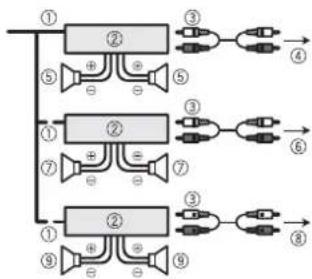
Power amp (sold separately)
Without internal amp

Important
The speaker leads are not used when this connection is in use.
flowchart
graph TD
    A["①"] --> B["②"]
    B --> C["③"]
    B --> D["④"]
    B --> E["⑤"]
    B --> F["⑥"]
    G["①"] --> H["②"]
    H --> I["③"]
    H --> J["④"]
    H --> K["⑤"]
    H --> L["⑥"]
    M["①"] --> N["②"]
    N --> O["③"]
    N --> P["④"]
    N --> Q["⑤"]
    N --> R["⑥"]
    S["①"] --> T["②"]
    T --> U["③"]
    T --> V["④"]
    T --> W["⑤"]
    T --> X["⑥"]
    Y["①"] --> Z["②"]
    Z --> AA["③"]
    Z --> AB["④"]
    Z --> AC["⑤"]
    Z --> AD["⑥"]
With internal amp

Important
Front speaker and Rear speaker signals (STD) or middle range speaker and high range speaker signals (NW) are output from the speaker leads when this connection is in use.
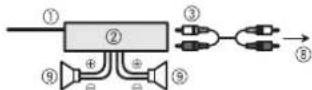
① System remote control Connect to Blue/white
② Power amp (sold separately)
③ Connect with RCA cable (sold separately)
④ To Rear output (STD)
To middle range output (NW)
⑤ Rear speaker (STD)
Middle range speaker (NW)
⑥ To Front output (STD)
To high range output (NW)
⑦ Front speaker (STD)
High range speaker (NW)
To subwoofer output (STD)
To low range output (NW)
⑨ Subwoofer (STD)
Low range speaker (NW)
NOTE
Select the appropriate speaker mode between standard mode (STD) and network mode (NW). For details, refer to the Operation Manual.
iPod®/iPhone® and smartphone
NOTES
- For details on how to connect an external device using a separately sold cable, refer to the manual for the cable.
- For details concerning the connection, operations and compatibility of iPhone, refer to the Operation Manual.
- For details concerning the connection and operations of smartphone, refer to the Operation Manual.
iPod/iPhone with Lightning connector
Connecting via the USB port
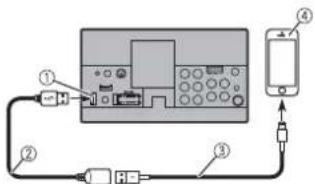
text_image
Diagram showing connections between a device, a switch, and a smartphone with labeled components① USB port
② USB cable 1.5 m (4 ft. 11 in.)
③ USB interface cable for iPod/iPhone (CD-IUS2) (sold separately)
④ iPhone with Lightning connector
iPhone with 30-pin connector
Connecting via the USB port
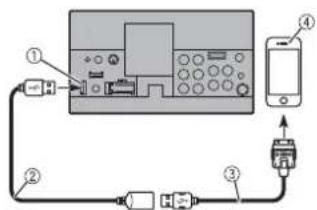
text_image
Diagram showing connection between a device, smartphone, and USB port with labeled components① USB port
② USB cable 1.5 m (4 ft. 11 in.)
③ USB interface cable for iPod/iPhone (CD-IU51) (sold separately)
④ iPhone with 30-pin connector
Smartphone (Android™ device)
Connecting via the USB port
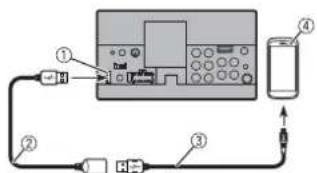
text_image
Diagram showing connections between a device, a mobile phone, and labeled components including ports, cables, and connectors.① USB port
② USB cable 1.5 m (4 ft. 11 in.)
③ USB - micro USB cable (Type USB A - micro USB B) (supplied with CD-MU200 (sold separately))
USB Type-C cable (Type USB A - USB C) (supplied with CD-CU50 (sold separately))
④ Smartphone
NOTE
The length of Type USB A - micro USB B cable cannot exceed 2 m (6 ft. 6 in.) and Type USB A - USB C cannot exceed 4 m (13 ft. 1 in.) according to the USB cable standard. When using a cable other than the above conditions, the main unit function may not operate properly.
Camera
About rear view camera
When you use the rear view camera, the rear view image is automatically switched from the video by moving the shift lever to REVERSE (R). Camera View mode also allows you to check what is behind you while driving.
WARNING
USE INPUT ONLY FOR REVERSE OR MIRROR IMAGE REAR VIEW CAMERA. OTHER USE MAY RESULT IN INJURY OR DAMAGE.
CAUTION
• The screen image may appear reversed.
- With the rear view camera you can keep an eye on trailers, or back into a tight parking spot. Do not use for entertainment purposes.
- Objects in rear view may appear closer or more distant than in reality.
• The image area of full-screen images displayed while backing or checking the rear of the vehicle may differ slightly.

text_image
Diagram of a device control or data acquisition system with numbered components and signal paths① Rear view camera (ND-BC8) (sold separately)
② To video output
③ RCA cable (supplied with ND-BC8)
④ This product
⑤ Brown (R.C IN)
⑥ Power supply
⑦ Power cord
⑧ Violet/white (REVERSE-GEAR SIGNAL INPUT)
Refer to Power cord on page 3.
⑨ Yellow (F.C IN)
(AVH-2330NEX/AVH-1330NEX)
⑩ RCA cable (sold separately)
⑪ View camera (sold separately)
NOTES
- Connect only the rear view camera to R.C IN. Do not connect any other equipment.
- Some appropriate settings are required to use rear view cameras. For details, refer to the Operation Manual.
External video component and the display
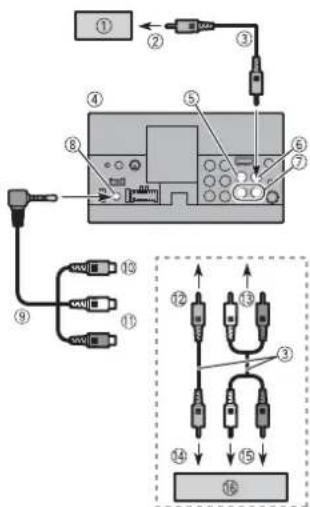
text_image
Diagram of electronic device connections with numbered components and labeled wiring paths① Rear display with RCA input jacks
② To video input
③ RCA cables (sold separately)
④ This product
⑤ Yellow (V IN)
⑥ Yellow (V OUT)
⑦ Red, white (R IN, L IN)
⑧ AUX input
⑨ Mini-jack AV cable (CD-RM10) (sold separately)
⑩ Yellow
⑪ Red, white
⑫ To Yellow
⑬ To Red, white
⑭ To video output
⑮ To audio outputs
16 External video component (sold separately)
NOTE
The appropriate setting is required to use the external video component. For details, refer to the Operation Manual.

WARNING
NEVER install the rear display in a location that enables the driver to watch the video source while driving.
This product's rear video output is for connection of a display to enable passengers in the rear seats to watch the video source.
Installation
CAUTION
Never install this product in places where, or in a manner that:
- Could injure the driver or passengers if the vehicle stops suddenly.
- May interfere with the driver's operation of the vehicle, such as on the floor in front of the driver's seat, or close to the steering wheel or shift lever.
• To ensure proper installation, be sure to use the supplied parts in the manner specified. If any parts are not supplied with this product, use compatible parts in the manner specified after you have the part compatibility checked by your dealer. If parts other than supplied or compatible ones are used, they may damage internal parts of this product or they may work loose and the product may become detached.
- Do not install this product where it may (i) obstruct the driver's vision, (ii) impair the performance of any of the vehicle's operating systems or safety features, including airbags, hazard lamp buttons or (iii) impair the driver's ability to safely operate the vehicle.
- Never install this product in front of or next to the place in the dashboard, door, or pillar from which one of your vehicle's airbags would deploy. Please refer to your vehicle's owner's manual for reference to the deployment area of the frontal airbags.
- Consult with your nearest dealer if installation requires drilling holes or other modifications of the vehicle.
- Before making a final installation of this product, temporarily connect the wiring to confirm that the connections are correct and the system works properly.
- Do not install this product in places subject to high temperatures or humidity, such as:
-Places close to a heater, vent or air conditioner.
-Places exposed to direct sunlight, such as on top of the dashboard.
-Places that may be exposed to rain, such as close to the door or on the vehicle's floor.
- Install this product horizontally on a surface within 0 to 30 degrees tolerance (within 5 degrees to the left or right). Improper installation of the unit with the surface tilted more than these tolerances increases the potential for errors in the vehicle's location display, and might otherwise cause reduced display performance.
- When installing, to ensure proper heat dispersal when using this product, make
sure you leave ample space behind the rear panel and wrap any loose cables so they are not blocking the vents.
5 cm
Leave ample space
5 cm
1 Fastening this product to the factory radio-mounting bracket.
Position this product so that its screw holes are aligned with the screw holes of the bracket, and tighten the screws at three locations on each side.
Use either the truss head screws (5 mm × 9 mm) or flush surface screws (5 mm × 9 mm), depending on the shape of the bracket's screw holes.
Factory radio-mounting bracket
If the pawl interferes with installation, you may bend it down out of the way.
Dashboard or console
Truss head screw or flush surface screw
Be sure to use the screws supplied with this product.
• Install the microphone in a place where its direction and distance from the driver make it easiest to pick up the driver's voice.
- Be sure to turn off (ACC OFF) the product before connecting the microphone.
- Depending on the vehicle model, the microphone cable length may be too short when you mount the microphone on the sun visor. In such cases, install the microphone on the steering column.
1 Fit the microphone lead into the groove.
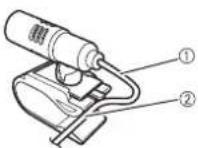
① Microphone lead
② Groove
2 Attach the microphone clip to the sun visor.
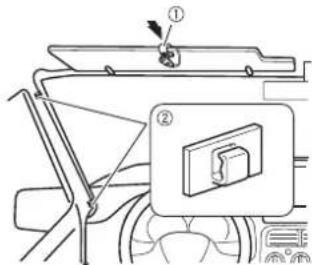
text_image
Technical diagram showing a mechanical assembly with labeled parts and a magnified inset of a component detail.① Microphone clip
② Clamps
Use separately sold clamps to secure the lead where necessary inside the vehicle.
Install the microphone on the sun visor when it is in the up position. It cannot recognise the driver's voice if the sun visor is in the down position.
Installation on the steering column
1 Detach the microphone base from the microphone clip by sliding the microphone base while pressing the tab.
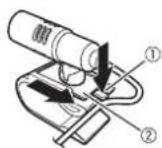
① Tab
② Microphone base
2 Mount the microphone on the steering column.
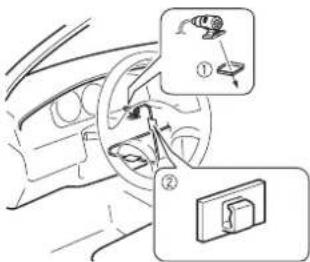
text_image
Diagram showing car interior with two labeled parts: one with a magnified view of the dashboard and another with a close-up view of the dashboard.① Double-sided tape
② Clamps
Use separately sold clamps to secure the lead where necessary inside the vehicle.
NOTE
Keeping it away from the steering wheel.
Adjusting the microphone angle
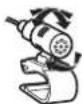
Connexion
Précautions
text_image
Diagram of a device panel with numbered components and labeled parts, likely for electronics or control system installation.text_image
Technical diagram of a heat exchanger or cooling system with numbered components and labeled partstext_image
Diagram showing connections between a device, switch, and mobile phone with labeled componentstext_image
Diagram showing connection between a device, mobile phone, and network ports with labeled componentstext_image
Diagram of a device connection setup with labeled components including ports, connectors, and a device.text_image
Diagram of a device control or system with numbered components and labeled portstext_image
Diagram of electronic device connections with numbered components and labeled wiring pathstext_image
Technical diagram of a device with labeled components and parts, including a box, panel, and display.text_image
Diagram showing car seatbelt switch mechanism with labeled parts and zoomed-in detail viewtext_image
Diagram showing car interior and dashboard with labeled parts, including a numbered diagram of a device or fixture.text_image
Diagram of a device control panel with numbered components and labeled portstext_image
Technical diagram of a mechanical or electrical device with numbered components and labeled partstext_image
Diagram showing connections between a device with labeled ports and a mobile phone, likely illustrating a system or data flow setup.text_image
Diagram showing connection between a device with labeled ports and a mobile phone connected to a plug① Puerto USB
② Cable USB de 1,5 m
text_image
Diagram of a device setup with labeled components including ports, connectors, and a mobile phone connected to a device.text_image
Diagram of a device control panel with numbered components and signal pathstext_image
Diagram of electronic device connections with numbered components and labeled wiring pathstext_image
Technical diagram of a device with labeled components and parts, including a box, panel, and display.text_image
Diagram showing a car seatbelt switch mechanism with labeled parts and a magnified inset viewtext_image
Diagram showing car interior components with numbered parts and a close-up of a device labeled '①' and '②'.28-8, Honkomagome 2-chome, Bunkyo-ku, Tokyo 113-0021, Japan
PIONEER ELECTRONICS (USA) INC.
P.O. Box 1540, Long Beach, California 90801-1540, U.S.A. TEL: (800) 421-1404
PIONEER ELECTRONICS OF CANADA, INC.
340 Ferrier Street, Unit 2, Markham, Ontario L3R 2Z5, Canada TEL: 1-877-283-5901 TEL: 905-479-4411
PIONEER EUROPE NV
Haven 1087, Keetberglaan 1, B-9120 Melsele, Belgium/Belgique TEL: (0) 3/570.05.11
PIONEER ELECTRONICS ASIACENTRE PTE. LTD.
2 Jalan Kilang Barat, #07-01, Singapore 159346 TEL: 65-6378-7888
PIONEER ELECTRONICS AUSTRALIA PTY. LTD.
5 Arco Lane, Heatherton, Victoria, 3202 Australia TEL: (03) 9586-6300
PIONEER ELECTRONICS DE MÉXICO S.A. DE C.V.
Blvd. Manuel Avila Camacho 138, 10 piso Col.Lomas de Chapultepec, México, D.F. 11000 Tel: 52-55-9178-4270, Fax: 52-55-5202-3714
先鋒股份有限公司
© 2017 PIONEER CORPORATION. All rights reserved.