FH-S500BT - Car stereo PIONEER - Free user manual and instructions
Find the device manual for free FH-S500BT PIONEER in PDF.


User questions about FH-S500BT PIONEER
0 question about this device. Answer the ones you know or ask your own.
Ask a new question about this device
Download the instructions for your Car stereo in PDF format for free! Find your manual FH-S500BT - PIONEER and take your electronic device back in hand. On this page are published all the documents necessary for the use of your device. FH-S500BT by PIONEER.
USER MANUAL FH-S500BT PIONEER
REPRODUCTOR DE CD CON RECEPTOR RDS
FH-S700BS
FH-S701BS
FH-S500BT
FH-S501BT
Owner's Manual
Mode d'emploi
Important (Serial number)
The serial number is located on the bottom of this unit. For your own security and convenience, be sure to record this number on the enclosed warranty card.

Using Pioneer ARC APP 29
Audio Adjustments 30
Settings 32
FUNCTION settings 32
AUDIO settings 35
SYSTEM settings 37
ILLUMINATION settings. 41
MIXTRAX settings. 42
Connections/Installation 44
Additional Information 50
About this manual:
- In the following instructions, a USB memory or USB audio player are referred to as "USB device".
- When an iPhone is connected to the unit, the source name on the unit appears as [iPod®]. Please note that this unit supports only iPhones (iPhone 5 or later) regardless of the source name (for details, refer to page 57).
Before You Start
Thank you for purchasing this PIONEER product
To ensure proper use, please read through this manual before using this product. It is especially important that you read and observe WARNINGs and CAUTIONs in this manual. Please keep the manual in a safe and accessible place for future reference.
FCC ID: EW4C95
MODEL NO.: FH-S700BS/FH-S701BS/FH-S500BT/FH-S501BT
IC:4250A-C95
This device complies with Part 15 of FCC Rules and Industry Canada licence-exempt RSS standard(s). Operation is subject to the following two conditions: (1) this device may not cause interference, and (2) this device must accept any interference, including interference that may cause undesired operation of this device.
This transmitter must not be co-located or operated in conjunction with any other antenna or transmitter.
The Bluetooth antenna cannot be removed (or replaced) by user.
This equipment complies with FCC/IC radiation exposure limits set forth for an uncontrolled environment and meets the FCC radio frequency (RF) Exposure Guidelines and RSS-102 of the IC radio frequency (RF) Exposure rules. This equipment has very low levels of RF energy that it deemed to comply without maximum permissive exposure evaluation (MPE). But it is desirable that it should be installed and operated keeping the radiator at least 20cm or more away from person's body (excluding extremities: hands, wrists, feet and ankles).
Alteration or modifications carried out without appropriate authorization may invalidate the user's right to operate the equipment.
Note
This equipment has been tested and found to comply with the limits for a Class B digital device, pursuant to Part 15 of the FCC Rules. These limits are designed to provide reasonable protection against harmful interference in a residential installation. This equipment generates, uses and can radiate radio frequency energy and, if not installed and used in accordance with the instructions, may cause harmful interference to radio communications. However, there is no guarantee that interference will not occur in a particular installation. If this equipment does cause harmful interference to radio or television reception, which can be determined by turning the equipment off and on, the user is encouraged to try to correct the interference by one or more of the following measures:
-Reorient or relocate the receiving antenna.
-Increase the separation between the equipment and receiver.
-Connect the equipment into an outlet on a circuit different from that to which the receiver is connected.
-Consult the dealer or an experienced radio/TV technician for help.
The Safety of Your Ears is in Your Hands
Get the most out of your equipment by playing it at a safe level—a level that lets the sound come through clearly without annoying blaring or distortion and, most importantly, without affecting your sensitive hearing. Sound can be deceiving.
Over time, your hearing "comfort level" adapts to higher volumes of sound, so what sounds "normal" can actually be loud and harmful to your hearing. Guard against this by setting your equipment at a safe level BEFORE your hearing adapts.
ESTABLISH A SAFE LEVEL:
- Set your volume control at a low setting.
- Slowly increase the sound until you can hear it comfortably and clearly, without distortion.
- Once you have established a comfortable sound level, set the dial and leave it there.
BE SURE TO OBSERVE THE FOLLOWING GUIDELINES:
- Do not turn up the volume so high that you can't hear what's around you.
- Use caution or temporarily discontinue use in potentially hazardous situations.
- Do not use headphones while operating a motorized vehicle; the use of headphones may create a traffic hazard and is illegal in many areas.

WARNING
- Do not attempt to install or service this product by yourself. Installation or servicing of this product by persons without training and experience in electronic equipment and automotive accessories may be dangerous and could expose you to the risk of electric shock, injury or other hazards.
- Do not attempt to operate the unit while driving. Make sure to pull off the road and park your vehicle in a safe location before attempting to use the controls on the device.
CAUTION:
USE OF CONTROL OR ADJUSTMENT OR PERFORMANCE OF PROCEDURES OTHER THAN THOSE SPECIFIED HEREIN MAY RESULT IN HAZARDOUS RADIATION EXPOSURE.
CAUTION:
THE USE OF OPTICAL INSTRUMENTS WITH THIS PRODUCT WILL INCREASE EYE HAZARD.

CAUTION
- Do not allow this unit to come into contact with moisture and/or liquids. Electrical shock could result. Also, damage to this unit, smoke, and overheating could result from contact with liquids.
- Always keep the volume low enough to hear outside sounds.
- This product is evaluated in moderate and tropical climate condition under the Audio, video and similar electronic apparatus - Safety requirements, IEC 60065.
CAUTION
This product is a class 1 laser product classified under the Safety of laser products, IEC 60825-1:2007

After-sales service for Pioneer products
Please contact the dealer, distributor from where you purchased this unit or the authorized PIONEER Service Station for after-sales service or any other information. In case the necessary information is not available, please contact the companies listed below:
Please do not ship your unit to the companies at the addresses listed below for repair without contacting them in advance.
U.S.A. and CANADA
Pioneer Electronics (USA) Inc.
CUSTOMER SUPPORT DIVISION
P.O.Box 1760
Long Beach, CA 90801-1760
800-421-1404
For warranty information please see the Limited Warranty sheet included with this unit.
Getting Started
Basic operation
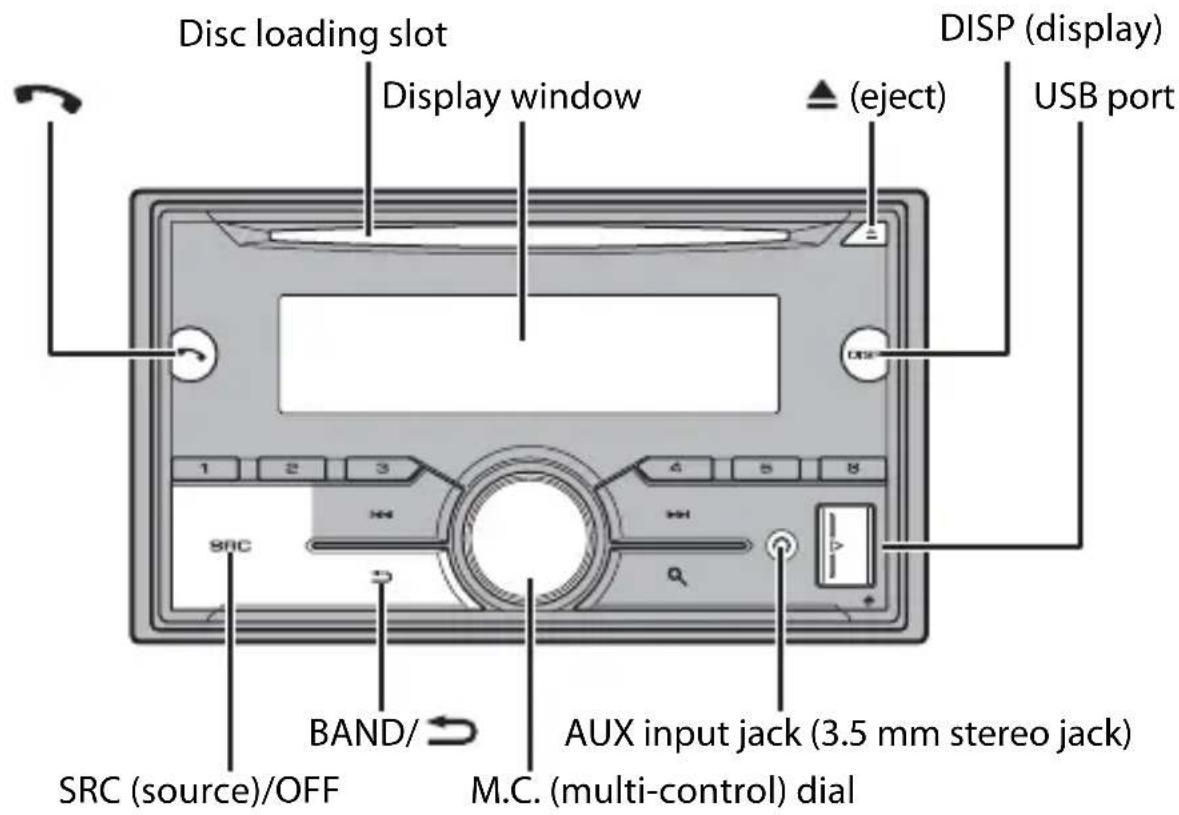
FH-S700BS/S701BS
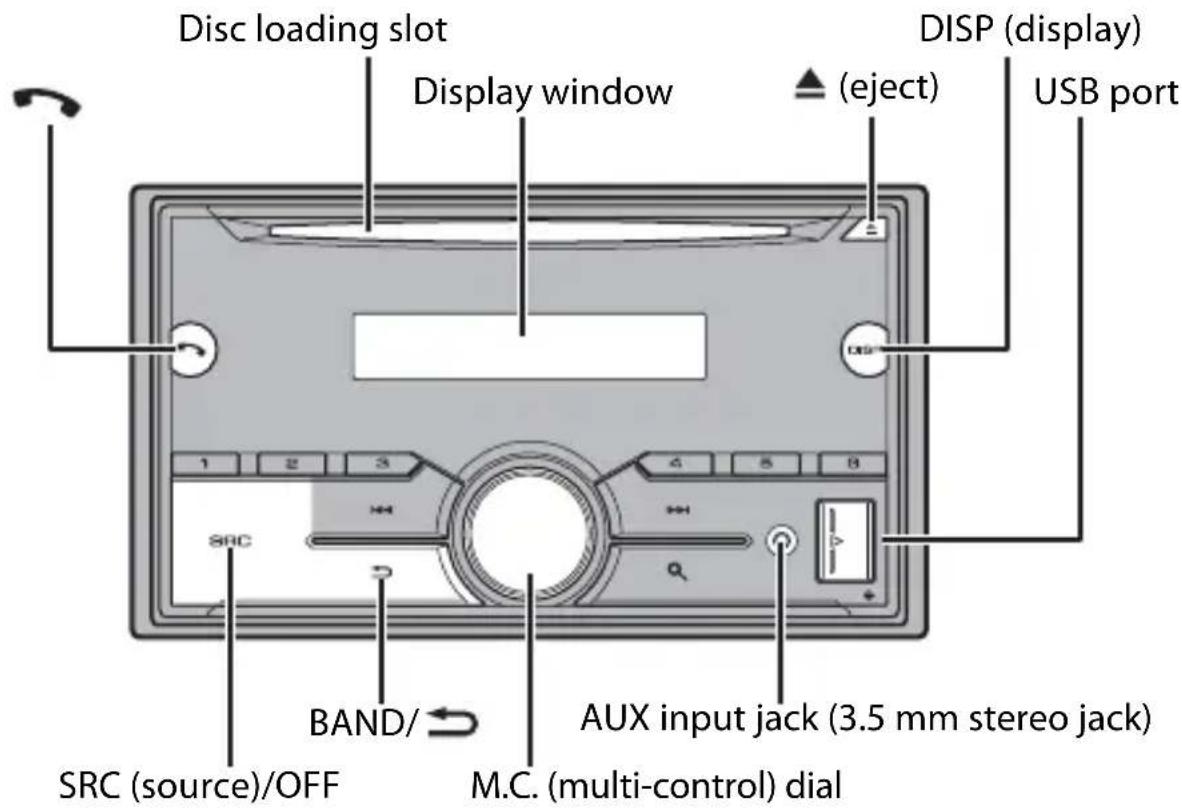
FH-S500BT/S501BT
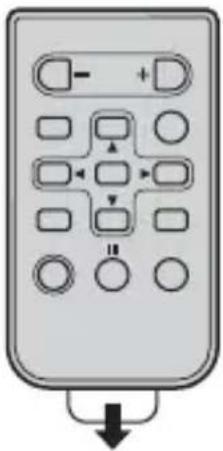
Remote Control
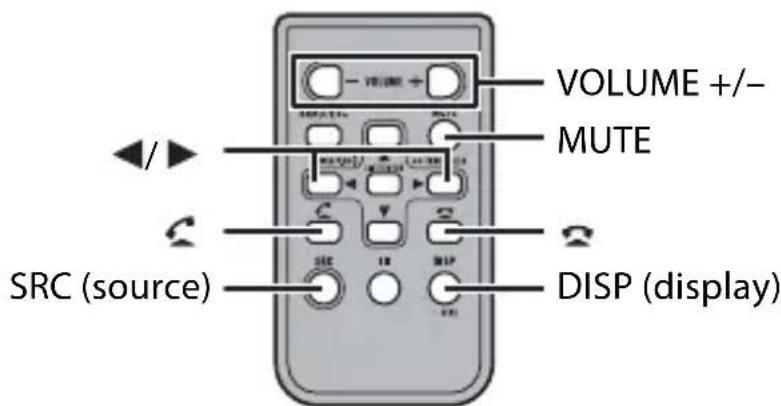
Frequently used operations
The available buttons vary depending on the unit.
| Purpose | Operation | |
| Head Unit Remote | Control | |
| Turn on the power* | Press SRC/OFF to turn on the power. Press and hold SRC/OFF to turn off the power. | Press SRC to turn on the power. Press and hold SRC to turn off the power. |
| Adjust the volume | Turn the M.C. dial. | Press VOLUME + or -. Press MUTE to mute the unit. Press MUTE again or press VOLUME + or - to unmute. |
| Select a source | Press SRC/OFF repeatedly. | Press SRC repeatedly. |
| Change the display information | Press DISP repeatedly. | Press DISP repeatedly. |
| Return to the previous display/list | Press BAND/ Press / to select the next/previous folder. | |
| Return to the normal display from the menu | Press and hold BAND/ | - |
| Change the display brightness (not available when [SIRIUSXM] is selected as a source) | Press and hold BAND/ | - |
| Answering a call Press. | Press. | < |
| Ending a call | Press. | Press . |
- When this unit's blue/white lead is connected to the vehicle's auto-antenna relay control terminal, the vehicle's antenna extends when this unit's source is turned on. To retract the antenna, turn the source off.
Display indication
The indication varies depending on the unit.
| Indication Description | |
| » | Appears when a lower tier of the menu or folder exists. |
| I | Appears when a Bluetooth telephone is connected to this unit by HFP (Hands Free Profile) (page 15) and flashes while the telephone is on hold. |
| ♀ | Appears when a Bluetooth audio player is connected to this unit by A2DP (Advanced Audio Distribution Profile) (page 15). |
| ♂ | Appears when the ♀ button is pressed. |
| S.Rtrv | Appears when the sound retriever function is set (page 33). |
| BASS Appears | when [HI]/[LOW] is selected in [D.BASS] (page 37). |
| XXX | Appears when random/shuffle play is set (except when BT AUDIO is selected as the source). |
| ↔ | Appears when repeat play is set (except when BT AUDIO is selected as the source). |
| ◎ | Appears when a Bluetooth connection is made (page 15). |
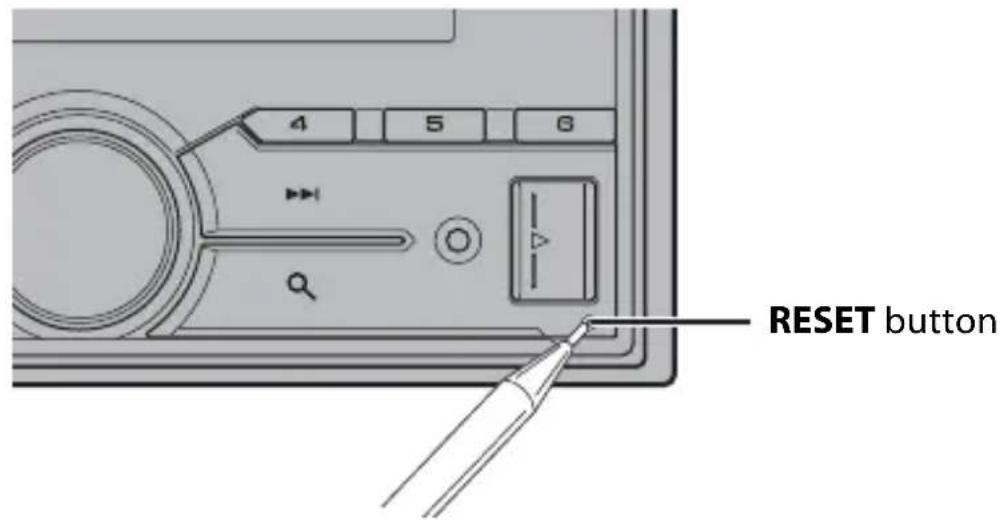
Resetting the microprocessor
The microprocessor must be reset in the following situations:
- Before using this unit for the first time after installation
- If the unit fails to operate properly
- When strange or incorrect messages appear on the display
1 Press the RESET button with a pen tip or other pointed instrument.
Preparing the remote control
Remove the insulation sheet before use.
How to replace the battery
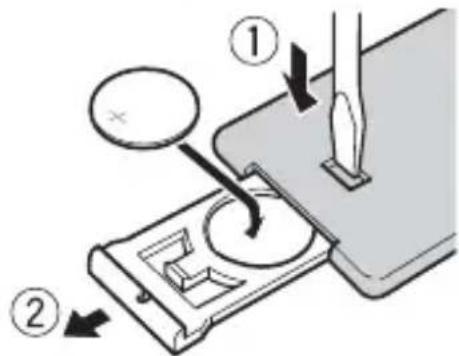
Insert the CR2025 (3 V) battery with the plus (+) and minus (-) poles orientated properly.

WARNING
- Do not ingest the battery, Chemical Burn Hazard.
(The remote control supplied with) This product contains a coin/button cell battery. If the coin/ button cell battery is swallowed, it can cause severe internal burns in just 2 hours and can lead to death.
Keep new and used batteries away from children.
If the battery compartment does not close securely, stop using the product and keep it away from children.
If you think batteries might have been swallowed or placed inside any part of the body, seek immediate medical attention.
- Do not expose the battery or remote control to excessive heat such as direct sunlight or fire.

CAUTION
- There is a potential danger of explosion if the battery is incorrectly replaced. When replacing the battery, replace it with the same type.
- Do not handle or store the battery with metallic tools or objects.
- If the battery leaks, remove the battery and wipe the remote control completely clean. Then install a new battery.
- When disposing of used batteries, please comply with governmental regulations or environmental public institutions' rules that apply in your country/area.
- "Perchlorate Material - special handling may apply.
See www.dtsc.ca.gov/hazardouswaste/perchlorate. (Applicable to California, U.S.A.)

Important
- Do not store the remote control in high temperatures or direct sunlight.
- Do not let the remote control fall onto the floor, where it may become jammed under the brake or accelerator pedal.
Setup menu
When you turn the ignition switch to ON after installation, the setup menu appears in the display.

WARNING
(Only for FH-S700BS/S701BS)
Do not use the unit in standard mode when a speaker system for network mode is connected to the unit. Do not use the unit in network mode when a speaker system for standard mode is connected to the unit. This may cause damage to the speakers.
1 Turn the M.C. dial to select the options, then press to confirm.
To proceed to the next menu option, you need to confirm your selection.
| Menu Item Description | |
| LANGUAGE Select the language to display the text information from a compressed audio file. | |
| [ENG](English), [ESP](Spanish), [FRA] (Canadian French) | |
| CLOCK SET Set the clock. | 1 Turn the M.C. dial to adjust the hour, then press to confirm. The indicator moves to the minute setting automatically. 2 Turn the M.C. dial to adjust the minute, then press to confirm. |
| SPEAKER MODE (Only for FH-S700BS/S701BS) [STANDARD], [NETWORK] | Switch between two operation modes: the 2-way network mode (NETWORK) and the standard mode (STANDARD) according to the connections you have established. For details on operation modes, see page 31. After selecting the appropriate mode, turn the M.C. dial to select [YES], then press to confirm. • You cannot complete the setup menu without setting the [SPEAKER MODE]. • Once the speaker mode is set, this setting cannot be changed unless the default settings of this product are restored. Restore the default settings to change the speaker mode setting (refer to SYSTEM RESET on page 12). • When [NETWORK] is selected, the beep tone function is not available. |
2[QUIT:YES] appears when all the settings have been made.
To return to the first item of the setup menu, turn the M.C. dial to select [QUIT:NO], then press to confirm.
3 Press the M.C. dial to confirm the settings.
NOTE
These settings other than [SPEAKER MODE] can be made at any time from the SYSTEM settings (page 37).
Canceling the demonstration display (DEMO OFF)
1 Press the M.C. dial to display the main menu.
2 Turn the M.C. dial to select [SYSTEM], then press to confirm.
3 Turn the M.C. dial to select [DEMO OFF], then press to confirm.
4 Turn the M.C. dial to select [YES], then press to confirm.
INITIAL settings
1 Press and hold SRC/OFF until the unit turns off.
2 Press the M.C. dial to display the main menu.
3 Turn the M.C. dial to select [INITIAL], then press to confirm.
4 Turn the M.C. dial to select an option, then press to confirm.
NOTE
The options vary depending on the unit.
| Menu Item Description | |
| REAR-SP Select when the [FUL] | here is a full-range speaker connected to the rear speaker output leads. |
| [SW] Select when there is a subwoofer connected directly to the rear speaker output leads without any auxiliary amplifier. | |
| SP-P/O MODE Select when there is a full-range speaker connected to the rear [REAR/SUB.W] | when there is a full-range speaker connected to the rear speaker output leads and there is a subwoofer connected to the RCA output. |
| [SUB.W/SUB.W] Select when there is a passive subwoofer connected directly to the rear speaker output leads and there is a subwoofer connected to the RCA output. | |
| [REAR/REAR] Select when there are full-range speakers connected to the rear speaker output leads and RCA output. If there is a full-range speaker connected to the rear speaker output leads, and the RCA output is not used, you may select either [REAR/SUB.W] or [REAR/REAR]. | |
| SYSTEM UPDATE Select [SYSTEM INFO], [S/W UPDATE] | [SYSTEM INFO] to confirm the latest system information on the unit. Select [S/W UPDATE] to update the unit to the latest software and initialize the unit settings. For details on the latest software and updating, visit our website. |
| SXM RESET Select to initialize the SiriusXM settings. [YES], [NO] | |
| SYSTEM RESET Select [YES], [NO] | YES] to initialize the unit settings. The unit will be restarted automatically. |
Radio
The tuner frequencies on this unit are allocated for use in North America. Use in other areas may result in poor reception.
Receiving preset stations
1 Press SRC/OFF to select [RADIO].
2 Press BAND/ to select the band from [FM1], [FM2], [FM3] or [AM].
3 Press a number button (1/ to 6/).
NOTE
You can select a preset channel by pressing and turning the M.C. dial.
TIP
The buttons can be also used to select a preset station when [SEEK] is set to [PCH] in the FUNCTION settings (page 33).
Best stations memory (BSM)
The six strongest stations are stored on the number buttons (1/ ∧ to 6/).
1 After selecting the band, press the M.C. dial to display the main menu.
2 Turn the M.C. dial to select [FUNCTION], then press to confirm.
3 Turn the M.C. dial to select [BSM], then press to confirm.
To seek a station manually
1 After selecting the band, press to select a station.
Press and hold then release to seek an available station. Scanning stops when the unit receives a station. To cancel seek tuning, press
NOTE
[SEEK] needs to be set to [MAN] in the FUNCTION settings (page 33).
To store stations manually
1 While receiving the station you want to store, press and hold one of the number buttons (1 / to 6 / ) until it stops flashing.
NOTE
You can select a preset channel by pressing and turning the M.C. dial. After selecting a channel, press and hold the M.C. dial to store a station.
CD/USB/iPhone®/AUX
Playing back
Disconnect headphones from the device before connecting it to the unit.
CD
1 Insert a disc into the disc loading slot with the label side up.
To eject a disc, stop playback first then press
USB devices (including Android™)/iPhone
1 Open the USB port cover.
2 Plug in the USB device/iPhone using an appropriate cable.
NOTE
To automatically switch to [USB] source when a USB device/iPhone is connected to the unit, set [USB AUTO] to [ON] in the SYSTEM settings (page 39).

CAUTION
Use an optional Pioneer USB cable (CD-U50E) to connect the USB device as any device connected directly to the unit will protrude out from the unit, which could be dangerous.
Before removing the device, stop playback.
AOA connections
For details on AOA connection, see page 29.
MTP connection
A device installed with Android OS 4.0 or later can be connected to the unit via MTP, using the cable supplied with the device. However, depending on the connected device and the numbers of the files in the device, audio files/songs may not be able to be played back via MTP. Note that MTP connection is not compatible with WAV file formats and FLAC file formats, and cannot be used with the MIXTRAX function.
NOTE
If you use an MTP connection, [PHONE CONNECT] needs to be set to [USB MTP] in the SYSTEM settings (page 39).
AUX
1 Insert the stereo mini plug into the AUX input jack.
2 Press SRC/OFF to select [AUX] as the source.
NOTE
If [AUX] is set to [OFF] in the SYSTEM settings, [AUX] cannot be selected as a source (page 38).
Operations
You can make various adjustments in the FUNCTION settings (page 32).
Note that the following operations do not work for an AUX device. To operate an AUX device, use the device itself.
| Purpose Operation | |
| Select a folder*1 | Press 1/▲ or 2/▼. |
| Select a track/song (chapter) Press or . | ↓←→ |
| Fast forward or reverse*2 Press and hold or . | ↓←→ |
| Search for a file from a list (CD/USB only) | 1 Press to display the list. 2 Turn the M.C. dial to select the desired file (folder) name or category, then press to confirm. 3 Turn the M.C. dial to select the desired file, then press to confirm. Playback starts. |
| View a list of the files in the selected folder/ category*1 | Press the M.C. dial when a folder/category is selected. |
| Play a song in the selected folder/ category*1 | Press and hold the M.C. dial when a folder/ category is selected. |
| Repeat play Press 6/ . | ✕ |
| Random/shuffle play Press 5/ . | ✕✕ |
| Pause/resume playback | Press 4/PAUSE. |
| Return to root folder (CD/USB only)*1 Press and hold 1/ . . . | Switch between compressed audio and CD-DA (CD only) |
| Press BAND/ . . . |
1 Compressed audio files only
2 When you use the fast forward or reverse function while playing a VBR file, the playback time may be not correct.
About MIXTRAX (USB/iPhone only)
The MIXTRAX function creates a non-stop mix of your music library, accompanied by illumination effects. For details on MIXTRAX settings, see page 42.
NOTES
- iPhone needs to be connected with Pioneer AR App via USB for using this function (page 29).
- This function is not compatible with an Android device connected via MTP.
- Depending on the file/song, sound effects may not be available.
- Turn the MIXTRAX function off if the illumination effects it produces interfere with driving.
1 Press 3/MIX to turn MIXTRAX on/off.
Bluetooth
Bluetooth connection

Important
If ten or more Bluetooth devices (e.g. a phone and separate audio player) are connected, they may not work properly.
1Turn on the Bluetooth function of the device.
If you make a Bluetooth connection from the device, proceed to step 6.
2Press to display the phone menu.
3 Turn the M.C. dial to select [BT SETTING], then press to confirm.
4 Turn the M.C. dial to select [ADD DEVICE], then press to confirm.
The unit starts to search for available devices, then displays them in the device list.
- To cancel searching, press the M.C. dial.
- If the desired device is not in the list, select [RE-SEARCH].
- If there is no device available, [NOT FOUND] appears in the display.
5 Turn the M.C. dial to select a device from the device list, then press to confirm.
Press and hold the M.C. dial to switch the displayed device information between the Bluetooth device address and device name.
If you make a Bluetooth connection from the unit, proceed to step 7.
6Select [Pioneer BT Unit] shown in the device display.
7Make sure the same 6-digit number appears on this unit and the device, then select "Yes" on the device.
NOTES
- [DEVICE FULL] appears if the unit has already been paired with ten other devices. In this case, delete one of the paired devices. See [DEL DEVICE] in the Bluetooth settings (page 16).
- Depending on the device, the PIN code is required in step 7. In this case, input [0000].
TIP
The Bluetooth connection can be also made by detecting the unit from the Bluetooth device. To do so, [VISIBLE] in the Bluetooth settings needs to be set to [ON]. For details on Bluetooth device operations, refer to the operating instructions supplied with the Bluetooth device.
Bluetooth settings
| Menu Item Description | |
| DEVICELIST Display the | list of paired Bluetooth devices. “*” appears on the device name when the Bluetooth connection is established. When no device is selected in the device list, this function is not available. |
| DEL DEVICE Delete the [DELETE YES], [DELETE NO] | device information. |
| ADD DEVICE Register a | new device. If ten devices are already paired, this function is not available. You can check the number of paired devices on the [DEVICELIST] setting. |
| A.CONN Select [ON] to [ON], [OFF] | connect to a Bluetooth device automatically. |
| VISIBLE Select [ON] so that [ON], [OFF] | that a Bluetooth device can detect the unit when the unit is connected via Bluetooth to another device. |
| PIN CODE Change the PIN code. | 1 Press the M.C. dial to display the setting mode. 2 Turn the M.C. dial to select a number. 3 Press the M.C. dial to move the cursor to the next position. 4 After inputting the PIN code, press and hold the M.C. dial. After inputting the PIN code, pressing the M.C. dial returns you to the PIN code input display, and you can change the PIN code. |
| DEV. INFO Switch the device information on the display between the device name and Bluetooth device address. | |
| A.PAIRING Select [ON] to [ON], [OFF] | pair the unit and iPhone or Android device automatically when an iPhone or Android device is connected to the unit via USB. (This function may not be available depending on the version of iOS you are using.) • When you are using an Android device, this function is available in the following situations: - Your device has Android OS 4.4 or later installed. - Be sure to turn on the Bluetooth function of the device and confirm that the device is not connected to the unit via Bluetooth. - [P.APP AUTO ON] needs to be set to [ON] (page 39). - Pioneer ARC APP needs to be installed on your Android device and [PHONE CONNECT] needs to be set to [APP CONTROL] (page 29). - A confirmation button should be pressed on the caution window displayed on Pioneer ARC APP after a connection with the Pioneer ARC APP is made. |
Bluetooth telephone
First, make a Bluetooth connection with the Bluetooth telephone (page 15). Up to two Bluetooth telephones can be connected simultaneously.

Important
- Leaving the unit on standby to connect to your phone via Bluetooth while the engine is not running can drain the vehicle's battery.
- Be sure to park your vehicle in a safe place and apply the parking brake before operation.
To make a phone call
1 Press to display the phone menu.
When two phones are connected, a phone name appears first then a phone menu will display. To switch to another phone, press again.
2 Turn the M.C. dial to select [RECENTS] or [PHONE BOOK], then press to confirm. If you select [PHONE BOOK], proceed to step 4.
3 Turn the M.C. dial to select [MISSED], [DIALED] or [RECEIVED], then press to confirm.
4 Turn the M.C. dial to select a name or phone number, then press to confirm. The phone call starts.
To answer an incoming call
1 Press when a call is received.
TIP
When two phones are connected to the unit via Bluetooth and there is an incoming call while one phone is being used for a call, a message will appear in the display. To answer that incoming call, you need to end the existing call.
Basic operations
| Purpose Operation | |
| End a call Press . | |
| Reject an incoming call Press and hold when a call is received. | |
| Switch between the current caller and a caller on hold | Press the M.C. dial. |
| Cancel a caller on hold Press and hold | . |
| Adjust the volume of the caller's voice (When private mode is on, this function is not available.) | Turn the M.C. dial during the call. |
| Turn the private mode on or off | Press BAND/during the call. |
To preset phone numbers
1 Select a phone number from a phone book or call history.
2 Press and hold one of the number buttons (1/ to 6/).
The contact is stored in the selected preset number.
To make a call using a preset number, press one of the number buttons (1/ ∧ to 6/), then press the M.C. dial.
Voice recognition (Only for iPhone)
This function is only available when an iPhone equipped with voice recognition is connected to the unit via Bluetooth.
1 Press and hold to activate the voice recognition mode.
2 Press the M.C. dial and then talk into the microphone to input voice commands.
To exit the voice recognition mode, press BAND/
NOTE
For details on the voice recognition features, refer to the manual supplied with your iPhone.
Phone menu
| Menu Item Description | |
| RECENTS Display the missed call history. [DISSED] | |
| [DIALED] Display the dialed call history. | |
| [RECEIVED] Display the received call history. | |
| PHONE BOOK Display the contacts in your phone. Set [VISIBLE] in the Bluetooth settings to [ON] to browse the contacts via this unit. | |
| PRESET 1-6 Recall the preset phone numbers. You can also recall the preset phone numbers by pressing one of the number buttons (1/^ to 6/÷) . | |
| A.ANSR* Select [ON] to answer an incoming call automatically. [ON], [OFF] | |
| R.TONE [ON], [OFF] | Select [ON] if the ring tone does not come out from the car speakers. Depending on the connected phone, this function may not work. |
| PB INVVT | Invert the order of names in the phone book (name view). |
| BT SETTING | You can adjust various settings for Bluetooth connections. For details on Bluetooth settings, see page 16. |
- If two phones are connected, this function does not work on incoming calls that are received while one of the phones is being used for a call.
Bluetooth audio

Important
Depending on the Bluetooth audio player connected to this unit, the available operations will be limited to the following two levels:
- A2DP (Advanced Audio Distribution Profile) can only play back songs on your audio player.
AVRCP (Audio/Video Remote Control Profile) can perform functions such as playback, pause, select song, etc.
- The sound of the Bluetooth audio player will be muted when the phone is in use.
- When the Bluetooth audio player is in use, you cannot connect to a Bluetooth telephone automatically.
- Depending on the type of Bluetooth audio player you have connected to this unit, operation and information displayed may vary based on availability and functionality.
1Make a Bluetooth connection with the Bluetooth audio player.
2 Press SRC/OFF to select [BT AUDIO] as the source.
3 Press BAND/ to start playback.
Basic operations
You can make various adjustments in the FUNCTION settings (page 32).
| Purpose Operation | |
| Fast forward or reverse Press and hold or . | ↔ ▷ |
| Select a track Press or . | ↔ ▷ |
| Repeat play* Press 6/ . | ✕ |
| Random play* Press 5/ . | ✕✕ |
| Pause/resume playback | Press 4/PAUSE. |
| Search for a file from a list | 1 Press to display a list. 2 Turn the M.C. dial to select the desired folder name, then press to confirm. 3 Turn the M.C. dial to select the desired file, then press to confirm. Playback starts. |
| Switch the Bluetooth device name in the device list according to the connection order | Press 1/∧ or 2/∨. |
- Depending on the connected device, these operations may not be available.
App Mode
You can enjoy listening to an application on an iPhone/Android device via the unit. In some cases, you can control an application by using the unit.
For details on compatible devices, visit our website.

Important
Use of third party apps may involve or require the provision of personally identifiable information, whether through the creation of a user account or otherwise, and for certain applications, the provision of geolocation data.
ALL THIRD PARTY APPS ARE THE SOLE RESPONSIBILITY OF THE PROVIDERS, INCLUDING WITHOUT LIMITATION COLLECTION AND SECURITY OF USER DATA AND PRIVACY PRACTICES. BY ACCESSING THIRD PARTY APPS, YOU AGREE TO REVIEW THE TERMS OF SERVICE AND PRIVACY POLICIES OF THE PROVIDERS. IF YOU DO NOT AGREE WITH THE TERMS OR POLICIES OF ANY PROVIDER OR DO NOT CONSENT TO THE USE OF GEOLOCATION DATA WHERE APPLICABLE, DO NOT USE THAT THIRD PARTY APP.
For iPhone users
This function is compatible with iPhones installed with iOS 6.0 or later.
For Android device users
This function is compatible with devices that have Android OS 2.3 or later installed.
NOTE
PIONEER IS NOT LIABLE FOR ANY THIRD PARTY APPS OR CONTENT, INCLUDING WITHOUT LIMITATION THEIR ACCURACY OR COMPLETENESS. THE CONTENT AND FUNCTIONALITY OF SUCH APPS ARE THE SOLE RESPONSIBILITY OF THE APP PROVIDER.
Playback of an application via the unit
1Connect this unit with the mobile device.
iPhone via USB (page 13)
- iPhone/Android device via Bluetooth (page 15)
2 Press the M.C. dial to display the main menu.
3 Turn the M.C. dial to select [SYSTEM], then press to confirm.
4 Turn the M.C. dial to select [PHONE CONNECT], then press to confirm.
5 Turn the M.C. dial to select one of the below, then press to confirm.
- Select [IPHONE] for iPhone.
- Select [ANDROID] for Android device.
6 Turn the M.C. dial to select one of the below.
- Select [Wired] for the USB connection.
- Select [BLUETOOTH] for the Bluetooth connection.
NOTE
When the connection setting is changed, a message that lets you know that the connection setting had been changed will appear in the display. Press the M.C. dial and turn the M.C. dial to select [SRC OFF :YES], then press to confirm. The unit turns off automatically and the setting is executed.
7 Press SRC/OFF to select [APP].
8Operate the mobile device to start up the application.
NOTE
When you connect a mobile device other than iPhone/Android device, select [OTHERS] in the [PHONE CONNECT] menu and select [Wired] (for the USB connection) or [BLUETOOTH] (for the Bluetooth connection). Depending on your mobile device, it may not operate correctly.
Basic operations
You can make various adjustments in the FUNCTION settings (page 32).
| Purpose Operation | |
| Select a track Press or . | ←→ |
| Fast forward or reverse Press and hold or . | ←→ |
| Pause/resume playback Press BAND/ . | → |
Pandora®
Pandora internet radio is a music service not affiliated with Pioneer. More information is available at http://www.pandora.com.
The Pandora mobile application is available for iPhone and Android phones. Please visit www.pandora.com/everywhere/mobile for the latest compatibility information.
Listening to Pandora
Update the firmware of the Pandora application to the latest version before use.
1 Connect this unit with the mobile device.
iPhone via USB (page 13)
iPhone/Android device via Bluetooth (page 15)
If you choose a USB connection, proceed to step 6.
2 Press SRC/OFF to select [PANDORA].
3 Press and hold 1 / to display [PHONE CONNECT].
4 Turn the M.C. dial to select one of the below, then press to confirm.
- Select [IPHONE] for iPhone.
- Select [ANDROID] for Android device.
5 Turn the M.C. dial to select [BLUETOOTH] for iPhone/Android device via Bluetooth.
NOTE
When the connection setting is changed, a message that lets you know that the connection setting had been changed will appear in the display. Press the M.C. dial and turn the M.C. dial to select [SRC OFF :YES], then press to confirm. The unit turns off automatically and the setting is executed.
6 Press SRC/OFF to select [PANDORA].
7Launch the Pandora application on the mobile device and start playback.
NOTE
When you connect a mobile device other than iPhone/Android device, select [OTHERS] in the [PHONE CONNECT] menu and select [Wired] (for the USB connection) or [BLUETOOTH] (for the Bluetooth connection). Depending on your mobile device, it may not operate correctly.
Basic operations
You can make various adjustments in the FUNCTION settings (page 32).
| Purpose Operation | |
| Skip a track Press . | ▶▶ |
| Switch between Shuffle and the station | Press (list), then turn the M.C. dial to select the Shuffle or the desired station. |
| Change the sort order Press (list), then | select one of the following. [ABC]: Sort the items in the list alphabetically. [DATE]: Sort the items in the list in order of the dates on which the items were created. |
| Play When Shuffle or the station is selected, press the M.C. dial. | |
| Delete a station | 1 When the station is selected, press and hold the M.C. dial. DELETE YES appears. 2 Press the M.C. dial. To cancel, press BAND/▶ i n s t e |
| Pause/resume playback Press 4/PAUSE. | |
| Thumbs Up Press 1/ . | ▲ |
| Thumbs Down | Press 2/ ▼. |
| Create a new station based on the track currently being played | Press and hold 5/ ××. |
| Create a new station based on the artist currently being played | Press and hold 6/ ⇌. |
| Store the track information currently being played in your Pandora account. | 1 Press and hold 3/MIX. [BOOKMARK] appears. 2 Press the M.C. dial. |
NOTE
Some functions of Pandora may not be operated from the unit.
Spotify®
Spotify is a music streaming distribution service not affiliated with Pioneer. More information is available at http://www.spotify.com.
The Spotify application is available for compatible smartphones, please visit https:// support.spotify.com/ for the latest compatibility information.
To enjoy Spotify as you drive, first download the Spotify app to your iPhone or Android device. You can download it on the iTunes® App Store® or Google Play™. Choose a free account or a paid Premium account, either in the app or at Spotify.com. A Premium account gives you more features, like offline listening.

Important
- This product incorporates Spotify software which is subject to 3rd party licenses found here: www.spotify.com/connect/third-party-licenses.
- For information on the countries and regions where Spotify can be used, take a look at https:// www.spotify.com/us/select-your-country/.
Listening to Spotify
Update the firmware of the Spotify application to the latest version before use.
1 Connect this unit with the mobile device.
iPhone via USB (page 13)
- iPhone/Android device via Bluetooth (page 15)
If you choose a USB connection, proceed to step 6.
2 Press SRC/OFF to select [SPOTIFY].
3 Press and hold 1 / to display [PHONE CONNECT].
4 Turn the M.C. dial to select one of the below, then press to confirm.
- Select [IPHONE] for iPhone.
- Select [ANDROID] for Android device.
5 Turn the M.C. dial to select [BLUETOOTH] for iPhone/Android device via Bluetooth.
NOTE
When the connection setting is changed, a message that lets you know that the connection setting had been changed will appear in the display. Press the M.C. dial and turn the M.C. dial to select [SRC OFF :YES], then press to confirm. The unit turns off automatically and the setting is executed.
6 Press SRC/OFF to select [SPOTIFY].
7 Launch the Spotify application on the mobile device and start playback.
NOTE
When you connect a mobile device other than iPhone/Android device, select [OTHERS] in the [PHONE CONNECT] menu and select [Wired] (for the USB connection) or [BLUETOOTH] (for the Bluetooth connection). Depending on your mobile device, it may not operate correctly.
Basic operations
You can make various adjustments in the FUNCTION settings (page 32).
NOTE
The available operations may vary according to the type of contents (track/album/artist/playlist/radio) you want to play.
| Purpose Operation | |
| Skip a track Press or . | ▶▶ |
| Search for a track from a list | 1 Press Ⓒ (list) to display the list. 2 Turn the M.C. dial to select the desired category, then press to confirm. 3 Turn the M.C. dial to select the desired file, then press to confirm. Playback starts. |
| Pause/resume playback Press 4/PAUSE. | |
| Thumbs Up (Only for radio) Press 1/ . | ▲ |
| Thumbs Down (Only for radio) Press 2/ . | ▼ |
| Random play (Only for track/album/artist/ playlist) | Press 5/××. |
| Repeat play (Only for track/album/artist/ playlist) | Press 6/➀. |
| Start a radio channel based on the song currently being played. | 1 Press and hold 5/×× to start a radio. 2 Press the M.C. dial. This function may not be available depending on the selected song. |
NOTE
Some functions of Spotify may not be operated from the unit.
SiriusXM Satellite Radio
(Only for FH-S700BS/S701BS)
Only SiriusXM® brings you more of what you love to listen to, all in one place. Get over 140 channels, including commercial-free music plus the best sports, news, talk, comedy and entertainment. Welcome to the world of satellite radio. A SiriusXM Vehicle Tuner and Subscription are required. For more information, visit www.siriusxm.com
ReplayTM
You can pause, rewind or replay live satellite radio as well as the channel you are currently listening to.
TuneStartTM
Automatically start songs from the beginning when you tune to one of your preset music channels stored on the current band of presets. For details, refer to TUNE START on page 34.
NOTE
TuneStart is compatible with SXV200 or later tuner models. Not compatible with SXV100.
TuneScan™
Scan through short previews of songs you may have missed on music channels stored on the current band of presets.
Each song in the current channel plays for six seconds at a time.
For details, refer to TUNE SCAN (scanning the songs) on page 34.
NOTE
TuneScan is compatible with SXV200 or later tuner models. Not compatible with SXV100.
TuneMixTM
Create a music channel that's a blend of songs made up from the music channels stored on the current band of presets. For details, refer to TUNEMIX on page 34.
NOTE
TuneMix™ is compatible with the SXV300 or later tuner models. Not compatible with the SXV200 or SXV100.
Preparing for the SiriusXM Satellite Radio service
1 Press SRC/OFF to select [SIRIUSXM].
2Press / to select Channel 0.
The Radio ID appears on the display.
In addition, the Radio ID is located on the bottom of the SiriusXM Connect Vehicle Tuner.
NOTE
The Radio ID does not include the letters I, O, S or F.
3Activate the SiriusXM service online or by phone.
For US Subscriptions:
- Visit www.siriusxm.com/activatenow
- Call SiriusXM Listener Care at 1-866-635-2349
For Canadian Subscriptions:
- Visit www.siriusxm.ca/activatexm
Call 1-877-438-9677
4[SUBSCRIPTION UPDATED] appears on the display when your SiriusXM Connect Vehicle Tuner has been subscribed successfully.
Press any key to clear the activation message.
NOTE
The activation process usually takes 10 minutes to 15 minutes but may take up to an hour in some cases. Do not turn off the unit until you clear the activation message in step 4.
Listening to a channel
1 Press and hold DISP, then select [CHANNEL].
You can also select the operation mode by the SiriusXM settings (page 33).
2 Press SRC/OFF to select [SIRIUSXM].
3 Press BAND/ to select a band from [SXM1], [SXM2] or [SXM3].
4Press / to select a channel.
Pressing and holding either button will rapidly browse through the channels. Press and hold either button then release to tune automatically. Scanning stops when the unit receives a channel. To cancel seek tuning, press
Basic operations
1 Press and hold DISP to select the operation mode [CHANNEL] or [REPLAY].
NOTE
You can exit the replay mode by pressing and holding BAND/
| Purpose Operation | |
| Select a channel 1Set the operation mode to | CHANNEL]. 2Press ↗ ↗ ↗. Pressing and holding either button will rapidly browse through the channels. |
| Skip backward/forward | 1 Set the operation mode to [REPLAY]. 2Press ↗ ↗ ↗. |
| Fast forward or reverse | 1 Set the operation mode to [REPLAY]. 2Press and hold ↗ ↗ ↗ |
NOTE
You can also make various adjustments in the SiriusXM settings (page 33).
Category scan
The live broadcast for each channel in the current category plays for six seconds at a time. Follow the instructions below.
To search for a channel from a list
1 Press during playback.
2 Turn the M.C. dial to select a category.
3 Select one of the operations below.
Category scan: Press and hold the M.C. dial to switch to category scan.
Channel search: Press the M.C. dial to stop a scan.
NOTE
Press DISP to change the display information between "Channel Name", "Artist Name", "Song Title", "Content Info" and "Channel Number".
Scan options
| Purpose Operation | |
| Stopping a scan (selecting the channel or song playing) | Press the M.C. dial. |
| Switching to the next/previous song during TuneScan | Press▶▶. |
| Switching to the next/previous channel during the category scan | Press▶▶. |
| Aborting a scan (The last channel or song will continue to play when scan ends.) | Press BAND/▶. |
Channel Preset
To preset a channel
1 While receiving a channel you want to store, press and hold one of the number buttons (1/ to 6 / 2 ) until it stops flashing.
To play the stored channels, select the band and then press a number button (1/ to 6/ )
To preset a channel from the program list
1 While receiving a channel you want to store, press .
2 Turn the M.C. dial to select [PRESETS], then press to confirm.
3 Turn the M.C. dial to select a preset channel.
4 Press and hold the M.C. dial to store.
To play the stored channels, turn the M.C. dial to select a preset channel, then press to confirm.
Parental Control
Some SiriusXM channels contain mature content. You can lock these channels. For details, see [PARENTAL CTRL] in SiriusXM settings (page 35).
Using Pioneer ARC APP
You can operate the unit from Pioneer ARC APP installed on an iPhone/Android device. In some cases, you can control aspects of the application, such as source selection, pause, etc., by using the unit.
For details on what operations are available on the application, see the application's help section.

WARNING
Do not attempt to operate the application while driving. Make sure to pull off the road and park your vehicle in a safe location before attempting to use the controls on the application.
For iPhone users
This function is compatible with iPhones (iPhone 5 or later) installed with iOS 8.0 or later. You can download Pioneer ARC APP on iTunes App Store.
For Android device users
This function is compatible with devices that have Android OS 4.1 or later installed and also support AOA (Android Open Accessory) 2.0.
You can download Pioneer ARC APP on Google Play.
NOTE
Some Android devices connected via AOA 2.0 may not work properly or emit sounds due to their own software design, regardless of the OS version.
Making a connection with Pioneer ARC APP
1 Connect this unit with the mobile device.
- iPhone/Android device via USB (page 13)
- iPhone/Android device via Bluetooth (page 15)
2 Press the M.C. dial to display the main menu.
3 Turn the M.C. dial to select [SYSTEM], then press to confirm.
4 Turn the M.C. dial to select [PHONE CONNECT], then press to confirm.
5 Turn the M.C. dial to select one of the below, then press to confirm.
- Select [IPHONE] for iPhone.
- Select [ANDROID] for Android device.
NOTE
When the connection setting is changed, a message that lets you know that the connection setting had been changed will appear in the display. Press the M.C. dial and turn the M.C. dial to select [SRC OFF :YES], then press to confirm. The unit turns off automatically and the setting is executed.
6 Turn the M.C. dial to select one of the below.
When [IPHONE] is selected in step 5
- Select [Wired] for the USB connection.
- Select [BLUETOOTH] for the Bluetooth connection.
When [ANDROID] is selected in step 5
- Select [APP CONTROL] for the USB connection.
- Select [BLUETOOTH] for the Bluetooth connection.
When you select the USB connection, Pioneer ARC APP on the Android device starts automatically if [ON] is selected in [P.APP AUTO ON] (page 39).
NOTE
If Pioneer ARC APP has not been installed on your Android device yet, a message that prompts you to install the application will appear on your Android device. Select [OFF] in [P.APP AUTO ON] to clear the message (page 39).
7 Press SRC/OFF to select any source.
8Launch Pioneer ARC APP on the mobile device via USB connection.
Press and hold M.C. dial via Bluetooth connection.
NOTE
When you connect a mobile device other than iPhone/Android device, select [OTHERS] in the [PHONE CONNECT] menu and select [Wired] (for the USB connection) or [BLUETOOTH] (for the Bluetooth connection). Depending on your mobile device, it may not operate correctly.
Listening to music on Android
1 Press SRC/OFF to select [ANDROID].
Basic operations
| Purpose Operation | |
| Select a track Press or . | ▶▶ |
| Fast forward or reverse Press and hold or . | ▶▶▶ |
| Pause/resume playback | Press 4/PAUSE. |
Audio Adjustments
(Network mode is only available for FH-S700BS/S701BS.)
You can also make various adjustments in the AUDIO settings (page 35).
Operation modes
This unit features two operation modes: network mode and standard mode. You can switch between modes as desired (page 10).
Network mode
You can create a 2-way + SW multi-amp and multi-speaker system with high range speaker, middle range speaker and subwoofer for reproduction of high, middle and low frequencies (bands).
Standard mode
You can create a 4-speaker system with front and rear speakers or front speakers and subwoofoers, or a 6-speaker system with front and rear speakers and subwoofoers.
Adjusting the cut-off frequency value and the slope value
You can adjust the cut-off frequency value and the slope value of each speaker.
The following speakers can be adjusted.
Network mode:
[HIGH] (high-range speaker HPF), [MID HPF] (middle-range speaker HPF), [MID LPF]
(middle-range speaker LPF), [SUBWOOFER]
Standard mode:
[FRONT], [REAR], [SUBWOOFER]
NOTE
[SUBWOOFER] can only be selected when [ON] is selected in [SUBWOOFER] (page 36).
1 Press the M.C. dial to display the main menu.
2 Turn the M.C. dial to select [AUDIO], then press to confirm.
3 Turn the M.C. dial to select [CROSSOVER], then press to confirm.
4 Turn the M.C. dial to select the speaker unit (filter) to be adjusted, then press to confirm.
5 Turn the M.C. dial to select [HPF] or [LPF] according to the speaker unit (filter), then press to confirm.
6 Turn the M.C. dial to select an appropriate cut-off frequency for the speaker unit (filter) selected in step 4, then press to confirm.
Network mode:
[1.25K] to [12.5K] (if you choose [HIGH] or [MID LPF])
[25] to [250] (if you choose [MID HPF] or [SUBWOOFER])
Standard mode:
[25HZ] to [250HZ]
7 Turn the M.C. dial to select an appropriate slope for the speaker unit (filter) selected in step 4.
Network mode:
[-6] to [-24] (if you choose [HIGH], [MID HPF] or [MID LPF])
[-12] to [-36] (if you choose [SUBWOOFER])
Standard mode:
[-6] to [-24] (if you choose [FRONT] or [REAR])
[-6] to [-36] (if you choose [SUBWOOFER])
Settings
You can adjust various settings in the main menu.
1 Press the M.C. dial to display the main menu.
2 Turn the M.C. dial to select one of the categories below, then press to confirm.
FUNCTION settings (page 32)
- AUDIO settings (page 35)
SYSTEM settings (page 37)
ILLUMINATION settings (page 41)
- MIXTRAX settings (page 42)
3 Turn the M.C. dial to select the options, then press to confirm.
FUNCTION settings
The menu items vary according to the source.
| Menu Item Description | |
| BSM RADIO | Store the six strongest stations on the number buttons (1/^ to 6/^) automatically. |
| LOCAL RADIO FM: [OFF], [LV1], [LV2], [LV3], [LV4] AM: [OFF], [LV1], [LV2] | Restrict the tuning station according to the signal strength. |
| Menu Item Description | ||||||||
| SEEK RADIO [MAN], [PCH] Assign or buttons to seek the station one by one (manual tuning) or select a station from the preset channels. | ||||||||
| SAVE SPOTIFY Store the information about the song currently being played to your music list on Spotify. | ||||||||
| UNSAVE SPOTIFY Remove the song information stored in [SAVE]. | ||||||||
| SEL DEVICE iPod PANDORA APP BT AUDIO SPOTIFY Connect a Bluetooth device in the list. | ||||||||
| S.RTRV CD USB iPod PANDORA APP BT AUDIO ANDROID SPOTIFY AUX [1] (effective for low compression rates), [2] (effective for high compression rates), [OFF] | ||||||||
| BOOKMARK PANDORA Store the track information currently being played in your Pandora account. | ||||||||
| NEW STATION PANDORA [FROM TRACK], [FROM ARTIST] Create a new station based on the track or artist currently being played. | ||||||||
| PAUSE APP Pause or resume playback. | ||||||||
| PLAY BT AUDIO Start playback. | ||||||||
| STOP BT AUDIO Stop playback. |
SiriusXM settings
(Only for FH-S700BS/S701BS)
| Menu Item Description |
| PAUSE Pause or resume playback. |
| OPERATE MODE [CHANNEL], [REPLAY] Press or buttons to select a channel or skip backward/skip forward. |
| TUNEMIX [ON], [OFF] Create a music channel that's a blend of songs made up from the music channels stored on the current band of presets. |
| TUNE SCAN Scan through songs from your music channel presets. |
| TUNE START [ON], [OFF] Start playback of the broadcast from the beginning of a song when tuning to a preset music channel. |
Menu Item Description
PARENTAL CTRL
[LOCKED CH], [CLEAR ALL], [EDIT CODE]
Input the current passcode on the [PASSCODE] screen (the default passcode is 0000).
1 Turn the M.C. dial to select a number.
2 Press the M.C. dial to move the cursor to the next position.
3 After inputting the passcode, press the M.C. dial.
4 Turn the M.C. dial to select one of the following menu items, then press to confirm.
- [LOCKED CH]: Lock the current channel (except for Channel 0 and Channel 1), which contains mature content.
1 Press the M.C. dial to turn the lock on or off.
- [CLEAR ALL]: Unlock all the channels (except for Channel 0 and Channel 1) that have restricted access.
1 Turn the M.C. dial to switch to [YES], then press to confirm.
- [EDIT CODE]: Change the passcode.
1Repeat steps 1 to 3 to enter a new passcode.
2 After inputting the passcode, press the M.C. dial. The new passcode is saved.
AUDIO settings
Network mode is only available for FH-S700BS/S701BS.
Menu Item Description
EQ SETTING
[SUPER BASS], [POWERFUL],
[NATURAL], [VOCAL], [CUSTOM1],
[CUSTOM2], [FLAT]
Select an equalizer band and level for further customizing. Equalizer band: [50HZ] to [12.5kHz]
Equalizer level: [-6] to [+6]
Select or customize the equalizer curve.
- When you select a setting other than [CUSTOM1] and [CUSTOM2], you can also customize the equalizer curve by pressing and holding the M.C. dial, then store the customized equalizer curve in [CUSTOM1].
FADER^1^2 (Only for standard mode)
Adjust the front and rear speaker balance.
| Menu Item Description | |
| BALANCE Adjust the left and right speaker balance. | |
| SUBWOOFER [ON], [OFF] Set to [ON] when using a subwoofer speaker. | |
| SUBWOOFER*3*4 [NOR], [REV] Select the subwoofer phase. | |
| SPEAKER LEVEL Network mode: [HIGH L], [HIGH R], [MID L], [MID R], [SUBWOOFER] Standard mode: [FRONT L], [FRONT R], [REAR L], [REAR R], [SUBWOOFER] Output level: [-24] to [10] | Select a speaker unit (filter) and adjust the output level. • Each value you have adjusted changes when you change the [POSITION] setting (page 36). |
| CROSSOVER Select a speaker unit (filter) to adjust the HPF or LPF cut-off frequency and the slope for each speaker unit. For details on the [CROSSOVER] setting, see page 31. | |
| POSITION [OFF], [FRONT LEFT] (front seat left), [FRONT RIGHT] (front seat right), [FRONT] (front seats), [ALL]* * Only for standard mode | Select a listening position to adjust the speakers' output levels automatically and add a delay time that corresponds to the number and locations of occupied seats. |
| TIME ALIGNMENT [INITIAL], [OFF], [CUSTOM] | Select or customize the time alignment settings to reflect the distance between the listener's position and each speaker. • Select [INITIAL] to initialize the setting value. • Select [OFF] to reset all setting values to 0. • The [CUSTOM] setting is available when [FRONT LEFT] or [FRONT RIGHT] is selected in [POSITION] (page 36). • The [CUSTOM] setting is not available when [OFF] is selected in [SUBWOOFER] (page 36). |
| Select a type of speaker and adjust the speaker distance for further customizing in [CUSTOM]. Network mode: [HIGH L], [HIGH R], [MID L], [MID R], [SUBWOOFER] Standard mode: [FRONT L], [FRONT R], [REAR L], [REAR R], [SUBWOOFER] Speaker distance (inch): [140] to [0] | |
| Menu Item Description | |
| SAVE SETTINGS [YES], [NO] Save to later recall the following sound settings at their current values: [CROSSOVER], [SPEAKER LEVEL], [EQ SETTING], [POSITION], [TIME ALGNMNT], [D.BASS], [SUBWOOFER]. | |
| LOAD SETTINGS Load the sound settings, when you have already performed [SAVE SETTINGS]. | |
| D.BASS [OFF], [LOW], [HI] Boost the bass level dynamically to offer an effect as if a subwoofer was added to the system. | |
| LOUDNESS [OFF], [LOW], [MID], [HI] Compensate for clear sound at low volume. | |
| SLA [+4] to [-4] Adjust the volume level for each source except FM. Each of the below combinations are set to the same setting automatically. • When making a USB connection, set USB, iPod, PANDORA, ANDROID, SPOTIFY, and APP. • When making a Bluetooth connection, set BT AUDIO, iPod, PANDORA, ANDROID, SPOTIFY, and APP. | |
| *1 Not available when [SW] is selected in [REAR-SP] in the INITIAL settings (page 11). *2 Not available when [SUB.W/SUB.W] is selected in [SP-P/O MODE] in the INITIAL settings (page 11). *3 Not available when [FUL] is selected in [REAR-SP] in the INITIAL settings (page 11). *4 Not available when [REAR/REAR] is selected in [SP-P/O MODE] in the INITIAL settings (page 11). | |
| SYSTEM settings | |
| You can also access to these menus when the unit is turned off. | |
| Menu Item Description | |
| LANGUAGE [ENG](English), [ESP](Spanish), [FRA] (Canadian French) | Select the language to display the text information from a compressed audio file. |
| CLOCK SET Set the clock (page 10). | |
| Menu Item Description |
| 12H/24H [12H], [24H] Select the time notation. |
| BEEP TONE (Only for standard mode) [ON], [OFF] A beep can be heard when any button is pushed. Select [OFF] to disable this function. |
| INFO DISPLAY (Only for FH-S500BT/S501BT) [SOURCE/SPEANA], [CLOCK/SPEANA], [SRC/LIVE FX], [CLOCK/LIVE FX], [SOURCE], [SPEANA], [OFF] |
| INFO DISPLAY (Only for FH-S700BS/S701BS) [SOURCE/BTNINFO], [SOURCE/SPEANA], [CLOCK/BTNINFO], [CLOCK/SPEANA], [LEVEL METER], [SPEANA], [OFF] |
| DOT DISPLAY (Only for FH-S700BS/S701BS) [SPEANA], [ICON] Select [SPEANA] or [ICON] to appear on the left side of the display. |
| AUX [ON], [OFF] Set to [ON] when using an auxiliary device connected to the unit. |
| BT AUDIO [ON], [OFF] Set the Bluetooth signal on/off. |
| SPOTIFY [ON], [OFF] Set to [ON] when using the Spotify function. |
| BT MEM CLEAR [YES], [NO] Clear the Bluetooth device data (device list, PIN code, call history, phone book, preset phone numbers) stored in the unit. [CLEARED] appears when data is successfully deleted. |
| Menu Item | Description |
| PHONE CONNECT | |
| [IPHONE], [ANDROID], [OTHERS] Select the type of device and the appropriate connection method according to your device. See page 39 for details on the connections for each device. • Select [OTHERS] when you connect a mobile device other than iPhone/Android. | |
| P.APP AUTO ON | |
| [ON], [OFF] | Select [ON] to automatically launch Pioneer ARC APP when an Android device is connected to the unit via AOA. (Only available when [APP CONTROL] is selected in [PHONE CONNECT].) |
| USB AUTO | |
| [ON], [OFF] Select [ON] to automatically switch to [USB] source when a USB device/iPhone is connected to the unit. Select [OFF] when a USB device/iPhone is being connected to the unit just for charging. | |
Information on the connections for each device
The available sources differ depending on the setting value.
Please set [PHONE CONNECT] according to the table for the source you want to use.
For details on Pioneer ARC APP connection, see page 29.
When Pioneer ARC APP connection is NOT performed
| Setting Value | Device | Connection method | Available source(s) |
| [WIED](When [IPHONE] or [OTHERS] is selected) | iOS USB iPod | PANDORA, APP, | SPOTIFY |
| Bluetooth - | |||
| Android USB | ANDROID (AOA) | ||
| Bluetooth - | |||
| [USB MTP](MTP)(When [ANDROID] is selected) | iOS USB iPod | PANDORA, APP, | SPOTIFY |
| Bluetooth - | |||
| Android | USB USB MTP | ||
| Bluetooth - |
When Pioneer ARC APP connection is performed
| Setting Value | Device | Connection method | Available source(s) |
| [APP CONTROL](AOA) (When [ANDROID] is selected) | iOS USB iPod | PANDORA, APP, | SPOTIFY |
| Bluetooth - | |||
| Android USB | ANDROID (AOA) | ||
| Bluetooth - | |||
| [BLUETOOTH] iOS USB - | |||
| Bluetooth iPod, PANDORA, APP, SPOTIFY | |||
| Android USB | USB MTP | ||
| Bluetooth PANDORA, APP, SPOTIFY |
| Setting Value | Device | Connection method | Available source(s) |
| [WIED](When [IPHONE] or [OTHERS] is selected) | iOS USB iPod | PANDORA, | SPOTIFY |
| Bluetooth - | |||
| Android USB | ANDROID (Android | Music) | |
| Bluetooth - | |||
| [USB MTP](MTP) (When [ANDROID] is selected) | iOS USB iPod | PANDORA, | SPOTIFY |
| Bluetooth - | |||
| Android USB | USB MTP | ||
| Bluetooth - | |||
| [APP CONTROL](AOA) (When [ANDROID] is selected) | iOS USB iPod | PANDORA, | SPOTIFY |
| Bluetooth - | |||
| Android USB | ANDROID (Android | Music) | |
| Bluetooth - | |||
| [BLUETOOTH] iOS USB - | |||
| Bluetooth iPod, PANDORA, SPOTIFY | |||
| Android USB | USB MTP | ||
| Bluetooth PANDORA, ANDROID (Android Music), SPOTIFY | |||
ILLUMINATION settings
| Menu Item Description | |
| COLOR (Only for FH-S700BS/S701BS) | |
| [KEY COLOR], [DISP COLOR], [BOTH COLOR] | Select color for the keys/display of the unit from 12 preset colors, [SCAN] or [CUSTOM]*. ·[SCAN]: Cycle through a variety of colors automatically. ·[CUSTOM]*: 1 Press and hold the M.C. dial until the color setting display appears. 2Set the primary color (R (red)/G (green)/B (blue)) and brightness level ([0] to [60]). You cannot select a level below 10 for all three of R (red), G (green), B (blue) at the same time. You can also customize the preset colors. Select one of the preset colors, then press and hold the M.C. dial until the color setting display appears. * The CUSTOM setting is only available for [KEY COLOR] and [DISP COLOR]. |
| DIM SETTING | |
| [SYNC ILLUMI]*, [SYNC CLOCK], [MMANUAL] * Only for FH-S700BS/S701BS | Change the display brightness. |
| BRIGHTNESS (Only for FH-S700BS/S701BS) | |
| [KEY], [DISP] Select the brightness for the keys/display of the unit from [1] to [10]. The available setting ranges differ depending on [DIM SETTING]. | |
| Menu Item Description | |
| BRIGHTNESS (Only for FH-S500BT/S501BT) | |
| [1] to [10] Change the display brightness. | |
| The available setting ranges differ depending on [DIM SETTING]. | |
| PHONE COLOR (Only for FH-S700BS/S701BS) | |
| [FLASHING] Select the key color when a call is received. | |
| Applies the color set by [KEY COLOR]. | |
| [FLASH FX1] to [FLASH FX6] Cycle through a variety of colors automatically. | |
| [OFF] No change in key color made. | |
| ILLUMI FX (Only for FH-S700BS/S701BS) | |
| [ON], [OFF] The illumination effect can be seen when: | |
| - there is an incoming call | |
| -you are on a phone call | |
| -a CD is inserted/ejected | |
| The illumination effect will activate when the ACC power is turned on/off regardless of this setting. | |
MIXTRAX settings
| Menu Item Description | |
| SHORT PLAYBCK | |
| [1.0 MIN], [1.5 MIN], [2.0 MIN], [2.5 MIN], [3.0 MIN], [OFF] | Select the length of the playback time. |
| FLASH AREA (Only for FH-S700BS/S701BS) | |
| [KEY/DISPLAY], [KEY], [OFF] Select the area for the illumination effect. | When [OFF] is selected, the color set under the ILLUMINATION settings (page 41) is used as the display color. |
| Menu Item Description |
| FLASH PATTERN (Only for FH-S700BS/S701BS) |
| [SOUND LEVEL 1] to [SOUND LEVEL 6] Change the illumination effect according to the sound and bass level. The flash pattern changes according to the sound level. |
| [LOW PASS 1] to [LOW PASS 6] The flash pattern changes according to the bass level. |
| [RANDOM1] The flash pattern changes randomly according to the sound level mode and low pass mode. |
| [RANDOM2] The flash pattern changes randomly according to the sound level mode. |
| [RANDOM3] The flash pattern changes randomly according to the low pass mode. |
| MIX PATTERN (Only for FH-S500BT/S501BT) |
| [SOUND LEVEL] Change the MIXTRAX special effects according to the audio level. The mix pattern changes according to the sound level. |
| [LOW PASS] The mix pattern changes according to the bass level. |
| [RANDOM] The mix pattern changes randomly according to the sound level mode and low pass mode. |
| DISPLAY FX |
| [ON], [OFF] Set the MIXTRAX special effects on/off. |
| CUT IN FX |
| [ON], [OFF] Turn the MIXTRAX sound effects on/off while manually changing the tracks. |
Connections/Installation
Connections
Network mode is only available for FH-S700BS/S701BS.)
In the following, "NW" represents network mode and "STD" represents standard mode. According to the connections you have established, change the speaker mode to standard mode (STD) or network mode (NW) (page 10).

WARNING
-
When speaker output is used by 4 channels, use speakers over 50 W (maximum input power) and between 4 Ω to 8 Ω (impedance value). Do not use 1 Ω to 3 Ω speakers for this unit.
-
When rear speaker output is used by 2 of subwoofer, use speakers over 70 W (maximum input power).
-
Please refer to connections for a connection method.
-
The black cable is ground. When installing this unit or power amp (sold separately), make sure to connect the ground wire first. Ensure that the ground wire is properly connected to metal parts of the car's body. The ground wire of the power amp and the one of this unit or any other device must be connected to the car separately with different screws. If the screw for the ground wire loosens or falls out, it could result in fire, generation of smoke or malfunction.
Ground wire POWER AMP
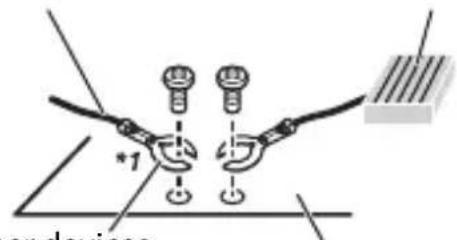
Other devices (Another electronic device in the car)
Metal parts of car's body
*1 Not supplied for this unit

Important
- When installing this unit in a vehicle without an ACC (accessory) position on the ignition switch, failure to connect the red cable to the terminal that detects operation of the ignition key may result in battery drain.


ACC position No ACC position
-
Use this unit with a 12-volt battery and negative grounding only. Failure to do so may result in a fire or malfunction.
-
To prevent a short-circuit, overheating or malfunction, be sure to follow the directions below.
-
Disconnect the negative terminal of the battery before installation.
-
Secure the wiring with cable clamps or adhesive tape. Wrap adhesive tape around wiring that comes into contact with metal parts to protect the wiring.
-
Place all cables away from moving parts, such as the shift lever and seat rails.
-
Place all cables away from hot places, such as near the heater outlet.
-
Do not connect the yellow cable to the battery by passing it through the hole to the engine compartment.
- Cover any disconnected cable connectors with insulating tape.
- Do not shorten any cables.
- Never cut the insulation of the power cable of this unit in order to share the power with other devices. The current capacity of the cable is limited.
- Use a fuse of the rating prescribed.
- Never wire the negative speaker cable directly to ground.
-
Never band together negative cables of multiple speakers.
-
When this unit is on, control signals are sent through the blue/white cable. Connect this cable to the system remote control of an external power amp or the vehicle's auto-antenna relay control terminal (max. 300mA12VDC ). If the vehicle is equipped with a glass antenna, connect it to the antenna booster power supply terminal.
- Never connect the blue/white cable to the power terminal of an external power amp. Also, never connect it to the power terminal of the auto antenna. Doing so may result in battery drain or a malfunction.
The graphical symbol placed on the product means direct current.
This unit
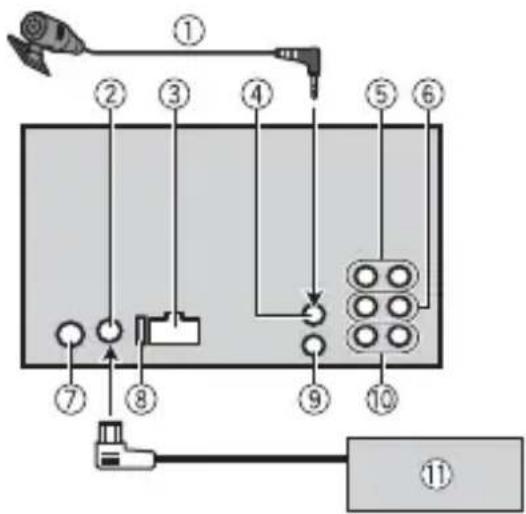
FH-S700BS/S701BS
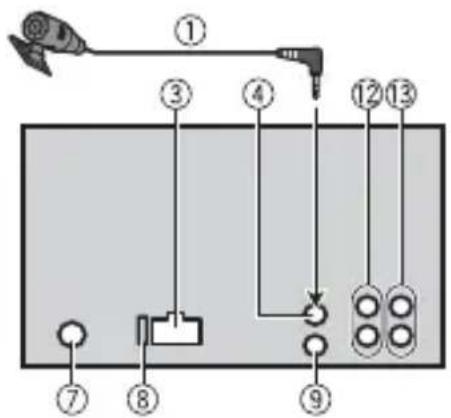
FH-S500BT/S501BT
① Microphone 3 m (9 ft. 10-1/8 in.)
② SiriusXM Connect Vehicle Tuner input
③ Power cord input
④ Microphone input
Rear output (STD) or middle range output (NW)
⑥ Front output (STD) or high range output (NW)
Antenna input
Fuse (10 A)
Wired remote input Hard-wired remote control adapter can be connected (sold separately).
Subwoofer output
SiriusXM Connect Vehicle Tuner (sold separately)
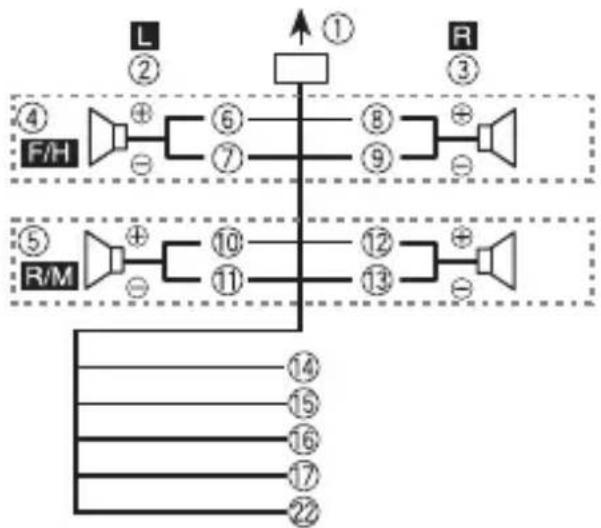
Rear output or subwoofer output
Front output
Power cord
Perform these connections when not connecting a rear speaker or middle range speaker lead to a subwoofer.
Perform these connections when using a subwoofer without the optional amplifier.
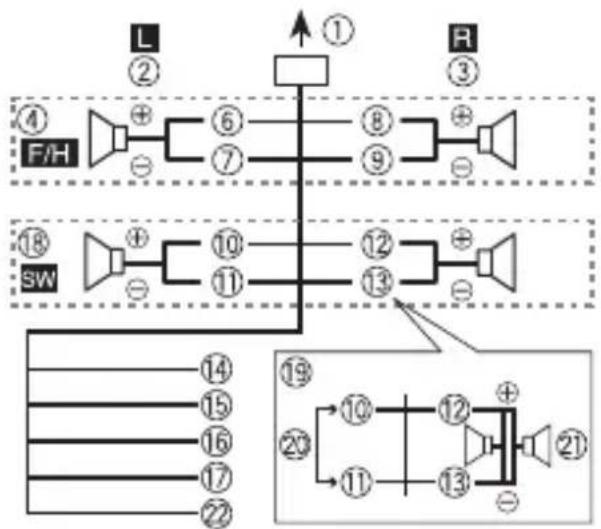
Important
In the case of above, two 4 subwoofoers wired in parallel will represent a 2 load.
④ Front speaker (STD) or high range speaker (NW)
⑤ Rear speaker (STD) or middle range speaker (NW)
6 White
White/black
Gray
Gray/black
Green
Green/black
Violet
Violet/black
Black (chassis ground) Connect to a clean, paint-free metal location.
Yellow Connect to the constant 12 V supply terminal.
Red Connect to terminal controlled by the ignition switch (12 V DC).
Blue/white Connect to the system control terminal of the power amp or auto-antenna relay control terminal (max. 300mA12VDC
Subwoofer (4)
When using a subwoofer of 2 be sure to connect the subwoofer to the violet and violet/black leads of this unit. Do not connect anything to the green and green/black leads.
Not used.
21 Subwoofer (4)× 2
Orange/white (Only for FH-S700BS/ S701BS) Connect to a car's illumination signal.
Power amp (sold separately)
Perform these connections when using the optional amplifier.
FH-S700BS/S701BS
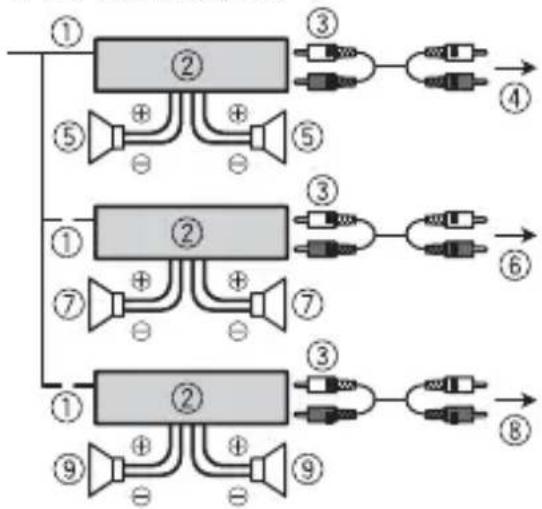
① System remote control Connect to blue/white cable.
② Power amp (sold separately)
③ Connect with RCA cables (sold separately)
4 To rear output (STD) or middle range output (NW)
Rear speaker (STD) or middle range speaker (NW)
To front output (STD) or high range output (NW)
⑦ Front speaker (STD) or high range speaker (NW)
To subwoofer output
Subwoofer
FH-S500BT/S501BT
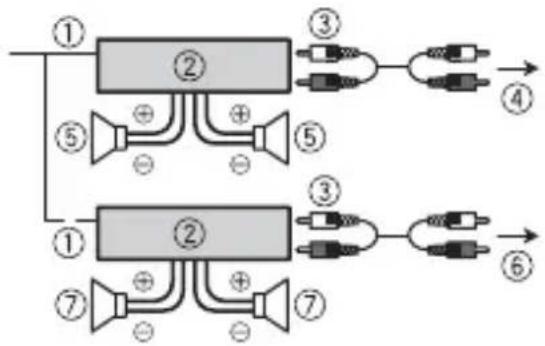
① System remote control Connect to blue/white cable.
② Power amp (sold separately)
③ Connect with RCA cables (sold separately)
A To front output
⑤ Front speaker
6 To rear output or subwoofer output
⑦ Rear speaker or subwoofer
Installation
Important
- Check all connections and systems before final installation.
- Do not use unauthorized parts as this may cause malfunctions.
- Consult your dealer if installation requires drilling of holes or other modifications to the vehicle.
-
Do not install this unit where:
-
it may interfere with operation of the vehicle.
- it may cause injury to a passenger as a result of a sudden stop.
Install this unit away from hot places such as near the heater outlet.
- Optimum performance is obtained when the unit is installed at an angle of less than 60^ .
- When installing, to ensure proper heat dispersal when using this unit, make sure you leave ample space behind the rear panel and wrap any loose cables so they are not blocking the vents.
Leave ample space
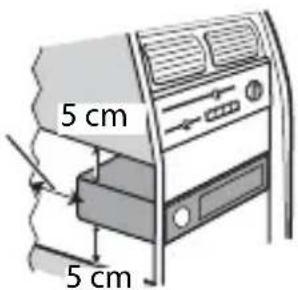
1 Determine the appropriate position where the holes on the bracket and the side of the unit match.
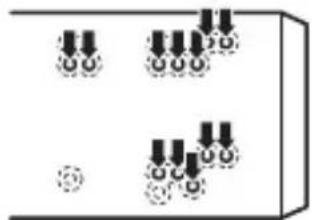
2 Tighten the screws on each side.
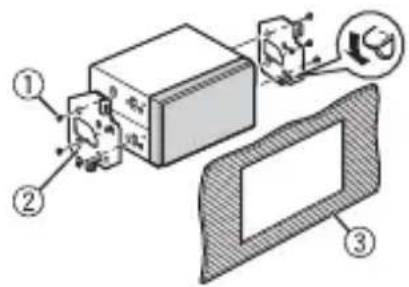
① Screw
② Mounting bracket
③ Dashboard or console
- Use either truss (5mm× 9mm) or flush surface (5mm× 9mm) screws, depending on the bracket screw holes.
Installing the microphone
The microphone should be placed directly in front of the driver at a suitable distance to pick up their voice clearly.

CAUTION
It is extremely dangerous to allow the microphone lead to become wound around the steering column or shift lever. Be sure to install the microphone in such a way that it will not obstruct driving. It is recommended to use the clamps (sold separately) to arrange the lead.
NOTE
Depending on the vehicle model, the microphone cable length may be too short when you mount the microphone on the sun visor. In such cases, install the microphone on the steering column.
To install on the sun visor
1 Fit the microphone lead into the groove.
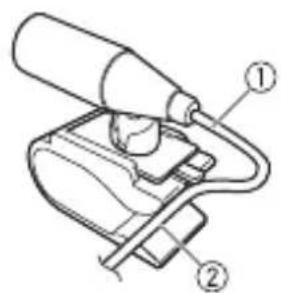
① Microphone lead
② Groove
2 Install the microphone clip on the sun visor.
Lowering the sun visor reduces the voice recognition rate.
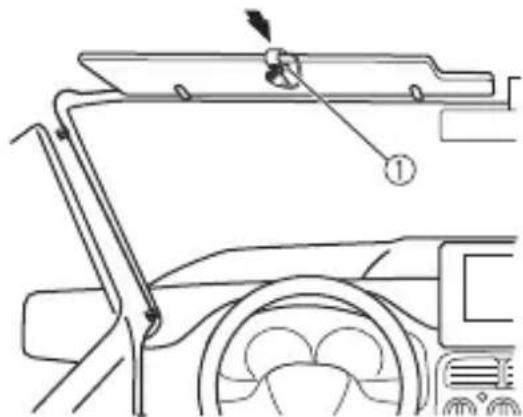
① Microphone clip
To install on the steering column
1 Slide the microphone base to detach it from the microphone clip.
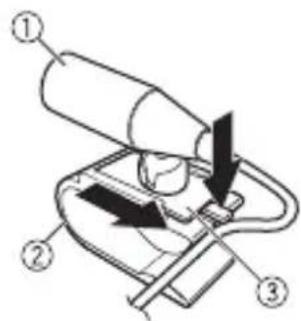
① Microphone
② Microphone clip
③ Microphone base
2 Install the microphone on the rear side of the steering column.
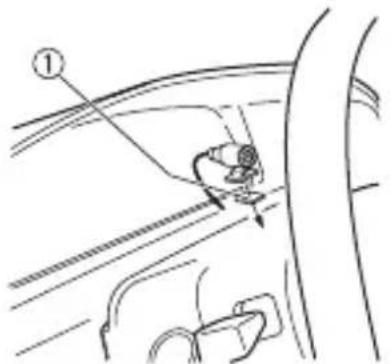
① Double-sided tape
Additional Information
Troubleshooting
The display automatically returns to the normal display.
No operations have been made for about 30 seconds.
-Perform an operation.
The repeat play range changes unexpectedly.
Depending on the repeat play range, the selected range may change when another folder or track is being selected or during fast forwarding/reversing.
-Select the repeat play range again.
A subfolder is not played back.
Sub folders cannot be played when [FLD] (folder repeat) is selected.
-Select another repeat play range.
The sound is intermittent.
You are using a device, such as a cellular phone, that may cause audible interference.
-Move electrical devices that may be causing the interference away from the unit.
The sound from the Bluetooth audio source is not played back.
There is a call in progress on a Bluetooth-connected cellular phone. -The sound will be played back when the call is terminated.
A Bluetooth-connected cellular phone is currently being operated.
-Stop using the cellular phone.
→The connection between the unit and the cellular phone is not established correctly after a call made by a
Bluetooth-connected cellular phone.
-Make a Bluetooth connection between the unit and the cellular phone again.
Error messages
Common
AMP ERROR
→This unit fails to operate or the speaker connection is incorrect.
→The protective circuit is activated.
-Check the speaker connection.
- Turn the ignition switch OFF and back to ON again. If the message remains, contact your dealer or an authorized Pioneer Service Station for assistance.
NO XXXX (NO TITLE, for example)
→There is no embedded text information.
- Switch the display or play another track/file.
CD player
ERROR-07, 11, 12, 17, 30
→The disc is dirty.
--Clean the disc.
→The disc is scratched.
-Replace the disc.
ERROR-07, 10, 11, 12, 15, 17, 30, A0
→There is an electrical or mechanical error.
- Turn the ignition switch OFF and back to ON, then back to the CD player.
ERROR-15
→The inserted disc is blank.
-Replace the disc.
ERROR-23
Unsupported CD format.
-Replace the disc.
FORMATREAD
→Sometimes there is a delay between the start of playback and when you start to hear any sound.
Wait until the message disappears and you hear sound.
NO AUDIO
→The inserted disc does not contain any playable files.
-Replace the disc.
SKIPPED
→The inserted disc contains DRM protected files.
- The protected files are skipped.
PROTECT
All the files on the inserted disc are embedded with DRM.
-Replace the disc.
USB device/iPhone
FORMATREAD
→Sometimes there is a delay between the start of playback and when you start to hear any sound.
Wait until the message disappears and you hear sound.
NO AUDIO
→There are no songs.
- Transfer the audio files to the USB device and connect.
→The connected USB device has security enabled.
- Follow the USB device instructions to disable the security.
SKIPPED
→The connected USB device contains DRM protected files.
- The protected files are skipped.
PROTECT
All the files on the connected USB device are embedded with DRM.
-Replace the USB device.
N/A USB
→The connected USB device is not supported by this unit.
-Disconnect your device and replace it with a compatible USB device.
HUB ERROR
→The USB device connected via a USB hub is not supported by this unit.
-Connect the USB device directly to this unit using a USB cable.
CHECK USB
→The USB connector or USB cable has short-circuited.
-Check that the USB connector or USB cable is not caught in something or damaged.
→The connected USB device consumes more than maximum allowable current.
-Disconnect the USB device and do not use it. Turn the ignition switch OFF and back to ACC or ON. Connect only compliant USB devices.
→The iPhone operates correctly but does not charge.
-Make sure the connection cable for the iPhone has not shorted out (e.g., not caught in metal objects). After checking, turn the ignition switch OFF and back to ON, or disconnect the iPhone and reconnect.
ERROR-19
Communication failed.
-Perform one of the following operations, then return to the USB source.
- Turn the ignition switch OFF and back to ON.
- Disconnect the USB device.
- Change to a different source.
iPhone failure.
-Disconnect the cable from the iPhone. Once the iPhone's main menu is
displayed, reconnect the iPhone and reset it.
ERROR-23
USB device was not formatted properly. Format the USB device with FAT12, FAT16 or FAT32.
ERROR-16
→The iPhone firmware version is old.
- Update the iPhone version.
iPhone failure.
- Disconnect the cable from the iPhone. Once the iPhone's main menu is displayed, reconnect the iPhone and reset it.
STOP
There are no songs in the current list.
-Select a list that contains songs.
NO BT DEVICE GO TO BT MENU TO REGISTER
→No Bluetooth device found.
-Connect the unit and iPhone via Bluetooth (page 15).
CONN. Failed PRESS BAND KEY TO RETRY
Bluetooth connection with iPhone failed.
-Press BAND/ t o m a connection again.
DISCONNECTED PRESS BAND KEY TO RETRY
→Bluetooth connection with iPhone failed.
-Press BANDt o m a connection again.
Bluetooth device
ERROR-10
→The power failed for the Bluetooth module of the unit.
- Turn the ignition switch OFF and back to ACC or ON.
Pandora
ERROR-19
Communication failed.
-Disconnect the cable from the device. Once the device's main menu is displayed, reconnect the device and reset it.
NOT FOUND
The Pandora application has not started running yet.
- Start up the Pandora application.
RATING ERROR
The thumb rating operation was disabled.
- Run the same command for an track.
CAN'T SKIP
→The skip operation was disabled.
-Run the same command for another track.
THUMB ERROR
Unable to save thumb rating. -Try again later.
BOOKMARK ERR
Unable to save BookMark.
- Try again later.
UNABLE TO ADD
Unable to add station. -Try again later.
SKIP LIMIT
k Due to music licensing restrictions, Pandora limits the total number of skips per hour. Wait until Pandora allows you to skip again.
UPDATE APP
→This version of the Pandora application is not supported.
-Connect a device that has a compatible version of the Pandora application installed.
LOG IN ERROR
Your Pandora account is not logged in.
-Disconnect the cable from the device, and log in to your Pandora account. Then reconnect the device.
ERROR
Device error message displayed in the Pandora application.
-Check the connected device.
Pandora system is undergoing maintenance.
-Try again later.
NO STATIONS
No station found.
-Create a station in the Pandora application on your connected device.
NO BT DEVICE GO TO BT MENU TO REGISTER
→No Bluetooth device found.
-Connect the unit and the device via Bluetooth (page 15).
CONN. Failed PRESS BAND KEY TO RETRY
→Bluetooth connection failed.
-Press BANDt o m a connection again.
CHECK APP PRESS BAND KEY TO RETRY
Connection to the Pandora application failed.
-Press BANDt o m a connection again.
DISCONNECTED PRESS BAND KEY TO RETRY
→Bluetooth connection lost.
-Press BAND/ t o m a connection again.
STATION LIMIT
A new station cannot be added.
-Delete an old station to open a spot for a new one.
CANNOT DELETE
→The station could not be deleted.
-Run the same command for another station.
BAD NETWORK
→The connected device is out of area.
-Connect the device to a network.
UNAVAILAVLE
→The connected device is out of area.
-Connect the device to a network.
→The operation was disabled.
-Run the same command for another station.
APP
NO BT DEVICE GO TO BT MENU TO REGISTER
→No Bluetooth device found.
-Connect the unit and the device via Bluetooth (page 15).
CONN. Failed PRESS BAND KEY TO RETRY
k Bletoth connection failed.
-Press BAND/ t o m a k connection again.
DISCONNECTED PRESS BAND KEY TO RETRY
k B lueeoth connection failed.
-Press BANDt o m a k connection again.
CHECKAPP
Connection to the application failed.
k -Follow the instructions that appear on the screen.
NOT FOUND
→The application has not started running yet.
-Operate the mobile device to start up the application.
Spotify
NO BT DEVICE GO TO BT MENU TO REGISTER
→No Bluetooth device found.
-Connect the unit and the device via Bluetooth (page 15).
CONN. Failed PRESS BAND KEY TO RETRY
→Bluetooth connection failed.
-Press BANDt o m a connection again.
CHECK APP PRESS BAND KEY TO RETRY
Connection to the Spotify application failed.
-Press BANDt o m a connection again.
DISCONNECTED PRESS BAND KEY TO RETRY
→Bluetooth connection lost.
-Press BAND/ t o m a connection again.
CHECKAPP
Connection to the Spotify application failed.
-Follow the instructions that appear on the screen.
SiriusXM Satellite Radio (Only for FH-S700BS/S701BS)
CHECK ANTENNA
→The antenna cable may be either disconnected or damaged.
-Check the antenna connection or replace if damaged.
CHECK TUNER
→The radio is having difficulty communicating with the SiriusXM Connect Vehicle Tuner. The tuner may be disconnected or damaged.
-Verify that the SiriusXM Connect Vehicle Tuner cable is securely connected to the radio.
NO SIGNAL
→The SiriusXM Connect Vehicle Tuner is having difficulty receiving the SiriusXM satellite signal.
-Move your vehicle outdoors with a clear view of the southern sky.
-Make sure that the SiriusXM magnetic mount antenna is mounted on a metal surface on the outside the vehicle.
-Move the SiriusXM antenna away from any obstructions.
SUBSCRIPTION UPDATED
This unit has detected a change in your k SinusXM subscription status.
-Press any key to clear the message.
CH UNAVAIL
→The channel that you have requested is not available.
k -Check the SiriusXM channel lineup.
CHAN UNSUB
→The channel that you have requested is not included in your SiriusXM subscription package.
-Check the content of your SiriusXM subscription package.
CH LOCKED
→The channel has been locked by the Parental Control function.
-Set [LOCKED CH] to [OFF] or [CLEAR ALL] to [YES] in the FUNCTION settings (page 35).
NO TUNEMIX CH
→There is only one music channel in the band.
-Select a band with two or more music channels.
-Add more music channels to the current band.
Handling guidelines
Discs and player
- Use only discs that feature either of the following two logos.


- Use 12-cm discs.
- Use only conventional, fully circular discs.
- The following types of discs cannot be used with this unit:
-DualDiscs
- 8-cm discs: Attempts to use such discs with an adaptor may cause the unit to malfunction.
- Oddly shaped discs
-Discs other than CDs - Damaged discs, including discs that are cracked, chipped or warped
-
CD-R/RW discs that have not been finalized
-
Do not write on or apply chemicals to the surface of the discs.
- To clean a CD, wipe the disc with a soft cloth outward from the center.
- Condensation may temporarily impair the player's performance. Let it rest for about one hour to adjust to a warmer temperature. Also, wipe any damp discs off with a soft cloth.
- When using discs that can be printed on label surfaces, check the instructions and the warnings of the discs. Depending on the discs, inserting and ejecting may not
be possible. Using such discs may result in damage to this equipment.
- Do not attach commercially available labels or other materials to the discs.
- The discs may warp making the disc unplayable.
- The labels may come off during playback and prevent ejection of the discs, which may result in damage to the equipment.
USB storage device
- Connections via USB hubs are not supported.
-
Firmly secure the USB storage device before driving. Do not let the USB storage device fall onto the floor, where it may become jammed under the brake or accelerator pedal.
Depending on the USB storage device, the following problems may occur. -
Operations may vary.
- The storage device may not be recognized.
- Files may not be played back properly.
- The device may cause audible interference when you are listening to the radio.
iPhone
- Do not leave the iPhone in places with high temperatures.
- Firmly secure the iPhone when driving. Do not let the iPhone fall onto the floor, where it may become jammed under the brake or accelerator pedal.
- Incompatible text saved on the iPhone will not be displayed by the unit.
Compressed audio compatibility
-
Only the first 32 characters can be displayed as a file name (including the file extension) or a folder name.
-
The unit may not work properly depending on the application used to encode WMA files.
- There may be a slight delay at the start of the playback of audio files embedded with image data, or audio files stored on a USB device with numerous folder hierarchies.

CAUTION
- Pioneer cannot guarantee compatibility with all USB mass storage devices, and assumes no responsibility for any loss of data on media players, smartphones, or other devices while using this product.
- Do not leave discs or a USB storage device in any place that is subject to high temperatures.
WMA files
| File extension .wma | |
| Bit rate 48 kbps to 320 | kbps (CBR), 48 kbps to 384 kbps (VBR) |
| Sampling frequency 32 | kHz, 44.1 kHz, 48 kHz |
| Windows Media™ Audio Professional, Lossless, Voice/DRM Stream/Stream with video | Not compatible |
MP3 files
| File extension.mp3 | |
| Bit rate 8 kbps to 320 kbps (CBR), VBR | |
| Sampling frequency 8 kHz to 48 kHz (32 kHz, 44.1 kHz, 48 kHz for emphasis) | |
| Compatible ID3 tag version | 1.0, 1.1, 2.2, 2.3, 2.4 (ID3 tag Version 2.x is given priority over Version 1.x.) |
| M3u playlist Not compatible | |
| MP3i (MP3 interactive), mp3 PRO | Not compatible |
WAV files
WAV file formats cannot be connected via MTP.
| File extension .wav | |
| Quantization bits 8 and | 16 (LPCM), 4 (MSADPCM) |
| Sampling frequency 16 | kHz to 48 kHz (LPCM), 22.05 kHz and 44.1 kHz (MS ADPCM) |
AAC files
| Compatible format AAC | coded by iTunes |
| File extension .m4a | |
| Sampling frequency 11.025 kHz to 48 kHz | |
| Transmission rate 16 kbps to 320 kbps, VBR | |
| Apple Lossless Not compatible | |
| AAC file bought from the iTunes Store (.m4p file extension) | Not compatible |
FLAC files
- FLAC file formats cannot be connected via MTP.
- FLAC files may not be playable, depending on the encoder.
| File extension .flac | |
| Sampling frequency 8/ | 11.025/12/16/22.05/24/32/44.1/48/96 kHz |
| Quantization bit rate 16/24 bit | |
| Channel mode 1/2 ch | |
Disc
- Regardless of the length of the blank section between the songs from the original recording, compressed audio discs play with a short pause between songs.
| Playable folder hierarchy | Up to eight tiers (A practical hierarchy is less than two tiers.) |
| Playable folders Up to 99 | |
| Playable files Up to 999 | |
| File system ISO 9660 Level | vel 1 and 2, Romeo, Joliet |
| Multi-session playback | Compatible |
| Packet write data transfer | Not compatible |
USB device
- There may be a slight delay when starting playback of audio files on a USB storage device with numerous folder hierarchies.
| Playable folder hierarchy | Up to eight tiers (A practical hierarchy is less than two tiers.) |
| Playable folders Up to 1 | 500 |
| Playable files Up to 15 | 000 |
| Playback of copyright-protected files | Not compatible |
| Partitioned USB device | Only the first partition can be played. |
iPhone compatibility
This unit supports only the following iPhone models. Supported iPhone software versions are shown below. Older versions may not be supported.
Made for
-iPhone7
-iPhone7Plus
iPhone SE
iPhone 6s
-iPhone 6s Plus
-iPhone 6
-iPhone 6 Plus
iPhone 5s
iPhone 5c
-iPhone5
- Operations may vary depending on the generation and/or software version of the iPhone.
- Users of iPhone with the Lightning Connector should use the Lightning to USB Cable (supplied with iPhone).
Refer to the iPhone manuals for information about the file/format compatibility. - Audiobook, Podcast: Compatible
CAUTION
Pioneer accepts no responsibility for data lost on the iPhone, even if that data is lost while this unit is used.
Sequence of audio files
The user cannot assign folder numbers and specify playback sequences with this unit. Sequence of audio file depends on the connected device.
Note that the hidden files in a USB device cannot be played back.
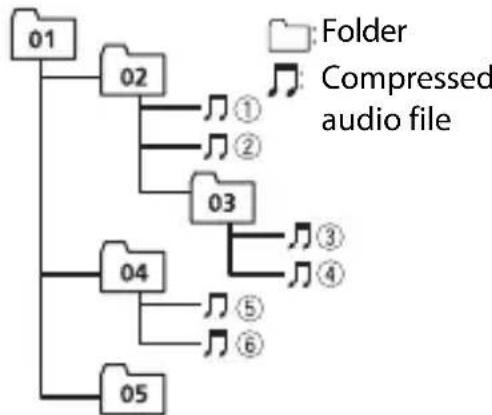
Example of a hierarchy
Level 1 Level 2 Level 3 Level 4
01 to 05: Folder number
① to:Playback sequence
Copyright and trademark
Bluetooth
The Bluetooth® word mark and logos are registered trademarks owned by Bluetooth SIG,
Inc. and any use of such marks by PIONEER CORPORATION is under license. Other trademarks and trade names are those of their respective owners.
iTunes
Apple and iTunes are trademarks of Apple Inc., registered in the U.S. and other countries.
WMA
Windows Media is either a registered trademark or trademark of Microsoft Corporation in the United States and/or other countries.
This product includes technology owned by Microsoft Corporation and cannot be used or distributed without a license from Microsoft Licensing, Inc.
FLAC
Copyright © 2000-2009 Josh Coalson
Copyright © 2011-2014 Xiph.Org
Foundation
Redistribution and use in source and binary forms, with or without modification, are permitted provided that the following conditions are met:
-Redistributions of source code must retain the above copyright notice, this list of conditions and the following disclaimer.
-Redistributions in binary form must reproduce the above copyright notice, this list of conditions and the following disclaimer in the documentation and/or other materials provided with the distribution.
-Neither the name of the Xiph.org Foundation nor the names of its contributors may be used to endorse or promote products derived from this software without specific prior written permission.
THIS SOFTWARE IS PROVIDED BY THE
COPYRIGHT HOLDERS AND
CONTRIBUTORS "AS IS" AND ANY EXPRESS
OR IMPLIED WARRANTY, INCLUDING, BUT
NOT LIMITED TO, THE IMPLIED WARRANTYES OF MERCHANTABILITY AND FITNESS FOR A PARTICULAR PURPOSE ARE DISCLAIMED. IN NO EVENT SHALL THE FOUNDATION OR CONTRIBUTORS BE LIABLE FOR ANY DIRECT, INDIRECT, INCIDENTAL, SPECIAL, EXEMPLARY, OR CONSEQUENTIAL DAMAGES (INCLUDING, BUT NOT LIMITED TO, PROCEDURE OF SUBSTITUTE GOODSOR SERVICES;LOSS OF USE, DATA, OR PROFITS; OR BUSINESS INTERRUPTION)HOWEVERCAUSEDAND ON ANY THEORYOF LIABILITY,WHETHER INCONTRACT,STRICT LIABILITY,OR TORT (INCLUDING NEGLIGENCEOR OTHERWISE) ARISING IN ANYWAYOUT OF THEUSE OF THIS SOFTWARE,EVEN IF ADVISED OF THE POSSIBILITY OF SUCH DAMAGE.
iPhone and Lightning
Use of the Made for Apple badge means that an accessory has been designed to connect specifically to the Apple product(s) identified in the badge, and has been certified by the developer to meet Apple performance standards. Apple is not responsible for the operation of this device or its compliance with safety and regulatory standards.
Please note that the use of this accessory with an Apple product may affect wireless performance.
iPhone and Lightning are trademarks of Apple Inc., registered in the U.S. and other countries.
Siri®
Works with Siri through the microphone.
Android & Google Play
Android, Google Play, and the Google Play logo are trademarks of Google Inc.
SiriusXM Satellite Radio
Sirius, XM and all related marks and logos are trademarks of Sirius XM Radio Inc. All rights reserved.
Pandora® internet radio
PANDORA, the PANDORA logo, and the Pandora trade dress are trademarks or registered trademarks of Pandora Media, Inc. Used with permission.
Pandora is only available in certain countries. Please visit http://www.pandora.com/legal for more information.
MIXTRAX
MIXTRAX is a trademark of the PIONEER CORPORATION.
Spotify®
SPOTIFY and the Spotify logo are among the registered trademarks of Spotify AB. Compatible mobile digital devices and premium subscription required, where available, see https://www.spotify.com.
T-Kernel 2.0
This product uses the source code of T-Kernel 2.0 under T-License 2.0 granted by T-Engine Forum (www.tron.org).
MP3
Copyright (C) 1998-2009 PacketVideo
Licensed under the Apache License, Version 2.0 (the "License"); you may not use this file except in compliance with the License.
You may obtain a copy of the License at
http://www.apache.org/licenses/License-2.0
Unless required by applicable law or agreed to in writing, software distributed under the License is distributed on an "AS IS" BASIS, WITHOUT WARRANTY OR CONDITIONS OF ANY KIND, either express or implied.
See the License for the specific language governing permissions and limitations under the License.
Specifications
General
Power source: 14.4 V DC (10.8 V to 15.1 V allowable)
Grounding system: Negative type
Maximum current consumption: 10.0 A
Dimensions (W× H× D) D
Chassis: 178mm× 100mm× 165mm (7 in. × 3-7/8 in. × 6-1/2 in.)
Nose: 170mm× 96mm× 16mm (6-3/4 in. × 3 - 3 / 4 in. × 5 / 8 in.)
Weight: 1.3kg (2.9 lbs)
Audio
Network mode is only available for FH-S700BS/S701BS.)
Maximum power output:
-
50W× 4ch / 4 (for no subwoofer)
-
50W× 2ch / 4 +70W× 1ch / 2 (for subwoofer)
Continuous power output: 22W× 4 (50 Hz to 15 000 Hz, 5 %
THD, 4 Ω load, both channels driven)
Load impedance: 4 (4 to 8 (2 for 1 ch) allowable)
Preout maximum output level: 2.0V (FH-S700BS/S500BT/S501BT), 4.0V (FH-S701BS)
Equalizer (13-Band Graphic Equalizer):
Frequency: 50 Hz/80 Hz/125 Hz/200
Hz/315 Hz/500 Hz/800 Hz/1.25 kHz/2
kHz/3.15 kHz/5 kHz/8 kHz/12.5 kHz
Gain: ± 12 dB (2 dB step)
High pass filter (Standard mode):
Frequency: 25 Hz/31.5 Hz/40 Hz/50
Hz/63 Hz/80 Hz/100 Hz/125 Hz/160
Hz/200 Hz/250 Hz
Slope: -6dB / oct -12 dB/oct, -18dB/ oct,-24 dB/oct, OFF
Subwoofer/Low pass filter (Standard mode):
Frequency: 25 Hz/31.5 Hz/40 Hz/50
Hz/63 Hz/80 Hz/100 Hz/125 Hz/160
Hz/200 Hz/250 Hz
Slope: -6 dB/oct, -12 dB/oct, -18 dB/
oct, -24 dB/oct, -30 dB/oct, -36 dB/Oct, OFF
Gain: +10 dB to -24 dB (1 dB step)
Phase: Normal/Reverse
Speaker level (Standard mode): +10 dB to -24 dB (1 dB ste
Time alignment (Standard mode): 0 Inch to 140 Inch (1 inch/Step)
High pass filter (HIGH) (Network mode): Frequency: 1.25 kHz/1.6 kHz/2 kHz/ 2.5 kHz/3.15 kHz/4 kHz/5 kHz/6.3 kHz, 8 kHz/10 kHz/12.5 kHz Slope: -6 dB/oct, -12 dB/oct, -18 dB/ oct, -24 dB/oct
High pass filter (MID) (Network mode): Frequency: 25 Hz/31.5 Hz/40 Hz/50
Hz/63 Hz/80 Hz/100 Hz/125 Hz/160
Hz/200 Hz/250 Hz
Slope: -6 dB/oct, -12 dB/oct, -18 dB/ oct, -24 dB/oct, OFF
Low pass filter (MID) (Network mode): Frequency: 1.25 kHz/1.6 kHz/2 kHz/ 2.5 kHz/3.15 kHz/4 kHz/5 kHz/6.3 kHz, 8 kHz/10 kHz/12.5 kHz Slope: -6 dB/oct, -12 dB/oct, -18 dB/ oct, -24 dB/oct, OFF
Subwoofer (Network mode): Frequency: 25 Hz/31.5 Hz/40 Hz/50 Hz/63 Hz/80 Hz/100 Hz/125 Hz/160 Hz/200 Hz/250 Hz
Slope: -12 dB/oct, -18 dB/oct, -24 dB/
oct, -30 dB/oct, -36 dB/oct, OFF
Gain: +10 dB to -24 dB (1 dB step)
Phase: Normal/Reverse
Speaker level (Network mode): +10 dB to -24 dB (1 dB step)
Time alignment (Network mode): 0 Inch to 140 Inch (1 inch/Step)
CD player
System: Compact disc audio system
Usable discs: Compact disc
Signal-to-noise ratio: 94 dB (1 kHz) (IEC-A network)
Number of channels: 2 (stereo)
MP3 decoding format: MPEG-1 & 2 Audio Layer 3
WMA decoding format: Ver. 7, 8, 9, 9.1, 9.2 (2 ch audio), Ver. 10, 11, 12 (Windows Media Player)
AAC decoding format: MPEG-4 AAC (iTunes encoded only) (Ver. 10.6 and earlier)
WAV signal format: Linear PCM (Non-compressed)
USB
USB standard specification: USB 2.0 full speed
Maximum current supply: 1.5 A
USB Protocol:
MSC (Mass Storage Class)
MTP (Media Transfer Protocol)
AOA (Android Open Accessory) 2.0
File system: FAT12, FAT16, FAT32
MP3 decoding format: MPEG-1 & 2 Audio Layer 3
WMA decoding format: Ver. 7, 8, 9, 9.1, 9.2 (2 ch audio), Ver. 10, 11, 12 (Windows Media Player)
AAC decoding format: MPEG-4 AAC (iTunes encoded only) (Ver. 10.6 and earlier)
FLAC decoding format: v1.2.1 (Free Lossless Audio Codec)
WAV signal format: Linear PCM (Non-compressed)
FMtuner
Frequency range: 87.9 MHz to 107.9 MHz
Usable sensitivity: 11 dBf (1.0 V/75 Ω, mono, S/N: 30 dB)
Signal-to-noise ratio: 65 dB (analog broadcasting) (IHF-A network)
AMtuner
Frequency range: 530 kHz to 1710 kHz
Usable sensitivity: 25 V (S/N: 20 dB)
Signal-to-noise ratio: 60 dB (analog
broadcasting) (IHF-A network)
Bluetooth
Version: Bluetooth 4.0 certified
Output power: +4 dBm Maximum (Power class 2)
Frequency band(s): 2400 MHz to 2483.5
MHz
Bluetooth profiles:
GAP (Generic Access Profile)
SDAP (Service Discovery Application
Profile)
HFP (Hands Free Profile) 1.6
PBAP (Phone Book Access Profile)
A2DP (Advanced Audio Distribution
Profile)
AVRCP (Audio/Video Remote Control
Profile) 1.5
SPP (Serial Port Profile) 1.1
CEA2006 Specifications

Power output: 14 W RMS × 4 Channels (4 Ω)
and ≥ % THD+N)
S/N ratio: 91 dBA (reference: 1 W into 4 Ω)
NOTE
Specifications and the design are subject
to modifications without notice.
Table des matieres
Connexions/Installation 49
Pioneer Electronics (USA) Inc.
CUSTOMER SUPPORT DIVISION
P.O.Box 1760
Long Beach, CA 90801-1760
800-421-1404
Mémoire des excellures stations (BSM)
Spotify est un service de diffusion de musique en continu qui n'est pas'affilié à Pioneer. Des informations supplémentaires sont disponibles sur le site http://www.spotify.com. L'application Spotify est disponible pour les téléphones intelligents compatibles; veuillez visitor https://support).(https://support).(https://support.(https://support.(https://support.(https://support.(https://support.(https://support.(https://support.(https://support.(https://support.(https://support.(https://support.(https://support.(https://support.(https://support.(https://support.(https://support.(https://support.(https://support.(https://support.(https://support.(https://support.(https://support.(https://support.(https://support.(https://support.(https://support.https://support.https://support.https://support.https://support.https://support.https://support.https://support.https://support.https://support.https://support.https://support.https://support.https://support.https://support.https://support.https://support.https://support.https://support.https://support.https://support.https://support.https://support.https://support.https://support.https://support.)
Radio satellite SiriusXM
Connexions/Installation
Connexions
ERROR-07, 11, 12, 17, 30
ERROR-07, 10, 11, 12, 15, 17, 30, A0
→Échec de communication.
Radio satellite SiriusXM
Pente: -6 dB/oct, -12 dB/oct, -18 dB/ oct, -24 dB/oct, DÉSACTIVÉE
Filtre passer-bas (MEDIUMS) (Mode reseau): Frquence: 1,25 kHz/1,6 kHz/2 kHz/ 2,5 kHz/3,15 kHz/4 kHz/5 kHz/ 6,3 kHz/8 kHz/10 kHz/12,5 kHz Pente: -6 dB/oct, -12 dB/oct, -18 dB/ oct, -24 dB/oct, DÉSACTIVÉE
Pente: -12 dB/oct, -18 dB/oct, -24 dB/oct, -30 dB/oct, -36 dB/oct, DÉSACTIVÉE
Specifications CEA2006

Pioneer Electronics (USA) Inc.
CUSTOMER SUPPORT DIVISION
P.O.Box 1760
Long Beach, CA 90801-1760
800-421-1404
| Elemento del menú Descripción | |
| DEVICELIST Muestra la lista de dispositivos Bluetooth emparejados. Aparece “*” en el nombre del dispositivo cuando se establiece la conexión Bluetooth. Cuando no hay ningún dispositivo selecciónado en la lista, esta configuración no está disponible. | |
| DEL DEVICE Elimine la información del dispositivo. | |
| [DELETE YES], [DELETE NO] | |
| ADD DEVICE Registre un nuevo dispositivo. Si ya hay emparejados diez dispositivos, esta funciona no está disponible. Puede consultar el número de dispositivos emparejados en la configuración [DEVICELIST]. | |
| A.CONN Seleectione [ON] [ON], [OFF] para connectarse a un dispositivo Bluetooth automatistically. | |
| VISIBLE Seleectione [ON] [ON], [OFF] para que un dispositivo Bluetooth pueda detectar launidad cuando launidad se connecte por Bluetooth aanother dispositivo. | |
| PIN CODE Cambie el número PIN. 1 Presione el dial M.C. para estar el modo de configuración. 2 Gire el dial M.C. para selectionar un número. 3 Presione el dial M.C. para mover el cursor a la posición",[Si presiona el dial M.C.®,®,®,®,®,®,®,®,®,®,®,®,®,®,®,®,®,®,®,®,®,®,®,®,®,®,®,®,®,®,®,®,®,®,®,®,®,®,®,®,®,®,®,®,®,®,®,®,®,®,®,®,®,®,®,®,®,®,®,®,®,®,®,®,®,®,®,®,®,®,®,®,®,®,®,®,®,®,®,®,®,®,®,®,®,®,®,®,®,®,®,®,®,®,®,®,®,®,®,®,®Si presiona el dial M.C.®,®,®,®,®,®,®,®,®,®,®,®,®,®,®,®,®,®,®,®,®,®,®,®,®,®,®,®,®,®,®,®,®,®,®,®,®,®,®,®,®,®,®,®,®,®,®,®,®,®,®,®,®,®,®,®,®,®,®,®,®,®,®,®,®,®,®,®,®,®,®,®,®,®,®,®,®,®,®,®,®,®,®,®,®,®,®,®,®,®,®,®Si presiona el dial M.C.,®,®,®,®,®,®,®,®,®,®,®,®,®,®,®,®,®,®,®,®,®,®,®,®,®,®,®,®,®,®,®,®,®,®,®,®,®,®,®,®,®,®,®,®,®,®,®,®,®,®,®,®,®,®,®,®,®,®,®,®,®,®,®,®,®,®,®,®,®,®,®,®,®,®,®,®,®,®,®,®,®,®,®,®,®,®,®,®,®,®,®,®,®,®,®,®,®,®,®, ®Si presiona el dial M.C.,®,®,®,®,®,®,®,®,®,®,®,®,®,®,®,®,®,®,®,®,®,®,®,®,®,®,®,®,®,®,®,®,®,®,®,®,®,®,®,®,®,®,®,®,®,®,®,®,®,®,®,®,®,®,®,®,®,®,®,®,®,®,®,®,®,®,®,®,®,®,®,®,®,®,®,®,®,®,®,®,®,®,®,®,®,®,®,®,®,®,®,®Si presiona el dial M.C,®,®,®,®,®,®,®,®,®,®,®,®,®,®,®,®,®,®,®,®,®,®,®,®,®,®,®,®,®,®,®,®,®,®,®,®,®,®,®,®,®,®,®,®,®,®,®,®,®,®,®,®,®,®,®,®,®,®,®,®,®,®,®,®,®,®,®,®,®,®,®,®,®,®,®,®,®,®,®,®,®,®,®,®,®,®,®,®,®,®,®,®,®,®,®,®,®,®,®,%,. | |
| DEV. INFO Cambie la información del dispositivo en pantalla entre el nombre del dispositivo y la direccion del dispositivo Bluetooth. | |
| Elemento del menu Descripción | |
| A.PAIRING Seleectione [ON] para emparejar la unidad y iPhone o dispositivo [ON], [OFF] | Android automatamente cuando haya un iPhone o Android conectado a la unidad mediante USB. (Es possible que esta funciona no está disponible, según la version de iOS que utilizes.) ·Cuando está usingo un dispositivo Android, esta funciona está disponible en las siguientes situaciones: - Su dispositivo tiene Android OS 4.4 o versiones posteriores instaladas. - Asegúrese de haberla funciona Bluetooth del dispositivo y confirmar que el dispositivo no está connectado a la unidad mediante Bluetooth. - [P.APP AUTO ON] necesita configurarse en [ON] (頁ina 41). - Pioneer ARC APP necesita instalarse en su dispositivo Android y [PHONE CONNECT] necesita configurarse en [APP CONTROL] (頁ina 30). - Deberá presionarse un botón de confirmación en la ventsa de precaución que se muestra en Pioneer ARC APP bajo de realizada una connexion con Pioneer ARC APP. |
Teléfono Bluetooth
La aplicacion Spotify está disponible para Telefonos compatibles, ingrese a https:// support).(https://support).(https://support).(https://support).(https://support).(https://support).(https://support).(https://support).(https://support).(https://support).(https://support).(https://support).(https://support).(https://support).(https://support).(https://support).(https://support).(https://support).(https://support).(https://support).(https://support).(https://support).(https://support).(https://support).(https://support).(https://support).(https://upport).(https://support).(https://support).(https://support).(https://support).(https://support).(https://support).(https://support).(https://support).(https://support).(https://support).(https://support).(https://support).(https://support).(https://support).(https://support).(https://support).(https://support).(https://support).(https://support).(https://support).(https://support).(https://support).(https://support).(https://support).(https://支援.(https:/conexion.

Importante
Alternatively, you can use the following two ways to implement this operation.
[LOCKED CH], [CLEAR ALL], [EDIT CODE]
[SYNC ILLUMI]*, [SYNC CLOCK], [MANUAL]
ERROR-07, 11, 12, 17, 30
ERROR-07, 10, 11, 12, 15, 17, 30, A0
Copyright © 2000-2009 Josh Coalson
Copyright © 2011-2014 Xiph.Org
Foundation
RESPONSABILIDAD ESTRICTA (SEA POR
Copyright (C) 1998-2009 PacketVideo
dB/oct, -24 dB/oct, OFF
Subwoofer/filtro de paso bajo (modo estandar): Frecuencia: 25Hz / 31,5Hz / 40Hz / 50 Hz / 63~Hz / 80~Hz / 100~Hz / 125~Hz / 160 Hz / 200Hz / 250Hz Pendiente: -6dB / oct, - 12dB / oct, - 18 dB/oct,-24 dB/oct,-30 dB/oct,-36 dB/oct, OFF Ganancia: de +10 dB a -24 dB (incrementos de 1 dB) Fase: normal/inversa
http://www.pioneerelectronics.com
http://www.pioneerelectronics.ca
- Learn about product updates (such as firmware updates) for your product.
- Register your product to receive notices about product updates and to safeguard purchase details in our files in the event of loss or theft.
— Access owner's manuals, spare parts information, service information, and much more. - Informez-vous sur les mises à jour disponibles pour votre produit (telles que les mises à jour du firmware).
— Enregistrez votre produit afin de receivevoir des notifications concernant les mises à jour du produit, ainsi que pour sauvegarder les détails de votre achat dans nos fichiers en cas de perte ou de vol. - Accedez aux modes d'emploi, aux informations relatives aux pieces de rechange et à l'entretien, et à beaucoup d'autres informations.
- Informe de las ultimasactualizaciones (porejemplo,actualizaciones de firmware) para su producto.
- Registre su producto para recibir informacion sobreactualizaciones del producto y paramantener la seguidad de los detailles de su compra en{nuestros ARCHIVOS en caso de perdida o robo.
- Acceso a manuales de instrucciones, informacion sobre piezas de recambio y mucho mas.
PIONEER CORPORATION
28-8, Honkomagome 2-chome, Bunkyo-ku, Tokyo 113-0021, Japan
PIONEER ELECTRONICS (USA) INC.
P.O.Box 1540, Long Beach, California 90801-1540,U.S.A. TEL: (800)421-1404
PIONEER EUROPE NV
Haven 1087, Keetberghaan 1, B-9120 Melisele, Belgium/Belgique
TEL: (0) 3/570.05.11
PIONEER ELECTRONICS ASIACENTRE PTE. LTD.
2 Jalan Kilang Barat, #07-01, Singapore 159346
TEL: 65-6378-7888
PIONEER ELECTRONICS AUSTRALIA PTY, LTD.
5 Arco Lane, Heatherton, Victoria, 3202 Australia
TEL: (03) 9586-6300
PIONEER ELECTRONICS DE MEXICO S.A. DE C.V.
Blvd. Manuel Avila Camacho 138, 10 piso
Col.Lomas de Chapultepec, Mexico, D.F. 11000
Tel: 52-55-9178-4270, Fax: 52-55-5202-3714