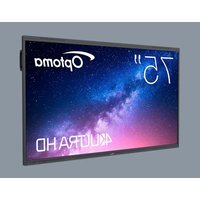
5753RK - Monitor OPTOMA - Free user manual and instructions
Find the device manual for free 5753RK OPTOMA in PDF.


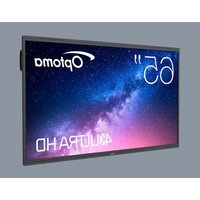
| Product Type | Interactive Flat Panel (Touch Monitor) |
| Brand | Optoma |
| Model | 5753RK |
| Screen Size | 75 inches (main model) – also available in 65 and 86 inches |
| Native Resolution | 3840 x 2160 (4K UHD) |
| Panel Type | LED backlit |
| Touchscreen | Yes, infrared technology |
| Dimensions (75 inch, W x H x D) | 1712.6 mm x 1035.7 mm x 104.9 mm (without stand) |
| Weight (75 inch) | Approximately 50 kg (estimate) |
| Power Supply | AC 100-240 V, 50/60 Hz |
| Connectivity | HDMI (x4), DisplayPort, USB-C (x2), USB 3.0 (x4), USB 2.0, RS232, LAN (x2), audio output, SPDIF |
| Operating System | Android (version not specified, likely Android 11 or higher) |
| Main Functions | Whiteboard, annotation, screen sharing, Airshare, OMS (remote management), screen recording, PIP |
| Built-in Speakers | Yes, 2 x speakers + 2 x 8W subwoofers |
| Security | OSD lock, password, screen lock, privacy features |
| Care and Cleaning | Soft dry cloth for screen and front bezel; do not use liquid cleaners |
| Spare Parts and Repairability | Contact Optoma or an authorized dealer for repairs; warranty void if unauthorized opening |
| General Information | ENERGY STAR certified, low blue light, OPS compatible, remote control included |
Frequently Asked Questions - 5753RK OPTOMA
User questions about 5753RK OPTOMA
0 question about this device. Answer the ones you know or ask your own.
Ask a new question about this device
Download the instructions for your Monitor in PDF format for free! Find your manual 5753RK - OPTOMA and take your electronic device back in hand. On this page are published all the documents necessary for the use of your device. 5753RK by OPTOMA.
USER MANUAL 5753RK OPTOMA
natural_image
Blank computer monitor frame with no visible text, labels, or symbols on the screen areaTABLE DES MATIÈRES
SÉCURITÉ 5
Optoma Management Suite (OMS)....103
INFORMATIONS SUPPLÉMENTAIRES .... 105
Dimensions....105
65 pouces....105
75 pouces....106
86 pouces....107
natural_image
Line drawing of a support mobile stand with a chair and wheels (no text or symbols on the device itself)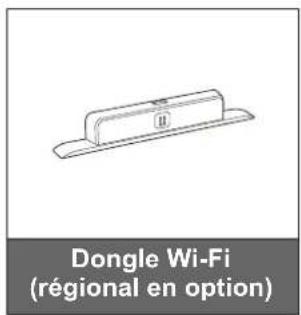
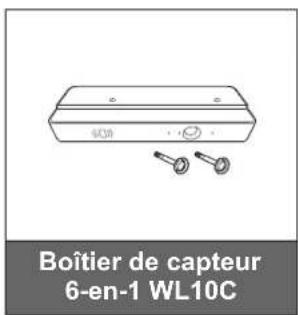
65 pouces 75 pouces
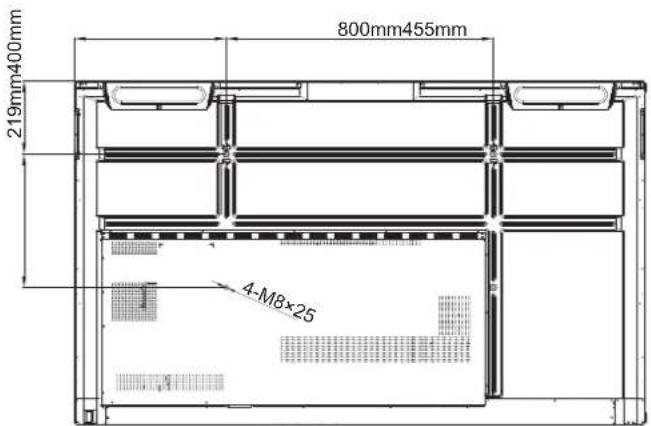
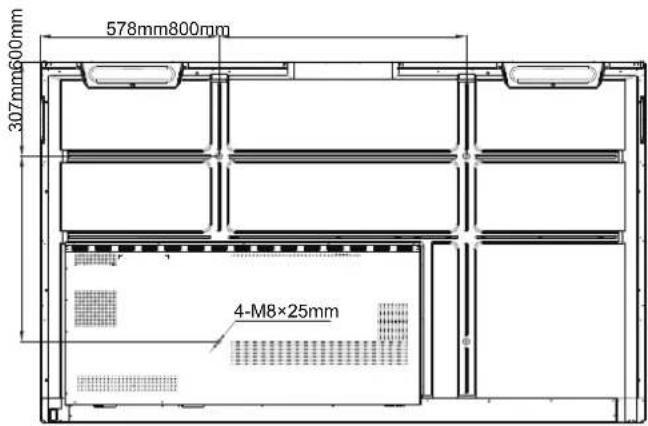
86 pouces
CONFIGURATION ET INSTALLATION
natural_image
Technical diagram of a mechanical assembly with a magnified inset showing a screw and pin (no text or symbols present)natural_image
Diagram showing a cylindrical object with a curved arm and a dashed rectangular box, connected to a circular inset (no text or symbols)natural_image
Diagram of a vertical mechanical assembly with a blue arrow indicating direction, mounted on a wall (no text or symbols present)natural_image
Technical diagram of a mechanical assembly with a close-up inset showing a component labeled 'C' (no text or symbols present)Remarque :
natural_image
Technical diagram of a mechanical component with a magnified inset showing a screw inserted into a pin (no text or symbols present)natural_image
Diagram showing a two-wheel platform with wheels and a close-up of its mounting bracket (no text or symbols)natural_image
Technical line drawing of a vertical mechanical device with wheels and a blue arrow indicating direction (no text or symbols)CONFIGURATION ET INSTALLATION
natural_image
Diagram of a smartphone with a blue arrow indicating rotation or change, showing the battery slot and surrounding screen (no text or symbols)natural_image
Diagram of a smartphone with a blue arrow indicating rotation or change, showing the blade and handle (no text or symbols)MISE EN GARDE
flowchart
graph TD
    A["USB Port 3.03.0"] --> B["USB Port 2.0"]
    C["USB Port 3.03.0"] --> D["USB Port 2.0"]
    E["USB Port 2.0"] --> F["Computer Interface"]
    G["User Mouse"] --> H["Computer Interface"]
CONFIGURATION ET INSTALLATION
Connexion RS232
natural_image
Simple diagram showing a blue downward arrow between two hanging lights on a horizontal line (no text or symbols)natural_image
Diagram showing a blue upward arrow pointing to a gray base labeled 'II' with no text or symbolsnatural_image
Simple diagram of a horizontal beam supported by two hanging lights, with no text or symbols present.natural_image
Diagram of a cable connector with a power outlet and cable routing (no text or symbols visible)natural_image
Diagram of a device with a probe inserted into a charging station, showing wiring and ports (no text or symbols)Remarque :
natural_image
Illustration of a computer monitor with a hand cursor pointing at the button (no text or symbols visible)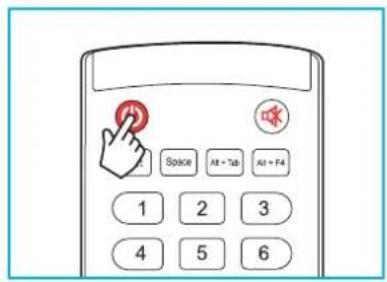
Mise hors tension
OPÉRATIONS DE BASE
OPÉRATIONS DE BASE
Remarque :
OPÉRATIONS DE BASE
OPÉRATIONS DE BASE
OPÉRATIONS DE BASE
IFP Apparel portable
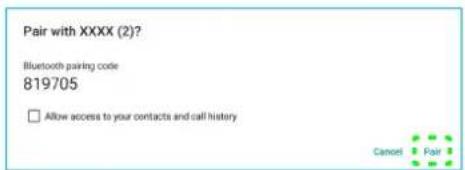
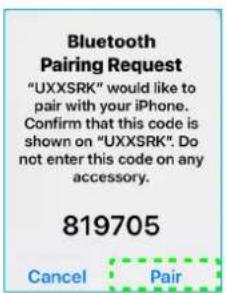
OPÉRATIONS DE BASE
flowchart
graph LR
    A["Advanced settings"] --> B["USB WIFI Enable"]
    B --> C["<<"]
    C --> D["OPEN =>"]
    E["USB Disk Enable"] --> F["<<"]
    F --> G["OPEN =>"]
    H["Android input Enable"] --> I["<<"]
    I --> J["OPEN =>"]
    K["Back"] --> L["? USB WIFI Enable\nReboot to make the settings take effect?\nCONFIRM CANCEL"]
Remarque :
| Dealer Menu | |||
| Advanced settings | |||
| Active Standby | <= | OFF | => |
| HDMI Out repeater | <= | OFF | => |
| Exit | |||
flowchart
graph LR
    A["Dealer Menu"] --> B["Advanced settings"]
    B --> C["Active Standby <= OFF =>"]
    B --> D["HDMI Out repeater <= OFF =>"]
    B --> E["Exit"]
    F["Active Standby <= OPEN =>"]
Remarque :
OPÉRATIONS DE BASE
OPÉRATIONS DE BASE
Appli d'annotation
OPÉRATIONS DE BASE
OPÉRATIONS DE BASE
bar
Answers statistics | Answer | Percentage (%) | | :--- | :--- | | A | 100.0 | | B | 0.0 | | C | 0.0 | | D | 0.0 | Please choose the right answer(s)OPÉRATIONS DE BASE
OPÉRATIONS DE BASE
d. Message
Remarque :
flowchart
graph LR
    A["Display Center"] --> B["Connect to a secondary display, enjoy interaction with multiple display"]
    B --> C["Layout"]
    C --> D["Press and hold (or click) the display, then drag to rearrange the position."]
OPÉRATIONS DE BASE
natural_image
Blue background with eight white circular icons representing different functions: folder, up arrow, refresh, gear, document, pencil, and curved arrow (no text or symbols)natural_image
Blue background with three white circular icons: a yellow 'X' symbol, a white circle with a gear and folder icon, and a gray folder icon (no text or labels)natural_image
User interface toolbar with colorful dots, arrows, and icons (no readable text or symbols)UTILISATION DES APPLICATIONS
Ordinateur
| Settings | ||
| General | Admin Password ...... | |
| Moderator | ||
| Settings | ||
| General | Version VJ108 | > |
| Moderator | Open Source License | > |
| About | ||
UTILISATION DES APPLICATIONS
UTILISATION DES APPLICATIONS
natural_image
Aerial view of koi fish swimming in water, captured in a video player interface (no text or symbols on the fish or background)UTILISATION DES APPLICATIONS
Lecture de musique
UTILISATION DES APPLICATIONS
Regarder des photos
natural_image
Close-up of white and pink orchid flowers with green leaves, set against a wooden lattice background (no text or symbols visible)flowchart
graph LR
    A["Sign up and login to the Optoma Management Suite™ website"] --> B["Enter serial number"]
    B --> C["Confirm PIN Code"]
    D["https://oms.optoma.com/"] --> E["Go to Device page and Add a new device using the serial number above."]
    E --> F["Back"]
    E --> G["Exit"]
UTILISATION DES APPLICATIONS
Optoma Technology, Inc. 888-289-6786
47697 Westinghouse Drive. 510-996-4794
Fremont, Ca 94539 services@optoma.com
Canada
Optoma Technology, Inc. 888-289-6786
47697 Westinghouse Drive. 510-996-4794
Fremont, Ca 94539 services@optoma.com
Amérique Latine
Optoma Technology, Inc. 888-289-6786
47697 Westinghouse Drive. 510-996-4794
Fremont, Ca 94539 services@optoma.com
Europe
1 Bourne End Mills
Hemel Hempstead
Hertfordshire +44 (0) 1923 691 800
HP1 2UJ +44 (0) 1923 691 888
https://www.optoma.com/kr/
Japon
https://jp.optoma.com/
Taiwan
https://www.optoma.com/tw/
Chine
Room 2001, 20F, Building 4,
No.1398 Kaixuan Road,
Changning District
Shanghai, 200052, Chine
Australie
https://www.optoma.com/au/

www.optoma.com.cn



- TABLE DES MATIÈRES
- SÉCURITÉ 5
- INFORMATIONS SUPPLÉMENTAIRES .... 105
- CONFIGURATION ET INSTALLATION
- Remarque :
- MISE EN GARDE
- Connexion RS232
- Mise hors tension
- OPÉRATIONS DE BASE
- Appli d'annotation
- d. Message
- UTILISATION DES APPLICATIONS
- Ordinateur
- Lecture de musique
- Regarder des photos
- Canada
- Amérique Latine
- Europe
- Japon
- Taiwan
- Chine
- Australie
Brand : OPTOMA
Model : 5753RK
Category : Monitor