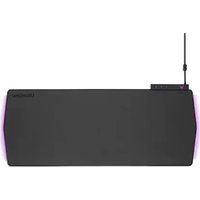
UltraGear UGP90HB - Laptop LG - Free user manual and instructions
Find the device manual for free UltraGear UGP90HB LG in PDF.


| Product Type | Gaming mouse pad |
| Brand | LG |
| Model | UltraGear UGP90HB |
| Dimensions (L x W x H) | 880 x 372.3 x 6.9 mm |
| Weight | 2.1 kg |
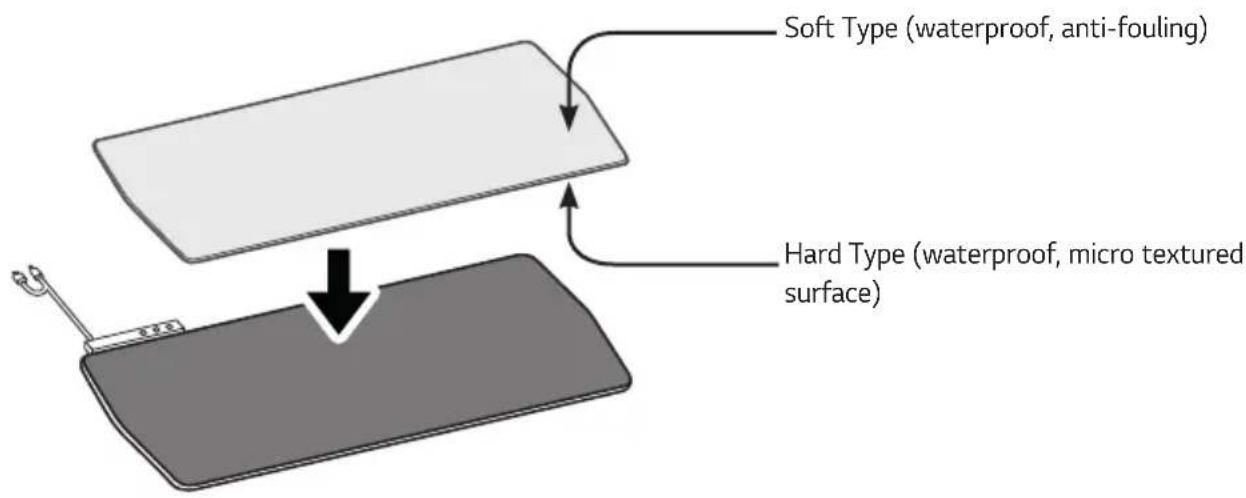
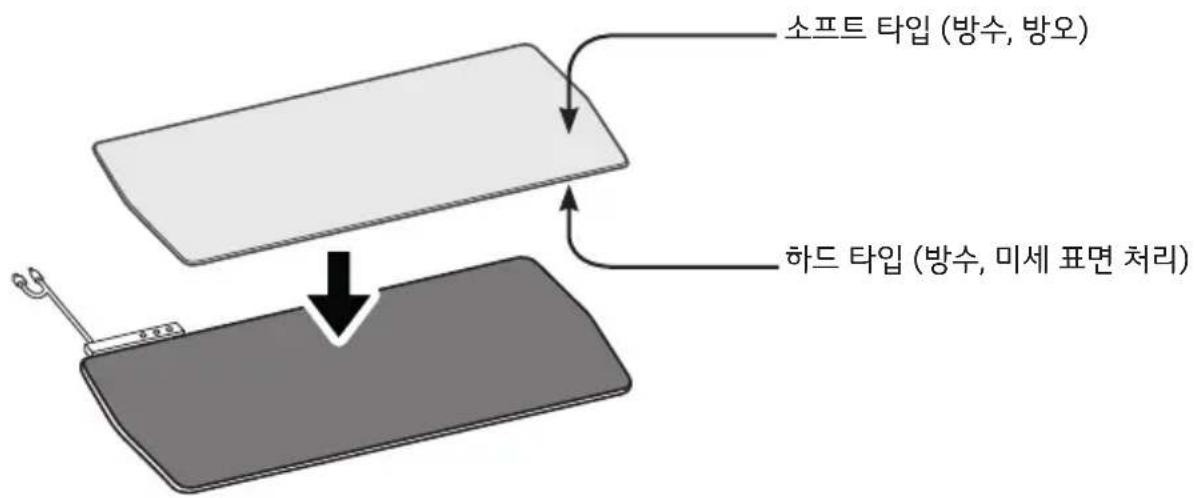
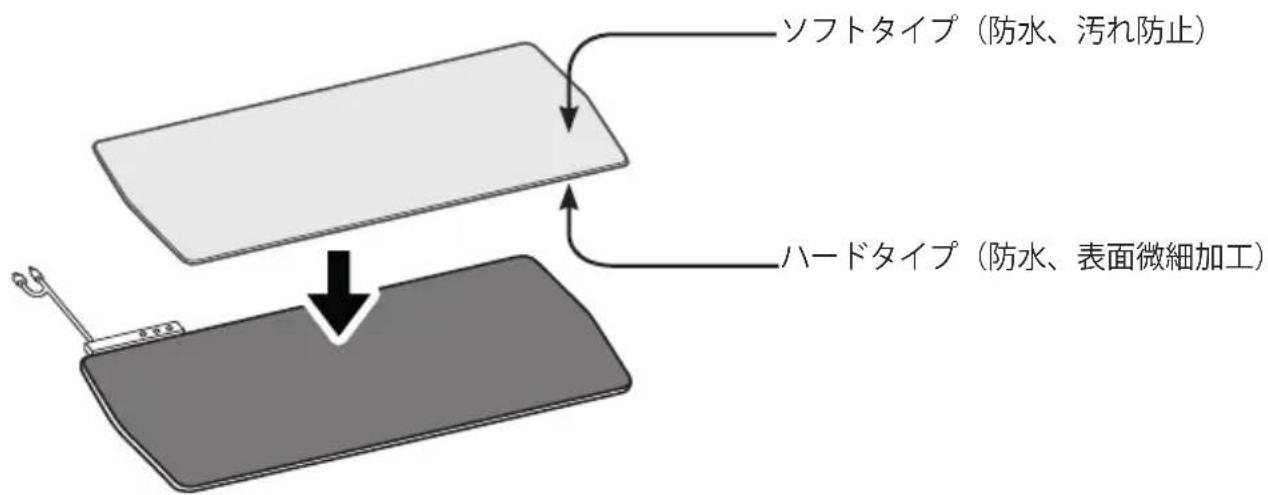
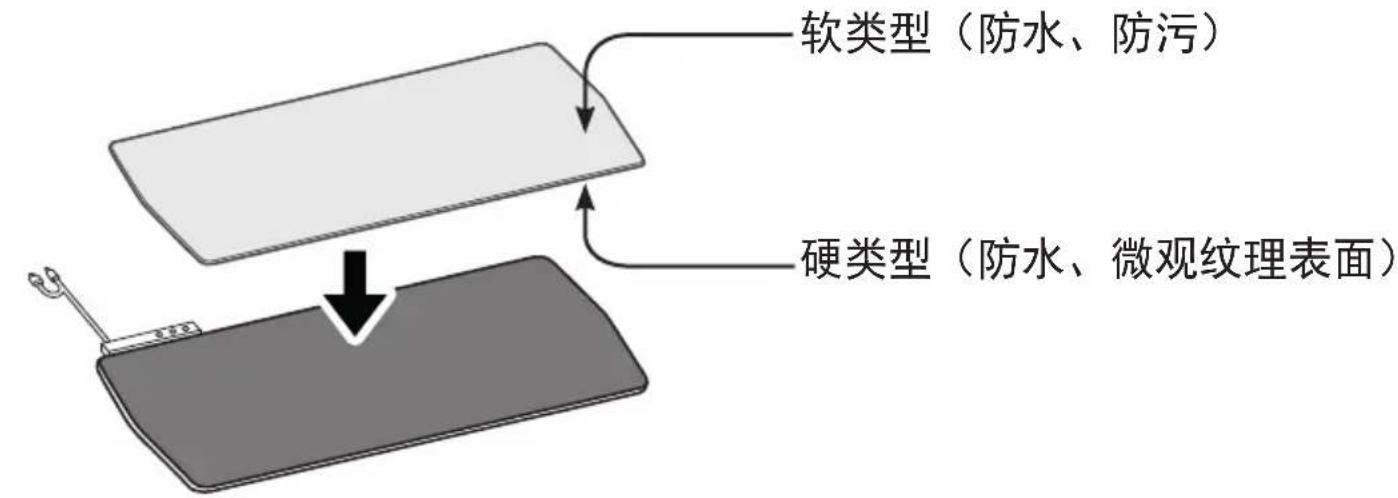
| Material | Dual pad: hard type in polycarbonate (waterproof) and soft type (waterproof, stain-resistant) |
| Surface | Hard type: micro-textured; soft type: smooth and waterproof |
| LED lighting | RGB, 5 LEDs on each side (left/right) |
| Shortcut keys | M1 (turn LED on/off), M2 (change color), M3 (change effect) |
| USB hub | 2 USB ports for charging (via cable) |
| Connection type | USB-C (data and power) and USB-A (power) - simultaneous connection |
| Cable length | 2.0 m |
| Power | Via computer USB port (5V) |
| System requirements | PC with free USB port |
| Operating temperature | Below 40°C |
| Maintenance | Avoid liquids; clean with a soft, dry cloth |
| Safety | Do not expose to heat, do not disassemble, keep out of reach of children |
| Included accessories | USB-C/USB-A cable, dual pad (hard and soft) |
| Intended use | Gaming mouse pad |
| Warranty | Consult the provided warranty document |
Frequently Asked Questions - UltraGear UGP90HB LG
User questions about UltraGear UGP90HB LG
0 question about this device. Answer the ones you know or ask your own.
Ask a new question about this device
Download the instructions for your Laptop in PDF format for free! Find your manual UltraGear UGP90HB - LG and take your electronic device back in hand. On this page are published all the documents necessary for the use of your device. UltraGear UGP90HB by LG.
USER MANUAL UltraGear UGP90HB LG
Please read the user manual before using this product to ensure safe and convenient use.
UGP90HB
www.lg.com
Copyright © 2022 LG Electronics Inc. All Rights Reserved.
Printed in China
Safety Precautions
Please be sure to check the following ‘Safety Precautions’ as they are intended to proactively prevent unexpected danger or damage. The ‘Safety Precautions’ are divided into ‘Warning’ and ‘Caution’.

WARNING: Violation of the instructions may lead to serious injury or death.

CAUTION: Violation of the instructions may lead to minor injury or damage to the product.
PRECAUTIONS WHEN USING PRODUCT

WARNING
- Keep the product away from hot products (heater, etc.). (Use the product in an environment below 40 °C)
• To protect your eyesight, do not point the LED light on the mouse pad towards your eyes.
- Doing so may cause deterioration or loss of vision.

CAUTION
- When connecting with other products, some products may have compatibility issues.
– LG Electronics does not guarantee compatibility with all peripheral devices.
• Install the product in a stable place where there is no risk of falling.
– If the product falls, it may be damaged or may cause personal injury.
- Be careful not to spill liquids such as water, coffee, or juice on the mouse pad as doing so may cause breakdown or malfunction.
• Do not disassemble or modify the product.
- Even during the warranty period, free maintenance is not covered.
- Avoid exposure to direct sunlight in places such as inside a closed car.
- Do not use the product for any purpose other than as a mouse pad.
- Keep out of reach of children.
Installation Precautions
• Use the mouse pad by placing it on a flat surface.
- Avoid placing hot substances on the top surface of the mouse pad.
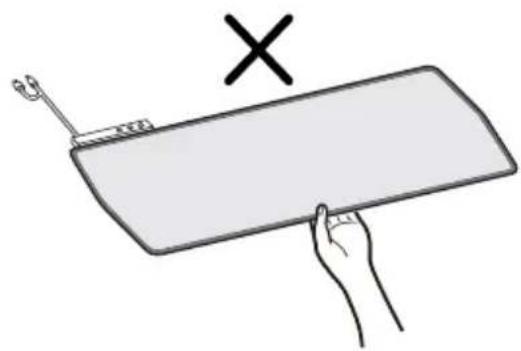
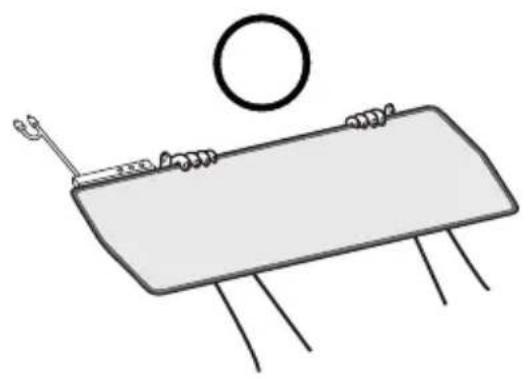
- When moving the mouse pad, support it with both hands as shown below so that it does not bend.
natural_image
Simple line drawing of a rectangular object with pins and a circular top, no text or symbols present.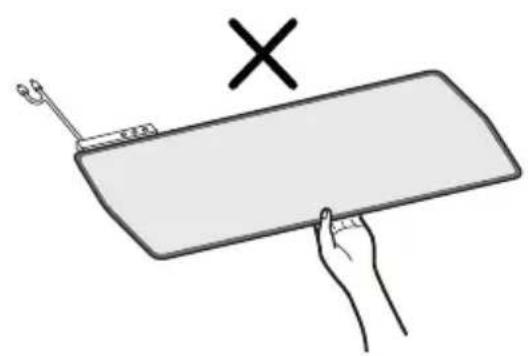
natural_image
Hand holding a rectangular object with a tool, marked with an 'X' symbol above (no text or symbols on the object itself)Using a Dual Mouse Pad
Product and Button Description
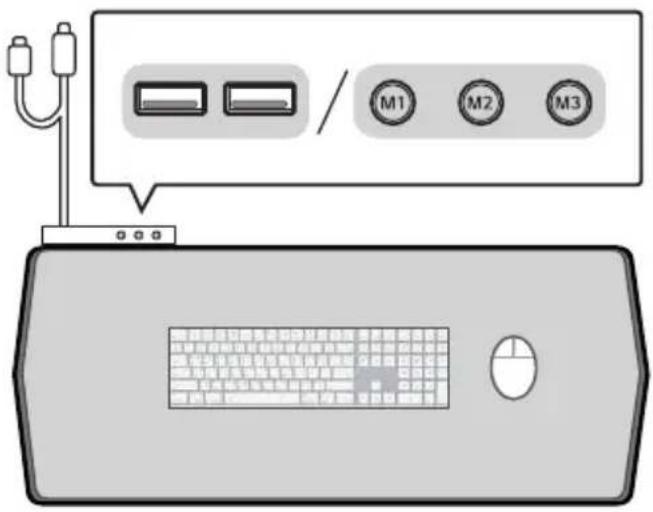
| Description of Each Part | |
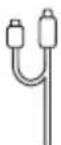 | USB-C + USB-A Cable |
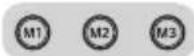 | LED Control Button |
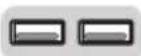 | USB Hub (for charging) |
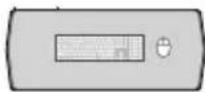 | Lighting Part (left/right) |
Using Buttons
The LED control button on the mouse pad works as follows.
• M1: You can turn the LED light on or off.
• M2: You can set the LED colour to change with each press.
• M3: You can set the LED lighting effect to change with each press.
Product Specifications
The \~ symbol means alternating current, and the symbol - means direct current.
| Model Name UGP90HB | |
| Dimension (Width x Length x Thickness) | 880 x 372.3 x 6.9 (mm) |
| Weight 2.1 kg | |
| Dual Mouse Pad Material Hard Type Material: Polycarbonate (waterproof) | |
| USB Specifications Qty: 2 EA | |
| RGB Lighting | 5 each for left/right |
| Shortcut Key | M1, M2, M3 |
| Cable Length | 2.0 m |
| Connection Type USB-C and USB-A type | (simultaneous connection)* USB-C: Data & PowerUSB-A: Power |
HW Requirements
• PC & Free USB Port
Supplier's Declaration of Conformity
Trade Name LG
Responsible
Party
Address 111 Sylvan Avenue, North
Building, Englewood Cliffs,
NJ 07632
E-mail lg.environmental@lge.com
Adresse 111, Sylvan Avenue,
North Building, Englewood
Cliffs, NJ 07632
Courriel lg.environmental@lge.com
MANUEL D'UTILISATION

UltraGear™ Gaming Mouse Pad
natural_image
Simple line drawing of a rectangular object with pins and a circular top, no text or symbols present.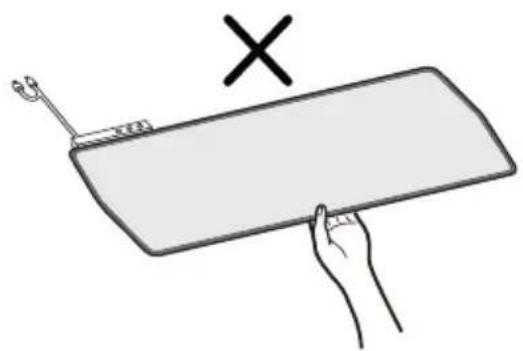
natural_image
Illustration of a hand holding a rectangular object with a tool, marked with an 'X' symbol (no text or symbols on the object itself)natural_image
Simple line drawing of a rectangular object with pins and a circular top, no text or symbols present.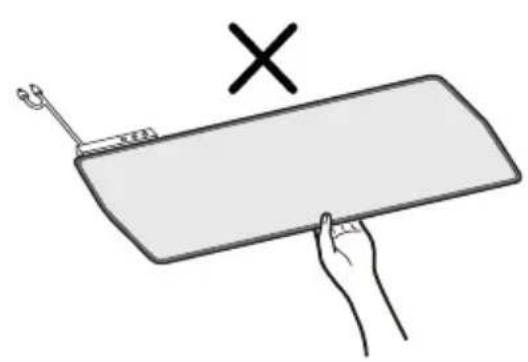
natural_image
Hand holding a rectangular object with a tool, marked with an 'X' symbol (no text or symbols on the object itself)natural_image
Simple line drawing of a rectangular object with pins and a circular top, no text or symbols present.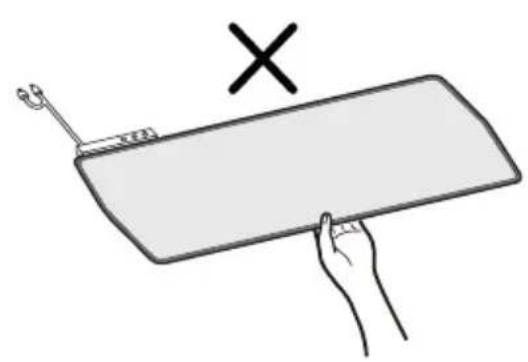
natural_image
Hand holding a rectangular object with a tool, marked with an 'X' symbol (no text or symbols on the object itself)natural_image
Simple line drawing of a rectangular object with pins and a circular top, no text or symbols present.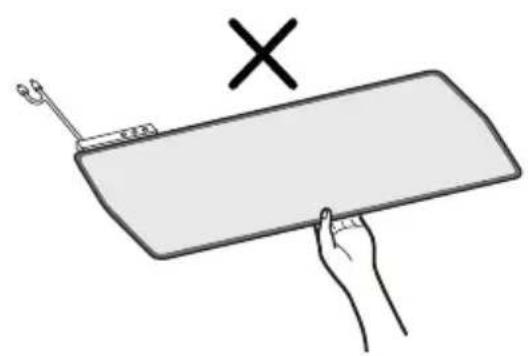
natural_image
Hand holding a rectangular object with a tool, marked with an 'X' symbol above (no text or symbols on the object itself)natural_image
Simple line drawing of a rectangular electronic component with pins and a circular top (no text or symbols)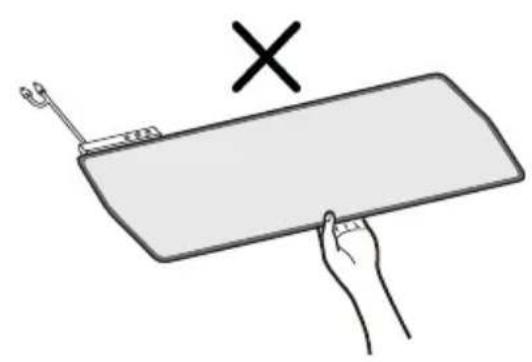
natural_image
Hand holding a rectangular object with a tool, marked with an 'X' symbol above (no text or symbols on the object itself)Copyright © 2022 LG Electronics Inc. All Rights Reserved.
안전을 위해 주의하기
natural_image
Simple line drawing of a mechanical component with a circular head and four vertical rods (no text or symbols)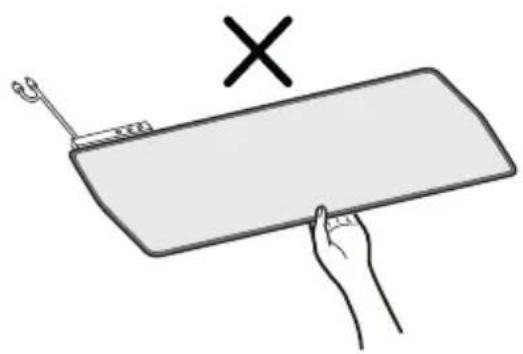
natural_image
Illustration of a hand holding a rectangular object with a tool, marked with an 'X' symbol (no text or symbols on the object itself)듀얼 마우스패드 사용하기
Copyright © 2022 LG Electronics Inc. All Rights Reserved.
安全处置
natural_image
Simple line drawing of a rectangular electronic component with pins and a circular top (no text or symbols)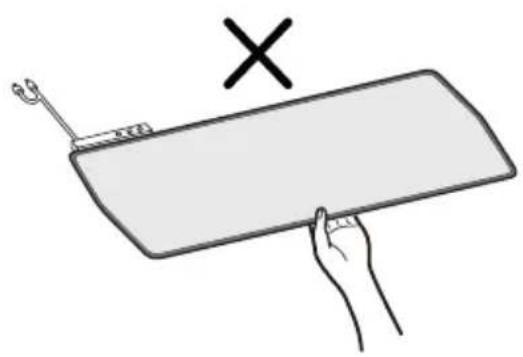
natural_image
Illustration of a hand holding a rectangular object with a tool, marked with an 'X' symbol above (no text or symbols on the object itself)デュアルマウスパッドの使用
natural_image
Simple line drawing of a rectangular object with pins and a circular top, no text or symbols present.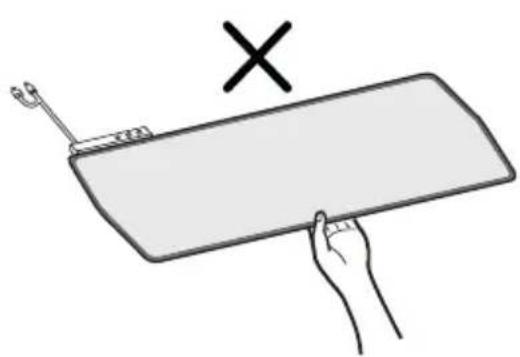
natural_image
Hand holding a flatboard with a tool, marked with an 'X' symbol (no text or symbols on the board)使用双鼠标垫
תְרָה בְּרָה
natural_image
Simple line drawing of a rectangular object with pins and a circular top, no text or symbols present.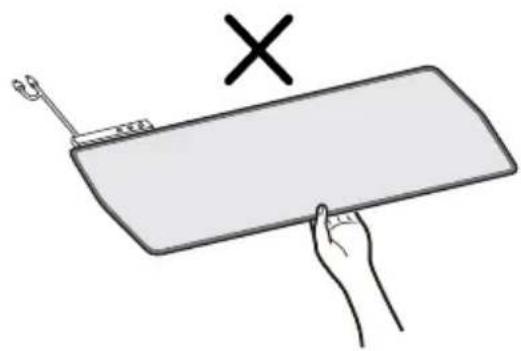
natural_image
Illustration of a hand holding a rectangular object with a tool, marked with an 'X' symbol (no text or symbols on the object itself)LG Electronics Inc. 2022 ©
استخدام الأزرار
natural_image
Simple line drawing of a rectangular object with pins and a circular top, no text or symbols present.