LMC50-D - Laptop LG - Free user manual and instructions
Find the device manual for free LMC50-D LG in PDF.


User questions about LMC50-D LG
0 question about this device. Answer the ones you know or ask your own.
Ask a new question about this device
Download the instructions for your Laptop in PDF format for free! Find your manual LMC50-D - LG and take your electronic device back in hand. On this page are published all the documents necessary for the use of your device. LMC50-D by LG.
USER MANUAL LMC50-D LG
natural_image
Front view of a silver Li40 laptop with open lid and visible keyboard (no text or symbols on screen)User's guide....6
Important Safety Instructions 8
Selecting a place to work....8
Using the battery pack 9
Replacing and disposing of the backup (standby) battery 10
Connecting to an AC power source.... 11
Using the computer 12
Using the computer 13
Upgrading the computer.... 15
Carrying and storing the computer.... 16
Preventing data loss (handling hard disk drives) 17
Ergonomic information 18
For Australian Users 19
Laser compliance statement 20
Overview 21
Package contents 21
Components (LM 40/50)....23
Front view 23
Components (LS40/50) 25
Front view 25
Rear view (LM 40/50, LS 40/50)....26
Left view 27
Right view 28
Status indicators 29
Basics 31
Using the battery pack 31
Using the AC adapter 34
Connecting the AC adapter to an AC outlet (100\~240V).... 34
Opening and positioning the LCD panel.... 35
Power switch 35
Turning the power on and off 36
Turning on the computer 36
Turning off the computer 40
Using Windows XP 42
Overview.... 42
Help and Support 43
Windows XP desktop.... 44
Start menu....45
Changing the look of the Start menu 45
Changing the pinned items in the Start menu 45
Showing the recently used items on the Start menu 45
Control Panel 46
Setting up Local Area Network (LAN) connections.... 47
Changing the Themes and Desktop background 49
Using the Windows Classic Theme...... 49
Using a different theme 49
Changing the desktop background 50
Setting the Screen Saver 50
Taskbar....51
Desktop cleanup....51
Using the Power Options.... 51
Power Options Properties.... 52
Power Options Properties.... 53
Advanced tab....54
Power Meter 54
System Hibernation 55
Attaching external devices 56
Attaching a USB device 56
Attaching a television using an S-Video port 56
Attaching an external monitor 58
Attaching a printer.... 59
Using S/PDIF output connector.... 61
When listening to music as MP3.... 61
When enjoying DVD Player 63
Attaching an IEEE 1394 device 63
Using the IrDA port.... 64
About IrDA port.... 64
Using IrDA port 64
Using Wireless LAN 66
Connecting and using the wireless network 66
Using IP Operator....67
Using Battery Miser....69
Input/Output....71
Using the keyboard....71
About the keyboard - 14.1inch....71
About the keyboard - 15 inch....72
Modifier and special function keys.... 74
Hot keys 76
Using the touch pad....77
Moving the pointer on the screen.... 78
Making the selection (Click) 78
Double-click (Run)....79
Drag and drop....79
Using the scroll up/down function 82
System Setup....83
Starting the system setup....83
Keys used in the system setup 83
Setting a password 84
Setting a supervisor password....85
Setting a user password 86
Changing or removing the password.... 87
Recovering the factory default settings 88
System Recovery....89
Using Full Recovery 89
Driver re-installation 93
Storage/Memory....94
Using the optical disk drive 94
Inserting a CD 94
Removing a CD 95
Playing an audio CD....96
Using Windows Media Player 96
Using Power DVD 97
Using an SD Memory Card / SONY Memory Stick.... 99
Inserting an SD Memory Card / Memory Stick.... 99
Removing the SD Memory Card / Memory Stick 99
Installing memory ....100
About memory....100
Before installing memory....100
Purchasing memory 101
Installing memory 101
Features....104
Model 104
Processor 104
Memory 104
BIOS ROM....104
Storage devices....104
External I/O Interfaces....105
Display 105
Sound....105
Dimension 105
LAN 105
Modem 105
Power specification.... 106
AC Adaptor (Free Voltage) 106
Battery Pack (Li-Ion)....106
Charging time....106
Battery Life 106
Backup (standby) battery 106
Operating environment....107
Operating....107
Non-operating....107
Thank you for using the LG product.
LG has manufactured and tested this product to provide you with a reliable computing environment.
Please read this manual carefully before using the computer.
The following signs call attention to features and operations that may be dangerous to the user. Follow the instruction closely to reduce the risk of physical harm or damage to the equipment.

Danger: Not following the instruction will result in immediate death or serious injury.

Warning: Not following the instruction could result in death or serious injury.

Caution: Not following the instruction could result in minor or moderate injury and/or damage to the product.
Microsoft, MS, WinPE, and Windows are trademarks of Microsoft Corporation in the United States and/or other countries.
"Memory Stick" and are trademarks of Sony Corporation.

LG
is a trademark of LG.
Copyright 2003 LG Electronics, Inc., DigitalMate Co., Ltd.
Information in this manual may include technical inaccuracies or typographical errors.
Images in this manual are for illustrative purposes only and may be different from the actual product.
LG reserves the rights to make improvements and/or changes to the product without notice.
Reproducing any or all of the information contained in this publication without written permission is prohibited.
Your computer complies with the radio frequency and safety standards of any country or region in which it has been approved for wireless use.
These safety instructions will ensure many years of safe enjoyment from the product. Set up your computer on a flat, stable surface. (LG is not responsible for the problems and damages caused by incorrect use of the computer in an unsafe environment.)
Selecting a place to work

Warning
Do not operate your computer near water; for example, in a bathroom or near a
The computer may not function correctly, and there is the risk of electric shock. Operate the computer within a temperature range of 50 to 95 degrees F (10 to 35 degrees C) and 20 to 80% of relative humidity.
Safely dispose of the packing materials, such as desiccant and plastic bags. Children may swallow desiccant or suffocate from plastic bags.

Caution
Keep your computing environment clean and free of dust. There is a risk of dysfunction to the computer.
Keep your computer away from electromagnetic fields. Exposure to the electromagnetic field may result in loss of data in the hard disk drive and/or damage to the LCD.
Do not block the fan louvers and leave enough space around the computer for ventilation. The computer may overheat and result in fire or injuries.
Using the battery pack

Warning
Use only a battery pack recommended by LG.
Using a battery pack of a different type may result in explosion.
Keep metallic objects, such as keys and clips, away from the battery pack.
Objects that conduct electricity can short-circuit the battery pack and result in fire and/or injuries.
Keep the battery pack away from heat.
There is a risk of explosion or fire.
Do not short-circuit battery terminals.
There is a risk of explosion.
Do not subject the battery pack to temperatures above 140 degrees F (60 degrees C).
There is a risk of explosion or fire.
Keep the battery pack away from children and/or pet.
There is a risk of injury and damage to the battery pack.
Do not put the battery pack in the water.
There is a risk of fire or damage to the batter pack.
Be cautious when handling the keen part of the battery pack hook.
It may hurt you.
Lock the Notebook locker at the bottom surface.
There is a risk of battery damage.
Replacing and disposing of the backup (standby) battery

Warning
If the backup battery is incorrectly replace, there is danger of explosion.
The lithium battery contains lithium and can explode if it is not properly handled or disposed of.
Replace only with a battery of the same type.
Connecting to an AC power source

Warning
Do not use loose or damaged power plugs.
There is a risk of electric shock or fire.
Use properly grounded outlet.
Connecting the computer to an outlet without proper grounding may result in electric shock and damages to your computer.
Do not touch or grab the power plug with wet hands.
There is a risk of electric shock.
Hold the plug body when removing the power cord from an outlet.
There is a risk of fire and damages to the computer.
Use your computer at the proper voltage/current level indicated.
Supplying improper levels of voltage/current may result in electric shock, fire, and/or damage to the computer.
If you hear a noise from the power cord or outlet, unplug the power cord immediately, and contact the customer service for help.
There is a risk of fire or electric shock.
Make sure the power plug fits snugly into the electrical outlet.
Loose fit may result in fire.
Do not bend or place a heavy object on top of the power cord. Keep the children and pets from damaging the power cord.
Damaged power cord may result in electric shock or fire.
Keep the power cord and plug clean and free of dust.
There is a risk of fire.
If an object or liquid enters the computer or an adaptor, remove power cord, battery, and any other cables from the computer, and contact the customer service for help. There is a risk of an electric shock, fire, or damage to the computer.
Before cleaning the computer, disconnect the power cord, battery, and any other cables from the computer. There is a risk of electric shock or damage to the computer.
Using the computer

Warning
For cleaning your computer, use mild detergent or computer cleaning products. Be
Using the computer without completely drying it may result in electric shock or fire.
During a lightning storm, disconnect the power cord, telephone line, and LAN cable from the computer.
There is a risk of electric shock or fire.
Do not place water, chemicals, or liquid of any kind on the computer.
Liquid of any kind entering inside the computer may result in an electric shock, fire, or damage to the computer.
Do not connect the modem directly to a multi-line telephone.
There is a risk of fire or damage to the computer.
If you drop your computer, remove the power cord and battery pack, and then contact the customer service for check up.
There is a risk of electric shock or fire.
Do not place a burning candle or cigarette on the computer.
There is a risk of fire.
If you see or smell smoke from the computer or adaptor, turn off the computer, remove the power cord, and then contact the customer service for help.
There is a risk of fire.
The LCD monitor's fluorescent lamp include hydrargyrum.
Avoid direct contact with liquid from the broken LCD. If it spills into eyes or the other parts of your body, wash it out several times with clean water. If you feel something different, contact a doctor or a health administrator immediately.
Using the computer

Caution
Do not place an object, such as a pen or clip, on the keyboard.
If you close the LCD cover with an object on the keyboard, you may damage or break the LCD.
Do not touch or scratch the LCD with sharp objects.
The LCD may be damaged.
Be sure to turn off the computer before closing the LCD cover.
The computer may overheat, and be damaged or deformed.
Do not exert excessive pressure on the LCD.
LCD is made of glass, and an excessive force can break the LCD.
Follow the instructions in the user's guide.
There is a risk of damage to the computer.
Do not place objects into the PC Card slot.
There is the risk of electric shock or injury.
Upon completion of any service or repairs, ask service technician to perform safety checks.
Ignoring safety checks may result in electric shock or fire.
Use the Wireless LAN at least 5m away from a microwave oven or plasma lamp.
When using the Wireless LAN near a plasma lamp, use the channel 11, 12, or 13. the connection may be unavailable or slow.
Keep the computer away from heat.
The computer may deform and there is the risk of fire.
When attaching an external device, make sure the connector from the device and the port on the computer are of the same type.
There is a risk of damage to the computer.
Do not insert a damaged CD-ROM or floppy disk.
There is a risk of damage to the computer.
Upgrading the computer

Warning
Before disassembling the computer for upgraing purposes, turn off the power and
There is the risk of electric shock or fire. If you need to open the computer cover, contact the customer service for help.
Keep screws and other small parts away from children.
Children may choke on a screw or other small part. If a child swallows a small part, receive a medical care.

Caution
Do not attempt to disassemble or modify the computer without consulting customer service.
There is a risk of electric shock.
Replace only with the parts approved by LG.
There is a risk of fire and damage to the computer.
Consult with the customer service before connecting and using the computer with any non-LG product.
There is a risk of damage to the computer.
Carrying and storing the computer

Caution
Before moving the computer, turn the power off and remove all the cables. You may trip over the loose cables and fall.
When traveling on an airplane, follow the instruction by flight attendant. Using the computer on an airplane may result in an airline accident.
Do not travel with LCD monitor open.
Do not expose your computer to the direct sunlight in a closed area such as inside a car. Prolonged exposure to high temperatures may deform the computer and also result in fire.
Preventing data loss (handling hard disk drives)

Caution
Be cautious when handling the hard disk drive.
The hard disk drive is very delicate to any physical impact. Always make backups for your data. LG is not responsible for the data lose caused by users.
The data on the hard disk or the drive itself may be damaged in the following situations:
- Exposure to a physical shock during the disassembling or installing process.
- The computer is reset (rebooted), for example by power outage, while the hard disk drive is operating.
- Exposure to virus.
- The computer is turned off during operation.
- Exposure to a physical shock while the hard disk drive is operating.
To prevent data loss due to hard disk drive damages, always backup your data.
LG is not responsible for the loss of data.
Ergonomic information

Warning
Adjust the display position to avoid glare or reflections from a direct ray of light.
The top of the display should be on or below the level of your eyes.
Keep your head and neck in an upright position.
Keep your forearms, wrists, and hands in a horizontal position.
Adjust your chair to keep your arms and hands in a comfortable position.
Using the computer in the same position for a prolonged period of time may cause discomfort to your body.
Take short frequent breaks from working with your computer. No more than 2 hours of computing per day is recommended.
Stretch periodically to reduce muscular discomfort.
Check the volume level
Check if the volume level is too high before using headphones.
Do not use the headphones for a prolonged period of time.

Warning
For safety reasons, only connect equipment with a telecommunications compliance label. This includes customer equipment previously labelled or certified.
An optical disk drive (device), such as a CD-ROM, CD-RW,DVD-ROM drive, which can be installed in this unit is a laser product. The driver's classification label is on the surface of the drive as shown below.
CLASS 1 LASER PRODUCT
LASER KLASSE 1
LUOKAN 1 LASERLAITE
APPAREIL A LASER DE CLASSE 1
KLASS 1 LASER APPARAT
The drive is certified by the manufacturer to comply with the requirements of the Department of Health and Human Services 21 Code of Federal Regulations (DHHS 21 CFR) Subchapter J for Class I laser products at the date of manufacture.
In other countries, the drive is certified to conform to the requirements of IEC825 and EN60825 for Class 1 laser products.

DANGER
Do not open the optical disk drive unit: no user adjustments or serviceable parts are inside. Use of controls, adjustments, or the performance of procedures other than those specified might result in hazardous radiation exposure.
Package contents
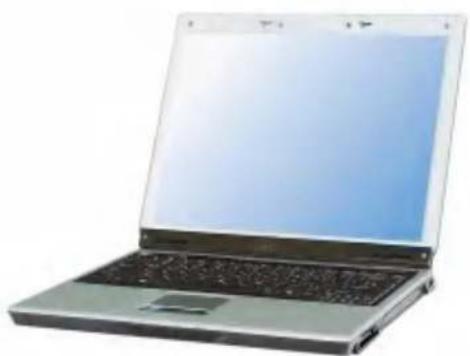
The following items are included in the package. Match the items on this list with the items in the box. Some items may look different from the pictures.

natural_image
Front view of a silver laptop computer with visible keyboard and front panel (no text or symbols)LM40 14.1 inch Notebook PC

natural_image
Exterior view of a silver laptop computer with visible keyboard and screen (no text or symbols)LM50 15 inch Notebook PC
natural_image
Exterior view of a silver laptop computer with visible keyboard and front panel (no text or symbols)LS40 14.1 inch Notebook PC

natural_image
Exterior view of a modern laptop computer with visible screen and keyboard (no text or symbols)LS50 15 inch Notebook PC
Note:
Make sure you have the correct AC adapter before connecting it to the computer.

Installation guide

Battery pack
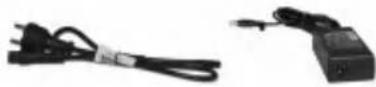
power cord / AC adapter
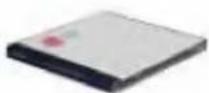
Software installation CD

Telephone cable
Note:
- Battery is consumables, so its capacity and lifetime will decrease gradually as using time goes by.
- Battery pack(9 cell) is optional.
- Below mentioned functions are not offered by each product
*IEEE1394 / Wireless LAN / SD Memory card / S-Video port / IrDA port/Memory Stick

Caution
When cleaning your computer, use cleaning products manufactured specifically for computing equipment. Using abrasive chemicals, such as paint thinner, benzene, or alcohol, may damage your computer.
Components (LM 40/50)
Learning the components and their functions helps you use the computer more easily and thoroughly.
Front view
LM40 14.1 inch

text_image
Volume up button Volume down button Power switch MUTE VOL TouchPad Built-in Speakers IrDA port (option) Wireless LAN (option) LCD Power-Saving mode switch Keyboard TouchPad buttonLM50 15 inch

text_image
Volume up button Volume down button button Power switch MUTE VOL + - TouchPad Built-in speakers Wireless LAN (option) LCD Power-saving mode switch Keyboard TouchPad button IrDA port (option)Note:
Pressing the Volume up and down buttons at the same time mutes the sound.
Components (LS40/50)
Front view
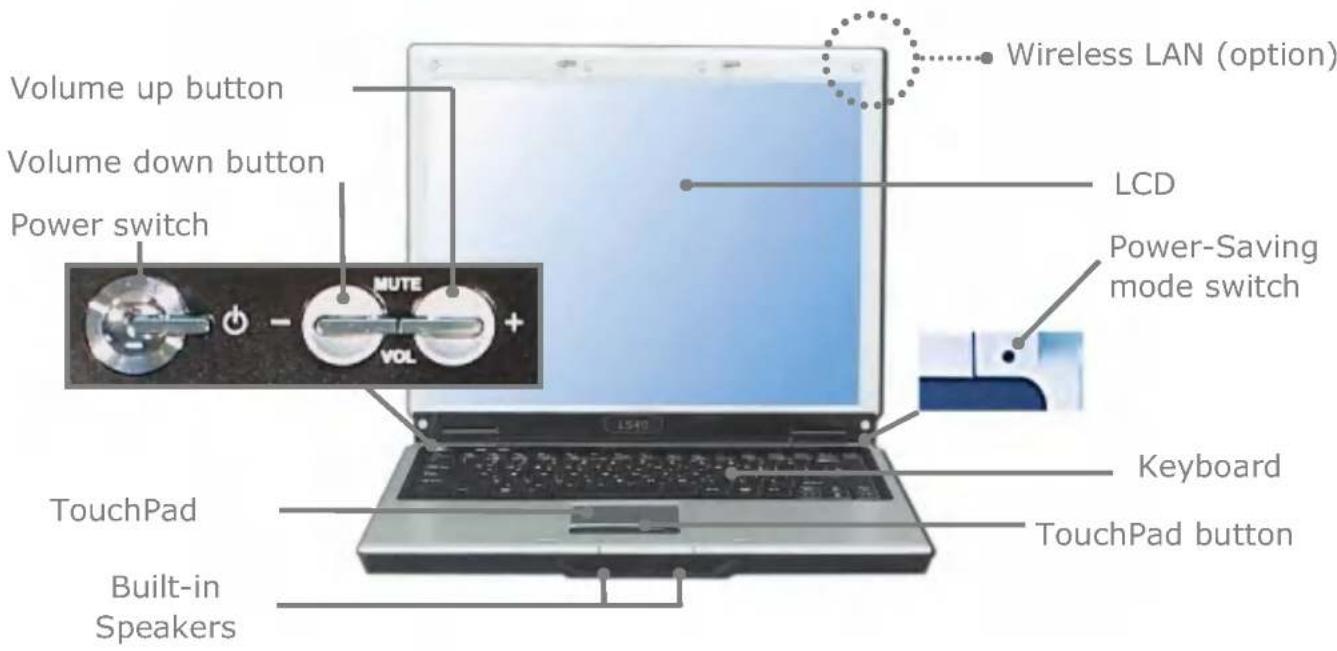
LS40 14.1 inch
text_image
Volume up button Volume down button Power switch MUTE VOL Wireless LAN (option) LCD Power-Saving mode switch Keyboard TouchPad Built-in Speakers TouchPad buttonLS50 15 inch

text_image
Volume up button Volume down button Power switch MUTE VOL + - + - Voltage Wireless LAN (option) LCD Power-saving mode switch TouchPad Keyboard TouchPad button Built-in speakersNote:
Pressing the Volume up and down buttons at the same time mutes the sound.
Rear view (LM 40/50, LS 40/50)
Note: Some models may look different from the picture below.

text_image
Modem port Power Management Battery S-Video connector (option) LAN port Power jackNote:
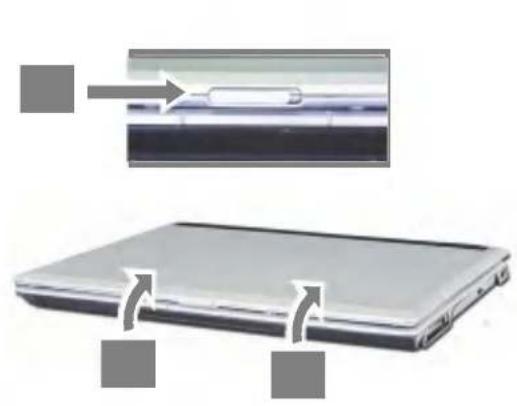
To open the display panel
- Push the latch button to the right 1,
- and lift the LCD panel 2.
- Adjust the slope of the display panel for a comfortable viewing angle.
natural_image
Two views of a laptop with a close-up inset showing a device on the screen (no text or symbols visible)
natural_image
Laptop with a blank screen and a gray arrow pointing to the left side (no text or symbols visible)Left view
text_image
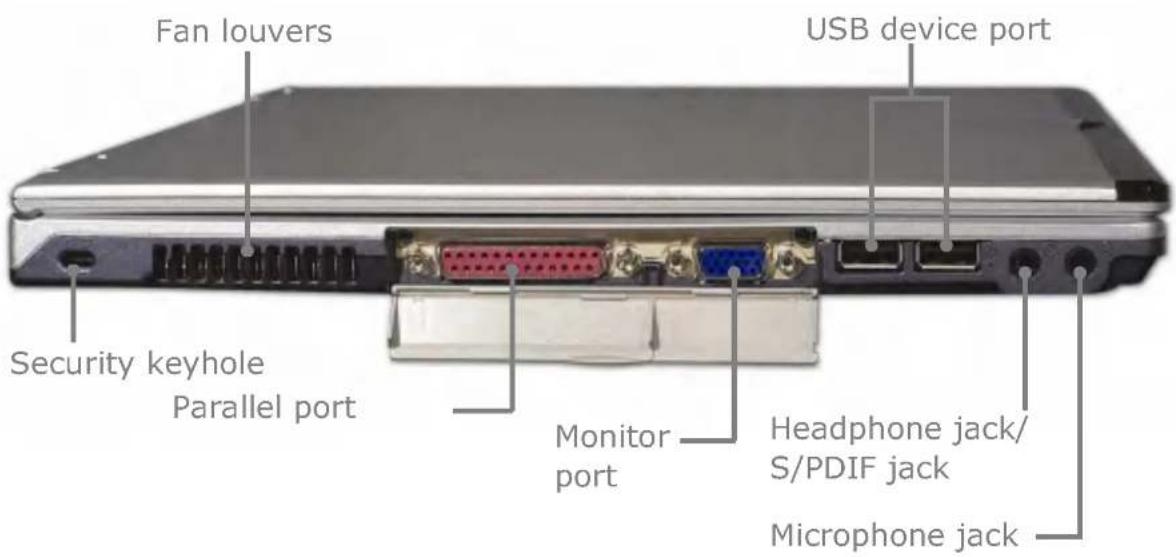
Fan louvers Security keyhole Parallel port Monitor port USB device port Headphone jack/ S/PDIF jack Microphone jackSecurity keyhole: User can attach a separately purchased chain lock into the security keyhole and connect it to a fixed object to prevent a notebook theft.
Note:
A position of security keyhole can be different from the model type.
Right view
text_image
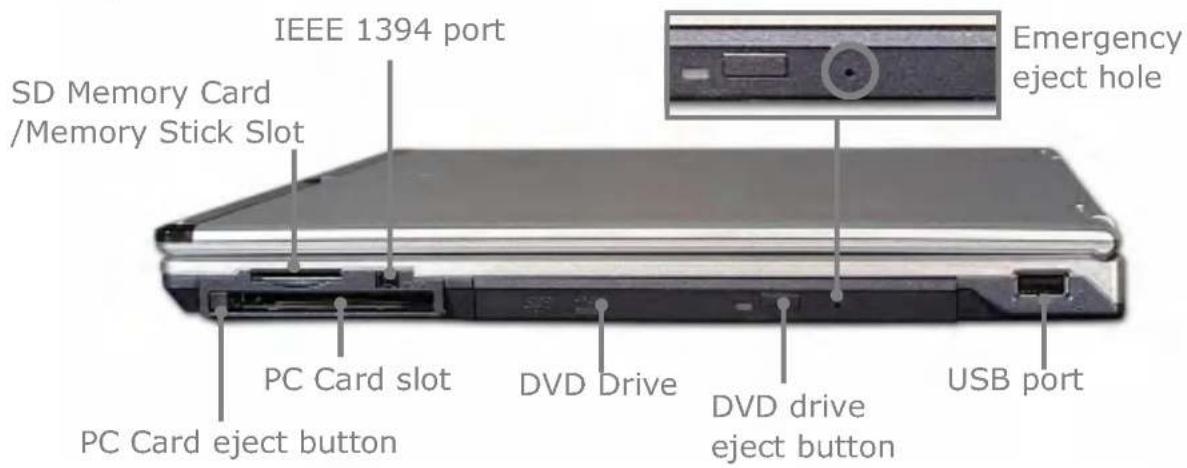
IEEE 1394 port SD Memory Card /Memory Stick Slot Emergency eject hole PC Card slot DVD Drive PC Card eject button DVD drive eject button USB portEmergency eject hole: Insert a thin and hard pin into this hole, and you can open the disc tray manually.
Note:
Below mentioned functions are not offered by each product
*IEEE1394 / Wireless LAN / SD Memory card / S-Video port / IrDA port Memory Stick
Your computer has a built-in DVD-ROM, CD-ROM, or CD-RW/DVD-ROM combo drive depending on the model type.
Status indicators
Note: Some models may look different from the picture below.

text_image
Diagram showing three views of a laptop with labeled components including a close-up display, a screen control panel, and a touchscreen interface.1. AC Power:
Power indicator lights up when the power cord is connected to the computer.
2.Battery:
Battery status indicator indicates the following status of the battery.
Green: The computer is connected to an AC adaptor and is being charged.
Off: The battery is fully charged OR the computer is not connected to an AC Adapter.
Blinking: The battery power is under 10% of its maximum capacity.
3.Power:
Power status indicator indicates the following status of the computer.
Green: The computer is turned on.
Off: The computer is turned off or is in hibernation mode.
Blinking: The computer is in standby mode.
4.Drive in use:
Drive in use indicator lights up when data is being written to or read from the hard disk or optical disk drive.
5.Num lock:
Num lock indicator lights up when the combination of the Fn and Num lock key is pressed. When this indicator lights up, you can use the embedded numeric keys. (To use the numeric keys, you must enable the Internal Keypad setting under the Advanced menu in the BIOS Setup Utility)
6.Caps lock:
Caps lock indicator lights up when the Caps lock key is pressed. When this indicator lights up, you can type capital letters without pressing the Shift key.
7-8. Wireless activity indicator:
Wireless activity indicator indicates the following.
Off: The wireless card does not have the power or RF is off.
Blinking: The wireless client is not associated with the network.Slow blinking (3-4 seconds interval): the wireless card powered on and attempting to connect.
Fast blinking: The wireless card transmitting and/or receiving data by the rate depending on blinking speed.
This section describes how to use the basic features of your computer. Read this section before using the computer.
Using the battery pack
The battery pack must be fully charged before first use.
Note:
Battery is consumables, so its capacity and lifetime will decrease gradually as using time goes by.

Caution
You must turn off the computer before replacing the battery pack. Use only the battery pack that comes with the computer.
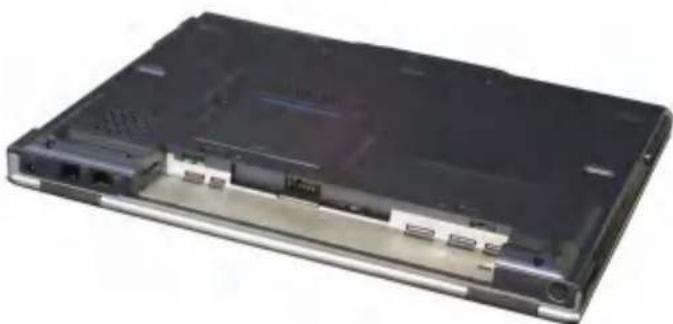
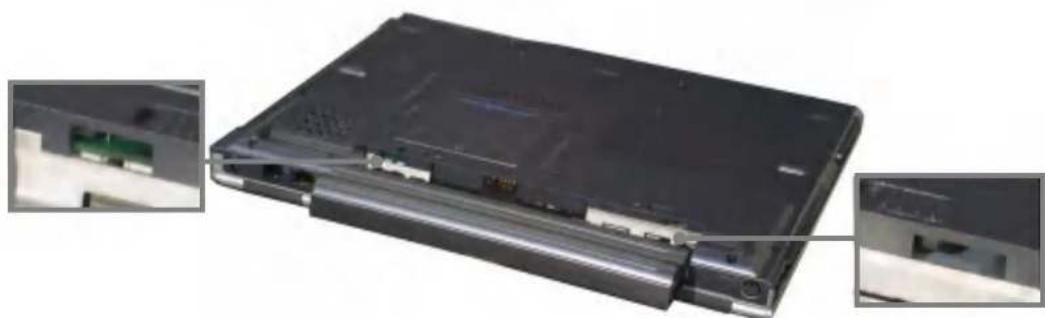
- Turn the computer over so that the battery slot faces up.
natural_image
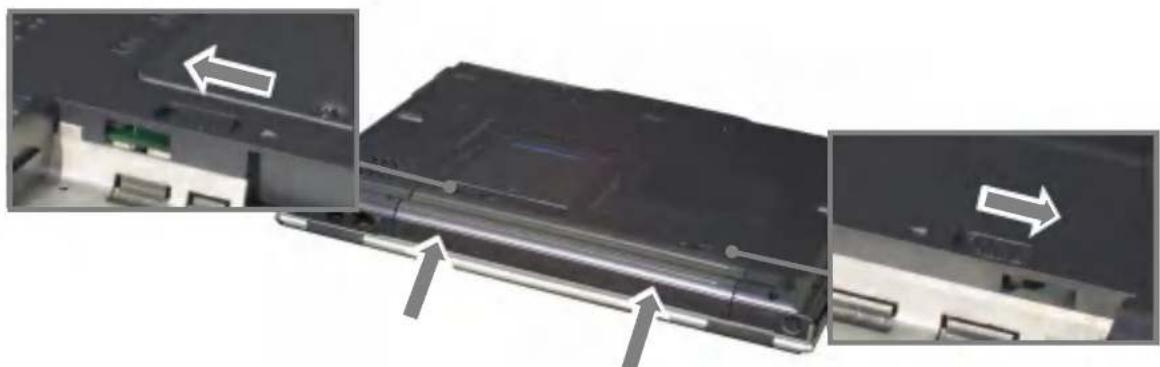
Back view of a black laptop computer with visible ports and ventilation slots (no text or symbols)- Place the battery pack in the battery slot, and align the two protrusions on the battery pack with the two slits on the side of the battery slot.
natural_image
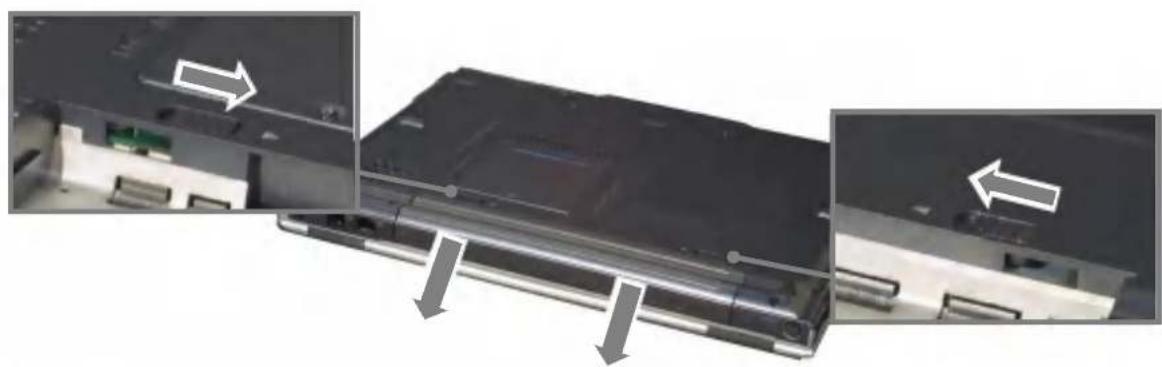
Laptop rear panel showing internal components and a close-up view of the front panel (no text or symbols visible)- Gently push the battery pack into the slot until it clicks. The battery pack is inserted. You can lock the battery pack in place by pushing the left battery latch in the direction shown above. If you hear a click, the battery pack is locked in.
natural_image
Close-up of a device's internal components with arrows indicating directional movement (no text or symbols visible)-
Connect the AC adapter and open the LCD panel. Start charging the battery. (Refer to Page 34 "Using the AC adapter")
-
Check the battery status indicator. If the battery is fully charged, the indicator is turned off.
-
To remove the battery pack, unlock the left battery latch to the right until it clicks, and push the right battery latch to the left and hold; then slide the battery pack out of the slot.
natural_image
Close-up of a laptop chassis showing internal components and directional arrows indicating movement (no text or symbols visible)
Caution
When you are not using the computer, remove the battery pack.
Note:
The battery pack has the following characteristics.
Self-discharge: The battery gradually loses its power over time without ever being used.
Periodic full discharge/charge: Frequent recharging of the battery pack can reduce the duration of the battery pack. Periodic performance of full discharge/charge will restore the capacity of the battery pack, in every 30 \~ 60 days. You should use the battery until its power is low; then fully charge the battery.
To use the battery pack safely and effectively,
- Do not short-circuit the battery pack.
- Keep the battery pack away from heat or fire.
- Store the battery pack at room temperature. (32 \~140 °F/0 \~ 60 °C)
- Do not disassemble the battery pack.
- Do not expose the battery pack to water.
- Keep the battery pack away from children.
If the temperature of the battery pack drops below 50 °F ( 10 °C ), the trickle charging begins. The trickle charging may take up to 32 hours for the battery pack to be fully charged.
Using the AC adapter
An AC adapter or battery pack is needed to supply power to your computer. The AC adapter can be used with a 100\~240V AC power source. Use only the AC adapter that comes with your computer. Using any other adaptor may cause damage to your computer.
Connecting the AC adapter to an AC outlet (100\~240V)
Connect the power cord to the adapter, and then plug the other end into an AC outlet.

natural_image
Exterior view of a silver DVD player connected to a black cable (no text or symbols visible)
Warning
Do not overload an electrical outlet with connections to multiple devices.
Overloading an electrical outlet may result in fire or electric shock.
Do not touch the power cord or plug with wet hands. Doing so may result in electric shock.
Connect the power cord to the adapter, and then plug the power cord into an AC outlet.
Opening and positioning the LCD panel
Push the latch button in the direction of the arrow1, and open the display panel 2. Adjust the slope of the display panel for comfortable viewing.

Power switch
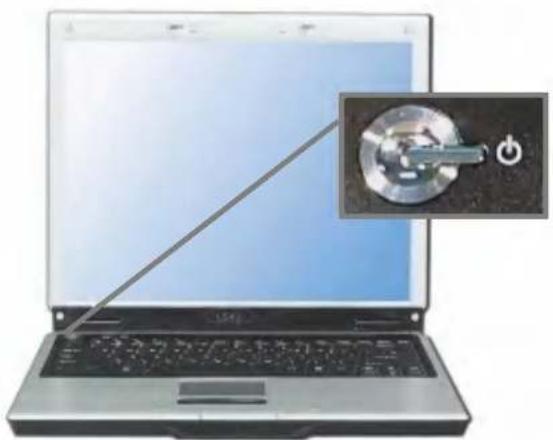
Press the power switch to turn on the computer.
natural_image
Laptop screen with a close-up of a metallic switch and power button icon (no text or symbols on the device)Note:
The power switch, volume up/down buttons are coated for preventing static electricity purposes.
Turning the power on and off
Before turning on the computer, make sure the AC adaptor is connected or the battery is charged.
Turning on the computer
- Push the latch button to the right1 and open the display panel2.
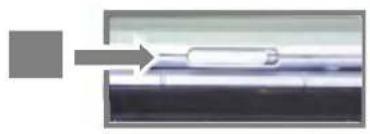
natural_image
Close-up of a mechanical component with a cylindrical part inserted, showing a white arrow pointing to it (no text or symbols visible)
natural_image
Laptop with two gray square buttons and directional arrows indicating compression or movement (no text or symbols)- Press the power switch.
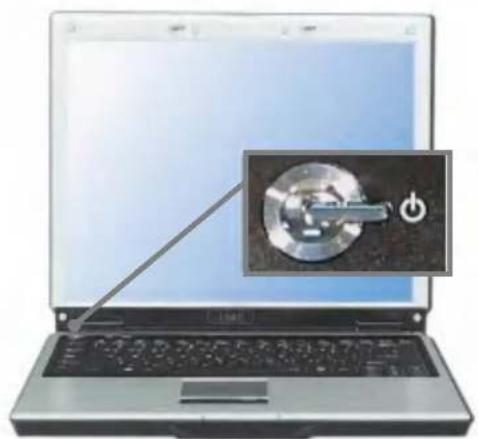
natural_image
Laptop screen with a close-up of a circular device and a power button icon, no visible text or symbols on the device itself.-
Pressing the power switch starts the self-diagnostic procedures; then Windows(R) XP startup screen is displayed.
-
If you turn the power on the computer for the first time, you have to register your copy of Windows XP. The registration process may differ depending on the model, but the difference does not affect the use of your computer.
-
In a moment, 'Welcome to Microsoft Windows' appears on the screen. Click [Next].
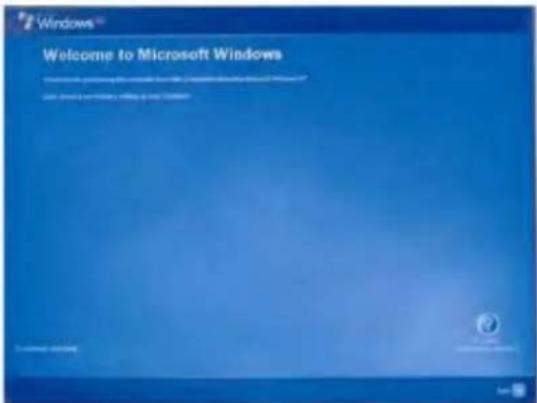
text_image
Windows® Welcome to Microsoft Windows- 'The End User License Agreement' appears on the screen. Be sure to read the agreement, select 'Yes, I accept', and click [Next].

text_image
Windows® End User License Agreement • Use your license agreement • Use your license agreement International License Agreement for Non-Warranted Programs- 'What's your computer's name?' appears on the screen. Type the name and description for your computer, and click [Next].

text_image
Windows® What's your computer's name? You can you find it a new computer name or name that is not currently available in this software. You can you find it a new computer name or name that is not currently available in this software. You can you find it a new computer name or name that is not currently available in this software. You can you find it a new computer name or name that is not currently available in this software. You can you find it a new computer name or name that is not currently available in this software. You can you find it a new computer name or name that is not currently available in this software. Please check up the name or name.- 'Ready to register with Microsoft?' appears on the screen. Select 'No, not at this time' and click [Next].

text_image
Windows Ready to register with Microsoft?- 'Who will use this computer?' appears on the screen. Type the names of the users and click [Next].

text_image
Windows® Who will use this computer?- 'Thank you!' appears on the screen. Click [Finish] to complete the registration process.

text_image
Thank you! Thank you!Turning off the computer
Quit all running applications; click [Start] and choose [Turn Off Computer] from the start up menu.

text_image
LG Internet Internet Explorer Email Outlook Express Windows Messenger Sut Program Access and Defaults Math Explorer Windows Media Player Your Windows XP Paint All Programs My Documents My Recent Documents My Pictures My Music My Computer Control Panel Connect To Printers and Files Help and Support Search Run... Log On Shub CoverIn the Turn off computer window, choose Shut down.

text_image
Turn off computer Stored by Turnoff Restart Cancel
natural_image
Laptop with a blue screen and gray arrow indicating rotation (no text or symbols visible)The computer is turned off automatically, and pull down the LCD panel until it clicks.

Caution
If the Drive in use indicator is on, do not turn off the computer, as doing so may damage the data being read from or written to the drive.

Warning
If Windows does not shut down correctly, press and hold the power switch for more than 5 seconds; the system will shut down.
Turning off the computer this way may damage the system. It is recommended that you always turn off the computer by choosing Shut down in the Start menu.
If the computer does not shut down correctly while running applications, the data in the hard disk drive may be damaged.
If a program does not respond, press the Ctrl+Alt+Delete combination to start the Task manager; then quit the program or restart the system.
If Windows or program file is damaged by shutting down the system incorrectly, reinstall the program. The user is responsible for the loss of data caused by incorrect use of the computer.
Using Windows XP
Windows XP is new, brilliant and easy-to-use. Background and title bar have been rearranged concisely, and it became easier to access the application programs from the start menu. Also, it allows the users with more diverse options to choose from when decorating their desktop.
Overview
Windows XP is an operating system that runs a computer. Learning the basics features in Windows is recommended to utilize a computer effectively. Click [Start] - >[Tour Windows XP] to explore the features and tools available in Windows XP.
Window Buttons
- Minimize
- Maximize
- Close
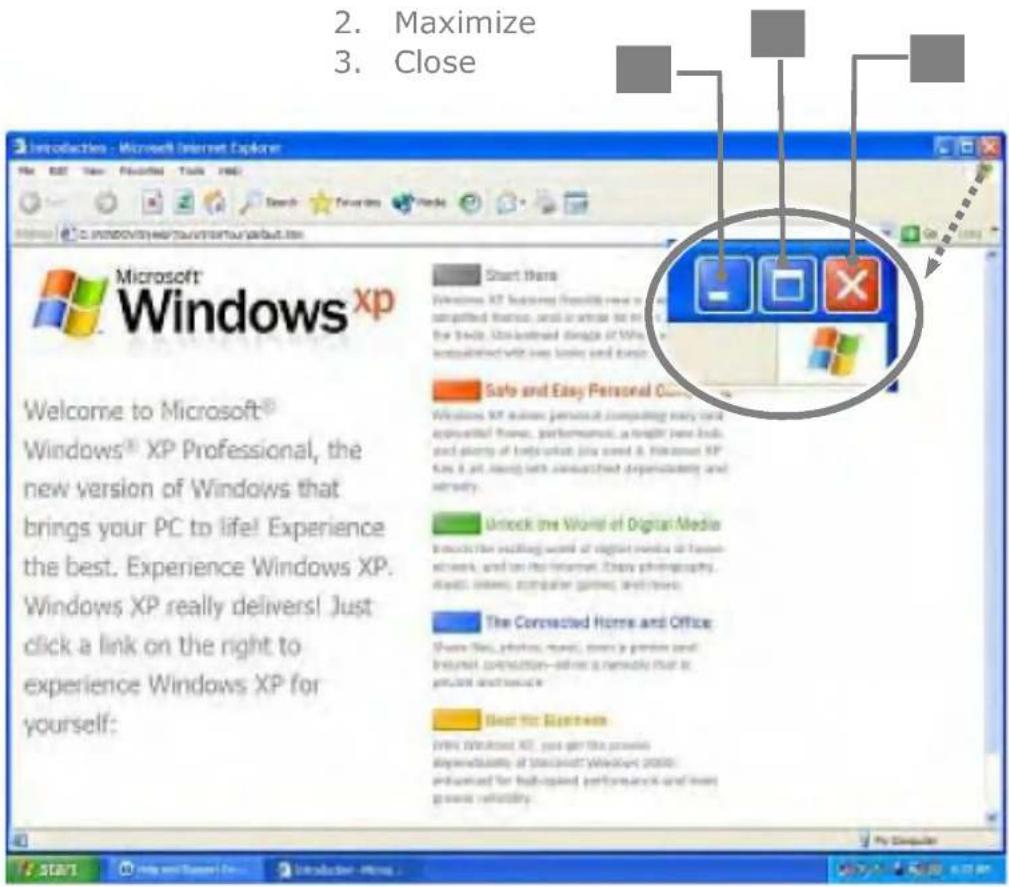
text_image
2. Maximize 3. Close Microsoft® Windows xp Welcome to Microsoft® Windows® XP Professional, the new version of Windows that brings your PC to life! Experience the best. Experience Windows XP. Windows XP really delivers! Just click a link on the right to experience Windows XP for yourself: Start here Welcome XP following this next to compacted features, and in whole box to the third. Unskinned images of WPs associated with new labels and descriptions Safe and Easy Personal Computer Windows XP enables personal computing every card appresented features, performances, a longer new look, and plenty of helps which you need it. Microsoft XP free it, but also with connected dependencies and security. Unlock the World of Digital Media to access the existing words of digital media at home network, and can like Internet. Happy photography, direct lines, computer games, and movies. The Connected Home and Office: Share files, videos, movies, stores a picture and briefcase, connections—follows a network that is you need and more. Best for Business WIN!Help and Support
Click [Help and Support] to learn how to troubleshoot problems you may encounter while using the computer.
Click [Start]->[Help and Support].

text_image
LG Internet Internet Explorer E-mail United Client Windows Navemont Set Program Access and Defaults MILs Explorer Windows Media Player Real Windows Help Fool All Programs My Documents My Excel Documents My Pictures My Maps My Computer Control Panel Connect To Printers and Files Help and Support Search Run... Log24 ShutCoverThe following window appears.
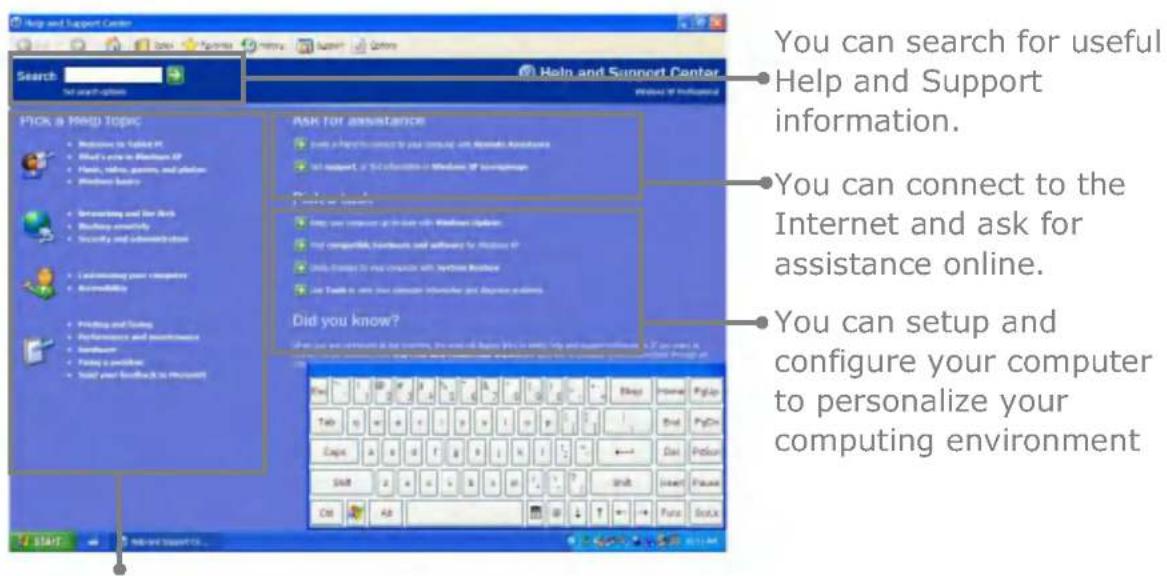
text_image
You can search for useful Help and Support information. You can connect to the Internet and ask for assistance online. You can setup and configure your computer to personalize your computing environmentClick to learn the features and troubleshooting information
Windows XP desktop
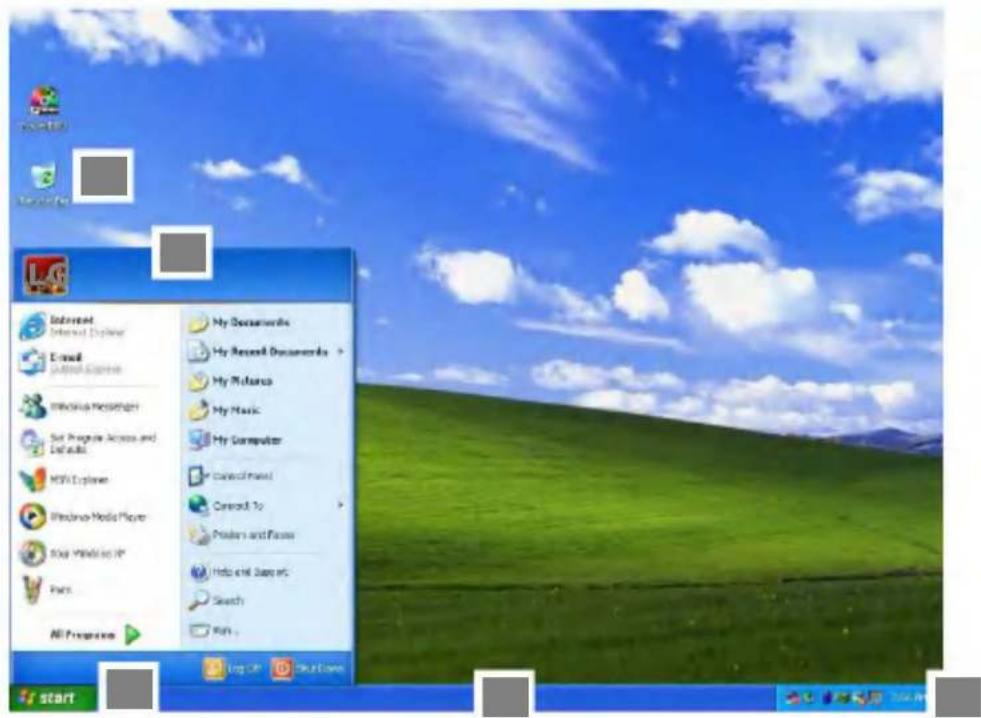
text_image
Start My Documents My Record Documents > My Music My Computer Cancel From Cancel To Prechen and Passes Help and Save it Search Run All Programs Log On Out Open1.[Start] button
Click [Start] button to open the [Start] menu. Click [All Programs] to open the list of programs installed in the computer.
2.[Start] menu
[Start menu] shows everything you need to start working in the Windows XP environment.
3.Taskbar
Taskbar shows programs that are currently open and running.
4.Taskbar icons and clock
Taskbar icons show and let you configure ongoing activities such as battery power status, display properties, LAN settings, etc.
5.Recycle Bin
Put your unused items and files in the Recycle Bin. Right-click the Recycle Bin and select [Empty Recycle Bin] to permanently delete the items inside the Recycle Bin.
Start menu
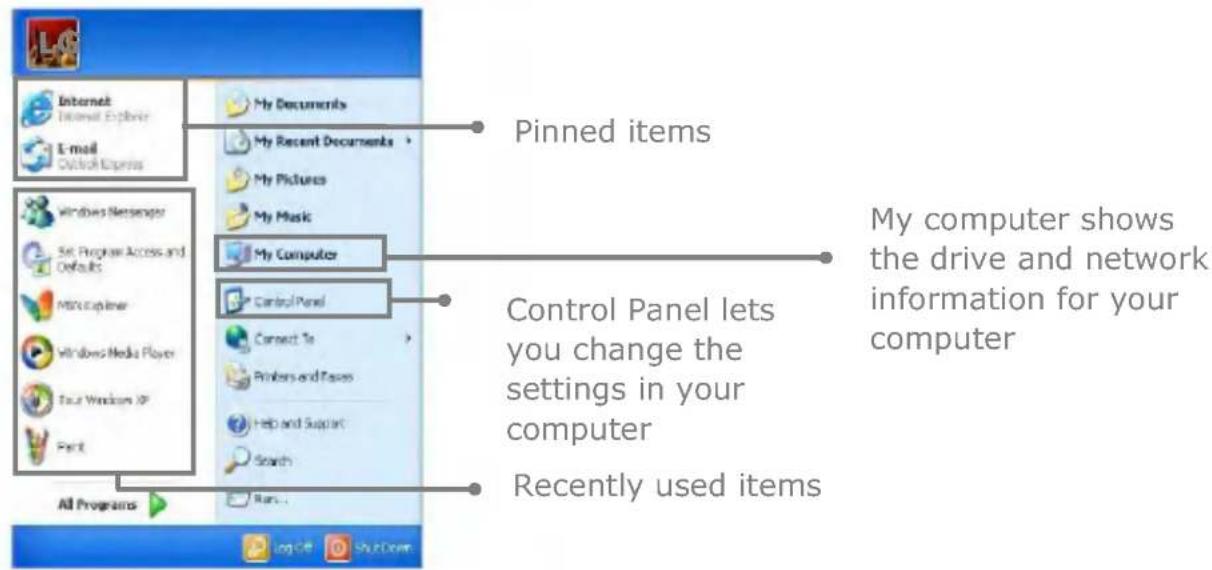
text_image
Pinned items My Computer shows the drive and network information for your computer Control Panel lets you change the settings in your computer Recently used items All Programs Log Off Shub CoverChanging the look of the Start menu
Right click [Start] button and select [Properties].
In the Start menu tab, choose from either Start menu or Classic Start menu.
Click [OK] to apply the new setting.
Changing the pinned items in the Start menu
Right-click the item you want to pin it to the Start menu.
Select [Pin To Start Menu].
The item is pinned at the top of the Start menu.
Showing the recently used items on the Start menu
Right-click on [Start] button and click [Properties].
In [Start Menu] tab, select [Start menu] and click [Customize].
In [Advanced] tab, check [List my most recently opened documents] and click [OK].
In Taskbar and Start Menu Properties window, click [Apply]->[OK].
If you click [Start] button the next time, recently used items appear on the Start Menu.
Control Panel
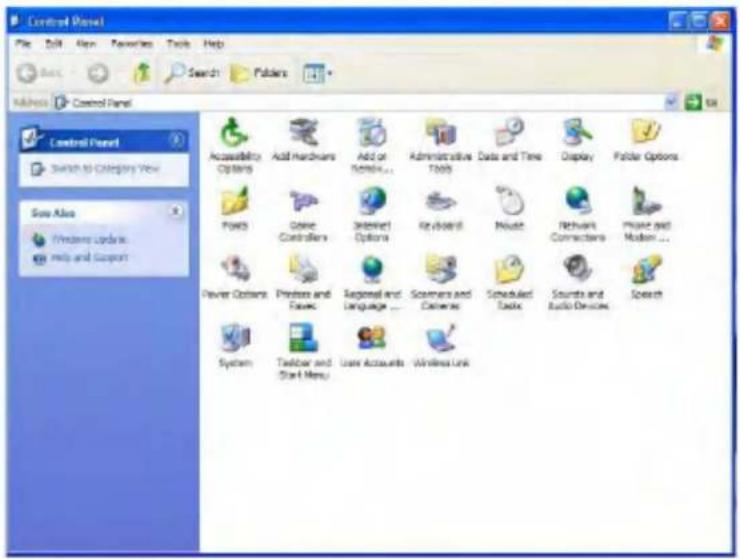
The Windows XP Control Panel can display items in either Category View or Classic View.
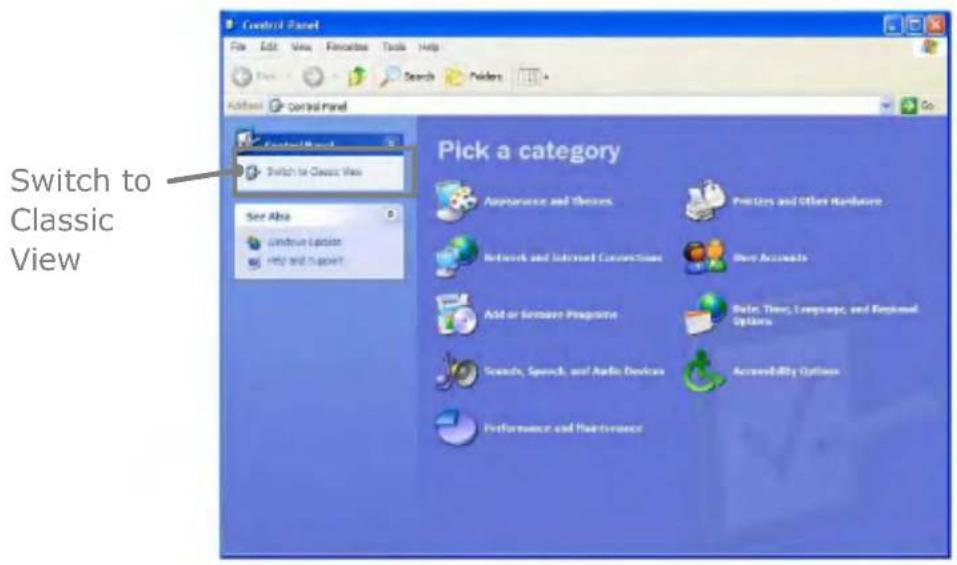
text_image
Switch to Classic View See Also Connect Options HSP and Support Pick a category Appearance and Themes Networks and Internet Connections Add or Content Programs Sounds, Speech, and Audio Devices Performance and Maintenance Policies and Other Hardware Show Accounts Rate, Time, Language, and Regional Options Accessibility OptionsCategory View
text_image
Control Panel File Edit View Favorites Tools Help Search Providers Address Control Panel Control Panel Switch to Category View SaaS Atlas Windows Update Help and Support Accessibility Options Add Hardcovers Add or Remove... Foods Game Controllers Internet Options Keyboard Music Network Connectors Project and Modern... Power Options Printers and Faces Regional and Language... Scramers and Colors Scheduled Tools Sounds and Audio Devices Speech System Toolbar and Start Menu User Accounts Wireless LinkClassic View
Setting up Local Area Network (LAN) connections
Local Area Network (LAN) connection provides high-speed network connection for your home or company. When using Wireless LAN, refer to "Using Wireless LAN" (page 65).
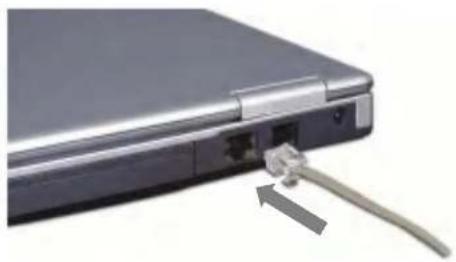
Attach a LAN cable to the Ethernet (LAN) connector.
Click [Start]->[Control Panel]->[Switch to Classic View]->[Network Connections].
natural_image
Close-up of a laptop with a USB cable inserted, showing port and cable connector (no text or symbols visible)Right-click a Local Area Connection and select [Properties].

text_image
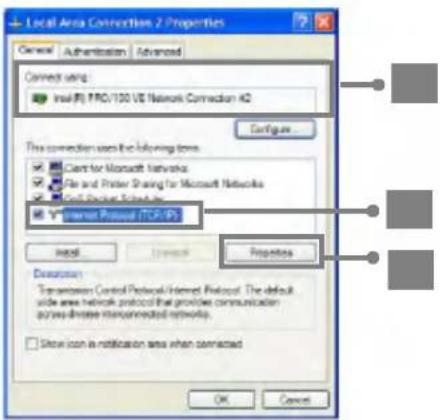
Network Connections File Edit View Favorites Tools Advanced Help BAS Search Patterns Address Network Connections Network Tasks Create a new connection Setup a home or email a link network Enable this network device Export this connection Return this connection New status of the connection Change settings of this connection Other Places Control Panel My Network Place My Documents My Computer Details Local Area Connections 2 LAN or High-Speed Internet LAN or High-Speed Ethernet LAN or High-Speed Ethernet 2 LAN or High-Speed Ethernet 1 LAN or High-Speed Ethernet 0 Create Active Connection 1 Disable Status: Replace Bridge Connectors Create Breakout: Remove: PropertiesIf the following window appears, click [General] tab and 1. Check if 3COM 3C920 Integrated Fast Ethernet Controller is installed in the computer 2. Then, check Internet Protocol, and 3. Click on [Properties]
text_image
Local Area Connection 2 Properties General Authentication Advanced Connect send: Intel (F) PRO/100 VS Network Connection A2 Configure... This connection uses the following terms: □ Client for Microsoft Networks □ File and Printer Sharing for Microsoft Networks □ Digital Protocol Settings ■ Internal Protocol (ICP/OP) Install Remove Properties Description: Transmission Control Protocol/Internet Protocol. The default wide area network protocol that provides communication across diverse interconnected networks. □ Show icon is notification area when connected OK CancelClick on [General] tab, and Select [Obtain an IP address automatically]

text_image
Internet Protocol (TCP/IP) Properties General Remote Configuration You can get IP settings assigned automatically if your network supports this capability. Otherwise, you need to ask your network administrator for the appropriate IP settings. Obtain on IP address automatically Use the following IP address: IP address: Subunit name: Protocol name: Obtain DNS server address automatically Use the following DNS server addresses: Subunit on DNS system: Subunit on DNS server: Advanced OK CancelClick [Ok] when Internet protocol (TCP/IP) setting is completed.
Note:
Ask your network administrator for the appropriate IP settings. When using LAN or Wireless LAN, refer to "Using IP Operator" (page 67). IP Operator is useful to access to network everywhere by notebook.
Changing the Themes and Desktop background
Using the Windows Classic Theme
Click [Start]->[Control Panel]->[Switch to Classic View]->[Display].
Click [Themes] tab
Select [Windows Classic] from the [Theme] drop down menu.

text_image
Display Properties Themes Desktop Screen Saver Appearance Settings A theme is a background plus a set of sounds, icons, and other elements to help you personalize your computer with one click. There: Windows XP (Modified) Save As... Delete Sample Active Window Window Text OK Cancel ApplyUsing a different theme
- Click [Start]->[Control Panel]->[Switch to Classic View]->[Display].
- Click [Themes] tab
- Select another theme from the [Theme] drop down menu.
Note:
In Appearance tab, you can click [Advanced] button and change the color scheme, font size, and windows and button styles.
In Themes tab, you can change the overall appearance of the desktop. If there are more than one user using the computer, each user can apply different theme and desktop appearances.
Changing the desktop background
Click [Start]->[Control Panel]->[Switch to Classic View]->[Display].
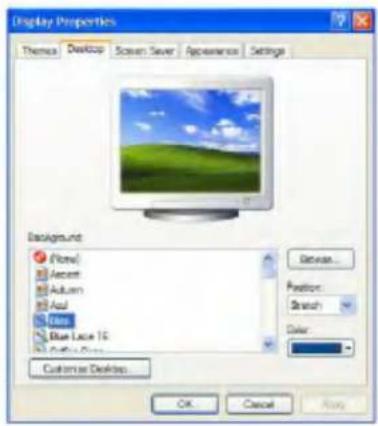
Click [Desktop] tab. (OR you can right click on the mouse while in desktop background. When a short cut menu pops up, choose [Properties]
text_image
Display Properties Themes Desktop Screen Server Appearance Settings Background None Accent Autumn Avail Glow Blue Lace TS Customs Desktop Device... Position: Stretch Color: OK Cancel ApplyScroll down the [Background] drop down menu and select an image for the background. You can also click [Browse] button and select an image you have saved.
Setting the Screen Saver
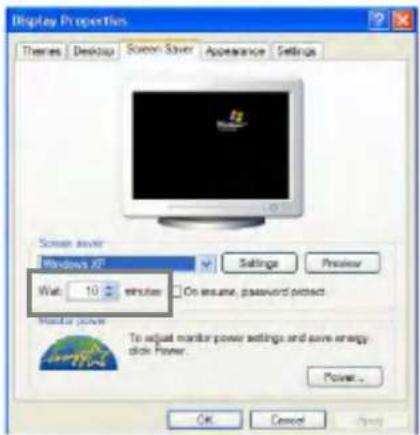
Click [Start]->[Control Panel]->[Switch to Classic View]->[Display]. Click [Screen Saver] tab.
text_image
Display Properties Themes Desktop Screen Saver Appearance Settings Screen saver Windows XP Wall: 10 minutes On ensure, password protect Monitor Power To adjust monitor power settings and save energy click Power. OK Cancel ApplySelect the idle time before activating the Screen Saver from [Wait] drop down menu. Check [On resume, password protect] to protect the computer from
unauthorized users.
Taskbar
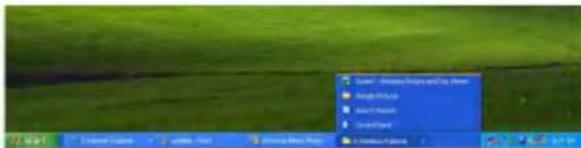
Taskbar displays programs and files that are currently open. If there are many programs running on the computer, the Taskbar group together files from the same program to prevent taskbar icons from cluttering up the Taskbar.
text_image
Start - Windows Project and Web Drive My Computer My Internet Explorer C:\Users\Windows\开始菜单Desktop cleanup
Desktop Cleanup Wizard removes unused desktop items to a folder. The Desktop Cleanup Wizard runs every 60 days but you can also run it manually.
- Click [Start]->[Control Panel]->[Switch to Classic view] ->[Display].
- Click [Desktop] tab.
- Click [Customize Desktop] -> [Clean Desktop Now] button.
Using the Power Options
Windows XP uses its own power-saving program to manage the battery power.
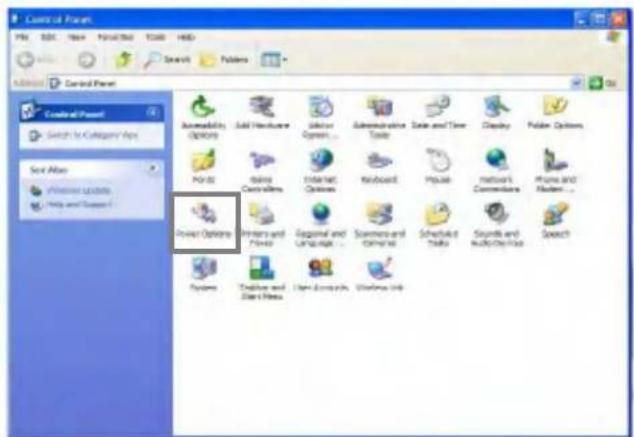
Click [Start]->[Control Panel]->[Switch to Classic View].
Double-click [Power Options].
text_image
Control Panel File Edit View PrintView Tools Help Search Favorites Control Panel Control Panel Search for Category Maps Send Also Windows Locks Help and Support Accessibility Options Add Features Edit View Options... Administrative Tools Data and Time Display Polar Options Power Options Printers and Files Ecosystem and Language... Scanned Tasks Sounds and Audio/Choice Speech Systems Desktop and Store Files User Resources Windows HelpIn Power Options Properties window, change the settings best suited for your computing environment.
Power Options Properties
Click [Power Schemes] tab.
Drop down the menu and select [Portable/Laptop] to set notebook PC with the appropriate power schemes. This includes detailed timeline for [Turn off monitor], [Turn off hard disks], [System standby], and [System hibernates].

text_image
Power Options Properties Power Schemes Alerts Power Meter Advanced Hibernate Select the power scheme with the most appropriate settings for this computer. Note that changing the settings before will modify the selected scheme. Power schemes: Portable/Laptop Save As Delete Settings for Portable/Laptop power schemes When computer is: Plugged in Punning on bytes Turn off monitor: After 15 mins After 5 mins Turn off hard disk: After 30 mins After 5 mins System standby: After 20 mins After 5 mins System logarithm: After 3 hours After 2 hours OK Cancel HelpNote:
If the computer enters System standby mode, the hard disk is turned off to conserve the battery power.
In System standby mode, you cannot save your work. Be sure to save your work before entering System standby mode.
When the computer enters System hibernation, the computer saves all your work in the hard disk and turns off the computer.

Caution
If the computer enters System standby or hibernation mode while playing a computer game, a serious error may occur. Be sure to quit the computer game before entering a power-saving mode.
Power Options Properties
Click [Alarms] tab. Check [Low battery alarm] and [Critical battery alarm], and move the sliders to set the power level to activate low battery alarm and critical battery alarm.

text_image
Power Options Properties Power Schemes Alarma Power Meter Advanced Hibernate Low battery alarm: ✓ Activate low battery alarm when power level reaches: 10% 0% 100% Alarm Action... Notification: Text Action: No action Run Program: None Critical battery alarm: ✓ Activate critical battery alarm when power level reaches: 0% 0% 100% Alarm Action... Notification: Text Action: Hibernate Run Program: None OK Cancel ApplyYou can be notified with Sound alarm or Display message. You can also set the alarm action such as putting the computer into System standby mode or System hibernation mode. You can also run a specific program when the alarm goes off.

text_image
Low Battery Alarm Actions Notification Sound alarm Display message Alarm action When the alarm goes off, the computer will: Based by: Form stand by a shutdown event if a program is not responding. Run a program When the alarm occurs, run this program: Configure program OK CancelAdvanced tab
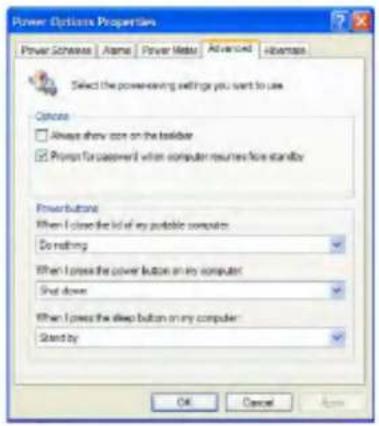
In Options, you can set the computer to prompt for password when computer resumes from standby. You can also set the computer to enter a power-saving mode when closing the display panel, pressing the power switch or the combination of Fn+F4.
text_image
Power Options Properties Power Software | Name | Power Market | Advanced | Historic Select the powerkeeping settings for you want to use Choose: □ Always show cores on the keyboard ☑ Prompt for password when computer returns five standby PowerButton When I press the list of my portable computer: Do nothing When I press the power button on my computer: Shot down When I press the sleep button on my computer: Stand by OK Cancel ApplyPower Meter
You can click the Power Meter icon on the Taskbar to check the power level of your computer.

text_image
Power Meter Always show icon on the taskbar. Show details for each battery. Power status Current power source: Batteries Total battery power remaining: 98%. #1 98% Click an individual battery icon for more information.System Hibernation
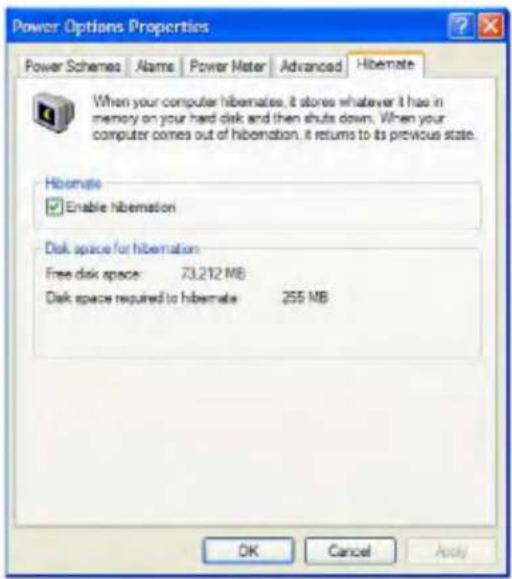
In Hibernate tab, you can enable or disable System hibernation mode and check the disk space needed for hibernation.
text_image
Power Options Properties Power Schemes Alame Power Mater Advanced Hibernate When your computer hibemates, it stores whatever it has in memory on your hard disk and then shuts down. When your computer comes out of hibernation, it returns to its previous state. Hibernate Enable hibernation Disk space for hibernation Free disk space: 73,212 MB Disk space required to hibernate 255 MB OK Cancel Apply
Caution
Do not remove the battery pack when the AC adapter is not connected to the computer.
If you keep using the computer while low on the battery power, you may lose the data when the battery power goes out. If you are notified of low battery power, save your data and connect the AC adapter, or turn off the computer and change the battery pack.
Attaching external devices
Attaching a USB device

natural_image
Laptop with attached cable showing network connection (no text or symbols visible)USB mouse (not included)
You can connect keyboard, hub, digital camera and other devices that support USB.
Attaching a television using an S-Video port
Note:
Below mentioned functions are not offered by each product
*IEEE1394 / Wireless LAN / SD Memory card / S-Video port / IrDA port/Memory Stick
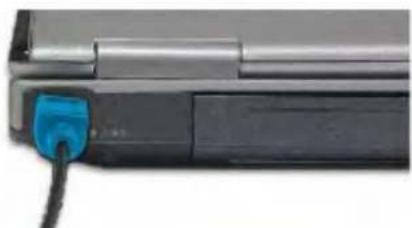
- Attach the S-Video cable from a TV to the S-Video connector on the computer
natural_image
Close-up of a black electronic device with a blue power outlet cable (no visible text or symbols)Connecting to system
text_image
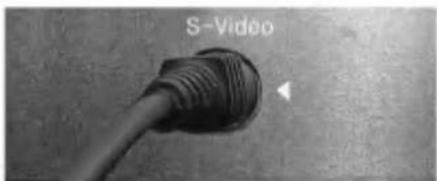
S-VideoConnecting to TV
(Works only with TV that has S-Video port)
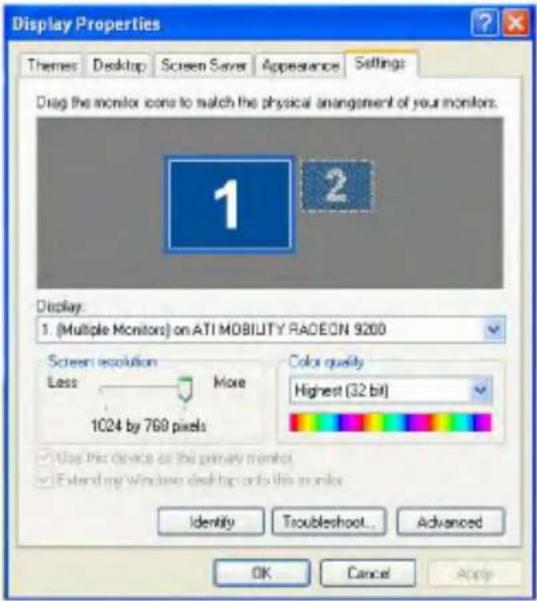
- Click [Start]->[Control Panel] -> [Display] -> [Settings] tab -> [Advanced].
text_image
Display Properties Themes Desktop Screen Server Appearance Settings Drag the monitor icons to match the physical arrangement of your monitors. 1 2 Display: 1. (Multiple Monitors) on ATI MOBILITY RACEON 9200 Screen resolution More Less 1024 by 768 pixels Color quality Highest (32 bit) Use the device on the primary monitor Extend my Windows desktop onto this monitor Identity Troubleshoot... Advanced OK Cancel Apply- In [Display]tab, select TV as the main display

text_image
(Multiple Monitors) and ATI Mobility Radeon Properties Display POWERPLAY(1x) On Screen Display General Adapter Monitor Troubleshoot Color Management Displays Color OpenGL Direct3D Buttons Scheme Hotkey: None Delete Monitor Panel IV Not Connected 1024x758 60 Hz 1024x758 NTSCM OK Cancel Apply Help- You can also switch the main display to and from TV and LCD by pressing the combination of Fn+F7.
Note: You cannot use switch the main display while playing a game. You cannot display a movie or game on a TV and LCD at the same time.
Attaching an external monitor
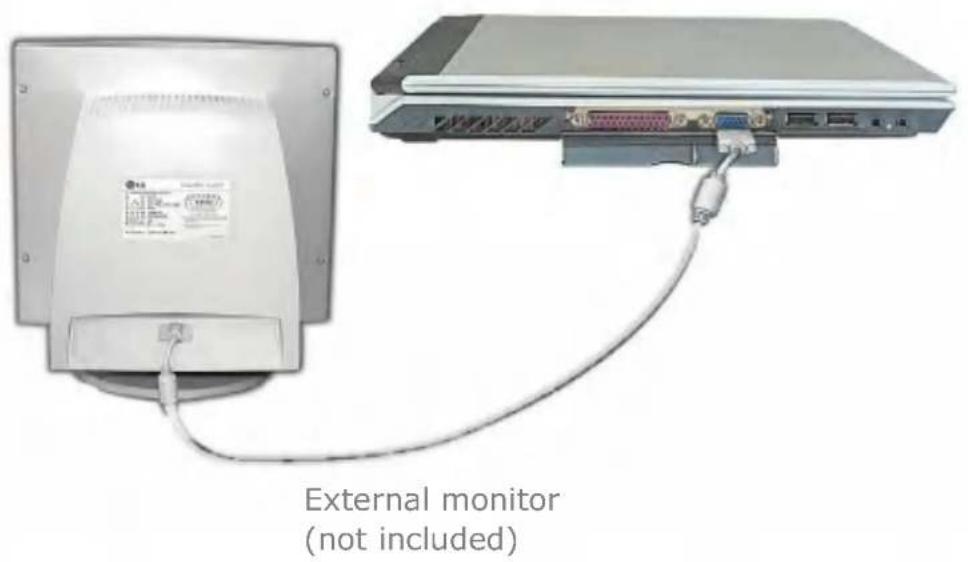
Note: Turn off the computer before attaching an external monitor. An external VGA connector should be no wider than 17mm otherwise it will not fit in.
text_image
External monitor (not included)Monitor toggle function (switch the monitor by short-cut keys)
After install the external monitor to the notebook PC, use Fn + F7 to switch the main monitor to LCD only, monitor only, and LCD + monitor both, in sequence.
Attaching a printer
Note: Use a standard parallel port connector that should be 16mm wide. Connectors wider than 17mm will not fit in.

natural_image
White electronic device connected to a rectangular device with cable (no visible text or symbols)Printer (not included)
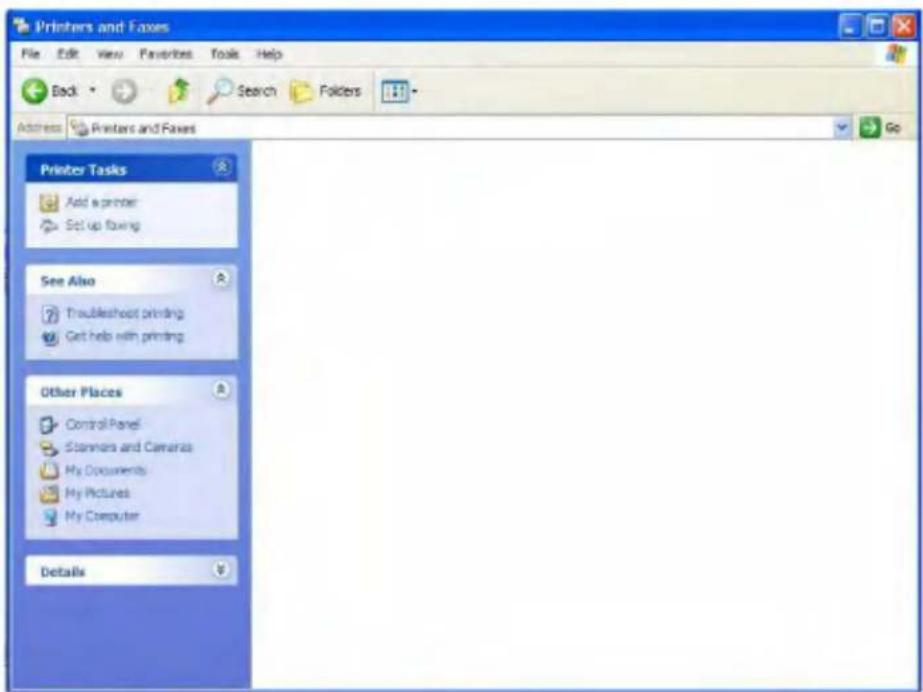
Attach a printer cable to the computer, then click [Start] from the Taskbar and [Printers and Faxes].

text_image
LG Internet Internet Explorer E-mail Cablek Express Windows Messenger Set Program Access and Defaults MSN Explorer Windows Media Player Tour Windows XP Plant All Programs My Documents My Recent Documents My Pictures My Music My Computer Control Panel Created To Printers and Files Help and Support Search Run... Log Off Shut DownIf the following window appears on the screen, click [Add a printer]
text_image
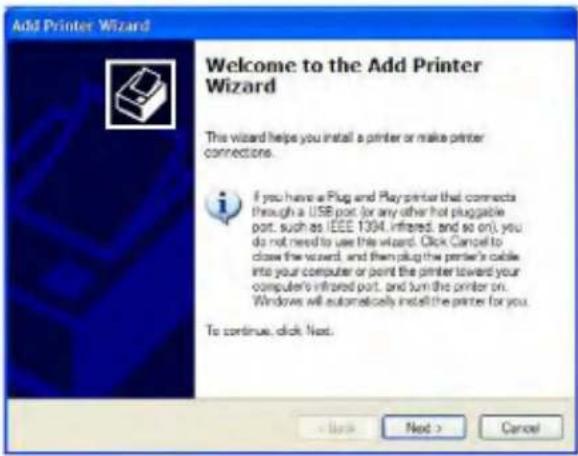
Printers and Faxes File Edit View Favorites Tools Help Back Search Folders Address Printers and Faxes Go Printer Tasks Add a printer Set up fixing See Also Troubleshoot printing Get help with printing Other Places Control Panel Stanners and Cameras My Documents My Pictures My Computer DetailsIn the Add Printer Wizard, follow the instruction to set up a printer.
text_image
Add Printer Wizard Welcome to the Add Printer Wizard This wizard helps you install a printer or make printer connections. If you have a Plug and Play printer that connects through a USB port (or any other hot pluggable port, such as IEEE 1394, infrared, and so on), you do not need to use this wizard. Click Cancel to close the wizard, and then plug the printer's cable into your computer or point the printer toward your computer's infrared port, and turn the printer on. Windows will automatically install the printer for you. To continue, click Next.When the Add Printer Wizard completes setting up the printer, the new printer appears on the Printers and Faxes window.
Do not overload an electrical outlet with connections to multiple devices.
Overloading an electrical outlet may result in fire or electric shock.
Do not touch the power cord or plug with wet hands.
Doing so may result in electric shock
Using S/PDIF output connector
Using S/PDIF(Sony/Philips Digital Interface) output connector you can enjoy the digital sound by connecting S/PDIF supporting amplifier to the S/PDIF output connector. You must have the following items (A/V receiver, components of digital amplifier) to enjoy the digital 5.1 channel sound. Digital output of this product is provided by S/PDIF output connector.
For your enjoyment, you must have below mentioned environment.
A DVD title recorded by digital 5.1 channel sound.
A DVD player supported by digital 5.1 channel sound
(For example, POWER DVD XP 4.0 or newer)
A/V receiver or digital amplifier to support the digital 5.1 channel sound.
When listening to music as MP3
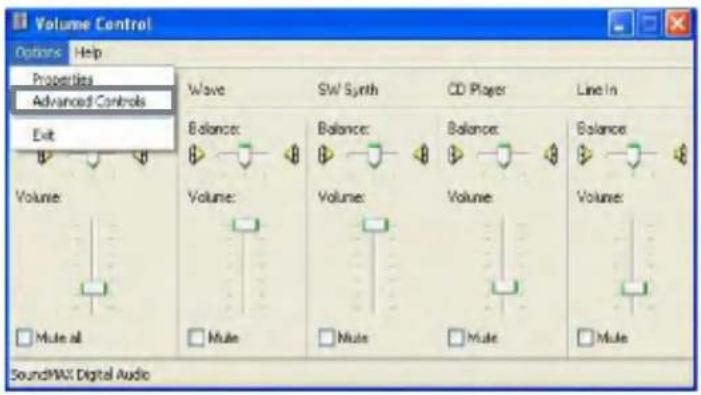
Double click to open Volume Control from the toolbar.
Go to [Options] -> [Advanced Controls] -> [Advanced]
text_image
Volume Control Options Help Properties Advanced Controls Exit Volume Wave SW Synth CD Player工程项目 Balance Balance Balance Balance Volume: Volume: Volume: Volume: Volume: Mute all Mute Mute Mute SoundMAX Digital Audio
text_image
Volume Control Options Help Volume Control Balance: Volume: Wave Sw Synth CD Player Line In Balance: Volume: Volume: Volume: Volume: Volume: Volume: Mute all Advanced SoundMax Digital AudioCheck [Digital output] checkbox in the volume control.

text_image
Advanced Controls for Volume Control These settings can be used to make fine adjustments to your audio. Tone Controls These settings control how the tone of your audio sounds. Base: Low High Table: Low High Other Controls These settings make other changes to how your audio sounds. See your hardware documentation for details. ✓ 1 Digital Output CloseEnjoy music after connecting A/V receiver, Digital amplifier, MD with cable.
When enjoying DVD Player
Follow the same procedure as above. Set DVD payer program setting in compliance with digital output (Refer to [Help] on DVD player). Connect A/V receiver, or digital amplifier to S/PDIF by cable. Enjoy DVD 5.1 channel.
Note:
- Check Digital Output only when using S/PDIF supporting amplifier. When it is checked, you will not hear any sound with regular speakers.
- Notebook PC doesn't support analogue 5.1 channel amplifier. Use A/V receiver, or 5.1 channel supporting digital input
- When enjoying 5.1 channel on Power DVD, set up S/PDIF.
- To support 5.1 channel is not available when S/PDIF doesn't set up on amplifier environment.
- Check [Digital Output] when you use S/PDIF amplifier.
- Uncheck Digital Output from the advanced control and restart the program after finishing.
Attaching an IEEE 1394 device
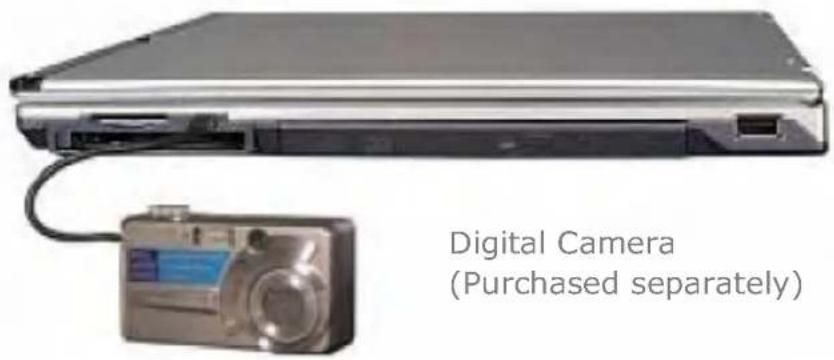
text_image
Digital Camera (Purchased separately)You can connect external hard disk drive, external CD-RW, digital camera, video camcorder and other devices that support IEEE1394.
Note:
Below mentioned functions are not offered by each product
*IEEE1394 / Wireless LAN / SD Memory card / S-Video port / IrDA port Memory Stick
Using the IrDA port
Your computer supports IrDA (Infrared Data Association) standard for infrared communication.
About IrDA port
Range: 1m
Beam angle: +-15
Data transmission speed: 4.0 Mbps
Your computer has an IrDA V3.0 Fast Infrared port allowing the data transmission speed of Serial Infrared (115.2Kbps) and Fast Infrared (4Mbps). Transmission speed depends on programs and devices used in IrDA communication.
IrDA communication programs
General serial communication programs can be used, but programs specifically designed for IrDA communication is recommended.
Your computer is configured to use COM port for IrDA communication in FIR mode.
Using IrDA port
Your computer can communicate with another IrDA standard compatible device supporting FIR data communication. IrDA communication provides useful wireless communication between your computer and other computer or devices. The following section describes how to establish IrDA communication between 2 computers.
Make sure Wireless Link program is installed in your computer.
- Turn on the computer.
- Click Start button and right-click My computer to select Properties.
- On Hardware tab, click Device Manager.
- Right-click IrDA Fast Infrared Port and select Properties.
- Click Advanced tab, and configure the device.
- Align 2 computers so that their IrDA ports point to each other.

natural_image
Two laptops connected by a dotted arrow, showing front and back views (no text or symbols)The distance and the beam angle between the ports must be less than 1m and smaller than +-15 degrees respectively. Remove any obstruction between the ports.
- When the connection is established, Wireless Link program starts automatically. Wireless Link icon appears on the taskbar, and shortcut to Wireless link is created on the desktop.
Shortcut to Wireless link Wireless link icon

- Double-click Wireless link icon on the taskbar. Wireless Link windows opens.
- Select the file that you want to send, and click Send.
Sending and receiving computers show the following windows.
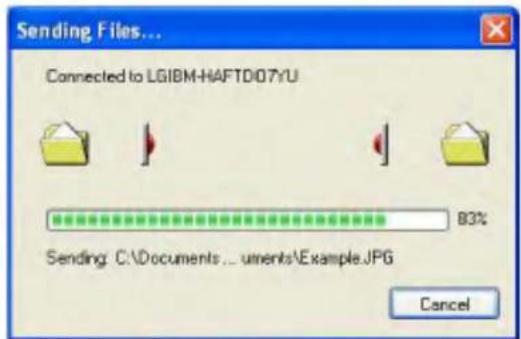
text_image
Sending Files... Connected to LGIBM-HAFTD07YU 83% Sending: C:\Documents... uments\Example.JPG CancelSender
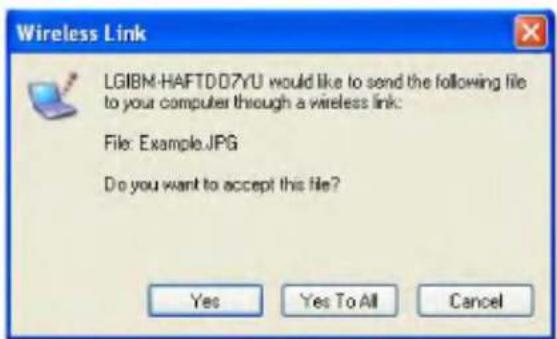
text_image
Wireless Link LGIBM-HAFTD.D?YU would like to send the following file to your computer through a wireless link: File: Example.JPG Do you want to accept this file? Yes Yes To All CancelReceiver
- Click Yes to start a data transfer. The data transfer is complete.

text_image
Receiving Files... The files were received successfully from LGIBM-HAFT007U. CloseNote:
The default directory for the received data is C:\Documents and Settings\User Name\Desktop. To change the default directory, open Wireless Link and click Properties, and then choose a new default directory.
Using Wireless LAN
You can use Wireless LAN to connect to the network and use the Internet in your home and office. You can share files and folders over the network without the attaching network cables to the computer. It is composed of Wireless LAN on Windows when shipping.
Note:
Below mentioned functions are not offered by each product
*IEEE1394 / Wireless LAN / SD Memory card / S-Video port/ IrDA port/Memory Stick
When using LAN or Wireless LAN, refer to "Using IP Operator" (page 66).
IP Operator is useful to access to network everywhere by notebook.
Connecting and using the wireless network
Right-click the Wireless network icon on the Taskbar and select [View available wireless network].

text_image
Open Network Connections View Available Wireless Networks 4:32 PMSelect AP(Access Point) you want to connect to and type necessary information. Click [Connect].

text_image
Wireless Network Connection 2 The following wireless network(s) are available. To access a wireless network, select it from the list, and then click Connect. Available wireless networks: a43hdvd LGCT_AP001 LGCT_AP008 This wireless network requires the use of a network key (WEP). To access this network, type the key, then click Connect. Network key: Confirm network key: Enable IEEE 802 1x authentication for this network If you are having difficulty connecting to a network, click Advanced. Advanced... Connect CancelIf you place the mouse pointer on the Wireless network icon on the Taskbar, you can see the status of the wireless network.

text_image
Wireless Network Connection 2 Connected to a43hdvd Signal Strength ExcellentUsing IP Operator
IP Operator is useful to access to network everywhere by notebook. User access to network at the several places (Home, Office, and Vendor etc.) can save and modify the network environment (IP address, Domain, Workgroup).
For more detailed information, refer to [IP Operator].
Double click [IP Operator] icon on Desktop System tray.

text_image
12:46 PMIf the following window appears, select LAN or High-Speed Internet at the drop down menu and type the computer name you use.
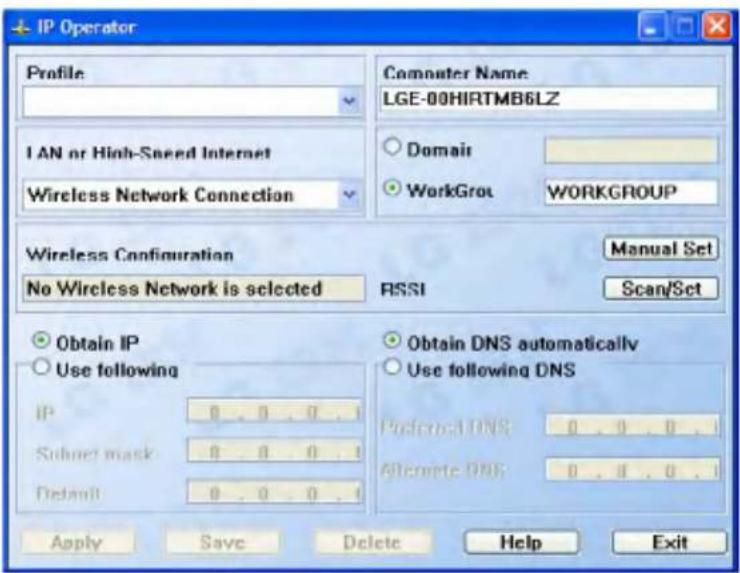
text_image
IP Operator Profile I AN or Hinh-Speed Internet Wireless Network Connection Wireless Configuration No Wireless Network is selected Engineer Name LGE-00HIRTMB6LZ Domain WorkGrot WORKGROUP Manual Set Scan/Set Obtain IP Use following IP 0.0.0.1 Subset mask 0.0.0.1 Default 0.0.0.1 Obtain DNS automatically Use following DNS Prefera DNS: 0.0.0.1 Alternate DNS: 0.0.0.1 Apply Save Delete Help ExitType the name is appropriate at [Profile List] after making a decision whether a user belonging to [Domain], or a member of [Work Group].
Choose one of setting options as below.
When setting [Obtain an IP address automatically],
- IP address, Subnet mask, Default Gateway windows are changed the color as grey automatically.
When setting [Use the following IP address]
Insert IP address, Subnet mask, Default Gateway window. Then, insert DNS Server.
Click the [Profile Save] button when finishing inserting items in [Profile List]
Note:
When setting [Obtaining an IP address automatically], it is unavailable to insert IP address, Subnet mask, and Default gateway.
When pressing [Profile Apply], no items appear at [Profile List].
If a user needs to apply the specific item, select one of items at [Profile List], and click [Profile Apply].
Using Battery Miser
Battery Miser is the program to manage energy saving function makes the battery of notebook computer maximum. When using Battery Miser, it is available to use both original power management functions of Windows and the advanced power management functions of battery miser. For more detailed information, refer to [About Battery Miser]
Double click [Battery Miser] icon on Desktop System tray.

text_image
5:04 PMBattery Miser main screen appears as below.

text_image
Power scheme Monitor CPU Hard disk Sound device Hibernation Battery alarm Low alarm Critical alarm Advanced settings Battery information Options About BatteryMiser Battery miser 3.14 Power scheme Default Power Scheme Save As... Delete AC mode 0 10 20 30 40 50 6 7 8 9 10 11 12 13 14 15 Battery mode 10 20 30 40 50 6 7 8 9 10 11 12 13 14 15 OK Apply CancelPower scheme:
The group that manages the power to reduce power consumption of computer peripheral units.
Battery alarm:
If the battery power gets down to low alarm, critical alarm, user can define the option for alarm is working.
Note:
When pressing the keys Fn + F8, it keeps unused sound device power management(Sound device is always ON).
When pressing one more, it return to the original set point.
When pressing the keys Fn + F9, it keeps unused Monitor power management(Monitor is always ON).
When pressing one more, it return to the original set point.
Using the keyboard
The keyboard is used for entering text and commands in the computer.
About the keyboard - 14.1inch
The keyboard is composed of character, number, and other special function keys.
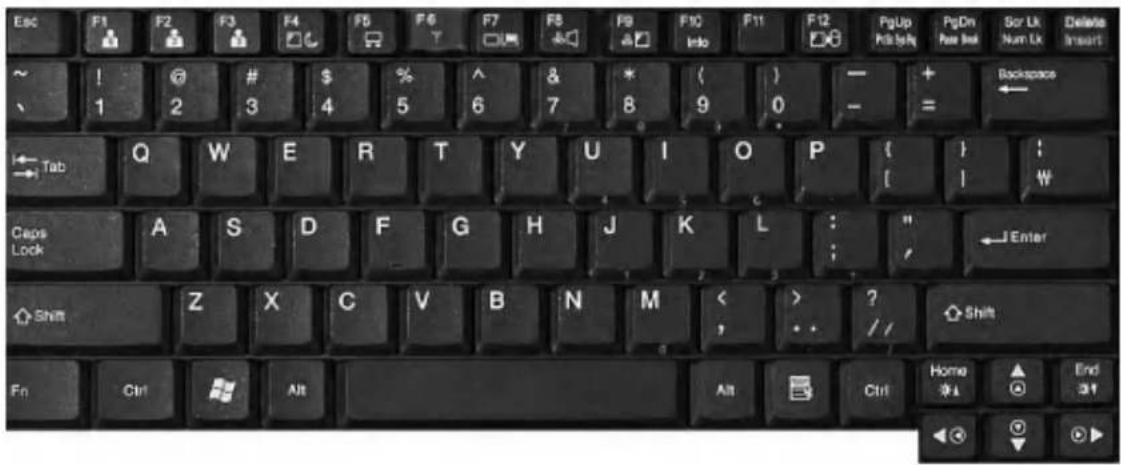
text_image
Esc F1 F2 F3 F4 F5 F6 F7 F8 F9 F10 F11 F12 PgUp PgDn Scr Uk Delete ~ ! @ # $ % ^ & * ( ) — + Backspace 、 1 2 3 4 5 6 7 8 9 0 - = Tab Q W E R T Y U I O P ( ) : Caps L Q S D F G H J K L : " Enter Lock Z X C V B N M < > ? Shift Shift Shift Fn Ctrl Alt Alt Ctrl Home End Home Add OK Add OKFunction keys: Function keys enable you to perform different operations depending on the operating system and application program you use.

text_image
F1 F2 F3 F4 F5 F6 F7 F8 F9 F10 F11 F12Hot keys: Hot keys (shortcuts) are used in conjunction with Fn key to provide shortcuts for some of the predefined operations, such as entering power-saving mode.

text_image
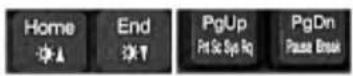
Fn F1 F2 F3 Home F8 F9 F10 Info F12 Scr Uk Num Uk Delete InsertCursor control keys: You can move the cursor in the direction of the arrows.

Editing keys: You can move the cursor to the beginning or end of the current line, or up and down the screen.
About the keyboard – 15 inch
The keyboard is composed of character, number, and other special function keys.
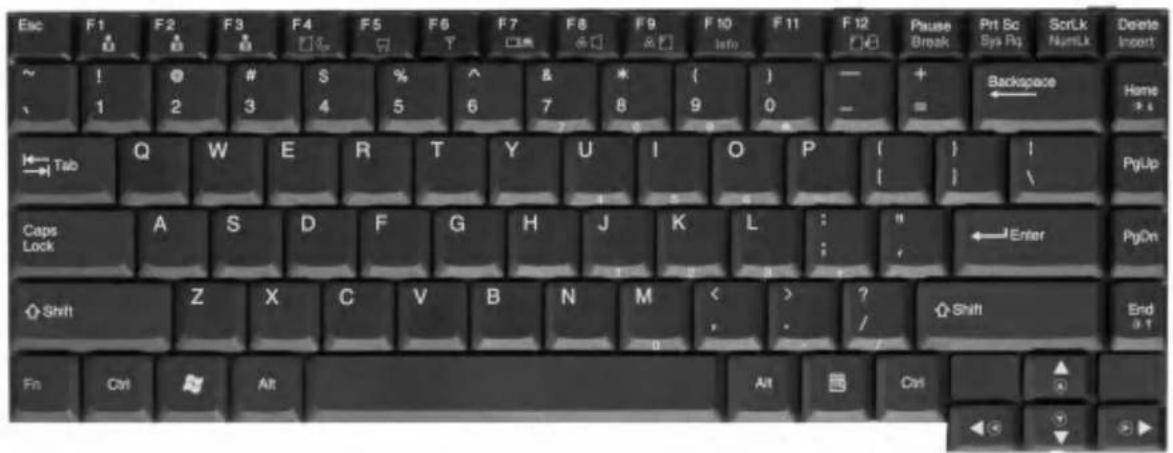
text_image
Esc F1 F2 F3 F4 F5 F6 F7 F8 F9 F10 F11 F12 Pause Prt Sc ScrLk Delete ~ ! @ # S % ^ & * ( ) — + 、 1 2 3 4 5 6 7 8 9 0 - + Backspace Home → Tab Q W E R T Y U I O P { } | → Enter PtUp Caps Lock A S D F G H J K L : " ←Enter PgOn Shift Z X C V B N M < ? / Shift End Fn Ctrl Alt Alt Ctrl ▼ ▼Function keys: Function keys enable you to perform different operations depending on the operating system and application program you use.

text_image
F1 F2 F3 F4 F5 F6 F7 F8 F9 F10 F11 F12Hot keys: Hot keys (shortcuts) are used in conjunction with Fn key to provide shortcuts for some of the predefined operations, such as entering power-saving mode.

text_image
F1 F2 F3 F4 F5 F6 F7 F8 F9 F10 F12Cursor control keys: You can move the cursor in the direction of the arrows.

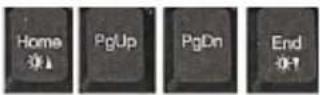
Editing keys: You can move the cursor to the beginning or end of the current line, or
up and down the screen.
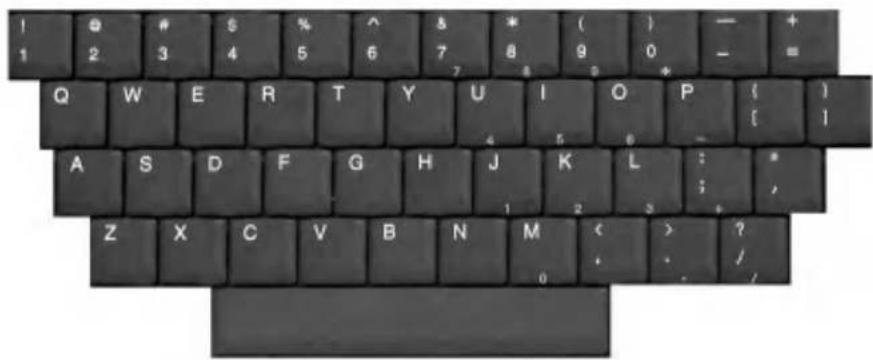
Character and number keys: consist of character keys, number keys, special character keys, and spacebar. Spacebar is used for creating a space between characters.
text_image
1 2 3 4 5 6 7 8 9 0 - + Q W E R T Y U I O P { } A S D F G H J K L : * Z X C V B N M < > ? 0 . . /Embedded numeric keys: You can press the combination of Fn and ScrLk keys to enable the embedded numeric keypad. Num Lock indicator lights up and enables you to use the embedded numeric keypad shown below. You can press the combination of Fn and ScrLk keys again to disable the embedded numeric keys. (To use the numeric keys, you must set the Advanced -> Internal Keypad setting to Enabled in the BIOS Setup Utility.)

text_image
8 7 * 8 ( ) 9 0 U I O P 4 5 6 - J K L : 1 2 3 + M 0 > ? . / -Do not spill water, juice, coffee, etc on the keyboard as it may damage the computer and cause an electric shock.
Note:
In the middle of entering characters, if numbers are entered instead of characters, press the combination of Shift and ScrLk to disable the embedded numeric keys.
Modifier and special function keys
text_image
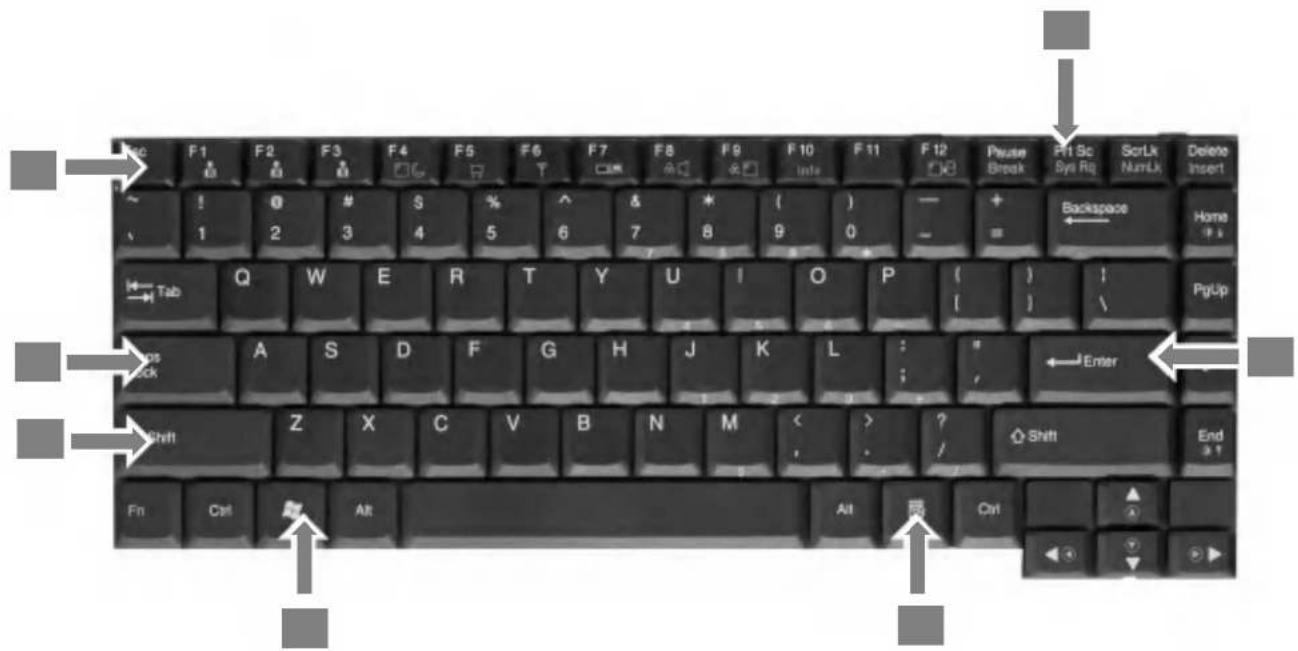
Rec F1 F2 F3 F4 F5 F6 F7 F8 F9 F10 F11 F12 Pause Break Ph Sc Sys Rq ScrLx NumLx Delete Insert 1 2 3 4 5 6 7 8 9 0 + Backspace Home Tab Q W E R T Y U I O P ( ) ! PgUp A S D F G H J K L : " Enter Shift Z X C V B N M < > End Ctrl Ctrl Fn Ctrl Alt Alt CtrlShift key: Hold Shift key down and press another key to enter the upper case letter for the key.
Caps Lock key: Press Caps Lock key to lock the keyboard in the upper case position. When the Caps Lock indicator lights up, you can press another key in combination with Shift to enter the lower case letter for the key.
Esc key: Use Esc key to quit programs or cancel a operation in a program.
PrtSc (Print Screen) key: Press PrtSc key to take the snapshot of the entire area visible on your screen and store it in the clipboard.
Enter key: Press Enter key to enter a command or to end a line.
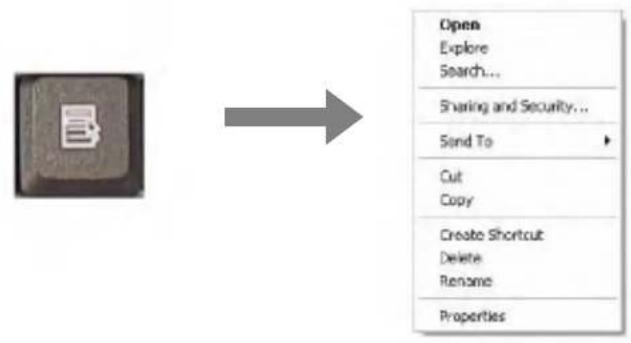
Shortcut menu key: Press Shortcut menu key to view shortcuts for the current program. (Shortcut menu key works the same as the right-clicking the mouse button)
flowchart
graph LR
    A["Open"] --> B["Explore"]
    A --> C["Search..."]
    A --> D["Sharing and Security..."]
    A --> E["Send To"]
    E --> F["Cut"]
    E --> G["Copy"]
    E --> H["Create Shortcut"]
    E --> I["Delete"]
    E --> J["Rename"]
    E --> K["Properties"]
Windows(R) key: Press Windows key to view the Start menu.

flowchart
graph LR
    A["Start Menu"] --> B["LG Screen"]
    B --> C["My Newsmemery"]
    B --> D["My Recent Documents"]
    B --> E["My Pathways"]
    B --> F["My Music"]
    B --> G["My Computer"]
    B --> H["Control Panel"]
    B --> I["Onset TV"]
    B --> J["Problem/Workstation"]
    B --> K["Eng and Support"]
    B --> L["Next"]
    style A fill:#99ccff,stroke:#333
    style B fill:#66ccff,stroke:#333
Note:
You can lock the keyboard in the upper/lower case position by pressing Caps Lock key. Caps Lock indicator is lighted up in upper case position. You can use the combination of Shift and a character key to enter its upper/lower case letter.
Hot keys
The following Hot keys provide you with shortcuts to operations, such as adjusting the brightness of the computer display.
Fn+F4:
Force the computer to enter power-saving mode. (ex: system standby and hibernation)
Fn+F5:
Press the combination once to disable the touch pad, and press again to enable the touch pad. (The touch pad initialization takes 1\~2 seconds, so wait for the initialization to end before using the touch pad)
Fn+F6:
Wireless LAN Enable/Disable Toggle
Fn+F7:
When the computer is attached to an external monitor, you can change the display output location with Fn+F7 combination. You can switch to and from the three types of display modes, LCD display only, the external monitor only, or both at the same time.
Fn+Home:
The computer display becomes brighter.
Fn+End:
The computer display becomes darker.
Fn+F8:
Enbale/disable Auto Sound power management (battery mode only). Refer to Battery Miser Help.
Fn+F9:
Enable/disable Auto Brightness control. Refer to Battery Miser Help.
Fn+F12:
Maximum power-saving mode. (when OSD is installed)
Using the touch pad

natural_image
Top-down view of a white rectangular device with a lid and side panel, marked with gray arrows pointing to the sides (no text or symbols)The touch pad can be used with a mouse at the same time. It has a scroll button, which functions similar to a scroll wheel on a mouse.
-
Touch pad: used to move the pointer.
-
Left button: used to select or click items.
-
Right button: functions similar to the right button on a mouse.

Caution
Guidelines on using the touch pad
Do not touch the touch pad with a sharp or pointed object as doing so may damage the touch pad.
Do not remove the cover sheet of the touch pad as doing so may damage the touch pad.
Do not use the touch pad with two fingers, wearing gloves, or wet hand as it may not function correctly. Using the touch pad with a dirty or oily finger may damage the touch pad.
Do not exert too much pressure on the touch pad as doing so may result in injuries to your finger or wrist.
Moving the pointer on the screen
Gently place your finger on the touch pad and slide it in the direction in which you want the pointer to move.

natural_image
Hand cursor clicking a button with a pointer (no text or symbols)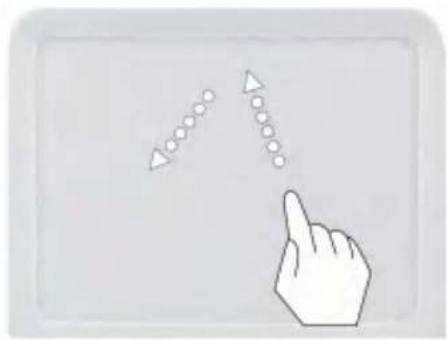
natural_image
Hand cursor pointing at a dotted arrow symbol (no text or labels)Making the selection (Click)
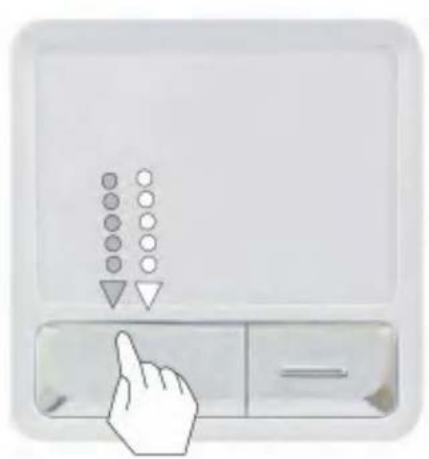
To click a button, quickly press and release the left button. You can click the left button or gently tap the touch pad once to select an item on a menu or an icon on the screen, or position the cursor in a document.

text_image
Diagram showing a hand pressing a button with five dots above and a downward arrow, indicating a step function or navigation.OR

text_image
Diagram showing a hand cursor clicking a vertical list of dots with a downward arrow, next to a control panel.Double-click (Run)
To double-click a button, quickly press and release the left button twice. You can also tap the touch pad twice to get the same result. To launch an application, you can select and double-click the .exe file or the program icon.
text_image
Diagram showing a hand pointing at a control panel with icons for display and navigation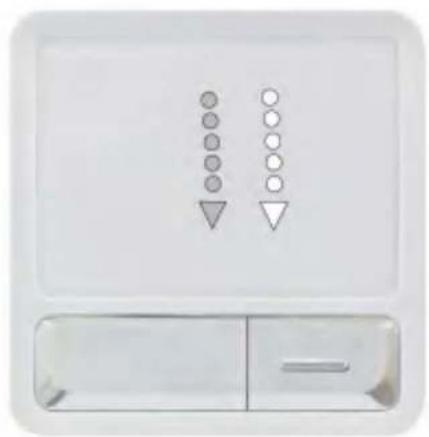
natural_image
White appliance control panel with circular indicators and downward arrows (no text or symbols)Drag and drop
To drag an object, select and move the object by clicking and holding the left button and sliding the finger across the touch pad without releasing the button.
To drop the object you have just dragged, release the left button.
You can use drag and drop to move files from one location to another.
For example, if you want to place a file in the recycle bin, place the pointer above the file you want to move, press the left button and hold, slide your finger across the touch pad to move the file and release the left button above the recycle bin.

text_image
Screenshot of a Windows desktop showing a file explorer window with two circular annotations highlighting the image files.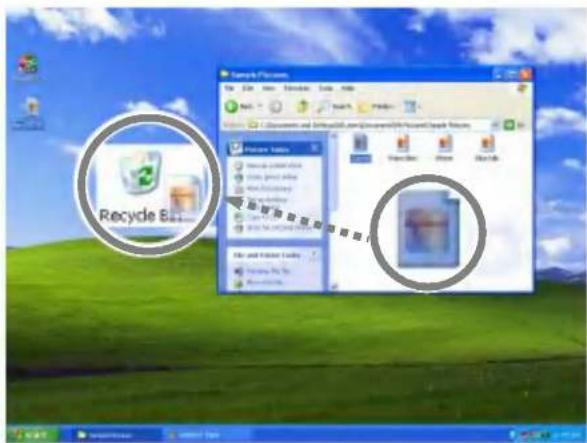
text_image
Recycle Set Recycle BinDrag: Move the icon without releasing the left button
Drop: Release the left button above the recycle bin.
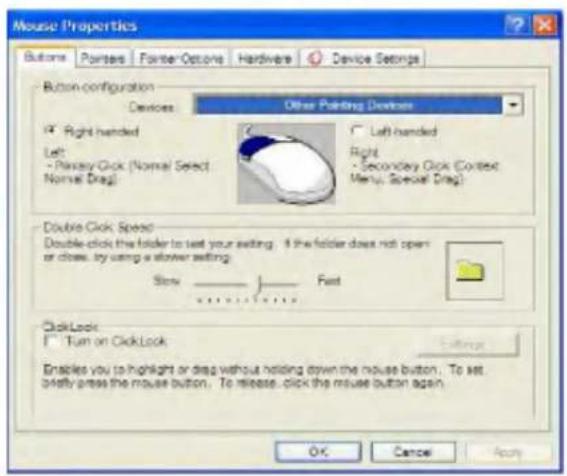
ClickLock: enables you to select text or drag a file without having to continuously hold down the mouse button or touch pad button.
Follow the instruction below to enable ClickLock. If ClickLock is enabled, you can hold down the mouse button or touch pad button for a moment and then release it, and still get the same effect as continuously holding down the button. You can drag an object with ClickLock enabled and press again to release the button and drop the object.
Click and open the Mouse Properties window.
On the Buttons tab, under ClickLock, select Turn on ClickLock check box.
text_image
Mouse Properties Buttons Pointers Pointer-Options Hardware Device Settings Button configuration Devices Other Painting Devices Right handed Left: - Passay Click (Normal Select Normal Drag) C Left handed Right: - Secondary Click (Context Menu, Special Drag) Double Click Speed Double click the folder to set your setting. If the folder does not open or close. Try using a slower setting Slow Fast ClickLook Turn on ClickLook Enables you to highlight or drag without holding down the mouse button. To set briety press the mouse button. To release, click the mouse button again. OK Cancel ApplyClick Settings and adjust how long you need to hold down a mouse or touch pad button to enable ClickLock, and then Select OK.

text_image
Settings for ClickLock Adjust how long you need to hold down a mouse or trackball button before your click is "locked". Short Long OK CancelUsing the scroll up/down function
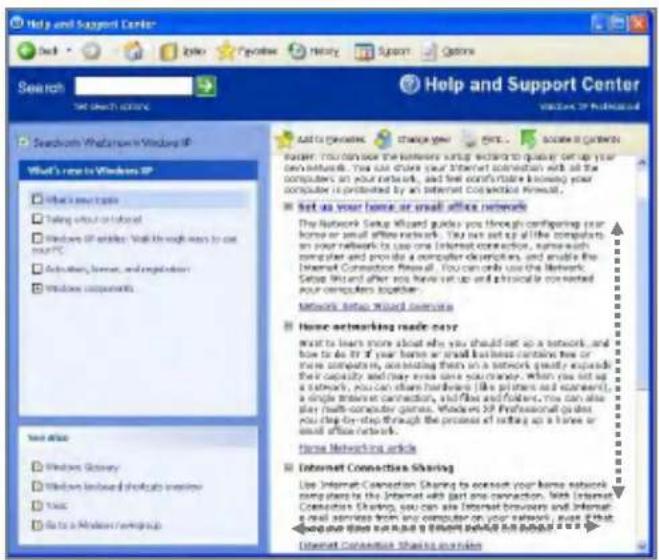
Your computer supports scroll function. When using scroll function, mouse cursor at the arrow does not move. Only the scroll function will move.
text_image
Help and Support Center Search Help and Support Center Search: What's new in Windows XP What's new in Windows XP What's new in Windows XP Taking out of online Windows XP articles: Walk through ways to use PC Activities, home, and registers Windows components. Test office Windows Discovery Windows limited shortcuts interview Music Data to a Microsoft Corp-up Add to geodesics Change your Guru... Scales is common Better you can use the internet setup to access your computer on your network. You can access your Internet connection with all the computers on your network, and feel comfortable knowing your computer is represented by an Internet Connection Network. ■ Not as your home or small office network The Network Setup Wizard guides you through configuring your home or small office network. You must set up at the complete on your network by using one Internet connection, unless with computer and provide a computer description, and enable the Internet Connection Network. You can only use the Network Setup Wizard after you have set up and a threshold connected your computers together. Network Setup Wizard serves ■ Home networking ready copy Must to learn more about who you should set up a network, and how to do it if your home or small office contains free or more completely, so beating them on a network quickly. We also use their capacity and may serve some maintenance, which you can put up a network, you can share hardware (like printers and easements), a single server connection, and files and folders, you can also play (with computer games, Windows XP Professional guides you stay dry-step through the process of setting up a line or small office network. Home Networking articles ■ Internet Connection Sharing Use Internet Connection Sharing to connect your home network platforms to the Internet with part one connection. With Internet Connections Sharing, you can also use Internet browsers and Internet address from any computer on your network. Use if that would do not want a short period for this platform. Internet Connection Sharing is available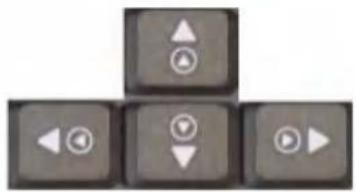
natural_image
Five gray keyboard keys arranged in a triangular pattern (no text or symbols)You can use the scroll up/down function by pressing Fn + direction key. In a program window with a scroll bar, you can move up and down the windows using Fn + direction key. When you scroll a window using the scroll up/down function, the pointer on the screen does not move
The system setup saves your computer's hardware configurations in CMOS RAM. The system setup provides you with information, such as the size and type of your hard disk, size of the installed memory, date, and time.
Starting the system setup
Setting a password. (Page 83)
Changing or removing the password. (Page 86)
Recovering the factory default settings. (Page 87)

Caution
Do not change the system setup arbitrarily. Incorrect system setup may result in errors while using the computer.
The menu and default factory settings of the BIOS Setup Utility may look different from this manual. They may have been changed to improve the performance of the system.
Keys used in the system setup
Enter: Select the current item.
Esc: Close the current window or move to the previous window.
CursorControl Keys: Move up, down, left, and right.
+ -: Increase and decrease the value.
Page Up: Move to the first item.
Page Down: Move to the last item.
F10: Save and exit the system setup.
Note:
Cursor control keys (arrow keys) move the cursor up, down, to the left and right.
Turn on the computer.
When LG logo appears on the screen, press F2.
The BIOS Setup Utility window appears.
| PhoenixBIOS Setup Utility | |||||
| Main | Advanced | Security | Doot | Exit | |
| System Time: [10:20:30] System Data: [03/24/2003] Legacy Diskette A [1.44/1.25 MB 3½*] ► Primary Master [30005MB] ► Secondary Master[CD-ROM] ► Memory Cache System Memory: 640 KB Extended Memory: 260600 KB | Item Specific Help | ||||
| , or selects field | |||||
Setting a password
If you want to protect the system setup from an unauthorized user, follow the instructions below to set a password.
You can set a password in the BIOS Setup Utility program.

Caution
If you forget the password, you cannot gain access to your system. Make sure you write down the password in a safe place only you can refer to in case you forget the password.
Setting a supervisor password
A password protects your computer from unauthorized users. The factory default setup does not have a password. A supervisor password prevents unauthorized users from changing the system setup.
Start the BIOS Setup Utility.
Use arrow keys to select Set Supervisor Password under Security menu, and then press Enter.
| PhoenixBIOS Setup Utility | ||||
| Main Advanced | Security | Boot Exit | ||
| Item Specific Help | ||||
| Set Supervisor Password [Enter] | Supervisor Password controls access to the setup utility. | |||
| Set User Password [Enter] | ||||
| F1 Help ↑J Select Item -/+ Change Values F9 Setup Defaults Esc Exit → Select Menu Enter Select ▶ Sub-Menu F10 Save and Ext | ||||
Note:
You can use a supervisor password to gain access and change items in the BIOS Setup Utility, and select Power on Boot. We recommend to use a user password if someone else has to use the computer.
If the following message appears, enter a new password and press Enter. A password must be consisted of character A\~Z and numbers 0\~9, and have the maximum length of 8.
| Set Supervisor Password | |
| Enter New Password | [ ] |
| Confirm New Password | [ ] |
If the following message appears, press Enter.
| Serup Notice |
| Changes have been saved. |Continue| |
Press F10 to save the new settings.
If the following message appears, select Yes and press Enter to restart the computer.
| Setup Confirmation | |
| Save configuration changes and exit now? | |
| [Yes] | [No] |
Setting a user password
A user password is a secondary compared to a supervisor password. You must set a supervisor password in order to set a power-on password.
Start the BIOS Setup Utility and use arrow keys to select Security menu. Use arrow keys to select Set User Password and press Enter.
| PhoenixBOS Setup Utility | ||||
| Main Advanced Security Boot Exit | ||||
| Item Specific Help | ||||
| Supervisor Password controls access to the setup utility. | ||||
| Set Supervisor Password [Enter] Set User Password [Enter] | ||||
| F1 Help ↑↓ Select Item /+ Change Values F9 Setup Defaults Esc Exit ← Select Menu Enter Select ▶ Sub-Menu F10 Save and Exit | ||||
Note:
A power-on password gives limited access for changing the settings in the BIOS Setup Utility compared to a supervisor password.
If the following message appears, enter a new password and then press Enter. A password must be consisted of character A\~Z and numbers 0\~9, and have the maximum length of 8.
| Set User Password | |
| Enter New Password [ ] | |
| Confirm New Password [ ] |
If the following message appears, press Enter.
| Setup Notice |
| Changes have been saved[Continue] |
Press F10 to save the new settings.
If the following message appears, select Yes and press Enter to restart the computer.
| Setup Confirmation | |
| Save configuration changes and exit now? | |
| [Yes] | [No] |
Changing or removing the password
Start the BIOS Setup Utility, enter your password, and then press Enter.
To change the password, follow the instruction on Setting a password.
To remove the password, follow the instructions below.
Use arrow keys to select Security menu, and select a password you want to remove, and then press Enter.
If the following message appears, enter the current password in the bracket next to Enter Current Password, and then press Enter. Press Enter without entering a password in the brackets next to Enter New Password and Confirm New Password.
| Set User Password | |
| Enter Current Password [ ] | |
| Enter New Password [ ] | |
| Confirm New Password [ ] |
If the following message appears, press Enter.
| Setup Notice |
| Changes have been saved[Continue] |
Press F10 to save the new settings.
If the following message appears, select Yes and press Enter to restart the computer.
| Setup Confirmation | |
| Save configuration changes and exit now? | |
| [Yes] | [No] |
Recovering the factory default settings
If a user accidentally modifies the system setup, follow the instruction below to recover the factory default settings.
Start the BIOS Setup Utility, and use arrow keys to select Exit. Use arrow keys to select Load Setup Defaults, and press Enter.
| PhoenixBIOS Setup Utility | |
| Main Advanced Security Boot | Exit |
| Exit Saving Changes Exit Discarding Changes Load Setup Defaults Discard Changes Save Changes | Item Specific Help |
| Exit System Setup and save your changes to CMOS. | |
| F1 Help ↑ Select Item -/+ Change Values F9 Setup Defaults Esc Exit → Select Menu Enter Select ▶ Sub-Menu F10 Save and Exit | |
If the following message appears, select Yes and press Enter to recover the factory default settings.
text_image
Setup Confirmation. Data Clean Configuration Now [Next] [Not]Press F10 to save the new settings.
If the following message appears, select Yes and press Enter to restart the computer.
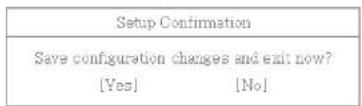
System Recovery
System Recovery offers to format the hard disk as shipping status of the product. User must make backup files to minimize a risk of losing data. Windows CD is provided with the product that offers system recovery contracted by Microsoft.
Using Full Recovery
To recover hard disk completely, you must make backup for all software and data on the computer.
If Windows installation is complete, you must fill out "Windows user Registration information" as the first time to buy the product.
Press F11 with appearing preload image on the screen.
text_image
LG- If the following screen appears, select one of items that works.
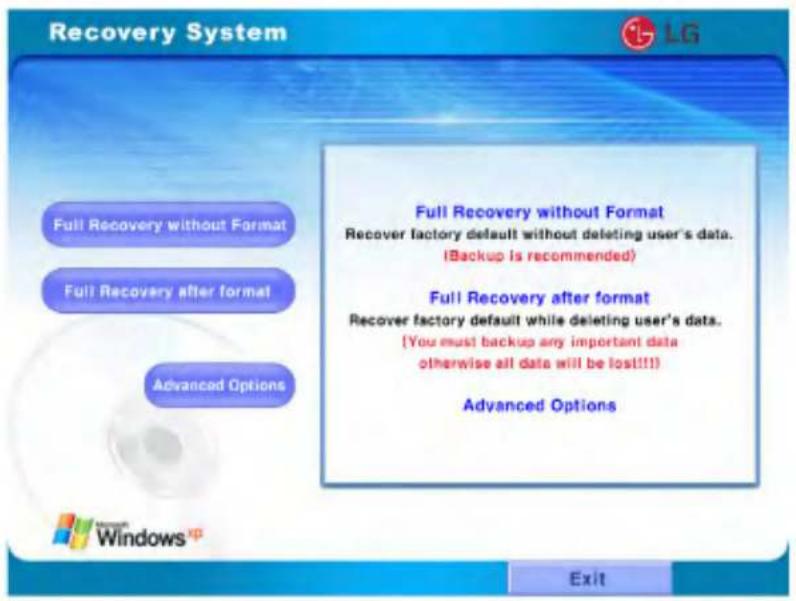
text_image
Recovery System Full Recovery without Format Full Recovery after format Advanced Options Full Recovery without Format Recover factory default without deleting user's data. (Backup is recommended) Full Recovery after format Recover factory default while deleting user's data. (You must backup any important data otherwise all data will be lost!!! Advanced Options Exit- Select [Full Recovery without Format], or [Full Recovery after format]. * In the case of selecting [Full Recovery without Format].
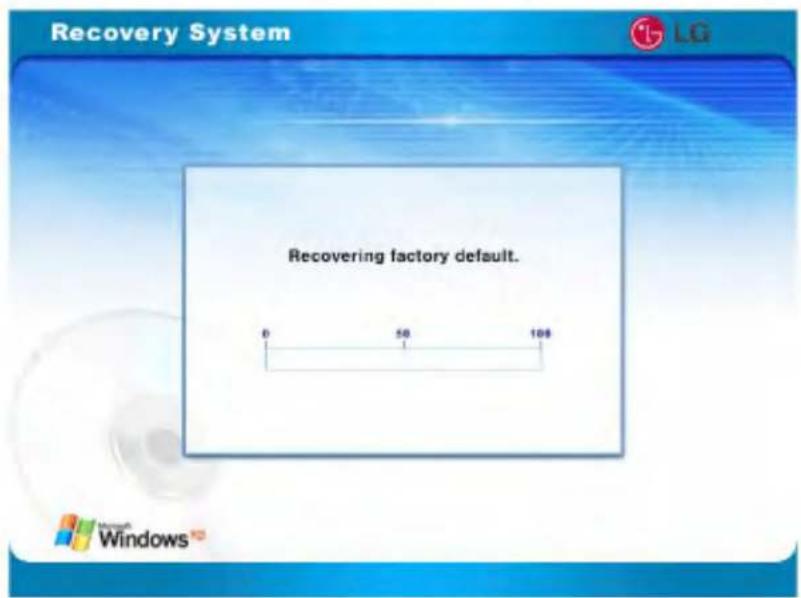
text_image
Recovery System LG Recovering factory default. 0 50 10$[Recovering factory default] appears.

text_image
Recovery System Start Recovery Click Start Recovery button to begin recovery procedure while saving your data. (Some applications may need to be reinstalled.) If you do not wish to recover, simply click Back button and then Exit button to end Recovery. Back* In the case of selecting [Full Recovery after format] Click [Start Recovery].

text_image
Recovery System LG Formatting to NTFS Windows®"Formatting to NTFS" appears.
When starting [Full Recovery], next procedures appears on the screen.
If the following screen appears after restarting system, fill out Windows user registration information.
When clicking [Finish], the system returns to normal.
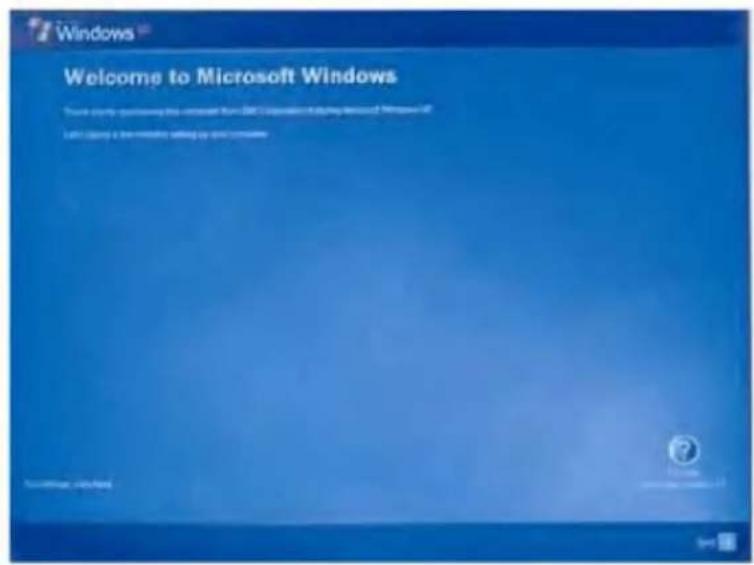
text_image
Windows Welcome to Microsoft Windows Source code: https://www.xcsc.com/ (2017) Microsoft Windows 9.0 (2017) Windows 9.0 (2017) Windows 9.0 (2017) Windows 9.0 (2017) Windows 9.0 (2017) Windows 9.0 (2017) Windows 9.0 (2017) Windows 9.0 (2017) Windows 9.0 (2017) Windows 9.0 (2017) Web Server 9.0 (2017) Web Server 9.0 (2017) Web Server 9.0 (2017) Web Server 9.0 (2017) Web Server 9.0 (2017) Web Server 9.0 (2017) Web Server 9.0 (2017) Web Server 9.0 (2017)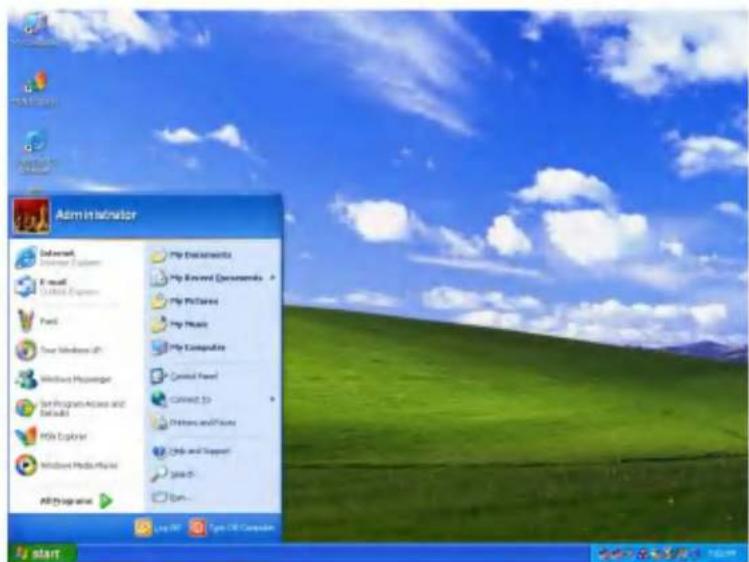
text_image
Administrator Internet Explorer E-mail Catalyst Express Fool Your Windows 45 Windows Projector Set Programs Access and Default My Computer Windows Media Player All rights reserved My Documents My Review Documents My Pictures My Music My Computer Central Front Connect To Phnom and Phone Cable and Support! join-in Edit... Log Off Tym On Computer startDriver re-installation
- Turn on the computer and go to [Start]-[All Programs]-[LG GILJABI].
- Select the device driver you want to install.
- Follow the instructions to complete the installation. Some device drivers require you to restart the computer after the installation.
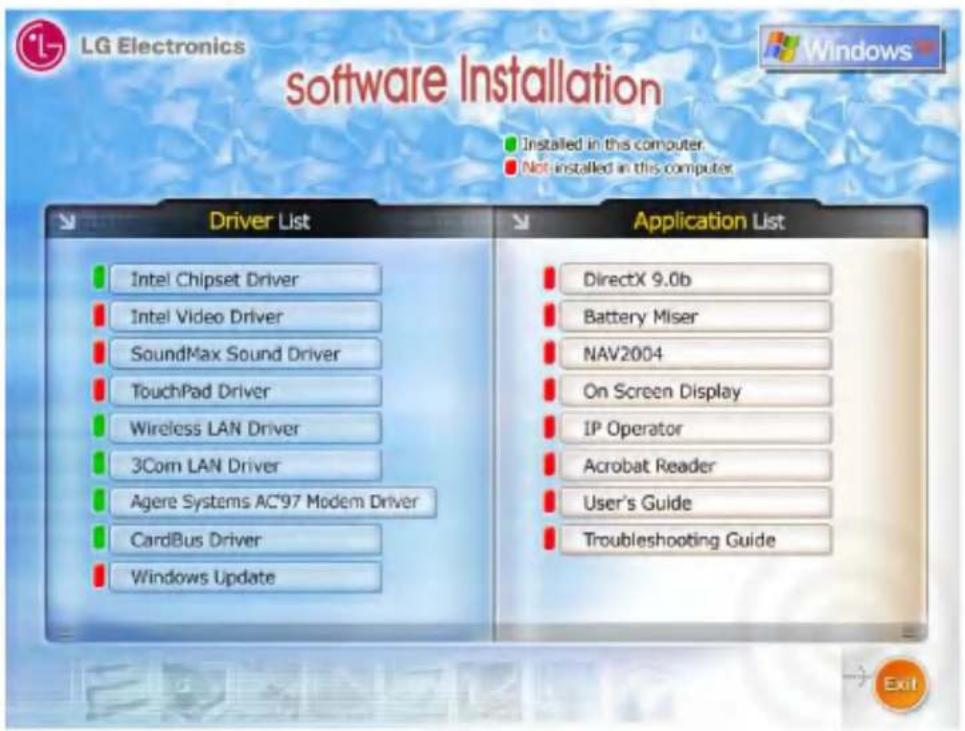
text_image
LG Electronics software Installation Installed in this computer. Not installed in this computer. Driver List Intel Chipset Driver Intel Video Driver SoundMax Sound Driver TouchPad Driver Wireless LAN Driver 3Com LAN Driver Agere Systems AC'97 Modem Driver CardBus Driver Windows Update Application List DirectX 9.0b Battery Miser NAV2004 On Screen Display IP Operator Acrobat Reader User's Guide Troubleshooting GuideUsing the optical disk drive
Different model types provide different optical disk drives. (Some models have CD-ROM drives and others have CD-RW/DVD-ROM combo drives)
Inserting a CD
Turn on the computer, and press the eject button on the CD-ROM drive.

natural_image
Exterior view of a silver laptop computer with visible keyboard and screen (no text or symbols)Place the CD in the middle of the tray. (Label on the CD must face upward)

natural_image
Exterior view of a silver laptop computer with open lid and foldable stand (no visible text or symbols)Push the tray into the CD-ROM drive.
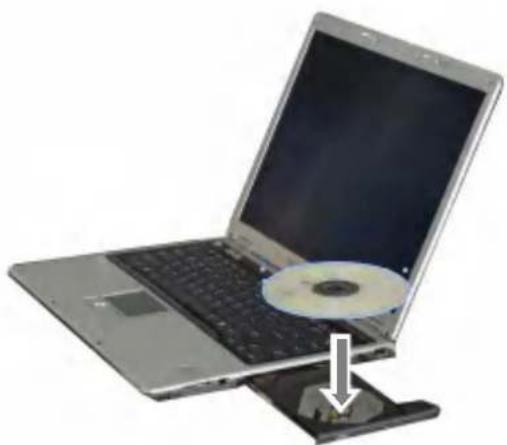
natural_image
Laptop with CD inside and a disc removed, showing a white arrow pointing to the disc (no text or symbols visible)Note:
When you use the CD-ROM or CD-RW/DVD-ROM drive, place your computer on a flat surface. The drive may not function correctly on an uneven surface.
Your computer has a CD-ROM drive with the speed of 24X or faster;
therefore, the drive may rattle when you first insert a CD.
Be careful not to scratch the surface of a CD-ROM or CD-RW/DVD-ROM disk.
Do not clean a CD-ROM or CD-RW/DVD-ROM disk with abrasive chemicals, such as Benzene or Paint thinner.
Do not drop or bump a CD-ROM or CD-RW/DVD-ROM disk.
Use a clean, soft cloth when removing dust or fingerprints on a CD-ROM or CDRW/DVD-ROM disk.
Removing a CD
-
Press the eject button on the CD-ROM drive to eject the disk tray.
-
Lift the CD in the middle of the disk tray.
-
Place the CD in its protective case.
-
Push the disk tray into the drive.
Playing an audio CD
Using Windows Media Player
You can use Windows(R) Media Player to play various types of audio and video files.
You can play and make a copy of an audio CD, listen to the Internet radio broadcast, play movie clips, and listen to music or watch a video on a web site. If you have a DVD drive, you can play a DVD. If you have a CD-RW drive, you can use Windows Media Player to make your own music CD.
Starting Windows Media Player 1
Turn on the computer.
Press the eject button on the drive to open the disk tray, and then insert an audio CD and close the tray.
Select the Windows Media Player and click OK. Windows Media Player starts playing the audio CD. (If you select another audio CD program, that program will play the CD instead of Windows Media Player)
Starting Windows Media Player 2
Press Start -> All Programs -> Accessories -> Entertainment -> Windows Media Player.
When Windows Media Player opens, press Open under File menu, and then select an audio or video file you want to play.
Using Power DVD
- Insert DVD title in the DVD-COMBO drive, and close the tray. When the following window opens, select Play DVD Play and click [Ok]

text_image
THE_GREEN_MILE (D:) Windows can perform the same action each time you insert a disk or connect a device with this kind of file: DVD movie What do you want Windows to do? Play DVD Video using Windows Media Player Play DVD Video using PowerDVD Open folder to view files using Windows Explorer Take no action Always do the selected action. OK Cancel- As you insert the DVD title, the DVD Auto-Resume window will open as shown below. Set the preference and click [Ok]. If you check "Don't ask me this question again", it will not open next time automatically and play as you preferred.
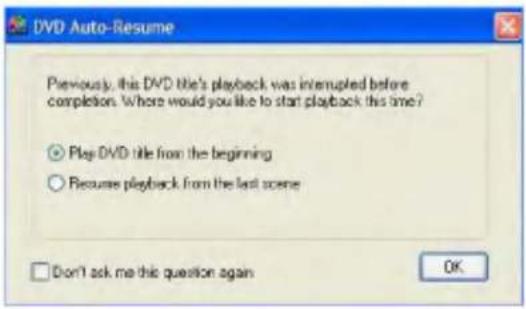
text_image
DVD Auto-Resume Previously, this DVD title's playback was interrupted before completion. Where would you like to start playback this time? ○ Play DVD title from the beginning ○ Recourse playback from the last scene Don't ask me this question again OK- Power DVD will now play. You can read the detailed instruction of the Power DVD in the Help menu from the main control.

text_image
CyberLink® PowerDVD 5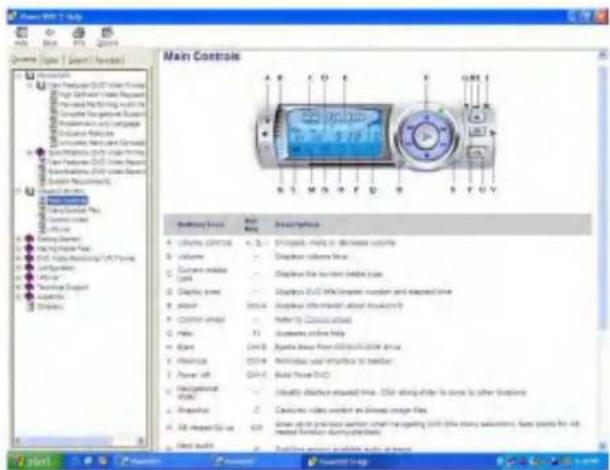
text_image
Main Controls A B C D E F G H I S M N A F D E S T O Y Backlog/Back: Main Box Description A - Display (CPC) 4.5 V B - Volume C - Current mode D - Input E - Display time F - Output G - Control output H - Rate I - Base J - Measurement K - Measurement L - Power off M - Multipathal load N - Propulsor O - All-vecial Gain P - Data output Description: Main Box Description: Main Box Description: Main Box Description: Main Box Description: Main BoxNote:
If unchecked on "Don't ask me this question again", you will receive the message every time you open the Power DVD. If you delete the DVD title and play it again, you will also receive the preference window.
You can change the region counter only 5 times. After the 5^th change, it is not possible to change. Be cautious when you try to change the regional code.
Do not open the DVD tray and remove the DVD title while it is still playing. It may damage the system or the DVD title.
Using an SD Memory Card / SONY Memory Stick
Your computer can read from and write to an SD Memory Card / Memory Stick.
Note: Photo images may look different from the actual product.
Inserting an SD Memory Card / Memory Stick
Turn on the computer, and place the SD Memory Card / Memory Stick in the SD Memory Card slot.

natural_image
Close-up of a smartphone edge with a small electronic component attached, showing no visible text or symbols.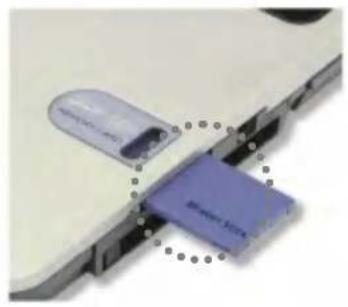
natural_image
Close-up of a device with two purple rectangular components connected by a dotted line, no visible text or symbols.Push the SD Memory Card / Memory Stick into the slot until it clicks.

natural_image
Close-up of a smartphone keyboard and a touch screen (no visible text or symbols)
natural_image
Close-up of a white electronic device with a metallic clip and black buttons, showing no visible text or symbols.Removing the SD Memory Card / Memory Stick
- Press the SD Memory Card / Memory Stick with the tip of your finger.
- The SD Memory Card / Memory Stick ejects.
Note:
Below mentioned functions are not offered by each product
*IEEE1394 / Wireless LAN / SD Memory card / S-Video port / IrDA port/Memory Stick
Installing memory
When you are using the computer, you may want to increase the memory capacity.
About memory
Your computer uses DDR (Double Data Rate) SDRAM SO-DIMM (Dual In-Line Memory Module) with 200 pins.
Each memory socket can support a memory module from 64MB to 1024MB, and the maximum memory capacity of the computer is 2048MB.
Before installing memory
When installing or removing the memory modules, be careful not to expose them to the static electricity as it can damage the modules.
Make sure the type of memory installed in your computer is the same as the memory you are about to install.
Note:
Use only the correct type of memory module (DDR SDRAM using 2.5V).
Different models of computer can use different memory modules.
DDR memory has higher data-transfer rate and different shape compared to the typical memory.

natural_image
Close-up of a green circuit board with four black memory chips, one highlighted with a circle (no visible text or symbols)DDR SDRAM

natural_image
Close-up of a green circuit board with four black memory chips, one highlighted with a circle containing the number 1 (no visible text or symbols on the chip surface)SDRAM
Your computer supports PC2700/DDR SDRAM SO-DIMM 333MHz/266MHz/200MHz with FSB Frequency of 400MHz.

Warning
Before disassembling the computer for upgraing purposes, turn off the power and remove the power cord, phone line, and battery pack. There is the risk of electric shock or fire. If you need to open the computer cover, contact the customer service for help.
Purchasing memory
Be sure to buy the correct type of memory modules for your computer.
Type: PC2700 (200 pin DDR SDRAM SO-DIMM)
Speed: 333MHz (166MHz X2),266MHz (133MHz X2), 200MHz (100MHz X2)
Size: 128MB, 256MB, 512MB, 1024MB
Installing memory
Main board configuration, memory socket, and memory module may
look different in different models of computer.
Loosen the screw at the bottom of the computer, and remove the memory slot cover.

natural_image
Laptop back panel showing internal components and ventilation slots (no text or symbols visible)Note:
Before removing the cover, shut down your computer, remove AC adapter and battery pack, and detach any device or cable that are attached to the computer.
Use the notch on the memory to make sure the memory aligns with the socket, and then inserts the memory into the socket at an angle of approximately 30 degrees.
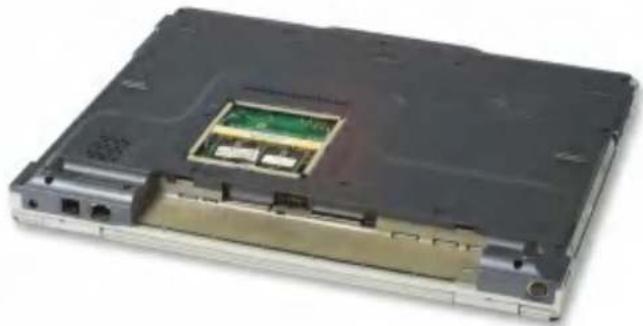
natural_image
Laptop back with visible internal components and ventilation slots (no text or symbols)Note:
Push down the memory until the latch firmly secures the memory on the socket.
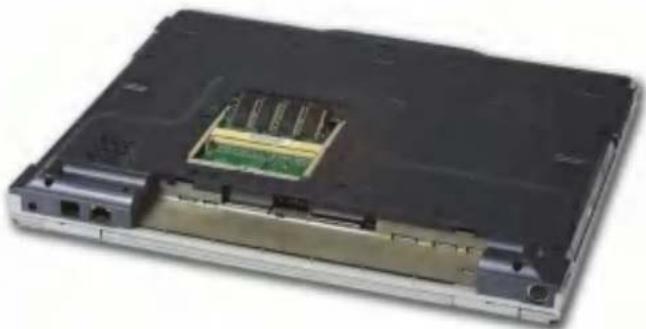
natural_image
Laptop back with internal circuit board and ports (no visible text or symbols)Push down the memory until you hear a click.

natural_image
Laptop back with visible internal circuit board and ports (no text or symbols)
Caution
Use only the memory module sold by LG. Using other memory modules can damage your computer.
Close the cover and tighten the screw.
After the installation, reboot the computer. If you see an error message regarding memory capacity, click F2 to enter the BIOS Setup Utility and save the settings.
Note:
When rebooting the computer, make sure the size of installed memory is correct. If different, re-install the memory module.
text_image
PG SZ05Model
LM40/50, LS40/50
Processor
Dothan Migration
Note:
The CPU cannot be replaced or upgraded by the user. The computer is equipped with a different CPU depending on the model type.
Memory
Built-in: 256MB DDR SDRAM SO-DIMM
Maximum: 1024MB on each slot and 2048MB combined
Memory Type: DDR SDRAM SO-DIMM (128MB, 256MB, 512MB, and 1024MB)
BIOS ROM
ROM: 8Mbit
Storage devices
2.5-inch hard disk drive (The capacity of the hard disk drive is different depending on the model type.)
PC Card slot
SD Memory Card slot / Memory Stick
Optical drive (DVD combo, DVD-ROM drive or DVD RW)
Note: The specification for the optical drive depends on the model type)
External I/O Interfaces
External monitor portr
25-pin parallel port
PC Card slot
Microphone jack
Speaker/Headphone jack
S/PDIF
IrDA port
3 Universal Serial Bus (USB) devices
RJ11 telephone port
RJ45 Ethernet port
IEEE 1394 port
S-Video port
Display
ATI Mobility Radeon 9200, 9600 or 9700 Graphics Controller
4XAGP
Video Memory: 32MB or 64MB
XGA (1024X768) for 14.1 inch, SXGA+ for 15 inch.
Note: the resolution and/or type of Graphics Controller are different depending on the model type.
Sound
ANALOG DEVICES AC'97 SoundMAX Codec (AD1981A)
Dimension
331(W) X 274(D) X 24.3\~32.1(H) mm
LAN
3COM 3c920
RJ45 Ethernet connector
Modem
AMBIT T60M283.13 (MDC Card) / RJ11 Telephone connector
To reduce the risk of fire, use only No.26 AWG or thicker telephone cable.
AC Adapter (Free Voltage)
Input: AC 100 \~ 240V, 1.6A, 50 \~ 60Hz
Output: DC 18.5V, 3.5A, 65W
Note: Use the correct adaptor for your computer.
Battery Pack (Li-Ion)
DC 11.1V, 4400mAh (6-cell)
Charging time
Less than 3 hours (6-cell) or 4 hours (9-cell) with the power off in room temperature (9.6 \~ 40 °C/ 49.28 \~104 °F)
Less than 32 hours with the power off in low temperature (0 \~ 9.6 °C/ 32 \~ 49.28 °F)
Note: The battery cannot be charged below 0 degrees C(32 °F).
The temperature indicated above is the temperature inside the battery pack; the actual temperature may be different.
Battery Life
More than 5hours (6-cell) (Battery Mark(TM) V4.0.1)
Backup (standby) battery
RTC battery Ni-MH Coin 3V 60mm
Recommended battery: CR2032 manufactured by Sony or equivalent type.
Operating
10 \~ 35 °C(50 \~ 95 °F), 20 \~ 80% relative humidity
Non-operating
-10 \~ 60 °C(14 \~ 140 °F), 10 \~ 80% relative humidity