
Aspire One 571hk - Laptop ACER - Free user manual and instructions
Find the device manual for free Aspire One 571hk ACER in PDF.
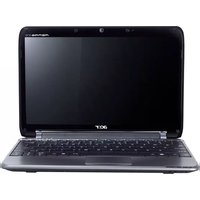


| Product type | Laptop |
| Brand | Acer |
| Model | Aspire One 571hk |
| Processor | Intel Atom (estimated) |
| RAM memory | 1 to 2 GB (estimated) |
| Hard drive | 160 to 320 GB (estimated) |
| Screen | 10.1 inches, resolution 1024x600 (estimated) |
| Dimensions (W x D x H) | 285 x 203 x 27 mm (estimated) |
| Weight | Approximately 1.2 kg (estimated) |
| Power supply | AC adapter 19 V, 2.1 A (estimated) |
| Battery | Lithium-ion 3 or 6 cells (estimated) |
| Connectivity | Wi-Fi, Ethernet 10/100, Bluetooth (depending on model) |
| Ports | 2x USB 2.0, VGA, RJ-45, headphone/microphone jack, SD/MMC card reader |
| Webcam | Acer Crystal Eye (built-in) |
| Keyboard | French QWERTY, special function keys |
| Touchpad | Touchpad with left/right buttons |
| Operating system | Windows 7 Starter or Home Edition (estimated) |
| Operating temperature | 5°C to 35°C |
| Operating humidity | 20% to 80% (non-condensing) |
| Maintenance and cleaning | Use a soft dry cloth, do not use solvents. Avoid liquids. |
| Security | Kensington lock slot, do not block ventilation openings |
| Spare parts and repairability | Removable battery, accessible hard drive and memory (estimated) |
Frequently Asked Questions - Aspire One 571hk ACER
User questions about Aspire One 571hk ACER
0 question about this device. Answer the ones you know or ask your own.
Ask a new question about this device
Download the instructions for your Laptop in PDF format for free! Find your manual Aspire One 571hk - ACER and take your electronic device back in hand. On this page are published all the documents necessary for the use of your device. Aspire One 571hk by ACER.
USER MANUAL Aspire One 571hk ACER
© 2010 All Rights Reserved.
Aspire One Series Quick Guide
Original Issue: 11/2010
Aspire One Series Notebook PC
Model number: ____
Serial number: ____
Date of purchase: ____
Place of purchase: ____
First things first
We would like to thank you for making an Acer notebook your choice for meeting your mobile computing needs.
Your guides
To help you use your Acer notebook, we have designed a set of guides:
First off, the setup poster helps you get started with setting up your computer.
The Aspire One Series Generic User Guide contains useful information applying to all models in the Aspire One product range. It covers basic topics such as Acer's eRecovery Management, using the keyboard, audio, etc. Please understand that due to its nature, the Generic User Guide as well as the AcerSystem User Guide will occasionally refer to functions or features which are only contained in certain models, but not necessarily in the model you have purchased. Such instances are marked in the text with language such as "only for certain models".
The Quick Guide introduces you to the basic features and functions of your new computer. For more on how your computer can help you to be more productive, please refer to the AcerSystem User Guide, which contains detailed information on such subjects as system utilities, data recovery, expansion options and troubleshooting. In addition it contains warranty information and the general regulations and safety notices for your notebook. It is available in Portable Document Format (PDF) and comes preloaded on your notebook. Follow these steps to access it:
1 Click on

Start > All Programs > AcerSystem.
2 Click on AcerSystem User Guide.

Note: Viewing the file requires Adobe Reader. If Adobe Reader is not installed on your computer, clicking on AcerSystem User Guide will run the Adobe Reader setup program first. Follow the instructions on the screen to complete the installation. For instructions on how to use Adobe Reader, access the Help and Support menu.
Your Acer notebook tour
After setting up your computer as illustrated in the setup poster, let us show you around your new Acer notebook.
Top view
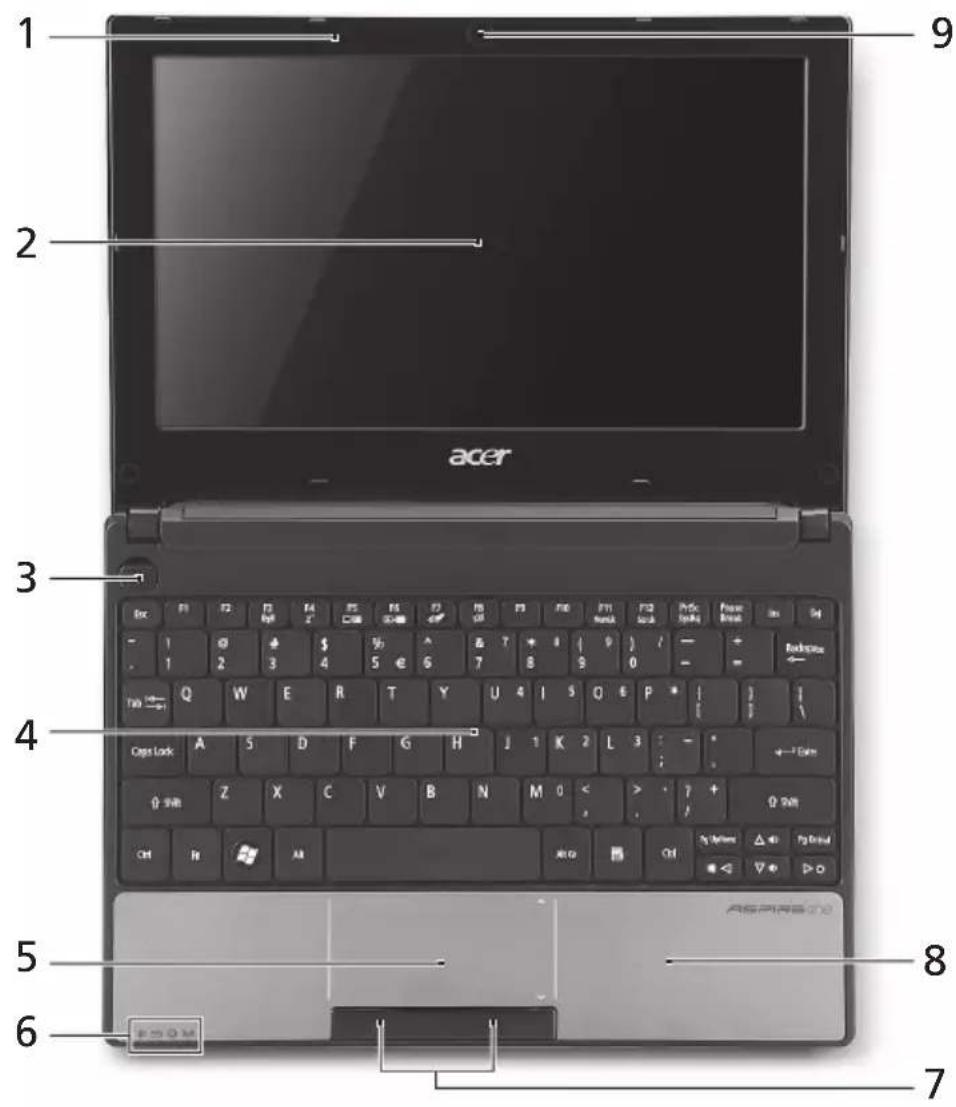
# Icon Item Description
1 Microphone Internal microphone for sound recording. 2 Display screen Also called Liquid-Crystal Display (LCD), displays computer output (configuration may vary by model). 3 Power button Turns the computer on and off.

| # | Icon | Item | Description |
| 4 | Keyboard For entering data into your computer. | ||
| 5 | Touchpad | Touch-sensitive pointing device which functions like a computer mouse. | |
| 6 | Status indicators1 | Light-Emitting Diodes (LED) that light up to show the status of the computer's functions and components. | |
| 7 | Click buttons (left and right) | The left and right buttons function like the left and right mouse buttons. | |
| 8 | Palmrest Comfortable support area for your hands when you use the computer. | ||
| 9 | Acer Crystal Eye webcam | Web camera for video communication (configuration may vary by model). | |
- The front panel indicators are visible even when the computer cover is closed.
Hotkeys
The computer employs hotkeys or key combinations to access most of the computer's controls like screen brightness and volume output.
To activate hotkeys, press and hold the key before pressing the other key in the hotkey combination.
| Hotkey Icon Function Description | |||
| + | Cc  | nication key | |
| + |  | Sleep | |
| + |  | Display toggle | |
| + |  | Screen blank | |
| + |  | toggle | |
| + |  | Speaker toggle | |
| + | Num Lock | When Num Lock is on, the embedded keypad is in numeric mode. The keys function as a calculator (complete with the arithmetic operators +, -, *, and /). Use this mode when you need to do a lot of numeric data entry. A better solution would be to connect an external keypad.+only for certain models. | |
| + | Scroll Lock | When Scroll Lock is on, the screen moves one line up or down when you press the up or down arrow keys respectively. Scroll Lock does not work with some applications. | |
| + |  | Brightness up Increases the screen brightness. | |
| + < |  | Decreases the screen brightness. | |
| + < |  | Volume up Increases the sound volume (only for certain models). | |
| + < |  | Volume down Decreases the sound volume (only for certain models). | |
Using the communication key*
Here you can enable and disable the various wireless connectivity devices on your computer.
Press + to bring up the Launch Manager window panel.
A red toggle indicates the device is off. Click On to enable wireless/Bluetooth connection. Click Off to disable connection.
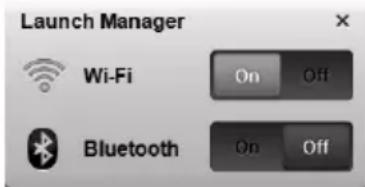
* Communication devices may vary by model.
Closed front view
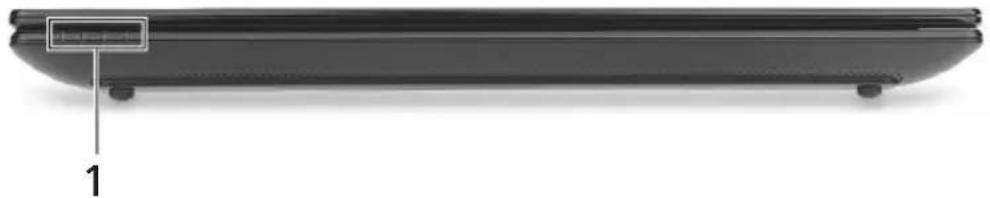
# Icon Item Description
1 Power indicator Indicates the computer's power status.


Battery indicator Indicates the computer's battery status.
- Charging: The light shows amber when the battery is charging.
- Fully charged: The light shows blue when in AC mode.

HDD indicator Indicates when the hard disk drive is active.

Communication indicator Indicates the status of 3G/Wireless LAN communication
| Blue light on Orange light on Not It | ||
| 3G on / Wi-Fi on 3G on / Wi-Fi off | 3G off / Wi-Fi on | 3G off / Wi-Fi off |
Rear view
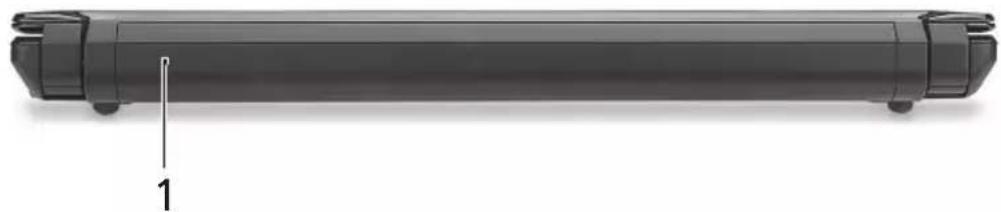
# Item Description
1 Battery bay Houses the computer's battery pack.

Note: Your computer may be equipped with a different battery to the one in the picture.
Left view
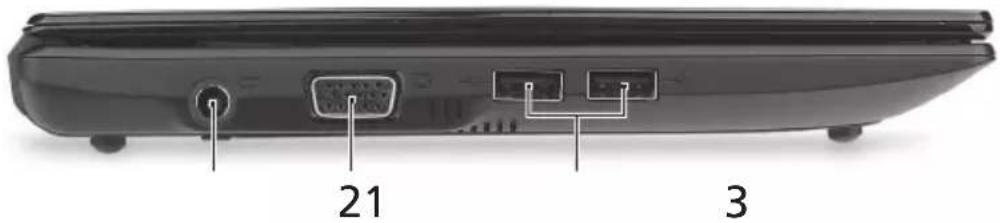
# Icon Item Description
1 DC-in-jack Connects to an AC adapter.

2 External display (VGA) port

Connects to a display device (e.g., external monitor, LCD projector).
Connects to a display device (e.g., external monitor, LCD projector).
3 USB ports Connect to USB devices (e.g., USB mouse, USB camera).
# Icon Item Description
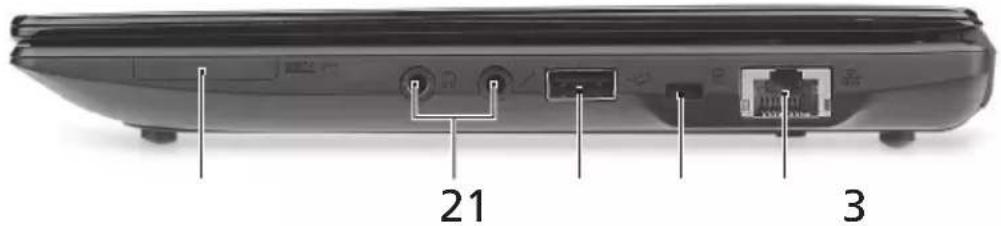
1
2-in-1 card reader

Accepts Secure Digital (SD) and MultiMediaCard (MMC).
Accepts Secure Digital (SD) and MultiMediaCard (MMC).
2 Headphone/speaker/line-out jack
2 Headphone/speaker/

line-out jack
Connects to audio line-out devices (e.g., speakers, headphones).

Microphone-in jack Accepts inputs from external microphones.

USB port
Connects to USB devices (e.g., USB mouse, USB camera).
Kensington lock slot Connects to a Kensington-compatible

computer security lock.
5

Ethernet (RJ-45) port
Connects to an Ethernet 10/100 based network.
Base view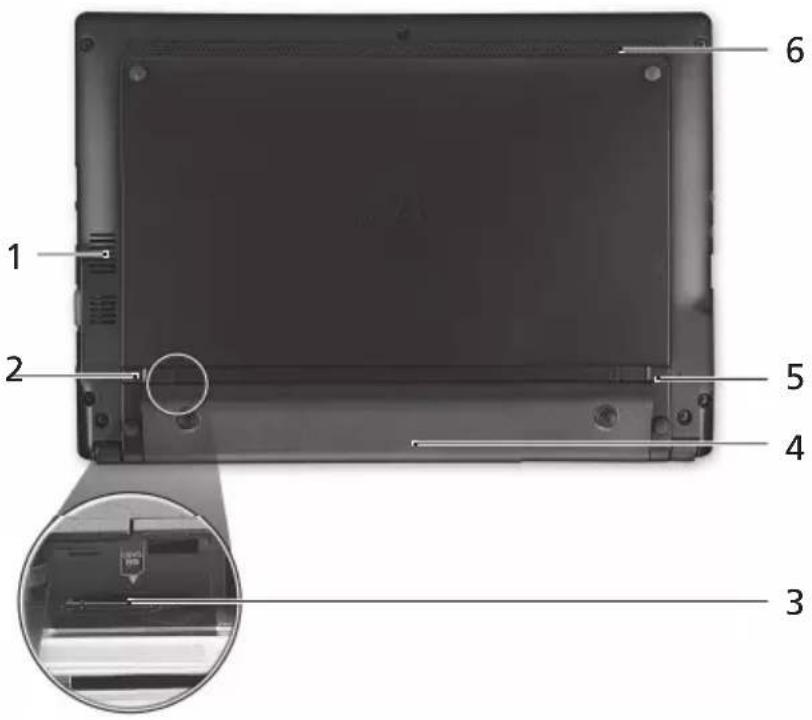
# Icon Item Description
1 Ventilation slots and cooling fan
Enable the computer to stay cool, even after prolonged use.
Note: Do not cover or obstruct the opening of the fan.
2 Battery release latch Releases the battery for removal.

3 3G SIM card slot Accepts a 3G SIM card for 3G connectivity (only for certain models).
4 Battery bay Houses the computer's battery pack.
5 Battery lock Locks the battery in position.

6 Speaker Emits audio from your computer.
Environment
- Temperature:
- Operating: 5°C to 35°C • Non-operating: -20°C to 65°C
• Humidity (non-condensing):
• Operating: 20% to 80% • Non-operating: 20% to 80%
Gamme Aspire One
Guide rapide
# Item Description
# Item Description
1 Battery bay Contains the computer's battery.

# Icon Element Description
1 Power indicator Indicates the computer's power status.


Battery indicator Indicates the computer's battery status.
- Charging: The light glows yellow when the battery is charging.
- Fully charged: The light glows blue in AC mode.

# Item Description
1 Battery bay Houses the computer's batteries.

# Icon Item Description
# Icon Subject Description
1 Power indicator Indicates the computer's power status.


Battery indicator Indicates the computer's battery status.
- Charging: The light glows yellow when the battery is charging.
- Fully charged: The light glows blue in AC mode.

Hard disk indicator Indicates that the hard disk is active.

Communication indicator Indicates the status of the wireless LAN/3G communication.
# Subject Description
1 Battery Contains the computer's battery.

*Communication units may vary between different models.
# Section Description
Icon Section Description
# Item Description
Icon Item Description
# Item Description
Icon Item Description
Icon Item Description
# Item Description
Icon Item Description
# Icon Item Description
1

# Item Description
1
Battery position
Icon Item Description
Item Description
Icon Item Description
Icon Item Description
Item Description
| 1 | Nosilec za baterijo | Hrani baterijo računalnika. |

Icon Item Description
* Communication devices vary by model.
# Icon Item Description
1

# Item Description
Icon Item Description
| 1 Utori za provjetravanje i ventilator za hlađenje | Omogućavaju rashlađivanje računala i prilikom dugotrajne uporabe.Napomena: Nemojte prekriti ili prepriječiti otvor ventilatora. | |
2 Br  | za oslobađanje baterije | Oslobađa bateriju radi uklanjanja. |
| 3 | Utor za karticu 3G SIM | Prihvaća 3G SIM karticu za 3G povezivanje (samo za određene modele). |
| 4 Prostor za bateriju Sadrži baterijski komplet računala. | ||
| 5 Br [DSYT] | baterije Zaključava bateriju u njen položaj. | |
| 6 | Zvučnik | Zvuk se emitira s vašeg računala. |
Environment
- Temperature:
- Operating: 5° C to 35° C • Storage: -20 °C to 65 °C
• Humidity (non-condensing):
• Operating: 20% to 80% • Storage: 20% to 80%
Aspire One Series
Quick Guide
Item Description
# Object Description
# Object Description
# Item Description
1 Battery compartment
Icon Item Description
© 2010 All Rights Reserved.
Icon Item Description
Item Description
© 2010 All Rights Reserved.
* Communication devices will vary by model.
Front view with the cover closed
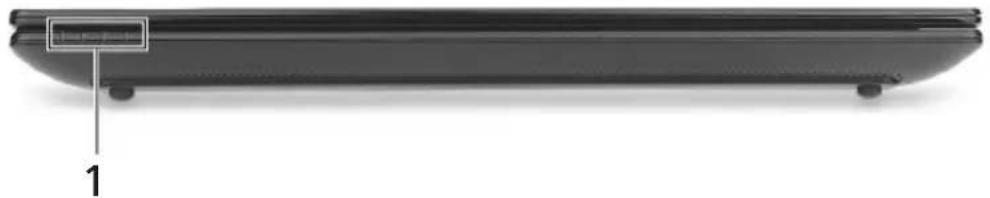
# Icon Item Description
1

Power indicator Indicates the power status of the computer.

Battery indicator Indicates the battery status of the computer.
# Item Description
1 Battery bay Used to install the battery pack.

* Communication devices may vary by model.
Front view
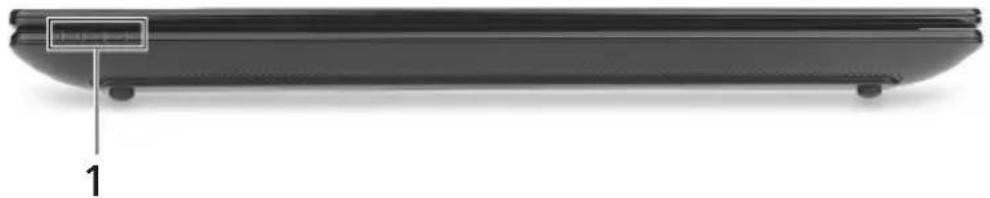
# Icon Item Description
1

Power indicator Indicates the power status of the computer.

# Item Description
1 Battery bay Install the battery pack.

Icon Item Description
# Icon Item Description
1 Power indicator Shows the power status of the computer.


Battery indicator Shows the battery status of the computer.
- Charging: The light will turn yellowish-brown when the battery is being charged.
- Fully charged: The light turns blue when in AC mode.

HDD indicator Shows when the hard disk drive is active.

# Item Description
1 Battery bay The compartment for the computer's battery pack.

# Item Description
1 Battery bay
- FIRST THINGS FIRST
- YOUR GUIDES
- YOUR ACER NOTEBOOK TOUR
- TOP VIEW
- ICON ITEM DESCRIPTION
- HOTKEYS
- USING THE COMMUNICATION KEY
- CLOSED FRONT VIEW
- REAR VIEW
- ITEM DESCRIPTION
- LEFT VIEW
- ENVIRONMENT
- GAMME ASPIRE ONE
- ICON ELEMENT DESCRIPTION
- ICON SUBJECT DESCRIPTION
- SUBJECT DESCRIPTION
- SECTION DESCRIPTION
- ICON SECTION DESCRIPTION
- ASPIRE ONE SERIES
- OBJECT DESCRIPTION
- FRONT VIEW WITH THE COVER CLOSED
- FRONT VIEW
Brand : ACER
Model : Aspire One 571hk
Category : Laptop