
RRFL4518FWF - Refrigerator ROSIERES - Free user manual and instructions
Find the device manual for free RRFL4518FWF ROSIERES in PDF.
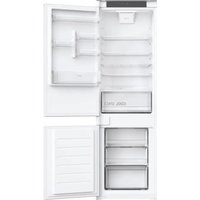


| Product Type | Refrigerator-freezer combo |
| Brand | Rosieres |
| Model | RRFL4518FWF |
| Minimum required width | 920 mm |
| Minimum required depth | 1137 mm |
| Default refrigerator temperature | 4 °C |
| Default freezer temperature | -18 °C |
| Refrigerator temperature range | 2 °C to 8 °C (customizable via app) |
| Freezer temperature range | -16 °C to -24 °C (customizable via app) |
| Special functions | Super Cool, Super Freeze, Eco Mode, Holiday Mode, Wi-Fi |
| Defrost type | Manual (defrost recommended if frost > 3 mm) |
| Wi-Fi connection | Yes, hOn app |
| Wi-Fi frequency band | 2.4 GHz (2400-2843.5 MHz) |
| Door alarm | Yes, after 3 minutes of opening |
| Demo mode | Available (activation via SET and Wi-Fi buttons) |
| Energy consumption | Not specified, energy class not indicated |
| Foot adjustment | Yes, for leveling |
| Maintenance | Regular interior cleaning, freezer defrosting if necessary |
| Approximate weight | 75 kg (estimate for a refrigerator of this size) |
Frequently Asked Questions - RRFL4518FWF ROSIERES
User questions about RRFL4518FWF ROSIERES
0 question about this device. Answer the ones you know or ask your own.
Ask a new question about this device
Download the instructions for your Refrigerator in PDF format for free! Find your manual RRFL4518FWF - ROSIERES and take your electronic device back in hand. On this page are published all the documents necessary for the use of your device. RRFL4518FWF by ROSIERES.
USER MANUAL RRFL4518FWF ROSIERES
PRODUCT DESCRIPTION....2
USE 3
Use....3
Customized temperature 4
Super Cool function .... 4
Super Freeze function....5
Eco mode....5
Holiday function....6
Defrosting....6
Demo mode....6
Error Codes....6
WI-FI USE....7
In app pairing procedure .... 7
Step 1....7
Step 2....7
Step 3....7
Wi-Fi Use 8
PRODUCT DESCRIPTION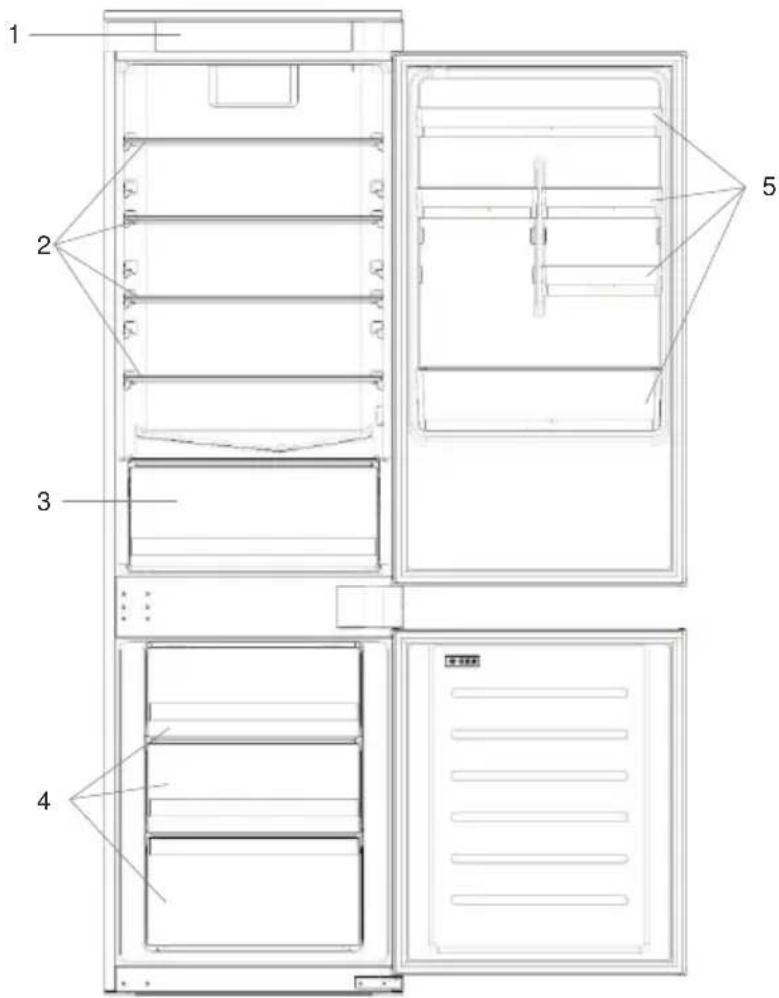
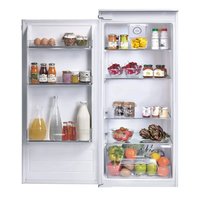
- Control Panel
- Shelves
- Crisper
- Freezer Boxes
- Door rack
* The most energy-saving configuration requires drawers, food box and shelves to be positioned in the product and fan to be off, please refer to the above pictures. ** The pictures above are only for reference. The actual configuration will depend on the physical product or statement by the distributor.
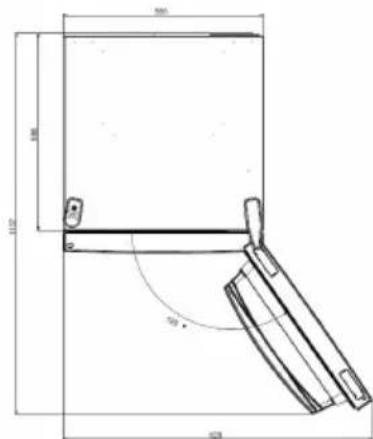
Space requirements
The unit's door must be able to fully open as shown. Spare enough space for convenient opening of the doors and drawers.
Keep a distance of at least 50 mm between the side walls of the product and adjacent parts.
Width: min. 920 mm
Depth: min. 1137 mm
USE
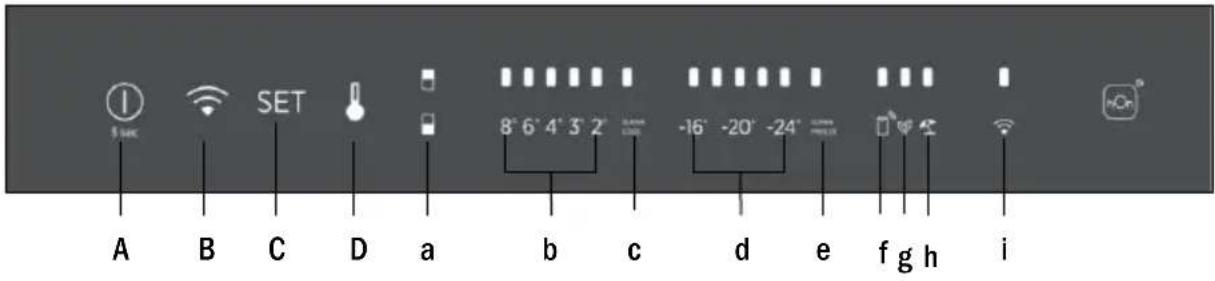
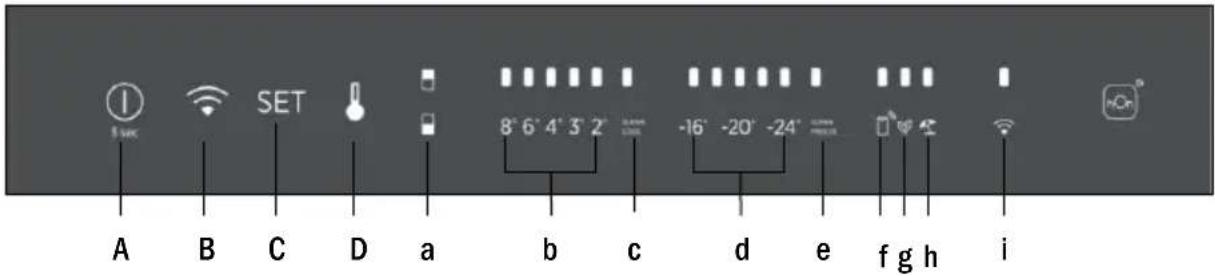
A. ON/OFF key, used to switch on/off the appliance. B. Wi-Fi key, used to switch on/off the Wi-Fi. C. SET key, used to select the special functions (Eco and Holiday). D. TEMP key, used to select the fridge and freezer temperature.
a. Fridge/freezer area icon, shows which compartment of the appliance is selected. b. Fridge temperature levels, show which is the selected temperature. c. Super Cool icon, shows if the Super Cool function is activated. d. Freezer temperature levels, show which is the selected temperature in the freezer. e. Super Freeze icon, shows if the Super Freeze function is activated. f. Customized temperature icon, shows if the temperature has been selected by app. g. Eco mode icon, shows whether the eco mode is activated. h. Holiday function icon, shows whether the holiday function is activated. i. Wi-Fi icon, shows whether the Wi-Fi is working and the appliance is connected.
Use
- Plug in the appliance and it automatically turns on.
- The temperature will automatically be set at 4 °C in the fridge and -18 °C in the freezer. NOTE: wait at least 2/3 hours before putting food in the appliance, so as to ensure the temperature inside the fridge.
- To change the temperature, press the TEMP key for 5 seconds. An acoustic signal is made and the icon of the selected compartment (fridge or freezer) as well as all the temperature LEDs of the corresponding compartment turn on for 2 seconds. After 2 seconds, the selection of the compartment is confirmed. With the selected compartment icon on, quickly press the TEMP key to change the temperature. When the setting increases, the corresponding LED light will turn on. An acoustic signal is made every time the TEMP key is pressed and the temperature is changed. After 5 seconds, the selection is confirmed. After 30 seconds without operation, the fridge/freezer icon area turns off, while the LEDs of the selected temperatures stay on. When the TEMP key is touched again, the icon of the last area selected (fridge or freezer) turns on. • In case of power loss, the last cooling level set will be restored.
- To restore the default setting, with the screen lit, keep pressed the TEMP button and simultaneously press the ON/OFF key for 5 seconds.
- Under normal operating conditions (in spring and autumn), it is recommended to set the temperature at 4 °C. In summer, when the ambient temperature is high, it is recommended to set the temperature at 6~8 °C, so as to guarantee the fridge and freezer temperatures and reduce the refrigerator's continuous running time. In winter, when the ambient
temperature is low, it is recommended to set the temperature at 3~4 °C to avoid frequent start/stop of the refrigerator.
Customized temperature
From the app, it is possible to customize the temperature for both fridge and freezer. The temperature can be set with 1 °C sensitivity. It is possible to select a temperature from 2 °C to 8 °C in the fridge, and from -16 °C to -24 °C in the freezer.
When the temperature is selected via the app, the customized temperature icon turns on, while all the temperature LED lights of the affected compartment are turned off (i.e., if the refrigerator temperature is selected from the app, LEDs from 2 °C to 8 °C are turned off. If the freezer temperature is selected from the app, LEDs from -16 °C to -24 °C are turned off).
If only a single area (freezer or fridge) has the customized temperature, the temperature selection of the other area is not changed and the LED light of the selected temperature of that area remains on. An acoustic signal is made every time the temperature is changed.
Super Cool function
It is suggested to switch on the Super Cool function if a large quantity of food should be stored (for example after the purchase). The Super-Cool function accelerates the cooling of fresh food and protects the goods already stored from undesirable warming. When the function is activated, the temperature of the fridge is automatically set at 2 °C.
How to use the Super Cool function:
- The function can be activated by long pressing the TEMP key to select the fridge compartment, and then quickly pressing the TEMP key until the Super Cool icon LED is turned on, or it can be turned on from the app. When the function is activated, the Super Cool LED is always ON.
- To exit the Super Cool function, press the TEMP key or turn it off from the app.
- The Super Cool function automatically ends when the function has lasted for more than 12 hours.
- When the Super Cool ends, the icon of the control panel is switched off and the previously set cooling level is restored.
Super Freeze function
The super freezing function accelerates the freezing of fresh food and protects the goods already stored from undesirable warming. If a large amount of food has to be frozen, it is recommended to set the Super-Freeze function on 24h before the usage. When the function is activated, the temperature is automatically set at -22 °C.
How to use the Super Freeze function:
- The function can be launched by long pressing the TEMP key to select the freezer compartment, and then quickly pressing the TEMP key until the Super Freeze icon LED is turned on, or it can be turned on from the app. When the function is activated, the Super Freeze LED is always ON.
- To exit the Super Freeze function, press the TEMP key or turn it off from the app.
- The Super Freeze function automatically ends when the function has lasted for more than 50 hours.
- When the Super Freeze ends, the icon on the control panel switches off and the previously set freezing level is restored.
Eco mode
The Eco mode can be activated to optimize the performance of the appliance, while ensuring the best food storage. The Eco mode will automatically set the temperature at 4 °C in the fridge and at -18 °C in the freezer.
How to use the Eco mode:
- The function can be activated from the control panel by pressing the "SET" key until the Eco mode icon turns on (an acoustic signal confirms the selection), or by selecting the function from the app. When the function is activated, the Eco mode icon is always ON.
- To exit the Eco mode, turn it off from the app or choose another function from the control panel.
- When the Eco mode ends, the icon on the control panel switches off and the previously set cooling levels are restored.
Holiday function
The Holiday function can be used to reduce the energy consumption of the appliance when it is not used regularly. When the function is on, the LED lights will be off (even if the door is open) and the fridge will work on low power consumption mode, whereas the freezer will keep working normally. How to use the Holiday function:
- The function can be activated from the control panel by pressing the "SET" key until the Holiday icon turns on (an acoustic signal confirms the selection), or by selecting the function from the app. When the function is activated, the Holiday icon is always ON.
- To exit the Holiday function, turn it off from the app or choose another function from the control panel.
- When the Holiday function ends, the icon on the control panel switches off and the previously set cooling levels are restored.
Defrosting
When the layer of frost present in the freezer compartment exceeds 3mm, it is recommended to proceed with defrosting as it increases energy consumption.
- Switch off the appliance and disconnect the power cord.
- Remove the frozen food and temporarily place it in a cool place.
- Leave the freezer door open and collect the water at the bottom of the product.
- When defrosting is complete, dry the interior thoroughly.
- Reconnect the power cord and set the desired values.
- Wait a moment and then reintroduce the frozen foods.
Demo mode
To enter demo mode, with the display unlocked, keep the SET key (C) pressed and press the Wi-Fi key (B) 5 times within 5 seconds. To exit demo mode, perform the same operation or power off the refrigerator.
Error codes
If the 8 °C, 6 °C, 4 °C, 3 °C, 2 °C LED lights turn on sequentially, it means there has been a communication error between the main control board and the display board. Please contact technical assistance to help solve the problem.
WI-FI USE
In-app pairing procedure
Step 1
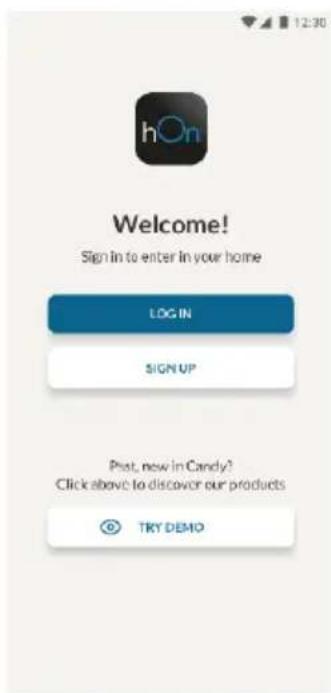
• Download the hOn app from the app stores.


Step 2
- Create your account on the hOn app or log in if you already have an account.
Step 3
• Follow the pairing instructions in the hOn App
Wi-Fi Use
To activate the Wi-Fi, long press the Wi-Fi key for 2 seconds. The Wi-Fi icon will turn on and an acoustic signal will sound.
If the Wi-Fi has not been configured yet, when the refrigerator is turned on, it will automatically enter configuration mode and remain in this state for 30 minutes. To use configuration mode:
- Press the Wi-Fi key for 2 seconds. The refrigerator enters Wi-Fi configuration mode and an acoustic signal sounds. The Wi-Fi icon starts blinking.
- Follow the instructions in the app to configure the Wi-Fi (see above).
- Once the Wi-Fi is configured and the connection is established, the Wi-Fi icon will be on and steady.
- After 30 minutes without any operation, the Wi-Fi will automatically exit configuration mode.
- If the Wi-Fi has already been configured, it will automatically reconnect according to the configuration information.
To reset the Wi-Fi, long press the Wi-Fi – Set key for 2 seconds. The Wi-Fi is reset and an acoustic signal sounds. After this, the Wi-Fi will automatically enter configuration state (the Wi-Fi icon will start blinking again).
To turn off the Wi-Fi, press the Wi-Fi key.
Radio-module - Technical data
| Frequency rate (OFR) | 2400 MHz-2843.5 MHz |
| Channel frequencies | 2412...2472 MHz(step size 5 MHz) |
| Maximum power(EIRP) | 100 mW |
The radio equipment type complies with Directive 2014/53/EU.
TROUBLESHOOTING
| The inside light bulb does not turn on. | No electricity. | The power cable is not properly plugged in.Check if the appliance is switched off (see Temperature Adjustment).Check the power socket is working correctly (e.g. with another electric device). |
| Holiday Mode is activated. | Deactivate Holiday mode. | |
| The internal temperature of the refrigerator and/or freezer is not cold enough. | The doors are not closed. | Check that the door and gaskets close properly. |
| The doors are frequently opened. | Avoid opening the doors unnecessarily for some time. | |
| Incorrect temperature setting. | Check the temperature setting and, if possible, set a lower temperature (see Temperature Adjustment). | |
| The refrigerator and/or freezer are too full. | Wait for the temperature of the refrigerator/ freezer to stabilise.Avoid filling the refrigerator and freezer excessively. | |
| The surrounding temperature is too low. | Move the unit to a warmer place or heat the current room. | |
| Warm items have been stored. | Always allow items to cool before storing them. | |
| The food in the refrigerator freezes. | Incorrect temperature setting. | Check the temperature setting and, if possible, increase the temperature. |
| Food in contact with the back wall. | Keep the food away from the refrigerator's back wall. | |
| The bottom of the refrigerator compartment is wet or water droplets are present. | The drain hose could be clogged. | Clean the drain hose with a stick or similar item to allow the water to drain. |
| Presence of drops of water or frost on the rear wall of the refrigerator. | Depending on the function, drops of water or frost form on the rear wall of the refrigerator during operation. | It is not a defect. |
| Warm items have been stored. | Always allow items to cool before storing them. | |
| There are open food containers or liquids. | Always cover food and liquids. | |
| The doors are not closed. | Check that the door and gaskets close properly. | |
| The doors are frequently opened. | Avoid opening the doors unnecessarily for some time. | |
| Presence of water in the vegetable drawer. | Lack of air circulation. | Verify that your appliance is not too full. |
| Vegetables and fruit with too much moisture. | Wrap the fruit and vegetables in plastic materials, e.g. cling film, bags or containers. | |
| The motor runs continuously. | The doors are not closed. | Make sure the doors are closed and check the seals close properly. |
| The doors are opened frequently. | Avoid opening the doors unnecessarily for some time. | |
| Ambient temperature is very high. | Verify that the ambient temperature is in the range set out in the specifications on the appliance tag.Set the display screen/thermostat to a warmer temperature. | |
| The appliance has been off (no power) for some time. | It normally takes the appliance 8-12h to cool completely. | |
| The frozen food is thawing. | Surrounding temperature is too low. | Move the unit to a warmer place or heat the current room. |
| The freezer door is not closed. | Make sure the door is closed and that the gasket is sealing proper | |
| Fridge door alarm. | Fridge door alarm (acoustic beep) activates whenever the door is left open for more than 3 minutes. | Avoid leaving the door open when not needed. The beep ceases when the door is closed. |
| The appliance makes noises such as gurgling, buzzing, clicking, creaking. | No breakdowns. An engine is running, e.g. refrigeration unit, fan. The refrigerant flows into the pipes. Motor, switches and solenoid valves are switched on or off. | No action needed. |
| The appliance is not located on level ground. | Adjust the feet to level the appliance. | |
| The appliance touches an object around it. | Remove objects around the appliance. | |
| The appliance does not cool, the temperature and lighting indicators are on. | Demo mode is activated. | Deactivate DEMO mode. |
| Strong ice and frost in the freezer compartment. | The items were not adequately packaged. | Always pack the items well. |
| A door/drawer of the appliance is not tightly closed. | Close the door/drawer. | |
| The door/drawer has been opened too frequently or for too long. | Do not open the door/drawer too frequently. | |
| The door/drawer gasket is dirty, worn, cracked or mismatched. | Clean the door/drawer gasket or replace it with a new one. | |
| Something on the inside prevents the door/drawer from closing properly. | Reposition the shelves, door racks or internal containers to allow the door/drawer to close. | |
| The sides of the appliance are warm. | This is normal. |
Summary
PRODUCT DESCRIPTION.... 10
USE....11
Use....11
Custom temperature....12
USE

Step 2
Step 3

Step 2
Step 3
PRODUCT DESCRIPTION....26
USE 27
Use 27
Custom temperature 28

Step 2
Step 3

Step 2
Step 3

Step 2
Step 3

Step 2
Step 3

Step 2
Step 3
PRODUCT DESCRIPTION....66
USE....67
Use....67
Super Freeze Function....68
Eco Mode 69

Step 2
Step 3
USING THE WI-FI NETWORK 79
In the app pairing process....79
- step....79
- step....79
- step....79
Using the Wi-Fi network....80
PRODUCT DESCRIPTION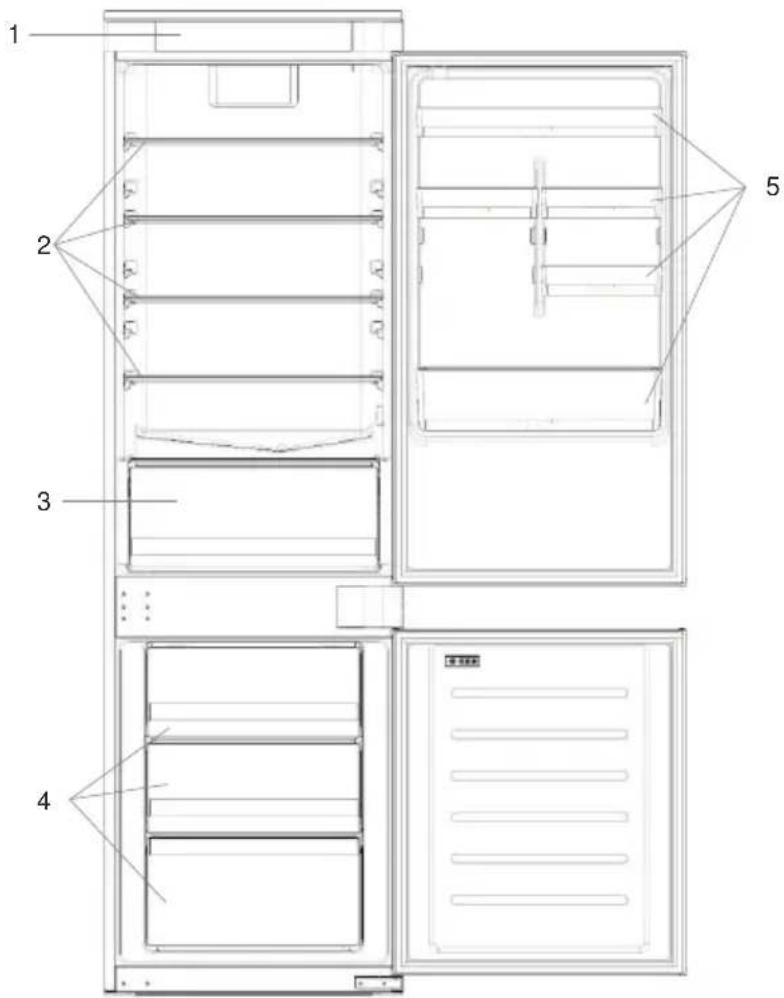
A. ON/OFF button, used to turn the device on/off. B. Wi-Fi button, used to turn the Wi-Fi network on/off. C. SET button, used to select special functions (Eco and Holiday). D. TEMP button, used to select the temperature of the refrigerator and freezer.
a. Refrigerator/freezer compartment icon shows which section of the device is selected. b. Refrigerator temperature levels show which temperature is selected. c. Super cool icon shows whether the super cool function has been activated. d. Freezer temperature levels show which temperature is selected in the freezer. e. Super freeze icon shows whether the super freeze function has been activated. f. Custom temperature icon shows whether the temperature has been selected via the app. g. Eco mode icon shows whether Eco mode is activated. h. Holiday function icon shows whether the holiday function has been activated. i. Wi-Fi network icon shows whether the Wi-Fi network is working and whether the device has connected.
Use

Step 2
Step 3
- Follow the pairing instructions in the hOn app
Using the Wi-Fi network
To activate the Wi-Fi network, press and hold the Wi-Fi button for 2 seconds; the Wi-Fi icon turns on and a sound signal is emitted.
If the Wi-Fi network has not been configured when the refrigerator is turned on, it automatically enters configuration mode and remains in this status for 30 minutes. To use configuration mode:
- Press the Wi-Fi button for 2 seconds; the refrigerator enters Wi-Fi configuration and a sound signal is emitted. The Wi-Fi icon starts blinking.
- Follow the instructions in the app to configure the Wi-Fi network (see above).
- Once the Wi-Fi network is configured and the connection is established, the Wi-Fi icon turns on and stays on steadily.
- After 30 minutes without any action, the Wi-Fi network automatically exits configuration mode.
- If the Wi-Fi network has already been configured, it automatically reconnects according to the configuration information.
To reset the Wi-Fi network, press and hold the Wi-Fi – Set button for 2 seconds; the Wi-Fi network is reset and a sound signal is emitted. After that, the Wi-Fi network automatically enters configuration state (the Wi-Fi icon blinks again).
To turn off the Wi-Fi network, press the Wi-Fi button.
Radio module - Technical data
| Učestalost (OFR) | 2400 MHz-2843.5 MHz |
| Frekvencije kanala | 2412...2472 MHz(veličina koraka 5 MHz) |
| Maksimalna snaga(EIRP) | 100 mW |

Step 2
Step 3

Phase 2
Phase 3
PRODUCT DESCRIPTION....98
USE....99
Use....99

Step 2
Step 3
I app pairing procedure
Step 1

Step 2
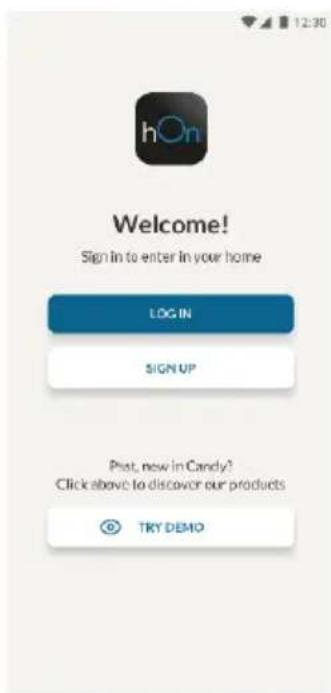
- Create your account on the hOn app, or log in if you already have an account
Step 3

Hook 2
Hook 3

Step 2
Step 3

Step 2
Step 3

Step 2
Step 3

Step 2
Step 3
USING WI-FI....159
USING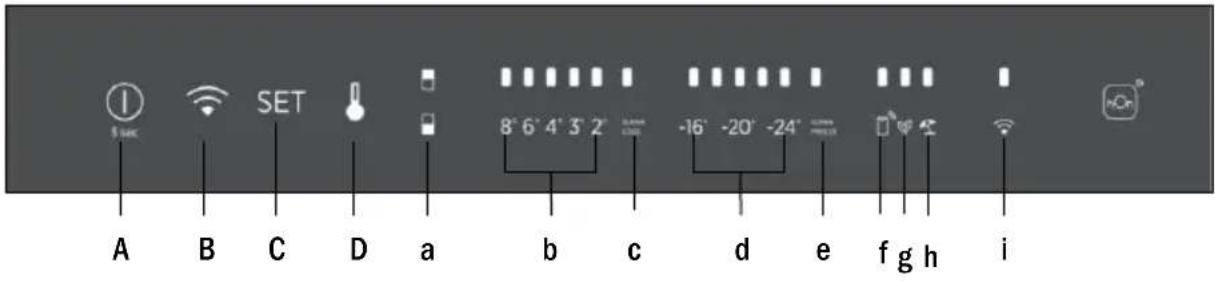

Step 2
Step 3
USING WI-FI NETWORK....167
In the app pairing process....167
- step....167
Using the Wi-Fi network....168
PRODUCT DESCRIPTION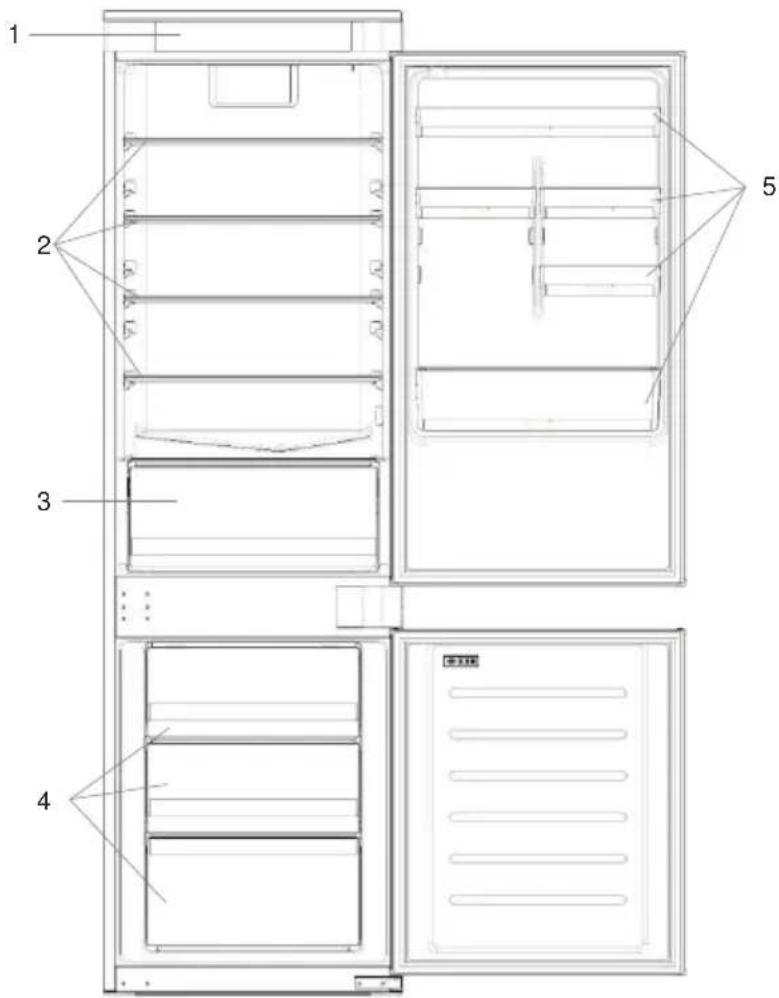
- Control panel
- Shelves
- Fresh food
- Freezer drawers
- Door shelf
* For the configuration with the greatest energy savings, place the drawers, food box, and shelves inside the product, and the fan should be turned off. See the images above. ** The images above are for reference only. The actual configuration will depend on the physical product or the distributor's statement.
Space requirements
USE
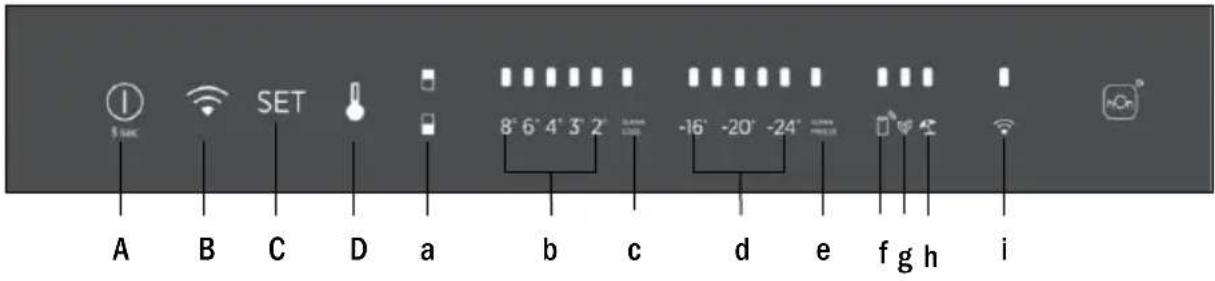
A. The ON/OFF button is used to turn the appliance on/off. B. The Wi-Fi button is used to turn the Wi-Fi network on/off. C. The SET button is used to select special functions (Eco and Holiday). D. The TEMP button is used to select the refrigerator and freezer temperature.
a. Fridge/freezer compartment icon, shows which section of the appliance is selected b. Fridge temperature levels show which temperature is selected c. Super Cool icon shows whether the Super Cool function is active d. Freezer temperature levels show which temperature is selected in the freezer e. Super Freeze icon shows whether the Super Freeze function is active f. Custom temperature icon shows whether the app has selected the temperature g. Eco mode icon shows whether eco mode is active h. Holiday function icon shows whether the holiday function is active i. Wi-Fi icon shows whether Wi-Fi is working and if the device is connected
Use
USING THE WI-FI NETWORK
In the app pairing process
Step 1

Step 2
Step 3
• Follow the pairing instructions in the hOn app
Using the Wi-Fi network
To activate the Wi-Fi function, press and hold the Wi-Fi button for 2 seconds, the Wi-Fi icon will turn on and a sound signal will be emitted.

Step 2
Step 3

Step 2
Step 3

Step 3
Economy in application
Wi-Fi usage

- PRODUCT DESCRIPTION
- USE
- SPACE REQUIREMENTS
- CUSTOMIZED TEMPERATURE
- SUPER COOL FUNCTION
- SUPER FREEZE FUNCTION
- ECO MODE
- HOLIDAY FUNCTION
- DEFROSTING
- DEMO MODE
- ERROR CODES
- WI-FI USE
- IN-APP PAIRING PROCEDURE
- STEP
- SUMMARY
- USING THE WI-FI NETWORK
- PHASE
- I APP PAIRING PROCEDURE
- HOOK
- IN THE APP PAIRING PROCESS
Brand : ROSIERES
Model : RRFL4518FWF
Category : Refrigerator