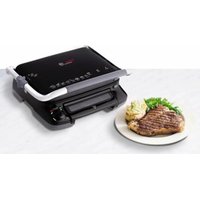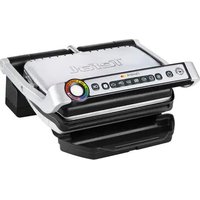
Optigrill GC701D - Grill plate TEFAL - Free user manual and instructions
Find the device manual for free Optigrill GC701D TEFAL in PDF.


| Product type | Electric grill plate |
| Brand | Tefal |
| Model | Optigrill GC701D |
| Power supply | 220-240 V, 50-60 Hz, 2000 W |
| Dimensions (approx.) | 40 x 30 x 15 cm |
| Weight (approx.) | 5.5 kg |
| Automatic programs | 6 programs: hamburger, panini/sandwich, poultry, fish, red meat, pork/sausages/lamb |
| Manual mode | 5 temperature settings (120°C to 270°C) |
| Cooking indicator | 5 levels: rare, medium-rare, medium, well done (for auto programs) |
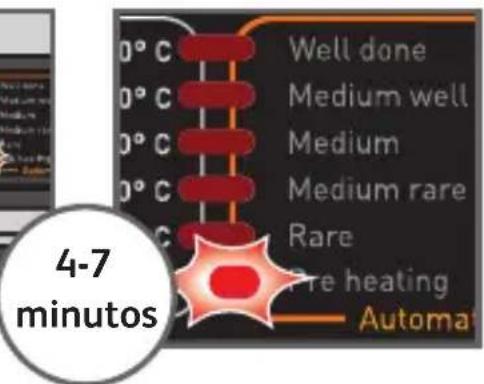
| Preheating | Automatic, duration 4-7 minutes, beep at end of preheating |
| Keep warm | Automatic after cooking to desired doneness |
| Plate material | Non-stick coating, removable plates |
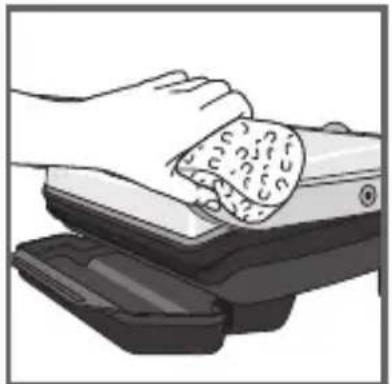
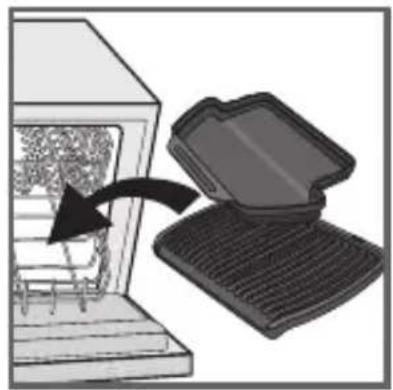
| Care and cleaning | Plates and juice collection tray are dishwasher safe; clean the housing with a damp sponge |
| Included accessories | Cooking plates, juice collection tray, quick cooking guide |
| Safety | Automatic safety shut-off, hot surfaces, do not immerse, do not use without plates |
| Maximum food thickness | 4 cm |
| Reparability | Any repairs should be carried out by an approved service centre |
Frequently Asked Questions - Optigrill GC701D TEFAL
User questions about Optigrill GC701D TEFAL
0 question about this device. Answer the ones you know or ask your own.
Ask a new question about this device
Download the instructions for your Grill plate in PDF format for free! Find your manual Optigrill GC701D - TEFAL and take your electronic device back in hand. On this page are published all the documents necessary for the use of your device. Optigrill GC701D by TEFAL.
USER MANUAL Optigrill GC701D TEFAL
Mode d'emploi / Gebruiksaanwijzing / Bedienungsanleitung / Instructions for use / Istruzioni per l'uso / Instrucciones de uso / Instruções de utilização / Οδηγίες χρήσης
TABLE DES MATIÈRES
- CONSIGNES DE SECURITE / PRECAUTIONS IMPORTANTES p.3
• A FAIRE p.4
• A NE PAS FAIRE p.5
• VUE ECLATEE DU PRODUIT p.7 - DESCRIPTION p.8
• PREPARATION DE L'APPAREIL p.9
• CUISSON AUTOMATIQUE p.10
• CUISSON MANUELLE p.12
• CUISSONS SUCCESSIVES p.13
• REFROIDISSEMENT p.14
• NETTOYAGE ET ENTRETIEN p.15 - DEPANNAGE p.16
• GUIDE DE CUISSON (PROGRAMMES AUTOMATIQUES) p.17
• GUIDE DE CUISSON (INCLUANT LE MODE MANUEL)
p.17
CONSIGNES DE SÉCURITÉ PRÉCAUTIONS IMPORTANTES
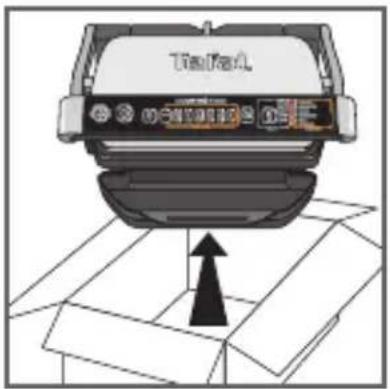
1
natural_image
Illustration of a hand pressing down on a gridded metal tray (no text or symbols visible)2
natural_image
Close-up of a printer's front panel with control buttons and a separate cover (no visible text or symbols)3
natural_image
Illustration of a printer with a label showing 'OK' (no text or symbols on the device itself)4
natural_image
Illustration of a steaming hot pot with steam rising (no text or symbols)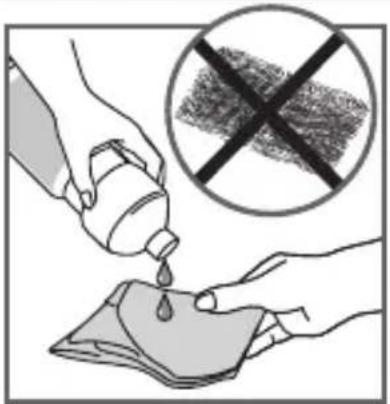
5
natural_image
Illustration of a hand pressing down on a mechanical component (no text or symbols visible)6
7
8
9
10
Cuisson
natural_image
Close-up of a mechanical component with a curved internal structure and directional arrows indicating motion (no text or symbols)14 15
natural_image
Illustration of a mechanical device with a handle and gear mechanism, showing a rotating arrow (no text or symbols)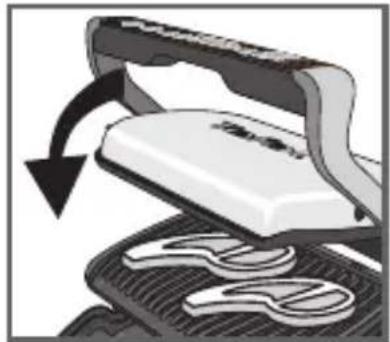
natural_image
Close-up of a white iron cutting machine being processed with a black arrow indicating rotation (no text or symbols visible)16 17
natural_image
Close-up of a white electronic device with a black handle and circular base, showing a curved arrow indicating rotation (no text or symbols visible)18 19
natural_image
Close-up of a hair iron being smoothed with a black arrow indicating rotation (no text or symbols)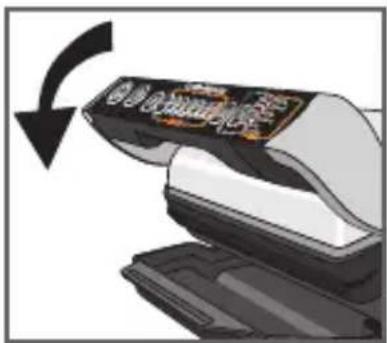
20
natural_image
Illustration of a hand using scissors to cut a white object on a textured surface, with an arrow indicating rotation (no text or symbols present)21 22
natural_image
Illustration of a printer emitting steam with a stopwatch above it (no text or symbols)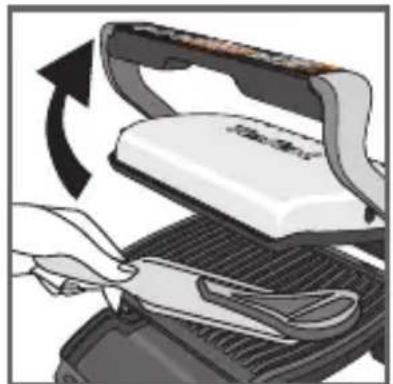
natural_image
Illustration of a hand using a tool to press down a steamer (no text or symbols visible)23
24
28 29
natural_image
Close-up of a mechanical component with a curved arrow indicating motion or force (no text or symbols visible)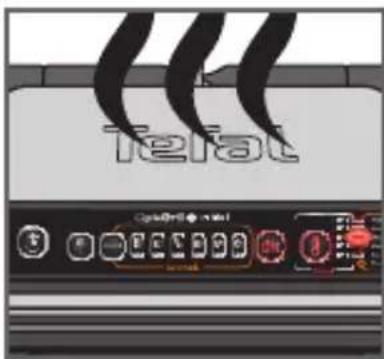
31
natural_image
Illustration of a hair iron pressing down on a textured surface with a black arrow indicating the process (no text or symbols present)30
natural_image
Close-up of a white electronic device with a black handle and gear base, showing mechanical components and a circular arrow indicating rotation (no text or symbols)33
natural_image
Close-up of a computer mouse with a scroll wheel being inserted, showing the blade being twisted (no text or symbols visible)34
natural_image
Close-up of a device being processed with a black arrow indicating rotation (no visible text or symbols)35
4 Refroidissement
36 37
natural_image
Hand inserting a plug into an electrical outlet (no text or symbols visible)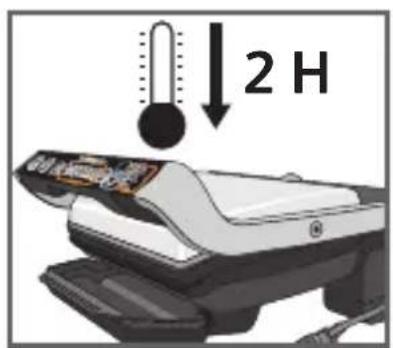
38
natural_image
Close-up of a car's side-mounted fan or steering wheel with visible blades and mounting bracket (no text or symbols)39 40
natural_image
Illustration of a computer monitor with an open lid and a hand inserting a mouse into the screen (no text or symbols)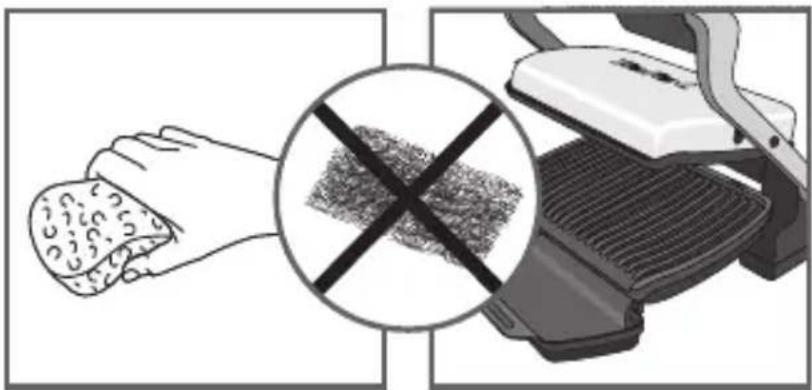
natural_image
Illustration showing a hand holding food and a grater with a crossed-out grid pattern (no text or symbols)41 42
natural_image
Illustration of a hand cleaning a textured object from a mechanical device (no text or symbols visible)43 44
1
natural_image
Illustration of a hand pressing down on a mechanical component (no text or symbols visible)2
natural_image
Illustration of a food processor with control panel and tray (no text or symbols)3
natural_image
Illustration of a printer with a label showing 'OK' (no readable text or symbols on the device itself)4
2 Voorbereiding
natural_image
Illustration of a steaming hot pot with steam rising (no text or symbols)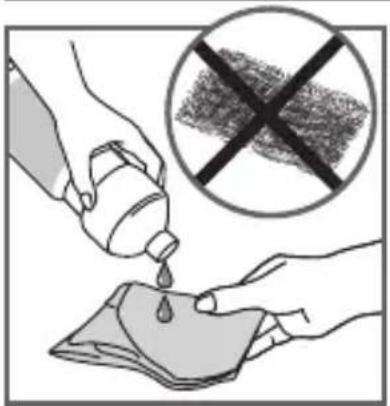
5
natural_image
Illustration of a hand pressing down on a mesh notebook (no text or symbols visible)6
7
8
9
10
12 13
natural_image
Close-up of a mechanical component with a curved arrow indicating motion or force (no text or symbols visible)14 15
natural_image
Illustration of a white iron cutting into a black mesh with a curved arrow indicating rotation (no text or symbols)
natural_image
Close-up of a white iron cutting machine with a black arrow indicating rotation (no text or symbols visible)16 17
natural_image
Close-up of a mechanical device with a curved arrow indicating rotation (no visible text or symbols)18 19
natural_image
Close-up of a sewing machine needle being sewnled into a pair of scissors (no text or symbols visible)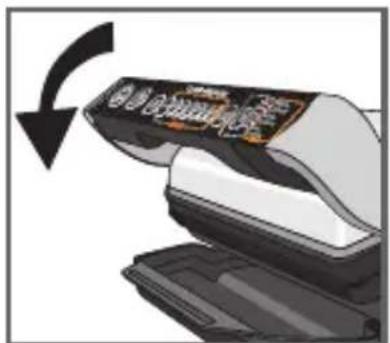
20
natural_image
Illustration of a mechanical device with a rotating arrow indicating rotation (no text or symbols)21 22
natural_image
Illustration of a printer emitting steam with a stopwatch above it (no text or symbols)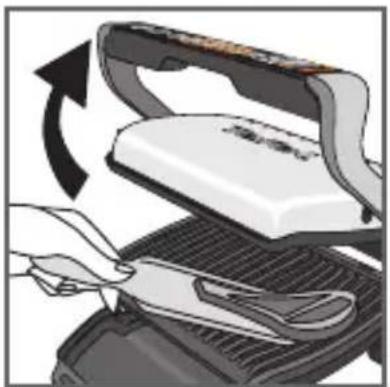
natural_image
Illustration of a hand using scissors to cut a white iron on a grater, with an arrow indicating rotation (no text or symbols present)23 24
25
26 27
Bakken
natural_image
Close-up of a mechanical component with a curved arrow indicating motion or force (no text or symbols visible)28 29
natural_image
Illustration of a mechanical press or printer with a curved arrow indicating rotation (no text or symbols present)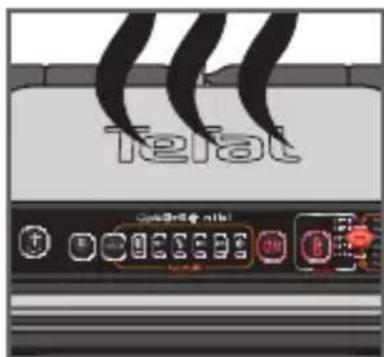
30 31
natural_image
Illustration of a steamer with open lid and cooling rack, showing mechanical components and airflow direction (no text or symbols)
natural_image
Close-up of a computer mouse being held by a cable, showing the cable being twisted (no text or symbols visible)34 35
4 Afkoelen
36 37
natural_image
Hand inserting a plug into an electrical outlet (no text or symbols visible)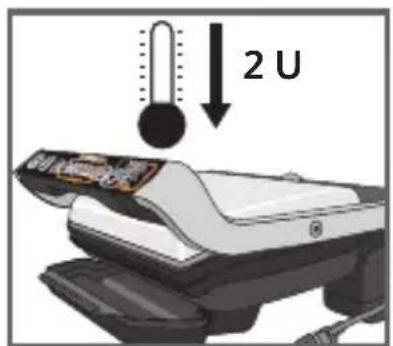
38
natural_image
Close-up of a car's side panel showing airflow or heat transfer (no text or symbols visible)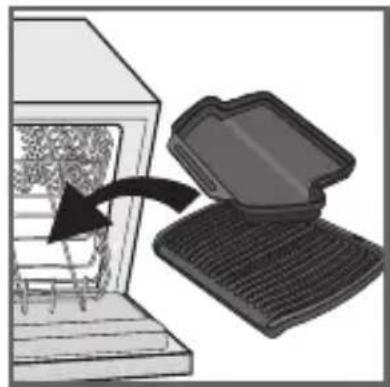
natural_image
Illustration of a computer with an open lid and keyboard, showing a mechanical component inside (no text or symbols)39 40
41 42
natural_image
Illustration of a hand using a handheld device to clean or discard a textured object (no text or symbols visible)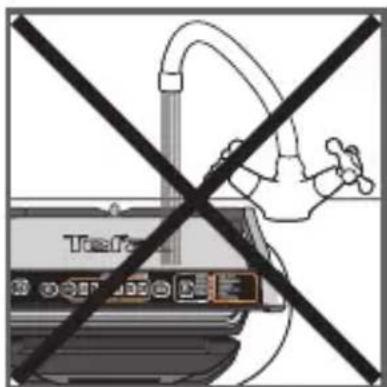
43 44

natural_image
Illustration of a graduation cap placed above a computer monitor with a key inserted (no text or symbols visible)45

1
natural_image
Illustration of a hand pressing down on a mechanical component (no text or symbols visible)2
natural_image
Illustration of a food processor with control panel and tray (no text or symbols)3
natural_image
Illustration of a printer with a label showing 'OK' (no readable text or symbols on the device itself)4
2 Vorbereitung
5
natural_image
Illustration of a hand pressing down on a mesh device (no text or symbols visible)6
7
8
9
10
11

12 13
natural_image
Close-up of a mechanical component with a curved arrow indicating motion or force (no text or symbols visible)14 15
natural_image
Illustration of a white iron cutting into a black mesh with a curved arrow indicating rotation (no text or symbols)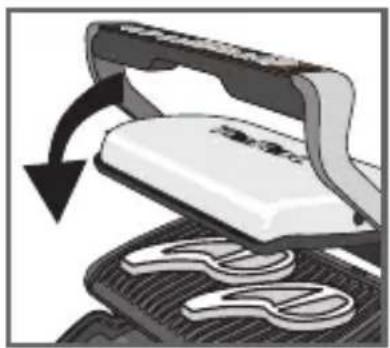
natural_image
Illustration of a steam iron cutting into a flat plate with a curved arrow indicating rotation (no text or symbols)16 17
natural_image
Close-up of a mechanical device with a curved arrow indicating rotation (no visible text or symbols)18 19
natural_image
Close-up of a hand holding scissors with a curved arrow indicating rotation (no text or symbols)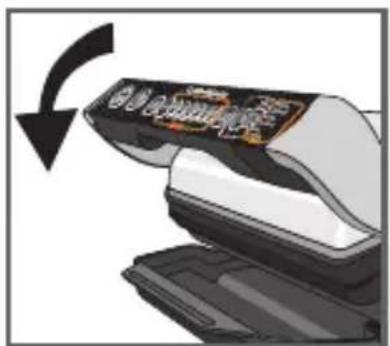
20
natural_image
Illustration of a mechanical device with a rotating arrow indicating rotation (no text or symbols)21 22
natural_image
Illustration of a printer emitting steam with a stopwatch above it (no text or symbols)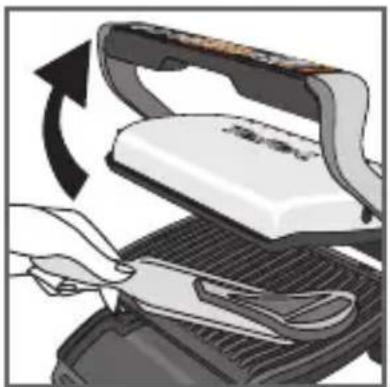
natural_image
Illustration of a hand using scissors to cut a white iron on a grater, with an arrow indicating rotation (no text or symbols)23 24
28 29
natural_image
Close-up of a mechanical component with a curved arrow indicating motion or force (no text or symbols visible)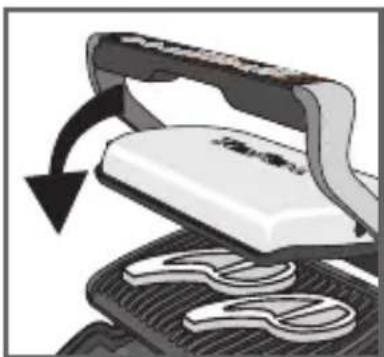
natural_image
Illustration of a steaming machine with a curved arrow indicating rotation (no text or symbols)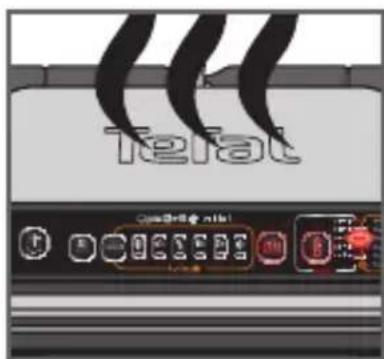
natural_image
Close-up of a mechanical device with a rotating arrow indicating rotation (no text or symbols visible)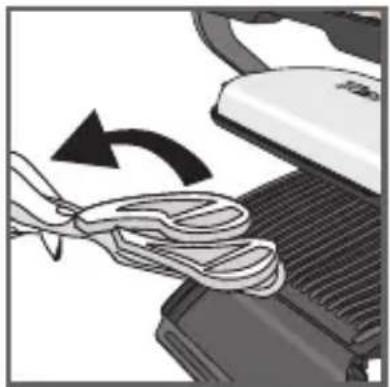
natural_image
Close-up of a sewing machine needle being sewnled, showing the blade and handle (no text or symbols visible)34 35
4 Abkühlen
36 37
natural_image
Hand inserting a plug into an electrical outlet (no text or symbols visible)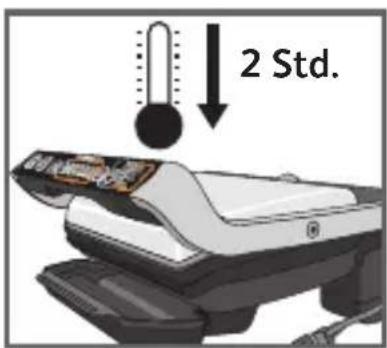
38
natural_image
Close-up of a car's side panel showing airflow or heat distribution (no text or symbols visible)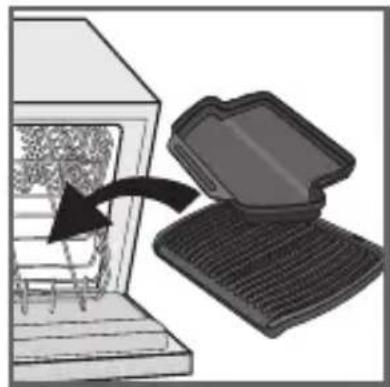
natural_image
Illustration of a computer with an open lid and keyboard, showing a mechanical component inside (no text or symbols)39 40
natural_image
Illustration of a hand holding food with a crossed-out black-and-white grid pattern, next to a grater (no text or symbols)41 42
natural_image
Illustration of a hand pressing down on a mechanical device with a textured circular component (no text or symbols visible)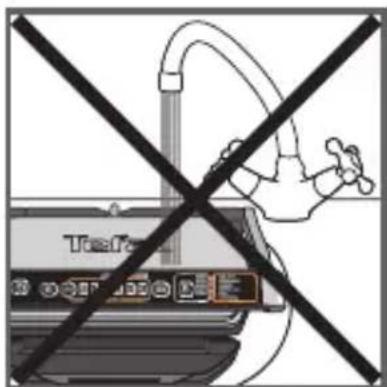
43 44
natural_image
Illustration of a graduation cap placed on a laptop with a lock, no text or symbols present.45
SAFETY INSTRUCTIONS IMPORTANT SAFEGUARDS
Use, maintenance and product installation guidelines: for your own safety, please read through all paragraphs of the instruction manual including the associated pictograms.
- This appliance is intended for indoor, domestic household use only. It is not intended to be used in the following applications, and the guarantee will not apply for:
—staff kitchen areas in shops, offices and other working environments;
-farm houses;
-by clients in hotels, motels and other residential type environments;
—bed and breakfast type environments.
- Before first use remove all packaging materials, stickers and accessories from the inside and the outside of the appliance.
- This appliance is not intended for use by persons (including children) with reduced physical, sensory or mental capabilities, or lack of experience and knowledge, unless they have been given supervision or instruction concerning use of the appliance by an adult responsible for their safety. Children should be supervised to ensure that they do not play with the appliance, and do not use as a toy.
- This appliance can be used by children aged from 8 years and above and persons with reduced physical, sensory or mental capabilities or lack of experience and knowledge if they have been given supervision or instruction concerning use of the appliance in
a safe way and understand the hazards involved. Cleaning and user maintenance shall not be made by children unless they are older than 8 and supervised.
- Keep the appliance and its cord out of reach of children less than 8 years.
- Never leave the appliance unattended when in use.
- Accessible surface temperatures can be high when the appliance is operating. Never touch the hot surfaces of the appliance.
- This appliance is not intended to be operated by means of an external timer or separate remote-control system.
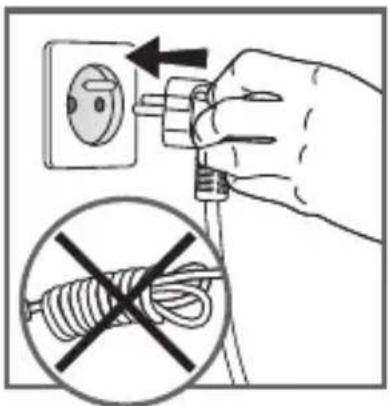
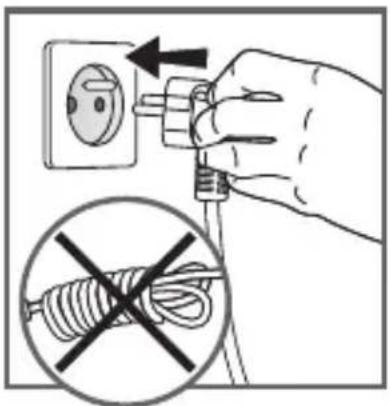
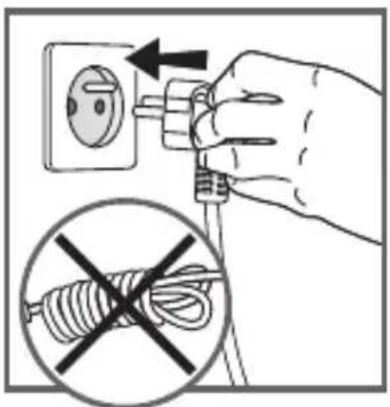
- Fully unwind the power cord before plugging in the appliance.
- If the power supply cord is damaged, it must be replaced by the manufacturer or its after sales service in order to avoid any danger.
- Do not use an extension lead. If you accept liability for doing so, only use an extension lead which is in good condition, has a plug with an earth connection and is suited to the power rating of the appliance. Take all necessary precautions to prevent anyone tripping over an extension cord.
• Always plug the appliance into an earthed socket. - Make sure that the electric power supply is compatible with the power rating and voltage indicated on the bottom of the appliance.
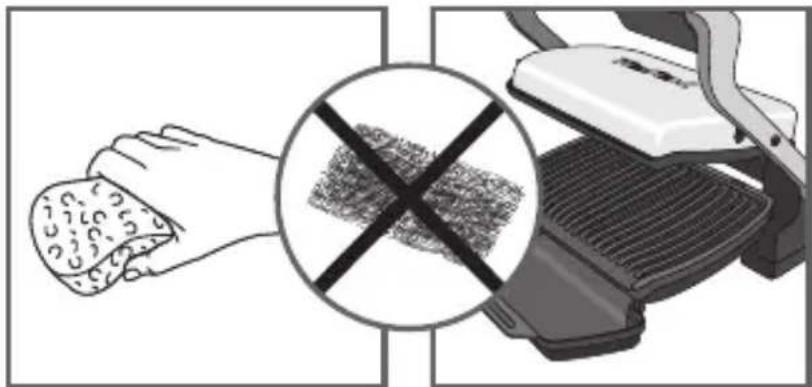
- Use a sponge, hot water and washing up liquid to clean the cooking plates.
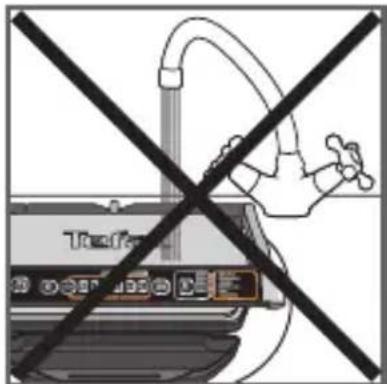
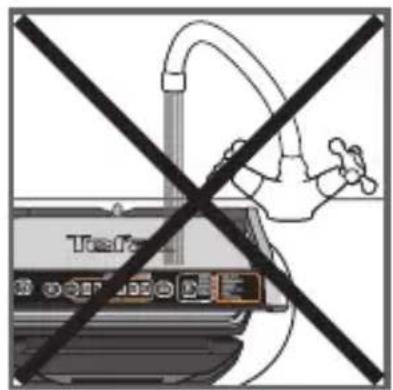
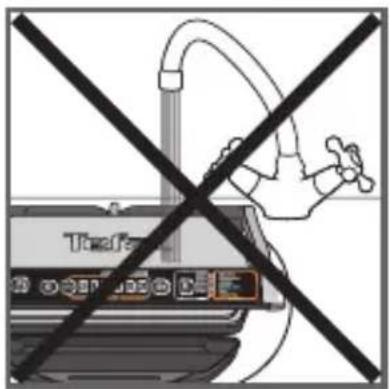
- Never immerse the appliance, its power cord or plug in water or any other liquid.
WARNING: Do not heat or pre-heat without the 2 cooking plates inside the grill.
Do
- Read the instructions carefully, common to different versions depending on the accessories supplied with your appliance, and keep them within reach.
- If an accident occurs, rinse the burn immediately with cold water and call a doctor if necessary.
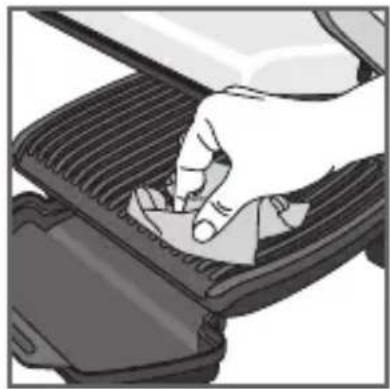
- Before first use, wash the plates (see paragraph 5), pour a little cooking oil onto the plates and wipe with a soft cloth or paper kitchen towel.
- Position the power cord carefully, whether an extension is used or not, so that guests can move freely around the table without tripping over it.
- Cooking fumes may be dangerous for animals which have a particularly sensitive respiratory system, such as birds. We advise bird owners to keep them away from the cooking area.
• Always keep the appliance out of the reach of children. - Check that both faces of the plate are clean before use.
- To prevent damage to the plates, only use them on the appliance for which they were designed (e.g., do not place in an oven, on the gas ring or electric hot-plate, etc.).
- Ensure that the plates are stable, well positioned and correctly clipped to the appliance. Only use the plates provided with the appliance or bought from an Approved Service Centre.
• Always use a wooden or plastic spatula to avoid damaging the cooking plates. - Only use parts or accessories provided with the appliance or bought from an Approved Service Centre. Do not use them for other appliances or intention.
Do not
- Do not use the appliance outside.
- Never leave the appliance unattended when plugged in or in use.
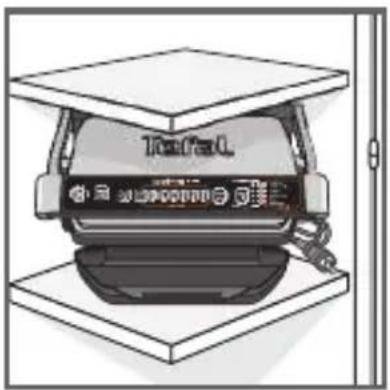
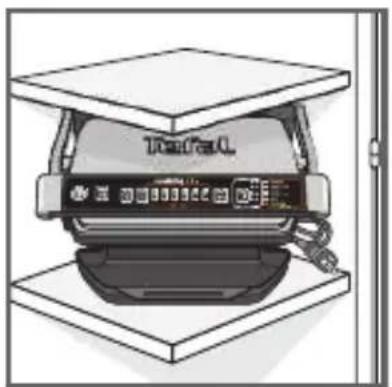
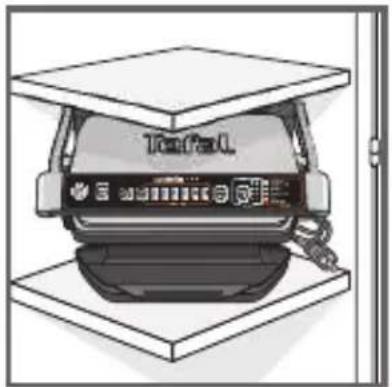
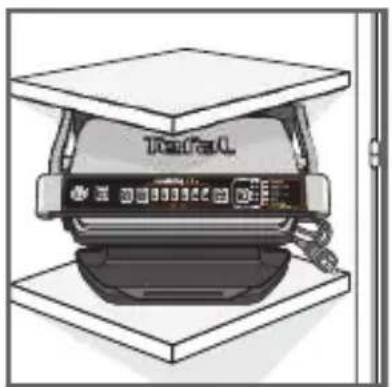
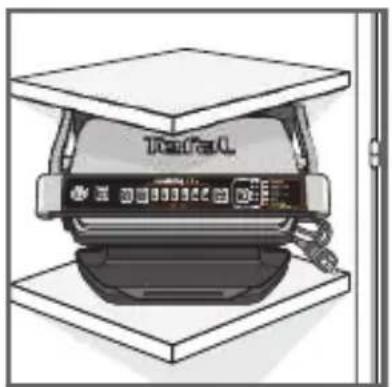
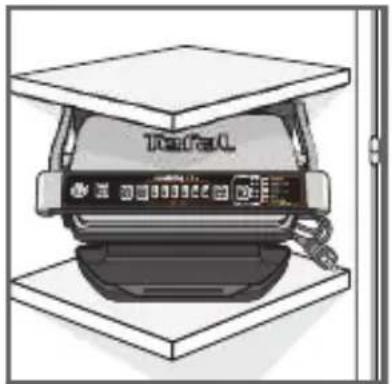
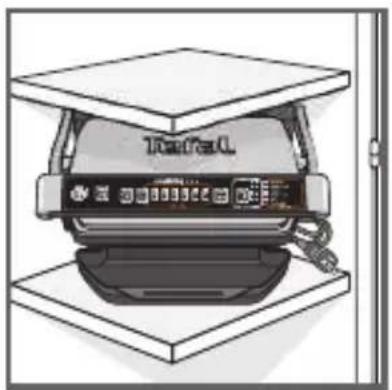
- To prevent the appliance from overheating, do not place it in a corner or below a wall cupboard.
- Never place the appliance directly on a fragile surface (glass table, tablecloth, varnished furniture, etc.) or on a soft surface such as a tea-towel.
- Never place the appliance under a cupboard attached to a wall or a shelf or next to inflammable materials such as blinds, curtains or wall hangings.
- Never place the appliance on or near hot or slippery surfaces; the power cord must never be close to or in contact with hot parts of the appliance, close to a source of heat or resting on sharp edges.
- Do not place cooking utensils on the cooking surfaces of the appliance.
-
Never cut food directly on the plates,
-
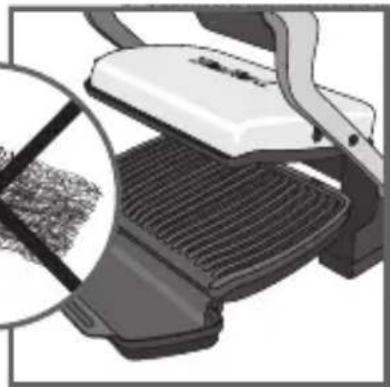
Do not use metal scouring pads, abrasive wire wool or harsh scouring powder as this may damage the nonstick coating.
- Do not move the appliance when in use.
- Do not carry the appliance by the handle or metallic wires.
- Never run the appliance empty.
- Do not use aluminium foil or other objects between the plate and the food being cooked.
- Do not remove the grease collection tray while cooking. If the grease collection tray becomes full when cooking: let the appliance cool down before emptying.
- Do not place the hot plate on a fragile surface or under water.
- To preserve the non-stick properties of the coating, avoid excessive pre-heating with the appliance empty.
- The plates should never be handled when hot.
- Do not cook food in aluminium foil.
- To avoid spoiling your appliance, do not use flambé recipes in connection with it at any time.
- Do not place a sheet of aluminum or any other object between the plates and the heating element.
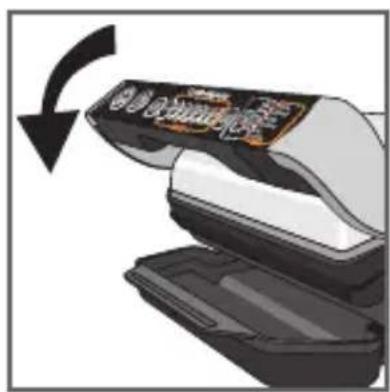
- Never heat or cook whilst the grill is open.
- Never heat up the appliance without the cooking plates.
Tips/information
- Thank you for buying this appliance, which is intended for domestic use only.
- For your safety, this appliance complies with the applicable standards and regulations - Low voltage directive - Electromagnetic compatibility - The environment - Materials in contact with food.
- On first use, there may be a slight odour and a little smoke during the first few minutes.
- Our company has an ongoing policy of research and development and may modify these products without prior notice.
- Do not consume foodstuff that comes into contact with the parts marked with logo
- If the food is too thick, the safety system will stop the appliance from working.

Environment
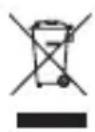
Environment protection first!
Your appliance contains valuable materials which can be recovered or recycled.
Leave it at a local civic waste collection point.
- Your appliance contains valuable materials which can be recovered or recycled. - Leave it at a local civic waste collection point.
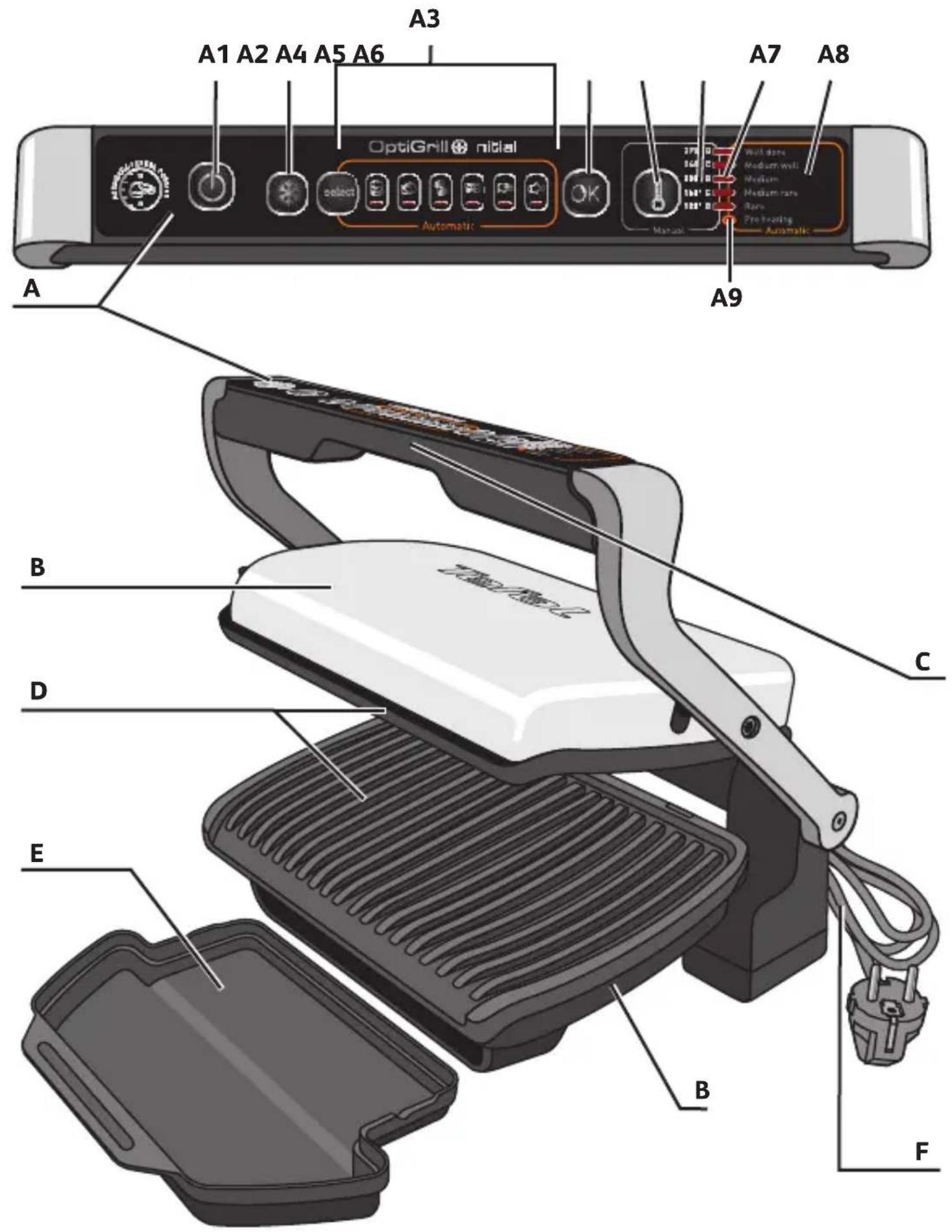
Description
A Control panel
A1 On/off button
A2 For automatic programs
A5 Manual mode "5 temperature settings"
A6 Temperature levels for manual mode.
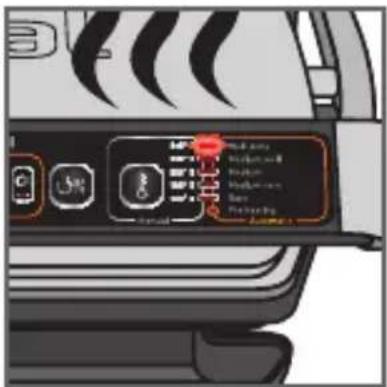
A7 5 Leds : for temperature level in manual mode, or for cooking level for automatic programs.
B Body
C Handle
D Cooking plates
A3 6 Automatic cooking programs with "select" button
A4 OK button
A8 Cooking level for automatic programs.
A9 Preheating Led for automatic programs. F Power cord
E Drip tray
F Power cord
Guide of automatic cooking programs

Burger Panini / Sandwich


Poultry Fish


Red meat Pork/sausage/amb

Guide of manual cooking programs

Manual mode:
Traditional grill for manual operation with 5 different temperature settings (from 120°C to 270°C)
PREPARING THE APPLIANCE
1 Setting
1
natural_image
Illustration of a hand pressing down on a car grille (no text or symbols visible)2
natural_image
3D illustration of a printer with control panel and base tray, no visible text or symbols3
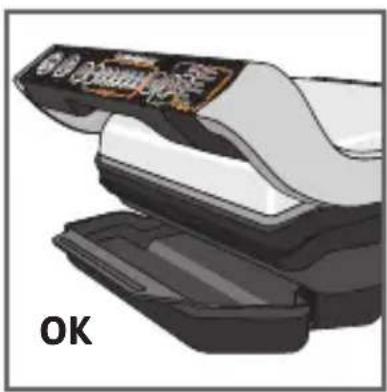
natural_image
Illustration of a printer with a cover labeled 'OK' (no other text or symbols)4
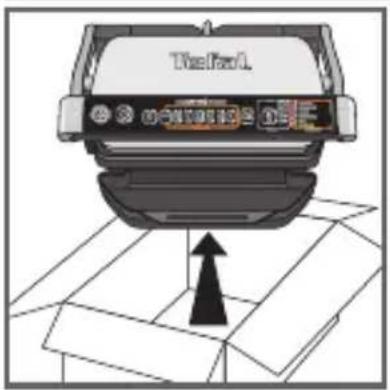
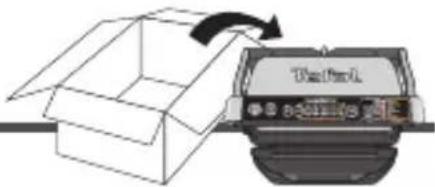
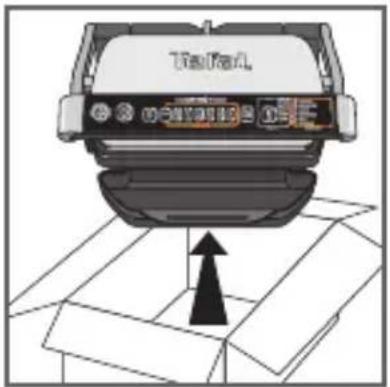
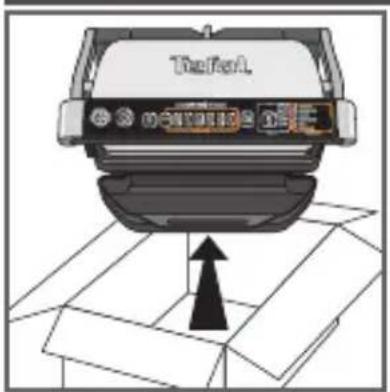
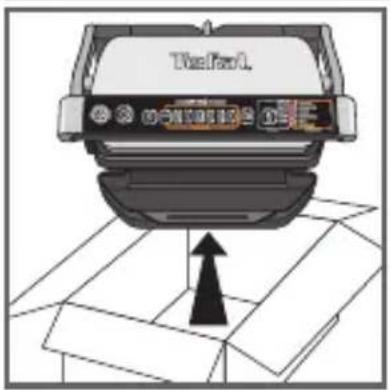
1 Remove all packaging materials, stickers and accessories from the inside and the outside of the appliance. The handle sticker on the cooking level indicator can be changed, according to the language. You can replace it with the one on the inside of the packaging.
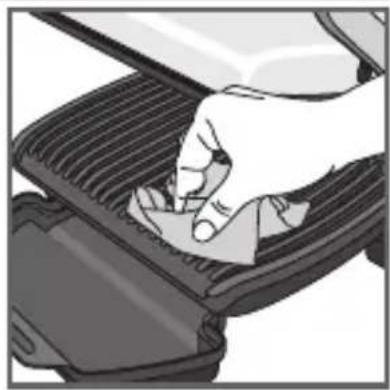
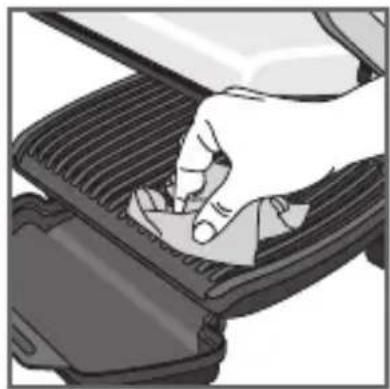
2 Before using for the first time, thoroughly clean the plates with warm water and a little dishwashing liquid, rinse and dry thoroughly.
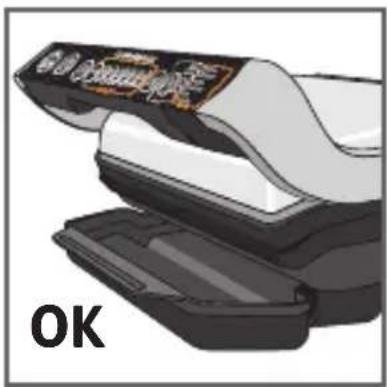
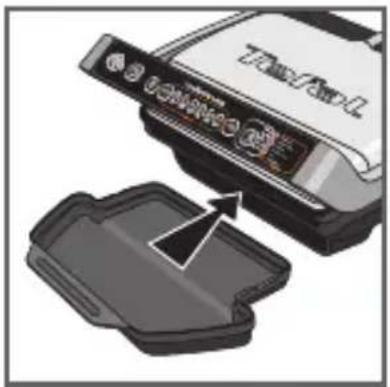
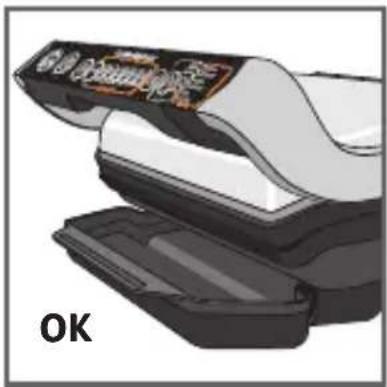
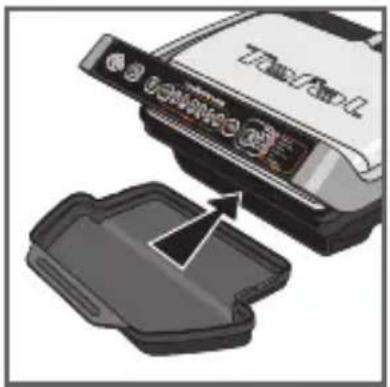
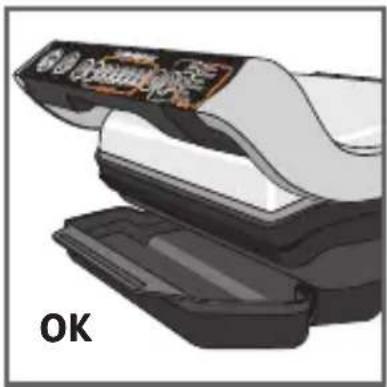
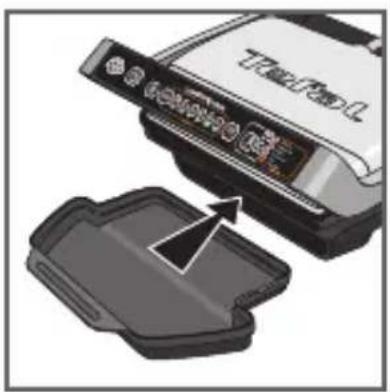
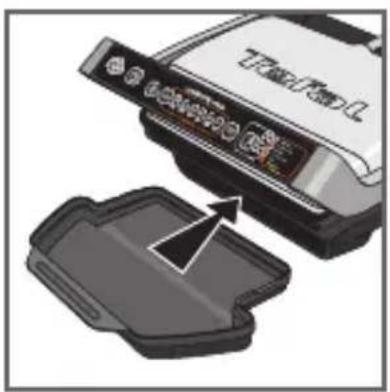
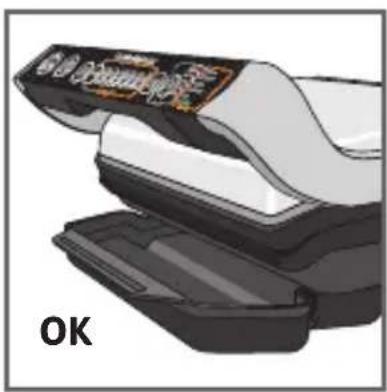
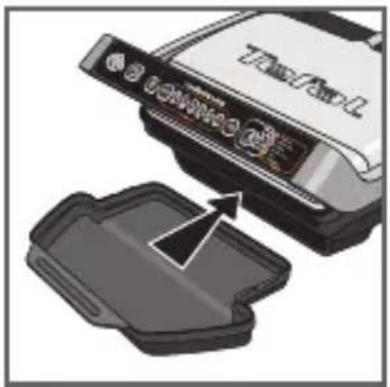
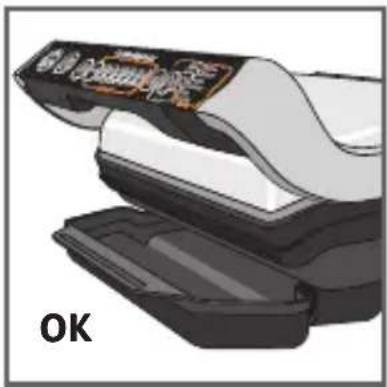
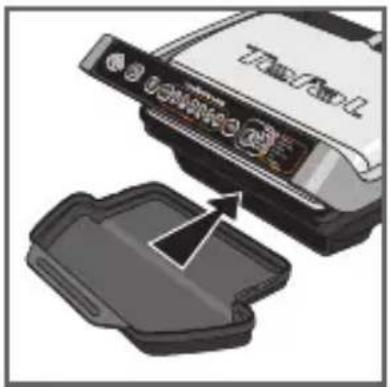
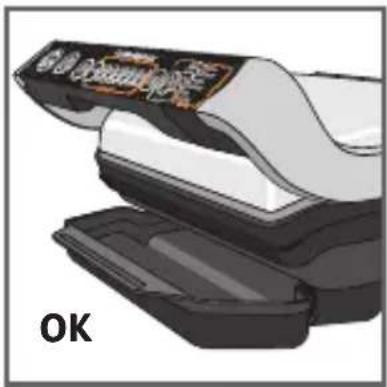
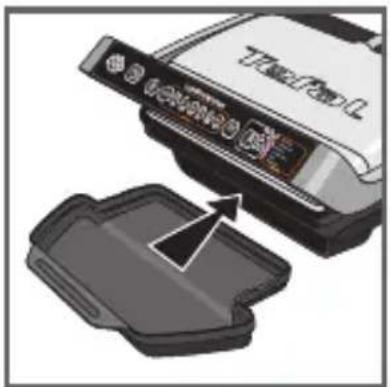
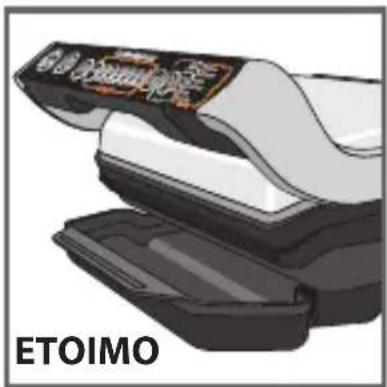
3-4 Position the removable drip tray at the front of the appliance.
2 Preparation
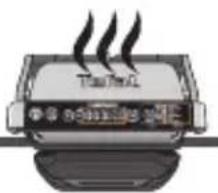
natural_image
Illustration of a toaster with steam rising from its side (no text or symbols)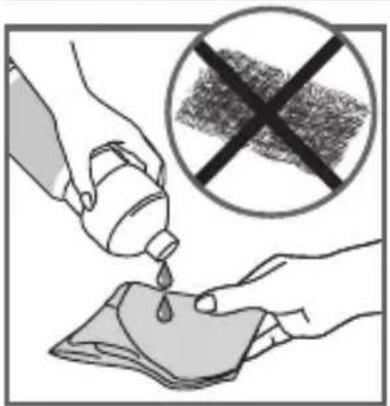
5
natural_image
Illustration of a hand pressing down on a car grille (no text or symbols visible)6
7

8
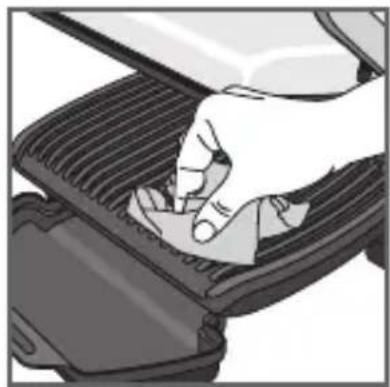
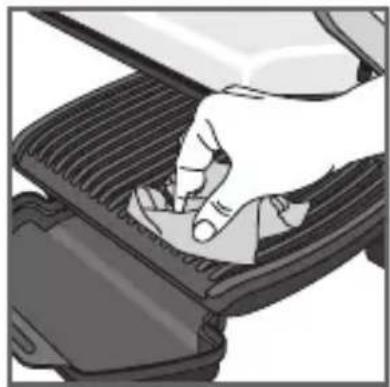
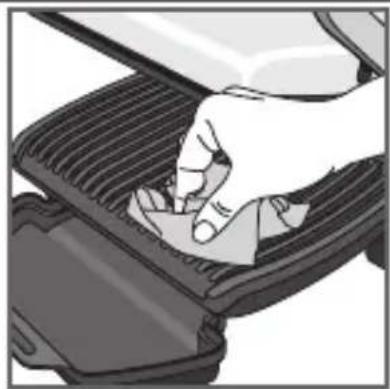
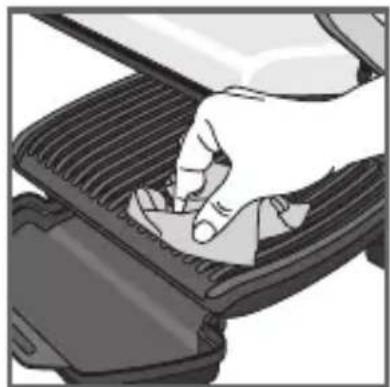
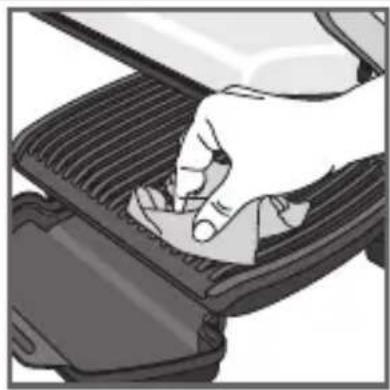
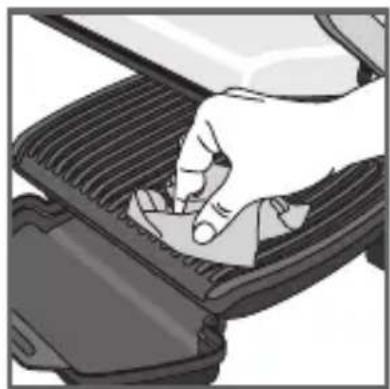
5 For the best results you may wipe the cooking plates using a paper towel dipped in a little cooking oil, to improve the non-stick release.
5bis Ensure that the bottom cooking plate and the upper cooking plate are correctly positioned in the product before the pre-heating phase begins.
6 Remove any surplus oil using a clean kitchen paper towel.
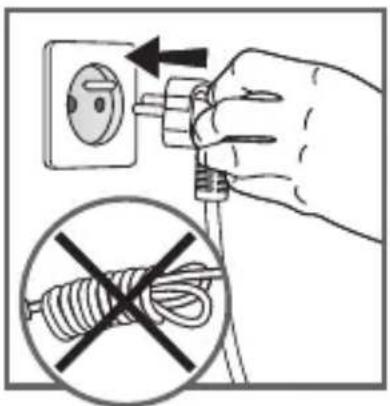
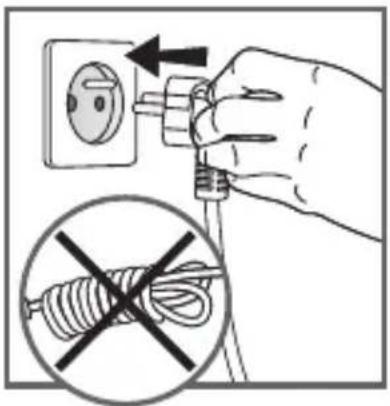
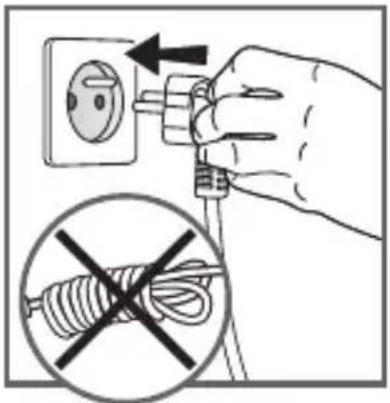
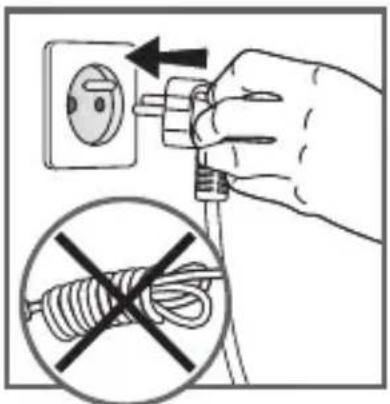
7 Connect the appliance to an outlet. (note the cord should be fully unwound).
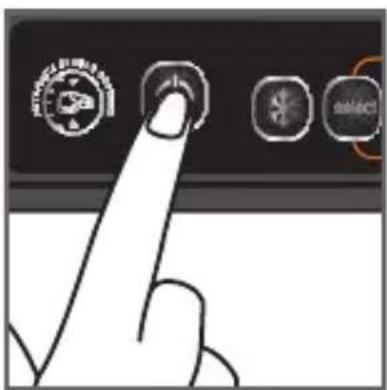
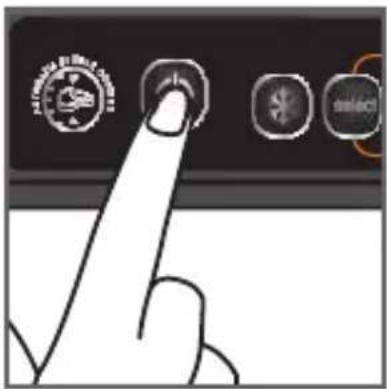
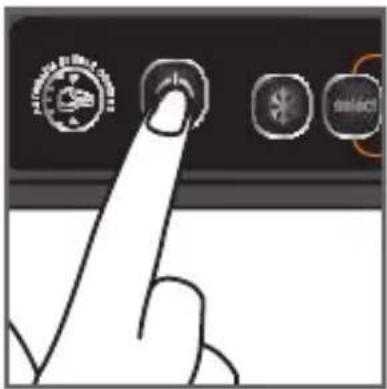
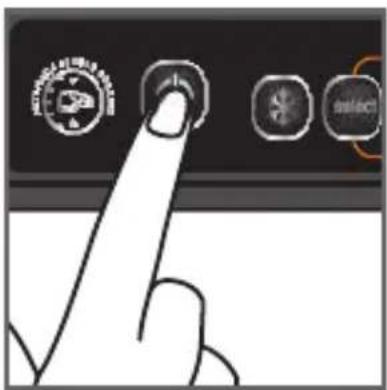
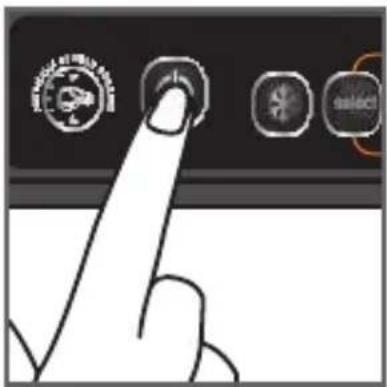
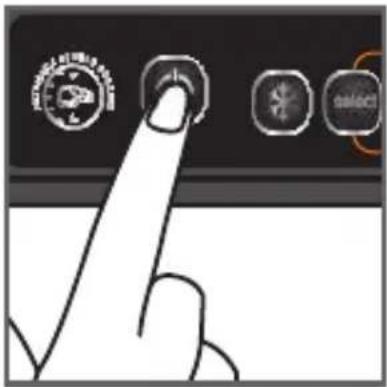
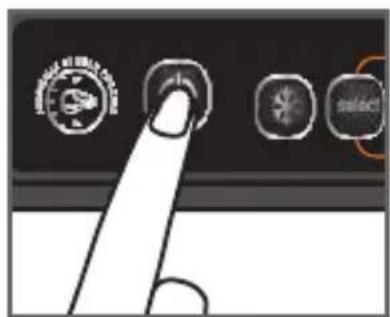
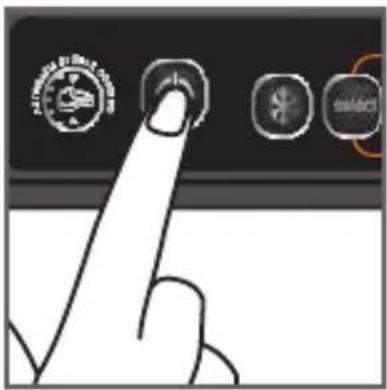
8 Press the On/Off button.
3a - AUTOMATIC cooking with 6 automatic programs
Automatic cooking - select a program and preheat before cooking:
9
10
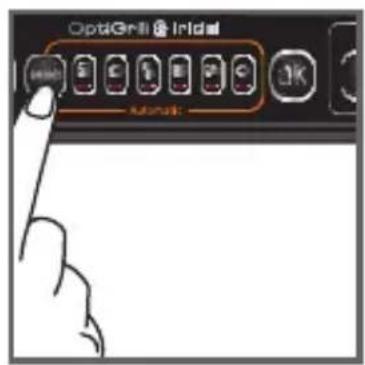
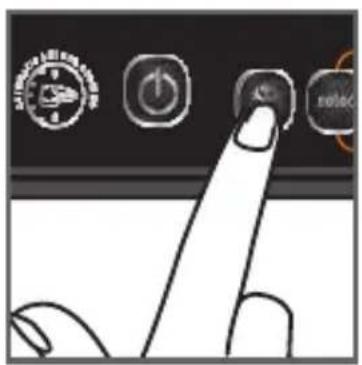
9 If the food that you wish to cook is frozen, press the "frozen food" button.
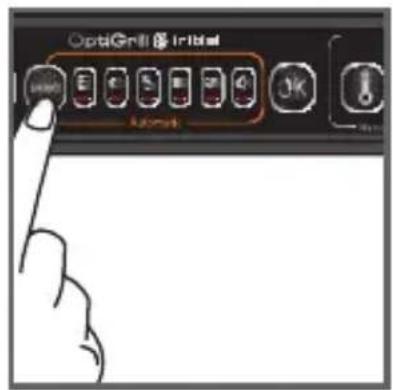
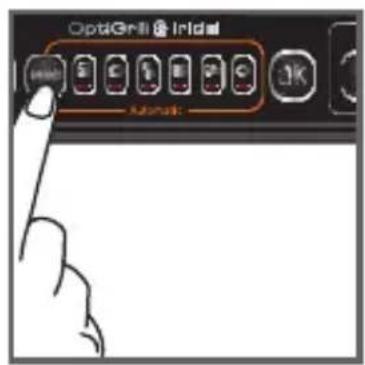
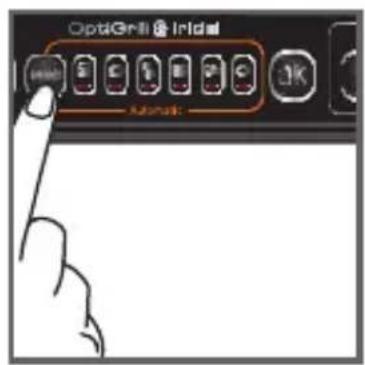
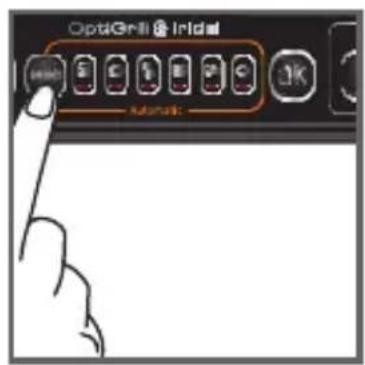
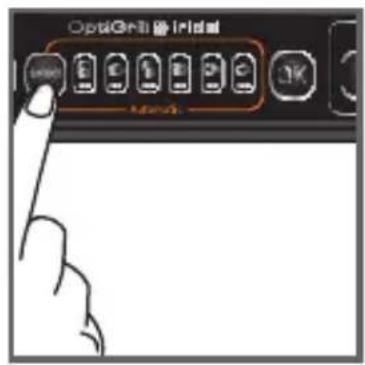
10 Select the appropriate cooking mode according to what type of food you wish to cook.
6 automatic cooking programs
 | Select this cooking program if you want to cook burgers. |  | Select this cooking program if you want to cook pork/sausage/lamb. |
 | Select this cooking program if you want to cook poultry. |  | Select this cooking program if you want to cook red meat. |
 | Select this cooking program if you want to cook a panini or sandwich. |  | Select this cooking program if you want to cook fish. |
If you are uncertain about what cooking mode to use for other foods because it is not listed above, please refer to the “Cooking table for out of program food” page 64.
11

12 13
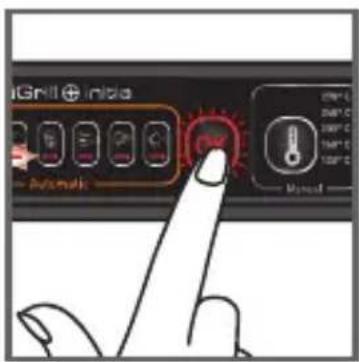
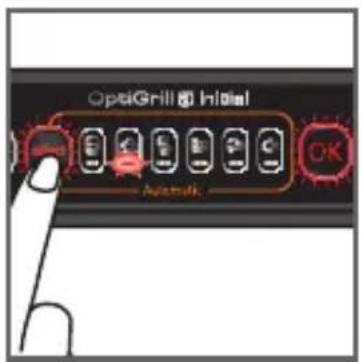
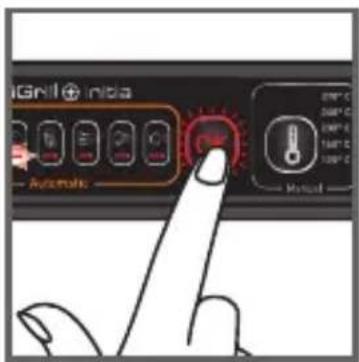
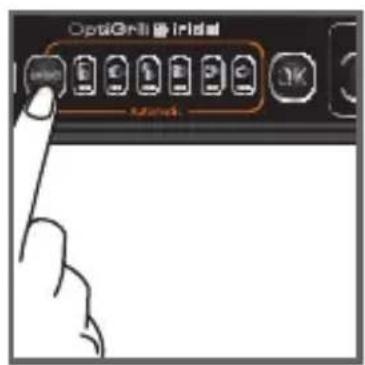
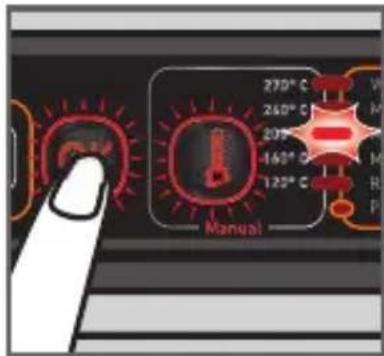
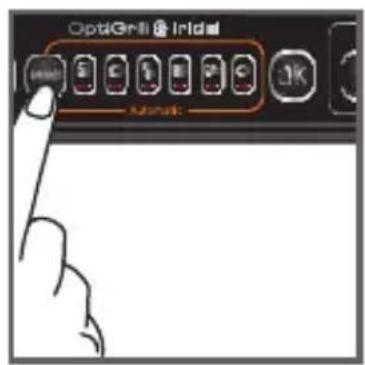
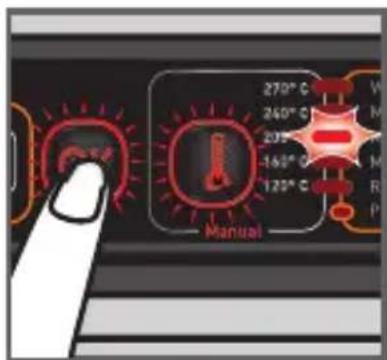
11 Press the « SELECT » button several times until you reach the desired program. Ensure that there is no food inside the grill When you have selected the wishing one then press the « OK » button.
NB: if you have selected the wrong program, return to stage 8.
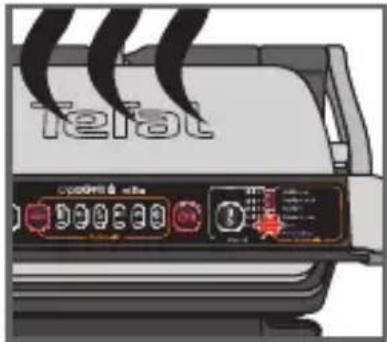
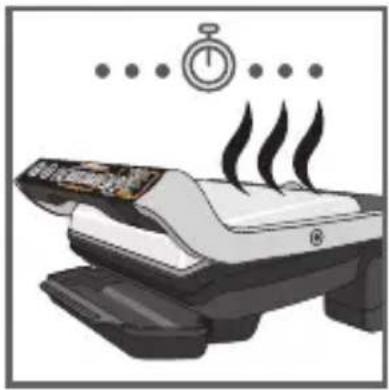
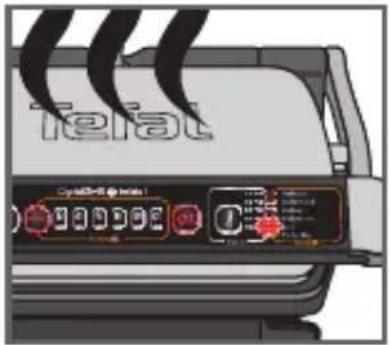
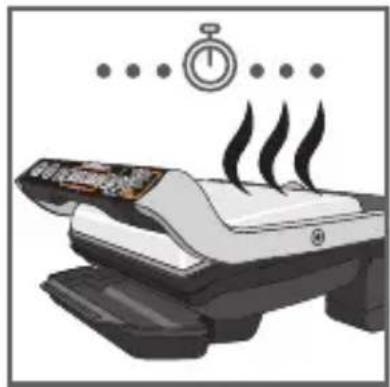
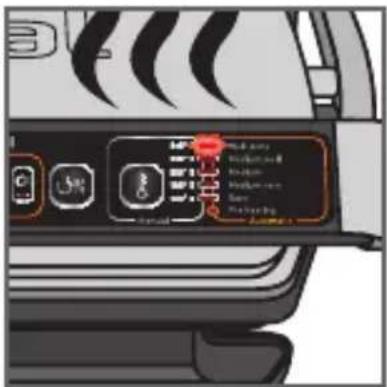
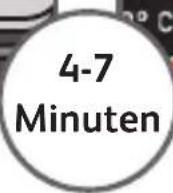
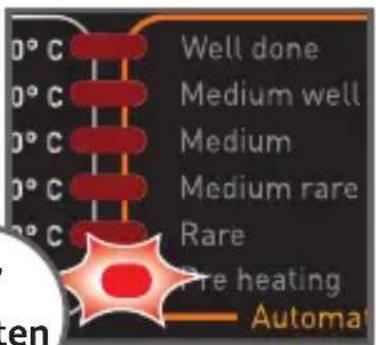
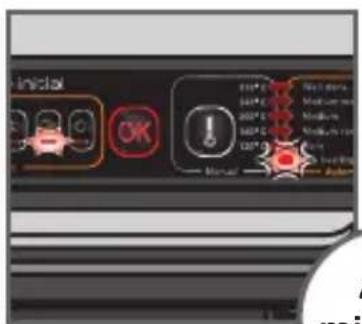
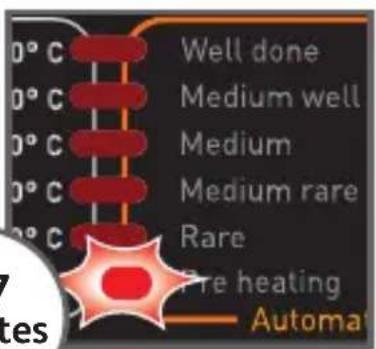
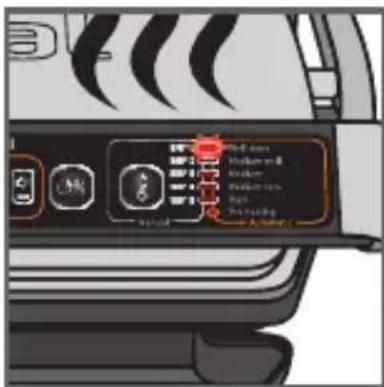
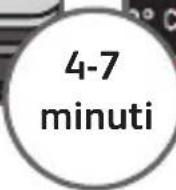
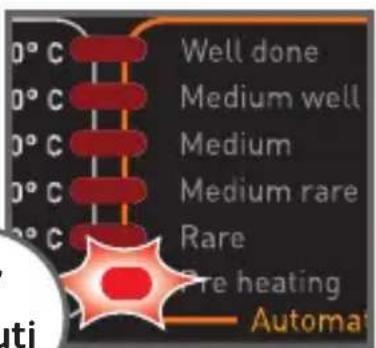
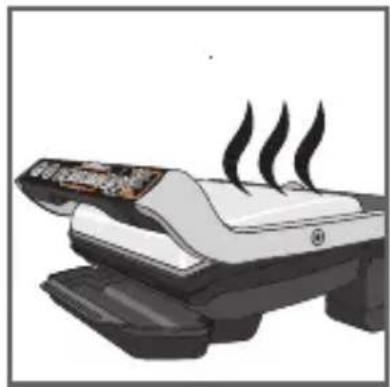
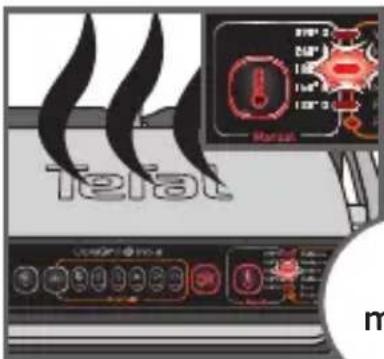
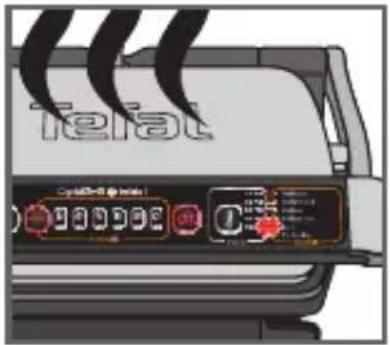
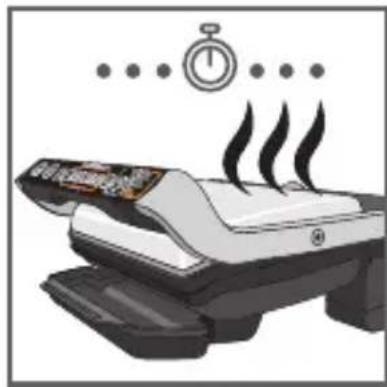
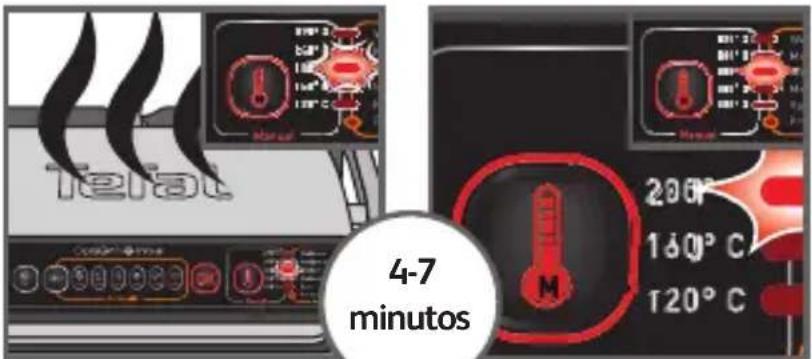
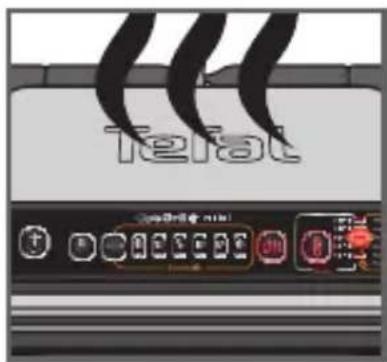
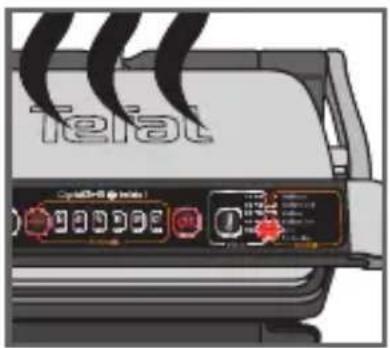
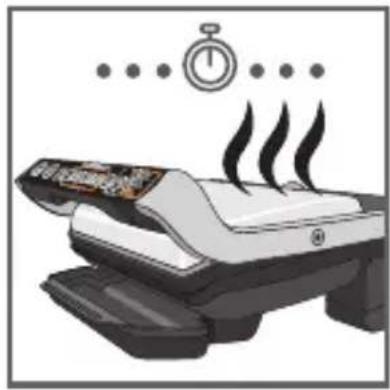
12 The selected program light stays on. The appliance starts pre-heating and the preheat indicator flashes during all the pre-heating phase. You must wait the preheat indicator stops flashing before opening the Grill and adding the food. Wait for 4-7 minutes.
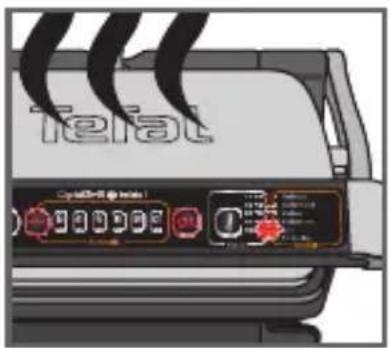
13 When the pre-heating is complete, a melody is displayed, the preheat indicator stops flashing and stays lit during all the cooking process.
Comments: At the end of pre-heating, if the appliance remains closed, the safety system will turn off the appliance.
Cooking
natural_image
Close-up of a mechanical component with a curved arrow indicating motion or force (no text or symbols visible)14 15
natural_image
Illustration of a white iron cutting into a black mesh with a curved arrow indicating rotation (no text or symbols)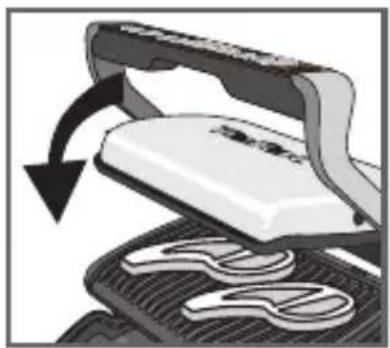
natural_image
Illustration of a steam iron cutting into a flat plate with a curved arrow indicating rotation (no text or symbols)16 17
natural_image
Illustration of a mechanical device with an arrow indicating rotational motion (no text or symbols)18 19
natural_image
Close-up of a sewing machine needle being sewnled into a pair of scissors (no text or symbols visible)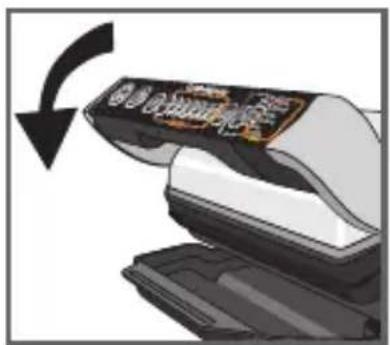
20
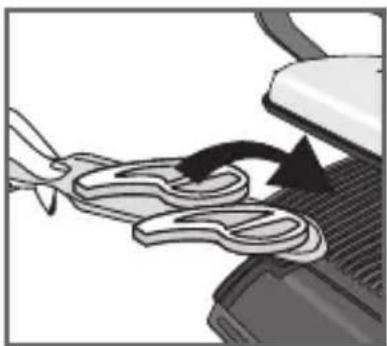
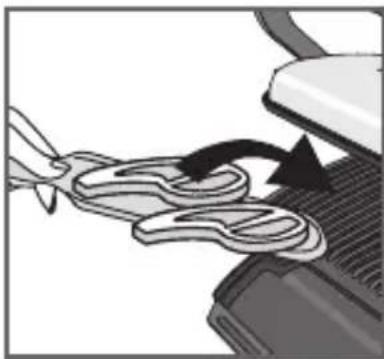
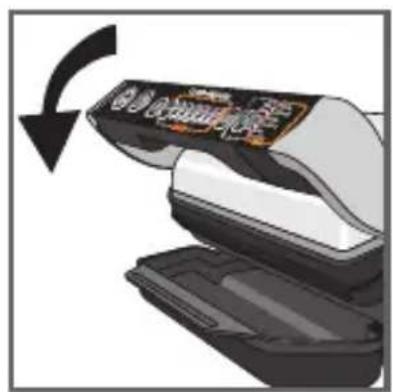
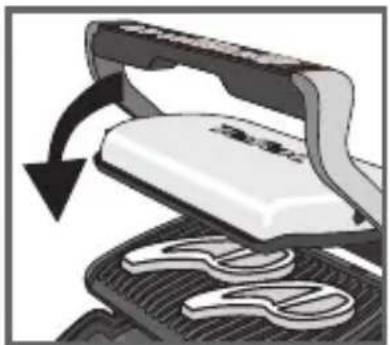
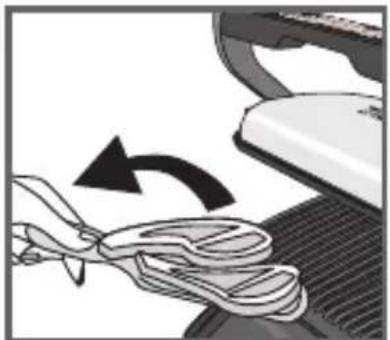
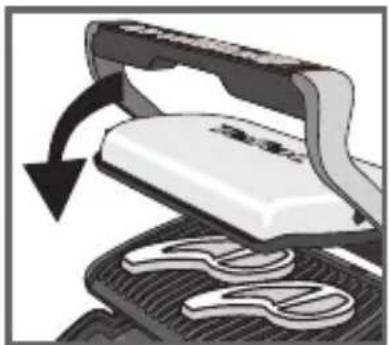
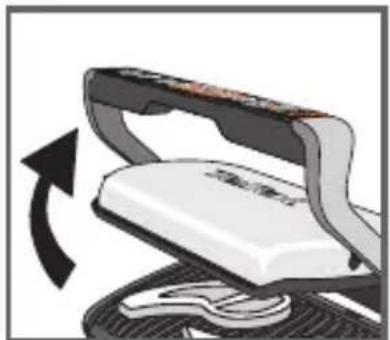
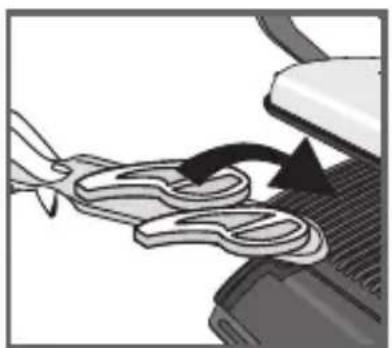
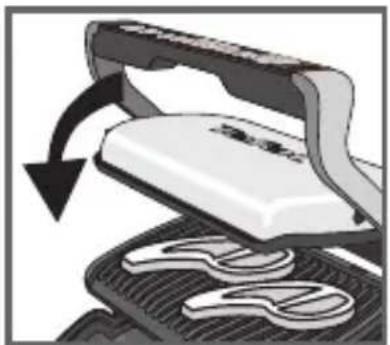
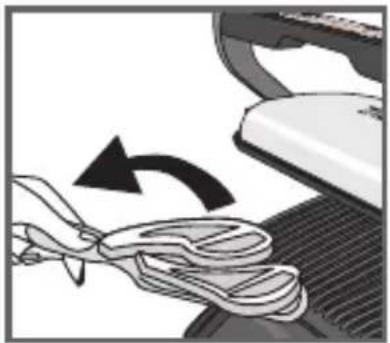
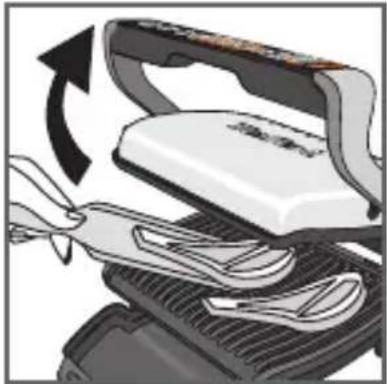
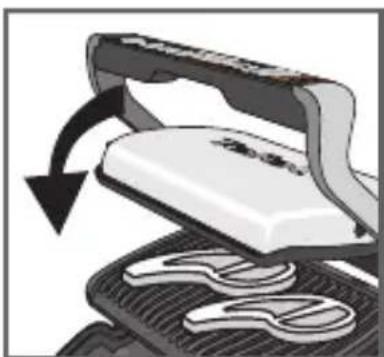
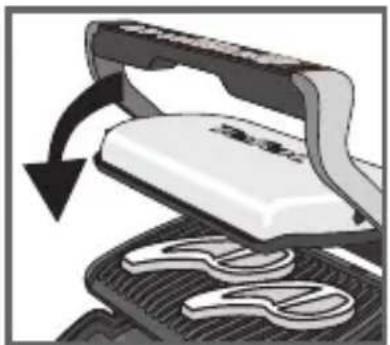
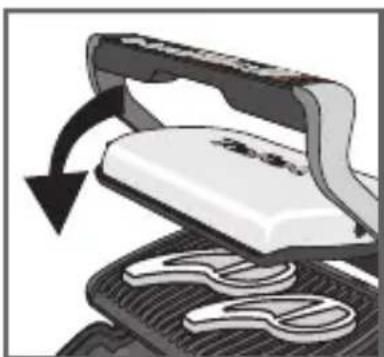
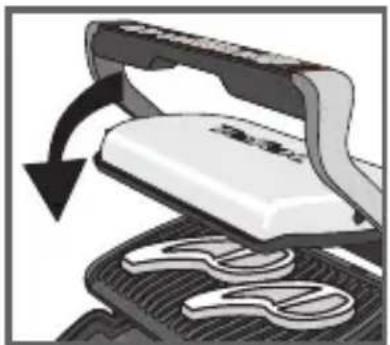
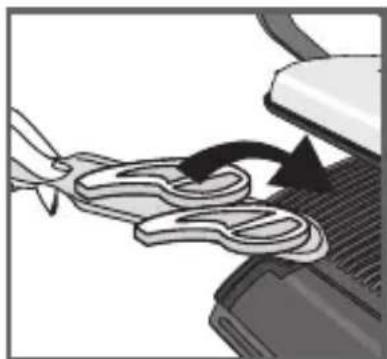
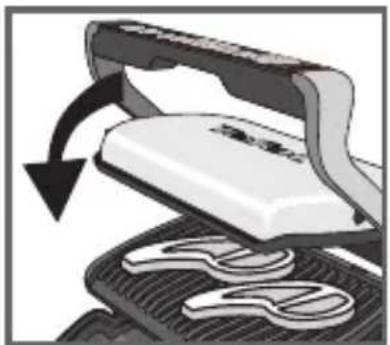
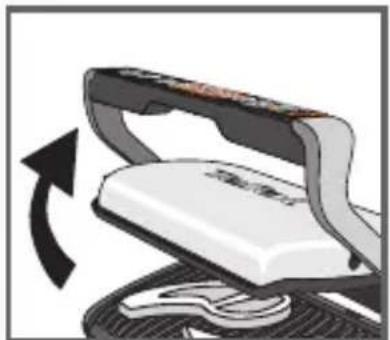
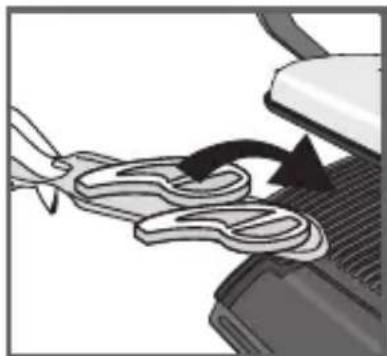
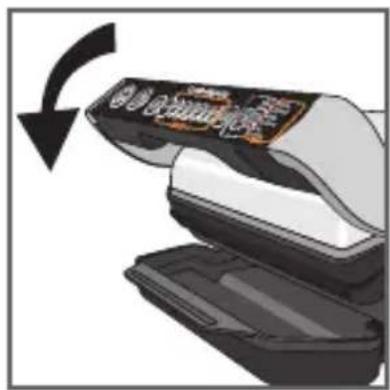
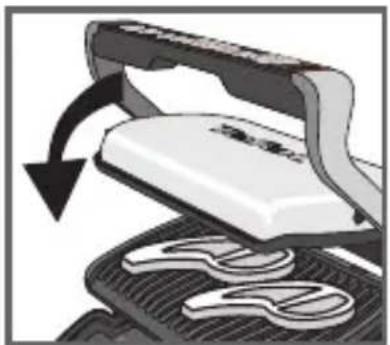
14-15 After pre-heating, the appliance is ready for use. Open the grill and place the food on the cooking plate.
Comments: if the appliance remains open for too long, the safety system will turn off the appliance automatically.
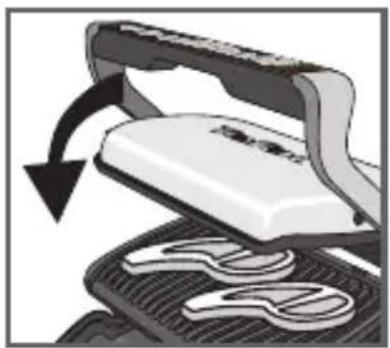
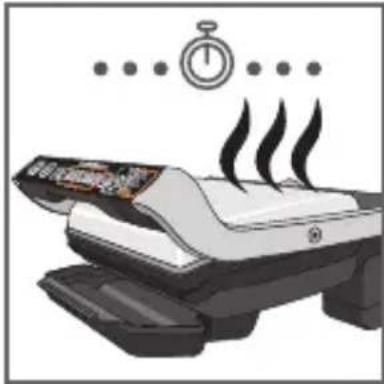
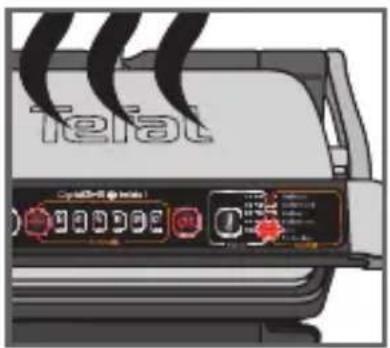
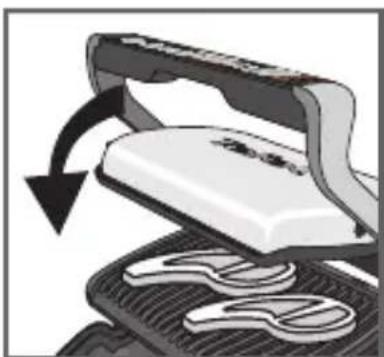
16-17 The appliance automatically adjusts the cooking cycle (time and temperature) according to the food thickness and quantity.
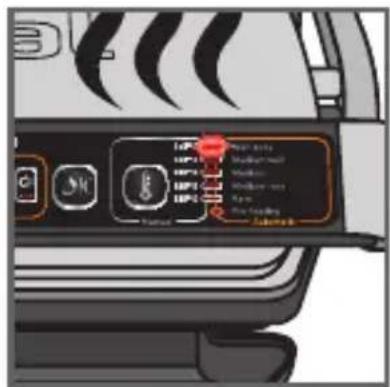
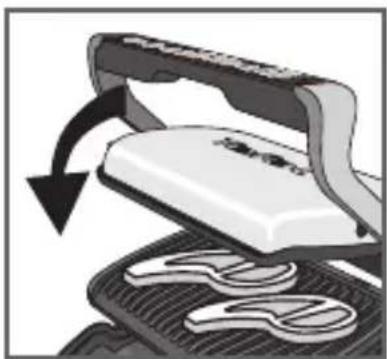
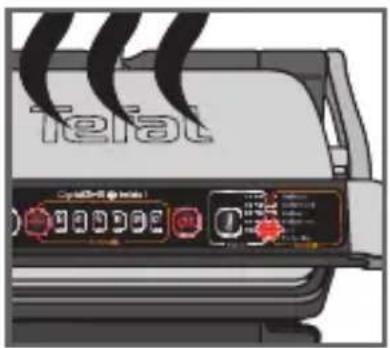
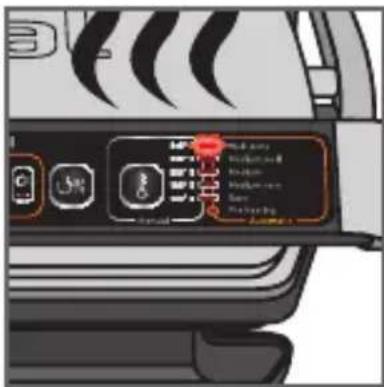
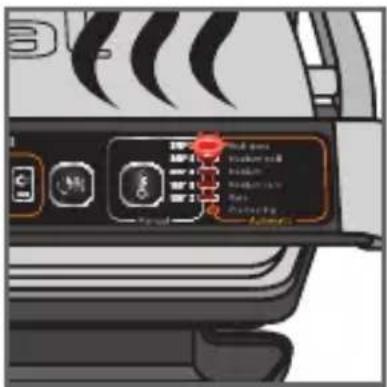
Close the appliance to start the cooking cycle. The indicator "Rare" is flashing to indicate that the rare cooking level is in progress. A beep is heard and the indicator becomes lighted fixed once the level of cooking is reached (for the best results do not open or move your food during the cooking process).
Please note, especially on meat, it is normal that cooking result vary depending on type, quality and origin of food.
Note: for thinly-cut food, after close the device, the button « OK » is blinking and remain on « pre heating fixed ». Press « OK » to enable the appliance to recognize the food to be cooked and launch the cooking program.
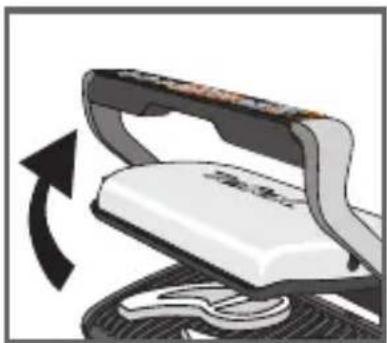
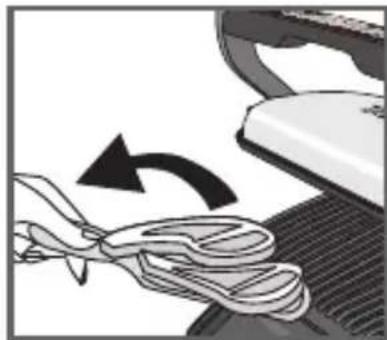
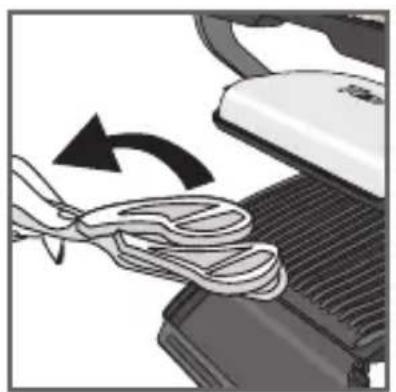
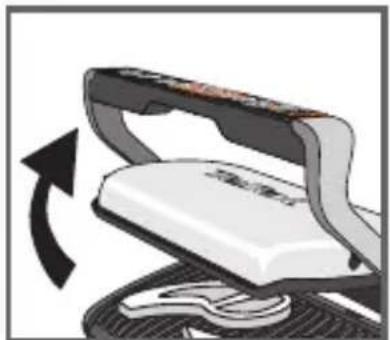
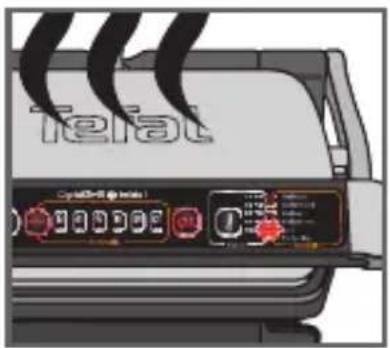
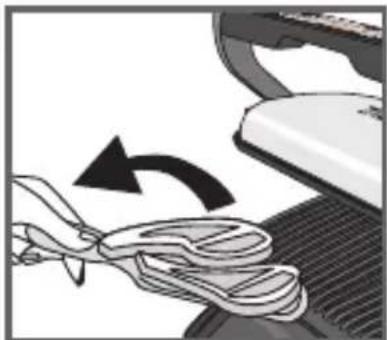
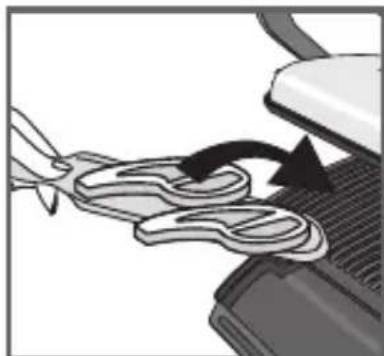
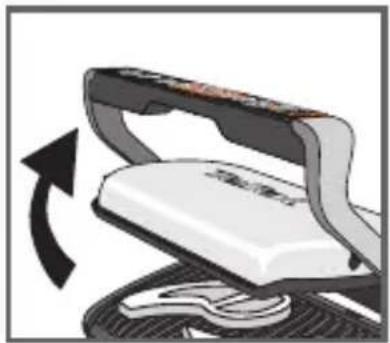
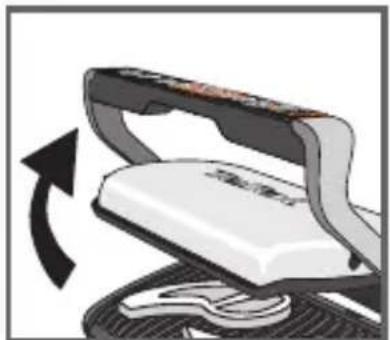
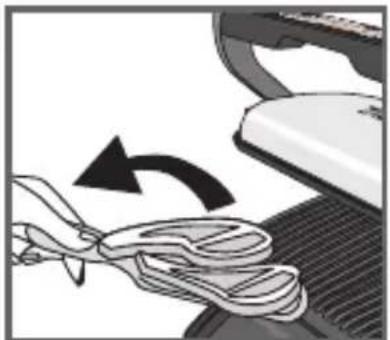
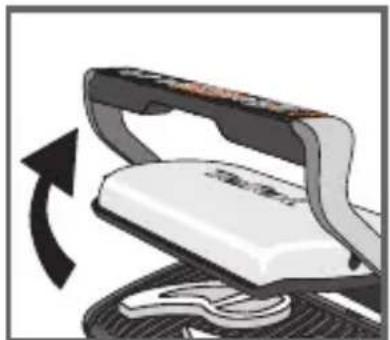
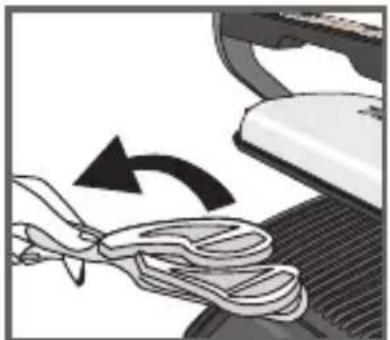
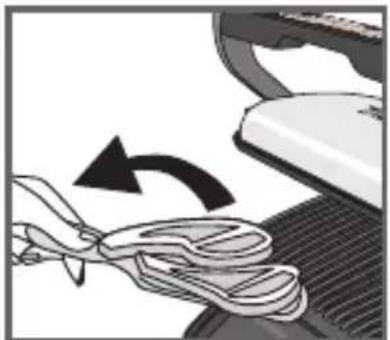
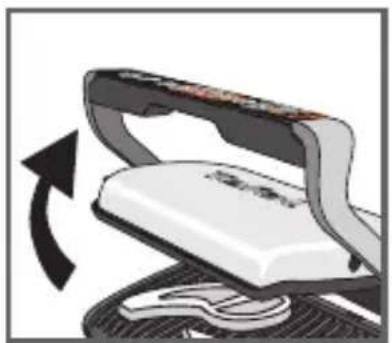
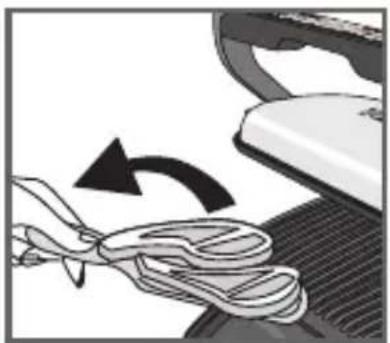
18-19 When the cooking level is reached, the lights indicator stop blinking and you can hear a « beep ». The next cooking is blinking until to be reached. Open the appliance and remove your food when the desired level is reached.
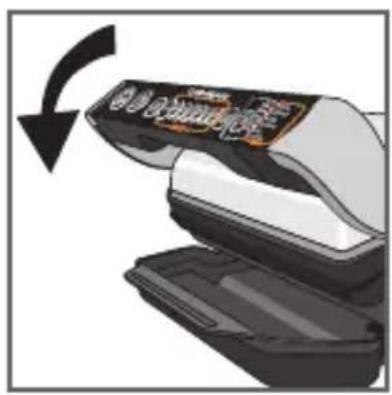
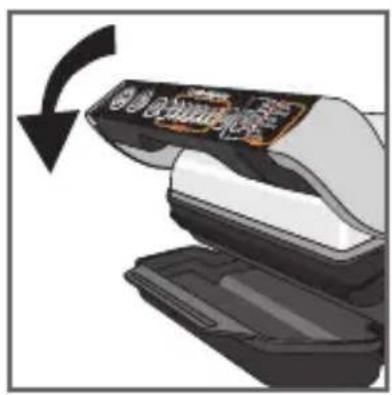
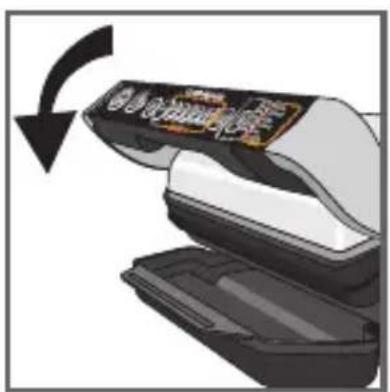
20 Close the appliance without food on plate. The control panel will light up and set itself to 'choice of program' mode.
Restart to n°9 for a new cooking cycle in automatic mode.
Comment: the security system will turn off automatically if no program selection is made.
natural_image
Illustration of a hand using a tool to press down a white object on a textured surface, with an arrow indicating rotation (no text or symbols present)21 22
natural_image
Illustration of a printer emitting steam with a stopwatch above it (no text or symbols)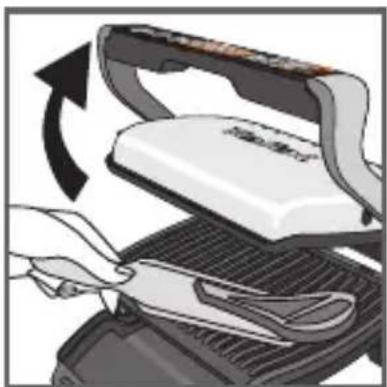
natural_image
Illustration of a hand using a tool to press down a white object on a griddle, with an arrow indicating rotation (no text or symbols present)23 24
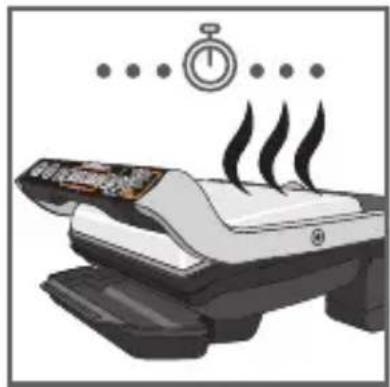
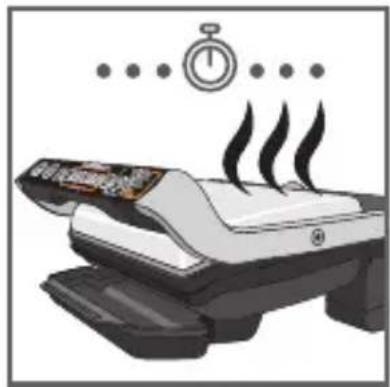
21-22-23 If you want to cook food to different personal tastes, open the grill and remove the food when it has reached the desired level and then close the grill and continue cooking the other food. The program will continue its cooking cycle until it reaches the 'well done' level.
24 Keep warm function
When the cooking process has ended the appliance will automatically go on the keep warm setting after having reached the "well done" level. If food is left on the grill it will continue to cook, while the cooking plates are cooling.
Comment: the safety system will turn the appliance off automatically after a certain amount of time.
Second cooking
If you want to cook more food, please refer to p. 61.
Cooking more food
If you want to cook a second batch of food, please pre-heat the appliance again (starting from point 9 in automatic mode or point 25) even if you want to cook the same type of food.
How to cook another batch of food:
After finishing your first batch of food:
- Make sure the appliance is closed with no food inside.
- Select the appropriate cooking mode/program (this step is necessary even if you decide to pick the same cooking mode than for the previous batch of food).
- Press "OK" to start preheating. During this phase, the temperature indicator (in MANUAL mode) or the PREHEAT indicator (in automatic mode) will blink. This stage is mandatory even if your appliance seems hot.
- The pre-heating is complete when an audible beep is heard and the cooking level indicator stops flashing.
- After the pre-heating, the appliance is ready for use. Open the grill and place the food inside the appliance.
Important:
- Please note that any new batch of food, the pre-heating phase is mandatory.
Remember to always have the grill closed and no food inside in order for the preheating to effectively function.
- Then wait for the pre-heating to be complete before opening the grill and place the food inside. N.B.: if the new pre-heating cycle is carried out immediately after the end of the preceding cycle, the pre-heating time will be reduced.
3b - MANUAL cooking with manual mode
Manual cooking - select a temperature and preheat before cooking;
If you select Manual mode, you have manual control of the cooking time. 5 different temperature settings are available for this manual mode. See specific manual quick start guide.
If you are uncertain about what cooking mode to use for other foods because it is not listed above, please refer to the "Cooking table for out of program food" page 64.
25
26 27
Cooking
natural_image
Mechanical component diagram showing a lever interacting with a curved surface (no text or symbols)28 29
natural_image
Illustration of a mechanical press or printer with a rotating arrow indicating motion (no text or symbols)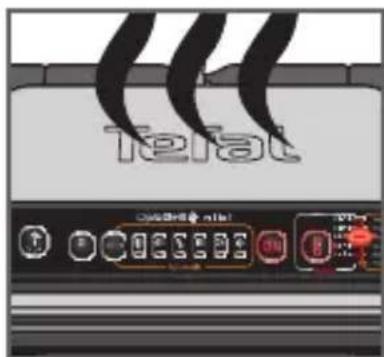
30 31
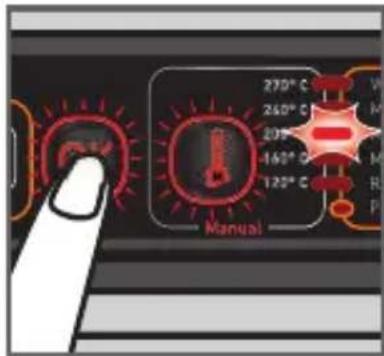
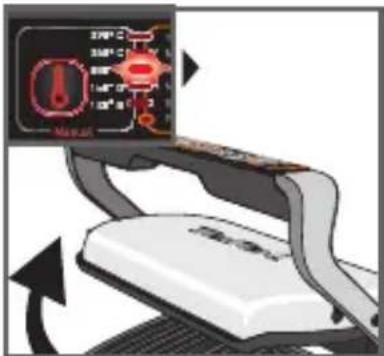
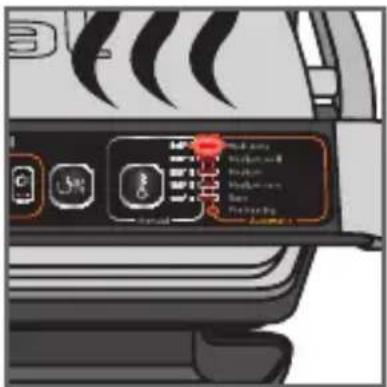
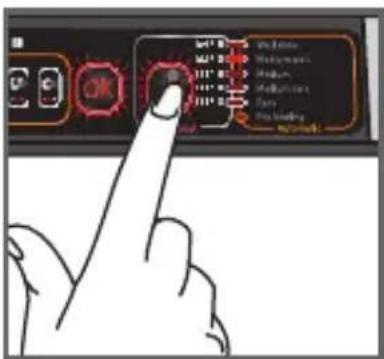
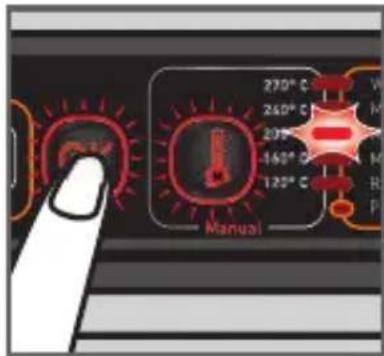
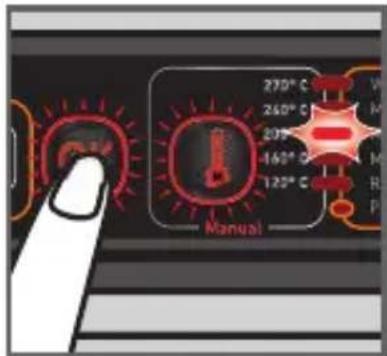
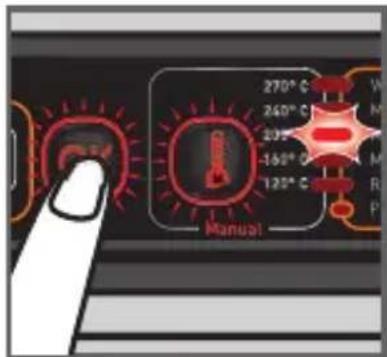
25 Press the « Manual mode » button until you reach the desired temperature you want to cook your food. When you have reached the desired one then press the « OK » button.
NB: I f you have selected the wrong program, return to stage 8.
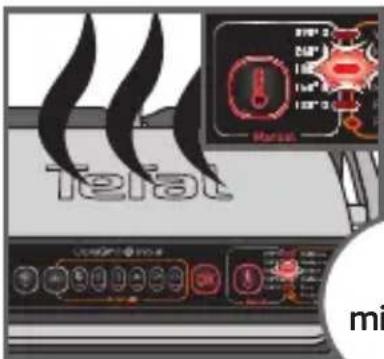
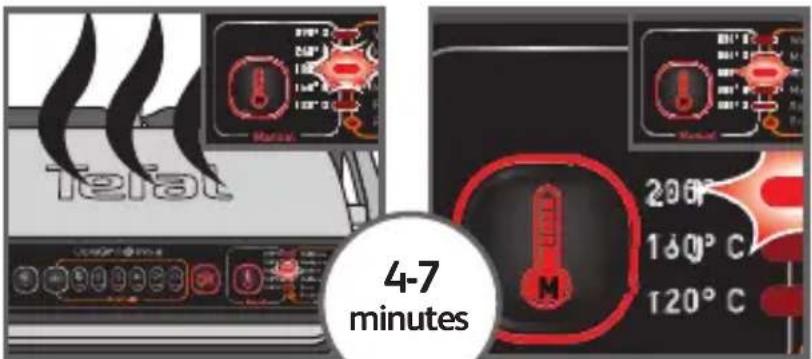
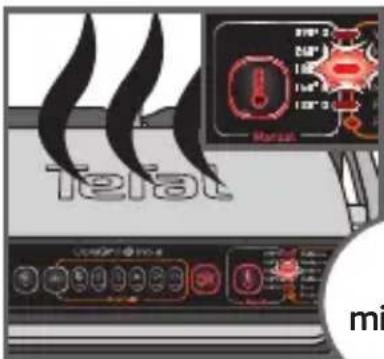
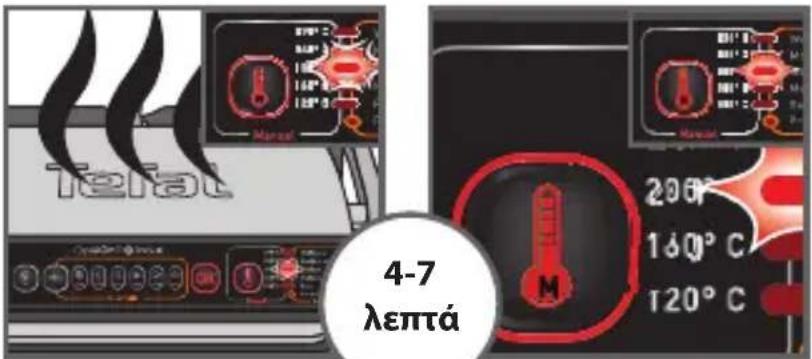
26 The led corresponding to the selected temperature will keep flashing during all the pre-heating phase.
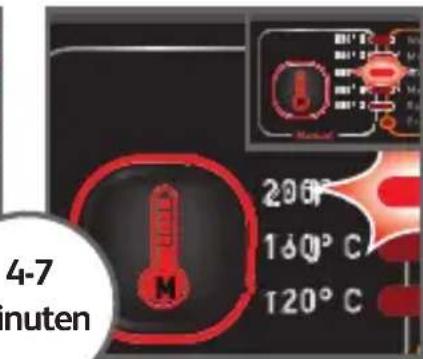
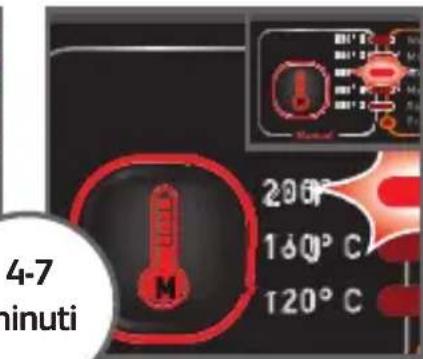
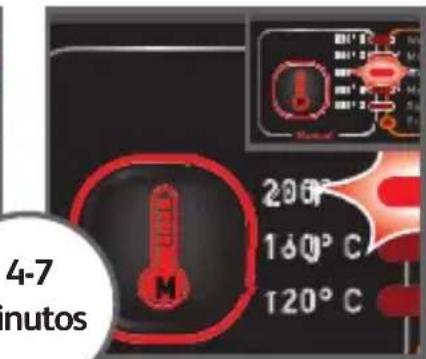
Wait for 4-7 minutes
27 When the pre-heating is complete a melody is displayed the temperature indicator stops flashing and stays lit during the cooking process.
Comments: At the end of pre-heating, if the appliance remains closed, the safety system will turn off the appliance.
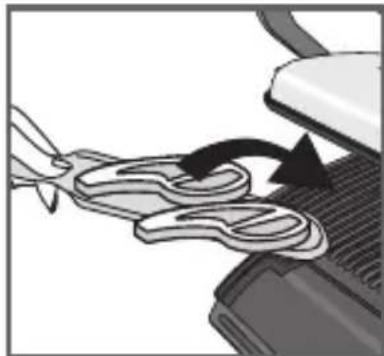
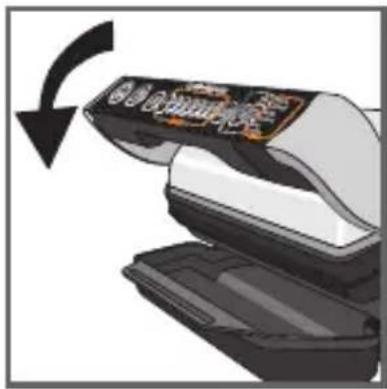
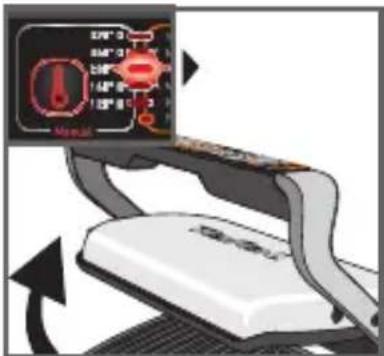
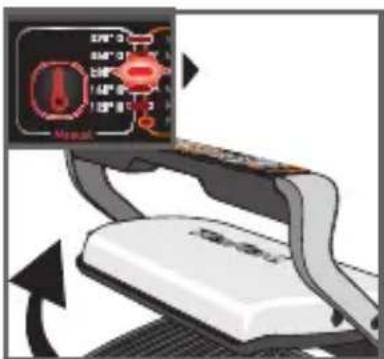
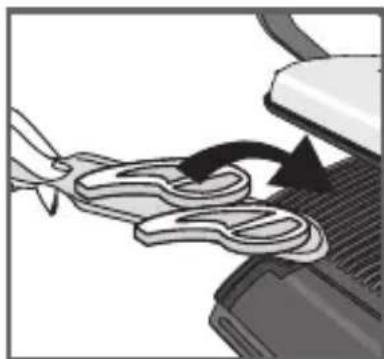
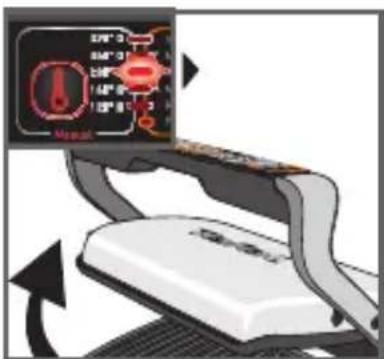
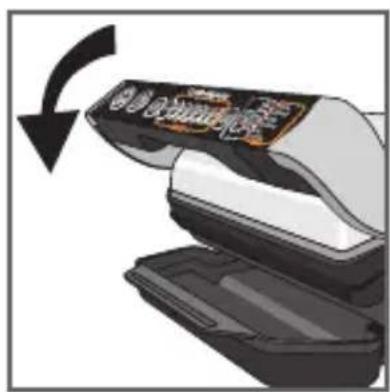
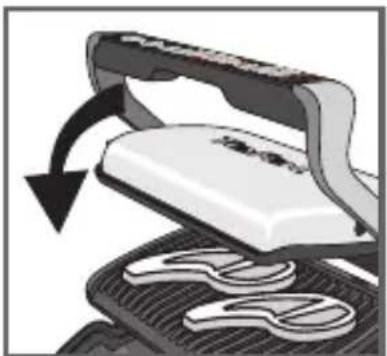
28-29 After pre-heating, the appliance is ready for use. Open the grill and place the food on the cooking plate
Comments: if the appliance remains open for too long, the safety system will turn off the appliance automatically.
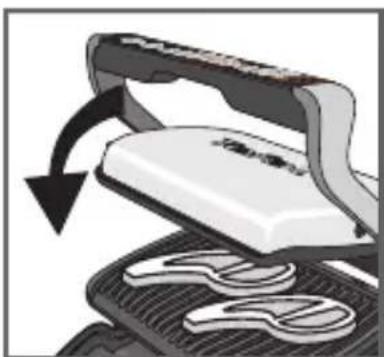
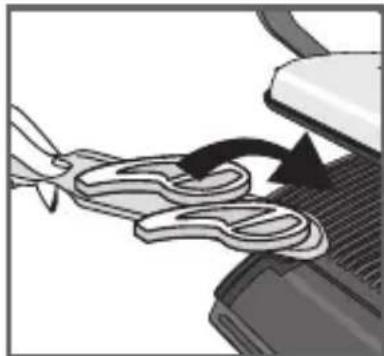
30-31 Close the appliance to start the cooking cycle. The grill heats continuously to the selected temperature. Regularly check the cooking by opening lightly the grill.
32 33
natural_image
Illustration of a steaming machine with rotating handle and blade, showing mechanical components (no text or symbols)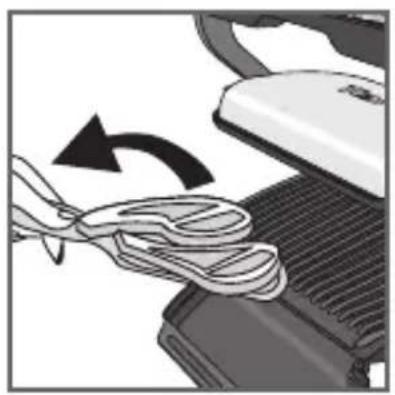
natural_image
Close-up of a computer mouse with a scroll wheel being inserted, showing the blade and handle (no text or symbols visible)34 35
natural_image
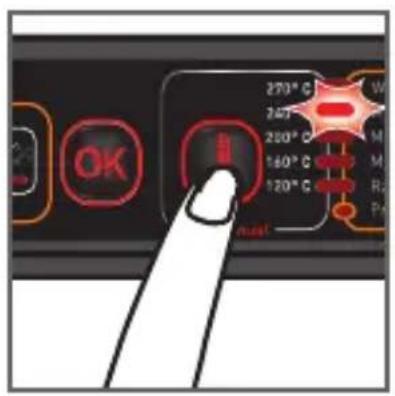
Close-up of a hand pressing down on a device with a black arrow indicating rotation (no visible text or symbols)32 If you want to modify the cooking level of temperature during the cooking process, press the manual mode button (the temperature indicator will flash until you reach this new instruction if the temperature is higher). When the level is reached, the lights indicator stop blinking.
Please note, especially on meat, it is normal that cooking result vary depending on type, quality and origin of food.
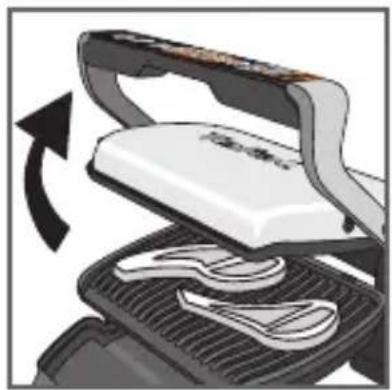
33-34 Open the appliance and remove your food when the desired cooking is got.
35 Close the appliance without food on plate. The control panel will light up and set itself to 'choice of program' mode. Restart to n°21 for a new cooking cycle in manual mode.
Comment: the security system will turn off automatically if no program selection is made.
4 Cooling
36 37
natural_image
Hand inserting a plug into an electrical outlet (no text or symbols visible)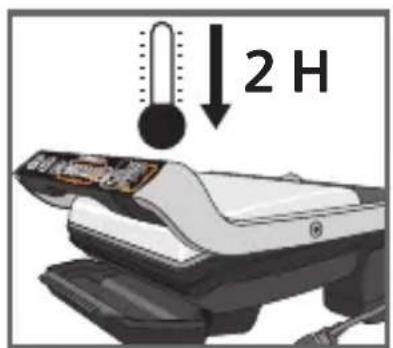
38
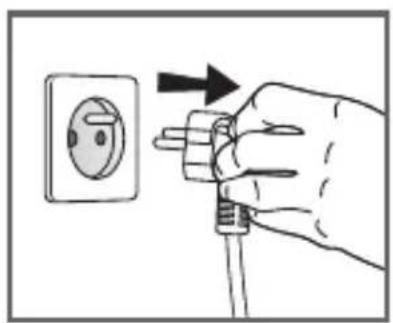
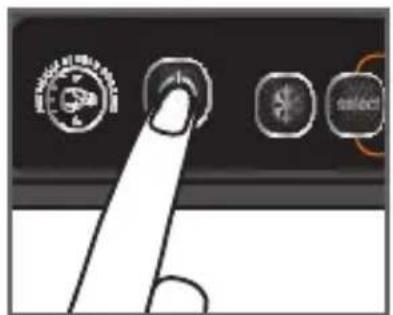
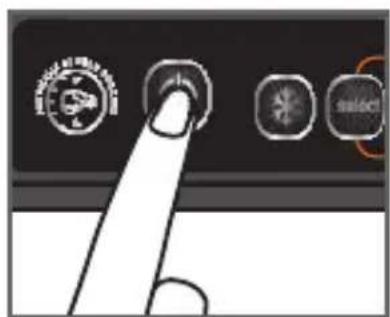
36 Press the on/off button to turn off the appliance.
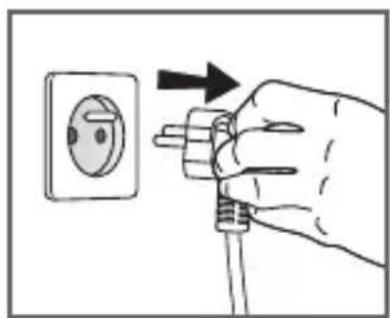
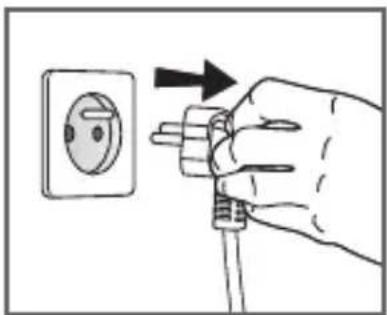
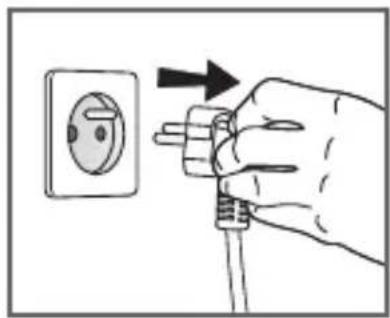
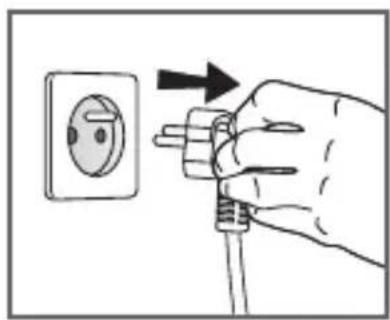
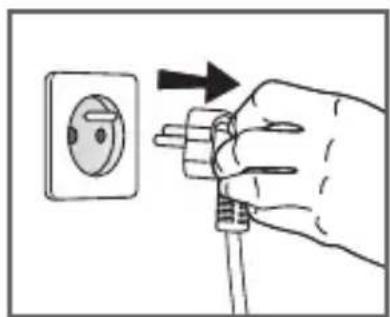
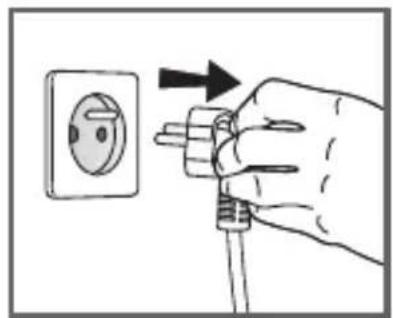
37 Unplug grill from wall outlet.
38 Allow to cool for at least 2 hours.
To avoid accidental burns, allow grill to cool thoroughly before cleaning.
5 Cleaning and maintenance
natural_image
Close-up of a car's side panel showing airflow or heat distribution (no text or symbols visible)39 40
natural_image
Diagram showing a device with a lid removed from a grid, indicating a process or operation (no text or symbols present)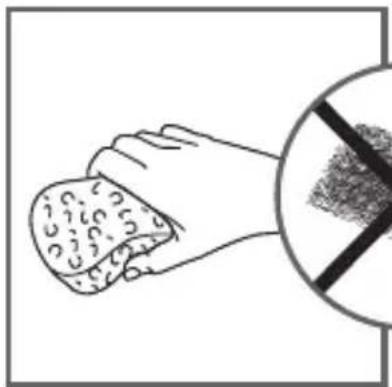
natural_image
Illustration of a hand holding a container with granular material, alongside a circular symbol indicating no chemical reaction or toxicity (no text or labels)41 42
natural_image
Close-up of a mechanical device with a mesh grille and a flat top, showing no visible text or symbols.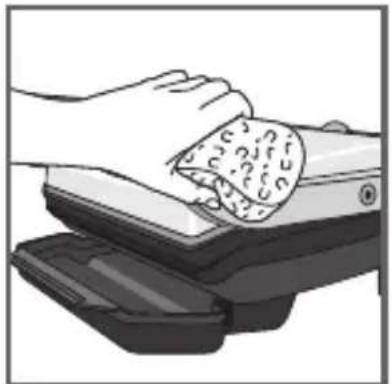
natural_image
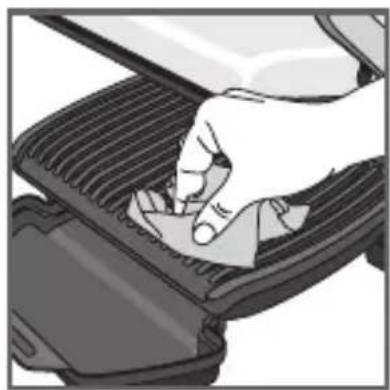
Illustration of a hand cleaning a textured object from a mechanical device (no text or symbols visible)43 44
natural_image
Illustration of a graduation cap placed above a vehicle with a lock, no text or symbols present.45
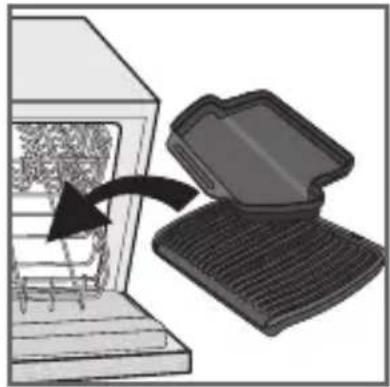
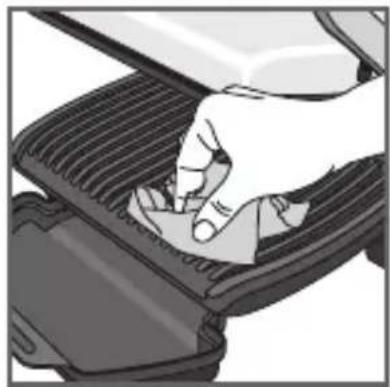
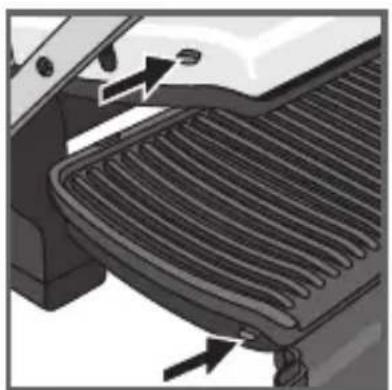
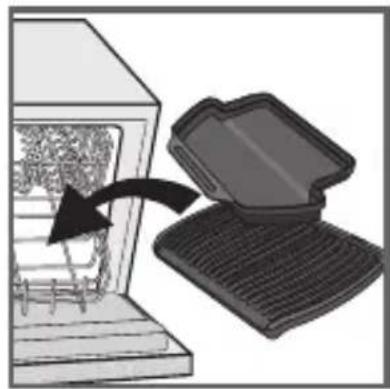
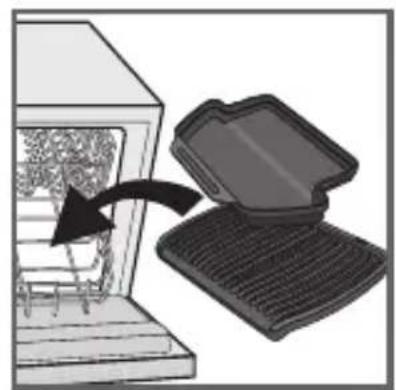
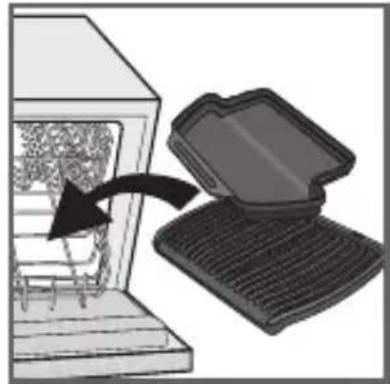
39 Before cleaning, unlock and remove the plates to avoid damaging the cooking surface. The drip tray and the cooking plates are dishwasher safe.
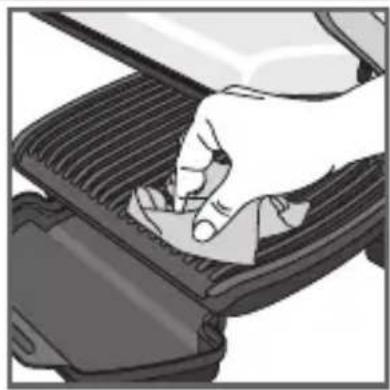
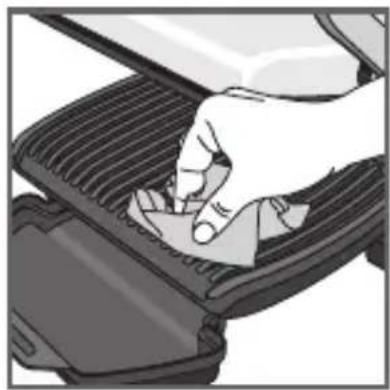
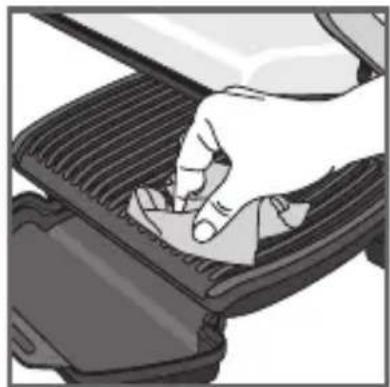
40 The appliance and its cord cannot be placed in the dishwasher. The heating elements, visible and accessible parts, should not be cleaned after removing the plates. If they are very dirty, wait until the appliance has completely cooled down and clean them with a dry cloth. If you do not want to clean them in a dishwasher, you can use warm water and a little dishwashing liquid to clean the cooking plates, then rinse thoroughly to remove any residue. Dry thoroughly using a paper towel.
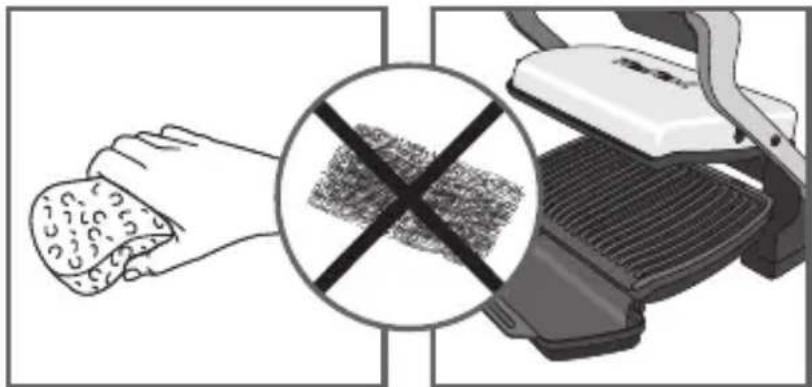
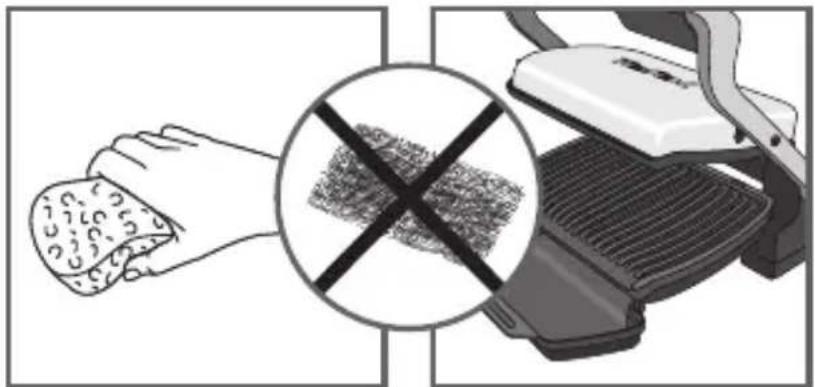
41 Do not use metallic scouring pads, steel wool or any abrasive cleaners to clean any part of your grill, only use nylon or non-metallic cleaning pads.
Empty the drip tray and wash in warm water and a little dishwashing liquid, dry thoroughly using a paper towel.
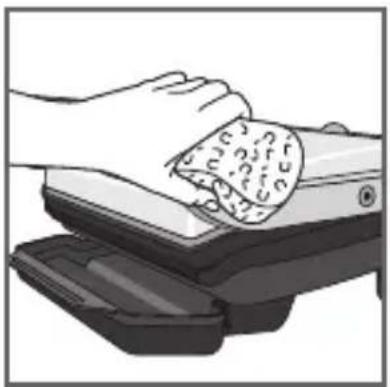
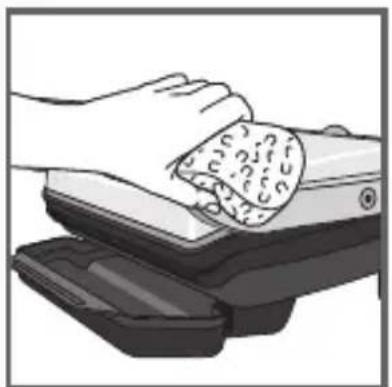
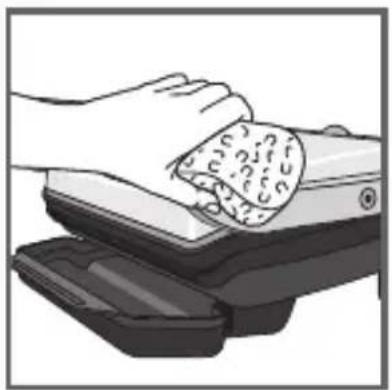
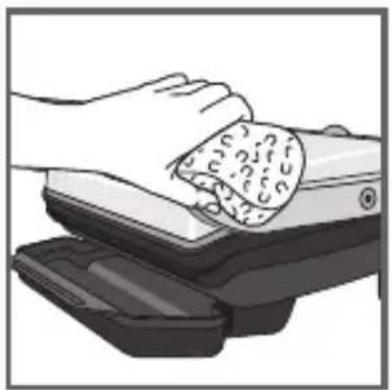
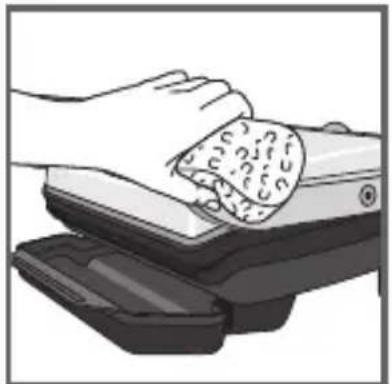
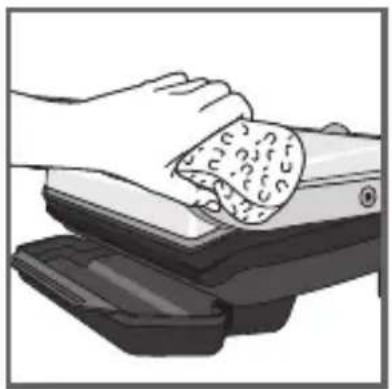
42 To clean the grill cover, wipe with a warm, wet sponge and dry with a soft, dry cloth.
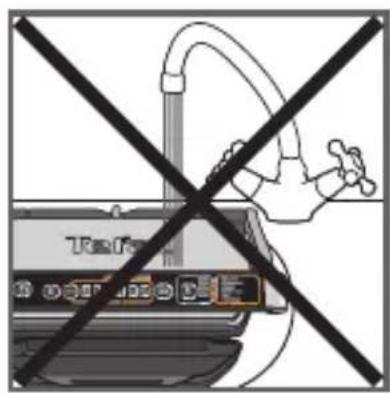
43 Do not immerse the body of grill in water or any other liquid.
44 Always make sure grill is clean and dry before storing.
45 Any other servicing should be performed by an authorized service representative.
Trooble shooting
| Problem Cause Solution | ||
Buttons+ led 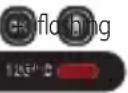 | Preheating not respected.Switching “ON” of the appliance or starting an automatic cooking cycle with food between plates. The manual mode is automatically activated. | 2 possible options:- choose the temperature setting by pressing the button and then press OK. Allow to cook, but you must monitor the cooking (manual mode). Temperature can be adjusted by button.- Open completely the appliance, remove the food, close the appliance properly, select a cooking program and press OK. Wait until end of preheating (Preheating indicator lighted fix). |
After closing the appliance with food between plates, the appliance turns itself to manual mode with flashing 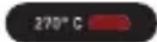 discontinue bip then after few seconds, it heats in manual mode under 270°C discontinue bip then after few seconds, it heats in manual mode under 270°C | Preheating time not completely done. Grill has been opened and food inserted on plate before end of preheating. | Allow to cook, but you must monitor the cooking because it is in manual mode. Temperature can be adjusted by button.orOpen the appliance, remove the food, close the appliance properly, and wait until end of preheating (Preheating indicator lighted fix). |
| The appliance stops during the cycle of preheating or cooking. | The appliance has been kept open for too long while cooking.The appliance has been idle too long after the end of preheating or keep warm. | Unplug the appliance and wait few minutes.Plug again your appliance and switch ON. |
The 6 indicator lights flashing [WICTW]+ one of the 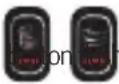 ing + discontinue bip ing + discontinue bip | Appliance failure. | Unplug the product and contact your customer service. |
| The appliance no longer beeps | ||
After the preheating , I have put my food on the grill but cooking cycle does not start.The indicator stays on  and button flashing and button flashing | Your food is thicker than 4 cm. Food must not be thicker than 4 cm. | |
| You have not completely opened the grill to place the food. | Completely open the grill then close it. | |
| Not sensing the food. The food thickness too thin, “OK” is flashing. | Confirm the start of the cooking by pressing the button. | |
The 6 indicator lights flashing [AHARV]+ one of the 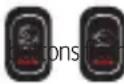 ing + discontinue or continue bip ing + discontinue or continue bip | Appliance failure:Appliance stored or used in a room that is too cold.Appliance over heating. | Unplug the appliance and wait few minutes.Plug again your appliance and switch ON.If the problem persists, contact your Customer service. |
Tip, especially for meat: the cooking results on the preset programs may vary depending on origin, cut and quality of the food being cooked, the programs have been set and tested for good quality food.
Similarly, the thickness of the meat has to be taken into account during cooking; you cannot cook food that is thicker than 4 cm.
Cooking Guide (automatic programs)
| Dedicated program | Cooking level color indicator | |||||
| Rare | Medium rare | Medium | Medium well | Well-done | ||
| [TSH3] | Red meat |  |  | |||
 | Burger |  |  | |||
 | Panini/Sandwich |  | ||||
 | Fish |  | ||||
 | Poultry |  | ||||
 | Pork/sausage/lamb |  | ||||
Cooking Guide (including Manual Mode)
| Food | Cooking program | Cooking level | |
| Bread | Slices of bread, toasted sandwiches |  | medium |
| Burger: (after pre-cooking the meat) | medium | ||
| Meat & Poultry | Pork fillet (boneless), pork belly |  | medium |
| Lamb (boneless) | well-done | ||
| Frozen chicken nuggets (pork) chicken |  | well-done | |
| Pork belly | medium | ||
| Slice of ham to cook |  | medium | |
| Marinated chicken breast |  | rare | |
| Duck breast |  | rare | |
| Fish | Whole trout |  | well-done |
| Shelled prawns | medium | ||
| King prawns (with and without shells on) | medium | ||
| Tuna steak | rare | ||
| Manual modeSee specific manual quick start guide | Grilled vegetables and fruits (need to be of same cut and thickness) | 5 different temperature settings | |
For frozen food, it'sess before selecting your program.
INDICE
• NORME DI SICUREZZA / AVVERTENZE IMPORTANTI p.67
- CHE COSA FARE p.68
• CHE COSA NON FARE p.69
• VISTA ESPLOSA p.71
- DESCRIZIONE p.72
• PREPARAZIONE DELL'APPARECCHIO p.73
• COTTURA AUTOMATICA p.74
• COTTURA MANUALE p.76
• COTTURA DI UNA SECONDA PORZIONE p.77
• RAFFREDDAMENTO p.78
• PULIZIA E MANUTENZIONE p.79
• RISOLUZIONE DEI PROBLEMI p.80
• GUIDA DI COTTURA (PROGRAMMI AUTOMATICI) p.81
• GUIDA DI COTTURA (CON MODALITÀ MANUALE) p.81
ISTRUZIONI DI SICUREZZA AVVERTENZE IMPORTANTI
1
natural_image
Hand pressing down on a mechanical component (no text or symbols visible)2
natural_image
Illustration of a printer with control panel and cover area, no visible text or symbols3
natural_image
Illustration of a printer with a cover labeled 'OK' (no other text or symbols)4
2 Preparazione
natural_image
Illustration of a steaming hot pot on a stove (no text or symbols)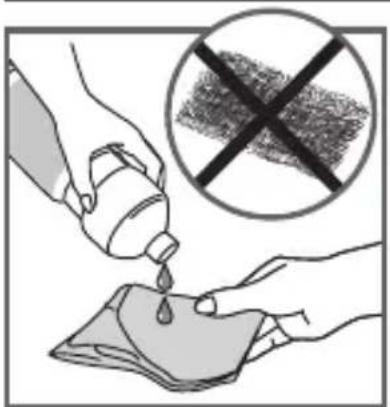
natural_image
Illustration of hands pouring liquid from a bottle into a cloth, with a crossed-out prohibition symbol (no text or labels)5
natural_image
Hand pressing down on a car grille (no text or symbols visible)6
7
8
9
10
12 13
natural_image
Close-up of a mechanical component with a curved arrow indicating motion or force (no text or symbols visible)14 15
natural_image
Illustration of a white iron cutting into a black mesh with a curved arrow indicating rotation (no text or symbols)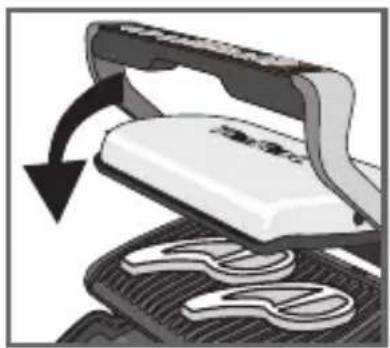
natural_image
Illustration of a steam iron cutting through a meshing tray with a curved blade (no text or symbols)16 17
natural_image
Close-up of a mechanical device with a curved arrow indicating rotation (no visible text or symbols)18 19
natural_image
Close-up of a hand using scissors to cut a piece of clothes, with a black arrow indicating the motion (no text or symbols visible)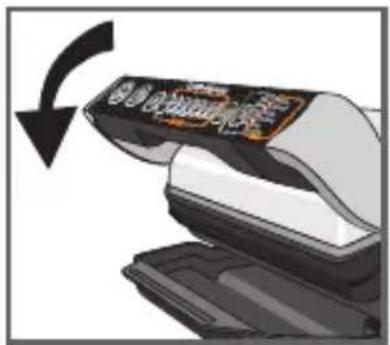
20
natural_image
Illustration of a mechanical device with a rotating arrow indicating rotation (no text or symbols)21 22
natural_image
Illustration of a printer emitting steam (no text or symbols visible)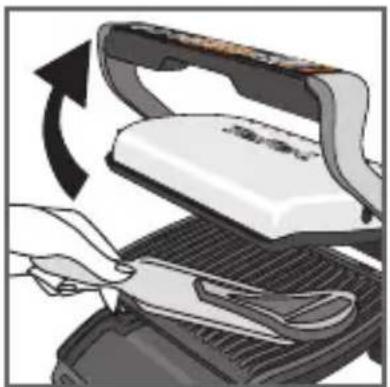
natural_image
Illustration of a hand using a power iron to press down a grater, showing the blade and handle (no text or symbols)23 24

25
26 27
Cottura
natural_image
Close-up of a mechanical component with a curved arrow indicating motion or force (no text or symbols visible)28 29
natural_image
Illustration of a white iron cutting into a black mesh, with a black arrow indicating rotation (no text or symbols)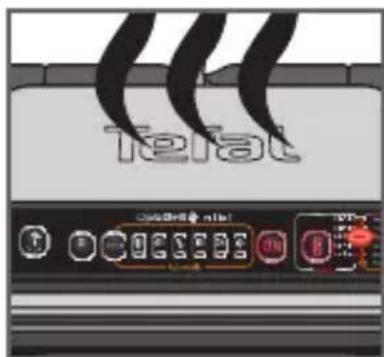
30 31
natural_image
Illustration of a steamer with rotating handle and blade, showing mechanical components (no text or symbols)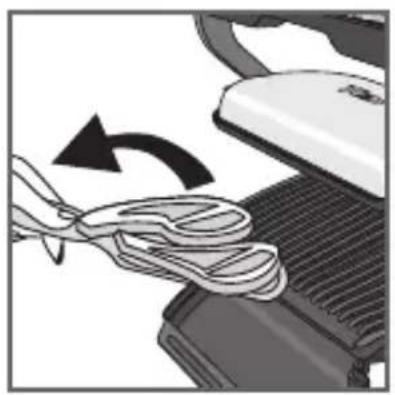
natural_image
Close-up of a sewing machine's cable being inserted, showing the blade and handle (no text or symbols visible)34 35
natural_image
Hand inserting a plug into an electrical outlet (no text or symbols visible)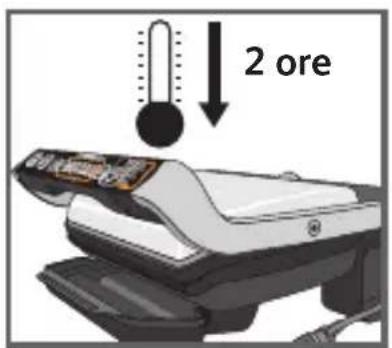
38
natural_image
Close-up of a car's side panel showing airflow direction (no text or symbols)39 40
natural_image
Illustration of a computer with an open keyboard and a mouse inside, showing internal components (no text or symbols)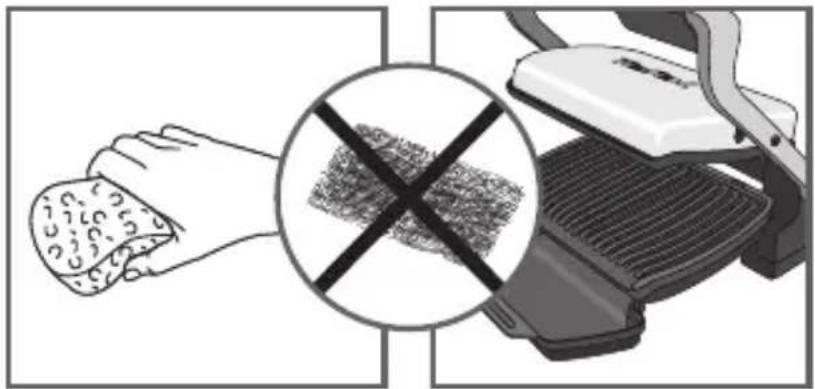
natural_image
Illustration of a hand holding food with a crossed-out black-and-white grid pattern, next to a grater (no text or symbols)41 42
natural_image
Illustration of a hand using a computer to press a textured object (no text or symbols visible)43 44
natural_image
Illustration of a graduation cap placed above a computer monitor with a lock, no text or symbols present.45
1
natural_image
Illustration of a hand pressing down on a mechanical component (no text or symbols visible)2
natural_image
Illustration of a device with a control panel and a separate tray (no text or symbols visible)3
natural_image
Close-up of a printer with a label showing 'OK' (no other text or symbols visible)4
2 Preparación
natural_image
Illustration of a steaming hot pot on a grater (no text or symbols)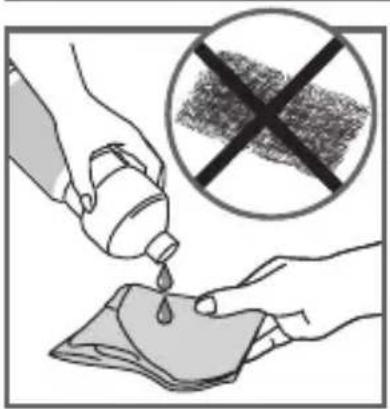
5
natural_image
Illustration of a hand pressing down on a gridded metal component (no text or symbols visible)6
7
8
9
10
natural_image
Close-up of a mechanical component with a curved arrow indicating motion or force (no text or symbols visible)14 15
natural_image
Illustration of a hair iron pressing down on a textured surface with a curved arrow indicating motion (no text or symbols)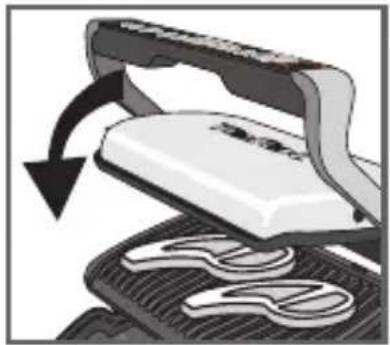
natural_image
Illustration of a mechanical device with a handle and rotating arrow, showing internal components (no text or symbols)16 17
natural_image
Close-up of a white electronic device with black handle and circular base, showing a curved arrow indicating rotation (no text or symbols visible)18 19
natural_image
Close-up of a hand holding a pair of clothes being lifted by a power iron (no text or symbols visible)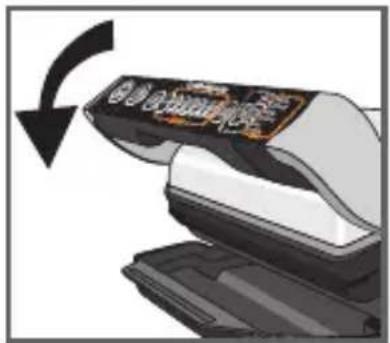
20
natural_image
Illustration of a hand using scissors to lift a white object on a textured surface, with an arrow indicating rotation (no text or symbols)21 22
natural_image
Illustration of a printer emitting steam with a stopwatch above it (no text or symbols)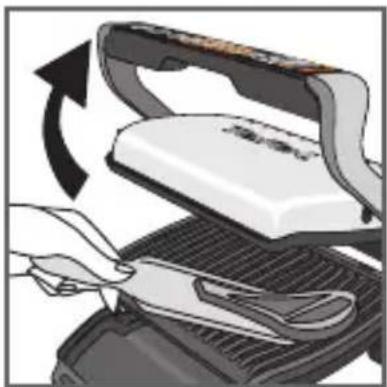
natural_image
Illustration of a hand using a power iron to press down a grater, showing the blade and handle (no text or symbols)23 24
25
26 27
Cocción
natural_image
Close-up of a mechanical component with a curved arrow indicating motion or force (no text or symbols visible)28 29
natural_image
Illustration of a white iron cutting into a black mesh, with a black arrow indicating rotation (no text or symbols)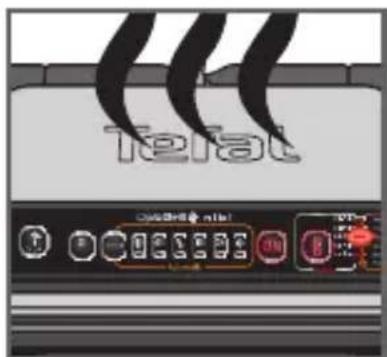
30 31
natural_image
Illustration of a steamer with open lid and cooling rack, showing mechanical components and motion arrow (no text or symbols)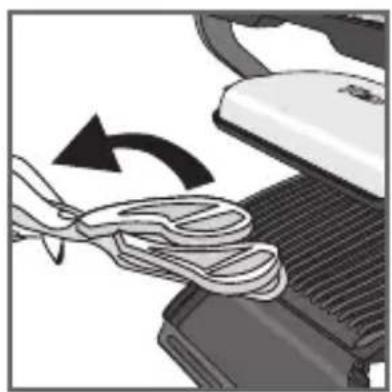
natural_image
Close-up of a computer mouse being held by a cable, showing the cable being twisted (no text or symbols visible)34 35
4 Enfriamiento
36 37
natural_image
Hand inserting a plug into an electrical outlet (no text or symbols visible)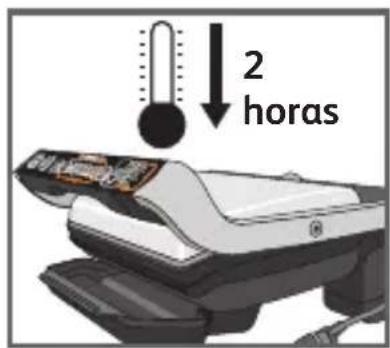
38
natural_image
Close-up of a car's side panel showing airflow or heat distribution (no text or symbols visible)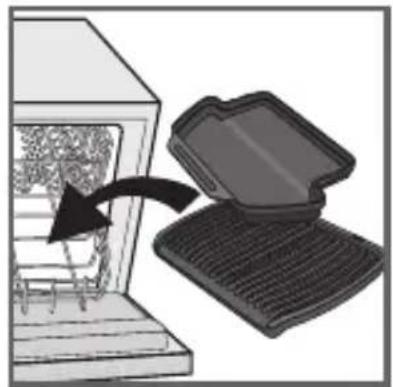
natural_image
Illustration of a computer with an open lid and keyboard, showing a mechanical component inside (no text or symbols)39 40
natural_image
Illustration of a hand holding food with a crossed-out grid pattern, next to a grater (no text or symbols)41 42
natural_image
Illustration of a hand using a handheld device to clean or discard a textured surface (no text or symbols visible)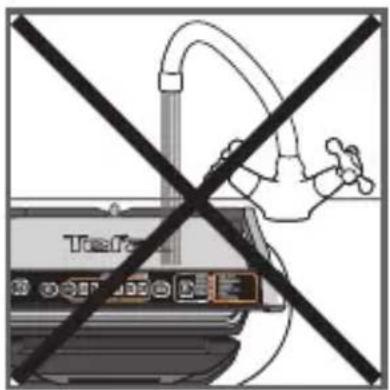
43 44
natural_image
Illustration of a graduation cap placed on a laptop with a lock, no text or symbols present.45
natural_image
Illustration of a hand pressing down on a mechanical component (no text or symbols visible)2
natural_image
Illustration of a device with a control panel and a separate tray, showing no visible text or symbols.3
natural_image
Illustration of a printer with a label showing 'OK' (no text or symbols on the device itself)4
2 Preparação
natural_image
Illustration of a steaming hot pot on a grater (no text or symbols)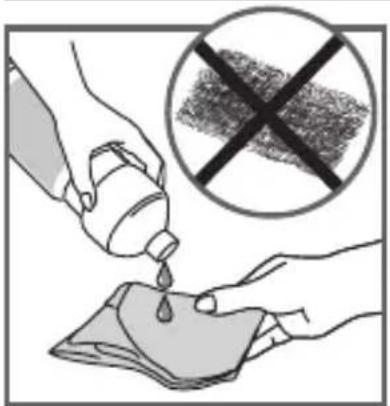
5
natural_image
Illustration of a hand pressing down on a mechanical component (no text or symbols visible)6
7
8
9
10
12 13
natural_image
Close-up of a mechanical component with a curved arrow indicating motion or force (no text or symbols visible)14 15
natural_image
Illustration of a white iron cutting into a black mesh with a curved arrow indicating rotation (no text or symbols)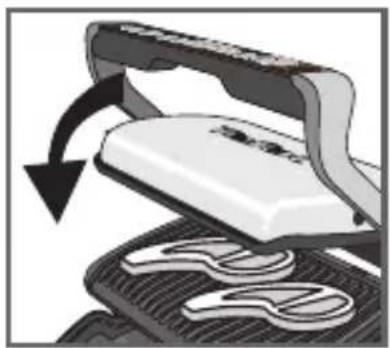
natural_image
Close-up of a white iron cutting into a black metal sheet with a curved arrow indicating rotation (no text or symbols)16 17
natural_image
Illustration of a mechanical device with an arrow indicating rotational motion (no text or symbols)18 19
natural_image
Close-up of a hand holding a knitted sweater with a black arrow indicating rotation (no text or symbols)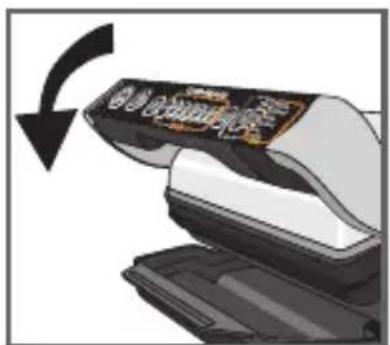
20
natural_image
Illustration of a hand using scissors to lift a white object, showing mechanical components (no text or symbols)21 22
natural_image
Illustration of a printer emitting steam with a stopwatch above it (no text or symbols)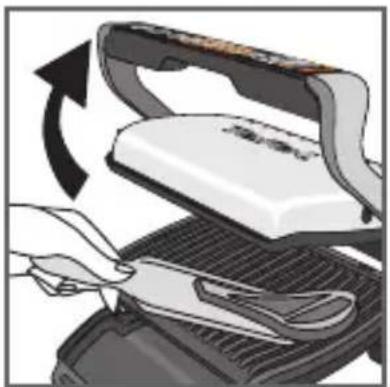
natural_image
Illustration of a hand using scissors to cut a white iron on a grater, with an arrow indicating rotation (no text or symbols)23 24
25
26 27
28 29
natural_image
Close-up of a mechanical component with a curved arrow indicating motion or force (no text or symbols visible)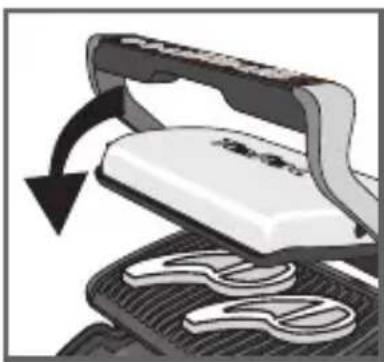
natural_image
Illustration of a steaming machine with a curved arrow indicating rotation (no text or symbols)30 31
natural_image
Illustration of a steamer with open lid and cooling rack, showing mechanical components and motion arrow (no text or symbols)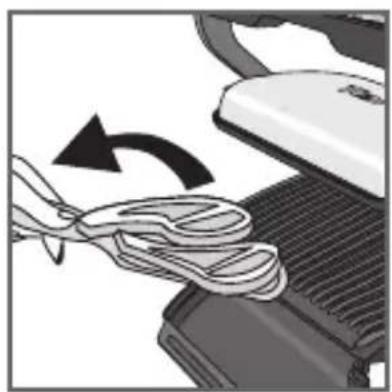
natural_image
Close-up of a computer mouse being cleaned with a coiled cable, showing the blade and handle (no text or symbols visible)34 35
4 Arrefecimento
36 37
natural_image
Hand inserting a plug into an electrical outlet (no text or symbols visible)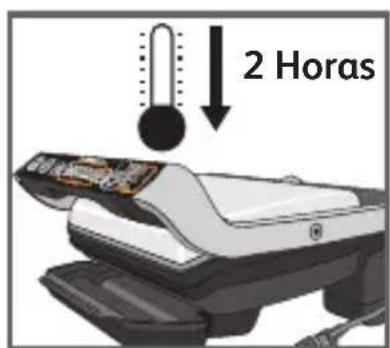
38
natural_image
Close-up of a car's side panel showing airflow or heat transfer (no text or symbols visible)39 40
natural_image
Illustration of a computer with an open lid and keyboard, showing a mechanical component inside a chamber (no text or symbols)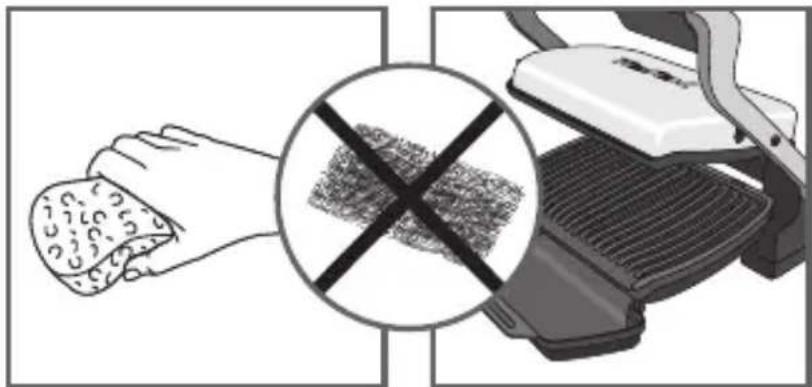
natural_image
Illustration of a hand holding food with a crossed-out black-and-white grid pattern, next to a grater (no text or symbols)41 42
natural_image
Illustration of a hand using a handheld device to clean or discard a textured object (no text or symbols visible)43 44

natural_image
Illustration of a graduation cap placed above a computer monitor with a key inserted (no text or symbols visible)45
natural_image
Illustration of a hand pressing down on a mechanical component (no text or symbols visible)2
natural_image
Illustration of a Fast Pad printer with control panel and tray (no text or symbols)3
4
2 Προετόμασία
natural_image
Illustration of a steaming hot pot on a stove (no text or symbols)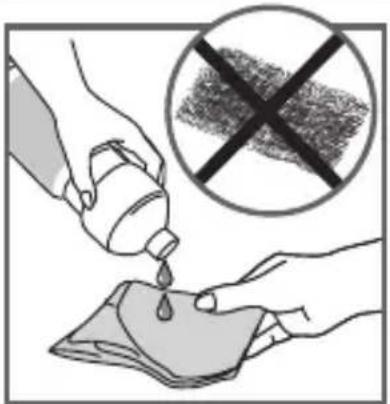
5
natural_image
Illustration of a hand pressing down on a gridded metal tray (no text or symbols visible)6
7
8
9
10
12 13
natural_image
Close-up of a mechanical component with a curved arrow indicating motion or force (no text or symbols visible)14 15
natural_image
Illustration of a white iron cutting into a black mesh with a curved arrow indicating rotation (no text or symbols)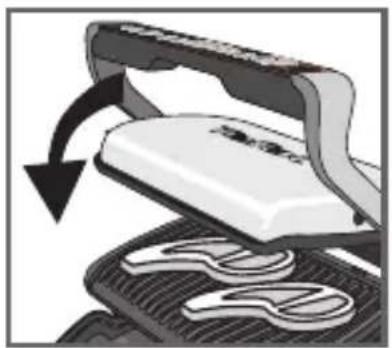
natural_image
Illustration of a hair iron pressing down on a textured surface with a curved arrow indicating rotation (no text or symbols)16 17
natural_image
Close-up of a white electronic device with black handle and circular base, showing a curved arrow indicating rotation (no text or symbols visible)18 19
natural_image
Close-up of a hand holding a knitted sweater with a black arrow indicating rotation (no text or symbols)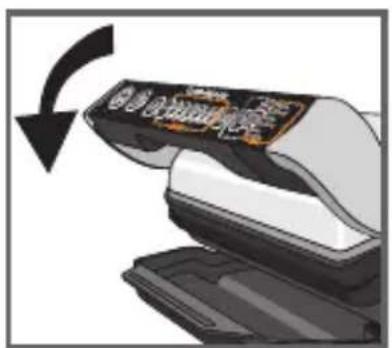
20
natural_image
Illustration of a hand using a tool to lift a white object, showing motion with an arrow (no text or symbols)21 22
natural_image
Illustration of a printer emitting steam with a stopwatch above it (no text or symbols)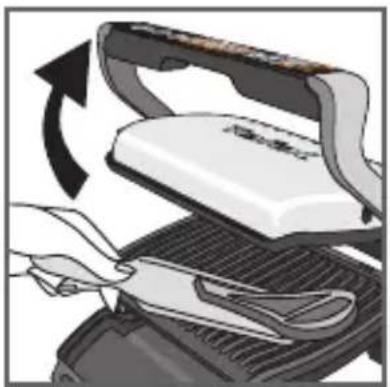
natural_image
Illustration of a hand using scissors to cut a flatboard with a scroll, showing mechanical components and motion arrows (no text or symbols)23 24
25
natural_image
Close-up of a mechanical component with a curved arrow indicating motion or force (no text or symbols visible)28 29
natural_image
Illustration of a frying pan with a curved arrow indicating rotation (no text or symbols)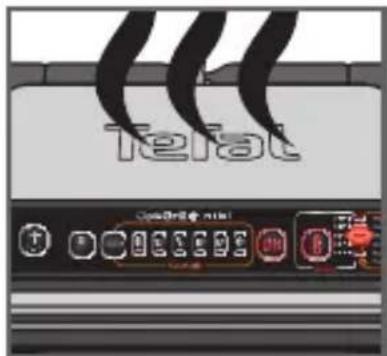
30 31
natural_image
Close-up of a steamer with open lid and mesh grille, showing mechanical components and a rotating arrow (no text or symbols)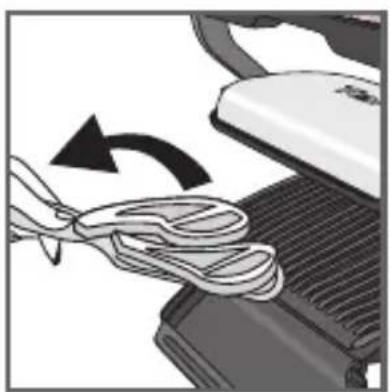
natural_image
Close-up of a sewing machine needle being sewnled into a pair of scissors (no text or symbols visible)34 35
4 Ψύξη
36 37
natural_image
Hand inserting a plug into an electrical outlet (no text or symbols visible)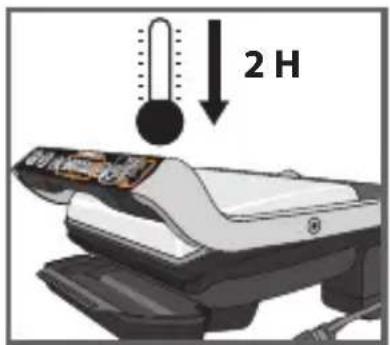
38
natural_image
Close-up of a car's side panel showing airflow or heat distribution (no text or symbols visible)39 40
natural_image
Illustration of a computer monitor with an open lid and keyboard, showing internal components (no text or symbols)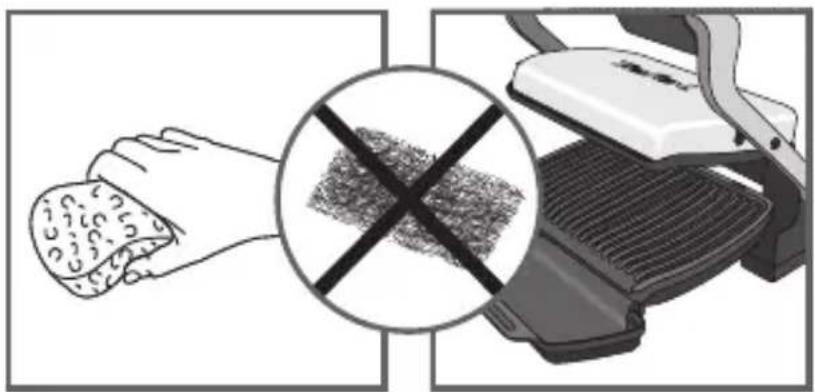
natural_image
Illustration showing a hand holding a textured object and a crossed-out device with a cross symbol (no text or symbols present)41 42
natural_image
Illustration of a hand cleaning a textured object from a mechanical device (no text or symbols visible)43 44
natural_image
Illustration of a graduation cap placed on a podium with a computer monitor and lock (no text or symbols)45