
G705 - Mouse LOGITECH - Free user manual and instructions
Find the device manual for free G705 LOGITECH in PDF.
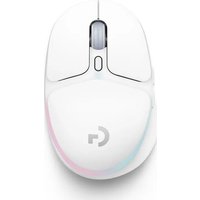


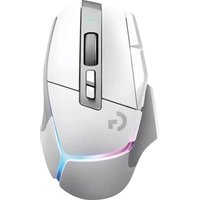
| Product type | Wireless gaming mouse |
| Brand | Logitech |
| Model | G705 |
| Connection technology | LIGHTSPEED (wireless) and Bluetooth |
| Wireless range | Up to 10 m |
| Sensor | Optical |
| Maximum resolution | Up to 8000 DPI (adjustable) |
| Power source | Rechargeable lithium-ion battery |
| Battery life | Up to 40 hours |
| Charging time | Approximately 2 hours |
| Charging interface | USB-C (cable included) |
| Weight | Approximately 85 g |
| Dimensions (L x W x H) | Approximately 120 x 65 x 38 mm |
| Configuration software | Logitech G HUB |
| Compatibility | Windows and macOS |
| Color | Black |
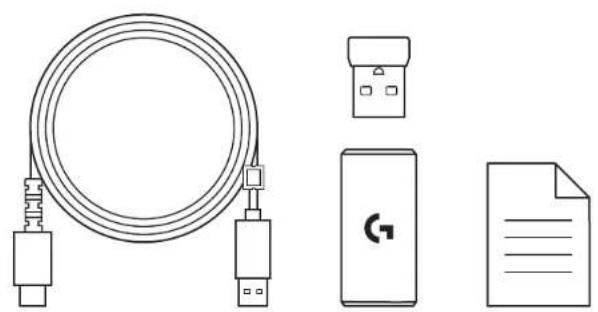
| Box contents | Mouse, LIGHTSPEED receiver, USB-C cable, extender, documentation |
| Care and cleaning | Clean with a slightly damp soft cloth |
| Safety | Do not use near water, avoid impacts, do not open |
| Spare parts | Receiver and USB-C cable available as option |
| Repairability | No user-serviceable parts |
Frequently Asked Questions - G705 LOGITECH
User questions about G705 LOGITECH
0 question about this device. Answer the ones you know or ask your own.
Ask a new question about this device
Download the instructions for your Mouse in PDF format for free! Find your manual G705 - LOGITECH and take your electronic device back in hand. On this page are published all the documents necessary for the use of your device. G705 by LOGITECH.
USER MANUAL G705 LOGITECH
G705 MOUSE | SOURIS G705
Wireless Gaming Mouse
Souris gaming sans fil
SETUP GUIDE | GUIDE D'INSTALLATION
logitech

ENGLISH....3
FRANÇAIS....7
ESPAÑOL 11
PORTUGUÊS....15
SETUP INSTRUCTIONS
1 Turn on the mouse by sliding the button up to reveal the blue indicator color. 2 Insert the LIGHTSPEED receiver, with extender and cable into the PC USB port. Receiver can be used without the extender and cable by inserting it directly into a USB port if desired. 3 Download and install G HUB software to your PC/MAC for the best gaming experience (G HUB has onboarding story for features). Go to www.logitechG.com/ghub
1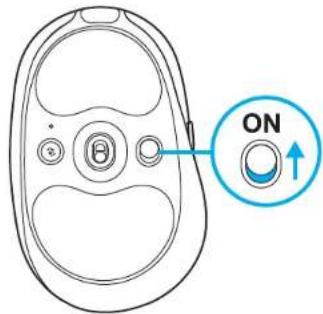
2![graph LR A["Port 1"] --> B["Network Interface"] B --> C["Server"] D["Port 2"] --> E["Network Interface"] E --> F["Server"]](/content/2026/04/680077/images/684d159caf1cd9d210cde35c86f4cc66c37acdbc5d53eb115f92e15abc7e7e45.jpg)
3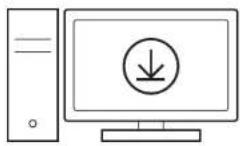
www.logitechG.com/ghub
ENGLISH
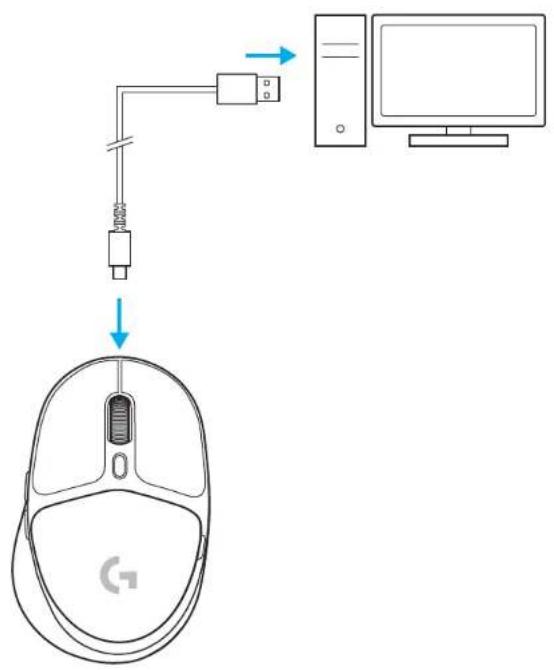
CHARGING YOUR MOUSE
1. Insert the USB-C cable into the port at the front of the mouse. 2. Connect the cable to your PC.
BLUETOOTH® CONNECTIVITY
1. Turn on the mouse by sliding the button up to reveal the blue indicator color. 2. Press the Connection button once to select Bluetooth® – the light will turn from cyan to dark blue. Long press the Connection button to enter pairing mode – the light will remain dark blue and flash quickly, indicating pairing mode. 3. Follow the Bluetooth® connection process for your device to pair with the mouse.
1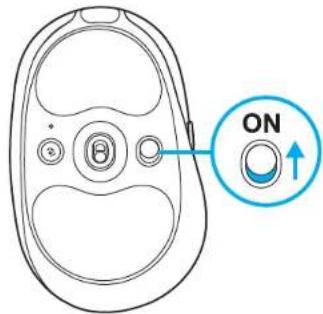
![graph LR A["2"] --> B["Sensor Icon"] B --> C["3"] C --> D["Bluetooth Signal"] D <--> E["Computer"]](/content/2026/04/680077/images/06b7f8cfb172f7806432872ae38ca5673f3cd72c43ab31a395a40bd59fcd37f1.jpg)

ENGLISH
CHANGING MOUSE SENSITIVITY
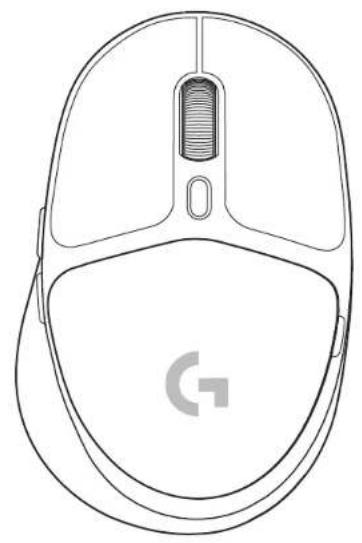
1. Press the button below the mouse scroll wheel to cycle through mouse sensitivity settings.
You can customize these settings using the G HUB software.
© 2022 Logitech, Logitech, Logitech G, Logi and their respective logos are trademarks or registered trademarks of Logitech Europe S.A. and/or its affiliates in the U.S. and other countries. All other trademarks are the property of their respective owners. Logitech assumes no responsibility for any errors that may appear in this manual. Information contained herein is subject to change without notice. The Bluetooth® word mark and logos are registered trademarks owned by Bluetooth SIG, Inc. and any use of such marks by Logitech is under license.


Brand : LOGITECH
Model : G705
Category : Mouse