Q Revo MaxV - Robot vacuum ROBOROCK - Free user manual and instructions
Find the device manual for free Q Revo MaxV ROBOROCK in PDF.


| Product type | Robot vacuum and mop |
| Brand | Roborock |
| Model | Q Revo MaxV |
| Robot model | QROPEP |
| Station model | EWFD16LRR or EWFD20LRR |
| Robot power supply | Lithium-ion battery 14.4 V / 5,200 mAh (TYP) |
| Station power supply | 120 V~, 60 Hz, nominal input 6 A (emptying), 12 A (hot water washing), 1 A (charging and drying) |
| Connectivity | WiFi 2.4 GHz, Roborock app |
| Navigation | LiDAR and distance sensors |
| Obstacle detection | Reactive AI sensor with LED light |
| Mopping function | Rotating mops with automatic washing and drying |
| Automatic emptying | Yes, via disposable dust bag in the station |
| Cleaning modes | Full cleaning, spot cleaning, scheduled cleaning, Do Not Disturb mode |
| Required space for the station | Approximately 0.9 m (height) x 0.4 m (depth) x 1.2 m (width) |
| Robot maintenance | Clean main brush every 2 weeks, side brush every month, filter every 2 weeks, mops as needed |
| Parts replacement | Main brush every 6 to 12 months, side brush every 3 to 6 months, filter every 6 to 12 months, mops every 1 to 3 months, dust bag as needed |
| Safety | Grounding required, do not use on thick carpets, keep away from children, do not expose to water |
| Included spare parts | Main brush, side brush, washable filter, mops, disposable dust bag |
| Warranty | Consult the manufacturer |
Frequently Asked Questions - Q Revo MaxV ROBOROCK
User questions about Q Revo MaxV ROBOROCK
0 question about this device. Answer the ones you know or ask your own.
Ask a new question about this device
Download the instructions for your Robot vacuum in PDF format for free! Find your manual Q Revo MaxV - ROBOROCK and take your electronic device back in hand. On this page are published all the documents necessary for the use of your device. Q Revo MaxV by ROBOROCK.
USER MANUAL Q Revo MaxV ROBOROCK
Robotic Vacuum Cleaner User Manual
Read this user manual with diagrams carefully before using this product and store it properly for future reference.

roborock
English 03
Francais 16
Espanol 28
Contents
04 Safety Information
05 Battery and Charging
05 International Symbols Explanation
06 FCC/IC Statement
07 Product Overview
08 Installation
09 Connecting to the App
09 Instructions for Use
11 Routine Maintenance
12 Basic Parameters
13 Environmental Protection Description
14 Common Issues
Safety Information
WARNING
For use only with roborock EWFD16LRR or EWFD20LRR charger.
- Place the cords from other appliances out of the area to be cleaned.
- Do not operate the vacuum in a room where an infant or child is sleeping.
- Do not operate the vacuum in an area where there are lit candles or fragile objects on the floor to be cleaned.
- Do not operate the vacuum in a room that has lit candles on furniture that the vacuum may accidentally hit or bump into.
- Do not allow children to sit on the vacuum.
- Do not carry the product using dock base or dustbin.
- Place the dock on a flat floor away from fire, heat, and water. Avoid narrow spaces or locations where the robot may be suspended in the air.
- The product must be switched off and the plug must be removed from socket outlet when not in use, before cleaning or maintaining the product.
- This product can be used by children aged from 8 years and above and persons with reduced physical, sensory or mental capabilities or lack of experience and knowledge if they have been given supervision or instruction concerning use of the product in a safe way and understand the hazards involved. Children shall not play with the product. Cleaning and user maintenance shall not be made by children without supervision.
- Do not dismantle, repair or modify the battery or charging dock.
- If the dock is placed in an area susceptible to thunderstorms or with unstable voltage, take protection measures.
- Connect to a properly grounded outlet only. See Grounding Instructions.
GROUNDING INSTRUCTIONS
This appliance must be grounded. If it should malfunction or breakdown, grounding provides a path of least resistance for electric current to reduce the risk of electric shock. This appliance is equipped with a cord having an equipment-grounding conductor and grounding plug.
The plug must be inserted into an appropriate outlet that is properly installed and grounded in accordance with all local codes and ordinances.
WARNING - Improper connection of the equipment-grounding conductor can result in a risk of electric shock. Check with a qualified electrician or service person if you are in doubt as to whether the outlet is properly grounded. Do not modify the plug provided with the appliance – if it will not fit the outlet, have a proper outlet installed by a qualified electrician.
Safety Information
This appliance is for use on a nominal 120-V circuit and has a grounding attachment plug that looks like the plug illustrated in sketch A in Grounding methods. Make sure that the appliance is connected to an outlet having the same configuration as the plug.
No adaptor should be used with this appliance.
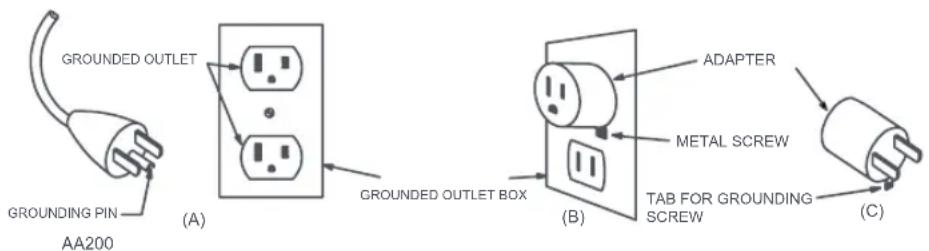
Grounding methods
Battery and Charging
- Keep the charging dock away from heat (such as radiators).
- Do not wipe the charging contacts with wet cloth or wet hands.
- Turn the robot off and use original packaging for shipment.
If placing the robot into storage, charge it fully and turn it off before placing it in a cool dry place. Recharge it at least every three months to prevent the battery over discharging. - Do not use the product when the temperature is higher than 40^ (104°F) or lower than 4^ (39°F), or there is any liquid or sticky substance on the floor.
International Symbols Explanation
\~ - ALTERNATING CURRENT symbol [symbol IEC 60417-5032 (2009-02)]
-
DIRECT CURRENT symbol [symbol IEC 60417-5031 (2009-02)]
-
PROTECTIVE EARTH (Protective Ground) symbol [symbol IEC 60417-5019 (2009-02)]
FCC/IC Statement
| Compliance Information | |
| Product Name Robotic Vacuum Cleaner with Charging Dock | |
| Product Model | Robotic Vacuum Cleaner Model: QROPEP Empty Wash Fill Dock: EWFD16LRR Empty Wash Fill Dock Auto: EWFD20LRR |
| Compliance Statement | This device complies with Part 15 of the FCC Rules. Operation is subject to the following two conditions: (1) this device may not cause harmful interference, and (2) this device must accept any interference received, including interference that may cause undesired operation. This device contains licence-exempt transmitter(s)/receiver(s) that comply with Innovation, Science and Economic Development Canada's licence-exempt RSS(s). Operation is subject to the following two conditions: (1) This device may not cause interference. (2) This device must accept any interference, including interference that may cause undesired operation of the device. |
| Correspondence of the responsible party in USA | |
| Company | Roborock Technology Co. |
| Address | ROOM 1227, 12TH FLOOR, 1000 N. WEST STREET, WILMINGTON, DE 19801 |
| support@roborock.com | |

Product Overview

Robot (Top View)

-Power/Clean
- Press and hold to turn the robot on or off
- Press to start cleaning
- Power Indicator Light
White: Battery level ≥ 15%
Red: Battery level < 15%
- Breathing: Charging or starting up
- Flashing red: Error
- Breathing blue: Remote viewing
Steady blue: Voice-Aliet active

—Dock
- Press to return to dock/start emptying
- Press and hold to start spot cleaning/ mop washing
Note: Press any button to stop the robot during cleaning or docking.
A1-1—Dock Locator
A1-2—Reactive AI Obstacle Recognition Sensor
A1-3—LED Fill Light
A1-4-Microphones

Robot (Bottom View)
A2-1—Wall Sensor
A2-2—Omni-Directional Wheel
A2-3—Carpet Sensor
A2-4-Side Brush
A2-5—Main Wheel
A2-6—Main Brush
A2-7—Main Brush Cover Latches
A2-8—Mop Cloths
A2-9—Cliff Sensors

Robot (Upper Cover Open)
A3-1—Vertical Bumper
A3-2-LiDAR Sensor
A3-3-WiFi Indicator L
-Off:WiFidisabled
- Flashing slowly: Waiting for connection
- Flashing quickly: Connecting
Steady:WiFi connected
A3-4—Reset Button
A3-5—Dustbin
A3-6-Charging Contacts
A3-7—Communication Sensor
A3-8—Air Outlet
A3-9—Positioning Button
A3-10-Self-Filling Port
A3-11—Automatic Lift and Rotate Mop Modules
A3-12-Suction Inlet
A3-13-Bumper

Mop Cloth Mount
A4-1-Hook and Loop Pads
A4-2—Mop Axle
Secure the mop cloths in place. Note:

Mop Cloth

Dustbin
A6-1-Dustbin Latch
A6-2—Air Inlet
A6-3—Washable Filter
A6-4—Suction Inlet

Dock Base

Power Cable

Disposable Dust Bag

Dock
A10-1—Water Tank Handle
A10-2—Water Tank Latch
A10-3—Dirty Water Tank
A10-4-Dust Container Cover
A10-5-Charging Contacts
A10-6-Self-Filling Port
A10-7-Suction Inlet
A10-8—Clean Water Tank
A10-9—Status Indicator Light
- Breathing: Emptying/Mop washing
Red: Dock error
Light off: Powered off/Charging
A10-10—Water Outlet
A10-11—Air Outlet
A10-12—Dock Base
A10-13—Filter
A10-14-Dust Bag Slot
A10-15—Dock Location Beacon
A10-16—Water Level Float
A10-17-Cleaning Tank Filter
A10-18—Cleaning Tank
A1 Power Cable Storage
A11-1-Cable Outlets
A11-2—Power Port
A11-3-Cable Storage Slot
B Installation
Important Information
B1-1—Tidy cables, hard or sharp objects (such as nails and glass), and loose items from the ground and move any unstable, fragile, precious, or dangerous items to prevent personal injury or property damage due to items becoming tangled in, struck by, or knocked over by the robot.
B1-2-When using the robot in a raised area, always use a secure physical barrier to prevent accidental falls that may result in personal injury or property damage.
Note: When using the robot for the first time, follow it throughout its whole cleaning route and watch for potential problems. The robot will be able to clean by itself in future uses.
Assembly
B2-1—Place the dock on a hard and flat floor. Attach the base by pressing down both sides of the base firmly, and then pressing the connecting part in the middle until you hear a click.
B2-2—Click
Note: When moving the dock, secure the water tanks to prevent it from falling off.
B2-3—Connect the power cable to the back of the dock, and keep the excess cable inside the storage slot.
Power cable can exit at either side.Note:
B2-4—Align and install the mop axles into the robot in place until you hear a "click".
B2-5—Click
B3 Place the Dock
Keep a space of clearance about 0.9m (2.9 ft) in height, 0.4m (1.3 ft) in length and 1.2 m (3.9 ft) in width. Place the dock on a hard and flat floor (wood/tile/concrete etc.), flat against a wall. Make sure the location has good WiFi for a better experience with the mobile app, and then plug it in and make sure the dock status indicator light is on.
B3-1—About 0.9 m (2.9 ft)
B3-2—About 0.4 m (1.3 ft)
B3-3—About 1.2 m (3.9 ft)
Notes:
If the power cable hangs vertically to the ground, it may be caught by the robot, causing the dock to be moved or disconnected.
- The dock status indicator light is on when the dock is powered on, and off when the robot is charging.
The dock status indicator light turns red if an error occurs.
- Place the dock on a flat floor away from fire, heat, and water. Avoid narrow spaces or locations where the robot may be suspended in the air.
- Placing the dock on a soft surface (carpet/mat) may cause the dock to tilt over and cause problems docking and departing.
- Keep the dock away from direct sunlight or anything that may block the dock location beacon; otherwise, the robot may fail to return to the dock.
- Do not use the dock without clean water tank, dirty water tank, dust container cover, disposable dust bag, or cleaning tank.
- Maintain the dock according to the maintenance instructions. Do not clean the dock with a wet cloth or tissue.
All docks are subject to water-based tests before leaving the factory. It is normal that a small amount of water remains in the waterway of the dock.
B4 Power on and Charge the Robot
Press and hold the button to power on the robot. Wait until the power light is steady, and then place the robot on the dock to charge. Make sure the dock is powered on. Press the button on the robot to make the robot automatically return to the dock for charging. The robot is equipped with a built-in high-performance lithium-ion rechargeable battery pack. To maintain battery performance, keep the robot charged during normal use.
B4-1-Dock Status Indicator Light turns off, Robot Power Indicator breathing; Charging
Note: The robot may not be turned on when the battery is low. In this case, connect the robot to the dock.
Connecting to the App
Download App
Search for "Roborock" in the App Store or Google Play or scan the QR code to download and install the app.

Reset WiFi
- Open the top cover and find the WiFi indicator light.
- Press and hold the land buttons until you hear the "Resetting WiFi" voice alert. The reset is complete when the WiFi indicator light flashes slowly. The robot will then wait for a connection.
Note: if you cannot connect to the robot due to your router configuration, a forgotten password, or any other reason, reset the WiFi and add your robot as a new device.
3 Add Device
Open the Roborock App, tap the "Scan to Connect" or "Search for Device" button and add the device as instructed in the app.
Notes:
The actual process may vary due to ongoing app updates. Follow the instructions provided in the app.
Only 2.4 GHz WiFi is supported.
If the robot waits more than 30 minutes for a connection, WiFi will be automatically disabled. If you want to reconnect, reset the WiFi before proceeding.
Instructions for Use
On/Off
Press and hold the button to turn on the robot. The power indicator light will turn on and the robot will enter standby mode. Press and hold the button to turn off the robot and complete the cleaning cycle.
Note:The robot cannot be turned off when it is being charged.
Filling the Water Tank
Remove and open the clean water tank and fill the tank with water to MAX. Close the lid, lock the latch, and fit the tank back in place.
Notes:
To prevent corrosion or damage, only use the Roborock branded floor cleaner in the water tank.
- Do not add too much cleaning fluid to prevent the robot from working improperly due to slipping.
To avoid water tank deformation, do not place hot water in the tank.
- If water marks remain on the water tank, wipe them clean before reinstallation.
C2 Starting Cleaning
Press the button to start cleaning. The robot will plan its cleaning route according to its scan of the room. It splits a room into zones, first draws out zone edges, and then fills the zone in a zigzag pattern. In so doing, the robot cleans all zones one by one, efficiently cleaning the house.
C2-1—Zone 1-Cleaned.
C2-2—Zone 2 - Cleaned.
C2-3—Zone 3 - In Progress.
C2-4—Zone 4 - Next Zone.
Notes:
- To allow the robot to automatically vacuum and return to the dock, start the robot from the dock. Do not move the dock during cleaning.
- Cleaning cannot start if the battery level is too low.
- Allow the robot to charge before starting the cleanup.
Before cleaning, tidy cables (including the power cable of the dock) and valuables from the floor. Loose items may be dragged by the robot, resulting in the disconnection of electrical appliances or damage of cables and property.
If cleaning is completed in less than 10 minutes, the area will be cleaned twice. - If the battery runs low during the cleaning cycle, the robot will automatically return to the dock. After charging, the robot will resume where it left off.
The robot will retract mop cloth mount when cleaning the carpet. You can also set the carpet as a no-go zone in the app to avoid it.
Before starting each cleaning task, make sure that the mop cloths have been properly installed.
Spot Cleaning
Press and hold the button to start spot cleaning in pause mode.
Cleaning range: The robot cleans a 1.5 m (4.9 ft) x 1.5 m (4.9 ft) square area centered on itself.
Note: After spot cleaning, the robot will automatically return to the starting point and enter Standby mode.
Pause
When the robot is running, press any button to pause it, press the button to resume cleaning, and press the button to send it back to the dock.
Note: Placing a paused robot on the dock manually will end the current cleanup.
Sleep
If the robot is paused for over 10 minutes, it will go to sleep, and the power indicator light will flash every few seconds. Press any button to wake the robot up.
Notes:
The robot will not go to sleep when it is charging.
- The robot will automatically shut down if left in sleep mode for more than 12 hours.
DND Mode
The default Do Not Disturb (DND) period is from 22:00 to 08:00. You can use the app to disable the DND mode or modify the DND period. When DND is on, the robot will not automatically resume cleanup, the power indicator light will dim, and the volume of the voice prompts will lower.
Mop Washing
During cleaning, the robot automatically determines when it should return to
the dock for mop washing and water tank refilling to maximize its mopping performance. During cleaning, tap Dock button in the app to send robot back for mop washing. When the robot is charging, press and hold the button on the robot or tap Wash button in the app to manually start washing. Press any button to stop washing.
Notes:
- To allow the robot to wash the mop automatically, start the robot from the dock and do not move the dock during cleaning.
- Watch out for hot water and do not touch the water outlet.
- You can set the wash frequency and washing mode in the app.
Emptying
Auto-emptying will automatically begin when the robot returns to the dock after cleaning. To manually emptying, press button on the docked robot or tap Empty button in the app. Press any button to stop emptying.
Notes:
- When auto-emptying has been left unused for a long period, empty the dustbin manually and make sure the air inlet is clear for optimal emptying performance.
- Auto emptying can be disabled through the apo
- Avoid frequent manual emptying.
Drying
Drying starts automatically after mop washing or after cleaning are completed. To manually start or stopping drying, tap the Drying button in the app.
Notes:
- Drying duration can be modified in the app.
- Auto drying can be disabled through the app.
Charging
After cleaning, the robot will automatically return to the dock to charge. In Pause mode, press the button to send the robot back to the dock. The power indicator light will breath as the robot charges.
Note: If the robot fails to find the dock, it will automatically return to its starting location. Place the robot on the dock manually to recharge.
System Reset
If the robot does not respond when a button is pressed or cannot be turned off, reset the system. Press the Reset button, and the robot will reset automatically.
Note: After resetting the system, scheduled cleaning, WiFi, etc. will be restored to factory settings.
Restoring Factory Settings
If the robot does not function properly after a system reset, switch it on. Press and hold the button and at the same time, press the Reset button until you hear the "Restoring factory settings" voice prompt. The robot will then be restored to factory settings.
Robot Error
The power indicator of the robot will flash red and a voice alert will sound. Follow the voice prompts and instructions in the app for troubleshooting.
Notes:
The robot will go to sleep automatically if left in a malfunctioning state for over 10 minutes.
- Placing a malfunctioning robot on the dock manually will end the current cleanup.
Dock Error
The dock status indicator light will be steady red. Follow the voice prompts and instructions in the app for troubleshooting.

Routine Maintenance
D1 Main Brush
- Clean every 2 weeks and replace every 6-12 months
D1-1—Main Brush Cover
D1-2—Main Brush Cover Latches
D1-3—Main Brush
D1-4—Main Brush Caps
D1-5—Main Brush Bearing
D1-6—Turn over the robot and press the main brush latches to remove the main brush cover.
D1-7—Pull out the main brush and remove the main brush bearing. Rotate the main brush caps in the indicated unlock direction to remove the caps,
and remove any entangled hair or dirt at both ends of the main brush.
D1-8—Reinstall the main brush.
D1-9—Reinstall the main brush cover. Make sure that the four teeth are fully seated in the slot, and then press on the main brush cover to lock it until you hear a click.
Notes:
- Main brush should be wiped down with a wet cloth. If the main brush is wet, air-dry it away from direct sunlight.
- Do not use corrosive cleaning fluids or disinfectants to clean the main brush.
D2 Side Brush
- Clean monthly and replace every 3-6 months
Unscrew the side brush screw. Remove and clean the side brush. Reinstall the brush and tighten the screw.
D3 Omni-Directional Wheel
- Clean as required
D3-1—Use a tool, such as a small screwdriver to pry out the axle and take out the wheel. The omni-directional wheel bracket cannot be removed
D3-2—Rinse the wheel and the axle with water to remove any hair and dirt. Dry and reattach the wheel, pressing it firmly in place.
D4 Main Wheel
* Clean as required
Clean the main wheel with a soft, dry cloth.
D5 Dustbin
- Clean as required
D5-1—Open the top cover of the robot and press the dustbin latch to take out the dustbin.
D5-2—Open the washable filter and empty the dustbin.
D5-3-Fill the dustbin with clean water and reinstall the washable filter. Gently shake the dustbin, and then pour out the dirty water.
Note: To prevent blockage, only use clean water without any cleaning liquid.
D5-4—Leave the dustbin and the washable filter to dry.
D6 Washable Filter
- Clean every 2 weeks and replace the filter every 6-12 months
D6-1—Remove the filter.
D6-2—Rinse the filter repeatedly and tap it to remove as much dirt as possible.
Note: Do not touch the surface of the filter with your hands, brush, or hard objects to avoid potential damage.
D6-3—Allow at least 24 hours for the filter to dry thoroughly and reinstall it.
D7 Mop Cloths
- Clean as required and replace every 1-3 months
D7-1—Remove the mop cloth from the mop cloth mount. Clean the mop cloth and air-dry it.
Note: A dirty mop cloth will affect the washing performance. Clean it before use.
D7-2-Stick the mop cloth on the mount in position and firmly.
Robot Sensors
*Clean as required
Use a soft, dry cloth to wipe and clean all sensors, including:
D8-1—Dock Locator
D8-2—Reactive AI Obstacle Recognition Sensor
D8-3—Wall Sensor
D8-4—Communication Sensor
D8-5—The Carpet Sensor
D8-6—Five Cliff Sensors
D9 Moving Dock
Lift up and move the dock. Do not move the dock by lifting the dock base, water tank handles or dust container cover directly to prevent the dock from falling off.
010 Dirty Water Tank
*Clean as required
Open the dirty water tank lid and pour out the dirty water. Fill the tank with clean water, close the lid, and shake. Pour out the dirty water. Close the lid and then re-install.
011 Charging Contact Areas
- Clean monthly
Use a soft dry cloth to wipe the charging contacts on the robot and the dock.
012 Replacing Disposable Dust Bag
Replace as required
D12-1—Remove the dust container cover.
D12-2—Remove the disposable dust bag in the direction of the arrow and discard it.
Notes:
- The dust bag handle seals the bag on removal to prevent leakage.
Always install a dust bag before closing the dust container cover to avoid auto-emptying without the bag. You can also disable auto-emptying in the app.
D12-3—Clean around the filter with a dry cloth. Install a new disposable dust bag in place along the slot and unfold the dust bag to maximize emptying performance.
D12-4—Close the cover of the dust container and make sure it is securely sealed.
013 Cleaning Tank
*Clean as required
D13-1—Remove the cleaning tank.
D13-2—Rinse the cleaning tank and the filter with water.
D13-3—Reinstall the cleaning tank.
Basic Parameters
Robot
| Model QROPEP | |
| Battery | 14.4 V/5200 mAh (TYP) lithium-ion battery |
| Rated Input 20V | = 1.5A |
| Charging Time Approx. 4 hours | |
Note: The serial number is on a sticker on the underside of the robot.
Empty Wash Fill Dock
| Model EWFD16LRR | |
| Rated Input Voltage 120V~ | |
| Rated Frequency 60Hz | |
| Rated Input (Dust Collection) | 6A |
| Rated Input (Hot water washing mop) | 12A |
| Rated Input (Charging & drying) | 1A |
| Rated Output 20V | = 1.5A |
| Charging Battery | 14.4 V/5200 mAh (TYP) lithium-ion battery |
Environmental Protection Description
Removing the battery
- The following information applies only when disposing of the robot and should not be followed for day-to-day operations
The chemical substances contained in the built-in lithium-ion battery of this product can cause environmental pollution. Before disposing of this product, remove the battery. The battery should then be properly recycled either through local authorities or by providing the batteries to a battery recycling facility.
How to remove the battery:
- Operate the robot without connecting to the dock until it runs out of battery.
- Turn off the robot.
- Unscrew the battery cover.
- Remove the battery cover.
- Press the latch to pull out the battery connector and remove the battery.
Notes:
Before removing the battery, make sure it is fully drained and the robot is disconnected from the dock.
- Remove the entire battery pack. Avoid damaging the battery pack casing to avoid short-circuits or leakage of hazardous substances.
- In the event of accidental contact with battery fluid, rinse thoroughly with water and seek immediate medical care.
Common Issues
| Problem Solution | |
| Unable to power on. | ·The battery level is low. Put the robot on the charging dock and charge it before use. ·The battery temperature is too low or too high. Only use the robot within the range of 4-40°C (39-104°F). |
| Unable to charge. | ·The charging dock is not connected, and check that both ends of the power cable are properly connected. ·If contact is poor, clean the contact areas on the charging dock and the robot. ·Confirm that the dock indicator light is on. |
| Slow charging. | ·When used at high or low temperatures, the robot will automatically reduce its charging speed to extend battery life. ·The charging contacts may be dirty. Wipe them with a dry cloth. |
| Unable to dock. | ·There are too many obstacles near the charging dock. Move it to an open area. ·The robot is too far from the charging dock. Place it closer and retry. ·The dock locator may be dirty. Wipe them with a dry cloth. |
| Noise during cleaning. | ·The main brush, side brush, or main wheels may be jammed. Pause the robot and clean them. ·The omni-directional wheel is jammed. Use a screwdriver to remove it for cleaning. |
| Unable to connect to WiFi. | ·WiFi disabled. Reset the WiFi and try again. ·Poor WiFi signal. Move the robot to an area with good WiFi reception. ·Abnormal WiFi connection. Reset the WiFi, download the latest mobile app and retry. ·Unable to connect to WiFi. There may be an error with your router settings. Contact Roborock customer service for additional support. |
| Is power always being drawn when the robot is on the charging dock? | ·The robot will draw power while it is docked to maintain battery performance, but the power consumption is extremely low. |
| Does the robot need to be charged for at least 16 hours for the first three uses? | ·No. The robot can be used any time after it has been fully charged. |
| Cleaning does not resume after recharging. | ·Make sure that the robot is not in DND mode. DND mode will prevent cleanup. ·The robot will not resume cleaning if users press button to recharge or manually place the robot back to the dock. |
| The robot suddenly misses a certain spot. | ·The wall sensor, cliff sensors, or carpet sensor may be dirty. Wipe them with a soft dry cloth. |
Common Issues
| The LED status indicator light on the dock is steady red. | ·Voltage error. Check that local voltage meets the requirements listed on the dock. ·Check clean water tank placement or refill as required. ·Check dirty water tank placement or empty as required. ·Check that the cleaning tank or cleaning tank filter has been correctly installed. |
| Reduced emptying performance or unusual noise when emptying. | ·The main brush or main brush cover is not properly installed. Check and correct installation. ·The filter, air duct, suction inlet, air inlet, dustbin or dust bag is blocked. Clean to remove blockages. |
| Reduced mop washing performance. | ·The mop cloth is not attached properly. Reinstall. ·The floor is dirty. Change the mop washing mode in the app for better cleaning. |
| Auto Drying is not working. | ·Auto Drying is disabled. Check in-app settings. ·Auto drying starts only after mopping or mop washing. |
| Auto-emptying is not working. | ·Auto-emptying is disabled. Check in-app settings. ·Dock dust container cover is not installed. Check and install. ·Auto-emptying will not be triggered if the robot returns to the dock without cleaning. ·The robot will not auto-empty after returning to the dock in the Do Not Disturb (DND) mode. Adjust cleaning or DND duration, or start emptying manually. |
| The mop is not washed. | · The mop will not be washed if not used. · The robot will not return to the dock for mop washing if it does not start from the dock or no dock is found on the app map. · Check clean water tank placement or refill as required. · Check dirty water tank placement or empty as required. · Check that the cleaning tank or cleaning tank filter has been correctly installed. |
| Hot water washing mop is not working. | · Check that hot water washing mop is enabled in the app. |
| Unable to extend the mop cloths. | · Check that corner stretch mopping is enabled in the app. · The mop cloths will only extend along walls and certain obstacles. · Please check if the mop extension structure is stuck. |
D1 Cepillo principal
Robotic Vacuum Cleaner
Product Model: QROPEP
Manufacturer: Beijing Roborock Technology Co., Ltd.
Address of Manufacturer: Room 1001, Floor 10, Building 3, Yard 17, Anju Road,
Changping District, Beijing, P.R. China
For more product information, visit our website: www.roborock.com
For after-sales support, contact our support team at:
support@roborock.com (United States/Canada/Non-Europe)
1-855-960-4321 (United States only)
1-833-421-1915 (Canada only)

- Robotic Vacuum Cleaner User Manual
- Contents
- Safety Information
- WARNING
- GROUNDING INSTRUCTIONS
- Battery and Charging
- International Symbols Explanation
- Product Overview
- Robot (Top View)
- -Power/Clean
- - Power Indicator Light
- —Dock
- Robot (Bottom View)
- Robot (Upper Cover Open)
- Mop Cloth Mount
- Mop Cloth
- Dustbin
- Dock Base
- Power Cable
- Disposable Dust Bag
- Dock
- A1 Power Cable Storage
- B Installation
- Important Information
- Assembly
- B3 Place the Dock
- Notes:
- B4 Power on and Charge the Robot
- B4-1-Dock Status Indicator Light turns off, Robot Power Indicator breathing; Charging
- Connecting to the App
- Download App
- Reset WiFi
- Add Device
- Instructions for Use
- On/Off
- Filling the Water Tank
- C2 Starting Cleaning
- Spot Cleaning
- Pause
- Sleep
- DND Mode
- Mop Washing
- Emptying
- Drying
- Charging
- System Reset
- Restoring Factory Settings
- Robot Error
- Dock Error
- Routine Maintenance
- D1 Main Brush
- D2 Side Brush
- D3 Omni-Directional Wheel
- D4 Main Wheel
- D5 Dustbin
- D6 Washable Filter
- D7 Mop Cloths
- Robot Sensors
- D9 Moving Dock
- Dirty Water Tank
- Charging Contact Areas
- Replacing Disposable Dust Bag
- Cleaning Tank
- Basic Parameters
- Environmental Protection Description
- Removing the battery
- Common Issues
- D1 Cepillo principal
- Robotic Vacuum Cleaner
Brand : ROBOROCK
Model : Q Revo MaxV
Category : Robot vacuum