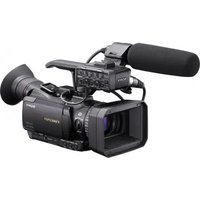
HXR-NX70N - Video camera SONY - Free user manual and instructions
Find the device manual for free HXR-NX70N SONY in PDF.


| Product Type | Professional video camera |
| Brand | Sony |
| Model | HXR-NX70N |
| Dimensions (W x H x D) | 265 x 235 x 430 mm (approx.) |
| Weight | 2.2 kg (approx., with battery and lens) |
| Power supply | Sony InfoLITHIUM V series rechargeable battery (NP-FV100 or equivalent) |
| HD recording format | 1080/60i, 1080/30p, 720/60p (depending on model: 1080/50i, 1080/25p, 720/50p for PAL versions) |
| Recording modes | FX, FH, HQ, LP, PS (depending on format) |
| Simultaneous recording | Yes, on internal memory and memory card (in HD mode) |
| Key assignment | Assignable EXPANDED FOCUS, HISTOGRAM, PHOTO keys |
| Last scene review | Yes, via assigned key |
| Zoom speed | Adjustable (High speed / Low speed) |
| Display output | Displays diagonal lines, zebra, markers, etc. |
| Expanded focus | Yes |
| Histogram | Yes |
| Maintenance and cleaning | Clean with a soft, dry cloth. Do not use solvents. |
| Safety | Do not expose to excessive humidity. Use only genuine Sony accessories. |
| Spare parts | Battery, charger, USB and HDMI cables, remote control (optional) |
| Operating temperature | 0 °C to 40 °C |
| Storage media | Internal memory and memory card (SD/SDHC/SDXC) |
Frequently Asked Questions - HXR-NX70N SONY
User questions about HXR-NX70N SONY
0 question about this device. Answer the ones you know or ask your own.
Ask a new question about this device
Download the instructions for your Video camera in PDF format for free! Find your manual HXR-NX70N - SONY and take your electronic device back in hand. On this page are published all the documents necessary for the use of your device. HXR-NX70N by SONY.
USER MANUAL HXR-NX70N SONY
Digital HD Video Camera Recorder
- 1920×1080: [1080/30p FX], [1080/30p FH]
- 1280×720: [720/60p FX]、[720/60p FH]
New functions have been added to your camcorder by the firmware update. Introduction of these features and how to use them are described here.
Please also read "Operating Guide".
HD: Rec Format
[Frame Rate] and [Mode] MENU items change to [Format]. You can record in the following high-definition image quality (HD).
- 1080/30p, 720/60p ^*1
- 1080/25p, 720/50p ^*2
Touch MENLI (U) → [Rec/Media SET] → [Rec Format] → desired format → OK.
HXR-NX70U/NX70N
1080/60i FX (default setting), 1080/60i FH, 1080/60i HQ, 1080/60i LP, 1080/60p PS, 1080/24p FX, 1080/24p FH, 1080/30p FX, 1080/30p FH, 720/60p FX, 720/60p FH
HXR-NX70E/NX70P/NX70C
1080/50i FX (default setting), 1080/50i FH, 1080/50i HQ, 1080/50i LP, 1080/50p PS, 1080/25p FX, 1080/25p FH, 720/50p FX, 720/50p FH
- If you select [1080/60i FX]/[1080/50i FX], for example, movies are recorded in the following format:
- 1080: Effective scanning lines
- 60/50: Frame rate
- i: Scanning system
- FX: Recording mode
- Image sizes for newly added recording formats are as follows.
- 1920 × 1080 : [1080/30p FX], [1080/30p FH]* or [1080/25p FX], [1080/25p FH]*
- 1280 × 720 : [720/60p FX], [720/60p FH] ^1 or [720/50p FX], [720/50p FH] ^2
^1 HXR-NX70U/NX70N
^_2 HXR-NX70E/NX70P/NX70C
HD: Simul. Rec
[HD:mul. Rec] is added to MENU items, and allows for high-definition (HD) movie recording to internal memory and memory card simultaneously.
Touch MENLI (U) → [Rec/Media SET] → [Simul. Rec] → desired setting → OK.
| [On] (default) | Records high-definition (HD) movies to internal memory and memory card simultaneously. |
| [Off] | Does not record simultaneously. |
- If one of the recording media used becomes unable to continue recording during simultaneous recording, the other recording media continues recording without pause.
-
You cannot use simultaneous recording with [Smooth Slow Rec] or [Golf Shot].
-
When [H:rmul. Rec] is set to [On], you cannot shoot still images.
- When [HDnul. Rec] is set to [On], remaining battery indicator accuracy may be lower. Actual battery usage time may be shorter compared to when set to [Off].
Assign Button
[Assign Button] is added to MENU items, and allows you to assign functions to the EXPANDED FOCUS, HISTOGRAM, and PHOTO buttons.
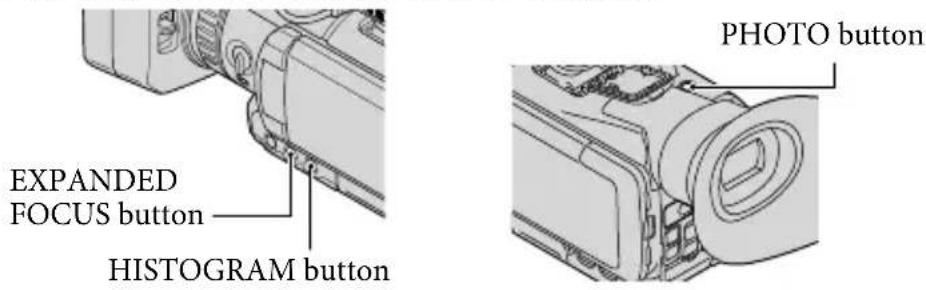
1 Touch MENU) → [Setup] → [General Settings)] → [Assign Button].
2 Touch the button you want to assign a new function to.
3 Touch the desired function to assign → OK.
The following functions can be assigned to the EXPANDED FOCUS, and HISTOGRAM buttons:
---- (no function), Smooth Slow Rec, Golf Shot, Expanded Focus, Intelligent Auto, Tele Macro, SteadyShot, Color Bar, Histogram, Zebra, Peaking, Marker, Data Code, Last Scene Review
The following functions can be assigned to the PHOTO button:
---- (no assigned), Photo, Expanded Focus, Last Scene Review
Last Scene Review
You can review the most recently recorded movie.
1 Assign the [Last Scene Review] function by the Assign Button function, as described above.
2 Press the assigned button while in movie standby mode.
- Press the assigned button again to finish reviewing.
- If you edit the movie or remove the recording media after you stop recording, the Last Scene Review function may not work correctly.
- You cannot use the Last Scene Review function with [Smooth Slow Rec] or [Golf Shot].
Zoom Speed
[Zoom Speed] is added to MENU items, and allows you to set the zoom drive speed.
| Touch MEINIU) → OK. | → [Camera Settings)] → [Zoom Speed] → desired setting |
| [High Speed](default) | Sets a fast drive speed. (Zoom speed as before upgrade) |
| [Low Speed] | Sets a slower drive speed. |
Additional output items of Disp Output
GB
When you select MENU item [V-Out/Panel] in [Disp Output], [Zebra] and [Peaking] can be output.
Français
-1080/25p, 720/50p *2
-1280×720 : [720/60p FX], [720/60p FH] * ou [720/50p FX], [720/50p FH] *
^*_1 HXR-NX70U/NX70N
^*2 HXR-NX70E/NX70P/NX70C
Enr. Simultané
- 1080/25p, 720/50p ^*2
-1080/25p, 720/50p *2
Toque MENJNU) → [AJUS. Grab/Soporte] → [EHórmato Grab] → el formato deseado → OK.
HXR-NX70U/NX70N
1080/60i FX (ajuste predeterminado), 1080/60i FH, 1080/60i HQ, 1080/60i LP, 1080/60p PS, 1080/24p FX, 1080/24p FH, 1080/30p FX, 1080/30p FH, 720/60p FX, 720/60p FH
HXR-NX70E/NX70P/NX70C
1080/50i FX (ajuste predeterminado), 1080/50i FH, 1080/50i HQ, 1080/50i LP, 1080/50p PS, 1080/25p FX, 1080/25p FH, 720/50p FX, 720/50p FH
-1080/25p, 720/50p *2

Brand : SONY
Model : HXR-NX70N
Category : Video camera