WT460A - Receiver Power Dynamics - Free user manual and instructions
Find the device manual for free WT460A Power Dynamics in PDF.


User questions about WT460A Power Dynamics
0 question about this device. Answer the ones you know or ask your own.
Ask a new question about this device
Download the instructions for your Receiver in PDF format for free! Find your manual WT460A - Power Dynamics and take your electronic device back in hand. On this page are published all the documents necessary for the use of your device. WT460A by Power Dynamics.
USER MANUAL WT460A Power Dynamics
Power Dynamics Professional Audio
WT460A Amplifier
Ref. nr.: 952.490
natural_image
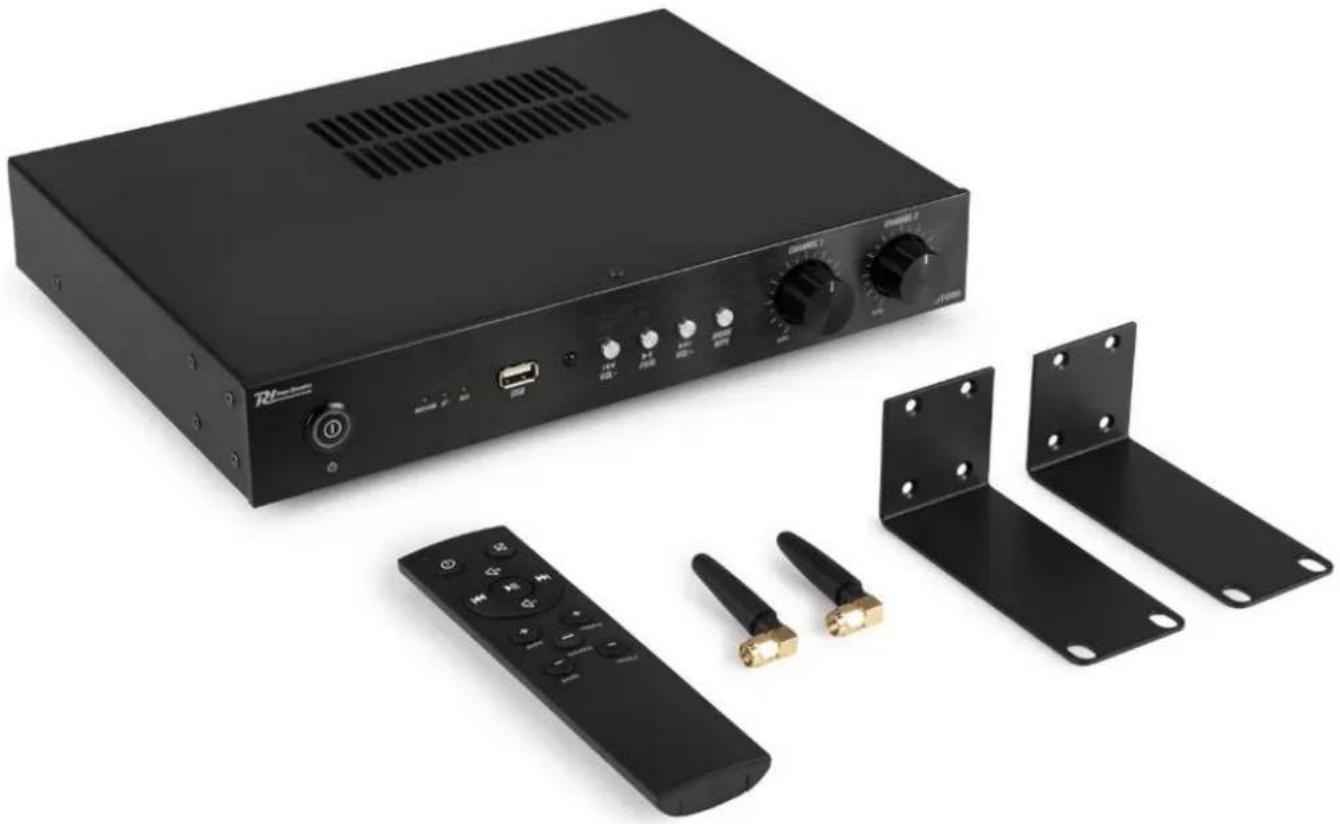
Black remote control unit with attached audio equipment including a remote, switch, and two metal brackets (no visible text or symbols)INSTRUCTION MANUAL GEBRUIKSAANWIJZING BEDIENUNGSANLEITUNG MANUAL DE INSTRUCCIONES MANUEL D'INSTRUCTIONS INSTRUKCJA OBSŁUGI NÁVOD K POUŽITÍ
Congratulations to the purchase of this Power Dynamics product. Please read this manual thoroughly prior to using the unit in order to benefit fully from all features.
Read the manual prior to using the unit. Follow the instructions in order not to invalidate the warranty. Take all precautions to avoid fire and/or electrical shock. Repairs must only be carried out by a qualified technician in order to avoid electrical shock. Keep the manual for future reference.
- Prior to using the unit, please ask advice from a specialist. When the unit is switched on for the first time, some smell may occur. This is normal and will disappear after a while.
- The unit contains voltage carrying parts. Therefore, do NOT open the housing.
- Do not place metal objects or pour liquids into the unit This may cause electrical shock and malfunction.
- Do not place the unit near heat sources such as radiators, etc. Do not place the unit on a vibrating surface. Do not cover the ventilation holes.
- The unit is not suitable for continuous use.
- Be careful with the mains lead and do not damage it. A faulty or damaged mains lead can cause electrical shock and malfunction.
- When unplugging the unit from a mains outlet, always pull the plug, never the lead.
- Do not plug or unplug the unit with wet hands.
- If the plug and/or the mains lead are damaged, they need to be replaced by a qualified technician.
- If the unit is damaged to such an extent that internal parts are visible, do NOT plug the unit into a mains outlet and DO NOT switch the unit on. Contact your dealer. Do NOT connect the unit to a rheostat or dimmer.
- To avoid fire and shock hazard, do not expose the unit to rain and moisture.
- All repairs should be carried out by a qualified technician only.
- Connect the unit to an earthed mains outlet (220-240Vac/50Hz) protected by a 10-16A fuse.
- During a thunderstorm or if the unit will not be used for a longer period of time, unplug it from the mains. The rule is: Unplug it from the mains when not in use.
- If the unit has not been used for a longer period of time, condensation may occur. Let the unit reach room temperature before you switch it on.
- For use in humid rooms or outdoors: refer to the installation guidelines for safe assembly.
-
To prevent accidents in companies, you must follow the applicable guidelines and follow the instructions.
-
Do not repeatedly switch the fixture on and off. This shortens the lifetime.
- Keep the unit out of the reach of children. Do not leave the unit unattended.
- Do not use cleaning sprays to clean switches. The residues of these sprays cause deposits of dust and grease. In case of malfunction, always seek advice from a specialist.
- Do not force the controls.
- This unit is with speaker inside which can cause magnetic field. Keep this unit at least 60cm away from computer or TV.
- If this product has a built-in lead-acid rechargeable battery: Please recharge the battery every 3 months if you are not going to use the product for a long period of time. Otherwise, the battery may be permanently damaged.
- If the battery is damaged, please replace with same specifications battery. And dispose the damaged battery environment friendly.
- If the unit has fallen, always have it checked by a qualified technician before you switch the unit on again.
- Do not use chemicals to clean the unit. They damage the varnish. Only clean the unit with a dry cloth.
- Keep away from electronic equipment that may cause interference.
- Only use original spares for repairs, otherwise serious damage and/or dangerous radiation may occur.
- Switch the unit off prior to unplugging it from the mains and/or other equipment. Unplug all leads and cables prior to moving the unit.
- Make sure that the mains lead cannot be damaged when people walk on it. Check the mains lead before every use for damages and faults!
- The mains voltage is 220-240Vac/50Hz. Check if power outlet match. If you travel, make sure that the mains voltage of the country is suitable for this unit.
- Keep the original packing material so that you can transport the unit in safe conditions.

This mark attracts the attention of the user to high voltages that are present inside the housing and that are of sufficient magnitude to cause a shock hazard.

This mark attracts the attention of the user to important instructions that are contained in the manual and that he should read and adhere to.
The unit has been certified CE. It is prohibited to make any changes to the unit. They would invalidate the CE certificate and their guarantee!
NOTE: To make sure that the unit will function normally, it must be used in rooms with a temperature between 5^ C/41°F and 35^ C/95°F.

Electric products must not be put into household waste. Please bring them to a recycling centre. Ask your local authorities or your dealer about the way to proceed. The specifications are typical. The actual values can slightly change from one unit to the other. Specifications can be changed without prior notice.
Do not attempt to make any repairs yourself. This would invalid your warranty. Do not make any changes to the unit. This would also invalid your warranty. The warranty is not applicable in case of accidents or damages caused by inappropriate use or disrespect of the warnings contained in this manual. Power Dynamics cannot be held responsible for personal injuries caused by a disrespect of the safety recommendations and warnings. This is also applicable to all damages in whatever form.
UNPACKING INSTRUCTION
CAUTION! Carefully unpack the box upon receipt. Check the contents to ensure that all parts are present and have been received in good condition. Notify the shipper immediately and retain packaging material if any parts appear damaged from shipping or the package itself shows signs of mishandling. Save the package and all packaging materials. If the product must be returned, it is important that the product is returned in the original factory box and packaging. If the device has been exposed to drastic temperature fluctuation (e.g. after transportation), do not switch it on immediately. The arising condensation water might damage your device. Leave the device switched off until it has reached room temperature.
POWERSUPPLY
The label on the back/under side of the product indicates the mains voltage to which it must be connected. Check that the mains voltage corresponds to this. Any other voltage than the one indicated may cause irreparable damage to the unit. The unit must also be connected directly to the mains voltage and no dimmer or adjustable power supply may be used.

Always connect the device to a protected circuit (circuit breaker or fuse). Make sure the device has an appropriate electrical ground to avoid the risk of electrocution or fire.
OVERVIEW
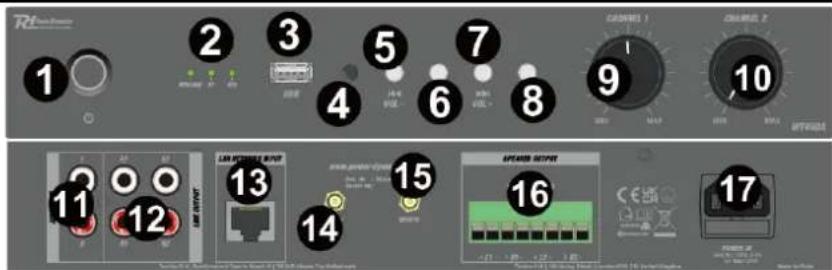
- POWER ON/OFF
Press to turn the device on/off.
- LED INPUT INDICATORS
Indicate the current playback mode.
- USB
USB input, for playback only.
-
INFRARED REMOTE CONTROL RECEIVER
-
PREVIOUS / VOLUME –
Press to go to the previous track, press and hold to decrease the volume level.
- PLAY/PAUSE / PAIRING
Press to start/resume or pause playback. Press and hold to initiate BT pairing.
- NEXT / VOLUME +
Press to go to the next track, press and hold to increase the volume level.
- INPUT / WPS / RESET
Press to change the input mode. Press and hold for 5 seconds to reset to factory settings. Press simultaneously with WPS button on router (when applicable) to initiate quick pairing.
- CHANNEL 1 LEVEL
Rotate to change the volume level of channel 1.
- CHANNEL 2 LEVEL
Rotate to change the volume level of channel 2.
- AUX INPUT
Left and right RCA line signal input sockets.
- CHANNEL 1 + 2 LINE OUTPUT
Left and right RCA line signal output sockets for both channel 1 and 2.
- LAN
RJ45 LAN connector for inserting an internet cable.
- BT ANTENNA
Install the supplied BT antenna to maximize BT reception.
- WIFI ANTENNA
Install the supplied WiFi antenna to maximize WiFi reception.
- SPEAKER OUTPUT
Speaker output terminal for connecting speakers to channel 1 and 2.
- AC IN AND FUSE HOLDER
Socket for plugging in the supplied power cord. For instructions on how to change the fuse, see "REPLACING THE FUSE".
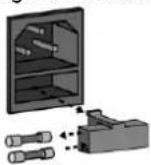
REPLACING THE FUSE
If the fuse is defective, replace the fuse with a fuse of the same type and value. Before replacing the fuse, unplug mains lead.
Procedure:
Step 1: Open the fuse holder on the rear panel with a fitting screwdriver.
Step 2: Remove the old fuse from the fuse holder.
Step 3: Install the new fuse in the fuse holder.
Step 4: Replace the fuse holder in the housing.
CONNECTING WITH BT
Connecting your BT-device to the amplifier, follow below steps:
-
Turn on BT on your smartphone or tablet.
-
Press the INPUT button until the BT LED is illuminated.
-
Press and hold the PLAY/PAUSE / PAIRING button to discard any existing BT connections and make pairing available.
-
Search for "WT460A" in the BT menu of the smartphone or tablet.
-
Connect with "WT460A". When pairing has been successful, the BT LED will stop flashing.
SETUP
Position the WT460A in such a way that the best possible reception is available to the device. While still having the WT460A switched off, connect the device to the mains supply via the supplied power lead.
To achieve the best reception for both BT streaming - and WiFi signals, make sure to install the antennas.
When using an external playback device, connect this to the AUX input RCA sockets on the rear panel of the WT460A.
The WT460A has 2 separate amplifiers (CH 1 and CH2), both having left and right output sockets located within the speaker output terminal (binding post).
NOTE: the minimum impedance load per channel is 4 Ohms.
OPERATION
When all connections are made correctly: turn on the power of WT460A, the power LED will be illuminated. Choose the correct input mode by pressing INPUT / WPS / RESET.
Normally, playback will start automatically when an SD card or a USB stick is inserted in their corresponding slot. If not, select USB or SD by pressing INPUT / WPS / RESET to initiate the respective mode manually. Press PLAY / PAUSE to start playback.
For all modes: press PREVIOUS / VOLUME – or NEXT / VOLUME + to change tracks. Press and hold the same buttons to decrease or increase volume respectively.
Factory reset: press and hold INPUT / WPS / RESET for 5 seconds to initiate factory reset. The device will be returned to factory settings.
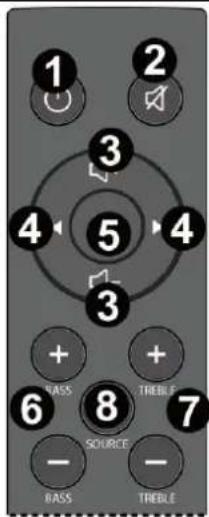
REMOTE CONTROL
- POWER ON/OFF
Press to turn the device on/off.
- MUTE
Press to (un)mute the device.
- VOLUME
Press to decrease or increase the volume level.
- PREVIOUS/NEXT
Press to change to previous- or skip to next track.
- PLAY/PAUSE
Press to start/resume or pause play.
- BASS
Press to increase or decrease bass level.
- TREBLE
Press to increase or decrease treble level.
- SOURCE
Press to change input mode.
text_image
1 2 3 4 5 4 + + 6 8 7 SOURCE - - RASS TREBLEDOWNLOAD AND INSTALL WIIM LEGACY PLAYER APP
Download the latest version of the LEGACY Player app via Apple store or Google play. Here you will also find the latest features and explanations on how to use them.

text_image
QR code image containing encoded data, no visible human-readable textLegacy Player Apple Store

text_image
QR code image containing encoded data, no visible human-readable textLegacy Player Google Play
WIIM LEGACY PLAYER APP SETUP
Open the WiiM Legacy Player app. After the welcome screen of the app, a searching screen will be shown. In case the WT460A has been connected to the local internet, the searching will result in finding one or more devices. The app will proceed to the list with found devices automatically.
If the WT460A is not connected, select Add Device – WiiM Cobblestones to manually connect.

text_image
WiiM Legacy Player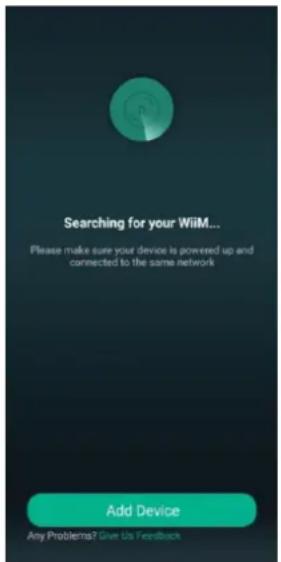
text_image
Searching for your WiiM... Please make sure your device is powered up and connected to the same network Add Device Any Problems? Give Us Feedback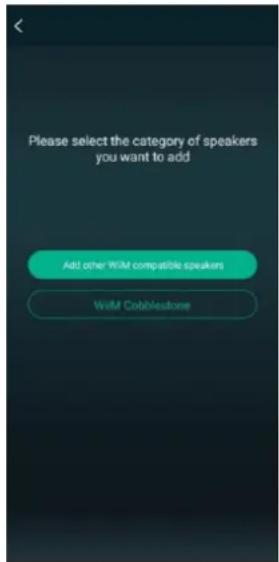
text_image
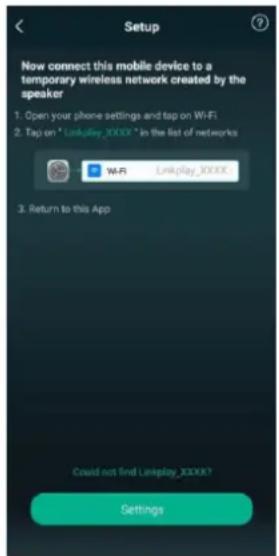
Please select the category of speakers you want to add Add other WIM compatible speakers With CobblestoneOnce WiiM Cobblestones is selected, the next screen will instruct to search and connect to "LinkPlay_XXXX". In this case, search for WT460A.
Select Settings to go to the WiFi settings menu, all the available access points that are in range will be displayed here. Select WT460A to connect, the smartphone will attempt to connect with the WT460A directly.
When the connection has been successful, the WiFi connection will be made without internet access.
text_image
Setup Now connect this mobile device to a temporary wireless network created by the speaker 1. Open your phone settings and tap on Wi-Fi 2. Tap on *Linkplay_XXXX* in the list of networks Wi-Fi Linkplay_XXXXX 3. Return to this App Could not find Linkplay_XXXXY? Settings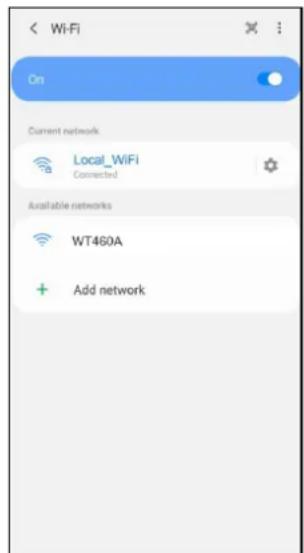
text_image
Wi-Fi On Current network Local_WiFi Connected Available networks WT460A Add network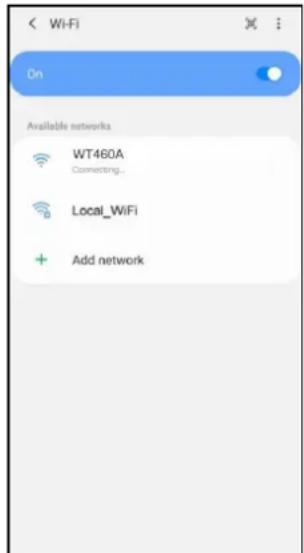
text_image
On Available networks WT460A Connecting... Local_WiFi Add network
text_image
Wi-Fi On Current network WT460A Connected without Internet Available networks Local_WiFi Add networkStill in the WiFi settings menu, press the return button to go back to the WiiM Legacy Player app. The next screen will ask to connect the WT460A to the local network.
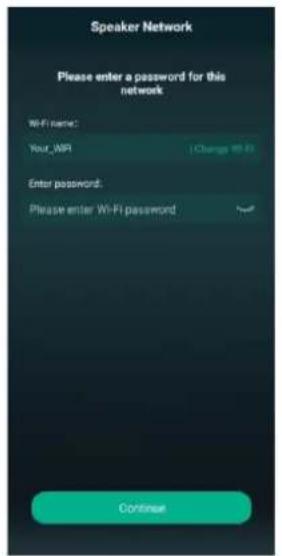
Select the preferred network. As standard, the app will select the default WiFi that the smartphone has been connected to. There is an option to manually select the desired network. Enter the network password and press Continue. The connection process is initiated. Note: the WT460A must connected to a network that operates on the standard 2.4GHz band.
text_image
Speaker Network Please enter a password for this network WiFi name: Your_WP | Change WiFi Enter password: Please enter WiFi password Continue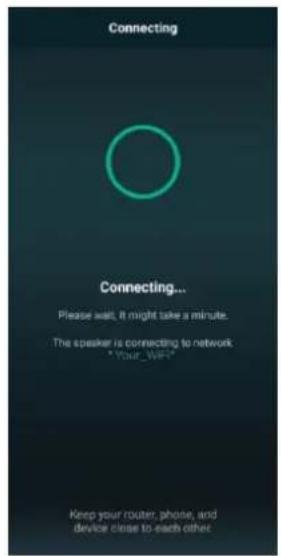
text_image
Connecting Connecting... Please wait. It might take a minute. The speaker is connecting to network *Your _WiFi* Keep your router, phone, and device close to each other.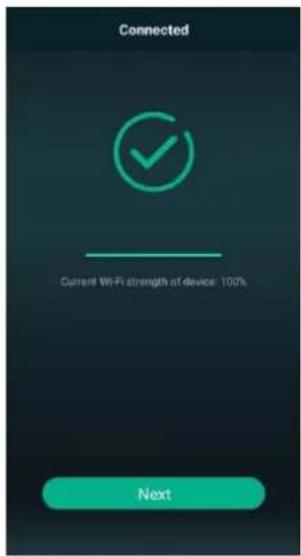
text_image
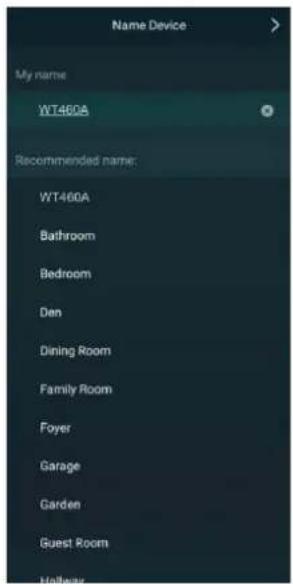
Connected Current Wi-Fi strength of device: 100% NextA notification will confirm the connection has been successfully made and signal strength will be shown. Click next, the Name Device screen will be displayed. This screen enables the user to give the WiFi connection a description label (for example "Dining Room" or "Garden"). After this step, select the > arrow at the top right of the screen to proceed.
The next screen will show the amplifier set in the Device List. Several amplifiers can be listed with different names, all controllable from within this app.
text_image
Name Device My name WT460A Recommended name: WT460A Bathroom Bedroom Den Dining Room Family Room Foyer Garage Garden Guest Room Hallway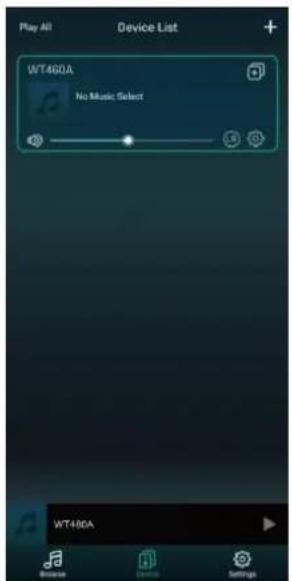
text_image
Play All Device List WT460A No Music Select WT460A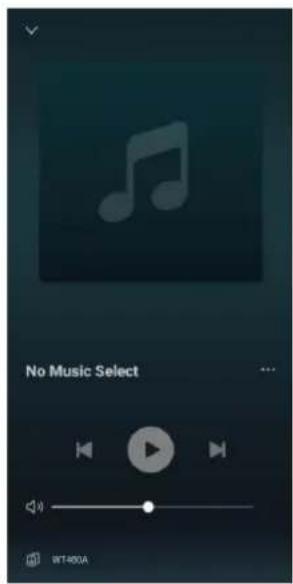
text_image
No Music Select WT-400AClick the ✿ settings icon to open the settings menu for the corresponding connected device, in this case the WT460A amplifier. Select the WT460A, tap the status bar on the bottom of the display to expand information regarding this unit. The current track, album cover art, progress bar and playback controls will be shown.
text_image
QR code image containing encoded data, no visible human-readable textLegacy Player Apple Store

text_image
QR code image containing encoded data, no visible human-readable textLegacy Player Google Play
text_image
WiiM Legacy Player
text_image
Searching for your WiMi... Please make sure your device is powered up and connected to the same network Add Device Any Problems® Give Us Feedback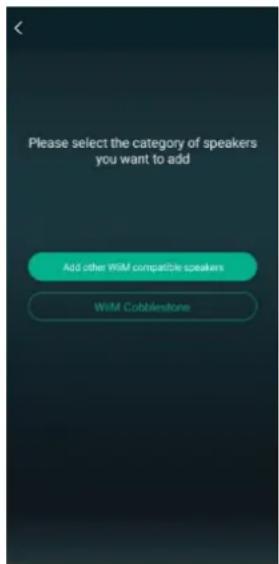
text_image
Please select the category of speakers you want to add Add other WiM compatible speakers WiM Cobblestonetext_image
Setup Now connect this mobile device to a temporary wireless network created by the speaker 1. Open your phone settings and tap on Wi-Fi 2. Tap on *Linkplay_XXXX* in the list of networks W-Fi Linkplay_XXXX 3. Return to this App Could not find Linkplay_XXXX? Settings
text_image
Wi-Fi On Current network Local WIFI Connected Available for networks WT460A Add network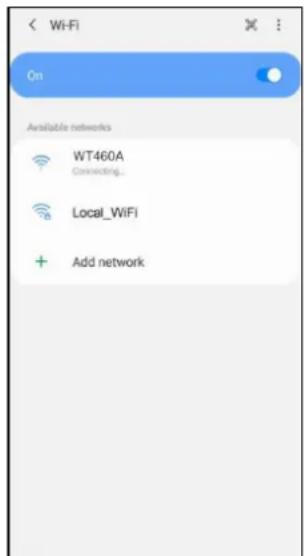
text_image
On Available networks WT460A Connecting... Local_WiFi Add network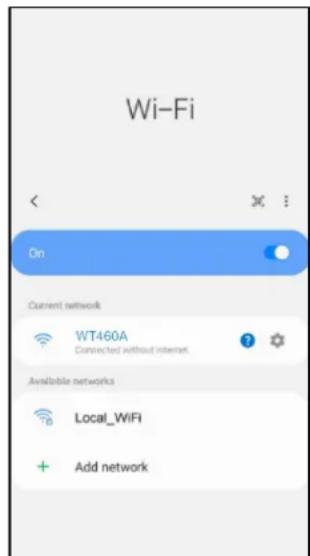
text_image
Wi-Fi On Current network WT460A Connected without internet. Available networks Local_WiFi Add networktext_image
Speaker Network Please enter a password for this network Wi-Fi name: Your_MRI [Change Wi-Fi] Enter password: Please enter Wi-Fi password Continue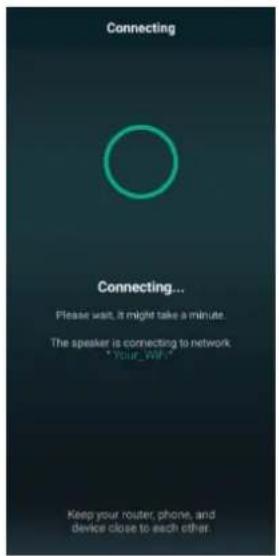
text_image
Connecting Connecting... Please wait, it might take a minute. The speaker is connecting to network "Your_Wife" Keep your router, phone, and device close to each other.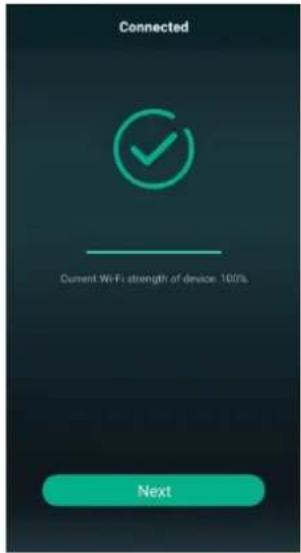
text_image
Connected Current Wi-Fi strength of device: 100% Nexttext_image
Name Device My name WT460A Recommended name: WT460A Bathroom Bedroom Den Dining Room Family Room Foyer Garage Garden Guest Room Hallway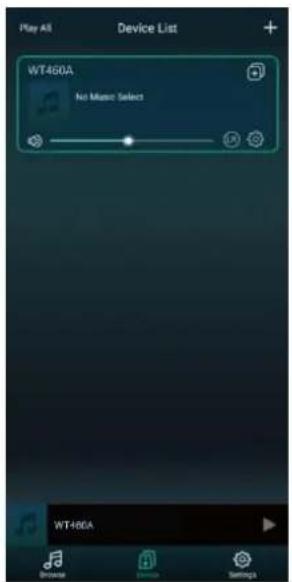
text_image
Play All Device List WT460A No Music Selects WT+RGA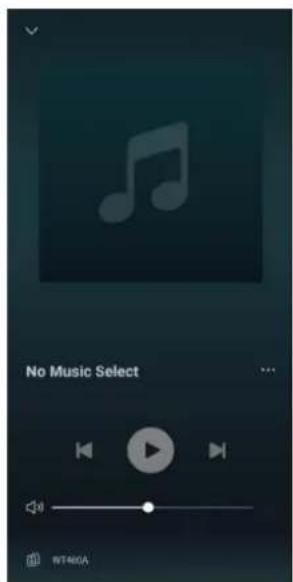
text_image
No Music Select NT460Atext_image
QR code image containing encoded data, no visible human-readable textLegacy Player Apple Store

text_image
QR code image containing encoded data, no visible human-readable textLegacy Player Google Play
WIIM LEGACY PLAYER APP EINSTELLEN
text_image
WiiM Legacy Player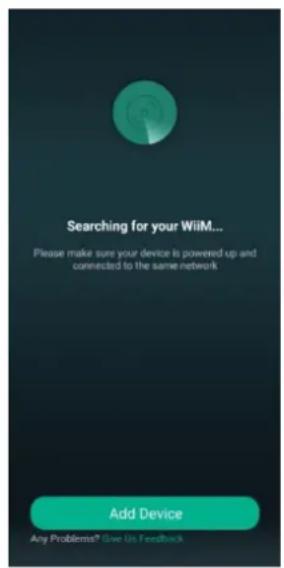
text_image
Searching for your WiMi... Please make sure your device is powered up and connected to the same network Add Device Any Problems® Give Us Feedback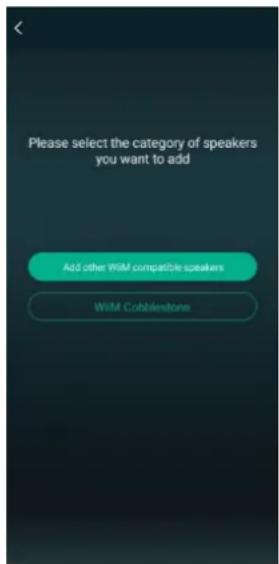
text_image
Please select the category of speakers you want to add Add other WiM compatible speakers WiM Cobblestonetext_image
Setup Now connect this mobile device to a temporary wireless network created by the speaker 1. Open your phone settings and tap on Wi-Fi 2. Tap on *Linkplay_XXXX* in the list of networks Wi-Fi Linkplay_XXXX 3. Return to this App Could not find Linkplay_XXXX? Settings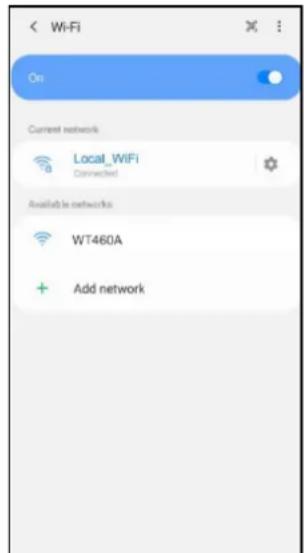
text_image
Wi-Fi On Current network Local WIFI Connected Available for networks WT460A Add network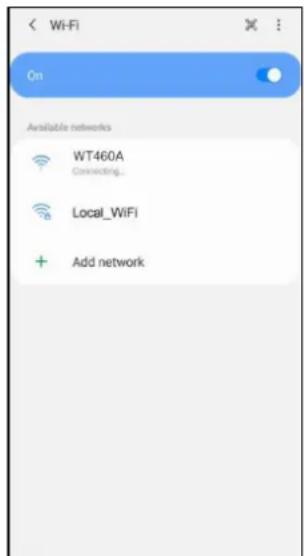
text_image
On Available networks WT460A Connecting... Local_WiFi Add network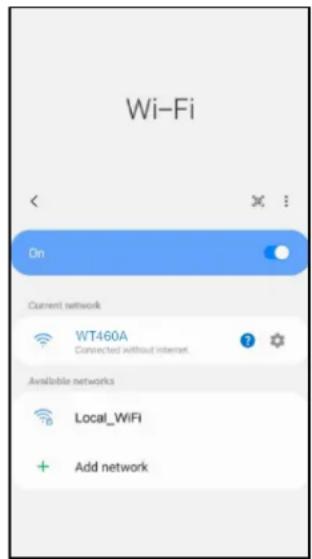
text_image
Wi-Fi On Current network WT460A Connected without Internet Available networks Local_WiFi Add networktext_image
Speaker Network Please enter a password for this network Wi-Fi name: Your_MRI Change Wi-Fi Enter password: Please enter Wi-Fi password Continue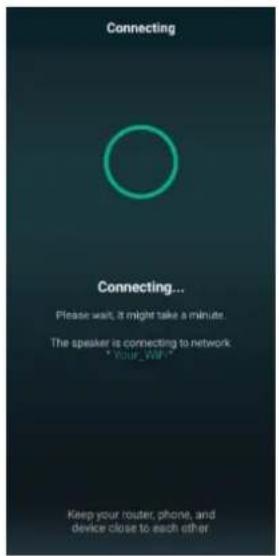
text_image
Connecting Connecting... Please wait, it might take a minute. The speaker is connecting to network * Your_WiFi * Keep your router, phone, and device close to each other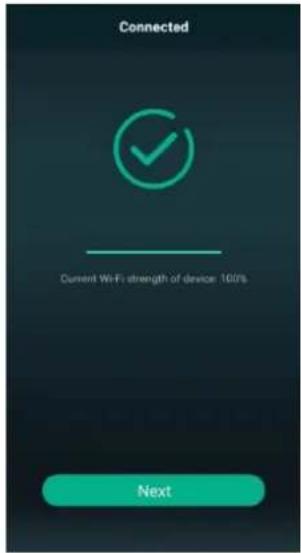
text_image
Connected Current Wi-Fi strength of device: 100% Nexttext_image
Name Device My name WT460A Recommended name: WT460A Bathroom Bedroom Den Dining Room Family Room Foyer Garage Garden Guest Room Hallway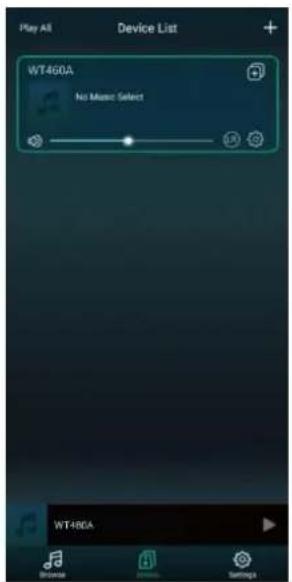
text_image
Play All Device List WT4G0A No Music Select WT+RGA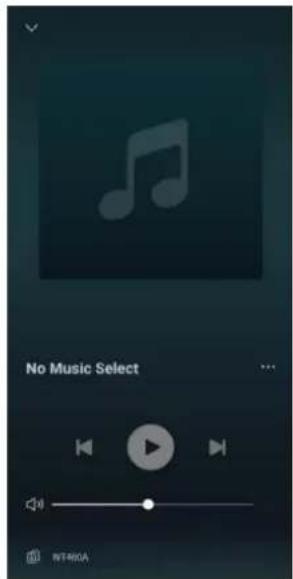
text_image
No Music Select NT460Atext_image
QR code image containing encoded data, no visible human-readable textLegacy Player Apple Store

text_image
QR code image containing encoded data, no visible human-readable textLegacy Player Google Play
text_image
WiiM Legacy Player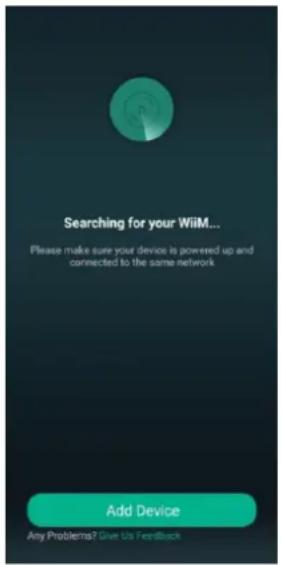
text_image
Searching for your WiiM... Please make sure your device is powered up and connected to the same network Add Device Any Problems? Give Us Feedback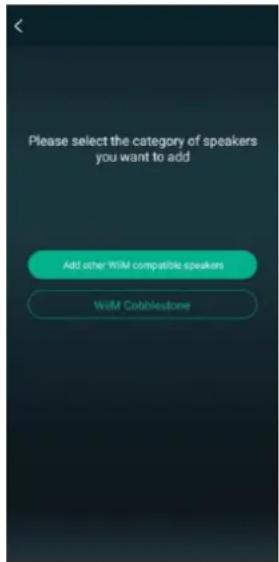
text_image
Please select the category of speakers you want to add Add other WIM compatible speakers With Cobblestonetext_image
Setup Now connect this mobile device to a temporary wireless network created by the speaker 1. Open your phone settings and tap on WiFi 2. Tap on *Linkplay_XXXX* is the list of networks WiFi Linkplay_XXXX 3. Return to this App Could not find Linkplay_XXXX? Settings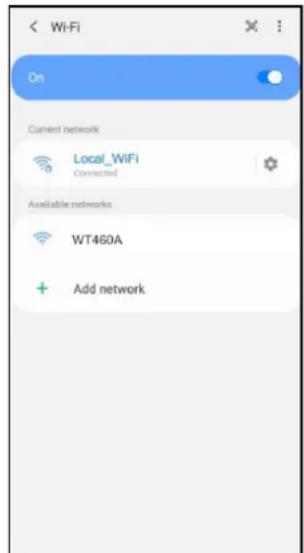
text_image
On Current network Local_WiFi Connected Available networks WT460A Add network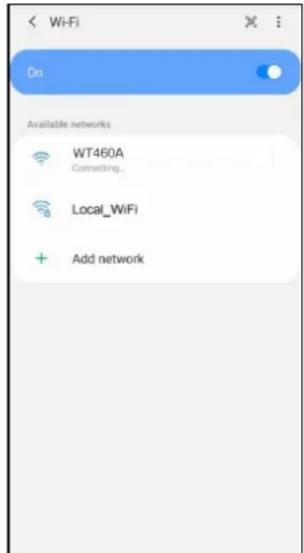
text_image
Wi-Fi On Available networks WT460A Connecting... Local_WiFi Add network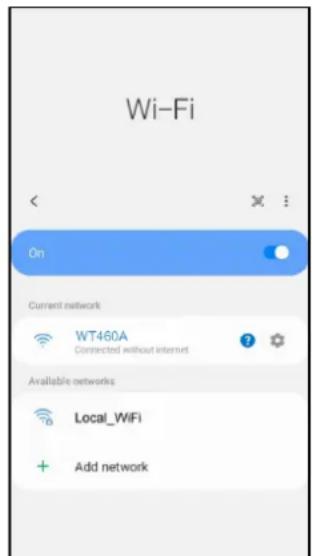
text_image
Wi-Fi On Current network WT460A Connected without internet Available networks Local_WiFi Add networktext_image
Speaker Network Please enter a password for this network Wi-Fi name: Your _WIFI Change Wi-Fi Enter password: Please enter Wi-Fi password Continue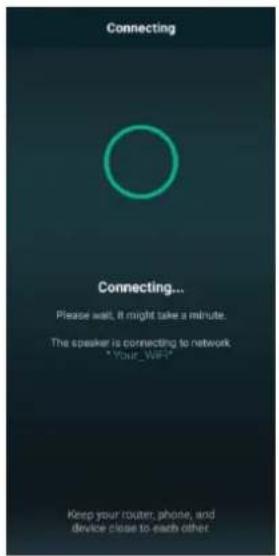
text_image
Connecting Connecting... Please wait. It might take a minute. The speaker is connecting to network "Your_WIFI" Keep your router, phone, and device close to each other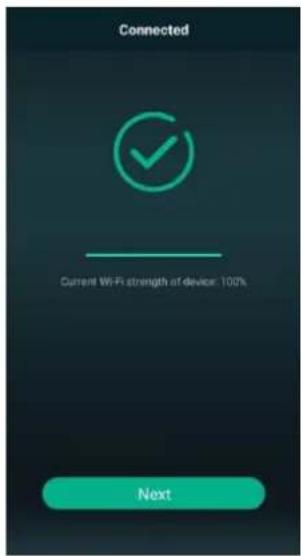
text_image
Connected Current Wi-Fi strength of device: 100% Nexttext_image
Name Device My name WT460A Recommended name: WT460A Bathroom Bedroom Den Dining Room Family Room Foyer Garage Garden Guest Room Hallway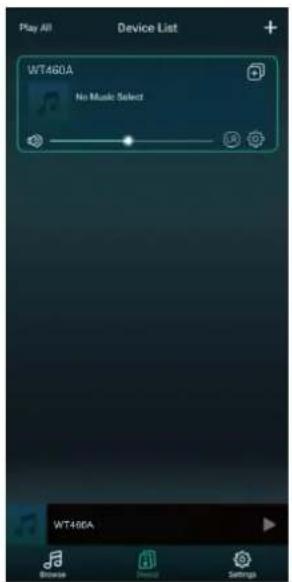
text_image
Play All Device List WT460A No Music Select WT460A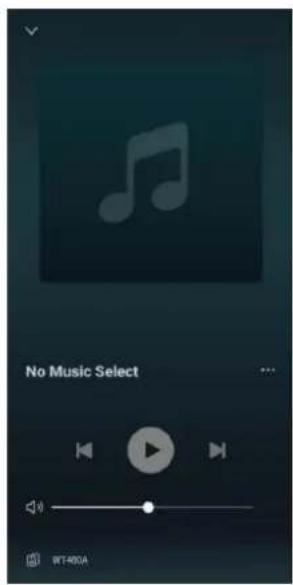
text_image
No Music Select WT400A5. PRÉCÉDENT / VOLUME -
text_image
RCL 1 2 3 5 7 8 9 10 LNR 11 12 13 14 15 16 17REPLACEMENT DU FUSIBLE
text_image
QR code image containing encoded data, no visible human-readable textLegacy Player Apple Store

text_image
QR code image containing encoded data, no visible human-readable textLegacy Player Google Play
CONFIGURATION DE L'APPLICATION WIIM LEGACY PLAYER
text_image
WiiM Legacy Player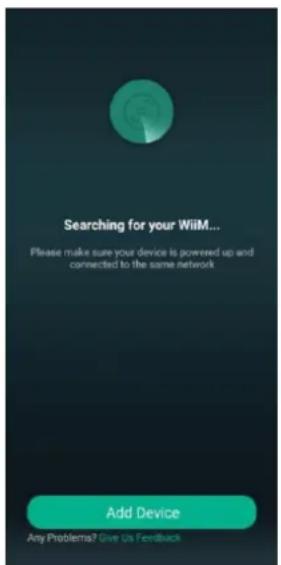
text_image
Searching for your WiiM... Please make sure your device is powered up and connected to the same network Add Device Any Problems? Give Us Feedback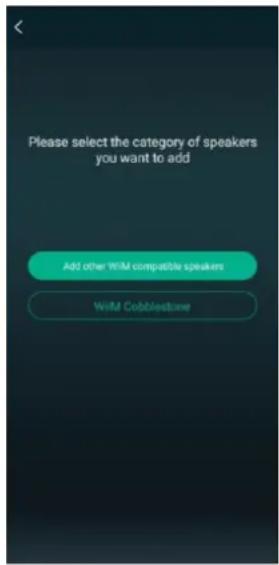
text_image
Please select the category of speakers you want to add Add other WIM compatible speakers Will Cobblestonetext_image
Setup Now connect this mobile device to a temporary wireless network created by the speaker 1. Open your phone settings and tap on WiFi 2. Tap on *Linkplay_XXXXX * in the list of networks WiFi Linkplay_XXXXX 3. Return to this App Could not find Linkplay_XXXXX! Settings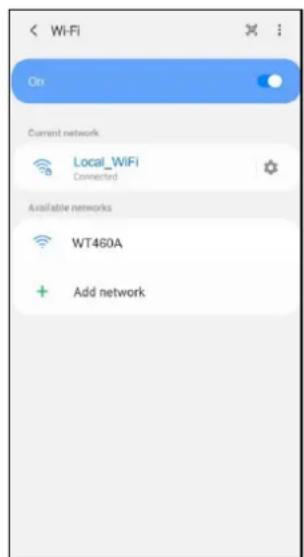
text_image
Wi-Fi On Current network Local_WiFi Connected Available networks WT460A Add network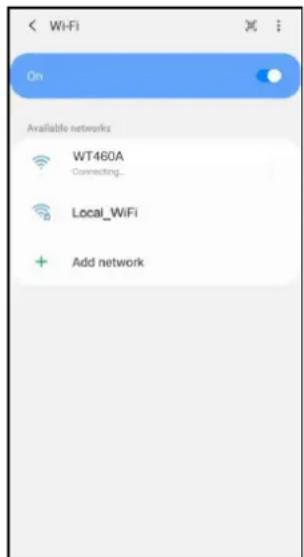
text_image
On Available networks WT460A Connecting... Local_WiFi Add network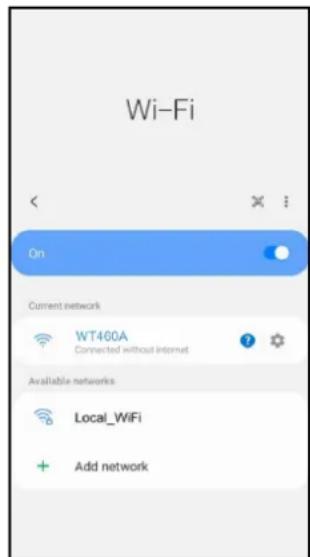
text_image
Wi-Fi On Current network WT460A Connected without internet Available networks Local_WiFi Add networktext_image
Speaker Network Please enter a password for this network Wi-Fi name: Your _WPI Change 28.20 Enter password: Please enter Wi-Fi password Continue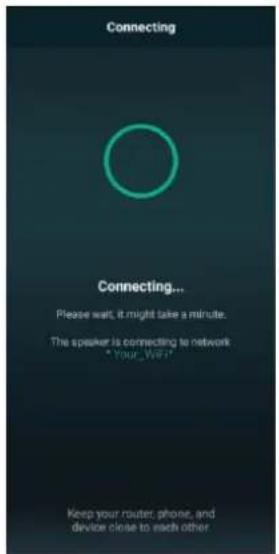
text_image
Connecting Connecting... Please wait, it might take a minute. The speaker is connecting to network * Your _ WiFi * Keep your router, phone, and device close to each other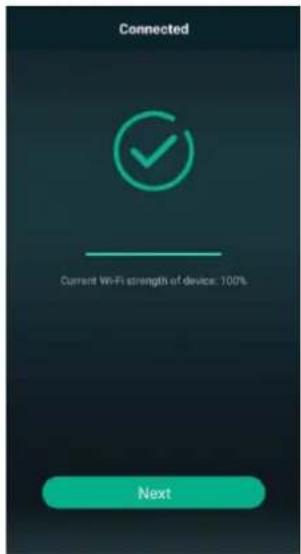
text_image
Connected Current Wi-Fi strength of device: 100% Nexttext_image
Name Device My name WT460A Recommended name WT460A Bathroom Bedroom Den Dining Room Family Room Foyer Garage Garden Guest Room Hallway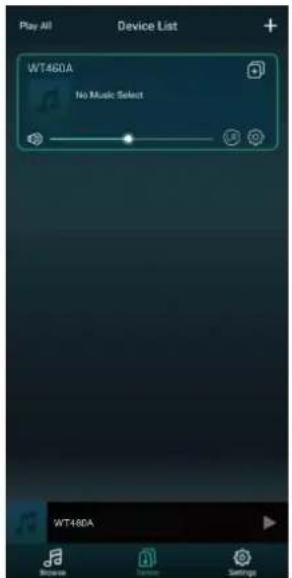
text_image
Play All Device List WT460A No Music Select WT460A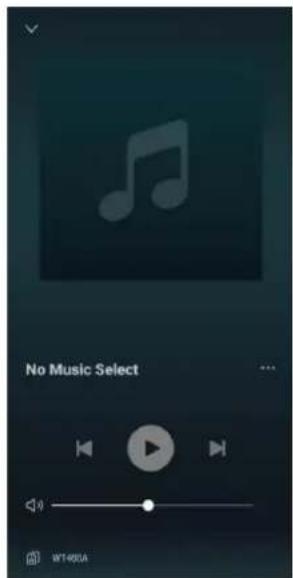
text_image
No Music Select W140UAtext_image
QR code image containing encoded data, no visible human-readable textLegacy Player Apple Store

text_image
QR code image containing encoded data, no visible human-readable textLegacy Player Google Play
KONFIGURACJA APLIKACJI WIIM LEGACY PLAYER
text_image
WiiM Legacy Player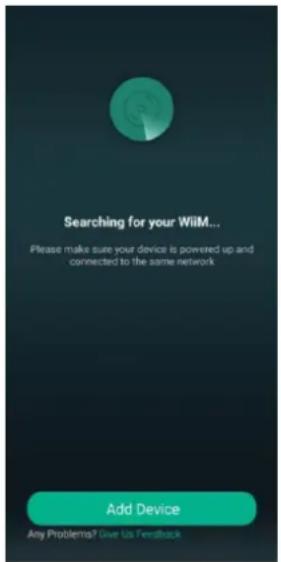
text_image
Searching for your WiiM... Please make sure your device is powered up and connected to the same network Add Device Any Problems? Give Us Feedback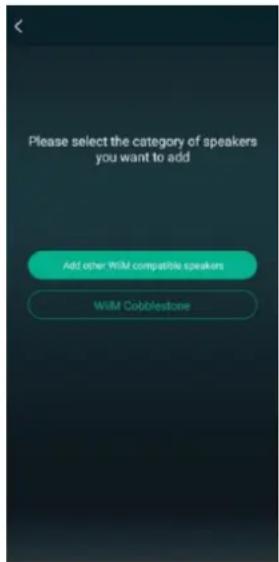
text_image
Please select the category of speakers you want to add Add other WSM compatible speakers Will Cobblestonetext_image
Setup Now connect this mobile device to a temporary wireless network created by the speaker 1. Open your phone settings and tap on WiFi 2. Tap on *Linkplay_XXXX* in the list of networks WiFi Linkplay_XXXX 3. Return to this App Could not find Linkplay_XXXX? Settings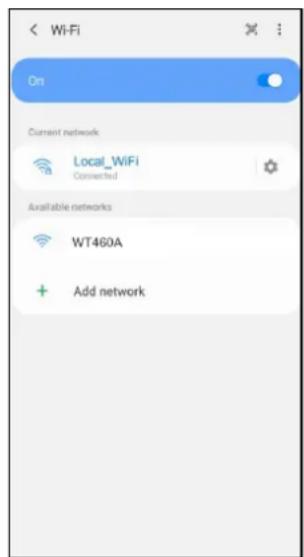
text_image
On Current network Local_WiFi Connected Available networks WT460A Add network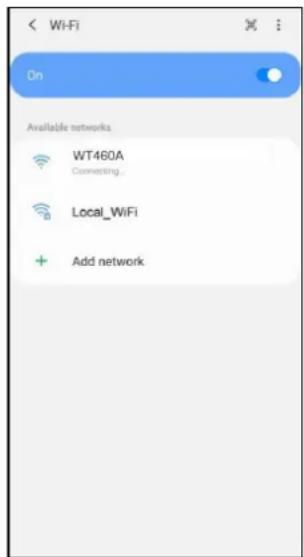
text_image
On Available networks WT460A Connecting... Local_WiFi Add network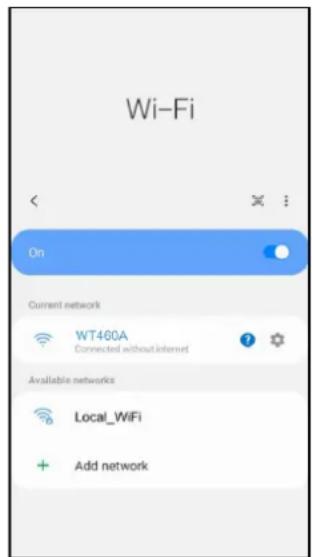
text_image
Wi-Fi On Current network WT460A Connected without Internet Available networks Local_WiFi Add networktext_image
Speaker Network Please enter a password for this network Wi-Fi name: Your _WiFi Change Wi-Fi Enter password: Please enter Wi-Fi password Continue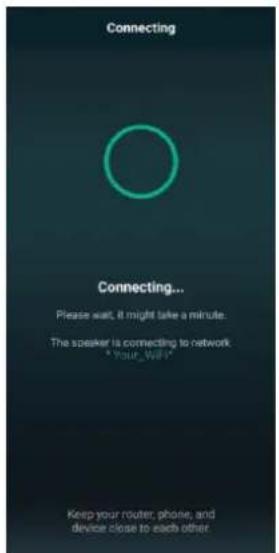
text_image
Connecting Connecting... Please wait, it might take a minute. The speaker is connecting to network: "Your_WillY" Keep your router, phone, and device close to each other.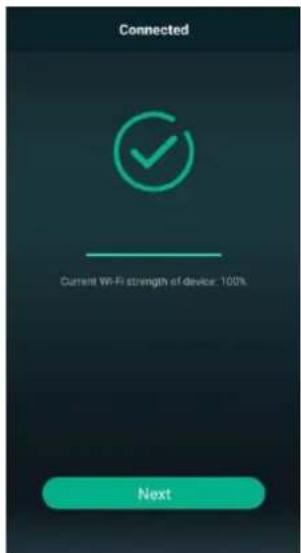
text_image
Connected Current Wi-Fi strength of device: 100% Nexttext_image
Name Device My name WT460A Recommended name: WT460A Bathroom Bedroom Den Dining Room Family Room Foyer Garage Garden Guest Room Hallway
text_image
Play All Device List WT460A No Music Select WT460A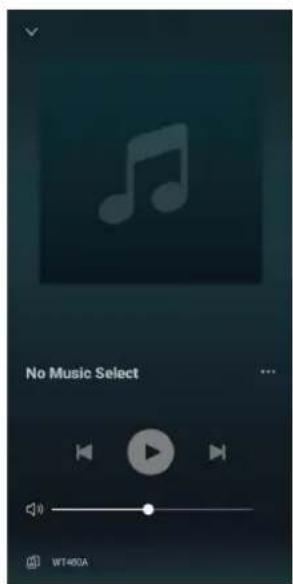
text_image
No Music Select WT460Atext_image
QR code image containing encoded data, no visible human-readable textLegacy Player Apple Store

text_image
QR code image containing encoded data, no visible human-readable textLegacy Player Google Play
NASTAVENÍ APLIKACE WIIM LEGACY PLAYER
text_image
WiiM Legacy Player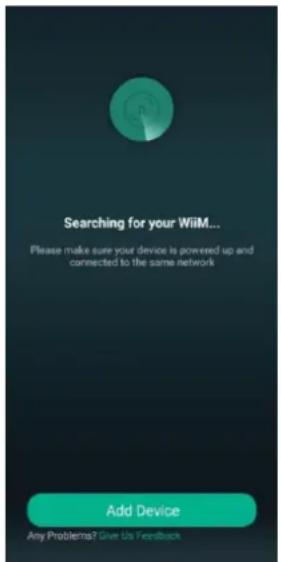
text_image
Searching for your WiMi... Please make sure your device is powered up and connected to the same network Add Device Any Problems? Give Us Feedback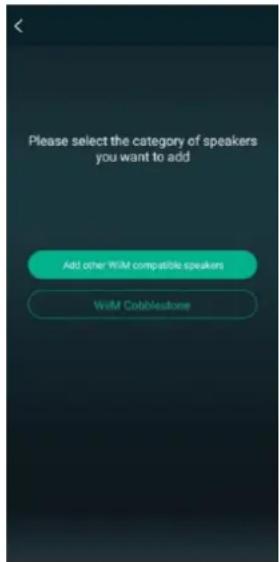
text_image
Please select the category of speakers you want to add Add other WIM compatible speakers With Cobblestonetext_image
Setup Now connect this mobile device to a temporary wireless network created by the speaker 1. Open your phone settings and tap on Wi-Fi 2. Tap on *Linkplay_XXXX* in the list of networks Wi-Fi Linkplay_XXXXX 3. Return to this App Could not find Linkplay_XXXXY? Settings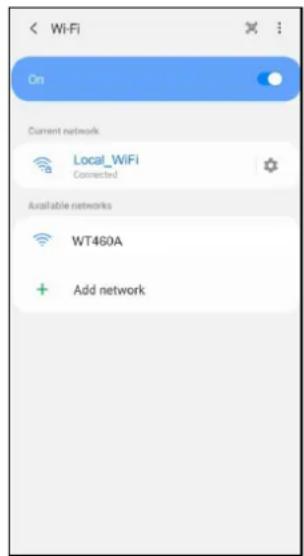
text_image
On Current network Local_WiFi Connected Available networks WT460A Add network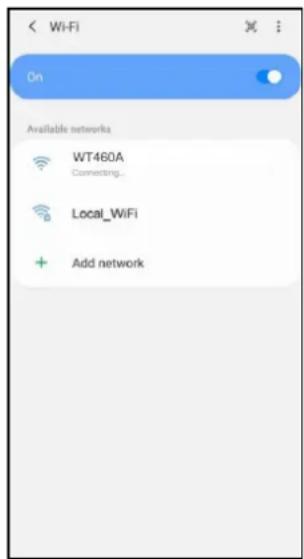
text_image
Wi-Fi On Available networks WT460A Connecting... Local_WiFi Add network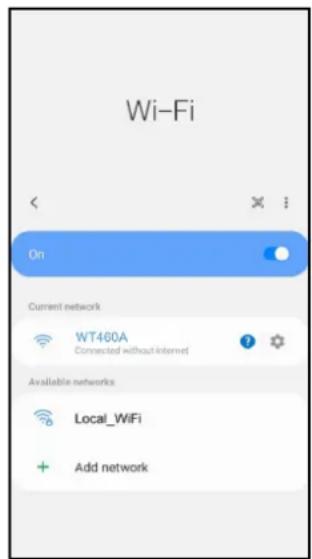
text_image
Wi-Fi On Current network WT460A Connected without Internet Available networks Local_WiFi Add networktext_image
Speaker Network Please enter a password for this network Wi-Fi name: Your _WIFI Change Wi-Fi Enter password: Please enter Wi-Fi password Continue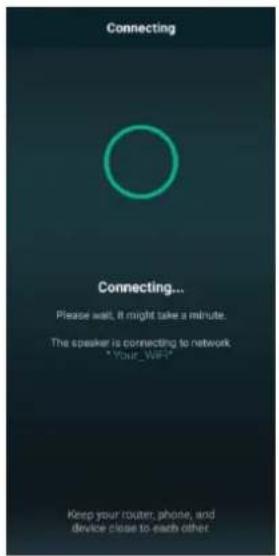
text_image
Connecting Connecting... Please wait. It might take a minute. The speaker is connecting to network "Your_WIFI" Keep your router, phone, and device close to each other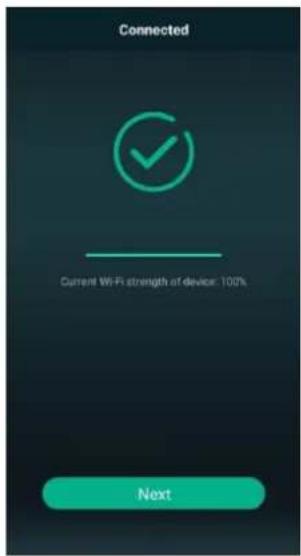
text_image
Connected Current Wi-Fi strength of device: 100% Nexttext_image
Name Device My name WT460A Recommended name: WT460A Bathroom Bedroom Den Dining Room Family Room Foyer Garage Garden Guest Room Hallway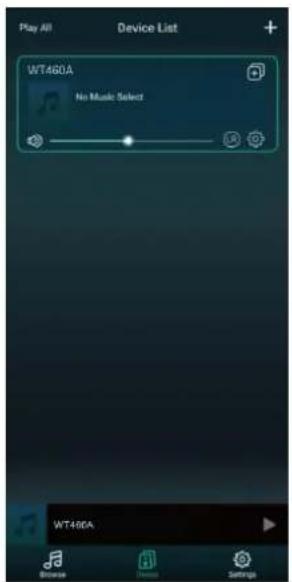
text_image
Play All Device List WT460A No Music Select WT460A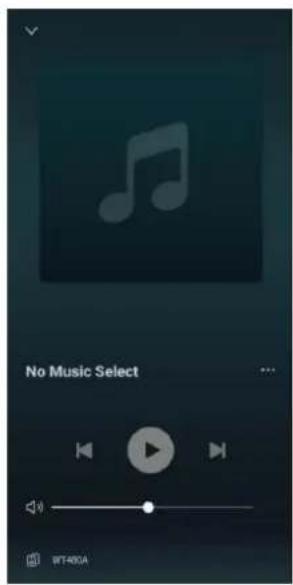
text_image
No Music Select WT480AThe specifications are typical. The actual values can slightly change from one unit to the other. Specifications can be changed without prior notice.
The products referred to in this manual conform to the European Community Directives to which they are subject:
European Union
Tronios B.V.,
7602KR Almelo, The Netherlands
2014/35/EU
2014/30/EU
2011/65/EC
2014/53/EU

United Kingdom
Tronios Ltd.,
130 Harley Street,
London W1G 7JU, United Kingdom
S.I. 2016:1101
S.I. 2016:1091
S.I. 2012:3032
S.I. 2017:1206

Specifications and design are subject to change without prior notice.
www.tronios.com
Copyright © 2024 by TRONIOS the Netherlands