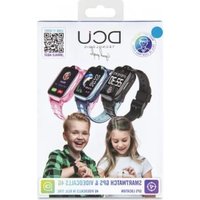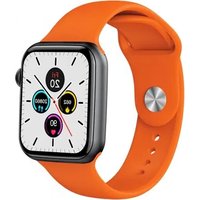
Smartwatch Metal - Smartwatch DCU - Free user manual and instructions
Find the device manual for free Smartwatch Metal DCU in PDF.


User questions about Smartwatch Metal DCU
0 question about this device. Answer the ones you know or ask your own.
Ask a new question about this device
Download the instructions for your Smartwatch in PDF format for free! Find your manual Smartwatch Metal - DCU and take your electronic device back in hand. On this page are published all the documents necessary for the use of your device. Smartwatch Metal by DCU.
USER MANUAL Smartwatch Metal DCU
text_image
03/18 08 36 WED AM 12:28 TrainingSmartwatch Metal
iOS - Android
Manual de usuario 3
User manual 21
Manual d'usuari 39
Mode d'emploi 57
ESP
ENG
CAT
FRA
ESP
text_image
AM 08 03/18 WED 36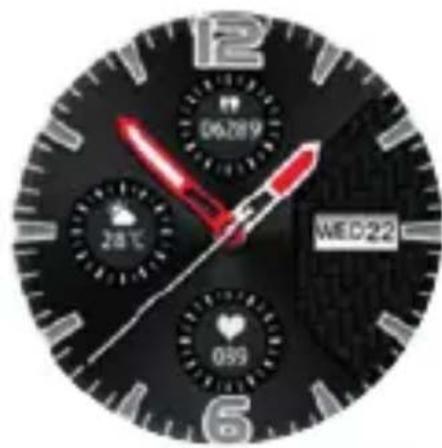
text_image
06:28:9 28℃ WED22 08:9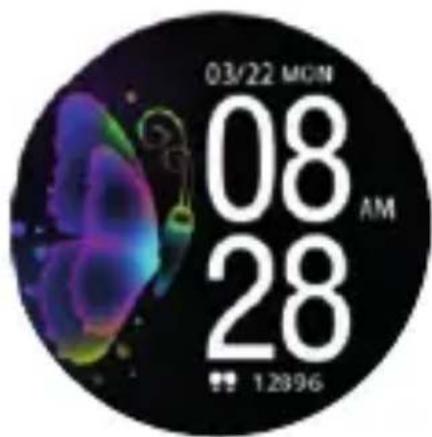
text_image
03/22 MON 08 AM 28 12:96natural_image
Circular icon with red heart symbol and '078' text, no readable text or symbols beyond the number and dateFrecuencia cardíaca
text_image
12.02 12.46/72章...Presión arterial
natural_image
Circular icon showing a beaker with liquid and bubbles, labeled '8.9% cup' (no readable text or symbols beyond labels)text_image
12.29 DesportesDeporte
natural_image
Abstract circular graphic with two overlapping speech bubbles and the word 'Merisep' below (no readable text or symbols in the graphic itself)Mensaje
natural_image
Circular icon with a stylized bottle and text 'Chlorophyll' below it, no readable document text or symbols.Cronógrafo
text_image
EmesisBuscar
text_image
12.28 MaaS FunctionsMas funciones
text_image
Anlike Anwar
text_image
Send able to access Send from help Send again
text_image
Macromedia Software Store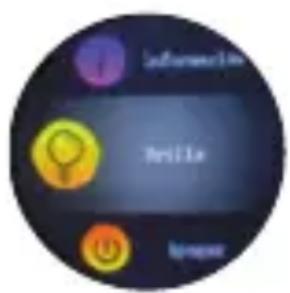
text_image
Infineurin BriLLa Ivapextext_image
QR code image containing encoded data, no visible human-readable texttext_image
Mobile app interface screenshot showing a green login page with a red button labeled 'Cancel' and a small icon on the right.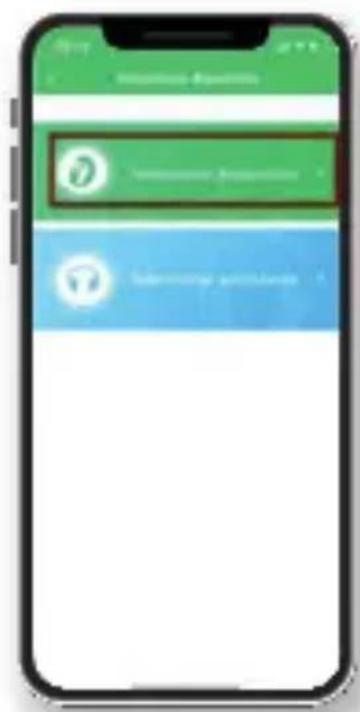
text_image
Mobile app interface screenshot showing a login panel with 'Login' and 'Terminal session' icons
text_image
"Suondo"ESP
Thank you very much for purchasing this watch, the DCU team has been working hard to offer you a comfortable, beautiful and functional watch.
If you have any questions that this manual cannot solve, we will be happy to assist you, you can write to info@dcutec.com and in less than 24 hours we will answer you. We wish you enjoy it!
If you want to know a little more, go to www.dcutec.com or visit our Instagram profile @dcutecnologic. Sometimes we do raffles.
To have a comprehensive understanding and using this device, to know all the features and simple operation method, please read this manual first. The functions on the user manual may be little different with physical, please make the final products as the standard. The typing errors in this manual and discrepancies will be timely updated with the latest products. If we have updates, this manual will be subject to change without notice. Our company reserves the right of final interpretation.
Remark: The product supports waterproof with IP67 level, it is available to wear it while wash hands, swim, in raining, etc.
Do not use it when have a hot shower/bath or sauna, the vapors will get into the host, scratch damage of peripheral components. All these are beyond the scope of the warranty.
TECHNICAL INFORMATION:
Device Type: 1.3-inch Full Round Screen
Battery type / capacity: Lithium polymer / 180mAh
Display: 1.3 inch IPS full circle color screen
Heart rate model: VC31
Product weight: 51g
Charging method: Block charge
Watch full length: 235mm
Input voltage: DC 5.0V
waterproof level: IP67
Battery power: 0.74Wh
Band material: Silicone Strap / Steel Strap
Packing list: Smartwatch, manual, charge PC
Chip: Realtek8762c + full touch chip
Bluetooth: 5.0
Screen size: 1.3 inches full circle
Screen pixels: 240x40
Compatible system: Android4.4 or higher, iso9.0 or higher
Battery: 15 days standby, 7-10 days in use
ENG
A. MAIN DIAL INTERFACE:
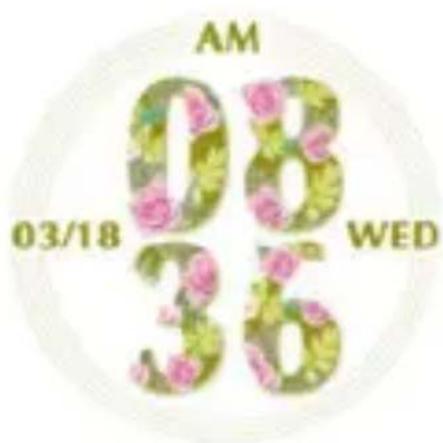
The watch has 3 main interfaces pre-installed, the interface can be switched by long pressing the main interface for three seconds. You can download more interface designs from the GloryFit watch APP.
text_image
AM 08 WED 03/18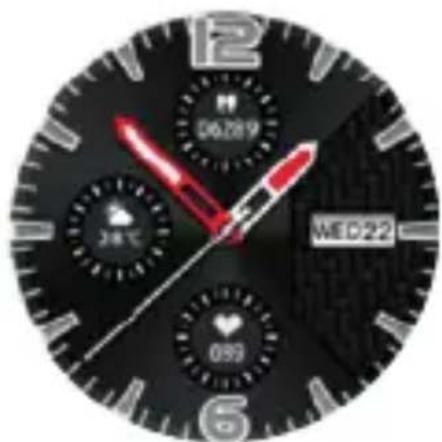
natural_image
Close-up of a black analog clock face with red and white hand signals, showing time and date (no readable text or symbols beyond clock numerals)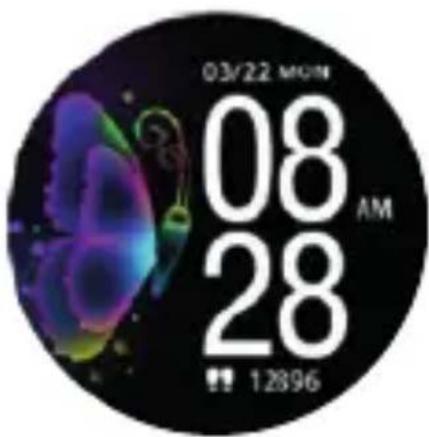
text_image
03/22 MON 08 AM 28 12896The current time, date and day of the week will be synchronized after pairing the watch with the GloryFit App on your Smartphone for the first time.
B. MENUS:
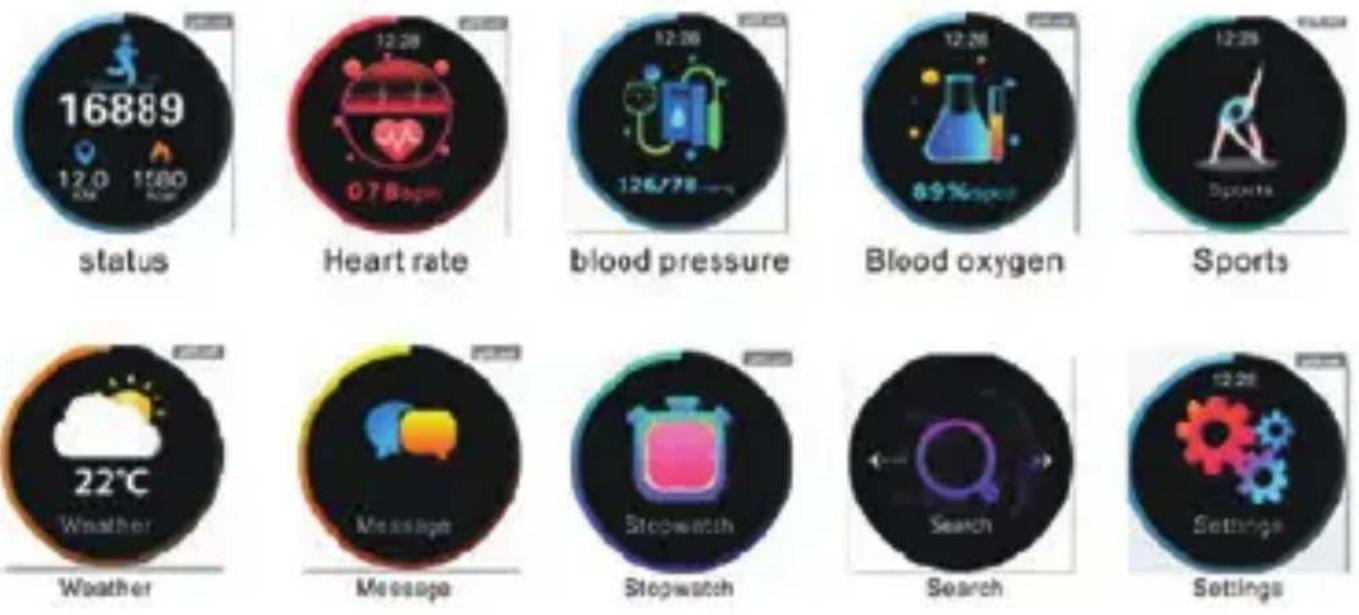
Scroll from right to left to see the different menu interfaces:
1. Status interface:
Switch to this interface to view the current steps, distance, and calorie status. The distance and calories are calculated and displayed based on the current number of walking steps, the height and weight set by the APP personally.
ENG
2. Heart rate interface, blood pressure interface, blood oxygen interface:
Switch to the heart rate interface / blood pressure interface / blood oxygen interface. When entering one of these options, the detection starts automatically. Wait a few seconds with your wrist horizontal and still to see the result. You can also connect to the mobile app to view the heart rate and blood pressure interface.
If the watch is not properly placed on the wrist, the measurement may fail and an error will be displayed on the screen.
Heart rate detection / blood pressure detection / blood oxygen detection mode, reduce battery life.
The heart rate model is: VC31, which is a real-time dynamic heart rate and adapts to various skin tones.
Tips for a correct measurement: during the test the heart rate LED on the back of the cuff will light up. The sensors must be close to the skin to prevent external light from affecting the accuracy of the test. Keep the test area clean, as sweat or stains can affect the results.
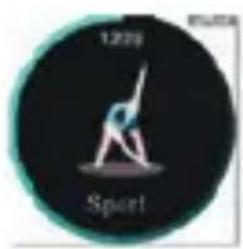
3. Sport interface:
Switch to this interface, click the screen to enter the sports interface you want, it includes 23 sports modes: running, cycling, jumping rope, badminton, table tennis, tennis, hiking, walking, basketball, football, baseball, volleyball, cricket, rugby, hockey, dance, exercise bike, yoga, sit-ups, treadmill, gymnastics, rowing, jumping Jack.
Press the side button to return to the main screen and exit the exercise specific interface.
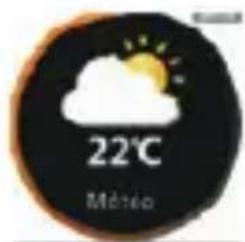
4. Weather interface:
Set your geographical location with the GloryFit APP on the watch to see the weather information for your city.
5. Messages interface:
From this interface you can see the list of messages received. Swipe the screen from top to bottom to see the entire listing. Click on the message you want to see it in detail. Press the side button to go back or exit the message interface.
6. Search Mobile Interface:
When the watch and the phone are connected, long press the Search interface to find the phone, the phone will make a sound..
ENG
7. More functions interface (configuration):
Touch the More functions interface to enter the setting interface, swipe from top to bottom to see the different options:
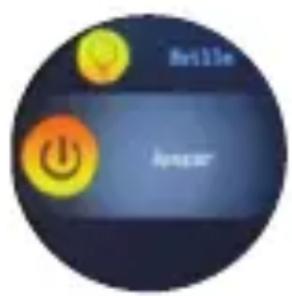
Brightness adjustment: selects from four different brightness levels.
Version Information: Click to view the firmware version number and Bluetooth address of the watch.
Restore factory settings: enter this option and click OK, all watch data will be erased and the application data will be erased on the same day (the rest of the historical data will be preserved).
Power off: enter this option, click ok to turn it off, the watch will vibrate when power off.
Reset the watch: press and hold the side button to reset the watch.
text_image
Ankle Linear
text_image
Send Send Information Send
text_image
Neuralis-Satien sds SoftwareSds
text_image
Information Figure Language8. Music Control Interface:
When the watch and mobile phone are connected, open the music control, press the play button to play the music, you can pause, skip to the previous song or the next song.
CHARGING METHOD:
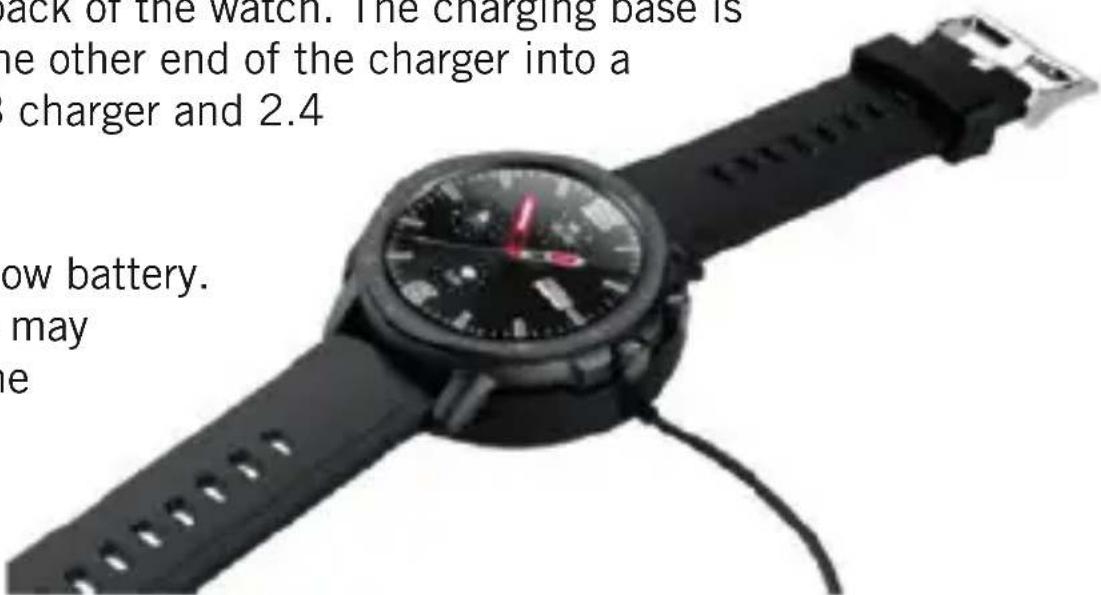
The first time you wear the watch, remove the protective plastic and charge the device 100 % with the corresponding charger. When charging, the watch will turn on automatically. (The charging method is as follows: align the two contacts of the charger with the charging contacts on the back of the watch. The charging base is magnetic. Plug the other end of the charger into a standard 5V USB charger and 2.4 max).
Pay attention to low battery. The performance may decrease when the battery is low.
text_image
ack of the watch. The charging base is the other end of the charger into a charger and 2.4 low battery. may heENG
INSTALLATION AND CONFIGURATION OF THE GLORYFIT APP:
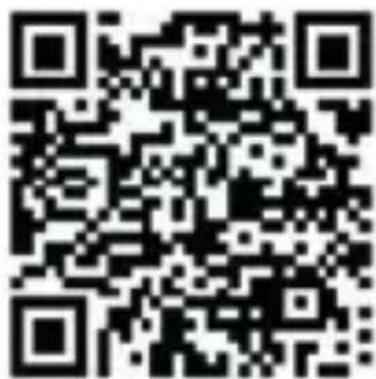
Please scan the following QR code or search for the APP "GloryFit" in the iOS APP Store or Android Play Store to download and install:
natural_image
Green circular logo with a stylized letter 'Z' and a blue triangular pointer, no text or symbols present.Glory Fit
text_image
QR code image containing encoded data, no visible human-readable textDevice requirements: iOS 9.0 or higher; Android 4.4 or higher, compatible with Bluetooth 5.0.
APP CONNECTION:
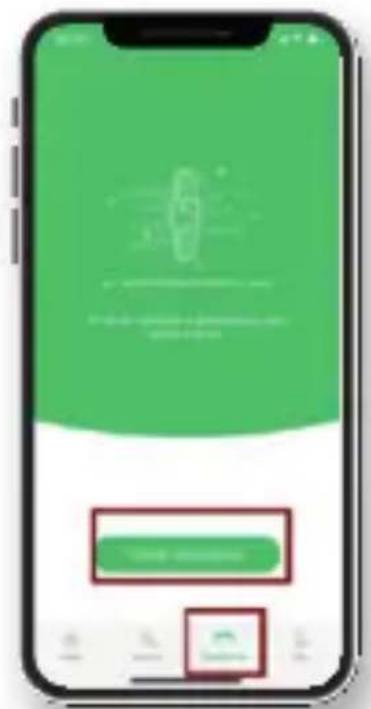
The first time you use the watch, you must connect to the APP to synchronize the date, time and configure the different functions. Enter your personal information for more accurate step count and sleep data.
Once the mobile app has been successfully configured, click on the device icon.
Add device (iOS) / Add device (Android)
Click the search icon in the upper right corner
Click device connection
text_image
Mobile app interface screenshot showing a green login page with a red button and a green login box containing text.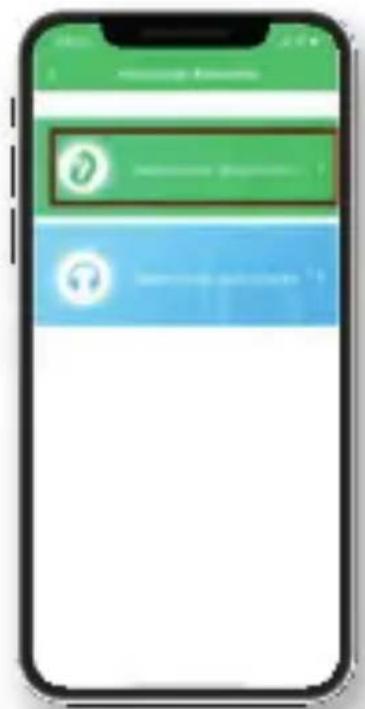
text_image
Mobile app interface screenshot showing a login panel with green and blue buttons and a login icon
text_image
"Suceside"ENG
- Bluetooth connection: once the pairing is successful, the app automatically saves the watch's Bluetooth address. When the app opens or runs in the background, it will automatically search for and connect to the watch.
- Data Synchronization: The watch data will be automatically synchronized, and you will see it on the APP home page; the watch can store data for a maximum of 7 days. The more data, the longer the sync time, up to a maximum of 2 minutes. After the sync is complete, a "sync complete" message appears.
- APP notifications function: To receive notifications from the mobile phone on your watch, you must activate them from the GloryFit APP in the "Device" section, and always keep the Bluetooth connection active between the mobile phone and the watch. It will vibrate when you receive a notification.
-
Call notifications function: when a call comes in on your mobile, the watch will vibrate and the name or number of the call will be displayed. Activate this function from the GloryFit APP in the "Device" section. You can configure being able to reject calls from the watch by activating the "Reject call" option, when you receive a call press the "reject" button on the watch (calls cannot be answered through the watch).
-
Alarm / wake-up settings: you can set up to three different alarms. After setting, the alarm will sync with the clock. The watch does not emit sounds; the alarm consists of a moderate vibration.
- Sedentary alarm: the default sedentary alarm interval is one hour, if you sit for one hour, the watch will vibrate to remind user to exercise.
- Other settings: from the GloryFit APP you can change the language of the clock, the 12/24-hour format, activate the do not disturb mode, activate the screen to turn on with the movement of the wrist, search for the clock and set the time in that the screen is on without touching it.
ENG
SLEEP MONITORING FUNCTION:
If you sleep with the watch on, the watch will automatically determine when to enter to the sleep monitoring mode, automatically detect the deep sleep / light sleep / wake time throughout the night, and calculate the quality of sleep; sleep data only support viewing from APP.
CONTROLLING YOUR SMARTPHONE'S CAMERA:
In APP, enter “Device”> “Universal Settings” to activate remote control mode to take pictures. Make sure the watch is connected to the app, shaking the watch will automatically take a picture.
RESTORE DEVICE:
In the APP, enter "Device"> "Restore device". This deletes all history records on the APP and on the watch.
PAY SPECIAL ATTENTION TO THESE TIPS:
- Avoid the watch being subjected to strong impacts, extreme heat and/or sun exposure.
- Do not disassemble, repair or modify the watch yourself.
- This device uses 5V 500mA for charging. It is strictly forbidden to use a power supply with a load greater than 5V.
- The operating environment of this device is 0^ 45^ . Keep it away from extreme heat sources.
- When the watch is wet, wipe it dry with a soft cloth before charging,
otherwise it will corrode the charging contacts and cause charging failure.
-
Do not touch chemicals such as gasoline, cleaning solvents, propanol, alcohol, or insect repellent.
-
Do not use this device in high voltage and high magnetism environment.
-
If you have sensitive skin or wear the watch too tight, it may feel uncomfortable.
-
Wipe the sweat beads off your wrist from time to time, as the strap may be exposed to soap, sweat, allergens, or contaminants for a long time, which can cause itchy skin.
-
If you wear it frequently, it is recommended to clean the watch every week. Wipe with a damp cloth and remove oil or dust with a mild soap. It is not recommended to use the watch in hot water. Water vapor could enter the sphere and damage the components.
MOST COMMON PROBLEMS AND FREQUENTLY ASKED QUESTIONS:
1. Does the watch take too long to perform the first heart rate test?
Testing your heart rate for the first time requires you to collect longer signals based on different populations to accurately calculate your heart rate.
ENG
2. What should I do if the Bluetooth connection fails?
(Connection/reconnection failed or connection reconnection is slow)
Check if your device is iOS9.0 or Android 4.4 and above and if it supports Bluetooth 5.0
Due to the problem of signal interference in Bluetooth wireless connections, the time for each connection may change. If the connection takes a long time, make sure the operation is performed in an environment without magnetic field or multiple Bluetooth devices:
- Turn off and on the Bluetooth of your Smartphone
- Close the phone APP or restart the phone.
- Do not connect other Bluetooth devices or functions at the same time.
- Make sure the application runs normally in the background. If it's not in the background, it may not be connected to the watch.
3. Can't find the watch on the Bluetooth connection?
Make sure it is turned on and activated, and that it is not linked to other mobile phones. Then reset the clock. If it still doesn't work, turn off the mobile phone's Bluetooth for 20 seconds. Then restart the phone's Bluetooth.
4. Why should I wear my watch securely on my wrist to measure heart rate?
The watch uses the principle of reflection of light. When the light source penetrates the skin, it collects the signal reflected to the sensor to
calculate your heart rate. If you don't wear it tight to the skin, ambient light will enter the sensor, affecting the accuracy of the measurement.
5. Why am I not receiving messages if the function is activated?
Android phone: make sure the phone and the watch are connected through the GloryFit APP. After connecting, open the corresponding permissions in the phone settings, allow the "GloryFit" app to access incoming calls, text messages and contacts, and allow GloryFit to run in the background. If you have any security software installed on your mobile phone, please add GloryFit as a trusted APP.
Apple phone: if you do not receive messages / calls on your watch after connecting with the APP and activate notifications, it is recommended to restart the phone and reconnect it. When reconnecting the watch, you must wait for the phone to display [Bluetooth Pairing Request] and click [Pair] to get the notifications.
6. Is the watch waterproof?
Supports IP67 level of waterproof and dust protection (IP67 standard allows: maximum water temperature 35 degrees, depth of 1 meter and maximum time in water 30 minutes), actions such as washing hands, splashing water such as rain, cold showers, etc. They isn't problem.
ENG
7. Should the Bluetooth connection always be activated? Is there any data after disconnection?
Before the data is not synchronized with the APP, the data is retained on the watch (data can be kept for seven days). When you make the Bluetooth connection between the mobile phone and the watch using the APP, the data from the watch will be automatically uploaded to the mobile phone. Synchronize the data to the mobile phone periodically so as not to lose the information.
Note: If you activate the notifications function for incoming calls and messages, you must keep the Bluetooth always connected. Alarms can be used offline once synchronized with the clock.
Warning: this product is not a medical device. Clocks and their applications should not be used for the diagnosis, treatment or prevention of diseases or ailments. To change your exercise and sleep habits, be sure to consult a qualified medical professional to avoid serious injuries. Our company reserves the right to modify and improve any of the functions described in this manual without prior notice. At the same time, the company reserves the right to continually update the contents of the product. All contents are subject to the real product.
WARRANTY
- The warranty covers quality problems caused by manufacturing, materials or design within the first year of purchase and battery and charger problems within the first 6 months.
- About the fault caused by the user's personal reasons, we don't offer free warranty, as follows:
1). Disassemble or refit the product.
2). Caused by immodesty drop
3). All artificial damage or misuse (such as: make water into the host, the external force shatter, scratch damage of peripheral components, etc.), all these are beyond the scope of the warranty.
- When ask for free warranty, you must provide a receipt of purchase.
- If you met problems during use, please contact the shop customer service which you bought from.
CAT
text_image
AM 08 03/18 WED 36
text_image
06:28:9 28℃ WED22 08:9
text_image
03/22 MON 08 AM 28 12896natural_image
Circular digital clock face with red heart symbol and '078' label (no readable text or numbers)Frecuencia cardíaca
text_image
12.02 12.46/72章...Presión arterial
natural_image
Circular icon showing a beaker with liquid and bubbles, labeled '8.9% cup' (no readable text or symbols beyond the label)natural_image
Abstract circular graphic with two overlapping speech bubbles and the word 'Merisep' below (no readable text or symbols in the graphic itself)Mensaje
natural_image
Circular icon with a stylized bottle and text 'Chlorophyll' below it, no readable document text or symbols.Cronógrafo
text_image
EmesisBuscar
text_image
12.28 MaaS FunctionsMas funciones
text_image
Anlike Anwar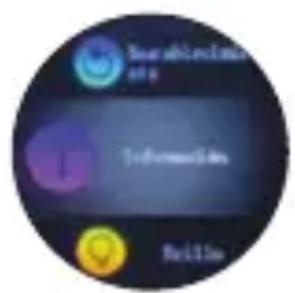
text_image
SearchInfo and InformationInfo Recall
text_image
Macromedia Sales Software Sales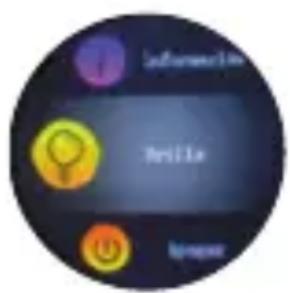
text_image
Infineurin BriLLa Ivapextext_image
QR code image containing encoded data, no visible human-readable texttext_image
Mobile app interface screenshot showing a green login page with a smartwatch icon and a red button labeled 'App Store'.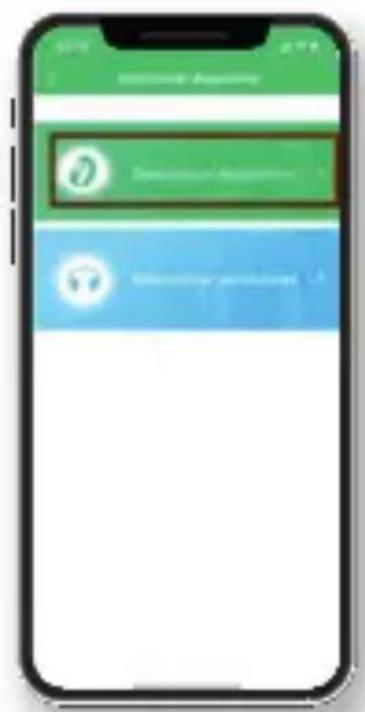
text_image
Mobile app interface screenshot showing a login panel with green and blue buttons and a login icon
text_image
"Bussendo" Bussendo: Bussendo, 2016-03-20CAT
text_image
AM 08 03/18 35 WED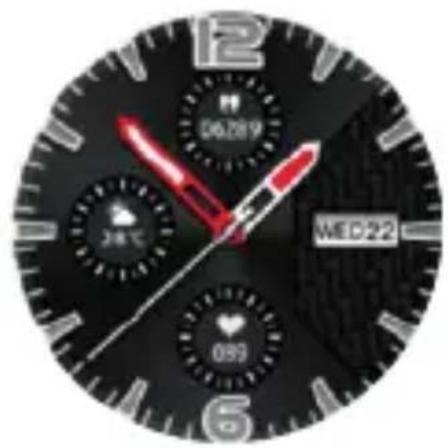
text_image
08:32 MED22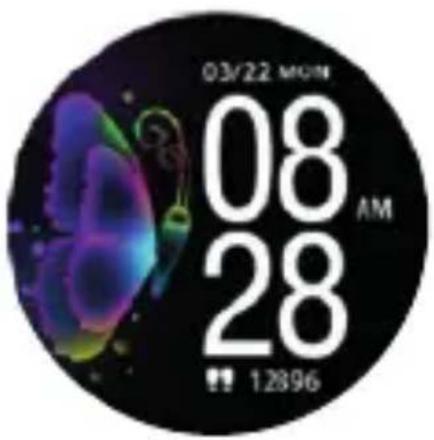
text_image
03/22 MON 08 AM 28 12896text_image
12/28 126/78Tension arterielle
pie
| Category | Value (%) | |---|---| | Segment 1 | 12.2 | | Segment 2 | 89 |Oxygène sanguin
text_image
1,200 SportSport
text_image
22°C MétenoMateo

text_image
MessageMessage
natural_image
Circular icon with a stylized bottle and pink screen, labeled 'Minuteur' (no additional text or symbols)Minuteur
text_image
C:\SmoothzCherchez
natural_image
Circular icon with three interlocking gears in red, pink, and blue on a black background (no text or symbols)Plus
text_image
Netflix Forward
text_image
Information Recall
text_image
RestorIsle info SoftwareLife
text_image
Information Brillie Illuminanatural_image
Green circular logo with a blue triangular pointer, no text or symbols present.Glory Fit
text_image
QR code image containing encoded data, no visible human-readable texttext_image
Mobile app interface screenshot showing a green login form with a red button and a progress bar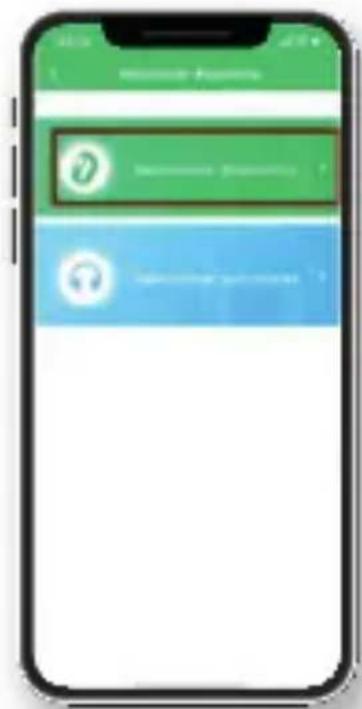
text_image
Mobile app interface screenshot showing a login panel with a green 'OK' button and a blue 'Login' button.