34157080 - Smartwatch DCU - Free user manual and instructions
Find the device manual for free 34157080 DCU in PDF.


User questions about 34157080 DCU
0 question about this device. Answer the ones you know or ask your own.
Ask a new question about this device
Download the instructions for your Smartwatch in PDF format for free! Find your manual 34157080 - DCU and take your electronic device back in hand. On this page are published all the documents necessary for the use of your device. 34157080 by DCU.
USER MANUAL 34157080 DCU
text_image
QR code image containing encoded data, no visible human-readable textSmartwatch GPS & Amoled HD screen
IOS - ANDROID
34157080 / 34157081 / 34157082
Manual de usuario
User manual
Manual d'usuari
Mode d'emploi
Manual de usuário
3
12
21
30
39
ESP
ENG
CAT
FRA
PORT
text_image
QR code with central logo containing 'iF' and partial text 'Institute'CONECTAR EL RELOJ CON SU SMARTPHONE:
Thank you very much for purchasing this watch, the DCU team has been working hard to offer you a comfortable, beautiful and functional watch.
If you have any questions that this manual cannot solve, we will be happy to assist you, you can write to info@dcutec.com and in less than 24 hours we will answer you.
We wish you enjoy it!
If you want to know a little more, go to www.dcutec.com or visit our Instagram profile @dcutecnologic. Sometimes we do raffles.
Device maintenance
Remember the following tips to keep your Smartwatch in good condition:
- This device uses 5V 1A for charging. It is strictly forbidden to use USB power supply higher than 5V, maximum allowable 5V/2.4A.
- If you are not going to use the smartwatch for a period of time longer than 1 month, make sure that the battery is not completely discharged, please charge it periodically.
- Clean the smartwatch regularly, especially the inner side and metal charging contacts, and keep it dry.
- Adjust the closure of the smartwatch to ensure air circulation.
- Skin care products or perfumes should not be used excessively on the wrist where the watch is worn.
- Please stop wearing the smartwatch in case of skin allergy or any discomfort.
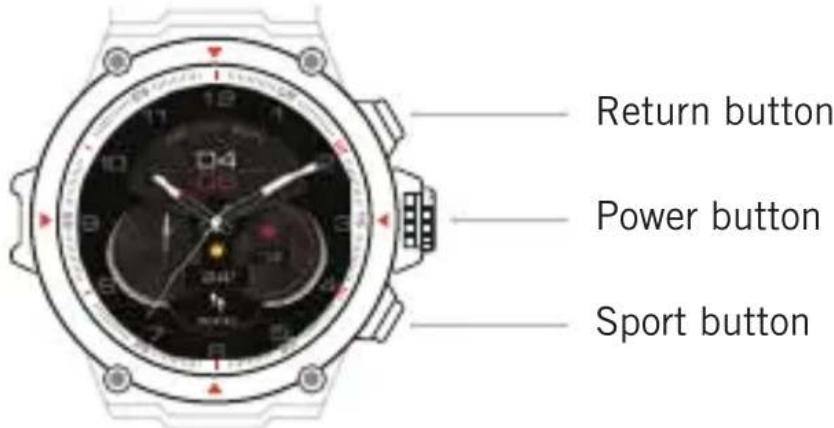
PRODUCT DESCRIPTION:
text_image
Return button Power button Sport buttonBUTTON FUNCTIONS:
Power button: long press
-
Turn on
-
Power off
Return button: short press
-
Access to the main menu
-
Return to previous menu level
Sport button: short press
- Access the sports menu
SCREEN:
Slide down
- Enter the message interface
Swipe up
- Access the control interface
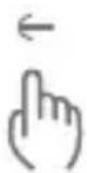
Swipe left
- Direct access to heart rate, blood oxygen, sleep data, weather information, music player control, daily data summary functions
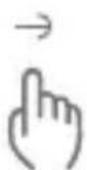
Swipe right
- Direct access to heart rate, blood oxygen, sleep data, weather information, music player control, daily data summary functions
CHANGE DIAL SCREEN STYLE:
Long press the main screen, slide from left to right to change the dial layout, click the center of the screen to confirm.
You will find more designs available in the InfoWear APP.
CHARGING AND ACTIVATION:
Before using the smartwatch for the first time, the battery needs to be fully charged, use the provided magnetic charging cable to connect it to the metal charging contacts on the back side of the smartwatch, the other connector of the charging cable can be connected a USB charger that provides minimum 5V/1A and maximum 5V/2.4A.
The estimated time for a full charge is between 2.5-3 hours. To extend the life of the battery, never let it discharge to 100% and charge it regularly, even if you are not going to use it.

Caution: Do not connect the 2 pins of the magnetic charging cable with conductive material at the same time, it may cause a short circuit The smartwatch battery can be damaged or discharged very quickly at very low or very high temperatures.
DOWNLOAD THE INFOWEAR APP ON YOUR SMARTPHONE:
- You can search APP "infowear" in App Store or Google Play.
- Or scan the following QR code to download the APP:
Note: After you have successfully downloaded and installed the APP, please register and log in according to the prompts on the APP interface for a better experience and use of this smartwatch.

text_image
QR code with central logo containing 'iF' and text 'Institute'CONNECT THE SMARTWATCH WITH YOUR SMARTPHONE:
Please use the Infowear app to connect your smartwatch to your mobile phone, DO NOT CONNECT THE SMARTWATCH DIRECTLY TO THE BLUETOOTH OF YOUR MOBILE.
Steps for connection:
Open INFOWEAR APP>> Go to "Device" >> Click "add device" >> Select HM03 device from the list >> A pairing request message appears on your smartwatch, click OK>> Complete the pairing on your phone mobile accepting all the messages that appear on the screen.
Finally choose the language of your choice in the APP list.
The connection will have finished successfully.

Warnings:
- To correctly connect the smartwatch and the mobile phone and to synchronize correctly, you must always have the Bluetooth of your Smartphone activated.
- To use all the features of the app, you need to grant location and notification permissions.
Troubleshoot connection
- If you cannot pair the smartwatch with your mobile phone, access the Bluetooth options of your mobile phone, look for "HMO3" in the list of devices and click on disconnect and forget device.
- Restart the pairing process with the APP Infowear
FIRMWARE UPDATE:
The APP will prompt you that there is a new firmware version, you can enter the device interface from the APP and select the firmware update. Firmware installation requires the smartwatch battery to be above 60%. If the update fails, just wait for the smartwatch to restart automatically, and then reconnect to the APP to perform the update operation.

Remark: The product is waterproof with IP68 level, which means that it can be immersed in water at depths of up to 1 meter for up to 35 minutes (do not immerse in salt water).
Do not use in hot shower/bath or saunas, vapors may enter the dial and damage peripheral components. Water damage is out of warranty.
SMARTWATCH FUNCTIONS:
Heart rate monitoring
The smart smartwatch can monitoring your heart rate 24 hours a day, or you can also touch the heart rate interface to start measuring the heart rate at a specific time. 24-hour heart rate monitoring drastically reduces battery life.
Blood oxygen
Touch the SpO_2 interface to start measuring your current SpO_2 . In the SpO_2 interface, it can display the SpO_2 measured data of the last times, you can also check it in the InfoWear APP after pairing and synchronizing your smartwatch
Sleep information
If you wear the Smartwatch while sleeping, you can record the hours slept during the previous night and the quality of sleep. You can see the statistics both on the smartwatch face and in the InfoWear APP.
Weather information
The weather information interface shows the current weather. Weather information must be connected and configured from the InfoWear app before data can be retrieved. The weather information cannot be updated if it is disconnected from the APP for a long time.
Music player controls
After connecting the device, you can remotely control your phone's music player (play/pause/next/previous song).
Steps and activity information
The smartwatch automatically records the steps during the day,
the calories consumed and the kilometers.
NOTE: Movement stats reset to zero at midnight.
Remote control for photos
After connecting the smartwatch to your phone, you can remotely control the phone's camera:
- Go to APP Infowear to "Shake to take photos" option
- Smartwatch display lights up with photo icon
- Shake the smartwatch to take the picture
Sport mode
Touch the training icon in the menu or directly the bottom right button of the smartwatch to start a new training recording, there are 14 sport modes to choose from: Running, Treadmill Running, Walking, Outdoor Cycling, Indoor Cycling, Trail running, Table tennis, Basketball, Football, Badminton, Cricket, Hiking, Stair climbing, Freestyle. The GPS function is only available for outdoor sports such as walking, running, and outdoor cycling.
APP's notifications
The device can sync incoming notifications from your phone like Twitter, Facebook, Whatsapp, Instagram, etc.
Note: You can turn on/off incoming notifications from the InfoWear app.
Smartwatch settings
Sliding up you access the quick settings interface from where you can adjust the intensity of the vibration, activate the screen on for 5 minutes, lock the screen, activate the do not disturb mode, activate the battery saving mode and access smartwatch settings where you can:
- Change the smartwatch face design. You will find more designs in the InfoWear APP
- Adjust screen brightness level
- Adjust the seconds that the screen is activated
- Factory reset and power off
- InfoWear APP QR Code
- Smartwatch system technical information
Alarms/wake-up
Set the alarms in the InfoWear APP, the device will vibrate when an alarm is activated. You can enable/disable alarms from this interface.
Sedentary reminder
The device will vibrate to remind you to move after x time sitting.
Note: You can set and enable/disable the function in the InfoWear app
Drink reminder
The smart smartwatch will remind you that it's time to drink some water at the set time.
Note: You can set the feature in the InfoWear app.
Medication reminder
The smartwatch will remind you that it is time for your medication based on the settings made in the InfoWear app.
CONNECTION WITH STRAVA, APPLE HEALTH AND GOOGLE FIT:
Strava
You must have the Strava APP previously downloaded on your phone and without any other paired smartwatch.
Go to the InfoWear APP access your profile menu “My” > Data authorization > Strava and follow the instructions on the screen to activate the permissions
Apple Health
From the InfoWear APP access your profile menu “My” > Data authorization > Apple Health and follow the instructions on the screen to activate the permissions
Google fit
From the InfoWear APP access your profile menu “My” > Data authorization > GoogleFit and follow the instructions on the screen to activate the permissions
BASIC PARAMETERS:
1.3" high definition AMOLED touch screen
Bluetooth version 5.1
Weight: 46gr.
Screen resolution: 360x360
Battery capacity: 300mAh
3-axis sensor
PRECAUTIONS:
- Avoid subjecting the smartwatch to strong impact, extreme heat and/or sun exposure.
- Please do not disassemble, repair or modify the smartwatch by yourself.
- This device uses 5V 1A for charging. It is strictly forbidden to use load power supply higher than 5V, maximum allowable 5V/2.4A.
- The operating environment of this device is 0^ 45^ . Keep it away from extreme heat sources.
- When the smartwatch is wet, please dry it with a soft cloth before charging, otherwise it will corrode the charging contacts and cause charging failure.
- Keep the smartwatch away from chemicals such as gasoline, cleaning solvents, propanol, alcohol, insect repellent, or perfume.
- Do not use this device in high voltage and high magnetism environment
- If you have sensitive skin or wear the smartwatch too tight, you may feel uncomfortable.
- Please wipe the sweat drops on your wrist from time to time, as the strap may be exposed to soap, sweat, allergens or polluting components for a long time, which may cause itchy skin.
- If you use it frequently, it is recommended to clean the smartwatch every week. Clean with a damp cloth and remove oil or dust with a mild soap. It is not recommended to use the smartwatch with hot water. Water vapor could enter the sphere and damage components.
WARNINGS:
This product is not a medical device. The smartwatches and their applications should not be used for the diagnosis, treatment or prevention of disease or illness. To change your exercise and sleep habits, be sure to consult a qualified medical professional to avoid serious injury.
Our company reserves the right to modify and improve any of the functions described in this manual without prior notice. At the same time, the company reserves the right to continuously update the contents of the product. All contents are subject to the actual product.
WARRANTY:
- The warranty covers quality problems caused by manufacturing process, materials or design within the first year of purchase and battery and charger problems within the first 6 months.
- The warranty does not cover damage caused by misuse of the product or the following cases:
1). Disassemble or reassemble the product.
2). Damage caused by falls
3). Any man-made damage or misuse (such as: causing water to enter the dial, external force causing it to break, scratch damage to peripheral components, etc.)
4) Damage caused by water is out of guarantee because we cannot check if the product's tightness has been tampered with or affected by small bumps that have reduced its resistance. - When applying for warranty, you must provide your sales receipt with the place and date of purchase.
- If you have problems during the use of the product, please contact our customer service:
DCU Tecnologic's Customer service
Live web chat: www.dcutec.com/eng
Email: info@dcutec.com
Telephone: +34 972244105
text_image
QR code with central logo containing 'iF' and partial text 'Wealth'CONNECTAR EL RELLOTGE AMB EL SMARTPHONE:
CONNEXIÓ AMB STRAVA, APPLE HEALTH I GOOGLE FIT:
Strava
natural_image
Front view of a wristwatch with analog dials and control buttons (no readable text or symbols)Bouton de retour
FONCTIONS DES BOUTONS:
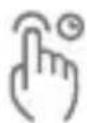
Bouton sport : appui court
text_image
QR code with central logo containing 'iF' and text 'iF' above itCONNEXION AVEC STRAVA, APPLE HEALTH ET GOOGLE FIT:
Strava
Service client DCU Tecnologic
natural_image
Front view of a wristwatch with analog dials and control buttons (no readable text or symbols)Botão de retorno
Botão liga/desliga
Botão Esporte
FUNÇÕES DO BOTÃO: