
Conga 3790 - Robot vacuum CECOTEC - Free user manual and instructions
Find the device manual for free Conga 3790 CECOTEC in PDF.
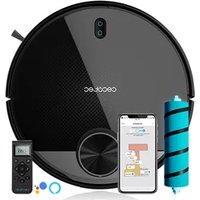


| Product type | Robot vacuum |
| Brand | Cecotec |
| Model | Conga 3790 |
| Reference | 05436 |
| Power supply | 100-240 V~ 50/60 Hz |
| Battery | 14.8 V, 3200 mAh Lithium-ion |
| Battery life | Up to 120 min (Eco mode) |
| Navigation | Laser radar and intelligent mapping (Total Surface 2.0) |
| Cleaning modes | Auto, Edges, Spiral, Intensive floor cleaning, Smart zone, Spot, Restricted zone, Twice, Manual, Return to base |
| Suction power | 3 levels: Eco, Normal, Turbo |
| Dustbin | Capacity 600 ml, with high-efficiency filter |
| Combined tank (mop) | Capacity 200 ml, with microfiber holder |
| Main brush | Silicone and soft bristles, interchangeable with Cepillo Jalisco brush for hard floors |
| Side brushes | 2 brushes, replacement recommended every 3 months |
| Filter | High efficiency, replacement recommended every 3 months |
| Sensors | Anti-drop (4), anti-collision, IR receiver |
| Connectivity | Wi-Fi 2.4 GHz, Conga 3000 app, compatible with Google Assistant and Alexa |
| Remote control | Included, with scheduling and mode selection |
| Charging base | Autonomous, with transmission zone and cable storage |
| Dimensions (L x W x H) | 34.5 x 34.5 x 10.5 cm (approx.) |
| Weight | Approximately 3.5 kg (approx.) |
| Noise level | Approximately 65 dB (approx.) |
| Warranty | 2 years (excluding consumable parts) |
Frequently Asked Questions - Conga 3790 CECOTEC
User questions about Conga 3790 CECOTEC
0 question about this device. Answer the ones you know or ask your own.
Ask a new question about this device
Download the instructions for your Robot vacuum in PDF format for free! Find your manual Conga 3790 - CECOTEC and take your electronic device back in hand. On this page are published all the documents necessary for the use of your device. Conga 3790 by CECOTEC.
USER MANUAL Conga 3790 CECOTEC
The expert for robots in your home
With one click to the online shop


myRobotcenter.eumyRobotcenter.co.uk
myRobotcenter

CONGA
3790
cecòtec
- Safety instructions 25
- Parts and components 27
- Before use 28
- Installation 28
- Operation 30
- Mobile App and Wi-Fi connection 33
- Cleaning and maintenance 36
- Battery replacement and charging 37
- Troubleshooting 38
- Technical specifications 39
- Disposal of old electrical appliances 39
- Technical support and warranty 40
SOMMAIRE
Fig./Img./Abb./Afb./Rys./Obr. 2 Fig./Img./Abb./Afb./Rys./Obr. 3
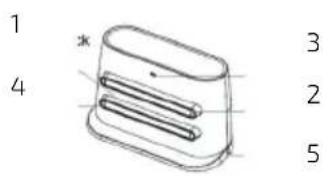
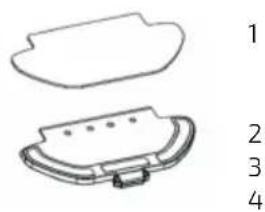
Fig./Img./Abb./Afb./Rys./Obr. 5
Fig./Img./Abb./Afb./Rys./Obr. 4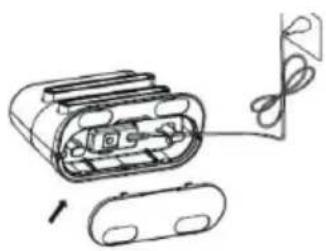
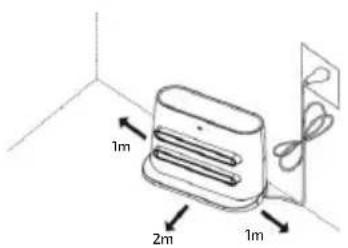
Fig./Img./Abb./Afb./Rys./Obr.7
Fig./Img./Abb./Afb./Rys./Obr.6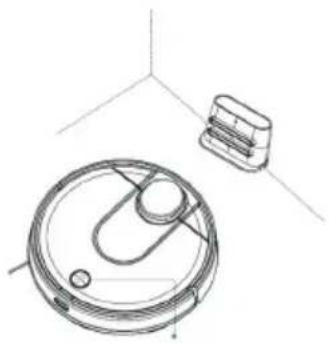
Fig./Img./Abb./Afb./Rys./Obr.8
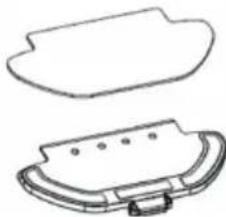
Fig./Img./Abb./Afb./Rys./Obr. 9
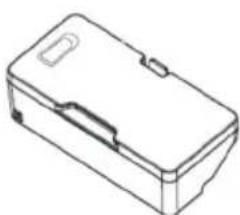
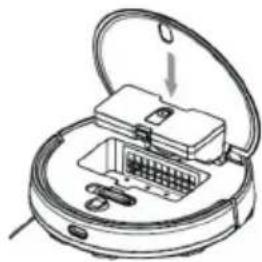
Fig./Img./Abb./Afb./Rys./Obr. 10
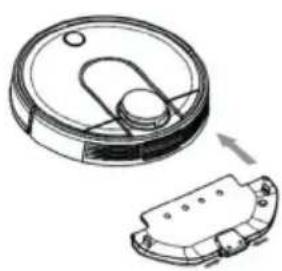
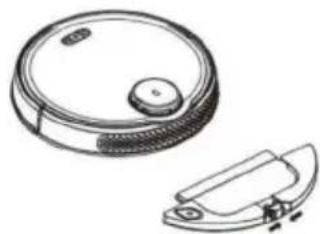
Fig./Img./Abb./Afb./Rys./Obr. 11
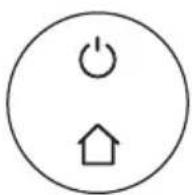
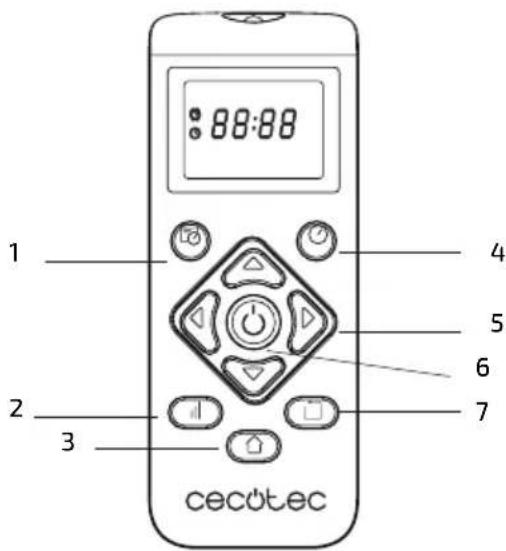
Fig./Img./Abb./Afb./Rys./Obr. 12 Fig./Img./Abb./Afb./Rys./Obr. 13
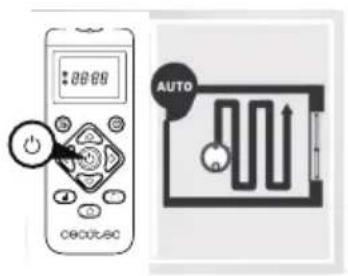
Fig. 14
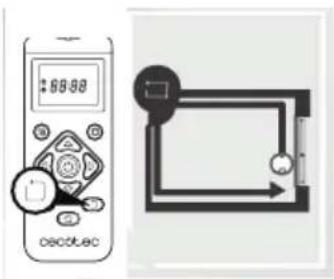
Fig. 15

Fig. 16
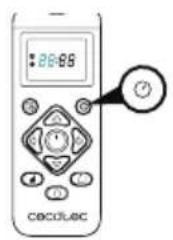
Fig. 17-18
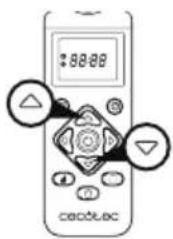
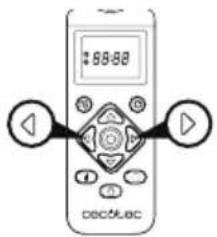
Fig. 19
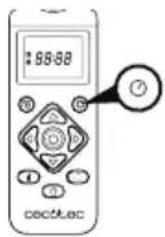
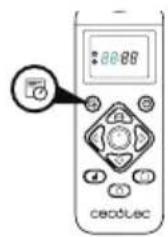
Fig. 20-22
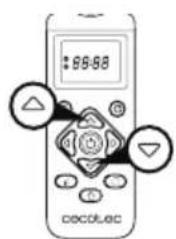
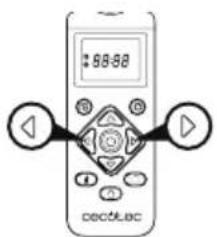
Fig. 21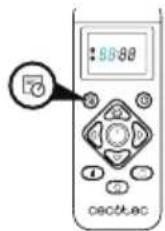

Fig. 23
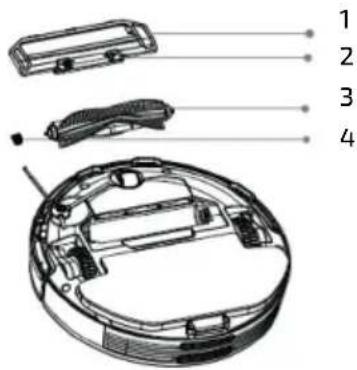
Fig. 24
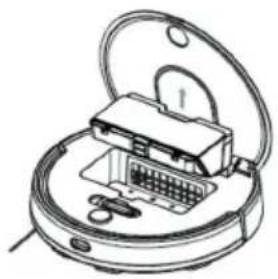
Fig. 25
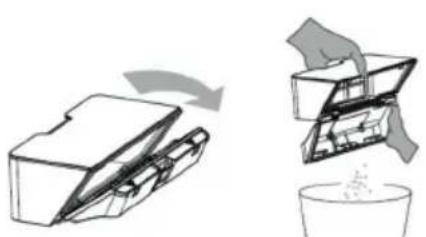
Fig. 26, Fig. 27
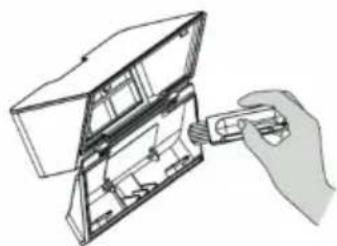
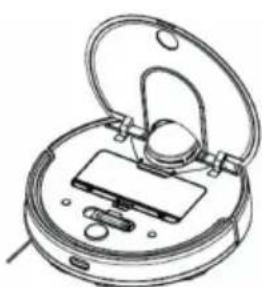
Fig. 28, Fig. 29
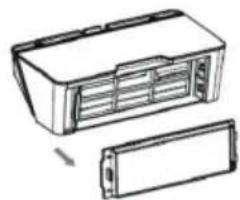
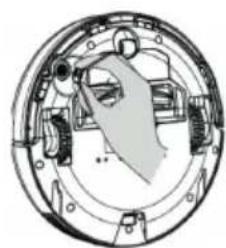
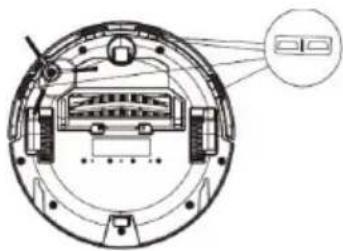
Fig. 30, Fig. 31
1. SAFETY INSTRUCTIONS
Read these instructions thoroughly before using the appliance. Keep this instruction manual for future reference or new users.
This product must be used in accordance with the directions in this instruction manual. Cecotec cannot be held liable or responsible for any damages or injuries caused by improper use.
Make sure that the mains voltage matches the voltage stated on the rating label of the appliance and that the wall outlet is grounded.
This product can only be disassembled by qualified personnel.
Do not touch wires, power supplies or power adapters with wet hands.
Keep the robot away from clothing, curtains and any other similar materials.
Do not sit or place heavy or sharp objects on top of the appliance.
Do not operate the appliance close to heat sources, flammable substances, wet surfaces where it can fall or be pushed into water or allow it to come into contact with water or other liquids. Do not use outdoors.
Do not use the charging base if it has a damaged cord or plug or if it is not operating properly. In case of fault or malfunction, contact the official Technical Support Service of Cecotec.
Do not operate the device on tables, chairs or other high surfaces where it could fall.
Do not use the laser protection as handle when moving or holding the robot.
Do not operate the product in places where temperature is
below 0 °C or above 50 °C.
The appliance can only be operated with the supplied battery and power adapter. The use of other components or accessories could cause risk of fire, electric shock or product damage.
Do not use the device to vacuum flammable or burning objects such as cigarettes, matches or ash.
Before operating the robot, please remove any object on the floor such as clothing, papers, power cords or other items that may obstruct the device.
The appliance is not intended to be used by children under the age of 8. It can be used by children over the age of 8, as long as they are given continuous supervision.
This appliance can be used by children aged 8 and above, and persons with reduced physical, sensory or mental capabilities or lack of experience and knowledge, as long as they have been given supervision or instruction concerning the use of the appliance in a safe way and understand the hazards involved.
Do not allow children to play with the appliance.
Supervise children, they shall not play with the appliance. Close supervision is necessary when the appliance is being used by or near children.
2. PARTS AND COMPONENTS
Main body and sensors
Fig. 1.
- Back home button
- Power button/Auto cleaning mode
- Wi-Fi network configuration (Back home and power button)
- Cover release tab
- Laser radar
- Top cover
- Power and back home button
- Infrared receiver sensor
- Anti-collision sensor
- Omnidirectional wheel
- Charging terminals
- Battery
- Side brush
- Free-fall sensor
- Main brush cover
- Main brush (for cleaning all types of surfaces)
- Left side wheel
- Right side wheel
- Silicone brush (special for pet hair)
- Jalisco brush (specific for hard floors)
Wet&Dry tank
Fig. 2.
- Water inlet
- Wet&Dry tank
- Tank clip
- High-efficiency filter
Dust tank
Fig. 3.
- Dust tank
- High-efficiency filter
- Mesh filter
Charging base
Fig. 4.
- Signal transmission area
- Charging terminal
ENGLISH
- Charge indicator
- Charging terminal
- Cord storage
Mop
Fig. 5.
- Mop
- Mop bracket
- Velcro
- Tab
3. BEFORE USE
Take the product out of the box and remove all packaging materials.
Make sure all parts and components are included and in good conditions. If any sign of visible damage is observed, contact immediately with the official Technical Support Service of Cecotec.
4. INSTALLATION
Robot and charging base installation
Fig. 6.
Connect the charging base to a power supply and store the remaining cable. It is important to store the remaining cable at the bottom of the charging base to avoid it from being dragged and disconnected.
Place the charging base against the wall, leaving the safety distance indicated in the below picture.
Note: Ensure a space of at least 1 m on both the left and right side of the charging base, and a space of at least 2 m in front of it.
Fig. 7.
Warning: Do not expose the charging base to direct sun light.
Long press the power button for 3 seconds; when the light indicator turns on, place the robot on the charging base.
Fig. 8.
Steady blue light: ON/operating
Oscillating orange light: Charging
Red light blinks: Error
Notes:
Take the robot to the charging base if the battery is low. The robot might not turn on if the
battery is very low.
The robot will automatically turn on when placed on the charging base.
The robot cannot be turned off during charging.
Wet & dry and dust tank installation
Fig. 9.
Recommendation: It is not suggested to use the scrubbing function for the first-time use.
- Open the tank's blue silicone lid, fill the tank with water carefully so water does not come out and close it again. Make sure the silicone clip is properly closed to avoid water from pilling. Fig. 10.
- Install the tank in the robot following the indicated direction. Make sure the clip is properly fastened.
- Only for Wet & dry tank installation:
Attach the mop to the bottom part of the mop bracket with the Velcro.
- Manually press the clips on both sides of the Wet & dry tank and push it into its correct position. You will hear a click when it is properly fixed.
Fig. 11.
Recommendations:
Do not use the scrubbing function while the robot is unattended.
Remove the Wet & dry tank when the robot is charging or not in use.
If there are carpets in the house, set Restricted Areas to avoid the robot from passing over them.
Add some drops of cleaning agent (not corrosive) if considered necessary.
To remove the mop bracket, press the release button and pull it outwards.
Warnings:
Using cleaning agents in excess might block water outlets.
In order to achieve perfect scrubbing, it is suggested to moisten the mop before using it.
First cleaning
Once the robot and the charging base are completely installed, follow these steps before scheduling the first cleaning cycle.
First of all, the robot must be fully charged. It is suggested to allow the robot to charge overnight. When it is fully charged, it may carry out the first cleaning cycle and save the first map. To do so, activate Auto cleaning mode and Eco power level. It is very important to follow these indications for the robot to recognize each and every corner in the house and to create a complete map.
If the house where the robot is going to be used is too big and the robot runs out of battery, do not worry. The robot features TotalSurface 2.0 technology, so when it returns to the charging base, it saves the full map and those that have not been completed. Once it is charged again, it resumes the cleaning cycle from the point it has stopped until it maps the whole surface.
The robot keeps on mapping constantly, therefore it adapts independently to each house's features and continuously improves previous maps.
5. OPERATION
Once the robot's light indicator changes from oscillating orange to steady blue, the battery is fully charged and the robot is ready to operate.
The robot cannot operate with low battery.
Recommendations: Remove all cables and obstacles from the floor before operating the robot in order to avoid accidents and damage.
5.1. Robot buttons
Fig. 12.
Auto mode
Press the power button on the robot for it to start cleaning automatically, first a cleaning cycle in Edge mode and then another cycle in and organized zigzag motion, recognizing which areas it has cleaned and which ones it has not. The robot will automatically plan the cleaning route as it is cleaning. If during this mode the robot is controlled manually, the robot will calculate the route again and could go through previously cleaned areas. In order to ensure efficient cleaning, do not operate it manually during auto mode cleaning.
Thanks to its Total Surface 2.0 technology, if the battery is low during the cleaning cycle, the robot will smartly return to the charging base automatically and, once it is fully charged, it will resume the cleaning process from the same point, offering a high-efficiency cleaning.
During cleaning, the robot will stop briefly to evaluate the area and calculate the cleaning route (this stop will vary depending on the house conditions).
Note: The robot cleans in an organized way and per 4x4 m squared areas, therefore it might leave the room where it is cleaning to finish off the delimited area. Do not worry, the robot will clean all the accessible surface.
Back home mode
Press the back home button on the robot in order to send it to the charging base. This mode can be activated during any other cleaning cycle and the robot will stop cleaning and return to the charging automatically.
The robot will take the shortest route back to the charging base thanks to its map memorizing and the smart back home function. When a cleaning cycle has been completed or the robot's battery is low, the robot will also return to the charging base to avoid running out of battery.
Recommendation: Remove the Wet & dry tank during charging.
5.2. Remote control
Fig. 13.
- Schedule
- Power levels (Turbo/Normal/Eco)
- Back home
- Clock
- Manual control
- On/Pause
- Edge mode
The following modes and operations can be activated from the remote control.
Modes
The first time the robot is operated, it will map and save the whole house's map by means of its laser before starting the cleaning cycle. Use the robot in Auto mode and Eco power level, this way you will ensure the robot memorizes the full map.
Note: Make sure the light indicator is lighted in blue before starting cleaning, indicating it is activated.
If not, press any button on the remote control to wake it up.
Auto mode
Fig. 14.
Press the power button on the robot for it to start cleaning automatically, first a cleaning cycle in Edge mode and then another cycle in and organized zigzag motion, recognizing which areas it has cleaned and which ones it has not. The robot will automatically plan the cleaning route as it is cleaning. If during this mode the robot is controlled manually, the robot will calculate the route again and could go through previously cleaned areas. In order to ensure efficient cleaning, do not operate it manually during auto mode cleaning.
Thanks to its Total Surface 2.0 technology, if the battery is low during the cleaning cycle, the robot will smartly return to the charging base automatically and, once it is fully charged, it will resume the cleaning process from the same point, offering a high-efficiency cleaning. During cleaning, the robot will stop briefly to evaluate the area and calculate the cleaning route (this stop will vary depending on the house conditions).
Note: The robot cleans in an organized way and per 4x4 m squared areas, therefore it might leave the room where it is cleaning to finish off the delimited area. Do not worry, the robot will clean all the accessible surface.
Edge mode
Fig. 15.
Press the Edge mode button on the remote control for the robot to start cleaning under this mode. It will automatically start cleaning along all the surface's perimeters and then will return to the charging base direct and automatically. If the robot has not started cleaning from the charging base, it will return to the starting point.
Note: Press the power levels button to switch between the 3 modes: Turbo/Normal/Eco.
Back home mode
Fig. 16.
Press the back home button on the remote control to send the robot to the charging base. This function can be activated during any other cleaning cycle, and the robot will automatically return to the charging base and stop the cleaning process. The robot will take the shortest route back to the charging base thanks to its map memorizing and the smart back home function.
When a cleaning cycle has been completed or the robot's battery is low, thanks to its Total Surface 2.0 technology, the robot will also return to the charging base to avoid running out of battery. Once the robot has recharged, it will resume cleaning from the point it has stopped.
Notes:
Remove the Wet & dry tank from the robot before charging it.
Make sure there are no obstacles in the room being cleaned to ensure the robot can get to the charging base without problems.
Pause
While the robot is operating, press the power button on the App, the remote control, or on the robot to pause it, and press the same button again to resume cleaning.
Standby
The robot will automatically enter standby mode after 5 minutes of no operation.
Press the power button on the App, the remote control, or on the robot to start it up again.
Warnings:
After 12 hours of no operation, the robot will turn automatically off.
The robot will not enter standby mode during charging.
Suction power level
Press the power levels button on the remote control to select the desired power level.
Choose between Eco (low power), Medium (medium power) and Turbo (high power).
Schedule
Warning: The robot cannot be scheduled from more than one device at a time. Make sure to schedule it either from the Smartphone App or from the remote control.
The robot is provided with a schedule function in order to provide a maximum-efficiency cleaning.
The time settings and the cleaning scheduling must be carried out from the remote control.
Once the robot has been scheduled, it will automatically carry out the cleaning cycles every scheduled day.
Note: Make sure the robot is activated and that the light indicator is lighted before scheduling any cleaning or setting time.
Current time
Fig. 17.
Hold down the time button for 3 seconds. The first 2 digits, indicating the hour, will start blinking.
Use the up and down direction buttons to set the current time. Then, use the left and right buttons to switch from hours to minutes and repeat the before step.
Fig. 18.
Press the time button to save the settings.
Fig. 19.
Cleaning scheduling
Fig. 20.
Long press the schedule button for 3 seconds. The first 2 digits, indicating the hour, will start blinking.
Use the up and down direction buttons to set the schedule time. Then, use the left and right buttons to switch from hours to minutes and repeat the before step.
Fig. 21.
Press the schedule button again to save the settings.
To cancel the scheduled cleaning, follow the below steps:
Set the clock on the remote control at 00:00 a.m. and save it.
Fig. 22.
Switch the robot off for 1 minute and switch it on again.
Note: The robot will beep to indicate all settings have been saved.
Note: When the remote control's batteries are replaced, the clock and schedule times must be set again.
Light indicator:
Operating: Steady blue light.
Low power: Orange light blinks slowly.
Charging: Orange light oscillates.
Network configuration: Blue light blinks slowly.
Start-up/firmware update: Blue light oscillates.
Error: Red light flashes quickly.
6. MOBILE APP AND WI-FI CONNECTION
In order to access all the robot's functions from wherever you are, it is suggested to download the Conga 3000 App. You will be able to control the robot in the most efficient way, enjoying the excellence of cleaning.
ENGLISH
App advantages:
Control your robot in an easy and intuitive way.
Activate the cleaning process from any point.
Carry out settings and daily scheduling.
Choose between its different cleaning modes: Auto, Spiral, Edge, Manual, Twice, Restricted area, Spot, Smart area, Back home or Scrubbing.
View how the robot creates an interactive map as it is cleaning.
Manage rooms smartly through its Room Plan function, which allows you to join, separate or name rooms. Plus, create and schedule your own cleaning plans by selecting the rooms you want to clean, the mode and power level.
Check the cleaned surface and the time taken.
Check the cleaning history.
The App supports 5 GHz networks.
* This model is compatible with voice virtual assistants Google Assistant and Alexa
Configuration:
Download the Conga 3000 App from App Store or Play Store.
Fig. 23.
Create an account with your e-mail and a password.
Confirm login.
Add your Conga robot.
Connect to Wi-Fi.
Warnings:
The Wi-Fi name and password cannot exceed 32 bits.
If the network configuration fails to connect, follow the steps below:
Press the power button for 5 seconds, the robot will enter sleeping mode and the Wi-Fi light indicator will blink fast indicating connection error. Retry connecting the robot again following the steps in the before section.
If the connection fails again, check if:
a. The robot is too far away from the router.
b. The Wi-Fi password is incorrect.
The following modes can be activated from the App:
Auto mode
Select this mode for the robot to clean 4x4 m quadrants. Within this space, it will carry out a first cleaning cycle in Edge mode and then in zigzag motion to complete the surface. Once it has finished, it will directly return to the charging base.
It can be activated from the App or the remote control.
Note: The robot could leave the room to complete the cleaning cycle in some of the quadrants.
This will not affect the robot's operation, do not worry.
Edge mode
Select this mode for the robot to clean along walls and furniture.
It can be activated from the App or the remote control.
Spiral mode
When this mode is selected, the robot will start cleaning at a specific point, and then will clean carrying out moves in spiral motion outwards.
It can only be activated from the App.
Scrubbing mode
When this mode is activated, the robot moves in a swaying motion, simulating real scrubbing moves. It starts off cleaning in Edge mode, then in zigzag motion and finally returns to the charging base taking the straightest way back home.
It can only be activated from the App.
Manual mode
To carry out manual cleaning, use the direction buttons on the remote control or on the App to take the robot to the specific points where you want it to clean.
It can be activated from the App or the remote control.
Back home mode
Select this mode at any point of any cleaning cycle and during any of the modes, the robot will automatically return to the charging base.
It can be activated from the robot, the remote control or the App.
Smart Area mode
Once the home's map has been saved, select this mode for the robot to clean a specific area in zigzag motion. The robot will clean the selected area and then will return directly to the charging base. You can set more than 1 area at the same time. The robot will only clean the area selected in the map, therefore it will go to the point and return to the base without vacuuming. It can only be activated from the App.
Spot mode
Select this mode if you want to thoroughly clean a specific point in the map, making the most of the robot's maximum power. The robot will clean a 2x2 m zone in zigzag motion and then will return directly to the charging base when cleaning is completed. The robot will only clean the area selected on the map, therefore it will go to the point and return to the base without vacuuming.
It can only be activated from the App.
Restricted area mode
Select this mode and delimit in the map specific areas where you do not want the robot to clean. You can set more than 1 restricted area at the same time on the map.
It can only be activated from the App.
Twice mode
Use this mode to carry out a deep, thorough cleaning of your home.
It can be combined with Edge, Spiral, Spot or Smart Area modes. The robot will carry out 2 full cleaning cycles and then will return directly to the charging base.
7. CLEANING AND MAINTENANCE
Main brush
Turn the robot around and press the main brush's release button to take the cover out.
Take the main brush out and clean the compartment.
Clean the main brush with the provided tools and use water and soap if necessary.
Place the main brush in its position and fasten the cover's clip.
Recommendation: Replace the main brush every 6-12 months to ensure efficient operating (depending on the frequency and type of use).
Fig. 24.
- Main brush cover
- Tab
- Main brush
- Compartment
Silicone brush
Fig. 25.
To clean the silicone brush, follow the instructions in the previous section to remove it from the robot and wash it with water and soap. Dry it thoroughly before reassembling it to ensure efficient operation.
Jalisco brush
To clean the Jalisco brush, follow the steps in the previous section to take it out and clean it with water.
Dry it thoroughly before reassembling it to ensure efficient operation.
Dust tank
Open the robot's cover and take out the dust tank.
Open the dust tank, take out the high-efficiency filter, and empty the dust.
ENGLISH
Fig. 26.
Use a cleaning brush to clean the tank's inner part and reinstall the high-efficiency filter.
Fig. 27.
Introduce the dust tank back into the robot and close the top cover.
Fig. 28.
High-efficiency filter
Fig. 29.
Remove the high-efficiency filter and shake it to remove all the dust.
Recommendations:
Replace the high-efficiency filter every 3 months depending on the frequency and type of use.
Clean the filter periodically with a brush to avoid blockage.
Do not wash the filter with water.
Side brush
Fig. 30.
Remove and clean the side brushes regularly.
Recommendation: In order to ensure a perfect cleaning, it is suggested to replace the side brushes every 3 months, depending on the frequency and type of use.
Free-fall sensors
Fig. 31.
Clean the free-fall sensors with a soft cloth regularly.
Warning: Always transport the product turned off and in its original package.
8. BATTERY REPLACEMENT AND CHARGING
Do not use any other battery, power adapter or charging base than the one officially provided by Cecotec.
Do not use non-rechargeable batteries.
Do not remove, dismantle or attempt to repair the battery or the charging base.
Do not place the charging base near heat sources.
Do not use a wet cloth to wipe any of the parts of this product.
If the robot is not going to be used for a long time, remove the battery from the product and store it in a dry and safe place. It is suggested to charge the battery every month in order to avoid damage to the battery.
Do not dispose of waste batteries at will. It is suggested to hand them over to professional organizations for correct treatment.
9. TROUBLESHOOTING
Problem
- The robot does not start up or does not clean.
- The robot cannot charge or return to the charging base.
- The robot does not work properly.
- The robot emits a strange noise during cleaning.
- The robot does not clean efficiently or dust leaks from the robot.
- The robot could not connect to Wi-Fi.
- The robot did not carry out the scheduled cleaning task.
- The robot does not resume cleaning.
- The robot is always offline.
- Connection between the mobile phone and the robot failed.
- The robot does not return to the charging base after spot cleaning or after changing starting position.
Solution
1.1. The robot cannot operate with low battery. Allow it to charge before operating it. 1.2. The room temperature is below 0 °C or above 50 °C. Operate the robot in a room where the temperature is between the stated temperature range. 2.1. There are too many obstacles near the charging base, relocate the charging base to an area free of obstacles. 2.2. Clean the charging terminals. 2.3. Make sure the power switch is turned on. 2.4. The robot is too far away from the charging base, place it closer and try again. 2.5. There is very little free space around the charging base. Make sure the charging terminals are clean. 3.1. Turn the robot off, switch it off and turn it on again. 3.2. Once the robot is turned on and has left the charging base, hold down the Back home button on the robot until it beeps. Immediately after, let go the button and press it again until the robot starts speaking. This way the robot will be restarted. 4. The main brush, side brush or omnidirectional wheel may have foreign matters tangled, stop the robot and clear it up. 5.1. The dust tank is full. Empty it and clear the high-efficiency filter if it is blocked. 5.2. The high-efficiency filter is blocked, clear it. 5.3. The main brush is tangled with foreign matter, please clear it up. 6.1. The Wi-Fi signal is poor. Make sure the Wi-Fi signal is correct. 6.2. The Wi-Fi connection is unstable. Reset the router, check if there are any App updates and try again. 6.3. Make sure your device's mobile data are deactivated to improve the binding process.
7.1. Check if the robot is in Night mode and switch mode. The robot does not carry out scheduled cleaning cycles under this mode. 7.2. Make sure the robot is connected to the network, it will not be able to carry out scheduled cleaning tasks without being connected. 8.1. The robot will map and calculate a new route after operating under spot cleaning or after having changed its starting position. 8.2. If the charging base is very far away from the robot, it will not be able to charge back automatically. Put the robot back on the charging base manually. 9. Make sure the robot is not in Sleep mode, it will not resume cleaning under this mode. It won't resume cleaning when it is placed manually on the charging base. 10. Make sure the robot is successfully connected to the network and always in the range covered by the Wi-Fi signal. 11. Make sure the robot and the charging base are in an area with good Wi-Fi signal, reset the router and try connecting them again.
10. TECHNICAL SPECIFICATIONS
Product reference: 05436
Product: Conga 3790
100-240 V~ 50/60 Hz
Battery: 14.8 V, 3200 mAh
Frequency bands: 2.412-2.472 GHz, 5.150-5.250 GHz, 5.250-5.350 GHz, 5.470-5.725 GHz
Maximum Transmission Power: 16 dBm
Made in China | Designed in Spain
11. DISPOSAL OF OLD ELECTRICAL APPLIANCES
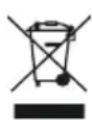
The European directive 2012/19/EU on Waste Electrical and Electronic Equipment (WEEE) specifies that old household electrical appliances must not be disposed of with the normal unsorted municipal waste. Old appliances must be collected separately, in order to optimize the recovery and recycling of the materials they contain, and reduce the impact on human health and the environment.
The crossed out "wheeled bin" symbol on the product reminds you of your obligation to dispose of the appliance correctly.
Consumers must contact their local authorities or retailer for information concerning the correct disposal of old appliances and/or their batteries.
ENGLISH
12. TECHNICAL SUPPORT AND WARRANTY
This product is under warranty for 2 years from the date of purchase, as long as the proof of purchase is submitted, the product is in perfect physical condition, and it has been given proper use, as explained in this instruction manual.
The warranty will not cover the following situations:
The product has been used for purposes other than those intended for it, misused, beaten, exposed to moisture, immersed in liquid or corrosive substances, as well as any other fault attributable to the customer.
The product has been disassembled, modified, or repaired by persons not authorized by the official Technical Support Service of Cecotec.
Faults deriving from the normal wear and tear of its parts, due to use.
The warranty service covers every manufacturing defect of your appliance for 2 years, based on current legislation, except consumable parts. In the event of misuse, the warranty will not apply.
If at any moment you detect any problem with your product or have any doubt, do not hesitate to contact Cecotec Technical Support Service at +34 963 210 728.
1. SAFETY INSTRUCTIONS
6. APP AND WI-FI CONNECTION
6. MOBILE APP AND WI-FI CONNECTION
9. TROUBLESHOOTING
Problem
Frequency bands: 2.412–2.472 GHz, 5.150–5.250 GHz, 5.250–5.350 GHz, 5.470–5.725 GHz


- CONGA
- SOMMAIRE
- SAFETY INSTRUCTIONS
- PARTS AND COMPONENTS
- ENGLISH
- BEFORE USE
- INSTALLATION
- OPERATION
- ROBOT BUTTONS
- BACK HOME MODE
- REMOTE CONTROL
- MODES
- AUTO MODE
- EDGE MODE
- MOBILE APP AND WI-FI CONNECTION
- CLEANING AND MAINTENANCE
- BATTERY REPLACEMENT AND CHARGING
- TROUBLESHOOTING
- PROBLEM
- SOLUTION
- TECHNICAL SPECIFICATIONS
- DISPOSAL OF OLD ELECTRICAL APPLIANCES
- TECHNICAL SUPPORT AND WARRANTY
- APP AND WI-FI CONNECTION
Brand : CECOTEC
Model : Conga 3790
Category : Robot vacuum