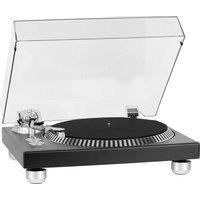
TT-602 - Turntable Krüger&Matz - Free user manual and instructions
Find the device manual for free TT-602 Krüger&Matz in PDF.


| Product type | Vinyl record turntable |
| Brand | Krüger&Matz |
| Model | TT-602 |
| Rotation speed | 33/45 RPM |
| Drive | Belt |
| Signal-to-noise ratio | 60 dB |
| Frequency response | 50 Hz - 12 kHz |
| Start/stop time | <1 s |
| Power consumption | 5.5 W |
| Power supply | 100-240 V, 50/60 Hz |
| Tonearm | S-shaped |
| Audio outputs | RCA (line, built-in preamplifier) |
| USB interface | USB 2.1 (compatible with Windows XP, 7, 8, 10; Mac OS X) |
| Included software | Audacity |
| Features | Vinyl record digitization |
| Case material | Metal |
| Cleaning | Soft damp cloth, no chemicals |
| Safety | Unplug before cleaning, do not open, no user-serviceable parts |
| Included accessories | Pre-installed drive belt, signal cables, counterweight |
| Usage | Dry, horizontal and stable surface |
Frequently Asked Questions - TT-602 Krüger&Matz
User questions about TT-602 Krüger&Matz
0 question about this device. Answer the ones you know or ask your own.
Ask a new question about this device
Download the instructions for your Turntable in PDF format for free! Find your manual TT-602 - Krüger&Matz and take your electronic device back in hand. On this page are published all the documents necessary for the use of your device. TT-602 by Krüger&Matz.
USER MANUAL TT-602 Krüger&Matz
DE
- Taste Start/Stopp Tonarmheber
natural_image
Technical line drawing of a mechanical component with directional arrows indicating flow or movement (no text or symbols)6. Tonarm
natural_image
Diagram of a CD or DVD disc with a triangular blade and circular base, no text or symbols present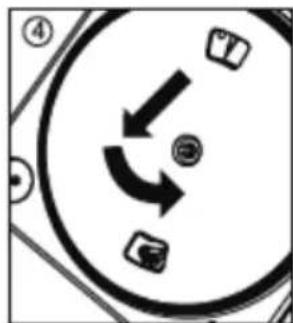
natural_image
Circular diagram with directional arrows and icons, no readable text or symbols2. Aufnehmen
Read this instruction manual carefully before use, and keep it for future reference. Producer does not claim liability for inappropriate use and handling.
- Protect the product from water and humidity.
- The product should be located away from heat sources such as radiators, heat vents, or other devices that produce heat.
- The product should be connected to a power supply only of the type described in the operating instructions or as marked on the product.
- This appliance may be used by children who are above 8 years old and by persons with reduced physical, sensory or mental capabilities, or lack of experience and knowledge, if they are supervised and guided by a person who is responsible for their safety in a cautious manner, and all the safety precautions are understood and followed. Children should not play with this device. Children should not perform cleaning and servicing of the device unsupervised.
- Never use this device if the power supply cord is damaged.
- When you disconnect the power cord of the device, grasp and pull the plug, not the cord/cable.
- Keep the device and its cord/cable away from heat, water, moisture, sharp edges and any other factor which may damage the appliance or its cord.
- Disconnect the device from the power supply if it is not going to be used for a long time.
- This lightning flash with arrowhead symbol, within an equilateral triangle is intended to alert the user to the presence of uninstalled "dangerous voltage" within the product's
enclosure that may be of sufficient magnitude to constitute a risk of electric shock to persons.

• The exclamation point within
an equilateral triangle is intended to alert the user to the presence of important operating and maintenance (servicing) instructions in the literature accompanying the appliance.
- ALWAYS disconnect this device from power supply mains before cleaning. Clean it with soft, slightly damp cloth only. Do not use any chemical agents to clean the product.
- Make sure to place this product on flat, dry and stable surface.
- Do not use unauthorized accessories as they may damage the unit.
- CAUTION: To reduce the risk of electric shock, do not remove the cover. No user-serviceable parts inside. Refer servicing to qualified service personnel only.
- Do not disassemble the device, as it may cause risk of electric shock. The product has no user-serviceable parts inside.
- Clean this device with soft, slightly damp cloth.
- Do not block any of the ventilation openings.
- For added protection for this product during a thunderstorm, or when it is left unattended and unused for long period of time, unplug it from the wall outlet.
PRODUCT DESCRIPTION
Z
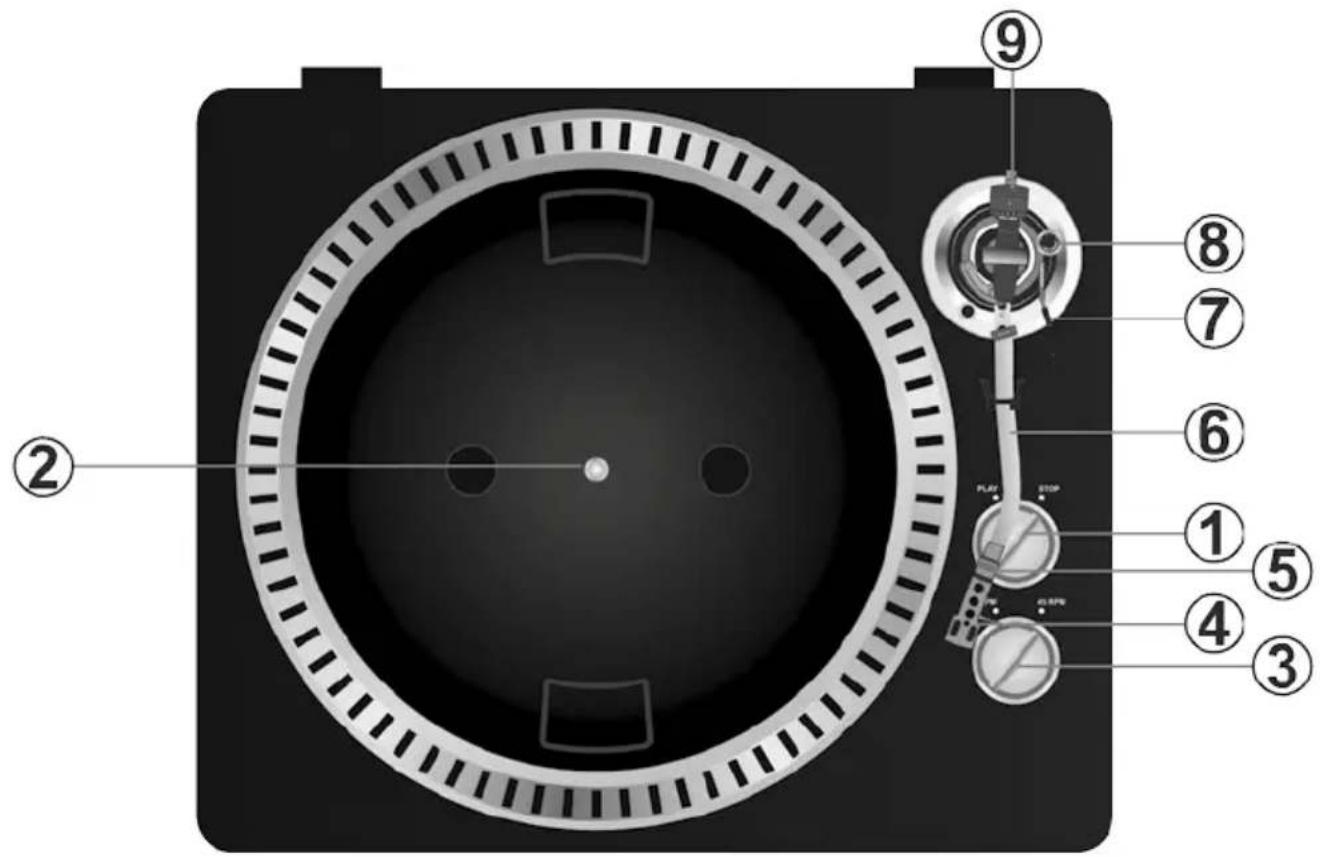
- Start/stop switch
Rotate this switch to start or stop the platter.
- Platter
Note: the platter is equipped with a slip mat. This makes it easier to manipulate the record for scratch performances.
- 33 / 45rpm speed selection switch
- Headshell
Install cartridge here. During installation, attach the stylus protector to guard the stylus tip from damage. Attach wires as follows:
- White (L+) Left channel +
- Blue (L-) Left channel -
• Red (R+) Right channel+ - Green (R-) Right channel -
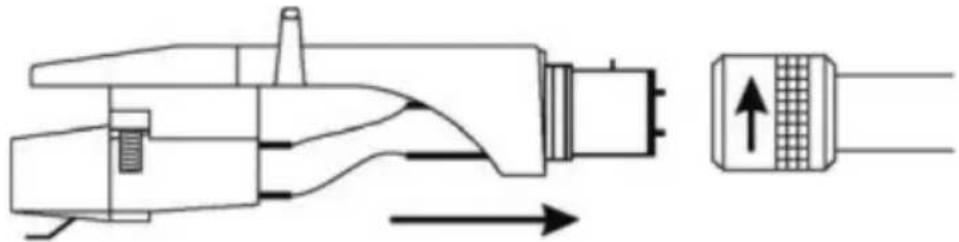
5. Headshell locking nut
Attach the head shell by inserting it into the front end of the tone arm and then turn the locking nut clockwise.
natural_image
Technical line drawing of a mechanical component with directional arrows indicating flow or movement (no text or symbols)6. Tone arm
Fully manual tone arm. To start playback, gently place the stylus on the record using head shell finger support OR use the tone arm lifter.
7. Tonearm lift
Controls the up and down action of the tone arm.
8. Anti-skate knob
Applies inward force to the tone arm so it doesn't skip outwards across the record due to the centrifugal force of the record spinning.
9. Counterweight
Adjustment creates the proper downward pressure of the stylus to the record. Attach now by sliding the counterweight onto the rear of the tone arm. Twist it lightly and it will screw onto the rear shaft of the tone arm. Counterweight adjustment: bring tone arm in 0-level with counterweight. When leveled set scale on counterweight to 0 (watch the stripe). Now turn the counterweight until it shows the specified downward pressure in gram.
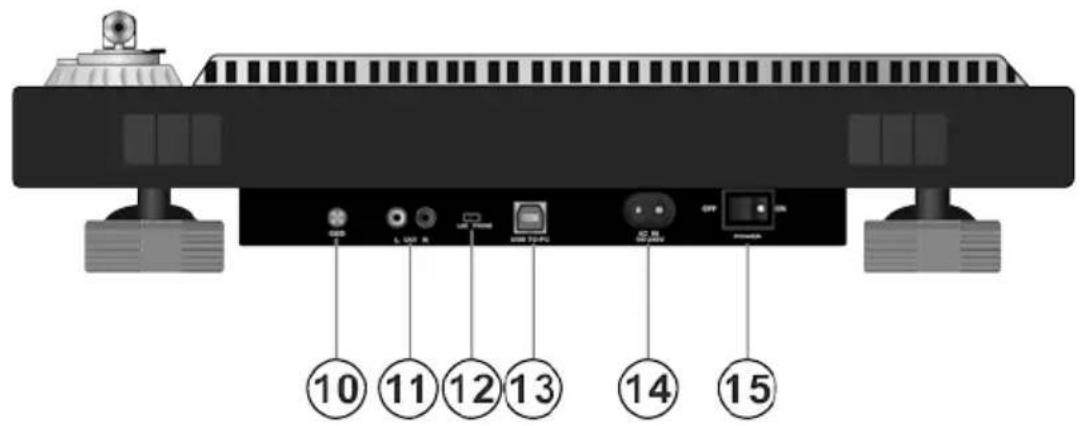
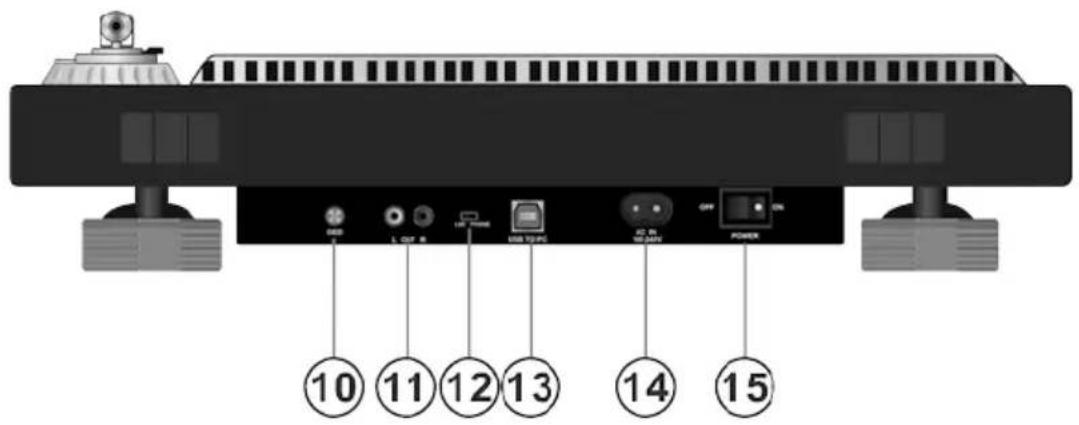
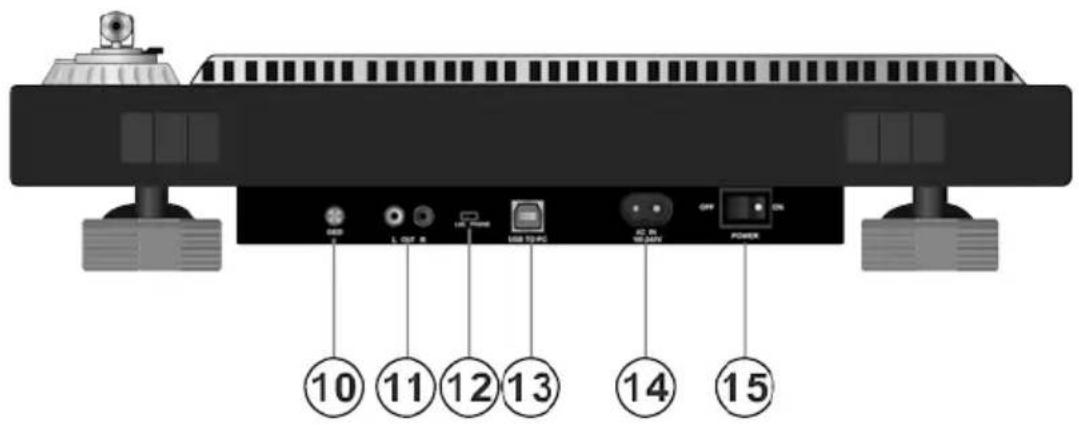
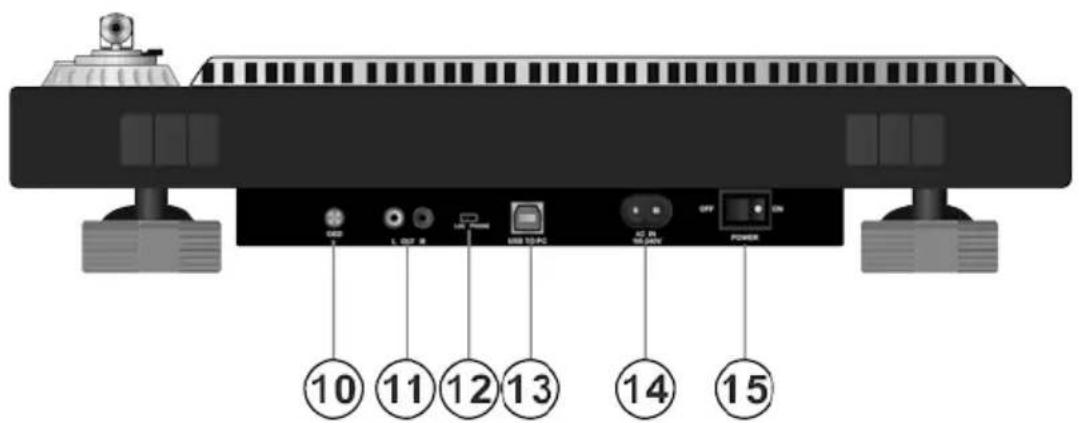
10. Ground
- Output L & R
Standard analog output (RCA jacks) which can be connected either to phone or line input on any DJ mixer, depending on the setting of the phone/line selector.
12. Audio select
Audio selection button
- USB port
Plug USB device.
- Power cord connector
- Power ON/OFF switch
natural_image
Diagram of a CD or DVD disc with a triangular blade and circular base, no text or symbols present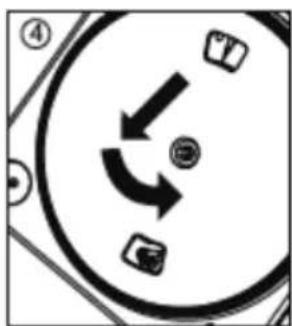
flowchart
graph TD
    A["④"] --> B["②"]
    B --> C["③"]
    C --> D["④"]
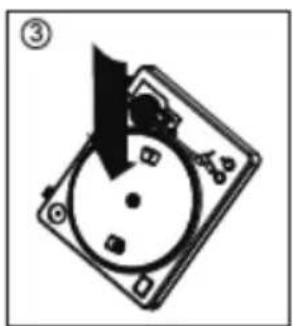
Warning: Incorrect platter setup can lead to poor turntable performance, platter instability or permanent motor damage.
-
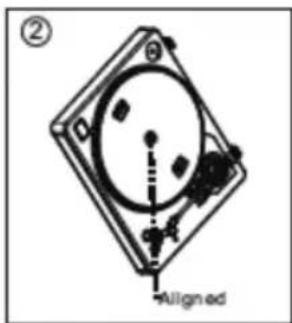
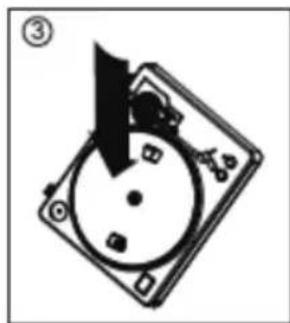
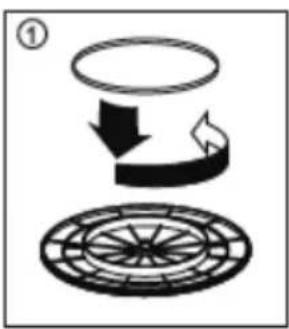
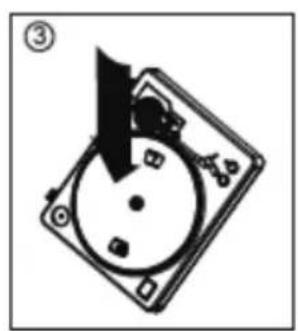
The rubber belt has been pre-installed onto the turntable platter. However, please turn the platter over and make sure that the belt is attached and is not twisted. If the belt has come off during shipping, please place it around the inner bottom ring of the turntable platter, as shown above (no. 1).
-
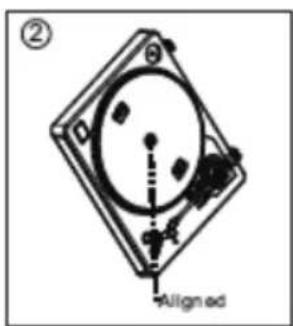
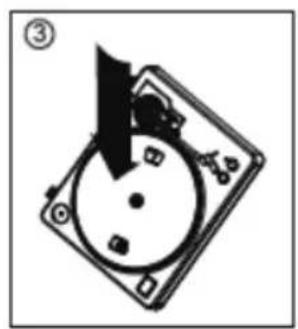
Place the platter on the center spindle and press it down firmly. Rotate the platter until the brass motor spindle is visible through one of the holes. Check to make sure that it rotates uniformly and does not wobble excessively.
-
Pass your fingers through the hole, grip the rubber drive belt and install it over the motor spindle. Be careful not to twist the rubber drive belt during this step. Check to make sure the platter rotates uniformly. If the drive belt is properly installed, there should be a slight amount of tension that brings the platter to a stop after spinning it freely.
AUDACITY SOFTWARE OVERVIEW
Note: Please ensure you have installed the software before starting.
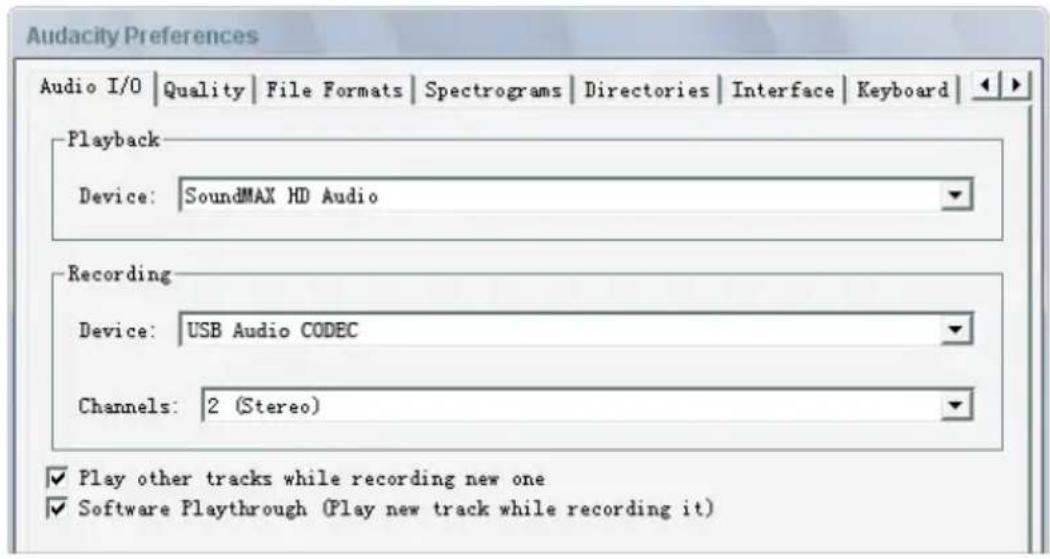
Setting up your PC to work with Audacity
- Connect an input source to the unit
- Connect the USB lead to your computer
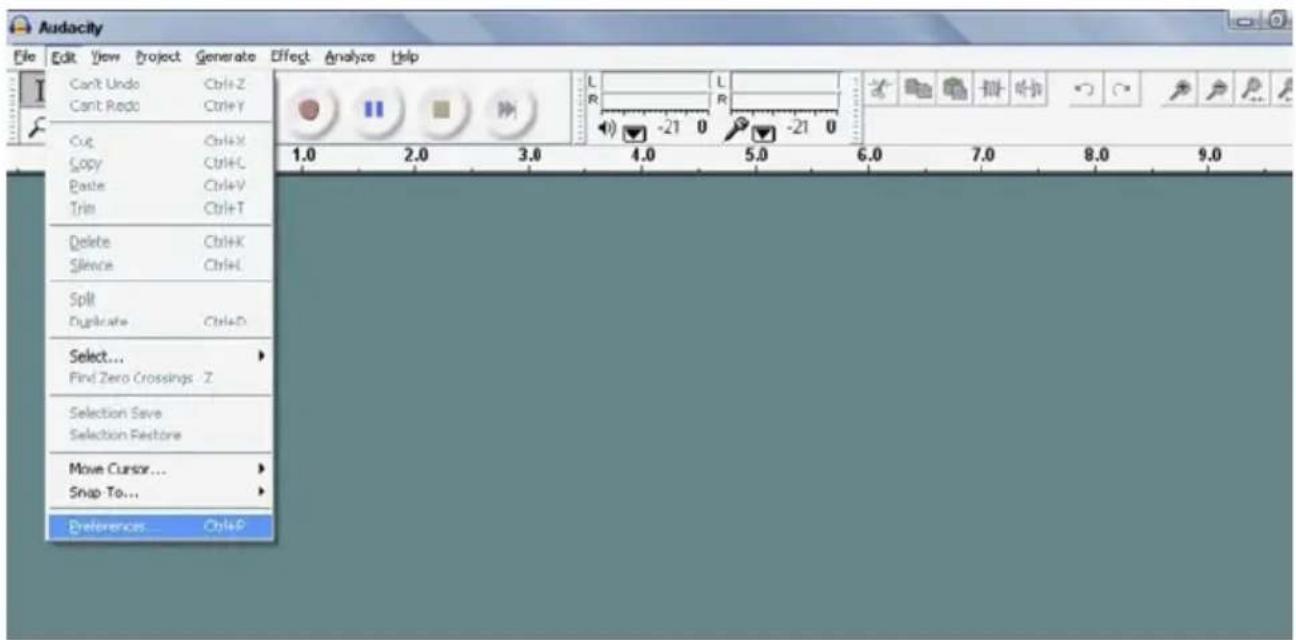
- Open the Audacity program
- Select Preference from the Edit tab in the Audacity menu
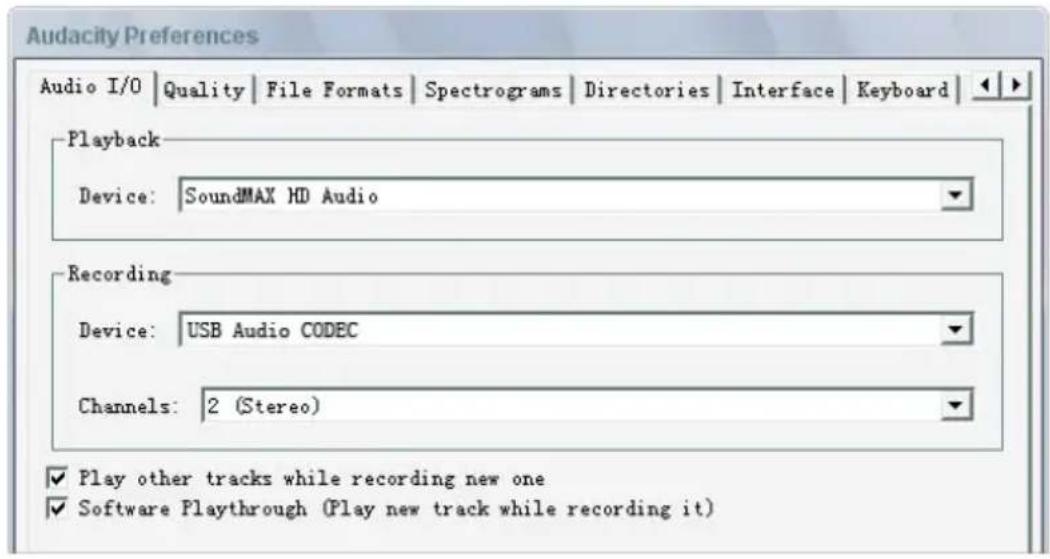
- Select Audio I/O tab at the top left
• Under playback, Device, select desired sound card
• Under Recording, Device, select USB AUDIO CODEC
• Under Recording, Channels, select2 (stereo)
- Check the box marked Play other tracks while recording new one
- Check the box marked software Play through
Recording Albums with Audacity
1. Saving a project
- Audacity write all the changed and recorded audio to directory called projefcftname_data, which is located right where you saved the project file itself
- Thus, select Save project as from your Audacity File tab and choose a location and filename for your project
- Please note that when you startup Audacity fresh, only the "Save As..." menu option is available.
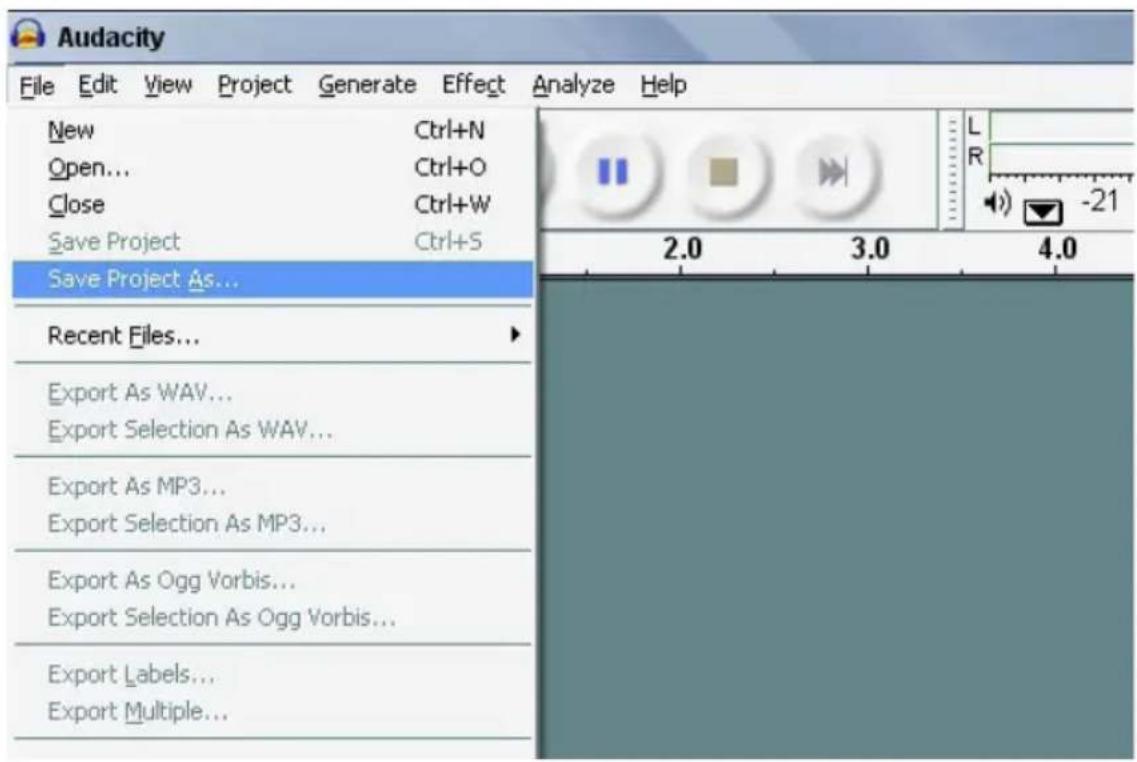
2. How to record
- Set your USB turntable up to play the song or album you want to record
- Click on the red Record button to start the recording.
- Lower tone arm on USB Turntable onto album and track you want to record.
- Click on the blue Pause continue.
button to pause the recording. Press it again to
- Click on the yellow Stop
button.
That's it. You can now play around with your recording and explore the editing capabilities of Audacity.
Remember that you can use the Undo function almost without limits while the project is open. Note: CD'S cannot be burned directly from the Audacity application. Other CD burning applications should be used.
TROUBLESHOOTING
| Problem Suggested solution | |
| Software | |
| can not listen to record while recording | activate “software playthrough” in audacitycheck the record source (USB Audio Codec)check volume settings of your computer |
| can not store songs as MP3 • download LAME MP3-Codec from the internet | |
| can not record • first the player has to be connected with the computer, then AUDACITY may be started. | |
| can only record MONO • mostly this occurs with VISTA. please select in Windows config recording source as „stereo” not „mono” or „microphone” | |
| Player | |
| sound is crackling • make sure this player is connected to a high-level-input of your amplifier. High-level inputs are: CD, AUX, TAPE. The input PHONE is not suitable. The player has a built-in pre-amplifier.• clean the stylus and the vinyl• check for correct counterweight setting• check for correct anti-skating-level | |
| direct recoding is not possible • USB-Stick/Card is write-protected• check correct file system (FAT16) | |
Z
SPECIFICATIONS
• Frequency response: 50 Hz-12 kHz
• S/N ratio: 60 dB
• 2 selectable speeds (33/45 rpm)
- Belt drive
• Starting & braking time: < 1 s.
• Power consumption: 5.5 W
- S-shaped tonearm
• Audacity software included
• USB compatible turntable; vinyl digitizing function (audio recording to PC)
• USB 2.1 (Windows XP, 7, 8,10 and Mac OS X)
• Line level RCA outputs with built-in preamp
- Metal housing
• Power supply: 100-240 V; 50/60 Hz
LEARN MORE
For more information on this product, go to www.krugermatz.com.
Visit www.krugermatz.com website for more products and accessories.
In case of any doubts or questions reach out to our Frequently Asked Questions section.

English
Correct Disposal of This Product
(Waste Electrical & Electronic Equipment)



(Applicable in the European Union and other European countries with separate collection systems) This marking shown on the product or Its literature, indicates that It should not be disposed with other household wastes at the end of its working life. To prevent possible harm to the environment or human health from uncontrolled waste disposal, please separate this from other types of wastes and recycle it responsibly to promote the sustainable reuse of material resources. Household users should contact either the retailer where they purchased this product, or their local government office, for details of where and how they can take this item for environmentally safe recycling. Business users should contact their supplier and check the terms and conditions of the purchase contract This product should not be mixed with other commercial wastes for disposal.
Made in China for LECHPOL ELECTRONICS Sp. z o.o. Sp.k., ul. Garwolińska 1, 08-400 Miętne.
QUESTIONS DE SÉCURITÉ
FR
natural_image
Technical line drawing of a mechanical component with directional arrows indicating flow or movement (no text or symbols)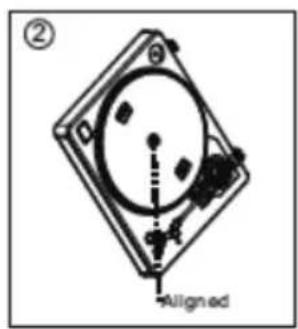
natural_image
Diagram of a mechanical device with a rotating disk and a triangular component inserted (no text or symbols)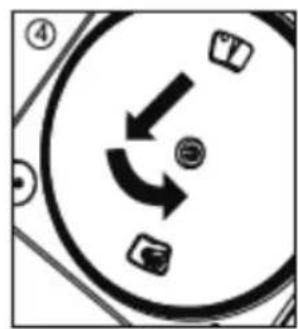
natural_image
Circular diagram with directional arrows and icons, no readable text or symbols2. Enregistrement
- Start/Stop-schakelaar
natural_image
Technical line drawing of a mechanical component with directional arrows indicating flow or movement (no text or symbols)- Pick-up-arm
- Lifthefboom
natural_image
Diagram of a CD or DVD disc with a triangular blade inserted into it, showing internal components (no text or symbols)
natural_image
Circular diagram with directional arrows and icons, no readable text or symbols2. Opnemen
natural_image
Technical line drawing of a mechanical component with directional arrows indicating flow or movement (no text or symbols)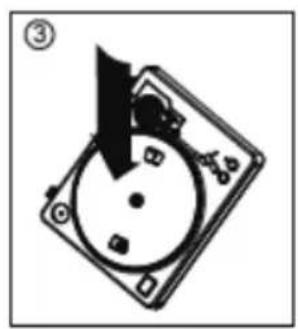
natural_image
Diagram of a CD or DVD disc with a triangular blade inserted into it, showing mechanical components (no text or symbols)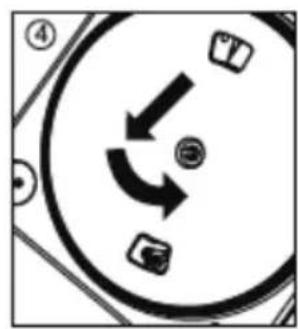
natural_image
Circular diagram with directional arrows and numbered symbols (no readable text or labels)2. Nagrywanie
natural_image
Technical line drawing of a mechanical component with directional arrows indicating flow or movement (no text or symbols)6. Brat pick-up
-
Selectati Audio I/O din partea stanga - sus
-
Pe playback, Device, selectati cardul de sunet dorit
• Pe Recording, Device, selectati USB AUDIO CODEC
• Pe Recording, Channels, selectati 2 (stereo) - Bifati pozitia marcata cu "Play other tracks while recording new one"
• Bifati pozitia marcata "Play through"
Inregistrarea albumelor cu Audacity
2. Cum se inregistreaza
natural_image
Completely black image with no visible content or text.
line
| X | Y | |---|---| | 0.0 | 0.0 | | 0.1 | 0.1 | | 0.2 | 0.2 | | 0.3 | 0.3 | | 0.4 | 0.4 | | 0.5 | 0.5 | | 0.6 | 0.6 | | 0.7 | 0.7 | | 0.8 | 0.8 | | 0.9 | 0.9 | | 1.0 | 1.0 | | 1.1 | 0.9 | | 1.2 | 0.8 | | 1.3 | 0.7 | | 1.4 | 0.6 | | 1.5 | 0.5 | | 1.6 | 0.4 | | 1.7 | 0.3 | | 1.8 | 0.2 | | 1.9 | 0.1 | | 2.0 | 0.0 |
www.krugermatz.com
Krüger&Matz is a registered trademark
- Tonarm
- Aufnehmen
- PRODUCT DESCRIPTION
- Headshell locking nut
- Tone arm
- Tonearm lift
- Anti-skate knob
- Counterweight
- Ground
- Audio select
- AUDACITY SOFTWARE OVERVIEW
- Setting up your PC to work with Audacity
- Recording Albums with Audacity
- Saving a project
- How to record
- TROUBLESHOOTING
- SPECIFICATIONS
- LEARN MORE
- English
- Correct Disposal of This Product
- (Waste Electrical & Electronic Equipment)
- QUESTIONS DE SÉCURITÉ
- Enregistrement
- Opnemen
- Nagrywanie
- Brat pick-up
- Inregistrarea albumelor cu Audacity
- Cum se inregistreaza
Brand : Krüger&Matz
Model : TT-602
Category : Turntable