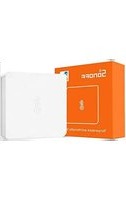
SNZB-02 - Humidifier Sonoff - Free user manual and instructions
Find the device manual for free SNZB-02 Sonoff in PDF.


| Product Type | ZigBee Temperature and Humidity Sensor |
| Brand | Sonoff |
| Model | SNZB-02 |
| Dimensions (L x W x H) | 43 x 43 x 14 mm |
| Weight | Approx. 30 g (with battery) |
| Power Supply | 1 CR2450 battery (3 V) |
| Wireless Connection | ZigBee 3.0 (IEEE 802.15.4) |
| Operating Temperature Range | -10 °C to 40 °C |
| Operating Humidity Range | 10% to 90% RH (non-condensing) |
| Housing Material | PC (polycarbonate) |
| Main Functions | Real-time temperature and humidity monitoring, low battery notification, smart scene creation via gateway |
| Pairing | Via eWeLink app, press reset button for 5 seconds |
| Care and Cleaning | Clean with a soft, dry cloth. Do not immerse in water. |
| Safety | Do not install on a metal surface. Recommended installation height < 2 m. |
| Spare Parts and Repairability | CR2450 battery replaceable. No other spare parts available. |
Frequently Asked Questions - SNZB-02 Sonoff
User questions about SNZB-02 Sonoff
0 question about this device. Answer the ones you know or ask your own.
Ask a new question about this device
Download the instructions for your Humidifier in PDF format for free! Find your manual SNZB-02 - Sonoff and take your electronic device back in hand. On this page are published all the documents necessary for the use of your device. SNZB-02 by Sonoff.
USER MANUAL SNZB-02 Sonoff
natural_image
Simple line drawing of a thermometer inside a rounded square (no text or symbols)Temperature and Humidity Sensor
中文----1-5
Deutsch---- 11-15
Français----21-25
Русский язык----31-35
English----6-10
Español----16-20
Italiano----26-30
Português----36-40
natural_image
Two-step diagram showing a mechanical component before and after being processed, with no visible text or symbols.3. 添加子设备
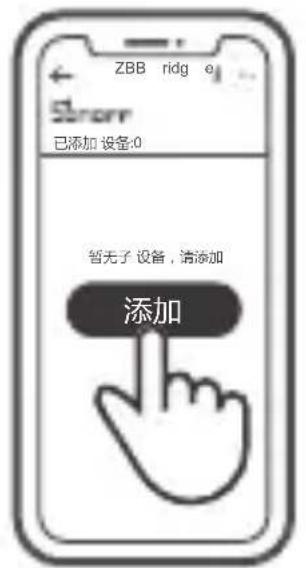
① 添加子设备前,请先连接网关。
natural_image
Hand cursor clicking a button on a rectangular device (no text or symbols)natural_image
Simple line drawing of a laptop on a table (no text or symbols)natural_image
Simple line drawing of a rectangular box with a curved arrow pointing to the top-right corner (no text or symbols)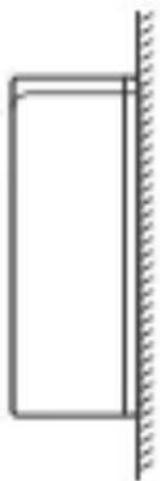
natural_image
Simple line drawing of a rectangular object with a vertical wall and diagonal hatching (no text or symbols)The device can be operated intelligently via working with the SONOFF ZigBee Bridge to communicate with other devices.
The device can work with other gateways supporting ZigBee 3.0 wireless protocol. Detailed information is in accordance with the final product.
Operation instruction
1. Download APP

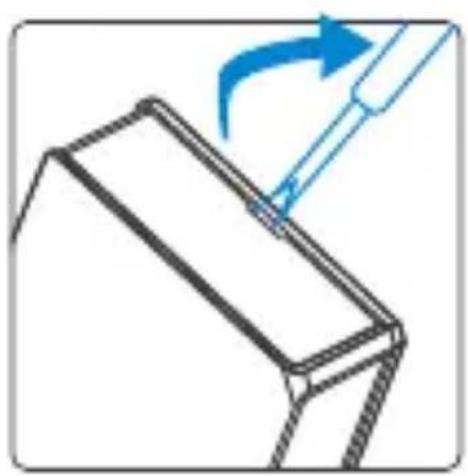
2. Pull out the battery insulation sheet
natural_image
Diagram showing a tool interacting with a rectangular object, no text or symbols present
natural_image
Hand holding a square mechanical component with a blue arrow pointing to it, no visible text or symbols3. Add sub-devices
Connect the Bridge before adding the sub-device
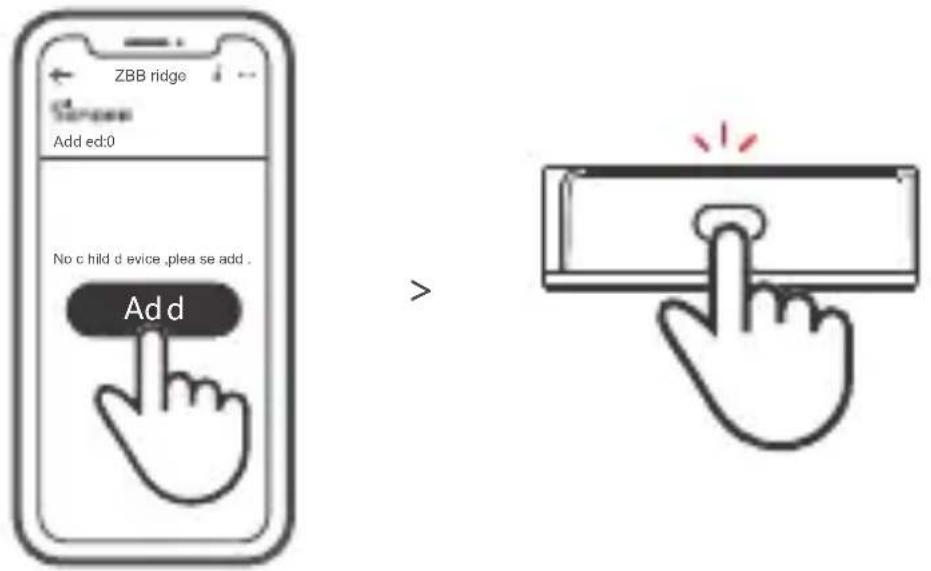
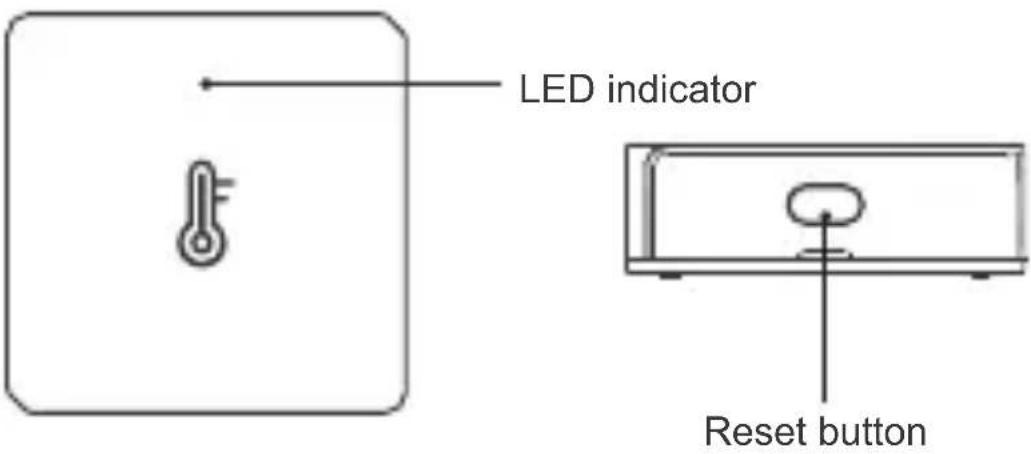
Access eWeLink APP, select the Bridge that you want to connect, and tap "Add" to add a sub-device. Then long press reset button on the device for 5s until the LED indicator flashes three times, which means the device has entered the pairing mode, and be patient until pairing completes.
If the addition failed, move the sub-device closer to the Bridge and try again.
Specifications
| Model | SNZB-02 |
| Battery model | CR2450(3V) |
| Wireless connection | ZigBee (IEEE 802.15.4) |
| Working temperature | -10°C~40°C |
| Working humidity | 10-90%RH (non-condensing) |
| Material | PC |
| Dimension | 43x43x14mm |
Product Introduction
Features
SNZB-02 is a ZigBee low-energy temperature & humidity sensor that can be used to monitor the environment temperature and humidity in real time. Connect it with the Bridge and you can create a smart scene to trigger other devices.
Low-energy
Temperature and humidity monitoring

Low battery notification

Smart scene
SONOFF ZigBee Bridge supports connecting multiple sub-devices at the same time.
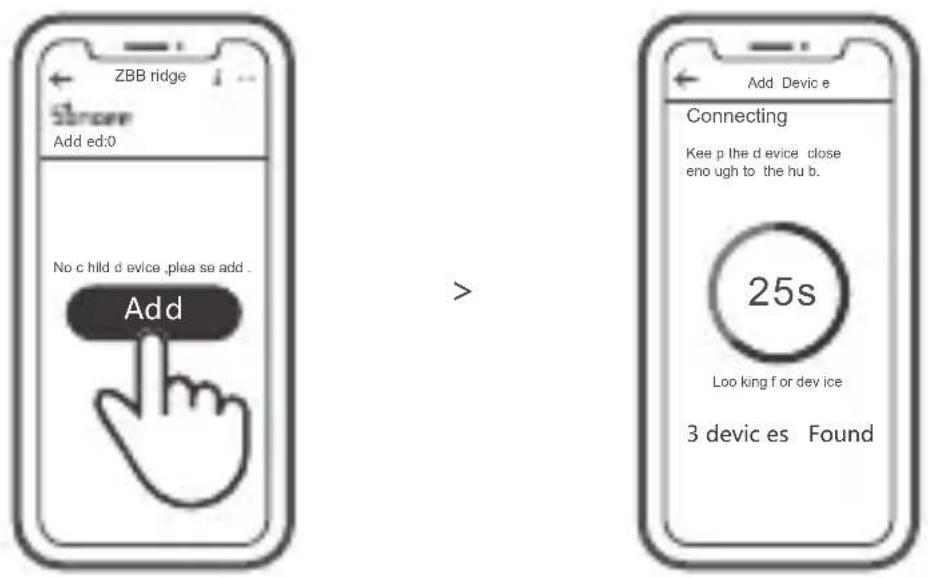
Power the Bridge on, access the Bridge page in the eWeLink APP, and tap "Add". Then set the sub-device to be paired to the pairing mode, and be patient until the pairing completes.
Delete sub-devices
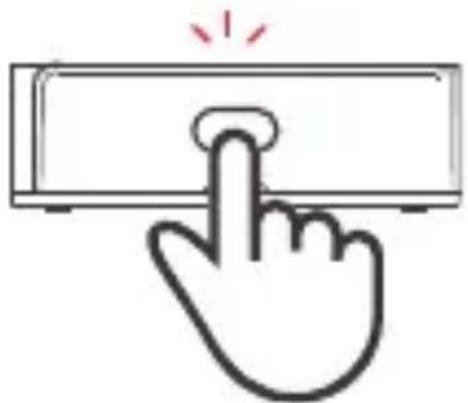
Long press the reset button on the sub-device for 5s until the LED indicator flashes three times. In this case, the sub-device is deleted from the Bridge successfully.
natural_image
Hand cursor clicking a button on a computer screen (no text or symbols)Users can delete sub-devices directly from the sub-device page on APP.
Installation methods
- Placed on the desktop for use.

natural_image
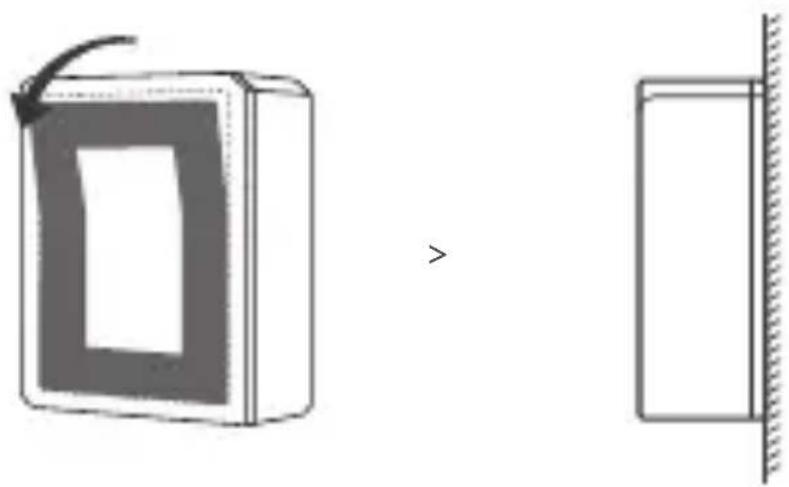
Simple line drawing of a laptop on a table (no text or symbols)- Tear off the protective film of the 3M adhesive and stick the device on the desired area.
natural_image
Diagram showing a device with a scroll and a separate rectangular panel, both without any text or symbols.Do not install on the metal surface, otherwise it will affect the wireless communication distance.
The device weight is less than 1 kg. The installation height of less than 2 m is recommended.


natural_image
Two-step diagram showing a mechanical component before and after being processed, with no visible text or symbols.natural_image
Hand cursor clicking a button on a computer screen (no text or symbols)natural_image
Simple line drawing of a laptop on a table (no text or symbols)natural_image
Diagram showing a device with a cover and a separate panel, both without any text or symbols.

natural_image
Two-step diagram showing a mechanical component before and after being processed, with no visible text or symbols.natural_image
Hand cursor clicking a button on a computer screen (no text or symbols)natural_image
Simple line drawing of a laptop on a table (no text or symbols)natural_image
Diagram showing a device with a scroll and a separate rectangular panel, both without any text or symbols.

natural_image
Two-step diagram showing a mechanical component before and after being processed, with no visible text or symbols.natural_image
Hand cursor clicking a button on a computer screen (no text or symbols)natural_image
Simple line drawing of a laptop on a desk (no text or symbols)natural_image
Diagram showing a device with a cover and a separate panel, both without any text or symbols.

natural_image
Two-step diagram showing a mechanical component before and after being processed, with no visible text or symbols.natural_image
Hand cursor clicking a button on a computer screen (no text or symbols)natural_image
Simple line drawing of a laptop on a desk (no text or symbols)natural_image
Diagram showing a device with a scroll and a separate rectangular panel, both without any text or symbols.natural_image
Diagram showing a tool interacting with a mechanical component, no text or symbols present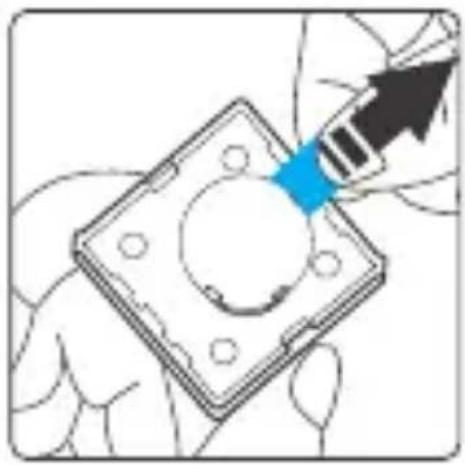
natural_image
Hand holding a square mechanical component with a blue arrow pointing to it, no text or symbols present.natural_image
Hand cursor clicking a button on a computer screen (no text or symbols)natural_image
Simple line drawing of a laptop on a table (no text or symbols)natural_image
Diagram showing a device with a cover and a separate panel, both without any text or symbols.natural_image
Two-step diagram showing a mechanical component before and after being processed, with no visible text or symbols.natural_image
Hand cursor clicking a button on a computer screen (no text or symbols)natural_image
Simple line drawing of a laptop on a table (no text or symbols)natural_image
Diagram showing a device with a cover and a separate panel, both without any text or symbols.Chan ges or modifi cations n ot expres sly approved by the party resp onsib le for compliance cou ld a void the use r 's author ity to oper ate the equi pment.
This device complies with part 15 of the FCC Rules. Operation is subject to the following two conditions: (1) This device may not cause harmful interference, and (2) this device must accept any interference received, including interference that may cause undesired operation.
FCC Radiation Exposure Statement:
This equipment complies with FCC radiation exposure limits set forth for an uncontrolled environment. This equipment should be installed and operated with minimum distance20cm between the radiator & your body. This transmitter must not be co-located or operating in conjunction with any other antenna or transmitter.
Note:
This equipment has been tested and found to comply with the limits for a Class B digital device, pursuant to part 15 of the FCC Rules. These limits are designed to provide reasonable protection against harmful interference in a residential installation. This equipment generates, uses and can radiate radio frequency energy and, if not installed and used in accordance with the instructions, may cause harmful interference to radio communications. However, there is no guarantee that interference will not occur in a particular installation. If this equipment does cause harmful interference to radio or television reception, which can be determined by turning the equipment off and on, the user is encouraged to try to correct the interference by one or more of the following measures:
— Reorient or relocate the receiving antenna.
— Increase the separation between the equipment and receiver.
— Connect the equipment into an outlet on a circuit different from that to which the receiver is connected.
— Consult the dealer or an experienced radio/TV technician for help.
Hereby, Shenzhen Sonoff Technologies Co., Ltd. declares that the radio equipment type SNZB-02 is in compliance with Directive 2014/53/EU. The full text of the EU declaration of conformity is available at the following internet address:
https://sonoff.tech/usermanuals
TX Frequency:
ZigBee : 2405-2480MHz
MAX PER :
2.21 ( 2405MHz ) , 2.24 ( 2480MHz

Shenzhen Sonoff Technologies Co., Ltd.
1001, BLDG8, Lianhua Industrial Park, shenzhen, GD, China
ZIP code: 518000
Website: sonoff.tech
MADE IN CHINA



- Temperature and Humidity Sensor
- 添加子设备
- Operation instruction
- Download APP
- Pull out the battery insulation sheet
- Add sub-devices
- Product Introduction
- Features
- SONOFF ZigBee Bridge supports connecting multiple sub-devices at the same time.
- Delete sub-devices
- Installation methods
- FCC Radiation Exposure Statement:
- Note:
- Shenzhen Sonoff Technologies Co., Ltd.
Brand : Sonoff
Model : SNZB-02
Category : Humidifier