CK4W - Keyboard GETT - Free user manual and instructions
Find the device manual for free CK4W GETT in PDF.


| Product Type | Touch Keyboard |
| Brand | GETT |
| Model | CK4W |
| Technology | Capacitive, glass surface |
| Connectivity | Wired USB or wireless (USB dongle) |
| Power Supply | Rechargeable battery (charges via USB or included power adapter) |
| Battery Life | Not specified, full charge in 8-10 hours |
| Main Functions | Keylock, sensitivity adjustment, volume adjustment, battery indicator, battery key |
| LED Indicators | 8-LED bar for status, battery, cleaning required (<25%) |
| System Compatibility | Standard USB HID (Windows, Linux, Mac OS) |
| Cleaning and Maintenance | Soft cloth with household cleaner (vinegar or alcohol), disinfection possible |
| Keyboard Lock | Press and hold Keylock/Pause key for 2 seconds |
| Sensitivity Adjustment | Sensitivity key, levels by successive presses |
| Volume Adjustment | Volume key, levels by successive presses |
| Battery Indication | Press Battery key, display on 8 levels |
| Operating Temperature | 0°C to 45°C (charging), -20°C to 60°C (discharging) |
| Precautions | Do not expose to water, shocks, heat (>60°C), do not open the housing |
| Spare Parts | Not mentioned, contact support |
| After-Sales Service | support@gett-group.com, www.gett-group.com |
| Manufacturing | Germany |
Frequently Asked Questions - CK4W GETT
User questions about CK4W GETT
0 question about this device. Answer the ones you know or ask your own.
Ask a new question about this device
Download the instructions for your Keyboard in PDF format for free! Find your manual CK4W - GETT and take your electronic device back in hand. On this page are published all the documents necessary for the use of your device. CK4W by GETT.
USER MANUAL CK4W GETT
Putting the CK4 into service (wired version)
Connect the keyboard's USB cable to a free USB port on your computer. The initialization procedure is taking place when the LED lights flash on the status bar. This procedure may take a few seconds; the time required depends on the system that you are using. The driver initialization is confirmed by the operating system through a final single chase of the LED lights. After this, the keyboard has been registered on your computer as an HID keyboard. You can now use the keyboard without any problems.
Using the CK4W for the first time (wireless version)
Charging the keyboard:
- If a new keyboard is being used for the first time, first fully charge the battery. The device must be switched on using the On/Off button before starting the charging process.
Linking the dongle & keyboard:
- Place the USB dongle in one of your computer's USB ports.
- Switch the keyboard on by pressing the On/Off button.
- Once the keyboard has been switched on, the row of LED lights is illuminated sequentially (chase) and the USB dongle has a red light as long as the keyboard and the dongle have not been connected to each other. If the LED lights do not come on after the keyboard has been switched on, there is not enough power in the battery and it needs to be charged.
- You create the connection between the two devices by briefly pressing the "Connect" button on the keyboard and USB dongle.
- As soon as the connection has been made, the chase goes off and the light on the dongle turns green.
The keyboard is then ready for use.
Please note the following when using the CK4W:
- As long as the connection between the dongle & the keyboard is established, the keyboard remains switched on.
- If the connection between the keyboard and the dongle is interrupted (e. g. switching off the PC), the keyboard switches off automatically after 3 minutes. This is not a sleep or standby mode. The keyboard is in fact switched off (AKKU protection). You need to switch on the keyboard with the On/off button to use it again.
- When shutting down the PC and the USB port (light of USB dongle is switched off), the CK4W can either be switched off with the On/Off button or it switches itself off automatically after 3 minutes. If the USB port is not switched off with shutting down the PC (USB dongle light remains green) the CK4W needs to be switched off manually using the On/Off button.
- Once the PC has been booted the keyboard needs to be switched on again using the On/Off button.
- The pairing action (pressing the "Connect" button on the keyboard and the dongle) is, however, only necessary when using the unit on a PC for the first time.
- In order to charge the battery, the keyboard must also be switched on (using the On/Off button).
"Cleankeys" is THE brand for designer keyboards with a touch surface made of glass. They feature the combination of aesthetics, operating comfort and a high level of hygiene. They are therefore the perfect solution for discerning users, who place importance on design, cleanliness and a high degree of usefulness.
Information on your Cleankeys keyboard
Cleankeys keyboards are high-quality devices with an user interface made of glass. The development and production work takes place in Germany under stringent quality conditions. These operating instructions will help you to start using the keyboard without any problems, operate it safely and maintain it properly.
System requirements
The PC system, to which you connect your Cleankeys keyboard, must include the following:
- An USB port 1.0, 1.1 or 2.0 compatible
- An operating system with standard USB HID support (e.g. Windows, Linux, Mac OS)
Putting the unit into operation
Connect the USB cable on the keyboard to a free USB port. The LED status bar lights up to indicate that initialisation is taking place. This procedure normally* takes two seconds and ends when all the LEDs light up individually and the driver initialization is confirmed by the operating system. After this, the keyboard is registered on your computer as an HID keyboard. You can now use the keyboard without any problems.
- Longer initialisation times may occur, depending on the operating system in use
Using the keyboard
The layout of the Cleankeys keyboards reflects the alphanumeric characters of the relevant country version with the normal arrangement. Please note that the correct output of the country-specific characters is not controlled by the keyboard, but always by the operating system in use. You can select the language layouts via the region and language menu. Integrated touch pads automatically register on the system too.
The so-called touch principle is used to actually operate the keyboard. It is not necessary to exert any pressure on the key concerned, but simply use a light touch on the surface.
It is possible to operate the keyboard with gloves, if they are made of thin latex or silicone (normal hygienic gloves). Gloves made of materials like wool or leather are not suitable for operating the unit.

cleankeys
Special keys and functions
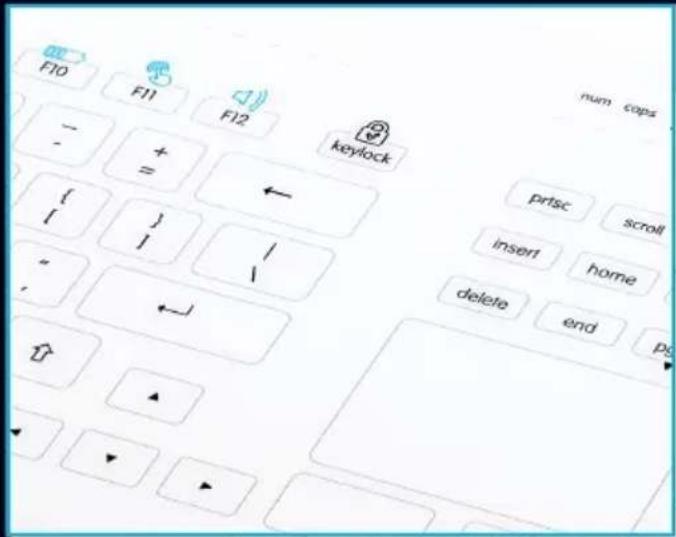
In addition to the standard set of characters, Cleankeys keyboards have special keys for handling special functions.
CK4


CK4W


Keylock
You use this key to deactivate the key and touch pad function so that you prevent any unintentional triggering (e.g. when cleaning the keyboard).
In order to lock the keyboard, place your finger on the "keylock" key for about 2 seconds. The LED status bar will flash and then stay on permanently. The key and touch pad function is then locked. To unlock it, place your finger on the key again. When the LED status bar is no longer illuminated, the keys are active again.

CK4 + CK4W
Sensitivity
You use this key to adjust the sensitivity of the keys. Depending on the user's feeling, you can set the keyboard for "lighter" or "harder" activation.
The sensitivity setting takes place by pressing the key. With each touch, the LED status bar increases by two LEDs; this means an increase in the level of sensitivity. When all eight LEDs are lit up, the highest sensitivity level has been reached. Please wait until the LEDs stop flashing and do not touch the keyboard while this is taking place. The device then adopts this setting.
Volume
You use the "volume" key to change the acoustic signal when operating the keys. For this purpose, the length of the sound signal is changed, which is then perceived differently. Touch the key; each time that you touch it, the LEDs on the status bar will increase. When all eight LEDs are lit up, the sound frequency is highest; the sound is switched off with one LED. Please wait until the LEDs stop flashing. The device then adopts this setting.
Status key:
If you press the status key, the state of charge is displayed in eight levels on the LED bar.

CK4
CK4W

CK4

CK4W
CK4W
cleankeys
Faults
Faults may occur when operating the keyboard if particular materials and substances stick to the surface. This particularly applies to drops of water, but also oil or grease. It is easy to remove them by cleaning the keyboard.
Cleaning and caring for the keyboard
If Cleankeys keyboards are used in normal conditions, the keys do not suffer any wear and tear. Their well-engineered technical design and their high-quality workmanship ensure that they are long-lasting products.
However, please take note of the following factors in order to guarantee a long serviceable life for your device:
- Do not drop the keyboard!
- Prevent any impacts and blows!
- Do not place any hard objects on the glass surface!
- Do not immerse the device in water or clean it with running water!
- Do not expose the unit to any permanent and intense sunlight!
- Do not permanently operate the unit outside the specified temperature range!
Cleaning and disinfection
With their surface made of glass, Cleankeys keyboards are ideally suited for cleaning and disinfection over a long period of time. Once you have locked the key functions, the complete glass surface can be cleaned. This makes them suitable for use in hygiene-sensitive environments.
Only use a soft cloth and normal household cleaning agents or disinfectants to clean the unit. Exert slight pressure with a cloth, which has been soaked in the cleaning agent and then squeezed to remove most of the moisture, and remove any dirt with circular movements.
Then wipe the cleaned surface with a damp cloth in order to remove any remaining cleaning agent. For ideal care, we recommend household cleaners that include vinegar or alcohol-based disinfectants.
Never use any abrasive materials like steel wool or aggressive scouring agents to loosen any stubborn contamination.
Support
If you have any questions, please send them to our service department.
Please use this e-mail address: support@gett-group.com or make use of the chat tool on our home page.
More information is available on our website: gett-group-service.com

standard modifications
- Adding a logo/brand (1-4 colors)
New country layout - Individual GUI design
- Reducing the keyboard cable length
- Changing the key table (HID standard)
cleankeys
(Special operating and display elements on the CK4-Wireless)
Keys on the rear
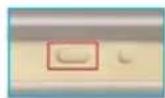
On/Off:
Use this key to switch the unit on and off.
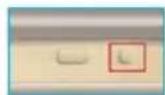
Connect:
Briefly press the connect key on the keyboard and on the attached USB dongle to establish a connection between the two devices. If the keyboard and dongle are not connected, the string of 8 LEDs displays a chase and the dongle light is red. The chase goes off and the dongle light turns green as soon as a connection has been established.
Additional keys on the user interface
Status key:
If you press the status key, the state of charge is displayed in eight levels on the LED bar.
Additional display functions

Cleaning needed:
After you have pressed the keys 10,000 times, the red "Cleaning needed" LED lights up (spray bottle symbol) and indicates that the keyboard should be cleaned. The display goes off by locking the keyboard with the keylock key before cleaning and unlocking it afterwards.
Battery <25%:
If the battery has less than 25% power left, the red "Battery < 25% LED lights up (symbol of battery with a lightning bolt).
Other information
Charging the battery
Please use nothing but the enclosed USB cable to charge the battery. You can charge it either via the USB port on a PC (restricted to 500mA by the keyboard) or using the enclosed charging adapter at a power socket (1 A max.).
Data transfer by USB
If the keyboard is connected to a PC via a USB cable, no connection is established for any wireless transmission. Data transmission then takes place by USB.
LED status display

* One LED corresponds to 12.5 %.
cleankeys
Precautionary measures and instructions for use
- Do not dry the keyboard with sources of heat like a microwave oven, hair-dryer or radiator.
- Do not expose the keyboard to a naked flame.
- Do not leave the keyboard in a car or other environments with high temperatures.
- Do not use the keyboard at temperatures higher than 60^ C.
- Do not dismantle, damage, distort or change the keyboard.
- Do not drop or throw the keyboard or subject it to any powerful vibration.
- Store the keyboard preferably in a dry, cool place.
- Do not use the keyboard in conjunction with any devices that produce any strong electromagnetic radiation.
- It is not possible to use the wireless and USB connections at the same time.
- Do not use the keyboard until the operating system has recognized and initialized it.
- The casing must not be opened under any circumstances.
- Only charge the battery with the accessories provided.
- Do not use the keyboard any longer if the battery is "loose" (e.g. after it has been dropped).
Instructions for handling the battery
- Only use the enclosed battery charger.
- The keyboard must be switched on at the start of any charging procedure.
- A full charging cycle takes approx. 8 - 10 hours.
- We recommend that you do not start charging the battery again until the red LED comes on (battery < 25% ).
- Fewer recharging cycles mean that the battery's operating life is extended.
- You may only recharge the battery at temperatures between 0^ and 45^ .
- If the keyboard is operated permanently with a charging cable, it is better to use it on a PC (i.e. in USB mode). It is possible to permanently use it with the charging adapter, but this is not recommended, as it leads to greater wear and tear on the battery. If this is the case, please consider whether it would not be better to use the cable-based version.
- The battery must be fully charged before you use the unit for the first time.
The keyboard should not be charged to more than 80% if it has not been used for some time. - You should not discharge the battery at temperatures lower than -20^ or higher than 60^ .
If the battery is faulty
- If any fluid from the battery comes in contact with skin or clothes, rinse the affected area with water immediately.
- If the fluid comes in contact with your eyes, it may cause serious harm. Rinse your eyes immediately with water and go and see a doctor.
- You should not continue using a damaged keyboard, a keyboard that is not functioning properly (e.g. if it is too hot) or a keyboard that has been subjected to one of the aforementioned problems. The same applies if a fault can be seen. If this is the case, please send the keyboard to the manufacturer for repair.
cleankeys
Modifications standards
Internet: www.gett-group.com
www.washable-keyboards.com