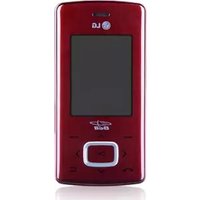
L3100 - Cellphone LG - Free user manual and instructions
Find the device manual for free L3100 LG in PDF.


| Product Type | Mobile phone |
| Brand | LG |
| Model | L3100 |
| Network technology | GSM 900 / DCS 1800 |
| Display | Color display |
| Camera | Built-in, resolution up to VGA (640x480) |
| Phone memory | 200 entries in phonebook |
| SIM memory | Depends on SIM card |
| Power supply | Standard rechargeable Li-Ion battery, mains charger |
| Main functions | Calls, SMS, MMS, camera, calendar, alarm, calculator, unit converter, voice memo, Java games, WAP browser |
| Audio profiles | Vibration only, Silent, General, Loud, Headset, Car kit |
| Connectivity | GPRS, WAP, data cable |
| Security | PIN code, PUK code, phone lock, automatic keypad lock |
| Maintenance and cleaning | Clean with a dry cloth, do not use solvents |
| Spare parts and repairability | LG original battery, charger, headset; repair by authorized technician |
| SAR (10g) | 0.323 W/kg |
| Operating temperature | -10°C to +55°C |
| Weight | Approximately 85 g (estimated) |
| Dimensions | Approximately 102 x 46 x 19 mm (estimated) |
Frequently Asked Questions - L3100 LG
User questions about L3100 LG
0 question about this device. Answer the ones you know or ask your own.
Ask a new question about this device
Download the instructions for your Cellphone in PDF format for free! Find your manual L3100 - LG and take your electronic device back in hand. On this page are published all the documents necessary for the use of your device. L3100 by LG.
USER MANUAL L3100 LG
natural_image
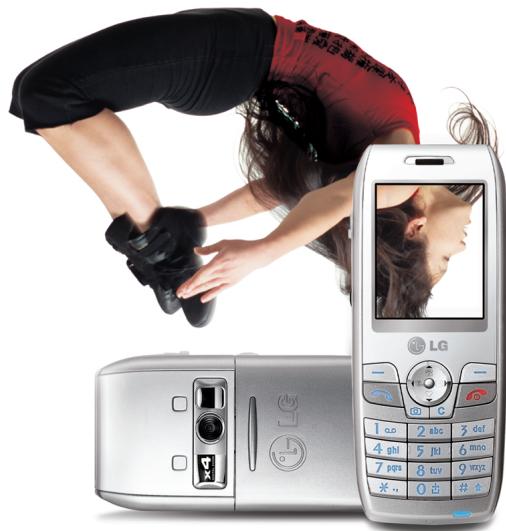
Illustration of a silver LG mobile phone with a screen displaying a cartoon character (no text or symbols visible)P/N : MMBB0121908
Revision 1.1 PRINTED IN KOREA
MODELE: L3100

LG
FRANÇAIS ENGLISH
natural_image
Two silver LG phones with camera lenses, one stretching and the other holding a photo of a person in motion (no visible text or symbols on main devices)CE 0168
GUIDE DE L'UTILISATEUR
Téléphone GPRS & MMS
GUIDE DE L'UTILISATEUR
MODÈLE: L3100
text_image
Diagram showing hands holding a smartphone with labeled parts 1, 2, and 3 indicating different components or functions.natural_image
Illustration of hands holding a handheld device with a blue arrow indicating action (no text or symbols present)natural_image
Illustration of a hand holding a smartphone with a blue arrow indicating the right-hand side (no text or symbols present)natural_image
Illustration of hands holding a smartphone with a labeled component (no text or symbols present)natural_image
Illustration of hands holding a flip-flop device (no text or symbols visible)Remarque
natural_image
Illustration of two hands holding a small object, possibly a battery or connector (no text or symbols visible)natural_image
Illustration of a hand holding a mobile phone with a magnified view of a device (no text or symbols present)natural_image
Illustration of a hand inserting a small electronic component into an electrical outlet (no text or symbols)Activer [Menu 1-x-1]
Ecrire MMS [Menu 5-2]
Signature [Menu 5-8-3]
Effacer album [Menu 6-5-2]
Service SIM [Menu 8-2]
natural_image
Illustration of a CD, DVD, and USB drive components (no text or symbols)CD/Kit pour données
Please read this manual carefully before operating your mobile phone.
Retain it for future reference.
All radio transmitters carry risks of interference with electronics in close proximity.

Mobile Phones must be switched off at all times in an aircraft.

Do not use your phone near petrol stations, fuel depots, chemical plants or blasting operations.

Switch off the phone in any area where required by special regulations. For example, do not use your phone in hospitals or it may affect sensitive medical equipment.

Minor interference may affect TVs, radios, PCs, etc.

Do not hold the phone in your hand while driving.

Do not dismantle the phone or battery.

Keep the phone in a safe place out of children's reach. It includes small parts which if detached may cause a choking hazard.

Do not touch the charger or phone with wet hands.

For your safety, use ONLY specified ORIGINAL batteries and chargers.
Please note:

Batteries should be disposed of in accordance with relevant legislation.

Only use ORIGINAL accessories to avoid damage to your phone.

Emergency call may not be available under all cellular networks. Therefore, you should never depend solely on the phone for emergency calls.
Important Information
- This user's guide contains important information on the use and operation of this phone. Please read all the information carefully for optimal performance and to prevent any damage to or misuse of the phone. Any changes or modifications not expressly approved in this user's guide could void your warranty for this equipment.
- In spite of the attention to details used in this manual, some features of the phone may be slightly different from the description in this manual. For further information on the product, contact your local LG Customer Care.
Overview
Part of the Phone 9
- Front of the Phone 9
- Rear of the Phone 10
Key Description 11
- Side of the Key 12
- Letter Keys 13
Display Information
Display Information 14
- On-Screen Icons 14
Getting Started
Installation 16
- Inserting the SIM Card 16
- Removing the SIM Card 16
- Installing the Battery 17
- Charging the Battery 18
- Disconnecting the charger 19
Making and Answering Calls 20
- Making a call 20
• International Calls 20 - Making a call using the Phonebook 20
Additional Functions
In call Menu 21
- During a call 21
- Multiparty or Conference Calls 23
Access Codes 26
- PIN code (4 to 8 digits) 26
- PIN2 code (4 to 8 digits) 26
- PUK code (4 to 8 digits) 26
- PUK2 code (4 to 8 digits) 26
- Security code (4 to 8 digits) 27
Accessing the Menu
Menu Tree 28
Profiles [Menu 1] 30
- Vibrate only [Menu 1-1] 30
- Silent [Menu 1-2] 30
- General [Menu 1-3] ....30
- Loud [Menu 1-4] 30
- Headset [Menu 1-5] 30
- Car [Menu 1-6] 30
Call register [Menu 2] 33
- Missed calls [Menu 2-1] 33
- Received calls [Menu 2-2] 33
- Dialled calls [Menu 2-3] ....33
- Delete recent calls [Menu 2-4] 33
- Call charges [Menu 2-5] 33
• GPRS information [Menu 2-6] 36
Tools [Menu 3] 37
- Calculator [Menu 3-1] 37
- Unit converter [Menu 3-2] 37
- World time [Menu 3-3] 37
- Voice recorder [Menu 3-4] 38
- Memory status [Menu 3-5] 38
Organiser [Menu 4] 39
- Scheduler [Menu 4-1] .... 39
- Contacts [Menu 4-2] .... 41
Messages [Menu 5] 47
- Write text message [Menu 5-1] ....47
- Write multimedia message [Menu 5-2] .... 49
- Inbox [Menu 5-3] .... 54
- Outbox [Menu 5-4] 56
- Drafts [Menu 5-5] .... 57
- Listen to voice mail [Menu 5-6] 57
- Info message [Menu 5-7] 58
- Templates [Menu 5-8] .... 59
- Settings [Menu 5-9] .... 59
Camera [Menu 6] 63
• Take picture [Menu 6-1] 63
• Take in modes [Menu 6-2] ...... 64
• Take continuously [Menu 6-3] 64
- Album [Menu 6-4] ......65
- Settings [Menu 6-5] 66
Settings [Menu 7] 67
- Alarm clock [Menu 7-1] 67
- Date & Time [Menu 7-2] 67
- Phone settings [Menu 7-3] 68
- Call settings [Menu 7-4] 69
- Security settings [Menu 7-5] 72
• Network settings [Menu 7-6] 75 - Reset settings [Menu 7-7] 75
Service [Menu 8] 76
- Internet [Menu 8-1] 76
• SIM Services [Menu 8-2] 80
Downloads [Menu 9] 82
- Pictures [Menu 9-1] 82
- Sound [Menu 9-2] 82
- Games & more [Menu 9-3] 82
Accessories 85
Care and Maintenance 86
Technical Data 88
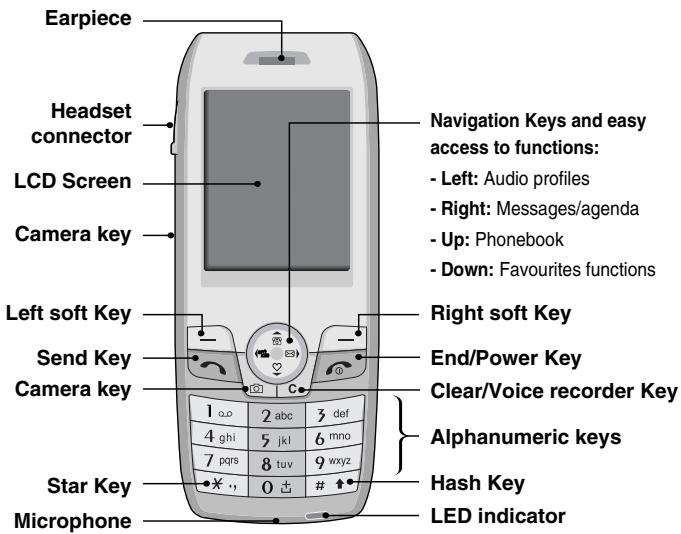
Front of the Phone
text_image
Earpiece Headset connector LCD Screen Camera key Left soft Key Send Key Camera key Star Key Microphone Navigation Keys and easy access to functions: - Left: Audio profiles - Right: Messages/agenda - Up: Phonebook - Down: Favourites functions Right soft Key End/Power Key Clear/Voice recorder Key Alphanumeric keys Hash Key LED indicatorRear of the Phone
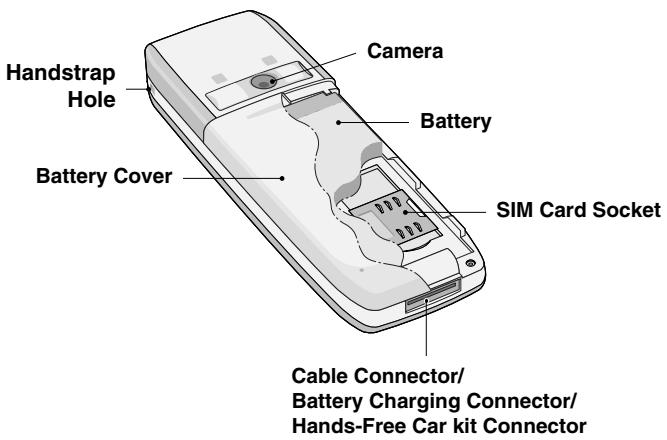
text_image
Handstrap Hole Battery Cover Camera Battery SIM Card Socket Cable Connector/ Battery Charging Connector/ Hands-Free Car kit ConnectorThe following shows key components of the phone.
Keypad Description
| Key | Description |
  | Soft Left Key / Soft Right KeyEach of these keys performs the function indicated by the text on the display immediately above it. |
 | Navigation keysUse to scroll through menus and move the cursor.You can also use these keys for quick access to the following functions.-Message keyPress “right” navigation key to retrieve or send text messages.-Profile keyPress “left” navigation key to choose the audio profile you want.-Phonebook keyPress “up” key to access phonebook menu.-Favorite keyPress “down” navigation key to access the list of preferred functions. |
 | Send KeyYou can dial a phone number and answer a call. If you press this key without entering a number, your phone shows the most recently dialled, received and missed numbers. |
 | Numeric KeysThese keys are used mainly to dial in standby mode and enter numbers or characters in editing mode.When you press these keys for a long time. |
 | Used to call your voicemail box by 1.Used to call for international call by 0.Used to call Speed dials by from 2. to 9. |
 | END/PWR KeyUsed to end or reject a call. This key is also used as Power Key by pressing this key for a few seconds. |
 | You can delete the characters, go back the menu.In addition, you can view voice memo list when you press this key shortly in a standby mode. If you press a key for a long time, you can record the voice. |
 | Camera keyThis key is used to take a picture and save it. |
Side of the Key
| Key | Description |
| Camera keyThis key is used to take a picture and save it. |
Letter Keys
Each key can be used for several symbols. There are shown below.
| Key | Description |
| .,/?!-:'1 | |
| A B C 2 Ä À Á Á Å Å Æ Ç a b c ä à á á á æ ç | |
| D E F 3 Ė È É Ê d e f è è é ê | |
| G H I 4 ë ì í î Ğ g h i ï ï í í î ğ | |
| J K L 5 j k l | |
| M N O 6 Ñ Ö ∅ ∅ ∅ ∅ ∅ E m n o ñ ∅ ∅ ∅ ∅ ∅ ∅ | |
| P Q R S 7 β § p q r s β § | |
| T U V 8 Ü ù Ú Ù t u v ü ù ú ũ | |
| W X Y Z 9 w x y z | |
| [space] 0 |
The screen displays several icons. There are described below.
On-Screen Icons
| Icon/Indicator | Description |
 | Tells you the strength of the network signal. * |
 | Call is connected. |
 | You can use GPRS service. |
 | Shows that you are using a roaming service. |
 | Line 1/2 is in use for outgoing calls – if you subscribe to the Two Line Service. |
 | The alarm has been set and is on. |
 | Tells you the status of the battery. |
 | You have received a text message. |
 | You have received a voice message. |
 | You can view your schedule. |

* The quality of the conversation may change depending on network coverage. When the signal strength is below 2 bars, you may experience muting, call drop and bad audio. Please take the network bars as indicator for your calls.
When there are no bars, that means that there is no network coverage: in this case, you won't be able to access the network for any service (call, messages and so on).
| Icon/Indicator | Description |
| Vibrate only menu in profile. | |
| General menu in profile. | |
| Loud menu in profile. | |
| Silent menu in profile. | |
| Headset menu in profile. | |
| Car menu in profile. | |
| You can divert a call. | |
| Indicates that the phone is accessing the WAP. | |
| Indicates that you are using GPRS. |
1. Inserting the SIM Card
text_image
Diagram showing hands holding a smartphone with labeled parts 1, 2, and 3 indicating different components or functions.Locate the SIM card socket in the back of the phone. Follow the steps below to install the SIM card.
- Remove the battery if attached.
natural_image
Illustration of hands holding a handheld device with a blue arrow indicating action (no text or symbols present)- Slide the SIM card into the slot, under the silvery holders, with the golden connectors facing down.
2. Removing the SIM Card
natural_image
Illustration of a hand holding a smartphone with a blue arrow indicating the right-hand side (no text or symbols present)Follow the steps below to remove the SIM card.
- Remove the battery if attached.
- Take out the SIM card from the slot.

- Removing the battery from the phone whilst it is switched on may cause it to malfunction.
- The metal contact of the SIM card can be easily damaged by scratches. Pay special attention to the SIM card when you handle and install. Follow the instructions supplied with the SIM card.
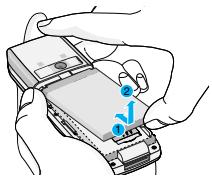
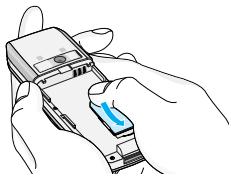
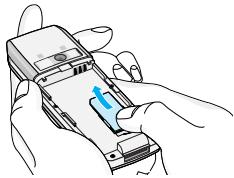
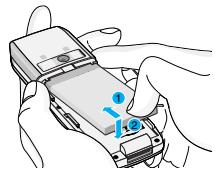
3. Installing the Battery
natural_image
Illustration of hands holding a smartphone with a labeled component (no text or symbols present)- Position the lugs on the top of the battery into the retaining holder.
- Then push the bottom of the battery into position until it clicks.
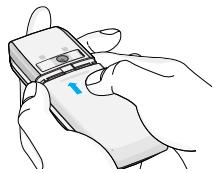
natural_image
Illustration of hands holding a flip-flop device (no text or symbols visible)- Attach back cover by sliding up into position until it clicks.
Notice!
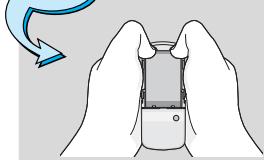
natural_image
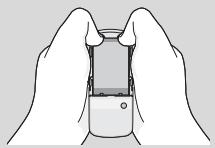
Illustration of two hands holding a small electronic device, with no visible text or symbols- When you remove the battery, you should use both hands.
4. Charging the Battery
To connect the travel adapter to the phone, you must have installed the battery.
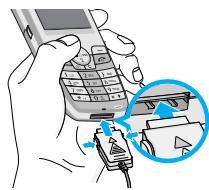
natural_image
Illustration of a hand holding a mobile phone with a close-up of its cable being inserted (no text or symbols visible)- With the arrow facing you as shown in the diagram push the plug on the battery adapter into the socket on the bottom of the phone until it clicks into place.
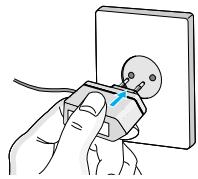
natural_image
Illustration of a hand inserting a small component into an electrical outlet (no text or symbols)- Connect the other end of the travel adapter to the mains socket. Use only the included packing charger.

- Do not force the connector as this may damage the phone and/or the travel adapter.

- “Charging” is displayed on the screen after connecting the travel adapter. Only if the battery is totally empty, Call indicator Light is on without displaying “Charging”.
5. Disconnecting the charger
text_image
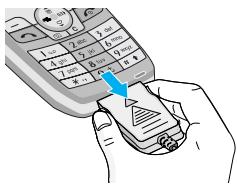
Illustration of a hand holding a mobile phone with a green arrow pointing to a card showing a triangle symbol.Disconnect the travel adapter from the phone by pressing its side buttons as shown in the diagram.
Note
- Ensure the battery is fully charged before using the phone.
- Do not remove your battery or the SIM card while charging.
- The moving bars of battery icon will stop after charging is complete.
- If the battery is completely discharged, the charge could take some minutes before starting.
Note
If the battery does not charge,
- switch the phone off.
- ensure the battery is correctly fit.
Making a call
- Key in phone number including the area code. If you want to delete number, press ↻.
- Press ☐ to call the number.
- Press 📞 to end the call.
International Calls
- Press and hold the 0 心 key for the international prefix. “+” character may replace with the international access code.
- Enter the country code, area code, and the phone number.
- Press ↗.
Making a call using the Phonebook
- In standby mode, press ☐ [Contacts].
- When the menu is displayed, you select Search by pressing ☐.
- If you find out the desired item through searching by a name or a number, press 📂 to call.
The menu displayed on the handset screen during a call is different to the default main menu reached from the idle screen, and the options are described here.
1 During a call
Pressing the menu key during a call, you can access the following menu:
Volume: Change the volume of the conversation.
Hold: Hold the current call.
End all calls: End all the calls in progress.
Messages: Access the messages menu.
DTMF off/on: Enable/Disable the DTMF tones.
Mute: Mute the microphone.
Sim Tool Kit: Access the Sim Tool Kit menu (if available in the SIM).
In the next pages, you'll find all details related to call hold and conference calls.
1-1 Putting a Call on Hold
When a call is made or answered, press the 📞 [Send] to place it on hold. When a call is held, press the 📞 [Send] to make it active.
1-2 Making a Second Call
You can get a dial number from phonebook to make a second call. Press [Contacts] then select Search. To save the dial number into phonebook during call, press [Contacts] then select Add new.
1-3 Swapping Between Two Calls
To switch between two calls, select ☐ [Options], then select Swap or just press ☑ [Send] key.
You can make one of two calls focused by pressing up/down arrow key. If you want to end one of two calls, make the call you want to end focused, then press [End] key when the call you want to end is focused.
1-4 Answering an Incoming Call
To answer an incoming call when the handset is ringing, simply press the 📞 [Send] key.
The handset is also able to warn you of an incoming call while you are already in a call. A tone sounds in the earpiece, and the display will show that a second call is waiting. This feature, known as Call Waiting, is only available if your network supports it. For details of how to activate and deactivate it see Call waiting [Menu 7-4-4].
If Call Waiting is on, you can put the first call on hold and answer the second, by pressing 📄 [Send] or by selecting 📄 [Answer], then Hold & Answer.
You can end the current call and answer the waiting call by selecting ☐ [Menu], then End & Answer.
1-5 Rejecting an Incoming Call
When not in a call you can reject an incoming call without answering it by simply pressing the [End].
When in a call you can reject an incoming call by pressing the [Menu] key and selecting Multiparty/Reject or by pressing [End] key.
1-6 Muting the Microphone
You can mute the microphone during a call by pressing the ☐
[Options] key then selecting Mute. The handset can be unmuted by pressing the ☐ [Unmute].
When the handset is muted, the caller cannot hear you, but you can still hear them.
1-7 Switching DTMF Tones on During a Call
To turn DTMF tones on during a call, for example, to allow your handset to make use of an automated switchboard, select ☐
[Options], then DTMF On. DTMF tones can be turned off the same way.
1-8 Calling up Messages and SIM Tool kit main menu
The Messages and SIM Tool kit main menu options can be reached from the in-call menu by selecting [Options]. SIM Tool kit menu is shown only when SIM in the handset supports SIM Tool kit service.
2 Multiparty or Conference Calls
The multiparty or conference service provides you with the ability to have a simultaneous conversation with more than one caller, if your network service provider supports this feature.
A multiparty call can only be set up when you have one active call and one call on hold, both calls having been answered. Once a multiparty call is set up, calls may be added, disconnected or separated (that is, removed from the multiparty call but still connected to you) by the person who set up the multiparty call.
The maximum callers in a multiparty call is five. Once started, you are in control of the multiparty call, and only you can add calls to the multiparty call.
2-1 Making a Second Call
You can make a second call while you are already in a call. To do this, enter the second number and press [Send]. When you get second call the first call is automatically put on hold. You can swap between calls by selecting [Options] then Swap.
2-2 Setting up a Multiparty Call
You can connect a call on hold to the currently active call to form a multiparty call by selecting ☐ [Options] then Multiparty / Join all.
2-3 Putting the Multiparty Call on Hold
To put a multiparty call on hold, select ☐ [Options] then Multiparty / Hold all.
2-4 Activate the Multiparty Call on Hold
To make a multiparty call on hold active, select ☐ [Options] then Multiparty / Join all.
2-5 Adding Calls to the Multiparty Call
To join an active call to the held multiparty call, select ☐ [Options] then Multiparty / Join all.
2-6 Displaying Callers in a Multiparty Call
To scroll though the numbers of the callers who make up a multiparty call on the handset screen, press √ and ⏻ keys.
2-7 Putting a Member of a Multiparty Call on Hold
To place one selected caller (whose number is currently displayed on-screen) of a multiparty call on hold, select ☐ [Options] then Multiparty / Exclude.
2-8 A Private Call in a Multiparty Call
To have a private call with one caller of a multiparty call, display the number of the caller you wish to talk to on the screen, then select [Options] and Multiparty / Private to put all the other callers on hold.
2-9 Ending a Multiparty Call
The currently displayed caller of a multiparty call can be disconnected by pressing the [End] key. To end a multiparty call, press [Options] then select Multiparty / End multiparty.
Selecting ☐ [Options] then Multiparty / End all, will end all the active and held calls.
You can use the access codes described in this section to avoid unauthorized use of your phone. The access codes (except PUK and PUK2 codes) can be changed by using [Menu 7-5-6].
PIN code (4 to 8 digits)
The PIN (Personal Identification Number) code protects your SIM card against unauthorized use. The PIN code is usually supplied with the SIM card. When PIN code is set On, your phone will request the PIN code every time it is switched on. On the contrary, when PIN code is set Off, your phone connects to the network directly without the request PIN code.
PIN2 code (4 to 8 digits)
The PIN2 code, supplied with some SIM cards, is required to access some functions such as Advice of call charge, Fixed Dial number. These functions are only available if supported by your SIM card.
PUK code (4 to 8 digits)
The PUK (PIN Unblocking Key) code is required to change a blocked PIN code. The PUK code may be supplied with the SIM card. If not, contact your local service provider for the code. If you lose the code, also contact your service provider.
PUK2 code (4 to 8 digits)
The PUK2 code, supplied with some SIM cards, is required to change a blocked PIN2 code. If you lose the code, also contact your service provider.
Security code (4 to 8 digits)
The security code protects the unauthorized use of your phone. It is usually supplied with the phone. This code is required to delete all phone entries and to activate "Reset settings" menu. The default number is "0000".

1 Profiles
1 Vibrate only
2 Silent
3 General
4 Loud
5 Headset
6 Car

2 Call register
1 Missed calls
2 Received calls
3 Dialled calls
4 Delete recent calls
5 Call charges
6 GPRS information

3 Tools
1 Calculator
2 Unit converter
3 World time
4 Voice recorder
5 Memory status

4 Organiser
1 Scheduler
2 Contacts

5 Messages
1 Write text message
2 Write multimedia message
3 Inbox
4 Outbox
5 Drafts
6 Listen to voice mail
7 Info message
8 Templates
9 Settings

6 Camera
1 Take picture
2 Take in modes
3 Take continuously
4 Album
5 Settings

7 Settings
1 Alarm clock
2 Date & Time
3 Phone settings
4 Call settings
5 Security settings
6 Network settings
7 Reset settings

8 Service
1 Internet
2 SIM Services

9 Downloads
1 Pictures
2 Sound
3 Games & more
In this menu, you can adjust and customize the phone tones for different events and environments.
- Press ☐ [Menu] in standby mode.
- Press 1 for direct access or use (and).
- You can also enter this menu directly by pressing (« key in standby mode.
Vibrate only [Menu 1-1]
You can adjust the profile as Vibrate only if you need vibration mode. In the mode, all kinds of alert are Vibrate or Silent.
Silent [Menu 1-2]
You can adjust the profile as Silent if you are in quiet place.
General [Menu 1-3]
You can adjust the profile as General.
Loud [Menu 1-4]
You can adjust the profile as Loud if you are in a noisy environment.
Headset [Menu 1-5]
You can adjust the profile as Headset when you put on a headset.
Car [Menu 1-6]
You can adjust the profile as Car when you activate Handsfree kit.
![LG L3100 - Car [Menu 1-6] - 1](/content/2024/12/66738/images/7e5a7e611ea53f30ca35dab2f9022f9ac3e909705dc19fd7c54ad23788fae40e.jpg)
- Headset and Car profiles can be activated only when Handsfree kit or Ear microphone put on the handset. However, their properties can be personalised.
Activate [Menu 1-x-1]
Activates the selected Profile.
Personalise [Menu 1-x-2]
Each has the submenus as shown below except for Vibrate only.
Call alert type
Allows to select alert type such as Ring, Vibrate, etc. for the incoming for adjusting environment.
Ring tone
Allows to set the ring tone for adjusting environment.
Ring volume
Allows to set the ring volume for adjusting environment. The volume of Power on/off sound and all the alert sounds set according to Ring volume.
Message alert type
Allows to alert when receiving a message for adjusting environment.
Message tone
Allows to select the alert tone for message reception.
Keypad tone
Allows to select the keypad tone for adjusting environment.
Keypad volume
Allows to set the keypad volume for adjusting environment.
Effect sound volume
Allows to set the effect sound volume for adjusting environment.
Power on/off volume
Allows to set the power on/off volume for adjusting environment.
Auto answer
This function will be activated only when your phone is connected to the headset or handsfree kit.
- Off : The phone will not answer automatically.
• After 5 secs : After 5 seconds, the phone will answer automatically.
• After 10 secs: After 10 seconds, the phone will answer automatically.
Rename [Menu 1-x-3]
You can change the default profile name except of Vibrate only, Headset, and Car menus.
![LG L3100 - Rename [Menu 1-x-3] - 1](/content/2024/12/66738/images/d619cda3162e12de9642a0ac7f17c8e533360116cf465aa6f9979405659b8be8.jpg)
- If you set the Handsfree kit to the phone, you can't use the vibrate mode related with Call alert type or Message alert menu. In car menu, the following submenus are available;
- Call alert type : Ring, Silent
- Message alert type : Ring once, Ring periodically, Silent
Missed calls [Menu 2-1]
This menu shows recently missed numbers. You can call these numbers, save and view the date and the time.
Received calls [Menu 2-2]
This menu shows recently received numbers. You can call these numbers, save and view the date and the time.
Dialled calls [Menu 2-3]
This menu shows recently dialed numbers. You can call these numbers, save and view the date and the time.
Delete recent calls [Menu 2-4]
You can delete recent calls of Missed calls, Received calls, Dialled calls or All calls.
Call charges [Menu 2-5]
Within these submenus, you can view the duration and the call cost of your calls.
Call duration [Menu 2-5-1]
This function allows you to view the duration of your Last Call, All Calls, Received calls and Dialled calls in hours, minutes and seconds. You can also reset the call timers.
- Press ☐ [Menu] in standby mode.
- Press 2abc for direct access or use (<< and >) to enter Call register, then select Call charges.
- Scroll to highlight Call duration and Press [Select]. The following 5 submenus: Last call, All calls, Received calls, Dialled calls and Reset all.
Call costs [Menu 2-5-2]
This function allows you to check the cost of your last call, all calls, remaining and reset the cost. To reset the cost, you need the PIN2 code.
- Press ☐ [Menu] in standby mode.
- Press 2abc for direct access or use (<< and >) to enter Call register, then select Call charges.
- Scroll to highlight Call costs and Press [Select]. The following 4 submenus: Last call, All calls, Remaining and Reset all.
![LG L3100 - Call costs [Menu 2-5-2] - 1](/content/2024/12/66738/images/a1bdcfcae50a64160853847151ee9549451f64b0bd5a312e59ac1f1b56eb36ce.jpg)
- The actual cost invoiced for calls by your service provider may vary, depending upon network features, rounding-off for billing, tax, and etc.
Settings [Menu 2-5-3] (SIM Dependent)
- Set tariff
You can set the currency type and the unit price. Contact your service providers to obtain charging unit prices. To select the currency or unit in this menu, you need the PIN2 code.
If you want to input €, £, \$ symbol, clear all currency strings and then press *, key. If you want to change symbol, press *, key again.

- When all units have been used, no calls can be made except emergency calls. Depending on the SIM card, you need the PIN2 code to set a call cost limit.
- Set credit
This network service allows you to limit the cost of your calls by selected charging units. If you select Read, the number of remaining unit is shown. If you select Change, you can change your charge limit.
- Auto display
This network service allows you to see automatically the cost of your last calls. If set to On, you can see the last cost when the call is released.
GPRS information [Menu 2-6]
You can check the amount of data transferred over the network through GPRS. In addition, you can view how much time you are online.
Call duration [Menu 2-6-1]
You can check the duration of Last call and All calls. You can also reset the call timers.
Data volumes [Menu 2-6-2]
You can check the Sent, Received or All data volumes and Reset all.
Calculator [Menu 3-1]
This contains the standard functions such as +, -, x, / : Addition, Subtraction, Multiplication, and Division.
- Input the numbers by pressing numeric keys.
- Use a navigation key to select a sign for calculation.
- Then input the numbers.
- Press ☐ [Result] to view the result.
- Press ☐ [Reset] or enter numbers to repeat the procedure above.
- Use 🔔 key to erase any numbers or signs.
- If you press * , key, you can input a decimal number. In addition, if you press # * key, you can input a minus number.
- To end Calculator, press ☐ [Back].
Unit converter [Menu 3-2]
This converts any measurement into a unit you want. There are 4 types that can be converted into units: Length, Area, Weight, and Volume.
- You can select one of four unit types by pressing ☐ [Unit] key.
- Select the standard value by using ( 1 & 0 0 & 0 ) .
- Select the unit you want to convert by pressing ⏻ and ⏱.
- You can check the converted value for the unit you want. Also, you can input a decimal number by pressing *.
World time [Menu 3-3]
You can view clocks of the world's major cities.
- Select the city belonged to the time zone by pressing ( x_i, x_j ) key.
- You can set the current time to the city time you select by pressing ☐ [Set].
Voice recorder [Menu 3-4]
The voice memo feature you to record up to 10 voice messages and each memo is up to 20 Seconds.
Record [Menu 3-4-1]
- You can record voice memo in Voice recorder menu and also holding down ☐ in the standby mode.
- Once recording is started, the message Recording and the remaining time is displayed.
- If you want to finish recording, press ☐ [Save].
- Key in Voice memo title, press ☐ [OK].
View list [Menu 3-4-2]
The phone shows voice memo list. You can Playback and Delete the recorded voice memo.
Memory status [Menu 3-5]
You can check free space and memory usage of each repository, SIM memory. You can go to each repository menu.
Scheduler [Menu 4-1]
When you enter this menu a Calendar will show up. On top of the screen there are sections for date. Also on bottom of the screen there are sections for icons (schedule, memo). Whenever you change the date, the calendar will be updated according to the date. And square cursor will be used to locate the certain day. If you see under bar on the calendar, it means that there is a schedule or memo that day. This function helps to remind you of your schedule and memo. The phone will sound an alarm tone if you set this for the note.
To change the day, month, and year.
| Key | Description | Key | Description | ||
![LG L3100 - Scheduler [Menu 4-1] - 1](/content/2024/12/66738/images/a335f05888b6aa0974be728f3c1217645d0deead09cfd7f5512012cb4f5faf7a.jpg) | ![LG L3100 - Scheduler [Menu 4-1] - 2](/content/2024/12/66738/images/2c8fcb7457a7e274fcbf7dff1d957f370f17c16f778e862c259e03e77071991e.jpg) | Yearly | Weekly | ||
![LG L3100 - Scheduler [Menu 4-1] - 3](/content/2024/12/66738/images/36f41f9dfc19858b8e13576baa99debf7c63ec9fc991c01c79cd52e6553ba220.jpg) | ![LG L3100 - Scheduler [Menu 4-1] - 4](/content/2024/12/66738/images/5191483f4ee4797c20d5a81a016e0f2091833eccf62ffe33a56641c9b9004d3b.jpg) | Monthly | Daily | ||
![LG L3100 - Scheduler [Menu 4-1] - 5](/content/2024/12/66738/images/2b6f0d6e4434df1f74dfbc74c3f56df33f5ff1628238aedfd7b2e6bd712028a2.jpg)
- Your phone should be switched on to use this function.
Add new [Menu 4-1-1]
You can make up to maximum 20 notes.
- Schedule
Input the subject, the schedule time, the repeat, the alarm by pressing allowed keys.
- Memo
- Select Add new by pressing ☐ [Select].
- Press Memo.
- Input the memo and then press ☐ [OK].
View [Menu 4-1-2]
Shows the note for the chosen day. Use 🔊, 🔕 to browse through the note lists. If you set alarm for the note, Alarm watch is displayed. At that time, if you press [Select], you can see the note in detail. Press [Options] to delete, edit the note you selected.
View all [Menu 4-1-3]
Shows the notes that are set for all days. Use ⏻, ⏻ to browse through the note lists. You can use the same menu as "View" by pressing [Options].
Delete past [Menu 4-1-4]
You can delete the past schedule that has been already notified you.
Delete all [Menu 4-1-5]
You can delete for the all note(s).
Contacts [Menu 4-2]
- To use Contacts, press ☐ [Contacts] in standby mode.
- To use Contacts, press ☐ [Menu] in standby mode and select Organiser.
Search [Menu 4-2-1]
(Calling from phonebook)
- In standby mode, press ☐ [Contacts].
- Search by pressing ☐ [Select].
- Enter the name whose phone numbers or e-mail address you want to search or Select 'List' to view phonebook.
- Instant searching is available by inputting the initial letter of the name or number you want to search.
-
If you want to edit, delete, copy an entry, or to add the voice to one, select ☐ [Options]. The following menu will be displayed.
-
Edit: You can edit the name, number, E-mail and fax by pressing [OK].
- Write text/multimedia message: After you have found the number you want, you can send a text/multimedia message to the selected number.
- Copy: You can copy an entry from SIM to phone or from phone to SIM.
- Main number: You can select the one out of mobile, home, office that you often use. The main number will be displayed first, if you set this.
- Delete: You can delete an entry.
Add new [Menu 4-2-2]
You can add phonebook entry by using this function.
Phone memory capacity is 200 entries. SIM card memory capacity depends on the cellular service provider.
You can also save 20 characters of name in The Phone memory, and save characters in the SIM card. The number of character is SIM dependent feature.
- Open the phonebook first by pressing ☐ [Contacts] in standby mode.
- Scroll to highlight Add new, and press ☐ [Select].
- Select the memory you want to save: SIM or Phone. If set to Phone, you need to select which number you want as Main number.
a. Press ☐ [OK] to input a name.
b. Press ☐ [OK], then you can input a number.
c. Press ☐ [OK].
d. You can set a group for the entry by pressing (s, c, d):
e. You can set a character and a picture for the entry by pressing 鱼 , 鱼 , (鱼 、 鱼) .
![LG L3100 - Add new [Menu 4-2-2] - 1](/content/2024/12/66738/images/6ca8c6557e6dc57cc01f137c0d0b0ea368a22525a06da7b3ee2100688f3d7774.jpg)
- When you save text and picture in a phone book at the same time, you can view a picture on any condition.
Caller groups [Menu 4-2-3]
You can list up to 20 members per one group. There are 7 groups you can make lists to.
- In standby mode, press ☐ [Contacts].
- Scroll to Caller groups item then press ☐ [Select], and every Group list will be displayed.
- Select Group name you want by pressing ☐ [Select].
- Member list
Shows the group members you have selected.
- Group ring tone
Allows you to specify ring tone for the group members' call.
- Group icon
Allows you to select the icon dependent on Group.
- Add member
You can add group members. Each group member shouldn't be exceeded 20.
- Remove member
You can remove the member from the Group member list. But the name and the number still remain in phonebook.
- Rename
You can change a group name.
Speed dial [Menu 4-2-4]
You can assign any of the keys, 2abc to 9xyz with a Name list entry. You can call directly by pressing this key for 2-3 seconds.
- Open the phonebook first by pressing ☐ [Contacts] in standby mode.
- Scroll to Speed dial, then press ☐ [Select].
- If you want to add Speed dial, select (Empty). Then, you can search the name in phonebook.
- Select allocated a name by speed dial, and choose Change or Delete to edit the name.
Settings [Menu 4-2-5]
- Press ☐ [Contacts] in standby mode.
- Scroll to Settings, then press ☐ [Select].
- Set memory
Scroll to highlight Set memory, then press ☐ [Select].
- If you select Variable, when adding entry, the phone will ask where to store.
- If you select SIM or Phone, the phone will store an entry to SIM or phone.
- Search by
Scroll to highlight Search by, then press ☐ [Select].
- If you select Variable, the phone will ask how to search.
- If you select Name or Number, the phone will search an entry by Name or Number.
- View options
Scroll to highlight View options, then press [Select]
- Name only: Set the phonebook list with displaying only name.
- With pictures: Set the phonebook list with the information of character and picture.
- Name & number: Set the phonebook list with displaying name and number.
Copy all [Menu 4-2-6]
You can copy/move entries from SIM card memory to Phone memory and vice versa.
- Open the Phonebook first by pressing ☐ [Contacts] in standby mode.
-
Scroll to Copy all, then press ☐ [Select] to enter this menu.
-
SIM to Phone : You can copy the entry from SIM Card to Phone memory.
-
Phone to SIM : You can copy the entry from Phone memory to SIM Card.
-
You can see the following submenus.
-
Keep original : When copying, Original Dial Number is kept.
- Delete original: When copying, Original Dial Number will be erased.
Delete all [Menu 4-2-7]
You can delete all entries in SIM and Phone. This function requires Security code.
- Press ☐ [Contacts] in standby mode and select Delete all, press ☐ [Select].
- Then select a memory to erase.
- Enter security code and Press ☐ [OK] or ☐ [Back].
Information [Menu 4-2-8]
• Service dial number
Use this function to access a particular list of services provided by your network operator (if supported by the SIM card).
- Open the phonebook first by pressing ☐ [Contacts] in standby mode and select Information.
- Scroll to Service dial number, then press ☐ [Select] to enter.
- The names of the available services will be shown.
- Use ⏻ and ⏱ to select a service. Press 📋 [Send].
- Memory status
This feature allows you to see how many free and in-use are in your phonebook.
- Open the phonebook first by pressing ☐ [Contacts] in standby mode. Select Information by pressing ☐ [Select].
- Scroll to Memory status, then press ☐ [OK].
- Own number (SIM dependent)
You can save and check your own number in SIM card.
This menu includes functions related to SMS (Short Message Service), MMS (Multimedia Message Service), voice mail, as well as the network's service messages.
Write text message [Menu 5-1]
You can write and edit text message, checking the number of message pages.
- Enter the Messages menu by pressing ☐ [Select].
- If you want to write a new message, select Write text message.
- To make text input easier, use T9. For details, see How to use T9 (Page 52).
- Press [Insert] to attach the followings.
- If you want to set option for your text, or to finish your writing, press ☐ [Options].
![LG L3100 - Write text message [Menu 5-1] - 1](/content/2024/12/66738/images/011ec38b36b109dca168ceecd87891eb541a34285cdf326f182629b782e273ad.jpg)
- The phone which supports EMS release 5 is available to send colour pictures, sounds, text styles, etc.. The other party may not receive pictures, sounds or text styles you sent properly if the phone does not support such options.
Insert
- Symbol
You can add special characters.
- Picture
You can insert the Default pictures or pictures in My folder that are available for short messages.
- Sound
You can insert sounds that are available for short messages.
- Text templates
You can use Text templates already set in the phone.
- Contacts
You can add phone numbers or e-mail addresses in Contacts.
- Signature
You can add your signature to the message.
Options
- Send
Sends text messages.
- Enter numbers of recipient.
- Press ⚙ key to add more recipients.
- You can add phone numbers in the phone book.
- Press ☐ after entering numbers.
All messages will be automatically saved in the outbox folder, even after a sending failure.
- Save
Stores messages in Outbox.
- Font
You can select Size and Style of fonts.
- Colour
You can select Colour of foreground and background.
- Alignment
You can make the message contents aligned Right, Centre or Left.
- Add T9 dictionary
You can add your own word. This menu can be shown only when edit mode is Predictive (T9Abc/T9abc/T9ABC).
• T9 languages
Select a T9 input mode.
- Exit
If you press Exit while writing a message, you can end the writing message and back to the Message menu. The message you have written is not saved.
Write multimedia message [Menu 5-2]
You can write and edit multimedia messages, checking message size.
- Enter the Messages menu by pressing ☐ [Select].
- If you want to write a new message, select Write multimedia message.
- You can create a new message or choose one of the multimedia message templates already made.
- Press Insert to add Symbol, Photo, Take photo, Picture, Sound, Voice memo, Text templates, Phonebook or Signature.
Options
- Send
You can send multimedia messages to multiple recipients, prioritise your message, and make it sent later as well.

- All messages will be automatically saved in the outbox folder, even after a sending failure.
- Check with your service provider if the Priority service is available.
- Preview
You can preview multimedia messages you wrote.
- Save
You can save multimedia messages In drafts or As template.
- Add slide
You can add a slide before or after current slide.
- Move to slide
You can move to previous or next slide.
- Delete slide
You can delete current slides.
- Set slide format
- Set timer
You can set timer for slide, text, picture and sound.
- Swap text and picture
You can switch the position of picture and text of the message.
- Remove media
You can remove pictures or sounds in the slide. This option can be shown only when any media exists.
- Add T9 dictionary
You can add your own word. This menu can be shown only when edit mode is Predictive (T9Abc/T9abc/T9ABC).
• T9 languages
Select a T9 input mode.
- Exit
You can back to the Message menu.

- If you select the picture (15K) on writing multimedia message, loading duration will take around 15 seconds at least. Furthermore, you can't activate any key during loading time. After 15 seconds, it is available to write multimedia message.
How to Use T9
T9 allows you to input text quickly.
In T9, you only need to press the key with the corresponding letter once. This is based on a built-in dictionary to which you can also add new words.
- Writing words by using T9.
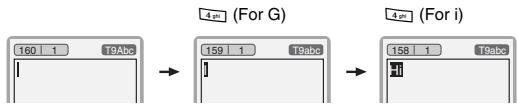
- Start writing a word by using the keys 2 abc to 9 wxyz.
Press each key only once for one letter.
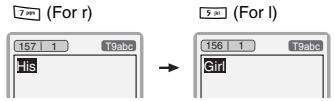
To write for instance 'Girl', press 4 ghi, 4 ghi, 7 pqs, 5 jkl.
The characters that you enter appear blocked.
flowchart
graph LR
    A["160 1 T9abc"] --> B["4-bit (For G)"]
    B --> C["159 1 T9abc"]
    C --> D["4-bit (For i)"]
    D --> E["158 1 T9abc"]
text_image
7 mag (For r) 157 1 T9abc His → 5 mag (For l) 156 1 T9abc GirlThe word changes after each keystroke. Therefore you shouldn't pay too much attention to how the word appears on the display until you have pressed all the appropriate keys.
To delete a character to the left, press ↙.
To insert several numbers, hold # down and key in the numbers.
If you hold * down, you can change the type of language. (You can also use options.)
Also, the phone supports three modes: Predictive (T9Abc, T9ABC, T9abc), Multitap (ABC, abc), Numeric (123).
If you want to change a mode, press # * key.
Alternatively: Press ☐*, key and select insert symbols.
Select the desired character and press Select.
- When you have finished writing a word, check whether the word is correct.
If the word is correct: Press 0 and write the next word.
If the word is not correct: Search by ⏻, ⏻ (Previous and Next word).
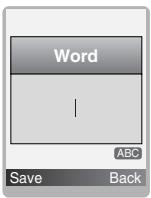
Alternatively: If there is no word you want you can add your own word. Press [Options] in the Predictive edit mode.
Select Add T9 dictionary Menu. You can see the following.
text_image
Word | ABC Save BackInput your word

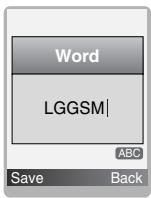
text_image
Word LGGSM| ABC Save Back- To insert a punctuation mark, press 1 _∞ repeatedly until the desired mark appears.
T9 languages
- You can select T9 Languages by selecting Menu. In T9 mode, you can also select T9 Off menu. (Default is T9 On)
Inbox [Menu 5-3]
You will be alerted when you have received messages. They will be stored in Inbox.
In Inbox, you can identify each message by icons. For detail, see the icon directive.
Icon directive
[ ] Multimedia message
[ ] Short message
[ ] SIM message
[ ] Read multimedia message
[ ] Read text message
[wi] Push message
[ ] Notified multimedia message
If the phone shows ‘No space for SIM message’, you have to delete only SIM messages from Inbox. If the phone displays ‘No space for message’, you can make space of each repository as deleting messages, media and applications.
\* SIM message
SIM message means the message exceptionally stored in SIM card. You can move this message to the phone.
For notified multimedia message, you have to wait for downloading and processing of the message. For notification setting, see [Menu 5-9-2] for detail.
To read a message, select one of the messages by pressing ☐.
Reply
You can reply to the sender.
Forward
You can forward the selected message to another party.
Return call
You can call back to the sender.
Delete
You can delete the current message.
Extract
You can extract picture, sound and text. They will be saved in My folder or Phonebook.
View information
You can view information about received messages; Sender's address, Subject (only for Multimedia message), Message date & time, Message type, Message size.
Delete all
You can delete all messages.
Replay (applicable to Multimedia message only)
You can replay multimedia messages.
\* Receive (In the case of notification message)
If Multimedia message is set to Auto download off, you can get only Notification. To receive a message, you need to select [Receive].
Outbox [Menu 5-4]
You can see sent and unsent messages here. For sent message, you can see the delivery status.
The browsing is same as that for the inbox message.
Icon directive
[ ] MMS Sent
[ ] MMS Unsent
[ ] MMS delivery confirmed
[ ] SMS sent
[ ] SMS unsent
[ ] SMS Delivery confirmed
\* When you already sent the message:
Forward
You can forward the current message to other recipients.
Delete
You can delete the current message.
View information
You can view information about outbox messages; Recipient's address, Subject (only for Multimedia message), Message date & time, Message type, Message size.
\* When you didn't send the message:
Send
You can send the message.
Delete
You can delete the current message.
View information
You can view information about outbox messages.
Send all
You can send all messages didn't send.
Delete all
You can delete all messages didn't send.
Drafts [Menu 5-5]
Using this menu, you can preset up to five multimedia messages that you use most frequently. This menu shows the preset multimedia message list.
The following options are available.
- Edit: Modifies the massage you choose.
- Delete: Deletes the message you choose.
- View information: To view the information of the message.
- Delete all: Deletes all of the messages in the folder.
Listen to voice mail [Menu 5-6]
You can listen to voice mail.
Info message [Menu 5-7]
(Dependent to network and subscription)
Info service messages are text messages delivered by the network to GSM. They provide general information such as weather reports, traffic news, taxis, pharmacies, and stock prices. Each type of information has the number; therefore, you can contact service provider as long as you have input the certain number for the information. When you have received an info service message, you can see the popup message to show you that you have received a message or the info service message is directly displayed. To view the message again or not in standby mode, follow the sequence shown below;
Read [Menu 5-7-1]
-
When you have received an info service message and select Read to view the message, it will be displayed on the screen.
You can read another message by scrolling (,, ) or [Next]. -
The message will be shown until another message is reached.
Topics [Menu 5-7-2]
(Dependent to network and subscription)
- Add new
You can add Info service message numbers in the Phone memory with its nickname.
- View list
You can see Info service message numbers which you added. If you press [Options], you can edit and delete info message category which you added.
- Active list
You can select Info service message numbers in the active list. If you activate an info service number, you can receive messages sent from the number.
Templates [Menu 5-8]
Text templates [Menu 5-8-1]
You have 6 text templates.
Multimedia templates [Menu 5-8-2]
You can use the following options.
- Edit: You can edit multimedia templates.
- Add new: Allows you to add new multimedia templates.
- Write messages: You can write multimedia messages using multimedia templates.
- Delete: You can delete multimedia templates.
Signature [Menu 5-8-3]
You can make your signature.
Settings [Menu 5-9]
Text message [Menu 5-9-1]
- Message types
Text, Voice, Fax, Natl. paging, X.400, E-mail, ERMES
Usually, the type of message is set to Text. You can convert your text into alternative formats. Contact your service provider for the availability of this function.
- Validity period
This network service allows you to set how long your text messages will be stored at the message centre.
- Delivery report
If you set to Yes, you can check whether your message is sent successfully.
- Reply via same service centre
When a message is sent, it allows the recipients to reply and charge the cost of the reply to your telephone bill.
- SMS centre
If you want to send the text message, you can receive the address of SMS centre through this menu.
Multimedia message [Menu 5-9-2]
- Priority
You can set the priority of the message you choose.
- Validity period
This network service allows you to set how long your text messages will be stored at the message centre.
- Delivery report
If it is set to Yes in this menu, you can check whether your message is sent successfully.
- Auto download
If you select On, you receive multimedia messages automatically. If you select Off, you receive only notification message in the inbox and then you can check this notification.
- Network settings
If you select multimedia message server, you can set URL for multimedia message server.
- Permitted types
Personal : Personal message.
Advertisements : Commercial message.
Information : Necessary information.
Voice mail centre [Menu 5-9-3]
You can receive the voicemail if this feature is supported by your network service provider. When a new voicemail is arrived, the symbol will be displayed on the screen. Please check with your network service provider for details of their service in order to configure the phone accordingly.
• Home
You can listen to voice mails by selecting Home.
- Roaming
Even when you are in abroad, you can listen to voice mails if roaming service is supported.
Info message [Menu 5-9-4]
- Receive
- Yes
If you select this menu, your phone will receive Info service messages.
- No
If you select this menu, your phone will not receive Info service messages any more.
- Alert
- Yes
Your phone will beep when you have received Info service message numbers.
- No
Your phone will not beep even though you have received info service messages.
- Languages
You can select the language you want by pressing [On/Off]. Then, the info service message will be shown in the language that you selected.
Push messages [Menu 5-9-5]
You can set the option whether you will receive the message or not.
With the camera you can take pictures of people and events while on the move.
Take picture [Menu 6-1]
- Select Camera, and then press ☐. If you want to reach this menu directly, press 🔒 for a long time.
- Focus on the subject to capture the image, and then press or 📄.
- If you want to save it, press ☐ or 📄.
Reference!
- Settings window
You can control the image size, brightness, colour and zooming by pressing ⏻ or ⏱.
[ ☐×1 ] Zooming: x1, x2, x4 (depends on resolution). The default value is x1.
[ ] Colour: True colour, Sepia, Black/White.
[·2] Brightness: -2, -1, Standard, +1, +2.
[5 sec] Autoshoot: Off, 3 sec, 5 sec.
[ ] Memory status: Check the available memory to take new pictures.
[640x480] Resolution: VGA 640x480, QVGA 320x240, QQVGA 160x120, PB : 48x48
[ Norm ] Picture quality: Norm, Fine and Basic.
Note
- To use the Picture Phonebook, you have to take picture at 48x48 pixels.
Activating a key
- (代(日)) : Move the item which you set.
- 📄 : Modify the option selected.
- : Take and save a picture.
-
- : Go back to the previous menu or exit from camera mode.
- : Take and save a picture.
- : Send via MMS.
- : Save the picture in the Album.
- X : Delete the picture.
Take in modes [Menu 6-2]
You can take a picture on the various of backgrounds. Furthermore, you can select a frame by pressing ⏻, √.
Reference!
- In this mode, you can't change the settings of resolution.
Take continuously [Menu 6-3]
You can take the maximum of 9 pictures subsequently at the same time. After taking a picture, you can view it by pressing ⏻. You can also save it by pressing 📄.
Reference!
- If you set 640x480 in resolution, you can take only 3 pictures. In case of 320x240, it is available to 6 pictures.
Album [Menu 6-4]
You can view and send a picture. In addition, you can set the window as a background.
All pictures [Menu 6-4-1]
You can view all pictures in order.
General pictures [Menu 6-4-2]
You can view all pictures except of frame and phone book ones.
Mode pictures [Menu 6-4-3]
You can view all frame pictures.
Phonebook pictures [Menu 6-4-4]
You can view all phonebook pictures.
- Option
- Multi view: You can view the maximum of 9 thumbnails in a screen.
- Write multimedia messages: You can send a picture thru MMS.
- Set as wallpaper: You can set a picture as a wallpaper.
- Delete: You can delete a picture.
- Edit title: You can edit the title of picture.
Settings [Menu 6-5]
Memory status [Menu 6-5-1]
You can check the capacity of total, used, and free memory.
Clear album [Menu 6-5-2]
You can delete all pictures which saved in a memory.
Auto save [Menu 6-5-3]
Automatically saves the pictures taken with the camera. In Take continuously mode, this function does not work.
You can set the following menus for your convenience and preferences.
- Press ☐ [Menu] in standby mode.
- Press 7 pqs for direct access to enter Settings.
Alarm clock [Menu 7-1]
You can set up to 5 alarm clocks to go off at a specified time.
- Select On and enter the alarm time you want.
- Select the repeat period: Once, Mon\~Fri, Mon\~Sat, Everyday.
- Select the alarm tone you want and press ☐ [OK].
- Edit the alarm name and press ☐ [OK].
![LG L3100 - Alarm clock [Menu 7-1] - 1](/content/2024/12/66738/images/c2a4544319bf551196e8ac7f1efdd2df6709e1cc4cd0aa9b85f1cd0aa76ee209.jpg)
- The Wake up alarm lasts 1 minute.
Date & Time [Menu 7-2]
You can set functions relating to the date and time.
Set date [Menu 7-2-1]
You can enter the current date.
Date format [Menu 7-2-2]
You can set the Date format such as DD/MM/YYYY, MM/DD/YYYY, YYYY/MM/DD. (D: Day / M: Month / Y: Year)
Set time [Menu 7-2-3]
You can enter the current time.
![LG L3100 - Set time [Menu 7-2-3] - 1](/content/2024/12/66738/images/5406888389e088fd0d290def1a301cd7c4eac15c1f548891123b6800368d9271.jpg)
- In the 12-hour time format, you can change AM/PM by pressing navigation ⏻, ⏻ keys.
Time format [Menu 7-2-4]
Your can set the time format between 24-hour and 12-hour.
Phone settings [Menu 7-3]
You can set functions relating to the phone.
Display settings [Menu 7-3-1]
- Wallpaper
You can select the background pictures in standby mode.
- Default
You can select a picture or an animation of wallpaper by pressing (« or »).
- Myfolder
You can select a picture or an animation as wallpaper.
- Greeting note
If you select On, you can edit the text which is displayed in standby mode.
- Backlight
You can set the light-up duration of the internal display.
• Information window
You can preview the current state of the selected menu before open the menu. The state is shown at bottom of the display.
Language [Menu 7-3-2]
You can change the language for the display texts in your phone. This change will also affect the Language Input mode.
Call settings [Menu 7-4]
You can set the menu relevant to a call by pressing ☐ [Select] in the Setting menu.
Call divert [Menu 7-4-1]
The Call divert service allows you to divert incoming voice calls, fax calls, and data calls to another number. For details, contact your service provider.
- All voice calls
Diverts voice calls unconditionally.
- If busy
Diverts voice calls when the phone is in use.
- If no reply
Diverts voice calls which you do not answer.
- If out of reach
Diverts voice calls when the phone is switched off or out of coverage.
- All data calls
Diverts to a number with a PC connection unconditionally.
- All fax calls
Diverts to a number with a fax connection unconditionally.
- Cancel all
Cancels all call divert service.
The submenus
Call divert menus have the submenus shown below.
- Activate
Activate the corresponding service.
To voice mail centre
Forwards to message centre. This function is not shown at All data calls and All fax calls menus.
To other number
Inputs the number for diverting.
To favourite number
You can check recent 5 diverted numbers.
- Cancel
Deactivate the corresponding service.
- View status
View the status of the corresponding service.
Answer mode [Menu 7-4-2]
- Press any key
If you select this menu, you can receive a call by pressing any key except [End] key.
- Send only
If you select this menu, you can receive a call by only pressing [Send] key.
Send my number [Menu 7-4-3]
(network and subscription dependent)
• On
You can send your phone number to another party. Your phone number will be shown on the receiver's phone.
- Off
Your phone number will not be shown.
- Set by network
If you select this, you can send your phone number depending on two line service such as line 1 or line 2.
Call waiting [Menu 7-4-4]
(network dependent)
- Activate
If you select Activate, you can accept a waiting (receiving) call.
- Cancel
If you select Cancel, you cannot recognize the waiting (receiving) call.
- View status
Shows the status of Call waiting.
Minute minder [Menu 7-4-5]
If you select On, you can check the call duration by deep sound every minute during a call.
Auto redial [Menu 7-4-6]
• On
When this function is activated, the phone will automatically try to redial in the case of failure to connect a call.
- Off
Your phone will not make any attempts to redial when the original call has not connected.
Security settings [Menu 7-5]
PIN code request [Menu 7-5-1]
In this menu, you can set the phone to ask for the PIN code of your SIM card when the phone is switched on. If this function is activated, you'll be requested to enter the PIN code.
- Select PIN code request in the security settings menu, and then press ☐ [Select].
- Set On/Off.
- If you want to change the setting, you need to enter PIN code when you switch on the phone.
- If you enter wrong PIN code more than 3 times, the phone will lock out. If the PIN is blocked, you will need to key in PUK code.
- You can enter your PUK code up to 10 times. If you put wrong PUK code more than 10 times, you can not unlock your phone. You will need to contact your service provider.
Phone lock [Menu 7-5-2]
You can use security code to avoid unauthorized use of the phone. Whenever you switch on the phone, the phone will request security code if you set phone lock to On. If you set phone lock to
Automatic, your phone will request security code only when you change your SIM card.
Automatic key lock [Menu 7-5-3]
When you enable Automatic key lock, keypad will be lock automatically on an idle screen after 30 seconds without any key requesting.
![LG L3100 - Automatic key lock [Menu 7-5-3] - 1](/content/2024/12/66738/images/9ab5811cc8e774b0b798690513f8c33489855e5bc90fbed846075b64229244bd.jpg)
- If you want to lock your phone keypad manually, enter Top menu and press * , key.
- If you want to unlock your phone keypad, press [unlock] key and then press * key. But if you enabled Automatic key lock before, your phone keypad will be unlock and then after 30 seconds the keypad will be lock up again automatically.
Call barring [Menu 7-5-4]
The Call barring service prevents your phone from making or receiving certain category of calls. This function requires the call barring password. You can view the following submenus.
- All outgoing
The barring service for all outgoing calls.
- International
The barring service for all outgoing international calls.
• International when roaming
The barring service for all international outgoing calls except home network.
- All incoming
The barring service for all incoming calls
- Incoming when roaming
The barring service for all incoming calls when roaming
- Cancel all
You can cancel all barring services.
- Change password
You can change the password for Call Barring Service.
Each call barring menu has following submenus:
- Activate
Allows to request the network to set call restriction on.
- Cancel
Set the selected call restriction off.
- View status
View the status whether the calls are barred or not.
Fixed dial number [Menu 7-5-5] (SIM dependent)
You can restrict your outgoing calls to selected phone numbers. The numbers are protected by your PIN2 code.
- Activate
You can restrict your outgoing calls to selected phone numbers.
- Cancel
You can cancel fixed dialling function.
- Number list
You can view the number list saved as Fixed dial number.
Change codes [Menu 7-5-6]
PIN is an abbreviation of Personal Identification Number to prevent use by unauthorized person.
You can change the access codes: PIN code, PIN2 code, Security code.
- If you want to change the Security code/PIN/PIN2 code input your original code, and then press [OK].
- Input new Security code/PIN/PIN2 code and verify them.
Network settings [Menu 7-6]
You can select a network which will be registered either automatically or manually. Usually, the network selection is set to Automatic.
Automatic [Menu 7-6-1]
If you select Automatic mode, the phone will automatically search for and select a network for you. Once you have selected "Automatic", the phone will be set to "Automatic" even though the power is off and on.
Manual [Menu 7-6-2]
The phone will find the list of available networks and show you them. Then you can select the network which you want to use if this network has a roaming agreement with your home network operator. The phone let you select another network if the phone fails to access the selected network.
Preferred [Menu 7-6-3]
You can set a list of preferred networks and the phone attempts to register with first, before attempting to register to any other networks. This list is set from the phone's predefined list of known networks.
Reset settings [Menu 7-7]
You can initialize all factory defaults. You need Security code to activate this function.
Internet [Menu 8-1]
You can access various WAP (Wireless Application Protocol) services such as banking, news, weather reports and flight information. These services are specially designed for mobile phones and they are maintained by WAP service providers.
Check the availability of WAP services, pricing and tariffs with your network operator and/or the service provider whose service you wish to use. Service providers will also give you instructions on how to use their services.
Please contact your network operator to open your Internet account. To use the Web Browser, you must indicate your phone number via the Own number menu option.
Once connected, the homepage is displayed. The content depends on the service provider. You can access any website page by entering its URL address. To exit the browser at any time, press the key. The phone will return to the standby mode.
Home [Menu 8-1-1]
Connect to a homepage. The homepage may be the site which is defined in the activated profile. It will be defined by Service Provider if you don't make in activated profile.
Bookmarks [Menu 8-1-2]
As Internet Bookmarks for your Internet PC browser, in this menu you can add or change your favourite WAP sites in order to always have them with you.
Press ☐ [Select] to access available options, or press ☐ [Back] to exit.
- Connect : Connect to the selected bookmark.
- Add new: Add a new bookmark manually.
- Edit : Edit the title and the address of the selected bookmark.
- Delete : Delete the selected bookmark from the bookmark list.
Profiles [Menu 8-1-3]
Profiles contain the configurations to use WAP and MMS services. As the Internet connection for the PC, the mobile phone must be configured in order to access the gateway of service provider. In this menu, you can configure several profiles. You must remember that WAP and MMS profiles are different, so you need to configure 2 different profiles. Contact the service provider to get all the necessary parameters.
This mobile phone also supports the Over The Air (OTA) configuration, compliant with the Openwave specification. Using OTA, you can configure the phone using an SMS. Contact the service provider for the availability of this service.
Each profile contains the following menu:
- Activate
You can activate the profile you want.
- Settings
You can edit and change WAP settings of the selected profile.
- Homepage
This setting allows you to enter the address (URL) of a site you want to use as homepage. You do not need to type "http://" at the front of each URL as the WAP Browser will automatically add it.
- Bearer
You can set the bearer data service.
- Data
• GPRS
- Data settings
Appeares only if you select Data settings as a Bearer\service.
IP address : Enter the IP address of the WAP gateway you want.
Dial number : Enter the telephone number to dial to access your WAP gateway.
User ID : The users identity for your dial-up server (and NOT the WAP gateway).
Password : The password required by your dial-up server (and NOT the WAP gateway) to identify you.
Call type : Select the type of data call: Analogue or Digital (ISDN).
Call speed : The speed of your data connection; 9600 or 14400.
Linger time : You need to enter timeout period. After entering that, the WAP navigation service will be unavailable if any data is not input or transferred.
- GPRS settings
The service settings are only available when GPRS is chosen as a bearer service.
IP address : Input the IP address of the WAP gateway you access.
APN : Input the APN of the GPRS.
User ID : The users identify for your APN server.
Password : The password required by your APN server.
- Connection type
The options for connection type are Temporary or Continuous and depend on the gateway you are using.
Continuous
A confirmed delivery mechanism but generates more network traffic.
Temporary
A non-confirmed (connectionless) service.
HTTP
- Proxy settings
IP address: Input the IP address of the proxy.
Port: Input the port number of the proxy.
- DNS settings
You can set the primary and secondary server as the DNS.
- Secure settings
According to the used gateway port, you can choose this option as On or Off.
- Display image
You can select whether images on WAP cards are displayed or not.
- Rename
Edit the Profile Name.
- Delete
Delete the Profile.
- Add new
You can add a new profile manually.
Go to URL [Menu 8-1-4]
You can directly connect to the site you want. You need to enter a specific URL.
Cache settings [Menu 8-1-5]
You can remove the contents of Cache memory or change the Cache mode.
- Clear cache
The contents of Cache memory will be removed.
- Check cache
You can set the option whether you will check the cache memory or not.
Cookies setting [Menu 8-1-6]
You can set the cookies setting you want.
Security certification [Menu 8-1-7]
A list of the available certificates is shown.
Reset profiles [Menu 8-1-8]
You can reset profiles to return to original settings.
Browser version [Menu 8-1-9]
The WAP Browser version is displayed.
SIM Service [Menu 8-2]
This menu depends on SIM and the network services.
On browsing menu
If you are on line, you can view the following menus.
• Home
Refer to [Menu 8-1-1].
- Reload
Reloads the current page.
- Bookmarks
See [Menu 8-1-2].
- Save as bookmark
You can save a site as bookmark.
- Go to URL
You can move to the site you want. In this menu, you can also edit the site address.
- Clear cache
The contents of cache memory will be removed.
Enables you to view the downloaded pictures and sounds. They can be set as Wallpaper or Ring tone. You can view, listen, delete or rename downloaded data.
Pictures [Menu 9-1]
Sound [Menu 9-2]
Games & more [Menu 9-3]
My games & more [Menu 9-3-1]
Main Screen, Java' main menu, has a Preinstalled folder already created, and adds it to the list when a new folder is created or downloaded games are stored.
After selecting a folder, and then press Menu, sub menus available to several options (New, Move, About, Info, Remove, Update, Options, Rename and Exit) are displayed.
- New: Create a new folder.
- Move: Move the stored game to other folder.
- About: Show the information on a game manufacturer.
- Info: Show all the information on the game.
- Remove: Delete the game.
- Update: Connect to the server and download the new version of the stored game.
- Options: Perform network setup of the selected game.
- Rename: Rename the game.
- Exit: Exit the game.
If you choose a Preinstalled game, several sub menus (Up, Info, Options and Exit) are displayed, and choosing Info will show you the information for the games provided by default.
Java
Java is a technology developed by Sun Microsystems. Similar to the way you would download the Java Applet using the standard Netscape or MS Internet Explorer browsers, Java MIDlet can be downloaded using the WAP enabled phone. Depending on the service provider, all Java based programs such as Java games can be downloaded and run on a phone. Once downloaded, the Java program can be viewed within the Applications menu where you can select, execute, or delete. The Java program files saved in the phone are in .JAD and .JAR formats.

- The JAR file is a compressed format of the Java program and the JAD file is a description file that includes all detailed information. From the network, prior to download, you can view all detailed file descriptions from the JAD file.

- Only J2ME (Java 2 Micro Edition) based programs will run in a phone environment. The J2SE (Java 2 Standard Edition) based programs will only run in a PC environment.
- Even if they are built on a standard language (J2ME), not all the Java application are compatible with all phones, because they can use specific libraries (API). If you download a Java application not specifically built for this model, you could experience power down or lock up problems, which will need the phone to be restarted (by detaching and reattaching the battery). We specify that these issues are caused by incompatible programs, and it does not mean that the phone has a problem.
Profiles [Menu 9-3-2]
This menu contains the same settings of the Internet menu. In fact, in order to download new applications, a WAP connection is needed.
There are various accessories for your mobile phone. You can select these options according to your personal communication requirements.
![LG L3100 - Profiles [Menu 9-3-2] - 1](/content/2024/12/66738/images/bdd6c2b5e52869d02f1f5f6f6c89a9ff10530a828908d4c307c7ab6a94188d3e.jpg)
Standard Battery

Portable Handsfree
This connects to your phone, allowing handsfree operation.
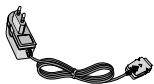
Travel Adapter
This charger allows you to charge the battery while away from home or your office.
natural_image
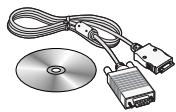
Illustration of a CD, DVD, and USB drive components (no text or symbols)Data cable/CD
You can connect your phone to PC to exchange the data between them.
Note
• Always use genuine LG accessories.
- Failure to do this may invalidate your warranty.
- Accessories may be different in different regions; please check with our regional service company or agent for further enquires.
When using this unit, basic safety precautions as below should be always followed.
- Do not disassemble this unit. (Take it to a qualified service technician when repair work is required.)
- Away from electrical appliance such as a TV, radio or personal computer.
- The unit should be situated from heat sources such as radiators or cookers.
- Do not drop.
- Do not subject this unit to mechanical vibration or shock.
- The coating of the phone may be damaged if covered with wrap or vinyl wrapper.
- Use dry cloth to clean the exterior of the unit. (Do not use solvent such as benzene, thinner or alcohol.)
- Do not subject this unit to excessive smoke or dust.
- Do not keep the phone next to credit cards or transport tickets; it can affect the information on the magnetic strips.
- Do not tap the screen with a sharp object; otherwise, it may damage the phone.
- Do not expose the phone to liquid or moisture.
- Use the accessories like an earphone cautiously.
- Do not touch the antenna unnecessarily.
Caring for the Battery
- You do not need to completely discharge the battery before recharging. Unlike other battery systems, there is no memory effect that could compromise the battery's performance.
- Use only LG batteries and chargers. LG chargers are designed to maximize the battery life.
- Do not disassemble or short-circuit the battery pack.
- Keep the metal contacts of the battery pack clean.
- Replace the battery when it no longer provides acceptable performance. The battery pack may be recharged hundreds of times until it needs replacing.
- Recharge the battery if it has not been used for a long time to maximize usability.
- Do not expose the battery charger to direct sunlight or use it in high humidity, such as the bathroom.
- Do not leave the battery in hot or cold places, this may deteriorate the battery performance.
General
Product name : L3100
System : GSM 900 / DCS 1800
Ambient Temperatures
Max : +55°C
Min : -10°C
Radio wave exposure and Specific Absorption Rate (SAR) information
This mobile phone model has been designed to comply with applicable safety requirement for exposure to radio waves.
These requirements are based on scientific guidelines that include safety margins designed to assure this safety of all persons, regardless of age and health.
- The radio wave exposure guidelines employ a unit of measurement known as the Specific Absorption Rate, or SAR. Tests for SAR are conducted using standardized methods with the phone transmitting at its highest certified power level in all used frequency bands.
- While there may be differences between the SAR levels of various phone models, they are all designed to meet the relevant guidelines for exposure to radio waves.
- SAR data information for residents in countries/regions that have adopted the SAR limit recommended by the international Commission on Non-Ionizing Radiation Protection (ICNIRP), which is 2W/kg averaged over ten (10) gram of tissue (for example European Union, Japan, Brazil and New Zealand):
- The highest SAR value for this model phone for use at the ear is 0.3230W/kg (10g).
- SAR data information for residents in countries/regions that have adopted the SAR limit recommended by the Institute of Electrical and Electronics Engineers (IEEE), which is 1.6 W/kg averaged over one (1) gram of tissue (for example USA, Canada, Australia and Taiwan).
Declaration of Conformity

LG Electronics
This model complies with the essential requirements of Article 3 of the R&TTE 1999/5/EC Directive, if used for its intended use.
- Health (Article 3.1.a of the R&TTE Directive)
- Safety (Article 3.1.a of the R&TTE Directive)
- Electromagnetic compatibility (Article 3.1.b)
- Efficient use of the radio frequency spectrum
CE 0168
I hereby declare under our sole responsibility that the product mentioned above to which this
declaration relates complies with the above
mentioned articles of the directive.
If available, write the contact person(s)
Mr. Ji Jong, Jeon
LG Electronics Inc. GSM Division
Emerald BD, 1042 Hogye-Dong, Dongan-Gu
Anyang-city, Kyuongki-Do
431-080, Korea
Mr. Jin Seog, Kim
LG Amsterdam Branch Office
Capronilaan 6, 1119 NR Schiphol-rijk,
The Netherlands
(Tel.) +31-20-655 7774