
G262 - Cellphone LG - Free user manual and instructions
Find the device manual for free G262 LG in PDF.


| Product Type | Mobile Phone |
| Model | LG-G262 |
| Network Support | GSM 900 / DCS 1800 / PCS 1900 |
| Form Factor | Clamshell |
| Main Display | Color LCD with icons |
| Sub Display | Color LCD for self-portrait and info |
| Camera Resolution | Up to 1280 x 960 pixels (1.3 MP) |
| Video Recording | Silent movie up to 20 seconds |
| MP3 Player | Yes (supports MP3 and AAC) |
| Bluetooth | Yes |
| Memory Card Slot | Mini SD (up to 128 MB) |
| Battery Type | Standard Li-Ion (removable) |
| Charger | Travel adapter (included) |
| Flash | Yes (for camera and torch) |
| GPRS | Yes |
| WAP Browser | Yes |
| Synchronization | SyncML |
| SAR Value (Head) | 0.497 W/kg (10g) |
| Care Instructions | Use only original accessories; avoid water, heat, and harsh chemicals |
Frequently Asked Questions - G262 LG
User questions about G262 LG
0 question about this device. Answer the ones you know or ask your own.
Ask a new question about this device
Download the instructions for your Cellphone in PDF format for free! Find your manual G262 - LG and take your electronic device back in hand. On this page are published all the documents necessary for the use of your device. G262 by LG.
USER MANUAL G262 LG
Please read this manual carefully before operating your mobile phone. Retain it for future reference.
C€ 0700


LG-G262 User Guide
THIS USER GUIDE CAN HAVE SOME DIFFERENCES FROM PHONE DEPENDING ON PHONE S/W AND SERVICE PROVIDER.
Contents
LG-G262 features 7
Part of the phone 7
On-Screen Icons 8
Installation 9
Installing the SIM card and the
handset battery 9
Charging the Battery 10
Disconnecting the charger 11
Memory card 11
Inserting the memory card 11
Removing the memory card 11
General Functions 12
Entering Text 12
Menu Tree 13
Games & more [Menu 1]....14
Games & more [Menu 1-1] 14
Settings [Menu 1-2] 14
Contacts [Menu 2] 15
Add new [Menu 2-1] 15
Search [Menu 2-2] 15
Speed dial [Menu 2-3] 15
Caller groups [Menu 2-4] 15
Own number [Menu 2-5] 15
Settings [Menu 2-6] 15
Organiser [Menu 3] 16
Calendar [Menu 3-1] 16
Memo [Menu 3-2] 16
Multimedia [Menu 4]....17
Take photo [Menu 4-1] 17
Fun frames [Menu 4-2] 17
Take silent movie [Menu 4-3] 18
Voice recorder [Menu 4-4] 18
MP3 [Menu 4-5] 18
My photos [Menu 4-6] 19
Silent movie [Menu 4-7] 19
Settings [Menu 4-8] 19
Messages [Menu 5] 20
New message [Menu 5-1] 20
Inbox [Menu 5-2] 21
Outbox [Menu 5-3] 21
Sent [Menu 5-4] 21
Drafts [Menu 5-5] 21
Listen to voice mail [Menu 5-6] 21
Info message [Menu 5-7] 22
Templates [Menu 5-8] 22
Settings [Menu 5-9] 22
My stuff [Menu 6]....24
Photos [Menu 6-1] 24
Pictures [Menu 6-2] 24
Silent movie [Menu 6-3] 24
Sounds [Menu 6-4] 24
Music [Menu 6-5] 24
Others [Menu 6-6] 24
External Memory [Menu 6-7] 24
Display [Menu 7] 25
Wallpaper [Menu 7-1] 25
Menu colour [Menu 7-2] 25
Greeting note [Menu 7-3] 25
Backlight [Menu 7-4] 25
Information window [Menu 7-5] 25
Profiles [Menu 8] 26
Activate [Menu 8-X-1] 26
Personalise [Menu 8-X-2] 26
Rename [Menu 8-X-3] 26
Tools [Menu 9] ......27
Favourites [Menu 9-1] 27
Alarm clock [Menu 9-2] 27
Bluetooth [Menu 9-3] 27
SyncML [Menu 9-4] 27
Calculator [Menu 9-5] 28
Unit converter [Menu 9-6] 28
World time [Menu 9-7] 28
SIM-Menu [Menu 9-8] 28
Browser [Menu *] 29
Home [Menu *-1] 29
Bookmarks [Menu *-2] 29
Go to URL [Menu *-3] 29
Settings [Menu *-4] 29
Browser version [Menu *-5] 29
Call register [Menu 0] 30
Missed calls [Menu 0-1] 30
Received calls [Menu 0-2] 30
Dialled calls [Menu 0-3] 30
All calls [Menu 0-4] 30
Delete recent calls [Menu 0-5] 30
Call charges [Menu 0-6]....30
GPRS information [Menu 0-7] 30
Settings [Menu #] 31
Date & Time [Menu #-1] 31
Languages [Menu #-2] 31
Call settings [Menu #-3] 31
Security settings [Menu #-4] 32
Network settings [Menu #-5] 33
GPRS settings [Menu #-6] 33
Memory status [Menu #-7] 33
Reset settings [Menu #-8] 33
Accessories 34
Technical Data 35
For Your Safety / Guidelines for safe and efficient use
Read these simple guidelines. Breaking the rules may be dangerous or illegal. Further detailed information is given in this manual.
Warning
- Mobile Phones must be switched off at all times in an aircraft.
- Do not hold the phone in your hand while driving.
- Do not use your phone near petrol stations, fuel depots, chemical plants or blasting operations.
- For your safety, use ONLY specified ORIGINAL batteries and chargers.
- Do not handle the phone with wet hands while it is being charged. It may cause an electric shock or seriously damage your phone.
- Keep the phone in a safe place out of children's reach. It includes small parts which if detached may cause a choking hazard.
Caution
- Switch off the phone in any area where required by special regulations. For example, do not use your phone in hospitals or it may affect sensitive medical equipment.
- Emergency call may not be available under all cellular networks. Therefore, you should never depend solely on the phone for emergency calls.
- Only use ORIGINAL accessories to avoid damage to your phone.
- All radio transmitters carry risks of interference with electronics in close proximity. Minor interference may affect TVs, radios, PCs, etc.
- Batteries should be disposed of in accordance with relevant legislation.
- Do not dismantle the phone or battery.
Radio wave exposure and Specific Absorption Rate (SAR) information
This mobile phone model LG-G262 has been designed to comply with applicable safety requirement for exposure to radio waves. This requirement is based on scientific guidelines that include safety margins designed to assure this safety of all persons, regardless of age and health.
- The radio wave exposure guidelines employ a unit of measurement known as the Specific Absorption Rate, or SAR. Tests for SAR are conducted using standardized method with the phone transmitting at its highest certified power level in all used frequency bands.
- While there may be differences between the SAR levels of various LG phone models, they are all designed to meet the relevant guidelines for exposure to radio waves.
- The SAR limit recommended by the international Commission on Non-Ionizing Radiation Protection (ICNIRP), which is 2W/kg averaged over ten (10) gram of tissue.
- The highest SAR value for this model phone tested by DASY4 for use at the ear is 0.497 W/kg (10g).
- SAR data information for residents in countries/regions that have adopted the SAR limit recommended by the Institute of Electrical and Electronics Engineers (IEEE), which is 1.6 W/kg averaged over one (1) gram of tissue.
Product care and maintenance
① Warning
Use only batteries, charger and accessories approved for use with this particular phone model. The use of any other types may invalidate any approval or warranty applying to the phone, and may be dangerous.
Guidelines for safe and efficient use
- Do not disassemble this unit. Take it to a qualified service technician when repair work is required.
- Keep away from electrical appliance such as a TV, radio or personal computer.
- The unit should be kept away from heat sources such as radiators or cookers.
- Do not drop.
- Do not subject this unit to mechanical vibration or shock.
- The coating of the phone may be damaged if covered with wrap or vinyl wrapper.
- Do not use harsh chemicals (such as alcohol, benzene, thinners, etc.) or detergents to clean your phone. There is a risk of this causing a fire.
- Do not subject this unit to excessive smoke or dust.
- Do not keep the phone next to credit cards or transport tickets; it can affect the information on the magnetic strips.
- Do not tap the screen with a sharp object, as it may damage the phone.
- Do not expose the phone to liquid or moisture.
- Use the accessories like an earphone cautiously.
- If you put your phone in a pocket or bag without covering the receptacle of the phone (power plug pin), metallic articles (such as a coin, paperclip or pen) may short-circuit the phone. Always cover the receptacle when not in use.
- Never place your phone in a microwave oven as it will cause the battery to explode.
- Only authorized personnel should service the phone and its accessories. Faulty installation or service may result in accidents and consequently invalidate the warranty.
- Do not use the phone if the antenna is damaged. If a damaged antenna contacts skin, it may cause a slight burn. Please contact an LG Authorized Service Center to replace the damaged antenna.
- The label of the phone contains important information for customer support purposes. Do not remove it.
Efficient phone operation
To enjoy optimum performance with minimum power consumption please:
- Hold the phone as you speak to any other telephone. While speaking directly into the microphone, angle the antenna in a direction up and over your shoulder. If the antenna is extendable/retractable, it should be extended during a call.
- Do not hold the antenna when the phone is in use. If you hold it, it can affect call quality, it also may cause the phone to operate at a higher power level that needed and shorten talk and standby times.
- If your mobile phone supports infrared, never direct the infrared ray at anyone's eye.
Electronics devices
All mobile phones may get interference, which could affect performance.
- Do not use your mobile phone near medical equipment without requesting permission. Avoid placing the phone over the pacemaker, i.e. in your breast pocket.
• Some hearing aids might be disturbed by mobile phones.
- Minor interference may affect TVs, radios, PCs, etc.
- Do not bend, scratch, or expose to static electricity.
Road safety
Check the laws and regulations on the use of mobile phones in the areas when you drive.
- Do not use a hand-held phone while driving.
- Give full attention to driving.
- Use a hands-free kit, if available.
- Pull off the road and park before making or answering a call if driving conditions so require.
Guidelines for safe and efficient use
- RF energy may affect some electronic systems in your motor vehicle such as car stereo, safety equipment.
- When riding in a car, do not leave your phone or set up the hands-free kit near to the air bag. If wireless equipment is improperly installed and the air bag is activated, you may be seriously injured.
Blasting area
Do not use the phone where blasting is in progress. Observe restrictions, and follow any regulations or rules.
Potentially explosive atmospheres
- Do not use the phone at a refueling point. Don't use near fuel or chemicals.
- Do not transport or store flammable gas, liquid, or explosives in the compartment of your vehicle, which contains your mobile phone and accessories.
In aircraft
Wireless devices can cause interference in aircraft.
- Turn off your mobile phone before boarding any aircraft.
- Do not use it on the ground without crew permission.
Battery information and care
- You do not need to completely discharge the battery before recharging. Unlike other battery systems, there is no memory effect that could compromise the battery's performance.
- Use only LG batteries and chargers. LG chargers are designed to maximize the battery life.
- Do not disassemble or short-circuit the battery pack.
- Keep the metal contacts of the battery pack clean.
- Replace the battery when it no longer provides acceptable
performance. The battery pack may be recharged hundreds of times until it needs replacing.
- Recharge the battery if it has not been used for a long time to maximize usability.
- Do not expose the battery charger to direct sunlight or use it in high humidity, such as the bathroom.
- Do not leave the battery in hot or cold places, this may deteriorate the battery performance.
Memory card information and care
- Always insert/ remove the memory card while the handset power is off. If you remove it on writing application, it may be damaged.
- If a damage cannot be fixed, format the memory card.
- The memory card cannot be used for recording copyright-protected data.
- Do not write forcefully on the memo area.
- Carry and store the memory card in its case.
- Do not allow the memory card to get wet.
- Do not leave the memory card in extremely hot location.
- Do not disassemble or modify the memory card.
Network service
- Some services and functions described in this user's guide are dependent on network or subscription. Therefore, all menus may not be available in your phone. Please consult network operator for more information about your subscription.


Part of the phone
1.Earpiece
2.Main LCD
• Top: Signal strength, battery level and various function
• Bottom: Soft key indications
3. Alpha numeric keys
• In standby mode: Input numbers to dial Hold down
- International calls
- Activate Voice mail centre menu
to - Speed dials
• In editing mode: Enter numbers & characters
4. Microphone
5. Side keys
• In standby mode (opened): Volume of key tone
• In standby mode (closed): Switch the flash light on.
• In menu: scroll up & down
• During a call: volume of the earpiece
6. Side camera key
7. Sub LCD
8. Flash
9. Camera lens
The screen displays several icons. There are described below.
On-Screen Icons
| Description | |
 | Tells you the strength of the network signal. |
 | Call is connected. |
 | Shows that you are using a roaming service. |
 | The alarm has been set and is on. |
 | Tells you the status of the battery. |
 | You have received a text message. |
 | You have received a voice message. |
Note The quality of the conversation may change depending on network coverage. When the signal strength is below 2 bars, you may experience muting, call drop and bad audio. Please take the network bars as indicator for your calls.
When there are no bars, that means that there is no network coverage: in this case, you won't be able to access the network for any service (call, messages and so on).
| Description | ||
| [T5KA] | Vibrate only menu in profile. | |
 | General menu in profile. | |
| [Z350] | Loud menu in profile. | |
 | Silent menu in profile. | |
 | Headset menu in profile. | |
| [0X6A] | You can divert a call. | |
| [A08T] | Indicates that the phone is accessing the WAP. | |
 | Indicates that you are using GPRS. | |
 | You have activated bluetooth menu. | |
| [T4ZA] | Shows the EDGE service is available. Connection to the EDGE service allows you to transfer data at a speed of 200Kb/s (depending on network availability). Check with your operator for network coverage and service availability. | |
Installing the SIM card and the handset battery
Make sure the power is off before you remove the battery.
1. Remove the battery cover.
Press the battery release latch and slide the battery cover toward the bottom of the phone. And remove the battery cover.

natural_image
3D rendered mechanical component with highlighted part (no text or symbols)Note Removing the battery from the phone when the power is on may cause the phone to malfunction.
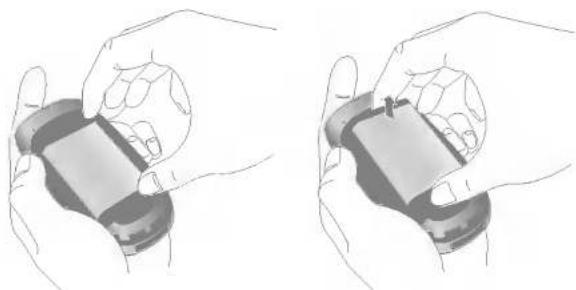
2. Remove the battery.
Hold the top edge of the battery and lift the battery from the battery compartment.
natural_image
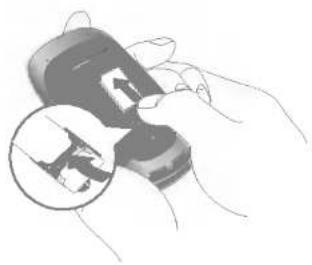
Two hand-drawn illustrations showing a device being held, with no visible text or symbols.3. Install the SIM card.
Insert the SIM card into the holder. Slide the SIM card into the SIM card holder. Make sure that the SIM card is inserted properly and that the gold contact area on the card is facing downwards. To remove the SIM card, press down lightly and pull it in the reverse direction.
④ Note The metal contact of the SIM card can be easily damaged by scratches. Pay special attention to the SIM card while handling. Follow the instructions supplied with the SIM card.
4. Install the battery.
Insert the bottom of the battery first into the bottom edge of the battery compartment. Push down the top of the battery until it snaps into space.

5. Replace the battery cover.
Lay the battery cover in place of the phone and slide it until the latch clicks.

natural_image
Two grayscale illustrations of hands holding a handheld device, one showing a hand pressing a button (no text or symbols visible)Charging the Battery
To connect the travel adapter to the phone, you must have installed the battery.

natural_image
Illustration showing hands connecting a remote control device to an electrical socket (no text or symbols present)- Ensure the battery is fully charged before using the phone.
- With the arrow facing you as shown in the diagram push the plug on the battery adapter into the socket on the bottom of the phone until it clicks into place.
- Connect the other end of the travel adapter to the mains socket. Use only the included charger.
-
The moving bars of battery icon will stop after charging is complete.
Caution • Do not force the connector as this may damage the phone and/or the travel adapter. -
Insert the battery pack charger vertically to wall power outlet.
- If you use the battery pack charger out of your own country, use an attachment plug adaptor for the proper configuration.
- Do not remove your battery or the SIM card while charging.
- Warning • Unplug the power cord and charger during lightning storms to avoid electric shock or fire.
- Make sure that no sharp-edged items such as animal teeth, nails, come into contact with the battery. There is a risk of this causing a fire.
- Do not place or answer calls while charging the phone as it may short.
Disconnecting the charger
Disconnect the travel adapter from the phone by pressing its side buttons as shown in the diagram.

natural_image
Illustration of a hand holding a small electronic device with arrows indicating process (no text or symbols)Memory card
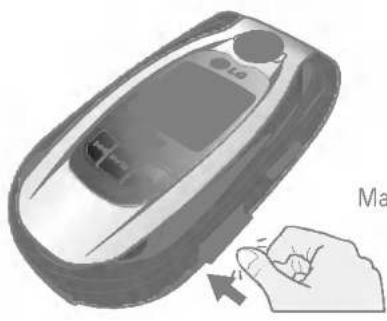
LG-G262 is equipped on the side with Mini SD memory card with a maximum of 128MB capacity. You can use this card to save data files such as photos, video, audio, contact point, schedule.
- Note Always insert/remove the memory card with the handset power off.
Inserting the memory card
Insert the memory card into the slot until the memory card is fully inserted into the slot, as shown in the figure below:

natural_image
Close-up of a car's wheel and side panel (no visible text or symbols)Open the memory card slot

natural_image
Illustration of a mobile phone with a hand interacting with it (no text or symbols visible)Insert the memory card
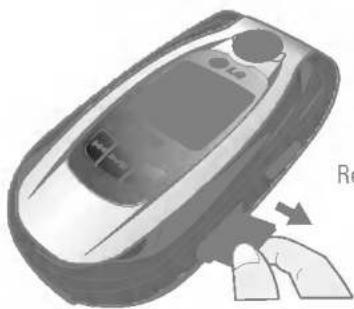
Removing the memory card
- Push in memory card with the tip of your finger into the slot.
- Carefully pull the memory card out of slot.
natural_image
Illustration of a car with a hand pressing down on the side (no text or symbols)Remove the memory card
Entering Text
You can enter alphanumeric characters by using the phone's keypad.
- Note Some fields may allow only one text input mode (e.g. telephone number in address book fields).
T9 Mode
This mode allows you to enter words with only one keystroke per letter. Each key on the keypad has more than one letter. The T9 mode automatically compares your keystrokes with an internal linguistic dictionary to determine the correct word, thus requiring far fewer keystrokes than the traditional ABC mode.
ABC Mode
This mode allows you to enter letters by pressing the key labeled with the required letter once, twice, three or four times until the letter is displayed.
123 Mode (Numbers Mode)
Type numbers using one keystroke per number. To change to 123 mode in a text entry field, press key until 123 mode is displayed.
Symbolic Mode
This mode allows you to enter special characters.
Changing the Text Input Mode
-
When you are in a field that allows characters to be entered, you will notice the text input mode indicator in the upper right corner of the display.
-
If you want to change modes, press 📂. The available modes are changed.
Using the T9 Mode
- When you are in the T9 predictive text input mode, start entering a word by pressing keys ☐ to ☐ Press one key per letter.
- Enter the whole word before editing or deleting any keystrokes.
- Complete each word with a space by pressing the key or ♦ key.
To delete letters, press 📋. Press and hold down 📋 to erase the letters continuously.
- Note To exit the text input mode without saving your input, press 🔒. The phone returns to the ideal screen.
Refer to the table below for more information on the characters available using the keys.
| Key | Characters is the Order Display | |
| Upper Case | Lower Case | |
| .,/?!-:"1 | .,/?!-:"1 | |
| ABC2 | abc2 | |
| DEF3 | def3 | |
| GHI4 | ghi4 | |
| JKL5 | jkl5 | |
| MNO6 | mno6 | |
| PQRS7 | pqrs7 | |
| TUV8 | tuv8 | |
| WXYZ9 | wxyz9 | |
| Space 0 | Space 0 | |
1 Games & more
1 Games & more
2 Settings

2 Contacts
1 Add new
2 Search
3 Speed dial
4 Caller groups
5 Own number
6 Settings

3 Organiser
1 Calendar
2 Memo

4 Multimedia
1 Take photo
2 Fun frames
3 Take silent movie
4 Voice recorder
5 MP3
6 My photos
7 Silent movie
8 Settings

5 Messages
1 New message
2 Inbox
3 Outbox
4 Sent
5 Drafts
6 Listen to voice mail
7 Info message
8 Templates
9 Settings

6 My stuff
1 Photos
2 Pictures
3 Silent movie
4 Sounds
5 Music
6 Others
7 External memory

7 Display
1 Wallpaper
2 Menu colour
3 Greeting note
4 Backlight
5 Information window

8 Profiles
1 General
2 Silent
3 Vibrate only
4 Loud
5 Headset
6 Car

9 Tools
1 Favorites
2 Alarm clock
3 Bluetooth
4 SyncML
5 Calculator
6 Unit converter
7 World time
8 SIM-Menu

* Browser
1 Home
2 Bookmarks
3 Go to URL
4 Settings
5 Browser version

0 Call register
1 Missed calls
2 Received calls
3 Dialled calls
4 All calls
5 Delete recent calls
6 Call charges
7 GPRS information

# Settings
1 Date & Time
2 Langauges
3 Call settings
4 Security settings
5 Network settings
6 GPRS settings
7 Memory status
8 Reset settings

Games & more
[Menu 1-1]
- Default Games: In this menu, you can manage the Java applications installed in your phone. You can play or delete downloaded applications, or set the connect option. The downloaded applications are organised in folders. Press the left soft key [Menu] to open the selected folder or launch the selected midlet.
▶ Launch: Start the selected application.
▶ Info: Shows the information of the application.
▶ Options: Some Java applications may require a data connection to be made.
Note You cannot remove or rename the preinstalled folder or a game in the folder.
Settings
[Menu 1-2]
You can set the network settings to download the game.
Java™, is a technology developed by Sun Microsystems. Similar to the way you would download the Java Applet using the standard Netscape or MS Internet Explorer browsers, Java MIDlet can be downloaded using the WAP enabled phone. Depending on the service provider, all Java based programs such as Java games can be downloaded and run on a phone. Once downloaded, the Java program can be viewed in the My games & more menu where you can select, execute, or delete. The Java program files saved in the phone are in .JAD or .JAR format.
Note • The JAR file is a compressed format of the Java program and the JAD file is a description file that includes all detailed information. From the network, prior to download, you can view all detailed file descriptions from the JAD file. • While being based on a standard language (J2ME), not all Java applications are compatible with all handsets on sale insofar as specific libraries may be used for a telephone model. The software may be blocked or switch itself on when Java applications not specifically developed for the phone this manual refers to are downloaded, making it necessary to "restart" the handset. We would like to point out that these problems are caused by incompatible applications and are not a product fault.
Caution Only J2ME(Java 2 Micro Edition) based programs will run in a phone environment. The J2SE(Java 2 Standard Edition) based programs will only run in a PC environment.
Contacts [Menu 2]
Add new
[Menu 2-1]
You can add phonebook entry by using this function.
- Select Add new by press left soft key [Select] or [OK].
- Select the memory you want to save: SIM or Phone. If you set to Phone, you need to select which number you want as a main number.
Search
[Menu 2-2]
- Select Search by press the left soft key [Select] or [OK].
- Enter the name that you want to search.
Note Instant searching is available by inputting the initial letter of the name or number you want to search.
3. If you want to edit, delete, copy an entry, or to add the voice to one, select left soft key [Options].
Speed dial
[Menu 2-3]
You can assign any of the keys ☐ to ☐ with a Name list entry. You can call directly by pressing this key.
Caller groups
[Menu 2-4]
You can list up to the members per each group. There are 7 groups you can make lists to.
Own number (SIM dependent)
[Menu 2-5]
You can save and check your own number in SIM card.
Settings
[Menu 2-6]
Scroll to Settings, then press the left soft key [Select].
▶ View options: Scroll to highlight View options, and then press the left soft key [Select].
▶ Copy all: You can copy/move entries from SIM card memory to Phone memory and vice versa.
▶ Move all: You can move all entries from SIM to phone or phone to SIM.
▶ Default memory: Scroll to highlight Default memory, and then press the left soft key [Select]. If you select SIM or Phone, the phone will store an entry to SIM or phone.
▶ Memory in use: This feature allows you to see how many free and in-use are in your phonebook.
▶ Clear contacts: You can delete all entries in SIM and Handset. This function requires Security code.
▶ Business card: You can create business card.
▶ Service dial number: Use this function to access a particular list of services provided by your network operator (if supported by the SIM card).
Calendar
[Menu 3-1]
When you enter this menu a calendar will show up. On top of the screen there are sections for date. Whenever you change the date, the calendar will be updated according to the date.
To change the day, month, and year.
| Description | Description | ||
| Yearly | Weekly | ||
| Monthly | Daily |
In the scheduler mode, press left soft key [Options] as follows;
Add new
[Menu 3-1-1]
Allows you to add new schedule and memo for the chosen day. You can store up to 20 notes.
View daily schedules
[Menu 3-1-2]
View all schedules and memo for the chosen day. Use 🔊, 🔔 to browse through the note lists. If you set alarm for the note, the alarm icon is displayed.
If you want to view the note in detail, press left soft key [Select]. Press left soft key [Options] to delete, edit the note you selected.
Delete past
[Menu 3-1-3]
You can delete the past schedule that has been already notified you.
Delete all
[Menu 3-1-4]
You can delete for the all notes.
Go to date
[Menu 3-1-5]
You can go the chosen date directly.
Set alarm tone
[Menu 3-1-6]
You can set the alarm tone of each chosen date.
Memo
[Menu 3-2]
- Select the Memo by pressing the left soft key [Select].
- If the entry is empty, press the left soft key [Write].
- Input the memo and then press left soft key [OK].
- Note If you want to change the text input mode, press the in order.
You can enjoy your multimedia function such as camera, voice recorder, MP3 for your fun and convenience.
Take photo
[Menu 4-1]
• To take a picture with Folder opened
-
Select Take photo, and then press 📄. If you want to reach this menu directly, press 📋 for a long time.
-
Focus on the subject to capture the image, and then press the Ⓞ key.
-
If you want to save it, press the left soft key or the key.
Note You can control the image size, brightness, colour and zooming by pressing the navigation key. (or).
▶ Resolution [☐]: Allows you to set the image size to one of Hi (1280X960), Med (640x480), Low (320x240) main screen, contact, and front screen.
▶ Picture quality [☐]: Allows you to set the image quality from Standard, Fine and Superfine.
▶ Flash [■]: Allow you to set the flash when you take a photo in dark place.
▶ Multishot [☐]: Allows to take a multishot photos successively.
▶ Zoom [☐]: Allows you to set the zooming value from x1 to x2 depends on resolution.
▶ Brightness [■]: Use the right/left navigation keys to adjust lighting. 9 lighting levels are available: -2.0, -1.5, -1.0, -0.5, 0.0, +0.5, +1.0, +1.5, +2.0.
▶ Lighting settings [☐]: Allows you to change the settings according to the environment.
▶ Night time [☐]: Allows you to take a picture by using this menu at night.
▶ Autoshoot [■]: Allows you to select the delay time (None, 3 Seconds, 5 Seconds, 10 seconds). Then the phone takes a photo after the specified time.
▶ Colour [☐]: 3 settings are available: Color, Sepia, Black/White.
▶ Memory status [☐]: Check the available memory to take new pictures.
• To take a picture with Folder closed
You can see yourself by sub LCD, when you take your self-portrait.
- Press [ ] for a long time.
- Focus on the subject to capture the image, and then press [●]. This time, the picture is saved automatically.
• Camera: Activate the Take photo mode. - Slide show: View the pictures in Album as slide show.
- Torch: Activate the flash light.
- Back: Go back to the previous menu.
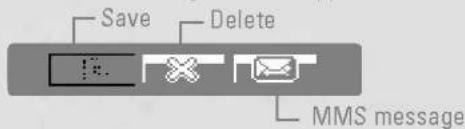
After finishing all the setting, focus on the subject to capture and press the Camera key or OK key. With a click, the image is captured and the following menu bar appears.
Fun frames
[Menu 4-2]
You can take a picture on the various of backgrounds. Furthermore, you can select a frame by pressing the navigation key or .
Note In this mode, you can't change the settings of resolution.
Multimedia [Menu 4]
Take silent movie
[Menu 4-3]
You can record video streaming for 20 seconds.
- Select Take silent movie menu.
- If you want to record the data, press the left soft key [Record].
- You can check the remained time by time bar.
Voice recorder
[Menu 4-4]
The voice memo feature you to record up to 10 voice messages and each memo is up to 60 Seconds. Once recording is started, the message Recording and the remaining time is displayed.
Note The default setting for recording time is 30 seconds, but you can select 30 secs or 1 min in settings menu.
MP3
[Menu 4-5]
The LG-G262 has an integrated MP3 player built-in. You can enjoy listening to MP3 music files on a memory in your phone using a compatible headset or via the internal loudspeaker. The music player supports:
- MPEG-1 Layer III: Sampling frequency up to 48KHz, Bit rate from 32Kbps up to 192Kbps, stereo
- MPEG-2 Layer III: Sampling frequency up to 24KHz, Bit rate from 32Kbps up to 160Kbps, stereo
• AAC: ADIF, ADTS formats (Sampling frequency up to 48KHz)
- Note LG-G262 doesn't support the variable rate of MP3 and AAC file. Therefore, you can't change the file from VBR MP3 format to AAC.
You can transfer MP3 files from a compatible PC to the memory in your phone using the LG Contents Bank on the CD-ROM in the sales package.
Note
• The PC should run Windows 98 SE, Windows ME, Windows 2000, Windows XP operating system.
- Besides downloading the MP3 files to the phone, you can upload the pictures taken on the phone to the PC using the USB cable. And you can also manage the phonebook, scheduler, and Memo on the PC. Consult with the authorised dealer for availability of accessories.
- To download MP3 file in Windows 2000, you should set folder option in PC as follow: View WEB->Use Windows default folder (I).
MP3 player
[Menu 4-5-1]
- Press MP3 menu, and then select MP3 player.
- Press the left soft key [Options] to access the following menus.
▶ Main LCD skin: This menu allows to change the background of main LCD on playing MP3 file.
▶ Front LCD skin: This menu allows to change the background of front LCD on playing MP3 file with closing a folder.
This menu helps you to adjust various of environment on listening to the music. This phone supports four preset menus. When you enter this menu, you can view current value of equalizer. - Continue playing
Although you close the flip on playing, the play mode is continued without a pause.
When you close the flip, you can stop the play mode.
You can view the play list on listening to the music.
This menu allows to set the play mode: Play all, Repeat all,
Equalizer
▶ Flip setting:
- Stop playing
▶ View play list
▶ Playmode
Random all, Play one and Repeat one.
▶ Set as ring tone
This menu allows to set the MP3 file as a ring tone. You can also set it as a ring tone in Profile.
Play list
[Menu 4-5-2]
This menu allows to view the whole play list. You can move the track by pressing the navigation key. In addition, if you select option menu, you can delete the file or view its information.
My photos
[Menu 4-6]
You can view and send a picture. In addition, you can set the window as a background.
Silent movie
[Menu 4-7]
This menu allows to play or delete the video file. You can change the name of file, and check information related to size and time.
Settings
[Menu 4-8]
Camera
[Menu 4-8-1]
▶ Auto save: If you set On, the images will be saved automatically without displaying menu bar to save.
▶ Shutter tone: You can change the shutter tone to take a picture.
▶ Delete all photos: This menu allows to delete all photos after asking your confirmation.
Voice recorder
[Menu 4-8-2]
▶ Duration: You can set the duration to record for 30 seconds or 1 minute.
Memory in use
[Menu 4-8-3]
You can check the capacity of memory in use.
New message
[Menu 5-1]
This menu includes functions related to SMS (Short Message Service), MMS (Multimedia Message Service), voice mail, as well as the network's service messages.
Text message
[Menu 5-1-1]
You can write and edit text message, checking the number of message pages.
- Enter the Messages menu by pressing the left soft key [Select].
- If you want to write a new message, select Text message.
- To make text input easier, use T9.
- Press [Insert] to attach the followings.
Insert
▶ Picture: You can insert the Default graphics or graphics in My pictures that are available for short messages.
▶ Sound: You can insert sounds that are available for short messages.
▶ Text templates: You can use Text templates already set in the phone.
Contacts: You can add phone numbers or e-mail addresses in address book.
▶ Symbol: You can add special characters.
▶ Business card: You can add your signature to the message.
▶ Schedule: You can insert your own schedule on writing the message.
5. If you want to set option for your text, or to finish your writing, press the left soft key [Options].
Options
▶ Send: Sends text messages.
-
Enter numbers of recipient.
-
Press 🔔 key to add more recipients.
- You can add phone numbers in the address book.
- Press the left soft key after entering numbers. All messages will be automatically saved in the outbox folder, even after a sending failure.
▶ Save to drafts: Stores messages in Drafts.
▶ Font & Alignment: You can select Size and Style of fonts, and the alignment of text.
▶ Colour: You can select Colour of foreground and background.
▶ T9 dictionary: You can add your own word. This menu can be shown only when edit mode is Predictive (T9Abc/T9abc/T9ABC).
▶ Exit: If you press Exit while writing a message, you can end the writing message and back to the Message menu. The message you have written is not saved.
Note The phone which supports EMS release 5 is available to send colour pictures, sounds, text styles, etc.. The other party may not receive pictures, sounds or text styles you sent properly if the phone does not support such options.
Multimedia message
[Menu 5-1-2]
You can write and edit multimedia messages, checking message size.
- Enter the Message menu by pressing the left soft key [Select].
- If you want to write a new message, select Multimedia message.
- You can create a new message or choose one of the multi-media message templates already made.
- Press Insert to add photos, pictures, sounds, record voice, text templates, contacts, symbol, business card, and schedule.
Options
▶ Send: You can send multimedia messages to multiple recipients, prioritize your message, and make it sent later as well.
Note All messages will be automatically saved in the out-box folder, even after a sending failure.
▶ Preview: You can preview multimedia messages you wrote.
▶ Save: You can save multimedia messages To drafts or As template.
▶ Edit subject: You can edit the subject of each message.
▶ Add slide: You can add a slide before or after current slide.
▶ Move to slide: You can move to previous or next slide.
▶ Delete slide: You can delete current slides.
▶ Set slide format
- Set timer: You can set timer for slide, text, picture and sound.
▶ T9 dictionary: You can add your own word. This menu can be shown only when edit mode is Predictive (T9Abc/T9abc/T9ABC).
▶ Exit: You can get back to the Message menu.
- Note If you select the picture (15K) on writing multimedia message, loading duration will take around 15 seconds at least. Furthermore, you can't activate any key during loading time. After 15 seconds, it is available to write multimedia message.
Inbox
[Menu 5-2]
You will be alerted when you have received messages. They will be stored in Inbox.
If the phone shows 'No space for SIM message', you have to delete only SIM messages from Inbox. If the phone displays 'No space for message', you can make space of each repository as deleting messages, media and applications.
\* SIM message
SIM message means the message exceptionally stored in SIM card. You can move this message to the phone.
For notified multimedia message, you have to wait for downloading and processing of the message.
Outbox
[Menu 5-3]
This menu allows to view the message which is about to send or is failed sending. After sending the message successfully, the message will be moved to sent menu.
Sent
[Menu 5-4]
You can view the message which is already sent.
Drafts
[Menu 5-5]
Using this menu, you can preset up to five multimedia messages that you use most frequently. This menu shows the preset multimedia message list.
Listen to voice mail
[Menu 5-6]
Once this menu has been selected, simply press the left soft key [OK] to listen to voice mail. You can also hold down the key in standby mode to listen to voice mail.
⑨ Note
When you receive a voice mail, your phone displays the icon and you hear an alert. Please check with your network provider for details of their service in order to configure the handset correctly.
Info message
[Menu 5-7]
(Dependent to network and subscription)
Info service messages are text messages delivered by the network to GSM. They provide general information such as weather reports, traffic news, taxis, pharmacies, and stock prices. Each type of has the number; therefore, you can contact service provider as long as you have input the certain number for the information. When you have received an info service message, you can see the popup message to show you that you have received a message or the info service message is directly displayed. To view the message again or not in standby mode, follow the sequence shown below;
Read
[Menu 5-7-1]
-
When you have received an info service message and select Read to view the message, it will be displayed on the screen. You can read another message by scrolling 📄, or [Next].
-
The message will be shown until another message is reached.
Topics
[Menu 5-7-2]
(Dependent to network and subscription)
▶ Add new: You can add Info service message numbers in the Phone memory with its nickname.
▶ View list: You can see Info service message numbers which you added. If you press [Options], you can edit and delete info message category which you added.
▶ Active list: You can select info service message numbers in the active list. if you activate an info service number, you can receive messages sent from the number.
Templates
[Menu 5-8]
Text template
[Menu 5-8-1]
You can insert the text template on writing a message.
Multimedia template
[Menu 5-8-2]
You can insert the multimedia template which is included of picture, sound, and photo on writing a message.
Settings
[Menu 5-9]
Text message
[Menu 5-9-1]
▶ Message types:
Text, Voice, Fax, Natl. paging, X.400, E-mail, ERMES
You can convert your text into alternative formats. Contact your service provider for the availability of this function.
▶ Validity period: This network service allows you to set how long your text messages will be stored at the message centre.
▶ Delivery report: If you set to Yes, you can check whether your message is sent successfully.
▶ Reply charging: When a message is sent, it allows the recipients to reply and charge the cost of the reply to your telephone bill.
▶ SMS centre: If you want to send the text message, you can receive the address of SMS centre through this menu.
Multimedia message
[Menu 5-9-2]
▶ Priority: You can set the priority of the message you choose.
▶ Validity period: This network service allows you to set how long your text messages will be stored at the message centre.
Subject: You can insert the subject of each template.
▶ Delivery report: If it is set to Yes in this menu, you can check whether your message is sent successfully.
▶ Read reply: You can send the reply for the confirmation whether you read the message or not.
▶ Auto download: If you select On, you receive multimedia messages automatically. If you select Off, you receive only notification message in the inbox and then you can check this notification. If you select Home network only, you receive multimedia messages depends on Homenetwork.
▶ Network settings: If you select multimedia message server, you can set URL for multimedia message server.
▶ Permitted types
Personal: Personal message.
Advertisements: Commercial message.
Information: Necessary information.
Voice mail centre
[Menu 5-9-3]
You can receive the voicemail if your network service provider supports this feature. When a new voicemail is arrived, the symbol will be displayed on the screen. Please check with your network service provider for details of their service in order to configure the phone accordingly.
Info message
[Menu 5-9-4]
Receive
If you select On, your phone will receive Info service messages.
▶ Alert
If you select Yes, your phone will beep when you have received info message number.
▶ Languages
You can select the language you want by pressing [On/Off].
Push message
[Menu 5-9-5]
You can set the option whether you will receive the message or not.
My stuff [Menu 6]
Photos
[Menu 6-1]
After taking a picture, you can view or send it by MMS and bluetooth. Press the left key [Options] to enter the options.
▶ Full view: You can view full photo.
▶ Multi view: You can view the maximum of 9 thumbnails in a screen.
▶ Set as wallpaper: You can set a picture as a wallpaper.
▶ Send via multimedia message: You can send a picture thru MMS.
▶ Send via bluetooth: You can send the photo by bluetooth.
▶ Copy/ Move to external memory: You can copy or move between phone and the SD memory.
▶ Rename: You can edit the title of picture.
▶ Delete: You can delete the photo.
Information: You can view the information about Title, Size, Date and Time you've taken.
Pictures
[Menu 6-2]
After selecting a picture, press the left key [View]. You can check the options as follow:
▶ Set as wallpaper: Currently selected picture can be set as a wallpaper.
▶ Send via multimedia message: The picture downloaded from network can be sent by MMS service.
▶ Send via bluetooth: The picture downloaded from network can be sent by Bluetooth.
▶ Copy to external memory: The picture can be moved to Mini SD memory card.
Silent movie
[Menu 6-3]
This menu allows to play or delete the video file. You can change the name of file, and check information related to size and time.
Sounds
[Menu 6-4]
After selecting a sound, press the left key [Options]. You can check the options as follow:
▶ Set as ringtone: Currently selected sound can be set as a ringtone.
▶ Send via text/ multimedia message: The sound downloaded from network can be sent by SMS or MMS service.
▶ Send via bluetooth: The sound downloaded from network can be sent by Bluetooth.
▶ Copy to external memory: The sound can be moved to Mini SD memory card.
Music
[Menu 6-5]
You can download MP3 file from network, and then you can enjoy the music. In addition, you can set this music as a ring-tone.
Others
[Menu 6-6]
This menu provides a space to store the external files which are not opened on this phone.
External Memory
[Menu 6-7]
This menu allows you to view Photos, Pictures, Sounds and Music in Mini SD memory card. If the external memory is not available, a pop up message "Please insert external memory" is displayed.
Display [Menu 7]
Wallpaper [Menu 7-1]
You can select the background pictures in standby mode.
Menu colour [Menu 7-2]
Your phone provides you with 4 menu colour themes. Set the menu colour by scrolling and pressing the left soft key [Select].
Greeting note [Menu 7-3]
If you select On, you can edit the text which is displayed in standby mode.
Backlight [Menu 7-4]
You can set the light-up duration of the display.
Information window [Menu 7-5]
You can preview the current state of the selected menu before open the menu. The state is shown at bottom of the display.
Profiles [Menu 8]
In Profiles, you can adjust and customise the phone tones for different events, environments, or caller groups.
There are six preset profiles: General, Silent, Vibrate only, Loud, Headset and Car.
Activate
[Menu 8-X-1]
-
A list of profiles is displayed.
-
In the Profiles list, scroll to the profile you want to activate and press the left soft key [Select] or OK key.
Personalise
[Menu 8-X-2]
Scroll to the desired profile in the Profile list. After pressing the left soft key or the OK key, select Personalise. The profile setting option opens. Set the option as required.
▶ Call alert type: Set the alert type for incoming calls.
▶ Ring tone: Select the desired ring tone from the list.
▶ Ring volume: Set the volume of the ringing tone.
▶ Message alert type: Set the alert type for messages.
▶ Message tone: Select the alert tone for messages.
▶ Keypad tone: Select the desired keypad tone.
▶ Flip tone: Allows to set the flip tone for adjusting environment.
▶ Keypad volume: Set the volume of keypad tone.
▶ Sound effects volume: Set the volume of effect sound.
▶ Power on/off volume: Set the volume of the ringing tone when switching the phone on/off.
▶ Auto answer: This function will be activated only when your phone is connected to the handsfree kit.
- Off: The phone will not answer automatically.
• After 5 secs: After 5 seconds, the phone will answer automatically.
• After 10 secs: After 10 seconds, the phone will answer
automatically.
Rename
[Menu 8-X-3]
You can rename a profile and give it any name you want.
- Note Vibrate only, Silent and Headset profiles cannot be renamed.
Tools [Menu 9]
Favourites
[Menu 9-1]
This option allows you to add your own favourites to the list already provided. Once you create your own menu, you can access the desired function quickly in the idle screen by pressing the up navigation key.
Alarm clock
[Menu 9-2]
You can set up to 5 alarm clocks to go off at a specified time.
- Select On and enter the alarm time you want.
- Select the repeat period: Once, Mon\~Fri, Mon\~Sat, Everyday.
- Select the alarm tone you want and press [OK].
- Edit the alarm name and press [OK].
Bluetooth
[Menu 9-3]
Bluetooth enables compatible mobile devices, peripherals and computers that are in close proximity to communicate directly with each other without wires. This handset supports built-in Bluetooth connectivity, which makes it possible to connect them with compatible Bluetooth headsets, computer applications and so on.
- Note You can exchange the data within only phonebook via bluetooth.
My devices
[Menu 9-3-1]
You can view all devices which are compatible with bluetooth phone.
Handsfree devices
[Menu 9-3-2]
You can view the list of handsfree devices which is compatible with bluetooth phone.
If you enter My devices or Handsfree devices menu, you access the options as follow.
▶ Connect/ Disconnect: Allows to connect the other bluetooth devices.
▶ Add new: Allows to search new bluetooth device.
▶ Assign name: Allows to change the name of bluetooth.
▶ Set as authorised/Set as unauthorised: Allows to set the authorised connection between each bluetooth devices.
▶ All service: Allows to view all services which are supported by bluetooth device.
▶ Delete : Allows to delete the bluetooth device.
▶ Delete all: Allows to delete all bluetooth devices.
Settings
[Menu 9-3-3]
You can register new device which is compatible with bluetooth. If you already have added the device, you can search it after entering a password.
▶ Set bluetooth
You can activate or cancel bluetooth function.
▶ Handset's visibility
You can set the function that your phone is shown on the other bluetooth devices.
▶ Handset's name
You can set the name of bluetooth device. The default name is LG-G262.
SyncML
[Menu 9-4]
The SyncML function synchronises the data in a phone and the data on a server such as contact address information, schedule items, etc. via a wireless network.
- Connect
Select SyncML from the Connectivity menu and then press the OK key.
Select the Connect item and then press the OK key. Connect to the server with the selected server profile and the synchronization animation is displayed while the synchronization is performed.
- Server settings
This menu allows you to configure the profile for a SyncML.
- Logs
Select a SyncML item in the Connectivity menu and then press the OK key.
Select Logs item and then press the OK key to view the log for the last synchronisation operation performed.
Calculator
[Menu 9-5]
This contains the standard functions such as +, -, x, ÷ : Addition, Subtraction, Multiplication, and Division.
Furthermore, you can use the various function of calculator such as sin, cos, log.
- Input the numbers by pressing numeric keys.
- Use a navigation key to select a sign for calculation.
- Then input the numbers.
- Press OK key to view the result.
- If you press the left soft key [Function], you can use the virious of calculation.
-
To input the decimal numver, press key. If you press key, you can enter().
-
To end Calculator, press the right soft key [Back].
Unit converter
[Menu 9-6]
This converts any measurement into a unit you want. There are 7 types that can be converted into units: Currency, Surface, Length, Weight, Temperature, Volume and Velocity.
- You can select one of four unit types by pressing [Unit] key.
- Select the unit you want to convert by pressing and 📁.
- Select the standard value by using ( ) .
![LG G262 - [Menu 9-6] - 1](/content/2026/05/1108053/images/8f187415c770346a896969e270a444776532486bea6cd4e395b5dd84d17ee7dd.jpg)
![LG G262 - [Menu 9-6] - 2](/content/2026/05/1108053/images/070dc64afdc29f23c72dc240dc8d7becd619e3cf6eda2008b0715a65027cfabc.jpg)
World time
[Menu 9-7]
You can view clocks of the world's major cities.
- Select the city belonged to the time zone by pressing, key.
![LG G262 - [Menu 9-7] - 1](/content/2026/05/1108053/images/edb19e565e8951cee9622c70c447ad7cfb0ba6fc1d64cf54a2eac7d22c7299db.jpg)
- You can set the current time to the city time you select by pressing the left soft key [Set].
SIM-Menu
[Menu 9-8]
This menu depends on SIM and the network services.
Browser [Menu \*]
You can access various WAP (Wireless Application Protocol) services such as banking, news, weather reports and flight information. These services are specially designed for mobile phones and they are maintained by WAP service providers.
Check the availability of WAP services, pricing and tariffs with your network operator and/or the service provider whose service you wish to use. Service providers will also give you instructions on how to use their services.
Once connected, the homepage is displayed. The content depends on the service provider. To exit the browser at any time, press the ( ) key. The phone will return to the previous menu.
- Note The WAP browser menus may vary, depending on your browser version.
Home [Menu \* -1]
Connects to a homepage. The homepage will be the site which is defined in the activated profile. It will be defined by the service provider if you have not defined it in the activated profile.
Bookmarks [Menu \* -2]
This menu allows you to store the URL of favourite web pages for easy access at a later time. Your phone has several pre-installed bookmarks.
These pre-installed bookmarks cannot be deleted.
Go to URL [Menu \* -3]
You can connect directly to the site you want. After entering a specific URL, press the OK key.
Settings [Menu \* -4]
You can set the profile, cache, cookie and security related to internet service.
Browser version [Menu \* -5]
The WAP browser version is displayed.
Call register [Menu 0]
You can check the record of missed, received, and dialled calls only if the network supports the Calling Line Identification (CLI) within the service area.
The number and name (if available) are displayed together with the date and time at which the call was made. You can also view call times.
Missed calls [Menu 0-1]
This option lets you view the last 10 unanswered calls.
Received calls [Menu 0-2]
This option lets you view the last 10 incoming calls.
Dialled calls [Menu 0-3]
This option lets you view the last 20 outgoing calls (called or attempted).
All calls [Menu 0-4]
This option allows you to view all records of call.
Delete recent calls [Menu 0-5]
Allows you to delete Missed calls and Received calls lists. You can delete Dialled calls and All calls lists at one time.
Call charges [Menu 0-6]
Call duration [Menu 0-6-1]
Allows you to view the duration of your incoming and outgoing calls. You can also reset the call times.
Call costs [Menu 0-6-2]
Allows you to check the cost of your last call, all calls, remaining and reset the cost. To reset the cost, you need to PIN2 code.
Settings [Menu 0-6-3]
(SIM Dependent)
▶ Set tariff: You can set the currency type and the unit price. Contact your service providers to obtain charging unit prices. To select the currency or unit in this menu, you need the PIN2 code.
▶ Set credit: This network allows you to limit the cost of your calls by selected charging units. If you select Read, the number of remaining unit is shown. If you select Change, you can change your change limit.
▶ Auto display: This network service allows you to see automatically the cost of your last calls. If set to On, you can see the last cost when the call is released.
GPRS information [Menu 0-7]
You can check the amount of data transferred over the network through the GPRS information option. In addition, you can also view how much time you are online.
Call duration [Menu 0-7-1]
You can check the duration of Last call and All calls. You can also reset the call timers.
Data volume [Menu 0-7-2]
You can check The Sent, Received or All data volumes and Reset all.
Settings [Menu #]
Date & Time [Menu #-1]
You can set functions relating to the date and time.
Set date [Menu #-1-1]
▶ Set date
You can enter the current date.
▶ Date format
You can set the Date format such as DD/MM/YYYY, MM/DD/YYYY, YYYY/MM/DD.
(D: Day / M: Month / Y: Year)
Set time [Menu #-1-2]
▶ Set time
You can enter the current time.
▶ Time format
Your can set the time format between 24-hour and 12-hour.
Languages [Menu #-2]
You can change the language for the display texts in your phone. This change will also affect the Language Input mode.
Call settings [Menu #-3]
You can set the menu relevant to a call by pressing [Select] in the Setting menu.
Call divert [Menu #-3-1]
The Call divert service allows you to divert incoming voice calls, fax calls, and data calls to another number. For details, contact your service provider.
▶ All voice calls
Diverts voice calls unconditionally.
▶ If busy
Diverts voice calls when the phone is in use.
▶ If no reply
Diverts voice calls which you do not answer.
▶ If out of reach
Diverts voice calls when the phone is switched off or out of coverage.
▶ All data calls
Diverts to a number with a PC connection unconditionally.
▶ All fax calls
Diverts to a number with a fax connection unconditionally.
▶ Cancel all
Cancels all call divert service.
Answer mode [Menu #-3-2]
▶ Flip open
If you select this menu, you can receive an incoming call when only opening flip.
▶ Any key
If you select this menu, you can receive a call by pressing any key except ◀ [End] key.
▶ SEND key only
If you select this menu, you can receive a call by only pressing ▶ [Send] key.
Send my number [Menu #-3-3]
(network and subscription dependent)
▶ On
You can send your phone number to another party. Your phone number will be shown on the receiver's phone.
▶ Off
Your phone number will not be shown.
Settings [Menu #]
▶ Set by network
If you select this, you can send your phone number depending on two line service such as line 1 or line 2.
Call waiting
[Menu #-3-4]
(network dependent)
▶ Activate
If you select Activate, you can accept a waiting (receiving) call.
▶ Cancel
If you select Cancel, you cannot recognize the waiting (receiving) call.
▶ View status
Shows the status of Call waiting.
Minute minder
[Menu #-3-5]
If you select On, you can check the call duration by deep sound every minute during a call.
Auto redial
[Menu #-3-6]
If you set On, the phone will automatically try to redial in the case of failure to connect a call.
Security settings
[Menu #-4]
PIN code request
[Menu #-4-1]
In this menu, you can set the phone to ask for the PIN code of your SIM card when the phone is switched on. If this function is activated, you'll be requested to enter the PIN code.
- If you enter wrong PIN code more than 3 times, the phone will lock out. If the PIN is blocked, you will need to key in PUK code.
- You can enter your PUK code up to 10 times. If you put wrong PUK code more than 10 times, you can not unlock your phone.
You will need to contact your service provider.
Handset lock
[Menu #-4-2]
You can use security code to avoid unauthorized use of the phone. Whenever you switch on the phone, the phone will request security code if you set phone lock to On. If you set phone lock to Automatic, your phone will request security code only when you change your SIM card.
Call barring
[Menu #-4-3]
The Call barring service prevents your phone from making or receiving certain category of calls. This function requires the call barring password.
▶ All outgoing calls
The barring service for all outgoing calls.
▶ Outgoing international
The barring service for all outgoing international calls.
▶ Outgoing international except home country
The barring service for all international outgoing calls except home network.
▶ All incoming
The barring service for all incoming calls.
▶ Incoming when abroad
The barring service for all incoming calls when roaming.
▶ Cancel all barrings
You can cancel all barring services.
▶ Change password
You can change the password for Call Barring Service.
Fixed dial number [Menu #-4-4]
(SIM dependent)
You can restrict your outgoing calls to selected phone numbers. The numbers are protected by your PIN2 code.
Change codes [Menu #-4-5]
PIN is an abbreviation of Personal Identification Number to prevent use by unauthorized person. You can change the access codes: PIN1 code, PIN2 code, Security code.
Network settings [Menu #-5]
You can select a network which will be registered either automatically or manually. Usually, the network selection is set to Automatic.
Network selection [Menu #-5-1]
▶ Automatic
If you select Automatic mode, the phone will automatically search for and select a network for you. Once you have selected "Automatic", the phone will be set to "Automatic" even if the power is off and on.
▶ Manual
The phone will find the list of available networks and show you them. Then you can select the network which you want to use if this network has a roaming agreement with your home network operator. The phone let you select another network if the phone fails to access the selected network.
▶ Preferred
You can set a list of preferred networks and the phone attempts to register with first, before attempting to register to any other networks. This list is set from the phone's predefined list of known networks.
Band selection [Menu #-5-2]
Use this to set the network band between two choices, GSM 900/1800 or GSM1900.
GPRS settings [Menu #-6]
You can set GPRS service depending on various situations.
Switch on [Menu #-6-1]
If you select this menu, the phone is automatically registered to a GPRS network when you switch the phone on. Starting a WAP or PC dial-up application created the connection between phone and network and data transfer is possible. When you end the application, GPRS connection is ended but the registration to the GPRS network remains.
When needed [Menu #-6-2]
If you select this menu, the GPRS connection is established when you connect a WAP service and closed when you end the WAP connection.
Memory status [Menu #-7]
You can check free space and memory usage of each repository, SIM memory. You can go to each repository menu.
Reset settings [Menu #-8]
You can initialize all factory defaults. You need Security code to activate this function.
There are various accessories for your mobile phone. You can select these options according to your personal communication requirements.
![LG G262 - Reset settings [Menu #-8] - 1](/content/2026/05/1108053/images/5d0946bd0b2545428ae12d6d46d1b98b13ef920849845fa6be37b02425e230a8.jpg)
Travel Adapter
This charger allows you to charge the battery while away from home or your office.
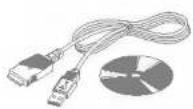
Data cable/CD
You can connect your phone to PC to exchange the data between them.

Standard Battery

Memory card adapter/ Memory card
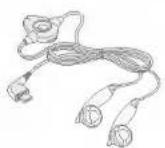
Stereo headset
Allows hands-free operation. Includes earpiece and microphone.
Note
• Always use genuine LG accessories.
- Failure to do this may invalidate your warranty.
- Accessories may be different in different regions; please check with our regional service company or agent for further enquires.
General
Product name : LG-G262
System : GSM 900 / DCS 1800 / PCS 1900
Ambient Temperatures
Max.: +55°C
Min.: -10°C
Declaration of Conformity

LG Electronics
Suppliers Details
Name
LG Electronics Inc
Address
LG Electronics Inc. LG Twin Towers 20, Yeouido-dong, Yeongdeungpo-gu, Seoul, Korea 150-721
Product Details
Product Name
E-GSM 900 / DCS 1800 / PCS 1900 Trial Band Terminal Equipment
Model Name
LG-G262
Trade Name
LG
C€0700
Applicable Standards Details
RATTE Directive 1999/5/EC
EN 301 489-7 : 2002
EN 50950:2001
EN 50360:2001
3GPP TS 51.010-1,
Selection according to requirements of EN 301 511, v7.0.1
Supplementary information
The conformity to above standards is verified by 7 Layers and Phoenix with Certificate (05-111235) and GSM test report (no.4_LGE_0905_GSM_1), EMC test report(no. HCT-C05-0501), safety test report(no. ITYA0108825M1) and SAR test report(no. TCMA0813254)
I hereby declare under our sole responsibility that the product mentioned above to which this declaration relates complies with the above mentioned standards and Directives
LG Electronics Inc. Amsterdam Office Veluwezoom 15, 1327 AE Almere, The Netherlands Tel: +31-36-547-8940, e-mail: seokim@lge.com
Name
Jin Seog, Kim / Director
Issued Date
20.June.2005

Signature of representative


natural_image
Silhouette of a person holding an object outdoors (no text or symbols visible)

LG-G262 用户手册
natural_image
Illustration of a hand holding a handheld device with labeled parts (no text or symbols present)natural_image
Illustration of a hand holding a small object, possibly a device or tool, with no visible text or symbols.
natural_image
Illustration of a hand holding a small electronic device (no text or symbols visible)3. 安装 SIM卡
natural_image
Illustration of hands holding a handheld device with an inset close-up showing a small mechanical component (no text or symbols visible)插入SIM卡
natural_image
Illustration of a hand holding a small electronic device with a magnified inset showing internal components (no text or symbols)取出SIM卡
5. 更换电池盖。
natural_image
Illustration of two hands holding a device, one with a button and the other with a handle (no text or symbols)给电池充电
natural_image
Illustration showing hands connecting a car to an electrical socket connected via wires (no text or symbols present)natural_image
Illustration of a hand holding a medical device with arrows indicating force or movement (no text or symbols present)存储卡
natural_image
Close-up of a car's front wheel and side rim (no visible text or symbols)打开存储卡插槽

natural_image
Illustration of a hand inserting a plug into a device (no text or symbols visible)插入存储卡
拔出卡
natural_image
Illustration of a car with a hand pressing down on the side panel (no text or symbols)拔出存储卡
输入文本
您可以使用手机键盘输入字母数字字符。
Declaration of Conformity

LG Electronics
Suppliers Details
Name
LG Electronics Inc
Address
LG Electronics Inc. LG Twin Towers
20, Yeouido-dong, Yeongdeungpo-gu, Seoul, Korea 150-721
Product Details
Product Name
E-GSM 900 / DCS 1800 / PCS 1900 Trial Band Terminal Equipment
Model Name
LG-G262
Trade Name
LG
C€0700
Applicable Standards Details
R&TTE Directive 1999/5/EC
EN 301 489-7 : 2002
EN 60950:2001
EN 50360:2001
3GPP TS 51.010-1,
Selection according to requirements of EN 301 511, v7.0.1
Supplementary Information
The conformity to above standards is verified by 7 Layers and Phoenix with Certificate (05-111235)
and GSM test report (no.4 LGE_0905_GSM_1), EMC test report(no. HCT-C05-0501).
safety test report(no. ITYA0108825M1) and SAR test report(no. TCMA0813254)
I hereby declare under our sole responsibility that the product mentioned above to which this declaration relates complies with the above mentioned standards and Directives
LG Electronics Inc, Amsterdam Office
Veluwezoom 15, 1327 AE Almere, The Netherlands
Tel: +31-36-547-8940, e-mail: seokim@lge.com
Name
Issued Date
Jin Seog, Kim / Director
20.June.2005
[Illegible Handwriting]
Signature of representative


LG-G262 BUKU PANDUAN PENGGUNA
KAMI HARUS MEMBERITAHU PENGGUNA BAHAWA BUKU PANDUAN INI MEMPUNYAI BEBERAPA PERBEZAAN DENGAN TELEFON BERGANTUNG KEPADA S/W TELEFON DAN PEMBEKAL SERVIS
Kandungan
Ciri-ciri LG-G262 8
Bahagian Telefon 8
Ikon Pada Skrin 9
Pemasangan 10
Peti Masuk [Menu 5-2] 22
Peti Keluar [Menu 5-3] 22
Dihantar [Menu 5-4] 22
Draf [Menu 5-5] 22
Dengar Mel Suara [Menu 5-6] 23
Kertas Hias Dinding [Menu 7-1] 26
Menu Warna [Menu 7-2] 26
Nota Ucapan [Menu 7-3] 26
Lampu Belakang [Menu 7-4] 26
Tingkap Informasi [Menu 7-5] 26
Profil [Menu 8] 27
Aktifkan [Menu 8-X-1] 27
Peribadikan [Menu 8-X-2] 27
Namakan Semula [Menu 8-X-3] 27
Alatan [Menu 9] 28
Kegemaran [Menu 9-1] 28
Jam Loceng [Menu 9-2] 28
Bluetooth [Menu 9-3] 28
Sync ML [Menu 9-4] 29
Kalkulator [Menu 9-5] 29
Pengubah Unit [Menu 9-6] 29
Waktu Dunia [Menu 9-7] 29
SIM Servis [Menu 9-8] 29
Browser [Menu *] 30
Rumah [Menu *-1] 30
Penanda Buku [Menu *-2] 30
Pergi Ke URL [Menu *-3] 30
Tetapan [Menu *-4] 30
Versi Pelayar [Menu *-5] 30
natural_image
3D rendered mechanical component with highlighted part (no text or symbols)natural_image
Illustration of two hands holding a game controller, showing the grip and handle (no text or symbols present)3. Pasang kad SIM.
natural_image
Illustration of a hand holding a car with a partially open trunk (no text or symbols visible)natural_image
Illustration of a hand holding a device with a magnified inset showing internal components (no text or symbols visible)natural_image
Two grayscale illustrations of a hand holding a device, showing the left and side views (no text or symbols)Mengecas Bateri
natural_image
Illustration showing hands connecting electrical devices to a wall socket (no text or symbols present)natural_image
Illustration of a hand holding a small mechanical component with arrows indicating motion (no text or symbols)Kad memori
natural_image
Close-up of a car wheel rim and wheel (no visible text or symbols)Buka slot kad memori

natural_image
Illustration of a hand pressing down on a car with a magnified view showing the dashboard (no text or symbols)Masukkan kad memori
natural_image
Top-down grayscale illustration of a car with a hand pressing a button (no text or symbols)Kertas Hias Dinding [Menu 7-1]
Declaration of Conformity

LG Electronics
Suppliers Details
Name
LG Electronics Inc
Addre
LG Electronics Inc. LG Twin Towers
20, Yeouldo-dong, Yeongdsungpo-gu, Seoul, Korea 150-721
Product Details
Product Name
E-GSM 900 / DCS 1800 / PCS 1900 Thai Band Terminal Equipment
Model Name
LG-G262
Trade Name
LG
C € 0700
Applicable Standards Details
RATTE Directive 1999/5/EC
EN 301 489-7 : 2002
EN 60950:2001
EN 60360:2001
3GPP TS 51.010-1,
Selection according to requirements of EN 301 511, v7.0.1
Supplementary Information
The conformity to above standards is verified by 7Layers and Phoenix with Certificate (05-111235)
and GSM test report (no.4_LGE_0905_GSM_1), EMC test report(no.HCT-C05-0501).
safety test report(no. ITYA0108825M1) and SAR test report(no. TCMA0813254)
I hereby declare under our sole responsibility that the product mentioned above to which this declaration relates complies with the above mentioned standards and Directives
LG Electronics Inc. Amsterdam Office
Veluwezoom 15, 1327 AE Almere, The Netherlands
Tel: +31-36-547-8940. e-mail: seokim@lge.com
Name
Issued Date
Jin Seog, Kim / Director 20. June. 2005

Signature of representative


natural_image
Circular cropped image showing industrial equipment with no visible text or symbols
natural_image
Silhouette of a person pushing a cart (no text or symbols visible)
LG-G262 PETUNJUK PENGGUNAAN
KAMI PERLU MEMBERITAHU PENGGUNA BAHWA BUKU PETUNJUK INI DAPAT BERBEDA DENGAN PONSEL TERGANTUNG PADA PERANGKAT LUNAK PONSEL DAN PENYEDIA LAYANAN.
Daftar Isi
Fitur LG-G262 8
Setting [Menu 1-2] 15
Kontak [Menu 2]....16
Tambah baru [Menu 2-1] 16
Cari [Menu 2-2] 16
Putar-cepat [Menu 2-3] 16
Grup penelpon [Menu 2-4] 16
No. sendiri [Menu 2-5]....16
Setting [Menu 2-6] 16
Agenda [Menu 3] 17
Kalendar [Menu 3-1] 17
Memo [Menu 3-2] 17
Multimedia [Menu 4]....18
Ambil foto [Menu 4-1] 18
Fun frames [Menu 4-2] 19
Ambil film sunyi [Menu 4-3] 19
Perekam suara [Menu 4-4] 19
MP3 [Menu 4-5] 19
Foto saya [Menu 4-6] 20
Film sunyi [Menu 4-7] 20
Setting [Menu 4-8] 20
Pesan [Menu 5] 21
Pesan baru [Menu 5-1] 21
Kotak masuk [Menu 5-2] 22
Film sunyi [Menu 6-3] 25
Bunyi [Menu 6-4] 25
Musik [Menu 6-5] 25
Lainnya [Menu 6-6] 25
Memori eksternal [Menu 6-7] 25
Wallpaper [Menu 7-1] 26
Warna menu [Menu 7-2] 26
Teks salam [Menu 7-3] 26
Lampu layar [Menu 7-4] 26
Tampilan info [Menu 7-5] 26
Profil [Menu 8] 27
Aktifkan [Menu 8-X-1] 27
Rubah [Menu 8-X-2] 27
Namai ulang [Menu 8-X-3] 27
Alat [Menu 9] 28
Favorit [Menu 9-1] 28
Jam alarm [Menu 9-2] 28
Bluetooth [Menu 9-3] 28
SyncML [Menu 9-4] 29
Kalkulator [Menu 9-5] 29
Unit konversi [Menu 9-6] 29
Waktu dunia [Menu 9-7] 29
Layanan SIM [Menu 9-8] 29
Browser [Menu *] 30
Rumah [Menu *-1] 30
Bookmark [Menu *-2] 30
Ke URL [Menu *-3] 30
Setting [Menu *-4] 30
Register pangglian [Menu 0] ....31
natural_image
3D model of two gray cylindrical objects with labeled parts (5 and 6), no text or symbols present.Bagian dari Ponsel
1.Speaker
2.LCD Utama
natural_image
3D rendered illustration of a car interior with no visible text or symbolsnatural_image
Two hand-drawn illustrations of a handheld device being held, showing the screen and grip (no text or symbols)3. Memasang kartu SIM.
natural_image
Two grayscale images showing a device being held, with one close-up highlighting a component (no text or symbols visible)natural_image
Illustration of two hands holding a device, one with a circular button and arrow, the other with a plus button (no text or symbols)Mengisi Baterai
natural_image
Illustration showing hands connecting a remote control device to an electrical socket (no text or symbols present)natural_image
Illustration of a hand holding a car tire with arrows indicating motion (no text or symbols)Kartu memori
natural_image
Close-up of a mechanical component with curved surfaces and layered structure (no visible text or symbols)Buka slot kartu memori
natural_image
Illustration of a hand pressing down on a device labeled 'Ma', showing no text or symbols beyond the label.Masukkan kartu memori
Mengeluarkan kartu memori
natural_image
Illustration of a car with a hand pressing down on the side (no text or symbols visible)Keluarkan kartu memori
Memasukkan Teks
Teks, No. Voice mail, Faks, Natl. paging, X.400, Email, ERMES
Wallpaper [Menu 7-1]
Register pangglian [Menu 0]
Setting [Menu 0-6-3]
(Tergantung SIM)
Declaration of Conformity

LG Electronics
Suppliers Details
Name
LG Electronics Inc
Address
LG Electronics Inc. LG Twin Towers
20, Yeouldo-dong, Yeongdeungpo-gu, Seoul, Korea 150-721
Product Details
Product Name
E-GSM 900 / DCS 1800 / PCS 1900 Trial Band Terminal Equipment
Model Name
LG-G262
Trade Name
LG
C€0700
Applicable Standards Details
R&TTE Directive 1999/5/EC
EN 301 489-7:2002
EN 60950:2001
EN 50360:2001
3GPP TS 51.010-1,
Selection according to requirements of EN 301 511, v7.0.1
Supplementary Information
The conformity to above standards is verified by 7Layers and Phoenix with Certificate (05-111235) and GSM test report (no.4_LGE_0905_GSM_1), EMC test report(no. HCT-C05-0501).
safety test report(no. ITYA0108825M1) and SAR test report(no. TCMA0813254)
I hereby declare under our sole responsibility that the product mentioned above to which this declaration relates complies with the above mentioned standards and Directives
LG Electronics Inc. Amsterdam Office
Veluwezoom 15, 1327 AE Almere, The Netherlands
Tel: +31-36-547-8940, e-mail: seokim@lge.com
Name
Issued Date
Jin Seog, Kim / Director
- June. 2005

Signature of representative


LG-G262 SÁCH HUỐNG DÂN SỰ

CHỨNG TỔI MUỐN THÔNG BẢO VỚI BẠN RẢNG SÁCH HƯỚNG DẮN NÀY CÓ THỂ CÓ MỘT SỐ KHÁC BIỆT SO VỚI ĐIỆN THOẠI TÙY THUỘC VÀO PHẦN MỀM CỦA ĐIỆN THOẠI VÀ NHÀ CUNG CẤP DỊCH VỤ.
Nội Dung
natural_image
Illustration of a hand holding a handheld device with labeled parts (no text or symbols present)natural_image
Illustration of two hands holding a small electronic device (no text or symbols visible)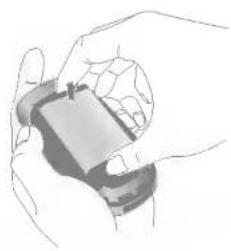
natural_image
Illustration of a hand holding a small electronic device (no text or symbols visible)3. Lắp thẻ SIM.
natural_image
Illustration of a hand holding a handheld device with a magnified inset showing internal components (no text or symbols)Để lắp thể SIM
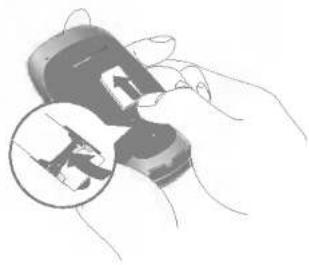
natural_image
Illustration of a hand holding a handheld device with a magnified inset showing internal components (no text or symbols)Để tháo thể SIM
5. Thay nắp pin.
natural_image
Illustration of two hands holding a small electronic device, one open and one closed, both with no visible text or symbols.Sạc pin
natural_image
Illustration showing hands connecting a car to an electrical plug, with no visible text or symbolsnatural_image
Illustration of a hand holding a small electronic device with arrows indicating process (no text or symbols)Thẻ nhớ
natural_image
Close-up of a mechanical component with curved and layered surfaces (no visible text or symbols)Mở rãnh thể nhớ
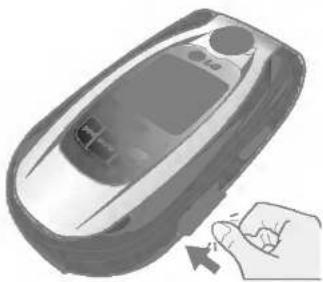
natural_image
Illustration of a hand pressing down on a device component (no text or symbols visible)Lắp thể nhoard
Tháo thể nhớ
natural_image
Illustration of a car with a hand pressing down on its side (no text or symbols)Tháo thể nhớ
Nhập Văn Bàn
Declaration of Conformity

LG Electronics
Suppliers Details
NaITO
LG Electronics Inc
Address
LG Electronics Inc. LG Twin Towers
20, Yeouldo-dong, Yeongdeungpo-gu, Seoul, Korea 150-721
Product Details
Product Name
E-GSM 900 / DCS 1800 / PCS 1900 Trial Band Terminal Equipment
Model Name
LG-G262
Trade Name
LG
C€0700
Applicable Standards Details
RATTE Directive 1999/5/EC
EN 301 489-7:2002
EN 60950:2001
EN 50360:2001
3GPP TS 51.010-1,
Selection according to requirements of EN 301 511, v7.0.1
Supplementary Information
The conformity to above standards is verified by 7 Layers and Phoenix with Certificate (05-111235)
and GSM test report (no.4_LGE_0905_GSM_1), EMC test report(no. HCT-C05-0501).
safety test report(no. ITY A0108825M1) and SAR test report(no. TCMA0813254)
I hereby declare under our sole responsibility that the product mentioned above to which this declaration relates complies with the above mentioned standards and Directives.
LG Electronics Inc. Amsterdam Office
Veluwezoom 15, 1327 AE Almere, The Netherlands
Tel: +31-36-547-8940, e-mail: seokim@lge.com
Name
Issued Date
Jin Seog, Kim / Director
20.June.2005

Signature of representative


- Contents
- For Your Safety / Guidelines for safe and efficient use
- Warning
- Caution
- Radio wave exposure and Specific Absorption Rate (SAR) information
- Product care and maintenance
- ① Warning
- Guidelines for safe and efficient use
- Efficient phone operation
- Electronics devices
- Road safety
- Blasting area
- Potentially explosive atmospheres
- In aircraft
- Battery information and care
- Memory card information and care
- Network service
- Part of the phone
- 1.Earpiece
- 2.Main LCD
- Alpha numeric keys
- Microphone
- Side keys
- Side camera key
- Sub LCD
- Flash
- Camera lens
- Installing the SIM card and the handset battery
- Remove the battery cover.
- Remove the battery.
- Install the SIM card.
- Install the battery.
- Replace the battery cover.
- Charging the Battery
- Disconnecting the charger
- Memory card
- Inserting the memory card
- Removing the memory card
- Entering Text
- T9 Mode
- ABC Mode
- Mode (Numbers Mode)
- Symbolic Mode
- Changing the Text Input Mode
- Using the T9 Mode
- Games & more
- [Menu 1-1]
- Settings
- [Menu 1-2]
- Contacts [Menu 2]
- Add new
- [Menu 2-1]
- Search
- [Menu 2-2]
- Speed dial
- [Menu 2-3]
- Caller groups
- [Menu 2-4]
- Own number (SIM dependent)
- [Menu 2-5]
- [Menu 2-6]
- Calendar
- [Menu 3-1]
- [Menu 3-1-1]
- View daily schedules
- [Menu 3-1-2]
- Delete past
- [Menu 3-1-3]
- Delete all
- [Menu 3-1-4]
- Go to date
- [Menu 3-1-5]
- Set alarm tone
- [Menu 3-1-6]
- Memo
- [Menu 3-2]
- Take photo
- [Menu 4-1]
- Fun frames
- [Menu 4-2]
- Multimedia [Menu 4]
- Take silent movie
- [Menu 4-3]
- Voice recorder
- [Menu 4-4]
- MP3
- [Menu 4-5]
- Note
- MP3 player
- [Menu 4-5-1]
- Equalizer
- ▶ Flip setting:
- - Stop playing
- ▶ View play list
- ▶ Playmode
- ▶ Set as ring tone
- Play list
- [Menu 4-5-2]
- My photos
- [Menu 4-6]
- Silent movie
- [Menu 4-7]
- [Menu 4-8]
- Camera
- [Menu 4-8-1]
- [Menu 4-8-2]
- Memory in use
- [Menu 4-8-3]
- New message
- [Menu 5-1]
- Text message
- [Menu 5-1-1]
- Insert
- Options
- Multimedia message
- [Menu 5-1-2]
- Inbox
- [Menu 5-2]
- \* SIM message
- Outbox
- [Menu 5-3]
- Sent
- [Menu 5-4]
- Drafts
- [Menu 5-5]
- Listen to voice mail
- [Menu 5-6]
- ⑨ Note
- Info message
- [Menu 5-7]
- (Dependent to network and subscription)
- Read
- [Menu 5-7-1]
- Topics
- [Menu 5-7-2]
- Templates
- [Menu 5-8]
- Text template
- [Menu 5-8-1]
- Multimedia template
- [Menu 5-8-2]
- [Menu 5-9]
- [Menu 5-9-1]
- [Menu 5-9-2]
- Voice mail centre
- [Menu 5-9-3]
- [Menu 5-9-4]
- Push message
- [Menu 5-9-5]
- My stuff [Menu 6]
- Photos
- [Menu 6-1]
- Pictures
- [Menu 6-2]
- [Menu 6-3]
- Sounds
- [Menu 6-4]
- Music
- [Menu 6-5]
- Others
- [Menu 6-6]
- External Memory
- [Menu 6-7]
- Display [Menu 7]
- Profiles [Menu 8]
- Activate
- [Menu 8-X-1]
- Personalise
- [Menu 8-X-2]
- Rename
- [Menu 8-X-3]
- Tools [Menu 9]
- Favourites
- [Menu 9-1]
- Alarm clock
- [Menu 9-2]
- Bluetooth
- [Menu 9-3]
- My devices
- [Menu 9-3-1]
- Handsfree devices
- [Menu 9-3-2]
- [Menu 9-3-3]
- SyncML
- [Menu 9-4]
- - Connect
- - Server settings
- - Logs
- Calculator
- [Menu 9-5]
- Unit converter
- [Menu 9-6]
- World time
- [Menu 9-7]
- SIM-Menu
- [Menu 9-8]
- Browser [Menu \*]
- Home [Menu \* -1]
- Bookmarks [Menu \* -2]
- Go to URL [Menu \* -3]
- Settings [Menu \* -4]
- Browser version [Menu \* -5]
- Call register [Menu 0]
- Missed calls [Menu 0-1]
- Received calls [Menu 0-2]
- Dialled calls [Menu 0-3]
- All calls [Menu 0-4]
- Delete recent calls [Menu 0-5]
- Call charges [Menu 0-6]
- Call duration [Menu 0-6-1]
- Call costs [Menu 0-6-2]
- Settings [Menu 0-6-3]
- GPRS information [Menu 0-7]
- Call duration [Menu 0-7-1]
- Data volume [Menu 0-7-2]
- Settings [Menu #]
- Date & Time [Menu #-1]
- Set date [Menu #-1-1]
- ▶ Set date
- ▶ Date format
- Set time [Menu #-1-2]
- ▶ Set time
- ▶ Time format
- Languages [Menu #-2]
- Call settings [Menu #-3]
- Call divert [Menu #-3-1]
- ▶ All voice calls
- ▶ If busy
- ▶ If no reply
- ▶ If out of reach
- ▶ All data calls
- ▶ All fax calls
- ▶ Cancel all
- Answer mode [Menu #-3-2]
- ▶ Flip open
- ▶ Any key
- ▶ SEND key only
- Send my number [Menu #-3-3]
- ▶ On
- ▶ Off
- ▶ Set by network
- Call waiting
- ▶ Activate
- ▶ Cancel
- ▶ View status
- Minute minder
- Auto redial
- Security settings
- PIN code request
- Handset lock
- Call barring
- ▶ All outgoing calls
- ▶ Outgoing international
- ▶ Outgoing international except home country
- ▶ All incoming
- ▶ Incoming when abroad
- ▶ Cancel all barrings
- ▶ Change password
- Fixed dial number [Menu #-4-4]
- Change codes [Menu #-4-5]
- Network settings [Menu #-5]
- Network selection [Menu #-5-1]
- ▶ Automatic
- ▶ Manual
- ▶ Preferred
- Band selection [Menu #-5-2]
- GPRS settings [Menu #-6]
- Switch on [Menu #-6-1]
- When needed [Menu #-6-2]
- Memory status [Menu #-7]
- Reset settings [Menu #-8]
- Travel Adapter
- Data cable/CD
- Standard Battery
- Memory card adapter/ Memory card
- Stereo headset
- General
- Ambient Temperatures
- Declaration of Conformity
- Suppliers Details
- Product Details
- Applicable Standards Details
- Supplementary information
- LG-G262 用户手册
- 安装 SIM卡
- 更换电池盖。
- 给电池充电
- 存储卡
- 拔出卡
- 输入文本
- LG-G262 BUKU PANDUAN PENGGUNA
- Kandungan
- Pasang kad SIM.
- Mengecas Bateri
- Kad memori
- LG-G262 PETUNJUK PENGGUNAAN
- Daftar Isi
- Bagian dari Ponsel
- 1.Speaker
- 2.LCD Utama
- Memasang kartu SIM.
- Mengisi Baterai
- Kartu memori
- Mengeluarkan kartu memori
- Memasukkan Teks
- Register pangglian [Menu 0]
- Setting [Menu 0-6-3]
- LG-G262 SÁCH HUỐNG DÂN SỰ
- Nội Dung
- Lắp thẻ SIM.
- Thay nắp pin.
- Sạc pin
- Thẻ nhớ
- Tháo thể nhớ
- Nhập Văn Bàn
Brand : LG
Model : G262
Category : Cellphone