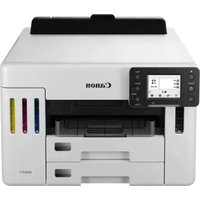
MAXIFY GX5540 - Printer CANON - Free user manual and instructions
Find the device manual for free MAXIFY GX5540 CANON in PDF.


| Product type | Inkjet multifunction printer |
| Brand | Canon |
| Model | MAXIFY GX5540 |
| Dimensions (W x D x H) | 403 x 369 x 254 mm (approx.) |
| Weight | 8.6 kg (approx.) |
| Power supply | 100-240 V AC, 50/60 Hz |
| Main functions | Print, copy, scan |
| Print technology | Inkjet |
| Print resolution | Up to 4800 x 1200 dpi |
| Paper tray capacity | 250 sheets (rear tray) |
| Connectivity | USB, Wi-Fi, Ethernet |
| Inks | Ink bottles (black, cyan, magenta, yellow) |
| Maintenance and cleaning | Refer to the online manual for print head cleaning |
| Safety | Read the 'Safety and Important Information' document before use |
| General information | Remove the orange tape, power on, install ink, and load paper |
Frequently Asked Questions - MAXIFY GX5540 CANON
User questions about MAXIFY GX5540 CANON
0 question about this device. Answer the ones you know or ask your own.
Ask a new question about this device
Download the instructions for your Printer in PDF format for free! Find your manual MAXIFY GX5540 - CANON and take your electronic device back in hand. On this page are published all the documents necessary for the use of your device. MAXIFY GX5540 by CANON.
USER MANUAL MAXIFY GX5540 CANON
Read Safety and Important Information (addendum) first.
Lea primero Informacion de seguidade e informacion importante (apendice).
Connecting to a Computer, Smartphone or Tablet.. page 2
Setting Up the Printer
1.Box Contents
- Ink Bottles
Power Cord - Setup CD-ROM
Safety and Important Information - Getting Started (this manual)
2. Removing the Orange Tape
1 Remove the orange tape.
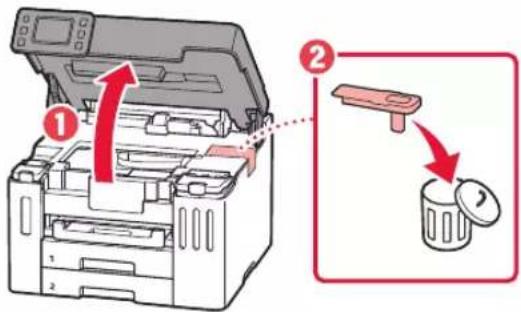
2 Open the top cover, and then remove the orange tape.
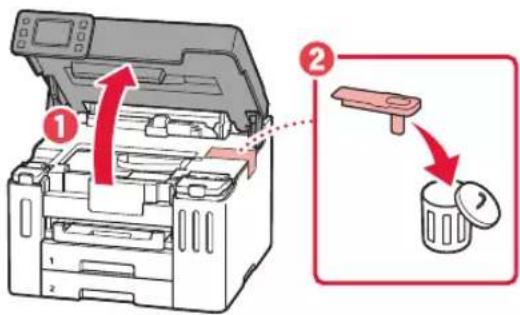
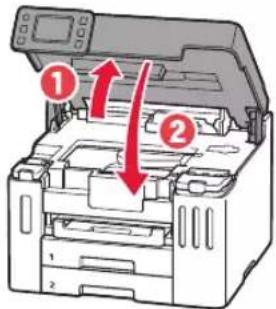
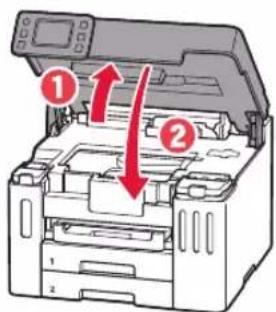
3 Close the top cover.
If you lift the top cover slightly and release it, it will close by itself.
3. Turning on the Printer
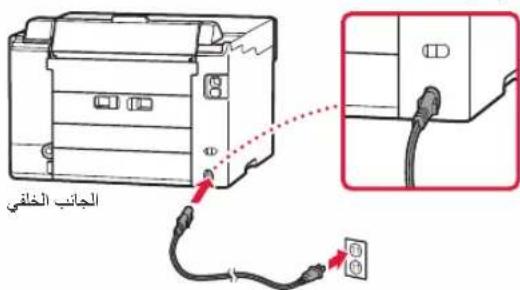
1 Connect the power cord.
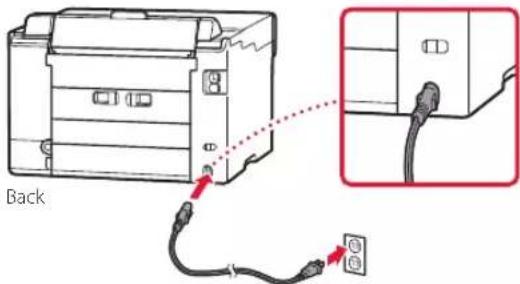
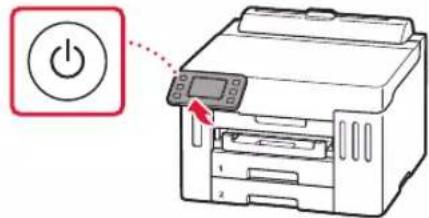
2 Open the operation panel and press the ON button.

4. Follow the Instructions on the Printer's Screen to Complete Setup
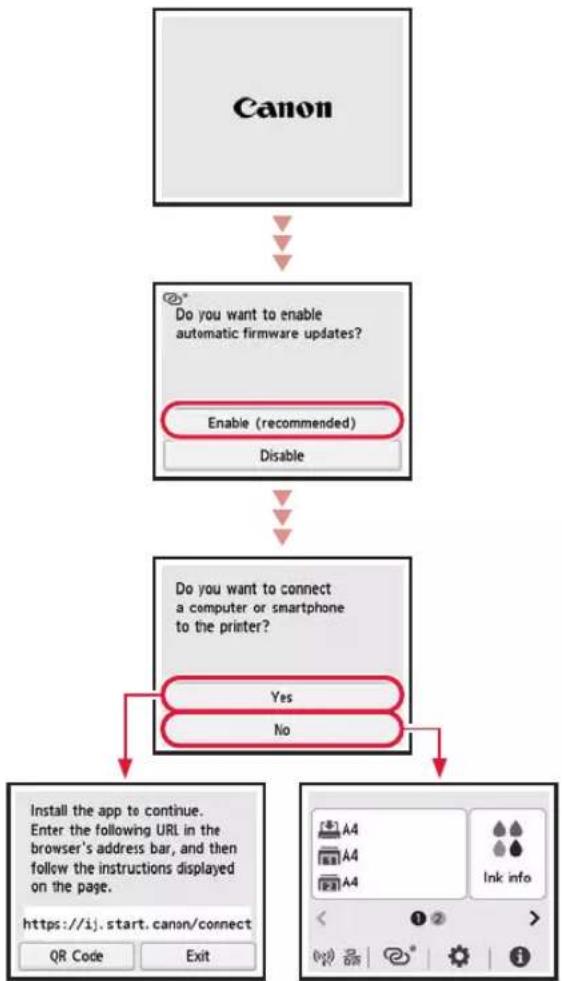
Follow the on-screen instructions to install ink and load paper. Continue until you reach the final screen.
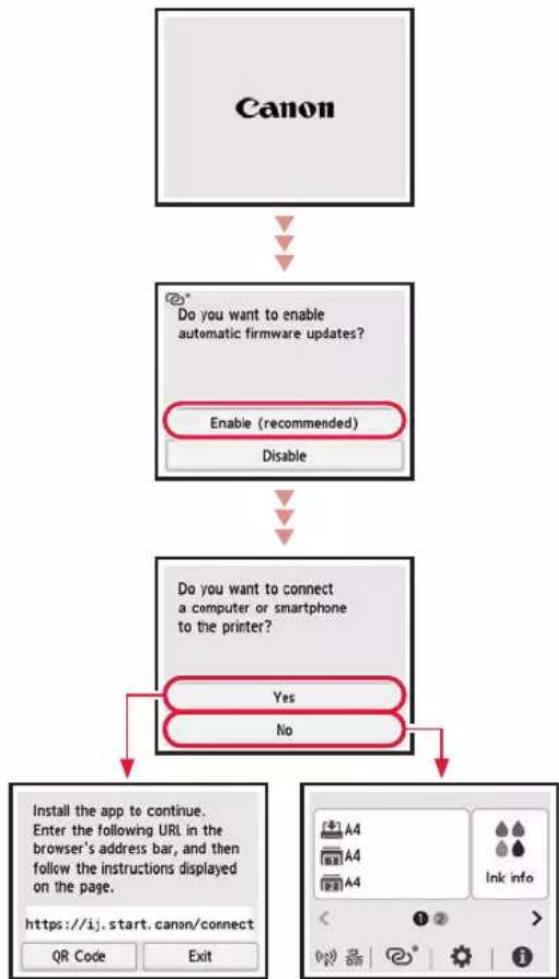
Setting Up the Printer
5. Connecting to a Computer or Smartphone
If you are using multiple computers/smartphones, perform these steps on each device. Also perform these steps to add a new computer/smartphone or replace your current one.
1 Access the Canon website directly. No need to search.
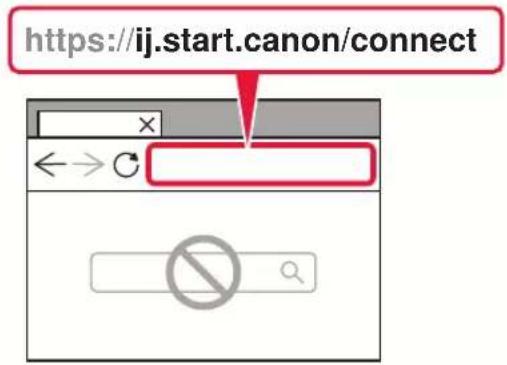

2 Enter your printer's model name and click Go.
3 Follow the on-screen instructions.

Note
Refer to the Online Manual if you cannot connect the printer to your computer or smartphone (network trouble).

Using the Setup CD-ROM
- Double click EasySetup.exe on the screen that appears.
- If the printer selection screen appears, select GX5540. If the installation screen appears, click Next.
- Follow the on-screen instructions. If nothing appears, start Explorer and then run EasySetup.exe in the CD-ROM.
Loading Paper
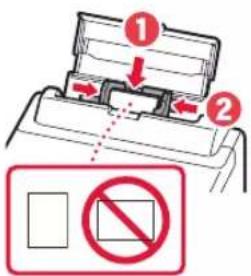
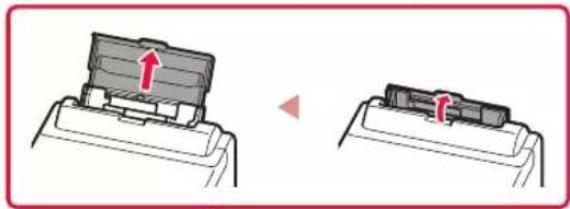
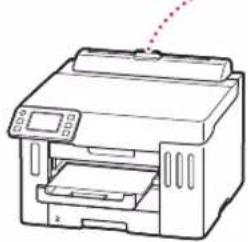
1 Open the rear tray cover and extend the paper support.
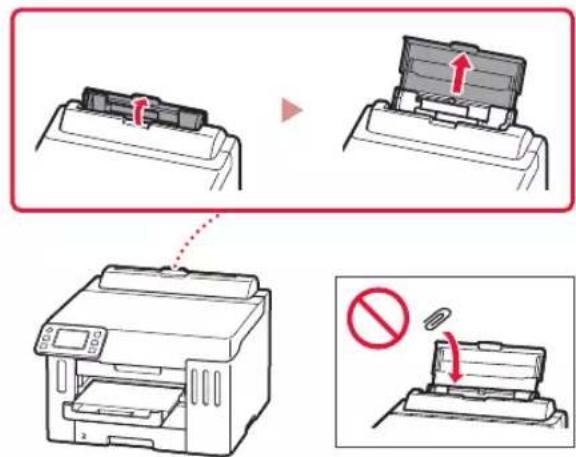
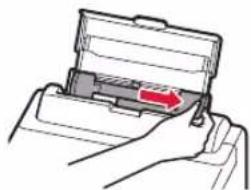
2 Slide the right-hand side paper guide to the far right.
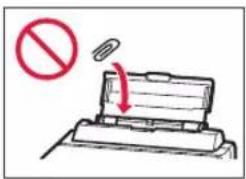
3 Load several sheets of paper with the print side facing up and slide the side paper guide against the edge of the paper stack.
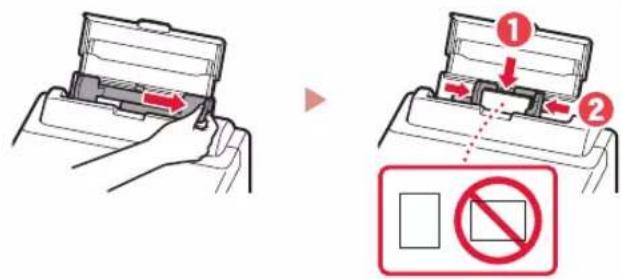
Refer to the Online Manual for details.

https://ij.start.canon/pst
Transporting Your Printer
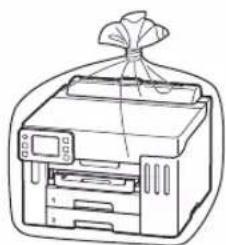
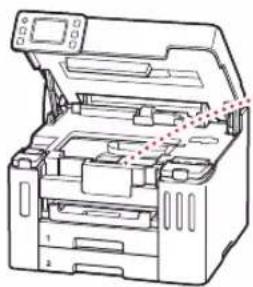
When relocating the printer, check the following. Refer to the Online Manual for details.
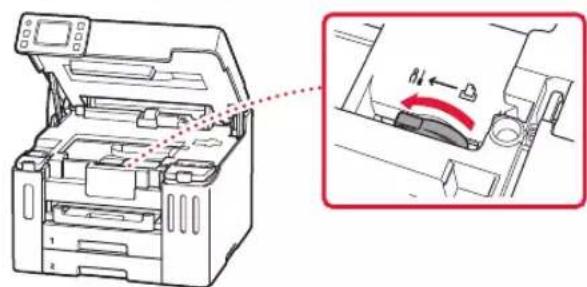
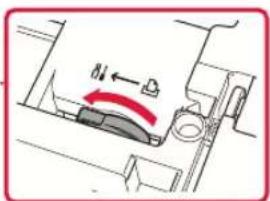
Check that the position of the ink valve lever is closed.
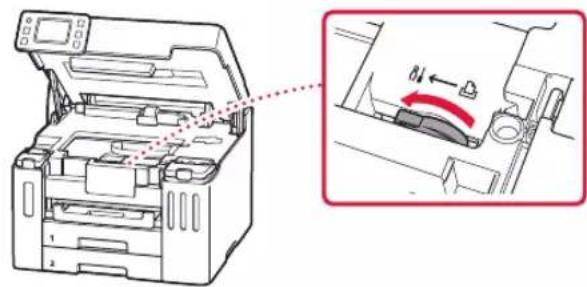
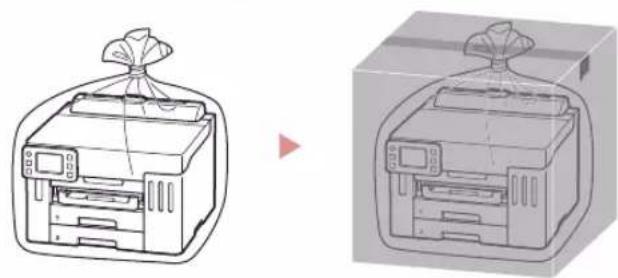
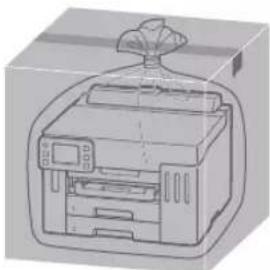
Pack the printer in a plastic bag in case ink leaks.
- Pack the printer in a sturdy box so that it is placed with its bottom facing down, using sufficient protective material to ensure safe transport.
- Do not tilt the printer. Ink may leak.
- Please handle with care and ensure the box remains flat and NOT turned upside down or on its side, as the printer may be damaged and ink in the printer may leak.
- When a shipping agent is handling transport of the printer, have its box marked "THIS SIDE UP" to keep the printer with its bottom facing down. Mark also with "FRAGILE" or "HANDLE WITH CARE".

2 BBeiItb Ha3By MoJei CBOrO npHTepa NkaunHtB Ipeenr.
3 DToPmMyTeCnHCTpyKui, kI 3'ABNATUMYbCnHa ekpaHI.

PpMItka
Akuo He bdaetcbn iiknoHT npHTEp oKOMITopepa a6o cmaTFOHa (npObIema 3 Mepekeio), nB. OHnaHOBN noci6HNK

BukopncTahnKOMnKaT-Dncka 3 nporpaMOU BCTAHOBHeHH
1.Дычи КlaцHiB EasySetup.exe Ha ekpaH, lo 3'ЯВИТбС.
2. Jkso 3'raBtbcE kpaH Bn60py npInTepa, Bn6epiB GX5540. Jkso BiO6pa3ntbce kpaH BCTaHOBHeHH, HATNCHTB Dani (Next).
3. Dotpmytec iHctpykui, k3'ABnATmYtbcHa ekpaHi.
Kuio Hioro He 3'ABNTbca, 3anyctitb PnoBIDHK (Explorer), a notim BidkpniTe faJN EasySetup.exe Ha KOMNaKT-ndCKy.
3aBaHTaXeHHn panepy
1 BiikpnTe KpHky 3aHbO r ONTKa Ta BnTgHrIb nInpopy dIra panepy.
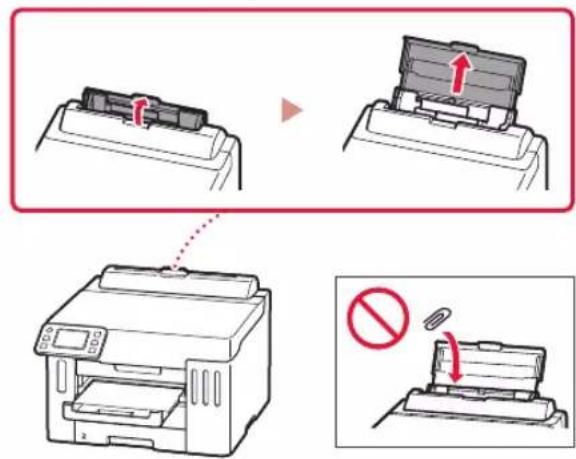
2 NocyHbTe npabn HappMnK dna nanepy do npaBoro Kpaio.
3 3aBaHTaXTe KInbKa apKyuB nanepy CTOpHOIO dIy DpyKy DoRopn NepemictiB 6iHn HAnpMaHnK dIy nanepy Do KpaO CTOnKn nanepy.
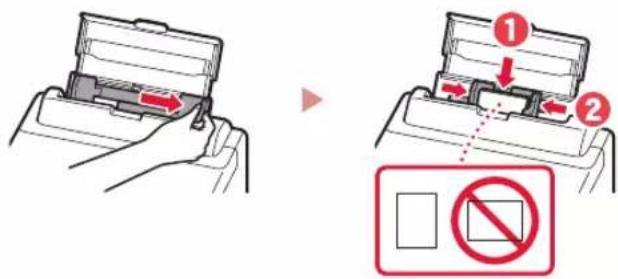
Oo6 Otpumatn DOKnaDiHiWi BiDOMOCTi, DVB. DOKyMeHT OhnaHOBm Noci6HNK.

https://ij.start.canon/pst
TpaHcnpTyBaHHЯ npHtepa
IiucnepemieHH npHTepa doTpmytecHabeDeHX HxKHe IHCTpykui. 06 oTpMaTHdoKnaHii BiOMocTi, iB. DOKyMeHT OhnaHOBn noci6Hnk.
IpekeHaiTecb, 0 BoaXilneCb YOpHNbHoro KlaNaHa nepe6yBaE B3akpntOMy noIOxehHi.
PomictiB npnHep y nonietneHOBN naKeT, ockJIbKn OOpHNO MOKe BNTiKaTu.
IomictiB npInTepy TBepny Kopo6ky HxKhbOIO qactnoio npInTepa DOHN3y INKOpNCTaTE IOCTaTHIO KINbKiCTb 3axnCHOro MaTepiany, O6 rapaHTyBaTN 6e3neHHe TpaHCnOPTyBaHH.
He HaxnayTe npntep. YopHnIO MOKe BNTeKTH.
IIOBOBbTEc3 KOpO6KoO OBepeXHo Ta NepeKoHaITeC, 10 BOHa 36epirae fOpmy Hr He nepeBepHyTa DOrOpn dHom a6o Ha 6iK, ockInbKn npHtep MoKe 6yTu NOnKoDKeHo, a YOpHNIO B HbOMy MoKe BNTeKTn.
HannuithhaKopobci3 npntepom «LIM5OKOMIOTOPN」,n6 niac TpaHCnoptyBaHHeKcneiTOp 3aBxnn TpImaB npnHtp HxhhboIO CTopoHOIO DOH3y.Takox Hannuith KPNXKE》abo「NOBOIDNTICb OBEPEKHO
#
2
P 1
3
a

Jusalll 1
https://ij.start.canon/pst

a 1
1
Jai
Jauuill aae duai jyI gie Jauaia Jauaia Jauaia Jauaia
g jll pla e j g a j j s
a aai 1
y
1 1 1 1 1 1 1 1 1 1 1 1 1 1 1 1 1 1 1 1 1 1 1 1 1 1 1 1 1 1 1 1 1 1 1 1 1 1 1 1 1 1 1 1 1


5
https://ij.start.canon/connect

2
3

()
a

EasySetup.exe
GX5540 123
.(Next)
aiee
EasySetup.exe (Explorer)
ON) 2
JcL sy
a
Aolllg.1
j#
aill
a
alglalolglalglal
()
1.2
1
2
3
Aii i 1
a.111 3
ailllll lssy

Access Online Manual
Frequently Asked Questions