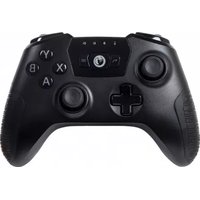
Cloud Gaming Controller - Controller Nacon - Free user manual and instructions
Find the device manual for free Cloud Gaming Controller Nacon in PDF.


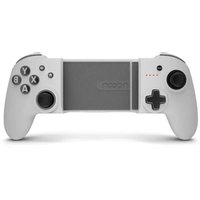
| Product type | Wireless game controller for cloud gaming |
| Brand | NACON |
| Model | Cloud Gaming Controller |
| Connection technology | Bluetooth 5.0 and wireless USB receiver |
| Compatibility | Android smartphones, Apple (iOS/iPadOS), Windows PC |
| Power supply | Built-in rechargeable battery, 5 V / 500 mA via micro USB port |
| Charging port | Micro USB |
| USB cable length | 80 cm |
| Phone holder | Included, removable and adjustable |
| Package contents | 1 controller, 1 wireless receiver, 1 rechargeable battery, 1 USB cable, 1 phone holder, 1 quick start guide |
| Warranty | 2 years (defects in materials or workmanship) |
| Care | Clean with a soft, damp cloth. Do not use detergents. |
| Safety | Indoor use only. Do not expose to water, dust, extreme temperatures or shocks. Keep out of reach of children under 7 years old. |
| Batteries / Battery | Rechargeable battery included. Observe polarity. Do not mix with other batteries. Remove if not used for a long time. Do not swallow (risk of chemical burn). |
| Recycling | Do not dispose of with household waste. Take to an appropriate collection point. |
| Technical support | Email: support.fr@nacongaming.com, Website: www.nacongaming.com, Address: NACON, 396-466 Rue de la Voyette, CRT2 59273 Fretin, France. Opening hours: Mon-Fri 9am-7pm (excluding public holidays). |
Frequently Asked Questions - Cloud Gaming Controller Nacon
User questions about Cloud Gaming Controller Nacon
0 question about this device. Answer the ones you know or ask your own.
Ask a new question about this device
Download the instructions for your Controller in PDF format for free! Find your manual Cloud Gaming Controller - Nacon and take your electronic device back in hand. On this page are published all the documents necessary for the use of your device. Cloud Gaming Controller by Nacon.
USER MANUAL Cloud Gaming Controller Nacon
natural_image
Black and white photo of a 3D game controller with control buttons and a plus button (no readable text or symbols)Thank you for purchasing this NACON® product.
This product has been designed to enhance your gaming experience. Please keep this user manual in a safe place for future reference.
1 Warranty
This NACON® branded product is guaranteed by the manufacturer for a period of 2 years from the date of purchase. In the event of a material or manufacturing defect during this period, the product will be replaced free of charge with the same model or a similar article, at our sole and absolute discretion.
Please keep your proof of purchase in a safe place for the entire term of the warranty, as you will need it to make any claim or request regarding the warranty. Without this document, we will not be able to process your request. For all home purchases (mail order and internet sales), please keep the original packaging.
This warranty does not cover defects resulting from accidental damage, improper use or normal wear and tear. These provisions do not affect your statutory rights.
To open the declaration of conformity, please go to:
www.nacongaming.com/my-nacon/support/
Content
1 x Gamepad
1 x Wireless receiver
1 x Rechargeable battery
1 x USB cable
1 x Phone holder
1 x Quick start guide
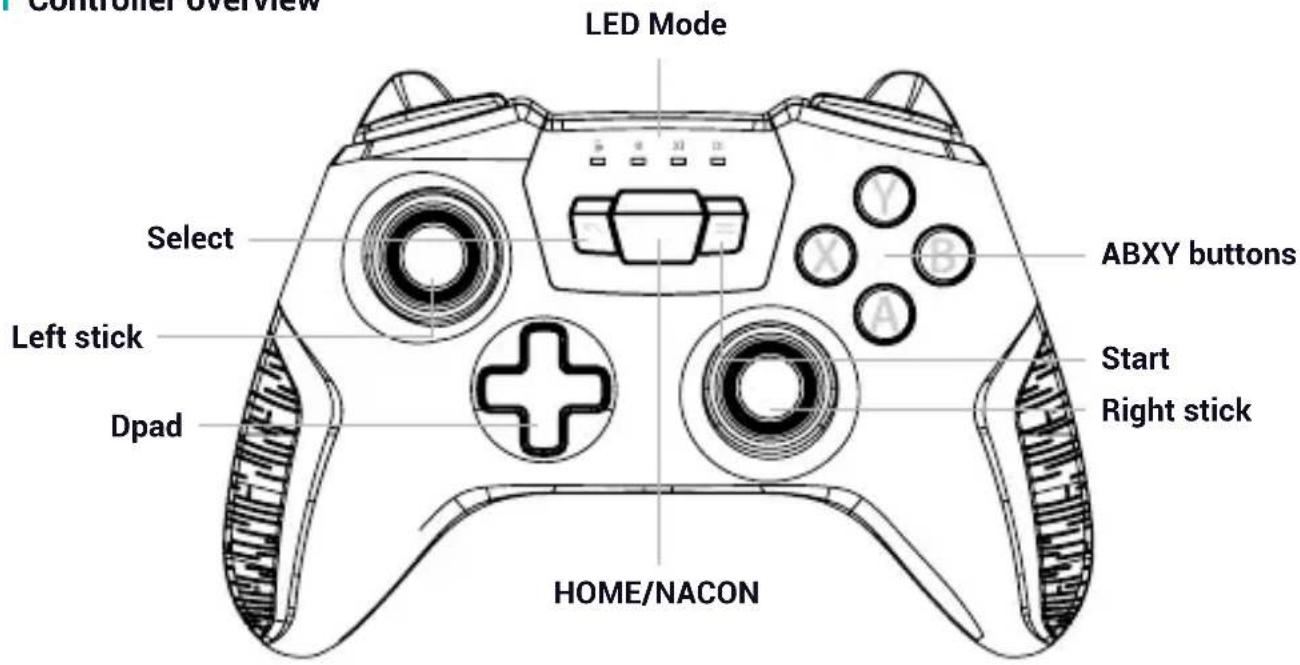
I Controller overview
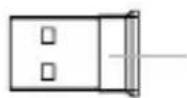
Wireless receiver
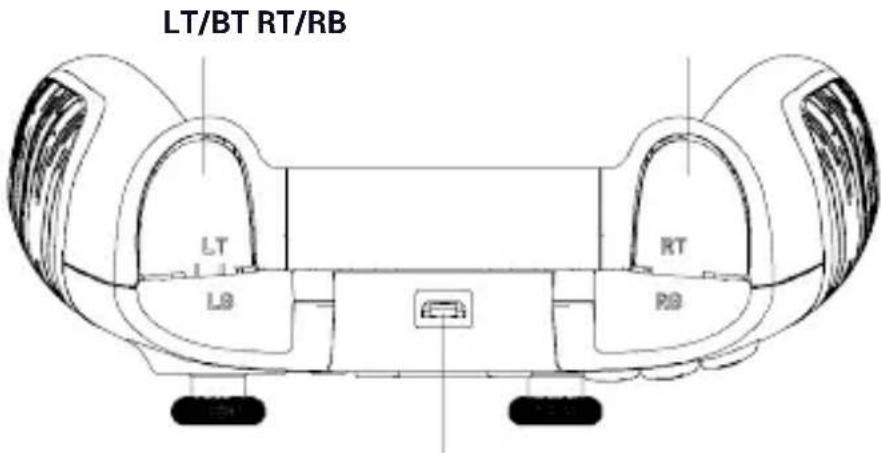
Micro USB port for wired communication
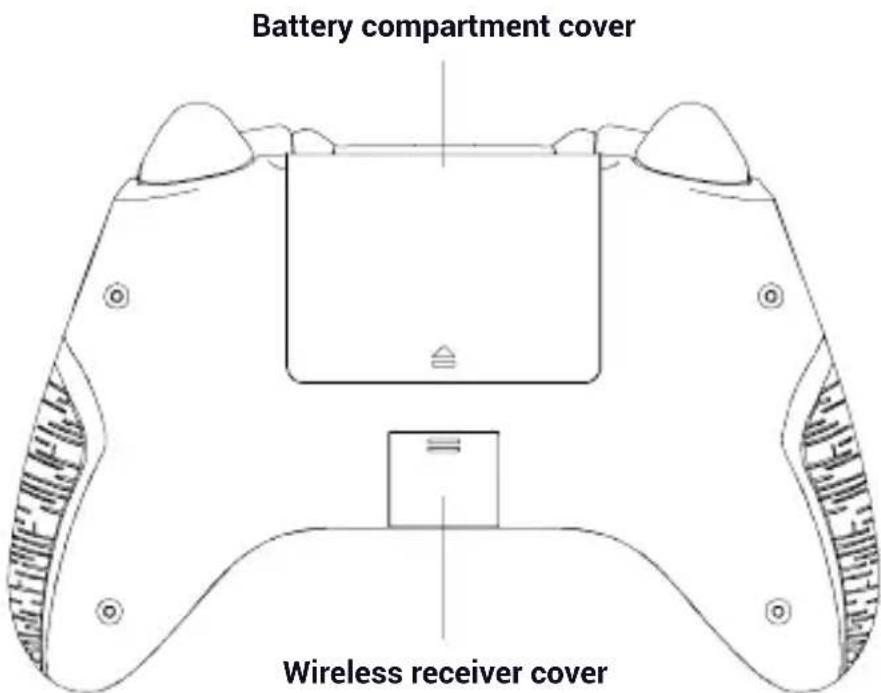
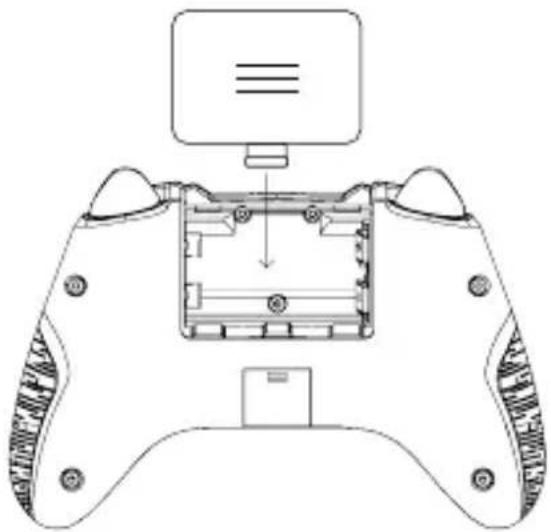
Battery installation
Remove the battery compartment cover and insert the battery provided. Once inserted, the battery compartment will close properly. The micro USB port must be on the upper part of the controller.
5V DC power supply = 500mA
I Recharging the battery
Using the USB charging cable, plug the micro USB plug into the micro USB port on the battery. Plug the other end of the cable into the USB port of a PC/laptop or plug it into a USB adapter to charge the device.
natural_image
Technical line drawing of a game controller with handle and control panel (no text or symbols)I Low battery indication
When the battery is low, the 4 LEDs on the front panel flash.
This indication is only compatible with the battery pack.
Switching the controller on/off
To turn on the controller, simply press the HOME/NACON button. The controller will wake up and try to connect to the wireless receiver and then to your smartphone.
To turn off the controller, press and hold the HOME/NACON button until all the lights go out.
Using it for the first time with an Android™ smartphone
- On your Android smartphone, make sure that Bluetooth® connectivity is properly enabled and perform a search to pair it with new devices.
- On your controller, check that it is turned off. Press and hold the HOME/NACON and Select button until the mode 2 (Bluetooth®) and 4 (Di) lights flash.
- Your smartphone will detect this new device as a controller with the following name: «Nacon CGC». Select this on your smartphone to complete the pairing. Once the pairing has been completed (the controller: «Nacon CGC» then moves from the list: «Available devices» to: «Paired devices»). The lights of the controller will then stop flashing.
Using it for the first time with an Apple ^® device
- On your Apple ^® device (Ipad ^® , Iphone ^® , Ipod ^® ), make sure that the Bluetooth ^® connectivity is enabled. Start a search for new Bluetooth ^® devices.
- On your controller, check that it is turned off. Press and hold the HOME/NACON and Start button until the mode 2 (Bluetooth®) and 3 (Xi) lights flash
- Your Apple® device will detect this new device as a controller with the following name: «Nacon CGC». Select it on the Apple® device to complete the pairing. The lights of the controller should then stop flashing.
Using the controller via its USB receiver
The Cloud Gaming Controller is a plug'n'play device. In other words, the driver will be installed automatically the first time you connect it to the PC.
Detailed procedure:
- Turn on your PC and wait for it to start. Then log in to access your Windows desktop.
- Connect the USB receiver supplied with the controller (or the USB cable) to a free USB port on your PC.
- The PC will then detect the new device and a few seconds later, the driver installation process will start (you will then notice a small icon at the bottom right of your screen to indicate this).
Note: The installation time will depend on your PC. When the installation is complete, the icon will change. You can now on use your controller.
1 Phone holder
A smartphone holder is provided with your controller. You will need to fit it to your controller and make sure that it is securely fastened before inserting your smartphone.
To install the phone holder, follow these steps:
- Slightly loosen the hinge so that you can unfold the phone holder from its clip to the controller.
- Unclip the opening system located on the bottom and open up the clip.
- Insert your controller and close the clip. Make sure that the closing system is properly clipped in.
- Adjust the angle of your phone holder as required and tighten the hinge screw.
- Unfold the holder base and insert your phone by pushing the upper part using your phone.
Recycling
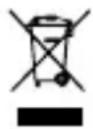
Do not dispose of this product with the household waste. Dispose of your old electrical appliance at a suitable collection centre. Recycling is important and helps protect the environment by reducing waste. EU and
Turkey only.
Safety & Precautions
1/ This product is designed for indoor use only. Do not expose it to direct sunlight or bad weather.
2/ Do not expose the product to splashes, rain, drips or moisture. Do not immerse it in a liquid.
3/ Do not expose to dust, high levels of humidity, extreme temperatures or mechanical shocks.
4/ Do not use if the equipment is damaged.
5/ When cleaning the outside, only use a soft, clean and damp cloth. Detergents can damage the finish and get inside the product.
6/ Do not carry the product while holding it by the cables.
7/ This product is not designed for people (including children) suffering from a physical, sensory or mental handicap, or for users without the necessary and relevant experience or knowledge (unless they have been given advice and instructions on how to use the device from a person responsible for the user). Do not leave the product unattended and do not leave this product within the reach of children. Not suitable for children under the age of 7 years, as the cable can be wrapped around the neck.
Information about batteries
1/ The correct polarity must be observed when inserting batteries.
2/ The batteries must be inserted so as to avoid any short circuit.
3/ Do not mix old and new batteries.
4/ Do not mix standard alkaline batteries (carbon-zinc) and rechargeable batteries (nickel-cadmium).
5/ Do not expose the batteries to excessive heat such as direct sunlight or flames.
6/ Remove the batteries when they have not been used for a long time.
7/ If the liquid in the batteries comes into contact with the eyes or skin, wash the affected areas immediately and thoroughly with clean water and consult a doctor.
Warning: Do not swallow the battery. Risk of chemical burns. If the button cell is swallowed, it can cause severe internal burns in as little as two hours and result in death. Keep new and used batteries out of the reach of children. If the battery compartment does not close properly, stop using the product and keep it away from children. If you think that some batteries may have been swallowed or placed in any part of the body, consult a doctor immediately.
Warning: Risk of explosion if the battery is not replaced correctly. Only replace the battery with a battery of the same or equivalent type.
Recommendations for use
Keeping your hand in one position for long periods of time can cause pain or irritation. If this problem occurs repeatedly, please consult a doctor. As a preventive measure, we recommend that you take a 15-minute break every hour.
Technical Specifications
- Cable length: 80cm
• Consumption: 5V = 500mA
DC power supply
Technical Helpline Information
Email: support@nacongaming.com
Website: www.nacongaming.com
natural_image
Technical line drawing of a game controller with handle and control panel (no text or symbols)Email : support.be@nacongaming.com
Site Internet : www.nacongaming.com
Adresse : Bigben Interactive Belgium s.a./n.v. Waterloo Office Park / Bâtiment H Drève Richelle 161 bte 15, 1410 Waterloo, Belgium
natural_image
Technical line drawing of a game controller with handle and control panel (no text or symbols)Email : support.de@nacongaming.com
Website : www.nacongaming.com/de
Tel.: 02271-9047997
www.nacongaming.com/my-nacon/support/
Inhoud
1 x gamecontroller
1 x draadloze ontvanger
1 x oplaadbare batterij
1 x USB-kabel
1 x telefoonhouder
1 x snelstartgids
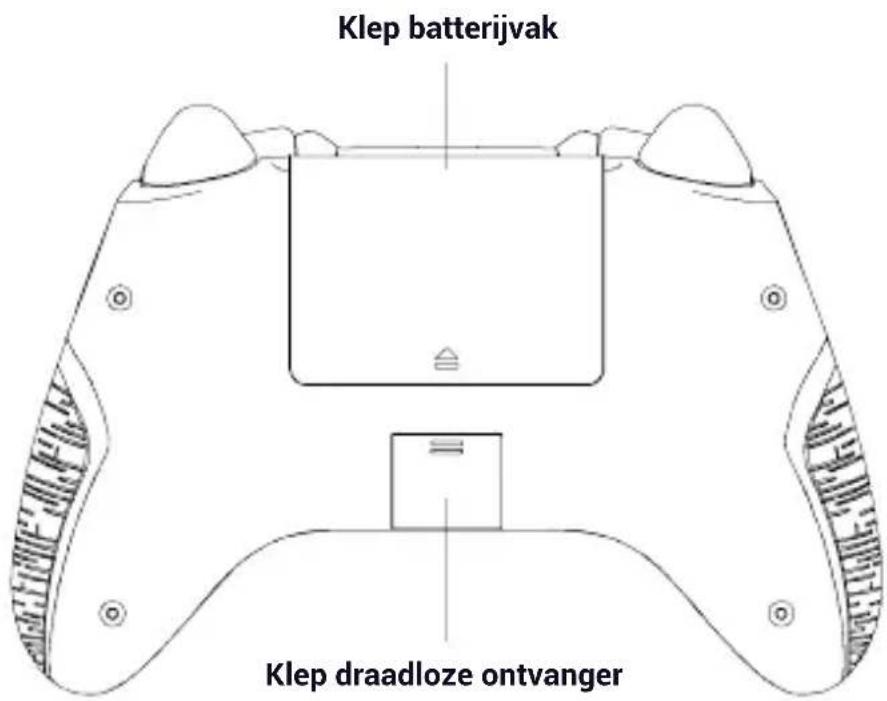
Micro-usb-poort
natural_image
Line drawing of a game controller with handle and control panel (no text or symbols)Batterij-Indicatie
Website: www.nacongaming.com
Email : support.nl@nacongaming.com
In België:
Bigben Interactive Belgium s.a./n.v. Waterloo Office Park / Bâtiment H Drève Richelle 161 bte 15, 1410 Waterloo, Belgium
Site Internet : www.nacongaming.com
Email : support.be@nacongaming.com
natural_image
Line drawing of a game controller with handle and control panel (no text or symbols)www.nacongaming.com/it/my-nacon/supporto/
Contenuto
natural_image
Line drawing of a game controller with handle and control panel (no text or symbols)Website: www.nacongaming.com
Email : support.it@nacongaming.com
www.nacongaming.com/my-nacon/support/
Conteúdo
natural_image
Technical line drawing of a game controller with handle and control panel (no text or symbols)Email: support@nacongaming.com
Website: www.nacongaming.com

natural_image
Abstract circular logo with stylized white bird-like shape inside a black circle (no text or symbols)nacon
WWW.NACONGAMING.COM

@NaconGaming

lacongaming

on International