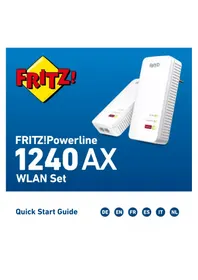
FRITZ!Powerline 1240 AX - Access Point AVM - Free user manual and instructions
Find the device manual for free FRITZ!Powerline 1240 AX AVM in PDF.


| Product Type | CPL Wi-Fi Kit (access point) |
| Model | FRITZ!Powerline 1240 AX + FRITZ!Powerline 1210 |
| Dimensions (L x W x H) | 147.5 x 71 x 32.5 mm (each adapter) |
| Power Supply | 230 V, 50 Hz AC (integrated power plug) |
| Average Power Consumption | Approx. 6 W (1240 AX) / 2.5 W (1210) |
| Max CPL Data Rate | Up to 1200 Mbit/s |
| Max Wi-Fi Data Rate (2.4 GHz) | Up to 600 Mbit/s |
| Ethernet Ports | 2 x Gigabit Ethernet (1000 Mbit/s) on each adapter |
| CPL Security | AES 128-bit encryption, pairing by button |
| Wi-Fi Functions | Wi-Fi repeater, Mesh Wi-Fi with FRITZ!Box (FRITZ!OS ≥ 6.90) |
| Management | User interface via browser (http://fritz.powerline), FRITZ!Powerline software (Windows/Mac) |
| Operating Temperature | 0 °C to +40 °C |
| Compatibility | FRITZ!Box router recommended, works with any router |
| Cleaning | Unplug the device, clean with a damp cloth |
| Maintenance | Updates via FRITZ!OS, diagnostics via AVM |
| Connectable Devices | Smartphones, tablets, computers, consoles, etc. |
| Reset | Press Connect button for 15 seconds |
| Warranty and Repairability | Do not open the device; repair only by a professional |
Frequently Asked Questions - FRITZ!Powerline 1240 AX AVM
User questions about FRITZ!Powerline 1240 AX AVM
0 question about this device. Answer the ones you know or ask your own.
Ask a new question about this device
Download the instructions for your Access Point in PDF format for free! Find your manual FRITZ!Powerline 1240 AX - AVM and take your electronic device back in hand. On this page are published all the documents necessary for the use of your device. FRITZ!Powerline 1240 AX by AVM.
USER MANUAL FRITZ!Powerline 1240 AX AVM
natural_image
Two white FRITZ1 network devices on a blue background, no visible text or symbols on the devices themselves.FRITZ!Powerline
1240 AX
WLAN Set
Quick Start Guide

DEUTSCH 3
ENGLISH 15
FRANÇAIS 27
ESPAÑOL 39
ITALIANO 51
NEDERLANDS 63
Lieferumfang
1 FRITZ!Powerline 1240 AX 1 FRITZ!Powerline 1210 1 Netzwerkkabel
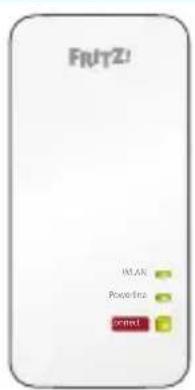
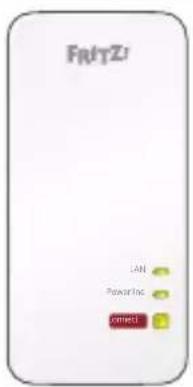

Gerätemerkmale
1240 AX 1210 Funktion
natural_image
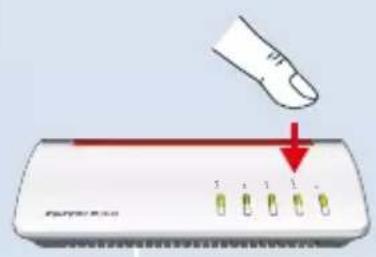
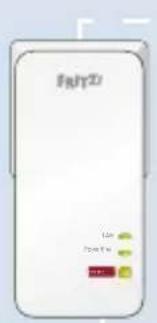
Front view of a white electronic device with four green indicator lights and a red top bar (no visible text or symbols)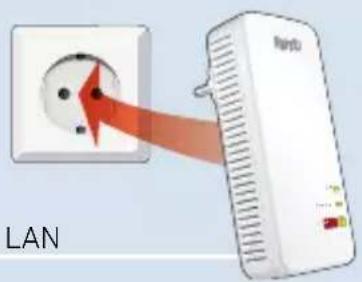
FRITZ!Powerline 1240 AX
2
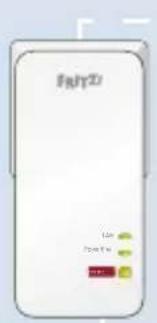
LAN
natural_image
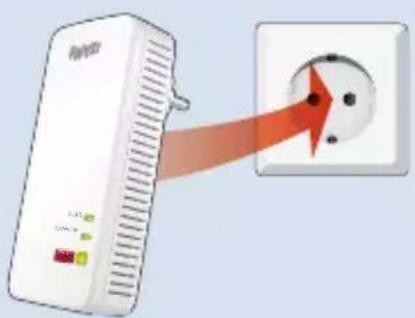
White electronic device with a red arrow pointing to a white electrical socket (no text or symbols visible)FRITZ!Powerline 1240 AX
Benutzeroberfläche
 |  | Interface to the powerline network |
 | Interface to the Wi-Fi network | |
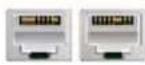 | 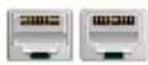 | For connecting network devices |
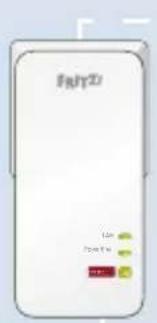
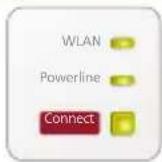 | 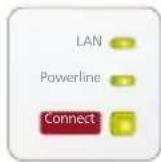 | Display current status and for establishing secure connections |
Security
- Operate the FRITZ!Powerline devices in a dry place that is free of dust and protected from direct sunlight, and provide for sufficient ventilation.
- Only use FRITZ!Powerline devices indoors.
- Do not let liquids get inside the FRITZ!Powerline devices.
-
Plug the FRITZ!Powerline devices into easily accessible outlets.
-
Do not open the FRITZ!Powerline devices. Opening and/or repairing the devices can present a hazard.
- Remove the FRITZ!Powerline devices from outlets before cleaning. Clean the device using a moist cloth.
Radio Frequencies and Transmitter Power
• 2.4 GHz – 2.483 GHz, max. 100 mW
FRITZ!Powerline 1240 AX WLAN Set
This quick introduction shows you the possibilities for deploying and operating your FRITZ!Powerline 1240E AX WLAN Set. The set is comprised of the devices FRITZ!Powerline 1240 AX and FRITZ!Powerline 1210.
The FRITZ!Powerline 1240E AX WLAN Set lets you set up a complete powerline network that is encrypted and ready for secure operation immediately upon delivery. FRITZ!Powerline 1210 is the connection from your internet router to the powerline network. FRITZ!Powerline 1240 AX can be deployed throughout the home and serves as the access point to the internet for your wireless and network devices.
FRITZ!Powerline 1240 AX supports Mesh in combination with a FRITZ!Box with FRITZ!OS 6.9 (or newer). In the Mesh of a FRITZ!Box, FRITZ! products with Wi-Fi functionality automatically adopt various settings to build an especially powerful Wi-Fi network. The Mesh Overview of the FRITZ!Box user interface presents information on the connections in the Mesh and allows you to update your FRITZ! products.
For device settings FRITZ!Powerline 1240 AX has a user interface which you can open in a web browser on all connected devices.
Comprehensive information on the features of FRITZ!Powerline 1240 AX is presented in the Online Help.
Have fun with your FRITZ!Powerline 1240 AX WLAN Set.
Starting Operation of the FRITZ!Powerline 1240 AX WLAN Set
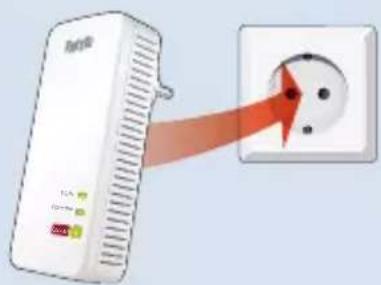
- Insert the FRITZ!Powerline 1210 in an outlet and use the network cable (LAN) to connect the device with your internet router (FRITZ!Box).
- Insert FRITZ!Powerline 1240 AX in an outlet close to your internet router (FRITZ!Box) and wait until the Powerline LED lights up permanently.
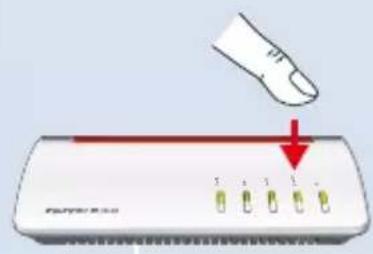
If you have a FRITZ!Box with FRITZ!OS 6.90 or newer, you can integrate FRITZ!Powerline 1240 AX into the Mesh Wi-Fi of the FRITZ!Box:
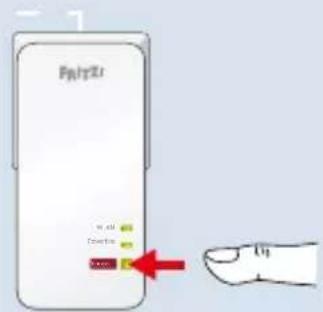
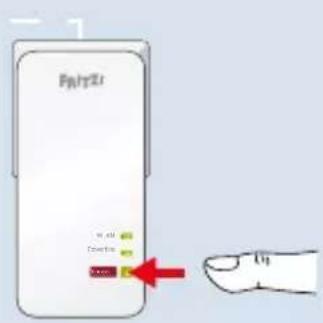
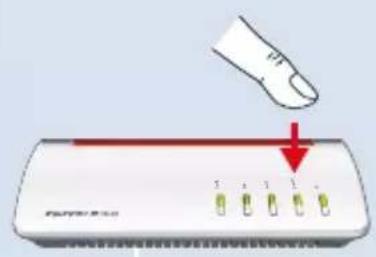
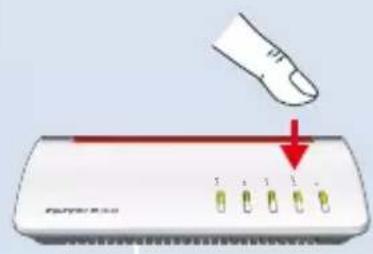
First press the WPS or Connect button on the FRITZ!Box, and then press the Connect button on FRITZ!Powerline 1240 AX and hold it down for 1 second. The LEDs on FRITZ!Powerline 1240 AX will start flashing. - As soon as the Connect LED stops flashing, you can insert FRITZ!Powerline 1240 AX into an outlet at the location where you need access to the internet and the home network for your smartphone, tablet, and other network devices.
1
natural_image
Front view of a white electronic device with four green indicator lights and a red top bar (no visible text or symbols)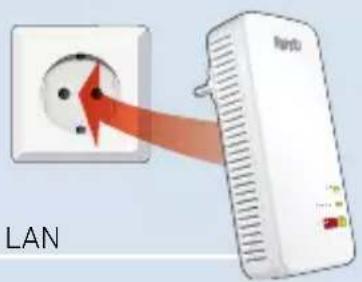
FRITZ!Powerline 1210
Electrical wiring

FRITZ!Powerline 1240 AX
2
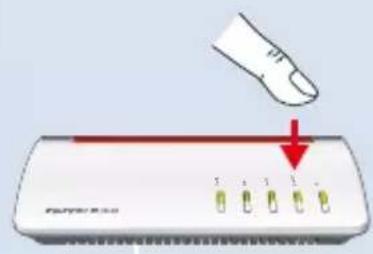
LAN
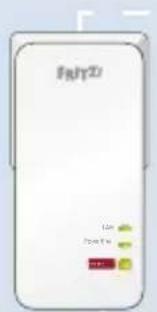
FRITZ!Powerline 1210
Electrical wiring
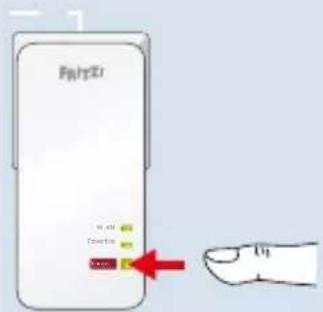
FRITZ!Powerline 1240 AX
3
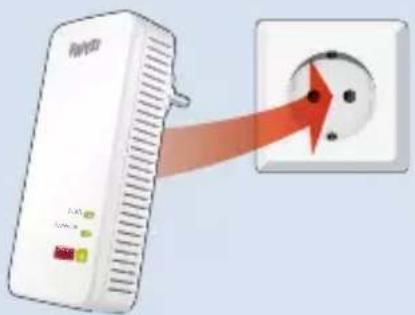
natural_image
White electronic device with a red arrow pointing to a white electrical socket (no text or symbols visible)FRITZ!Powerline 1240 AX
User Interface
FRITZ!Powerline 1240 AX has a user interface you can open in the web browser on your computer. Enter the following address:
- In the home network of a FRITZ!Box: http://fritz.powerline
- For multiple FRITZ!Powerline devices with a user interface:
(the IP address is displayed in http://fritz.box under Home Network) - In the home network of another Internet router:
(the IP address is displayed in the user interface of the router) - Without a connection to the home network and router: 192.168.178.2
In the User Interface You Can
• Perform an update to the latest FRITZ!OS version
- Configure various settings for FRITZ!Powerline 1240 AX, for instance switch the LEDs on and off
- Add powerline devices to the powerline network without pressing the button
- Configure FRITZ!Powerline 1240 AX as a wireless repeater
Software for Microsoft Windows and MacOS
- Update and control of the powerline devices is also possible with the FRITZ!Powerline software, which you can download from en.avm.de/powerline.
FRITZ!Powerline in the FRITZ!Box Home Network
FRITZ!Powerline 1240 AX WLAN Set realizes its entire spectrum of performance in the home network of a FRITZ!Box.
In the Home Network of a FRITZ!Box with FRITZ!OS 6.90 or Later
- Updates for the FRITZ!Powerline 1240 AX WLAN Set can be started directly from the FRITZ!Box user interface: http://fritz.box
- FRITZ!Powerline 1240 AX benefits from expanded Mesh Wi-Fi functionality.
With Mesh
- FRITZ!Powerline 1240 AX adopts the FRITZ!Box's Wi-Fi settings.
- FRITZ!Powerline 1240 AX adopts changes to settings that are configured in the FRITZ!Box.
Information on AVM Mesh Wi-Fi is presented at en.avm.de/mesh.
In the Home Network of a FRITZ!Box with FRITZ!OS up to 6.6x
- FRITZ!Powerline 1240 AX cannot benefit from expanded Mesh Wi-Fi functionality, but can adopt the FRITZ!Box's Wi-Fi settings at the push of a button.
Detailed information is presented in the Online Help of FRITZ!Powerline 1240 AX.
Connecting Wireless and Network Devices
With your wireless and network devices (smartphone, laptop, for instance) you can use the FRITZ!Powerline 1240 AX WLAN Set as an access point to the home network and to the internet. You can connect devices with FRITZ!Powerline 1240 AX via network cable (LAN) or Wi-Fi. Wi-Fi connections are established with WPS (Wi-Fi Protected Setup) or by entering the Wi-Fi network key.
Establishing a Wi-Fi Connection Using WPS
- On FRITZ!Powerline, press the Connect button. The button flashes.
- Start WPS on your wireless device within two minutes.
Establishing a Wi-Fi Connection with a Network Key
- Start establishing a Wi-Fi connection on the wireless device.
- If you adopted the Wi-Fi network key of the FRITZ!Box, enter this key. If you did not adopt the Wi-Fi network key of the FRITZ!Box, enter the Wi-Fi network key from the sticker on the back of the FRITZ!Powerline housing.
Optimizing the Data Rate
A powerline network is influenced by many factors. With the following steps you can contribute to an optimal data rate in your powerline network:
Insert powerline devices directly into wall outlets and avoid using multi-outlet strips.
If you can't avoid using multi-outlet strips:
- Use a multi-outlet strip without surge protection.
-
Connect as few devices as possible to the multi-outlet strip.
-
Insert your powerline device in the first socket, directly at the cable.
- If you cannot avoid using a multi-outlet strip with surge protection, then the surge protection should be located behind the powerline device.
The data rate in a powerline network drops in the case of:
• a connection over multiple phases
- a connection that has to pass through a junction box, a circuit breaker, a dimmer or ballast units
• use of a power drill or a vacuum cleaner
Attempt to minimize these influences and optimize the quality of your powerline network using the AVM FRITZ!Powerline software, which you can download from en.avm.de/powerline.
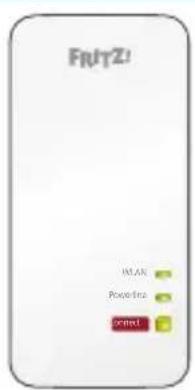
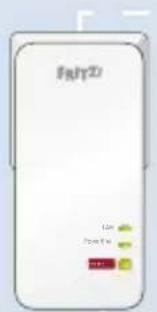
LEDs and Button: FRITZ!Powerline 1240 AX
| Display/Operation Condition | ||
| WLAN | on Wi-Fi enabled | |
| off Wi-Fi disabled | ||
| Powerline | on Powerline enabled | |
| off Connection interrupted or powerline disabled | ||
| Connect | on Connection established | |
| orange | Weak connection(see “Optimizing the Data Rate”) | |
| flashing fast Connecting... | ||
| flashing No connection | ||
| press briefly Establishing a connection | ||
| press and hold(for at least15 seconds) | Reset | |
All LED states and button functions are found in the Online Help.
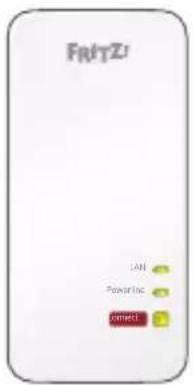
LEDs and Button: FRITZ!Powerline 1210
| Display/Operation Condition | ||
| LAN | on Network device connected via LAN cable | |
| off | No network device connected via LAN cable or the connected device is switched off | |
| Powerline | on Connection established | |
| off Connection interrupted | ||
| Connect | on Connected with the powerline network | |
| orange | Weak connection (see “Optimizing the Data Rate”) | |
| flashing fast Connecting... | ||
| flashing | No connection, no compatible powerline devices detected that use the same network key | |
| flashing slowly On standby | ||
| press briefly Establishing a connection | ||
| press and hold (10 to 15 seconds) | Reset | |
Properties / Technical Specifications
- Expands the Mesh Wi-Fi of the FRITZ!Box via powerline
• Powerline data rate of up to 1200 Mbit/s - Powerline connection securely encrypted upon delivery with AES 128-bit; powerline network expanded at the push of a button
- 230 V, 50 Hz AC
- 0 °C to +40 °C
FRITZ!Powerline 1240 AX
- Wireless N with up to 600 Mbit/s in the 2.4-GHz band
- 2 x gigabit Ethernet (1000 Mbit/s) for connecting computers and electronic devices
- Height x width x depth (in mm): 147.5 x 71 x 32.5
• Average active power: ca. 6 W
FRITZ!Powerline 1210
- 2 x gigabit Ethernet (1000 Mbit/s) for connecting FRITZ!Box and network devices
- Height x width x depth (in mm): 147.5 x 71 x 32.5
• Average active power: ca. 2.5 W
Declaration of EU Conformity
AVM declares herewith that the device is compliant with directive 2014/53/EU. The full text of the declaration of EU conformity is available at en.avm.de/service/declarations.

Diagnostics/Maintenance
The FRITZ!Powerline transfers diagnostics data to AVM, which support AVM in further developing the product. This allows you to benefit directly from optimizations and FRITZ!OS updates. For more detailed information, see the help on the user interface at http://fritz.powerline.
Contenu du pack
1 FRITZ!Powerline 1240 AX 1 FRITZ!Powerline 1210 1 câble Ethernet

Fonctionnalités
natural_image
Front view of a white electronic device with four green indicator lights and a red top bar (no visible text or symbols)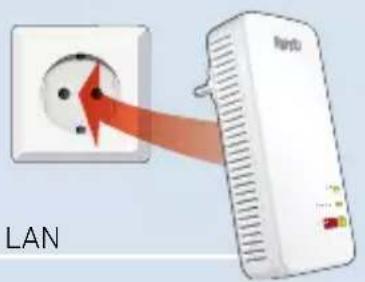
FRITZ!Powerline 1210
Ligne électrique
FRITZ!Powerline 1240 AX
2
LAN
FRITZ!Powerline 1210
Ligne électrique
FRITZ!Powerline 1240 AX
3
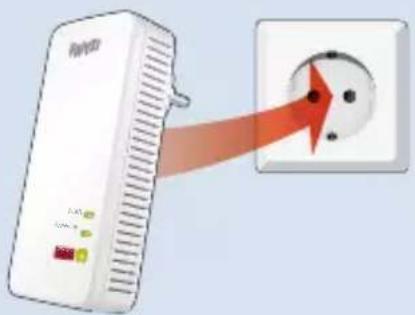
natural_image
White electronic device with a red arrow pointing to a white socket (no text or symbols visible)FRITZ!Powerline 1240 AX
natural_image
Front view of a white electronic device with four green indicator lights and a red top bar (no visible text or symbols)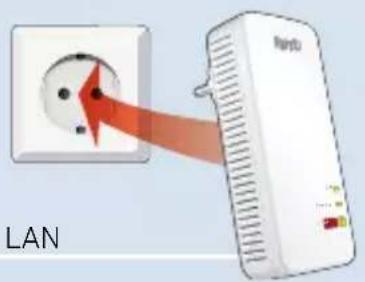
FRITZ!Powerline 1210
Red eléctrica
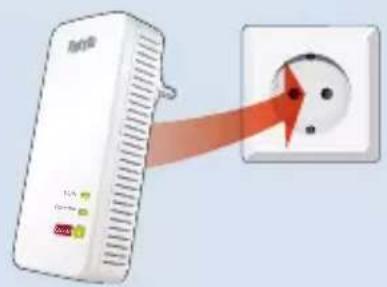
FRITZ!Powerline 1240 AX
2
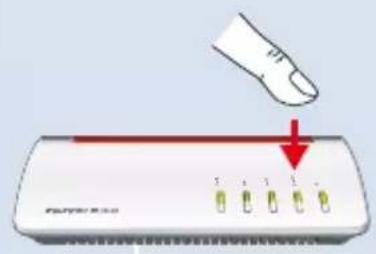
LAN
FRITZ!Powerline 1210
Red eléctrica
FRITZ!Powerline 1240 AX
3
natural_image
White electronic device with a red arrow pointing to a white electrical socket (no text or symbols visible)FRITZ!Powerline 1240 AX
Interfaz de usuario
natural_image
Front view of a white electronic device with four green indicator lights and a red top panel (no visible text or symbols)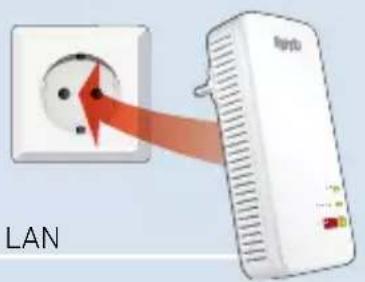
FRITZ!Powerline 1240 AX
2
LAN
FRITZ!Powerline 1240 AX
Interfaccia utente
natural_image
Front view of a white electronic device with four green indicator lights and a red top bar (no visible text or symbols)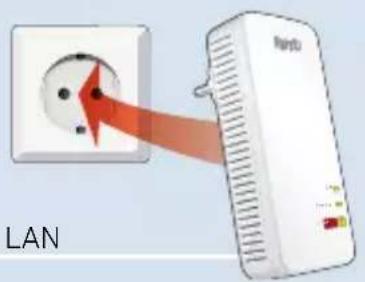
FRITZ!Powerline 1240 AX
2
LAN
FRITZ!Powerline 1240 AX
Gebruikersinterface
- FRITZ!Powerline
- AX
- WLAN Set
- Lieferumfang
- Gerätemerkmale
- Benutzeroberfläche
- Security
- Radio Frequencies and Transmitter Power
- FRITZ!Powerline 1240 AX WLAN Set
- Starting Operation of the FRITZ!Powerline 1240 AX WLAN Set
- User Interface
- In the User Interface You Can
- Software for Microsoft Windows and MacOS
- FRITZ!Powerline in the FRITZ!Box Home Network
- In the Home Network of a FRITZ!Box with FRITZ!OS 6.90 or Later
- With Mesh
- In the Home Network of a FRITZ!Box with FRITZ!OS up to 6.6x
- Connecting Wireless and Network Devices
- Establishing a Wi-Fi Connection Using WPS
- Establishing a Wi-Fi Connection with a Network Key
- Optimizing the Data Rate
- LEDs and Button: FRITZ!Powerline 1240 AX
- LEDs and Button: FRITZ!Powerline 1210
- Properties / Technical Specifications
- FRITZ!Powerline 1240 AX
- FRITZ!Powerline 1210
- Declaration of EU Conformity
- Diagnostics/Maintenance
- Contenu du pack
- Fonctionnalités
- Interfaz de usuario
- Interfaccia utente
- Gebruikersinterface
Brand : AVM
Model : FRITZ!Powerline 1240 AX
Category : Access Point