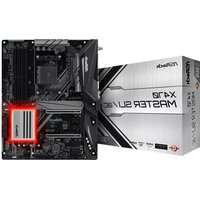
X470 Master SLI/ac - Motherboard ASROCK - Free user manual and instructions
Find the device manual for free X470 Master SLI/ac ASROCK in PDF.


| Product Type | Motherboard |
| Brand | ASRock |
| Model | X470 Master SLI/ac |
| Form Factor | ATX (30.5 cm x 24.4 cm) |
| CPU Socket | AM4 |
| Chipset | AMD X470 |
| Processor Support | AMD Ryzen series (Summit Ridge, Raven Ridge, Pinnacle Ridge) |
| RAM Memory | 4 x DDR4 DIMM, max 64 GB, Dual Channel support |
| Memory Frequencies | Up to 3466+ MHz (OC) |
| Expansion Slots | 2 x PCIe 3.0 x16 (x16/x8 in dual), 4 x PCIe 2.0 x1 |
| Storage | 6 x SATA3 6 Gb/s, 1 x Ultra M.2 (PCIe Gen3 x4), 1 x M.2 (SATA3/PCIe Gen2 x2) |
| Wired Networking | Intel I211AT Gigabit LAN |
| Wireless Networking | Wi-Fi 802.11ac Dual-Band up to 433 Mbps |
| Bluetooth | 4.2 / 3.0 + HS Class II |
| Audio | Realtek ALC892, 7.1 HD Channels |
| Rear USB | 1 x USB 3.1 Gen2 Type A, 1 x USB 3.1 Gen2 Type C, 6 x USB 3.1 Gen1 |
| Internal Connectors | USB 2.0 (2 headers), USB 3.1 Gen1 (2 headers), COM, TPM, RGB LED, addressable LED, fans |
| Video Outputs | 1 x HDMI |
| Operating System | Microsoft Windows 10 64-bit |
| Power Requirements | 1 x 24-pin ATX, 1 x 8-pin 12V, 1 x 4-pin 12V |
| Maintenance | Dry cloth, regular dusting, avoid moisture |
| Safety | ESD prevention, disconnect before handling |
| Warranty | Manufacturer's standard (not specified) |
Frequently Asked Questions - X470 Master SLI/ac ASROCK
User questions about X470 Master SLI/ac ASROCK
0 question about this device. Answer the ones you know or ask your own.
Ask a new question about this device
Download the instructions for your Motherboard in PDF format for free! Find your manual X470 Master SLI/ac - ASROCK and take your electronic device back in hand. On this page are published all the documents necessary for the use of your device. X470 Master SLI/ac by ASROCK.
USER MANUAL X470 Master SLI/ac ASROCK
Published January 2018
Copyright©2018 ASRock INC. All rights reserved.
Copyright Notice:
No part of this documentation may be reproduced, transcribed, transmitted, or translated in any language, in any form or by any means, except duplication of documentation by the purchaser for backup purpose, without written consent of ASRock Inc.
Products and corporate names appearing in this documentation may or may not be registered trademarks or copyrights of their respective companies, and are used only for identification or explanation and to the owners' benefit, without intent to infringe.
Disclaimer:
Specifications and information contained in this documentation are furnished for informational use only and subject to change without notice, and should not be constructed as a commitment by ASRock. ASRock assumes no responsibility for any errors or omissions that may appear in this documentation.
With respect to the contents of this documentation, ASRock does not provide warranty of any kind, either expressed or implied, including but not limited to the implied warranties or conditions of merchantability or fitness for a particular purpose.
In no event shall ASRock, its directors, officers, employees, or agents be liable for any indirect, special, incidental, or consequential damages (including damages for loss of profits, loss of business, loss of data, interruption of business and the like), even if ASRock has been advised of the possibility of such damages arising from any defect or error in the documentation or product.

This device complies with Part 15 of the FCC Rules. Operation is subject to the following two conditions:
(1) this device may not cause harmful interference, and
(2) this device must accept any interference received, including interference that may cause undesired operation.
CALIFORNIA, USA ONLY
The Lithium battery adopted on this motherboard contains Perchlorate, a toxic substance controlled in Perchlorate Best Management Practices (BMP) regulations passed by the California Legislature. When you discard the Lithium battery in California, USA, please follow the related regulations in advance.
"Perchlorate Material-special handling may apply, see www.dtsc.ca.gov/hazardouswaste/perchlorate"
ASRock Website: http://www.asrock.com
AUSTRALIA ONLY
Our goods come with guarantees that cannot be excluded under the Australian Consumer Law. You are entitled to a replacement or refund for a major failure and compensation for any other reasonably foreseeable loss or damage caused by our goods. You are also entitled to have the goods repaired or replaced if the goods fail to be of acceptable quality and the failure does not amount to a major failure. If you require assistance please call ASRock Tel: +886-2-28965588 ext.123 (Standard International call charges apply)
The terms HDMI ^™ and HDMI High-Definition Multimedia Interface, and the HDMI logo are trademarks or registered trademarks of HDMI Licensing LLC in the United States and other countries.

HIGH-DEFINITION MULTIMEDIA INTERFACE
CE Warning
This device complies with directive 2014/53/EU issued by the Commission of the European Community.
This equipment complies with EU radiation exposure limits set forth for an uncontrolled environment.
This equipment should be installed and operated with minimum distance 20cm between the radiator & your body.
Operations in the 5.15-5.35GHz band are restricted to indoor usage only.
| AT | BE | BG | CH | CY | CZ | DE | |
| DK | EE | EL | ES | FI | FR | HR | |
| HU | IE | IS | IT | LI | LT | LU | |
| LV | MT | NL | NO | PL | PT | RO | |
| SE | SI | SK | TR | UK |

Radio transmit power per transceiver type
Function Frequency Maximum Output Power (EIRP)
| 2400-2483.5 MHz 18.5 + / -1.5 dbm | ||
| 5150-5250 MHz 21.5 + / -1.5 dbm | ||
| WiFi | 5250-5350 MHz | 18.5 + / -1.5 dbm (no TPC) |
| 21.5 + / -1.5 dbm (TPC) | ||
| 5470-5725 MHz | 25.5 + / -1.5 dbm (no TPC) | |
| 28.5 + / -1.5 dbm (TPC) | ||
Bluetooth 2400-2483.5 MHz 8.5 + / -1.5 dbm
Motherboard Layout
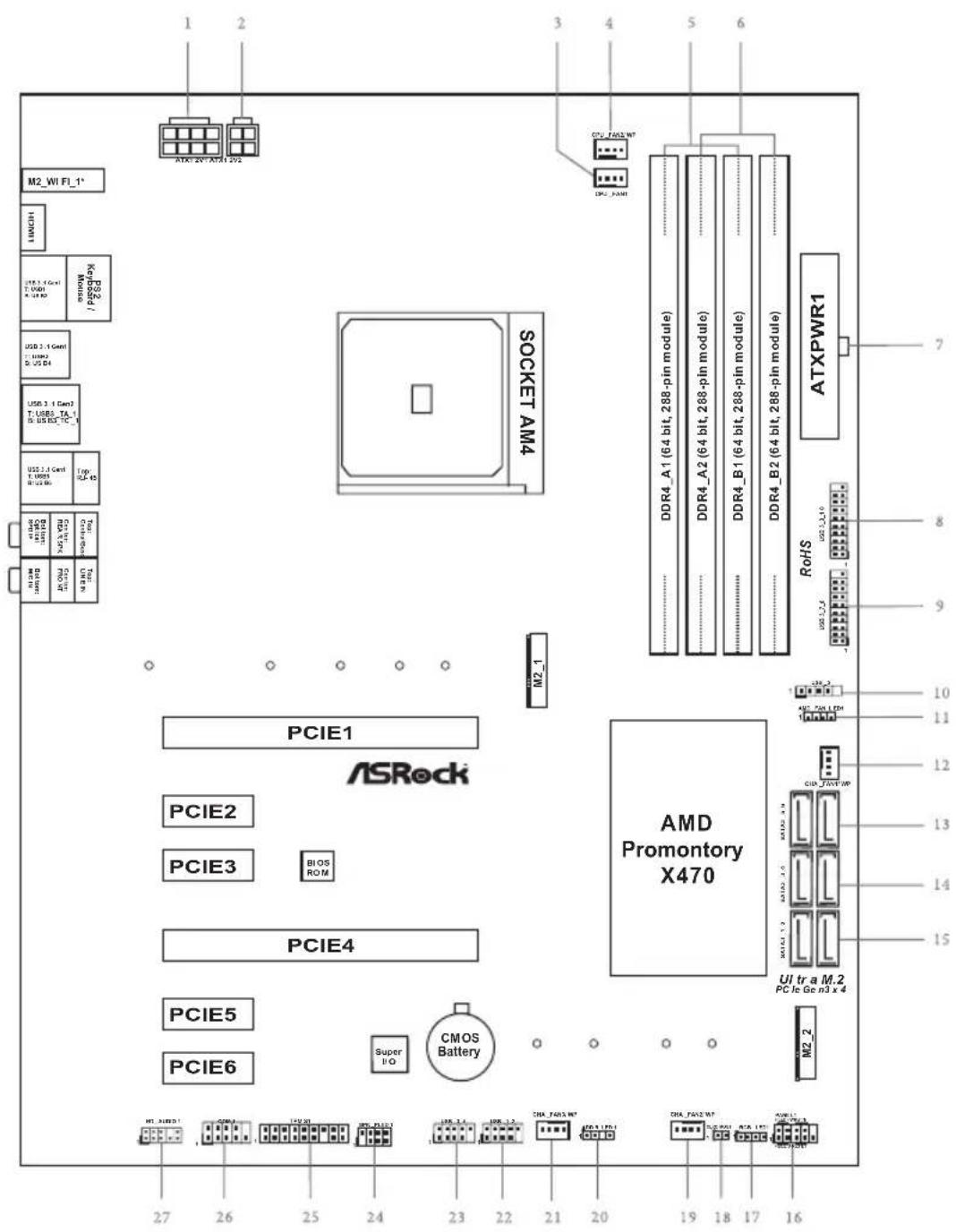
* The vertical M.2 socket (Key E) with the bundled WiFi-802.11ac module is for X470 Master SLI/ac only.
No. Description
1 ATX 12V Power Connector (ATX12V1)
2 ATX 12V Power Connector (ATX12V2)
3 CPU Fan Connector (CPU_FAN1)
4 CPU/Water Pump Fan Connector (CPU_FAN2/WP)
5 2 x 288-pin DDR4 DIMM Slots (DDR4_A1, DDR4_B1)
6 2 x 288-pin DDR4 DIMM Slots (DDR4_A2, DDR4_B2)
7 ATX Power Connector (ATXPWR1)
8 USB 3.1 Gen1 Header (USB3_9_10)
9 USB 3.1 Gen1 Header (USB3_7_8)
10 AMD LED Fan USB Header (USB_5)
11 AMD Fan LED Header (AMD_FAN_LED1)
12 Chassis/Water Pump Fan Connector (CHA_FAN1/WP)
13 SATA3 Connectors (SATA3_5_6)
14 SATA3 Connectors (SATA3_3_4)
15 SATA3 Connectors (SATA3_1_2)
16 System Panel Header (PANEL1)
17 RGB LED Header (RGB_LED1)
18 Clear CMOS Jumper (CLRCMOS1)
19 Chassis/Water Pump Fan Connector (CHA_FAN2/WP)
20 Addressable LED Header (ADDR_LED1)
21 Chassis/Water Pump Fan Connector (CHA_FAN3/WP)
22 USB 2.0 Header (USB_1_2)
23 USB 2.0 Header (USB_3_4)
24 Power LED and Speaker Header (SPK_PLED1)
25 TPM Header (TPMS1)
26 COM Port Header (COM1)
27 Front Panel Audio Header (HD_AUDIO1)
I/O Panel
X470 Master SLI/ac
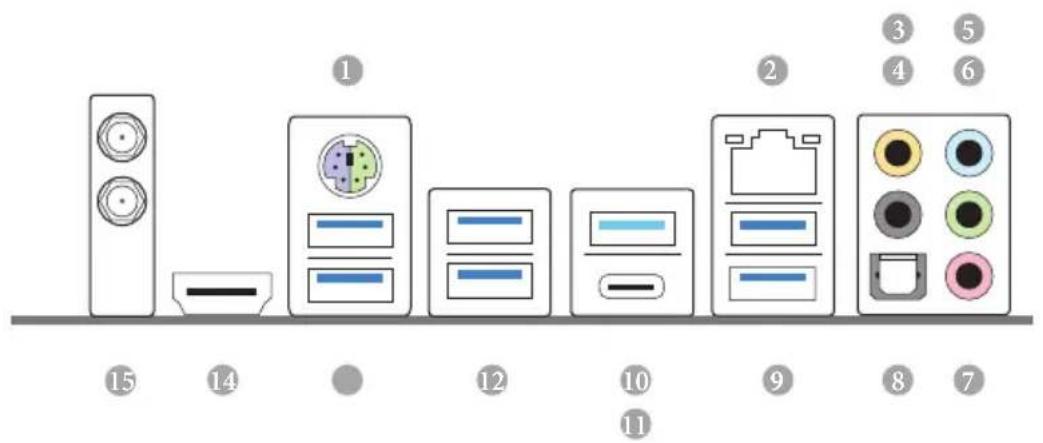
No. Description No. Description
1 PS/2 Mouse/Keyboard Port 9 USB 3.1 Gen1 Ports (USB3_5_6)
2 LAN RJ-45 Port* 10 USB 3.1 Gen2 Type-A Port (USB3_TA_1)
3 Central / Bass (Orange) 11 USB 3.1 Gen2 Type-C Port (USB3_TC_1)
4 Rear Speaker (Black) 12 USB 3.1 Gen1 Ports (USB3_3_4)
5 Line In (Light Blue) 13 USB 3.1 Gen1 Port (USB3_1_2)
6 Front Speaker (Lime) ^** 14 HDMI Port (HDMI1)
7 Microphone (Pink) 15 Antenna Ports
8 Optical SPDIF Out Port
X470 Master SLI
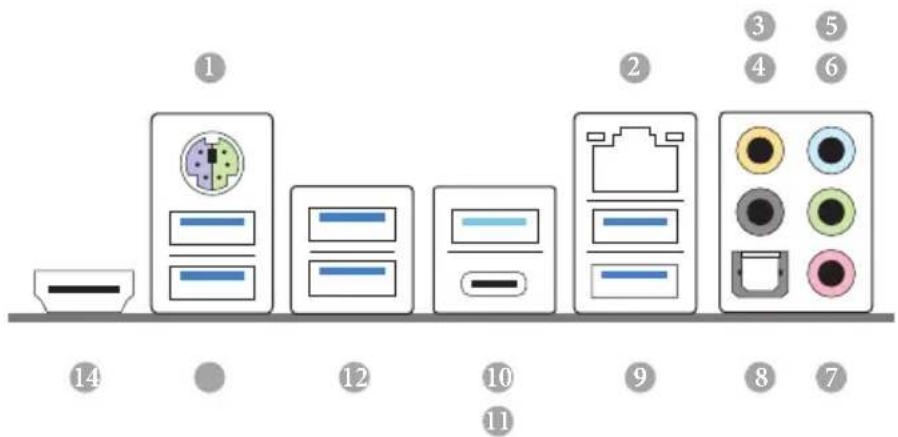
No. Description No. Description
1 PS/2 Mouse/Keyboard Port 8 Optical SPDIF Out Port
2 LAN RJ-45 Port* 9 USB 3.1 Gen1 Ports (USB3_5_6)
3 Central / Bass (Orange) 10 USB 3.1 Gen2 Type-A Port (USB3_TA_1)
4 Rear Speaker (Black) 11 USB 3.1 Gen2 Type-C Port (USB3_TC_1)
5 Line In (Light Blue) 12 USB 3.1 Gen1 Ports (USB3_3_4)
6 Front Speaker (Lime) ^** 13 USB 3.1 Gen1 Port (USB3_1_2)
7 Microphone (Pink) 14 HDMI Port (HDMI1)
* There are two LEDs on each LAN port. Please refer to the table below for the LAN port LED indications.
ACT/LINK LED
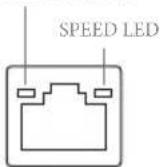
LAN Port
| Activity / Link LED Speed LED | |||
| Status Description Status Description | |||
| Off No Link Off | 10Mbps connection | ||
| Blinking Data Activity Orange 100Mbps connection | |||
| On Link Green 1Gbps connection | |||
** If you use a 2-channel speaker, please connect the speaker's plug into "Front Speaker Jack". See the table below for connection details in accordance with the type of speaker you use.
| Audio Output Channels | Front Speaker (No. 6) | Rear Speaker (No. 4) | Central / Bass (No. 3) | Line In (No. 5) |
| 2 V -- -- -- | ||||
| 4 V V -- -- | ||||
| 6 V V V -- | ||||
| 8 V V V V |
WiFi-802.11ac Module and ASRock WiFi 2.4/5 GHz Antennas (for X470 Master SLI/ac only)
WiFi-802.11ac + BT Module
This motherboard comes with an exclusive WiFi 802.11 a/b/g/n/ac + BT v4.2 module (pre-installed on the rear I/O panel) that offers support for WiFi 802.11 a/b/g/n/ac connectivity standards and Bluetooth v4.2. WiFi + BT module is an easy-to-use wireless local area network (WLAN) adapter to support WiFi + BT. Bluetooth v4.2 standard features Smart Ready technology that adds a whole new class of functionality into the mobile devices. BT 4.2 also includes Low Energy Technology and ensures extraordinary low power consumption for PCs.
* The transmission speed may vary according to the environment.
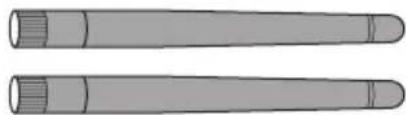
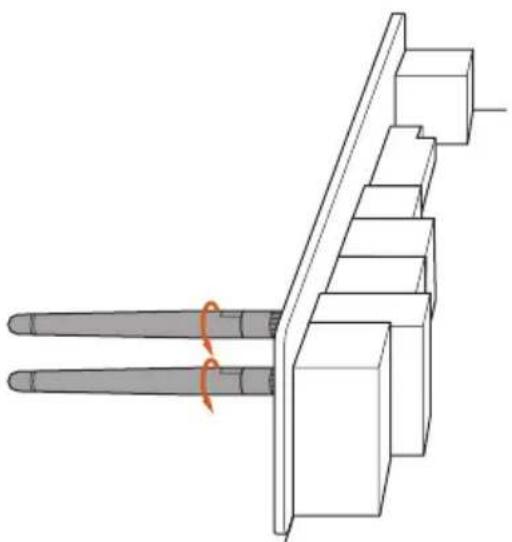
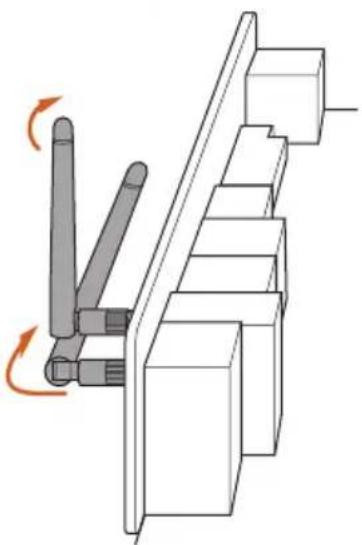
WiFi Antennas Installation Guide
natural_image
Two identical cylindrical objects with segmented ends, no text or symbols visibleStep 1
Prepare the WiFi 2.4/5 GHz Antennas that come with the package.
natural_image
Technical line drawing of a mechanical assembly with two cylindrical components and a base plate (no text or symbols)Step 2
Connect the two WiFi 2.4/5 GHz Antennas to the antenna connectors. Turn the antenna clockwise until it is securely connected.
natural_image
Mechanical assembly diagram showing a rotating mechanism with no visible text or symbolsStep 3
Set the WiFi 2.4/5 GHz Antenna as shown in the illustration.
*You may need to adjust the direction of the antenna for a stronger signal.
Chapter 1 Introduction
Thank you for purchasing ASRock X470 Master SLI/ac / X470 Master SLI motherboard, a reliable motherboard produced under ASRock's consistently stringent quality control. It delivers excellent performance with robust design conforming to ASRock's commitment to quality and endurance.

Because the motherboard specifications and the BIOS software might be updated, the content of this manual will be subject to change without notice. In case any modifications of this manual occur, the updated version will be available on ASRock's website without further notice. If you require technical support related to this motherboard, please visit our website for specific information about the model you are using. You may find the latest VGA cards and CPU support list on ASRock's website as well. ASRock website http://www.asrock.com.
1.1 Package Contents
• ASRock X470 Master SLI/ac / X470 Master SLI Motherboard (ATX Form Factor)
• ASRock X470 Master SLI/ac / X470 Master SLI Quick Installation Guide
• ASRock X470 Master SLI/ac / X470 Master SLI Support CD
• 1 x I/O Panel Shield
• 2 x Serial ATA (SATA) Data Cables (Optional)
• 1 x ASRock SLI_HB_Bridge_2S Card (Optional)
• 2 x Screws for M.2 Sockets (Optional)
- 2 x ASRock WiFi 2.4/5 GHz Antennas (Optional) (for X470 Master SLI/ac only)
1.2 Specifications
Platform
- ATX Form Factor
- 2oz Copper PCB
CPU
- Supports AMD AM4 Socket Ryzen Series CPUs (Summit Ridge, Raven Ridge and Pinnacle Ridge)
• Digi Power design (Intersil)
• 12 Power Phase design - Supports 105W Water Cooling (Pinnacle Ridge); Supports 95W Water Cooling (Summit Ridge); Supports 65W Water Cooling (Raven Ridge)
Chipset
• AMD Promontory X470
Memory
• Dual Channel DDR4 Memory Technology
• 4 x DDR4 DIMM Slots
- AMD Ryzen series CPUs (Pinnacle Ridge) support DDR4 3466+(OC)/3200(OC)/2933/2667/2400/2133 ECC & non-ECC, un-buffered memory*
- AMD Ryzen series CPUs (Summit Ridge) support DDR4 3466+(OC)/3200(OC)/2933(OC)/2667/2400/2133 ECC & non-ECC, un-buffered memory*
- AMD Ryzen series CPUs (Raven Ridge) support DDR4 3466+(OC)/3200(OC)/2933(OC)/2667/2400/2133 non-ECC, un-buffered memory*
* For Ryzen Series CPUs (Raven Ridge), ECC is only supported with PRO CPUs.
* Please refer to Memory Support List on ASRock's website for more information. (http://www.asrock.com/)
* Please refer to page 26 for DDR4 UDIMM maximum frequency support.
• Max. capacity of system memory: 64GB
• 15μ Gold Contact in DIMM Slots
Expansion Slot
- 2 x PCI Express 3.0 x16 Slots (single at x16 (PCIE1); dual at x8 (PCIE1) / x8 (PCIE4))*
* Supports NVMe SSD as boot disks
• 4 x PCI Express 2.0 x1 Slots
| Supports AMD Quad CrossFireXTM and CrossFireXTMSupports NVIDIA® Quad SLITM and SLITM15μ Gold Contact in VGA PCIe Slot (PCIE1) | |
| Graphics | Integrated AMD RadeonTM Vega Series Graphics in Ryzen Series APU** Actual support may vary by CPUDirectX 12, Pixel Shader 5.0Max. shared memory 2GBSupports HDMI with max. resolution up to 4K x 2K (4096x2160) @ 30HzSupports Auto Lip Sync, Deep Color (12bpc), xvYCC and HBR (High Bit Rate Audio) with HDMI Port (Compliant HDMI monitor is required)Supports HDCP with HDMI PortSupports 4K Ultra HD (UHD) playback with HDMI Port |
| Audio | 7.1 CH HD Audio with Content Protection (Realtek ALC892 Audio Codec)Premium Blu-ray Audio supportSupports Surge ProtectionNichicon Fine Gold Series Audio Caps |
| LAN | Gigabit LAN 10/100/1000 Mb/sGigaLAN Intel® I211ATSupports Wake-On-LANSupports Lightning/ESD ProtectionSupports Energy Efficient Ethernet 802.3azSupports PXE |
| Wireless LAN (for X470 Master SLI/ac only) | Intel® 802.11ac WiFi ModuleSupports IEEE 802.11a/b/g/n/acSupports Dual-Band (2.4/5 GHz)Supports high speed wireless connections up to 433MbpsSupports Bluetooth 4.2 / 3.0 + High speed class II |
Rear Panel I/O
• 2 x Antenna Ports (for X470 Master SLI/ac only)
• 1 x PS/2 Mouse/Keyboard Port
- 1 x HDMI Port
• 1 x Optical SPDIF Out Port
- 1 x USB 3.1 Gen2 Type-A Port (10 Gb/s) (Supports ESD Protection)
- 1 x USB 3.1 Gen2 Type-C Port (10 Gb/s) (Supports ESD Protection)
- 6 x USB 3.1 Gen1 Ports (Supports ESD Protection)
- 1 x RJ-45 LAN Port with LED (ACT/LINK LED and SPEED LED)
- HD Audio Jacks: Rear Speaker / Central / Bass / Line in / Front Speaker / Microphone (Gold Audio Jacks)
Storage
- 6 x SATA3 6.0 Gb/s Connectors, support RAID (RAID 0, RAID 1 and RAID 10), NCQ, AHCI and Hot Plug
- 1 x Ultra M.2 Socket (M2_1), supports M Key type 2230/2242/2260/2280/22110 M.2 SATA3 6.0 Gb/s module and M.2 PCI Express module up to Gen3 x4 (32 Gb/s)*
- 1 x M.2 Socket (M2_2), supports M Key type
2230/2242/2260/2280 M.2 SATA3 6.0 Gb/s module and M.2 PCI Express module up to Gen2 x2 (10 Gb/s)*
* Supports NVMe SSD as boot disks
* Supports ASRock U.2 Kit
Connector
• 1 x COM Port Header
- 1 x TPM Header
• 1 x Power LED and Speaker Header
• 1 x AMD Fan LED Header
* The AMD Fan LED Header supports LED strips of maximum load of 3A (36W) and length up to 2.5M.
- 1 x RGB LED Header
* Supports in total up to 12V/3A, 36W LED Strip
• 1 x Addressable LED Header
* Supports in total up to 5V/3A, 15W LED Strip
• 1 x CPU Fan Connector (4-pin)
* The CPU Fan Connector supports the CPU fan of maximum 1A (12W) fan power.
- 1 x CPU/Water Pump Fan Connector (4-pin) (Smart Fan Speed Control)
* The CPU/Water Pump Fan supports the water cooler fan of maximum 2A (24W) fan power.
- 3 x Chassis/Water Pump Fan Connectors (4-pin) (Smart Fan Speed Control)
* The Chassis/Water Pump Fan supports the water cooler fan of maximum 2A (24W) fan power.
* CPU_FAN2/WP, CHA_FAN1/WP, CHA_FAN2/WP and CHA_FAN3/WP can auto detect if 3-pin or 4-pin fan is in use.
- 1 x 24 pin ATX Power Connector (Hi-Density Power Connector)
- 1 x 8 pin 12V Power Connector (Hi-Density Power Connector)
- 1 x 4 pin 12V Power Connector (Hi-Density Power Connector)
• 1 x Front Panel Audio Connector
• 1 x AMD LED Fan USB Header - 2 x USB 2.0 Headers (Support 4 USB 2.0 ports) (Supports ESD Protection)
- 2 x USB 3.1 Gen1 Headers (Support 4 USB 3.1 Gen1 ports) (Supports ESD Protection)
BIOS
Feature
• AMI UEFI Legal BIOS with GUI support
• Supports “Plug and Play”
• ACPI 5.1 compliance wake up events
• Supports jumperfree
- SMBIOS 2.3 support
- CPU, VCORE_NB, DRAM, VPPM, PCH 1.05V, +1.8V, VDDP, PROM 2.5V, Voltage Multi-adjustment
Hardware
Monitor
- Temperature Sensing: CPU, CPU/Water Pump, Chassis/Water Pump Fans
- Fan Tachometer: CPU, CPU/Water Pump, Chassis/Water Pump Fans
- Quiet Fan (Auto adjust chassis fan speed by CPU temperature): CPU, CPU/Water Pump, Chassis/Water Pump Fans
- Fan Multi-Speed Control: CPU, CPU/Water Pump, Chassis/Water Pump Fans
- Voltage monitoring: +12V, +5V, +3.3V, CPU Vcore, VCORE_NB, DRAM, PCH 1.05V, +1.8V, VDDP
os
• Microsoft® Windows® 10 64-bit
Certifications
- FCC, CE - ErP/EuP ready (ErP/EuP ready power supply is required)
* For detailed product information, please visit our website: http://www.asrock.com

Please realize that there is a certain risk involved with overclocking, including adjusting the setting in the BIOS, applying Untied Overclocking Technology, or using third-party overclocking tools. Overclocking may affect your system's stability, or even cause damage to the components and devices of your system. It should be done at your own risk and expense. We are not responsible for possible damage caused by overclocking.
Chapter 2 Installation
This is an ATX form factor motherboard. Before you install the motherboard, study the configuration of your chassis to ensure that the motherboard fits into it.
Pre-installation Precautions
Take note of the following precautions before you install motherboard components or change any motherboard settings.
- Make sure to unplug the power cord before installing or removing the motherboard. Failure to do so may cause physical injuries to you and damages to motherboard components.
- In order to avoid damage from static electricity to the motherboard's components, NEVER place your motherboard directly on a carpet. Also remember to use a grounded wrist strap or touch a safety grounded object before you handle the components.
- Hold components by the edges and do not touch the ICs.
- Whenever you uninstall any components, place them on a grounded anti-static pad or in the bag that comes with the components.
- When placing screws to secure the motherboard to the chassis, please do not over-tighten the screws! Doing so may damage the motherboard.
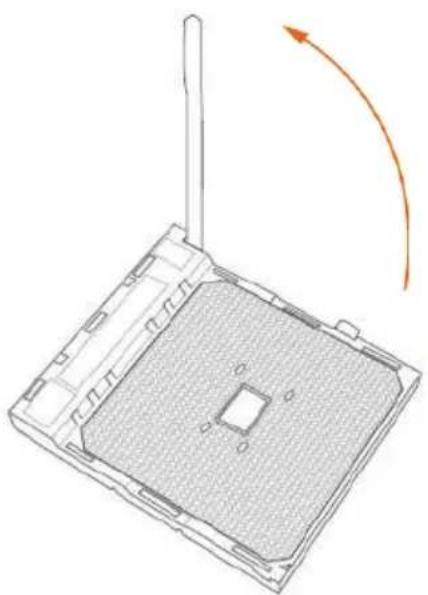
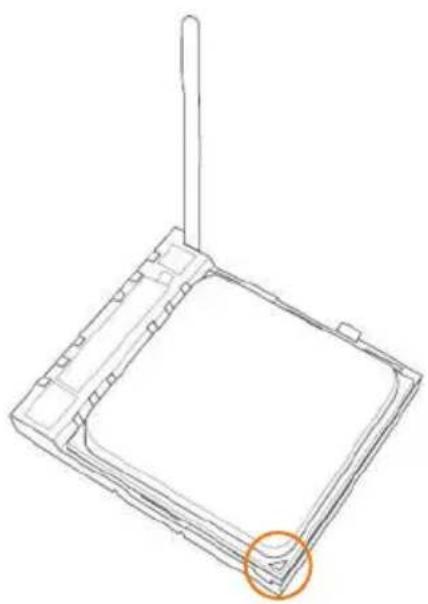
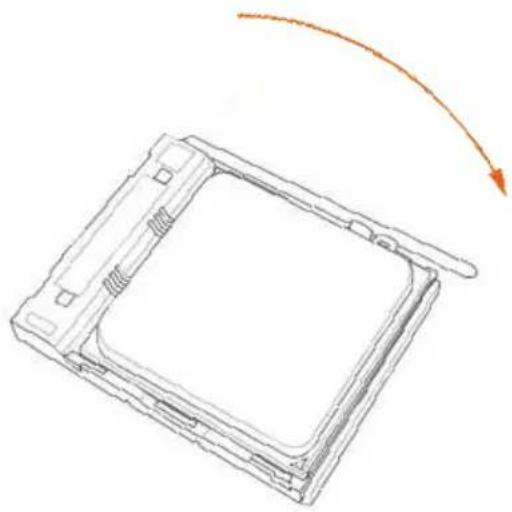
2.1 Installing the CPU

Unplug all power cables before installing the CPU.
1
natural_image
Diagram of a computer tower with a central square socket and an orange curved arrow indicating rotation (no text or symbols)2
natural_image
Technical line drawing of a square electronic component with a vertical rod and circular highlight (no text or symbols)3
natural_image
Line drawing of a square electronic component with an arrow indicating rotation or motion (no text or symbols)2.2 Installing the CPU Fan and Heatsink
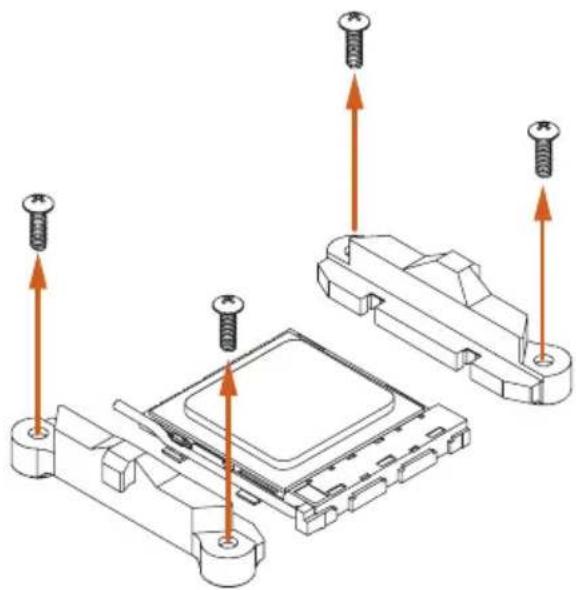
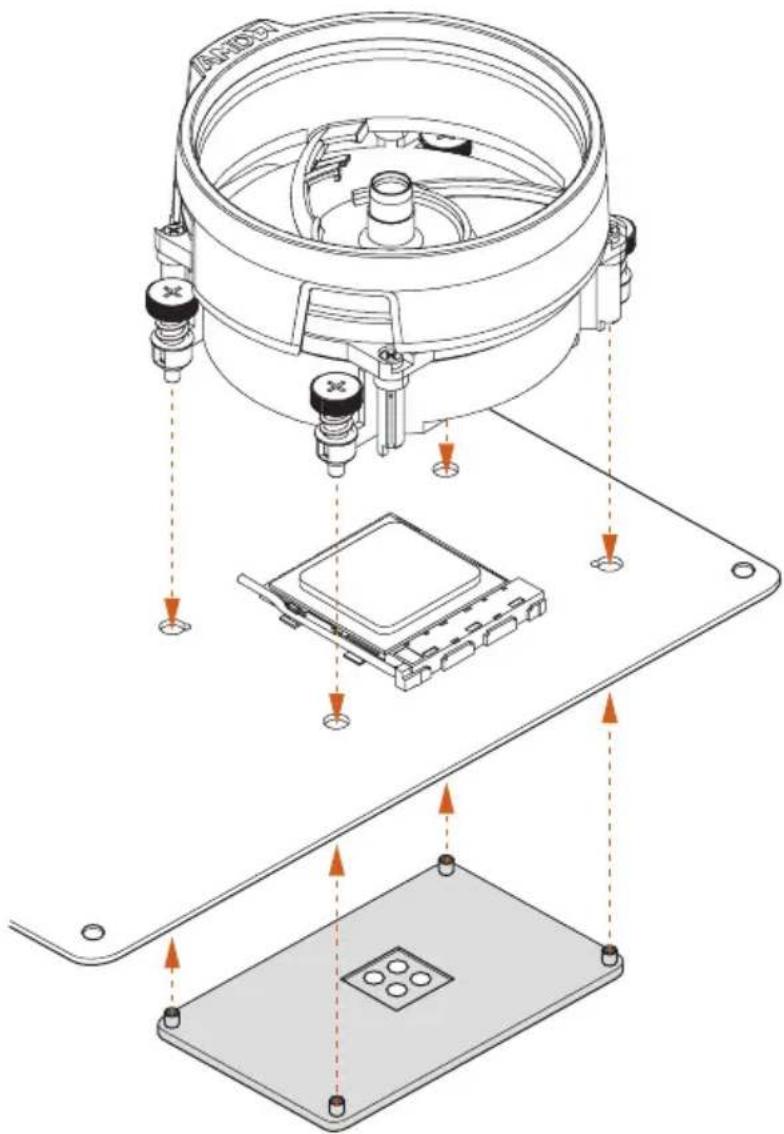
After you install the CPU into this motherboard, it is necessary to install a larger heatsink and cooling fan to dissipate heat. You also need to spray thermal grease between the CPU and the heatsink to improve heat dissipation. Make sure that the CPU and the heatsink are securely fastened and in good contact with each other.

Please turn off the power or remove the power cord before changing a CPU or heatsink.
Installing the CPU Box Cooler SR1
1
natural_image
Technical diagram showing screw installation on a microchip base with mounting holes (no text or symbols)2
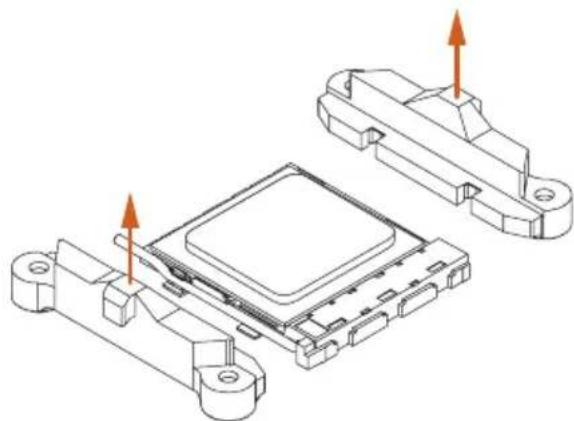
natural_image
Technical line drawing of an electronic component with two housing parts and orange arrows indicating assembly or movement (no text or symbols)3
4
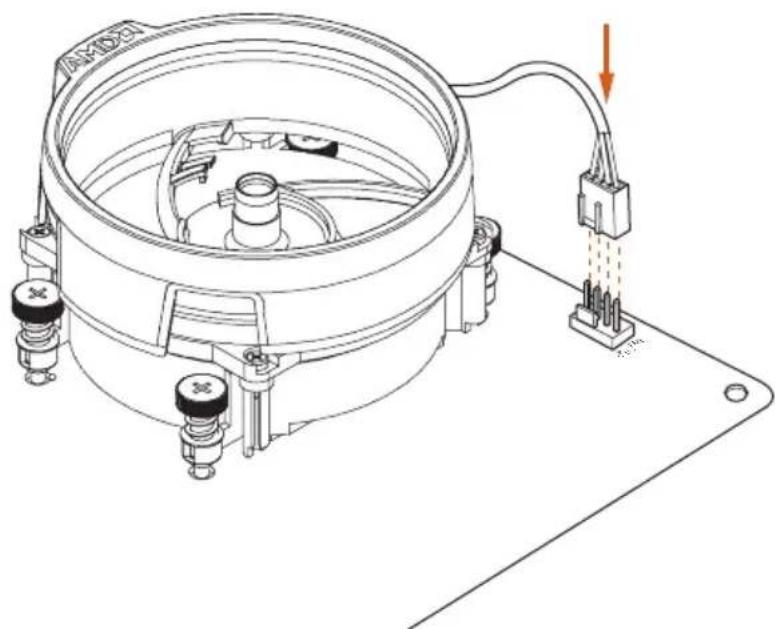
natural_image
Technical line drawing of a mechanical device with mounting base and wiring, no visible text or symbolsInstalling the AM4 Box Cooler SR2
1
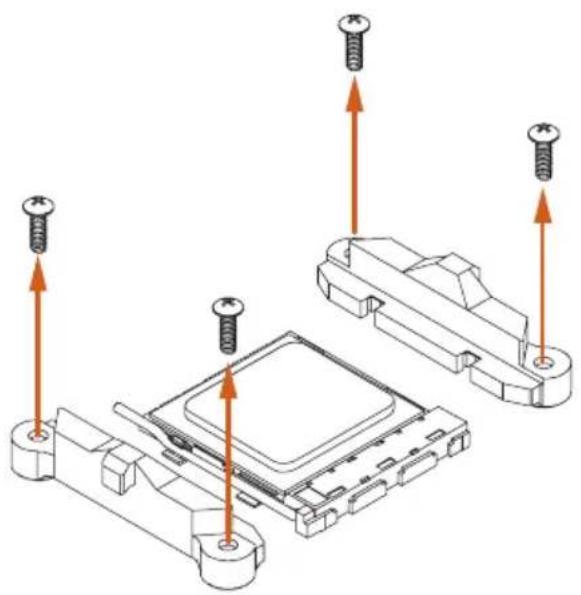
natural_image
Technical diagram showing screw installation components with arrows indicating assembly (no text or labels)2
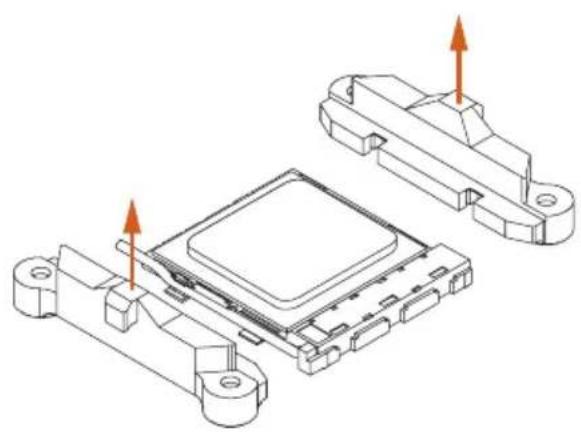
natural_image
Technical line drawing of an electronic component with mounting brackets and a central chip (no text or symbols)3
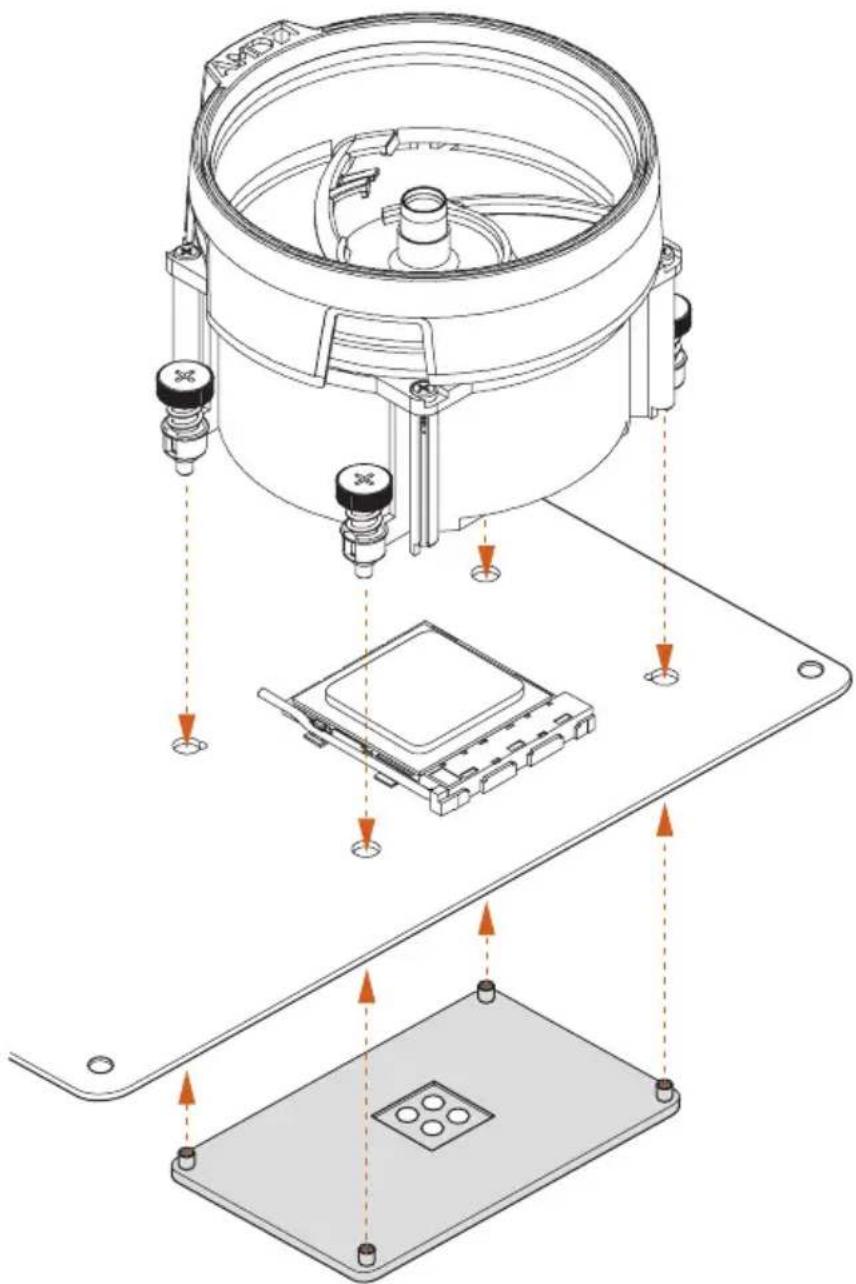
4
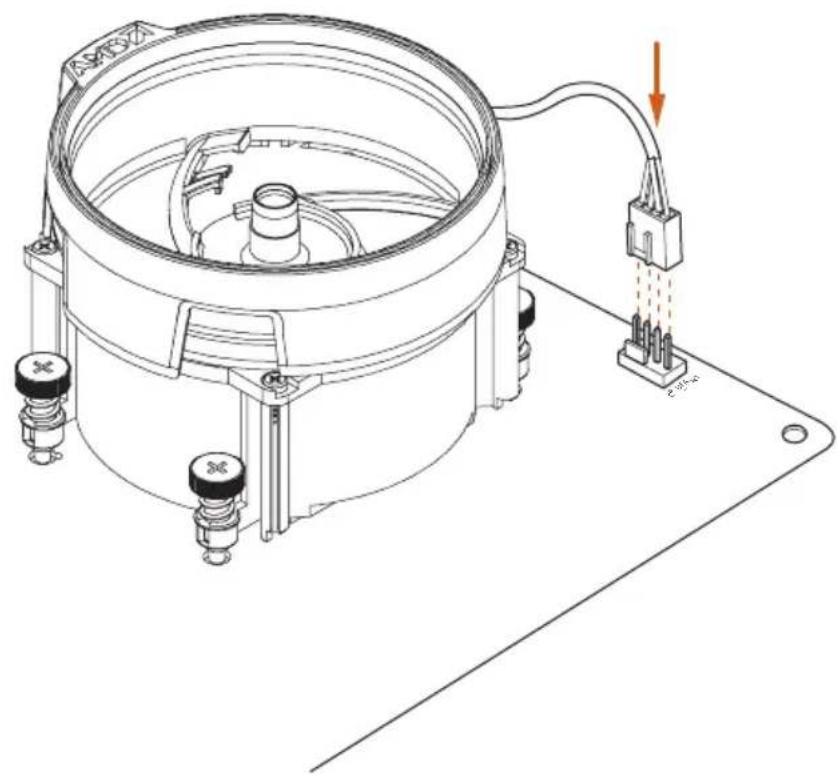
natural_image
Technical line drawing of a mechanical device with mounting base and wiring, no visible text or symbols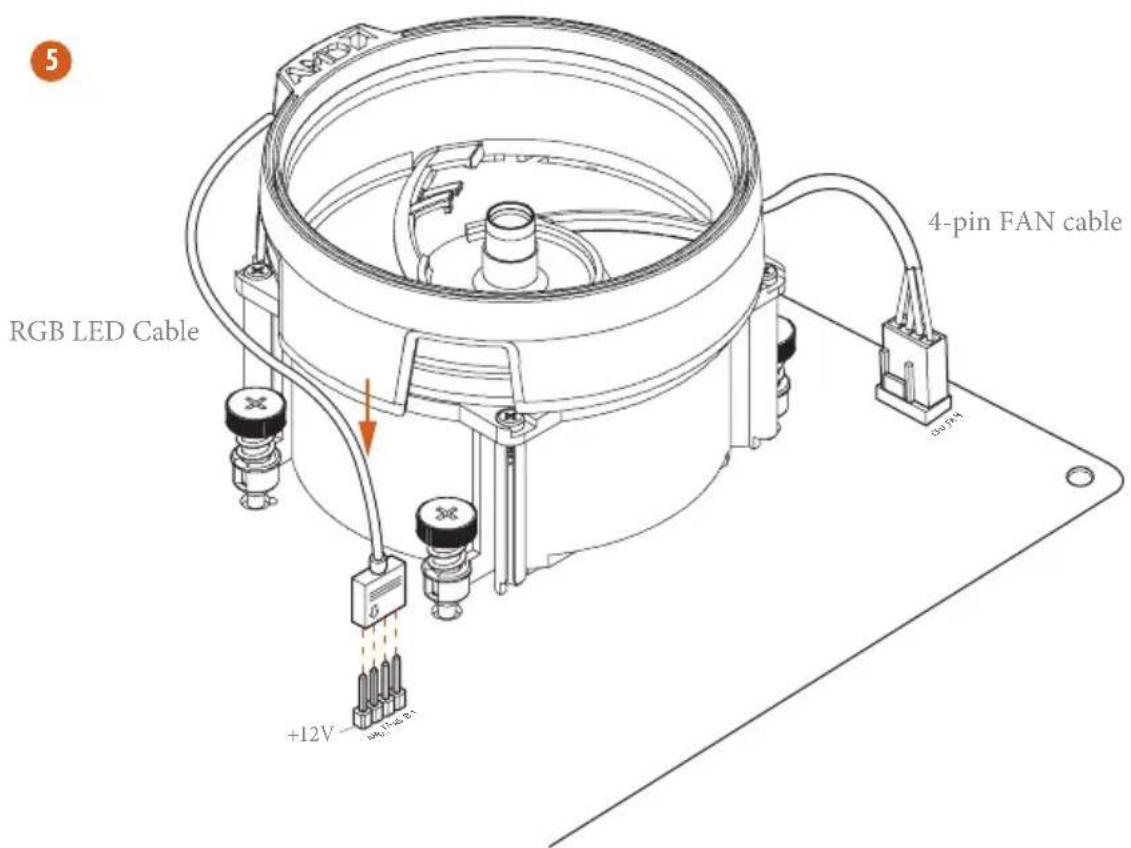
*The diagram shown here are for reference only. Please refer to page 35 for the orientation of AMD Fan LED Header (AMD_FAN_LED1).
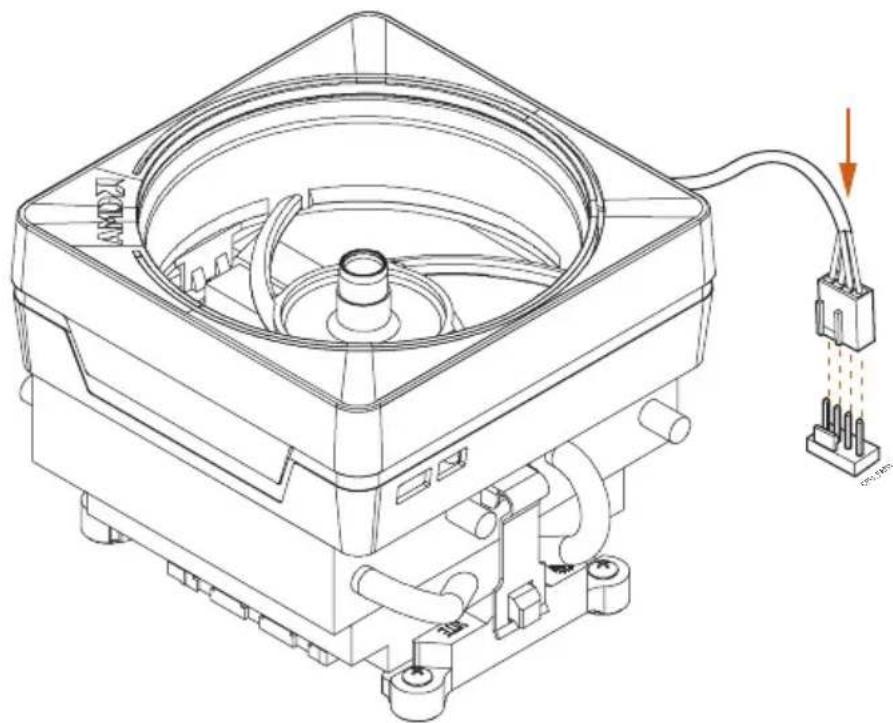
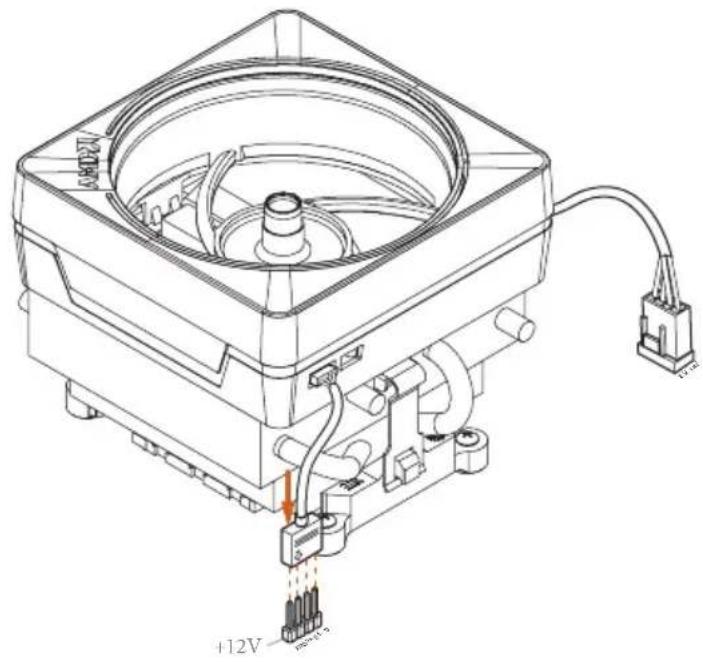
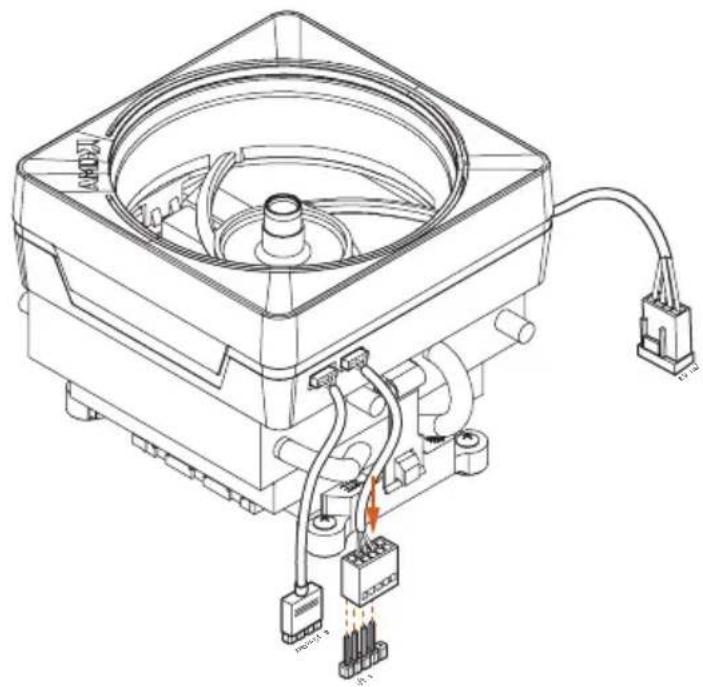
Installing the AM4 Box Cooler SR3
1
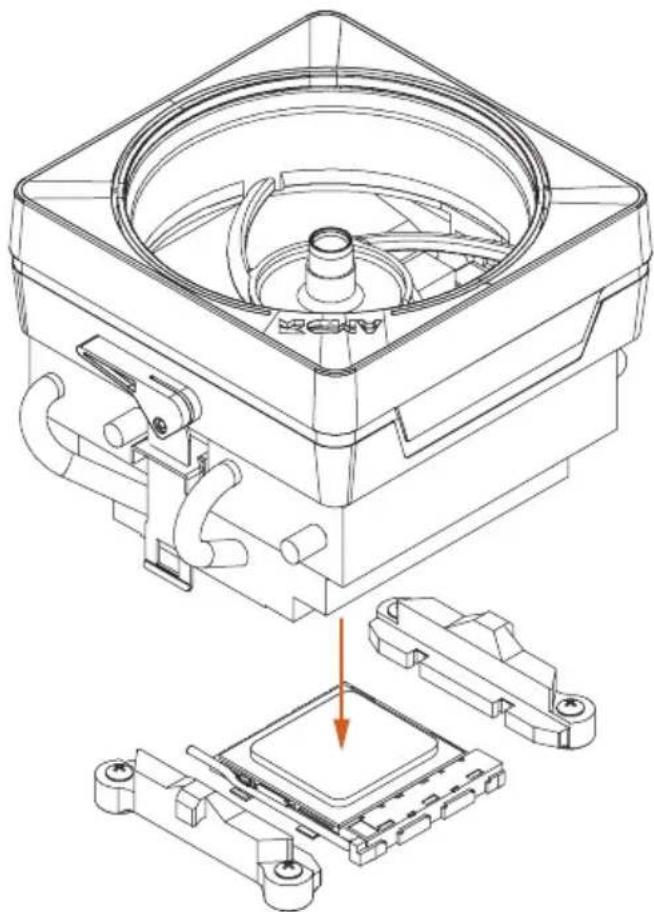
natural_image
Technical line drawing of a mechanical assembly with a central component and two supporting components (no text or symbols)2
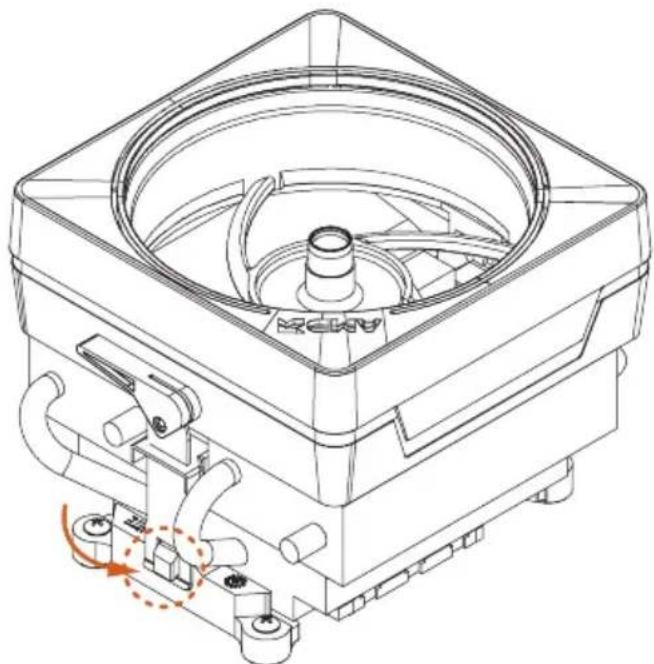
natural_image
Technical line drawing of a mechanical device with no visible text or symbols3
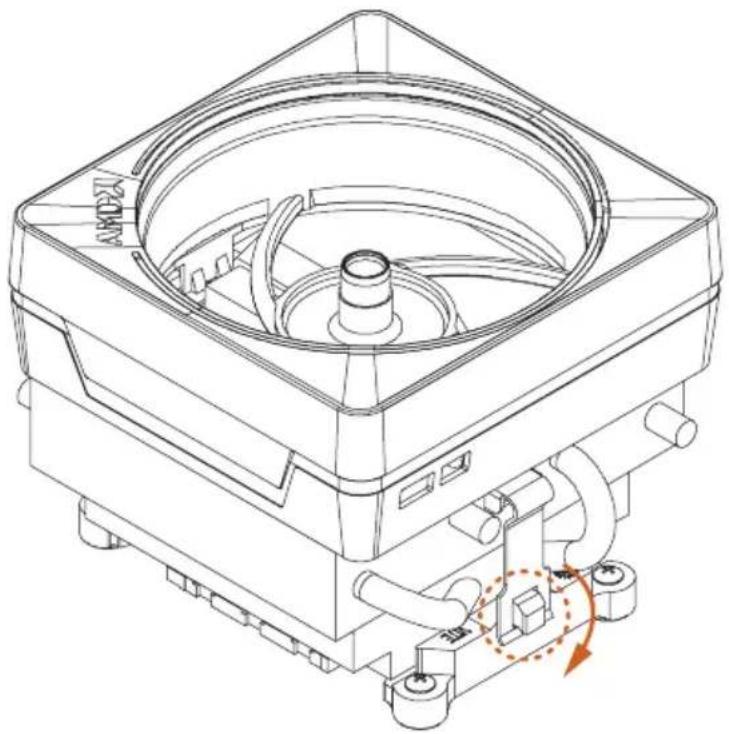
natural_image
Technical line drawing of a mechanical device with no visible text or symbols4
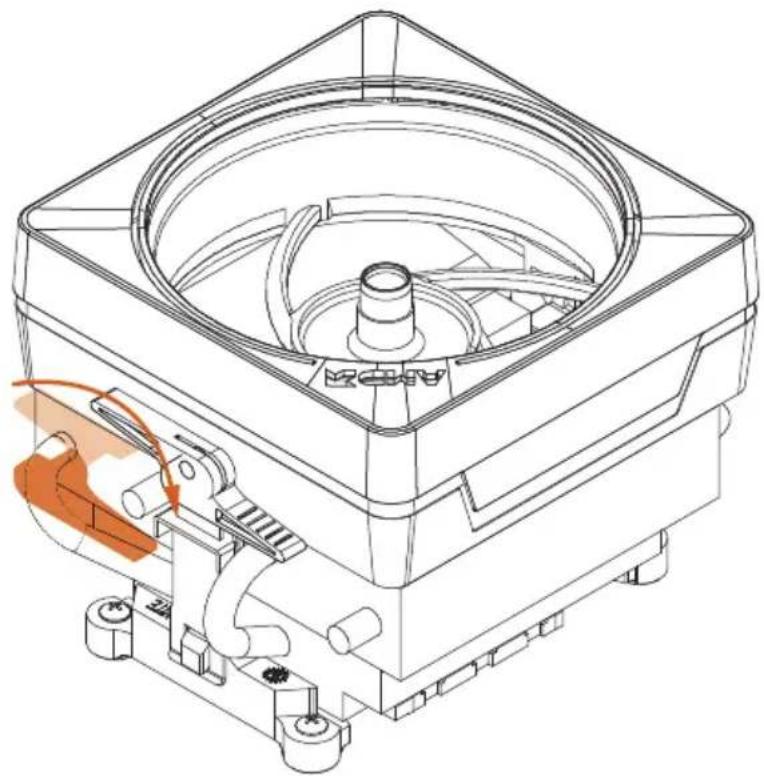
natural_image
Technical line drawing of a mechanical device with a central circular component and orange motion arrow indicating rotation (no text or symbols)5
natural_image
Technical line drawing of a mechanical device with internal components and wiring (no text or symbols)6

7
natural_image
Technical line drawing of a mechanical device with internal components and wiring (no text or symbols)Please note that only one cable should be used at a time in this step.
If you select AMD_FAN_LED1, please install ASRock utility "ASRock Polychrome RGB".
If you select USB connector, please install AMD utility "SR3 Settings Software".
*The diagram shown here are for reference only. Please refer to page 35 for the orientation of AMD Fan LED Header (AMD_FAN_LED1) and page 32 for the orientation of AMD LED Fan USB Header (USB_5).
2.3 Installing Memory Modules (DIMM)
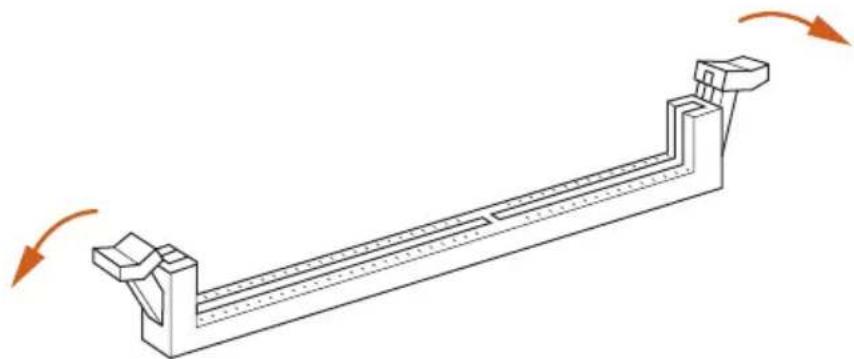
This motherboard provides four 288-pin DDR4 (Double Data Rate 4) DIMM slots, and supports Dual Channel Memory Technology.

- For dual channel configuration, you always need to install identical (the same brand, speed, size and chip-type) DDR4 DIMM pairs.
- It is unable to activate Dual Channel Memory Technology with only one or three memory module installed.
- It is not allowed to install a DDR, DDR2 or DDR3 memory module into a DDR4 slot; otherwise, this motherboard and DIMM may be damaged.
DDR4 UDIMM Maximum Frequency Support
Ryzen Series CPUs (Pinnacle Ridge):
UDIMM Memory Slot
A1 A2 B1 B2
Frequency
(Mhz)
- SR -- 2667
- DR -- 2400
- SR - SR 2667
- DR - DR 2400
SR SR SR SR 2133
SR/DR DR SR/DR DR 1866
Ryzen Series CPUs (Summit Ridge):
| UDIMM Memory SlotA1 A2 B1 B2 | Frequency(Mhz) |
- SR -- 2667
- DR -- 2667
- SR - SR 2667
- DR - DR 2400-2667
SR SR SR SR 2133-2400
SR/DR DR SR/DR DR 1866-2133
Ryzen Series CPUs (Raven Ridge):
| UDIMM Memory SlotA1 A2 B1 B2 | Frequency(Mhz) |
- SR -- 2933
- DR - - 2667
- SR - SR 2667
- DR - DR 2400
SR SR SR SR 2133
SR/DR DR SR/DR DR 1866
SR: Single rank DIMM, 1Rx4 or 1Rx8 on DIMM module label
DR: Dual rank DIMM, 2Rx4 or 2Rx8 on DIMM module label

The DIMM only fits in one correct orientation. It will cause permanent damage to the motherboard and the DIMM if you force the DIMM into the slot at incorrect orientation.
1
natural_image
Technical line drawing of a mechanical support structure with rotational arrows indicating motion (no text or symbols)2
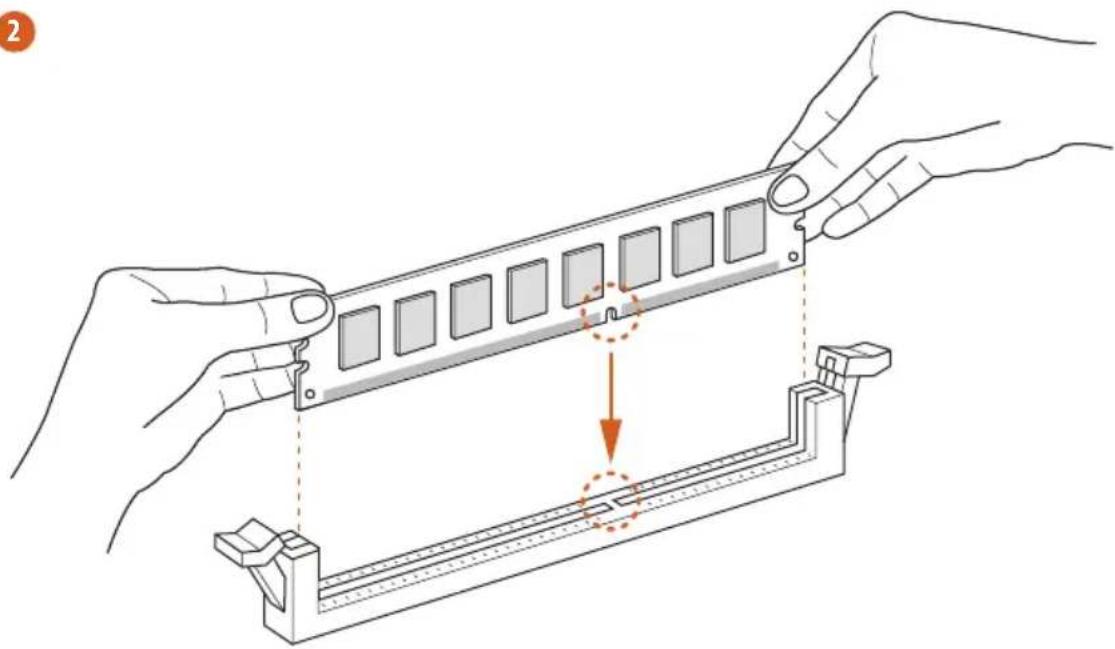
natural_image
Illustration of hands assembling a mechanical component with a highlighted section (no text or symbols)3
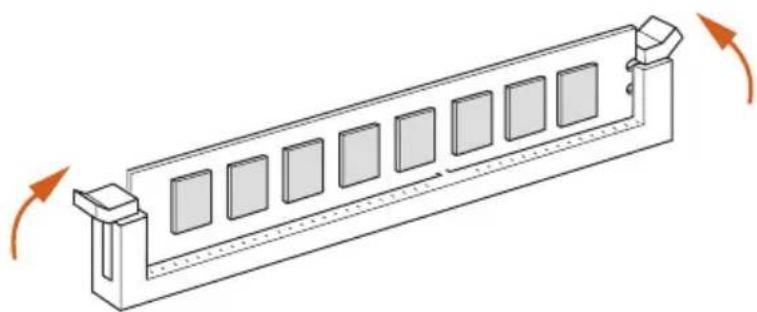
natural_image
Isometric line drawing of a rectangular mechanical component with multiple square cutouts and directional arrows indicating rotation (no text or symbols)2.4 Expansion Slots (PCI Express Slots)
There are 6 PCI Express slots on the motherboard.

Before installing an expansion card, please make sure that the power supply is switched off or the power cord is unplugged. Please read the documentation of the expansion card and make necessary hardware settings for the card before you start the installation.
PCIe slots:
PCIE1 (PCIe 3.0 x16 slot) is used for PCI Express x16 lane width graphics cards. PCIE2 (PCIe 2.0 x1 slot) is used for PCI Express x1 lane width cards. PCIE3 (PCIe 2.0 x1 slot) is used for PCI Express x1 lane width cards. PCIE4 (PCIe 3.0 x16 slot) is used for PCI Express x8 lane width graphics cards. PCIE5 (PCIe 2.0 x1 slot) is used for PCI Express x1 lane width cards. PCIE6 (PCIe 2.0 x1 slot) is used for PCI Express x1 lane width cards.
PCIe Slot Configurations
Ryzen series CPUs:
PCIE1 PCIE4
Single Graphics Card x16 N/A
Two Graphics Cards in
CrossFireX ^TM or SLI ^TM
x8 x8
Mode

For a better thermal environment, please connect a chassis fan to the motherboard's chassis fan connector (CHA_FAN1, CHA_FAN2 or CHA_FAN3) when using multiple graphics cards.
2.5 Jumpers Setup
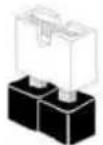
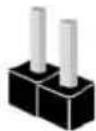
The illustration shows how jumpers are setup. When the jumper cap is placed on the pins, the jumper is “Short”. If no jumper cap is placed on the pins, the jumper is “Open”. The illustration shows a 3-pin jumper whose pin1 and pin2 are “Short” when a jumper cap is placed on these 2 pins.
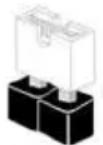
Short
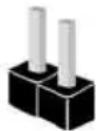
Open
Clear CMOS Jumper
(CLRCMOS1)
(see p.1, No. 18)

2-pin Jumper
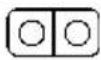
CLRCMOS1 allows you to clear the data in CMOS. To clear and reset the system parameters to default setup, please turn off the computer and unplug the power cord from the power supply. After waiting for 15 seconds, use a jumper cap to short the pins on CLRCMOS1 for 5 seconds. However, please do not clear the CMOS right after you update the BIOS. If you need to clear the CMOS when you just finish updating the BIOS, you must boot up the system first, and then shut it down before you do the clear-CMOS action. Please be noted that the password, date, time, and user default profile will be cleared only if the CMOS battery is removed. Please remember to remove the jumper cap after clearing the CMOS.
2.6 Onboard Headers and Connectors

Onboard headers and connectors are NOT jumpers. Do NOT place jumper caps over these headers and connectors. Placing jumper caps over the headers and connectors will cause permanent damage to the motherboard.
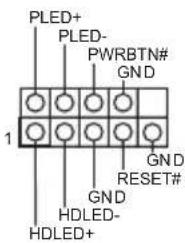
System Panel Header
(9-pin PANEL1)
(see p.1, No. 16)
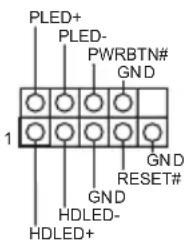
Connect the power switch, reset switch and system status indicator on the chassis to this header according to the pin assignments below. Note the positive and negative pins before connecting the cables.

PWRBTN (Power Switch):
Connect to the power switch on the chassis front panel. You may configure the way to turn off your system using the power switch.
RESET (Reset Switch):
Connect to the reset switch on the chassis front panel. Press the reset switch to restart the computer if the computer freezes and fails to perform a normal restart.
PLED (System Power LED):
Connect to the power status indicator on the chassis front panel. The LED is on when the system is operating. The LED keeps blinking when the system is in S1/S3 sleep state. The LED is off when the system is in S4 sleep state or powered off (S5).
HDLED (Hard Drive Activity LED):
Connect to the hard drive activity LED on the chassis front panel. The LED is on when the hard drive is reading or writing data.
The front panel design may differ by chassis. A front panel module mainly consists of power switch, reset switch, power LED, hard drive activity LED, speaker and etc. When connecting your chassis front panel module to this header, make sure the wire assignments and the pin assignments are matched correctly.
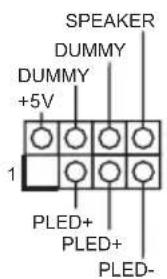
Power LED and Speaker Header
(7-pin SPK_PLED1)
(see p.1, No. 24)
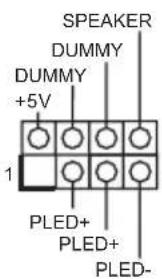
Please connect the chassis power LED and the chassis speaker to this header.
Serial ATA3 Connectors
(SATA3_1_2:
see p.1, No. 15)
(SATA3_3_4:
see p.1, No. 14)
(SATA3_5_6:
see p.1, No. 13)
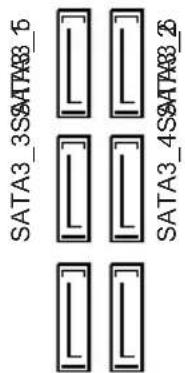
These six SATA3 connectors support SATA data cables for internal storage devices with up to 6.0 Gb/s data transfer rate.
AMD LED Fan USB Header
(4-pin USB_5)
(see p.1, No. 10)
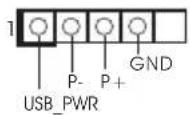
This header is used for connecting the USB connector on the AMD SR3 Heatsink.
USB 2.0 Headers
((9-pin USB_1_2)
(see p.1, No. 22)
(9-pin USB_3_4)
(see p.1, No. 23)
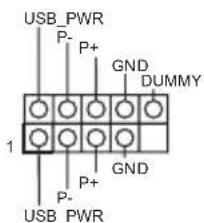
There are two headers on this motherboard. Each USB 2.0 header can support two ports.
USB 3.1 Gen1 Header
(19-pin USB3_7_8)
(see p.1, No. 9)
(19-pin USB3_9_10)
(see p.1, No. 8)
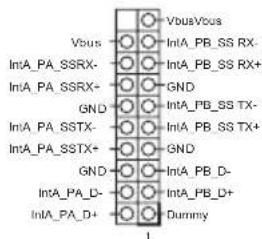
There are two headers on this motherboard. Each USB 3.1 Gen1 header can support two ports.
Front Panel Audio Header (9-pin HD_AUDIO1) (see p.1, No. 27)
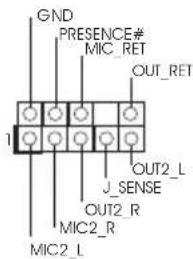
This header is for connecting audio devices to the front audio panel.

- High Definition Audio supports Jack Sensing, but the panel wire on the chassis must support HDA to function correctly. Please follow the instructions in our manual and chassis manual to install your system.
- If you use an AC'97 audio panel, please install it to the front panel audio header by the steps below:
A. Connect Mic_IN (MIC) to MIC2_L.
B. Connect Audio_R (RIN) to OUT2_R and Audio_L (LIN) to OUT2_L.
C. Connect Ground (GND) to Ground (GND).
D. MIC_RET and OUT_RET are for the HD audio panel only. You don't need to connect them for the AC'97 audio panel.
E. To activate the front mic, go to the "FrontMic" Tab in the Realtek Control panel and adjust "Recording Volume".
Chassis /Water Pump Fan Connectors (4-pin CHA_FAN1/WP) (see p.1, No. 12)
(4-pin CHA_FAN2/WP) (see p.1, No. 19) (4-pin CHA_FAN3/WP) (see p.1, No. 21)
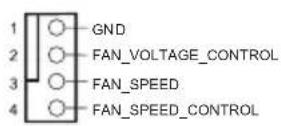
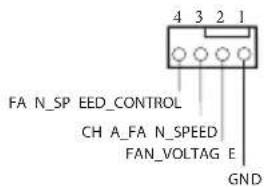
This motherboard provides three 4-Pin water cooling chassis fan connectors. If you plan to connect a 3-Pin chassis water cooler fan, please connect it to Pin 1-3.
CPU Fan Connector (4-pin CPU_FAN1) (see p.1, No. 3)
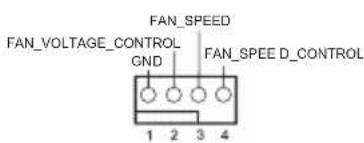
This motherboard provides a 4-Pin CPU fan (Quiet Fan) connector. If you plan to connect a 3-Pin CPU fan, please connect it to Pin 1-3.
CPU/Water Pump Fan
Connector
(4-pin CPU_FAN2/WP)
(see p.1, No. 4)
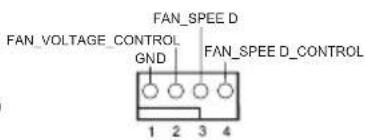
This motherboard provides a 4-Pin water cooling CPU fan connector. If you plan to connect a 3-Pin CPU water cooler fan, please connect it to Pin 1-3.
ATX Power Connector
(24-pin ATXPWR1)
(see p.1, No. 7)
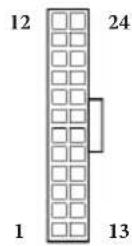
This motherboard provides a 24-pin ATX power connector. To use a 20-pin ATX power supply, please plug it along Pin 1 and Pin 13.
ATX 12V Power
Connector
(8-pin ATX12V1)
(see p.1, No. 1)
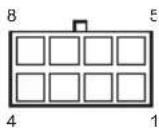
This motherboard provides an 8-pin ATX 12V power connector. To use a 4-pin ATX power supply, please plug it along Pin 1 and Pin 5.
ATX 12V Power
Connector
(4-pin ATX12V2)
(see p.1, No. 2)

This motherboard provides an 4-pin ATX 12V power connector.
Serial Port Header
(9-pin COM1)
(see p.1, No. 26)

This COM1 header supports a serial port module.
| TPM Header(17-pin TPMS1)(see p.1, No. 25) | 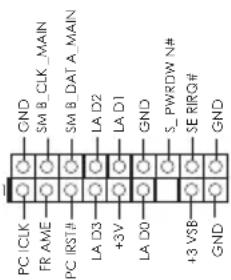 | This connector supports Trusted Platform Module (TPM) system, which can securely store keys, digital certificates, passwords, and data. A TPM system also helps enhance network security, protects digital identities, and ensures platform integrity. |
| AMD FAN LED Header(4-pin AMD_FAN_LED1)(see p.1, No. 11) | 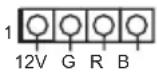 | AMD FAN LED Header is used to connect RGB LED extension cable that comes with AMD heatsink. The cable connection allows users to choose from various LED lighting effects.Caution: Never install the FAN LED cable in the wrong orientation; otherwise, the cable may be damaged. |
| RGB LED Header(4-pin RGB_LED1)(see p.1, No. 17) | 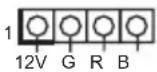 | This header is used to connect RGB LED extension cable which allows users to choose from various LED lighting effects.Caution: Never install the RGB LED cable in the wrong orientation; otherwise, the cable may be damaged.*Please refer to page 43 for further instructions on this header. |
Addressable LED Header (3-pin ADDR_LED1) (see p.1, No. 20)
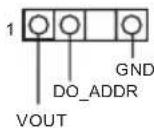
This header is used to connect Addressable LED extension cable which allows users to choose from various LED lighting effects.
Caution: Never install the Addressable LED cable in the wrong orientation; otherwise, the cable may be damaged.
*Please refer to page 44 for further instructions on this header.
2.7 M.2\_SSD (NGFF) Module Installation Guide (M2\_1)
The M.2, also known as the Next Generation Form Factor (NGFF), is a small size and versatile card edge connector that aims to replace mPCIe and mSATA. The Ultra M.2 Socket (M2_1) supports M Key type 2230/2242/2260/2280/22110 M.2 SATA3 6.0 Gb/s module and M.2 PCI Express module up to Gen3 x4 (32 Gb/s).
Installing the M.2\_SSD (NGFF) Module
natural_image
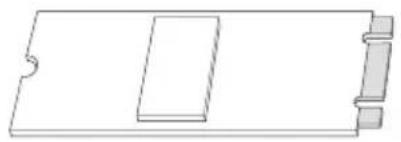
Pure technical line drawing of a rectangular component with no text, numbers, or symbolsStep 1
Prepare a M.2_SSD (NGFF) module and the screw.
Step 2
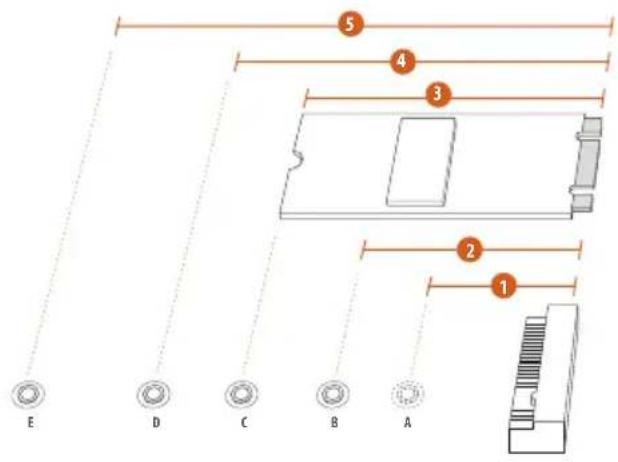
Depending on the PCB type and length of your M.2_SSD (NGFF) module, find the corresponding nut location to be used.
No.12345
| Nut Location A B C D | E | ||||
| PCB Length | 3cm | 4.2cm | 6cm | 8cm | 11cm |
| Module Type | Type2230 | Type 2242 | Type2260 | Type 2280 | Type 22110 |
natural_image
Technical diagram of a mechanical component with arrows indicating direction (no text or symbols)Step 3
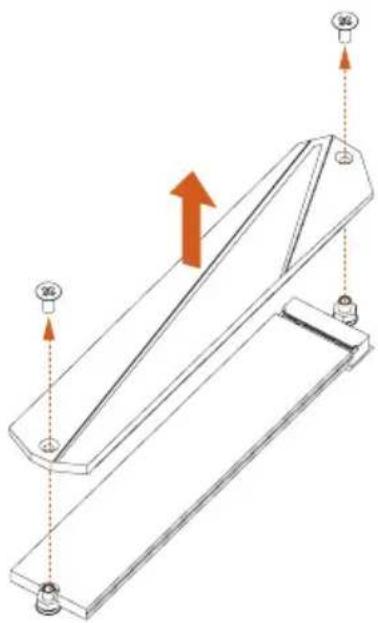
Before installing a M.2 (NGFF) SSD module, please loosen the screws to remove the M.2 heatsink.
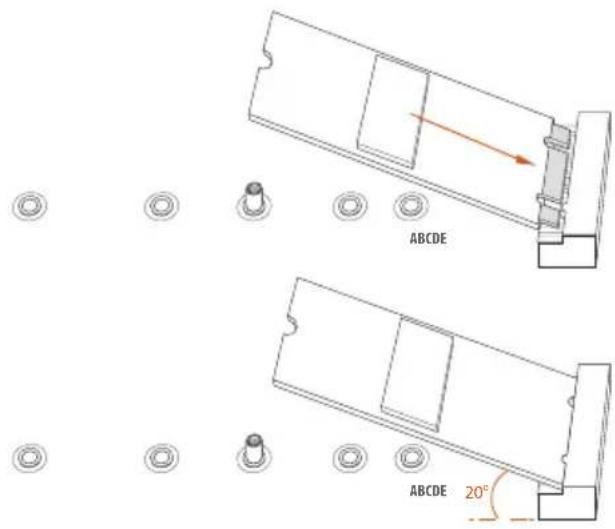
Step 4
Gently insert the M.2 (NGFF) SSD module into the M.2 slot. Please be aware that the M.2 (NGFF) SSD module only fits in one orientation. *If you insert Type 22110 M.2 SSD, please make sure that there is no standoff being placed at the nut location A, B, C or D.
natural_image
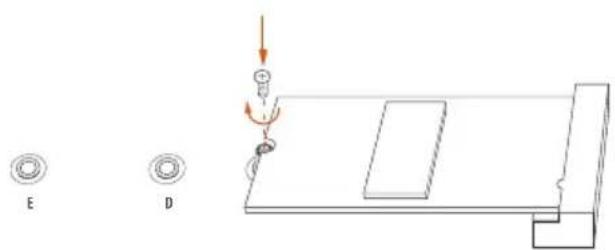
Technical diagram showing a mechanical assembly with labeled components E and D, no readable text or symbols present.Step 5
Tighten the screw with a screwdriver to secure the module into place. Please do not overtighten the screw as this might damage the module.
M.2\_SSD (NGFF) Module Support List
| Vendor Interface P/N | |
| ADATA PCIe ASX8000NP-512GM-C | |
| ADATA PCIe ASX7000NP-512GT-C | |
| Intel PCIe INTEL 6000P-SSDPEKKF256G7 (nvme) | |
| Intel PCIe SSDPEKKF512G7 NVME | |
| Kingston PCIe Kingston SHPM2280P2 / 240G (Gen2 x4) | |
| Kingston PCIe SKC1000/480G | |
| Kingston PCIe SKC1000/960GB NVME | |
| Plextor PCIe PX-512M8PeG | |
| Samsung PCIe SM951 (NVME) | |
| Samsung PCIe SM951 (MZHPV512HDGL) | |
| Samsung PCIe Samsung XP941-MZHPU512HCGL(Gen2x4) | |
| SanDisk PCIe SanDisk-SD6PP4M-128G(Gen2 x2) | |
| WD PCIe WDS512G1X0C-00ENX0 (NVME) | |
| ADATA SATA ADATA - AXNS381E-128GM-B | |
| ADATA SATA ASU800NS38-512GT-C | |
| Kingston SATA Kingston-RBU-SNS8400S3 / 180GD | |
| Crucial SATA Crucial-CT240M500SSD4-240GB | |
| SanDisk SATA SanDisk-SD6SN1M-128G | |
| Intel SATA INTEL 540S-SSDSCKKW240H6-240GB | |
| Intel SATA 540S-SSDSCKKW240H6 | |
| ezlink SATA ezlink P51B-80-120GB | |
| Kingston SATA Kingston SM2280S3G2/120G - Win8.1 | |
| SanDisk SATA SanDisk X400-SD8SN8U-128G | |
| Transcend SATA Transcend TS256GMTS800-256GB | |
| Transcend SATA TS512GMTS800 | |
| LITEON SATA LITEON LJH-256V2G-256GB (2260) | |
| PLEXTOR SATA PLEXTOR PX-128M7VG-128GB | |
| PLEXTOR SATA PLEXTOR PX-128M6G-2260-128GB | |
| V-Color SATA V-Color 120G | |
| V-Color SATA V-Color 240G | |
| SanDisk SATA Sandisk Z400s-SD8SNAT-128G-1122 | |
| Transcend SATA Transcend TS64GMTS400-64GB | |
| WD SATA WD BLUE WDS100T1B0B-00AS40 | |
| WD SATA WD GREEN WDS240G1G0B-00RC30 |
For the latest updates of M.2_SSD (NFGG) module support list, please visit our website for details: http://www.asrock.com
2.8 M.2\_SSD (NGFF) Module Installation Guide (M2\_2)
The M.2, also known as the Next Generation Form Factor (NGFF), is a small size and versatile card edge connector that aims to replace mPCIe and mSATA. The M.2 Socket (M2_2) supports M Key type 2230/2242/2260/2280 M.2 SATA3 6.0 Gb/s module and M.2 PCI Express module up to Gen2 x2 (10 Gb/s).
Installing the M.2\_SSD (NGFF) Module
natural_image
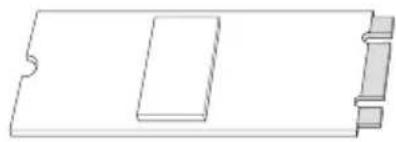
Pure technical line drawing of a rectangular component with cutouts and side connectors (no text or symbols)Step 1
Prepare a M.2_SSD (NGFF) module and the screw.
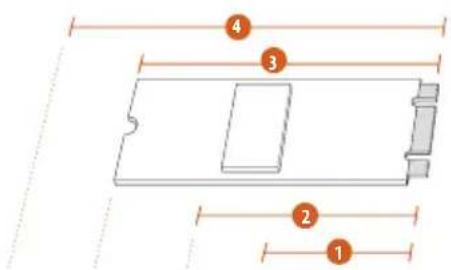
Step 2
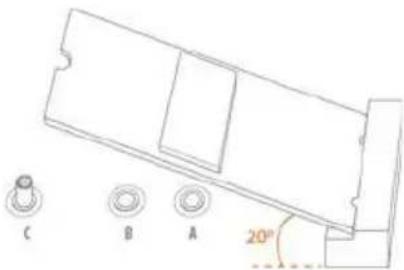
Depending on the PCB type and length of your M.2_SSD (NGFF) module, find the corresponding nut location to be used.
No.1234
Nut Location A B C D
natural_image
Technical line drawing of a mechanical component with labeled parts A, B, and C (no text or symbols beyond labels)

natural_image
Simple line drawing of a mechanical setup with a lever and base plate (no text or symbols)Step 3
Move the standoff based on the module type and length.
The standoff is placed at the nut location D by default. Skip Step 3 and 4 and go straight to Step 5 if you are going to use the default nut.
Otherwise, release the standoff by hand.
Step 4
Peel off the yellow protective film on the nut to be used. Hand tighten the standoff into the desired nut location on the motherboard.
Step 5
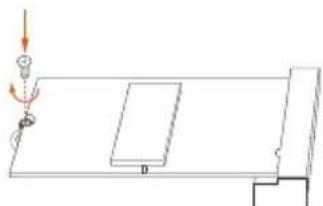
Gently insert the M.2 (NGFF) SSD module into the M.2 slot. Please be aware that the M.2 (NGFF) SSD module only fits in one orientation.
Step 6
Tighten the screw with a screwdriver to secure the module into place. Please do not overtighten the screw as this might damage the module.
M.2\_SSD (NGFF) Module Support List
| Vendor Interface P/N | |
| Intel PCIe INTEL 6000P-SSDPEKKF256G7 (nvme) | |
| Intel PCIe INTEL 6000P-SSDPEKKF512G7 (nvme) | |
| Kingston PCIe Kingston SHPM2280P2 / 240G (Gen2 x4) | |
| Samsung PCIe Samsung XP941-MZHPU512HCGL(Gen2x4) | |
| SanDisk PCIe SanDisk-SD6PP4M-128G( Gen2 x2) | |
| ADATA SATA ADATA - AXNS381E-128GM-B | |
| ADATA SATA ASU800NS38-512GT-C | |
| Crucial SATA Crucial-CT240M500SSD4-240GB | |
| ezlink SATA ezlink P51B-80-120GB | |
| Intel SATA INTEL 540S-SSDSCKKW240H6-240GB | |
| Intel SATA 540S-SSDSCKKW240H6 | |
| Kingston SATA Kingston SM2280S3G2/120G - Win8.1 | |
| Kingston SATA Kingston-RBU-SNS8400S3 / 180GD | |
| LITEON SATA LITEON LJH-256V2G-256GB (2260) | |
| PLEXTOR SATA PLEXTOR PX-128M6G-2260-128GB | |
| PLEXTOR SATA PLEXTOR PX-128M7VG-128GB | |
| Sandisk SATA Sandisk Z400s-SD8SNAT-128G-1122 | |
| Sandisk SATA SanDisk-SD6SN1M-128G | |
| Transcend SATA Transcend TS256GMTS800-256GB | |
| Transcend SATA Transcend TS64GMTS400-64GB | |
| Transcend SATA TS512GMTS800 | |
| V-Color SATA V-Color 120G | |
| V-Color SATA V-Color 240G | |
| WD | SATA WD BLUE WDS100T1B0B-00AS40 |
| WD | SATA WD GREEN WDS240G1G0B-00RC30 |
| WD | SATA WD GREEN WDS240G1G0B-00RC30 |
For the latest updates of M.2_SSD (NFGG) module support list, please visit our website for details: http://www.asrock.com
2.9 ASRock Polychrome RGB
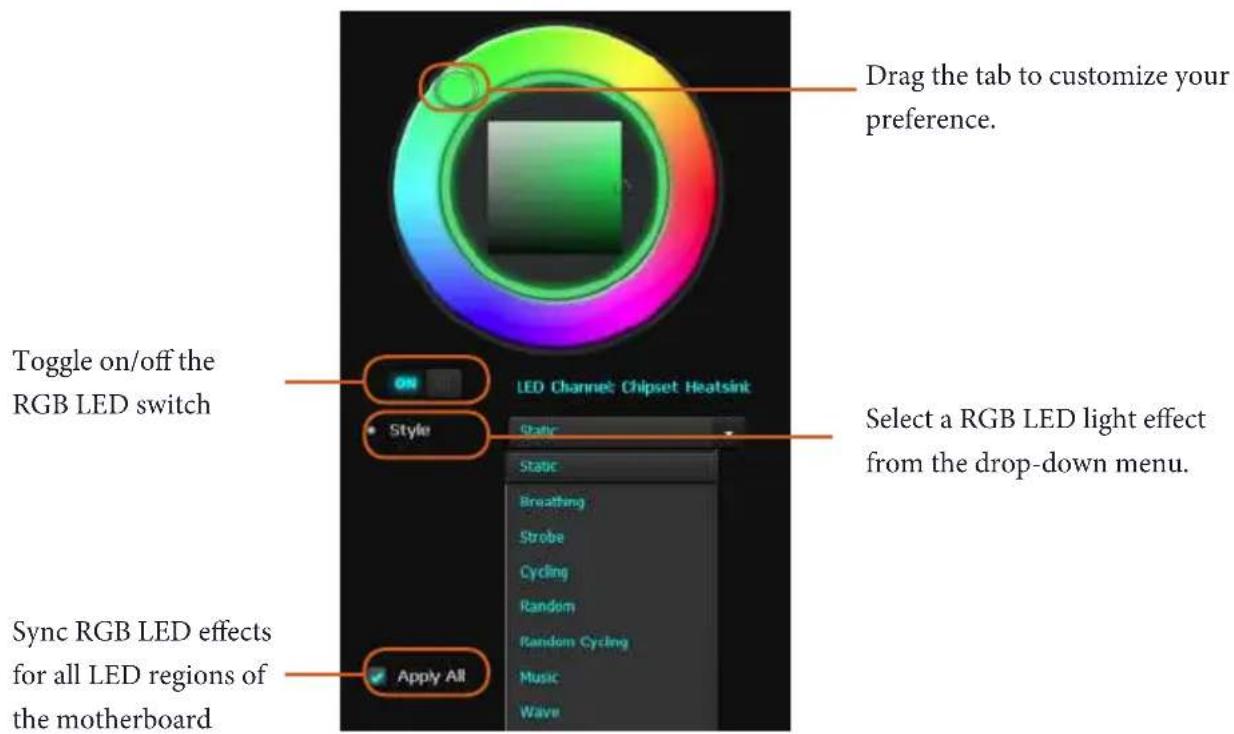
ASRock Polychrome RGB is a lighting control utility specifically designed for unique individuals with sophisticated tastes to build their own stylish colorful lighting system. Simply by connecting the LED strip, you can customize various lighting schemes and patterns, including Static, Breathing, Strobe, Cycling, Music, Wave and more.
Connecting the LED Strip
Connect your RGB LED strips to the RGB LED Header (RGB_LED1) on the motherboard.
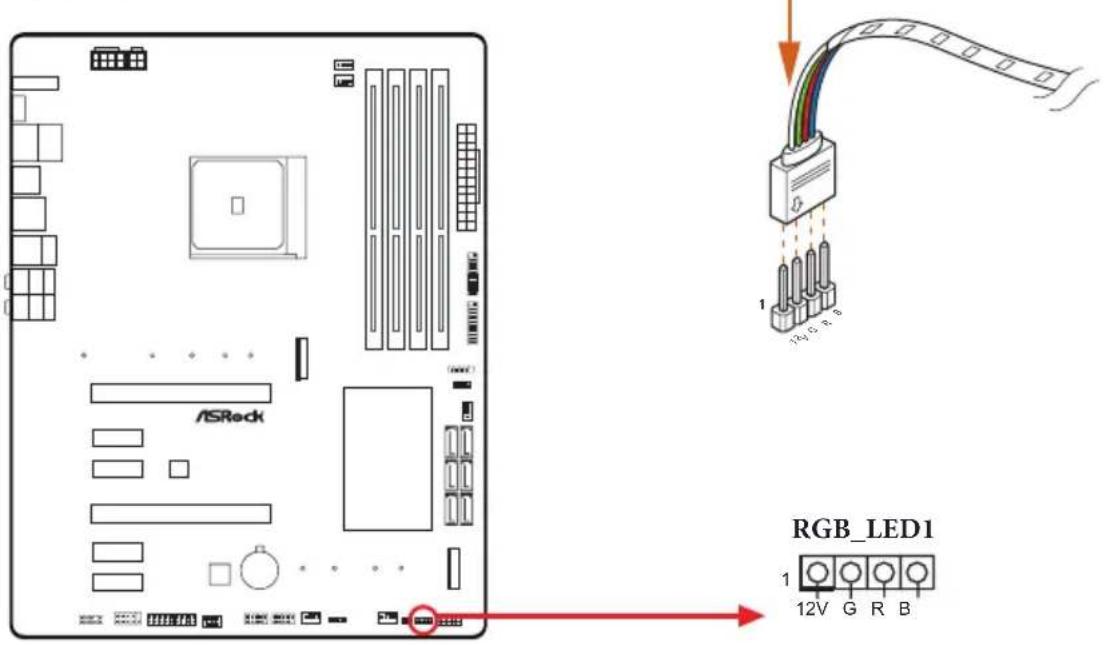

- Never install the RGB LED cable in the wrong orientation; otherwise, the cable may be damaged.
- Before installing or removing your RGB LED cable, please power off your system and unplug the power cord from the power supply. Failure to do so may cause damages to motherboard components.

- Please note that the RGB LED strips do not come with the package.
- The RGB LED header supports standard 5050 RGB LED strip (12V/G/R/B), with a maximum power rating of 3A (12V) and length within 2 meters.
Connecting the Addressable RGB LED Strip
Connect your Addressable RGB LED strip to the Addressable LED Header (ADDR_LED1) on the motherboard.
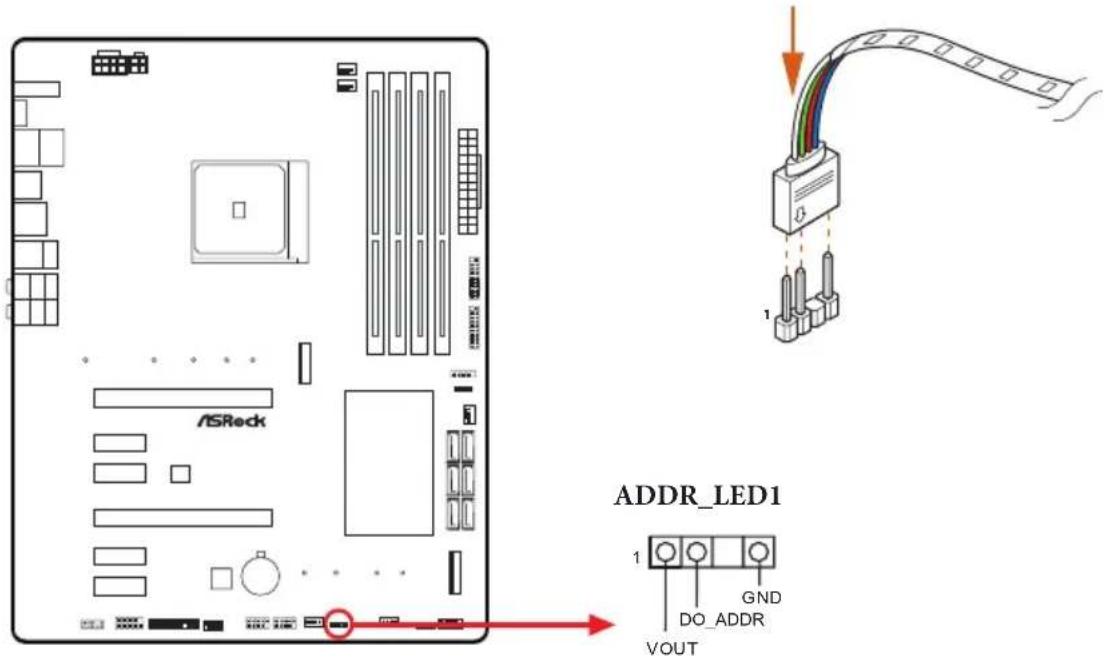

- Never install the RGB LED cable in the wrong orientation; otherwise, the cable may be damaged.
- Before installing or removing your RGB LED cable, please power off your system and unplug the power cord from the power supply. Failure to do so may cause damages to motherboard components.

- Please note that the RGB LED strips do not come with the package.
- The RGB LED header supports WS2812B addressable RGB LED strip (5V/Data/GND), with a maximum power rating of 3A (5V) and length within 2 meters.
ASRock Polychrome RGB Utility
Now you can adjust the RGB LED color through the ASRock Polychrome RGB utility. Download this utility from the ASRock Live Update & APP Shop and start coloring your PC style your way!
1 Einleitung
(4-polig, CHA_FAN1/WP)
(4-polig, CHA_FAN2/WP)
(4-polig, CHA_FAN3/WP)
(3-polig, ADDR_LED1)
(3-pinowe ADDR_LED1)
natural_image
Simple graphic with a magnifying glass icon and a horizontal line, no text or symbols present.1.1 パッケージの内容
1.2 仕様
CPU
TM
TM
TM
TM
TM
LAN
os

1.3 ジャンパー設定
Short
Open
(CLRCMOS1)
1.4 オンボードのヘッダーとコネクタ


If you need to contact ASRock or want to know more about ASRock, you're welcome to visit ASRock's website at http://www.asrock.com; or you may contact your dealer for further information. For technical questions, please submit a support request form at https://event.asrock.com/tsd.asp
ASRock Incorporation
2F., No.37, Sec. 2, Jhongyang S. Rd., Beitou District,
Taipei City 112, Taiwan (R.O.C.)
ASRock EUROPE B.V.
Bijsterhuizen 11-11
6546 AR Nijmegen
The Netherlands
Phone: +31-24-345-44-33
Fax: +31-24-345-44-38
ASRock America, Inc.
13848 Magnolia Ave, Chino, CA91710
U.S.A.
Phone: +1-909-590-8308
Fax: +1-909-590-1026
DECLARATION OF CONFORMITY
Per FCC Part 2 Section 2.1077(a)

Responsible Party Name: ASRock Incorporation
Address: 13848 Magnolia Ave, Chino, CA91710
Phone/Fax No: +1-909-590-8308/+1-909-590-1026
hereby declares that the product
Product Name : Motherboard
Model Number : X470 Master SLI/ac / X470 Master SLI
Conforms to the following specifications:
☒ FCC Part 15, Subpart B, Unintentional Radiators
Supplementary Information:
This device complies with part 15 of the FCC Rules. Operation is subject to the following two conditions: (1) This device may not cause harmful interference, and (2) this device must accept any interference received, including interference that may cause undesired operation.
Representative Person's Name: James
Signature :
Date : May 12, 2017
EU Declaration of Conformity
ASRock
For the following equipment:
Motherboard
(Product Name)
X470 Master SLI/ac / X470 Master SLI / ASRock
(Model Designation / Trade Name)
ASRock Incorporation
(Manufacturer Name)
2F., No.37, Sec. 2, Jhongyang S. Rd., Beitou District, Taipei City 112, Taiwan (R.O.C.)
(Manufacturer Address)
EMC — Directive 2014/30/EU (from April 20th, 2016)
□ EN 55022:2010/AC:2011 Class B EN 55024:2010/A1:2015
EN 61000-3-3:2013
RED—Directive 2014/53/EU
□ EN 300 328 V2.1.1 EN 301 489-17 V3.1.1
□ EN 301 893 V2.1.1 □ EN 301 489-3 V2.1.1
□ EN 300 220 V3.1.1
☐ LVD — Directive 2014/35/EU (from April 20th, 2016)
□ EN 60950-1 : 2011+ A2: 2013 □ EN 60950-1 : 2006/A12: 2011
— Directive 2011/65/EU

(EU conformity marking)
ASRock EUROPE B.V.
(Company Name)
Bijsterhuizen 1111 6546 AR Nijmegen The Netherlands
(Company Address)
Person responsible for making this declaration:
(Name, Surname)
A.V.P
(Position / Title)
April 13, 2018
(Date)
P/N: 15G062092000AK V1.0