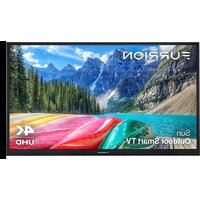
Aurora FDUN55CSA - Television Furrion - Free user manual and instructions
Find the device manual for free Aurora FDUN55CSA Furrion in PDF.



| Product Type | LED UHD 4K Television |
| Brand | Furrion |
| Model | Aurora FDUN55CSA |
| Screen Size | 55 inches (139.7 cm) |
| Resolution | 3840 x 2160 pixels (4K UHD) |
| Refresh Rate | 60 Hz |
| Brightness | 400 nits (standard version) |
| Contrast Ratio | 4000:1 |
| Viewing Angle | 178° horizontal and vertical |
| Operating System | webOS TV |
| Network Connectivity | Wi-Fi 802.11a/b/g/n/ac, Bluetooth 5.0, Ethernet (LAN) |
| HDMI Inputs | 3 (1 with ARC) |
| USB Ports | 2 (DC 5V 500mA) |
| Optical Audio Output | 1 (S/PDIF) |
| RF Input (antenna/cable) | 1 |
| Headphone Jack | 1 |
| Power Supply | 110 V AC, 60 Hz |
| Dimensions (W x H x D) | 1243 x 739 x 105 mm (48 1/6 x 29 1/6 x 4 1/8 in) |
| Protection Rating | IP54 (dust and water splash resistant) |
| Operating Temperature | -20 °C to 50 °C (-4 °F to 122 °F) |
| VESA Compatibility | 400 x 400 mm (M6 x 15 mm screws) |
| Box Contents | Television, standard remote, Furrion webOS voice remote, AAA and AA batteries, RCA cable, mounting screws, printed materials |
| Maintenance | Clean with a dry, soft cloth; do not use liquid products |
| Repairability | Use a qualified technician; no user-serviceable parts |
Frequently Asked Questions - Aurora FDUN55CSA Furrion
User questions about Aurora FDUN55CSA Furrion
0 question about this device. Answer the ones you know or ask your own.
Ask a new question about this device
Download the instructions for your Television in PDF format for free! Find your manual Aurora FDUN55CSA - Furrion and take your electronic device back in hand. On this page are published all the documents necessary for the use of your device. Aurora FDUN55CSA by Furrion.
USER MANUAL Aurora FDUN55CSA Furrion
natural_image
Nighttime aurora bore scene with vibrant green and purple clouds rising above a calm lake, no visible text or symbols* Product picture for reference only
Thank you and congratulations for purchasing this Furrion product. Before operating your new product, please read these instructions carefully. This user manual contains information for safe use, installation and maintenance of the product.
Please keep this user manual in a safe place for future reference. This will ensure safe use and reduce the risk of injury. Be sure to pass on this manual to new owners of this product.
The manufacturer does not accept responsibility for any damages due to not observing these instructions.
Supplier's Declaration of Conformity
47 CFR § 2.1077 Compliance Information
Unique Identifier
Trade Name: Furrion
Model No.: FDUP43CSA, FDUP43CSA-CA, FDUF43CSA, FDUF43CSA-CA, FDUN55CSA, FDUN55CSA-CA, FDUP55CSA, FDUP55CSA-CA, FDUF55CSA, FDUF55CSA-CA, FDUN65CSA, FDUN65CSA-CA, FDUP65CSA, FDUP65CSA-CA, FDUN75CSA, FDUN75CSA-CA, FDUN75CSA-CA, FDUP75CSA-CA
Responsible Party – U.S. Contact Information
Furrion Innovation Center & Institute of Technology 52567 Independence Ct., Elkhart, IN 46514, USA Toll free:+1-432-547-7378; Email: customerservice@lci1.com
FCC Compliance Statement
This device complies with Part 15 of the FCC Rules. Operation is subject to the following two conditions: (1) This device may not cause harmful interference, and (2) this device must accept any interference received, including interference that may cause undesired operation.
CONTENTS
CONTENTS....2
IMPORTANT SAFETY INSTRUCTIONS....3
CONDENSATION....5
COMPLIANCE 7
Safety Precautions....8
PRODUCT OVERVIEW 10
Control Panel....10
Rear Panel....11
Remote Control....12
WebOS Voice Remote Control....13
WHAT'S IN THE BOX 14
CONNECTIONS 14
INSTALLATION....16
Connect Power 18
Install Remote Control Battery 18
GETTING STARTED WITH WEBOS TV 19
Initial Setup....19
Watching TV Broadcasting....19
Connecting to the Network....20
Using the Home Feature of the webOS TV....22
Manage webOS TV Home 23
SETTINGS 24
TROUBLESHOOTING 25
SPECIFICATIONS....26
CAUTION
RISK OF ELECTRIC SHOCK DO NOT OPEN
CAUTION: TO REDUCE THE RISK OF ELECTRIC SHOCK, DO NOT REMOVE COVER (OR BACK). NO USER-SERVICEABLE PARTS INSIDE. REFER SERVICING TO QUALIFIED SERVICE PERSONNEL.

This ‘bolt of lightning’ indicates uninsulated material within your unit which may cause an electric shock. For the safety of everyone in your household, please do remove product covering.

The ‘exclamation mark’ calls attention to features within the enclosed literature to prevent operating and maintenance problems.
WARNING: To reduce the risk of fire or electric shock, this apparatus should not be submerged in liquid or placed within 6 feet of bodies of water or objects filled with liquids (such as pools, spas, or bath tubs).
CAUTION: To prevent electric shock, fully insert the plug. For regions with polarized plugs: Please match wide blade to wide slot.
IMPORTANT SAFETY INSTRUCTIONS
- Read these instructions.
- Keep these instructions.
- Heed all warnings.
- Follow all instructions.
- Clean only with a dry cloth.
- Do not block any of the ventilation openings. Install in accordance with the manufacturer's instructions.
- Do not install near any heat sources such as radiators, heat registers, stoves or other apparatus (including amplifiers) that produce heat.
- Do not defeat the safety purpose of the polarized or grounding-type plug. A polarized plug has two blades with one wider than the other. A grounding type plug has two blades and a third grounding prong. The wide blade or the third prong are provided for your safety. When the provided plug does not fit into your outlet, consult an electrician for replacement of the obsolete outlet. This appliance must be grounded. Connect only to properly grounded power outlets.
- Protect the power cord from being walked on or pinched, particularly at plugs, convenience receptacles and the point where they exit from the apparatus.
- Only use attachments/accessories specified by the manufacturer.
- Use only with a cart, stand, tripod, bracket or table specified by the manufacturer or sold with the apparatus. When a cart is used, use caution when moving the cart/apparatus to avoid injury from tip-over.
- Unplug this apparatus during lightning storms or when unused for long

periods of time.
- Refer all servicing to qualified service personnel. Servicing is required when the apparatus has been damaged in any way, such as if the power-supply cord or plug is damaged, liquid or objects have entered into the apparatus, or when the apparatus does not operate normally, or has been dropped.
- An outside antenna system should not be located in the vicinity of overhead power lines or other electric light or power circuits, or where it can fall into such power lines or circuits. When installing an outside antenna system, extreme care should be taken to eliminate touching power lines or circuits as contact might be fatal.
- Do not overload wall outlets, extension cords, or integral convenience receptacles as this can result in a risk of fire or electric shock.
- Never push objects of any kind into this product through openings as they may touch short-out parts or dangerous voltage points that could result in a fire or electric shock. Never spill liquid of any kind on the product. EXAMPLE OF ANTENNA GROUNDING AS PER THE NATIONAL ELECTRICAL CODE
- If an outside antenna is connected to the television equipment, be sure the antenna system is grounded so as to provide some protection against voltage surges and built up static charges. Section 810 of the National Electrical Code provides information with respect to proper grounding of the mast and supporting structure, grounding of the lead-in wire to
EXAMPLE OF ANTENNA GROUNDING AS PER THE NATIONAL ELECTRICAL CODE
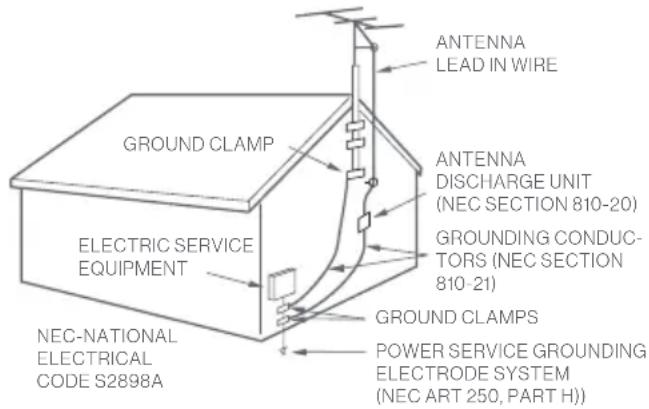
an antenna discharge unit, size of grounding conductors, location of antenna discharge unit, connection to grounding electrodes, and requirements for the grounding electrodes.
- NOTE TO CABLE/TV INSTALLER: This reminder is provided to call the CATV system installer's attention to Article 820-40 of the National Electric Code (U.S.A.). The code provides guidelines for proper grounding and, in particular, specifies that the cable ground shall be connected to the grounding system of the building, as close to the point of the cable entry as practical.
- When replacement parts are required, be sure the service technician uses replacement parts specified by the manufacturer or those that have the same characteristics as the original part. Unauthorized substitutions may result in fire, electric shock or other hazards.
-
Upon completion of any service or repairs to this unit, ask the service technician to perform safety checks to determine that the unit is in proper operating condition.
-
When you connect the product to other equipment, turn off the power and unplug from the wall outlet. Failure to do so may cause an electric shock and serious personal injury. Read the owner's manual of the other equipment carefully and follow the instructions when making any connections.
-
Sudden high volume may cause hearing or speaker damage. When you use headphones (if the unit is equipped with a headphone jack), keep the volume at a moderate level. If you use headphones continuously with high volume, you may suffer hearing damage.
-
Do not allow the product to output distorted sound for extended periods of time. This may cause speaker overheating and fire.
-
The socket-outlet must be installed near the unit and easily accessible.
-
The main plug is used as the disconnect and shall remain readily operable.
-
Batteries (battery pack or installed batteries) should not be exposed to excessive heat such as direct sunlight, fire or other heat sources.
-
Class I product: This symbol indicates that it requires a safety connection of protective earthing (ground). A warning that an apparatus with CLASS I construction shall be connected to a MAINS socket outlet with a protective earthing connection.
CONDENSATION
Moisture will form in the operating section of the unit if the unit is brought from cool surroundings into a warm room or if the temperature of the room rises suddenly.
When this happens the unit's performance will be impaired. To prevent this, let the unit stand in its new surroundings for about an hour before switching on, or make sure the room temperature rises gradually.
Condensation may also form during the summer if the unit is exposed to the breeze from an air conditioner. In such cases, change the location of the unit.
Remove and Clean the Glass Shield
-
Disconnect the plug from the power source first. Disconnect any other wires from the unit, i.e. HDMI, etc.
-
Lay your TV on a soft flat surface. Remove the screws on the top of the TV to remove the decoration bar.
-
Remove other screws that are holding the glass shield and lift it from the TV.
-
Wipe the glass with a clean, soft cloth.
-
Restore the glass shield and the decoration bar onto the TV and secure them with screws.
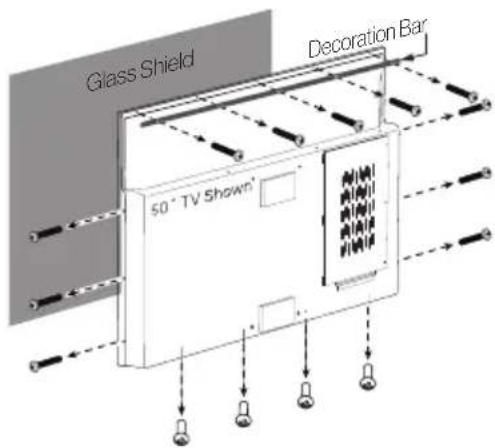
WARNING: Improper mounting of the glass may cause injury or death from falling objects from height. In case of doubt, consult a Service Technician.
How to Handle the LCD Panel
- Do not press hard or jolt the LCD panel. It may cause the LCD panel glass to break and injury may occur.
- If the LCD panel is broken, make absolutely sure you do not touch the liquid in the panel. This may cause skin inflammation.
- If the liquid gets in your mouth, immediately rinse and consult with your doctor. Also, if the liquid gets in your eyes or touches your skin, consult your doctor after rinsing for at least 15 minutes in clean water.
Possible Adverse Effects on LCD Panel: If a fixed (non-moving) pattern remains on the LCD panel for long periods of time, the image can become permanently engrained and cause subtle but permanent ghost images. This type of damage is NOT COVERED BY YOUR WARRANTY. Never leave your LCD panel on for long periods of time while it is displaying the following formats or images:
- Fixed images, such as stock tickers, video game patterns, TV station logos and websites.
- Special formats that do not use the entire screen. For example, viewing letterbox style (16:9) media on a normal (4:3) display (black bars at top and bottom of screen); or viewing normal style (4:3) media on a wide screen (16:9) display (black bars on left and right sides of screen).
The following symptoms are not signs of malfunction but technical limitation. Therefore we disclaim any responsibility for these symptoms.
- LCD panels are manufactured using an extremely high level of precision technology, however sometimes parts of the screen may be missing picture elements or have luminous spots. This is not a sign of a malfunction.
- Do not install the LCD panel near electronic equipment that produces electromagnetic waves. Some equipment placed too close to LCD may cause interference.
- Effect on infrared devices – there may be interference while using infrared devices such as infrared cordless headphones.
Power source: This LED TV is designed to operate on 110V / 60Hz AC power sources. If other power sources are used, consult your dealer first, before connecting it to the power outlet.
To prevent electric shock, do not use the LED TV's (polarized) plug with an extension cord, receptacle, or other outlet unless the blades and ground terminal can be fully inserted to prevent blade exposure.
WARNING: To reduce the risk of fire or electric shock, this apparatus should not be submerged in liquid or placed within 6 feet of bodies of water or objects filled with liquids (such as pools, spas, or bath tubs).
Caution: Never remove the back cover of the LED TV as this can expose you to very high voltages and other hazards. If the TV does not operate properly, unplug the LED TV and call your authorized dealer or service center.
Adjust only those controls that are covered in the instructions, as improper changes or modifications not expressly approved by Furrion could void the user's warranty.
Internet security caution: It is strongly recommended for security purposes to connect your TV to the Internet via a router/modem that includes router functionality. Direct connection of your TV to the Internet may expose your TV to a security threat such as extraction or tampering of content or personal information.
Wireless Function of the unit (For TV with wireless function only)
- Do not operate this unit near medical equipment (pacemaker, etc.), as this may result in the malfunction of the medical equipment.
- Although this unit transmits/receives scrambled signals, be careful of unauthorized interception. We cannot be responsible for any trouble as a result.
COMPLIANCE
FCC Statement
Note: This equipment has been tested and found to comply with the limits for a Class B digital device, pursuant to Part 15 of the FCC Rules. These limits are designed to provide reasonable protection against harmful interference in a residential installation. This equipment generates, uses and can radiate radio frequency energy and, if not installed and used in accordance with the instructions, may cause harmful interference to radio communications.
However, there is no guarantee that interference will not occur in a particular installation. If this equipment does cause harmful interference to radio or television reception, which can be determined by turning the equipment off and on, the user is encouraged to try to correct the interference by one or more of the following measures:
- Reorient or relocate the receiving antenna.
—Increase the separation between the equipment and receiver.
-Connect the equipment into an outlet on a circuit different from that to which the receiver is connected.
-Consult the dealer or an experienced radio/TV technician for help.
WARNING: Changes or modifications to this unit not expressly approved by the party responsible for compliance could void the user's authority to operate this equipment under FCC Rules.
This device complies with part 15 of the FCC Rules. Operation is subject to the following two conditions:
- This device may not cause harmful interference.
- This device must accept any interference received, including interference that may cause undesired operation.
FCC Radio Frequency Interference Requirements (for UNII devices)
High power radars are allocated as primary users of the 5.25 to 5.35 GHz and 5.65 to 5.85 GHz bands. These radar stations can cause interference with and/or damage this device. This device cannot be co-located with any other transmitter.
FCC RF Radiation Exposure Statement
This equipment complies with FCC radiation exposure limits set forth for an uncontrolled environment. This transmitter must not be co-located or operating in conjunction with any other antenna or transmitter. This equipment should be installed and operated with a minimum distance of 20 cm (7.8 inches) between the radiator and your body. Users must follow the specific operating instructions for satisfying RF exposure compliance.
Industry Canada Statement
This device complies with Industry Canada's applicable licence-exempt RSSs. Operation is subject to the following two conditions:
(1) This device may not cause interference; and
(2) This device must accept any interference, including interference that may cause undesired operation of the device.
IC Radiation Exposure Statement (for Canada)
This equipment complies with IC radiation exposure limits set forth for an uncontrolled environment. This equipment should be installed and operated with a minimum distance of 20 cm (7.8 inches) between the antenna & your body.
NOTE: THE MANUFACTURER IS NOT RESPONSIBLE FOR ANY RADIO OR TV INTERFERENCE CAUSED BY UNAUTHORIZED MODIFICATIONS TO THIS EQUIPMENT. SUCH MODIFICATIONS COULD VOID THE USER'S AUTHORITY TO OPERATE THE EQUIPMENT.
Usage of 5GHz bands in Canada:
- Operation in the band 5150–5250 MHz is only for indoor use. To reduce the potential for harmful interference to co-channel mobile satellite systems ensure your access point / router has been properly configured.
- For devices with detachable antenna(s), the maximum antenna gain permitted for devices in the bands 5250-5350 MHz and 5470-5725 MHz shall be such that the equipment still complies with the e.i.r.p. limit;
- For devices with detachable antenna(s), the maximum antenna gain permitted for devices in the band 5725-5850 MHz shall be such that the equipment still complies with the e.i.r.p. limits specified for point-to-point and non-point-to-point operation as appropriate; and
- The worst-case tilt angle(s) necessary to remain compliant with the e.i.r.p. elevation mask requirement set forth in Section 6.2.2(3) shall be clearly indicated. (devices operating in the band 5250-5350 MHz with a maximum e.i.r.p. greater than 200 mW)
- High-power radars are allocated as primary users (i.e. priority users) of the bands 5250–5350 MHz and 5650–5850 MHz and that these radars could cause interference and/or damage to LE-LAN devices.
Safety Precautions
A television set may fall, causing serious personal injury or death. Many injuries, particularly to children, can be avoided by taking simple precautions such as:
- ALWAYS use cabinets or stands or mounting methods recommended by the manufacturer of the television set.
-ALWAYS use furniture that can safely support the television set.
-ALWAYS ensure the television set is not overhanging the edge of the supporting furniture.
- ALWAYS educate children about the dangers of climbing on furniture to reach the television set or its controls.
-ALWAYS route cords and cables connected to your television so they cannot be tripped over, pulled or grabbed.
—NEVER place a television set in an unstable location.
-NEVER place the television set on tall furniture (for example, cupboards or bookcases) without anchoring both the furniture and the television set to a suitable support.
-NEVER place the television set on cloth or other materials that may be located between the television set and supporting furniture.
-NEVER place items that might tempt children to climb, such as toys and remote controls, on the top of the television or furniture on which the television is placed.
If the existing television set is going to be retained and relocated, the same considerations as above should be applied.
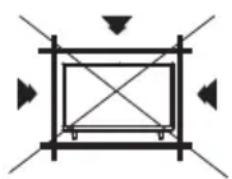
The unit emits heat when in operation. Do not place any covers or blankets on the unit, this may cause overheating. Do not block ventilation holes, or set up near radiators. Do not place in direct sunlight.
When placing on a shelf, leave 4 inches (10 cm) free space around the entire unit.
natural_image
Pure geometric diagram with intersecting lines and arrows, no text or symbols present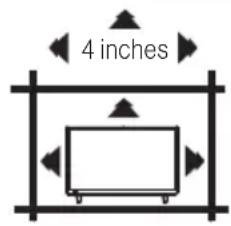
Notes when mounting the LED TV on the wall
If the unit is to be mounted on the wall, contact the retailer where you purchased the LED TV for advice, and have the equipment professionally installed. Incomplete or improper installation may cause injury to you and/or damage to the LED TV.
WARNING:
- Do not use this TV with wall mounts that allow the TV to tilt vertically. Vertical tilting wall mounts may cause structural damage to the TV.
- Use ONLY fixed or horizontal swiveling wall mounts with this TV.
Notice for TV Cabinet
If the unit is to be mounted on a cabinet smaller than the length of the unit, it could result in an unstable location. The unit may tumble over, making a risk of personal, possibly fatal injury. This would also damage the product seriously.
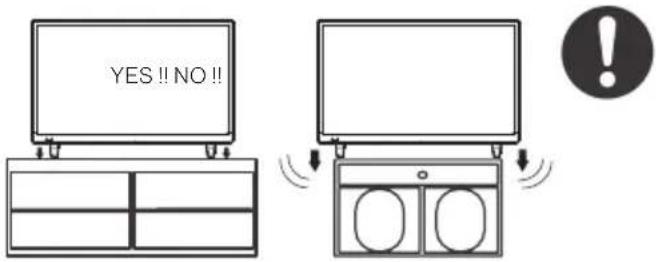
Accordingly, Furrion accepts no responsibility or liability for any injuries or property damage resulting from the improper installation.
PRODUCT OVERVIEW
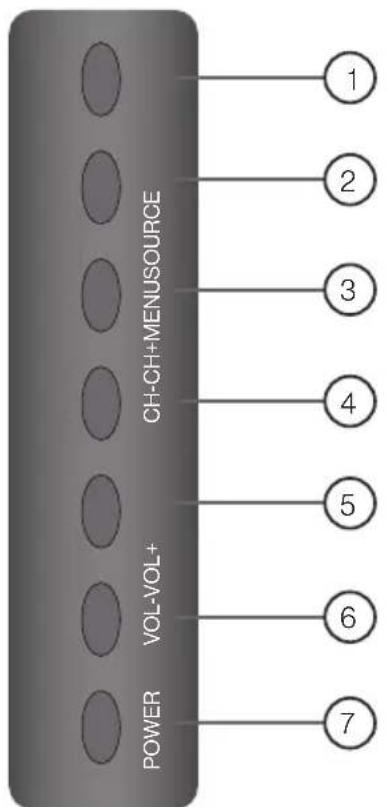
Control Panel
flowchart
graph TD
    A["POWER"] --> B["CH-CH+MENUSOURCE"]
    B --> C["1"]
    B --> D["2"]
    B --> E["3"]
    B --> F["4"]
    B --> G["5"]
    B --> H["6"]
    B --> I["7"]
* Please note that the button layout of the controls may vary from model to model.
| Item Button Function | ||
| 1 | SOURCE | Select the input source |
| 2 | MENU | Enter the main menu |
| 3 | CH+ | Skip to the next channel |
| 4 | CH- | Skip to the previous channel |
| 5 | VOL+ | Increase volume |
| 6 | VOL- | Decrease volume |
| 7 | POWER | Switch the TV on/off |
Rear Panel
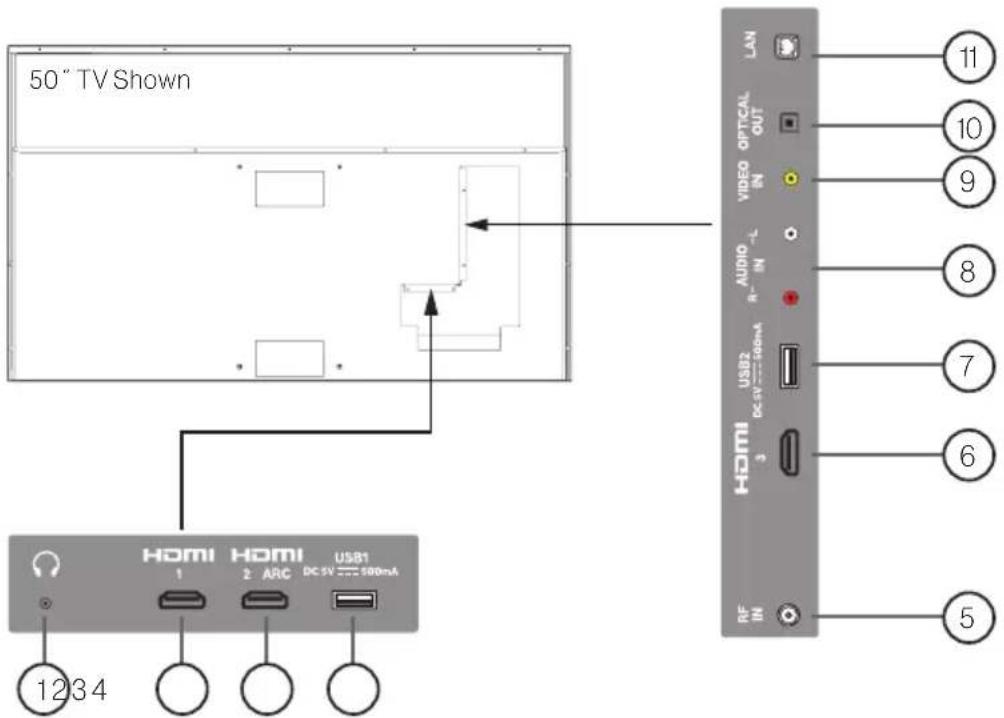
| No. I/O port Description | ||
| 1 | ○ | Connect a stereo headphone for private listening. |
| 2 | HDMI 1 | Connect to theHDMI OUTport of a DVD Player, Games Console, Cable Box or other HDMI device.ARC (Audio Return Channel)When connected with a HDMI 1.4 cable to an ARC compatible audio system, the TV links with the device to give extra audio functionality. |
| 3 | HDMI 2 ARC | |
| 6 | HDMI 3 | |
| 4 | USB1 | Connect to portable USB device such as USB flash/hard drive. |
| 7 | USB 2 | |
| 5 | RF IN | Connect to external modem or network access equipment. |
| 8 | AUDIO IN(R-L) | Connect to theCOMPOSITE VIDEO/AUDIO OUTports of a DVD Player, Cable Box or other compatible devices. |
| 9 | VIDEO IN | |
| 10 | OPTICAL OUT | Connect to an AV Receiver for high quality digital audio. |
| 11 | LAN | Connect to external modem or network access equipment. |
Remote Control
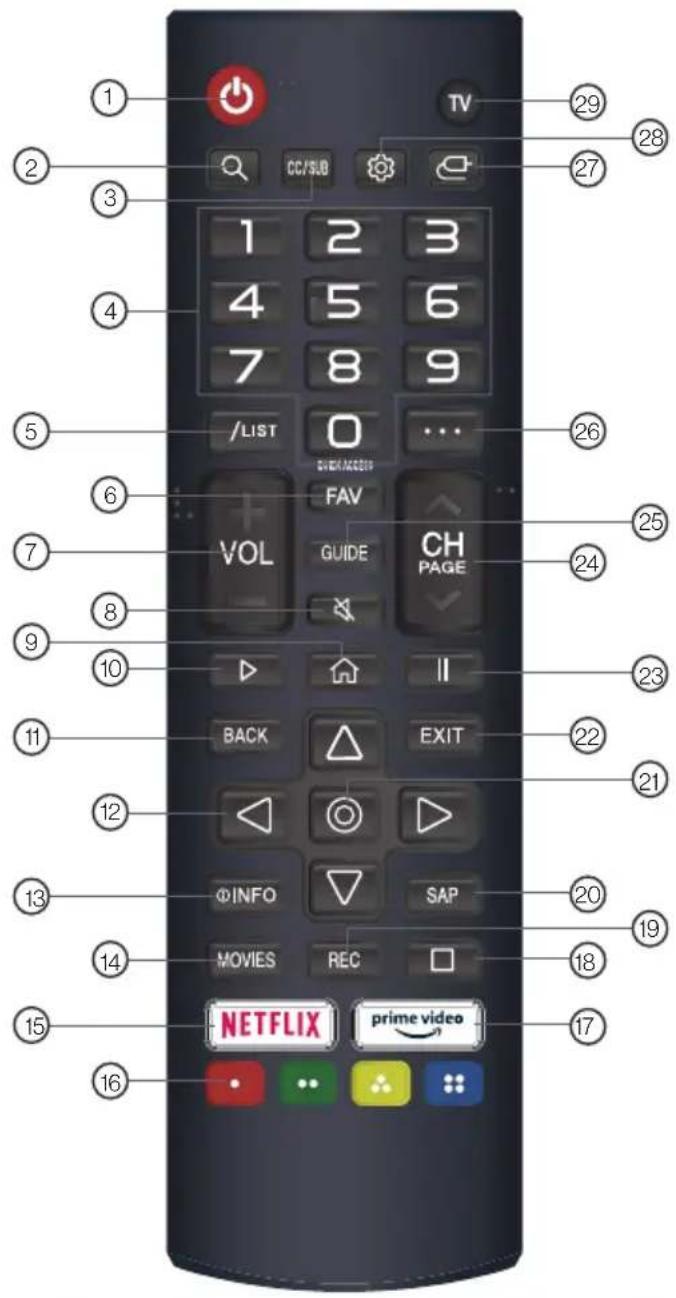
| No. | Button Function | |
| 1 | ON/OFF | |
| 2 | Search. | |
| 3 | CC/SUB | Closed Caption selection: ON/OFF/CC On Mute. Enable/disable subtitles. |
| 4 | 0-9 | Number selection key. |
| 5 | /LIST | Enter multiple program channel number such as 2-1. The QUICK ACCESS edit screen appears. |
| No. | Button Function | |
| 6 | FAV | Press to display a listing of your favorite TV channels. |
| 7 | VOL | It adjusts the volume level. |
| 8 | Mutes the sound. | |
| 9 | Displays the Home menu. | |
| 10 | Play. | |
| 11 | BACK | Move to the previous step. |
| 12 | RIGHT/LEFT/UP/DOWN buttons to navigate the on-screen menus. | |
| 13 | INFO | Press to display the source and channels display. |
| 14 | MOVIES | Search Movies. |
| 15 | NETFLIX | Go to Netflix. |
| 16 | Corresponds to various colour functions in the menu or teletext. | |
| 17 | prime video | Go to prime video. |
| 18 | Pause. | |
| 19 | REC | Launch Record. |
| 20 | SAP | Audio Language. |
| 21 | Select current option thats highlighted. | |
| 22 | EXIT | Closes the menu. |
| 23 | II | Pause. |
| 24 | CH PAGE | You can change the program. |
| 25 | GUIDE | You can check the program. |
| 26 | It displays the additional buttons on the remote control. | |
| 27 | Selects an input source. | |
| 28 | Enters the Quick Settings menu. | |
| 29 | TV | Switch to TV. |
WebOS Voice Remote Control
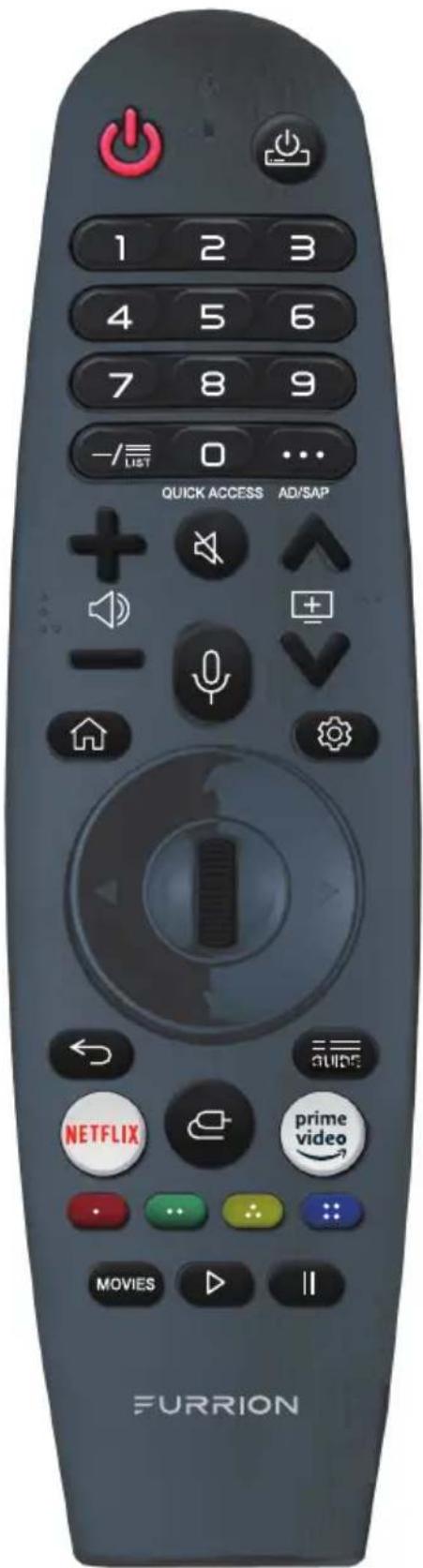
NOTE: Long press means pressing the button for more than one second.
| Button Function | |
| Turn on/off the TV. | |
| Turn on/off the power of the set-top box. | |
| 0-9 | Number selection key. Long press 'O'key to display the QUICK ACCESEsedit screen. |
| -/||||||||||||||||||||||||||||||||||||||||||||||||||||||||||||||||||||||||||||||||||||||||||||||||||||||||||||||||||||||||||||||||||||||||||||||||||||||||||||||||||||||||||||||||||||||||||||||||||||||||||||||||||||||||||||||||||||||||||||||||||||||||||||||||||||||||||||||||||||||||||||||||||||||||||||||||||||||||||||||||||||||||||||||||||||||||||||||||||||||||||||||||||||||||||||||||||||||||||||||||||||||||||||||||||||||||||||||||||||||||||||||||||||||||||||||||||||||||||||||||||||||||||||||||||||||||||||||||||||||||||||||||||||||||||||||||||||||||||||||||||||||||||||||||||||||||||||||||||||||||||||||||||||||||||||||||||||||||||||||||||||||||||||||||||||||||||||||||||||||||||||||||||||||||||||||||||||||||||||||||||||||||||||||||||||||||||||||||||||||||||||||||||||||||||||||||||||||||||||||||||||||||||||||||||||||||||||||||||||||||||||||||||||||||||||||||||||||||||||||||||||||||||||||||||||||||||||^|||||||||||||||||||||||||||||||||||||||||||||||||||||||||||||||||||||||||||||||||||||||||||||||||||||||||||||||||||||||||||||||||||||||||||||||||||||>|||||||||||||||||||||||||||||||||||||||||||||||||||||||||||||||||||||||||||||||||||||||||||||||||||||||||||||||||||||||||||||||||||||||||||||||||||||>||||||||||||||||||||||||||||||||||||||||||||||||||||||||||||||||||||||||||||||||||||||||||||||||||||||||||||||||||||||||||||||||||||||||||||||||||||||| |---|---|---|---|---|---|---|---|---|---|---|---|---|---|---|---|---|---|---|---|---|---|---|---|---|---|---|---|---|---|---|---|---|---|---|---|---|---|---|---|---|---|---|---|---|---|---|---|---|---|----|---|---|---|---|---|---|---|---|---|---|---|---|---|---|---|---|---|---|---|---|---|---|---|---|---|---|---|---|---|---|---|---|---|---|---|---|---|---|---|---|---|---|---|---|---|---|---|---|---|-----|---|---|---|---|---|---|---|---|---|---|---|---|---|---|---|---|---|---|---|---|---|---|---|---|---|---|---|---|---|---|---|---|---|---|---|---|---|---|---|---|---|---|---|---|---|---|---|---|---|<--><--><--><--><--><--><--><--><--><--><--><--><--><--><--><--><--><--><--><--><--><--><--><--><--><--><--><--><--><--><--><--><--><--><--><--><--><--><--><--><--><--><--><--><--><--><--><--><--><--><--> <--><--><--><--><--><--><--><--><--><--><--><--><--><--><--><--><--><--><--><--><--><--><--><--><--><--><--><--><--><--><--><--><--><--><--><--><--><--><--><--><--><--><--><--><--><--><--><--><--><-><--><--><--><--><--><--><--><--><--><--><--><--><--><--><--><--><--><--><--><--><--><--><--><--><--><--><--><--><--><--><--><--><--><--><--><--><--><--><--><--><--><--><--><--><--><--><--><--><--><-></ | |
WHAT'S IN THE BOX
Thanks for purchasing this Furrion Aurora® TV. This manual will help you set up and begin using your TV. First, check the contents of your box with the parts checklist below:
• TV (x1)
- Remote Control (x1)
- Remote control sleeve (x1)
- WebOS voice Remote Control (x1)
- AAA Battery (x2)
- AA Battery (x2)
- RCA cable (x1)
- Printed materials
• Wall mount screws (x4): M6*15mm or M8*15mm
- Screw adaptors (x4): M6*15mm or M8*15mm
Now you can get started!
CONNECTIONS
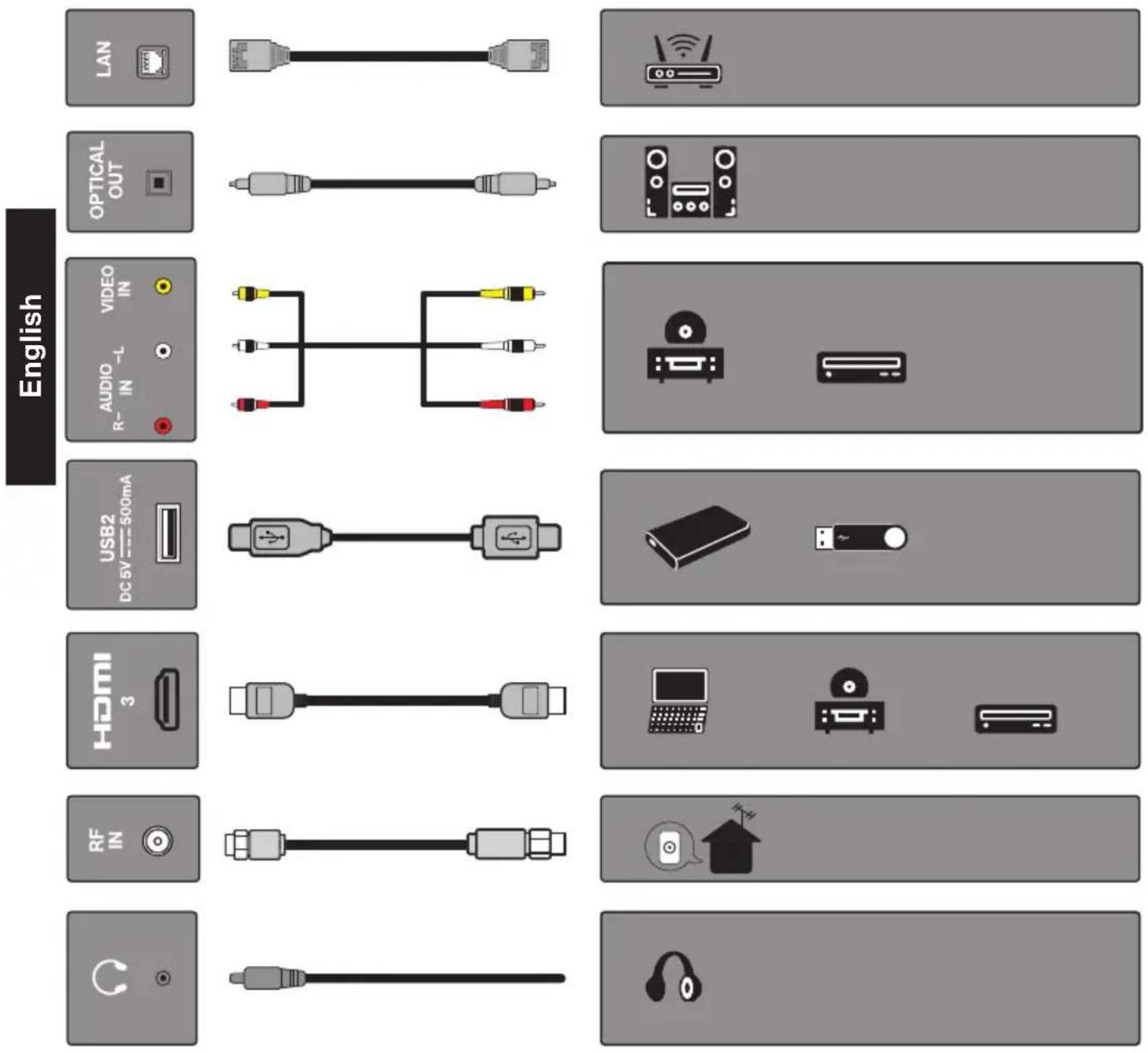
Your Furrion Aurora® TV offers multiple connection options. You can choose one or more of the connections below to operate. Please consult the manual of DVD player, Games Console or other devices to ensure proper connection and use.
WARNING: Do not connect the power source before making connections. Open the media bay to connect the cables.
NOTE: All external devices and cables shown in the diagram are for reference only and not included in the package.
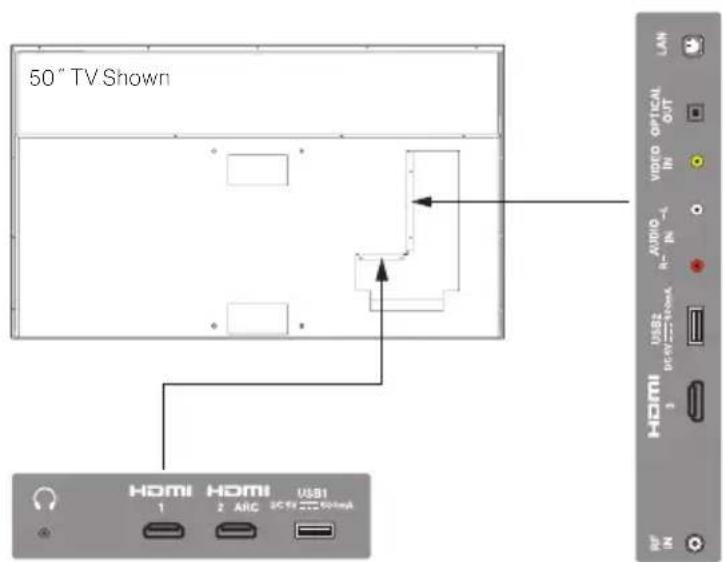
Connect to External Devices
Cable Management
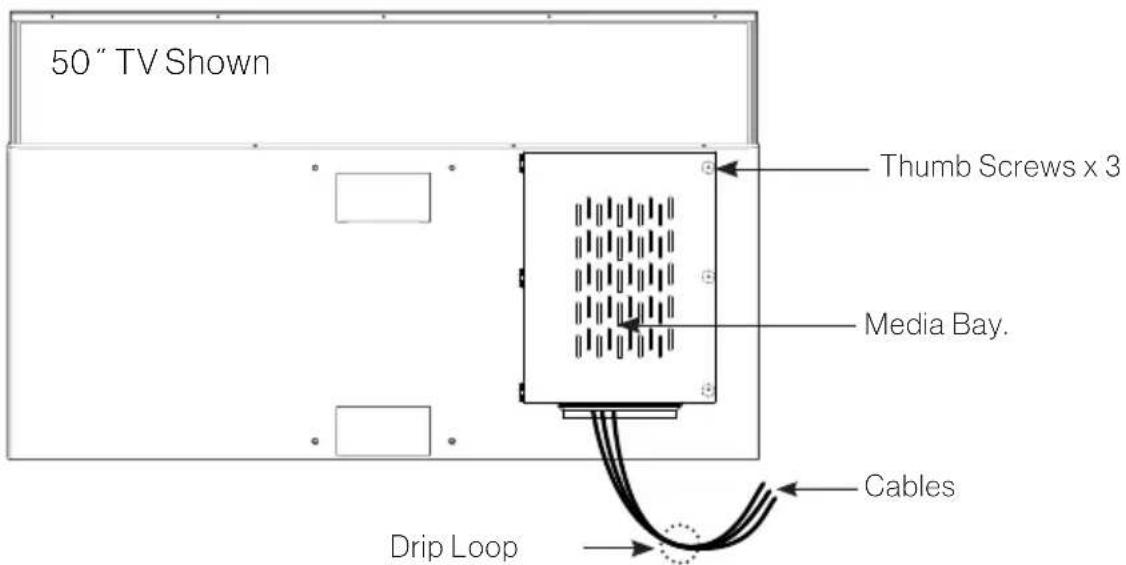
—After all connections are completed, lead all connecting cables downwards through the duct at the bottom of the media bay.
-Leave a drip loop when cables enter the compartment. This will prevent water from dripping down the cord and possibly entering the media bay area.
—Close the media bay and tighten the thumb screws to avoid moisture from entering the media bay and coming into contact with the connection points.
INSTALLATION
- The TV should be installed in an area where no direct sunlight hits the LCD screen. Before mounting your TV, consider the time of the day you would watch the TV the most and then observe the movement of the sun at different times of the day to find an optimal location without direct sunlight. Keep in mind that the position of the Sun may differ at different times of the year. If you intend to mount the TV in an area with direct sunlight, consider adding a sunshade / awning / gazebo to ensure the TV is protected from prolonged exposure.
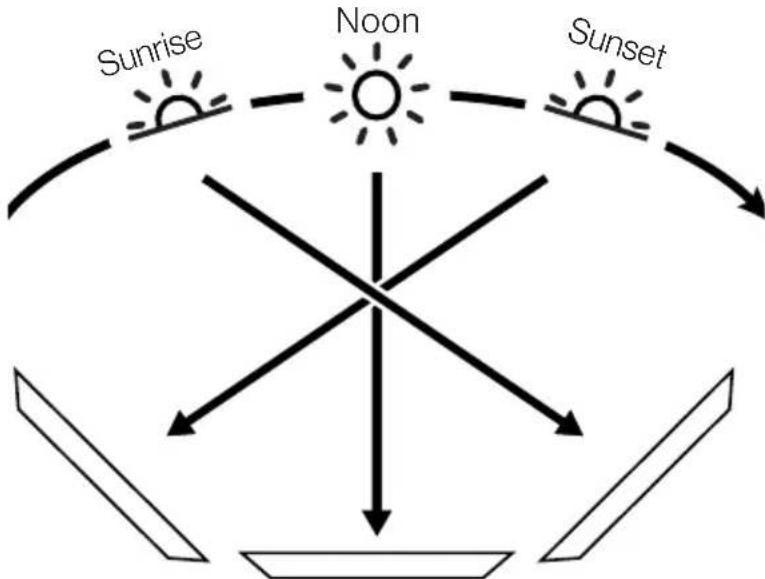
flowchart
graph TD
    A["Sunrise"] --> B["Noon"]
    B --> C["Sunset"]
    C --> D["Daylight"]
    D --> E["Sunbound"]
    style A fill:#f9f,stroke:#333
    style B fill:#f9f,stroke:#333
    style C fill:#f9f,stroke:#333
    style D fill:#ccf,stroke:#333
    style E fill:#ccf,stroke:#333
- In extreme heat and direct sunlight the LCD screen may overheat and cause black spots to appear. This is a normal reaction of the LCD panel. The black spots will go away once the TV has cooled down sufficiently from the direct exposure. You can move the screen away from the direct sun or add shade to avoid the issue from recurring.
- While powered off, make sure the TV is not exposed to direct sun for extended period. Prolonged exposure will reduce the lifetime of the TV panel. Protect the TV screen with a TV cover to maximize the lifetime of the TV screen.
- The TV is designed for Residential use and tested to operate between -24°F (-31°C) to 122°F (50°C) ambient temperature with no direct sunlight on the TV screen for a prolonged period.
NOTE: Connect all cables prior to mounting the TV on the wall or TV mount. The media bay on the rear panel will be obstructed once the TV is mounted.
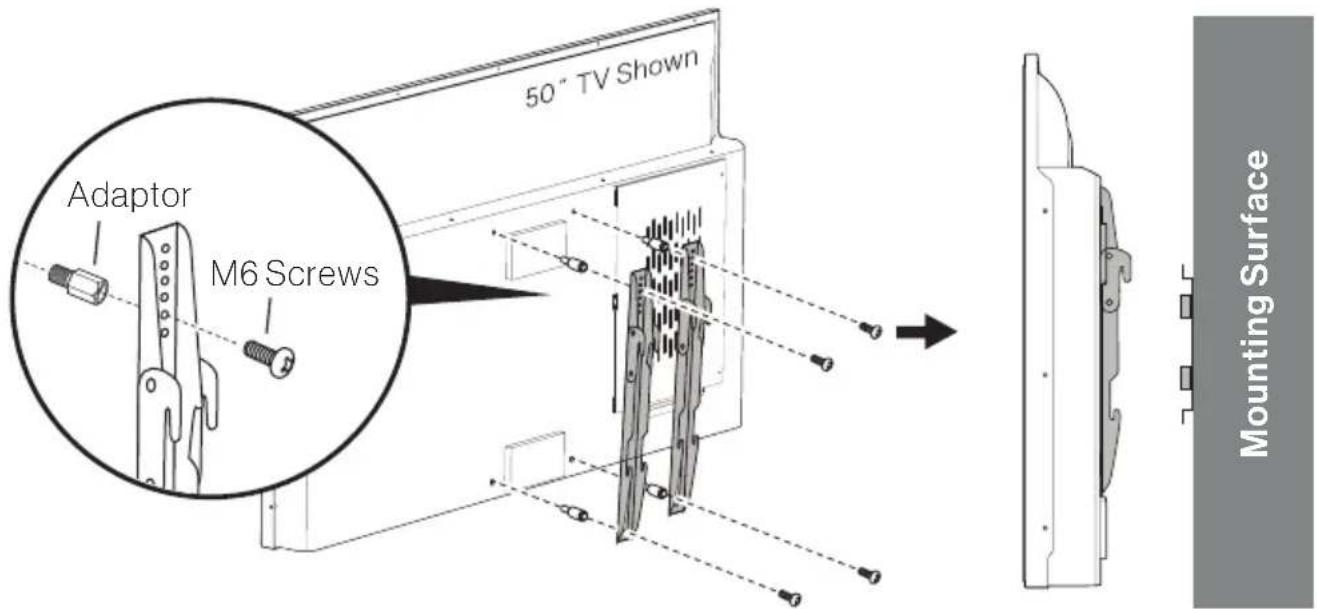
-Follow the installation guide supplied with the Wall-Mount Bracket when installing the TV.
- Choose an appropriate location and refer to the VESA pattern for mounting.
-It is recommended to contact a professional for installation and use at least two people to move or install the TV.
| VESA MOUNTING PATTERN | ||||
| Model Width (mm) | Height (mm) Screw | Size Screw Quantity | ||
| 43" TV 200 200 | M6 * 15mm 4 | |||
| 55" and 65" TV (750 nits) | 400 200 | |||
| 55" and 65" TV (1500 nits) | 400 400 | |||
| 75" TV 600 600 M8 * 15mm 4 | ||||
Connect Power
Connect the power cord to a GFCI protected AC outlet with an "in-use" waterproof cover.
CAUTION: Do not connect power cord during cable connecting and TV installation.
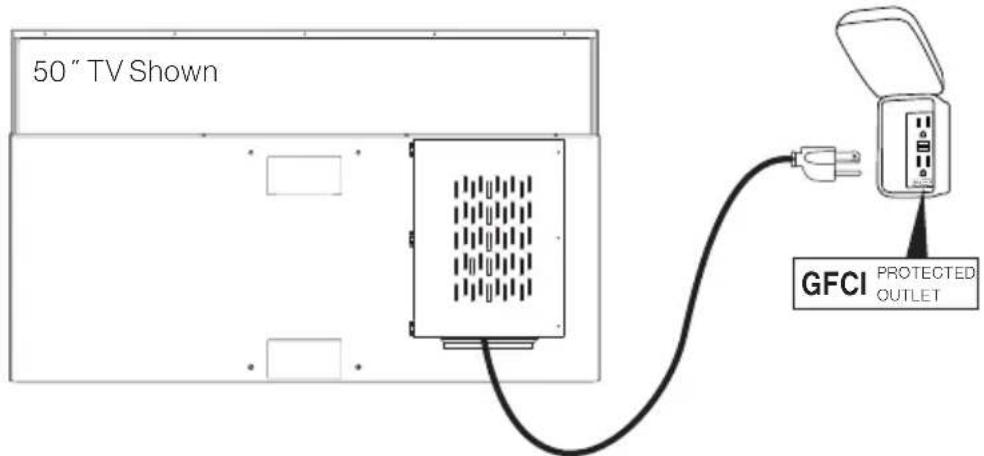
WARNING: TV and GFCI receptacle must be installed a safe distance away from any water source. Be sure to check local electrical codes and comply with their local standards.
Install Remote Control Battery
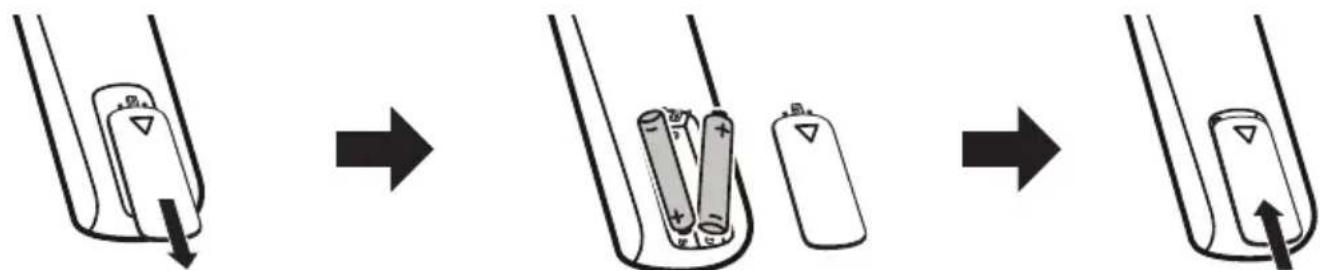
- Your remote control is powered by two (2) AAA batteries.
- Turn the remote over and remove battery cover.
- Place two (2) "AAA" batteries into the battery compartment with the "+" and "-" ends facing as indicated.
- Replace the cover.
NOTE: Protect the remote with the provided silicone sleeve from damage or malfunction due to accidental spillage of liquids. Do not immerse the remote control in water, or expose it to rain to prevent damage or malfunction.
NOTE: Improper use of batteries can result in a chemical leakage or explosion.
- Use only the size and type of battery specified.
- Danger of explosion if batteries are incorrectly replaced.
- If the device is not to be used for a long period of time, remove the battery to prevent damage or injury from possible battery leakage.
- The batteries should not be exposed to excessive heat due to sunlight, fire or other heat sources.
WebOS Voice Remote Control
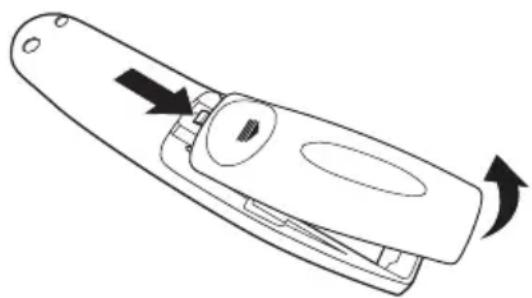
- Press the top of the battery cover and push back to open.
- Install the two 1.5V AA batteries in the battery compartment properly.
natural_image
Line drawing of a remote control device with directional arrows indicating movement (no text or symbols)GETTING STARTED WITH WEBOS TV
Initial Setup
Press the button on the control panel or on the remote control to turn on the TV, follow the on-screen instructions to finish the initial setup.
Watching TV Broadcasting
Your TV must be connected to an antenna/cable or a set-top box that can receive broadcasting for broadcasting.
Prepare Live TV
Follow the steps below to finish an antenna/cable connection if your TV is not connected to a broadcast antenna.
-
Connect the broadcast antenna/cable to the TV. You may also connect a piece of equipment that can receive broadcasting such as a set-top box instead of the antenna/cable.
-
Launch / Connection / Device Connection Settings / Universal Control Settings.
-
Start the 🎨 / 📋 Channels Channel / Tuning / Auto Tuning. Finds and adds only channels being broadcast.
Enjoy Live TV
Press the /LIST button on the remote control. Use the △▽◀▶ buttons to move to the desired channel then press @button to select the channel.
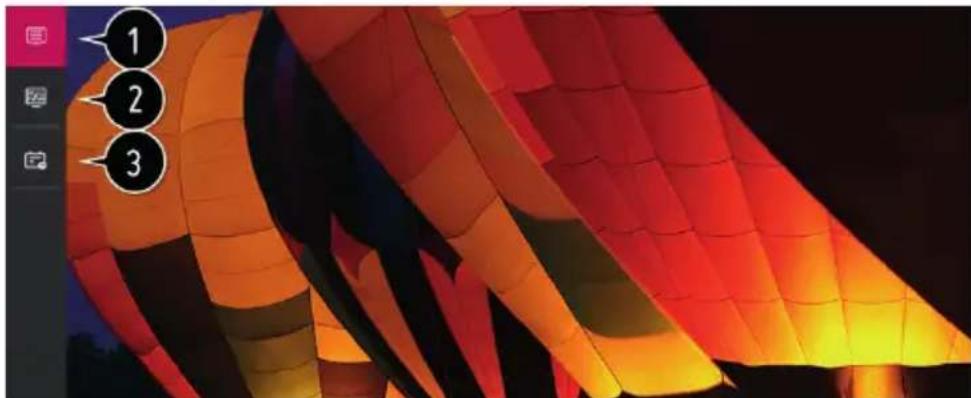
1 Channels: View a list of broadcast content that is currently being broadcast.
2 Guide: You can view programs and the schedule of each program.
3 TV Scheduler: You can set the date and time of the desired broadcasting program, and watch the program.
NOTES:
- The channels displayed in Channel List are a configuration of channels provided by the broadcast service provider. If the broadcast service provider has changed its channel configuration without notice, the channels displayed in Channel List may differ from the actual TV channels.
- You must complete the settings of the network, region, and auto-channel to receive normal live broadcast service.
Using Set-Top Box Remote Control or Universal Remote Control
If you would like to use a universal remote control, or you have your set-top box connected to your TV, you need to program the universal remote control or the set-top box remote control to control the Furrion TV.
- Refer to the user manual of the set-top box remote control or that of the universal remote control on how to change the settings to control the Furrion TV.
- Furrion branded TV is compatible with LG codes.
Connecting to the Network
If you configure settings for the network, you can use various services such as online contents and applications.
Setting up a Wired Network
Connect the LAN port of the TV and the router using a LAN cable.
NOTE: The router should be connected to the Internet beforehand. When you connect the TV to the network with a LAN cable, the TV is automatically connected to the network if the router supports DHCP.
If the Network Is Not Automatically Connected
Press / Connection / Network Connection Settings / Wired Connection (Ethernet).
Setting up a Wireless Network
-
Turn on the power of the router connected to the Internet.
-
Press the ⚙ button on the remote control.
-
Select / Connection / Network Connection Settings / Wi-Fi Connection.
-
When the network search is complete, the list of networks available for connection is shown.
-
Select a network to connect. If your Wireless Router is password protected, enter the password configured for the router.
Network Setting Warnings
- Use standard LAN cable.
- Resetting the modem may fix some network connection problems. Turn the power OFF, disconnect and reconnect it, and then turn the power on to solve the problem.
- The manufacturer is not responsible for any network connection problems or any faults, malfunctions, or errors caused by network connection.
- The network connection may not work properly because of network settings or the Internet service provider.
- DSL service must use a DSL modem and cable service must use a cable modem. Since only a limited number of network connections may be available, TV network settings may not be used depending on the contract with Internet service provider. (If the contract does not allow more than one device per line, only the already-connected PC may be used.)
-
A wireless network can experience interference from other devices that use the 2.4 GHz frequency (wireless phone, Bluetooth device, or microwave oven). Although interference can also happen when using the 5GHz frequency, it is less likely to occur.
-
The wireless environment can make wireless network service run slowly.
- Failure to turn off all local home networks may cause excessive traffic on some devices.
- The access point device must support wireless connections and wireless connection feature must be enabled on the device to have AP (access point) connection. Contact the service provider for availability of wireless connections on the access point.
- Check SSID and security settings of the AP. Refer to the appropriate documentation for SSID and security settings of the AP.
- Invalid settings of network devices (wired/wireless line sharer, hub) can cause the TV to operate slowly or not operate properly. Install the devices correctly according to the appropriate manual and network.
- The connection method may differ depending on the AP manufacturer.
- To solve a problem related to this function, please go to:
/ / Connection / Network Connection Settings / Wired Connection (Ethernet)
- Or -
/ / Connection / Network Connection Settings / Wi-Fi Connection / Advanced Wi-Fi Settings
Using the Home Feature of the webOS TV
The home screen will be displayed automatically when the TV is turned on. If not, press the button on the remote control.
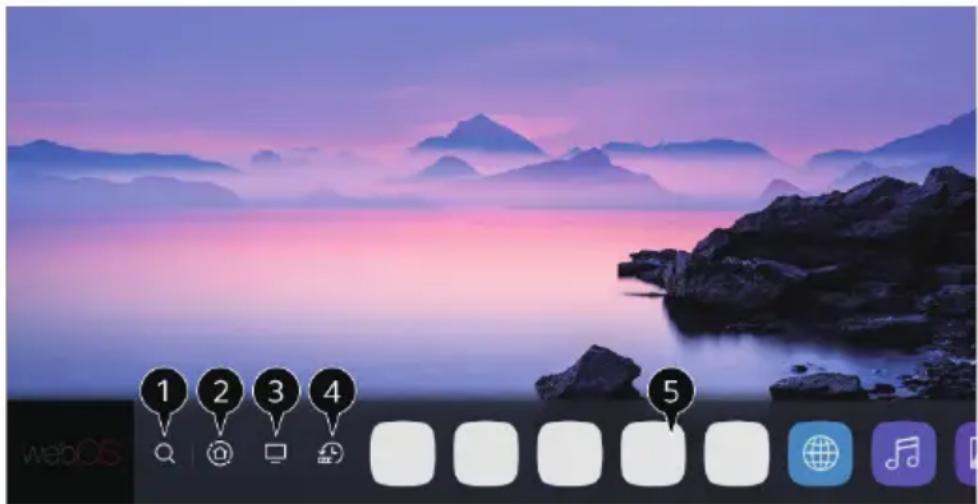
1 Launch search
Use △buttons to navigate to and highlight , then press to start searching.
You can search for a variety of content and information using the desired search terms.
NOTE: You must connect to the network to use the search feature. The search results may vary depending on the channel, region, network settings, and whether you have agreed to the terms and conditions.
2 Use home dashboard
Use △▽◀▶ buttons to navigate to 🔒 or press and hold the 🔔 button to select home dashboard. You can select or control a device (mobile, external device, Home IoT Devices, etc.) connected to the TV.
3 Switch the TV input used recently
Use ▲ buttons to navigate to and focus on, you can switch to the recently used TV input in the list quickly.
4 Run or close a recently used app
Press and hold the button for 2 seconds or use buttons to navigate to and focus on You can run or close a recently used app in the list of preview area.
5 Run, move or delete the apps installed
Use △▽◀▷ buttons to navigate to and focus on the app, it will provide the preview of the app at the top. You can check or run useful features of the app and recommended content on the preview without entering into the app.
NOTE: Some apps may not provide the preview.
Manage webOS TV Home
You can view a list of all apps installed on your TV, change their positions or delete them.
NOTE: The default TV app cannot be edited.
-
Use △▼buttons to move to the app you want to edit, then press and hold the Ⓞ button on the remote control to activate the app edit mode. Or you can select the Edit mode button at the right corner of the Home list to enter the App Edit mode.
-
To move the app to your desired position, go to the position and press the button. You can also move apps with the◀ buttons on your remote control.
-
To delete an app, select the X icon above the app.
You can move and delete as many apps as you wish before exiting the edit mode. After the editing is done, press the X icon at the top right to exit the App Edit mode.
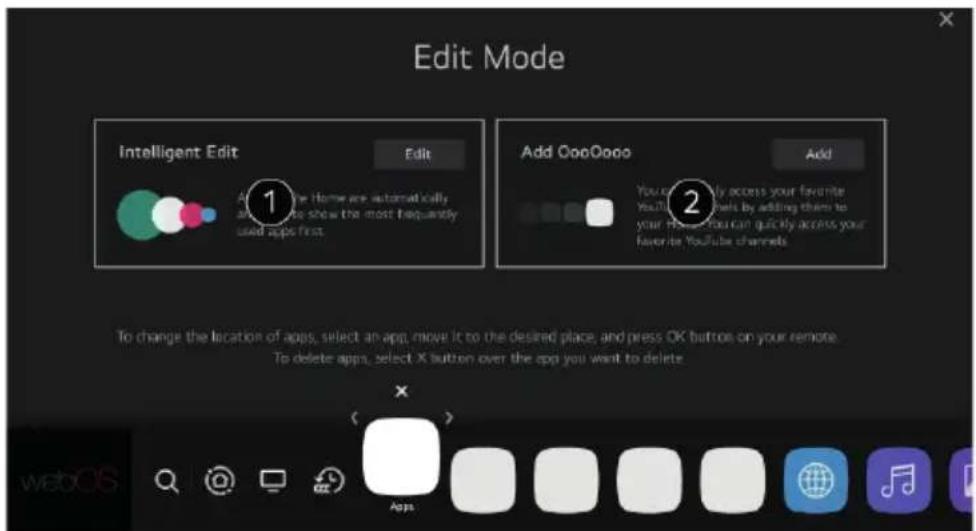
1 You can automatically arrange the app list in the order of most frequently used based on your accumulated app usage pattern.
2 You can add your favorite video service channel to the list.
NOTE: This feature is available only when the network is connected.
SETTINGS
Displays a set of light-weight controls quickly and simply such as Picture Mode, Sound Mode, Sound Out, Sleep Timer and so on.
Press the ⚙ button on the remote control.
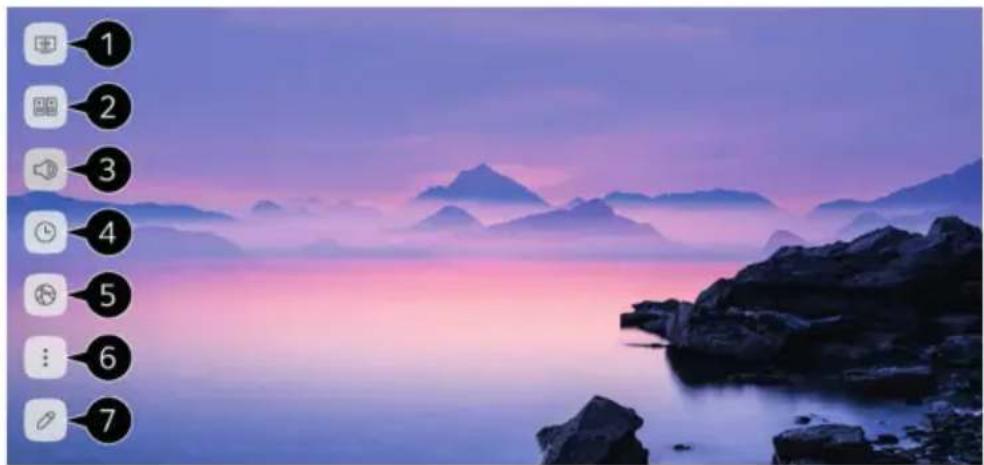
1 You can set the Picture Mode.
2 You can set the Sound Mode.
3 You can choose the Sound Out.
4 You can set the Sleep Timer.
5 Move to the Connection screen.
6 You can set more options.
7 You can add/delete the quick setting items or change their order.
After entering each item, press and hold the Ⓞ button on the remote control to go to the corresponding menu.
TROUBLESHOOTING
| Problem Solution/Issue | |
| TV does not operate | Make sure the power cord is plugged in.Try another AC outlet.Power is off, check fuse or circuit breaker.Unplug unit for an hour, then plug it back in. |
| Normal picture, but no sound | Check the volume settings.Sound muted? Press 📋 button.Try another channel.Check audio cable connections. |
| The remote control does not work | Make sure the remote control is in range with no obstructions.Check the batteries.Correct operating mode set: TV, VCR etc. |
| Poor sound or no sound | Station or Cable TV experiencing problems, tune to another station.Check sound adjustments (Volume or Mute).Check for sources of possible interference. |
| Poor picture or no picture | Station or Cable TV experiencing problems, tune to another station.Make sure channels are set into memory.Check antenna or Cable TV connections, adjust antenna.Check for sources of possible interference.Check picture control adjustments. |
| Poor TV reception | Ensure the antenna amplifier is turned on for Antenna TV.Adjust the antenna position to a stronger signal receiving angle.Check if the Antenna connection is tight.Check if there is power supplied to the Antenna distribution box.Check if your incoming cable is connected to the correct cable / antenna wall connection. |
| Poor Cable / Satellite TV Reception | Ensure antenna amp is turned off for cable signal.Check if incoming cable is connected correctly.Ensure cable splitter box has power.Check if the incoming cable is connected to the correct cable / Satellite wall connection.Ensure Dish has no obstruction. |
| TV shuts off | Sleep Timer is set.Power interrupted. |
| Black and white image from the connected AV device | Check video connections on both the TV and connected AV device. Ensure all video cables are connected firmly. |
SPECIFICATIONS
Product specifications may be changed without prior notice due to upgrade of product functions.
Estimated yearly energy consumption indicated on the energy label is measured in accordance with the test procedures for television sets (USA only). The actual energy consumption depends on the usage environment (the content watched, TV settings, etc.).
| Specifications | |||
| Full Shade Partial Sun | Sun | ||
| Resolution 3840 x 2160 | |||
| Refresh Rate 60Hz | |||
| Contrast Ratio 4000:1 | |||
| View Angle 178° / 178° | |||
| Response Time 6.5ms | |||
| Brightness 400 nits 750 nits 1500 nits | |||
| Wifi 802.11a/b/g/n/ac | |||
| Bluetooth 5.0 | |||
| Television System ATSC / NTSC | |||
| Water & Dust Resistance | IP54-rated | ||
| Operating Temperature | -24°F to 122°F (-31°C to 50°C) | ||
| Operating Humidity | 10% to 90% | ||
| Non-Operating* Temperature | -27°F to 140°F (-33°C to 60°C) | ||
| Non-Operating* Humidity | 10% to 90% | ||
| * Off mode with power cord disconnected. | |||
| DIMENSION & RESOLUTION | ||
| Model | Dimension (W x H x D) | Max Resolution |
| 43" TV | 38116 × 23116 × 458" (976 x 586 x 117 mm) | 3840 x 2160@ 60Hz UHD |
| 55" TV (400 nits) | 481516 × 29116 × 418" (1243 x 739 x 105 mm) | |
| 55" TV (750 nits) | 481516 × 29116 × 414" (1243 x 739 x 108 mm) | |
| 55" TV (1500 nits) | 49116 × 29116 × 4516" (1256 x 747 x 109 mm) | |
| 65" TV (750 nits) | 57116 × 331516 × 458" (1463 x 862 x 118 mm) | |
| 65" TV (1500 nits) | 5818 × 34316 × 518" (1479 x 868 x 130 mm) | |
| 75" TV (750 & 1500 nits) | 6758 × 3934 × 434" (1717 x 1009 x 121 mm) | |
| INPUT & OUTPUT CONNECTIONS | |||||||
| Earphone Jack | LAN | Optical Out | R-AUDIO IN-L | Video in | HDMI in | RF in | USB |
| 1 | 1 | 1 | 1 x Red1 x White | 1 x Yellow | 3 | 1 | 2 |
| Modèle N° Lippert | |
| FDUP43CSA 2021130709 | |
| FDUP43CSA-CA 2021135662 | |
| FDUF43CSA 2021130705 | |
| FDUF43CSA-CA 2021135658 | |
| FDUN55CSA 2022260469 | |
| FDUN55CSA-CA 2022260474 | |
| FDUP55CSA 202113071 | |
| FDUP55CSA-CA 2021135664 | |
| FDUF55CSA 2021130707 | |
| Modèle N° Lippert | |
| FDUF55CSA-CA 202113 | 5660 |
| FDUN65CSA 20222604 | 70 |
| FDUN65CSA-CA 20222 | 60475 |
| FDUP65CSA 2021130712 | |
| FDUP65CSA-CA 202113 | 5665 |
| FDUN75CSA 20222604 | 71 |
| FDUN75CSA-CA 20222 | 60476 |
| FDUN75CSA-CA 20222 | 60476 |
| FDUP75CSA-CA 20222 | 60473 |
Furrion Innovation Center & Institute of Technology
52567 Independence Ct., Elkhart, IN 46514, USA
APERÇU DU PRODUIT ....36
natural_image
Pure geometric diagram with intersecting lines and arrows, no text or symbols present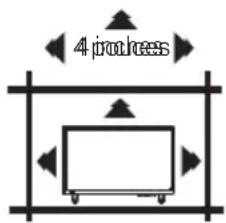
Furrion Innovation Center & Institute of Technology
52567 Independence Ct., Elkhart, IN 46514, USA
natural_image
Simple line drawing of a TV setup with a monitor and two cabinet boxes (no text or symbols)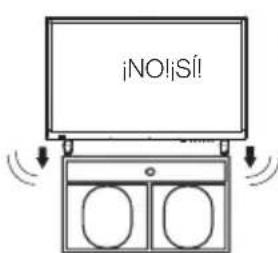

Furrion Ltd. (Furrion) is a wholly owned subsidiary of Lippert Components, Inc. (Lippert) Furrion Ltd.
Furrion Innovation Center & Institute of Technology
©2007-2023 Furrion Ltd. Furrion® and the Furrion logo are trademarks licensed for use by Furrion Ltd. and registered in the U.S. and other countries.
For Patent Info: www.Lippert.com/patents
The contents of this manual are proprietary and copyright protected by Lippert. Lippert prohibits the copying or dissemination of portions of this manual unless prior written consent from an authorized Lippert representative has been provided. Any unauthorized use shall void any applicable warranty. The information contained in this manual is subject to change without notice and at the sole discretion of Lippert. Revised editions are available for free download from lippert.com.
Please recycle all obsolete materials.
- Supplier's Declaration of Conformity
- CFR § 2.1077 Compliance Information
- Unique Identifier
- Responsible Party – U.S. Contact Information
- FCC Compliance Statement
- CONTENTS
- CAUTION
- IMPORTANT SAFETY INSTRUCTIONS
- CONDENSATION
- Remove and Clean the Glass Shield
- How to Handle the LCD Panel
- Wireless Function of the unit (For TV with wireless function only)
- COMPLIANCE
- FCC Statement
- FCC Radio Frequency Interference Requirements (for UNII devices)
- FCC RF Radiation Exposure Statement
- Industry Canada Statement
- IC Radiation Exposure Statement (for Canada)
- Usage of 5GHz bands in Canada:
- Safety Precautions
- Notes when mounting the LED TV on the wall
- WARNING:
- Notice for TV Cabinet
- PRODUCT OVERVIEW
- Control Panel
- Rear Panel
- WebOS Voice Remote Control
- WHAT'S IN THE BOX
- CONNECTIONS
- Cable Management
- INSTALLATION
- Connect Power
- Install Remote Control Battery
- GETTING STARTED WITH WEBOS TV
- Initial Setup
- Watching TV Broadcasting
- Prepare Live TV
- Enjoy Live TV
- NOTES:
- Using Set-Top Box Remote Control or Universal Remote Control
- Connecting to the Network
- Setting up a Wired Network
- If the Network Is Not Automatically Connected
- Setting up a Wireless Network
- Network Setting Warnings
- Using the Home Feature of the webOS TV
- Launch search
- Use home dashboard
- Switch the TV input used recently
- Run or close a recently used app
- Run, move or delete the apps installed
- Manage webOS TV Home
- SETTINGS
- TROUBLESHOOTING
- SPECIFICATIONS
- APERÇU DU PRODUIT ....36
Brand : Furrion
Model : Aurora FDUN55CSA
Category : Television