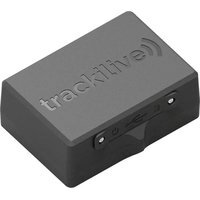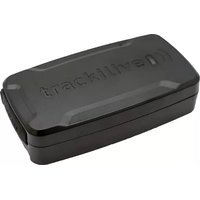
TL-50 - GPS device Trackilive - Free user manual and instructions
Find the device manual for free TL-50 Trackilive in PDF.


User questions about TL-50 Trackilive
0 question about this device. Answer the ones you know or ask your own.
Ask a new question about this device
Download the instructions for your GPS device in PDF format for free! Find your manual TL-50 - Trackilive and take your electronic device back in hand. On this page are published all the documents necessary for the use of your device. TL-50 by Trackilive.
USER MANUAL TL-50 Trackilive
text_image
trackitive01• DE - Bedienungsanleitung 3
• EN - User Manual 7
• ES - Manual de uso 11
• IT - Instruzioni per l'uso 15
• FR - Mode d'emploi 19
• NL - Bedieningshandleiding 23
Inhaltsverzeichnis:
Verpackungsinhalt 4
natural_image
Icon of a person using a laptop inside a circular frame (no text or symbols)Package contents / product parts 8
General information 8
Initial set-up 8
Charging Battery 8
Turning "ON" the tracker 9
Activating the tracker 9
Start tracking 9
LED indicator definition 9
Green indicator: LTE
Blue indicator: GPS
Red indicator: Power charge
Documentations 10
Declaration of Conformity 10
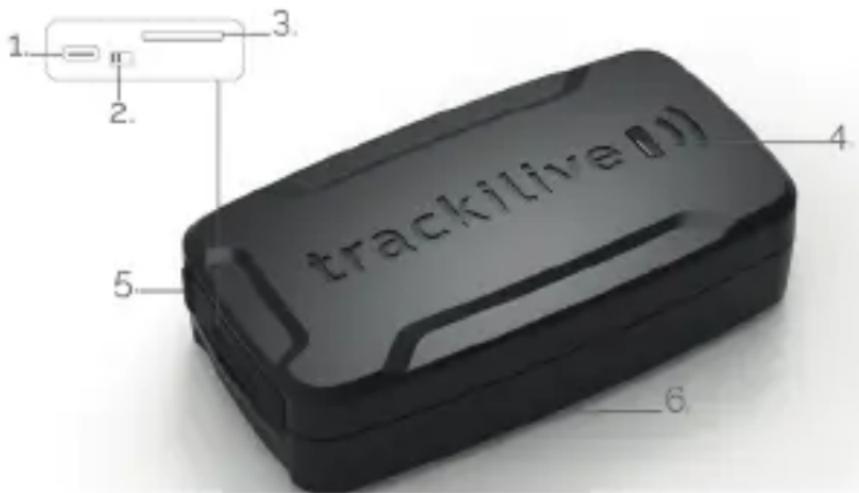
Package contents / product parts:
Gerätebeschreibung:
- USB-C charging port
- Power button
- SIM card slot
- LED
- Rubber plug
- Magnet with light sensor
Package Contents:
- tracklive TL-50 4G
- USB-C cable
- User manual
text_image
1. 2. 3. 4. 5. 6. track/livedGeneral information

natural_image
Icon of a person using a laptop inside a circular frame (no text or symbols)These operating instructions are for Trackilive TL-50 4G Tracker, which will simply be referred to as 'tracker' in the following. They contain important information regarding set-up and operation. Before using the tracker, please read the operating instructions carefully. This particularly applies to the safety notes. Failure to adhere to these operating instructions may result in severe injury or damage to the tracker.
The operating instructions are based on the standards and rules in force in the European Union. When abroad, you must also observe country-specific guidelines and laws.
Keep the operating instructions for future use. If you pass the tracker on to third parties, please make sure, to include these operating instructions.
Initial set-up
Charging Battery
When you unpack the tracker for the first time, the battery is probably empty. Battery need to be charged a few times to reach full capacity!
Charge it as follows:
- Open the rubber plug located on the side of the device, connect charging cable to the tracker charging port.
- Connect the other end of the charging cable to the USB power adaptor and then to the power socket.
- Charge the tracker for a few hours. The red light will turn on whilst charging and it will go off once the tracker is fully charged.
- Disconnect tracker from the charging cable.
Turning "ON" the tracker
- Take the tracker outside so that it has the sky view.
- Slide the power button towards "ON" indicator, the blue led will turn on and/or the blue with green led will start flashing.
- Put the tracker down and wait for 15 minutes. The tracker will carry out initial GPS positioning. This is required for the device to operate correctly. The tracker will then be ready for use and can be activated.
NOTE: this procedure is only required the very first time the tracker is turned "ON".
Activating the tracker
- Open your internet browser and go to the following website: www.tracklive.com
- Select your language.
- Click on "Activate Tracker" and follow the instructions on the screen.
Start tracking:
You can directly start tracking from our online tracking platform by visiting www.track-live.com, or download our mobile application by searching "Tracklive" in Apple's app store or Google's play store for free of charge.
LED Indicator Definition
Green Indicator: LTE "Flash": LTE communications start; „Continuously in bright status”: no LTE signal; „off": power off or in sleep mode
Blue Indicator: GPS "Flash": GPS location successful; „Continuously in bright status”: GPS signal searching; „off”: power off or in sleep mode
Red Indicator: Power charge: „Continuously in bright status“: charging; „off“: power off or full charged
NOTE: When the equipment in power saving sleep mode, the light will turn off after about 10 minutes without any operation.
Documentations
For the complete user manual, functionalities, application guide and all other necessary documentations, please visit the "Help" section of our website at: www.tracklive.com
Declaration of Conformity
VarioTek GmbH hereby declares that the TL-50 tracker radio equipment model con-

forms with EU Directive 2014/53/EU.
The full text for the EU Declaration of Conformity can be found on the following webpage: www.trackilive.com/hilfecenter/downloadportal/
Disposal
Disposing of the packaging
Make sure packaging materials are correctly separated.

Dispose of cardboard and carton as waste paper and dispose of foils via the recyclable material collection service.
Disposing of the tracker
(Applicable in the EU and other European countries with systems of separately collecting waste and recyclables).
Old devices cannot be disposed of as household waste!
If the tracker can no longer be used, all consumers are legally required to separate old devices from household waste, e.g. by disposing of them using a municipal/district collection point. This ensures that old devices are properly recycled and avoids negative environmental impact. Therefore, electronic devices are labelled with the symbol shown here.
Batteries cannot be disposed of as household waste!
As a consumer, you are legally obligated to dispose of all batteries at a municipal/district collection point or at a retailer, regardless of whether or not they contain harmful substances*, so that they can be disposed of in an environmentally friendly way.

*labelled as:
Cd = cadmium
Hg = mercury
Pb = lead
Tabla de contenido:
Contenido 16
natural_image
Icon of a person using a laptop, no text or symbols presentnatural_image
Icon of a person using a laptop (no text or symbols)natural_image
Icon of a person using a laptop inside a gray circle (no text or symbols)natural_image
Icon of a person using a laptop, no text or symbols presentsupport@trackilive.com
www.trackilive.com