Microchip Pet Door Connect - Pets SureFlap - Free user manual and instructions
Find the device manual for free Microchip Pet Door Connect SureFlap in PDF.


User questions about Microchip Pet Door Connect SureFlap
0 question about this device. Answer the ones you know or ask your own.
Ask a new question about this device
Download the instructions for your Pets in PDF format for free! Find your manual Microchip Pet Door Connect - SureFlap and take your electronic device back in hand. On this page are published all the documents necessary for the use of your device. Microchip Pet Door Connect by SureFlap.
USER MANUAL Microchip Pet Door Connect SureFlap
natural_image
Silhouette of a dog walking with sound waves, next to a vertical barrier (no text or symbols)Congratulations on the purchase of your new Microchip Pet Door Connect!
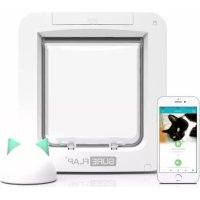
The SureFlap Microchip Pet Door Connect is one component of the bigger Sure Petcare 'Connect' system. The system is made up of three elements: the Microchip Pet Door Connect, the Hub and the Sure Petcare App. All of these elements work together to help you feel more connected to your pets.
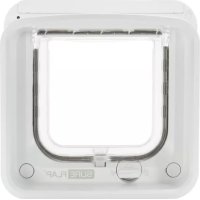
The Pet Door is the main component of the system. It recognises the microchip already implanted in your pet or the Sure Petcare RFID Collar Tag (one included), allowing your pets to access their home whilst keeping out intruder animals.
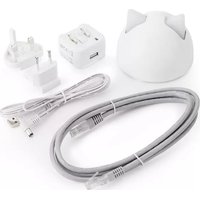
The Hub (sold separately) is the connected element of the system. It connects to your home internet connection and can talk to both the Pet Door and your Sure Petcare app.
By using the Sure Petcare app, you'll be able to see when your pets come in and out of the house, even when you're away from home. The app also allows you to change your Pet Door settings remotely so, for example, you can make sure your pet is indoors and ready for a cuddle when you get home from work.
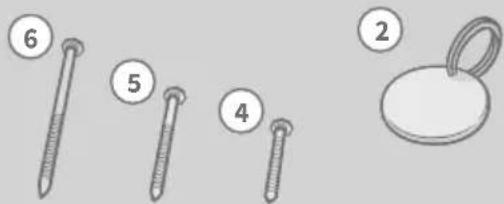
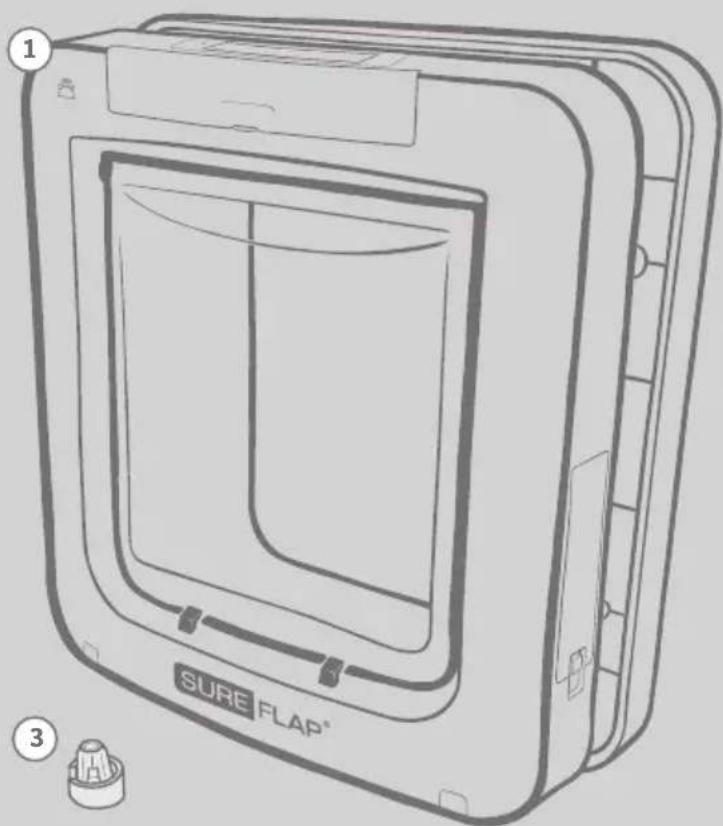
What's in the box?
Please make sure you have all these parts*
1
Pet Door
2
Sure Petcare RFID collar tag
3
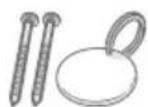
4 x Screw caps
4
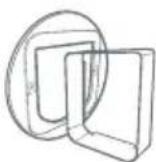
4 x 30mm Screws
5
4 x 50mm Screws
6
4 x 75mm Screws
*Hub and Batteries not included
natural_image
Line drawing of a double door with 'SURE FLAP' branding and numbered callouts (1, 3), no readable text or symbols beyond branding.
In order for your Microchip Pet Door Connect to work as a connected system you will need to purchase an accompanying Sure Petcare Hub. This Pet Door however will still function as a standard Microchip Pet Door without the Hub. For more information on how to purchase a Hub please visit surepetcare.com/hub
Contents
Important information....3
Product overview 5
How to set up your Microchip Pet Door Connect system....⑥
Hub 7
Download the app & create a household 7
Where to put your Hub 7
Plug in & set up 8
Connecting your Hub to Sure Petcare....8
Lights 9
Help & support - the Hub 9
Pet Door 11
Batteries....11
Buttons & screen 12
Program your pet into the Pet Door....13
Connect your Pet Door to your Hub 14
Pet profiles 14
Where to fit your Pet Door 15
Fitting your Pet Door 16
Locking modes 24
Curfew mode 26
Product care 27
Help & support - Pet Door 28
Warranty & disclaimer 29

Important information
PLEASE READ THE FOLLOWING INFORMATION CAREFULLY AND RETAIN THIS MANUAL FOR FUTURE REFERENCE.
This product is intended for domestic pets only.
Only use SureFlap accessories to ensure compatibility: surepetcare.com/accessories.
Make sure you have all of the parts listed on page 1.
Make sure your pet(s) can comfortably pass through the flap before fitting.
Do not cut or drill the tunnel of the Pet Door - see page 16.

Please ensure the product is installed correctly before use - see page 16.
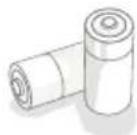
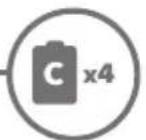
This product requires four C cell batteries which should be inserted and replaced with caution. Different types of batteries or new and used batteries are not to be mixed. If the product is to be stored unused for a long period, please remove the batteries.
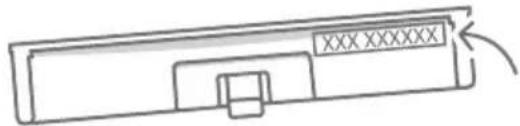
You will find the serial number for the Microchip Pet Door Connect on the back of the button cover.
natural_image
Simple line drawing of a rectangular device with a label and arrow, no text or symbols present.Safety warnings
- Do not use this product if parts are missing, damaged or worn.
- There are small components used in the construction of this item. Any loose items should be kept away from young children and pets to avoid choking hazards.
- Please take care when using power tools during installation. Ensure you follow all safety instructions provided with the tool and that you use protective equipment, such as gloves and eye-wear.
- This product has been tested to mandatory legal requirements for its intended purpose. Unauthorised modifications not recommended by Sure Petcare may result in unintended radio and TV interference.
Other important things to consider

natural_image
Silhouette of a dog and cat facing each other (no text or symbols)PETS: Sure Petcare recommends that the Microchip Pet Door Connect is used with your pet's implanted microchip, however it may also be operated using the Sure Petcare RFID Collar tag. If using the Collar Tag, it should be used with a safety collar which incorporates a breakaway buckle (cats only). Sure Petcare cannot accept liability for any injury or death caused by a pet's collar.
The Pet Door is to be used by small domestic pets which can fit through the flap opening. To find the flap dimensions, please go to: surepetcare.com/microchip-pet-door-connect
SECURITY: The motorised locks are provided exclusively to prevent the entry of unwanted animals and are not a security device. Sure Petcare cannot accept liability for unintended use, and the owner of this product accepts full responsibility for supervising the access in and out of the home that it provides.

natural_image
Gray icon of a crossed wrench and screwdriver (no text or symbols)INSTALLATION: Before installing your Pet Door you should consider any potential hazards present inside or outside the intended location, as well as the impact that subsequent modifications to your property may have on the use of your Pet Door.
If you have any doubts concerning the installation of you Pet Door, it is recommended that you consult a professional.
Do not install the Microchip Pet Door Connect in a fire door, as it will render the fire door unfit for purpose.

natural_image
Simple gray line drawing of a smiling baby face with a bow (no text or symbols)CHILDREN: Children should not be permitted to play with the Microchip Pet Door Connect. It is not a toy and should not be treated as such. However, the Microchip Pet Door Connect can be used by children aged 8 years and above and also by persons with reduced physical, sensory or mental capabilities as long as they are supervised or have been given instructions on how to use the product in a safe way. They should always be made aware of any potential hazards involved. Do not allow children of any age to clean the product without supervision.

natural_image
Gray shield icon with a smiling face and antenna, no text or symbols present.CHILD PROOFING: In households with children, it is essential to include the Microchip Pet Door Connect in any childproofing considerations. Misuse of the Pet Door by a child - for example crawling through the flap to exit the house - may result in the child coming into contact with potential dangers.
For this reason, young children should be monitored at all times when in the immediate vicinity of the Pet Door.
The Microchip Pet Door Connect system is made up of three main components:
Microchip Pet Door Connect The Hub The Sure Petcare app

flowchart
graph LR
    A["Cat with antenna"] --> B["Smart Cat Detection"]
    B --> C["Smart Phone Access"]
The Hub is connected to the internet via an Ethernet cable and monitors the activity of your Pet Door wirelessly. It is able to track your pet's movements in and out of the house and send these updates straight to you via the Sure Petcare app, so you can keep tabs on your furry friends even when you're away from home.
You're also able to control the Pet Door functions remotely from the Sure Petcare app. For example changing locking modes or altering your pet's curfew time can be done with the click of a button.
Checklist
Before you start setting up your Microchip Pet Door Connect, you should make sure you have:
4 x good quality alkaline C cell batteries. Eg. Energizer or Duracell. See page 11.
A compatible smart device to download the Sure Petcare app. A smart phone or tablet running either iOS9 or above on Apple or 4.4 or above in Android. Alternatively you can use the Sure Petcare web app on your computer. Go to surepetcare.io
√ An internet router with a spare Ethernet port. So you can plug your Hub into your router and obtain a reliable internet connection. See page 7.
√ Accessories for fitting your Pet Door. If you're fitting your Pet Door in a door containing metal, in glass or in a wall, you'll require some SureFlap accessories. Visit: surepetcare.com/accessories.
Please note that fitting into a pane of glass will require a new pre-cut pane to be purchased. See page 19.
√ Tools and supplies for fitting. A checklist of the tools you'll require for each fitting location can be found on its specific page. See page 16 for more information.
√ Time! Make sure you allow enough time to set up your Microchip Pet Door Connect system and to fit the Pet Door in its desired location.
How to set up your Microchip Pet Door Connect system
To help you set up, fit and use your new Microchip Pet Door Connect system, we have highlighted the main steps you'll need to go through and where to find them in this manual.
1
Download the Sure Petcare app
First things first you will need to download the Sure Petcare app and create a household. Your household will contain all of your pets, all of your Sure Petcare connected products and you can even invite other members of your family too.
page 7
2

Set up your Hub
You will need to plug in and connect your Hub which includes connecting it with your household on the app.
pages 7-9
3
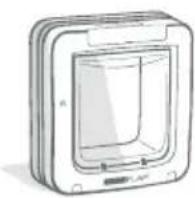
Set up Product
Once your Hub is set up and connected you can start setting up your Pet Door. This includes inserting batteries, programming in your pet(s) and connecting the Pet Door to your household via the app.
pages 11-14
4
Create Pet Profiles
Now that all the elements of your system are connected the app will have your pet's unique microchip ID meaning you can create their Sure Petcare profile.
page 14
5
natural_image
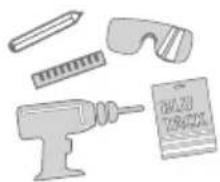
Illustration of various office supplies including a drill, screwdriver, and hand tools (no text or symbols)Fit your Pet Door
You should only begin fitting your Pet Door once all the elements of the system are successfully connected. Please read the fitting instruction thoroughly and make sure you have all the necessary tools and accessories for your fitting location.
pages 15-23
6
Enjoy your Microchip Pet Door Connect!
These pages contain information which will help you with the day to day use of your Microchip Pet Door Connect.
pages 9-10 pages 24-30
Download the app & create a household
Download the free Sure Petcare mobile app now.
Once you've created an account, you'll be asked to make a household. Your household is your connected network and will contain all of your Sure Petcare connected products and all of your pets. You can even invite other members of your family to join your household, so they don't have to repeat the setup process.
If you'd rather use the Sure Petcare web app, please go to surepetcare.io

Download on the App Store

GETTON Google Play

AVAILABLE ONLINE surepetcare.io
Where to put your Hub
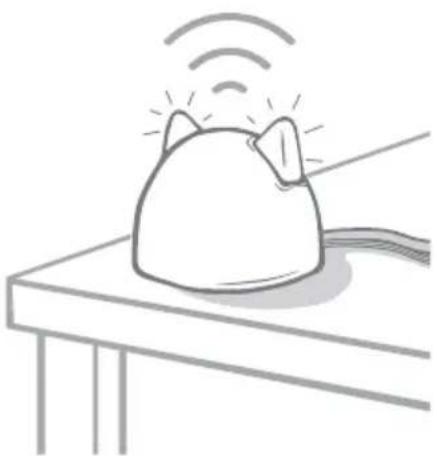
Because your Microchip Pet Door connect system communicates wirelessly, where you choose to locate your Hub can affect its performance.
Here are some tips to find the best place:
• We advise you locate your Hub within 10 metres of where you intend to put your Pet Door. This range could be larger or smaller depending on interference, so please also follow the tips below.
- Keep your Hub as far away as possible from any potential sources of interference, for example: digital cordless phones, baby monitors, wireless video senders etc.
- Where possible, position your Hub so that it is in line-of-sight of your Pet Door – this should improve performance.
- Thick walls and a large distance between the Hub and your Pet Door can affect performance.
- Place the Hub so it is roughly 1 metre off the ground, or higher. Preferably on a table or shelf which is as clear of obstructions as possible.
- Make sure the Hub isn't positioned next to any large metal objects - eg. fridges.
- Also, don't position your Hub so that it is near or in line of sight of any large amounts of water such as fish tanks.
Moving your Hub closer to your Pet Door:
Occasionally your Hub may experience connection issues despite following the above tips, this is likely because there is too much interference. Please see the link below for further advice on how to move your Hub closer to your Pet Door whilst still being able to connect it to the internet. Also see page 9.
surepetcare.com/hub-connectivity
natural_image
Simple line drawing of a cat-shaped object on a table with signal waves above (no text or symbols)
Plug in and set up
EN
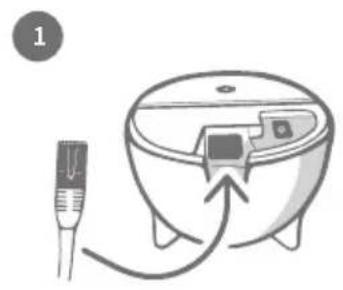
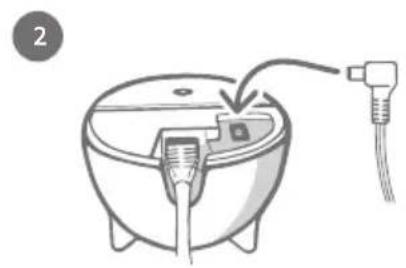
The first stage of the set up process is to plug in and power up your Hub. You will need to be able to plug your Hub into your internet router and a power outlet using the cables provided.
natural_image
Diagram of a medical device with a connector and cable, no text or symbols presentPlug one end of the Ethernet cable into the base of your Hub and the other end into a spare Ethernet port on your router.
natural_image
Diagram of a medical or laboratory device with a plug inserted into a container, showing internal components and wiring (no text or symbols)Assemble the power supply and plug it into your power outlet. Plug the other end of the cable into the base of your Hub.
natural_image
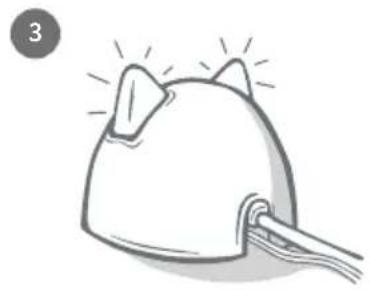
Simple line drawing of a cat's head with a string attached to its neck (no text or symbols)Your Hub's 'ears' will start alternating red and then green. When both ears remain solid green your Hub is ready.
Please note: Your Hub may have recently received a software update. If you see solid red lights during setup, don't panic, your Hub is updating its software. Once complete the Hub will reboot and you'll see the light sequence detailed above.
If you see any unspecified lights during set up, or you think something hasn't worked correctly, please see the Help & support section on page 10.

Connecting your Hub to Sure Petcare
The next stage of the set up process is to connect your Hub to your household; this way you will be able to communicate directly with your system. Please follow the steps below:
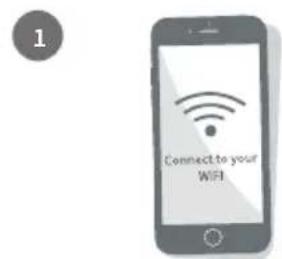
Connect your device to WiFi so it's using to the same internet network as your Hub. Open the app or go to SurePetcare.io and follow the instructions.
natural_image
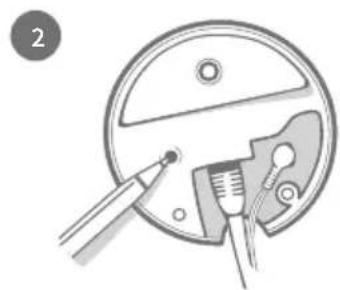
Illustration of a tool interacting with a mechanical component, no text or symbols presentWhen prompted to do so on the app or online, press the button on the base of your Hub. The ears will flash whilst it looks for your device.
natural_image
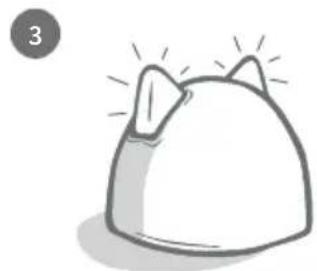
Simple line drawing of a hat with radiating lines and a number 3 in the top-left corner (no text or symbols on the hat itself)Wait for both of the ears on your Hub to remain solid green. When both are green, your Hub is successfully connected to your household.
If your Hub loses internet connection for any reason, your Pet Door will still function as normal and retain its settings.
Once you've set up your Hub and connected it to your household, you will need to add a product. Continue to follow the instructions on the app or see the Pet Door section from page 11.
Lights
Your Hub indicates it's current state using the lights in its ears, different coloured light sequences mean different things. For example:
Setup lights:
Every time the Hub powers up or is trying to connect to other elements of the system, you'll see the setup lights. The ears will alternate red for a while, then green, once you see a flash of orange and the ears go solid green the Hub is connected.
Green ears:
Green ears mean the Hub is working correctly. See below for the details of what each light sequence means.
Both ears are solid green = Your Hub is turned on, connected and working correctly.
Both ears flash twice = A pet has gone through the Pet Door.
Alternating green ears = Your Hub is re-connecting to our servers.
Red ears:
Red ears mean the Hub is having some connectivity issues. For more information on diagnosing these issues, see page 10.
Both ears are solid red = Your Hub is doing a Firmware update. Be patient, your Hub will reboot and continue as normal shortly.
Both ears flashing red = Your Hub has lost connection with your Pet Door and is trying to reconnect.
Alternating red ears = Your Hub is having difficulty connecting to the internet and/or our servers.

natural_image
Simple line drawing of a stylized hat with two ears and radiating lines (no text or symbols)
Help & support - the Hub
Connection issues
1. Receiving multiple notifications via the app.
If you are experiencing problems where your Hub or Pet Door keep dropping connection, please try the following:
- Try relocating your Hub. Follow the advice given on page 7 but if that doesn't work, you will need to move your Hub closer to the Pet Door - read below.
- In order to move your Hub closer you could firstly try connecting it to your router using a longer Ethernet cable. This way you will have more distance to play with.
- If the above doesn't work, we recommend purchasing an 'Ethernet over power adapter'. This will plug into a normal power socket and allow you to connect your Hub to the internet closer to your Pet Door location.
• For more detailed advice and instructions please visit: surepetcare.com/hub-connectivity
2. Red flashing ears
If both the ears on your Hub are flashing red it means it has lost connection with a Pet Door.
- If you are seeing both ears flashing red during set up, please perform a factory reset by pressing the button on the base of your Hub for 10 seconds.
- If you are seeing both ears flashing red for prolonged periods after setup, try power cycling your Hub. Switch the power off at the socket, leave it for 30 seconds, and then turn it back on.
• Also try moving your Hub closer to the Pet Door. See point 1. of Connection issues for details.
If your connection problems persist, please contact the Sure Petcare Customer Care team (see back cover for details).
Slow notifications
If you find some messages are slow to appear on your app, this is likely because your Hub is having to work hard to connect to your Pet Door. To improve the speed of messages, try moving your Hub to a better location. Go to surepetcare.com/hub-connectivity for more info.
Alternating flashing ears
If the ears on your Hub keep continuously alternating red or green, it means it is having problems connecting to the Sure Petcare servers. This could be because it doesn't have a reliable internet connection.
- Try power cycling your Hub by switching the power off at the socket, leaving it for 30 seconds, and then turning it back on. At this point you will see the setup light sequence (see page 9). If the ears remain solid green for a few minutes, the Hub has reconnected.
- If the above doesn't work, make sure your internet router is turned on and that your internet connection is working correctly with other devices.
- If it isn't working with other devices, try switching your router off, leaving it for 30 seconds, and then turning it back on.
- If your internet router is working with other devices, try re-connecting the Ethernet cable into the router and the Hub. Make sure it is pushed in all the way, as it can easily appear connected when it isn't.
If the problem persists, contact the Sure Petcare Customer Care team (see back cover for details).
Solid red ears
If the ears on your Hub are solid red it means your Hub is undergoing a firmware update.
- Be patient and wait for the Hub ears to turn green. This shouldn't take longer than 2 minutes.
- Once the firmware update is complete the Hub will need to reboot. At this point you will see the setup light sequence (see page 9).
- If the red lights persist, or the Hub keeps rebooting, please contact the Sure Petcare Customer Care team (see back cover for details).
If you're having issues with your Pet Door please see Help & support - Pet Door on page 28.
If you're having issues with your Sure Petcare app please visit: surepetcare.com/apphelp
Still in need of assistance?
For more detailed guidance, videos and customer help forums visit: surepetcare.com/support
Alternatively contact our friendly Customer Care team: see back cover for details.

natural_image
Simple line drawing of a square plate with a curved top and two side supports (no text or symbols)Pet Door
Batteries
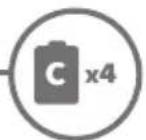
Always use 4 good quality 1.5V alkaline C cell batteries to ensure the best performance.

The battery indicator light (next to the LCD screen) will flash red when the batteries are running low.
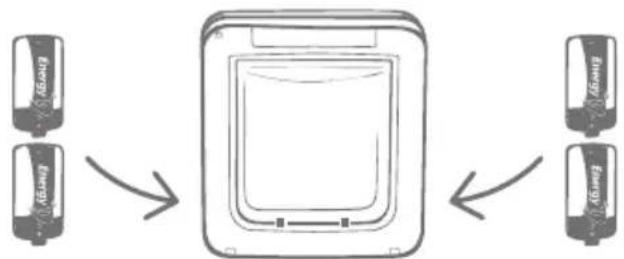
flowchart
graph TD
    A["Device 1: Battery"] --> B["Device 2: Battery"]
    B --> C["Device 3: Battery"]
    C --> D["Device 4: Battery"]
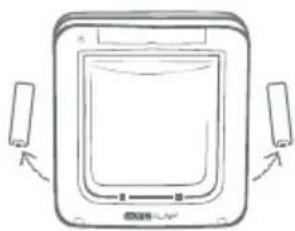
The Pet Door has 2 battery compartments, one on each side of the product.

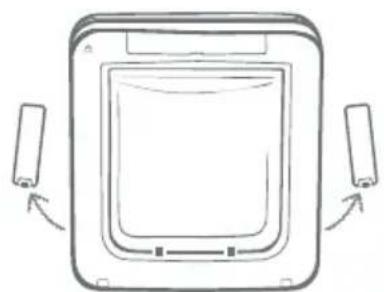
natural_image
Simple line drawing of a square container with two side handles and an arrow indicating rotation (no text or symbols)Remove the battery covers from both sides of the Pet Door.

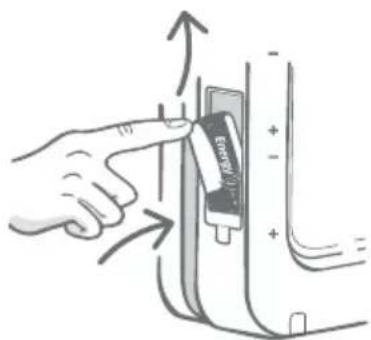
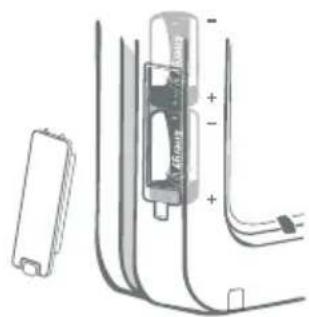
Insert the first battery into the compartment with the negative end facing up. Push this battery upwards into the compartment and hold it there.

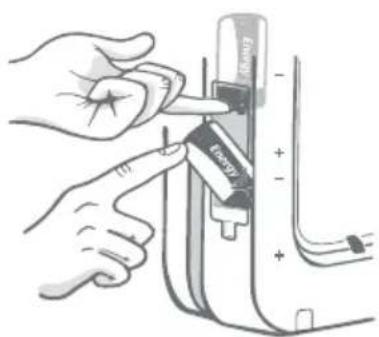
natural_image
Illustration of hands inserting a battery into a plug, showing internal components and wiring (no text or symbols)Whilst holding the first battery in place, slot the second battery in the space below, making sure the +/- symbols are at the correct orientation.

natural_image
Diagram of a battery pack and plug assembly with no visible text or symbolsOnce both batteries are inserted they should fit snugly into the compartment. Now replace the battery cover and repeat the process on the opposite side.
Buttons
There are six buttons in total on the Pet Door, all of which are located under the button cover at the front of the product.
Settings button - used to connect your Hub and Pet Door (see page 14) and to operate custom settings.
Set the time - used to set the current time on your Pet Door - see page 26.
'Add a pet' button - used to add your pet's microchip or collar tag ID to the Pet Door - see page 13.
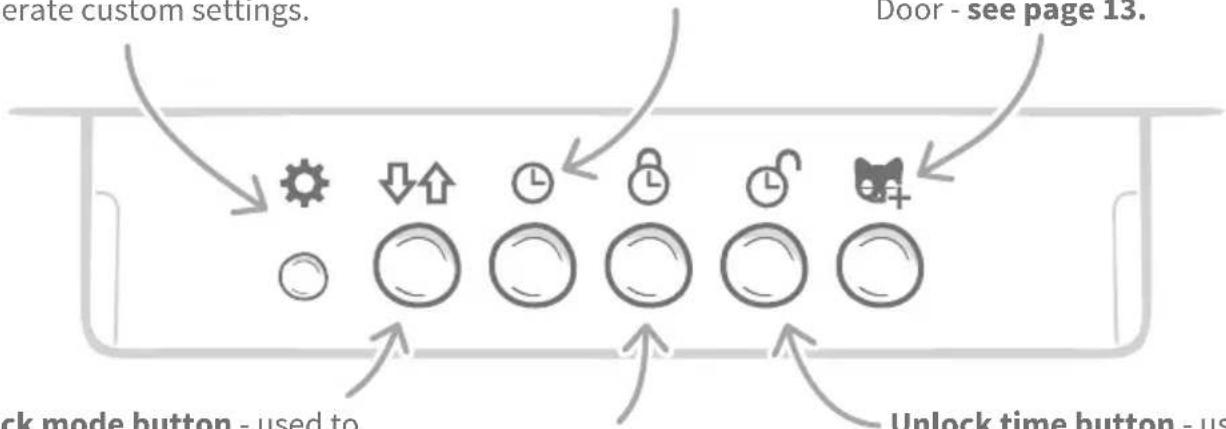
Lock mode button - used to manually control the current locking mode of your Pet Door - see page 24.
Lock time button - used to manually set the desired locking time when setting up curfews - see page 26.
Unlock time button - used when setting up curfews to manually set the desired unlocking time - see page 26.
Screen
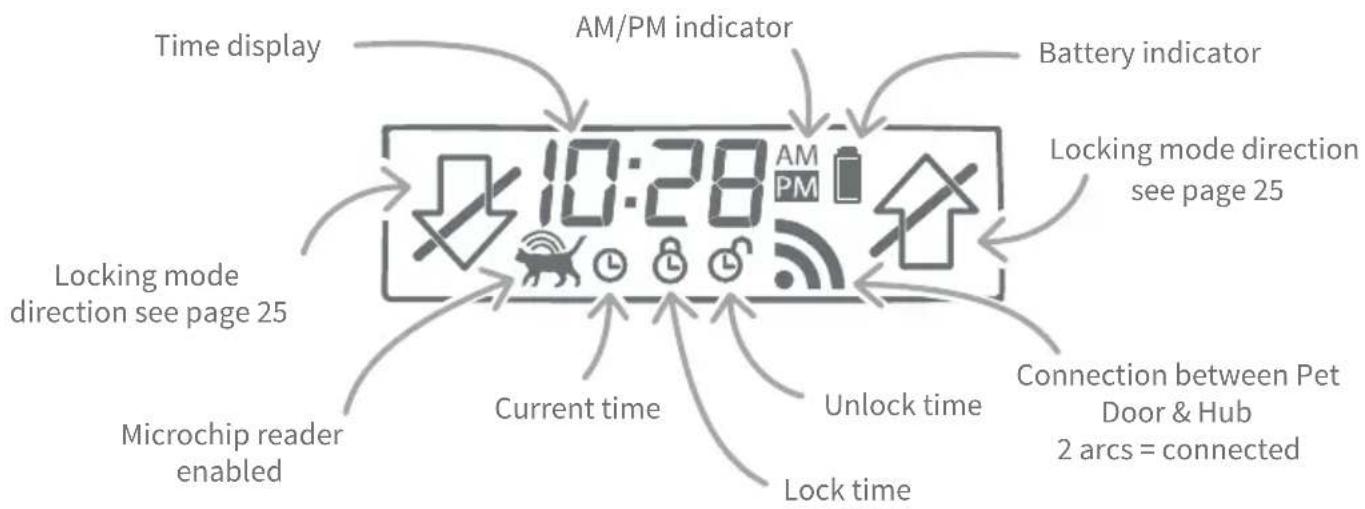
The Pet Door's LCD screen features are detailed below, but see page 24 for more detailed information about some of the screen graphics in relation to locking modes.
flowchart
graph TD
    A["Time display"] --> B["10:28 AM PM"]
    C["AM/PM indicator"] --> B
    D["Battery indicator"] --> B
    E["Locking mode direction see page 25"] --> B
    F["Locking mode direction see page 25"] --> G["Microchip reader enabled"]
    H["Current time"] --> I["Lock time"]
    J["Unlock time"] --> K["Connection between Pet Door & Hub 2 arcs = connected"]
    L["Time display"] --> M["Clock icon with Wi-Fi signal"]

Program your pet into the Pet Door
To program your pet's microchip ID into the Pet Door, you'll need to get them to put their head inside the Pet Door tunnel so their chip can be read. If you're adding multiple pets, avoid mixing up microchip IDs by adding each one separately (and making a note of the order you added them).
We strongly advise programming all of your pets into the Pet Door before fitting it.
natural_image
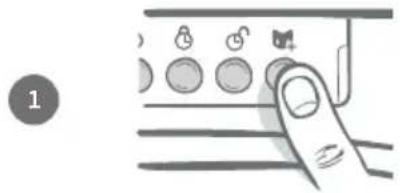
Hand pressing a button on a device panel (no text or symbols visible)Remove the button cover to reveal the six buttons on the front of the Pet Door. Press the 'Add a pet' button once to activate the 'Add a pet' mode.
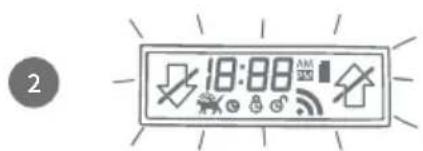
When the Door is in 'Add a pet' mode, the catches at the front of the Pet Door will drop (you will hear a click) and the display on the LCD screen will start flashing.
natural_image
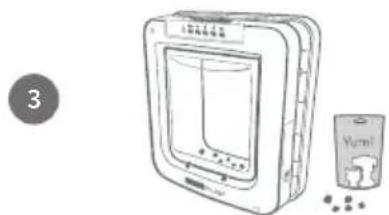
Illustration of a washing machine with a small container labeled 'Yumil' and a numbered circle (no text or symbols on the main diagram)The Pet Door is now waiting for your pet. Place some dry food or a treat inside the tunnel as close to the clear plastic door as possible. The aim is to encourage your pet to put its head inside the tunnel as if it were coming home.
natural_image
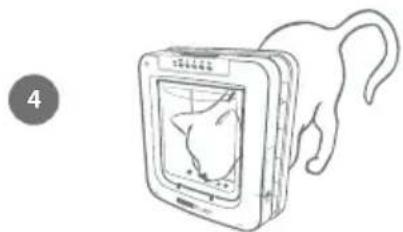
Illustration of a hand holding a device with a cat inside, no text or symbols presentWhen your pet enters the tunnel to eat the food, the sensors inside the product activate and the Pet Door saves the chip ID.
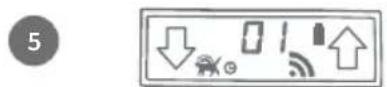
Once the microchip has been successfully added, the screen display will show the number that has been assigned to the pet, e.g. 01 for the first pet you add and 02 for the second etc. When your pet removes its head from the tunnel the catches on the Door will move up again and the screen will go back to normal.
We advise that you encourage your pet to put its head back into the tunnel once it's programmed in. This is to double check that they can open the door reliably. Repeat this process to add more pets.
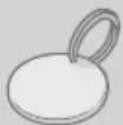
To perform the programming process with the RFID collar tag simply follow steps 1, 2 and 4 above and hold the collar tag inside the tunnel, making sure you touch the clear plastic door. Make sure you are not wearing any metal jewellery when programming a collar tag as this can cause interference.
If you want to use the Pet Door for more than one pet, you can add more pets easily by repeating the process. You are able to store up to 32 pets in each Pet Door. If your Pet Door is already installed but you are looking to add an additional pet then press the 'Add a pet' button and wait for that pet to go through the door.
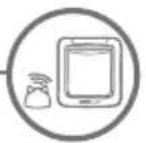
Connect your Pet Door to your Hub
EN
In order to complete the setup of your Microchip Pet Door Connect system you will need to connect your Pet Door and Hub. This is so that your Pet Door can communicate with your Hub and be controlled remotely using the app.

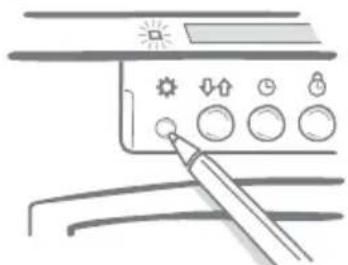
For this process you will need to be on the 'add a product' section of the app or Sure Petcare online and your Pet Door will need to be in its intended location (either placed or fitted). You will also need a pen or pencil handy.

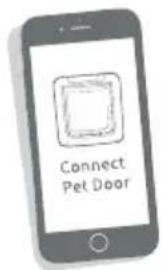
Open the app or go online, and select 'Add a product'. This will put your Hub into connecting mode and its ears will start to flash green.

natural_image
Illustration of a computer control panel with buttons and a pointer (no text or symbols)When prompted to do so on the app or online, press the settings button on your Pet Door once. The green light will illuminate to show it's in connecting mode.

natural_image
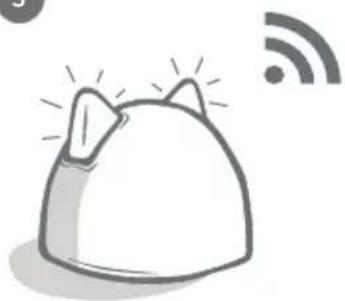
Simple line drawing of a stylized hat with radiating lines and Wi-Fi signal icon above (no text or symbols)Once your Hub and Pet Door are connected, this symbol will appear on the Pet Door's screen and your Hub's ears will return to solid green.
Once your Hub and Pet Door are connected you can control your Pet Door's features remotely on the app or Sure Petcare online. Give your Pet Door a name e.g. its location - "Back Door", and feel free to purchase and add more Sure Petcare connected products to your network.
Pet Profiles
Now that your Pet Door and Hub are connected, any data stored in your Pet Door can be uploaded directly to your app. This includes any pet ID numbers you have programmed into the Door. Once the app detects these ID numbers you'll be able to create profiles for your pets.

natural_image
Silhouette of a dog and a cat, no text or symbols present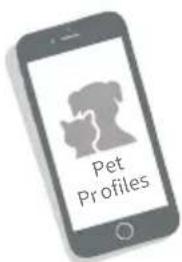
Select your pet's ID number to create their profile, then add their name etc. and upload a profile picture, or even take a new photo directly through the app. You are able to create profiles for multiple pets, all you need is for their microchip to be programmed into the Pet Door and you're ready to go.
Where to fit your Pet Door

Your Hub and Pet Door will need to be able to communicate successfully with one another on a daily basis and where you choose to locate your Hub could really effect this communication. Therefore, please read the advise given on page 7 and ensure your Microchip Pet Door Connect system works correctly, with the Pet Door in its intended location, before cutting a hole in your door/wall/window!
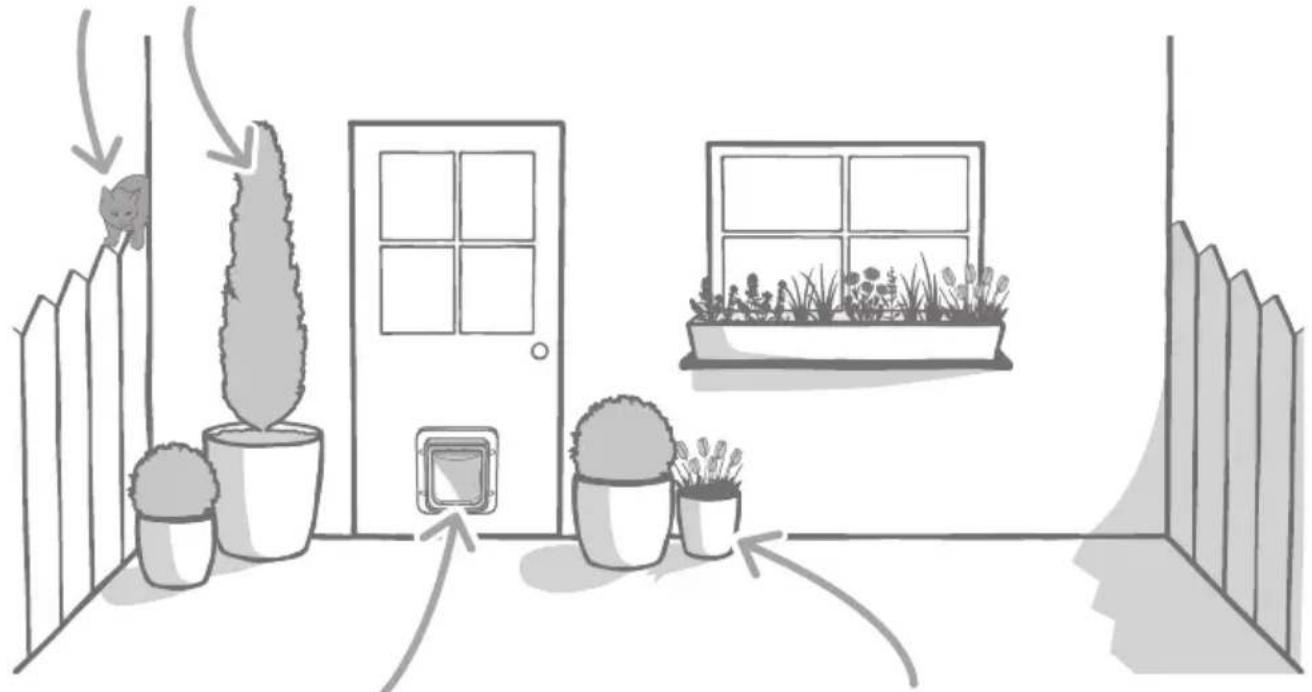
Use potted plants or garden furniture to try and reduce the risk of neighbourhood cats being able to ambush your pet from elevated places.
natural_image
Simple line drawing of a room with potted plants, a door, and a window (no text or symbols)Make sure your Pet Door is fitted at the right height for your pets so it's easy for them to get in and out.
Conceal the Pet Door with potted plants as entering onto a large open space can be stressful for some pets.
Inside vs outside
natural_image
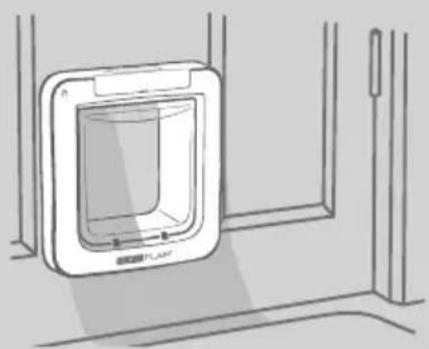
Line drawing of a wall-mounted device with a labeled tray (no text or symbols)Inside the house
natural_image
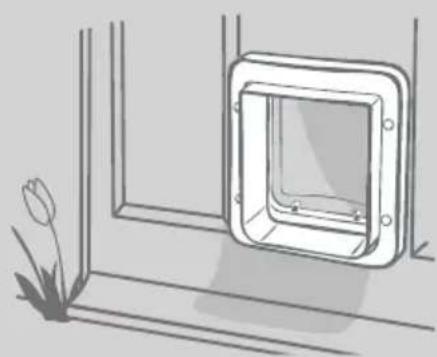
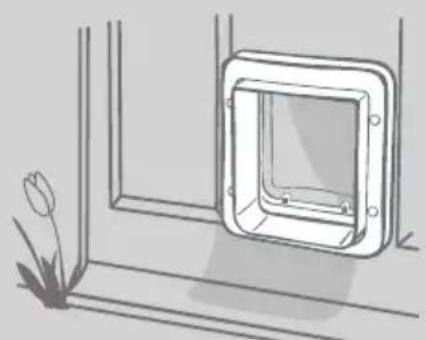
Simple line drawing of a window frame with a tulip, no text or symbols presentOutside the house
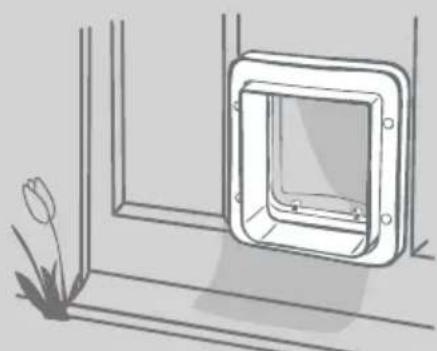
It's important to remember which side of your Pet Door is fitted to the inside of the house and which goes outside. The side of the Pet Door with the SureFlap logo and LCD screen, must be inside.
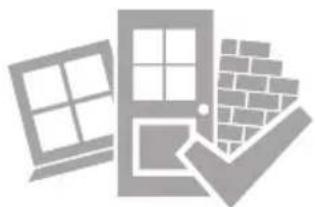
The Pet Door can be fitted in any of the following locations. Please see the specified pages for more information on the tools and supplies you'll need and for step-by-step fitting instructions.
natural_image
Abstract graphic with window, grid, and checkmark elements (no text or symbols)- in wooden or plastic doors ...... see page 17
• through glass (glazier required) ..... see page 19 - in doors containing metal ...... see page 21
• through walls (consult a builder) ..... see page 23
Things to bear in mind
natural_image
Simple line drawing of a rectangular device with two side handles and a central screen (no text or symbols)Remember that there are battery compartments on both sides of the Pet Door and that these will both need to be accessible once it's fitted.

Professional fitters are always an excellent choice if you'd rather not fit the Pet Door yourself. We strongly advise contacting a fitter if you wish to install into glass or a wall.
natural_image
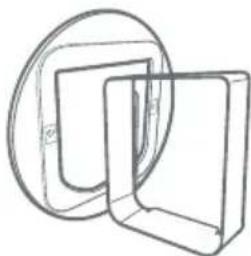
Pure line drawing of two overlapping rectangular objects with no text or symbolsIf you are intending to fit your Pet Door in glass, a metal door or through a wall, you will require some SureFlap accessories for a successful installation.
For details regarding the fitting dimensions, go to surepetcare.com/microchip-pet-door-connect
Key features
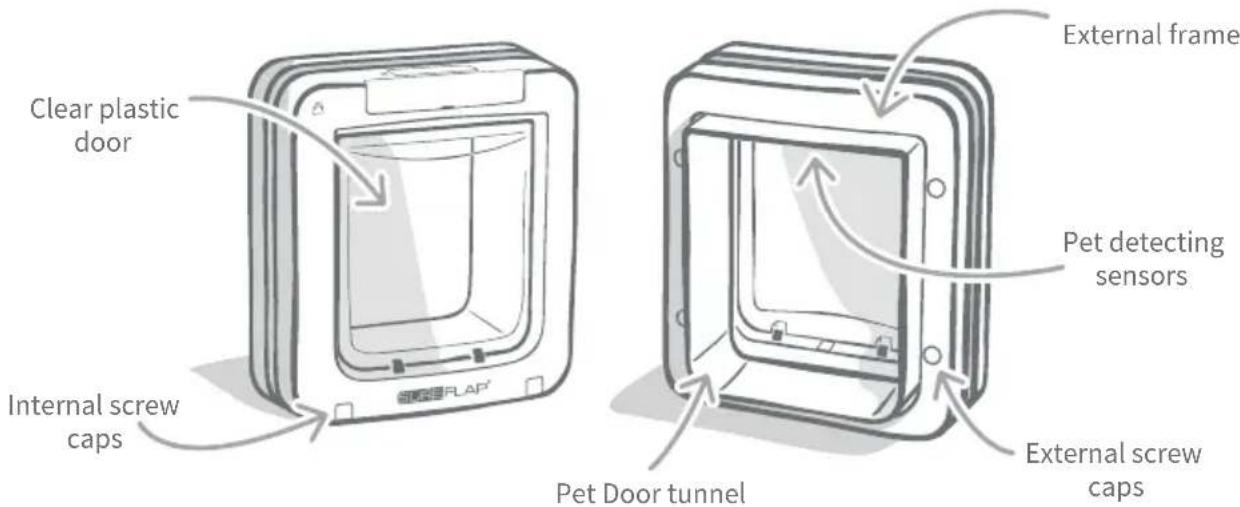

any circumstances drill or cut the tunnel of the Pet Door.
Fitting your Pet Door in a wooden or plastic door
Tools and supplies required

Ruler

Sharp pencil

Electric drill with a selection of drill bits

Spirit level

Electric jigsaw

Cross head screwdriver

Blu tack

Protective eye-wear

The screws and screw caps provided
Step-by-step guide

Before you begin, have you programmed in all of your pets? If not, see page 13.

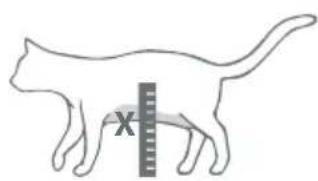
To ensure your pet has unhindered access through the Pet Door, measure the height of their tummy from the floor. This measurement is the distance from the floor to the bottom edge of the hole you need to cut. So, mark this height on your door where you want to position your Pet Door.

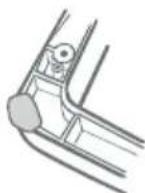
Attach a ball of Blu tack (or similar adhesive putty) to each rear corner of the external frame so that you can attach it to the door and use it as a template.

natural_image
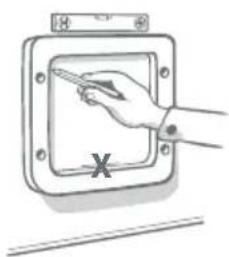
Hand holding a pen inside a square electrical switch panel (no text or symbols visible)Stick the frame to the door aligning the bottom edge of the hole with the mark you previously made. Use a spirit level to ensure the product is straight, then run a sharp pencil around the inside edge of the frame.

natural_image
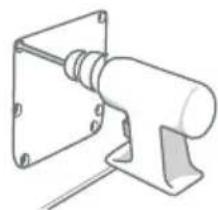
Technical line drawing of a mechanical clamp or bracket assembly (no text or symbols)When using power tools, please follow all safety instructions provided with the product.
Now that you have a clear outline drawn on the door, it's time to prepare for cutting. We strongly advise that you drill pilot holes in the corners of the outline to make it easier to cut the hole with a jigsaw. Make sure these holes are touching the line and that they are big enough for the blade of the jigsaw to fit through.

natural_image
Computer monitor icon with a play button symbol (no text or numbers)Please feel free to watch our online installation videos.
surepetcare.com/support/microchip-pet-door-connect
5
natural_image
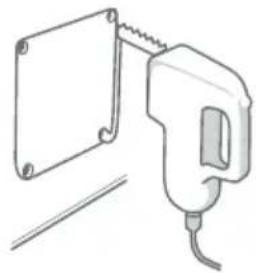
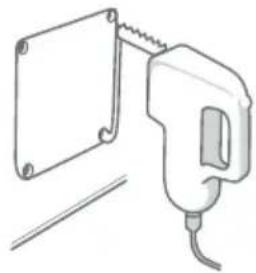
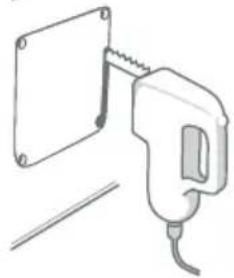
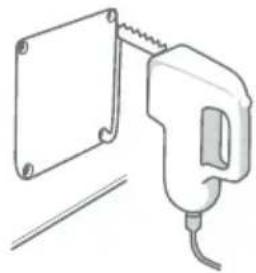
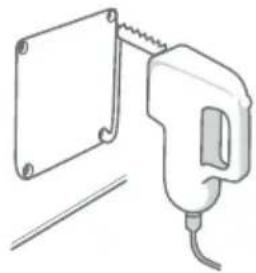
Illustration of a hand holding a small electric shaver next to a rectangular panel (no text or symbols)Using a jigsaw, cut around the outer edge of the line you have marked. By doing this, the Pet Door should fit through the hole first time. However, if you cut on, or inside the line, the hole is likely to be too small. If this is the case, please take the time to carefully file the hole until the Pet Door fits through easily.
!
Once the main hole is cut, check whether there is any metal within your door. If you can see metal, go to page 21 and follow the instructions for fitting in a metal door.
6
natural_image
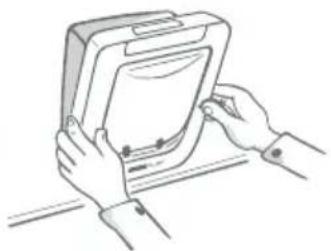
Illustration of hands holding a tablet device (no text or symbols visible)Now put the tunnel of the Pet Door through the hole. Remember the SureFlap logo and LCD display must be inside the house. We advise that you have two people for this, one inside the house and one outside to help hold the product firmly in place.
7
natural_image
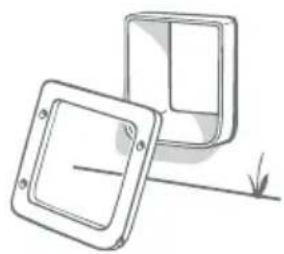
Simple line drawing of two rectangular compartments with a diagonal line and an arrow indicating direction (no text or symbols)On the outside of the house, make sure the tunnel of the Pet Door is securely pushed through the hole and then slide the external frame over it. When the external frame is in place, using a sharp pencil mark through the four holes.
8
natural_image
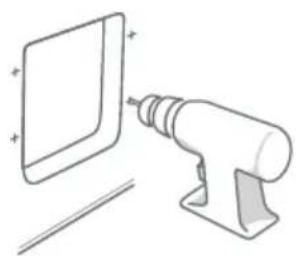
Simple line drawing of a tool applying material to a square panel (no text or symbols)Remove the Pet Door from the hole and drill the four screw holes using a 6mm drill bit ( 14 inch). We now recommend you choose the correct length of screw out of those provided to attach the Pet Door to the door. Do this by measuring the length of the screw against the depth of your door. The screw must be roughly 15mm ( 58 inch) longer than the depth of your door so it can hold the Pet Door in place.
9
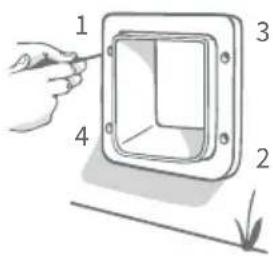
Put the Pet Door back through the hole, position it centrally and replace the external frame. Then, using a cross head screwdriver and the screws you selected, attach the external frame. Fasten the first screw until it is secure, but not too tight, then do the same with the remaining three. Once all four screws are secure, tighten them, but alternate between screws as you go to ensure the product is tightened evenly.
10
natural_image
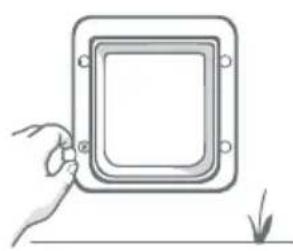
Simple line drawing of a hand holding a square frame with a downward arrow below (no text or symbols)Now, insert the four screw caps, noting that the groove needs to be facing away from the tunnel.
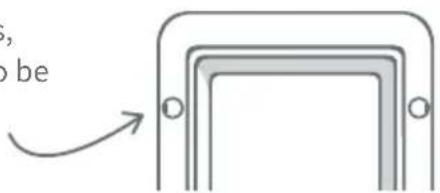

Fitting your Pet Door in glass
Tools and supplies required

Ruler

Cross head screwdriver
SURE FLAP ^* accessory

SureFlap Pet Door mounting adaptor

Glazier

Clear all-weather sealant

The screws and screw caps provided
Step-by-step guide for cutting the hole in glass

Please contact a qualified glazier or Pet Door installer to discuss your specific glass fitting requirements. Fitting into double or triple glazing will require a new pre-cut pane to be purchased, cut and fitted following the steps below.

To fit your Pet Door into glass, you will require a circular hole to be cut measuring 300 mm or 11 ^4 /s inches in diameter. This will need to be done by a professional glazier.
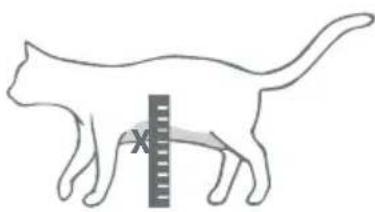

To ensure your pets have unhindered access through the Pet Door, you will need to make sure that this circular hole is cut at the appropriate height. Do this by first measuring the height of your pet's tummy from the floor.
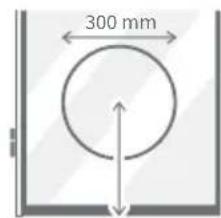

Take this height and add 120mm to it (4 ^3/4 inches), this will give you the total distance from the floor to the centre of the circle you need cutting. Make sure this point is at least 200mm or 8 inches from the bottom of the window frame to allow room for the mounting adaptor.
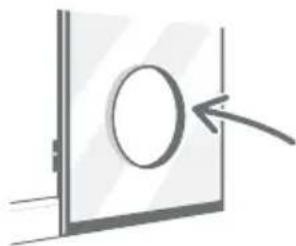
natural_image
Simple line drawing of a door with an arrow pointing to the circular opening (no text or symbols)Pet's tummy height + 120mm = the centre of the circle.

If you are fitting in a double or triple glazed unit, ensure the glazier uses a non-metallic spacer bar around the hole to seal the layers of glass. A metal spacer could compromise the Pet Door's ability to read microchips.

Have you programmed all of your pets into the Pet Door? If not, we advise you do this prior to fitting. See page 13.
natural_image
Computer monitor icon with a play button symbol (no text or numbers)Please feel free to watch our online installation videos.
surepetcare.com/support/microchip-pet-door-connect

Step-by-step guide for fitting
1
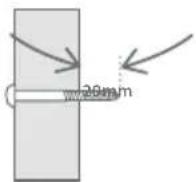
Firstly, choose the correct length of screw for your installation out of the ones provided. Measure the length of the screw against the thickness of the glass. The screw must be roughly 20mm ( 34 inch) longer than the thickness of the glass.
2
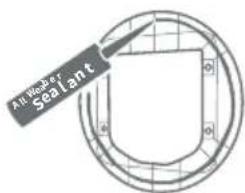
We advise that there are two people present for the following steps; one person inside the house and one outside. Apply a line of clear all-weather sealant to the back of both mounting adaptors, about 15mm ( 58 inch) from the edge. Make sure your Pet Door is nearby and ready to be fitted.
3
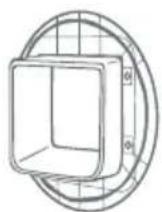
Place one of the mounting adaptors (it doesn't matter which) over the tunnel of the Pet Door so that the side with the sealant is facing outwards and is not touching any surfaces.
4
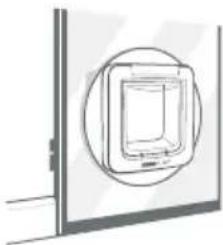
natural_image
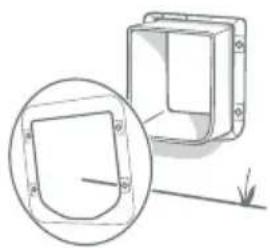
Simple line drawing of a square window mounted on a wall, no text or symbols presentFrom inside the house, put the tunnel through the hole in the glass making sure the Pet Door is positioned centrally within the hole. Press firmly on both the Pet Door and the mounting adaptor so that you compress the sealant against the glass.
5
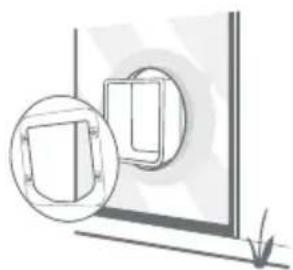
natural_image
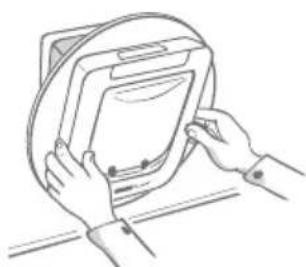
Simple line drawing of a wall-mounted device with a circular inset showing a rectangular component (no text or symbols)From the outside of the house, take the second mounting adaptor and slide it over the tunnel with the sealant facing the window. You may need the person on the inside of the house to keep pressure on the Pet Door to make sure it stays in place.
6
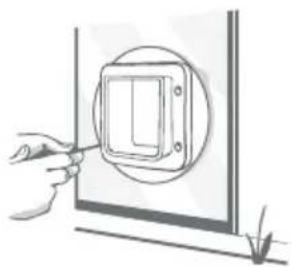
natural_image
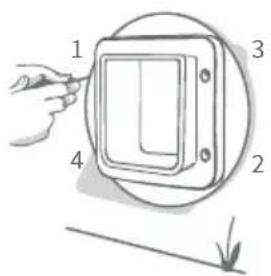
Hand holding a tool interacting with a square electrical outlet mounted on a wall (no text or symbols visible)Next, slide the external frame over the tunnel. Using a cross head screwdriver and the appropriate length of screw out of those provided, secure the external frame in place.
7
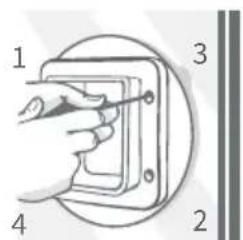
Fasten the first screw until it is secure, but not too tight, then do the same with the remaining three. Once all four screws are secure, tighten them, but make sure to alternate between screws as you go to ensure the product is tightened evenly.
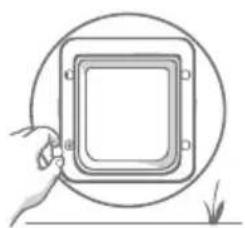
Now, insert the four screw caps, noting that the groove needs to be facing away from the tunnel.
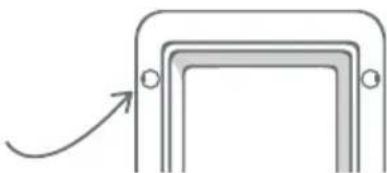
natural_image
Pure diagram of a rectangular frame with an arrow indicating direction, no text or symbols present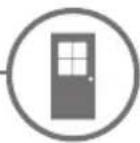
Fitting your Pet Door in a metal door
Before you begin
It's important to check whether your door contains a metal plate or thin metal foil before fitting. This is because the presence of metal can effect the performance of the Pet Door.
When fitting into a metal door you'll need to cut a bigger hole for the Pet Door to slot through. Having a 20 - 30mm ( 34 - 114 ) gap between the tunnel of the Pet Door and the metal will lessen the impact on the product's performance. The step-by-step guide will explain how to do this.
Tools and supplies required
√ Ruler
√ Sharp pencil
SURE FLAP ^® accessory
√ SureFlap Pet Door mounting adaptor
√ Spirit level
√ Electric jigsaw
√ Cross head screwdriver
√ Blu tack
√ Protective eye-wear
√ Electric drill with a selection of drill bits
√ Clear all-weather sealant
√ The screws and screw caps provided
Step-by-step guide

Have you programmed all of your pets into the Pet Door? We advise you do this prior to fitting. See page 13.
1
natural_image
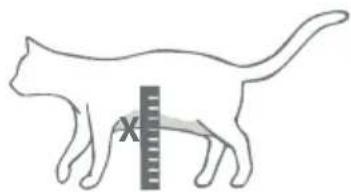
Silhouette of a cat with a ruler partially inserted, showing measurement markings (no text or symbols)To ensure your pet has unhindered access through the Pet Door, measure the height of their tummy from the floor. Mark this height on your metal door at the horizontal centre of where you want to position your Pet Door.
2
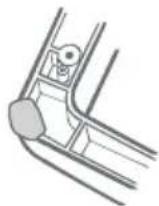
Attach a ball of Blu tack (or similar adhesive putty) to each rear corner of the external frame so that you can attach it to the door and use it as a template.
3
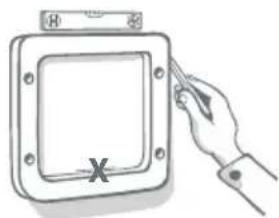
Stick the frame to the door and use the mark you made for the height of your pet's stomach to align the bottom edge of the hole. Use a spirit level to ensure the product is level, then run a sharp pencil around the outside edge of the frame.
4
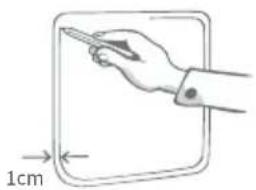
Now mark your cutting line 10mm (3/8 inch) inside the line you just traced. Once complete, rub out the original traced line if you can so that you don't get confused.
When using power tools, please follow all safety instructions provided with the product.

Now it's time to prepare for cutting. We strongly advise that you drill pilot holes in the corners of the outline to make it easier to cut the hole with a jigsaw. Make sure these holes are touching the line and that they are big enough for the blade of the jigsaw to fit through.
Using a jigsaw, cut around the inner edge of the line you marked. Once the hole is cut, we recommend you choose the correct length of screw to attach the Pet Door out of those provided. Do this by measuring the length of the screw against the depth of your door. The screw must be roughly 20mm (3/4 inch) longer than the depth of your door to hold the Pet Door in place.
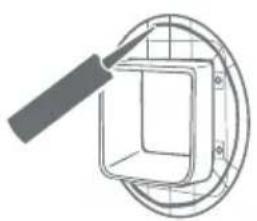
Apply a line of clear all-weather sealant to the back of both mounting adaptors, about 15mm ( 58 inch) from the edge. Make sure your Pet Door is nearby and ready to be fitted. Place one of the mounting adaptors (it doesn't matter which) over the tunnel of the Pet Door so that the patterned side with the ribs is facing outwards and is not touching any surfaces.
We advise that there are two people present for this step; one person inside the house and one outside. From inside the house, put the tunnel through the hole in the door ensuring it is going through the centre of the hole and not touching any edges. Remember the SureFlap logo and LCD display must be inside the house.
From the outside of the house, check that the tunnel is in the centre of the hole and then take the second mounting adaptor and slide it over the tunnel with the sealant facing the door. You may need the person on the inside of the house to keep pressure on the Pet Door to make sure it stays in place.
Next, slide the external frame over the tunnel. Using a cross head screwdriver and the length of screw you'd chosen, secure the external frame in place. Fasten the first screw until it is secure, but not too tight, then do the same with the remaining three. Once all four screws are secure, tighten them, but make sure to alternate between screws as you go to ensure the product is tightened evenly.
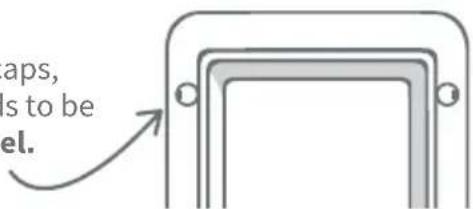
Now, insert the four screw caps, noting that the groove needs to be facing away from the tunnel.
Before you begin

Please contact a qualified builder to discuss the best location to fit your Pet Door. Remember some walls can be structural or there may be electrical wires, gas or water pipes hidden within them which, if damaged, can cause serious problems.

We recommend that you do not attempt the work yourself unless you have relevant experience. The job will be messy so protective clothing and eye-wear is a must and when using power tools, please follow all safety instructions provided.

Also, have you programmed all of your pets in to the Pet Door? If not, we advise you complete this process prior to fitting.
Tools and supplies required
√ Ruler & Spirit level
√ All-weather tape
√ Blu tack
√ Wall plugs & screws
√ Sharp pencil
√ Cross head screwdriver
√ Vacuum cleaner
√ Clear all-weather sealant
SURE FLAP ^® accessory
√ SureFlap Pet Door Tunnel Extenders
√ Electric drill & masonry bits
√ Protective clothing & eye-wear
√ Appropriate power tools for your wall
Calculating the number of tunnel extenders
For wall installations, tunnel extenders can be stacked together to create a longer tunnel for the Pet Door. The existing tunnel is 70mm (2 ^3/4 ) long. Each tunnel extender adds 50mm (2") to the length of the tunnel. You will need to purchase enough tunnel extenders to span the thickness of your wall + 10mm - the last extender needs to stick out by at least 10mm ( ^3/8 ) for the external frame to rest on.
Go Online!

All the instructions you'll need on how to fit your Pet Door in a wall can be found at:
surepetcare.com/support/microchip-pet-door-connect
Including a step by step guide, installation videos and links to even more helpful information.

Standard locking mode
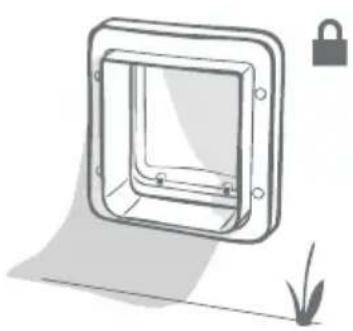
In its standard locking mode, the Pet Door remains locked from the outside and is only unlocked when it detects an authorised pet's microchip or collar tag. Once your pet has completely passed through the Pet Door tunnel, the locks will close and intruder animals are unable to follow, keeping your pets safe and secure. However, any pet can exit the house using the Pet Door, so make sure all of your relevant pets are programmed in - see page 13.
natural_image
Illustration of a door frame with a lock and grass at the base (no text or symbols)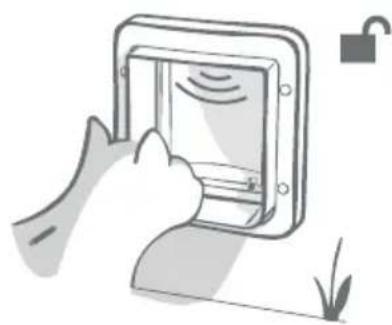
natural_image
Illustration of a hand interacting with a digital display device, showing signal waves and a lock icon (no text or symbols)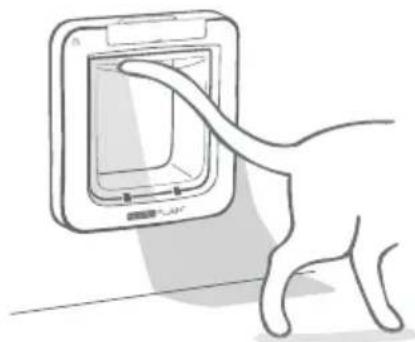
natural_image
Line drawing of a hand inserting a cable into a device (no text or symbols)Additional locking modes
There are several different locking modes to choose from, so you can customise your Pet Door by selecting the mode that best fits your needs. The different modes can be activated either by using the Sure Petcare app/Sure Petcare online or by pressing the Lock mode button until the image on the LCD screen matches that of your desired mode - see page 25.

However, please be aware that physically changing the locking mode by pressing the Lock mode button on the door will override any curfew times present on your app.
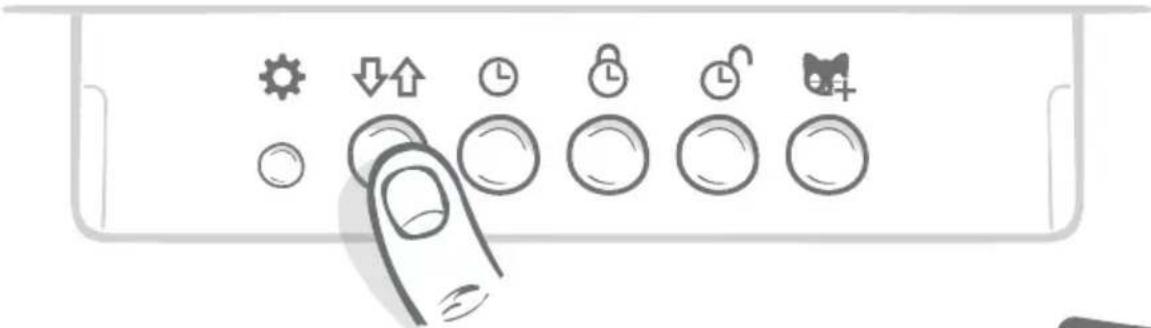
You can control all of your Pet Door's locking modes and settings from the app or Sure Petcare online, so you can switch between locking modes easily, even when you're away from home. The Sure Petcare app gives you more flexibility, as it makes setting locking and curfew times a lot simpler.
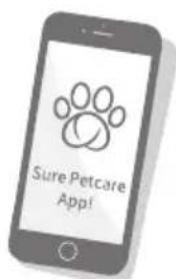

Locking modes: PART 2
Which locking mode to choose?
There are five different locking modes to choose from on your Pet Door, each with different functions. For most cases, the standard locking mode is sufficient (see Mode 1), however, if you're looking for slightly more specific locking settings, your needs can most likely be met in one of the other four modes.
It is important to note that all pets are capable of exiting through the Pet Door irrespective of their microchip ID unless the door is locked for exit.
The way to distinguish between locking modes - so that you know which one is currently selected - is by the pictures displayed on the LCD screen. Each locking mode has a slightly different display. These are shown in the diagrams below.
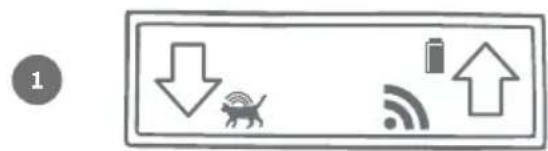
Mode 1 - Standard mode:
This is the current mode activated on your Pet Door after purchase. It allows only your authorised pets to enter and all pets to exit.
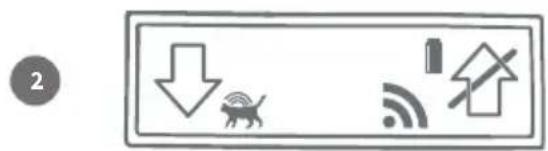
Mode 2 - Keep inside:
This mode allows the authorised pets to enter the house but then they are prevented from exiting.
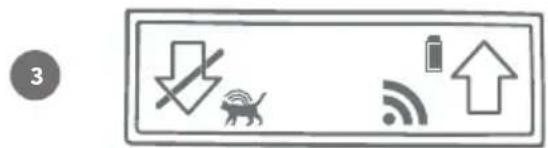
Mode 3 - Keep out:
Keep out mode means all pets are allowed to exit the house and once outside, they are prevented from re-entering.
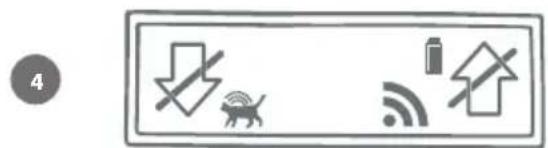
Mode 4 - Lock both ways:
All pets are prevented from entering or exiting the house meaning they can be kept in their current location.
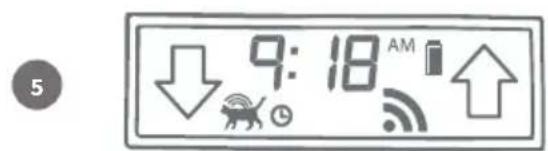
Mode 5 - Curfew mode:
By setting up and activating curfew mode authorised pets are only allowed to leave the house during certain times of day (see page 24).

Curfew mode
Curfew mode allows you to set a lock and unlock time for your Microchip Pet Door Connect, giving your pet access to the outside for a set period of the day (for example, unlocking in the morning and locking at night).
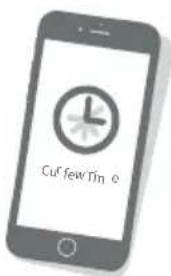
Once you've set a curfew time, your Pet Door will lock and unlock at these times everyday until you change or disable it.
Please be aware that at the lock time the Pet Door will be set to the 'Keep inside' locking mode, so your pet will still be able to enter the house, but won't be able to leave.
The easiest way to set your curfew times is by using the app or Sure Petcare online, however in order to physically set your curfew times on the Pet Door, please follow the steps below:
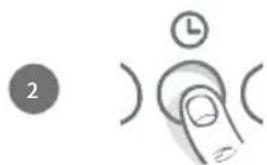
Set the current time: In order to use the curfew mode you must first set the current time. To do this, press and hold the Current time button for around three seconds and the time on the LCD screen will flash.
natural_image
Simple line drawing of a finger pressing a button with clock and hourglass symbols (no text or labels)To change the time, press the 📁 button repeatedly, or press and hold it for longer increments (see tips and tricks at the bottom of the page). Once you have reached the correct time, release the button and the time will be saved and the screen will stop flashing.
natural_image
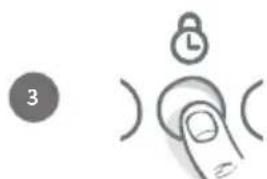
Illustration of a finger pressing a button with a lock and clock icon (no text or symbols)Set the lock time: Repeat the process in steps 1 and 2, but this time pressing the Lock time button to set your desired locking time.
natural_image
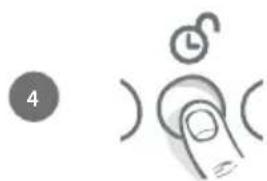
Illustration of a finger pressing a button with a lock icon, no text or symbols presentSet the unlock time: Repeat the same procedure again but using the Unlock time button.
natural_image
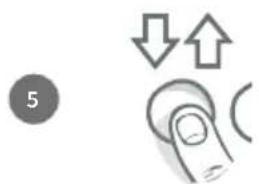
Hand gesture icon with finger pressing a button, no text or symbols presentActivate curfew mode: To activate the curfew mode, press the locking mode button until you have selected locking mode 5 (the time should be displayed on the screen). To deactivate the curfew mode, press the lock mode button again and select your desired locking mode.
Tips and tricks
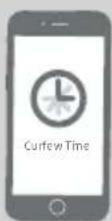
If you're struggling to get the clock to stop at your desired time when physically pressing the button, here is a tip which might help:
When you are getting near to your desired time, don't press and hold the button, press it repeatedly so that the time moves at slower increments, making you less likely to miss it.
Or, you can use the app or Sure Petcare online to easily set your curfew times remotely.
It is important you keep your Pet Door clean to ensure it continues to function reliably. We recommend you give clean it with a damp cloth every couple of months to avoid the build up of mud, dirt, or pet hair. This way you can avoid any reliability issues caused by dirt build up.
Areas to keep clean
The pet detecting sensors
The sensors that are used to detect your pet are located on the ceiling the tunnel. If they become obscured by dirt or pet hair, then there is a risk that your Microchip Pet Door Connect will not work correctly. Obscured sensors may result in abnormal locking functions, could cause unreliable Sure Petcare notifications and can lead to battery drainage. You should clean the sensors every 2 - 3 months or if you notice dirt build up.
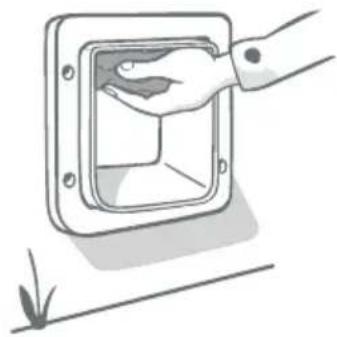
natural_image
Illustration of a hand opening a square electrical outlet with a downward arrow indicating direction (no text or symbols)The draught excluders
When cleaning your Microchip Pet Door Connect, also make sure to remove any build up of pet hair from the draught excluders surrounding the clear plastic door, as this can sometimes block the sensors.
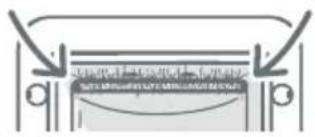
The floor of the tunnel
Operation of the sensors also relies on the reflectivity of the tunnel floor. This therefore should also be kept reasonably clean. If you have a brown Pet Door, please ensure the reflective silver sticker is kept free from dirt. If you notice at any point that this sticker is missing, please contact Customer Care. We advise you clean the tunnel every 2 - 3 months or if you notice dirt build up.
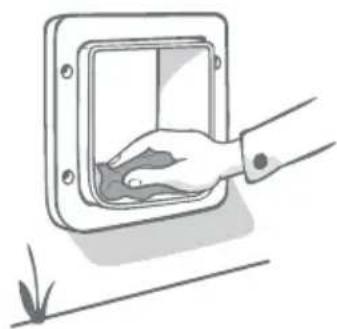
natural_image
Illustration of a hand placing a small object into a square electrical outlet (no text or symbols)Problem with your product?

If you notice any physical problems with your Pet Door or Hub, please do not attempt to fix these yourself. Our customer care team are very friendly and happy to offer you assistance or provide servicing if your product is damaged in any way.
See back cover for details or for more guidance, videos and customer help forums visit surepetcare.com/support

Help & support - Pet Door
EN
Custom settings for your Pet Door
• We understand that not all pets or home environments are the same, so the Pet Door contains a variety of custom settings designed to help. These can be accessed by contacting our customer care team, or instructions can be found online at surepetcare.com/support.
My pet won't use the Pet Door
- Try taping the clear plastic door open with some strong hold tape.
- Do this for a while so that your pet can move freely through the Pet Door and become comfortable using it.
The Pet Door won't open for my pet
- Make sure your pet's microchip ID has been programmed in successfully - see page 13.
- Check that you have installed good quality alkaline C cell batteries and that they are not running low - see page 11.
- Ensure your Pet Door is clean and that there is no dirt or pet hair obscuring the sensors or the base of the tunnel - see page 27.
- Is your Pet Door fitted in a metal door? Check your door specifications as this can cause interference - see page 21.
- Check that there are no obvious sources of electrical noise in the area eg, faulty flickering lights etc. If you suspect there is, please call our Customer Care team.
Short battery life
- Ensure your Pet Door is clean and that there is no dirt or pet hair obscuring the sensors or the base of the tunnel - see page 27.
• Make sure you have used good quality alkaline C cell batteries and that they are fitted correctly - see page 11. - Check that there are no obvious sources of electrical noise in the area e.g. faulty flickering lights etc. If you suspect there are, please call our Customer Care team.
Constant clicking
- A constant clicking sound can be caused by faulty batteries, low quality batteries, or poor contact between the batteries and the Pet Door. Clean the ends of the batteries and the connectors on the Pet Door with a dry cloth.
- Also ensure your Pet Door is clean and that there is no dirt or pet hair obscuring the sensors or the base of the tunnel - see page 27.
- If this doesn't solve the problem, replace the batteries, making sure to use good quality alkaline ones - see page 11.
If you are having issues with your Hub please see Help & support - Hub on page 10.
Still in need of assistance?
For more detailed guidance, videos and customer help forums visit: surepetcare.com/support Alternatively contact our friendly Customer Care team: see back cover for details.
Warranty: The SureFlap Microchip Pet Door Connect carries a 3-year warranty from the date of purchase, subject to proof of purchase date. The warranty is restricted to any fault caused by defective materials, components or manufacture. This warranty does not apply to products whose defect has been caused by normal wear and tear, misuse, neglect or intentional damage. In the event of a part failure due to faulty parts or workmanship, the part will be replaced free of charge during the warranty period only. At the manufacturer's discretion, a replacement product may be provided free of charge in the case of a more serious malfunction. Your statutory rights are not affected.
Disclaimer: The SureFlap Microchip Pet Door Connect and app report pet location and movement by the detection of a pet ID and measured movements of the clear plastic door. In most cases this will give reliable pet location information, however unexpected or unusual use of the door (e.g. a pet sticking their head out of the door, but not going through) may lead to unreliable pet location information. Sure Petcare cannot accept liability for any damage, harm or inconvenience which may be incurred as a result of incorrect reporting of pet location.
The SureFlap Microchip Pet Door Connect incorporates selective entry features which have been designed to minimise the risk of intruder pets entering your house. However, it is not possible to fully guarantee the exclusion of all other animals in all circumstances.
In the rare event of an unauthorised pet gaining access to the house, or any pets experiencing an unintended exit, Sure Petcare cannot accept liability for any damage, harm or inconvenience which may be incurred.
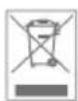
Disposal of Products and used Batteries: This icon will indicate products that will be subject to the following legislation:
The Waste Electrical and Electronic Equipment Directive 2012/19/EU (WEEE Directive) & The Battery Directive 2006/66/EC and Amendment 2013/56/EU places an obligation on households to dispose of the waste batteries and products that have reached the end of their life, in an environmentally responsible manner as this will reduce the impact the waste will have on the environment, therefore these cannot be placed in household waste bins and should be recycled at an appropriate recycling facility.
Further information on recycling can be found at: www.recycle-more.co.uk
FCC warning: Changes or modification not expressly approved by the party responsible for compliance could void user's authority to operate the equipment.
Industry Canada Notice: This device complies with Industry Canada licence-exempt RSS standard(s). Operation is subject to the following two conditions: (1) this device may not cause interference, and (2) this device must accept any interference, including interference that may cause undesired operation of the device.
Trademarks: Google Play and the Google Play logo are trademarks of Google Inc.
Apple, is a trademark of Apple Inc., registered in the U.S. and other countries. App Store is a service mark of Apple Inc., registered in the U.S. and other countries. IOS is a trademark or registered trademark of Cisco in the U.S. and other countries and is used under license.
natural_image
Illustration of a sitting cat and a dog (no text or symbols present)natural_image
Line drawing of a Super-FLAP device with mounting brackets and a central panel (no text or symbols on the device itself)
natural_image
Simple line drawing of a rectangular object with a label 'XXX XXXXXX' and a small square cutout (no text or symbols on the object itself)natural_image
Silhouette of a cat and a dog, no text or symbols presentnatural_image
Gray icon of a crossed wrench and screwdriver (no text or symbols)natural_image
Simple line drawing of a smiling baby face with a bow (no text or symbols)natural_image
Simple icon of a smiling baby face inside a shield shape (no text or symbols)flowchart
graph LR
    A["Cat interacting with screen"] --> B["Mouse interacting with mouse"]
    B --> C["Hand holding app displaying 'Felix ist drinnen'"]
natural_image
Illustration of various office supplies including a drill, eraser, and a paint can (no text or symbols)natural_image
Simple line drawing of a cat-shaped object on a table with wireless signal waves above (no text or symbols)surepetcare.com/hub-connectivity
natural_image
Diagram of a device with a plug inserted into a bowl, showing wiring and a control panel (no text or symbols)natural_image
Diagram of a medical or laboratory device with a plug inserted into a bowl, showing internal components and wiring (no text or symbols)natural_image
Simple line drawing of a cat's head with a string attached, no text or symbols presentnatural_image
Diagram showing a tool interacting with a mechanical component, no text or symbols presentnatural_image
Simple line drawing of a hat with a starburst effect (no text or symbols)natural_image
Simple line drawing of a hat with two ears and radiating lines (no text or symbols)
natural_image
Simple line drawing of a rectangular device with a curved top and bottom edges, no text or symbols present.Haustierklappe
Batterien
natural_image
Simple line drawing of a square container with two side handles and arrows indicating flow or movement (no text or symbols)natural_image
Pure technical diagram of a mechanical or electrical component with no visible text, numbers, or symbolsnatural_image
Illustration of a kitchen control panel with buttons and a pointer (no text or symbols)natural_image
Simple line drawing of a stylized hat with radiating lines and Wi-Fi signal icon above (no text or symbols)natural_image
Silhouette of a dog and a cat, no text or symbols present
natural_image
Illustration of a smartphone displaying a stylized icon with a figure and briefcase (no text or symbols)natural_image
Simple line drawing of a room with potted plants, a door, and a window (no text or symbols)natural_image
Line drawing of a wall-mounted device with a glass inside, mounted on a frame (no text or symbols)Im Haus
natural_image
Simple line drawing of a window frame with a small flower nearby (no text or symbols)natural_image
Abstract graphic with window, door, and checkmark elements (no text or symbols)natural_image
Line drawing of a rectangular device with two side handles and a central screen (no text or symbols)natural_image
Line drawing of a crossed wrench and screwdriver (no text or symbols)natural_image
Line drawing of two overlapping 3D rectangular blocks with circular top and inner square cutouts (no text or symbols)natural_image
Technical line drawing of a mechanical clamp or bracket assembly (no text or symbols)natural_image
Computer monitor icon with a play button symbol (no text or numbers)surepetcare.com/support/microchip-pet-door-connect
5
natural_image
Illustration of a hand holding a small electric shaver next to a rectangular panel (no text or symbols)natural_image
Illustration of hands holding a device with a curved panel (no text or symbols visible)natural_image
Simple line drawing of two rectangular compartments with a diagonal line and an arrow, no text or symbols present.natural_image
Illustration of a tool applying material to a square panel, with no visible text or symbolsnatural_image
Hand holding a square frame with a small arrow below (no text or symbols)natural_image
Silhouette of a cat with a ruler and X mark on the side (no text or symbols)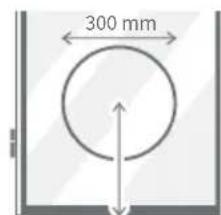
natural_image
Simple line drawing of a door with an arrow pointing to the center (no text or symbols)
natural_image
Computer monitor icon with a play button symbol (no text or numbers)surepetcare.com/support/microchip-pet-door-connect

natural_image
Simple line drawing of a magnifying glass over a U-shaped grid (no text or symbols)natural_image
Simple line drawing of a wall-mounted device with a circular frame (no text or symbols)natural_image
Simple line drawing of a wall corner with a circular inset showing a square object, no text or symbols present.natural_image
Hand holding a tool interacting with a square electrical outlet mounted on a wall (no text or symbols visible)natural_image
Simple line drawing of a rectangular frame with circular ends and an arrow indicating direction (no text or symbols)
natural_image
Diagram of a car wheel and seat assembly (no text or labels)natural_image
Illustration of a hand inserting a component into a square frame with a small X symbol, no text or symbols present.natural_image
Technical line drawing of a mechanical clamp or bracket assembly (no text or symbols)6
natural_image
Illustration of a hand holding a small electric shaver next to a square panel (no text or symbols)7
natural_image
Pure diagram of a magnifying glass over a wireframe cube, without any text or symbols8
natural_image
Line drawing of hands installing or adjusting a device on a surface (no text or symbols)9
natural_image
Technical line drawing of a mechanical housing component with a circular inset view showing a square cutout (no text or symbols)10
11
natural_image
Simple line drawing of a hand holding a square frame with a circular outline and a small arrow below (no text or symbols)surepetcare.com/support/microchip-pet-door-connect
Normalbetrieb
natural_image
Illustration of three steps of installing a wall-mounted device, showing lock, hand press, and cable connection (no text or symbols)natural_image
Illustration of a smartphone displaying a clock icon (no text or symbols)natural_image
Illustration of a hand placing a component into a square frame with a downward arrow below (no text or symbols)Luftdichtungen
Tunnelboden
natural_image
Illustration of a hand placing a small object into a square electrical outlet (no text or symbols)natural_image
Illustration of a sitting cat and a dog (no text or symbols present)natural_image
Line drawing of a device with labeled components, no readable text or symbols beyond branding and numbers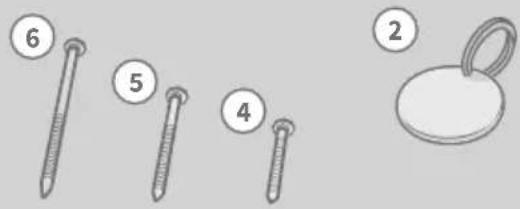
natural_image
Simple line drawing of a rectangular device with a label 'XXX XXXXXX' on its side (no additional text or symbols)natural_image
Silhouette of a dog and a cat, no text or symbols presentnatural_image
Gray icon of a crossed wrench and screwdriver (no text or symbols)natural_image
Simple gray line drawing of a smiling baby face with a bow (no text or symbols)natural_image
Simple icon of a smiling baby face inside a shield shape (no text or symbols)Hub Application Sure Petcare
natural_image
Simple line drawing of a cat-shaped object on a table with wireless signal waves above (no text or symbols)
natural_image
Diagram of a microphone connected to a device with an attached cable (no text or symbols)natural_image
Diagram of a medical device with tubing and connector, no text or symbols presentnatural_image
Simple line drawing of a cat-shaped object with a handle and light rays, no text or symbols present.natural_image
Illustration of a mechanical tool interacting with a circular component (no text or symbols visible)natural_image
Simple line drawing of a stylized hat with radiating lines (no text or symbols)natural_image
Simple cartoon illustration of a hat with two ears and radiating lines (no text or symbols)
Aide et support (hub)
natural_image
Simple line drawing of a square plate with a curved top and two small notches at the bottom (no text or symbols)Grande chatière
Piles
flowchart
graph TD
    A["Device 1: Battery 1"] --> B["Device 2: Battery 2"]
    B --> C["Device 3: Battery 3"]
    C --> D["Device 4: Battery 4"]
natural_image
Simple line drawing of a square container with two side handles and an arrow indicating direction (no text or symbols)natural_image
Diagram of a battery pack and terminal connections without any text or symbolsnatural_image
Illustration of a kitchen control panel with buttons and a pencil (no text or symbols)natural_image
Simple line drawing of a bell icon with radiating lines and Wi-Fi signal icon above (no text or symbols)natural_image
Silhouette of a dog and a cat, no text or symbols present
natural_image
Illustration of a smartphone displaying a stylized icon with a broken figure (no text or symbols)natural_image
Simple line drawing of a room with potted plants, a door, and a window (no text or symbols)natural_image
Line drawing of a wall-mounted device with a transparent panel and label (no text or symbols on the device itself)natural_image
Simple line drawing of a window frame with a tulip, no text or symbols presentnatural_image
Abstract graphic with window, door, and checkmark elements (no text or symbols)natural_image
Simple line drawing of a rectangular device with two side handles and a central screen (no text or symbols)natural_image
Simple line drawing of a crossed wrench and screwdriver (no text or symbols)natural_image
Line drawing of two overlapping 3D rectangular blocks with circular top and inner square cutouts (no text or symbols)natural_image
Diagram of a device with a transparent chamber and arrow indicating direction (no text or symbols)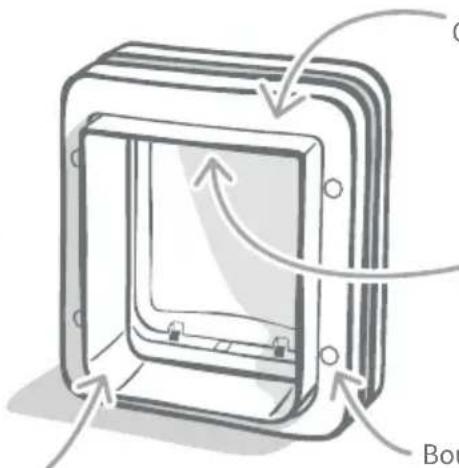
natural_image
Diagram of a rectangular device with internal components and directional arrows indicating flow or movement (no text or symbols)Cadre extérieur
natural_image
Hand holding a pointer on an electrical switch panel (no text or symbols visible)natural_image
Technical line drawing of a mechanical clamp or bracket assembly (no text or symbols)natural_image
Computer monitor icon with a play button symbol (no text or numbers)surepetcare.com/support/microchip-pet-door-connect
5
natural_image
Illustration of a hand holding a small electric shaver next to a rectangular panel (no text or symbols)natural_image
Illustration of two hands holding a tablet device (no text or symbols visible)natural_image
Simple line drawing of two rectangular compartments with a diagonal line and an arrow, no text or symbols present.natural_image
Simple line drawing of a tool applying material to a square panel (no text or symbols)natural_image
Hand holding a small square object with a downward arrow below (no text or symbols)
natural_image
Simple line drawing of a door with an arrow pointing to the center (no text or symbols)
natural_image
Computer monitor icon with a play button symbol (no text or numbers)natural_image
Diagram of a magnifying glass over a U-shaped grid, no text or symbols presentnatural_image
Simple line drawing of a wall-mounted device with a circular frame (no text or symbols)natural_image
Simple line drawing of a window with a circular inset showing a square frame (no text or symbols)natural_image
Hand holding a tool interacting with a square electrical outlet mounted on a wall (no text or symbols visible)natural_image
Simple line drawing of a rectangular frame with an arrow indicating direction (no text or symbols)
natural_image
Silhouette of a cat with a ruler partially visible on its side (no text or symbols)surepetcare.com/support/microchip-pet-door-connect
natural_image
Illustration of three different electrical switch configurations: a square panel, a hand interacting with a screen, and a connected device (no text or symbols present)natural_image
Illustration of a finger pressing down on a device with icons for security, refresh, time, lock, and mouse (no text or symbols)
natural_image
Illustration of a smartphone displaying a clock icon with no text or symbols on the screen or backgroundnatural_image
Illustration of a hand placing a component into a square frame with a downward arrow below (no text or symbols)Le sol du tunnel
natural_image
Illustration of a hand placing a small object into a square electrical outlet (no text or symbols)natural_image
Line drawing of a sitting cat and a dog (no text or symbols)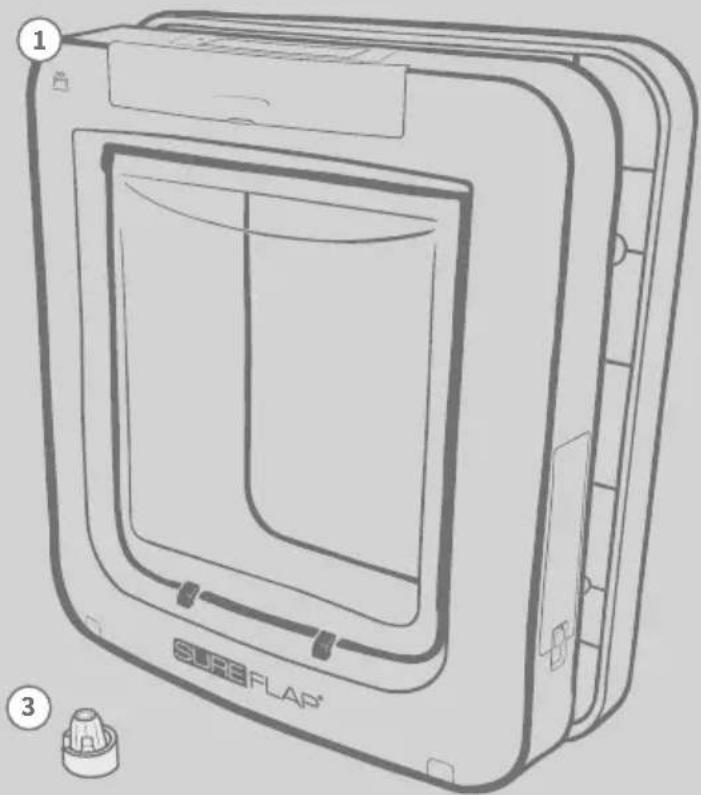
natural_image
Line drawing of a device with labeled components, no readable text or symbols beyond branding and numbers
natural_image
Silhouette of a cat and a dog, no text or symbols presentnatural_image
Gray icon of a crossed wrench and screwdriver (no text or symbols)natural_image
Simple gray line drawing of a smiling baby face with a bow (no text or symbols)natural_image
Simple icon of a smiling baby face inside a shield shape (no text or symbols)flowchart
graph LR
    A["Screen with Wi-Fi"] --> B["Mouse on Table"]
    B --> C["Hand holding smartphone displaying 'Felich smannin gekommen'"]
De Sure Petcare-app downloaden
natural_image
Illustration of various office supplies including a drill, screwdriver, eyeglasses, and a card (no text or symbols)Download in de App Store

ONTDEK HETOP Google Play

BESDIEKMAAR ONLINE surepetcare.io
Uw hub plaatsen
natural_image
Simple line drawing of a cat-shaped object on a table with wireless signal waves above (no text or symbols)
natural_image
Diagram of a device with an attached cable and connector, no text or symbols presentnatural_image
Diagram of a medical device with tubing and plug, no text or symbols presentnatural_image
Simple line drawing of a cat's head with a string attached to its ear (no text or symbols)natural_image
Diagram showing a tool interacting with a mechanical component, no text or symbols presentnatural_image
Simple line drawing of a hat with a starburst effect (no text or symbols)natural_image
Simple line drawing of a hat with two ears and radiating lines (no text or symbols)
natural_image
Simple line drawing of a square plate with a curved top and two side supports (no text or symbols)Huisdierluik
Batterijen
natural_image
Simple line drawing of a rectangular device with two side buttons and a central screen (no text or symbols)natural_image
Illustration of hands inserting a battery into a plug, showing internal components and wiring (no text or symbols)natural_image
Diagram of battery pack and circuit board components (no text or symbols)natural_image
Illustration of a washing machine and a small container with food items (no text or symbols)natural_image
Illustration of a cat interacting with a device screen (no text or symbols)natural_image
Illustration of a control panel with buttons and a pointer, no text or symbols presentnatural_image
Simple line drawing of a stylized hat with radiating lines and Wi-Fi signal icon above (no text or symbols)natural_image
Silhouette of a dog and a cat, no text or symbols present
natural_image
Illustration of a smartphone displaying a stylized icon with a dog silhouette (no text or symbols)natural_image
Simple line drawing of a room with potted plants, a door, and a window (no text or symbols)natural_image
Line drawing of a wall-mounted device with a transparent lid and internal compartments (no text or symbols)Binnenshuis
natural_image
Simple line drawing of a window frame with a tulip and a small flower nearby (no text or symbols)Buitenshuis
natural_image
Abstract graphic of three window-like shapes with a checkmark, no text or symbols presentnatural_image
Simple line drawing of a rectangular device with two side handles and a central screen (no text or symbols)natural_image
Line drawing of a crossed wrench and screwdriver (no text or symbols)natural_image
Line drawing of two 3D rectangular blocks with circular top and side cutouts, no text or symbols presentnatural_image
Technical line drawing of a mechanical clamp or bracket assembly (no text or symbols)natural_image
Computer monitor icon with a play button symbol (no text or numbers)surepetcare.com/support/microchip-pet-door-connect

5
natural_image
Illustration of a hand holding a small electric shaver next to a rectangular panel (no text or symbols)natural_image
Illustration of hands holding a device with a screen (no text or symbols visible)natural_image
Simple line drawing of two overlapping 3D rectangular blocks with mounting holes and a small arrow below (no text or symbols)natural_image
Simple line drawing of a tool applying material to a square panel (no text or symbols)natural_image
Simple line drawing of a hand holding a square frame with a downward arrow below (no text or symbols)2
natural_image
Simple line drawing of a door with an arrow pointing to the center (no text or symbols)natural_image
Computer monitor icon with a play button symbol (no text or numbers)surepetcare.com/support/microchip-pet-door-connect
natural_image
Pure diagram of a magnifying glass over a circular grid, without any text, numbers, or symbols.natural_image
Simple line drawing of a wall-mounted device with a circular frame (no text or symbols)natural_image
Simple line drawing of a wall-mounted device with a circular inset showing a square component (no text or symbols)natural_image
Hand holding a small square component mounted on a wall, with a tool near the edge (no text or symbols visible)natural_image
Simple line drawing of a rectangular frame with an arrow indicating direction (no text or symbols)
natural_image
Hand inserting a small component into a square frame with mounting holes (no text or symbols visible)natural_image
Technical line drawing of a mechanical clamp or bracket assembly (no text or symbols)natural_image
Simple line drawing of a hand holding a small electric shaver next to a rectangular panel (no text or symbols)natural_image
Pure diagram of a magnifying glass over a grid, without any text, numbers, or symbolsnatural_image
Line drawing of hands installing or adjusting a device component (no text or symbols visible)natural_image
Technical line drawing of a mechanical component with a circular inset view showing a square cutout (no text or symbols)natural_image
Simple line drawing of a square frame inside a circle with a hand holding it, no text or symbols present.surepetcare.com/support/microchip-pet-door-connect
natural_image
Illustration of three steps of installing or adjusting a wall-mounted device, showing lock, hand press, and cable connection (no text or symbols)
Vergrendelingsmodi: DEEL 2
natural_image
Illustration of a smartphone displaying a clock icon with an hour and minute hands (no text or symbols)natural_image
Illustration of a hand placing a component into a square panel with a downward arrow (no text or symbols)De tochtstrips
natural_image
Illustration of a hand placing a small object into a square electrical outlet (no text or symbols)Apple, is a trademark of Apple Inc., registered in the U.S. and other countries. App Store is a service mark of Apple Inc., registered in the U.S. and other countries. IOS is a trademark or registered trademark of Cisco in the U.S. and other countries and is used under license.
natural_image
Illustration of a sitting cat and a dog (no text or symbols)UNITED KINGDOM 0800 012 4511
IRELAND 1800 948 235
DEUTSCHLAND 0800 000 6885 (+49 (0)6933 296 166)
ÖSTERREICH 0800 88 66 32 55
OTHER COUNTRIES: +44(0)1954 211664 (Ext. 2) English speaking

surepetcare.com/support enquiries@surepetcare.com

facebook.com/surepetcare instagram.com/surepetcarepets

youtube.com/surepetcare twitter.com/surepetcare

natural_image
Simple line drawing of a paw print with no text or symbolsSURE
PETCARE
Copyright © SureFlap Ltd, trading as Sure Petcare, 7 The Irwin Centre, Scotland Road, Dry Drayton, Cambridge, CB23 8AR, United Kingdom
iMPD
Aug 2017
00846-EU_05



Hereby, Sure Petcare, a trading name of SureFlap Ltd, declares that this Microchip Pet Door Connect is in compliance with the essential requirements and other relevant provisions of EC Directives. The up-to-date Declaration of Conformity (DoC) may be consulted at www.surepetcare.com/ecdoc