
PD-505T - Cd player/recorder TEAC - Free user manual and instructions
Find the device manual for free PD-505T TEAC in PDF.



| Product Type | CD Audio Player/Recorder |
| Brand | TEAC |
| Model | PD-505T |
| Dimensions (W × H × D) | 290 × 84.5 × 248.8 mm |
| Weight | 4.0 kg |
| Power Supply | AC 220-240 V, 50/60 Hz (Europe) or AC 120 V, 60 Hz (USA/Canada) |
| Power Consumption | 4 W (operating), 0.3 W (standby) |
| Compatible Discs | CD audio, CD-R, CD-RW finalized (CD-DA format) |
| Digital Audio Outputs | 1 coaxial (RCA, 0.5 Vp-p, 75 Ω) and 1 optical (TOSLINK) |
| Clock Sync Input | BNC 10 MHz, 50 Ω, TTL level or sinusoidal 0.5-1.0 Vrms |
| Playback Functions | Normal, programmed (PGM), random (SHUFFLE/RANDOM), track or disc repeat |
| Display | Adjustable brightness display (BRIGHT, Slightly BRIGHT, DARK, AUTO OFF) |
| Remote Control | Supplied (RC-1338) with 2× AAA batteries, range 5 m |
| CD Mechanism Structure | Semi-floating with transport lock screws (remove before use) |
| Power Saving Function | Auto standby after 30 min (adjustable from 5 to 255 min) |
| Operating Temperature | +5 °C to +35 °C |
| Supplied Accessories | Power cord, remote control, batteries, foot pads, instruction manual |
| Maintenance | Clean with a soft dry cloth; do not use chemical products |
| Safety | Class 1 laser product (IEC 60825-1); do not expose to moisture or open the casing |
| Warranty | 1 year parts and labor (USA/Canada); statutory warranty in the EU |
Frequently Asked Questions - PD-505T TEAC
User questions about PD-505T TEAC
0 question about this device. Answer the ones you know or ask your own.
Ask a new question about this device
Download the instructions for your Cd player/recorder in PDF format for free! Find your manual PD-505T - TEAC and take your electronic device back in hand. On this page are published all the documents necessary for the use of your device. PD-505T by TEAC.
USER MANUAL PD-505T TEAC
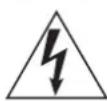
The lightning flash with arrowhead symbol, within an equilateral triangle, is intended to alert the user to the presence of uninsulated “dangerous voltage” within the product’s enclosure that may be of sufficient magnitude to constitute a risk of electric shock to persons.

The exclamation point within an equilateral triangle is intended to alert the user to the presence of important operating and maintenance (servicing) instructions in the literature accompanying the appliance.
WARNING: TO PREVENT FIRE OR SHOCK HAZARD, DO NOT EXPOSE THIS APPLIANCE TO RAIN OR MOISTURE.
CAUTION
●DO NOT REMOVE THE EXTERNAL CASES OR CABINETS TO EXPOSE THE ELECTRONICS. NO USER SERVICEABLE PARTS ARE INSIDE.
- IF YOU ARE EXPERIENCING PROBLEMS WITH THIS PRODUCT, CONTACT THE STORE WHERE YOU PURCHASED THE UNIT FOR A SERVICE REFERRAL. DO NOT USE THE PRODUCT UNTIL IT HAS BEEN REPAIRED.
- USE OF CONTROLS OR ADJUSTMENTS OR PERFORMANCE OF PROCEDURES OTHER THAN THOSE SPECIFIED HEREIN MAY RESULT IN HAZARDOUS RADIATION EXPOSURE.
1) Read these instructions.
2) Keep these instructions.
3) Heed all warnings.
4) Follow all instructions.
5) Do not use this apparatus near water.
6) Clean only with dry cloth.
7) Do not block any ventilation openings. Install in accordance with the manufacturer's instructions.
8) Do not install near any heat sources such as radiators, heat registers, stoves, or other apparatus (including amplifiers) that produce heat.
9) Do not defeat the safety purpose of the polarized or grounding-type plug. A polarized plug has two blades with one wider than the other. A grounding type plug has two blades and a third grounding prong. The wide blade or the third prong are provided for your safety. If the provided plug does not fit into your outlet, consult an electrician for replacement of the obsolete outlet.
10) Protect the power cord from being walked on or pinched particularly at plugs, convenience receptacles, and the point where they exit from the apparatus.
11) Only use attachments/accessories specified by the manufacturer.
12) Use only with the cart, stand, tripod, bracket, or table specified by the manufacturer, or sold with the apparatus. When a cart is used, use caution when moving the cart/apparatus combination to avoid injury from tip-over.

natural_image
Symbolic icon of a person climbing a ladder inside a circle (no text or symbols)13) Unplug this apparatus during lightning storms or when unused for long periods of time.
14) Refer all servicing to qualified service personnel. Servicing is required when the apparatus has been damaged in any way, such as power-supply cord or plug is damaged, liquid has been spilled or objects have fallen into the apparatus, the apparatus has been exposed to rain or moisture, does not operate normally, or has been dropped.
●The apparatus draws nominal non-operating power from the AC outlet with its POWER or STANDBY/ON switch not in the ON position.
- The mains plug is used as the disconnect device; the disconnect device shall remain readily operable.
●Caution should be taken when using earphones or headphones with the product because excessive sound pressure (volume) from earphones or headphones can cause hearing loss.
CAUTION
- Do not expose this apparatus to drips or splashes.
- Do not place any objects filled with liquids, such as vases, on the apparatus.
- The handle-like parts on the left and right sides of the front panel are decorative. Do not put your fingers through them or use them to carry the unit.
- Do not install this apparatus in a confined space such as a book case or similar unit.
●The apparatus should be located close enough to the AC outlet so that you can easily reach the power cord plug at any time. - If the product uses batteries (including a battery pack or installed batteries), they should not be exposed to sunshine, fire or excessive heat.
- CAUTION for products that use replaceable lithium batteries: there is danger of explosion if a battery is replaced with an incorrect type of battery. Replace only with the same or equivalent type.
WARNING
Products with Class I construction are equipped with a power supply cord that has a grounding plug. The cord of such a product must be plugged into an AC outlet that has a protective grounding connection.
IN USA/CANADA, USE ONLY ON 120V SUPPLY.
Precautions concerning batteries
Misuse of batteries could cause them to rupture or leak leading to fire, injury or the staining of nearby things. Please read and observe the following precautions carefully.
- Be sure to insert the batteries with correct positive (⊕) and negative (⊖) orientations.
- Use batteries of the same type. Never use different types of batteries together.
- If the remote control is not used for a long time (more than a month), remove the batteries to prevent them from leaking.
- If the batteries leak, wipe away the leakage inside the battery compartment and replace the batteries with new ones.
- Do not use batteries of types other than those specified. Do not mix new batteries with old ones or use different types of batteries together.
- Do not heat or disassemble batteries. Never throw batteries into fire or water.
- Do not carry or store batteries with other metallic objects. The batteries could short circuit, leak or explode.
- Never recharge a battery unless it is confirmed to be a rechargeable type.
- Do not expose batteries to extremely low air pressure as it could result in an explosion or leakage of flammable liquids or gases.
Laser information
This laser product is a consumer laser product according to EN 50689:2021 and complies with all consumer laser product requirements except child appealing products.
This product contains a laser system and is classified as a CLASS 1 LASER PRODUCT according to IEC 60825-1:2014. This class does not require special attention in normal use. Do not take apart to prevent being exposed to the laser beam.
Laser:
Type: EP-C101
Manufacturer: EVER BRIGHT ELECTRIC SCIENCE &
TECHNOLOGY(BEIHAI)LTD.
Laser output: 0.7 mW on the objective lens
Wavelength: 790 ±25 nm
Model for USA
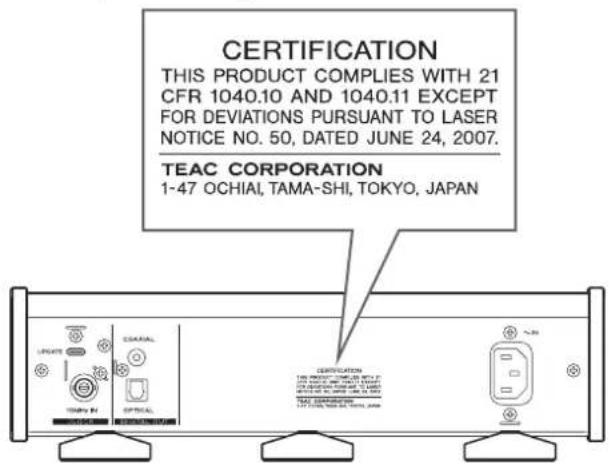
This product has been designed and manufactured according to FDA regulations "title 21, CFR, chapter 1, subchapter J, based on the Radiation Control for Health and Safety Act of 1968", and is classified as class I laser product. There is not hazardous invisible laser radiation during operation because invisible laser radiation emitted inside of this product is completely confined in the protective housings.
The label required in this regulation is as follows:
Model for USA
Supplier's Declaration of Conformity
Model number: PD-505T
Trade name: TEAC
Responsible party: 11 Trading Company, LLC
Address: 3502 Woodview Trace #200 Indianapolis, IN 46268 U.S.A. URL: https://11tradingcompany.com/contact-us/
This device complies with Part.15 of FCC Rules. Operation is subject to the following two conditions: (1) this device may not cause harmful interference, and (2) this device must accept any interference received, including interference that may cause undesired operation.
Information
This equipment has been tested and found to comply with the limits for a Class B digital device, pursuant to Part 15 of the FCC Rules. These limits are designed to provide reasonable protection against harmful interference in a residential installation. This equipment generates, uses, and can radiate radio frequency energy and, if not installed and used in accordance with the instructions, may cause harmful interference to radio communications. However, there is no guarantee that interference will not occur in a particular installation. If this equipment does cause harmful interference to radio or television reception, which can be determined by turning the equipment off and on, the user is encouraged to try to correct the interference by one or more of the following measures:
- Reorient or relocate the equipment and/or the receiving antenna.
- Increase the separation between the equipment and receiver.
- Connect the equipment into an outlet on a circuit different from that to which the receiver is connected.
- Consult the dealer or an experienced radio/TV technician for help.
CAUTION
Changes or modifications not expressly approved by the party responsible for compliance could void the user's authority to operate the equipment.
Model for Canada
Innovation, Science and Economic Development Canada's
Compliance Statement:
This Class B digital apparatus complies with Canadian ICES-003.
Model for Europe

This product complies with the European Directives request, and the other Commission Regulations.
Model for UK
This product complies with the applicable UK regulations.

For European Customers
Disposal of electrical and electronic equipment and batteries and/or accumulators
a) All electrical/electronic equipment and waste batteries/accumulators should be disposed of separately from the municipal waste stream via collection facilities designated by the government or local authorities.
b) By disposing of electrical/electronic equipment and waste batteries/accumulators correctly, you will help save valuable resources and prevent any potential negative effects on human health and the environment.
c) Improper disposal of waste electrical/electronic equipment and batteries/accumulators can have serious effects on the environment and human health because of the presence of hazardous substances in the equipment.
d) The Waste Electrical and Electronic Equipment (WEEE) symbols, which show wheeled bins that have been crossed out, indicate that electrical/electronic equipment and batteries/accumulators must be collected and disposed of separately from household waste.
If a battery or accumulator contains more than the specified values of lead (Pb), mercury (Hg), and/or cadmium (Cd) as defined in the Battery Directive (2006/66/EC, 2013/56/EU), then the chemical symbols for those elements will be indicated beneath the WEEE
c) Return and collection systems are available to end users. For more detailed information about the disposal of old electrical/electronic equipment and waste batteries/accumulators, please contact your city office, waste disposal service or the shop where you purchased the equipment.

Contents Floating mounting of the CD
mechanism
Thank you for choosing TEAC.
Read this manual carefully to get the best performance from this unit.
After reading it, keep it in a safe place for future reference.
IMPORTANT SAFETY INSTRUCTIONS 2
Floating mounting of the CD mechanism....5
About the transportation locking screws....6
Discs....7
Included accessories....8
Using the TEAC International Site 8
Maintenance....8
Before use....9
Using the remote control....9
Connections....10
Remote control parts and functions....11
Main unit parts and functions....12
Display 13
Basic operation....14
Settings 18
Troubleshooting....21
Specifications....23
In order to enhance the audio quality, this unit employs a semi-floating structure for the CD mechanism so that it is not completely fixed to the chassis. The entire mechanism, including the tray, can move slightly forward, backward, left and right. This is by design and no cause for concern.
About the transportation locking screws
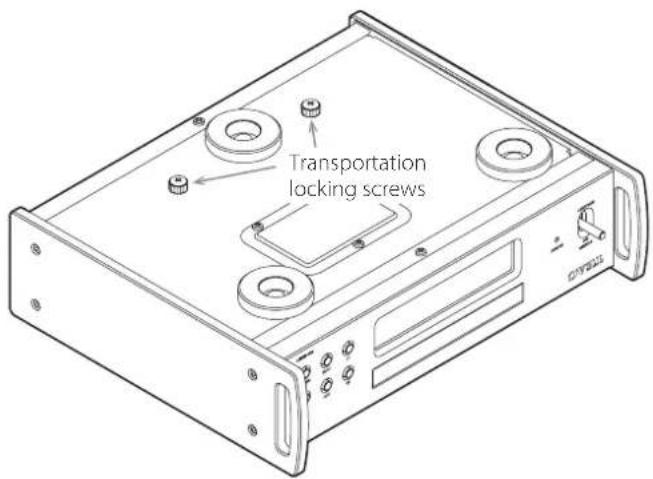
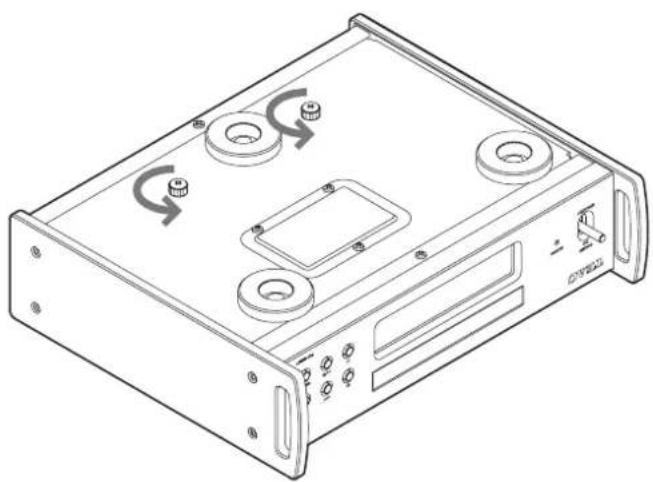
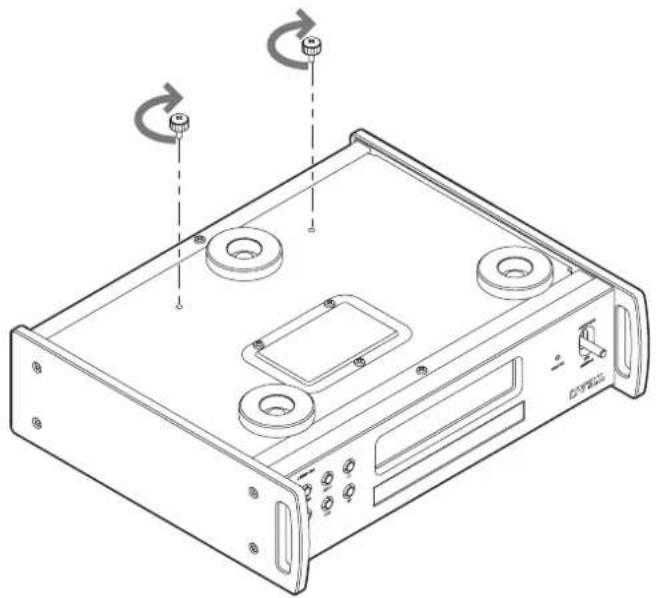
This unit employs a semi-floating structure for the CD mechanism so that it is not completely fixed to the chassis. For this reason, before shipment from the factory, transportation locking screws have been attached through the bottom of the unit to protect the CD mechanism from vibration during transportation.
Before installing the unit
Before installing the unit, remove the two transportation locking screws.
- Save the transportation locking screws in a safe place because you will need to reattach them before transporting the unit in the future.
natural_image
Technical line drawing of a computer drive casing with mounting holes and control buttons (no text or symbols)Before transporting the unit
Before transporting the unit, reattach the two transportation locking screws removed when the unit was installed.
natural_image
Technical line drawing of a computer chassis with mounting holes and a central square component (no text or symbols)Types of discs that can be played by this unit
CDs with the "COMPACT disc DIGITAL AUDIO" logo

CD-R and CD-RW discs that have been properly recorded and finalized using the audio CD format.
●This unit can play 8cm CDs without using an adapter.
Align them with the 8cm CD guide at the center of the disc tray.

If you try to play any other type of disc with this unit, loud noises that could damage speakers or harm hearing might occur. Never try to play any type of disc other than those shown above.
●This unit might not be able to properly play Copy Control CDs, Dual Discs or other special CDs that do not conform to the Red Book CD standard. Operation and sound quality cannot be guaranteed when special discs are used in this unit. If playback of a special disc should cause trouble, contact the seller of the disc.
CD-R/CD-RW discs
This unit can play CD-R/CD-RW discs that are in audio CD format (CD-DA).
- Be sure to finalize discs created by CD recorders.
- Depending on the quality of the disc and the condition of the recording, playback might not be possible. For details, see the operation manual for the device you are using.
- If you have any questions about how to handle a CD-R or CD-RW disc, contact the seller of the disc directly.
Precautions for use
- Do not use cracked discs because they could damage the unit.
- When writing something on the label side of a disc, use a felt tip permanent marker. The use of a ballpoint pen or other pen with a hard tip could damage the disc, making it unplayable.
- Never use commercially-available CD stabilizers. Doing so could make the disc unplayable or damage the unit.
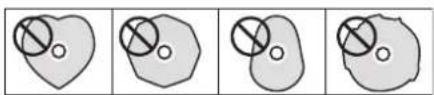
- Never use discs with irregular shapes, including heart-shaped and octagonal discs, because they could damage the unit.
natural_image
Four abstract diagrams showing overlapping circles within irregular shapes, no text or symbols present- If a CD-R/CD-RW disc that has a printable label surface is left in this unit for a long time, it could stick to the inside and become extremely difficult to remove and possibly even cause the unit to malfunction.
Always remove such discs and store them in cases when not in use. Moreover, avoid using discs that have just been printed because they are especially prone to sticking.
Handling discs
●Always load discs with their labeled sides up.
- Be careful when handling discs. If the side that contains the data (unlabeled side) is scratched, smudged with fingerprints or otherwise dirty or marred, errors could occur during playback.
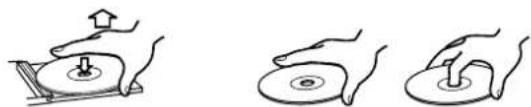
- To remove a disc from its case, while pressing down on the center of the case, hold the disc by its edges.
natural_image
Three hand-drawn diagrams showing a mechanical press or disc assembly process, with no visible text or symbols.Removing discs Holding discs
Discs (continued)
Storing discs
●Discs should be stored in their cases when not being used. Failure to do so could result in warping and scratches.
- Do not leave discs in places that are exposed to direct sunlight or that are very humid or hot. Doing so could cause discs to become deformed or degraded, making them unplayable.
- CD-R and CD-RW discs are more susceptible to the impacts of heat and ultraviolet rays than ordinary CDs. For this reason, do not leave them for long times in places that are exposed to direct sunlight or near devices that generate heat, for example.
● Always clean discs before storing them. Leaving a disc in an unclean state might result in skipping or degraded sound quality.
Maintenance
- If the side of the disc that has the data encoded on it (unlabeled side) becomes dirty with fingerprints or dust, use a soft cloth to wipe the surface from the center directly toward the edge.
- Never use record cleaners, antistatic treatments, thinners or similar chemicals to clean discs. Such chemicals could harm the surface of the disc.
Included accessories
Check to be sure the box includes all the supplied accessories shown below. Please contact the store where you purchased this unit if any of these accessories are missing or have been damaged during transportation.
Power cord × 1
Remote control (RC-1338) × 1
Batteries for remote control (AAA) × 2
Foot pads × 3
Owner's manual (this document, including warranty) × 1
- For information about the warranty, users living in the USA and Canada should see pages 68–69 and the back cover (warranty document). Users living in Europe and other regions should see page 69.
Using the TEAC International Site
You can download updates for this unit from the TEAC International Site:
Click Language at the top right of the page and select the desired country or region to access a page in the corresponding language.
Maintenance
Wipe dirt from the top cover and other panel surfaces using a soft cloth that has been slightly dampened with a diluted neutral cleanser.
Do not wipe with chemical cleaning cloths, thinner or other chemical agents. Doing so could damage the surface.
For your safety, disconnect the power cord from the outlet before cleaning.
- This equipment is very heavy, so take care to avoid injury when opening the packaging and when moving it.
- The handle-like parts on the left and right sides of the front panel are decorative. Do not put your fingers through them or use them to carry the unit.
- Do not install this unit in a location that could become hot. This includes places that are exposed to direct sunlight or near a radiator, heater, stove or other heating equipment. Moreover, do not place it on top of an amplifier or other equipment that generates heat. Doing so could cause discoloration, deformation or malfunction.
- Avoid locations that are subject to vibrations or exposed to excessive dust, cold or moisture.
- When installing this unit, leave a little space (at least 3 cm or 1") between it and walls and other devices in order to allow good heat dissipation.
If you put it in a rack, for example, leave at least 5 cm (2") open above and 10 cm (4") open behind it. Failure to provide these gaps could cause heat to build up inside and result in fire. - Place the unit in a stable location.
- Do not place anything on top of the unit.
- Do not lift or move the unit during playback because the disc rotates at high speed. Doing so could damage the disc.
- Always remove any loaded disc before moving this unit or packing it for installation in a different location, for example. Moving the unit with a disc inside could cause damage.
●The voltage supplied to the unit should match the voltage printed on the back of the unit. If you are in any doubt regarding this matter, consult an electrician. - Do not open the body of the unit as this might result in damage to the circuitry or cause electric shock. If a foreign object should get into the unit, contact your dealer.
- When removing the power plug from the wall outlet, always pull directly on the plug; never yank on the cord.
Note about placement
The steel feet are loosely attached to the bottom of the unit, leaving slight gaps. For this reason, the feet will move slightly from the bottom when the unit is lifted.
This unit is designed to rest on the feet when it is placed so that the feet do not apply unnecessary stress to the body.
- The feet will move slightly from the bottom of the unit, but this is not a defect.
- Apply the included pads to the bottoms of the foot-stands to avoid scratching the surface where the unit is placed.
The top panel of this unit is attached with some play.
●The panel will move slightly, but this is not a defect.
Precautions for use
Misuse of batteries could cause them to rupture or leak, which might result in fire, injury or the staining of nearby materials. Please read and observe the precautions on page 3 carefully.
- When using the remote control, point it toward the remote control signal receiver on the main unit from a distance of 5m (16 ft) or less. Do not place obstructions between the main unit and the remote control.
- The remote control might not work if the remote control signal receiver on the unit is exposed to direct sunlight or bright light. If this occurs, try moving the unit.
- Beware that use of this remote control could cause the unintentional operation of other devices that can be controlled by infrared rays.
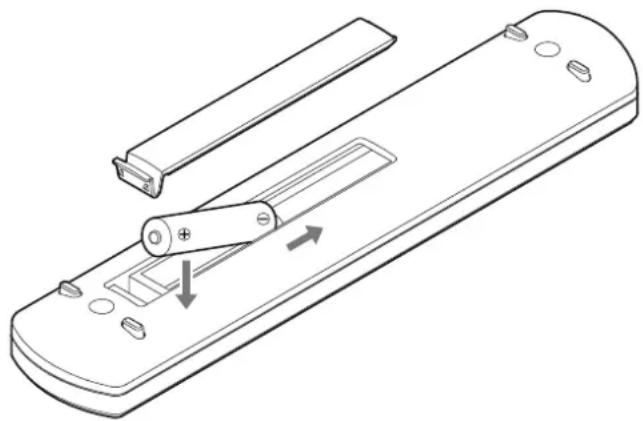
Installing batteries
Remove the cover from the back of the remote control and insert two AAA batteries with their / oriented as shown in the case. Replace the cover.
natural_image
Line drawing of a remote control device with handle and scroll (no text or symbols)When to replace batteries
If the distance required between the remote and the main unit decreases or if the main unit stops responding to the remote buttons, replace both batteries with new ones.
Dispose of the used batteries according to the instructions on them or requirements set by your local municipality.

all connections are complete, connect the power cord's plug to the AC wall outlet.
- Read the instructions of each device that you intend to use with this unit.
- Do not bundle connecting cables with power cords. Doing so could cause noise.
- Connect all plugs completely.
flowchart
graph TD
    A["Device that outputs clock signal"] --> B["CLOCK OUT"]
    B --> C["Device that outputs clock signal"]
    D["Device that outputs clock signal"] --> E["BNC coaxial cable"]
    E --> F["Device that outputs clock signal"]
    G["Device that outputs clock signal"] --> H["Optical digital input digital IN (OPTICAL)"]
    H --> I["Device that outputs clock signal"]
    J["Device that outputs clock signal"] --> K["Digital audio input device"]
    L["Device that outputs clock signal"] --> M["Optical digital cable"]
    M --> N["Device that outputs clock signal"]
    O["Device that outputs clock signal"] --> P["RCA coaxial digital cable"]
    P --> Q["Device that outputs clock signal"]
    R["Device that outputs clock signal"] --> S["Coaxial digital input digital IN (COAXIAL)"]
    S --> T["Device that outputs clock signal"]
    U["Device that outputs clock signal"] --> V["Coaxial digital input digital IN (COAXIAL)"]
    V --> W["Device that outputs clock signal"]
    X["Device that outputs clock signal"] --> Y["Coaxial digital input digital IN (COAXIAL)"]
    Y --> Z["Device that outputs clock signal"]
    AA["Device that outputs clock signal"] --> AB["Coaxial digital input digital IN (COAXIAL)"]
    AB --> AC["Device that outputs clock signal"]
    AD["Device that outputs clock signal"] --> AE["Coaxial digital input digital IN (COAXIAL)"]
    AE --> AF["Device that outputs clock signal"]
    AG["Device that outputs clock signal"] --> AH["Coaxial digital input digital IN (COAXIAL)"]
    AH --> AI["Device that outputs clock signal"]
    AJ["Device that outputs clock signal"] --> AK["Coaxial digital input digital IN (COAXIAL)"]
    AK --> AL["Device that outputs clock signal"]
    AM["Device that outputs clock signal"] --> AN["Coaxial digital input digital IN (COAXIAL)"]
    AN --> AO["Device that outputs clock signal"]
    AP["Device that outputs clock signal"] --> AQ["Coaxial digital input digital IN (COAXIAL)"]
    AQ --> AR["Device that outputs clock signal"]
    AS["Device that outputs clock signal"] --> AT["Coaxial digital input digital IN (COAXIAL)"]
    AT --> AU["Device that outputs clock signal"]
    AV["Device that outputs clock signal"] --> AW["Coaxial digital input digital IN (COAXIAL)"]
    AW --> AX["Device that outputs clock signal"]
    AY["Device that outputs clock signal"] --> AZ["Coaxial digital cable"]
    AZ --> BA["Device that outputs clock signal"]
    BB["Device that outputs clock signal"] --> BC["Coaxial digital cable"]
    BC --> BD["Device that outputs clock signal"]
    BEC["Device that outputs clock signal"] --> BF["Coaxial digital cable"]
    BF --> BG["Device that outputs clock signal"]
    BH["Device that outputs clock signal"] --> BI["Coaxial digital cable"]
    BI --> BJ["Device that outputs clock signal"]
    BK["Device that outputs clock signal"] --> BL["Coaxial digital cable"]
    BL --> BM["Device that outputs clock signal"]

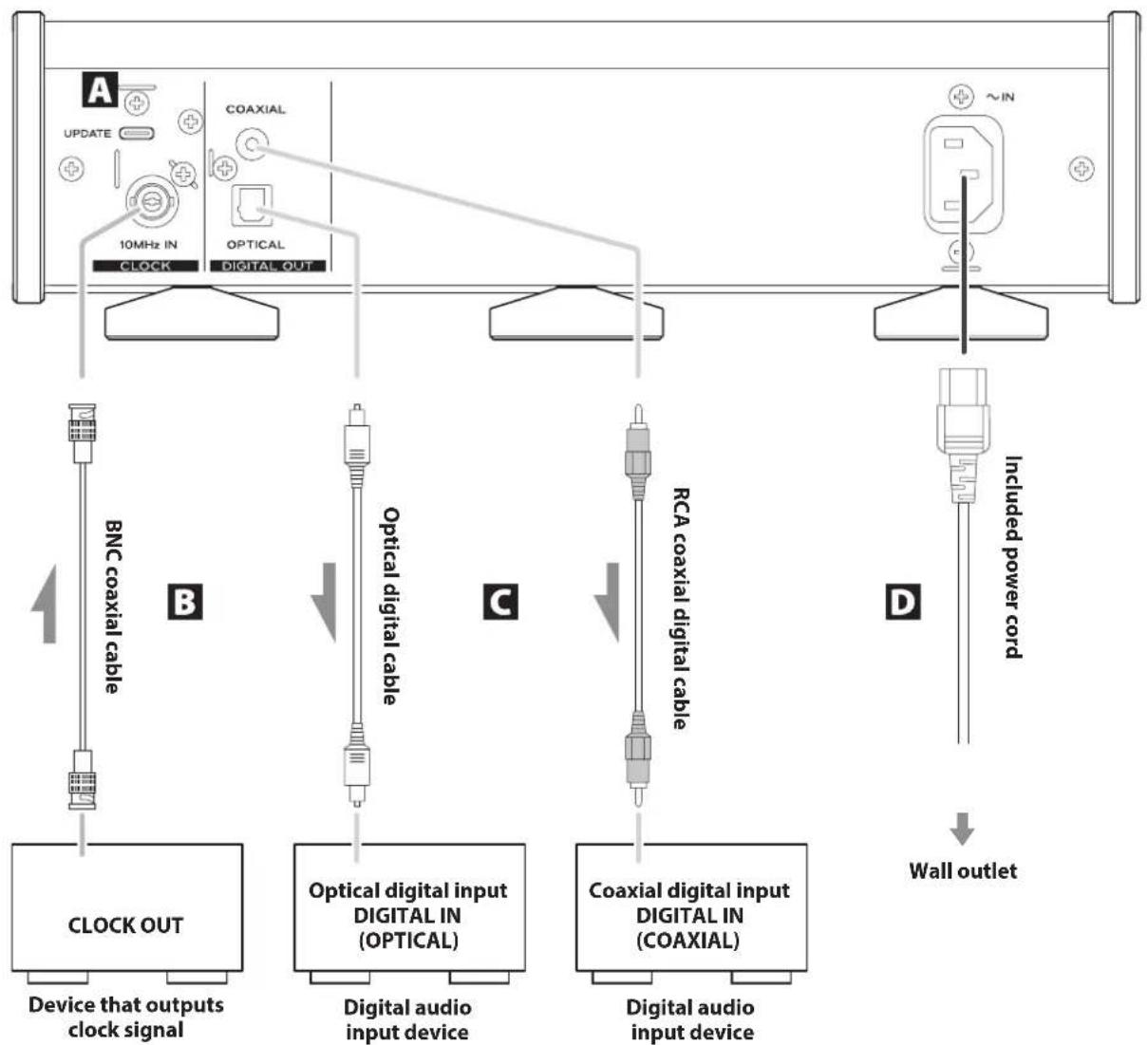
UPDATE (maintenance) port
This is used for maintenance. Do not connect anything to this port unless instructed to do so by our service department.

CLOCK sync input (10MHz IN) connector
Use this connector to input 10MHz clock synchronization signals (page 23).
Use a commercially available BNC coaxial cable for connection.

COAXIAL/OPTICAL digital audio output connectors
Use these to output digital audio. Connect digital audio input connectors of audio devices here.
Use commercially-available RCA coaxial digital cables or rectangular optical digital cables for connection.

Power inlet (\~IN)
Connect the supplied power cord here.
After all other connections are complete, connect the power cord's plug to a wall outlet.

not use any power cord other than the one ended with this unit. Use of other power cords and result in fire or electric shock.

connect the power plug from the outlet if you not use the unit for a long time.
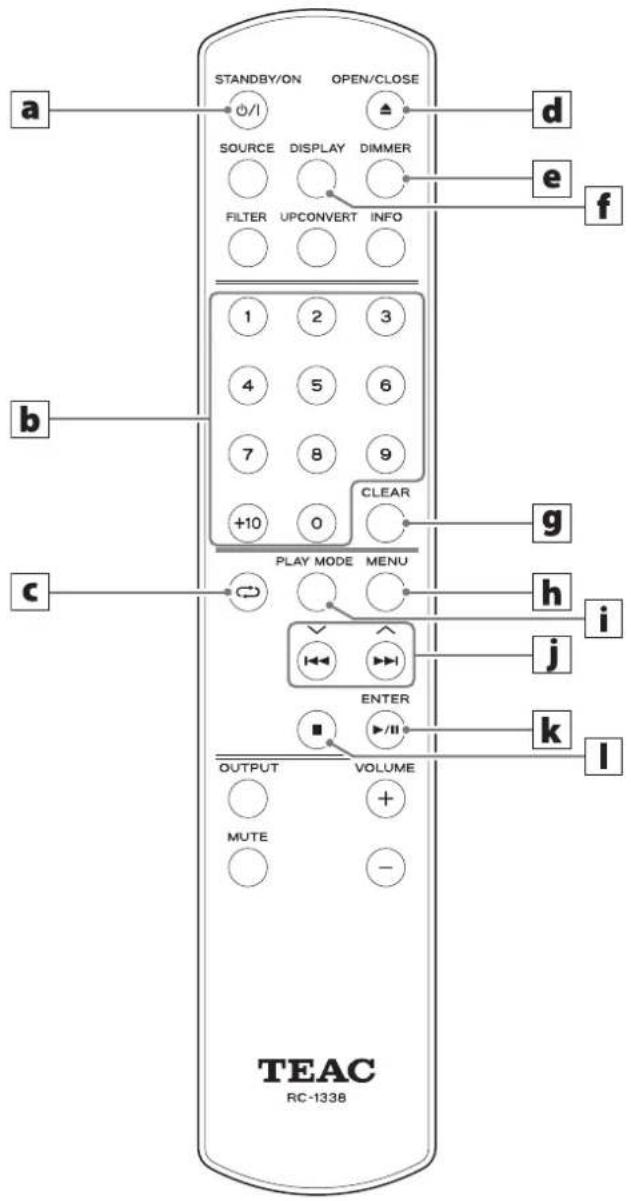
When the main unit and the remote control both have buttons with the same functions, this manual explains how to use one of the buttons. The other corresponding button can be used in the same manner.
a STANDBY/ON button
Press this to put the unit into standby mode or turn it on.
b Number buttons
Use these to select and program tracks, for example.
c Repeat ( ⇌ ) button
Use this to change the repeat playback setting (page 15).
d Tray OPEN/CLOSE (▲) button
Press this to open and close the disc tray.
e DIMMER button
Press this to adjust the brightness of the main unit's display.
f DISPLAY button
g CLEAR button
Use this to clear programmed tracks.
h MENU button
Press this to enter setting mode (page 18).
Press this when in setting mode to return to the previous screen.
i PLAY MODE button
Press this to switch between program and shuffle playback modes.
j \$kip (|◀◀, ▶▶|) buttons/ up/down (^, ∨) buttons
Use these to skip to the previous or next track.
Press and hold these buttons during playback to search backward/forward.
When the menu screen is open
Use these buttons to select setting values.
k Play/pause (▶ /II) button/ ENTER button
Press this when stopped or paused to start or resume playback. Press this during playback to pause.
When the menu screen is open
Press this to start or confirm setting value selection.
I Stop (■) button
Press this during playback to stop playback.
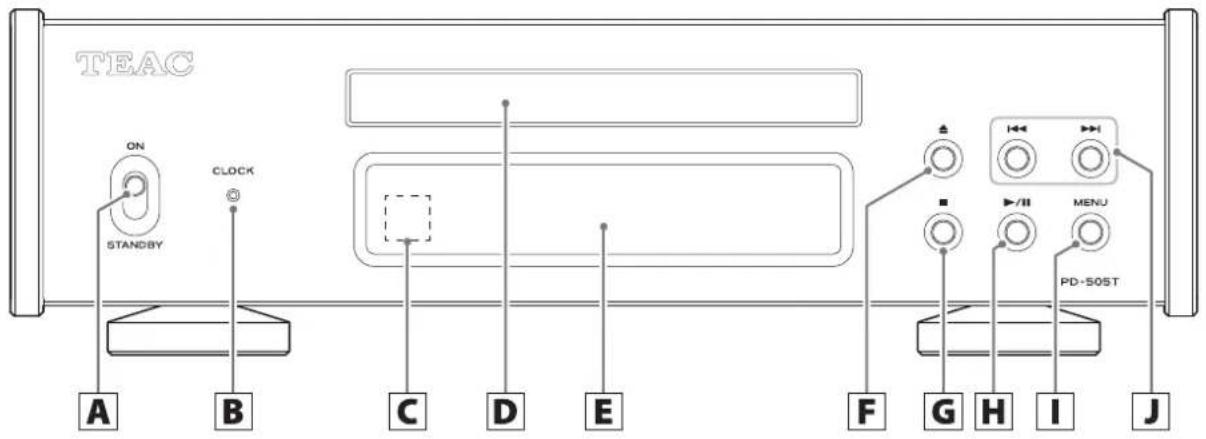
A STANDBY/ON switch
Use this to put the unit into standby mode or turn it on.
- If the display is off even though the STANDBY/ON switch is set to ON, the cause is usually one of the following.
●The power is on, but DIMMER (display brightness) is set to AUTO OFF (page 19). - The automatic power saving function has activated, putting the unit into standby (page 20).
●The power cord is disconnected.
To turn the unit on when the automatic power saving function has activated, putting the unit into standby, press the STANDBY/ON button on the remote control, or set the STANDBY/ON switch to STANDBY once and then back to ON.
B CLOCK indicator
This shows the clock synchronization status.
Lit: The unit is currently synchronized with the clock from the CLOCK sync input (10MHz IN) connector.
Blinking: No clock is being input, or the unit is trying to synchronize with the clock signal.
Unit: External clock is not being used.
●See page 19 for clock sync settings.
C Remote control signal receiver
This receives signals from the remote control. When operating the remote control, point it at the remote control signal receiver.
D Disc tray
Load a disc here.
E Display
This display shows information about the audio playing back and menu screens.
F Tray open/close (▲) button
Press this to open and close the disc tray.
G Stop (■) button
Press this to stop playback.
H Play/pause (▶/II) button
Press this when stopped or paused to start or resume playback. Press this during playback to pause.
When the menu screen is open
Press this to start or confirm setting value selection.
I MENU button
Press this to enter setting mode (page 18).
Press this when in setting mode to return to the previous screen.
J Skip (|◀◀/▶▶|) buttons
Use these to skip to the previous or next track.
Press and hold these buttons during playback to search backward/forward (page 15).
When the menu screen is open
Use these to select setting values.
Automatic power saving function
This unit has an automatic power saving function (page 20).
By default, the setting is ON.
The unit will automatically enter standby mode if no audio is output and no operation is conducted for about 30 minutes.
Set the automatic power saving function to OFF to disable it (page 20).
Display brightness
You can adjust the brightness of the unit's display (page 19).
By default, the setting is Slightly BRIGHT (Stays lit dimly).
When set to AUTO OFF (automatic illumination off), the display turns off when not being operated.
●NO DISC and other warnings will stay lit.
When on
TEAC
After the display appears as above, it will show the status.
When no disc is available
NO DISC
Display example: stopped
TRACK
22 68:25
Total number of tracks on disc
Total playback time (minutes: seconds)
When a disc is playing or paused, press the DISPLAY button to change the display as follows.
Display example: playing back
TRACK
1 0:02
Number of track being played
Elapsed time of track being played (minutes: seconds)

TRACK
1 2:36
REMAIN
Number of track being played
Remaining time of track being played (minutes: seconds)

TRACK
1 68:23
T.REMAIN
Number of track being played
Remaining disc time (minutes: seconds)
1 Shift the STANDBY/ON switch to its ON position to turn the unit on.
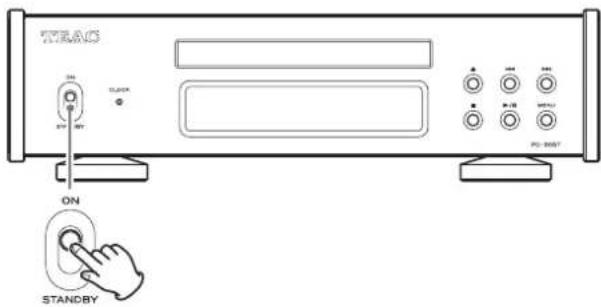
- If a stereo amplifier is connected to this unit, always turn the amplifier on very last.
2 Minimize the volume.
Minimize the volume on devices used to control the volume (e.g., a stereo amplifier).
3 Press the tray open/close (▲) button.
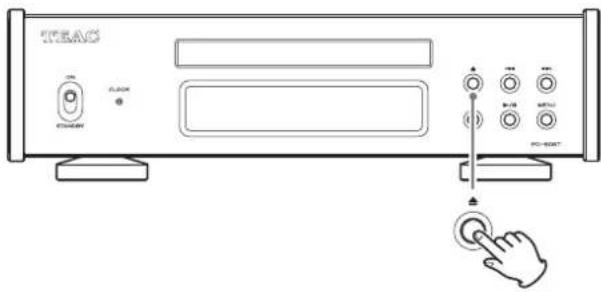
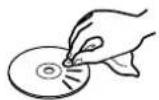
4 Place a disc on the tray with the labeled side up.
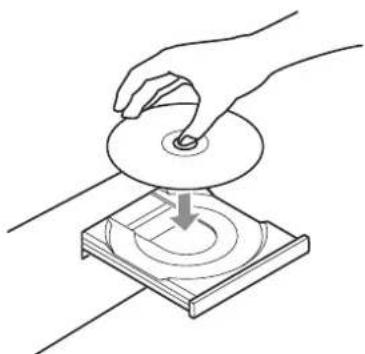
natural_image
Line drawing of a hand using a CD to press a circular object on a base (no text or symbols)- Do not put more than one disc onto the tray at a time.
- If the tray is closed while a disc is outside the center guides, the disc might become stuck inside and the tray might not open. Be sure to always place discs within the guides at the center of the tray.
- When the tray is opening or closing, do not force it by hand.
5 Press the tray open/close (▲) button to close it.
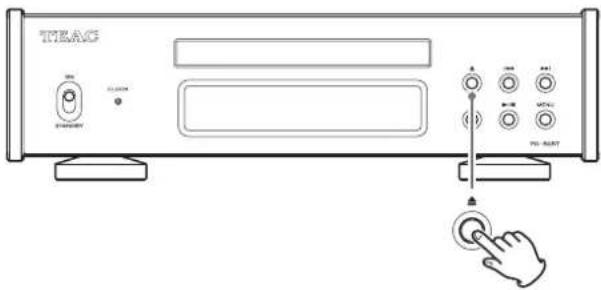
Be careful not to let your fingers be pinched when the tray closes.
"READING" will appear on the display and the unit will start loading the disc.
●The unit takes some time to load the disc.
Wait until the total number of tracks and total playback time appear on the display.
When loading completes, the display will appear as follows.
Display example
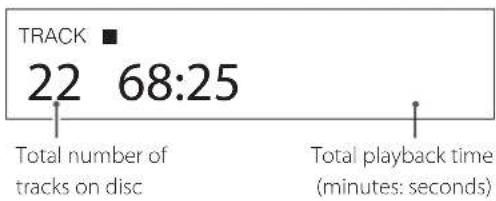
- When POWER ON PLAY is ON, playback will start immediately after the unit is turned on (page 20).
●"NO DISC" appears if no disc has been loaded. - "No support" appears if a disc that cannot be played is loaded.
6 Press the play/pause (▶ /II) button.
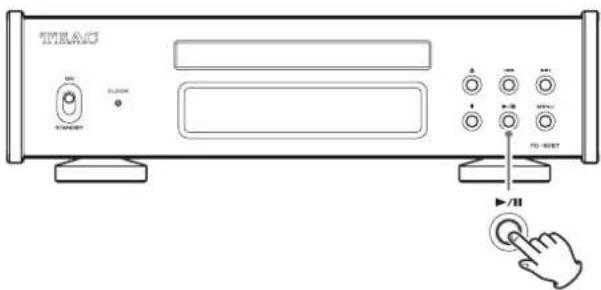
Playback starts from the first track.
Display example
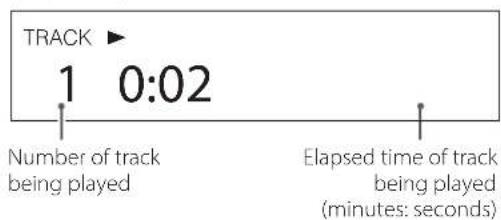
7 Adjust the volume.
Adjust the volume on devices used to control the volume (e.g., a stereo amplifier).
NOTE
●The automatic power saving function is set to ON when shipped new from the factory (page 20).
- When DIMMER (display brightness) is set to AUTO OFF, the display will turn off when not being operated (page 19).
Skipping to search for a track
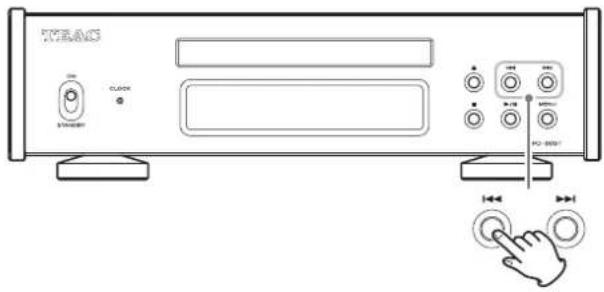
Press a skip (I◄◄/►►I) button to skip to the previous or next track. Repeatedly press them until the desired track is selected.
After a track is selected, it will start playing back from the beginning.
- During playback, press the ◀◀◀ button once to return to the beginning of the current track. Press the skip ◀◀◀ button repeatedly to select and play lower-numbered tracks.
Searching for part of a track
During playback, press and hold a skip (I◄◄/►►I) button on the remote control to search backward/forward. Release the skip (I◄◄/►►I) button when you find the part to which you want to listen.
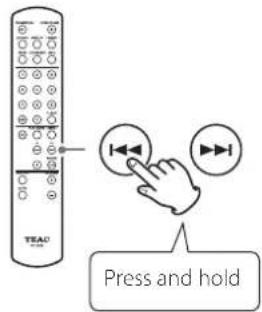
Repeat playback
Press the repeat (↔) button to cycle through repeat modes as follows.
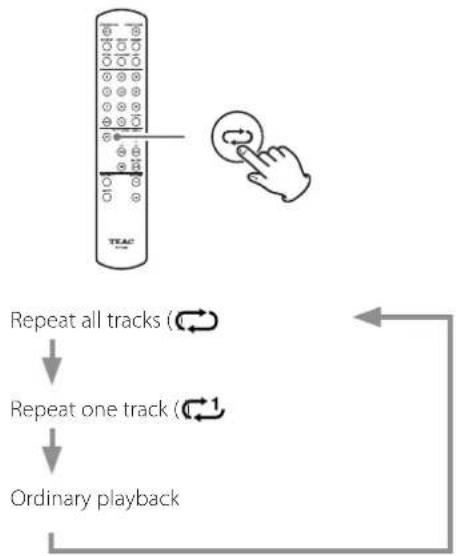
flowchart
graph TD
    A["Teac"] --> B["Repeat all tracks (↔)"]
    B --> C["Repeat one track (↔)"]
    C --> D["Ordinary playback"]
Shuffle and random playback
To switch to shuffle/random playback, press the PLAY MODE button repeatedly until appears at the top right of the display.
Shuffle or random playback will occur according to the setting (page 16).
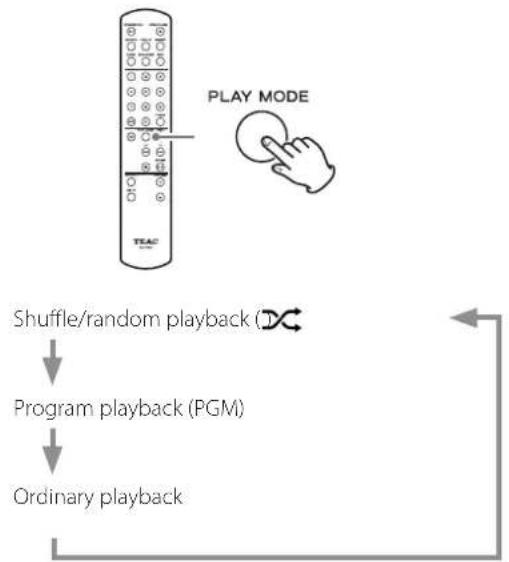
flowchart
graph TD
    A["PLAY MODE"] --> B["Shuffle/random playback (DC)"]
    B --> C["Program playback (PGM)"]
    C --> D["Ordinary playback"]
- Random playback will not stop until the stop (■) button is pressed.
- When random playback is active, the repeat playback setting has no effect.
Using the number buttons to select a track for playback
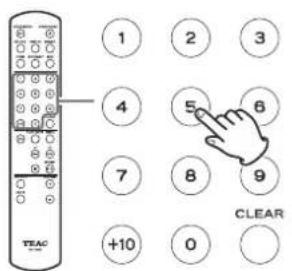
When playing or stopped, press number buttons to select a track by number and start playback from that track.
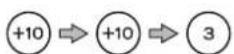
To play a track with a single-digit number, press that number button. To play a double-digit track number, press the +10 button as many times as necessary, and then press the corresponding number button for the second digit. Playback starts after the track number is input.
Operation examples
Track 7:

Track 23:
Program playback
Using program playback
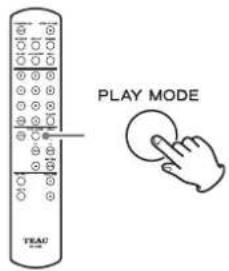
1 Press the PLAY MODE button repeatedly until PGM appears at the top right of the display.
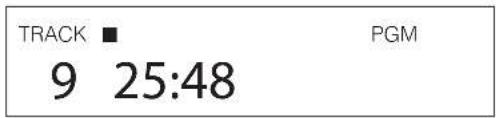
- If PGM is selected during playback, the playing track will be added as program step 1.
NOTE
Programming is possible even when the tray is open. In this case, track numbers 1 – 99 can be programmed. After a CD is loaded, however, track numbers that are not on the CD will be removed.
2 Use the number buttons to input track numbers.
See "Using the number buttons to select a track for playback" for instructions about inputting tracking numbers.
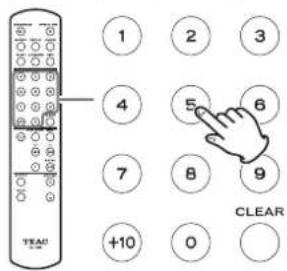
Display example
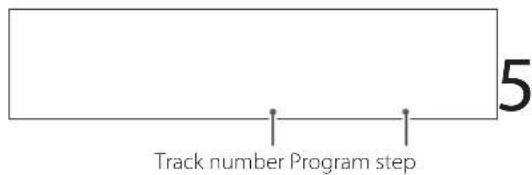
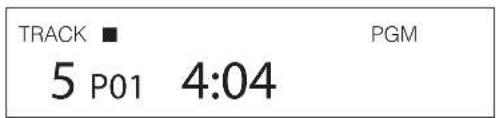
P0'
3 Continue to input the numbers for the tracks you want to program.
4 Press the play/pause (▶ /Ⅱ) button to start program playback.
- Skipping, searching and repeat playback functions can be used during program playback.
NOTE
When "PGM" appears at the top right of the display, what happens when number buttons are used to input track numbers depends on the PROGRAM PLAY setting (page 20).
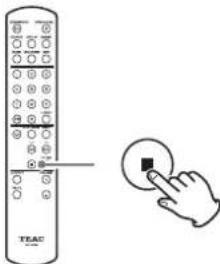
Checking the program order
Press the skip (I◄◄/►►1) buttons when playback is stopped to change the program step shown, allowing the program order to be checked.
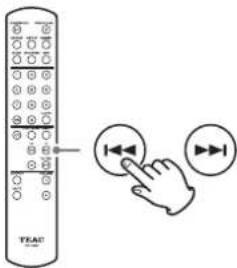
Press the stop (■) button when finished checking.
natural_image
Illustration of a remote control with a hand pointing to the button (no text or symbols present)Changing programmed tracks
Pressing the skip (I◄◄/►►) buttons when playback is stopped causes the program step to blink, showing the program editing mode is active.
Press the stop (■) button to end program editing mode.
Inserting tracks
1 Use the skip (|◀◀/▶▶|) buttons when play-back is stopped to show the program step where you want to insert a track.
Display example
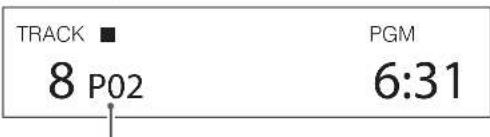
Program step blinks
2 Use the number buttons to input track numbers.
Display example
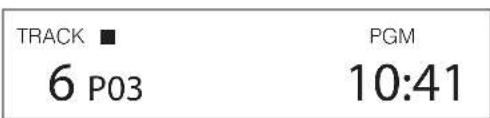
- In this example, track number 6 has been added at program step 3. The tracks on all the following program steps will be pushed to later steps.
- Continue inputting track numbers to insert multiple tracks.
3 Press the stop (■) button to end editing.
Basic operation (continued) Settings
Clearing selected tracks
1 Use the skip (|◄◄/►►|) buttons when play-back is stopped to show the program step with the track you want to clear.
Display example
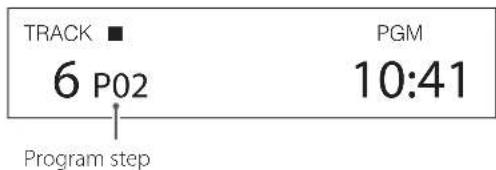
2 Press the CLEAR button to remove the track from the program.
Display example
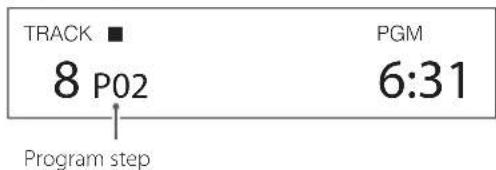
- In this example, track number 6 has been cleared at program step 2, bringing tracks at step 3 and later forward.
3 Press the stop (■) button to end editing.
NOTE
Pressing the CLEAR button when stopped will clear the track on the last step added to the program.
Clearing the entire program
Do any of the following to clear the program.
- Press the PLAY MODE button so that "PGM" disappears from the top right of the display.
- Eject a disc.
1 Press the MENU button to open the menu screen.
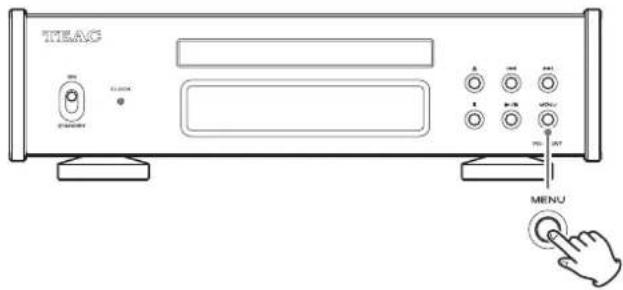
2 Press the skip (|◄◄/►►|) buttons to show the item that you want to set.
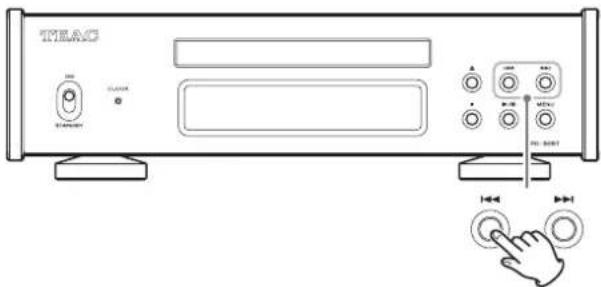
- You can also use the up and down ( , ) buttons on the remote control.
The menu items appear in the following order.
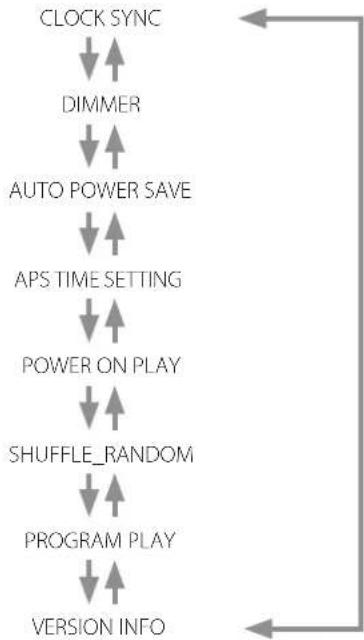
flowchart
graph TD
    A["CLOCK SYNC"] --> B["↓↑ DIMMER"]
    B --> C["↓↑ AUTO POWER SAVE"]
    C --> D["↓↑ APS TIME SETTING"]
    D --> E["↓↑ POWER ON PLAY"]
    E --> F["↓↑ SHUFFLE_RANDOM"]
    F --> G["↓↑ PROGRAM PLAY"]
    G --> H["↓↑ VERSION INFO"]
3 Press the play/pause (▶ / II) button.
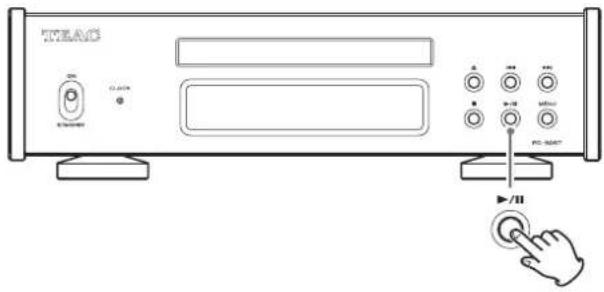
- You can also press the ENTER button on the remote control.
●The currently set value is shown on the display.
4 Press the skip (|◀◀/▶▶|) buttons to change setting values.
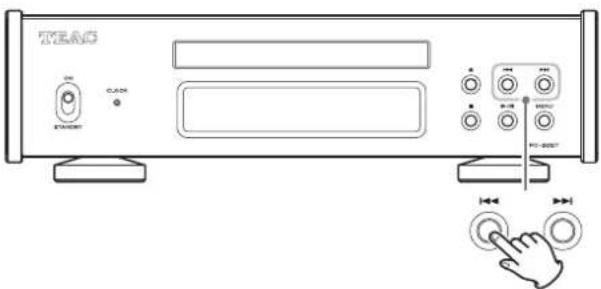
- You can also use the up and down (∧, ∨) buttons on the remote control.
- Press the MENU button to return to setting item selection.
5 Press the play/pause (▶ / II) button.
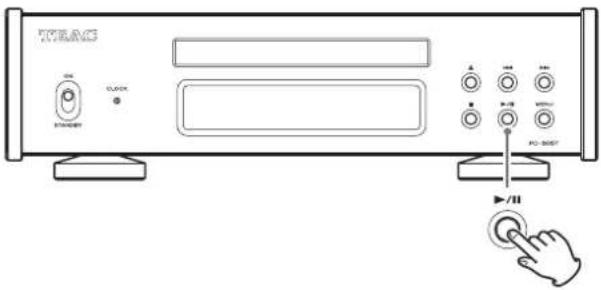
- You can also press the ENTER button on the remote control.
6 When done making settings, press the MENU button to show disc playback status again.
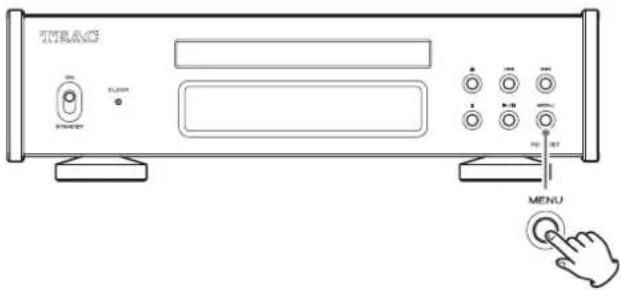
- If no operation is conducted for about seven seconds, the display will return to showing disc playback status.
Clock sync
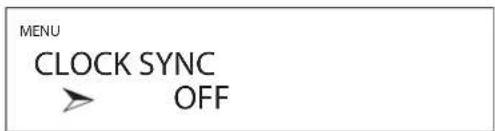
OFF
No clock sync is used.
ON
This unit's master clock will be synchronized to the 10MHz clock input through the CLOCK sync input (10MHz IN) connector.
Display brightness
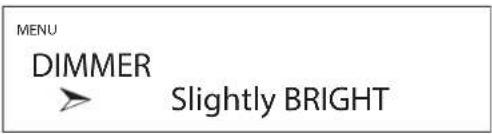
BRIGHT
Stays lit brightly.
Slightly BRIGHT
Stays lit dimly.
DARK
Stays dark.
AUTO OFF
Turns off automatically.
●The display turns off when not being operated.
NOTE
This can be set directly with the remote control DIMMER button.
Automatic power saving function
This unit has an automatic power saving function.
●The automatic power saving function is ON when the unit is shipped new from the factory.
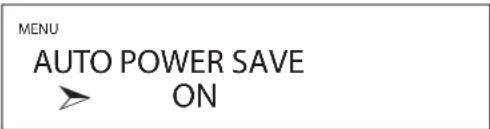
OFF
The automatic power saving function is disabled.
ON
The unit will automatically enter standby mode if no audio is output and no operation is conducted for about 30 minutes.
●The automatic power saving time setting can be used to change the amount of time until the unit enters standby mode.
Automatic power saving time setting
This sets the amount of time until the automatic power saving function causes the unit to enter standby.
![MENU APS TIME SETTING 30 [MIN]](/content/2026/04/640191/images/5591916a189f73ef82954714a8a4c7fd674cea4b935519f37c0cb02d7c246098.jpg)
This can be set in a range from 5–255 minutes in 5-minute increments (30 minutes by default).
Power on playback function
Playback can start automatically when the unit is turned on.
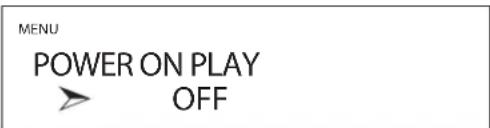
OFF
Playback will not start automatically when the unit is turned on.
ON
Playback will start automatically when the unit is turned on.
Shuffle and random playback
Shuffle and random playback modes can be selected.
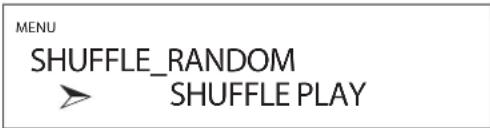
SHUFFLE PLAY
This plays every track on the disc once in random order.
- Unless repeat has also been set, playback will stop after all tracks on the disc have been played.
RANDOM PLAY
This plays the tracks on the disc randomly.
- Regardless of the repeat setting, playback will not stop until the stop (■) button is pressed.
Program playback track input behavior
This sets what happens when the number buttons are used during program playback.
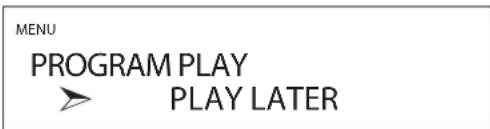
PLAY LATER
The input track number is added to the end of the program. The track that is playing continues to play.
PLAY NOW
The input track number is added to the end of the program and starts playing immediately.
Information display
This shows the version of the firmware used by the unit.
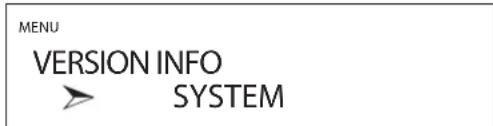
SYSTEM
The microcomputer firmware version
CD DRIVE
The CD drive firmware version
If you experience a problem with this product, please take a moment to review the following information before requesting service. If it still does not operate correctly, contact the retailer where you purchased the unit.
General
The unit does not turn on.
→Check that the power cord is completely plugged into the power outlet. If the outlet is switched, confirm that the switch is in the ON position.
→Connect a different electrical device to the outlet to confirm that it is supplying power.
If the automatic power saving function has caused the unit to enter standby, press the remote control STANDBY/ON button to turn the unit on again.
The unit automatically enters standby mode.
This is because the automatic power saving function put the unit into standby. Set the STANDBY/ON switch to STANDBY once and then set it to ON again. Change the automatic power saving setting if necessary (page 20).
Remote control does not work.
→Turn the main unit on (page 14).
→If the batteries are exhausted, replace both of them with new ones (page 9).
The remote control will not work if there are obstructions between it and the main unit. Point the remote control at the front panel of the unit from a distance of less than about 5 m (16 ft) (page 9).
A television or other device is operating improperly.
The use of this unit's remote control might cause some televisions and other devices with wireless remote control functions to operate incorrectly.
There is a humming noise.
If a connecting cable is near a power cord, fluorescent light or similar cause of interference, increase the distance between them as much as possible.
No sound is output.
If a stereo amplifier is connected to this unit, adjust its volume.
→Reconfirm the connections with other equipment.
CD Transport
Playback is not possible.
→If the disc is upside down, reload it with the labeled side up.
→If the disc is dirty, wipe it clean.
If a blank disc is loaded, replace it with a disc that has recordings on it.
→Depending on the quality and recording conditions of the disc, some CD-R/CD-RW discs cannot be played back.
→This unit cannot play back unfinalized CD-R/CD-RW discs.
The sound skips.
→ Vibrations will cause the sound to skip. Install this unit in a stable location.
→If the disc is dirty, wipe it clean.
→Do not use discs that are scratched or cracked.
Clock sync
The CLOCK indicator does not stop blinking.
→Set clock synchronization to OFF when not using it.
→A clock signal to which the unit cannot synchronize might be being input. Check the connections of the clock sync connectors and the settings of the connected devices.
Since this unit uses a microcontroller, external noise and other interference can cause the unit to malfunction. If this occurs, unplug the power cord, wait for a while, and then turn the unit on again and restart operations.
Note about condensation
If this unit is brought from a cold outdoor environment into a warm room, or the heater has just been turned on in the room where it is located, for example, condensation might occur on operating parts or lenses, resulting in improper operation. If this occurs, leave the product on and wait one to two hours. This should enable normal playback.
Restoring default settings
1 While pressing and holding the MENU button, set the STANDBY/ON switch to ON.
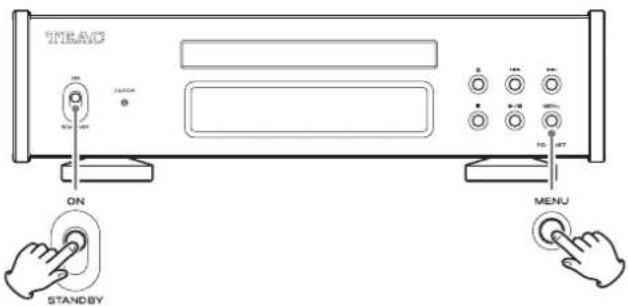
2 Release the MENU button when the FACTORY RESET menu appears.
MENU
FACTORY RESET
ARE YOU SURE?
3 Press the play/pause (▶ /II) button.
PLEASE WAIT!
The usual screen will appear after resetting completes. Display example
NO DISC
ATTENTION
- Do not put the unit in standby until the usual screen appears.
●This operation will restore all settings to their default values.
- The factory default settings are the setting values shown in the screen images used in the explanations of this manual.
playable disc types
Audio CD (including CD-R and CD-RW)
Clock sync input
Connector...... BNC
Input sampling frequency 10 MHz
Input impedance 50 Ω
Input level..... Rectangle wave: equivalent to TTL levels
Sine wave: 0.5 to 1.0 Vrms
Digital audio outputs
COAXIAL digital....1
Output level 0.5 Vpp
Output impedance....75 Ω
OPTICAL digital....1
TOS (JEITA RC5720C)
General
Power supply
Model for Europe....AC 220-240 V, 50/60 Hz
Model for U.S.A./Canada.... AC 120 V, 60 Hz
Power consumption....4 W
Standby power 0.3 W (in standby mode)
External dimensions (W × H × D, including protrusions)
290 × 84.5 × 248.8 mm (11 1/2" × 3 3/8" × 9 7/8")
Weight 4.0 kg (4 7/8 lb)
Operating temperature range ....+5°C to +35°C
Operating humidity range....5% to 85% (no condensation)
Storage temperature range....-20°C to +55°C
Included accessories
Power cord × 1
Remote control (RC-1338) × 1
Batteries for remote control (AAA) × 2
Foot pads × 3
Owner's manual (this document, including warranty) × 1
- For information about the warranty, users living in the USA and Canada should see pages 68–69 and the back cover (warranty document). Users living in Europe and other regions should see page 69.
- Specifications and appearance are subject to change without notice.
●Weight and dimensions are approximate. - Illustrations in this manual might differ slightly from production models.

ATTENTION : POUR RÉDUIRE LE RISQUE D'ÉLECTROCUTION, NE RETIREZ PAS LE CAPOT (OU L'ARRIÈRE). AUCUNE PIÈCE INTERNE N'EST RÉPARABLE PAR L'UTILISATEUR. CONFIEZ TOUTE RÉPARATION À UN SERVICE APRÈS-VENTE QUALIFIÉ.

natural_image
Symbolic icon of a person pushing a large object, enclosed in a circle (no text or symbols)natural_image
Technical line drawing of a computer drive casing with mounting holes and control buttons (no text or symbols)natural_image
Technical line drawing of a computer drive casing with mounting holes and a central square component (no text or symbols)natural_image
Four abstract diagrams showing overlapping circles with crosshairs, no text or symbols presentnatural_image
Three hand-drawn diagrams showing a disc rolling on a surface, with no text or symbols present.natural_image
Line drawing of a remote control device with handle and battery, showing internal mechanism (no text or symbols)Port UPDATE (maintenance)
A Commutateur STANDBY/ON
H Touche Lecture/Pause (▶ /II)
natural_image
Line drawing of a hand using a CD to press down an object on a base (no text or symbols)Exemple d'affichage
Parte responsible: 11 Trading Company, LLC
Dirección: 3502 Woodview Trace #200 Indianapolis, IN 46268 U.S.A. URL: https://11tradingcompany.com/contact-us/
natural_image
Technical line drawing of a computer drive casing with mounting holes and control buttons (no text or symbols)natural_image
Technical line drawing of a computer chassis with mounting holes and a central square component (no text or symbols)natural_image
Four identical diagrams showing a heart shape with two crossed-out circles, each paired with a shaded region (no text or symbols)natural_image
Three hand-drawn diagrams showing a presser pressing a button, then pressing a circular component with a handle (no text or symbols)natural_image
Line drawing of a remote control device with handle and battery, showing internal mechanism (no text or symbols)A Interruptor STANDBY/ON
natural_image
Line drawing of a hand using a CD to press down a circular component on a base (no text or symbols)Ejemplo de pantalla
natural_image
Simple rectangular shape with two vertical lines and the number 5 on the right side (no text or symbols within the shape)Warranty provisions (United States and Canada only)
Length of Warranty
The parts and labor warranty will be effective for one (1) year from the date of the original purchase for products not used for commercial purposes. For products used commercially, the warranty is ninety (90) days for magnetic heads and optical pickups, one (1) year for all other parts and ninety (90) days for labor.
Who Is Covered Under This Warranty
This warranty is valid only in the United States or Canada, dependent upon the country in which original purchase was made, and enforceable only by the original purchaser within the country in which the purchase was made.
This warranty is not valid if the product was purchased through an unauthorized dealer.
What Is Not Covered Under This Warranty
●Damage to or deterioration of the external cabinet.
●Damage resulting from accident, misuse, abuse, or neglect.
- Damage resulting from failure to follow instructions contained in the products owners' manual or otherwise provided with the product.
●Damage occurring during shipment of the product (Claims must be presented to the carrier).
●Damage resulting from the repair or attempted repair by anyone other than TEAC or an authorized TEAC service station.
- Damage resulting from modification or attempted modification of product not authorized by TEAC.
●Damage resulting from causes other than product defects, including lack of technical skills, competence, or experience of the user.
- Damage to any unit that has been altered or which the serial number has been defaced, modified or removed.
What TEAC Will Pay For
TEAC will pay all labor and material expenses for items covered by the warranty. Payment of shipping charges is covered in the next section.
How To Obtain Warranty Service
Your unit must be serviced by an authorized TEAC service station within the country in which the product was purchased. If you are unable to locate an authorized service station in your area, please contact TEAC at the applicable address shown at the end of this warranty statement. PLEASE DO NOT RETURN YOUR UNIT TO TEAC WITHOUT OUR PRIOR AUTHORIZATION. You must pay shipping charges if it is necessary to ship the product for service. However, if the necessary repairs are covered by warranty, we will pay the return shipping charges to any destination within the country in which the product was purchased. Whenever warranty service is required, you must present the original dated sales receipt, or other proof indicating the purchase place and date, as proof of warranty coverage.
LIMITATION OF IMPLIED WARRANTIES
ALL IMPLIED WARRANTIES, INCLUDING WARRANTIES OF MERCHANTABILITY AND FITNESS FOR A PARTICULAR PURPOSE, ARE LIMITED IN DURATION TO THE LENGTH OF THIS WARRANTY.
EXCLUSION OF DAMAGES
TEAC'S LIABILITY FOR ANY DEFECTIVE PRODUCT IS LIMITED TO REPAIR OR REPLACEMENT OF THE PRODUCT, AT TEAC'S OPTION. TEAC SHALL NOT BE LIABLE FOR DAMAGE BASED UPON INCONVENIENCE, LOSS OF USE OF THE PRODUCT, INTERRUPTED OPERATION, COMMERCIAL LOSS OR LOST PROFITS, OR ANY OTHER DAMAGES, WHETHER INCIDENTAL, CONSEQUENTIAL, PUNITIVE OR OTHERWISE.
SOME STATES OR PROVINCES DO NOT ALLOW LIMITATIONS ON HOW LONG AN IMPLIED WARRANTY LASTS AND/OR DO NOT ALLOW THE EXCLUSION OR LIMITATION OF INCIDENTAL OR CONSEQUENTIAL DAMAGES, SO THE ABOVE LIMITATIONS AND EXCLUSIONS MAY NOT APPLY TO YOU.
THIS WARRANTY GIVES YOU SPECIFIC RIGHTS, AND MAY VARY FROM SOME OF THE RIGHTS PROVIDED BY LAW. THESE RIGHTS MAY VARY FROM STATE TO STATE OR PROVINCE TO PROVINCE.
This product is subject to the legal warranty regulations of the country of purchase. In case of a defect or a problem, please contact the dealer where you bought the product.
In countries/regions other than the USA, Canada and Europe
This warranty gives you specific legal rights, and you may also have other rights that vary by country, state or province.
If you have a warranty claim or request, please contact the dealer where you bought the product.
Dealer's address/Adresse du revendeur
TEAC
TEAC CORPORATION
1-47 Ochiai, Tama-shi, Tokyo 206-8530, Japan

- CAUTION
- WARNING
- Precautions concerning batteries
- Laser information
- Laser:
- Model for USA
- Supplier's Declaration of Conformity
- Information
- Model for Canada
- Model for Europe
- Model for UK
- For European Customers
- Disposal of electrical and electronic equipment and batteries and/or accumulators
- Contents Floating mounting of the CD
- mechanism
- About the transportation locking screws
- Before installing the unit
- Before transporting the unit
- Types of discs that can be played by this unit
- CD-R/CD-RW discs
- Precautions for use
- Handling discs
- Discs (continued)
- Storing discs
- Maintenance
- Included accessories
- Using the TEAC International Site
- Note about placement
- Installing batteries
- When to replace batteries
- all connections are complete, connect the power cord's plug to the AC wall outlet.
- UPDATE (maintenance) port
- CLOCK sync input (10MHz IN) connector
- COAXIAL/OPTICAL digital audio output connectors
- Power inlet (\~IN)
- a STANDBY/ON button
- b Number buttons
- c Repeat ( ⇌ ) button
- d Tray OPEN/CLOSE (▲) button
- e DIMMER button
- f DISPLAY button
- g CLEAR button
- h MENU button
- i PLAY MODE button
- j \$kip (|◀◀, ▶▶|) buttons/ up/down (^, ∨) buttons
- When the menu screen is open
- k Play/pause (▶ /II) button/ ENTER button
- I Stop (■) button
- A STANDBY/ON switch
- B CLOCK indicator
- C Remote control signal receiver
- D Disc tray
- E Display
- F Tray open/close (▲) button
- G Stop (■) button
- H Play/pause (▶/II) button
- I MENU button
- J Skip (|◀◀/▶▶|) buttons
- Automatic power saving function
- Display brightness
- When on
- TEAC
- When no disc is available
- Display example: stopped
- Display example: playing back
- Adjust the volume.
- NOTE
- Searching for part of a track
- Repeat playback
- Shuffle and random playback
- Using the number buttons to select a track for playback
- Program playback
- Using program playback
- Checking the program order
- Changing programmed tracks
- Inserting tracks
- Basic operation (continued) Settings
- Clearing selected tracks
- Clearing the entire program
- Press the play/pause (▶ / II) button.
- Press the skip (|◀◀/▶▶|) buttons to change setting values.
- Press the play/pause (▶ / II) button.
- When done making settings, press the MENU button to show disc playback status again.
- Clock sync
- OFF
- ON
- BRIGHT
- Slightly BRIGHT
- DARK
- AUTO OFF
- Automatic power saving time setting
- Power on playback function
- SHUFFLE PLAY
- RANDOM PLAY
- Program playback track input behavior
- PLAY LATER
- PLAY NOW
- Information display
- SYSTEM
- CD DRIVE
- General
- The unit does not turn on.
- The unit automatically enters standby mode.
- Remote control does not work.
- A television or other device is operating improperly.
- There is a humming noise.
- No sound is output.
- CD Transport
- Playback is not possible.
- The sound skips.
- The CLOCK indicator does not stop blinking.
- Note about condensation
- Restoring default settings
- ATTENTION
- playable disc types
- Clock sync input
- Digital audio outputs
- Port UPDATE (maintenance)
- A Commutateur STANDBY/ON
- H Touche Lecture/Pause (▶ /II)
- A Interruptor STANDBY/ON
- Warranty provisions (United States and Canada only)
- Length of Warranty
- Who Is Covered Under This Warranty
- What Is Not Covered Under This Warranty
- What TEAC Will Pay For
- How To Obtain Warranty Service
- LIMITATION OF IMPLIED WARRANTIES
- EXCLUSION OF DAMAGES
- In countries/regions other than the USA, Canada and Europe
Brand : TEAC
Model : PD-505T
Category : Cd player/recorder