
PIXMA G2410 - Printer CANON - Free user manual and instructions
Find the device manual for free PIXMA G2410 CANON in PDF.
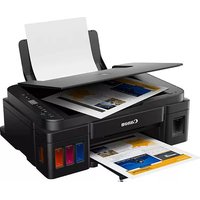


| Product type | Inkjet printer |
| Brand | Canon |
| Model | PIXMA G2410 |
| Dimensions (approx.) | 445 x 330 x 163 mm (L x D x H) |
| Weight (approx.) | 5.3 kg |
| Power supply | 100-240 V AC, 50/60 Hz |
| Main functions | Monochrome and color printing |
| Printing technology | Inkjet |
| Number of cartridges | 2 (one black, one color) |
| Ink type | Ink bottles (built-in tank) |
| Paper tray capacity | Approximately 100 sheets |
| Connectivity | USB 2.0 (Type B) |
| Compatible operating systems | Windows, macOS |
| Display | LED indicators |
| Routine maintenance | Print head cleaning, ink refilling |
| Safety instructions | Do not move the printer tilted, avoid any contact with ink |
| Available spare parts | Ink bottles, cartridges, power cord |
| Repairability | Replacement of cartridges and ink bottles by the user |
| General information | Manual available online and in PDF format |
Frequently Asked Questions - PIXMA G2410 CANON
User questions about PIXMA G2410 CANON
0 question about this device. Answer the ones you know or ask your own.
Ask a new question about this device
Download the instructions for your Printer in PDF format for free! Find your manual PIXMA G2410 - CANON and take your electronic device back in hand. On this page are published all the documents necessary for the use of your device. PIXMA G2410 by CANON.
USER MANUAL PIXMA G2410 CANON
Read Safety and Important Information (addendum) first.
First read the safety information and important information (appendix).
Installing the Printer page 1
Installing the printer... page 1
Installing the printer page 1

Connecting with Computer page 4
1. Checking Included Items
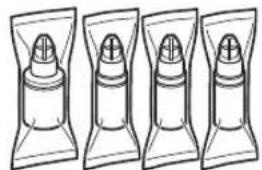
Cartridge Ink bottle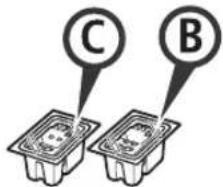
Power cord Setup CD-ROM for Windows PC Safety and Important Information Getting Started (this manual)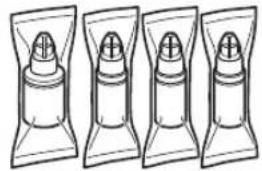
2. Removing Packing Materials

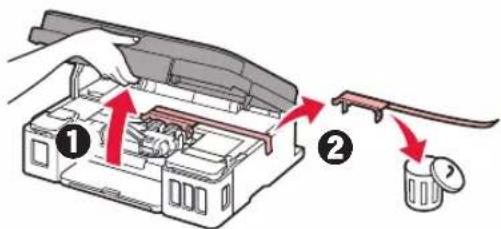
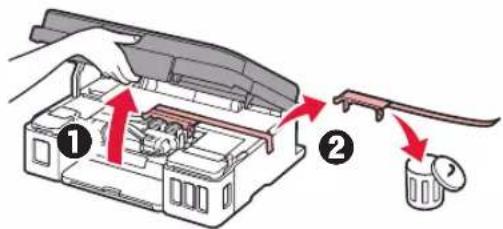
1 Remove the packing materials (such as orange tape) from outside the printer. 2 1 Open the scanning unit / cover. Remove the orange tape and the protective material and discard them.
3. Installing the Cartridge
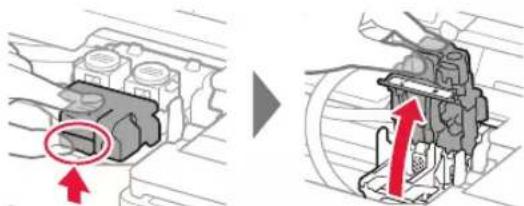
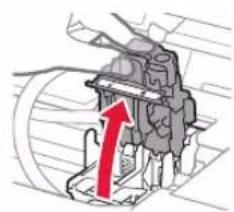
1 Open the cartridge locking cover.
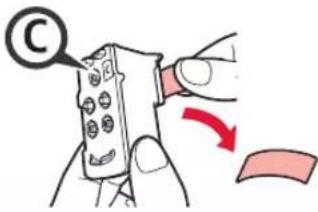
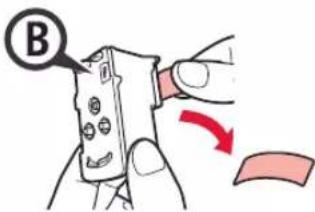
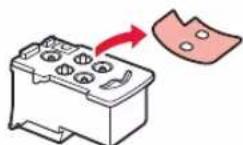
2 Take out each cartridge from the package and remove the label.
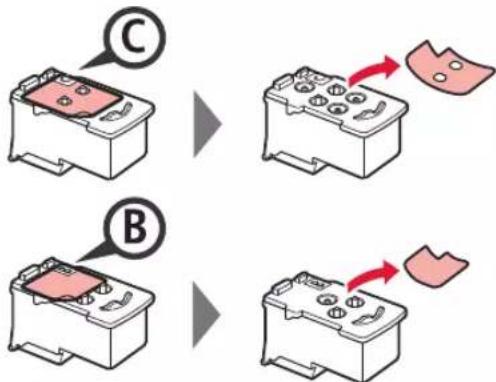
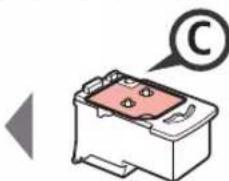
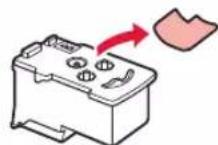
3 Remove the protective tape.
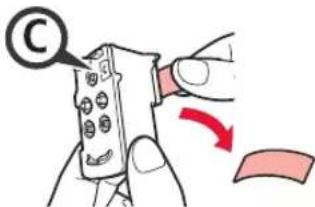
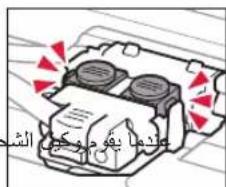
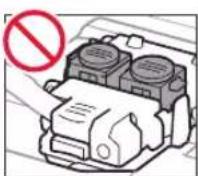
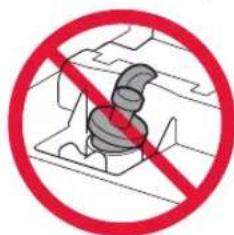
Do not touch.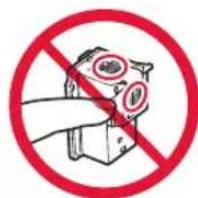
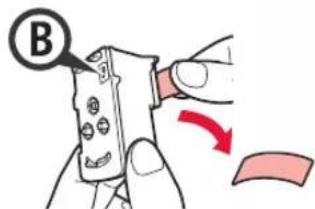
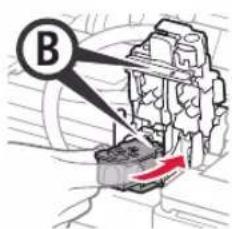
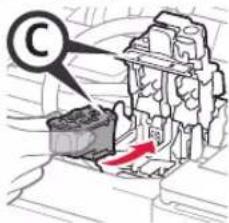
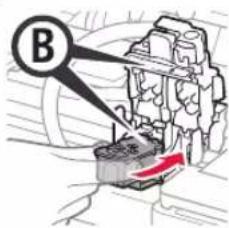
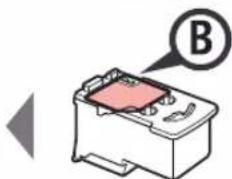
4 Insert the C (color) cartridge on the left and the B (black) cartridge on the right.
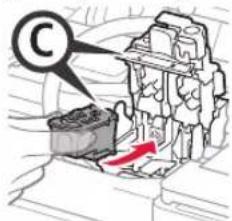
Do not bump it against the surrounding parts.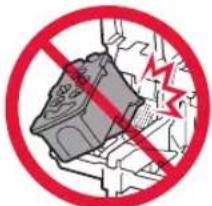
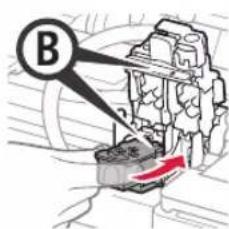
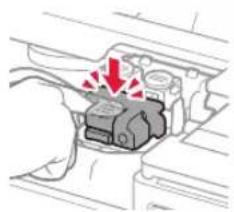
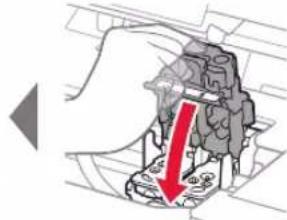
5 Close the cartridge locking cover and push it down.
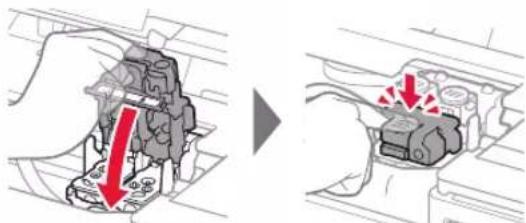
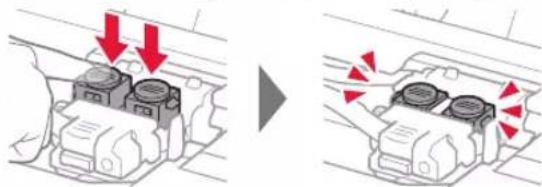
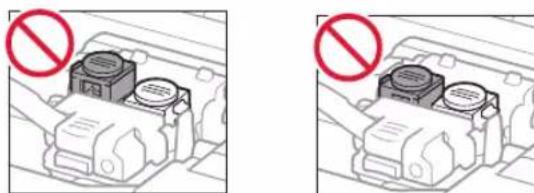
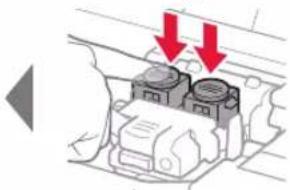
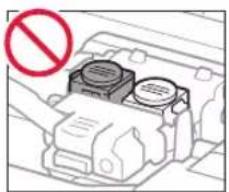
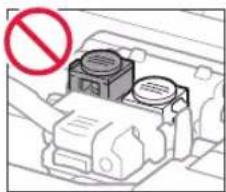
6 Press down both joint buttons completely.
4. Turning on Printer

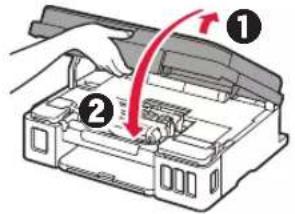
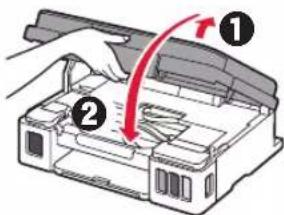
1 LIFT UP the scanning unit / cover, and then close it.
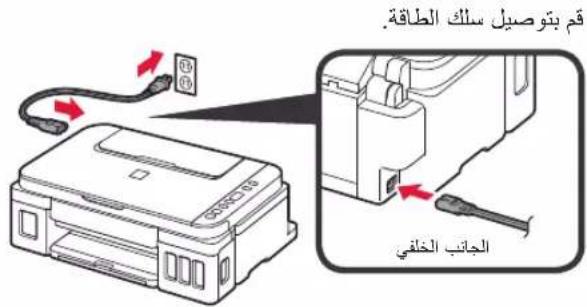
2 Connect the power cord.
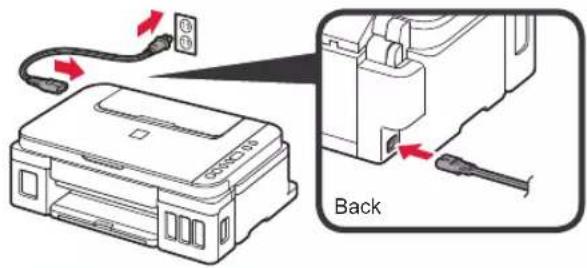
Do not connect any cables except the power cord yet.
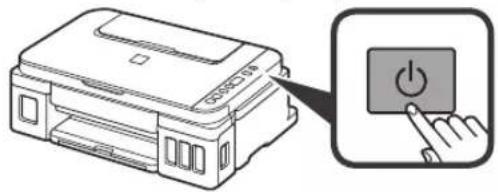
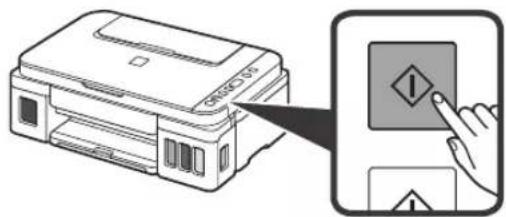
3 Press the ON button.

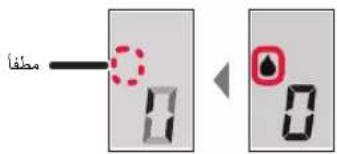
4 Confirm that (ink icon) and are displayed on the screen.
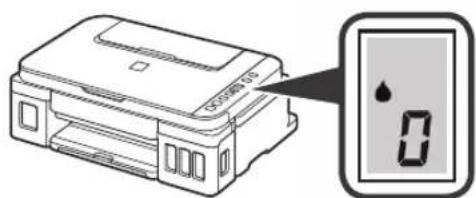
If a different screen appears, refer to "If any of the following screens appear" on page 3 to resolve the error.
5. Pouring Ink

This product requires careful handling of ink. Ink may splatter when the ink tanks are filled with ink. If ink gets on your clothes or belongings, it may not come off.
1 Open the scanning unit / cover.
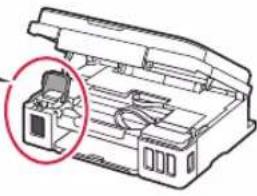
2 Open the ink tank cover.
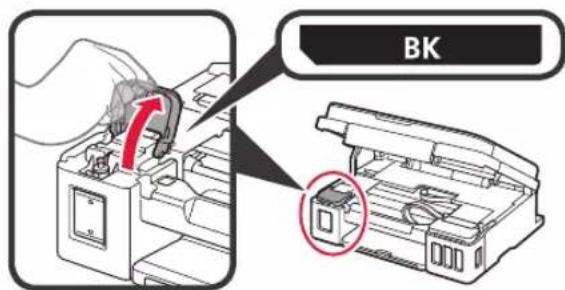
3 Grab and remove the tank cap of the ink tank.
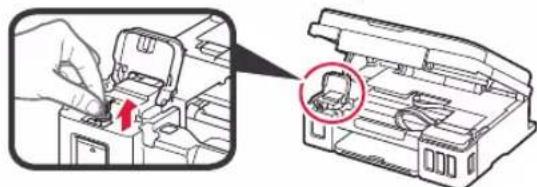
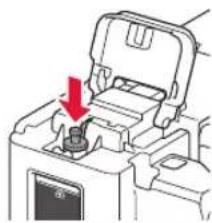
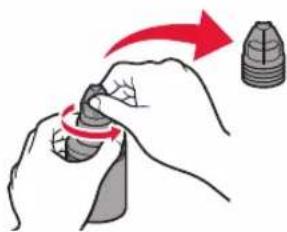
4 Hold the ink bottle upright and remove the bottle cap.

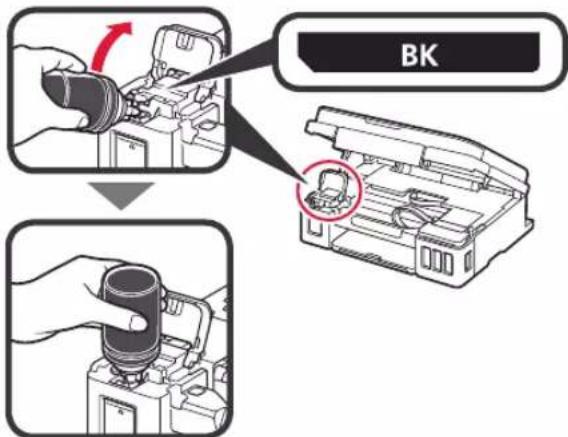
5 Insert the nozzle of the ink bottle into the inlet and stand the ink bottle upside down.
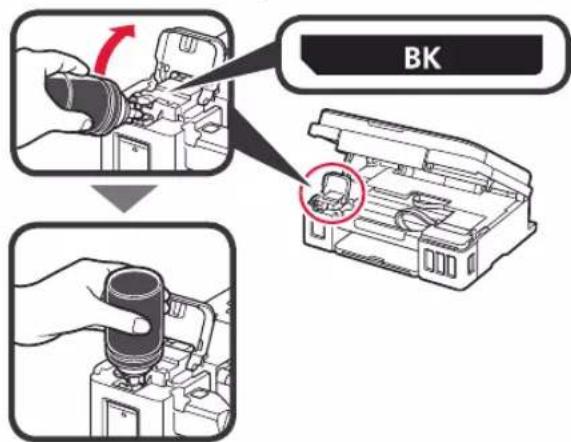
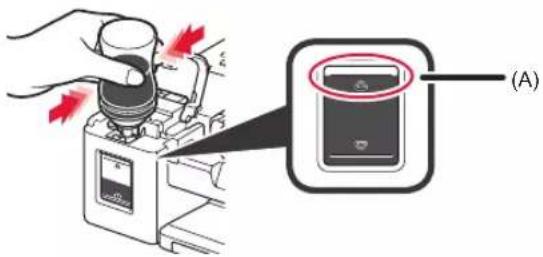
Pour all ink into the ink tank.
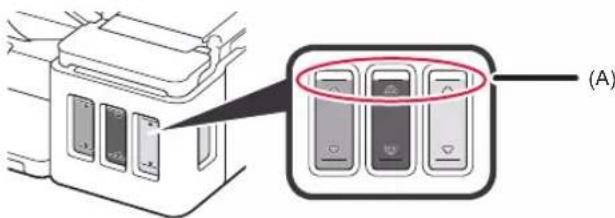
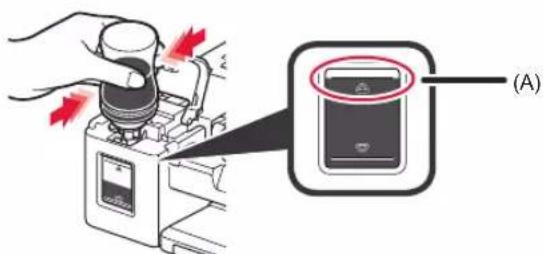
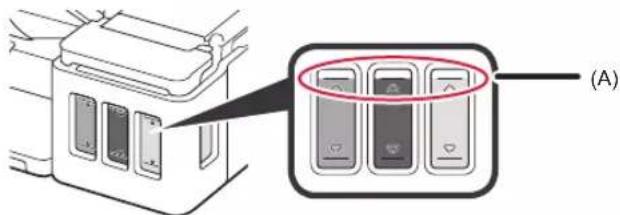
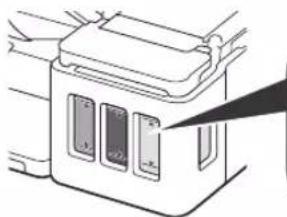
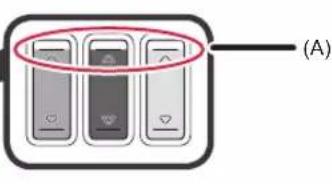
Confirm that the ink has been filled to the upper limit line (A).
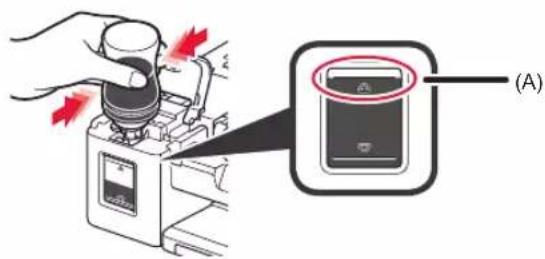
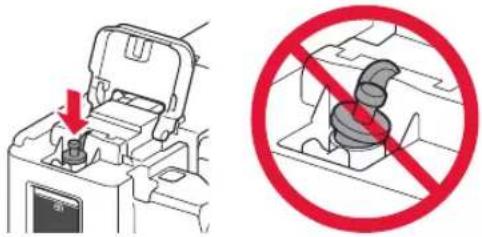
7 Replace the tank cap securely.
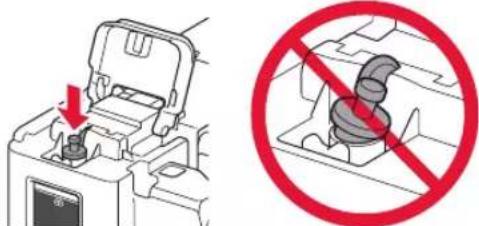
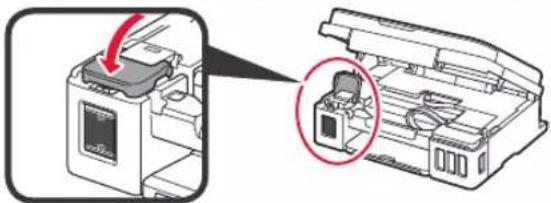
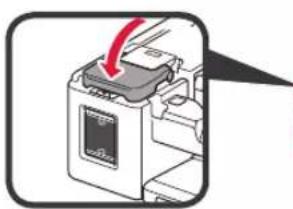
8 Close the ink tank cover.
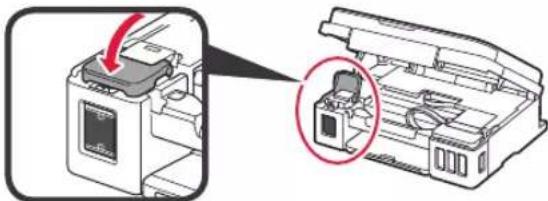
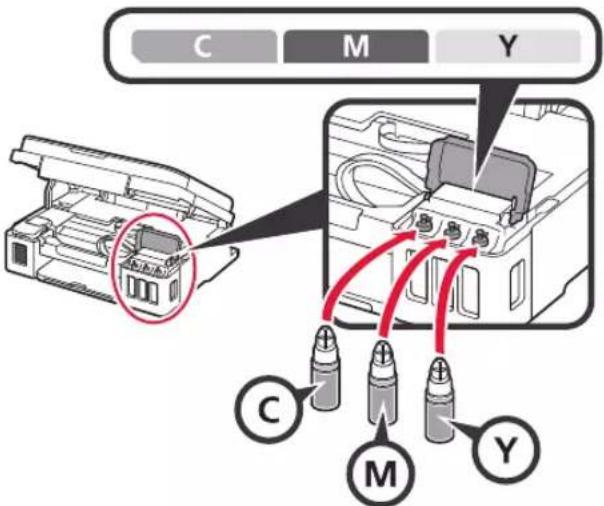
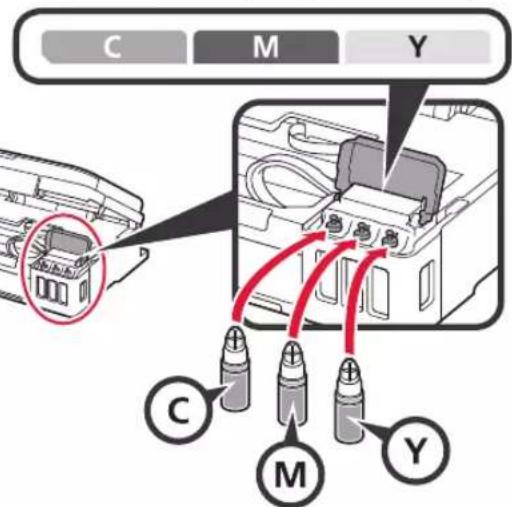
9 Repeat steps 2 to 8 to pour all ink into the corresponding ink tanks on the right according to the label.
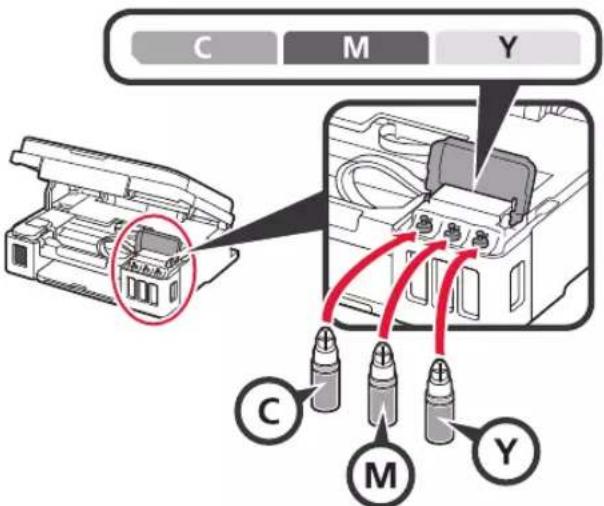
Confirm that the ink has been filled to the upper limit line (A).
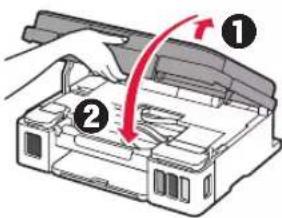
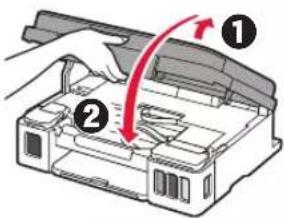
10 LIFT UP the scanning unit / cover, and then close it.
6. Preparing the Ink System
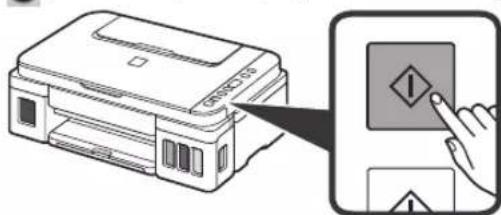
1 Press the Black button and confirm that the triangle icon disappears.
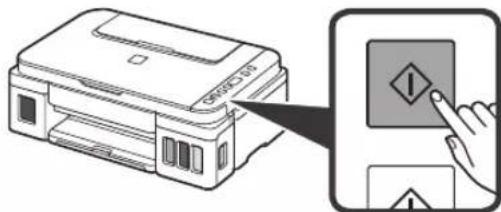
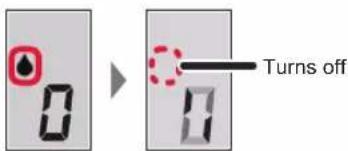
Ink preparation takes about 5 to 6 minutes. Proceed to the next page.

If any of the following screens appear
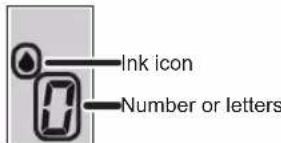
EO4
The cartridges are not installed correctly. "3. Installing the Cartridge" on page 1
EOS
No cartridges are installed. "3. Installing the Cartridge" on page 1
EO9
The protective materials are not removed. "2. Removing Packing Materials" on page 1
P0B
Ink is not prepared normally. Press the ON button to restart the printer, and then see "5. Pouring Ink" on page 2.
#
Waiting to prepare ink. "6. Preparing the Ink System" If you have not poured ink into the ink tank yet, see "5. Pouring Ink" on page 2.
For all other cases, refer to the Online Manual.
7. Connecting to Computer
You need a connection setup for each computer. Proceed with the setup from step 1 for each computer.
If you use the printer while it is not connected to a computer, confirm that i is displayed on the printer's screen. The setup is now complete.
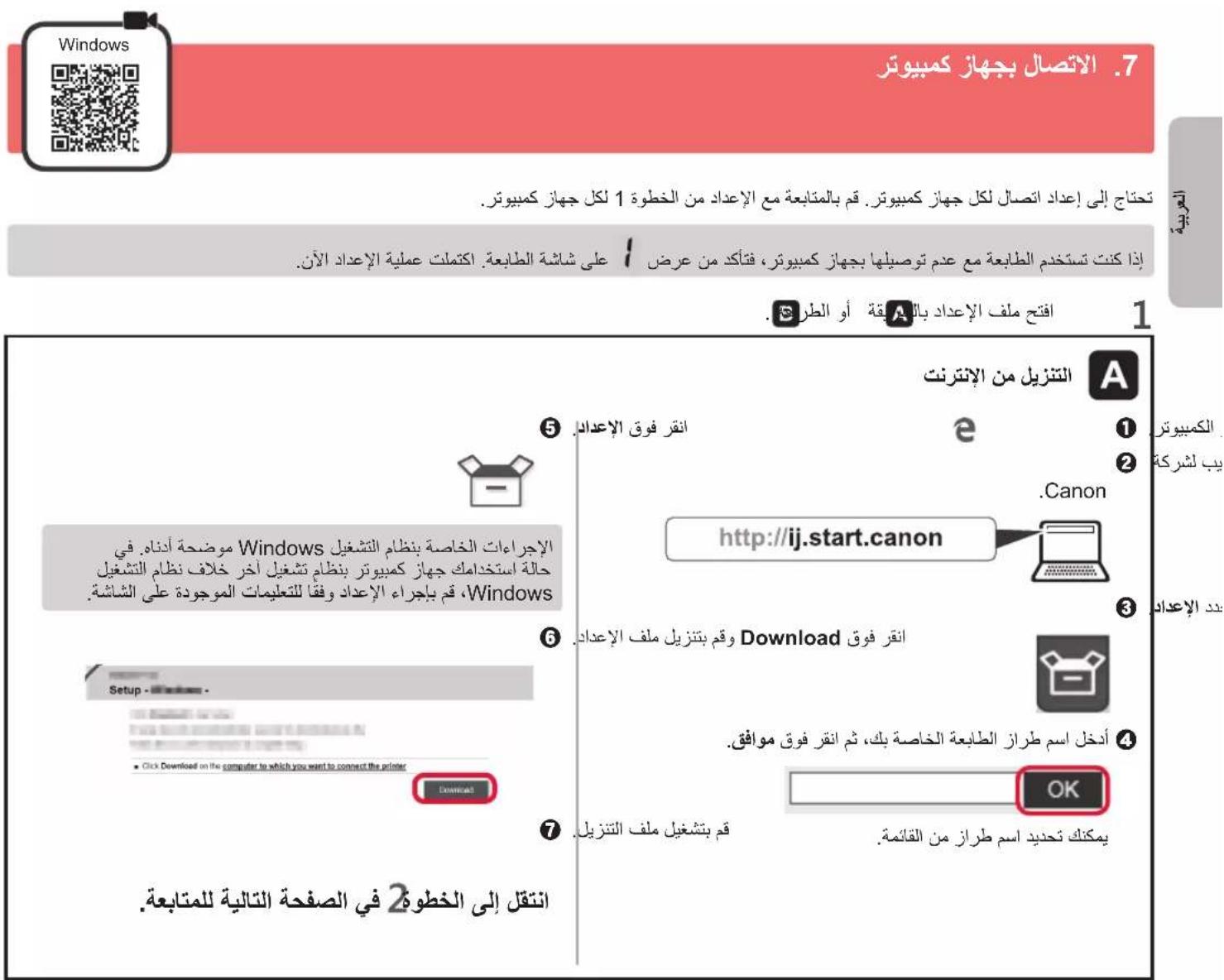
1 Start the setup file for either method A or method B

Downloading from the Internet
Open a web browser (etc.) on your computer. Input the following URL and access the Canon website.

3 Select Set Up.

Input the model name of your printer and click OK.

You can select a model name from the list.
Click Setup.

The procedures for Windows are shown below. If you are using a computer with an OS other than Windows, do the setup according to the on-screen instructions. Click Download and download the setup file.
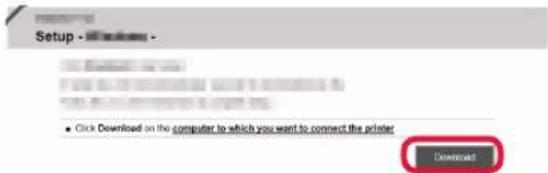
7 Execute the downloaded file.
Proceed to step 2 on the next page to continue.

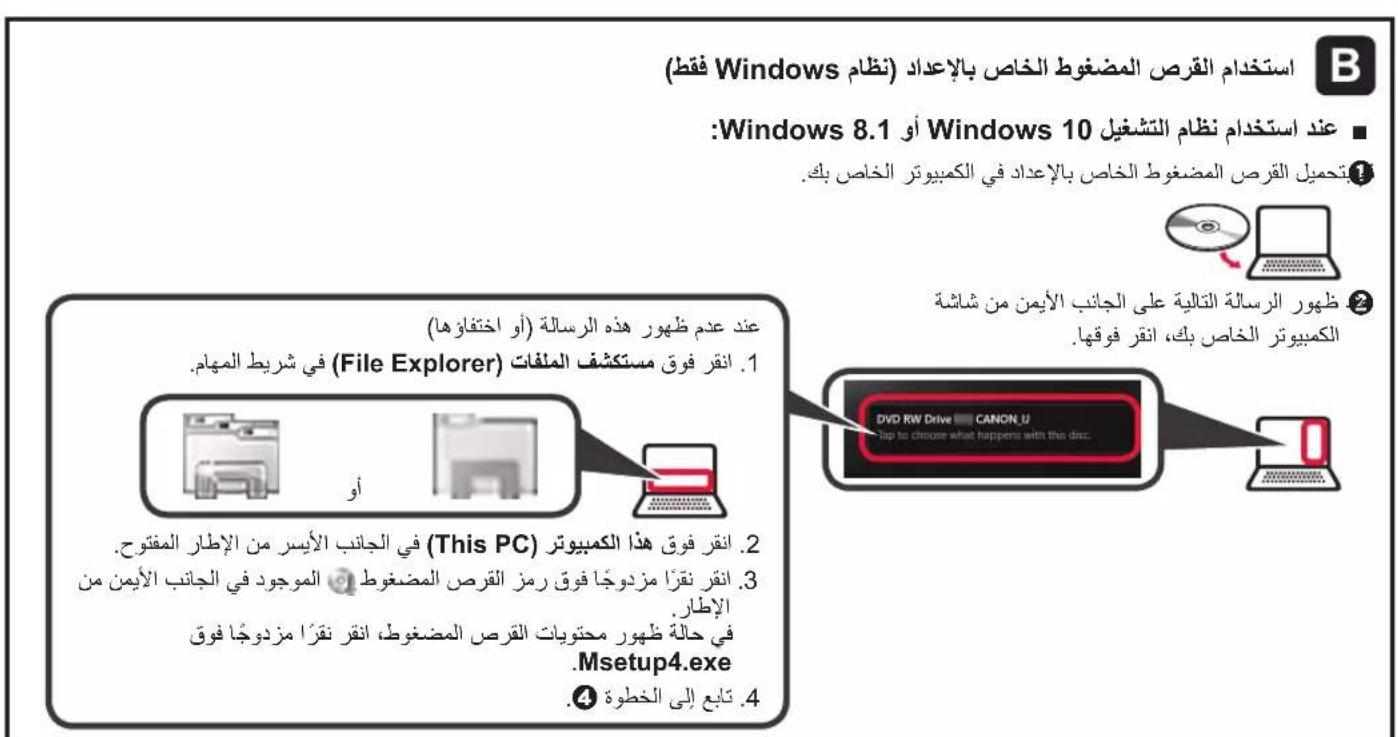
Using Setup CD-ROM (Windows Only)
When using Windows 10 or Windows 8.1:
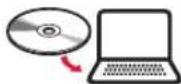
1 Load the Setup CD-ROM in your computer.

When the following message appears on the right side of your computer screen, click it.
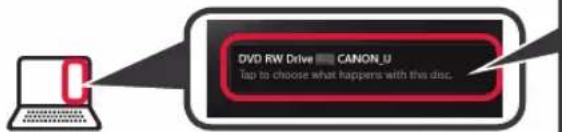
When This Message Does Not Appear (or Has Disappeared)
- Click File Explorer on the taskbar.
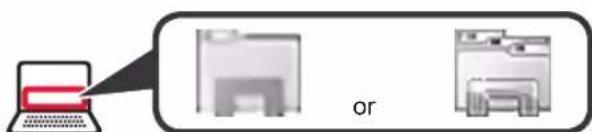
- Click This PC on the left side of the opened window.
- Double-click the CD-ROM icon on the right side of the window. If the contents of the CD-ROM appear, double-click Msetup4.exe.
- Proceed to step 4.
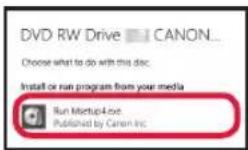
If the following screen appears, click Run Msetup4.exe.
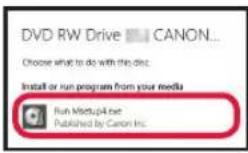
If the User Account Control dialog box appears, click Yes.
Proceed to step 2 to continue.
When using Windows 7:
1 Load the Setup CD-ROM in your computer.

When the AutoPlay screen appears, click Run Msetup4.exe.
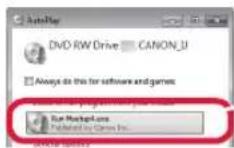
When AutoPlay Screen Does Not Appear
- Click Computer from the start menu.
- Double-click the CD-ROM icon on the right side of the opened window. If the contents of the CD-ROM appear, double-click Msetup4.exe.
If the User Account Control dialog box appears, click Continue.
Proceed to step 2 to continue.
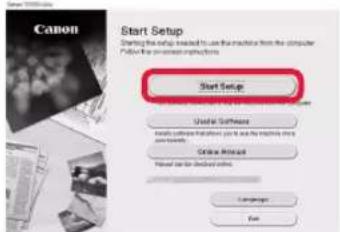
2 Click Start Setup.
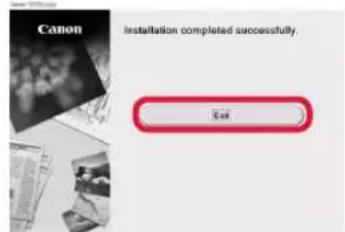
If the following screen appears, click Exit.
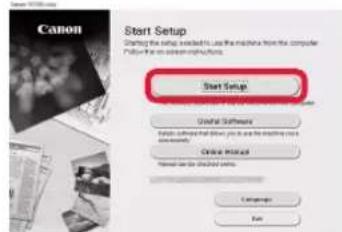
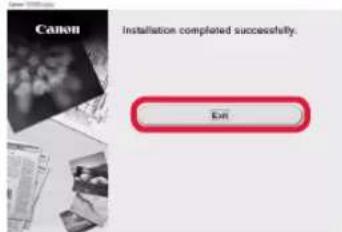
The setup is complete when it appears on the printer's screen. You can print from your computer.
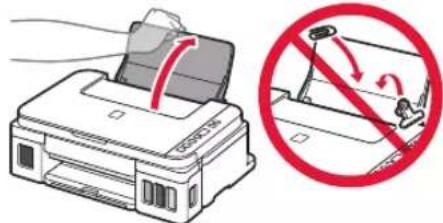
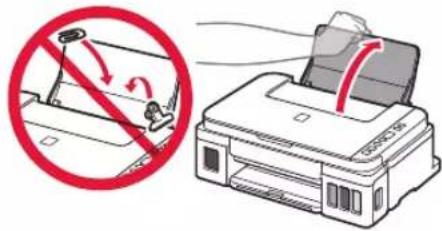
1 Open the paper support.
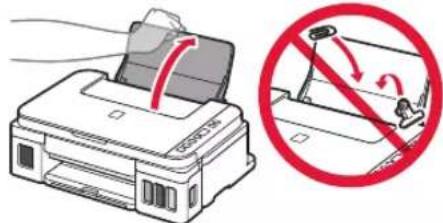
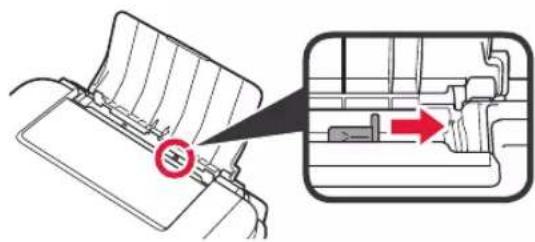
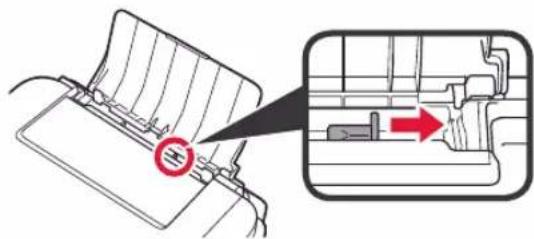
2 Slide the right paper guide to the end.
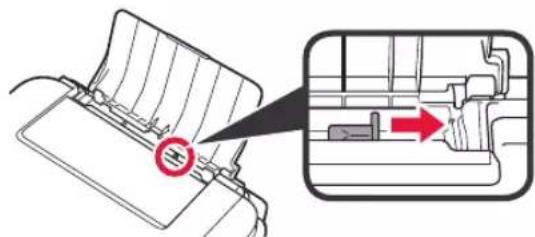
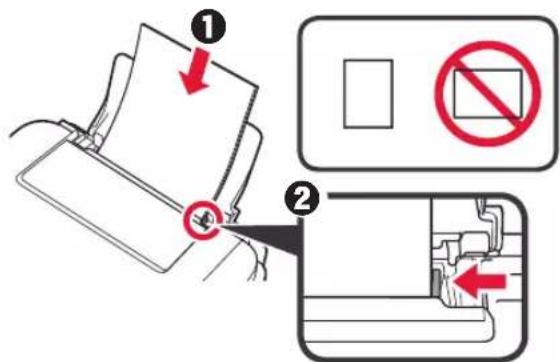
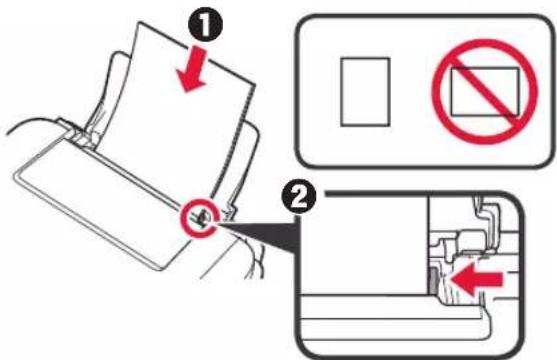
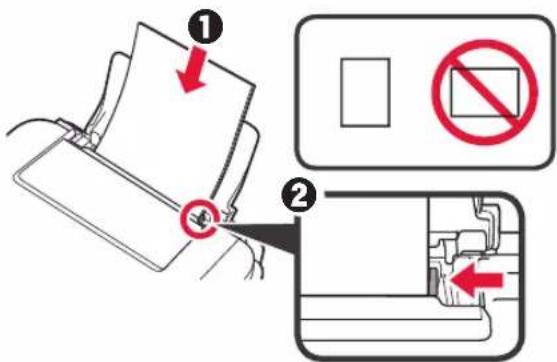
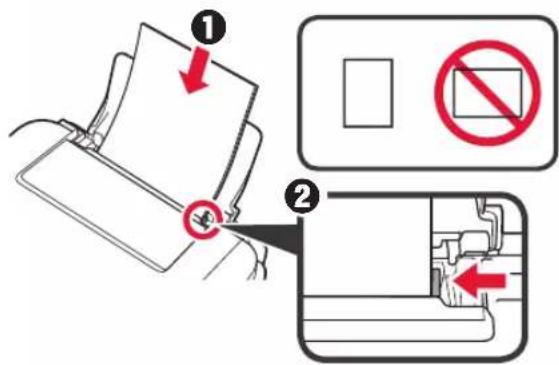
3 1 Load paper with the print side facing up.
Slide the right paper guide to align it with the side of the paper stack.
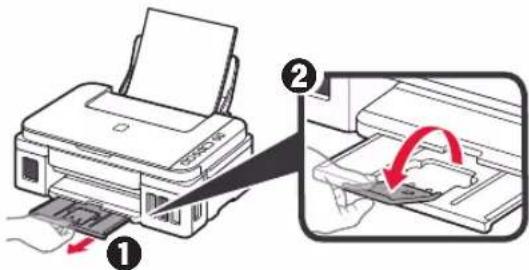
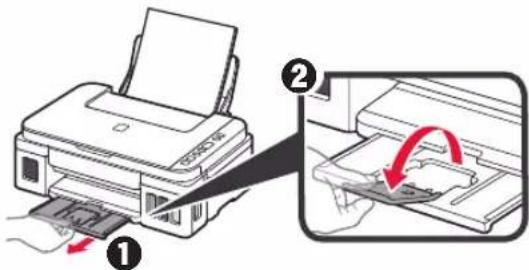
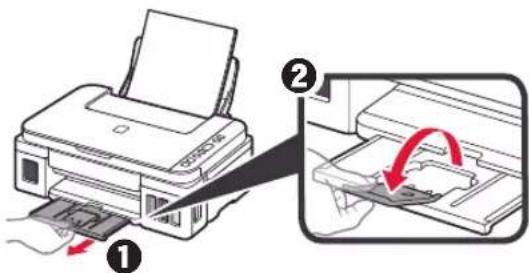
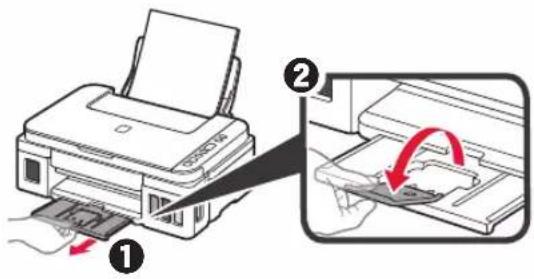
4 1 Pull out the paper output tray.
Open the output tray extension.
Transporting Your Printer
When relocating the printer, make sure of the following. Refer to the Online Manual for details.
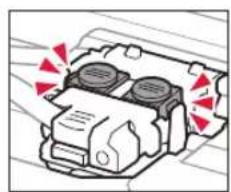
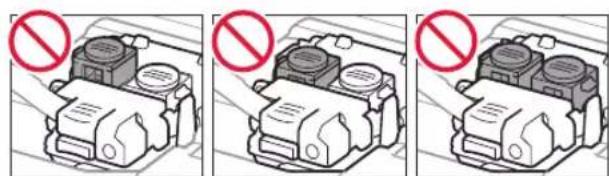
Check that both joint buttons are pressed down completely to avoid ink leaks.
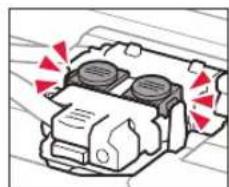
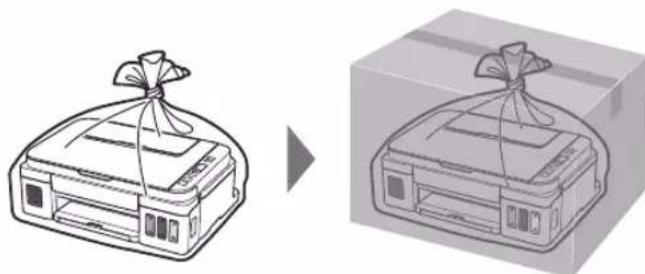
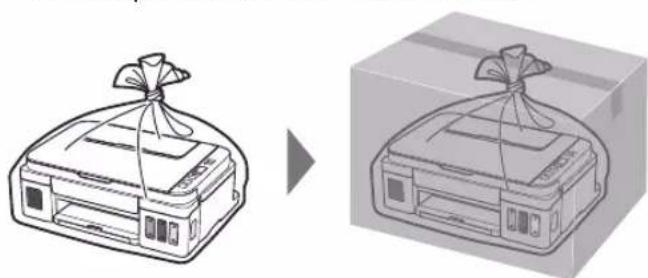
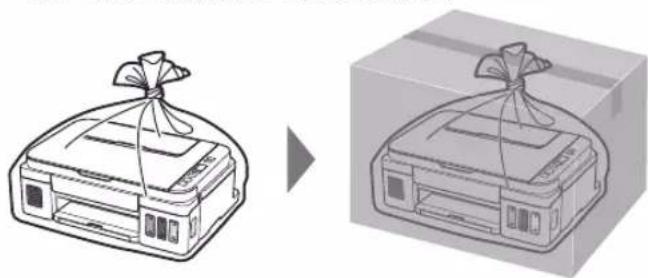
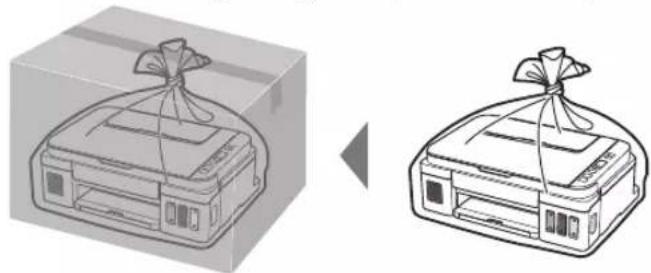
Pack the printer in a plastic bag in case ink leaks.
- Pack the printer in a sturdy box so that it is placed with its bottom facing down, using sufficient protective material to ensure safe transport.
- Do not tilt the printer. Ink may leak.
- Please handle with care and ensure the box remains flat and NOT turned upside down or on its side, as the printer may be damaged and ink in the printer may leak.
- When a shipping agent is handling transport of the printer, have its box marked "THIS SIDE UP" to keep the printer with its bottom facing down. Mark also with "FRAGILE" or "HANDLE WITH CARE".
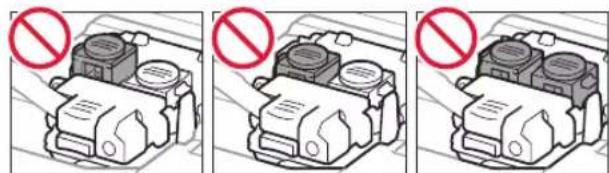
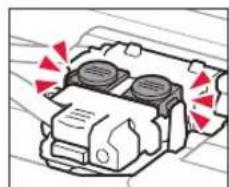
Do not touch the parts around the print head.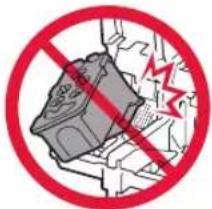
5 Close the ink cartridge cover and press it down.
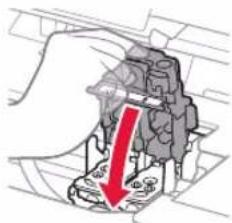
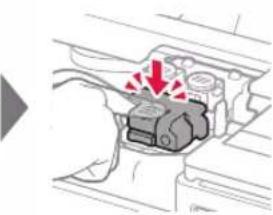
6 Press both connecting buttons until they stop.
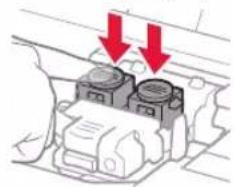
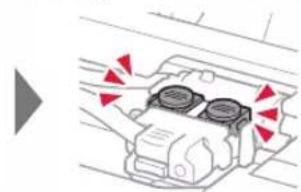
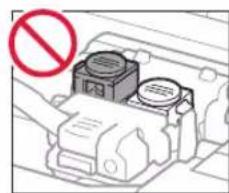
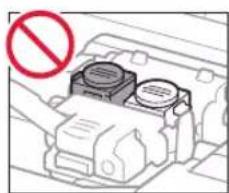
3 Press the ON button.
4 Make sure that the ink lamp is displayed on the screen.
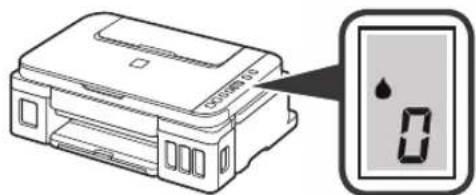
If a different screen appears, see the section "If a different screen appears" on page 3 to resolve the error.
5. Ink filling
This product requires careful handling with ink. When filling ink containers, ink may splash. If ink gets on clothing or other items, it may not wash out.
1 Open the scanner unit / cover.
2 Open the ink container cover.
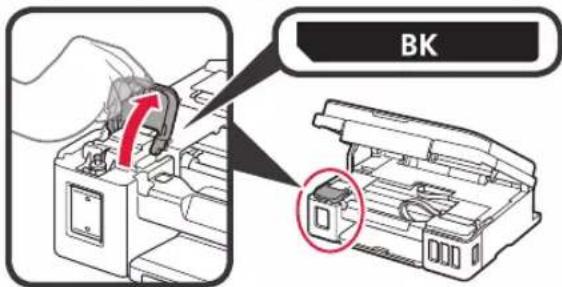
3 Hold the container cap and remove it from the ink container.
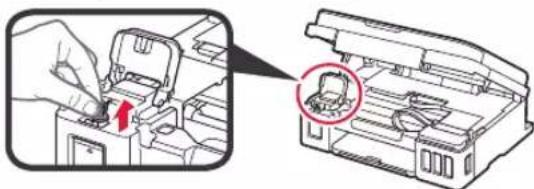
4 Hold the ink bottle vertically, and remove the cap from the bottle.
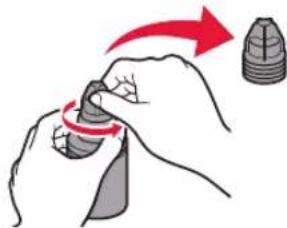
5 Insert the nozzle of the ink bottle into the inlet, and turn the ink bottle upside down.
6 Fill the ink containers with ink. Make sure the ink reaches the upper limit (A).
7 Carefully install the container cap in place.
8 Close the lid of the ink container.
9 Repeat steps 2-8 to fill all ink containers on the right according to the markings.
Make sure the ink reaches the upper limit (A).
10 Close the scanner unit / cover, then close it.
1 Press the Black button and make sure that the Ink indicator is no longer displayed.
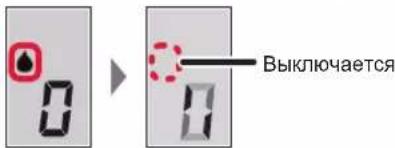
Ink preparation usually takes 5 to 6 minutes. Proceed to the next page.

If one of the following screens appears
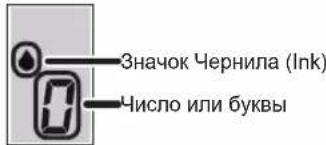
EO4
The cartridge is installed incorrectly.
3. Installing the Cartridge page 1
EOS
The cartridge is not installed.
«3. Installing the Cartridge» on page 1
EO9
3aunThbMaTepaJ He ChrT.
«2.YdaJIeHHe yIaKOBOUHbIX MaTePnaIOB» Ha cTpaHnue 1
P0B
YeHnHa He NoIroTOBneHbI OJnxHbIM 6pa3OM. HaxMnte KhoNky BKl (ON), yTo6bl nepe3anyctntb npHtep, n CM. pa3deJ «5. 3aJIbKa YeHnI» Ha cTpaHnue 2.
OxuaHne noTobKn cepHnI.
Moxho Bb6paTb IMr MoJeN 13 cnNcKa.
5 电KHTe HAcTpoKa.

Hnke npBedeHb IpOeDpybI dny OpeauonHO cnCTembl Windows.Ecnn nCnoNb3yETc KOMnbIOTe p c onepauonHO CNCTeMo,OTnUHO OT Windows, BbINOHNTE HAcTPOky, CneDy INCHPTyKUmHa 3kpaHe.
6 3aepnnte 3arpyntb n 3arpy3nte paan yctahOBKn.
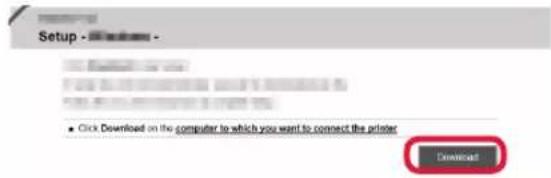
3anycntte 3arpyxehhbl faaiI.
IpeenTe K 2Ha cneyioe CtpaHnce, YTo6bl npoDoJXnTb.

IcnoJb3ObaHne yCTaHOBOUHoro KOMnakT-Dncka (ToIbKO Windows)
PnncnoJb30BaHnn Windows 10 nIn Windows 8.1:
BCTaBBTe B KOMNbIOTepeYCTaHOBOUHbIKOMnAKT-DINCK.

When the computer displays the following message, read it.
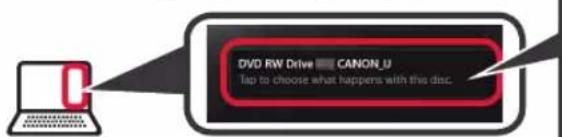
If this message appears (or disappears
- Click File Explorer on the taskbar.
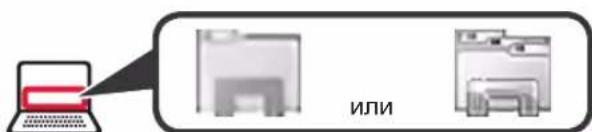
- Click This PC in the left part of the opened window. 3. Double-click the CD drive icon in the right part of the window. When the contents of the CD are displayed, double-click the file Msetup4.exe.
- Go to step 6
When the following screen appears, click Run Msetup4.exe.
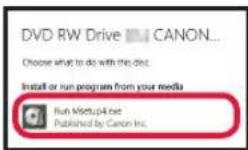
When the User Account Control dialog box appears, click Yes. Go to step 2 to continue.
If using Windows 7:
Insert the installation CD into the computer.

2 When the AutoPlay dialog appears, click Run Msetup4.exe.
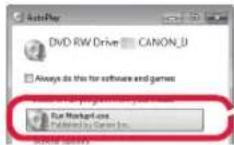
If the AutoPlay screen does not appear
- Click Computer in the Start menu. 2. Double-click the CD drive icon in the right part of the opened window. When the contents of the CD are displayed, double-click the file Msetup4.exe.
When the User Account Control dialog box appears, click Continue.
Go to step 2 to continue.
2 Click Start Setup.
Press the Exit button on the control panel.
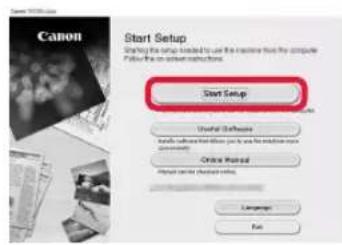

Follow the on-screen instructions to continue setup.

If the printer screen displays 1, setup is complete. You can now print from your computer.
1 Open the paper tray.
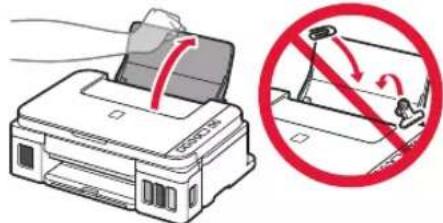
2 Fan the paper stack to separate the sheets.
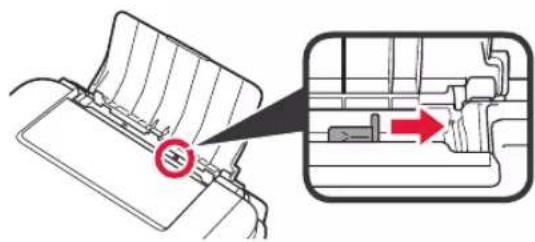
3 Load the paper with the printable side facing up.
Slide the paper guides to align with the paper stack.
4 Pull out the paper output tray. Open the extension tray.
Moving the printer
When moving the printer, take the following precautions. For detailed information, see the User's Guide.
To avoid ink leakage, make sure both ink cartridges are securely in place.

In case of ink leakage, place the printer in a plastic bag.
Pack the printer in a sturdy box, placing the printer with the bottom side down and using sufficient protective material for safe transport. - Do not tilt the printer. Ink may leak. - Handle with care to keep the box level and avoid turning it upside down or on its side, as this may damage the printer or cause ink leakage. When the carrier picks up the order for transporting the printer, attach the "THIS SIDE UP" label to ensure the printer is transported with the bottom side down. Also, attach the "FRAGILE" or "HANDLE WITH CARE" label.
Cartridge not installed.
- Install the cartridge on the right side.
EO9
The source material has not been viewed.
2.3 Installation material on page 1
P0V
The manual has not been prepared in Ukrainian.
Press the YBMK (ON) button, then download the printer, and then go to section «5. Setting the name» on page 2.
Setting the printer name.
The model name can be selected from the list.
5 Setting instructions.

The procedure is described for Windows. If you use a computer with a different OS, follow the instructions that appear on the screen. 6 Download and install the driver.
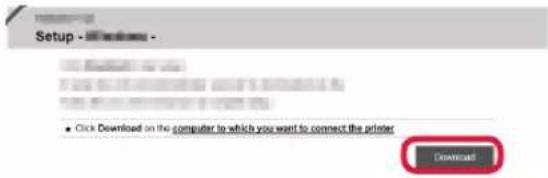
Run the downloaded file.
Go to the next page to continue.

Using the installation CD (Windows only)
Windows 10 or Windows 8.1
Insert the installation CD into the computer.

The right side of the computer control panel is called the notification area.
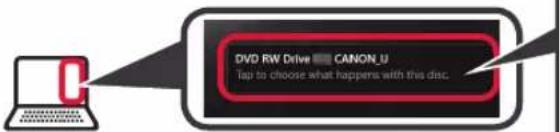
If this notification appears (or disappears)
- Click File Explorer on the taskbar.
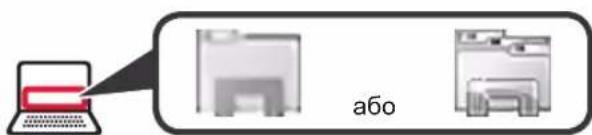
- Click This PC in the window that opens.
- Then right-click the CD/DVD drive icon. After selecting the contents of the CD/DVD, click Msetup4.exe.
- Proceed to step 4
When the screen appears, press the Run Msetup4.exe button.
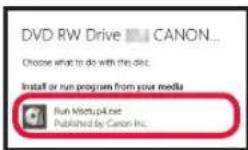
When the User Account Control dialog box appears, click Yes. Proceed to step 2.6 to continue.
Windows 7
Insert the CD/DVD with the installation program into the computer.

If the AutoPlay screen appears, click Run Msetup4.exe.
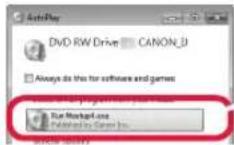
If the AutoPlay screen does not appear
- Click Computer in the Start menu. 2. Right-click the CD/DVD drive icon, and it will open. After selecting the contents of the CD/DVD, click Msetup4.exe.
When the User Account Control dialog box appears, click Continue.
Proceed to step 2.6 to continue.
Press the Start Setup button.
When this screen appears, press the Exit button.
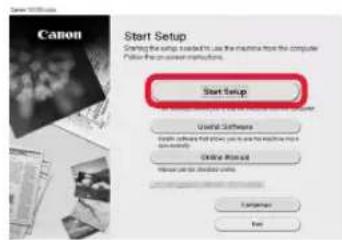

To continue setup, follow the instructions that appear on the screen.
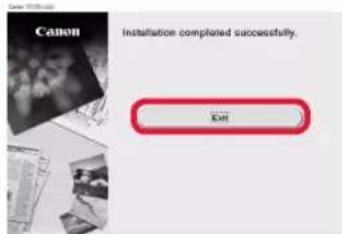
If a check mark appears on the printer screen, it means setup is complete. You can now print from your computer.
1 Open the paper tray.
2 Slide the paper guides to the edges.
3 Load the paper with the print side facing down. Slide the paper guides to the edges, then adjust them to the paper size.
4 1 Turn off the power flow before proceeding.
Remove the ink cartridge from the printer.
Transporting the printer
Before moving the printer, make sure to follow the instructions below. For detailed information, see the User's Guide.
To prevent ink leakage, make sure the ink cartridges are installed correctly.
Place the printer in a plastic bag, as ink may leak.
Place the printer in a sturdy box with the bottom of the printer facing down, using enough protective material to ensure safe transport. Do not tilt the printer. Ink may leak. - Handle the box carefully and make sure it is level, not turned upside down or on its side, as the printer may be damaged and ink may leak. Write on the box with the printer "THIS SIDE UP" so that during transport the carrier keeps the printer with the bottom side down. Also write "FRAGILE" or "DO NOT TURN OVER"
1 1
03
14 2
Therefore, it must be adjusted through (x, y).
1
2
a
Mountain
Jai aiee eae ee ae eae eae eae eae
gao gao jiaolai jiali yu juyiyue gao qinai gao jaiall gao yao -1 J 1
aie 1
a a
y b "da" aale gaiallg ciaaalb jao


.(Run Msetup4.exe) Msetup4.exe
.(Yes) (User Account Control)
aai 2gii jai
Window
1
(AutoPlay)
(Computer)
(Continue) (User Account Control)
(Exit)
(Start Setup)
3

Black) (lnk)
a


40E
1 1
50E
1 aalal"aaaal 3
90E
aall all
1 aall"al all 2
BOP
a
(ON)j jie 2
J 1
"Jaii piai 1.6"
5" 2
i
alala jali aee 45
jzjjieelae
8
9
1 8 2 1 2
(A)
10
aill jy gnnn nn jy wann nn jy aee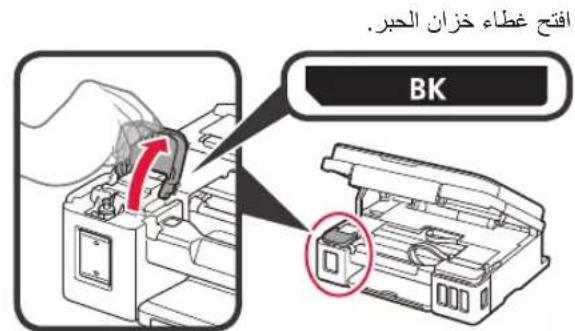
2
a 11111111111111111111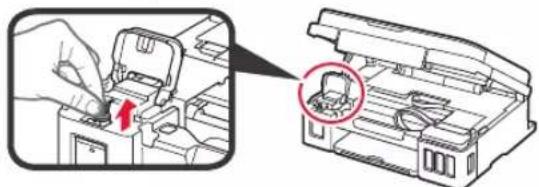
3
4
yall j 1jll j 1jll j 1j
5
(A)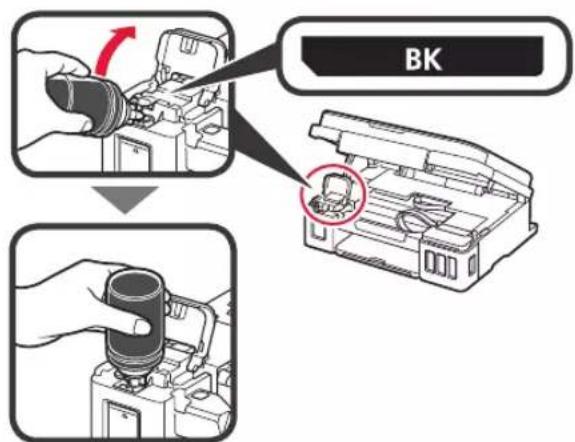
6

aalb14
Ae 1
1
2
Aelllll 1 (ON)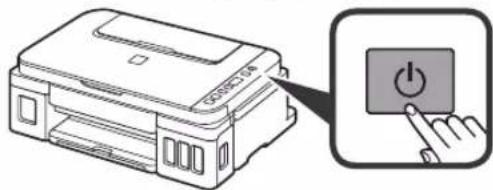
3

4
"aiiil iaiii j 1 1 1 1 1 1 1 1 1 1 1 1 1 1 1 1 1
i 10000000000000000000000000000000000000000000000000000000000 e / 1
5
1
1
A
s y 11 (y) C a b j B
a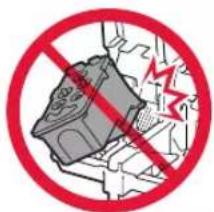
Jia 4a
3
a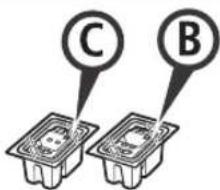
Windows
4
2
1
2
1
5
3
1

Access Online Manual, Access the Online Manual, Access the Online Manual, Access the Online Manual
Access Online Manual, Access the Online Manual, Access the Online Manual, Access the Online Manual

From browser
From browser
From browser
From browser
Using the shortcut on the desktop
Using the shortcut on the desktop

Windows 10


Canon G2010 series Online Manual
- CHECKING INCLUDED ITEMS
- REMOVING PACKING MATERIALS
- INSTALLING THE CARTRIDGE
- TURNING ON PRINTER
- POURING INK
- PREPARING THE INK SYSTEM
- EO
- EOS
- P0B
- CONNECTING TO COMPUTER
- START THE SETUP FILE FOR EITHER METHOD A OR METHOD B
- DOWNLOADING FROM THE INTERNET
- USING SETUP CD-ROM (WINDOWS ONLY)
- PROCEED TO STEP 2 TO CONTINUE
- WHEN USING WINDOWS
- CLICK START SETUP
- TRANSPORTING YOUR PRINTER
- INK FILLING
- IF ONE OF THE FOLLOWING SCREENS APPEARS
- ICNOJB3OBAHNE YCTAHOBOUHORO KOMNAKT-DNCKA (TOIBKO WINDOWS)
- MOVING THE PRINTER
- USING THE INSTALLATION CD (WINDOWS ONLY)
- WINDOWS 10 OR WINDOWS
- IF THIS NOTIFICATION APPEARS (OR DISAPPEARS)
- WINDOWS
- TRANSPORTING THE PRINTER
Brand : CANON
Model : PIXMA G2410
Category : Printer