PG L2540 - Printer OLIVETTI - Free user manual and instructions
Find the device manual for free PG L2540 OLIVETTI in PDF.


| Product type | Monochrome laser printer |
| Brand | Olivetti |
| Model | PG L2540 |
| Dimensions (W × D × H) | Approx. 380 × 410 × 320 mm |
| Weight | Approx. 12 kg |
| Power supply | 220-240 V AC, 50/60 Hz |
| Power consumption | Maximum: 1200 W, Standby: 10 W, Energy-saving mode: 1 W |
| Print speed | Up to 30 pages per minute (A4) |
| Print resolution | Up to 1200 × 1200 dpi |
| Supported paper sizes | A4, A5, A6, B5, Letter, Legal, Envelopes (DL, C5, Monroe) |
| Paper tray capacity | Tray 1: 250 sheets, By-pass: 100 sheets, Optional tray: 500 sheets |
| Main functions | Automatic duplex printing, Network printing, Wi-Fi Direct, Energy-saving, Silent mode, Private printing, USB flash drive printing |
| Connectivity | USB 2.0, Ethernet 10/100/1000, Wi-Fi 802.11 b/g/n |
| Print languages | PCL6, KPDL3 (compatible PostScript 3), XPS |
| Screen and control panel | Backlit LCD screen with navigation buttons |
| Maintenance and cleaning | Regular interior cleaning, toner cartridge replacement |
| Safety | Class 1 laser product, automatic shutoff, protection against unauthorized access (administration) |
| Spare parts | Original Olivetti toner cartridges, maintenance kit, optional paper feeder |
| Repairability | Repairability index not provided, maintenance by authorized technician |
Frequently Asked Questions - PG L2540 OLIVETTI
User questions about PG L2540 OLIVETTI
0 question about this device. Answer the ones you know or ask your own.
Ask a new question about this device
Download the instructions for your Printer in PDF format for free! Find your manual PG L2540 - OLIVETTI and take your electronic device back in hand. On this page are published all the documents necessary for the use of your device. PG L2540 by OLIVETTI.
USER MANUAL PG L2540 OLIVETTI
natural_image
White and black industrial printer with digital display and control panel (no visible text or symbols)Copyright © 2021, Olivetti
Safety Instructions Regarding the Disconnection of Power 1-7
Compliance and Conformity 1-7
Other precautions (for users in California, the United States) 1-7
EN ISO 7779 1-7
EK1-ITB 2000 1-8
Wireless Connection (Mexico only) 1-8
Programme Energy Star (ENERGY STAR®) 1-14
Configuration Wi-Fi Direct 2-24
Ajuster/Maintenance 6-23
État filaire 6-23
État Wi-Fi 6-23
Wi-Fi Direct 6-24
natural_image
Simple diagram showing a device with a speaker icon and sound waves (no text or symbols)Card Authentication Kit (B) Operation Guide
Network Tool for Direct Printing Operation Guide
Safety Instructions Regarding the Disconnection of Power 1-7
Compliance and Conformity 1-7
Other precautions (for users in California, the United States) 1-7
EN ISO 7779 1-7
EK1-ITB 2000 1-8
Wireless Connection (Mexico only) 1-8
Programme Energy Star (ENERGY STAR®) 1-14
Avis
CLASS 1 LASER PRODUCT
KLASSE 1 LASER PRODUKT
SAFETY OF LASER BEAM (USA)
1. Safety of laser beam
This machine has been certified by the manufacturer to Class 1 level under the radiation performance standards established by the U.S.DHHS (Department of Health and Human Services) in 1968. This indicates that the product is safe to use during normal operation and maintenance. The laser optical system, enclosed in a protective housing and sealed within the external covers, never permits the laser beam to escape.
2. The CDRH Act
A laser-product-related act was implemented on Aug. 2, 1976, by the Center for Devices and Radiological Health (CDRH) of the U.S. Food and Drug Administration (FDA). This act prohibits the sale of laser products in the U.S. without certification, and applies to laser products manufactured after Aug. 1, 1976. The label shown below indicates compliance with the CDRH regulations and must be attached to laser products marketed in the United States. The position of the rating label is show below.

3. Maintenance
For safety of the service personnel, follow the maintenance instructions in the other section of this manual.
4. Safety switch
The power to the laser unit is cut off when the front cover is opened.
Safety Instructions Regarding the Disconnection of Power
Caution: The power plug is the main isolation device! Other switches on the equipment are only functional switches and are not suitable for isolating the equipment from the power source.
Compliance and Conformity
This equipment has been tested and found to comply with the limits for a Class B digital device, pursuant to Part 15 of the FCC Rules.
These limits are designed to provide reasonable protection against harmful interference in a residential installation. This equipment generates, uses and can radiate radio frequency energy and, if not installed and used in accordance with the instructions, may cause harmful interference to radio communications. However, there is no guarantee that interference will not occur in a particular installation. If this equipment does cause harmful interference to radio or television reception, which can be determined by turning the equipment off and on, the user is encouraged to try to correct the interference by one or more of the following measures:
- Reorient or relocate the receiving antenna.
- Increase the separation between the equipment and receiver.
- Connect the equipment into an outlet on a circuit different from that to which the receiver is connected.
- Consult the dealer or an experienced radio/TV technician for help.
- The use of a non-shielded interface cable with the referenced device is prohibited.
CAUTION — The changes or modifications not expressly approved by the party responsible for compliance could void the user's authority to operate the equipment.
This device complies with Part 15 of FCC Rules.
Operation is subject to the following two conditions; (1) this device may not cause harmful interference, and (2) this device must accept any interference received, including interference that may cause undesired operation.
This device complies with Industry Canada licence-exempt RSS standard(s). Operation is subject to the following two conditions: (1) this device may not cause interference, and (2) this device must accept any interference, including interference that may cause undesired operation of the device.
The antenna(s) used for this transmitter must be installed to provide a separation distance of at least 20 cm from all persons and must not be co-located or operating in conjunction with any other transmitter.
* The above statements are valid only in the United States of America and Canada.
NOTE — Use shielded interface cables.
Other precautions (for users in California, the United States)
Perchlorate Material - special handling may apply. See www.dtsc.ca.gov/hazardouswaste/perchlorate.
EN ISO 7779
Wireless Connection (Mexico only)
The operation of this equipment is subject to the following two conditions:
(1) it is possible that this equipment or device may not cause harmful interference, and (2) this equipment or device must accept any interference, including interference that may cause undesired operation.
Copyright (c) 1998-2006 OpenSSL Project. All rights reserved.
Redistribution and use in source and binary forms, with or without modification, are permitted provided that the following conditions are met:
- Redistributions of source code must retain the above copyright notice, this list of conditions and the following disclaimer.
- Redistributions in binary form must reproduce the above copyright notice, this list of conditions and the following disclaimer in the documentation and/or other materials provided with the distribution.
- All advertising materials mentioning features or use of this software must display the following acknowledgment: "This product includes software developed by the OpenSSL Project for use in the OpenSSL Toolkit. (http://www.openssl.org/)"
- The names "OpenSSL Toolkit" and "OpenSSL Project" must not be used to endorse or promote products derived from this software without prior written permission. For written permission, please contact openssl-core@openssl.org.
- Products derived from this software may not be called "OpenSSL" nor may "OpenSSL" appear in their names without prior written permission of the OpenSSL Project.
- Redistributions of any form whatsoever must retain the following acknowledgment: "This product includes software developed by the OpenSSL Project for use in the OpenSSL Toolkit (http://www.openssl.org/)"
THIS SOFTWARE IS PROVIDED BY THE OpenSSL PROJECT "AS IS" AND ANY EXPRESSED OR IMPLIED WARRANTIES, INCLUDING, BUT NOT LIMITED TO, THE IMPLIED WARRANTIES OF MERCHANTABILITY AND FITNESS FOR A PARTICULAR PURPOSE ARE DISCLAIMED. IN NO EVENT SHALL THE OpenSSL PROJECT OR ITS CONTRIBUTORS BE LIABLE FOR ANY DIRECT, INDIRECT, INCIDENTAL, SPECIAL, EXEMPLARY, OR CONSEQUENTIAL DAMAGES (INCLUDING, BUT NOT LIMITED TO, PROCUREMENT OF SUBSTITUTE GOODS OR SERVICES; LOSS OF USE, DATA, OR PROFITS; OR BUSINESS INTERRUPTION) HOWEVER CAUSED AND ON ANY THEORY OF LIABILITY, WHETHER IN CONTRACT, STRICT LIABILITY, OR TORT (INCLUDING NEGLIGENCE OR OTHERWISE) ARISING IN ANY WAY OUT OF THE USE OF THIS SOFTWARE, EVEN IF ADVISED OF THE POSSIBILITY OF SUCH DAMAGE.
Original SSLeay License
This package is an SSL implementation written by Eric Young (eay@cryptsoft.com). The implementation was written so as to conform with Netscapes SSL.
This library is free for commercial and non-commercial use as long as the following conditions are adhered to. The following conditions apply to all code found in this distribution, be it the RC4, RSA, Ihash, DES, etc., code; not just the SSL code. The SSL documentation included with this distribution is covered by the same copyright terms except that the holder is Tim Hudson (tjh@cryptsoft.com).
Copyright remains Eric Young's, and as such any Copyright notices in the code are not to be removed.
If this package is used in a product, Eric Young should be given attribution as the author of the parts of the library used.
This can be in the form of a textual message at program startup or in documentation (online or textual) provided with the package.
Redistribution and use in source and binary forms, with or without modification, are permitted provided that the following conditions are met:
- Redistributions of source code must retain the copyright notice, this list of conditions and the following disclaimer.
- Redistributions in binary form must reproduce the above copyright notice, this list of conditions and the following disclaimer in the documentation and/or other materials provided with the distribution.
- All advertising materials mentioning features or use of this software must display the following acknowledgement: "This product includes cryptographic software written by Eric Young (eay@cryptsoft.com)"
The word 'cryptographic' can be left out if the routines from the library being used are not cryptographic related :-). - If you include any Windows specific code (or a derivative thereof) from the apps directory (application code) you must include an acknowledgement: "This product includes software written by Tim Hudson (tjh@cryptsoft.com)"
THIS SOFTWARE IS PROVIDED BY ERIC YOUNG "AS IS" AND ANY EXPRESS OR IMPLIED WARRANTIES, INCLUDING, BUT NOT LIMITED TO, THE IMPLIED WARRANTIES OF MERCHANTABILITY AND FITNESS FOR A PARTICULAR PURPOSE ARE DISCLAIMED. IN NO EVENT SHALL THE AUTHOR OR CONTRIBUTORS BE LIABLE FOR ANY DIRECT, INDIRECT, INCIDENTAL, SPECIAL, EXEMPLARY, OR CONSEQUENTIAL DAMAGES (INCLUDING, BUT NOT LIMITED TO, PROCUREMENT OF SUBSTITUTE GOODS OR SERVICES; LOSS OF USE, DATA, OR PROFITS; OR BUSINESS INTERRUPTION) HOWEVER CAUSED AND ON ANY THEORY OF LIABILITY, WHETHER IN CONTRACT, STRICT LIABILITY, OR TORT (INCLUDING NEGLIGENCE OR OTHERWISE) ARISING IN ANY WAY OUT OF THE USE OF THIS SOFTWARE, EVEN IF ADVISED OF THE POSSIBILITY OF SUCH DAMAGE.
The licence and distribution terms for any publicly available version or derivative of this code cannot be changed. i.e. this code cannot simply be copied and put under another distribution licence [including the GNU Public Licence.]
Monotype Imaging License Agreement
1 Software shall mean the digitally encoded, machine readable, scalable outline data as encoded in a special format as well as the UFST Software.
2 You agree to accept a non-exclusive license to use the Software to reproduce and display weights, styles and versions of letters, numerals, characters and symbols (Typefaces) solely for your own customary business or personal purposes at the address stated on the registration card you return to Monotype Imaging. Under the terms of this License Agreement, you have the right to use the Fonts on up to three printers. If you need to have access to the fonts on more than three printers, you need to acquire a multiuser license agreement which can be obtained from Monotype Imaging. Monotype Imaging retains all rights, title and interest to the Software and Typefaces and no rights are granted to you other than a License to use the Software on the terms expressly set forth in this Agreement.
3 To protect proprietary rights of Monotype Imaging, you agree to maintain the Software and other proprietary information concerning the Typefaces in strict confidence and to establish reasonable procedures regulating access to and use of the Software and Typefaces.
4 You agree not to duplicate or copy the Software or Typefaces, except that you may make one backup copy. You agree that any such copy shall contain the same proprietary notices as those appearing on the original.
5 This License shall continue until the last use of the Software and Typefaces, unless sooner terminated. This License may be terminated by Monotype Imaging if you fail to comply with the terms of this License and such failure is not remedied within thirty (30) days after notice from Monotype Imaging. When this License expires or is terminated, you shall either return to Monotype Imaging or destroy all copies of the Software and Typefaces and documentation as requested.
6 You agree that you will not modify, alter, disassemble, decrypt, reverse engineer or decompile the Software.
7 Monotype Imaging warrants that for ninety (90) days after delivery, the Software will perform in accordance with Monotype Imaging-published specifications, and the diskette will be free from defects in material and workmanship. Monotype Imaging does not warrant that the Software is free from all bugs, errors and omissions.
The parties agree that all other warranties, expressed or implied, including warranties of fitness for a particular purpose and merchantability, are excluded.
8 Your exclusive remedy and the sole liability of Monotype Imaging in connection with the Software and Typefaces is repair or replacement of defective parts, upon their return to Monotype Imaging.
In no event will Monotype Imaging be liable for lost profits, lost data, or any other incidental or consequential damages, or any damages caused by abuse or misapplication of the Software and Typefaces.
9 Massachusetts U.S.A. law governs this Agreement.
10 You shall not sublicense, sell, lease, or otherwise transfer the Software and/or Typefaces without the prior written consent of Monotype Imaging.
11 Use, duplication or disclosure by the Government is subject to restrictions as set forth in the Rights in Technical Data and Computer Software clause at FAR 252-227-7013, subdivision (b)(3)(ii) or subparagraph (c)(1)(ii), as appropriate. Further use, duplication or disclosure is subject to restrictions applicable to restricted rights software as set forth in FAR 52.227-19 (c)(2).
12 You acknowledge that you have read this Agreement, understand it, and agree to be bound by its terms and conditions. Neither party shall be bound by any statement or representation not contained in this Agreement. No change in this Agreement is effective unless written and signed by properly authorized representatives of each party. By opening this diskette package, you agree to accept the terms and conditions of this Agreement.
Programme Energy Star (ENERGY STAR®)

Configuration Wi-Fi Direct 2-24
natural_image
Line drawing of a 3D rectangular device with a top panel and labeled part '7' (no text or symbols on the device itself)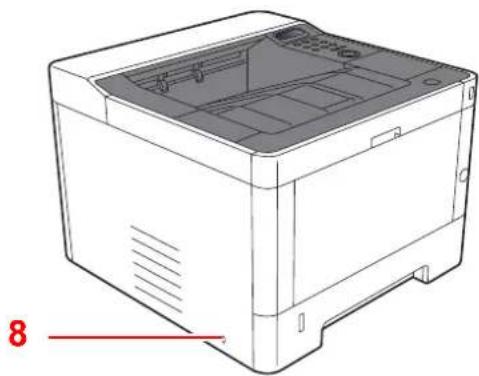
natural_image
Line drawing of a printer or scanner device with no visible text, numbers, or symbolsnatural_image
Illustration of a printer with a highlighted power button (no text or symbols)Mise hors tension
1 Mettre la machine hors tension.

natural_image
Illustration of a printer with a highlighted power button (no text or symbols)natural_image
Illustration of a hand holding a CD next to a laptop displaying a blank document (no text or symbols present)
REMARQUE
natural_image
Illustration of a hand holding a CD and a laptop displaying a blank document (no text or symbols present)
REMARQUE
natural_image
Illustration of a hand holding a CD next to a laptop displaying a small diagram (no text or symbols present)
REMARQUE
natural_image
Illustration of a hand holding a CD to open a laptop screen (no text or symbols visible)
REMARQUE
natural_image
Illustration of a hand holding a CD next to a laptop displaying a small diagram (no text or symbols present)
REMARQUE
natural_image
Illustration showing two hand gestures: one holding a stack of papers with an arrow, the other holding a closed book with a striped pattern (no text or symbols)natural_image
Diagram showing a printer casing being placed into a blue plastic housing, with an arrow indicating the component (no text or symbols present)
REMARQUE
natural_image
Illustration of a hand placing a blue plastic bag into a mechanical drawer (no text or symbols)
IMPORTANT
natural_image
3D diagram of a device casing with an arrow pointing to the side (no text or symbols)
IMPORTANT
natural_image
Diagram showing a printer with a blue internal component and an open dialog box, no text or symbols present.6 Afficher l'écran.
Touche [Menu] > Touche [▲] [▼] > [Param. papier] > Touche [▶] > Touche [▲] [▼] > [Format bac 1 à 3] > Touche [▶]
natural_image
Line drawing of a printer with a blue arrow indicating a component or adjustment (no text or symbols present)→ Printing System Driver User Guide
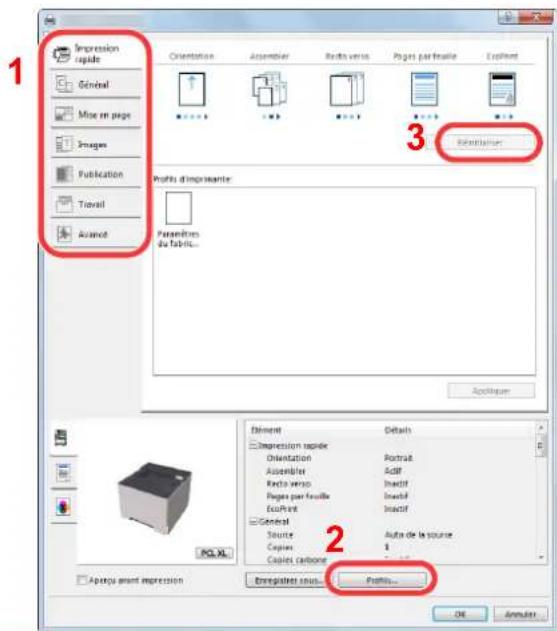
Onglet [Publication]
→ Printing System Driver User Guide
natural_image
Illustration of a hand holding a CD on a laptop screen (no text or symbols present)![OLIVETTI PG L2540 - Onglet [Publication] - 1](/content/2026/04/637480/images/0ccb454892af844803ae045e6738b6e762190ca5e70c407e8808c509bd053cc5.jpg)
REMARQUE
natural_image
Two-step illustration of a printer's internal structure before and after processing, showing blue sheeting and blue plastic sheeting (no text or symbols)natural_image
Diagram of a printer printer with an arrow indicating paper folding process, showing internal structure and page layout (no text or symbols)→ Printing System Driver User Guide
flowchart
graph TD
    A["Printer Printing"] --> B["1: Patterned Image"]
    A --> C["2: Patterned Image"]
    A --> D["3: Patterned Image"]
    A --> E["4: Patterned Image"]
natural_image
Line drawing of a printer with an inset close-up showing the internal components (no text or symbols)2 Afficher l'écran.
Touche [Menu] > Touche [▲] [▼] > [Mémoire USB] > Touche [▶]
3 Imprimer le document.
Ajuster/Maintenance 6-23
État filaire 6-23
État Wi-Fi 6-23
Wi-Fi Direct 6-24
Menu Système
Configurer Wi-Fi Direct.

REMARQUE
Card Authentication Kit(B) "Card Authentication Kit" (page 9-2)
Card Authentication Kit(B) "Card Authentication Kit" (page 9-2)
1 Afficher l'écran.

IMPORTANT
natural_image
Technical line drawing of two mechanical components with a prohibition symbol (no text or labels)
IMPORTANT
natural_image
Illustration of two mechanical components with a prohibition symbol (no text or labels present)
IMPORTANT
natural_image
Illustration of a hand pressing down on an open printer's internal circuit board (no text or symbols visible)
IMPORTANT
natural_image
Illustration of hands installing or adjusting a printer's internal structure, showing paper being placed on the cover (no text or symbols visible)natural_image
Illustration of hands installing or opening a blue mechanical component into an open printer (no text or symbols visible)

natural_image
3D diagram of an open printer internal structure showing internal components and a downward arrow indicating a component (no text or symbols present)10 Refermer le capot avant.

natural_image
Illustration of a blue printer with arrows indicating rotation or movement (no text or symbols)natural_image
Diagram showing a printer internal structure before and after assembly, with an inset highlighting the interior space (no text or symbols present)3 Retirer la cartouche de toner.

natural_image
Illustration of a printer internal structure showing hands operating the lid (no text or symbols visible)natural_image
Diagram of a blue mechanical component being wrapped in a transparent sheet, with an arrow indicating motion (no text or symbols present)natural_image
Blue plastic electronic component with a magnified inset showing a 3D cube structure (no text or symbols)
IMPORTANT
6 Agiter la cartouche de toner.

7 Installer la cartouche de toner.

natural_image
Illustration of a printer's internal structure showing hands operating the lid and base panel (no text or symbols visible)

natural_image
Illustration of a printer's internal structure with a hand operating it, showing blue insulation and a magnified inset of the interior (no text or symbols)8 Fermer le capot avant.

natural_image
Illustration of a blue printer with arrows indicating rotation or movement (no text or symbols)
REMARQUE
natural_image
Diagram showing a printer being placed into a blue plastic holder, with an arrow indicating the process (no text or symbols present)natural_image
Diagram of a printer paper being inserted into a slot, showing paper roll and arrow (no text or symbols)natural_image
Diagram of a blue plastic container with an arrow pointing to its side (no text or symbols present)natural_image
Line drawing of a printer with a black arrow pointing to the top panel (no text or symbols present)

natural_image
Diagram of an open printer showing internal structure and a blue cover (no text or symbols)5 Refermer le capot avant.

natural_image
Illustration of a blue printer with an arrow indicating the left side (no text or symbols present)natural_image
Diagram of a printer with an open drawer and blue plastic holder, showing internal structure without any text or symbols.natural_image
Diagram of a printer printer with paper being inserted, showing paper path and printer outline (no text or symbols)natural_image
Diagram of a device's internal structure with a blue highlighted section and an arrow indicating a specific area (no text or symbols present)natural_image
Line drawing of a printer with an arrow pointing to the top panel (no text or symbols present)

natural_image
Diagram of an open printer showing internal structure and a blue plastic cover (no text or symbols)5 Refermer le capot avant.
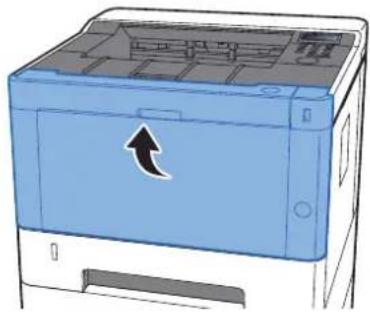
natural_image
Illustration of a blue printer with an arrow indicating the left side (no text or symbols present)natural_image
Diagram of a printer with an open drawer and a blue plastic holder, showing internal components (no text or symbols)natural_image
Illustration of a printer printer with paper being inserted, showing paper print and printer outline (no text or symbols)natural_image
Diagram of a container with blue and gray layers, showing an arrow indicating direction (no text or symbols)natural_image
Line drawing of a printer with an arrow pointing to the top panel (no text or symbols present)
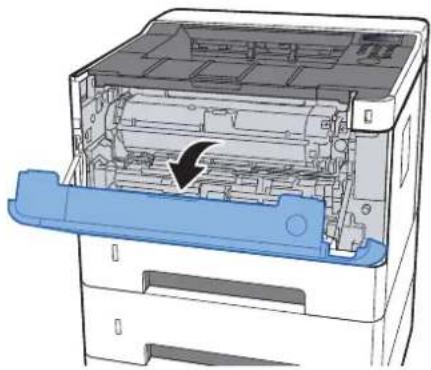
natural_image
Diagram of an open printer showing internal structure and a blue plastic cover (no text or symbols)5 Refermer le capot avant.

natural_image
Illustration of a blue printer with an arrow indicating the left side (no text or symbols present)natural_image
Line drawing of a printer with paper being inserted, showing paper sheet and printer cover (no text or symbols)natural_image
Diagram of a printer printing or printing process with paper sheets and an arrow indicating the process (no text or symbols present)natural_image
Diagram of a printer printing or spreading paper into a paper airplane (no text or symbols visible)natural_image
Diagram showing a printer being placed into a blue plastic holder, with an arrow indicating the process (no text or symbols present)natural_image
Diagram of a printer or printer with paper being inserted, showing paper flowing out (no text or symbols present)natural_image
Diagram of a device's front panel with a blue base and arrow indicating direction (no text or symbols)natural_image
Line drawing of a printer with an arrow pointing to the top panel (no text or symbols present)
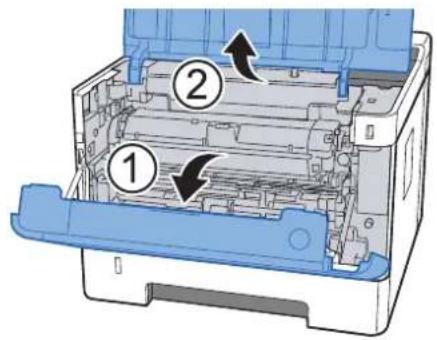


natural_image
Illustration of hands installing or opening a blue plastic component inside an open printer (no text or symbols visible)
IMPORTANT
natural_image
Technical line drawing of two cylindrical mechanical components with a prohibition symbol (no text or labels)
IMPORTANT
natural_image
Technical illustration of two mechanical components with a prohibition symbol (no text or labels present)
IMPORTANT
natural_image
Diagram showing the internal structure of a printer with a blue plastic component, before and after assembly (no text or symbols present)natural_image
Interior view of a printer's internal structure showing paper feeding and casing (no text or symbols visible)natural_image
Interior view of a printer showing internal structure and a blue component with an arrow indicating direction (no text or symbols)natural_image
Illustration of hands installing or opening a printer into a blue plastic sheet (no text or symbols visible)natural_image
Illustration of hands installing or removing a blue plastic component into an open printer (no text or symbols visible)
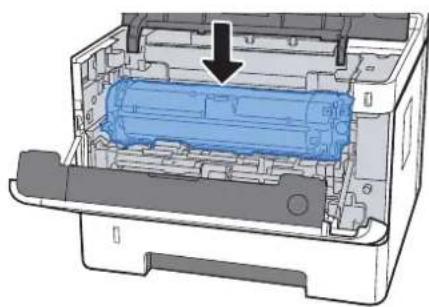
natural_image
3D diagram of a printer internal structure showing internal components and a blue cylindrical component with an arrow indicating direction (no text or symbols)14 Refermer le capot avant.

natural_image
Illustration of a blue printer with arrows indicating rotation or change (no text or symbols)natural_image
Diagram of a server rack with a blue mesh component inserted, showing internal structure and airflow direction (no text or symbols)natural_image
Line drawing of a computer printer with an open lid and paper feed, showing internal components (no text or symbols)
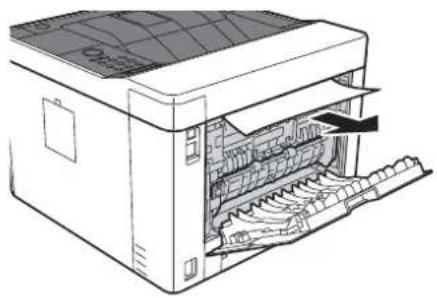
natural_image
Line drawing of an open industrial machine with internal components and a paper lid (no text or symbols)
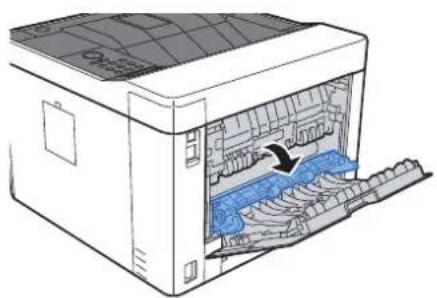
natural_image
Diagram of a printer's internal structure showing internal components and a blue arrow indicating flow or movement (no text or symbols present)natural_image
Line drawing of a printer with an open door and paper feed, showing internal components (no text or symbols)natural_image
Diagram showing a printer with an open lid being inserted into a blue plastic holder (no text or symbols present)natural_image
Diagram showing a device interior with a highlighted blue component, before and after transformation (no text or symbols)natural_image
Line drawing of a printer or printer with a paper roll and paper feed, showing no text or symbols.natural_image
Technical line drawing of a mechanical device with internal components and a blue arrow indicating a specific part (no text or symbols present)natural_image
Diagram of a blue plastic component with an arrow pointing to it, no text or symbols presentnatural_image
Diagram of a computer case with an open door and a blue vent, showing no text or symbols.natural_image
Line drawing of a printer with an arrow pointing to the front panel (no text or symbols present)

natural_image
Diagram of an open printer showing internal structure and a blue cover (no text or symbols)12 Refermer le capot avant.

natural_image
Illustration of a blue printer with an arrow indicating the left side (no text or symbols present)natural_image
Diagram of a server rack with a blue mesh component being inserted, showing internal structure and airflow direction (no text or symbols)natural_image
Line drawing of an open industrial machine with internal components and a grid-patterned top panel (no text or symbols)natural_image
Diagram of a printer or printer casing with a blue cover and arrow indicating rotation (no text or symbols present)natural_image
Diagram showing a printer with an open lid and a blue plastic holder, no text or symbols presentnatural_image
Two views of a device showing internal components before and after assembly, with no visible text or symbols.natural_image
Line drawing of a printer with paper feed and paper sheet, no text or symbols presentnatural_image
Technical line drawing of a mechanical device with internal components and a blue arrow indicating a specific part (no text or symbols present)natural_image
Diagram of a blue plastic container with an arrow pointing to its side (no text or symbols present)natural_image
Line drawing of a printer with an arrow pointing to the top panel (no text or symbols present)
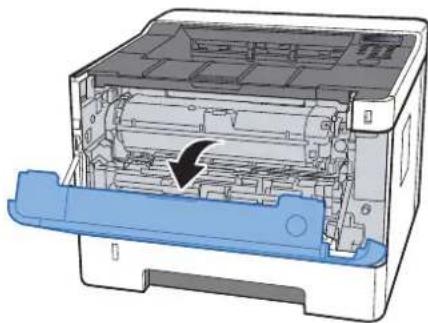
natural_image
Diagram of an open printer showing internal structure and a blue cover (no text or symbols)10 Refermer le capot avant.
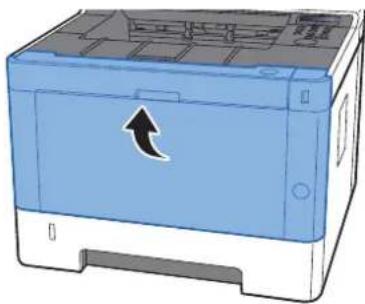
natural_image
Illustration of a blue printer with an arrow indicating left motion (no text or symbols present)9 Annexe
| Option logicielle |
| (4) UG-33 |
| (5) SD/SDHC Memory Card |
(2) Card Authentication Kit(B) "Card Authentication Kit"
Card Authentication Kit(B) Operation Guide
(3) UG-33 "Option ThinPrint"
natural_image
Technical line drawing of a server rack with internal components and a highlighted cable (no text or symbols)natural_image
Diagram showing a device being opened into a closed chamber, with no visible text or symbols.Applications en option
2 Activer/désactiver l'application.
Card Authentication Kit 9-2
Carte SD 9-3
Formater 6-18
Cartouche de toner 2-4
Energy Star (ENERGY STAR®) Programme 1-14
Enhanced WSD
Imprimer Structure Menus 6-4
Monotype Imaging License Agreement 1-12
N
NetBEUI 9-21
Card Authentication Kit 9-2
Carte SD 9-3
Polices contour 9-21
POP3 9-21
Wireless Connection 1-8
Strada Monte Navale 2/C 10015 IVREA (TO) Italy
www.olivetti.com
Copyright © 2021 Olivetti
All rights reserved
The manufacturer reserves the right to make changes to the product described in this manual at any moment and without giving prior warning.
No part of this document may be copied, reproduced or transmitted
in any form or by any means, electronic or mechanical, including photocopying,
recording or other, without obtaining prior written authorisation from the publisher.
- Card Authentication Kit (B) Operation Guide
- Network Tool for Direct Printing Operation Guide
- Avis
- SAFETY OF LASER BEAM (USA)
- Safety of laser beam
- The CDRH Act
- Maintenance
- Safety switch
- Safety Instructions Regarding the Disconnection of Power
- Compliance and Conformity
- Other precautions (for users in California, the United States)
- EN ISO 7779
- Wireless Connection (Mexico only)
- Original SSLeay License
- Monotype Imaging License Agreement
- Programme Energy Star (ENERGY STAR®)
- Mise hors tension
- Mettre la machine hors tension.
- REMARQUE
- IMPORTANT
- Afficher l'écran.
- → Printing System Driver User Guide
- Onglet [Publication]
- Afficher l'écran.
- Imprimer le document.
- Menu Système
- Afficher l'écran.
- Retirer la cartouche de toner.
- Agiter la cartouche de toner.
- Installer la cartouche de toner.
- Fermer le capot avant.
- Refermer le capot avant.
- Refermer le capot avant.
- Refermer le capot avant.
- Annexe
- Card Authentication Kit(B) "Card Authentication Kit"
- UG-33 "Option ThinPrint"
- Applications en option
- Activer/désactiver l'application.
- N
Brand : OLIVETTI
Model : PG L2540
Category : Printer