Explorer 1500 - Generator Jackery - Free user manual and instructions
Find the device manual for free Explorer 1500 Jackery in PDF.



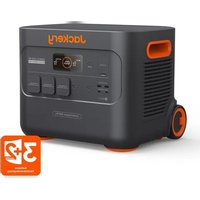
| Product Type | Portable Power Station / Solar Generator |
| Brand | Jackery |
| Model | Explorer 1500 (JE-1500D) |
| Dimensions | 33 × 22.1 × 24.2 cm (12.99 × 8.7 × 9.53 inches) |
| Weight | Approximately 14.5 kg (31.97 lbs) |
| Battery Capacity | 1536 Wh (40 Ah / 38.4 V DC) |
| Battery Type | LiFePO4 (Lithium Iron Phosphate) |
| Lifespan | 6000 cycles to 70% capacity or more |
| AC Output Power | 2000 W nominal, 4000 W peak (pure sine wave) |
| Output Ports | 3 × AC (120 V, 60 Hz), 2 × USB-C (100 W max), 1 × USB-A (18 W), 1 × DC Port 12 V (10 A) |
| AC Input | 100-120 V~60 Hz, 15 A max (charge), 12 A max (bypass mode) |
| Solar / Car Input | 2 × DC8020 ports: 16-60 V=12 A max (solar), 11-16 V=8 A max (car), max solar power 400 W |
| Charging Temperature | -20°C to 45°C (-4°F to 113°F) |
| Discharging Temperature | -20°C to 45°C (-4°F to 113°F) |
| Key Features | Wi-Fi / Bluetooth, UPS mode (switchover time < 10 ms), eco mode, charge scheduling, silent mode, LED light with SOS |
| Box Contents | Jackery Explorer 1500, AC charging cable, user manual |
| Warranty | 36 months standard, extendable after registration |
| Charging Options | AC wall outlet, solar panels, 12V car outlet (cable sold separately), simultaneous charging |
| Certifications | Compliant with FCC Part 15 Class B |
Frequently Asked Questions - Explorer 1500 Jackery
User questions about Explorer 1500 Jackery
0 question about this device. Answer the ones you know or ask your own.
Ask a new question about this device
Download the instructions for your Generator in PDF format for free! Find your manual Explorer 1500 - Jackery and take your electronic device back in hand. On this page are published all the documents necessary for the use of your device. Explorer 1500 by Jackery.
USER MANUAL Explorer 1500 Jackery
Congratulations on your new Jackery Explorer 1500. Please read this manual carefully before using the product, particularly the relevant precautions to ensure proper use. Keep this manual in an accessible place for frequent reference.
In compliance with laws and regulations, the right of final interpretation of this document and all related documents of this product resides with the Company.
Please kindly notice that no further notifications will be given in case of any update, revision or termination.
FR IMPORTANT
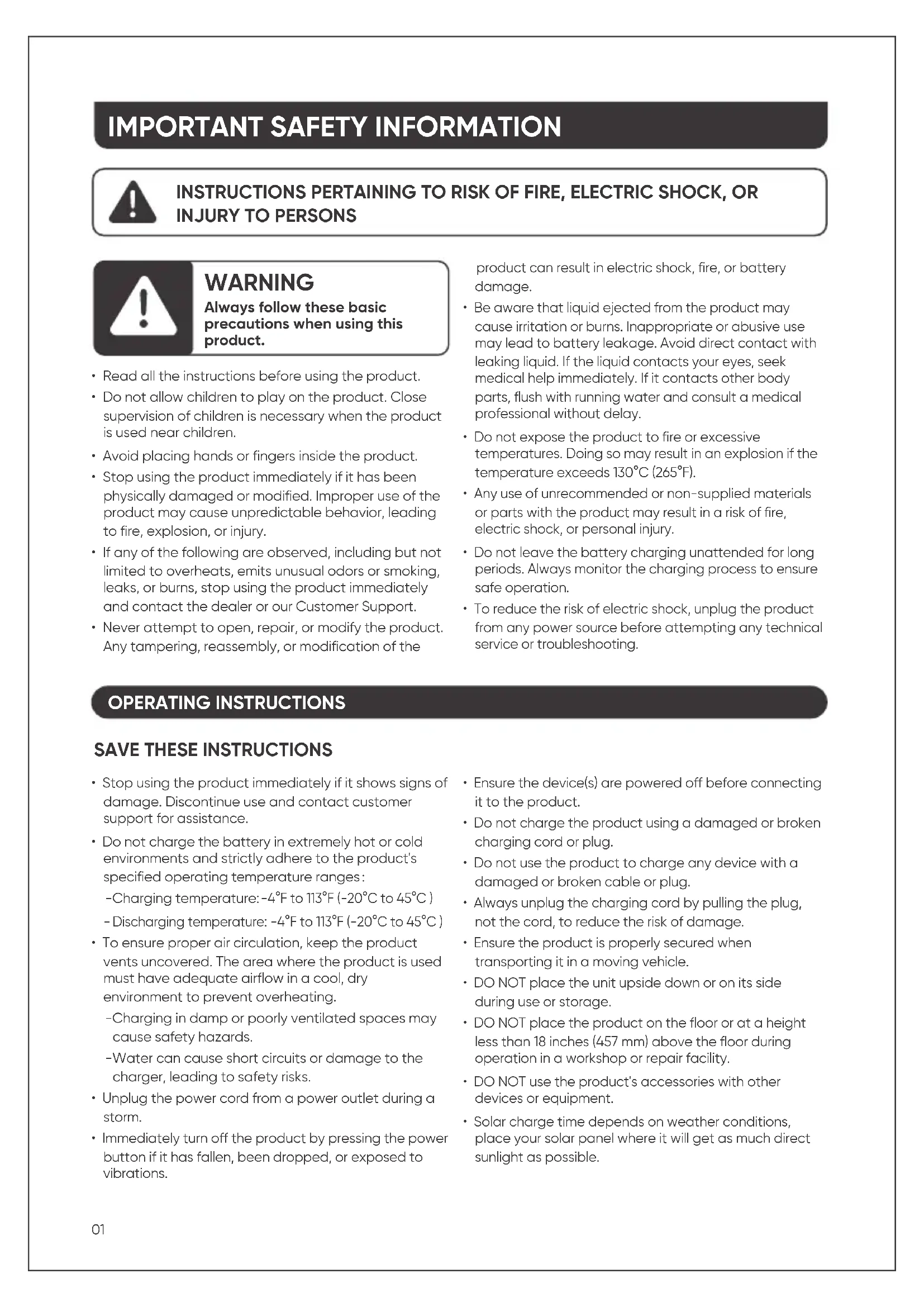
IMPORTANT SAFETY INFORMATION

INSTRUCTIONS PERTAINING TO RISK OF FIRE, ELECTRIC SHOCK, OR INJURY TO PERSONS

WARNING
Always follow these basic precautions when using this product.
- Read all the instructions before using the product.
- Do not allow children to play on the product. Close supervision of children is necessary when the product is used near children.
- Avoid placing hands or fingers inside the product.
- Stop using the product immediately if it has been physically damaged or modified. Improper use of the product may cause unpredictable behavior, leading to fire, explosion, or injury.
- If any of the following are observed, including but not limited to overheats, emits unusual odors or smoking, leaks, or burns, stop using the product immediately and contact the dealer or our Customer Support.
- Never attempt to open, repair, or modify the product. Any tampering, reassembly, or modification of the
product can result in electric shock, fire, or battery damage.
- Be aware that liquid ejected from the product may cause irritation or burns. Inappropriate or abusive use may lead to battery leakage. Avoid direct contact with leaking liquid. If the liquid contacts your eyes, seek medical help immediately. If it contacts other body parts, flush with running water and consult a medical professional without delay.
- Do not expose the product to fire or excessive temperatures. Doing so may result in an explosion if the temperature exceeds 130^ (265^) .
- Any use of unrecommended or non-supplied materials or parts with the product may result in a risk of fire, electric shock, or personal injury.
- Do not leave the battery charging unattended for long periods. Always monitor the charging process to ensure safe operation.
- To reduce the risk of electric shock, unplug the product from any power source before attempting any technical service or troubleshooting.
OPERATING INSTRUCTIONS
SAVE THESE INSTRUCTIONS
- Stop using the product immediately if it shows signs of damage. Discontinue use and contact customer support for assistance.
- Do not charge the battery in extremely hot or cold environments and strictly adhere to the product's specified operating temperature ranges:
- Charging temperature: -4^ to 113^ (-20°C to 45°C)
- Discharging temperature: -4^ to 113^ (-20°C to 45°C)
- To ensure proper air circulation, keep the product vents uncovered. The area where the product is used must have adequate airflow in a cool, dry environment to prevent overheating.
-Charging in damp or poorly ventilated spaces may cause safety hazards.
-Water can cause short circuits or damage to the charger, leading to safety risks.
- Unplug the power cord from a power outlet during a storm.
-
Immediately turn off the product by pressing the power button if it has fallen, been dropped, or exposed to vibrations.
-
Ensure the device(s) are powered off before connecting it to the product.
- Do not charge the product using a damaged or broken charging cord or plug.
- Do not use the product to charge any device with a damaged or broken cable or plug.
- Always unplug the charging cord by pulling the plug, not the cord, to reduce the risk of damage.
- Ensure the product is properly secured when transporting it in a moving vehicle.
- DO NOT place the unit upside down or on its side during use or storage.
- DO NOT place the product on the floor or at a height less than 18 inches (457 mm) above the floor during operation in a workshop or repair facility.
- DO NOT use the product's accessories with other devices or equipment.
- Solar charge time depends on weather conditions, place your solar panel where it will get as much direct sunlight as possible.

DANGER
This device is intended for indoor use only (Please place this device in a similar indoor environment when using it outdoors, e.g. Home RVs, tents, cabins, etc.). This device is not waterproof or dustproof. Keep away from rain and humid environments during use.
USER MAINTENANCE INSTRUCTIONS
During the lifecycle of energy storage products, a certain degree of capacity and energy degradation is expected. As the number of charge and discharge cycles increases and storage time extends, this degradation will gradually intensify, which is a normal phenomenon consistent with the natural aging of battery cells.
MEANING OF SYMBOLS
| Symbol Meaning | |
| ▲WARNING | Hazardous practices that may result in severe injury, death, and/or property damage. |
| ▲CAUTION | Hazardous practices that may result in personal injury and/or property damage. |
| ▲NOTE | Hazardous practices that may result in equipment damage, data loss, performance deterioration, or unanticipated results. |
| ▲TIP | Supplements the important information or operation tips in the text. |
| Symbol Meaning |
| Warning and Caution Symbols. Must read to alert individuals to potential hazards or risks. |
| Read the user manual before operation. |
| Risk of electric shock |
| Battery charging |
| Explosive material |
| Heavy object |
| Symbol | Meaning |
| Do not dismantle the product. | |
| Keep the product away from fire. | |
| Keep away from children. | |
| Li-ion | This symbol indicates that a lithium-ion (Li-ion) battery is inside the product and should be disposed of or recycled properly. |
| This symbol indicates that the product shall not be disposed of as household waste, and should be delivered to a designated collection facility for recycling. Proper disposal and recycling can help protect the environment. For more information about the disposal and recycling of this product, contact your local community, disposal service, or dealer. |

This device complies with part 15 of the FCC Rules. Operation is subject to the following two conditions:
(1) This device may not cause harmful interference, and (2) this device must
accept any interference received, including interference that may cause undesired operation.
NOTE: This equipment has been tested and found to comply with the limits for a Class B digital device, pursuant to part 15 of the FCC Rules.
These limits are designed to provide reasonable protection against harmful interference in a residential installation. This equipment generates, uses and can radiate radio frequency energy and, if not installed and used in accordance with the instructions, may cause harmful interference to radio communications. However, there is no guarantee that radio interference will not occur in a particular installation.
If this equipment does cause harmful interference to radio or television reception, which can be determined by turning the equipment off and on, the user is encouraged to try to correct the interference by one or more of the following measures:
- Reorient or relocate the receiving antenna.
- Increase the separation between the equipment and receiver.
- Connect the equipment into an outlet on a circuit different from that to which the receiver is connected.
- Consult the dealer or an experienced radio/TV technician for help.
MODIFICATION: Any changes or modifications not expressly approved by the grantee of this device could void the user's authority to operate the device.
WHAT'S IN THE BOX

1
Jackery Explorer 1500

2
AC Charging Cable

3
User Manual
TIP
The car charging cable is not included but is available for purchase separately on our website. For assistance, please contact Jackery Customer Support
PRODUCT OVERVIEW
FRONTVIEW
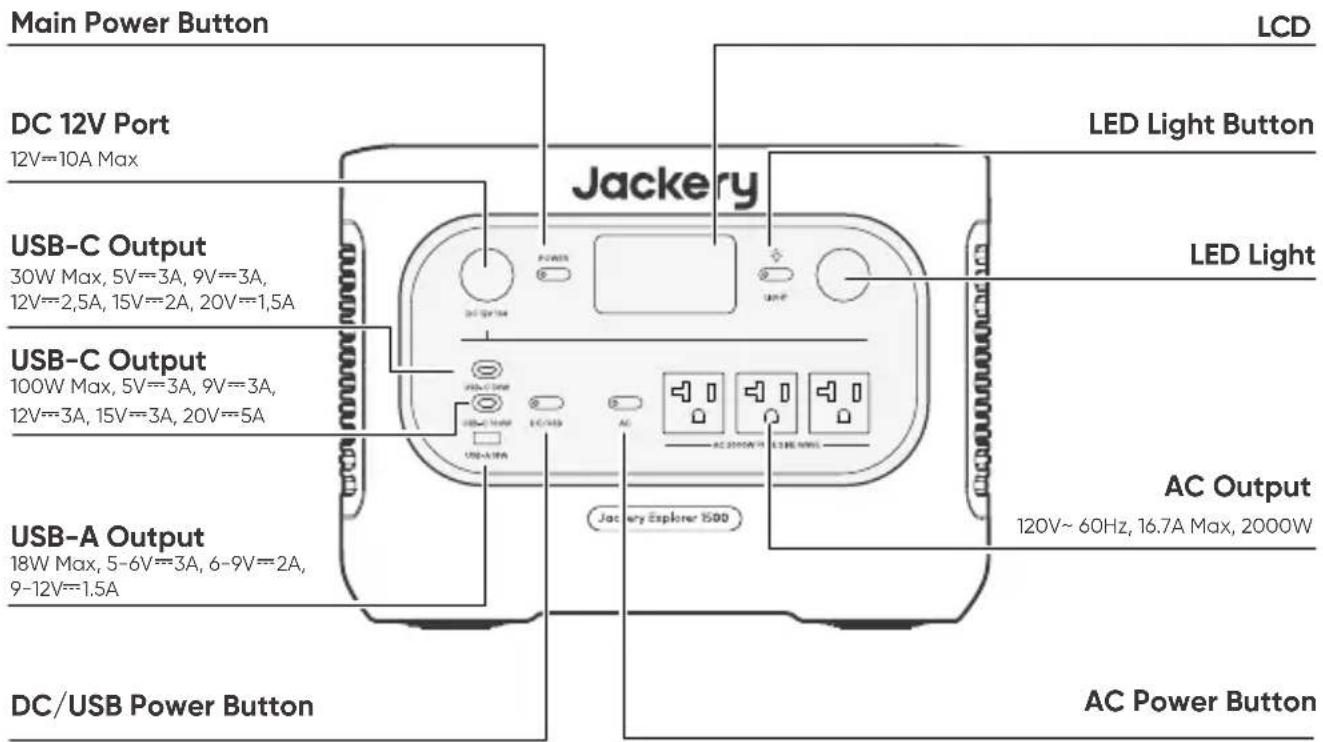
RIGHT SIDE VIEW

Handle
LCD DISPLAY

| ① | Wi-Fi | On: Wi-Fi connected. Blink: Ready to connect to Wi-Fi. Off: Wi-Fi disconnected. |
| ② | Bluetooth | On: Bluetooth connected. Blink: Ready to connect to Bluetooth. Off: Bluetooth disconnected. |
| ③ | Quiet Charging Mode | On: The noise during charging is significantly minimized, while the charging power is reduced and the charging speed slows down. Off: Quiet Charging Mode is disabled. Enable/disable this feature in the Jackery app. |
| ④ | Battery Saving Mode | On: Limits the maximum usable battery capacity to extend battery life. Off: Battery Saving Mode is disabled. Enable/disable this feature in the Jackery app. |
| ⑤ | Charging Plan | Customize the charging time of the Jackery Explorer 1500. Suitable for situations with fluctuating electricity prices, it allows for charging plans based on peak and off-peak electricity times, reducing electricity costs (Please set in the Jackery app). |
| ⑥ | Self-powered Mode | Maximizes the use of solar energy and reduces reliance on grid electricity by prioritizing stored solar energy, reducing electricity costs (please enable/disable this feature in the app). The power station must be connected to both solar panels and the grid simultaneously, with load power limited by bypass power. |
| ⑦ | Charging Power Limit | On: Charging Power limit is enabled in the Jackery app. Off: Charging Power limit is disabled in the Jackery app. |
| ⑧ | UPS | On: The product is in bypass mode, and the switchover time from grid power to the internal battery is 10 ms. Off: The product is not in bypass mode. |
| ⑨ | AC Power Indicator | The AC output (pure sine wave) is on. |
| 10 | 888v 88Hz | Output Voltage and Frequency | Displays the output voltage and frequency. |
| 11 | INPUT: 8888w | Input Power | Displays the input power in watts. |
| 12 | 8.8 H | Remaining Charge Time | Displays the remaining charging time. |
| 13 | AC Wall Charging Indicator | The product is charged via the AC Input using grid power. | |
| 14 | Car Charging Indicator | The product is charged via the DC Input (DC8020) using DC 12V (car charging). | |
| 15 | Solar Charging Indicator | The product is charged via the DC Input (DC8020) using solar panel(s). | |
| 16 | Battery Power Indicator | When the product is being charged, the orange circle around the battery percentage will light up in sequence. When charging other devices, the orange circle will stay on. | |
| 17 | Low Battery Indicator | On: The battery level is below 20%. Blink: The battery level is below 5%. Off: The battery level is above 20% or the product is charging. | |
| 18 | 188% | Remaining Battery Percentage | Displays the remaining battery percentage. |
| 19 | FB | Fault code | A product error has occurred. Please refer to the Troubleshooting section for details. |
| 20 | High Temperature Indicator | High temperature protection is triggered. The product may stop functioning until its temperature returns to the normal operating range. | |
| Low Temperature Indicator | Low temperature protection is triggered. The product may stop functioning until its temperature returns to the normal operating range. | ||
| 21 | 88H | Energy Saving Mode | On: Energy Saving Mode is enabled. Off: Energy Saving Mode is disabled. |
| 22 | OUTPUT: 8888w | Output Power | Displays the output power in watts. |
| 23 | 88.8 H | Remaining Discharge Time | Displays the remaining discharging time. |
OPERATIONS
POWER ON/OFF

Default standby time: 2 hours
If the AC power button, DC/USB power button, and LED light button are all turned off and there is no charging input, the product will automatically shut down after 2 hours.
*The standby time can be set in the Jackery App.
When Energy Saving Mode is enabled, the product will automatically shut down after 12 hours if the AC Output or DC/USB Output power button is ON but the product is neither charging nor discharging.
AC OUTPUT ON/OFF
Prerequisite: The product is turned on.

DC 12V/USB OUTPUT ON/OFF
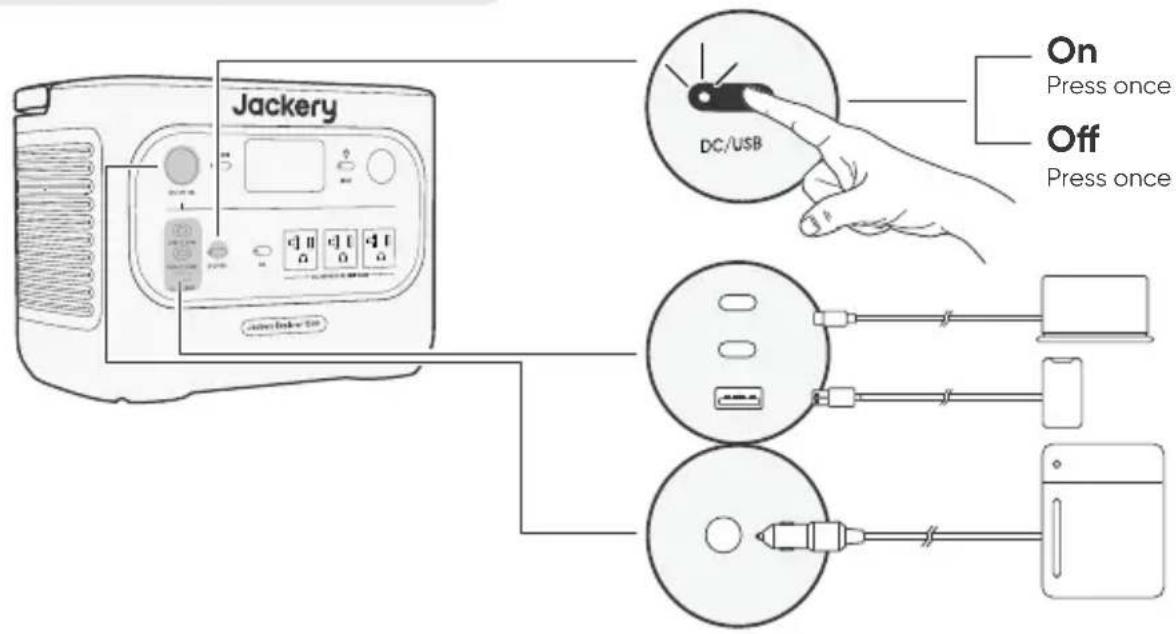
Prerequisite: The product is turned on.
TIP
The product can charge your car battery using the Jackery 12V automobile battery charging cable, which is sold separately and available on our website.
CAUTION
- The DC 12V port is only compatible with 12V car batteries and not suitable for 24V systems.
- Do not start the car while the product is charging the car battery through the 12V DC output port, as this may damage the product.
- This feature is intended for emergency use only and cannot charge a dead or damaged car battery.
LED LIGHT ON/OFF

The LED light has two modes: Light mode and SOS mode.
- The default setting is Light mode.
- In any mode, press and hold the LED light button to turn off the light.
LCD SCREEN ON/OFF

| LCD Screen | Turn on | Press the Main Power Button or when the product is charging. |
| Turn off | Press the Main Power Button. | |
| Auto-off | The LCD turns off automatically and enters sleep mode after 2 minutes of inactivity. | |
| Always-on Display Mode (under charging or discharging state) | Turn on | Double-click the Main Power Button when the LCD screen is ON. |
| Turn off | Press the Main Power Button. | |
| Auto-off | The Always-on Display Mode turns off automatically after 2 hours of inactivity. |
ENERGY SAVING MODE
To prevent unnecessary battery consumption from forgetting to turn off the output, the product enables Energy Saving Mode by default. When AC or DC/USB output is turned on, the Energy Saving Mode icon will be displayed on the LCD screen.
If no device is connected or the connected device's power consumption is below a certain threshold (AC outputs 25W; USB+DC 12V port outputs<2W), the product will automatically turn off the outputs after 12 hours.
On/Off: Press and hold both the AC power button and main power button for more than 3 seconds.

NOTE
- If the Energy Saving Mode is disabled, the product will not automatically turn off the AC or DC/USB output.
- Energy Saving Mode resumes previous state after power-on. Manual switching is required for mode changes.
- Please set the Energy Saving Mode duration in the Jackery App.

KEY COMBINATIONS
| Buttons Operation | Function | |
| Main Power Button DC/USB Power Button | 3s Press and hold both for 3s | Reset Wi-Fi and Bluetooth |
| Main Power Button AC Power Button | 3s Press and hold both for 3s | Turn on/off the Energy Saving Mode |
| DC/USB Power Button AC Power Button | 1s Press and hold both for 1s | Turn on/off Wi-Fi & Bluetooth |
UNINTERRUPTIBLE POWER SUPPLY (UPS)
Connect the product to a wall outlet with the AC charging cable, then press the AC output button and power your appliances at the same time.

An uninterruptible power supply (UPS) is a type of continual power system that provides automated backup electric power to a load when the mains grid power fails.
In the event of a sudden loss of grid power, the Explorer 1500 will automatically switch to stored power within 10 ms to keep your appliances running.
In UPS mode, the unit's peak output reaches 1440W before power outages. As simultaneous charging/discharging is enabled in Bypass Mode, the actual output power is lower than the rated output power in this mode but returns to rated output power during outages.
CAUTION
- This product does not support 0 ms switching. Do not connect it to equipment that requires an uninterrupted power supply, such as data servers or workstations.
- Before use, please test compatibility with your device multiple times.
- It is recommended to connect one device at a time. Do not use multiple devices simultaneously, as this may trigger overload protection.
CHARGING
Green energy first: We advocate to use the green energy first. This product supports two modes of charging at the same time: solar charging and AC wall charging.
When AC wall charging and solar charging are turned on at the same time, the product will give priority to solar charging and both methods will be used to charge the battery at the maximum permissible power.
Fully charge the product before its first use.
NOTE
- The recommended charging temperature for the product ranges from -4^ to 113^ ( -20^ to 45^ ), and the discharging temperature ranges from -4^ to 113^ ( -20^ to 45^ ). Operating the product beyond this temperature range may restrict its charging and discharging capabilities, or even prevent it from charging or discharging.
The charging power and battery capacity of the product may vary due to temperature fluctuations.
CHARGING VIA AC WALL OUTLET
Connect the AC charging cable to the AC input port of the power station and plug it into the wall outlet.
Emergency Charging Mode
Under this mode, you can rapidly power up the portable power station using the AC charging method. This emergency charge function can be activated or deactivated through the Jackery app. When in emergency charging mode, the circular light indicating the state of charge (SOC) will blink at an increased pace.
- To maximize battery life, it is best to charge at normal speed. We recommend using emergency charging mode only when necessary. It's not recommended for regular, long-term use.

CAUTION
Make sure the AC charging cable is fully and securely plugged into the AC input port. An incomplete connection may cause unstable current, overheating, poor contact, or device malfunction.
CHARGING VIA SOLAR PANELS
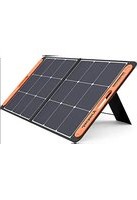
Jackery Explorer 1500 has two DC8020 input ports and is compatible with the Jackery solar panels. If one DC8020 input port needs to connect two solar panels simultaneously, please refer to the figure below for charging through the solar panel connector (sold separately, not included as standard).
CAUTION
Ensure that the input voltage for both DC input ports is the same. Failure to do so may damage the product. For example:
- It is recommended to use the same model of Jackery solar panels and the same number of panels when connecting solar panels to both DC8020 Input ports.
- Do not charge the product using both a car charger and a solar panel simultaneously. Doing so may blow the car fuse or result in charging failure.
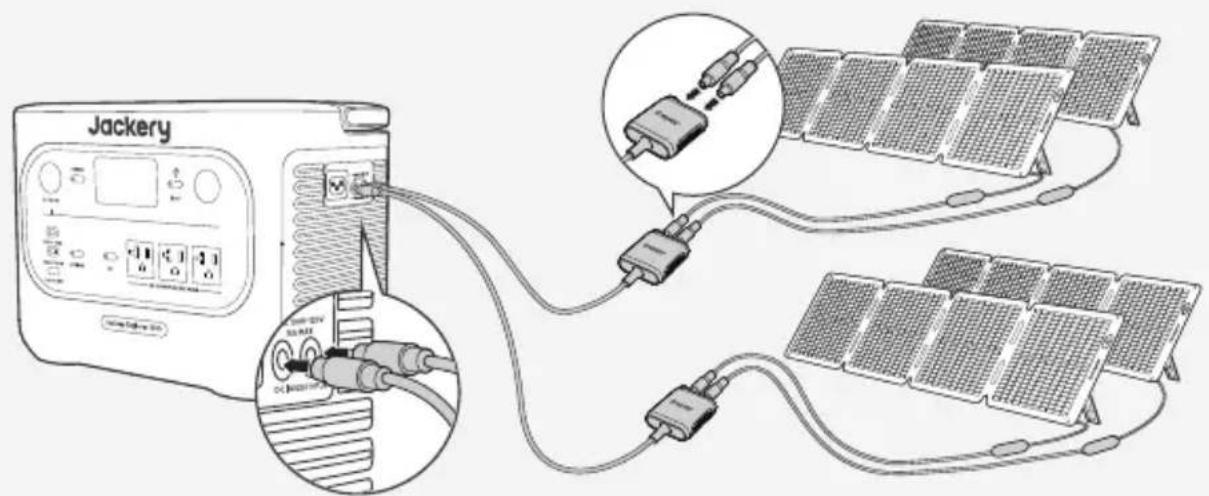
SolarSaga 100 Air × 4
CAUTION
One DC8020 input port can be connected to at most two solar panels.
It is recommended to use the Jackery Solar Panel to charge the Explorer 1500. Ensure that the open-circuit voltage (V_) of the solar panel falls within the Jackery Explorer 1500's DC input voltage range (16V-60V). Jackery is not responsible for any losses caused by using solar panels from other brands.
CHARGING WITH A CAR CHARGER
This product can be charged using a 12V car charger. Ensure that the car charger and the 12V car power outlet provide a good connection.

CAUTION
- Please start the vehicle before charging your power station.
- If the vehicle is running on bumpy roads, it is forbidden to use the car charger in case it causes non-standard operation. The Company will not be responsible for any loss caused by non-standard operation.
- Vehicle charging is only applicable to vehicles with 12V DC, not 24V DC. Please do not charge this product in 24V vehicle to avoid personal injury and property loss.
STORAGE
Store the product in a dry clean place with proper ventilation. Storage temperature and humidity:
1 month: -4^ to 113^ / -20^ to 45^ (0-60%RH)
3 months: 32^ F to 113^ F/0^ C to 45^ C( 0 - 60% RH)
12 months: 32^ to 77^ / 0^ to 25^ (0-60%RH)
If this product is stored for a long period of time (3 months - 6 months) with the power depleted, it may become unchargeable. To prevent this and maintain battery health, it is recommended to check and recharge the product every three months and perform a full charge and discharge cycle at least once every 6 to 12 months.
TROUBLESHOOTING
If any of the following fault codes appear, follow the listed corrective actions to resolve the issue. If fault persists, please contact Jackery Customer Support.
| Error Code | Corrective Measures |
| F0 | Restart the product. |
| F1 | |
| F2 | |
| F3 | |
| F4 | Connect the product to loads to discharge its battery until the fault disappears. |
| F5 | Charge the product via solar panels or AC wall outlet until the fault disappears. |
| F6 | 1. Wait for the grid to normalize before charging the product via AC wall outlet. 2. Check whether the air intake and exhaust vents are blocked; ensure 30 cm clearance on both side of the product. 3. Place the product in a shaded, well-ventilated area where the ambient temperature is below 45°C. 4. Disconnect all loads from the product, keep it idle and wait until the fault disappears. 5. Restart the product. |
| F7 | 1. Remove all DC inputs from the product. 2. If you charge the product via a solar panel, check the open-circuit voltage (Voc) of the connected solar panel. The product allows a maximum DC input voltage of 60V. 3. Restart the product and keep it idle. Wait until the fault disappears. |
| F8 | Contact Jackery Customer Support. |
| F9 | Remove the load connected to the DC 12V/USB ports of the product. Wait until the fault disappears. |
SPECIFICATIONS
GENERAL INFO
| Product Name | Jackery Explorer 1500 |
| Model No. | JE-1500D |
| Capacity | 40Ah / 38.4V DC (1536 Wh) |
| Cell Chemistry | LiFePO4 |
| Weight | About 31.97 lbs/14.5 kg |
| Dimension | 12.99×8.7×9.53 in / 33×22.1×24.2 cm |
| Cycle Life | 6000 cycles to 70%+ capacity |
- INPUT PORTS
| 1×AC Input | Charge Mode: 100-120V~60Hz, 15A Max Bypass Mode1: 120V~60Hz, 12A Max |
| 2×DC8020 Ports | Car: 11-16V=8A Max, Double to 8A Max PV: 16-60V=12A Max, Double to 21A Max/ 400W Max |
- OUTPUT PORTS
| 3×AC Output | 120V~60Hz, 16.7A Max, 2000W (14°F to 113°F / -10°C to 45°C) |
| 120V~60Hz, 10A Max, 1200W (-4°F to 14°F / -20°C to -10°C) | |
| AC Total Output | 2000W Rated, 4000W Surge peak (14°F to 113°F / -10°C to 45°C) |
| AC Output in Bypass Mode1 | 120V~60Hz, 12A Max, 1440W Max |
| 2×USB-C Output | 100W Max, 5V=3A, 9V=3A, 12V=3A, 15V=3A, 20V=5A (14°F to 113°F / -10°C to 45°C)USB-C Output is off (-4°F to 14°F / -20°C to -10°C) |
| 30W Max, 5V=3A, 9V=3A, 12V=2.5A, 15V=2A, 20V=1.5A | |
| 1×USB-A Output | 18W Max, 5-6V=3A, 6-9V=2A, 9-12V=1.5A |
| DC 12V Port | 12V=10A Max |
ENVIRONMENTAL OPERATING TEMPERATURE
| Charging Temperature | -4°F to 113°F / -20°C to 45°C |
| Discharging Temperature | -4°F to 113°F / -20°C to 45°C |
- The product can charge the battery from the AC wall outlet while delivering power through the AC output ports.
※ USB Type-C® and USB-C® are registered trademarks of USB Implementers Forum.
WARRANTY
We only provide our warranty to customers who purchase from the official Jackery website, Jackery-branded third-party platforms, or local authorized dealers.
*Warranty period and details may vary according to local laws, regulations, and authorized dealers.
Limited Warranty
Jackery Inc. warrants to the original consumer purchaser that the Jackery product will be free from defects in workmanship and material under normal consumer use during the applicable warranty period identified in the 'Warranty Period' section below, subject to the exclusions set forth below.
This warranty statement sets forth Jackery's total and exclusive warranty obligation. We will not assume, nor authorize any person to assume for us, any other liability in connection with the sale of our products.
Warranty Period

YEARS
Standard Warranty
The standard warranty period for Jackery Explorer 1500 is 36 months. In each case, the warranty period is measured starting on the date of purchase by the original consumer purchaser. The sales receipt from the first consumer purchase, or other reasonable documentary proof, is required in order to establish the start date of the warranty period.

YEARS
Extended Warranty
To activate the Warranty Extension, you must register your product online or contact our customer service team at hello@jackery.com to extend the standard warranty runtime.
Repair or replacement
Jackery will repair or replace (at Jackery's expense) any Jackery product that fails to operate during the applicable warranty period due to a defect in workmanship or material. The repaired/replaced product assumes the remaining warranty of the original date of purchase.
Limited to Original Consumer Buyer
The warranty on Jackery's product is limited to the original consumer purchaser and is not transferable to any subsequent owner.
Exclusions
Jackery's warranty does not apply to:
- Misused, abused, modified, damaged by accident, or used for anything other than normal consumer use as authorized in Jackery's current product literature.
- Attempted repair by anyone other than an authorized facility.
- Any product purchased through an online auction house.
- ackery's warranty does not apply to the battery cell unless the battery cell is fully charged by you within seven days after you purchase the product and at least once every 6 months thereafter.
Interpretation Rights
Jackery reserves the right to final interpretation of the above customer after-sales policy.
APP SETUP
1. To download the App and log in


Search for "Jackery" in Google Play or App Store to install the App. After that, you can register and log in.
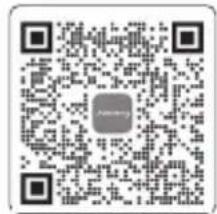
Alternatively, scan the QR code below to download and install the App.
2. To add device
2.1 Click the button + to add your device;
2.2 Press the POWER button on the device to turn on, the Wi-Fi and Bluetooth icons on the device flash to indicate that the device has entered the network configuring mode, tap the "Icon Flashed" button and allow the App to connect to nearby devices and open Bluetooth permissions.
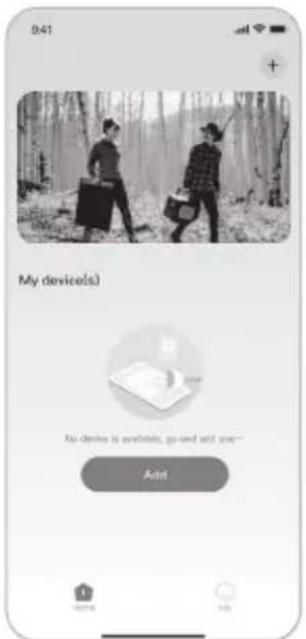
2.12.2
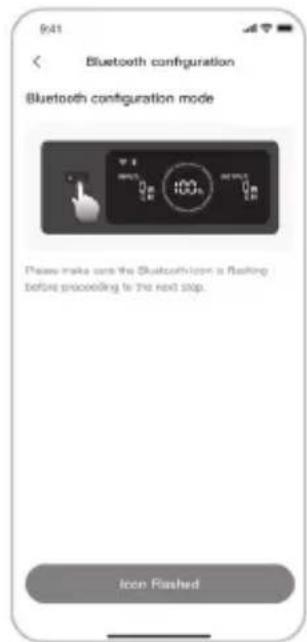
Main Power Button
DC/USB Power Button
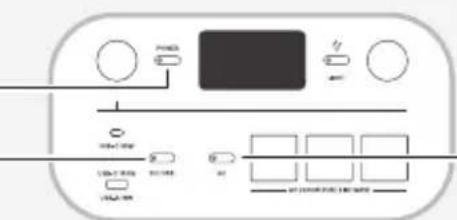
AC Power Button
NOTE
After the device is turned on and not connected to the App within 2 hours, it will automatically turn off Wi-Fi and Bluetooth. Now it is required to press and hold DC/USB power button and AC power button to turn on Wi-Fi and Bluetooth again.
2.3 After tapping the searched device icon, the App automatically connects the device via Bluetooth.
NOTE
If "the device has been bound" is prompted during the binding process, the following two ways can be used for connection:
The device owner will share this device with other users through the App.
- Press and hold the Main Power Button button and DC/USB power button for 3 seconds to reset the device, and then re-bind the device.
2.4 After the device is successfully connected, enter your Wi-Fi password and tap the OK button.
NOTE
Please select a Wi-Fi network in 2.4GHz band. The device does not support a Wi-Fi network in 5GHz band.
2.5 After the device is successfully added on the App, the Wi-Fi icon on the device will be always on.

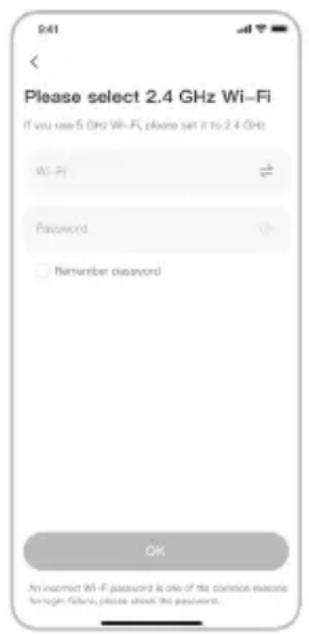
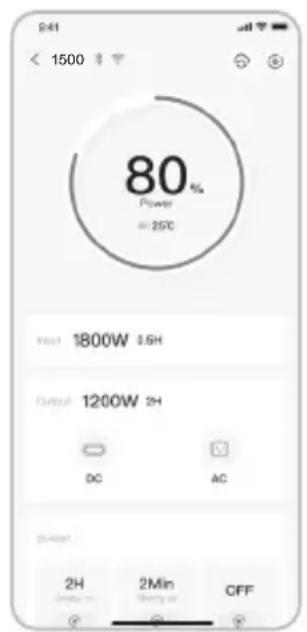
2.52.3 2.4
The above screenshots are for reference only.
3. To unbind the device
Click the Settings icon in the upper right corner of the main interface of the device to enter the settings page, and click the Unbind button at the bottom of the page to unbind the device.
4. Notes
4.1 To turn on Wi-Fi & Bluetooth:
- Wi-Fi and Bluetooth are automatically turned on after the device is on, and the Wi-Fi and Bluetooth icons on the screen light up.
- Press the DC/USB button and the AC button at the same time until the Wi-Fi & Bluetooth icons on the screen light up
4.2 To turn off Wi-Fi and Bluetooth
- Hold the DC/USB power button and AC power button at the same time until the Wi-Fi and Bluetooth icons on the screen are off.
- Wi-Fi and Bluetooth will be automatically turned off if no device is connected within 2 hours.
4.3 To reset Wi-Fi and Bluetooth
Hold the POWER button and DC/USB power button at the same time for 3 seconds to reset Wi-Fi and Bluetooth to factory settings and reboot the system. The connected App account will be unbound.
INFORMATIONS DE SÉCURITÉ IMPORTANTES

INSTRUCTIONS CONCERNANT LES RISQUES D'INCENDIE, DE CHOC ÉLECTRIQUE OU DE BLESSURES

AVERTISSEMENT
- FR IMPORTANT
- IMPORTANT SAFETY INFORMATION
- INSTRUCTIONS PERTAINING TO RISK OF FIRE, ELECTRIC SHOCK, OR INJURY TO PERSONS
- WARNING
- OPERATING INSTRUCTIONS
- SAVE THESE INSTRUCTIONS
- DANGER
- USER MAINTENANCE INSTRUCTIONS
- MEANING OF SYMBOLS
- WHAT'S IN THE BOX
- PRODUCT OVERVIEW
- FRONTVIEW
- RIGHT SIDE VIEW
- LCD DISPLAY
- OPERATIONS
- POWER ON/OFF
- Default standby time: 2 hours
- AC OUTPUT ON/OFF
- DC 12V/USB OUTPUT ON/OFF
- TIP
- CAUTION
- LED LIGHT ON/OFF
- LCD SCREEN ON/OFF
- ENERGY SAVING MODE
- NOTE
- KEY COMBINATIONS
- UNINTERRUPTIBLE POWER SUPPLY (UPS)
- CHARGING
- Fully charge the product before its first use.
- CHARGING VIA AC WALL OUTLET
- Emergency Charging Mode
- CHARGING VIA SOLAR PANELS
- CHARGING WITH A CAR CHARGER
- STORAGE
- TROUBLESHOOTING
- SPECIFICATIONS
- GENERAL INFO
- - INPUT PORTS
- - OUTPUT PORTS
- ENVIRONMENTAL OPERATING TEMPERATURE
- WARRANTY
- Limited Warranty
- Warranty Period
- YEARS
- Standard Warranty
- Extended Warranty
- Repair or replacement
- Limited to Original Consumer Buyer
- Exclusions
- Interpretation Rights
- APP SETUP
- To download the App and log in
- To add device
- To unbind the device
- Notes
- To turn off Wi-Fi and Bluetooth
- To reset Wi-Fi and Bluetooth
- INFORMATIONS DE SÉCURITÉ IMPORTANTES
- INSTRUCTIONS CONCERNANT LES RISQUES D'INCENDIE, DE CHOC ÉLECTRIQUE OU DE BLESSURES
- AVERTISSEMENT
Brand : Jackery
Model : Explorer 1500
Category : Generator