Inspiron 8200 - Laptop DELL - Free user manual and instructions
Find the device manual for free Inspiron 8200 DELL in PDF.


| Product Type | Laptop |
| Operating System | Microsoft Windows 98 / Windows 2000 / Windows NT |
| Connectors | 1 serial port 9-pin, 1 parallel port 25-hole, 1 PS/2 keyboard port, 1 PS/2 mouse port, 1 VGA video port 15-hole, 1 audio output, 2 USB 4-pin ports, 1 RJ-45 network port, 240-pin docking connector |
| Power Supply | 20 V DC, 3.5 A AC adapter (via port replicator) |
| Main Functions | Docking via Advanced Port Replicator (APR), battery charging in station, external monitor support up to 45.3 kg |
| Maintenance and Cleaning | Clean with a soft cloth dampened with water; do not use liquid or aerosol cleaners; unplug before cleaning |
| Safety | Do not open the device; use only the specified Dell adapter; avoid water and moisture; do not insert objects into openings; observe mains voltages (100-240 V AC, 50-60 Hz) |
| Warranty | 3-year limited warranty (US/Canada); parts and labor first year, parts only following years |
| Regulatory Classification | Class B digital device (FCC, IC, CE, VCCI); may be Class A depending on configuration |
Frequently Asked Questions - Inspiron 8200 DELL
User questions about Inspiron 8200 DELL
0 question about this device. Answer the ones you know or ask your own.
Ask a new question about this device
Download the instructions for your Laptop in PDF format for free! Find your manual Inspiron 8200 - DELL and take your electronic device back in hand. On this page are published all the documents necessary for the use of your device. Inspiron 8200 by DELL.
USER MANUAL Inspiron 8200 DELL
Notes, Notices, and Cautions
Throughout this guide, blocks of text may be accompanied by an icon and printed in bold type or in italic type. These blocks are notes, notices, and cautions, and they are used as follows:

NOTE: A NOTE indicates important information that helps you make better use of your computer system.
NOTICE: A NOTICE indicates either potential damage to hardware or loss of data and tells you how to avoid the problem.

CAUTION: A CAUTION indicates a potentially hazardous situation which, if not avoided, may result in minor or moderate injury.
Information in this document is subject to change without notice.
© 1999–2000 Dell Computer Corporation. All rights reserved.
Reproduction in any manner whatsoever without the written permission of Dell Computer Corporation is strictly forbidden.
Trademarks used in this text: Dell, the DELL logo, BE DIRECT, Inspiron, and DellWare are trademarks of Dell Computer Corporation; Microsoft, Windows, and Windows NT are registered trademarks of Microsoft Corporation; 3Com is a registered trademark of 3Com Corporation.
Other trademarks and trade names may be used in this document to refer to either the entities claiming the marks and names or their products. Dell Computer Corporation disclaims any proprietary interest in trademarks and trade names other than its own.
February 2000 P/N 8498T Rev. A02
Contents
APR I/O Connectors 1-1
APR Controls and Indicators 1-3
Connecting External Devices to the APR 1-4
Connecting the Computer to the APR. 1-4
Docking the Computer 1-5
Undocking the Computer 1-6
Monitor Stand 1-7
Safety Instructions.... 1-8
Technical Specifications 1-9
Regulatory Notices 1-11
FCC Notices (U.S. Only) 1-12
Class A 1-12
Class B 1-13
IC Notice (Canada Only) 1-13
CE Notice (European Union).... 1-14
EN 55022 Compliance (Czech Republic Only) 1-14
VCCI Notice (Japan Only) 1-14
Class A ITE 1-15
Class B ITE 1-15
MOC Notice (South Korea Only) 1-16
Class A Device 1-16
Class B Device 1-17
Polish Center for Testing and Certification Notice 1-17
NOM Information (Mexico Only) 1-18
Warranty and Return Policy.... 1-20
Three-Year Limited Warranty (U.S. Only) 1-20
Coverage During Year One.... 1-20
Coverage During Years Two and Three 1-21
General Provisions 1-21
Three-Year Limited Warranty (Canada Only) 1-22
Coverage During Year One.... 1-22
Coverage During Years Two and Three 1-23
General Provisions 1-23
"Total Satisfaction" Return Policy (U.S. and Canada Only) 1-24
Figures
Figure 1-1. I/O Connectors on the Back of the APR 1-2
Figure 1-2. Audio Line-Out Connector.... 1-3
Figure 1-3. Controls and Indicators 1-3
Figure 1-4. Docking the Computer 1-5
Figure 1-5. Undocking the Computer 1-6
Figure 1-6. APR With the Monitor Stand.... 1-7
Figure 1-7. VCCI Class A ITE Regulatory Mark 1-15
Figure 1-8. VCCI Class B ITE Regulatory Mark 1-15
Figure 1-9. MOC Class A Regulatory Mark 1-16
Figure 1-10. MOC Class B Regulatory Mark 1-17
Tables
Table 1-1. External I/O Connectors 1-2
Table 1-2. Technical Specifications 1-9
Dell™ Inspiron™ Advanced Port Replicator User's Guide
The advanced port replicator (APR) integrates your computer quickly and easily into a desktop environment. Use the instructions in this document to attach external devices to the APR and to connect your computer to the APR.

NOTE: If you received a basic input/output system (BIOS) upgrade diskette with your APR, use the diskette to upgrade the BIOS on your computer before attaching it to the APR. For instructions, see the documentation that came with the BIOS upgrade diskette.
NOTICE: Do not attempt to lift the computer while it is docked in the APR. Doing so will damage the docking connector. For instructions, refer to "Undocking the Computer," found later in this guide.
APR I/O Connectors
The input/output (I/O) connectors on the back and side of the APR (see Figures 1-1 and 1-2) duplicate the primary connectors on the back and side of your computer.
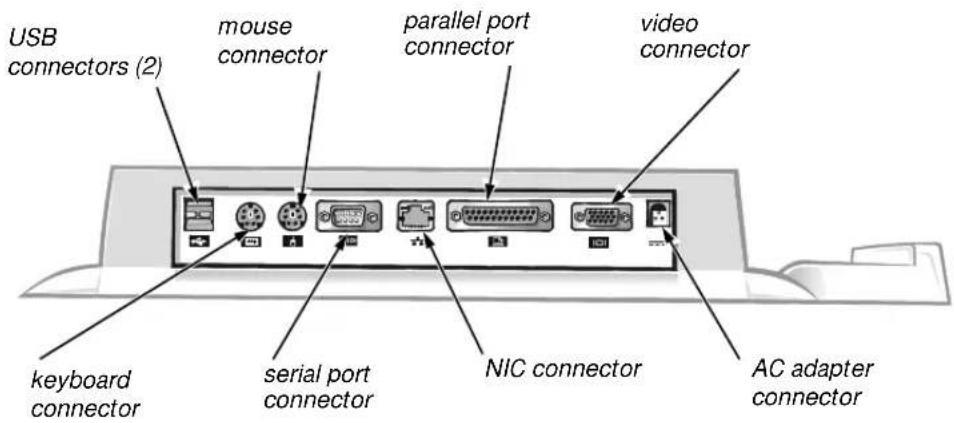
Figure 1-1. I/O Connectors on the Back of the APR
Table 1-1 shows the icons for each of the connectors on the back of the APR and indicates the type of external device(s) that you can attach to each connector.
Table 1-1. External I/O Connectors
| Connector Icon Connector Description | |
 | One or two USB devices, such as a USB mouse, can be connected to the dual USB connectors. |
 | An external PS/2-style keyboard or external numeric keypad can be connected to the keyboard connector. |
| [6T40] | An external PS/2-compatible mouse can be connected to the PS/2 mouse connector. |
 | A serial device, such as a serial mouse or external modem, can be connected to the serial port connector. |
 | A network interface cable can be connected to the NIC connector. |
| [BZX1] | A parallel device, such as a printer, can be connected to the parallel port connector. |
 | An external monitor can connected to the video connector. |
 | The AC adapter that came with the APR can be connected to the AC adapter connector. |
NOTE: For the full name of an abbreviation or acronym used in this table, see the Glossary in the system Help.
The audio line-out connector is on the side of the APR (see Figure 1-2).

Figure 1-2. Audio Line-Out Connector
APR Controls and Indicators
The controls and indicators on the APR are shown in Figure 1-3.

Figure 1-3. Controls and Indicators
Connecting External Devices to the APR
To attach external devices to the APR, perform the following steps:
-
Refer to Figure 1-1 to attach external devices to the appropriate connectors on the back of the APR.
NOTE: If the cable connector from the external device has thumbscrews, be sure to tighten them to ensure a proper connection.
For detailed information on using external devices with your computer, see "Connecting External Devices" in the system Help. -
Connect the external devices to an electrical outlet, if applicable.
Connecting the Computer to the APR
You must attach an AC adapter to the APR before you dock and turn on the computer. The AC adapter powers the APR and the computer at the same time. Any battery installed in the computer charges while you use the APR.
NOTICE: Always use the Dell AC adapter that came with the APR. (Look for model number PA-6 on the bottom of the AC adapter.) If you use any other commercially available AC adapter—or the AC adapter from earlier models of Dell computers—you may damage the APR or the computer.
Before you initially connect your computer to the APR, the operating system must complete its setup process. To verify that the operating system has completed the setup process, perform the following steps:
- Be sure that the computer is not docked in the APR.
- Turn on the computer.
- Verify that your computer's operating system completes the setup process. For instructions, refer to the Setup Guide that accompanied your computer.
- Turn off the computer.
You can now connect your computer to the APR as described in the following subsection, “Docking the Computer.”

Docking the Computer
To connect (or dock) your computer to the APR, perform the following steps:
-
Verify that the operating system has completed the setup process. For instructions, refer to the Setup Guide that accompanied your computer.
-
Save and close all open files, exit all open application programs, and shut down the computer.
-
If you have not already done so, connect the AC adapter to the connector on the APR (see Figure 1-1), and plug the AC power cable into an electrical outlet.
-
Horizontally center the computer on the APR platform, with the back of the computer facing the APR's docking connector, as shown in Figure 1-4.
-
Slide the computer toward the connector until you feel the grooves on the bottom of the computer engage with the alignment rails.
NOTICE: If you attempt to push the computer all the way into the APR without engaging the alignment rails, you may irreparably damage the docking connector on the computer.
NOTE: If you have a monitor stand installed, you will not be able to see the alignment rails or the docking connector.
- Gently push the computer forward until the docking connector is fully engaged.
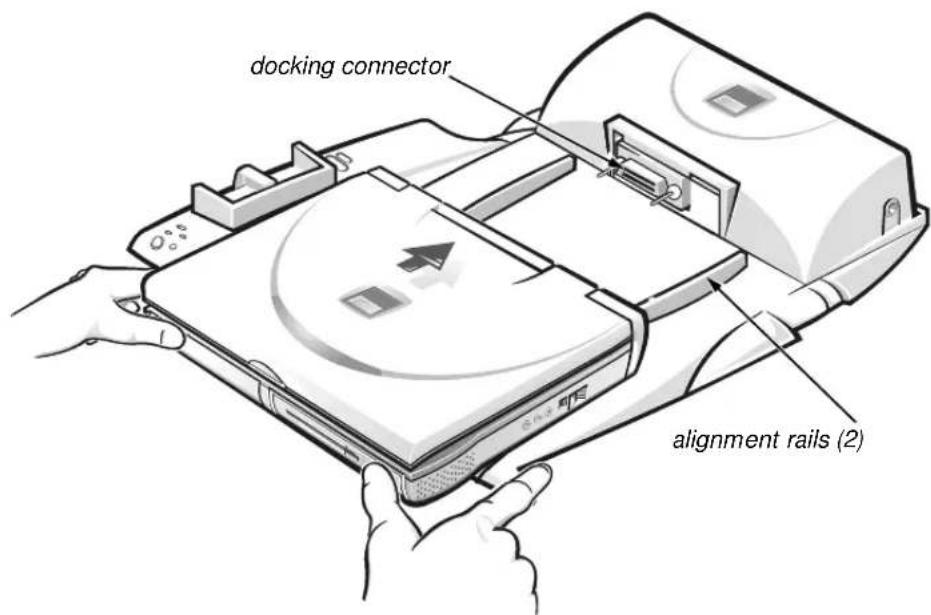
Figure 1-4. Docking the Computer

Undocking the Computer
Perform the following steps to disconnect the computer from the APR:
- Save and close all open files and exit all open application programs.
NOTICE: If the computer does not have a charged battery, the computer turns off when you detach the computer from the APR, and all unsaved data is lost.
NOTICE: Never undock the computer and the APR without first preparing the computer. Any of the three following methods prepares the operating system, network, and storage devices for undocking by completing data transfers. If you undock the computer before these transfers are completed, you will lose data and the computer may not recover normal operation for several minutes, if at all.
- To prepare the computer for undocking, perform one of the following procedures:
- Press
After a few seconds, the power indicator on the computer turns off.
- If you are using the Microsoft Windows 98 or Windows 2000 operating system, click the Start button, and then click Eject PC. If you are using the Microsoft Windows NT operating system, click the docking icon and then click Undock to place the computer in standby mode.
After a few seconds, the power indicator on the computer turns off.
- Press the undock request button on the APR (see Figure 1-5).
The green docking indicator turns off.
- Slide the eject/locking lever on the left side of the APR (see Figure 1-5) to the eject position to undock the computer.

Figure 1-5. Undocking the Computer
Monitor Stand
The monitor stand setup is shown in Figure 1-6.
NOTICE: The stand supports monitors that weigh up to 45.3 kilograms (kg) (100 pounds [lb]). Heavier monitors may damage the stand, computer, and APR.

NOTE: Be sure that the back legs on the monitor stand engage the slots on either side of the docking control base.

Figure 1-6. APR With the Monitor Stand
Safety Instructions
Use the following safety guidelines to help protect your APR from potential damage and to help ensure your own personal safety:
- Do not attempt to service the APR yourself. Always follow installation instructions closely.
- Be sure that nothing rests on your AC adapter's power cable.
- Be sure that the cable is not located where it can be tripped over or stepped on.
- Place the AC adapter in a ventilated area, such as a desktop or on the floor, when powering the APR. Do not cover the AC adapter with papers or other items that will reduce cooling. Do not use the AC adapter inside a carrying case.
- Do not use your APR in a wet environment, for example, near a bathtub, sink, or swimming pool or in a wet basement.
- Do not push objects into air vents or openings of your APR. Doing so can cause fire or electric shock by shorting out interior components.
- Use only the AC adapter that is approved for use with this APR as indicated in this document. Use of another type of AC adapter may risk fire or explosion.
- Before you connect the APR to a power source, ensure that the voltage rating of the AC adapter matches that of the available power source:
— 115 volts (V)/60 hertz (Hz) in most of North and South America and some Far Eastern countries such as South Korea and Taiwan
— 100 V/50 Hz in eastern Japan and 100 V/60 Hz in western Japan
— 230 V/50 Hz in most of Europe, the Middle East and the Far East
- To help prevent electric shock, plug the AC adapter and peripheral power cables into properly grounded electrical outlets. These cables are equipped with 3-prong plugs to help ensure proper grounding. Do not use adapter plugs or remove the grounding prong from a cable. If you must use an extension cable, use a 3-wire cable with properly grounded plugs.
- If you use an extension cable with your AC adapter, ensure that the total ampere rating of the products plugged into the extension cable does not exceed the ampere rating of the extension cable.
- To remove power from the APR, turn off the computer and disconnect the AC adapter from the electrical outlet.
- To help avoid the potential hazard of electric shock, do not connect or disconnect any cables or perform maintenance or reconfiguration of this product during an electrical storm.
- When setting up the APR for work, place it on a level surface.
- Protect your APR from environmental hazards such as dirt, dust, food, liquids, temperature extremes, and overexposure to sunlight.
- When you move your APR between environments with very different temperature or humidity ranges, condensation may form on or within the
computer. To avoid damaging the APR, allow sufficient time for the moisture to evaporate before using the computer.
NOTICE: When taking the APR from low-temperature conditions into a warmer environment or from high-temperature conditions into a cooler environment, allow the APR to acclimate to room temperature before turning on power.
- When you disconnect a cable, pull on its connector or on its strain-relief loop, not on the cable itself. As you pull out the connector, keep it evenly aligned to avoid bending any connector pins. Also, before you connect a cable make sure both connectors are correctly oriented and aligned.
• Before you clean your APR, turn it off and unplug it from the electrical outlet. - Clean your APR with a soft cloth dampened with water rather than with liquid or aerosol cleaners.
- If your APR gets wet or is damaged, follow the procedures described in Chapter 3, “Troubleshooting,” of the Reference and Troubleshooting Guide. If, after following these procedures, you confirm that your APR is not operating properly, contact Dell Computer Corporation. (See Chapter 5, “Getting Help,” in the Reference and Troubleshooting Guide for the appropriate telephone number.)
Technical Specifications
Table 1-2 lists the technical specifications for the APR.
NOTE: For the full name of an abbreviation or acronym used in this table, see the Glossary in the system Help.
Table 1-2. Technical Specifications
| Physical | |
| Height: | |
| With monitor stand | 10.2 cm (4.0 inches) |
| Stand-alone | 5.8 cm (2.3 inches) |
| Depth: | |
| With monitor stand | 39.0 cm (15.4 inches) |
| Stand-alone | 35.8 cm (14.1 inches) |
| Width: | |
| With monitor stand | 37.5 cm (14.8 inches) |
| Stand-alone | 40.9 cm (16.1 inches) |
| Physical (continued) | |
| Weight: | |
| With monitor stand | 3.0 kg (6.5 lb) |
| Stand-alone | 1.6 kg (3.5 lb) |
| I/O Connectors | |
| Serial (DTE) | 9-pin connector |
| Parallel | 25-hole connector |
| PS/2-style keyboard/keypad | 6-hole PS/2 keyboard connector |
| PS/2-compatible mouse | 6-hole PS/2 mouse connector |
| Video | 15-hole connector |
| Audio | speaker-out (for optional headphones) |
| USB (dual) | two 4-pin connectors |
| DC-IN | one connector |
| Docking connector | 240-pin connector |
| NIC | RJ-45 connector |
| Ethernet Network Controller | |
| Chip set | 3Com® 3C920; 10/100 BASE-TX(PC98-compliant) |
| Data bus width | 32-bit PCI host bus interface |
| IRQ | IRQ10 |
| Power | |
| Voltage | requires 20 VDC from AC adapter |
| Amperage | 3.5 A |
Regulatory Notices
Electromagnetic Interference (EMI) is any signal or emission, radiated in free space or conducted along power or signal leads, that endangers the functioning of a radio navigation or other safety service or seriously degrades, obstructs, or repeatedly interrupts a licensed radio communications service. Radio communications services include but are not limited to AM/FM commercial broadcast, television, cellular services, radar, air-traffic control, pager, and Personal Communication Services (PCS). These licensed services, along with unintentional radiators such as digital devices, including computer systems, contribute to the electromagnetic environment.
Electromagnetic Compatibility (EMC) is the ability of items of electronic equipment to function properly together in the electronic environment. While this computer system has been designed and determined to be compliant with regulatory agency limits for EMI, there is no guarantee that interference will not occur in a particular installation. If this equipment does cause interference with radio communications services, which can be determined by turning the equipment off and on, you are encouraged to try to correct the interference by one or more of the following measures:
• Reorient the receiving antenna.
- Relocate the computer with respect to the receiver.
- Move the computer away from the receiver.
- Plug the computer into a different outlet so that the computer and the receiver are on different branch circuits.
If necessary, consult a Technical Support representative of Dell Computer Corporation or an experienced radio/television technician for additional suggestions. You may find the FCC Interference Handbook, 1986, to be helpful. It is available from the U.S. Government Printing Office, Washington, DC 20402, Stock No. 004-000-00450-7 or on the World Wide Web at http://www.fcc.gov/Bureaus/Compliance/WWW/tvibook.html.
Dell computer systems are designed, tested, and classified for their intended electromagnetic environment. These electromagnetic environment classifications generally refer to the following harmonized definitions:
• Class A is typically for business or industrial environments.
• Class B is typically for residential environments.
Information Technology Equipment (ITE), including peripherals, expansion cards, printers, input/output (I/O) devices, monitors, and so on, that are integrated into or connected to the system should match the electromagnetic environment classification of the computer system.
A Notice About Shielded Signal Cables: Use only shielded cables for connecting peripherals to any Dell device to reduce the possibility of interference with radio communications services. Using shielded cables ensures that you maintain the appropriate EMC classification for the intended environment. For parallel printers, a cable is available from Dell Computer Corporation. If you prefer, you can order a cable from
Dell Computer Corporation on the World Wide Web at http://www.dell.com/products/dellware/index.htm.
A Notice About Networked Computer Systems: Some Dell computer systems that are classified for Class B environments may include an on-board network interface controller (NIC). If your Class B system contains a NIC, it may be considered to be a Class A system at the time that the NIC is connected to a network. When the NIC is not connected to a network, your system is considered to be a Class B digital device.
Most Dell computer systems are classified for Class B environments. To determine the electromagnetic classification for your system or device, refer to the following sections specific for each regulatory agency. Each section provides country-specific EMC/EMI or product safety information.
FCC Notices (U.S. Only)
Most Dell computer systems are classified by the Federal Communications Commission (FCC) as Class B digital devices. However, the inclusion of certain options can change the rating of some configurations to Class A. To determine which classification applies to your computer system, examine all FCC registration labels located on the bottom or back panel of your computer, on card-mounting brackets, and on the cards themselves. If any one of the labels carries a Class A rating, your entire system is considered to be a Class A digital device. If all labels carry an FCC Class B rating as distinguished by either an FCC ID number or the FCC logo, (FCC) your system is considered to be a Class B digital device.
Once you have determined your system's FCC classification, read the appropriate FCC notice. Note that FCC regulations provide that changes or modifications not expressly approved by Dell Computer Corporation could void your authority to operate this equipment.
This device complies with Part 15 of the FCC Rules. Operation is subject to the following two conditions:
- This device may not cause harmful interference.
- This device must accept any interference received, including interference that may cause undesired operation.
Class A
This equipment has been tested and found to comply with the limits for a Class A digital device pursuant to Part 15 of the FCC Rules. These limits are designed to provide reasonable protection against harmful interference when the equipment is operated in a commercial environment. This equipment generates, uses, and can radiate radio frequency energy and, if not installed and used in accordance with the manufacturer's instruction manual, may cause harmful interference with radio communications. Operation of this equipment in a residential area is likely to cause harmful interference, in which case you will be required to correct the interference at your own expense.
Class B
This equipment has been tested and found to comply with the limits for a Class B digital device pursuant to Part 15 of the FCC Rules. These limits are designed to provide reasonable protection against harmful interference in a residential installation. This equipment generates, uses, and can radiate radio frequency energy and, if not installed and used in accordance with the manufacturer's instruction manual, may cause interference with radio communications. However, there is no guarantee that interference will not occur in a particular installation. If this equipment does cause harmful interference to radio or television reception, which can be determined by turning the equipment off and on, you are encouraged to try to correct the interference by one or more of the following measures:
- Reorient or relocate the receiving antenna.
- Increase the separation between the equipment and the receiver.
- Connect the equipment into an outlet on a circuit different from that to which the receiver is connected.
- Consult the dealer or an experienced radio/television technician for help.
The following information is provided on the device or devices covered in this document in compliance with FCC regulations:
• Model number: PRX
• Company name: Dell Computer Corporation
EMC Engineering Department
One Dell Way
Round Rock, Texas 78682 USA
512-338-4400
IC Notice (Canada Only)
Most Dell computer systems (and other Dell digital apparatus) are classified by the Industry Canada (IC) Interference-Causing Equipment Standard #3 (ICES-003) as Class B digital devices. To determine which classification (Class A or B) applies to your computer system (or other Dell digital apparatus), examine all registration labels located on the bottom or the back panel of your computer (or other digital apparatus). A statement in the form of “IC Class A ICES-003” or “IC Class B ICES-003” will be located on one of these labels. Note that Industry Canada regulations provide that changes or modifications not expressly approved by Dell Computer Corporation could void your authority to operate this equipment.
This Class B (or Class A, if so indicated on the registration label) digital apparatus meets the requirements of the Canadian Interference-Causing Equipment Regulations.
CE Notice (European Union)
Marking by the symbol indicates compliance of this Dell system to the EMC Directive and the Low Voltage Directive of the European Union. Such marking is indicative that this Dell system meets the following technical standards:
- EN 55022 — “Limits and Methods of Measurement of Radio Interference Characteristics of Information Technology Equipment.”
- EN 50082-1: 1992 — “Electromagnetic compatibility—Generic immunity standard Part 1: Residential, commercial, and light industry.”
- EN 60950 — “Safety of Information Technology Equipment.”
NOTE: EN 55022 emissions requirements provide for two classifications:
• Class A is for typical commercial areas.
• Class B is for typical domestic areas.
This Dell device is classified for use in a typical Class B domestic environment.
A “Declaration of Conformity” in accordance with the preceding directives and standards has been made and is on file at Dell Products Europe BV, Limerick, Ireland.
EN 55022 Compliance (Czech Republic Only)
This device belongs to Class B devices as described in EN 55022, unless it is specifically stated that it is a Class A device on the specification label. The following applies to devices in Class A of EN 55022 (radius of protection up to 30 meters). The user of the device is obliged to take all steps necessary to remove sources of interference to telecommunication or other devices.
VCCI Notice (Japan Only)
Most Dell computer systems are classified by the Voluntary Control Council for Interference (VCCI) as Class B information technology equipment (ITE). However, the inclusion of certain options can change the rating of some configurations to Class A. ITE, including peripherals, expansion cards, printers, input/output (I/O) devices, monitors, and so on, integrated into or connected to the system, should match the electromagnetic environment classification (Class A or B) of the computer system.
To determine which classification applies to your computer system, examine the regulatory labels/markings (see Figures 1-7 and 1-8) located on the bottom or back panel of your computer. Once you have determined your system's VCCI classification, read the appropriate VCCI notice.

Class A ITE
This is a Class A product based on the standard of the Voluntary Control Council for Interference (VCCI) for information technology equipment. If this equipment is used in a domestic environment, radio disturbance may arise. When such trouble occurs, the user may be required to take corrective actions.
VCCI-A
Figure 1-7. VCCI Class A ITE Regulatory Mark
Class B ITE
This is a Class B product based on the standard of the Voluntary Control Council for Interference (VCCI) for information technology equipment. If this equipment is used near a radio or television receiver in a domestic environment, it may cause radio interference. Install and use the equipment according to the instruction manual.

Figure 1-8. VCCI Class B ITE Regulatory Mark
MOC Notice (South Korea Only)
To determine which classification (Class A or B) applies to your computer system (or other Dell digital device), examine the South Korean Ministry of Communications (MOC) registration labels located on your computer (or other Dell digital device). The MOC label may be located separately from the other regulatory marking applied to your product. The English text, “EMI (A),” for Class A products, or “EMI (B)” for Class B products, appears in the center of the MOC label (see Figures 1-9 and 1-10).
NOTE: MOC emissions requirements provide for two classifications:
• Class A devices are for business purposes.
• Class B devices are for nonbusiness purposes.
Class A Device
Please note that this device has been approved for business purposes with regard to electromagnetic interference. If you find that this device is not suitable for your use, you may exchange it for a nonbusiness device.
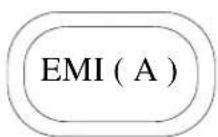
Figure 1-9. MOC Class A Regulatory Mark

Class B Device
Please note that this device has been approved for nonbusiness purposes and may be used in any environment, including residential areas.
EMI (B)
Figure 1-10. MOC Class B Regulatory Mark
Polish Center for Testing and Certification Notice
The equipment should draw power from a socket with an attached protection circuit (a three-prong socket). All equipment that works together (computer, monitor, printer, and so on) should have the same power supply source.
The phasing conductor of the room's electrical installation should have a reserve short-circuit protection device in the form of a fuse with a nominal value no larger than 16 amperes (A).
To completely switch off the equipment, the power supply cable must be removed from the power supply socket, which should be located near the equipment and easily accessible.
A protection mark "B" confirms that the equipment is in compliance with the protection usage requirements of standards PN-93/T-42107 and PN-EN55022:1996.
NOM Information (Mexico Only)
The following information is provided on the device(s) described in this document in compliance with the requirements of the official Mexican standards (NOM):
Exporter: Dell Computer Corporation
One Dell Way
Round Rock, TX 78682
Importer: Dell Computer de México,
S.A. de C.V.
Rio Lerma No. 302 - 4° Piso
Col. Cuauhtemoc
16500 México, D.F.
Ship to: Dell Computer de México,
Avenida Soles No. 55
Supply voltage: 100–240 VAC
Frequency: 60–50 Hz
Input
current rating: 1.5 A
Round Rock, TX 78682
Avenida Soles No. 55
Warranty and Return Policy
Three-Year Limited Warranty (U.S. Only)
Dell Computer Corporation (“Dell”) manufactures its hardware products from parts and components that are new or equivalent to new in accordance with industry-standard practices. Dell warrants that the hardware products it manufactures will be free from defects in materials and workmanship. The limited warranty term is three years beginning on the date of invoice, as described in the following text.
Damage due to shipping the products to you is covered under this limited warranty. Otherwise, this limited warranty does not cover damage due to external causes, including accident, abuse, misuse, problems with electrical power, servicing not authorized by Dell, usage not in accordance with product instructions, failure to perform required preventive maintenance, and problems caused by use of parts and components not supplied by Dell.
This limited warranty does not cover any items that are in one or more of the following categories: software; external devices (except as specifically noted); accessories or parts added to a Dell system after the system is shipped from Dell; accessories or parts added to a Dell system through Dell's system integration department; accessories or parts that are not installed in the Dell factory; or DellWare™ products. Monitors, keyboards, and mice that are Dell-branded or that are included on Dell's standard price list are covered under this limited warranty; all other monitors, keyboards, and mice (including those sold through the DellWare program) are not covered. Batteries for portable computers are covered only during the initial one-year period of this limited warranty.
Coverage During Year One
During the one-year period beginning on the invoice date, Dell will repair or replace products covered under this limited warranty that are returned to Dell's facility. To request warranty service, you must call Dell's Customer Technical Support within the warranty period. Refer to the chapter titled "Getting Help" in your system's troubleshooting documentation or, for some systems, the section titled "Contacting Dell" in your system's online guide to find the appropriate telephone number for obtaining customer assistance. If warranty service is required, Dell will issue a Return Material Authorization Number. You must ship the products back to Dell in their original or equivalent packaging, prepay shipping charges, and insure the shipment or accept the risk of loss or damage during shipment. Dell will ship the repaired or replacement products to you freight prepaid if you use an address in the continental U.S., where applicable. Shipments to other locations will be made freight collect.

NOTE: Before you ship the product(s) to Dell, back up the data on the hard-disk drive(s) and any other storage device(s) in the product(s). Remove any removable media, such as diskettes, CDs, or PC Cards. Dell does not accept liability for lost data or software.
Dell owns all parts removed from repaired products. Dell uses new and reconditioned parts made by various manufacturers in performing warranty repairs and building
replacement products. If Dell repairs or replaces a product, its warranty term is not extended.
Coverage During Years Two and Three
During the second and third years of this limited warranty, Dell will provide, on an exchange basis and subject to Dell's Exchange Policy in effect on the date of the exchange, replacement parts for the Dell hardware product(s) covered under this limited warranty when a part requires replacement. You must report each instance of hardware failure to Dell's Customer Technical Support in advance to obtain Dell's concurrence that a part should be replaced and to have Dell ship the replacement part. Dell will ship parts (freight prepaid) if you use an address in the continental U.S., where applicable. Shipments to other locations will be made freight collect. Dell will include a prepaid shipping container with each replacement part for your use in returning the replaced part to Dell. Replacement parts are new or reconditioned. Dell may provide replacement parts made by various manufacturers when supplying parts to you. The warranty term for a replacement part is the remainder of the limited warranty term.
You will pay Dell for replacement parts if the replaced part is not returned to Dell. The process for returning replaced parts, and your obligation to pay for replacement parts if you do not return the replaced parts to Dell, will be in accordance with Dell's Exchange Policy in effect on the date of the exchange.
You accept full responsibility for your software and data. Dell is not required to advise or remind you of appropriate backup and other procedures.
General Provisions
THIS LIMITED WARRANTY GIVES YOU SPECIFIC LEGAL RIGHTS WHICH VARY FROM STATE TO STATE (OR JURISDICTION TO JURISDICTION). DELL'S RESPONSIBILITY FOR MALFUNCTIONS AND DEFECTS IN HARDWARE IS LIMITED TO REPAIR AND REPLACEMENT AS SET FORTH IN THIS LIMITED WARRANTY STATEMENT. ALL EXPRESS AND IMPLIED WARRANTIES FOR THE PRODUCT, INCLUDING BUT NOT LIMITED TO ANY IMPLIED WARRANTIES OF AND CONDITIONS OF MERCHANTABILITY AND FITNESS FOR A PARTICULAR PURPOSE, ARE LIMITED IN DURATION TO THE WARRANTY PERIOD SET FORTH ABOVE AND NO WARRANTIES, WHETHER EXPRESS OR IMPLIED, WILL APPLY AFTER SUCH PERIOD.
SOME STATES (OR JURISDICTIONS) DO NOT ALLOW LIMITATIONS ON HOW LONG AN IMPLIED WARRANTY LASTS, SO THE PRECEDING LIMITATION MAY NOT APPLY TO YOU.
DELL DOES NOT ACCEPT LIABILITY BEYOND THE REMEDIES SET FORTH IN THIS LIMITED WARRANTY STATEMENT OR LIABILITY FOR INCIDENTAL OR CONSEQUENTIAL DAMAGES, INCLUDING WITHOUT LIMITATION ANY LIABILITY FOR PRODUCTS NOT BEING AVAILABLE FOR USE OR FOR LOST DATA OR SOFTWARE.
SOME STATES (OR JURISDICTIONS) DO NOT ALLOW THE EXCLUSION OR LIMITATION OF INCIDENTAL OR CONSEQUENTIAL DAMAGES, SO THE PRECEDING EXCLUSION OR LIMITATION MAY NOT APPLY TO YOU.
These provisions apply to Dell's three-year limited warranty only. For provisions of any service contract covering your system, refer to your invoice or the separate service contract that you will receive.
If Dell elects to exchange a system or component, the exchange will be made in accordance with Dell's Exchange Policy in effect on the date of the exchange. In any instance in which Dell issues a Return Material Authorization Number, Dell must receive the product(s) for repair prior to the expiration of the warranty period in order for the repair(s) to be covered by the limited warranty.
NOTE: If you chose one of the available warranty and service options in place of the standard three-year limited warranty described in the preceding text, the option you chose will be listed on your invoice.
Three-Year Limited Warranty (Canada Only)
Dell Computer Corporation (“Dell”) manufactures its hardware products from parts and components that are new or equivalent to new in accordance with industry-standard practices. Dell warrants that the hardware products it manufactures will be free from defects in materials and workmanship. The warranty term is three years beginning on the date of invoice, as described in the following text.
Damage due to shipping the products to you is covered under this limited warranty. Otherwise, this limited warranty does not cover damage due to external causes, including accident, abuse, misuse, problems with electrical power, servicing not authorized by Dell, usage not in accordance with product instructions, failure to perform required preventive maintenance, and problems caused by use of parts and components not supplied by Dell.
This limited warranty does not cover any items that are in one or more of the following categories: software; external devices (except as specifically noted); accessories or parts added to a Dell system after the system is shipped from Dell; accessories or parts added to a Dell system through Dell's system integration department; accessories or parts that are not installed in the Dell factory; or DellWare products. Monitors, keyboards, and mice that are Dell-branded or that are included on Dell's standard price list are covered under this limited warranty; all other monitors, keyboards, and mice (including those sold through the DellWare program) are not covered. Batteries for portable computers are covered only during the initial one-year period of this limited warranty.
Coverage During Year One
During the one-year period beginning on the invoice date, Dell will repair or replace products covered under this limited warranty that are returned to Dell's facility. To request warranty service, you must call Dell's Customer Technical Support within the warranty period. Refer to the chapter titled "Getting Help" in your system's troubleshooting documentation or, for some systems, the section titled "Contacting Dell" in your system's online guide to find the appropriate telephone number for obtaining customer assistance. If warranty service is required, Dell will issue a Return Material Authorization Number. You must ship the products back to Dell in their original or equivalent packaging, prepay shipping charges, and insure the shipment or accept the risk of loss or damage during shipment. Dell will ship the repaired or replacement


products to you freight prepaid if you use an address in Canada, where applicable. Shipments to other locations will be made freight collect.
NOTE: Before you ship the product(s) to Dell, back up the data on the hard-disk drive(s) and any other storage device(s) in the product(s). Remove any removable media, such as diskettes, CDs, or PC Cards. Dell does not accept liability for lost data or software.
Dell owns all parts removed from repaired products. Dell uses new and reconditioned parts made by various manufacturers in performing warranty repairs and building replacement products. If Dell repairs or replaces a product, its warranty term is not extended.
Coverage During Years Two and Three
During the second and third years of this limited warranty, Dell will provide, on an exchange basis and subject to Dell's Exchange Policy in effect on the date of the exchange, replacement parts for the Dell hardware product(s) covered under this limited warranty when a part requires replacement. You must report each instance of hardware failure to Dell's Customer Technical Support in advance to obtain Dell's concurrence that a part should be replaced and to have Dell ship the replacement part. Dell will ship parts (freight prepaid) if you use an address in Canada, where applicable. Shipments to other locations will be made freight collect. Dell will include a prepaid shipping container with each replacement part for your use in returning the replaced part to Dell. Replacement parts are new or reconditioned. Dell may provide replacement parts made by various manufacturers when supplying parts to you. The warranty term for a replacement part is the remainder of the limited warranty term.
You will pay Dell for replacement parts if the replaced part is not returned to Dell. The process for returning replaced parts, and your obligation to pay for replacement parts if you do not return the replaced parts to Dell, will be in accordance with Dell's Exchange Policy in effect on the date of the exchange.
You accept full responsibility for your software and data. Dell is not required to advise or remind you of appropriate backup and other procedures.
General Provisions
DELL MAKES NO EXPRESS WARRANTIES OR CONDITIONS BEYOND THOSE STATED IN THIS LIMITED WARRANTY STATEMENT. DELL DISCLAIMS ALL OTHER WARRANTIES AND CONDITIONS, EXPRESS OR IMPLIED, INCLUDING WITHOUT LIMITATION IMPLIED WARRANTIES AND CONDITIONS OF MERCHANTABILITY AND FITNESS FOR A PARTICULAR PURPOSE. SOME STATES (OR JURISDICTIONS) DO NOT ALLOW LIMITATIONS ON IMPLIED WARRANTIES OR CONDITIONS, SO THIS LIMITATION MAY NOT APPLY TO YOU.
DELL'S RESPONSIBILITY FOR MALFUNCTIONS AND DEFECTS IN HARDWARE IS LIMITED TO REPAIR AND REPLACEMENT AS SET FORTH IN THIS LIMITED WARRANTY STATEMENT. THESE WARRANTIES GIVE YOU SPECIFIC LEGAL RIGHTS, AND YOU MAY ALSO HAVE OTHER RIGHTS, WHICH VARY FROM STATE TO STATE (OR JURISDICTION TO JURISDICTION).
DELL DOES NOT ACCEPT LIABILITY BEYOND THE REMEDIES SET FORTH IN THIS LIMITED WARRANTY STATEMENT OR LIABILITY FOR INCIDENTAL OR CONSEQUENTIAL DAMAGES, INCLUDING WITHOUT LIMITATION ANY LIABILITY FOR PRODUCTS NOT BEING AVAILABLE FOR USE OR FOR LOST DATA OR SOFTWARE.
SOME STATES (OR JURISDICTIONS) DO NOT ALLOW THE EXCLUSION OR LIMITATION OF INCIDENTAL OR CONSEQUENTIAL DAMAGES, SO THE PRECEDING EXCLUSION OR LIMITATION MAY NOT APPLY TO YOU.
These provisions apply to Dell's three-year limited warranty only. For provisions of any service contract covering your system, refer to your invoice or the separate service contract that you will receive.
If Dell elects to exchange a system or component, the exchange will be made in accordance with Dell's Exchange Policy in effect on the date of the exchange. In any instance in which Dell issues a Return Material Authorization Number, Dell must receive the product(s) for repair prior to the expiration of the warranty period in order for the repair(s) to be covered by the limited warranty.
NOTE: If you chose one of the available warranty and service options in place of the standard three-year limited warranty described in the preceding text, the option you chose will be listed on your invoice.
"Total Satisfaction" Return Policy (U.S. and Canada Only)
If you are an end-user customer who bought new products directly from a Dell company, you may return them to Dell within 30 days of the date of invoice for a refund or credit of the product purchase price. If you are an end-user customer who bought reconditioned or refurbished products from a Dell company, you may return them to Dell within 14 days of the date of invoice for a refund or credit of the product purchase price. In either case, the refund or credit will not include any shipping and handling charges shown on your invoice. If you are an organization that bought the products under a written agreement with Dell, the agreement may contain different terms for the return of products than specified by this policy.
To return products, you must call Dell Customer Service to receive a Credit Return Authorization Number. Refer to Chapter 5, “Getting Help,” or the section titled “Contacting Dell” in your system Help to find the appropriate telephone number for obtaining customer assistance. To expedite the processing of your refund or credit, Dell expects you to return the products to Dell in their original packaging within five days of the date that Dell issues the Credit Return Authorization Number. You must also prepay shipping charges and insure the shipment or accept the risk of loss or damage during shipment. You may return software for refund or credit only if the sealed package containing the diskette(s) or CD(s) is unopened. Returned products must be in as-new condition, and all of the manuals, diskette(s), CD(s), power cables, and other items included with a product must be returned with it. For customers who want to return, for refund or credit only, either applications software or an operating system that has been installed by Dell, the whole system must be returned, along with any media and documentation that may have been included in the original shipment.
This “Total Satisfaction” Return Policy does not apply to DellWare products, which may be returned under DellWare's then-current return policy. In addition, reconditioned parts purchased through Dell Spare Parts Sales in Canada are nonreturnable.
Dell TM Inspiron TM
GUIDE D'UTILISATION DU RÉPLICATEUR DE PORT AVANCÉ
Table des matières
Round Rock, TX 78682
Avenida Soles No. 55
Round Rock, TX 78682
Avenida Soles No. 55
Inhalt
Hinweis des Center for Testing and Certification (Polen)....3-18
- Modellnummer: PRX
- Firmenname: Dell Computer Corporation, EMC Engineering Department, One Dell Way,
Round Rock, Texas 78682 USA
Tel.: 001-512-338-4400
Round Rock, TX 78682
Importeur: Dell Computer de México,
S.A. de C.V.
Rio Lerma No. 302 - 4° Piso
Col. Cuauhtemoc
16500 México, D.F.
Avenida Soles No. 55
Round Rock, TX 78682
Avenida Soles No. 55
Sommario
Round Rock, TX 78682
Importatore: Dell Computer de México, S.A. de
C.V.
Rio Lerma No. 302 - 4° Piso
Col. Cuauhtemoc
16500 México, D.F.
Avenida Soles No. 55
Round Rock, TX 78682
Avenida Soles No. 55
Contenido
Conectores de E/S del APR....5-1
Round Rock, Texas 78682 USA
512-338-4400
Round Rock, TX 78682
Avenida Soles No. 55
- NOTES, NOTICES, AND CAUTIONS
- CONTENTS
- FIGURES
- TABLES
- DELL™ INSPIRON™ ADVANCED PORT REPLICATOR USER'S GUIDE
- APR I/O CONNECTORS
- APR CONTROLS AND INDICATORS
- CONNECTING EXTERNAL DEVICES TO THE APR
- CONNECTING THE COMPUTER TO THE APR
- DOCKING THE COMPUTER
- UNDOCKING THE COMPUTER
- MONITOR STAND
- SAFETY INSTRUCTIONS
- NOTICE: WHEN TAKING THE APR FROM LOW-TEMPERATURE CONDITIONS INTO A WARMER ENVIRONMENT OR FROM HIGH-TEMPERATURE CONDITIONS INTO A COOLER ENVIRONMENT, ALLOW THE APR TO ACCLIMATE TO ROOM TEMPERATURE BEFORE TURNING ON POWER
- TECHNICAL SPECIFICATIONS
- REGULATORY NOTICES
- FCC NOTICES (U.S. ONLY)
- CLASS A
- CLASS B
- IC NOTICE (CANADA ONLY)
- CE NOTICE (EUROPEAN UNION)
- EN 55022 COMPLIANCE (CZECH REPUBLIC ONLY)
- VCCI NOTICE (JAPAN ONLY)
- CLASS A ITE
- VCCI-A
- FIGURE 1-7. VCCI CLASS A ITE REGULATORY MARK
- MOC NOTICE (SOUTH KOREA ONLY)
- POLISH CENTER FOR TESTING AND CERTIFICATION NOTICE
- NOM INFORMATION (MEXICO ONLY)
- WARRANTY AND RETURN POLICY
- THREE-YEAR LIMITED WARRANTY (U.S. ONLY)
- COVERAGE DURING YEAR ONE
- COVERAGE DURING YEARS TWO AND THREE
- GENERAL PROVISIONS
- THREE-YEAR LIMITED WARRANTY (CANADA ONLY)
- TOTAL SATISFACTION" RETURN POLICY (U.S. AND CANADA ONLY)
- GUIDE D'UTILISATION DU RÉPLICATEUR DE PORT AVANCÉ
- TABLE DES MATIÈRES
- INHALT
- SOMMARIO
- CONTENIDO
Brand : DELL
Model : Inspiron 8200
Category : Laptop