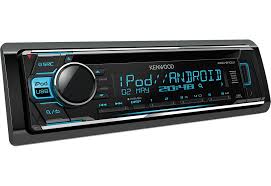
USER MANUAL KDC-210UI KENWOOD
Take the time to read through this instruction manual.
Familiarity with installation and operation procedures will help you obtain the best performance from your new CD-receiver.
For your records
Record the serial number, found on the back of the unit, in the spaces designated on the warranty card, and in the space provided below.
Refer to the model and serial numbers whenever you call upon your Kenwood dealer for information or service on the product.
Model KDC-210U Serial number
US Residents Only
Register Online
Register your Kenwood product at www.Kenwoodusa.com
CONTENTS
| BEFORE USE | 2 |
| BASICS | 3 |
| GETTING STARTED | 4 |
| RADIO | 5 |
| CD / USB / iPod | 6 |
| AUX | 8 |
| Pandora® | 8 |
| AUDIO SETTINGS | 9 |
| DISPLAY SETTINGS | 10 |
| MORE INFORMATION | 10 |
| TROUBLESHOOTING | 11 |
| INSTALLATION / CONNECTION | 12 |
| SPECIFICATIONS i and ii
(at the end of the book) |
How to read this manual
- Operations are explained mainly using buttons on the faceplate.
- [XX] indicates the selected items.
- ( XX) indicates references are available on the stated page.
BEFORE USE
Warning
Do not operate any function that takes your attention away from safe driving.
Caution
Volume setting:
- Adjust the volume so that you can hear sounds outside the car to prevent accidents.
- Lower the volume before playing digital sources to avoid damaging the speakers by the sudden increase of the output level.
General:
- Avoid using the USB device or iPod/iPhone if it might hinder safe driving.
- Make sure all important data has been backed up. We shall bear no responsibility for any loss of recorded data.
- Never put or leave any metallic objects (such as coins or metal tools) inside the unit, to prevent a short circuit.
- If a disc error occurs due to condensation on the laser lens, eject the disc and wait for the moisture to evaporate.
Remote control (RC-406):
- Do not leave the remote control in hot places such as on the dashboard.
- The Lithium battery is in danger of explosion if replaced incorrectly. Replace it only with the same or equivalent type.
- The battery pack or batteries shall not be exposed to excessive heat such as sunshine, fire or the like.
- Keep the battery out of reach of children and in its original packaging when not in used. Dispose of used batteries promptly. If swallowed, contact a physician immediately.
Maintenance
Cleaning the unit: Wipe off dirt on the faceplate with a dry silicone or soft cloth.
Cleaning the connector: Detach the faceplate and clean the connector gently with a cotton swab, being careful not to damage the connector.
Handling discs:
- Do not touch the recording surface of the disc.
- Do not stick tape etc. on the disc, or use a disc with tape stuck on it.
- Do not use any accessories for the disc.
- Clean from the center of the disc and move outward.
- Clean the disc with a dry silicone or soft cloth. Do not use any solvents.
- When removing discs from this unit, pull them out horizontally.
- Remove burrs from the center hole and disc edge before inserting a disc.
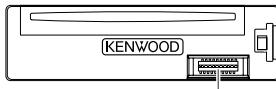
Connector (on the reverse side of the faceplate)
Faceplate
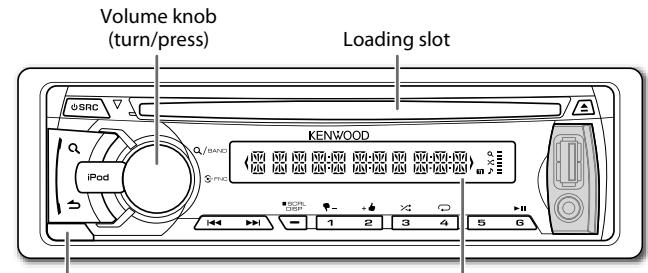
Detach button
Display window
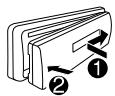
Attach
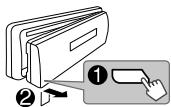
Detach
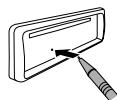
How to reset
Your preset adjustments will also be erased.
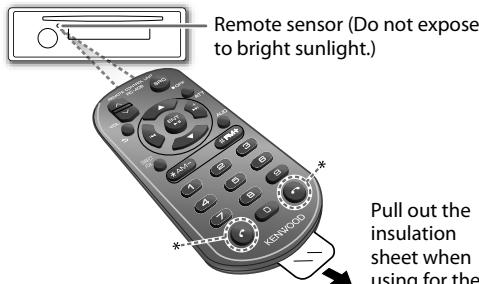
Remote control (RC-406)
* Not used.
Pull out the insulation sheet when using for the first time.
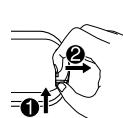
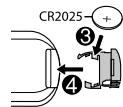
How to replace the battery
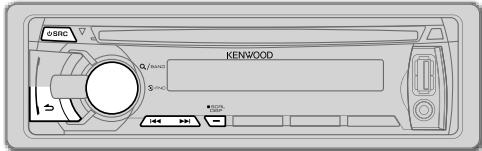
| To | Do this (on the faceplate) | Do this (on the remote control) |
| Turn on the power | Press SRC.
• Press and hold to turn off the power. | Press and hold SRC to turn off the power.
(Pressing SRC does not turn on the power.) |
| Adjust the volume | Turn the volume knob. | Press VOL ∧ or VOL ∨. |
| Press ATT during playback to attenuate the sound.
• Press again to cancel. |
| Select a source | Press SRC repeatedly. | Press SRC repeatedly. |
| Change the display information | Press SCRL DISP repeatedly.
• Press and hold to scroll the current display information. | (not available) |

Cancel the demonstration
When you turn on the power (or after you reset the unit), the display shows: "CANCEL DEMO" "PRESS" "VOLUME KNOB"
1 Press the volume knob.
[YES] is selected for the initial setup.
2 Press the volume knob again.
"DEMO OFF" appears.

Set the clock
1 Press the volume knob to enter [FUNCTION].
2 Turn the volume knob to make a selection (one at a time), then press the knob.
Selection: [ SETTINGS], [CLOCK], [CLOCK ADJ]
Repeat step 2 to make the next selection.
3 Turn the volume knob to adjust the clock, then press the knob.
Press I / to move between the hour and minute adjustment.
4 Press and hold to exit.
(or)
Press and hold SCRL DISP to enter clock adjustment mode directly while the clock time is displayed.
Then, perform step 3 above to set the clock.

Set the initial settings
1 Press SRC to enter [STANDBY].
2 Press the volume knob to enter [FUNCTION].
3 Turn the volume knob to select [INITIAL SET], then press the knob.
4 Turn the volume knob to make a selection (see the following table), then press the knob.
5 Press and hold to exit.
To return to the previous hierarchy, press
Default: XX
| PRESET TYPE | NORM: Memorizes one station for each preset button in each band (FM1/ FM2/ FM3/ AM).; MIX: Memorizes one station for each preset button, regardless of the selected band. |
| KEY BEEP | ON: Activates the keypress tone.; OFF: Deactivates. |
| PANDORA SRC | ON: Enables PANDORA in source selection.; OFF: Disables. (→ 8) |
| BUILT AUX | ON: Enables AUX in source selection.; OFF: Disables. (→ 8) |
| CD READ | 1: Automatically distinguishes between audio file disc and audio CD. ;
2: Forces to play as an audio CD. No sound can be heard if an audio file disc is played. |
| SWITCH PRE | REAR/ SUB-W: Selects whether rear speakers are connected or a subwoofer is connected to the line out terminals on the rear (through an external amplifier). |
| SP SELECT | OFF/ 5/4/ 6 × 9/6/ OEM: Selects according to the speaker size (5 inches or 4 inches, 6×9 inches or 6 inches) or OEM speakers for optimum performance. |
| F/W UPDATE |
| F/W UP xx.xx | YES: Starts upgrading the firmware. ; NO: Cancels (upgrading is not activated).
For details on how to update the firmware, see: www.kenwood.com/cs/ce/ |
Search for a station
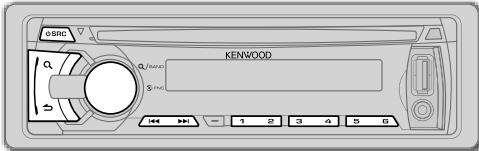
1 Press SRC to select TUNER.
2 Press Q repeatedly (or press *AM- / #FM+ on RC-406) to select FM1/ FM2/ FM3/ AM.
3 Press / (or press || / |(+) on RC-406) to search for a station.
- To store a station: Press and hold one of the number buttons (1 to 6).
- To select a stored station: Press one of the number buttons (1 to 6) (or press one of the number buttons (1 to 6) on RC-406).
Direct Access Tuning (using RC-406)
1 Press *AM - / # FM+ to select a band.
2 Press DIRECT to enter Direct Access Tuning.
"---·--" (for FM) or "---·--" (for AM) appears on the display.
3 Press the number buttons to enter a frequency.
4 Press / (+) to search for a frequency.
To cancel, press
- If no operation is done for 10 seconds after step 3, Direct Access Tuning is automatically canceled.
Other settings
1 Press the volume knob to enter [FUNCTION].
2 Turn the volume knob to select [SETTINGS], then press the knob.
3 Turn the volume knob to make a selection (see the following table), then press the knob.
4 Press and hold to exit.
Default: XX
| SEEK MODE | Selects the tuning method for the |▶/▶| buttons.
AUTO1: Automatically searches for a station.; AUTO2: Searches for a preset station.; MANUAL: Manually search for a station. |
| AUTO
MEMORY | YES: Automatically starts memorizing 6 stations with good reception.; NO: Cancels. (Selectable only if [NORM] is selected for [PRESET TYPE].)
(→4) |
| MONO SET | Selectable only for FM band.
ON: Improves the FM reception, but the stereo effect may be lost.; OFF: Cancels. |
Start playback
The source changes automatically and playback starts.
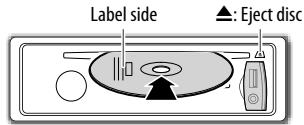
CD
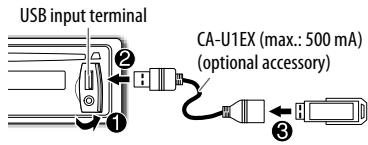
USB
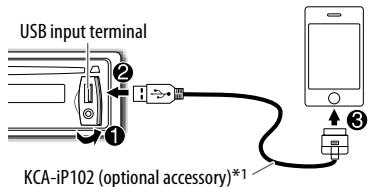
iPod/iPhone
Press and hold iPod to select the control mode while in iPod source.
MODE ON: From the iPod*2.
MODE OFF: From the unit.
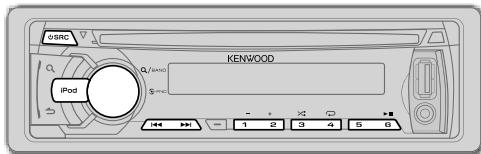
| To | Do this |
| Pause or resume playback | Press 6 ➔ II (or ENT ➔ II on RC-406). |
| Select a track/file | Press ↓/▶↑ (or ↓/▶/▶↑ (+) on RC-406). |
| Select a folder *3 | Press 1 - / 2 + (or *AM- / #FM+ on RC-406). |
| Reverse/ Fast-forward | Press and hold ↓/▶↑ (or ↓/▶/▶↑ (+) on RC-406). |
| Repeat play *4 | Press 4 ☑ repeatedly.
• Audio CD: TRAC REPEAT, REPEAT OFF
• MP3/WMA file: FILE REPEAT, FOLD REPEAT, REPEAT OFF
• iPod or KENWOOD Music Editor Light (KME Light)/ KENWOOD Music Control (KMC) file: FILE REPEAT, REPEAT OFF |
| Random play *4 | Press 3 ⇌ repeatedly.
• Audio CD: DISC RANDOM, RANDOM OFF
• MP3/WMA file or iPod or KME Light/ KMC file: FOLD RANDOM, RANDOM OFF |
| Press and hold 3 ⇌ to select “ALL RANDOM”. *5 |
1 To connect devices featuring Lightning connector, both KCA-iP102 (optional accessory) and Apple Lightning to 30-pin Adapter (accessory of the iPod/iPhone) are required. Do not leave the Apple Lightning to 30-pin Adapter inside the car to prevent damages caused by the hot temperature.
2 You can still play/pause, use file selection, fast-forward or reverse files from the unit.
3 Only for MP3/WMA files. This does not work for iPod.
4 For iPod: Applicable only when [MODE OFF] is selected.
*5 For CD: Only for MP3/WMA files.
Select a track/file from a list
For iPod: Applicable only when [MODE OFF] is selected. ( 6)
1 Press Q.
2 Turn the volume knob to make a selection, then press the knob.
- MP3/WMA file: Select the desired folder, then a file.
-
iPod or KME Light/ KMC file: Select the desired file from the list (PLAYLISTS, ARTISTS, ALBUMS, SONGS, PODCASTS, GENRES, COMPOSERS).
-
Only for iPod.
-
To return to the root folder (or first file), press number button 5.
To return to the previous hierarchy, press
To cancel, press and hold
If you have many files....
You can search through them quickly (on step 2 above) at a preset skip search ratio by pressing 1 / .
See also "Set the skip search ratio."
- Pressing and holding 1 ≤slant i ≤slant 1 skip songs at the maximum ratio (10%) regardless of the setting made.
- For USB: Only for files registered in the database created with KME Light/ KMC. ( 10)
- Not applicable for audio CD.
Direct Music Search (using RC-406)
1 Press DIRECT.
2 Press the number buttons to enter a track/ file number.
3 Press / (+) to search for music.
- To cancel, press .
- Not available if Random Play is selected.
Not applicable for iPod, KME Light/ KMC file. ( 10)
Select a song by name
While listening to iPod...
1 Press Q.
2 Turn the volume knob to select a category, then press the knob.
3 Press Q again.
4 Turn the volume knob to select the character to be searched for.
5 Press / to move to the entry position. You can enter up to 3 characters.
6 Press the volume knob to start searching.
7 Turn the volume knob to make a selection, then press the knob. Repeat step 7 until the desired item is selected.
To search for a character other than A to Z and 0 to 9, enter only *
To return to the previous hierarchy, press
- To return to the top menu, press number button 5.
- To cancel, press and hold .
Set the skip search ratio
While listening to iPod or KME Light/ KMC file...
1 Press the volume knob to enter [FUNCTION].
2 Turn the volume knob to select [SETTINGS], then press the knob.
3 Turn the volume knob to select [SKIP SEARCH], then press the knob.
4 Turn the volume knob to make a selection, then press the knob. 0.5% (default)/ 1%/ 5%/ 10%: Skip search ratio over the total files.
5 Press and hold to exit.
Muting upon the reception of a phone call
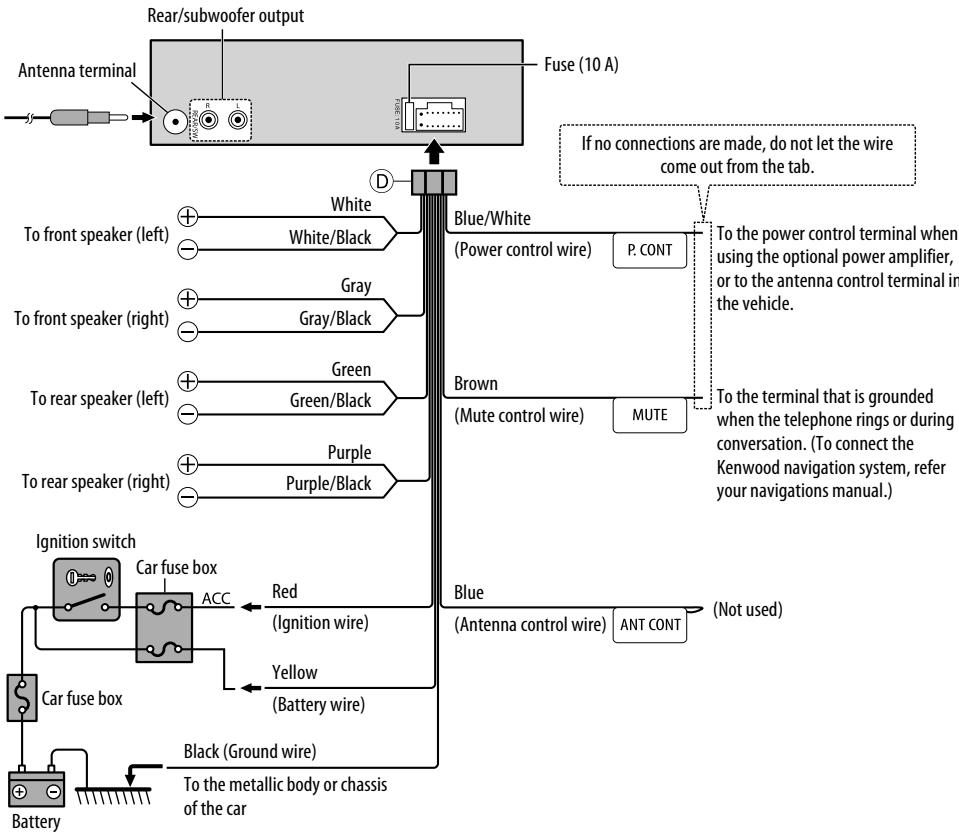
Connect the MUTE wire to your telephone using a commercial telephone accessory. ( 13)
When a call comes in, "CALL" appears.
The audio system pauses.
- To continue listening to the audio system during a call, press SRC. "CALL" disappears and the audio system resumes.
When the call ends, "CALL" disappears.
The audio system resumes.
AUX
Preparation: Select [ON] for [BUILTIN AUX]. ( 4)
Start listening
1 Connect a portable audio player (commercially available).
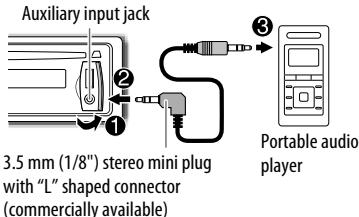
2 Press SRC to select AUX.
3 Turn on the portable audio player and start playback.
Set the AUX name
While listening to a portable audio player connected to the unit...
1 Press the volume knob to enter [FUNCTION].
2 Turn the volume knob to select [SETTINGS], then press the knob.
3 Turn the volume knob to select [AUX NAME], then press the knob.
4 Turn the volume knob to make a selection, then press the knob. AUX (default)/ DVD/ PORTABLE/ GAME/VIDEO/ TV
5 Press and hold to exit.
Pandora®
Preparation:
Install the latest version of the Pandora application onto your device (iPhone/ iPod touch), then log in and create an account with Pandora.
- Select [ON] for [PANDORA SRC]. ( 4)
Start listening
1 Open the Pandora application on your device.
2 Connect your device to the USB input terminal.
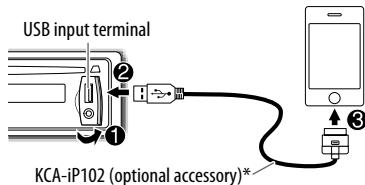
The source changes to PANDORA and broadcast starts.
- To connect devices featuring Lightning connector, both KCA-iP102 (optional accessory) and Apple Lightning to 30-pin Adapter (accessory of the iPod/iPhone) are required. Do not leave the Apple Lightning to 30-pin Adapter inside the car to prevent damages caused by the hot temperature.
| To | Do this |
| Pause or resume playback | Press 6▶II (or press ENT▶II on RC-406). |
| Thumbs up or thumbs down | Press 1♣/2♣.
• If thumbs down is selected, the current track is skipped. |
| Skip a track | Press▶I. |
| Create a new station | 1 Press and hold the volume knob.
2 Turn the volume knob to select [FROM TRACK] or [FROM ARTIST], then press the knob.
A new station is created based on the current song or artist. |
| Save a station | Press and hold number button 3, 4 or 5 to store.
• To select a stored station, press the same button (3, 4 or 5). |
| Search for a registered station | 1 Press Q.
2 Turn the volume knob to make a selection, then press the knob (or press ▲/▼ on RC-406).
[BY DATE]: According to the registered date.
[A-Z]: Alphabetical order.
3 Turn the volume knob to the desired station, then press the knob. |
AUDIO SETTINGS
While listening to any source...
1 Press the volume knob to enter [FUNCTION].
2 Turn the volume knob to select [AUDIO CTRL], then press the knob.
3 Turn the volume knob to make a selection (see the following table), then press the knob.
Repeat step 3 until the desired item is selected or activated.
4 Press and hold to exit.
(or using RC-406)
1 Press AUD to enter [AUDIO CTRL].
2 Press / to make a selection, then press ENT II.
To return to the previous hierarchy, press
Default: XX
| SUB-W LEVEL | -15 to +15 (0) | Adjusts the subwoofer output level. |
| BASS LEVEL | -8 to +8 (0) | Adjusts the level to memorize for each source.
(Before making an adjustment, select the source you want to adjust.) |
| MID LEVEL | -8 to +8 (0) |
| TRE LEVEL | -8 to +8 (0) |
| PRESET EQ | NATURAL/ USER/ ROCK/ POPS/ EASY/ TOP40/ JAZZ/ POWERFUL:
Selects a preset equalization suitable to the music genre. (Select [USER] to use the customized bass, middle, and treble settings.) |
| BASS BOOST | B.BOOK LV1/ B.BOOK LV2/ B.BOOK LV3: Selects your preferred bass boost level. ; OFF: Cancels. |
| LOUDNESS | LOUD LV1/ LOUD LV2: Selects your preferred low and high frequency boost to produce a well-balanced sound at a low volume level. ; OFF: Cancels. |
| BALANCE | L15 to R15 (0): Adjusts the left and right speaker output balance. |
| FADER | R15 to F15 (0): Adjusts the rear and front speaker output balance. |
| SUB-W SET | ON: Turns on the subwoofer output. ; OFF: Cancels. |
| DETAIL SET |
| LPF SUB-W | THROUGH: All signals are sent to the subwoofer. ; 85HZ/ 120HZ/ 160HZ: Audio signals of frequencies lower than 85 Hz/ 120 Hz/ 160 Hz are sent to the subwoofer. |
| SUB-W PHASE | REV (180°)/ NORM (0°): Selects the phase of the subwoofer output to be in line with the speaker output for optimum performance. (Selectable only if a setting other than [THROUGH] is selected for [LPF SUB-W].) |
| SUPREME SET | ON: Creates realistic sound by interpolating the high-frequency components that are lost in MP3/WMA audio compression. ; OFF: Cancels. (Selectable only when playing back an MP3/WMA disc or a USB device, except iPhone/iPod.) |
| VOL OFFSET
(Default: 0) | -8 to +8 (for AUX); -8 to 0 (for other sources): Presets the volume adjustment level of each source. (Before adjustment, select the source you want to adjust.) |
- [SUB-W LEVEL]/[SUB-W SET]/[LPF SUB-W]/[SUB-W PHASE] is selectable only if [SWITCH PRE] is set to [SUB-W]. ( 4)
- [SUB-W LEVEL]/[LPF SUB-W]/[SUB-W PHASE] is selectable only if [SUB-W SET] is set to [ON].
DISPLAY SETTINGS
1 Press the volume knob to enter [FUNCTION].
2 Turn the volume knob to select [ SETTINGS], then press the knob.
3 Turn the volume knob to make a selection (see the following table), then press the knob.
Repeat step 3 until the desired item is selected or activated.
4 Press and hold to exit.
To return to the previous hierarchy, press
Default: XX
DISPLAY
| DISP DIMMER | ON: Dims the display illumination. ; OFF: Cancels. |
| TEXT SCROLL | AUTO/ ONCE: Selects whether to scroll the display information automatically, or scroll only once. ; OFF: Cancels. |
General
- This unit can only play the following CDs:

- Detailed information and notes about the playable audio files are stated in an online manual on the following web site: www.kenwood.com/cs/ce/ audiofile/
Playable files
- Playable audio file: MP3 (.mp3), WMA (.wma)
- Playable disc media: CD-R/CD-RW
- Playable disc file format: ISO 9660 Level 1/2, Joliet, Romeo, Long file name.
- Playable USB device file system: FAT16, FAT32
Even when audio files comply with the standards listed above, playback may be impossible depending on the types or conditions of media or device.
Unplayable discs
- Discs that are not round.
- Discs with coloring on the recording surface or discs that are dirty.
- Recordable/ReWritable discs that have not been finalized.
- 8 cm CD. Attempting to insert using an adapter may cause malfunction.
About USB devices
- This unit can play MP3/WMA files stored on a USB mass storage class device.
- You cannot connect a USB device via a USB hub and Multi Card Reader.
- Connecting a cable whose total length is longer than 5m may result in abnormal playback.
- This unit cannot recognize a USB device whose rating is other than 5V and exceeds 1 A.
About iPod/iPhone
Made for
- iPod touch (1st, 2nd, 3rd, 4th, and 5th generation)
- iPod classic
- iPod with video
- iPod nano (1st, 2nd, 3rd, 4th, 5th, 6th, and 7th generation)
- iPhone, iPhone 3G, 3GS, 4, 4S, 5
- For the latest compatible list and software versions of iPhone/iPod, see: www.kenwood.com/cs/ce/ipod
- If you start playback after connecting the iPod, the music that has been played by the iPod is played first. In this case, "RESUMING" is displayed without displaying a folder name, etc. Changing the browse item will display the correct title, etc.
- You cannot operate iPod if "KENWOOD" or "√" is displayed on iPod.
About KENWOOD Music Editor Light and KENWOOD Music Control
- This unit supports the PC application KENWOOD Music Editor Light and Android™ application KENWOOD Music Control.
- When you play audio files with song data added using the KENWOOD Music Editor Light or KENWOOD Music Control, you can search for audio files by Genres, Artists, Albums, Playlists, and Songs.
- KENWOOD Music Editor Light and KENWOOD Music Control are available on the following web site: www.kenwood.com/cs/ce/
About Pandora
- Pandora is available only in the U.S., Australia and New Zealand.
- Because Pandora is a third-party service, the specifications are subject to change without prior notice. Accordingly, compatibility may be impaired, or some or all of the services may become unavailable.
- Some functions of Pandora cannot be operated from this unit.
- For issues using the application, please contact Pandora at Pandora-support@pandora.com.
- If the version of the OS of the connected iPhone is earlier than 4.0, start the Pandora application before selecting the PANDORA source.
TROUBLESHOOTING
| Symptom | Remedy |
| Sound cannot be heard. | ·Adjust the volume to the optimum level.
·Check the cords and connections. |
| “PROTECT” appears and no operations can be done. | Check to be sure the terminals of the speaker wires are insulated properly, then reset the unit. If this does not solve the problem, consult your nearest service center. |
| ·Sound cannot be heard.
·The unit does not turn on.
·Information shown on the display is incorrect. | Clean the connectors. (→2) |
| The unit does not work at all. | Reset the unit. (→3) |
| ·Radio reception is poor.
·Static noise while listening to the radio. | ·Connect the antenna firmly.
·Pull the antenna out all the way. |
| “NA FILE” appears. | Make sure the disc contains supported audio files. (→10) |
| “NO DISC” appears. | Insert a playable disc into the loading slot. |
| “TOC ERROR” appears. | Make sure the disc is clean and inserted properly. |
| “PLS EJECT” appears. | Reset the unit. If this does not solve the problem, consult your nearest service center. |
| Disc cannot be ejected. | Press and hold ▲ to forcibly eject the disc. Be careful not to drop the disc when it is ejected. If this does not solve the problem, reset the unit. (→3) |
| “READ ERROR” appears. | Copy the files and folders onto the USB device again. If this does not solve the problem, reset the USB device or use another USB device. |
| “NO DEVICE” appears. | Connect a USB device, and change the source to USB again. |
| “COPY PRO” appears. | A copy-protected file is played. |
| “NA DEVICE” appears. | Connect a supported USB device, and check the connections. |
| Symptom | Remedy |
| “NO MUSIC” appears. | Connect a USB device that contains playable audio files. |
| “USB ERROR” appears. | • Remove the USB device, turn the unit off, then turn it on again.
• Try to connect another USB device. |
| “IPod ERROR” appears. | • Reconnect the iPod.
• Reset the iPod. |
| Noise is generated. | Skip to another track or change the disc. |
| Tracks do not play back as you intended them to play. | Playback order is determined when files are recorded. |
| “READING” keeps flashing. | Do not use too many hierarchical levels or folders. |
| Elapsed playing time is not correct. | This is caused by how the tracks are recorded. |
| The number of songs contained in the “SONGS” category of this unit is different from the iPod/ iPhone. | Podcast files are not counted on this unit as this unit does not support the playback of podcast files. |
| Correct characters are not displayed (e.g. album name). | This unit can only display uppercase letters, numbers, and a limited number of symbols. |
| Pandora | “ADD ERR”
“SEARCH ERR” | New station creation is unsuccessful. |
| “CHK DEVICE” | Check the Pandora application on your device. |
| “NO SKIPS” | The skip limit has been reached. |
| “NO STATIONS” | No stations are found. |
| “STATION LIM” | The number of registered stations has reached its limit.
Retry after deleting unnecessary stations from your device. |
| “UPGRADE APP” | Make sure you have installed the latest version of the Pandora application on your device. |
Warning
- The unit can only be used with a 12 V DC power supply, negative ground.
- Disconnect the battery's negative terminal before wiring and mounting.
- Do not connect Battery wire (yellow) and Ignition wire (red) to the car chassis or Ground wire (black) to prevent a short circuit.
- Insulate unconnected wires with vinyl tape to prevent a short circuit.
- Be sure to ground this unit to the car's chassis again after installation.
Caution
- For safety's sake, leave wiring and mounting to professionals. Consult the car audio dealer.
- Install this unit in the console of your vehicle. Do not touch the metal parts of this unit during and shortly after use of the unit. Metal parts such as the heat sink and enclosure become hot.
- Do not connect the wires of speakers to the car chassis or Ground wire (black), or connect them in parallel.
- Mount the unit at an angle of less than 30^ .
- If your vehicle wiring harness does not have the ignition terminal, connect Ignition wire (red) to the terminal on the vehicle's fuse box which provides 12 V DC power supply and is turned on and off by the ignition key.
- After the unit is installed, check whether the brake lamps, blinkers, wipers, etc. on the car are working properly.
- If the fuse blows, first make sure the wires are not touching car's chassis, then replace the old fuse with one that has the same rating.
Basic procedure
1 Remove the key from the ignition switch, then disconnect the terminal of the car battery.
2 Connect the wires properly. See Wiring connection. ( 13
3 Install the unit to your car. See Installing the unit (in-dash mounting).
4 Connect the terminal of the car battery.
5 Reset the unit. ( 3)
Installing the unit (in-dash mounting)
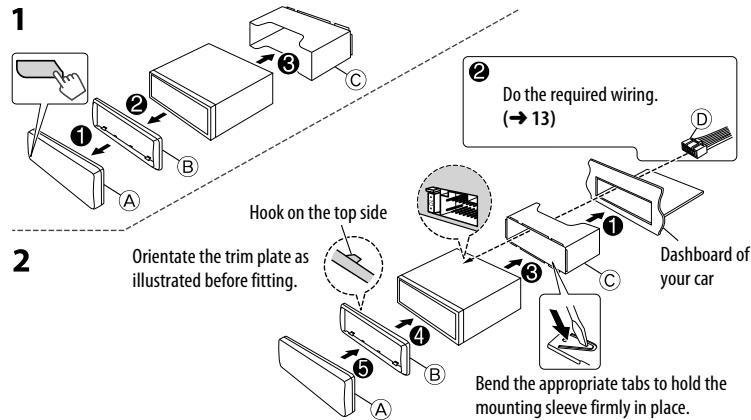
When installing without the mounting sleeve
1 Remove the mounting sleeve and trim plate from the unit.
2 Align the holes in the unit (on both sides) with the vehicle mounting bracket and secure the unit with screws (commercially available).
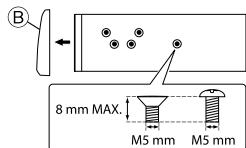
Use only the specified screws. Using wrong screws might damage the unit.
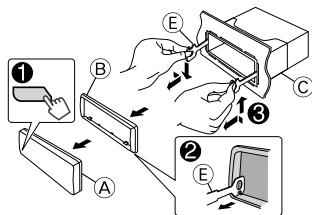
How to remove the unit
1 Detach the faceplate.
2 Fit the catch pin on the extraction keys into the holes on both sides of the trim plate, then pull it out.
3 Insert the extraction keys deeply into the slots on each side, then follow the arrows as shown on the right.
Wiring connection
Part list for installation
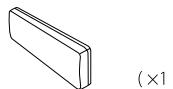
A Faceplate
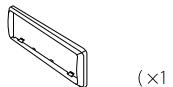
B Trim plate
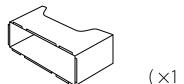
Mounting sleeve
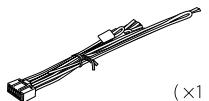
Wiring harness
E Extraction key
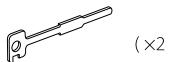
TABLE DES MATIERES
AVANT L'UTILISATION
| AVANT L'UTILISATION | 2 |
| FONCTIONNEMENT DE BASE | 3 |
| PRISE EN MAIN | 4 |
| RADIO | 5 |
| CD / USB / iPod | 6 |
| AUX | 8 |
| Pandora® | 8 |
| RéGLAGES AUDIO | 9 |
| RéGLAGES D'AFFICHAGE | 10 |
| PLUS D'INFORMATIONS | 10 |
| EN CAS DE DIFFICULTÉS | 11 |
| INSTALLATION / RACCORDEMENT | 12 |
| SPÉCIFICATIONS | i et ii |
| (à la fin du manuel) |
Selection: [ SETTINGS], [CLOCK], [CLOCK ADJ]
Use of controls or adjustments or performance of procedures other than those specified herein may result in hazardous radiation exposure.
In compliance with Federal Regulations, following are reproductions of labels on, or inside the product relating to laser product safety.
JVC KENWOOD Corporation
2967-3, ISHIKAWA-MACHI,
THIS PRODUCT COMPLIES WITH DHHS RULES 21CFR
SUBCHAPTER J IN EFFECT AT DATE OF MANUFACTURE.
Location : Top Plate
FCC WARNING
This equipment may generate or use radio frequency energy. Changes or modifications to this equipment may cause harmful interference unless the modifications are expressly approved in the instruction manual. The user could lose the authority to operate this equipment if an unauthorized change or modification is made.
FCC NOTE
This equipment has been tested and found to comply with the limits for a Class B digital device, pursuant to Part 15 of the FCC Rules. These limits are designed to provide reasonable protection against harmful interference in a residential installation. This equipment may cause harmful interference to radio communications, if it is not installed and used in accordance with the instructions. However, there is no guarantee that interference will not occur in a particular installation. If this equipment does cause harmful interference to radio or television reception, which can be determined by turning the equipment off and on, the user is encouraged to try to correct the interference by one or more of the following measures:
Reorient or relocate the receiving antenna.
- Increase the separation between the equipment and receiver.
- Connect the equipment into an outlet on a circuit different from that to which the receiver is connected.
- Consult the dealer or an experienced radio/TV technician for help.
- "Made for iPod," and "Made for iPhone" mean that an electronic accessory has been designed to connect specifically to iPod, or iPhone, respectively, and has been certified by the developer to meet Apple performance standards. Apple is not responsible for the operation of this device or its compliance with safety and regulatory standards. Please note that the use of this accessory with iPod or iPhone may affect wireless performance.
- iPhone, iPod, iPod classic, iPod nano, and iPod touch are trademarks of Apple Inc., registered in the U.S. and other countries.
Lightning is a trademark of Apple Inc.
- Pandora, the Pandora logo, and the Pandora trade dress are trademarks or registered trademarks of Pandora Media, Inc., used with permission.
Android is trademark of Google Inc.
This product contains a CR Coin Cell Lithium Battery which contains Perchlorate Material—special handling may apply. See www.dtsc.ca.gov/hazardouswaste/perchlorate