MG984G30M - Video camera Berger & Schröter - Free user manual and instructions
Find the device manual for free MG984G30M Berger & Schröter in PDF.



User questions about MG984G30M Berger & Schröter
0 question about this device. Answer the ones you know or ask your own.
Ask a new question about this device
Download the instructions for your Video camera in PDF format for free! Find your manual MG984G30M - Berger & Schröter and take your electronic device back in hand. On this page are published all the documents necessary for the use of your device. MG984G30M by Berger & Schröter.
USER MANUAL MG984G30M Berger & Schröter
natural_image
Black-and-white photo of a camouflaged video camera with a long antenna, no visible text or symbolsInhaltsverzeichnis
1 Anleitung 3
text_image
BMC CONFIG Products Please select a product: MG984G-30M Remember My Choice OK (Y) Exit (N)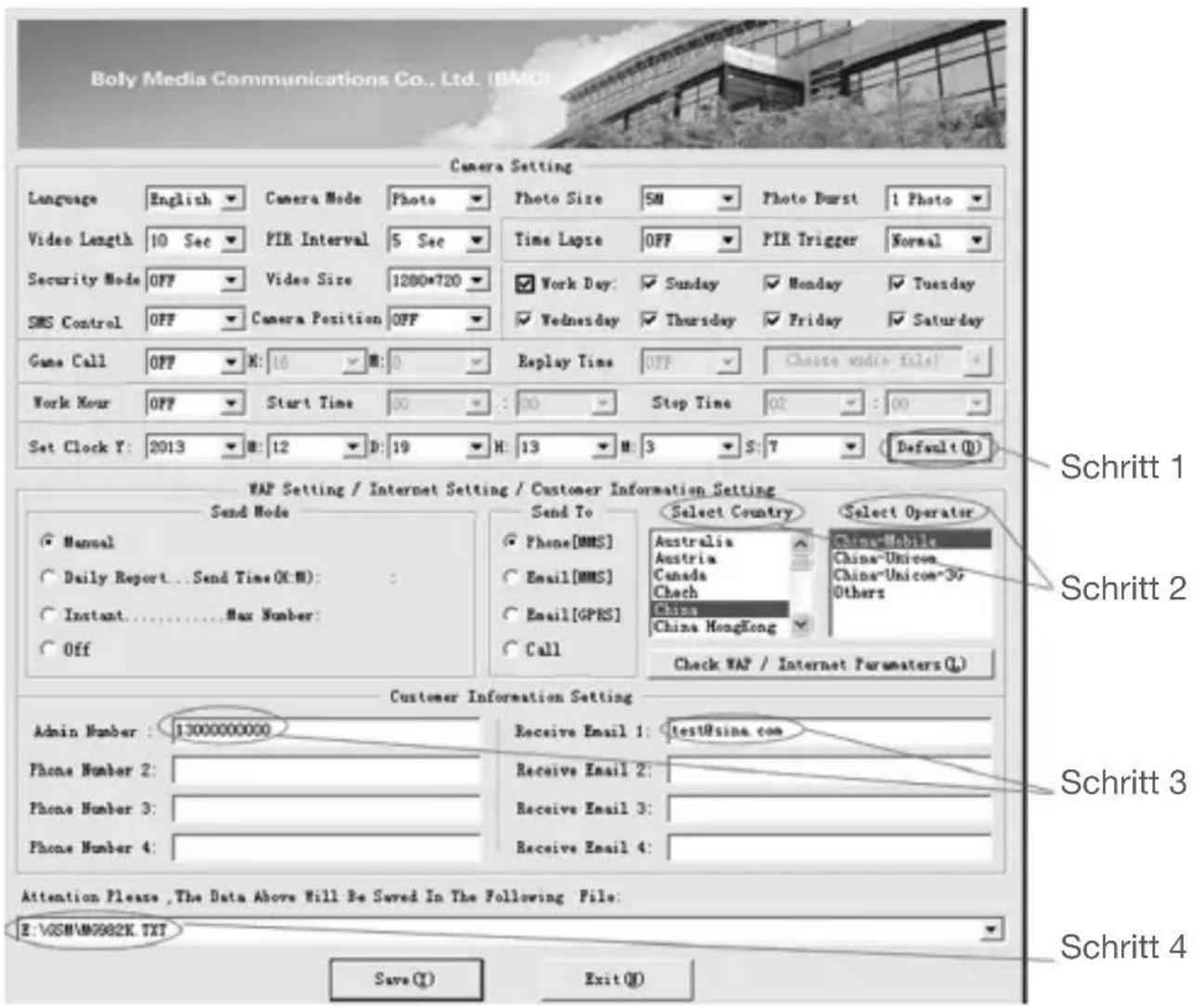
text_image
Boly Media Communications Co., Ltd. (IBM) Camera Setting Language English Camera Mode Photo Photo Size SM Photo Burst 1 Photo Video Length 10 Sec PIR Interval 5 Sec Time Lapse OFF PIR Trigger Normal Security Mode OFF Video Size 1280*720 ✓Work Day: ✓Sunday ✓Monday ✓Tuesday SMS Control OFF Camera Position OFF ✓Wednesday ✓Thursday ✓Friday ✓Saturday Game Call OFF X:16 ✓M:0 Replay Time OFF Choose video file! Work Hour OFF Start Time 00 :00 Stop Time 02 :00 Set Clock Y: 2013 #:12 D:19 H:13 M:3 S:7 (Default(D)) VAP Setting / Internet Setting / Customer Information Setting Send Mode ✓ Manual ○ Daily Report...Send Time(OM): ○ Instant......Max Number: ○ Off Send To ✓ Phone[MMS] ○ Email[MMS] ○ Email[GPRS] ○ Call Select Country Australia Austria Canada Chech China China HongKong Select Operator China-Mobile China-Unicom China-Unicom-36 Others Check WAP / Internet Parameters(L) Customer Information Setting Admin Number : 13000000000 Receive Email 1:/test@sina.com Phone Number 2: Phone Number 3: Phone Number 4: Receive Email 2: Receive Email 3: Receive Email 4: Attention Please ,The Data Above Will Be Saved In The Following File: E:\VASM\M9982K.TXT Save(Y) Exit(O) Schritt 1 Schritt 2 Schritt 3 Schritt 4radar
| Angle | Normaler PIR | Neuer PIR | |-------|--------------|---------| | 0° | 33M | 30M | | 5° | 27M | 24M | | 10° | 21M | 18M | | 15° | 15M | 12M | | 20° | 9M | 6M | | 25° | 3M | 3M | | 30° | 0 | 0 | | 35° | 0 | 0 | | 40° | 0 | 0 | | 45° | 0 | 0 | | 50° | 0 | 0 | | 55° | 0 | 0 | | 60° | 0 | 0 | | 65° | 0 | 0 | | 70° | 0 | 0 | | 75° | 0 | 0 | | 80° | 0 | 0 | | 85° | 0 | 0 | | 90° | 0 | 0 | | 95° | 0 | 0 | | 100° | 0 | 0 | | 105° | 0 | 0 | | 110° | 0 | 0 | | 115° | 0 | 0 | | 120° | 0 | 0 | | 125° | 0 | 0 | | 130° | 0 | 0 | | 135° | 0 | 0 | | 140° | 0 | 0 | | 145° | 0 | 0 | | 150° | 0 | 0 | | 155° | 0 | 0 | | 160° | 0 | 0 | | 165° | 0 | 0 | | 170° | 0 | 0 | | 175° | 0 | 0 | | 180° | 0 | 0 | | 185° | 0 | 0 | | 190° | 0 | 0 | | 195° | 0 | 0 | | 200° | 0 | 0 | | 205° | 0 | 0 | | 210° | 0 | 0 | | 215° | 0 | 0 | | 220° | 0 | 0 | | 225° | 0 | 0 | | 230° | 0 | 0 | | 235° | 0 | 0 | | 240° | 0 | 0 | | Note: The data for Normaler PIR and Neuer PIR are not provided in the code. The chart type is a polar plot (radar) and the label 'Normaler PIR' is used to determine the data series. The values for each series are estimated based on the given formula. There is no additional data series or labels present in the chart.natural_image
Black-and-white photo of a camouflaged video camera with a long antenna, no visible text or symbolsContent
1 Instruction 29
1.1 General Description 29
1.2 Application 29
1.3 Camera Overview 30
1.4 Shooting Information Display 32
1.5 Two Way Communication 32
2 Cautions 33
3 Quick Start Guide 34
3.1 Power Supply 34
3.2 Insert SD card and SIM card 34
3.3 Do the Camera Settings 34
3.4 Manually Send a MMS or GPRS Photo 35
3.5 SMS Control 36
4 Advanced Operations 37
4.1 Work Mode 37
4.2 Settings Menu 37
4.2.1 Setting Items 38
4.2.2 Default Set 42
4.3 Change the Settings via Android APP or SMS 43
4.3.1 User Level 43
4.3.2 Use Android APP 43
4.3.3 SMS Command List 44
5 Trouble Shooting 46
Appendix I: PIR Detection Zone 47
Appendix II: Error Code 49
Appendix III: Technical Specifications 51
Appendix IV: Parts List 52
1 Instruction
1.1 Instruction
This camera, a digital scouting camera with 4G function, is a digital infrared surveillance camera, triggered by any movement of human or animal monitored by a high sensitive Passive Infrared (PIR) motion sensor, and then automatically captures high quality pictures (up to 30M pixels) or records video clips (10800P HD). It sends pictures or videos (length 5-10 sec.) instantly to your mobile device or e-mail via WCDMA/GPRS network. You’ll be alerted just when the camera is triggered or per custom settings.
It takes color pictures or videos under sufficient daylight. While at night, the built-in infrared LEDs can help to take clear pictures or videos (mo-nochrome).
There is a 3" color TFT display screen on the camera and a sound recorder embedded in the camera. A laser pointer is used to help target the photo area of the camera in setup mode press left key (on/off).
It is resistant against water and snow. The camera can also be used as a portable digital camera.
1.2 Application
This camera can be used as an automatic surveillance device for guarding and recording unexpected intrusion to homes, shops, schools, depots, offices, taxis, work sites, etc. It can also be used as a trail camera for hunting or monitoring animals by recording the traces of wild animals. It can be left alone for weeks and months and it will save event records automatically in digital format.
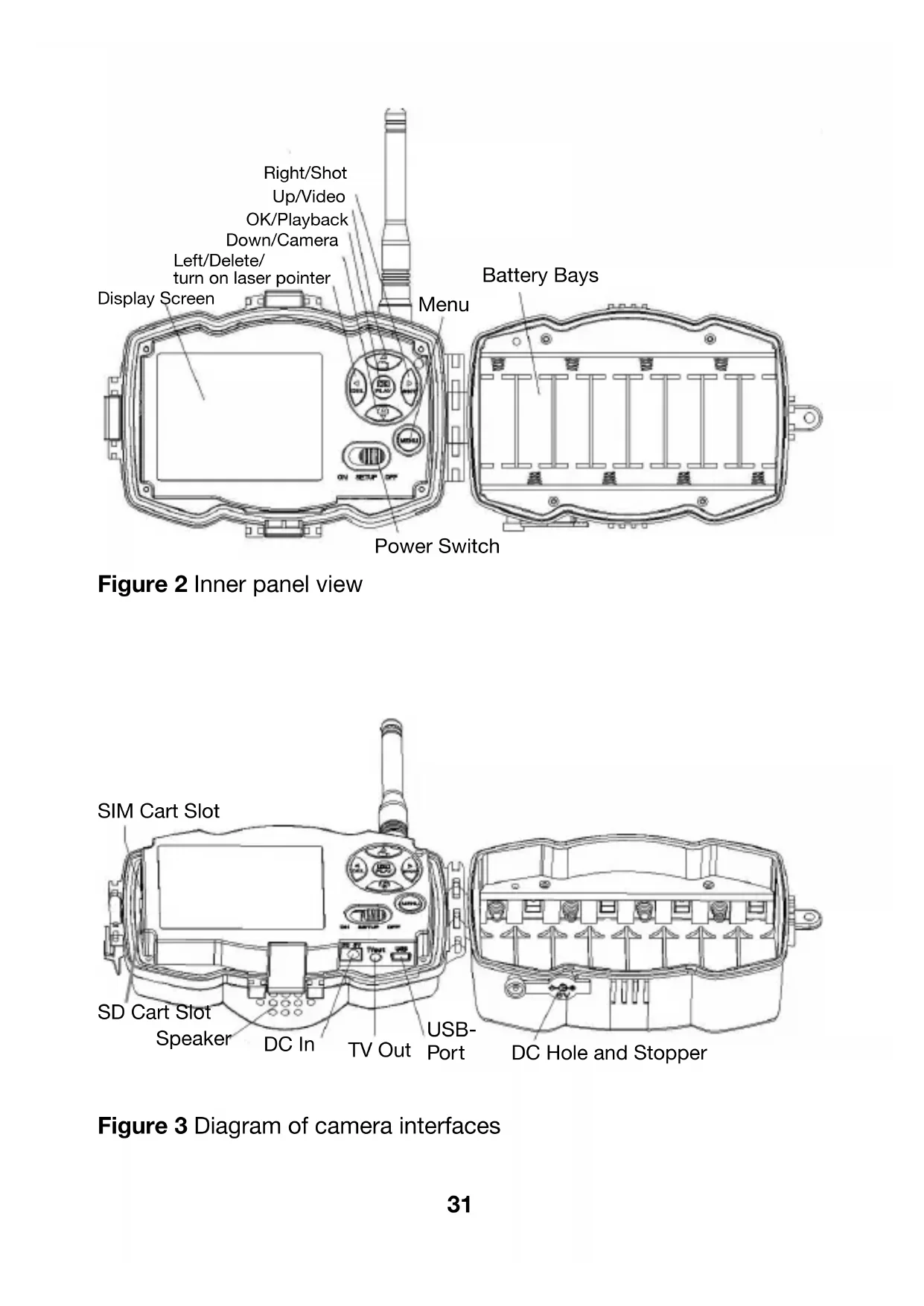
1.3 Camera Overview
Take a few moments to familiarize with the camera controls and displays. It is helpful to bookmark this section and refer to it when reading through the rest of the manual.
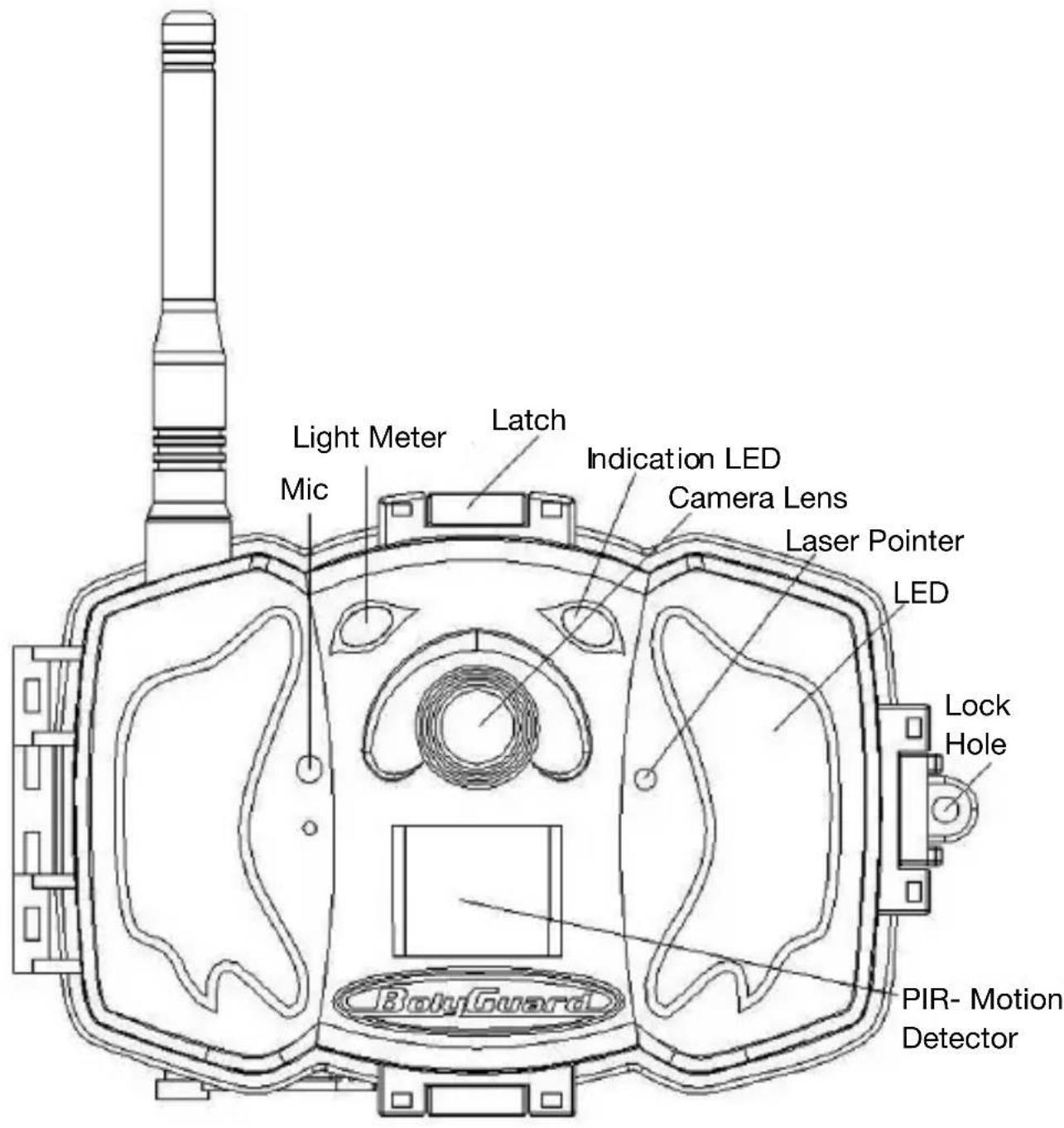
text_image
Light Meter Mic Latch Indication LED Camera Lens Laser Pointer LED Lock Hole PIR- Motion Detector BabyGuardFigure 1 Diagram of camera functional indicators
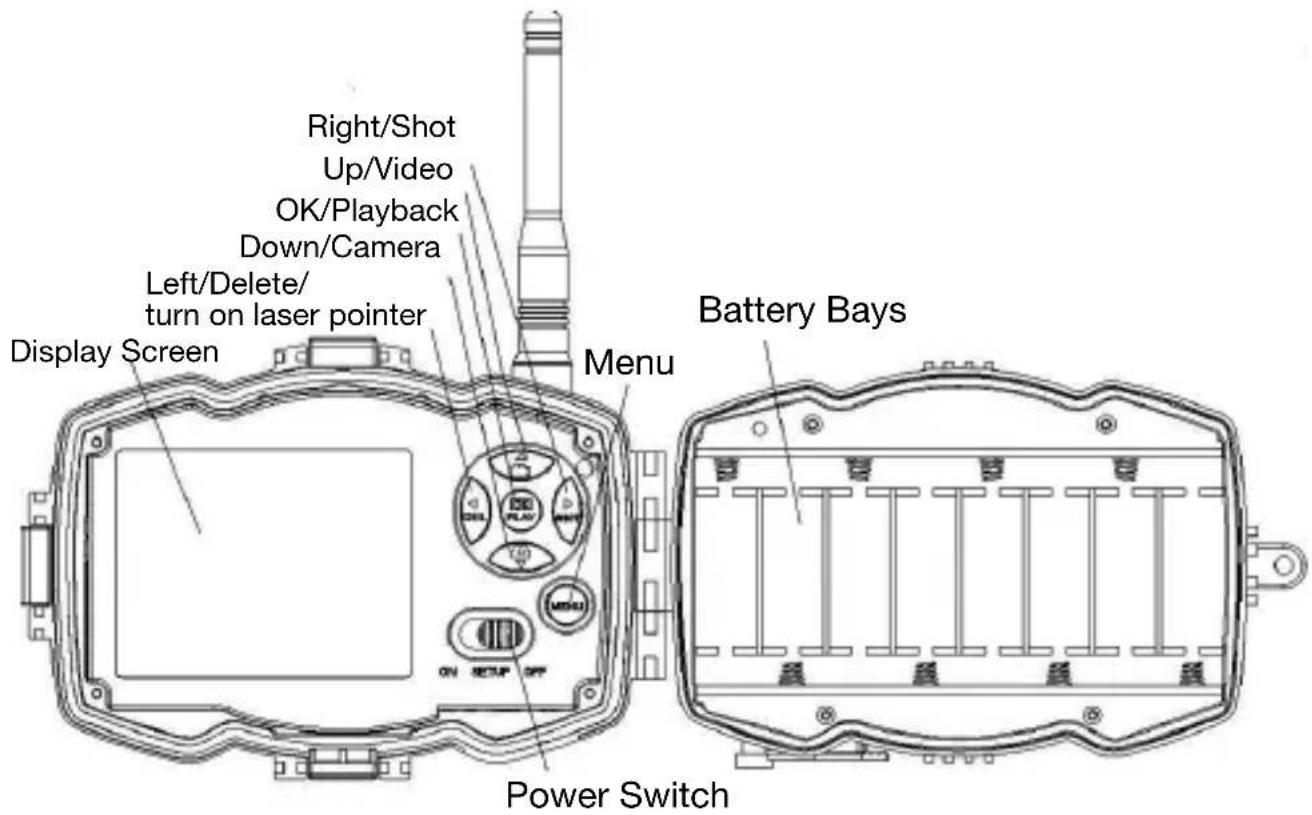
text_image
Right/Shot Up/Video OK/Playback Down/Camera Left/Delete/ turn on laser pointer Display Screen Menu Battery Bays ON SETUP OFF Power SwitchFigure 2 Inner panel view
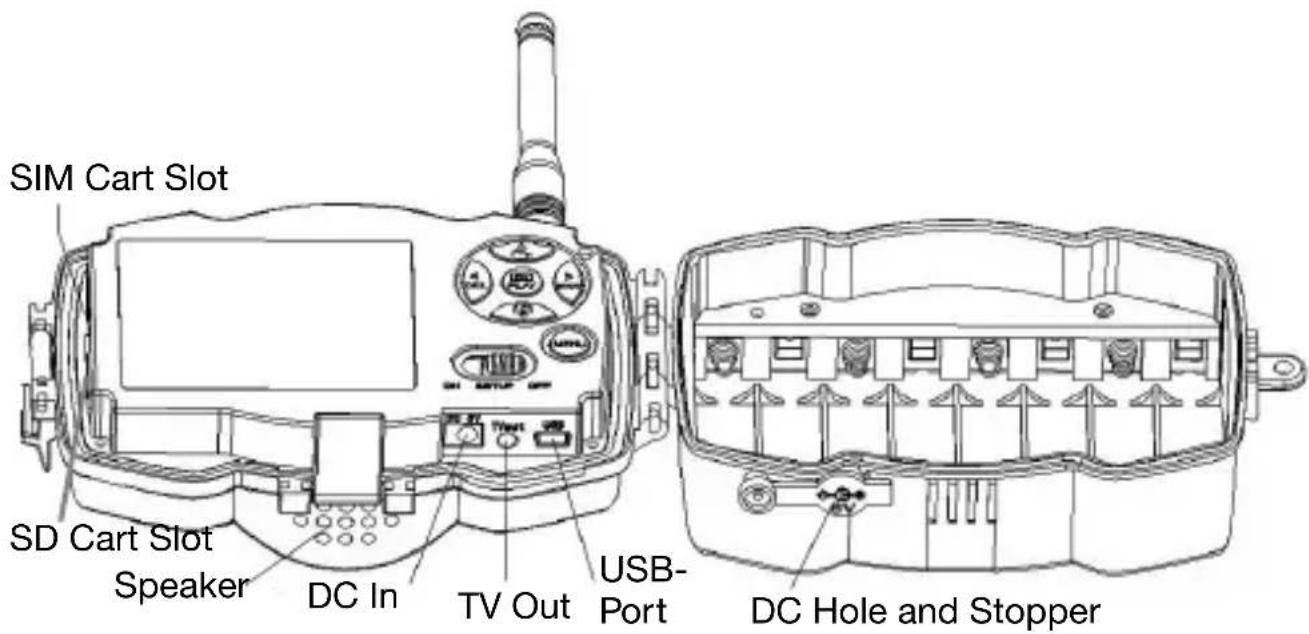
text_image
SIM Cart Slot SD Cart Slot Speaker DC In TV Out USB- Port DC Hole and StopperFigure 3 Diagram of camera interfaces
1.4 Shooting Information Display
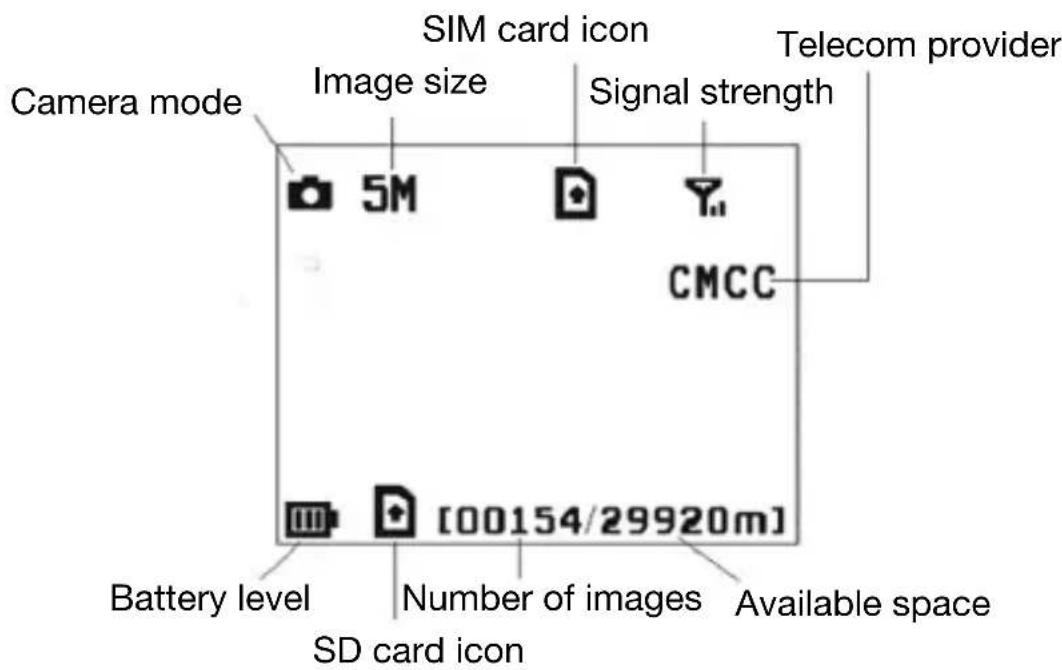
When the camera is turned on (the power switch is slid to TEST position), the current settings will be displayed on screen.
text_image
Camera mode Image size SIM card icon Signal strength Telecom provider 5M CMCC Battery level [00154/29920m] Number of images Available space SD card iconFigure 4 Shooting information display

is the correct SIM card status and the available space of SD card should be a none zero value.
1.5 Two Way Communication
When in Hunting mode, you can set SMS control submenu as ON to open the two way communication function. Under this setting, the camera can receive and respond to your SMS command or the Android APP command. And you can retrieve live voice and pictures in this mode.
2 Cautions
The working voltage of the camera is 6V. The camera is supplied by the power adapter or 8 AA batteries.
➢Please install batteries according to shown polarity.
➢Please insert the SD card before power on camera. The camera has no internal memory for saving images or videos. The camera will not work if there is no SD card.
➢Please make sure that your SIM card supports the GPRS data business.
When going into the SETUP mode, allow approximately 10-20 seconds for the camera to acquire a signal.
➢Please unlock the write-protect switch before inserting the SD card.
➢Please do not insert or take out the SD card when the power switch is at ON position.
It is recommended to format the SD card by the camera when used for the first time. Many other SD cards formatted by other cameras have poor compatibility with different brands of cameras. So it is best to format the SD card with this camera or on a computer.
In the SETUP mode, the camera will shut down automatically after 3 minutes if no operation is done. Please turn on the power again if you want to continue to work with the control.
3 Quick Start Guide
3.1 Power Supply
Hunting mode or outdoor use: use 8 or 4 AA batteries. High-density and high-performance alkaline or lithium batteries are recommended. Security mode or indoor use: use 6V/2A high quality power adapter. The battery can be just a backup for emergency use. Otherwise, the battery will be quickly consumed.
3.2 Insert SD card and SIM card
Dear Customer! Please note! Depending on battery regulations you are required to used or defective batteries and accumulators, at no cost to you, return it to us

Every consumer is legally obliged to dispose of WEEE separately from the household waste and to dispose of at a collection site of his community / City District for example. Electric appliances are marked with the crossed out dustbin, accepted there for free.
3.3 Do the Camera Settings
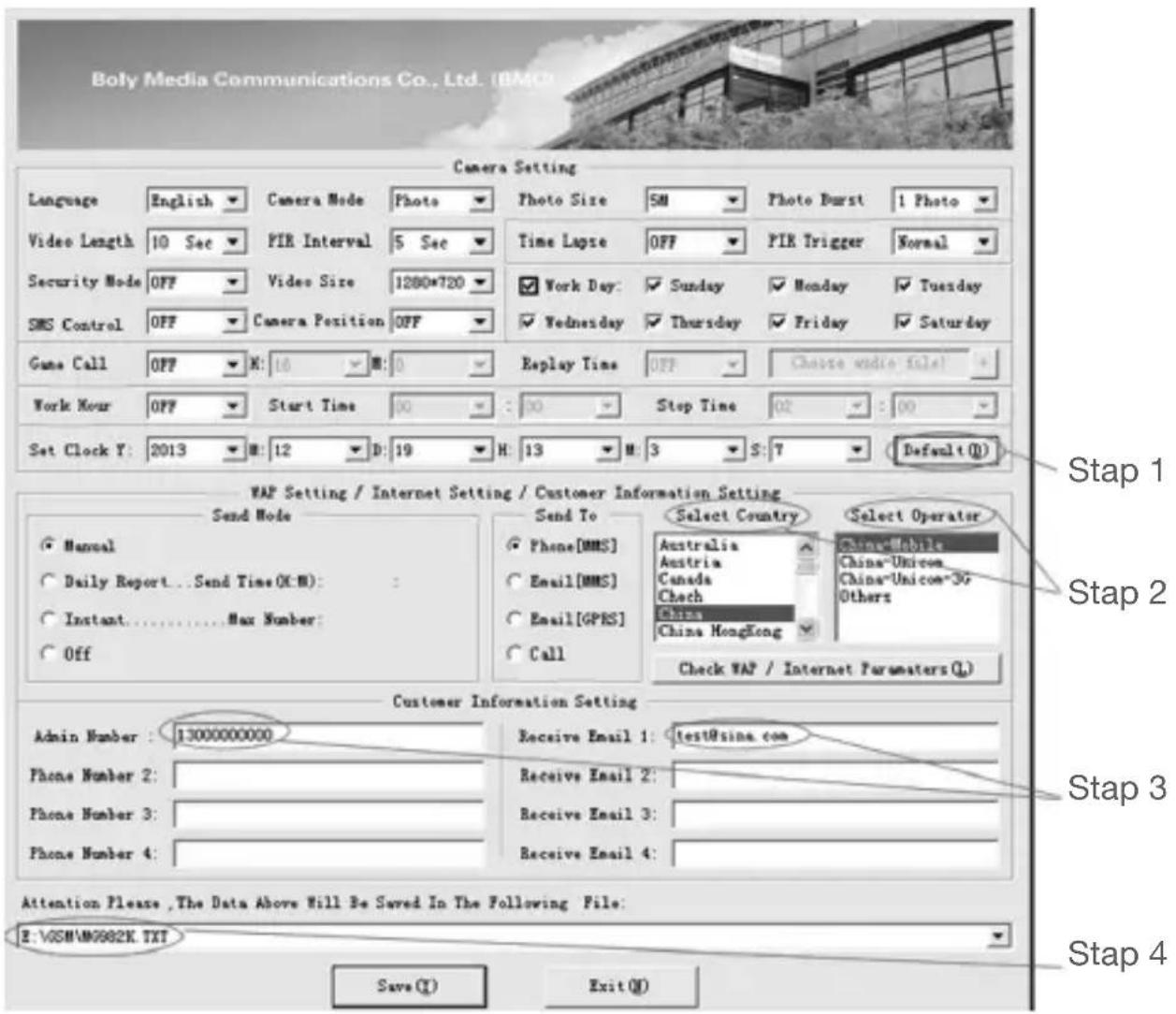
Down load the camera set up software from our website. The specified website is written in the last page of the manual.
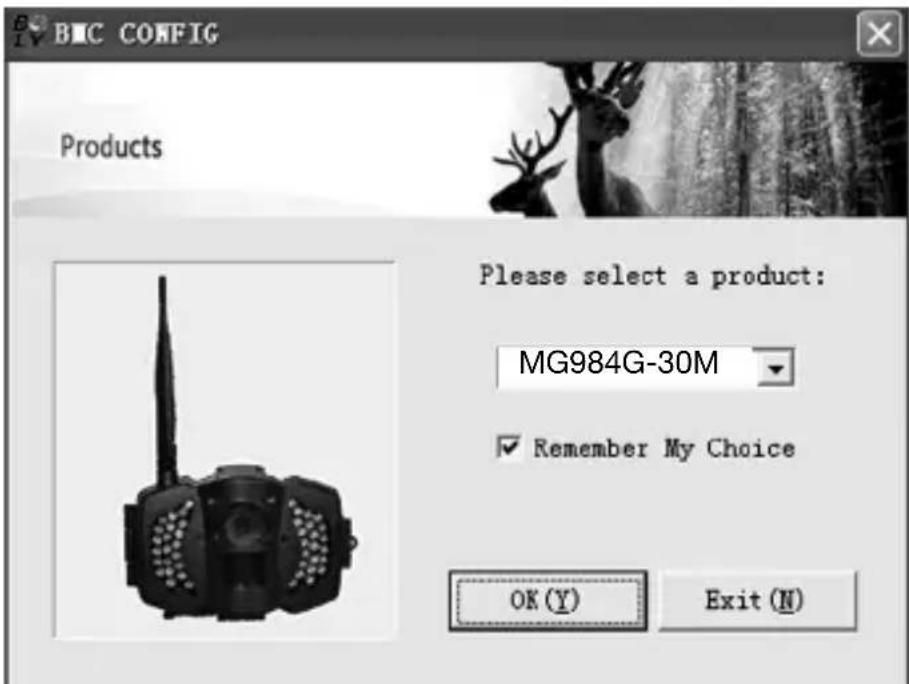
1) Open the software and select camera model:
2) Set the camera parameters
text_image
BMC CONFIG Products Please select a product: MG984G-30M Remember My Choice OK (Y) Exit (N)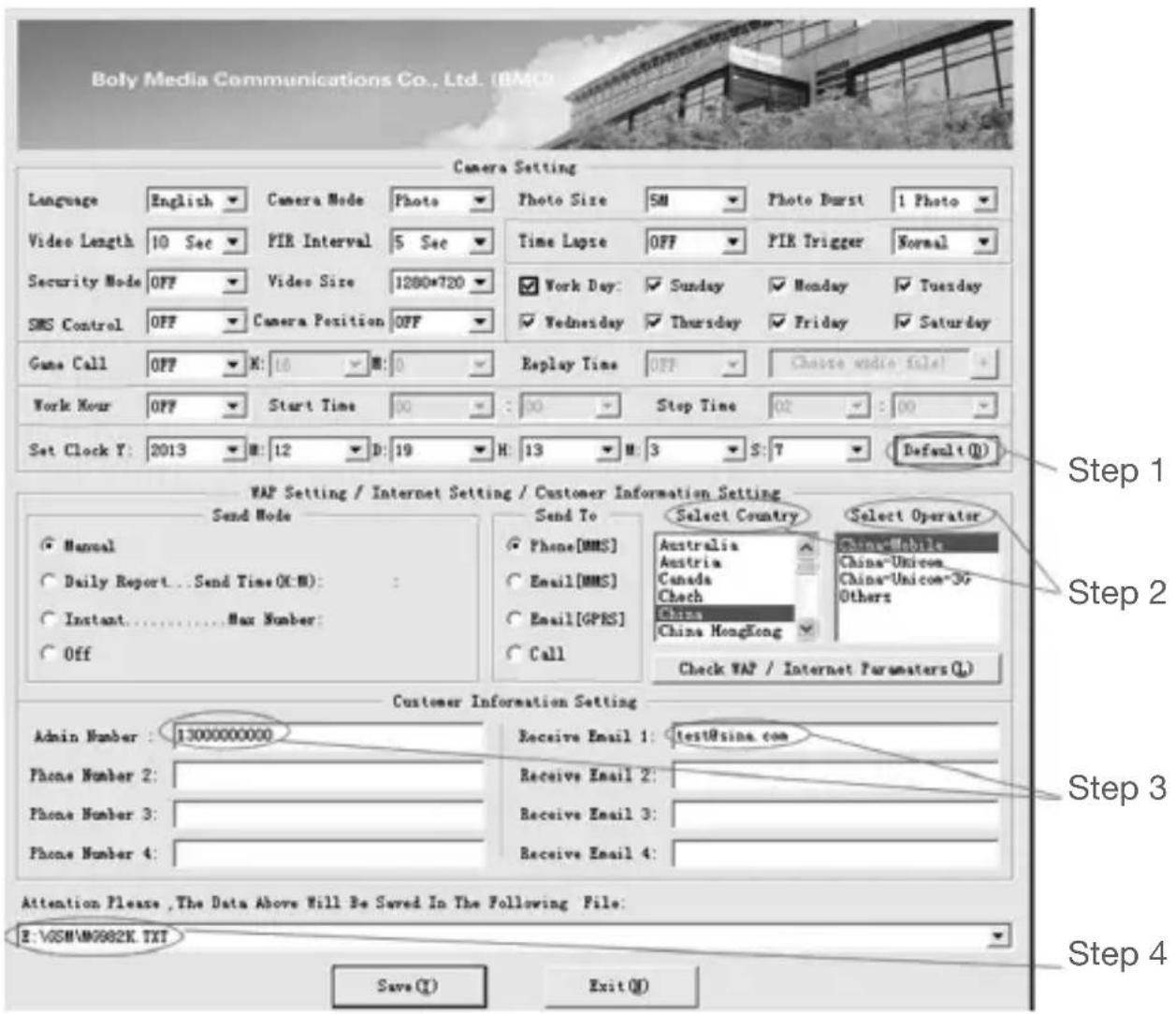
text_image
Boly Media Communications Co., Ltd. (BMC) Camera Setting Language English Camera Mode Photo Photo Size 5M Photo Burst 1 Photo Video Length 10 Sec PIR Interval 5 Sec Time Lapse OFF PIR Trigger Normal Security Mode OFF Video Size 1280*720 ✓Work Day: ✓Sunday ✓Monday ✓Tuesday SMS Control OFF Camera Position OFF ✓Wednesday ✓Thursday ✓Friday ✓Saturday Game Call OFF X: 10 ✓M: 0 Replay Time OFF Change video file! Work Hour OFF Start Time 00 :30 Stop Time 02 :00 Set Clock Y: 2013 ■: 12 ■D: 19 H: 13 M: 3 S: 7 Default(0) WAP Setting / Internet Setting / Customer Information Setting Send Mode ✓ Manual ○ Daily Report...Send Time(K-M): ○ Instant......Max Number: ○ Off Send To ● Phone[MMS] ○ Email[MMS] ○ Email[GPRS] ○ Call Select Country Australia Austria Canada Check China China HongKong Select Operator China-Mobile China-Unicom China-Unicom-3G Others Check WAP / Internet Parameters(0) Customer Information Setting Admin Number : 13000000000 Receive Email 1:/test@sina.com Phone Number 2: Phone Number 3: Phone Number 4: Receive Email 2: Receive Email 3: Receive Email 4: Attention Please ,The Data Above Will Be Saved In The Following File: E:\VSM\M9982K.TXT Save(1) Exit(0) Step 1 Step 2 Step 3 Step 4First, select your country and carriers (step1) according to your SIM card and input your receiving phone number in "administrator number" and receiving e-mail address in "Receive Email 1" (step3). For first time use, we suggest you to use default settings (step2), anysettings you want to change, please click "Change setting".
After finish settings, please save the GSM folder to the root directory of your SD card (step4).
3.4 Manually Send a MMS or GPRS Photo
After you generate a setting file in your SD card, please slip the power switch to SETUP position. After the camera acquires the signal and the SIM card icon appears, target an object and press “SHOT” to take a photo manually.
Then press “OK” to playback the photos, press “▲” and “▼”, to switch to previous or next photo. Press “MENU” and you can see a send Phone [MMS] interface, press “OK” to send out the MMS. After a few seconds, you will receive a MMS in your phone.
3.5 SMS Control
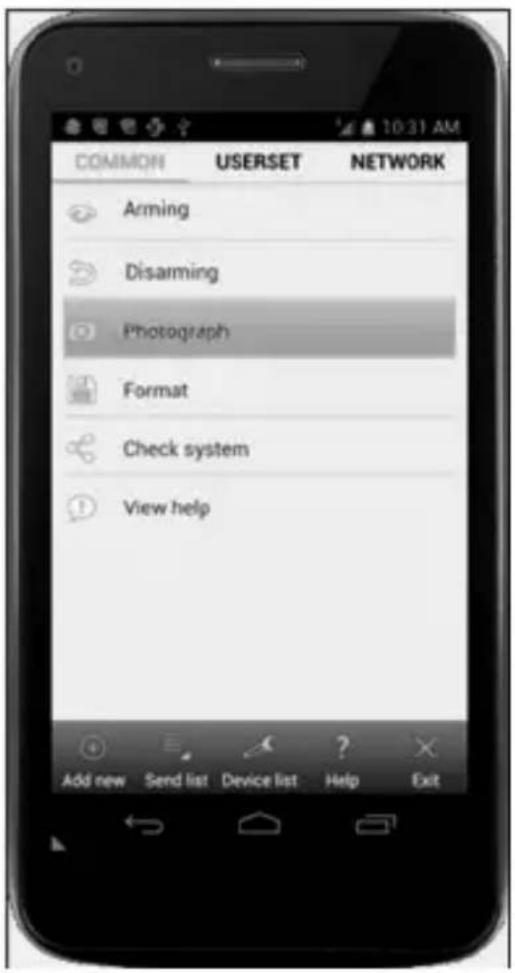
When the camera is armed, you can send text message “#T#" to your camera’s SIM card number to get an on spot image or use our Android application tools. Note you need to set SMS control ON when using SMS command. Down load the Android control software from our website. The specified website is written in the last page of the manual. For iPhone, just download it from the App Store by searching BGTools.
text_image
COMMON USERSET NETWORK Arming Disarming Photograph Format Check system View help Add new Send list Device list Help Exit4 Advanced Operations
This chapter explains the advanced operations for customizing the camera settings.
4.1 Work Mode
Setup mode: to program camera or to playback the photos or video clips.
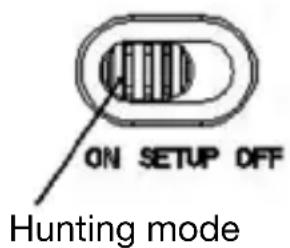
Hunting mode: when animal or human intrudes into the monitoring region, the camera will take pictures or videos automatically according to the previous programmed settings. After switching the camera to ON position, the motion indication LED (red) will blink for about 10 seconds. This time interval is for you to position the camera for automatic surveillance operation..
text_image
ON SETUP OFF Hunting mode4.2 Settings Menu
Press MENU on the remote control to enter into the menu setting. The settings menu will be shown on the LCD.
Use “▲” or “▼” key to select the sub-menu, use “▶” key to select the different options, use “◀” to change different item page. Press “OK” to save the settings.
4.2.1 Setting Items
| Setting Description Items | |
| Camera Mode | There are three camera modes: Photo, Video or Pic+Video. You can enter the main menu to set the camera mode. If you choose Pic+Video mode, the camera takes a picture and a video. |
| Photo Size Choose the image size: 30, 20 or 14 mega pixels. | |
| Video Size Choose the video size: 1920x1080,1280x720 or 640x480. | |
| Photo Burst This parameter affects the number of pictures taken for each triggering in camera mode. It's from “1 Photo” to “2-6 Photos”. | |
| Video Length Choose duration of recording video. It's from 10 seconds to 180 seconds. | |
| Set Clock Set camera date and time. You can change the date and time by setting this parameter when necessary, e.g., after every battery change. The date format is month/day/year, the time format is hour: minute: second. | |
| Time Lapse Time lapse means the camera can capture images or videos at a preset time interval regardless of whether motions are detected. The default parameter is Off, which means the timer function is disabled. Changing this parameter to a non-zero value turns on the Time Lapse mode, and camera will take photos at given time interval. Please note that if the PIR Trigger is set to Off, then the Time Lapse can't be set to Off. | |
| PIR Trigger Choose sensitivity of the PIR. The higher sensitivity indicates that the camera is more easily triggered by motion and takes more pictures or records more videos. It is recommended to use high sensitivity in room or environment with little interference, and to use lower sensitivity for outdoor or environment with lots of interference like hot wind, smoke, near window, etc. For normal use of the camera, the Normal mode is recommended and is the default setting. | |
| PIR Interval This parameter indicates how long the PIR (Passive Infrared motion sensor) will be disabled after each triggering in ON mode. During this time the PIR of the device will not react to the motion of human (or animal). The minimum interval is 0 second. It means the PIR can work all the time.The maximum interval is 1 hour. It means the PIR will be disabled for 1 hour after each triggering. | |
| Work Hour Choose a time period of a day to let the camera work. The camera will awake at the setting time duration in a day. In the rest of the time the camera is sleeping. Set Work Hour as off means the camera works all day. | |
| Send to There are 3 Send to modes:1 Phone MMS: send images to mobile phone.2 Email GPRS: send images to an e-mail address via GPRS use SMTP.3 Call: calling your preset phone number when the camera is triggered. You should set your receiving phone number of your receiving e-mail address in the APP program to function it. | |
Send Mode There are 4 SEND modes: "Manual" works in SETUP mode
“Daily” and “Instant” work in ON mode. “OFF” means to close the communicate function.
1. "Manual":
Choose “Manual” in SETUP mode. Please ensure a SIM card is inserted properly. Video information can’t be send in the SETUP mode when you choose Phone MMS; but you can send photos or videos (VGA less than 10s) when you choose Email GPRS via WCDMA.
2. "Daily":
Daily means the camera will report the summarized information at a preset time (if the preset time is, eg. 20:00 PM) on how many pictures it had taken per day. So, you will get a summarized text message with the last picture taken until 20:00 PM.
If it is on Photo or video mode, the camera will send a MMS at the preset time. The MMS will show you the latest photo and the total quality of the pictures taken. If it is on Video mode, the camera will send a SMS or video at the preset time. The SMS will show you how many video clips the camera has taken within 24 hours. If you choose “Daily”, you need to set the daily report time: xxH, xxM.
3. "Instant":
Instant, just works in ON mode, which means the camera will send a MMS to your phone instantly after it captures a photo or to your email with avideo (VGA less than 10 sec.). You can choose the number of pictures you want it to send out per day.
If it is on Photo mode and you choose the Instant MMS mode, and set the MAX number as 10, the camera will send 10 MMS within 24 hours. It then continues to capture photos and save them on the SD card. After 24 hours, the camera will send MMS again when it captures photos. If it is on Video mode, the Camera will send only SMS instead of MMS when send to is set as Phone MMS.
If you choose “Instant”, you need to set how many MMS you want to send for economic consideration.
- "Off": to disable MMS function.
| SMS Control | SMS Control can enable two way communication function. It means if you choose SMS Control as ON, this camera can receive and respond your SMS command. Also you can retrieve live pictures any time. But the power consumption will be a little bigger than normal hunting status. |
| Game Call It means this camera can play audio file at a preset time clock for preset times.The audio file must be saved in the directory of \DCIM\100BMCIM\ with a name of AUDIOxxxx (from 0000 to 9999). WAV after format the SD card and setting the game call as on mode, or choose the audio file in Windows APP. Note that Game Call will not function if the SD card is full.. | |
| Language Choose the language you need. | |
| Beep Sound Enable or disable the beep sound. | |
| Camera Posit You can set A-Z position for your camera, so that you can distinguish which photo is taken by which camera. | |
| Format SD Format the SD card. All images and videos in the SD card will be deleted. | |
| Default Set Restore all customer settings to default values. | |
| Version Version information | |
4.2.2 Default Set
| Setting Default Options DescriptionItems | |||
| Camera Mode Photo Video, Pic+Video | |||
| Photo Size 30MP 20MP, 14 MP | |||
| Video Size 1920x1080 1280x720, 640x480 | |||
| Photo Burst 1 Photo 2-6 Photos | |||
| Video Length 10 Sec. 5-180 Sec. | |||
| Set Clock Enter Adjust Clock | |||
| Time Lapse | OFF 5Min-8H | ||
| PIR Trigger | Normal | High, Low | |
| PIR Interval 5 Sec | 0-55 Sec,1-60 Min | ||
| Work Day | Enter | ||
| Work Hour | Off | 00:00-23:59 | |
| Send to | Phone MMS | Email GPRS,Call, | |
| Send Mode | Manual Daily, Instant,Off | ||
| SMS Ctrl | Off | On | Two waycommunication |
| Game Call | Off | On | Set the time andfre-quency of audio playback |
| Study Code Enter | RCH(wireless control),Zone1-Zone7 | ||
| Language | English | Suomi, Deutsch,Svenskt, Dansk(Version 1) | |
| Beep Sound On | Off | ||
| Camera Posit | Off | A to Z Position | |
| Format SD | Enter | Yes, No | |
| Default Set | Save | ||
| Version | Enter | ||
4.3 Change the Settings via Android APP or SMS
When you are far away from your house, you can get spot photos or change camera settings via our android application tools or SMS.
Down load the Android APP from our website.
The specified website is written in the last page of the manual.
4.3.1 User Level
There are two user levels: administrator and normal users. Each user has a different authorization level:
Functions User Level
Set administrator Only
phone number administrator's password
Set administrator's password administrator
Set camera parameters administrator
Set normal user administrator
Receive emergency calling administrator, normal user
Send SMS for on spot picture administrator, normal user
Call the camera to listen in administrator, normal user live voice
Receive MMS when triggered administrator, normal user
Check camera status administrator, normal user
Get help information administrator, normal user
4.3.2 Use Android APP
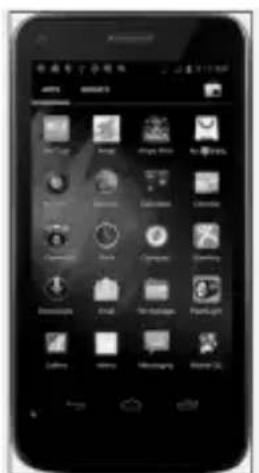
It's easy to use the Android APP to communicate with the camera, so you don't need to edit the SMS. You just need to click the button to finish the operation.
text_image
Screenshot of a smartphone home screen displaying app icons with Chinese labels, including Windows, macOS, and other related devices.
text_image
BelyGuard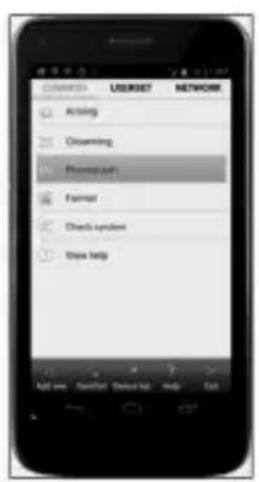
text_image
活动 USERSET NETWORK Activity Clearing Microsoft Format Check system Show help4.3.3 SMS Command List
If you can't use the Android APP for easy operation, the list below shows all the SMS commands for you. You can control your camera via SMS.
A. Set GSM/WCDMA Parameter
| No Function SMS Command |
| 1 Set Normal Users #n#13800138001#13800138002Phone Number #13800138003# |
| 2 Set MMS #m#http://mmsc.cingular.com#66.209.11.32#80 80#Parameters wap.cingular# account#password# (The example parameters are for the carrier of AT&T) |
| 3 Set Email #s#bmctest123@sina.com#bmc123#25#cmnetParameters #smtp.sina.com#name#password#SSL# |
| 4 Set Receive #r#mail1@163.com #E-mail Address mail2@163.com#mail3@163.com # mail4@163.com# |
B. Normal Control
| 1 Get On Spot #T# (Send MMS to pho) | |
| Photo | #T#e# (Send picture to Email by GPRS) |
| 2 Check Camera Settings | #L# |
| 3 Format TF Card #F# | |
| 4 Help | #H# |
C. Set Menu Parameter
No Function SMS Command
| 1 Change Camera #e#cp# (photo mode) or #e#cv# (video mode)Mode or #e#ct#(pic+video) | |
| 2 Change Photo Size #e#s5# (5mp) #e#s10# (10mp) ) or #e#s12# (12mp) | |
| 3 Change Photo Burst #e#b1# (1-6 photos) | |
| 4 Change Video Size #e#fh#(10800p) or #E#fl#(VGA) | |
| 5 Change Video Length #e#v5# or #E#v30# (the number after V is seconds) | |
| 6 Change Date Time #e#t# (adjustment the time) | |
| 7 Change Time Lapse #e#l1h# (1 hour) or #e#l5m# (5 min) | |
| 8 Change PIR Trigger #e#po# (Off) or #e#ph# (High) or #e#pn#(Normal) or #e#pl# (Low) | |
| 9 Change PIR Interval | #e#i30m# (30 min) or #e#i30s# (30 sec) |
| 10 Change Send To | #e#mp# (phone) or #e#me# (email) or #e#mc# (call) or #e#mg# (e-mail gprs) |
| 11 Change Send Mode | #e#ed# (daily) or #e#ei10# (to set instant mode and the max number per day) or #e#eo# (off) or #e#em#(Manual) |
| 12 Change Game Call | #e#gon18:00[5]# or #e#goff# |
| 13 Change Camera Position | #e#oa# (a~z) to set the camera position function#e#ooff# to off the camera position function |
| 14 Change Work Hour | #e#hoff# or #e#hon10:00-18:00# |
5 Trouble Shooting
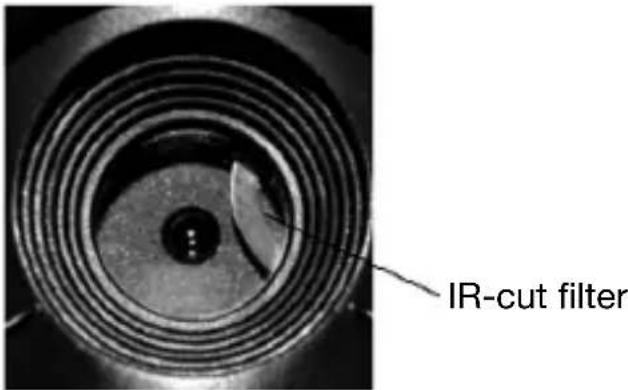
1 There is something in front of the camera lens. Is the camera broken?
text_image
IR-cut filterFigure 5 IR-cut filter
A: The camera is not broken. It's an IR-cut filter. When the camera is powered on, the IR-cut will be reset and cover the lens. Only when the camera is powered off, the IR-cut will be at a random place.
2 The camera controller is not working anymore.
A: Most likely, no SD card has been inserted in the camera when it is turned on. Please make sure a working SD card has been inserted in the camera before it is turned on.
3 The display screen is suddenly black.
A: To reduce power consumption, the camera will shut down automatically after 3 minutes if no operation is done. Please turn on the power again if you want to continue to work with the control.
4 Why my phone can't receive MMS?
A: MMS/GPRS function needs the SIM cards in both your camera and phone to have enough balance and to be opened to data business.
Appendix I: PIR Detection Zone
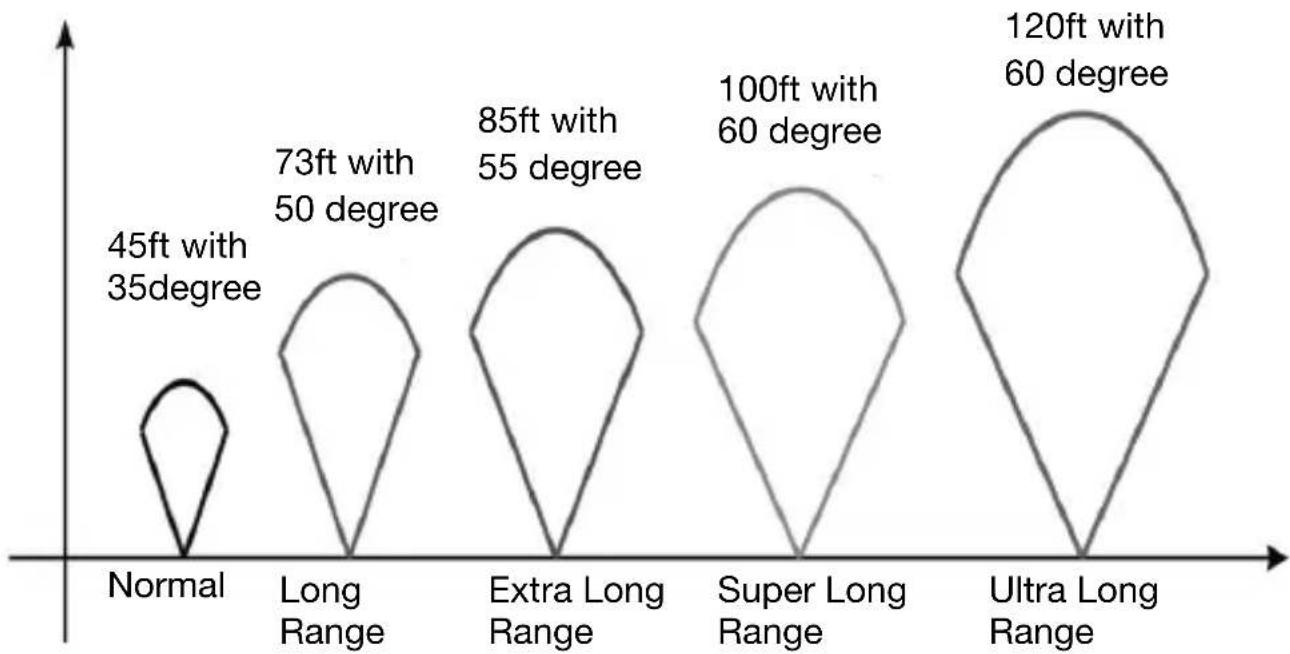
Figure 6 shows Bolymedia's 4 kinds of detection range at different detection angles. This camera is super long range with 60 degree.
bar
| Range | Distance (ft) | Degree | | :--- | :--- | :--- | | Normal | 45 | 35 | | Long Range | 73 | 50 | | Extra Long Range | 85 | 55 | | Super Long Range | 100 | 60 | | Ultra Long Range | 120 | 60 |Figure 6 PIR Detection Zone
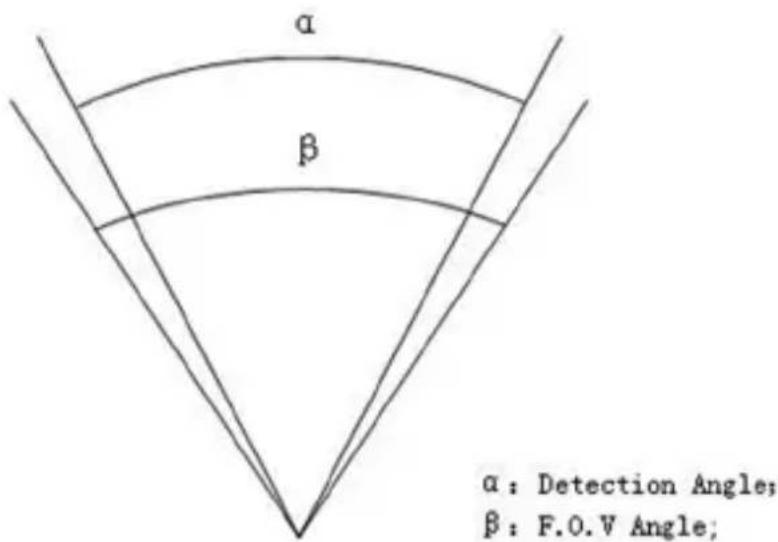
The PIR detection angle (☐) is just smaller than the field of view (FOV) angle (☐). The advantage of this design is to reduce empty picture rate and capture most, if not all, motions.
text_image
α β α: Detection Angle; β: F.O.V Angle;Figure 7 Detection angle vs. FOV angle This camera has a new design of PIR.
The new PIR's detection range can reach to 100ft (in good environments). Figure 8 shows the compared detection zone between normal PIR and the new PIR.
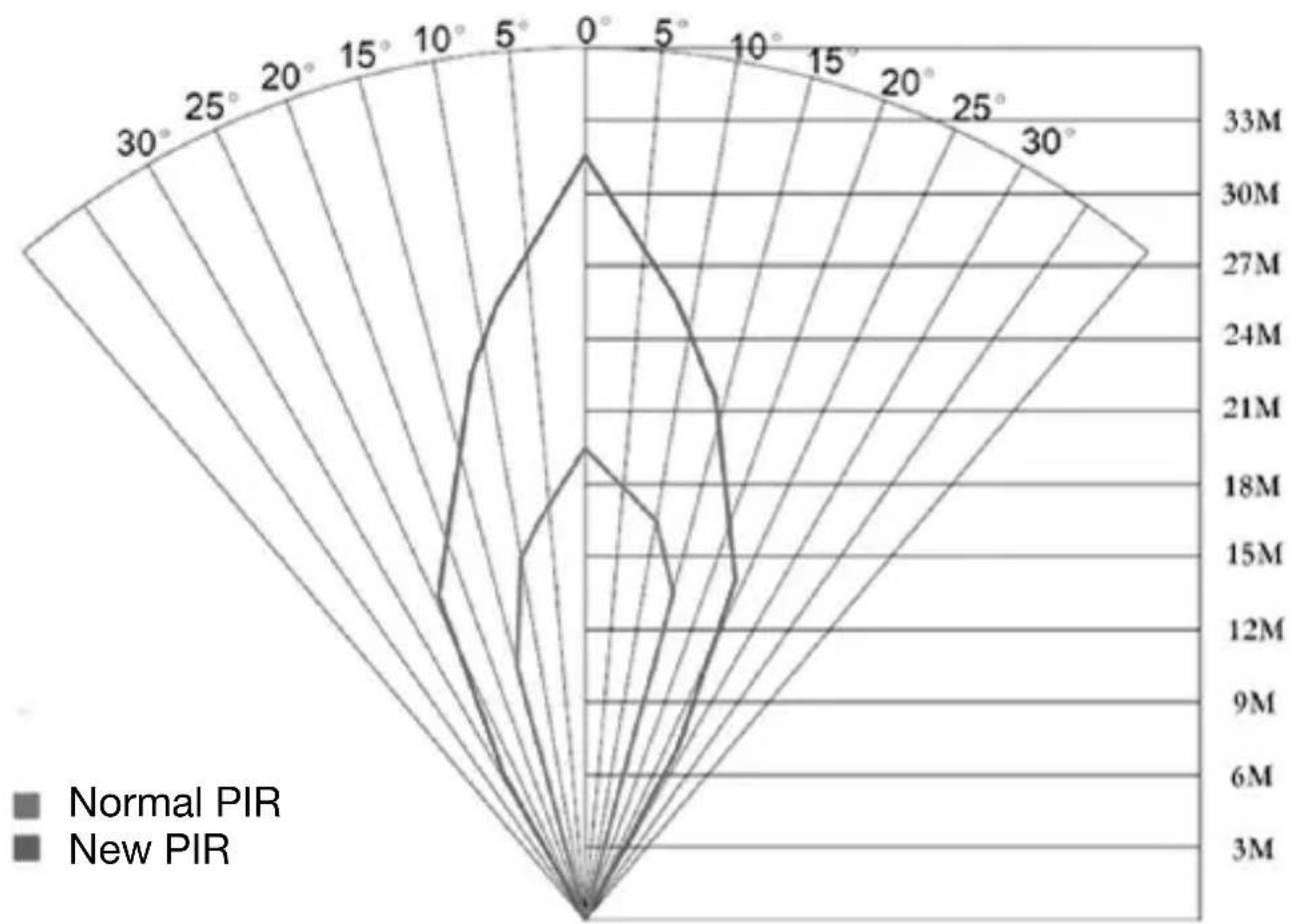
radar
| Angle | Normal PIR | New PIR | |-------|------------|---------| | 0° | 33M | 30M | | 5° | 27M | 24M | | 10° | 21M | 18M | | 15° | 15M | 12M | | 20° | 9M | 6M | | 25° | 3M | 3M | | 30° | | | | 35° | | | | 40° | | | | 45° | | | | 50° | | | | 55° | | | | 60° | | | | 65° | | | | 70° | | | | 75° | | | | 80° | | | | 85° | | | | 90° | | | | 95° | | | | 100° | | | | 105° | | | | 110° | | | | 115° | | | | 120° | | | | 125° | | | | 130° | | | | 135° | | | | 140° | | | | 145° | | | | 150° | | | | 155° | | | | 160° | | | | 165° | | | | 170° | | | | 175° | | | | 180° | | | | 185° | | | | 190° | | | | 195° | | | | 200° | | | | 205° | | | | 210° | | | | 215° | | | | 220° | | | | 225° | | | | 230° | | | | 235° | | | | 240° | | | | 245° | | | | 250° | | | | 255° | | | | 260° | | | | 265° | | | | 270° | | | | 275° | | | | 280° | | | | 285° | | | | 290° | | | | 295° | | | | 300° | | | | 305° | | | | 310° | | | | Note: The data for 'Normal PIR' and 'New PIR' are not provided in the code. The values in the 'Normal PIR' column are estimated based on the provided code. There is only one data series in this case. The other series are not included in the chart.Figure 8 Comparison of Detection Zones of new and existing PIRs
Appendix II: Error Code
Code Meaning Description
3915 Non-existent Possible cause
adress 1. The user forgets to input the receiving cellphone
number.
- The user forgets to input the receiving E-mail address.
Suggestion:
- Check the MMS settings, input all the necessary parameters.
3919 File not found Possible cause:
- The file means the image file. It shows that the system can't find the image file when sending the MMS. Just when the system is unstable, it will happen (very small probability).
Suggestion:
- When the GSM and GPRS signal are both OK, please resend again.
- When the GSM and GPRS signal are poor, please change a place to try again;
- If 1 and 2 do not work and the error code 3919 always appears, please send the camera back for repairs.
3926 MMS busy; Possible cause:
3927 Sending MMS When start a new MMS sending procedure, the
3928 stopped; previous MMS sending is not finished, so it will show
Sending MMS busy these information. This is a inner use error, we have the correct programmer design, so it won't happen in the consumer's side.
Suggestion:
If it always shows 3926,3927 or 3928, maybe there is a hardware defect. Please send camera back for repair (very small probability).
Code Meaning Description
3939 Failed to open Possible cause:
3941 network; 1. The GSM network is not good or not well
3942 Network not covered with the GPRS network.
deactivated; 2. The instability in signal transmission leads
Network error to some MMS setting parameters missing when the
GSM base station do the data analysis. If for the incorrect transmission reason, the camera may show various error code.
Suggestion:
- Contact the network provider if the GPRS network is well covered in that area.
- Change a place to try again. It's better to try in a public place, where there is always good signal.
- If the provider said there is GPRS signal covered but the signal is weak, you can try to use a enhanced antenna that is SMA type with antenna gain of 10db.
-85 Not enough balance Possible cause:
in SIM card; 1. The SIM card is not enough balance.
MMS setting error; 2. Not correct settings.
- The GSM network is not good leading to a timeout problem (very small probability).
Suggestion:
- Please check to make sure your SIM card has enough balance.
- Please check the MMS settings
Other error code Many codes in the list are used for debugging in the product design phase. Most of them will not be shown to consumers, so please ignore the other error codes and contract us directly. Thanks.
Appendix III: Technical Specifications
| Image Sensor 14MP Color CMOS, Lens F/NO=2.4; FOV (Field of View)=60° | |
| PIR Detection Range 30m/100ft | |
| Display Screen 3” TFT | |
| Memory Card From 8 MB to 32 GB | |
| Picture Resolution 30MP = 6400x4800 20MP = 5184x3888, 14MP = 4320x3240 | |
| Video Resolution 1920x1080/1280x720/640x480 | |
| PIR Sensitivity Adjustable (High / Normal / Low) | |
| Trigger Time 1 sec | |
| Weight 0.30 kg | |
| Operation/Storage Temperature -20 - +60°C / -30 - +70°C | |
| PIR-Interval 0 sec - 60 min | |
| Photo Burst | 1-6 |
| Video Length | 5-180 sec |
| Power Supply | 8×AA or 4×AA |
| Stand-by Current | < 0.25 mA (<6mAh / Day) |
| Power Consumption | 400 videos(intervall=5 min., video length=10 sec >500 MMS (8*AA-batteries) |
| Sound Recording | Available |
| Mounting | Rope / Belt / Python lock |
| Dimensions | 140 x90 x60 mm |
| Operation Humidity | 5 % - 90 % |
| Security Authentication | FCC, CE, RoHS |
*without battery
Appendi IV: Parts List
| Part Name Quantity |
| Digital Camera One |
| USB Cable One |
| Belt One |
| User’s Manual One |
| Antenna One |
Website Information:
Down load the APP software from here:
http://www.bolyguard.com/download.htm
(Version 2.0)
Guarantee: We grant on this product a guarantee of 24 months, according to the pertinent statutory regulations, from the date of the purchase by the initial user.
This guarantee covers all material or production defects; however, it does not cover the following: Faults and defects resulting from normal wear, including wearing parts, seals etc.; damages or defects arising or as a result of alteration.
We reserve the right to reject a guarantee claim if the purchase cannot be proven, or if the product was improperly serviced or was obviously erroneously maintained (not or insufficiently maintained; cleaning and servicing).
Please retain the proof of purchase documentation because this is valid as proof of date of purchase.
In case of a guarantee claim, the machine must be returned to the dealer in a clean state, and in its original packaging if possible, and not disassembled in any way. Proof of purchase must also be included.
Copyright by
Bangen & Schröten
All rights reserved. It is not permitted without written approval from Berger + Schröter to reproduce these operating instructions. It is also not permitted to reproduce extracts in any form that have been created or processed by use of electronic, mechanical or chemical procedures. Technical changes can be made at any time without prior announcement. The operating instructions are corrected regularly. We assume no liability for technical and typographical errors and their results.
natural_image
Black-and-white photo of a camouflaged video camera with a long antenna, showing no text or symbols.Sommaire
1 Introduction 55
text_image
BMC CONFIG Products Please select a product: MG984G-30M Remember My Choice OK (Y) Exit (N)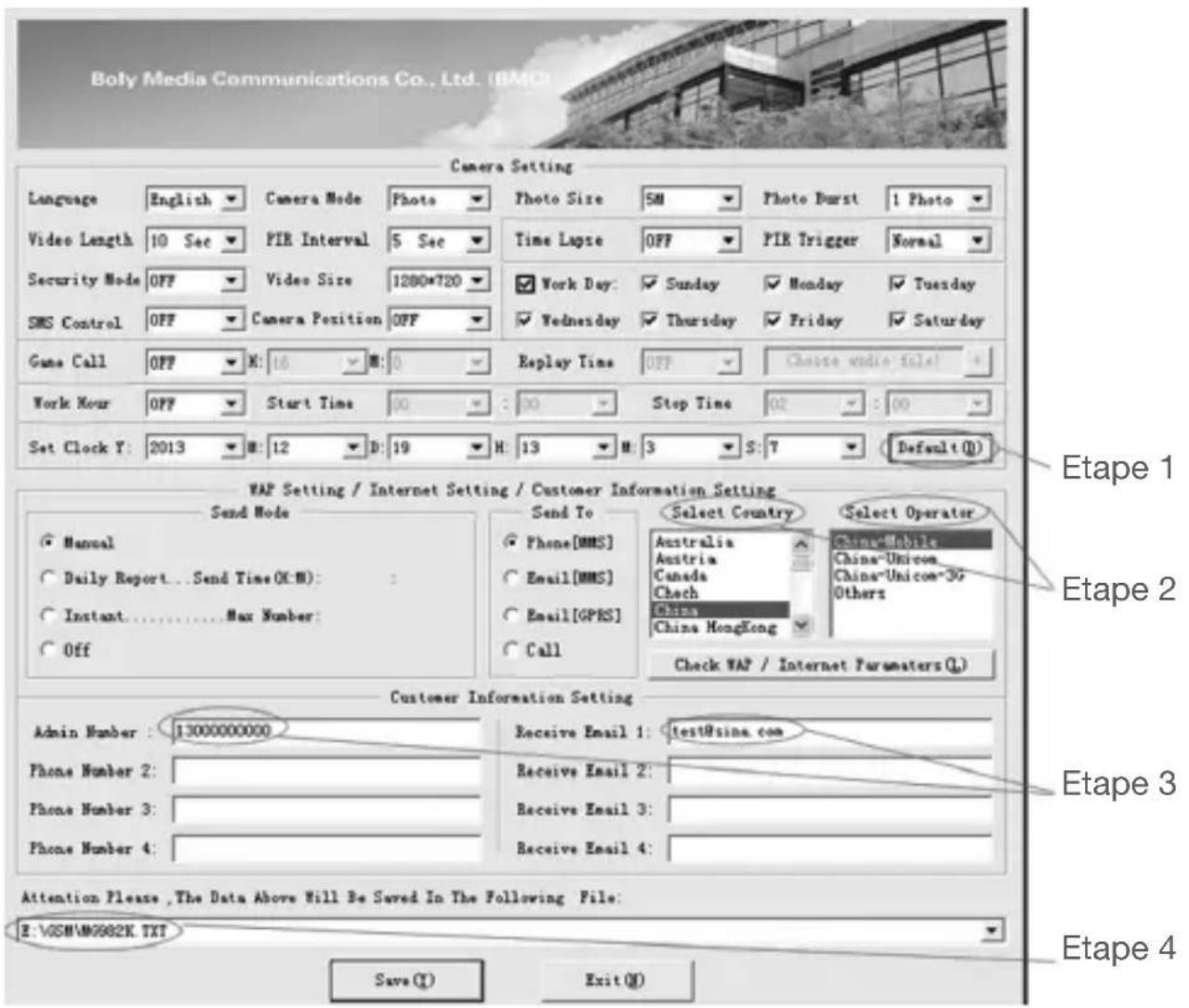
text_image
Boly Media Communications Co., Ltd. (IBM) Camera Setting Language English Camera Mode Photo Photo Size 5M Photo Burst 1 Photo Video Length 10 Sec PIR Interval 5 Sec Time Lapse OFF PIR Trigger Normal Security Mode OFF Video Size 1280*720 ✓Work Day: ✓Sunday ✓Monday ✓Tuesday SMS Control OFF Camera Position OFF ✓Wednesday ✓Thursday ✓Friday ✓Saturday Game Call OFF X: 16 X: 0 Replay Time OFF Choose video file! Work Hour OFF Start Time 00 : 30 Stop Time 02 : 00 Set Clock Y: 2013 X: 12 X: 19 X: 13 X: 3 X: 7 Default(0) WAF Setting / Internet Setting / Customer Information Setting Send Mode ✓ Manual ○ Daily Report...Send Time(X:M): ○ Instant......Max Number: ○ Off Send To ○ Phone[MMS] ○ Email[MMS] ○ Email[GPRS] ○ Call Select Country Australia Austria Canada Chess China China Hong Kong Select Operator China-Mobile China-Unicon China-Unicom-3c Others Check WAF / Internet Parameters(0) Customer Information Setting Admin Number : 13000000000 Receive Email 1:/test@sina.com Phone Number 2: Phone Number 3: Phone Number 4: Receive Email 2: Receive Email 3: Receive Email 4: Attention Please ,The Data Above Will Be Saved In The Following File: E:\VSM\M0982K.TXT Save(1) Exit(0) Etape 1 Etape 2 Etape 3 Etape 4text_image
COMMON USERSET NETWORK Arming Disarming Photograph Format Check system View help Add new Send list Device list Help Exittext_image
ON SETUP OFF Mode chassebar
| Portée Type | Length (ft) | Altitude (m) | | :--- | :--- | :--- | | Normal | 45 | 13 | | Longue portée | 73 | 22 | | Extra-longue portée | 85 | 25 | | Super-longue portée | 100 | 30 | | Ultra-longue portée | 120 | 36 | The chart is labeled 'Longue de 60 degrés' in the top left corner. The diagram visually represents the spatial arrangement of portées with their respective lengths and altitudes. No numerical values or axes are provided; the visual structure implies a comparison of portée dimensions across categories.radar
| Angle | Normale PIR | Nouveau PIR | |-------|-------------|-------------| | 0° | 33M | 3M | | 5° | 27M | 6M | | 10° | 24M | 9M | | 15° | 21M | 12M | | 20° | 18M | 15M | | 25° | 15M | 18M | | 30° | 12M | 21M | | 35° | 9M | 24M | | 40° | 6M | 27M | | 45° | 3M | 30M | | 50° | 0 | 33M | | 55° | 0 | 30M | | 60° | 0 | 27M | | 65° | 0 | 24M | | 70° | 0 | 21M | | 75° | 0 | 18M | | 80° | 0 | 15M | | 85° | 0 | 12M | | 90° | 0 | 9M | | 95° | 0 | 6M | | 100° | 0 | 3M | | 105° | 0 | 0 | | 110° | 0 | 0 | | 115° | 0 | 0 | | 120° | 0 | 0 | | 125° | 0 | 0 | | 130° | 0 | 0 | | 135° | 0 | 0 | | 140° | 0 | 0 | | 145° | 0 | 0 | | 150° | 0 | 0 | | 155° | 0 | 0 | | 160° | 0 | 0 | | 165° | 0 | 0 | | 170° | 0 | 0 | | 175° | 0 | 0 | | 180° | 0 | 0 | | 185° | 0 | 0 | | 190° | 0 | 0 | | 195° | 0 | 0 | | 200° | 0 | 0 | | 205° | 0 | 0 | | 210° | 0 | 0 | | 215° | 0 | 0 | | 220° | 0 | 0 | | 225° | 0 | 0 | | 230° | 0 | 0 | | 235° | 0 | 0 | | 240° | 0 | 0 | | 245° | 0 | 0 | | 250° | 0 | 0 | | 255° | 0 | 0 | | 260° | 0 | 0 | | Note: The data provided in the code is as follows: 'Normale PIR' and 'Nouveau PIR' are not explicitly labeled in the image. The numbers inside the chart are estimated based on the given code. There is only one data series in this case. The chart type is a polar bar chart. The x-axis represents angle in degrees (from -360° to +360°).natural_image
Ancient camouflage rifle case with long-handled antenna, no visible text or symbolsInhoudsopgave
1 Instructies 81
text_image
BMC CONFIG Products Please select a product: MG984G-30M Remember My Choice OK (Y) Exit (N)