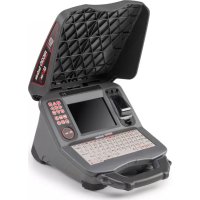
SeeSnake CS65XR - Monitor RIDGID - Free user manual and instructions
Find the device manual for free SeeSnake CS65XR RIDGID in PDF.



| Product Type | Wi-Fi Recording Monitor |
| Brand | RIDGID |
| Model | SeeSnake CS65XR |
| Dimensions (L x H x D) | 319 mm x 242 mm x 406 mm |
| Weight (without battery) | 4.4 kg |
| Power Supply | Li-ion 18 V battery or 15-25 V DC power adapter, 25 W |
| Display | 6.4-inch color LCD screen, XGA 1024 x 768 resolution, 1400 cd/m² brightness |
| Internal Storage | 128 GB SSD |
| USB Ports | 2 USB 2.0 ports (1 x 0.5 A, 1 x 1.5 A), 1 micro USB B port |
| Wireless Connectivity | Wi-Fi 802.11 a/b/g/n, Bluetooth 4.0, built-in GPS |
| Media Formats | MPEG4 (H.264) video, Autolog video, JPG photo, PhotoTalk |
| Main Functions | Dual recording (SSD + USB), integrated report creation, text overlay, distance measurement, TiltSense inclinometer |
| Companion App | HQx Live (iOS/Android) for second screen |
| Management Software | HQ (included on 8 GB USB stick) |
| Compatibility | All SeeSnake camera drums, mounting on rM200 |
| Operating Temperature | -10°C to 50°C (adapter 0°C to 40°C) |
| Storage Temperature | -20°C to 60°C |
| Relative Humidity | 5 to 95% |
| Maximum Altitude | 4,000 m |
| Safety | Do not use in water or outdoors with adapter; protect from shocks; use appropriate PPE |
| Maintenance and Cleaning | Disconnect and remove battery; clean with a damp cloth; do not use abrasive liquids; clean screen with appropriate product |
| Reparability | Repair by RIDGID authorized center only; identical spare parts |
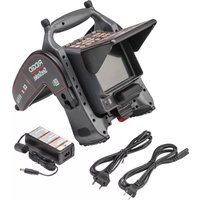
| Package Contents | CS65XR monitor, power adapter, 8 GB USB stick with HQ, user manual |
Frequently Asked Questions - SeeSnake CS65XR RIDGID
User questions about SeeSnake CS65XR RIDGID
0 question about this device. Answer the ones you know or ask your own.
Ask a new question about this device
Download the instructions for your Monitor in PDF format for free! Find your manual SeeSnake CS65XR - RIDGID and take your electronic device back in hand. On this page are published all the documents necessary for the use of your device. SeeSnake CS65XR by RIDGID.
USER MANUAL SeeSnake CS65XR RIDGID
natural_image
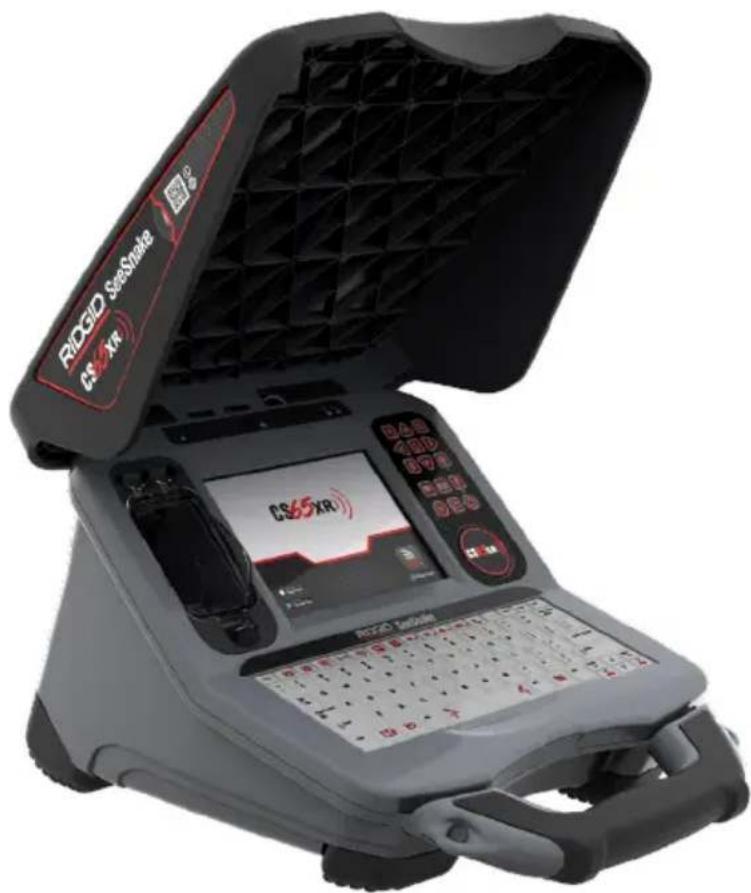
Exterior view of a RICGID SizeState CS65XR device with open lid and control panel (no readable text or symbols beyond branding)- Français – 19
- Español – 39
! WARNING!
Read this Operator's Manual carefully before using this tool. Failure to understand and follow the contents of this manual may result in electrical shock, fire, and/or serious personal injury.

Companion Apps Available


For support and additional information about using your CS65XR go to support.seesnake.com/cs65xr or scan this QR code.
Table of Contents
Introduction
Regulatory Statements....3
Safety Symbols....3
General Safety Rules
Work Area Safety 4
Electrical Safety 4
Personal Safety 4
Equipment Use and Care 5
Battery Use and Care 5
Pre-Operation Inspection....6
SeeSnakeCS65XR Overview
Description....7
Specifications 8
Components 9
Operating Instructions
SeeSnake CS65XR Safety 10
Inspection Overview....11
Connecting to a Camera Reel 11
Powering the System....11
Keypad and Keyboard 12
User Interface 15
Maintenance and Support
Software Updates....17
Cleaning 17
Transport and Storage....17
*Original Instructions – English
Introduction
The warnings, cautions, and instructions discussed in this manual cannot cover all possible conditions and situations which may occur. It must be understood by the operator that common sense and caution are factors that cannot be built into this product, but must be supplied by the operator.
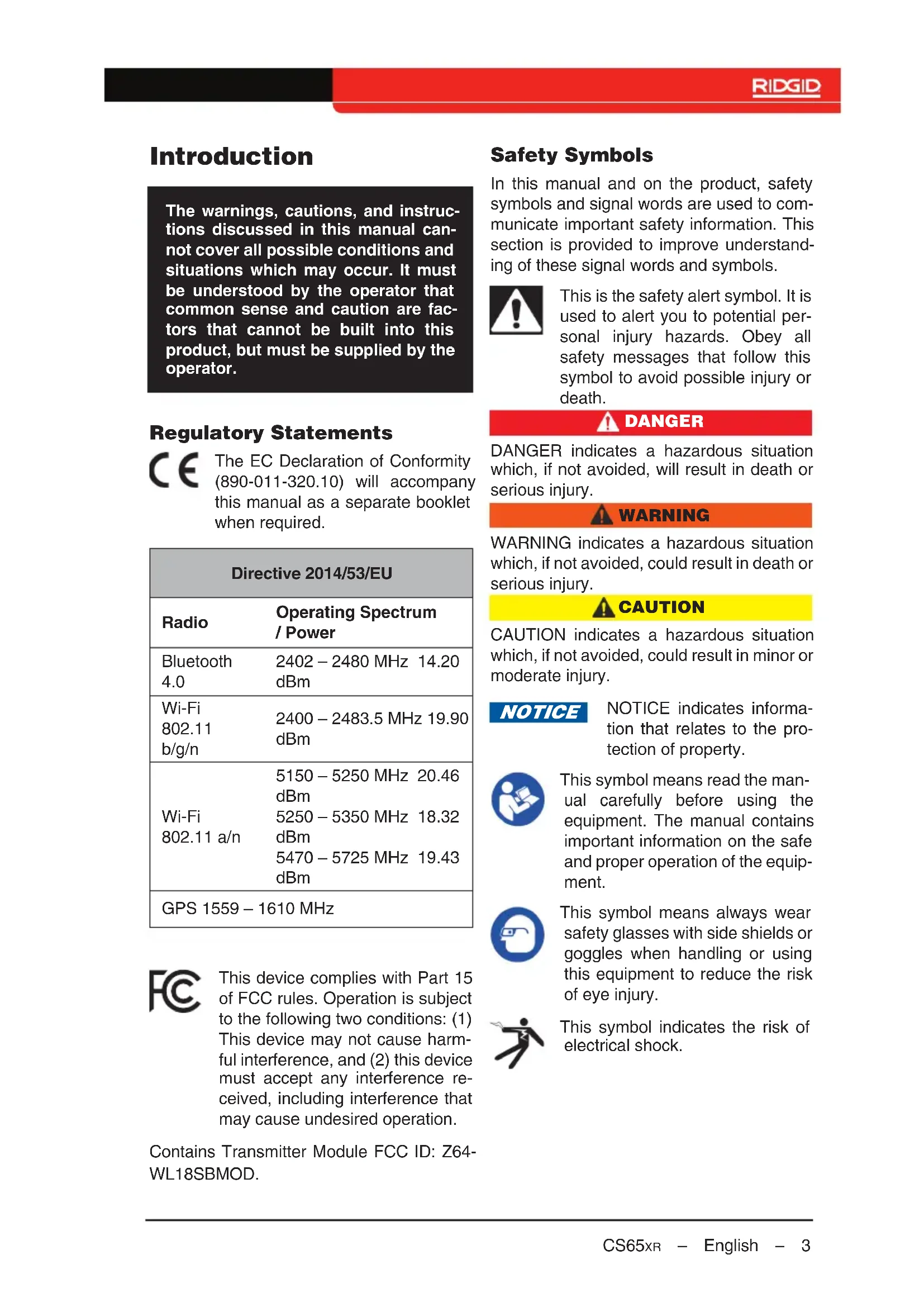
Regulatory Statements

The EC Declaration of Conformity (890-011-320.10) will accompany this manual as a separate booklet when required.
| Directive 2014/53/EU | |
| Radio | Operating Spectrum / Power |
| Bluetooth 4.0 | 2402 – 2480 MHz 14.20 dBm |
| Wi-Fi 802.11 b/g/n | 2400 – 2483.5 MHz 19.90 dBm |
| Wi-Fi 802.11 a/n | 5150 – 5250 MHz 20.46 dBm5250 – 5350 MHz 18.32 dBm5470 – 5725 MHz 19.43 dBm |
| GPS 1559 – 1610 MHz | |

This device complies with Part 15 of FCC rules. Operation is subject to the following two conditions: (1) This device may not cause harmful interference, and (2) this device must accept any interference received, including interference that may cause undesired operation.
Contains Transmitter Module FCC ID: Z64-WL18SBMOD.
Safety Symbols
In this manual and on the product, safety symbols and signal words are used to communicate important safety information. This section is provided to improve understanding of these signal words and symbols.
This is the safety alert symbol. It is used to alert you to potential personal injury hazards. Obey all safety messages that follow this symbol to avoid possible injury or death.

DANGER
DANGER indicates a hazardous situation which, if not avoided, will result in death or serious injury.

WARNING
WARNING indicates a hazardous situation which, if not avoided, could result in death or serious injury.

CAUTION
CAUTION indicates a hazardous situation which, if not avoided, could result in minor or moderate injury.
NOTICE
NOTICE indicates information that relates to the protection of property.

This symbol means read the manual carefully before using the equipment. The manual contains important information on the safe and proper operation of the equipment.

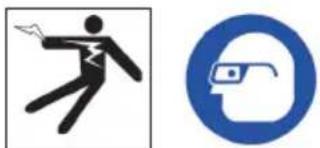
This symbol means always wear safety glasses with side shields or goggles when handling or using this equipment to reduce the risk of eye injury.
This symbol indicates the risk of electrical shock.
General Safety Rules
WARNING
natural_image
Two symbolic icons: a figure with a lightning bolt and a shield, and a circular blue icon with a bird (no text or symbols)Read all safety warnings and instructions. Failure to follow the warnings and instructions may result in electrical shock, fire, and/or serious injury.
SAVE THESE INSTRUCTIONS!
Work Area Safety
- Keep your work area clean and well lit. Cluttered or dark areas invite accidents.
- Do not operate equipment in explosive atmospheres, such as in the presence of flammable liquids, gases, or dust. Equipment can create sparks which may ignite the dust or fumes.
- Keep children and bystanders away while operating equipment. Distractions can cause you to lose control.
- Avoid traffic. Pay attention to moving vehicles when using on or near roadways. Wear high-visibility clothing or reflector vests.
Electrical Safety
- Avoid body contact with earthed or grounded surfaces such as pipes, radiators, ranges, and refrigerators. There is an increased risk of electrical shock if your body is earthed or grounded.
- Do not expose equipment to rain or wet conditions. Water entering equipment will increase the risk of electrical shock.
-
Keep all electrical connections dry and off the ground. Touching equipment or plugs with wet hands can increase the risk of electrical shock.
-
Do not abuse the cord. Never use the cord for carrying, pulling, or unplugging the power tool. Keep cord away from heat, extreme cold, oil, sharp edges, and moving parts. Damaged or entangled cords increase the risk of electrical shock.
- If operating equipment in a damp location is unavoidable, use a ground fault circuit interrupter (GFCI) protected supply. Use of a GFCI reduces the risk of electrical shock.
Personal Safety
- Stay alert, watch what you are doing, and use common sense when operating equipment. Do not use equipment while you are tired or under the influence of drugs, alcohol, or medication. A moment of inattention while operating equipment may result in serious injury.
- Dress properly. Do not wear loose clothing or jewelry. Loose clothes, jewelry, and long hair can be caught in moving parts.
- Practice good hygiene. Use hot, soapy water to wash hands and other body parts exposed to drain contents after handling or using drain inspection equipment. To prevent contamination from toxic or infectious material, do not eat or smoke while operating or handling drain inspection equipment.
- Always use appropriate personal protective equipment when handling and using equipment in drains. Drains may contain chemicals, bacteria, and other substances that may be toxic, infectious, and cause burns or other issues. Appropriate personal protective equipment always includes safety glasses and may include a dust mask, hard hat, hearing protection, drain cleaning gloves or mitts, latex or rubber gloves, face shields, goggles, protective clothing, respirators, and steel toed, non-skid footwear.
- If using drain cleaning equipment and drain inspection equipment at the same time, wear RIDGID drain
cleaning gloves. Never grasp the rotating drain cleaning cable with anything else, including other gloves or a rag which can become wrapped around the cable and cause hand injuries. Only wear latex or rubber gloves underneath RIDGID drain cleaner gloves. Do not use damaged drain cleaning gloves.
Equipment Use and Care
- Do not force equipment. Use the correct equipment for your application. The correct equipment does the job better and more safely.
- Do not use equipment if the power switch does not turn it on and off. Any equipment that cannot be controlled with the power switch is dangerous and must be repaired.
- Disconnect the plug from the power source and/or the battery pack from the equipment before making adjustments, changing accessories, or storing. Preventive safety measures reduce the risk of injury.
- Store idle equipment out of the reach of children and do not allow persons unfamiliar with the equipment or these instructions to operate the equipment. Equipment can be dangerous in the hands of untrained users.
- Maintain equipment. Check for misalignment or binding of moving parts, missing parts, breakage of parts, and any other condition that may affect the equipment's operation. If damaged, have the equipment repaired before use. Many accidents are caused by poorly maintained equipment.
- Do not overreach. Keep proper footing and balance at all times. This enables better control of the equipment in unexpected situations.
- Use the equipment and accessories in accordance with these instructions, taking into account the working conditions and the work to be performed. Use of the equipment for
operations different from those intended can result in a hazardous situation.
- Use only accessories that are recommended by the manufacturer for your equipment. Accessories that may be suitable for one piece of equipment may become hazardous when used with other equipment.
- Keep handles dry, clean, and free from oil and grease. Clean handles give better control of the equipment.
- Protect the LCD from impacts during use. Impacts to the front of the LCD can cause glass breakage and complete failure of the display.
Battery Use and Care
- Use equipment only with specifically designed battery packs. Use of any other battery packs may create a risk of injury and/or fire.
- Recharge only with the charger specified by the manufacturer. A charger suitable for one type of battery pack may create a risk of fire when used with another battery pack.
- Do not cover charger while in use. Proper ventilation is required for correct operation. Covering charger while in use could result in fire.
- Use and store batteries and chargers in dry, appropriate temperature areas according to their documentation. Extreme temperatures and moisture can damage batteries and result in leakage, electrical shock, fire, or burns.
- Do not probe the battery with conductive objects. Shorting of battery terminals may cause sparks, burns, or electrical shock. When the battery pack is not in use, keep it away from other metal objects, like paper clips, coins, keys, nails, screws or any other small metal object that can make a connection from one terminal to the other. Shorting the battery terminals may cause burns or a fire.
- Under abusive conditions, liquid may eject from battery; avoid contact. If contact occurs, flush with water. If liquid contacts eyes, seek medical help. Liquid ejected from the battery may cause irritation or burns.
• Properly dispose of batteries. Exposure to high temperatures can cause the batteries to explode; do not dispose of in a fire. Some countries have regulations concerning battery disposal. Follow all applicable regulations.
Pre-Operation Inspection
WARNING
To reduce the risk of serious injury from electrical shock or other causes, and to prevent damage to your equipment, inspect all equipment and correct any problems before each use.
To inspect all equipment, follow these steps:
- Power off your equipment.
- Disconnect and inspect all cords, cables, and connectors for damage or modification.
- Clean any dirt, oil, or other contamination from your equipment to ease inspection and to prevent it from slipping from your grip during transportation or use.
- Inspect your equipment for any broken, worn, missing, misaligned, or binding parts, or any other condition which might prevent safe, normal operation.
- Refer to the instructions for all other equipment to inspect and make sure it is in good, usable condition.
- Check your work area for the following:
- Adequate lighting.
- The presence of flammable liquids, vapors, or dust that may ignite. If present, do not work in area until sources have been identified and corrected. The equipment is not explosion proof. Electrical connections can cause sparks. - A clear, level, stable, and dry place for the operator. Do not use the equipment while standing in water.
-
Examine the job to be done and determine the correct equipment for the task.
-
Observe the work area and erect barriers as necessary to keep bystanders away.
See additional product specific safety information and warnings starting on page 10.
SeeSnakeCS65XR Overview
natural_image
Exterior view of a modern office building (no signage)Description
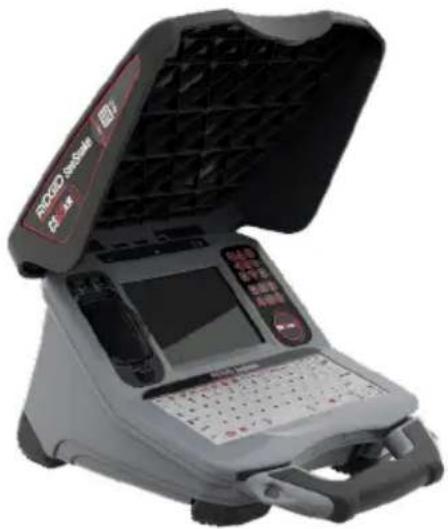
The RIDGID®SeeSnake ® CS65XR Wi-Fi-enabled reporting monitor is the all-in-one solution for capturing media and delivering inspection results to your customers, all right from the job site. Built for speed and flexibility, the CS65XR turns your captured media into professional reports that can be enhanced with notes and customer information using the included reporting software.
With its 128 GB solid state storage and dual USB ports, you can make multiple copies of inspections, bypassing the extra steps of editing jobs on a PC after the fact. With the CS65xR's dual recording capability you have a copy for yourself and up to 2 copies saved on USB drives to give to customers. You can configure the CS65xR to automatically sync media and jobs to the USB drives in real time.
Easily take photos and video to capture media during your inspection. The CS65XR creates professional, high-quality multimedia reports automatically throughout your inspection, so you can finish a report and move on to the next job. Enable the integrated GPS to record location data while you work.
The CS65XR is compatible with all See-Snake camera reels, and conveniently mounts on the See Snake MAX rM200 for easy transport.
The CS65XR is easy to use in the most demanding work environments. The keyboard is encased in a splash-proof cover and lets you add notes to image captures and video recordings, and enter job details into reports. View captured media and reports on the CS65XR's 165 mm [6.5 in] daylight viewable display.
Download HQx Live, the free iOS™ or Android™ companion app to use your mobile device as a second screen. Using the CS65XR's built-in Wi-Fi, pair a smartphone or tablet to the CS65XR to provide uninterrupted, high-quality video streaming directly on the device, letting you show your customers the inspection in real-time. HQx Live also lets you capture media from a paired device, and multiple devices can be paired to a CS65XR at once.
HQ software streamlines critical and routine updates which help improve and prolong the life of your equipment. HQ also gives you the ability to manage jobs and generate reports for customers. The included 8 GB USB drive comes with HQ preloaded.
| Specifications | |
| Weight without Battery | 4.4 kg [9.7 lb] |
| Dimensions | |
| Depth 406 mm [16.0 in] | |
| Width 319 mm [12.5 in] | |
| Height 242 mm [9.5 in] | |
| Power Source | 18 V Li-Ion re-chargeable battery or AC adapter |
| Power Rating 15-25 VDC, 25 W | |
| Display | |
| Type Color LCD | |
| Size 162 mm [6.4 in] | |
| Active Area | 130 mm x 97 mm [5.1 in x 3.8 in] |
| Resolution | XGA 1024 x 768 pixels |
| Brightness 1400 cd/m ^2 | |
| Media | |
| Standard video MPEG4 (H.264) | |
| Autolog video | MPEG4 (H.264) Highly compressed format using a space saving frame rate optimized for pipe inspections |
| Photo JPG | |
| PhotoTalkTM | MPEG4 (H.264) Single image with audio commentary |
| Audio | Integrated micro-phone and speaker |
| Transfer Method 2.0 USB | |
| USB Ports | 1 x 0.5 A (Port 1) 1 x 1.5 A (Port 2) |
| Specifications | |
| Internal Storage | 128 GBSolid State Drive(SSD) |
| Connectivity | |
| Bluetooth 4.0 | |
| Wi-Fi 802.11 a/b/g/n | |
| GPS | Integrated |
| Operating Environment | |
| Temperature* | -10°C to 50°C[14°F to 122°F] |
| Storage temperature | -20°C to 60°C[-4°F to 140°F] |
| Relative humidity | 5 to 95 percent |
| Altitude | 4,000 m [13,120 ft] |
| *The AC adapter is rated for 0°C to 40°C[32°F to 104°F]. Using the AC adapter may limit operation in extreme temperatures. | |
Standard Equipment
- SeeSnake CS65XR
- AC Adapter
• 8 GB USB Drive (with HQ preloaded) - Operator's Manual
Components
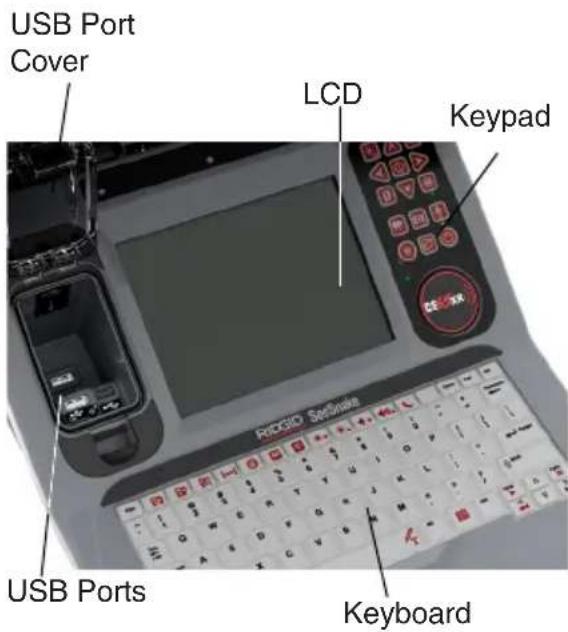
USB Ports
The CS65XR supports up to two USB drives so you can create two copies of a job at the same time: one for your records and one for your customer. Keep the USB port cover closed to protect the USB drives and USB ports during inspections and transport.

Note: Use USB port 2 for USB drives with higher power requirements.
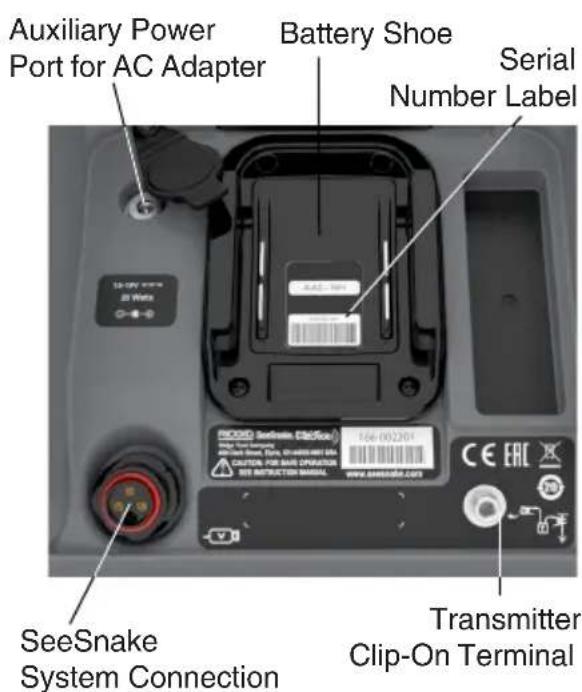
rM200 Docking System
To dock the CS65 _XR onto the rM200, follow these steps:
- Depress the red buttons on the rM200 inward so that they do not obstruct the CS65xR's unfolded kickstand.
- Unfold the kickstand from the bottom of the CS65 _XR , and place it onto the rM200.
- Reset the red buttons on the rM200 to lock the CS65xR into place.

natural_image
Black and red RIOGIO power supply machine with visible wheels and branding (no text or symbols on body)Operating Instructions

WARNING
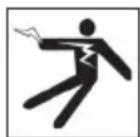

This section contains important safety information that is specific to the RIDGID®SeeSnake® CS65XR. Read these precautions carefully before using the CS65XR to reduce the risk of electrical shock, fire, and/or serious injury.
SAVE ALL WARNINGS AND INSTRUCTIONS FOR FUTURE REFERENCE!
SeeSnakeCS65XR Safety
- Read and understand this manual, the camera reel manual, and the instructions for any other equipment you are using before operating the equipment. Failure to follow all instructions may result in property damage and/or serious injury. Keep this manual with the equipment for future use.
- Do not operate the unit if you or the equipment are standing in water. Operating the equipment while in water increases the risk of electrical shock. Rubber-soled, non-slip shoes can help prevent slipping and electrical shock on wet surfaces.
- The battery shoe and other electrical equipment and connections are not waterproof. Do not expose the equipment to wet locations.
-
Only power the system with a compatible battery or AC adapter. Use of any other battery may create a risk of fire and/or injury. When powered by a battery, protect the monitor from exposure to weather.
-
The AC adapter is not waterproof and is intended for indoor use only. To prevent electrical shock do not power the system with an AC adapter outdoors or in wet conditions.
- The monitor is not designed to provide high voltage protection and isolation. Do not use where a danger of high voltage contact is present.
- Do not expose the unit to mechanical shocks. Exposure to mechanical shocks can damage equipment and increases the risk of serious injury.
- Carrying the system incorrectly can cause the CS65XR to disengage from the docking system and may result in property damage and/or serious injury. Never carry the rM200 by the CS65XR's handle when transporting the system. Always use the frame handle on the rM200.
Inspection Overview

WARNING

Wear appropriate protective equipment such as latex or rubber gloves, goggles, face shields, and respirators when inspecting drains that might contain hazardous chemicals or bacteria. Always wear eye protection against dirt and other foreign objects.
The following is an overview of how to perform a pipe inspection with your SeeSnake system:
-
Connect the monitor to a camera reel with the system cable.
-
Press the Power key

-
Carefully put the camera into the pipe. Protect the push cable from sharp edges at the pipe entrance.
-
Push the camera through the pipe and observe the display.
-
Depending on the requirements for the job, you may want to include one or more of the following:
-
Capture media.
- Stream live video to your mobile device and share media with customers.
• Take a temporary segment distance measurement. - Add custom overlay.
- Review the job, captured media, and preview the report.
- Deliver a report to your customer on a USB drive.
Connecting to a Camera Reel
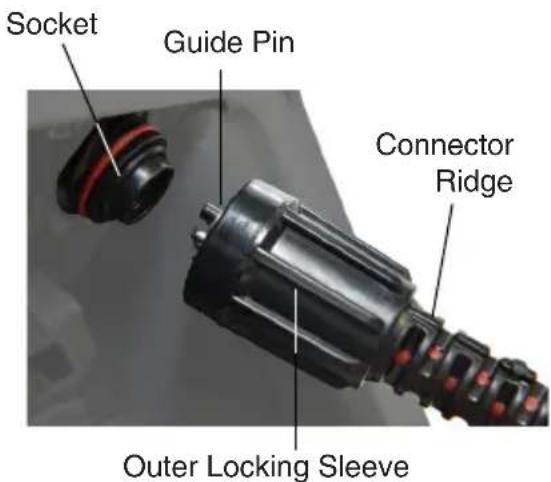
The CS65 _XR can connect to any See Snake camera reel with the See Snake system cable.
- Pull back the outer locking sleeve on the system cable connector.
- Align the connector ridge and plastic guide pin with the socket and push the connector straight in.
- Tighten the outer locking sleeve.
NOTICE
Only twist the outer locking sleeve. To prevent damage to the pins, never bend or twist the connector.
Powering the System
NOTICE
Unexpected power loss may result in data loss and corruption.
The system is powered by a compatible 18 V Li-Ion rechargeable battery or AC adapter. Battery run time will vary according to battery capacity and use. When copying lengthy jobs or large batches of jobs use an AC adapter.
Note: The AC adapter does not recharge the 18 V battery.
Keypad and Keyboard
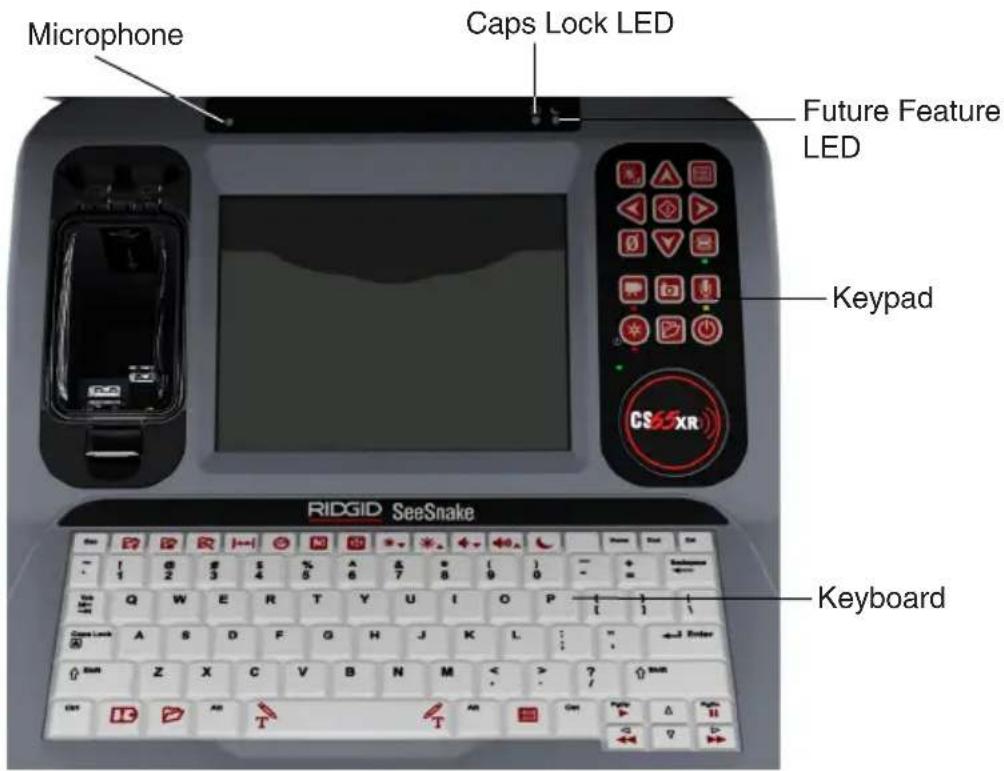
| Keys and Functions | |||
| Keypad Keyboard Key Name Function | |||
 | Power Power on and off. | ||
 | Arrows | Navigate through menus and screens and increase or decrease volume during play-back. Press left, right, or down arrow in live feed for Quick Access Menus. | |
 |  | Select / Pause | Select highlighted items and apply chang-es. When recording standard video or Autolog video, press to pause and resume recording. |
 |  | Menu | Open the menu to modify settings, includ-ing connectivity, reel, camera, region, and more. Press to exit out of tabs and screens. |
| Esc | Escape Press to exit out of tabs and screens. | ||
| Keys and Functions | ||
| Keypad Keyboard Key Name Function | ||
 | Photo / PhotoTalkTM | Press to capture a photo or press and hold to create a PhotoTalk. Default key action can be swapped in the settings menu. |
 | Video Start and stop standard video recording. | |
 | Autolog | Start and stop Autolog video recording.Optionally press once to power on and start Autolog video recording simultaneously. |
 | Job Manager | Open the Job Manager to view the job list, create a new job, preview an existing job, enter company information, or delete jobs from the USB drive. Access storage and formatting options, and add default inspector contact information. |
 | LED Brightness | Control the brightness of the LEDs in the camera. |
 | Microphone Mute | Enable and disable the microphone. |
 | Sonde Enable and disable the sonde. | |
 | Zero | Long press (>3 seconds) to set the system measurement to zero at the beginning of an inspection. Short press (<1 second) to start and stop temporary segment measurements. The temporary segment measurement appears in brackets. |
 | Text Add and edit custom overlay text. | |
 | Play | Open the job review screen to review captured media. |
| [WT0K] | Pause Pause video or Autolog video playback. | |
| [36K0] | Fast-Forward | Fast-forward. Continue pressing to increase the fast-forward speed. |
| [24HT2] | Rewind | Rewind. Continue pressing to increase the rewind speed. |
 | New Job Create a new job. | |
 | Close Job | Close the open job. |
 | Edit Job | Open the job review screen to review captured media, play back videos, add notes, enter customer and job location information, and preview the report for the open job. |
 | Count Measurement | Toggle to show or hide the counter measurement display. |
 | Date/Time | Cycle the date/time display to show only the time, only the date, both, or neither. |
     | Keys reserved for future features or product models. | |
User Interface
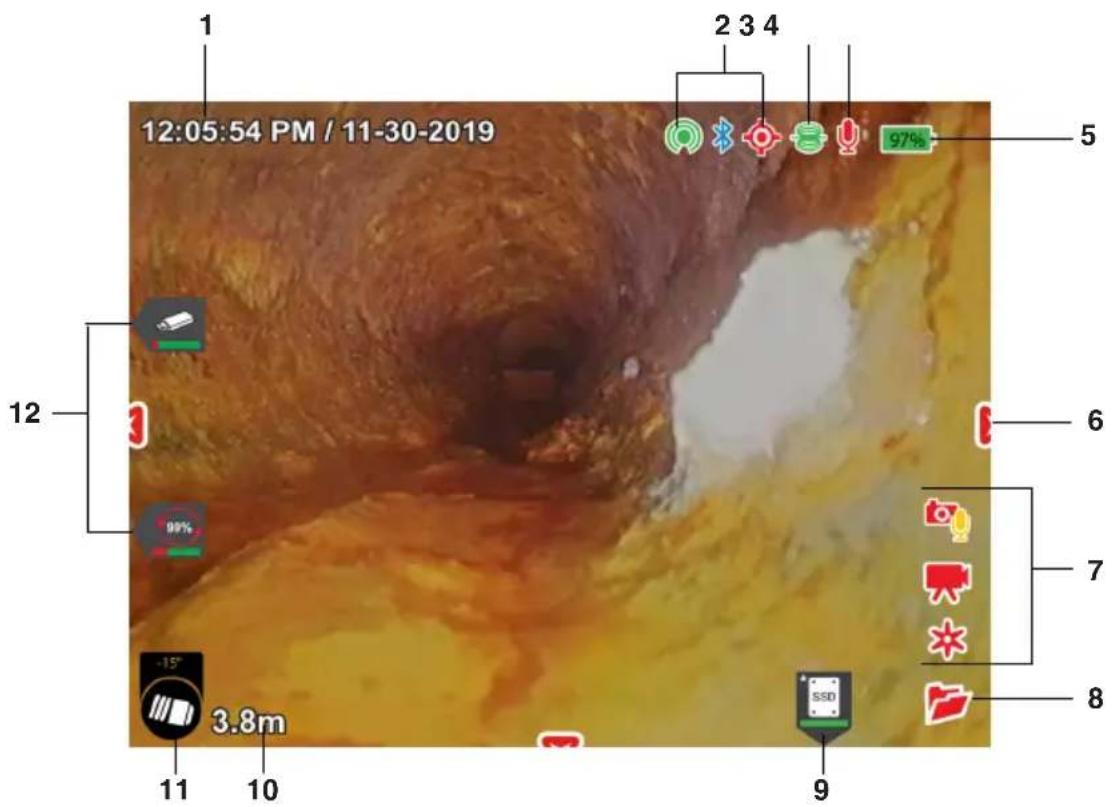
| User Interface | |
| 1 Time and Date Overlay | --- Options: Show time only, date only, both, or neither. |
| 2 Connectivity |  Wi-Fi not connected. Wi-Fi not connected. Wi-Fi connected. Wi-Fi connected. |
 Bluetooth enabled but not connected. Bluetooth enabled but not connected. Bluetooth connected. Bluetooth connected. | |
 GPS icon flashes when acquiring satellite signal. Icon is solid when locked. GPS icon flashes when acquiring satellite signal. Icon is solid when locked. | |
| 3 Sonde Sonde enabled and transmitting. | |
| 4 Microphone |  Microphone enabled. Microphone enabled. Audio recording in progress. Audio recording in progress. Microphone disabled. Microphone disabled. |
| 5 Power |  Battery power level indicator. Battery power level indicator. AC Power. AC Power. |
| User Interface | |||
| 6 | Quick Access Menus |  | A Quick Access Menu is open. |
| 7 | Media Capture Icons |  | Photo captured. |
 | PhotoTalk ^TM media created. | ||
 | Video recording. | ||
 | Video recording paused. | ||
 | Autolog video recording. | ||
| [AAKK] | Autolog video recording, motion detected. | ||
 | Autolog video recording paused. | ||
| 8 Open Job A job is open | |||
| 9 SSD Status |  | Internal SSD Storage. The star indicates that this is the primary storage. | |
 | Media is being written to the SSD. | ||
 | Processing complete. All media has been saved to the SSD. | ||
| 10 Count Overlay --- Options: Show or hide count overlay. | |||
| 11 TiltSense ^TM |  | TiltSense ^TM inclinometer reading. Must be connected to a SeeSnake camera reel with TruSense ^ technology. | |
| 12 USB Status |  | USB drive inserted. Safe to remove the USB drive. | |
 | Do not remove the USB drive! Media is being written to the USB drive. Premature removal of the USB drive may result in data loss and corruption. | ||
 | Blue brackets on corners indicate that the drive has priority and will complete processing first. | ||
 | Media transfer complete. Safe to remove the USB drive. | ||
Maintenance and Support
Support
For support and additional information about using your system, visit support. seesnake.com/cs65xr.
Software Updates
Critical and routine software updates for your SeeSnake monitor are released through HQ. Staying up to date with HQ software prolongs and improves the life and usefulness of your equipment.
Cleaning
WARNING
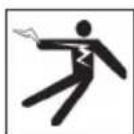
To reduce the risk of electrical shock, disconnect all cords and cables and remove the battery or other power supply from the CS65XR before cleaning.
The best way to clean the unit is with a damp cloth. Close the USB port cover before cleaning. Do not hose down or allow any liquid or moisture to enter the unit. Do not use liquid or abrasive cleaners. Only clean the display with cleaners approved for use on LCDs.
Transport and Storage
Store and transport your system with the following in mind:
- Store in a locked area out of the reach of children and people unfamiliar with its purpose.
- Store in a dry place to reduce risk of electrical shock.
- Store away from heat sources such as radiators, heat registers, stoves, and other products (including amplifiers) that produce heat.
- Storage temperature should be -20^ to 60^ [-4°F to 140°F].
- Do not expose to heavy shocks or impacts during transport.
- Remove the battery before shipping and before storing for extended periods of time.
Service and Repair
Improper service or repair can cause the CS65 _XR to be unsafe to operate.
Service and repair of the CS65 XR must be performed at a RIDGID Independent Authorized Service Center. To maintain the safety of the monitor, make sure a qualified repair person services your unit using only identical replacement parts. Discontinue using the CS65 XR , remove the battery, and contact service personnel under any of the following conditions:
- If liquid has been spilled or objects have fallen into the equipment.
- If the equipment does not operate normally when operating instructions are followed.
- If the equipment has been dropped or damaged.
- If the equipment exhibits a distinct change in performance.
For information on your nearest RIDGID Independent Service Center or any service or repair questions:
- Contact your local RIDGID distributor.
- Visit RIDGID.com.
- Contact Ridge Tool Company Technical Service Department at rtctechservices@emerson.com or, in the USA and Canada, call 1-800-519-3456.
Disposal
Parts of your system contain valuable materials that can be recycled. There are companies that specialize in recycling that may be found locally. Dispose of the components in compliance with all applicable regulations. Contact your local waste management authority for more information.
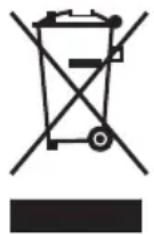
EC Countries: Do not dispose of electrical equipment with household waste!
According to the European Guideline 2012/19/EU for Waste Electrical and Electronic Equipment and its implementation into national legislation, electrical equipment that is no longer usable must be collected separately and disposed of in an environmentally correct manner.
Battery Disposal
EC Countries: Defective or used batteries must be recycled according to the guideline 2006/66/EEC.
SeeSnake CS65XR)
natural_image
Exterior view of a modern RIGSD SeeState 65 XR mobile phone with open lid and control panel (no readable text beyond branding)
AVERTISSEMENT!
Download on the App Store

GET IT ON Google Play
natural_image
Exterior view of a modern office building (no signage)Description
natural_image
Black and red ROCCO Gasoline electric vacuum cleaner with wheels and control panel (no visible text or symbols)natural_image
Exterior view of a RICGID Seeslate CS5 XR device with open lid and control panel (no readable text or symbols)
¡ADVERTENCIA!
natural_image
Exterior view of a handheld electronic device with open lid and keyboard (no visible text or symbols)Descripción
| Puertos USB | 1 x 0.5 A (Puerto 1) |
| 1 x 1.5 A (Puerto 2) |
natural_image
Exterior view of a black and red electric vacuum cleaner with visible branding (no text or symbols on body)Ridge Tool Europe NV (RIDGID)
Belgium
© 2020 Ridge Tool Company. All rights reserved.
Every effort has been made to ensure that the information in this manual is accurate. Ridge Tool Company and its affiliates reserve the right to change the specifications of the hardware, software, or both as described in this manual without notice. Visit www.RIDGID.com for current updates and supplemental information pertaining to this product. Due to product development, the photos and other presentations specified in this manual may differ from the actual product.
RIDGID and the RIDGID logo are trademarks of Ridge Tool Company, registered in the USA and other countries. All other registered and unregistered trademarks and logos mentioned herein are the property of their respective owners. Mention of third-party products is for informational purposes only and constitutes neither an endorsement nor a recommendation.
iPad, iPhone, iPod touch, and App Store are trademarks of Apple Inc., registered in the USA and other countries. "Made for iPod," "Made for iPhone," and "Made for iPad" mean that an electronic accessory has been designed to connect specifically to iPod, iPhone, or iPad respectively, and has been certified by the developer to meet Apple performance standards. Apple is not responsible for the operation of this device or its compliance with safety and regulatory standards. Please note that the use of this accessory with iPod, iPhone, or iPad may affect wireless performance.
IOS is a trademark or registered trademark of Cisco in the USA and other countries and is used under license by Apple Inc.
The Bluetooth word mark and logos are owned by the Bluetooth SIG, Inc.
Android and Google Play are trademarks of Google Inc.
Printed in USA 2020/08/06
999-995-230.10
742-040-0153-00-0A


- ! WARNING!
- Table of Contents
- Introduction
- General Safety Rules
- SeeSnakeCS65XR Overview
- Operating Instructions
- Maintenance and Support
- Regulatory Statements
- Safety Symbols
- DANGER
- WARNING
- CAUTION
- NOTICE
- SAVE THESE INSTRUCTIONS!
- Work Area Safety
- Electrical Safety
- Personal Safety
- Equipment Use and Care
- Battery Use and Care
- Pre-Operation Inspection
- Description
- Standard Equipment
- Components
- USB Ports
- rM200 Docking System
- SAVE ALL WARNINGS AND INSTRUCTIONS FOR FUTURE REFERENCE!
- SeeSnakeCS65XR Safety
- Inspection Overview
- Connecting to a Camera Reel
- Powering the System
- Support
- Software Updates
- Cleaning
- Transport and Storage
- Service and Repair
- Improper service or repair can cause the CS65 _XR to be unsafe to operate.
- Disposal
- Battery Disposal
- SeeSnake CS65XR)
- AVERTISSEMENT!
- ¡ADVERTENCIA!
- Descripción
Brand : RIDGID
Model : SeeSnake CS65XR
Category : Monitor