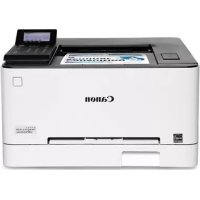
USER MANUAL imageCLASS LBP632Cdw CANON
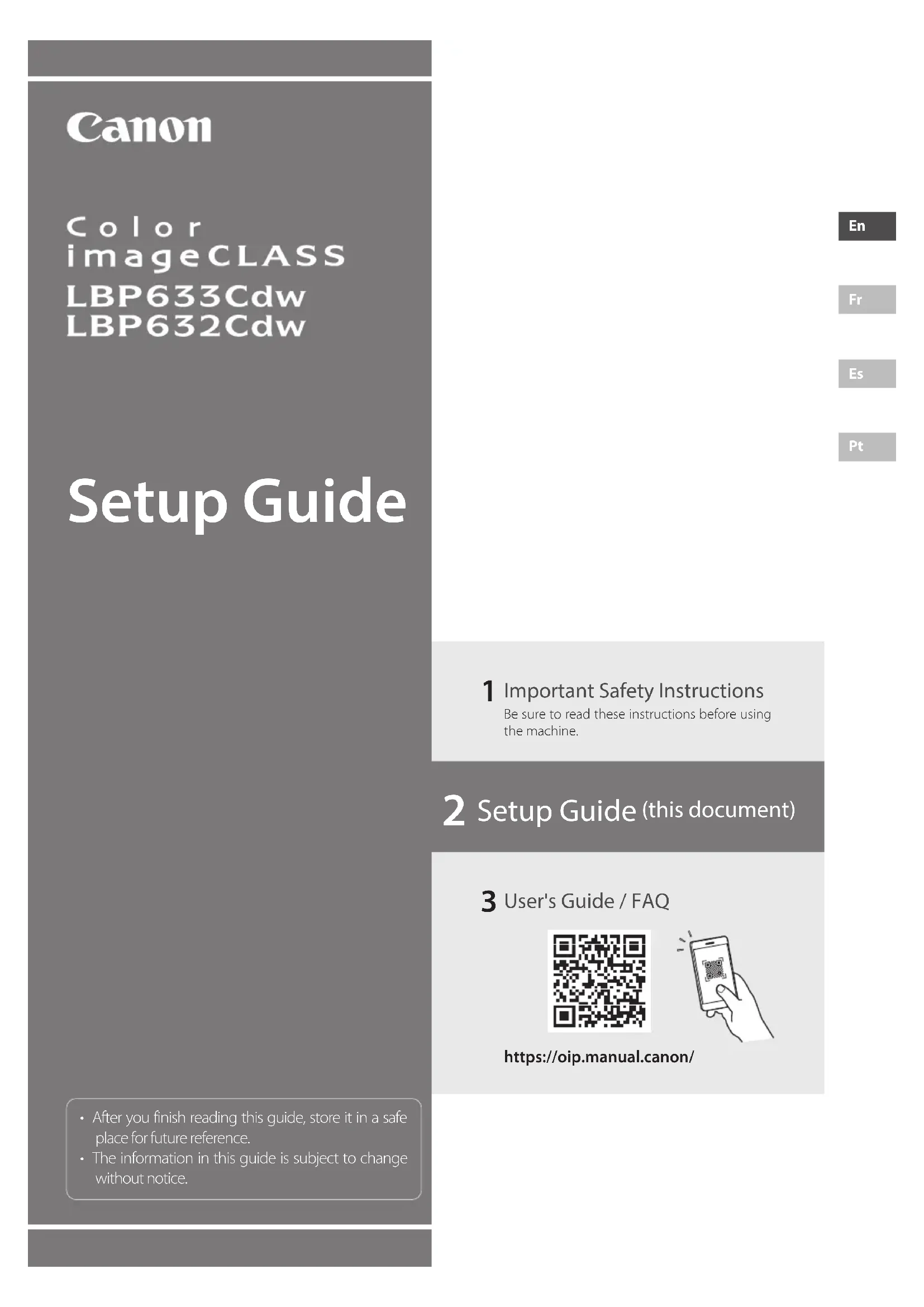
• After you finish reading this guide, store it in a safe place for future reference.
- The information in this guide is subject to change without notice.
1 Important Safety Instructions Be sure to read these instructions before using the machine.
2 Setup Guide (this document)
3 User's Guide / FAQ


https://oip.manual.canon/
Unless otherwise stated, illustrations used in this document are for the LBP633Cdw.

1 Checking the Items Included
2 Removing the Packing Material
- Install the machine in the location where it will be used.

natural_image
Illustration of a person handling an electronic device with a magnified inset showing the device's left side (no text or symbols present)
- Remove all packing material.
Remove all of the tape.

Do not remove the sticker that covers the USB port until you actually use the USB port.

natural_image
Technical line drawing of a mechanical device with an inset close-up showing a component detail (no text or symbols)
3 Loading Paper
1.

natural_image
Illustration of hands inserting a plastic into a printer case (no text or symbols visible)
2.

3.

4.

natural_image
Illustration of hands operating a device with an arrow indicating direction (no text or symbols present)
4 Connecting the Power Cord

5 Specifying the Basic Settings
When you turn on the machine for the first time, the Setup Guide starts up on the operation panel. Perform the initial machine setup by following the on-screen instructions.

- Select the language, then the country/region and finally the time zone.
- Set the current date/time.
6 Specifying the Security Settings
Specify the basic security settings to prevent unauthorized access to the machine.
- To use the Remote UI, select .
To continue without using the Remote UI, select and proceed to step 7.
- Check the explanation for using General User mode and press OK
-
To use General User mode, select .
-
Set the PIN to be used by general users to access the Remote UI.
-
To continue without using General User mode, select and proceed to step 7.
-
Set the Remote UI Access PIN.
-
Enter any number and then select .
- Re-enter the same PIN on the next screen as confirmation and select .
7 Specifying the Network Settings
Specify the settings for connecting the machine to a network. Before proceeding, check that the computer and router are correctly connected to the network.
Wireless LAN
- Check the router's "SSID" and "Network key."

En
- To configure the settings, select on the operation panel.
- Select the network with a matching SSID.
- Enter the password (network key) and select .
- Select to connect using the selected settings.
Select to return to the previous screen.
Fr
Es
Pt
Wired LAN
Connect the router to the machine with a LAN cable and then select in the screen for choosing how to connect to the network.

natural_image
Diagram showing a device connected to a box via cable, with a magnified inset highlighting a detail (no text or symbols present)
8 Setting Up the Toner Replenishment Service
Use this procedure to set up the toner replenishment service. To use this service, you must enter into an agreement beforehand.
- Check the message and then press OK
- Check the conditions of use, and then choose whether or not to use the service.
• To use the service: Press OK
• To not use the service or not enter into an agreement: Press and proceed to step 9.
- When appears, press OK
9 Installing the Software/Drivers
Install the software and drivers from the CD/DVD-ROM included, or visit the URL below and download them from the Canon website for your country/region.
https://global.canon/en/support/
XXXXXXXX download

Example: LBP633Cdw download
Canon
Color
imageCLASS
LBP633Cdw
LBP632Cdw
Guide de
configuration
natural_image
Technical line drawing of a mechanical component with an inset magnified detail showing a close-up view (no text or symbols)
natural_image
Illustration of a printer's internal structure being inserted, showing hand placement and tool path (no text or symbols)


natural_image
Illustration of hands inserting a device into a folder, with an arrow indicating direction (no text or symbols present)
5 Réglages de base
natural_image
Diagram showing a device connected to a battery via cable, with a magnified inset highlighting the connector (no text or symbols present)
8
The image contains no text.
natural_image
Illustration of a person handling a device with a magnified inset showing hand placement (no text or symbols)
natural_image
Technical line drawing of a mechanical device with an inset close-up showing a component detail (no text or symbols)
3 Cargar papel
1.

natural_image
Illustration of hands inserting a plastic into a printer case (no text or symbols visible)
2.

3.

natural_image
Illustration of hands inserting a device into a container with an arrow indicating direction (no text or symbols)
4
5
natural_image
Technical line drawing of a mechanical device with an inset close-up showing a component detail (no text or symbols)
3 Carregando papel
1.

natural_image
Illustration of a printer's internal structure being inserted into a plastic holder, with no visible text or symbols.


natural_image
Illustration of hands inserting a device into a folder, with an arrow indicating direction (no text or symbols present)
4
5
One Canon Park, Melville, NY 11747, U.S.A.
Call Center: 1-800-OK-CANON
CANON MEXICANA, S. DE R.L. DE C.V.
Boulevard Manuel Avila Camacho #138 Piso 17, Col. Lomas de Chapultepec Mexico City, Mexico 11000
Call Center: 01800-710-7168
CANON INC.
30-2, Shimomaruko 3-chome, Ohta-ku, Tokyo 146-8501, Japan
CANON AUSTRALIA PTY LTD
Building A, The Park Estate, 5 Talavera Road, Macquarie Park, NSW 2113, Australia
CANON GLOBAL WORLDWIDE SITES
https://global.canon/

FT6-2765 (000)
XXXXXXXXXX
Copyright CANON INC. 2021
PRINTED IN XXXXX
Imprimé XXX XXXXX