RSX972 - Receiver ROTEL - Free user manual and instructions
Find the device manual for free RSX972 ROTEL in PDF.



| Product Type | AV Surround Receiver |
| Brand | Rotel |
| Model | RSX-972 |
| Power Output | 75 W per channel (20 Hz-20 kHz, 0.09% THD, 8 ohms, all channels) / 100 W per channel (1 kHz, 0.1% THD, 8 ohms) |
| Total Harmonic Distortion | < 0.09% |
| Frequency Response | 10 Hz - 20 kHz ±1 dB (line) / ±0.3 dB (digital) |
| Signal-to-Noise Ratio | 92 dB (stereo analog) / 90 dB (Dolby Digital/DTS) |
| Analog Inputs | CD, TAPE, 5 video inputs (audio L/R), 1 5.1-channel input |
| Digital Inputs | 3 coaxial (RCA), 2 optical (Toslink) |
| Amplified Outputs | 5 channels (front L/R, center, surround L/R) |
| Preamp Outputs | 6 channels (front L/R, center, surround L/R, subwoofer) |
| Zone 2 Output | Stereo line, variable or fixed level |
| Tuner | AM/FM with 30 presets, RDS |
| Surround Decoders | Dolby Pro-Logic, Dolby Digital, DTS |
| Remote Control | Programmable universal RR-969 (up to 9 devices) |
| Power Consumption | 850 W |
| Power Supply Voltage | 115 V 60 Hz or 230 V 50 Hz |
| Weight | 15 kg |
| Care and Cleaning | Dry cloth or vacuum. Do not use solvents. |
| Safety | Do not remove cover. Ensure free ventilation (10 cm around). Unplug if moisture is present. |
| Repairability | No user-serviceable parts. Contact authorized service. |
Frequently Asked Questions - RSX972 ROTEL
User questions about RSX972 ROTEL
0 question about this device. Answer the ones you know or ask your own.
Ask a new question about this device
Download the instructions for your Receiver in PDF format for free! Find your manual RSX972 - ROTEL and take your electronic device back in hand. On this page are published all the documents necessary for the use of your device. RSX972 by ROTEL.
USER MANUAL RSX972 ROTEL
Surround Sound Receiver
This symbol is to alert the user to the presence of uninsulated dangerous voltages inside the product's enclosure that may constitute a risk of electric shock.

This symbol is to alert the user to important operating and maintenance (service) instructions in this manual and literature accompanying the product.

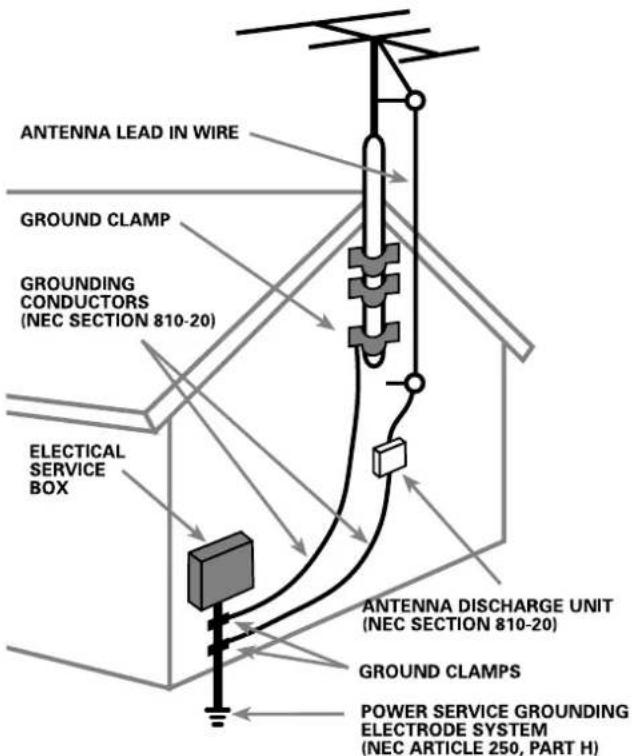
ANTENNA GROUNDING ACCORDING TO NATIONAL ELECTRICAL CODE INSTRUCTIONS
ARTICLE 810: "RADIO AND TELEVISION EQUIPMENT"
English
WARNING: There are no user serviceable parts inside. Refer all servicing to qualified service personnel.
WARNING: To reduce the risk of fire or electric shock, do not expose the unit to moisture or water. Do not allow foreign objects to get into the enclosure. If the unit is exposed to moisture, or a foreign object gets into the enclosure, immediately disconnect the power cord from the wall. Take the unit to a qualified service person for inspection and necessary repairs.
Read all the instructions before connecting or operating the component. Keep this manual so you can refer to these safety instructions.
Heed all warnings and safety information in these instructions and on the product itself. Follow all operating instructions.
Clean the enclosure only with a dry cloth or a vacuum cleaner.
You must allow 10 cm or 4 inches of unobstructed clearance around the unit. Do not place the unit on a bed, sofa, rug, or similar surface that could block the ventilation openings. If the unit is placed in a bookcase or cabinet, there must be ventilation of the cabinet to allow proper cooling.
Keep the component away from radiators, heat registers, stoves, or any other appliance that produces heat.
The unit must be connected to a power supply only of the type and voltage specified on the rear panel. (USA: 115 V/60Hz, EC: 230V/50Hz)
Connect the component to the power outlet only with the supplied power supply cable or an exact equivalent. Do not modify the supplied cable. Do not defeat grounding and/or polarization provisions. The cable should be connected to a 2-pin polarized wall outlet, matching the wide blade of the plug to the wide slot of the receptacle. Do not use extension cords.
Do not route the power cord where it will be crushed, pinched, bent, exposed to heat, or damaged in any way. Pay particular attention to the power cord at the plug and where it exits the back of the unit.
The power cord should be unplugged from the wall outlet if the unit is to be left unused for a long period of time.
Immediately stop using the component and have it inspected and/or serviced by a qualified service agency if:
- The power supply cord or plug has been damaged.
- Objects have fallen or liquid has been spilled into the unit.
• The unit has been exposed to rain.
• The unit shows signs of improper operation
- The unit has been dropped or damaged in any way
NOTE TO CATV SYSTEM INSTALLER: Call the CATV system or antenna installer's attention to Article 820-40 of the NEC. This provides guidelines for proper grounding and, in particular, specifies that the cable ground shall be connected to the grounding system of the building, as close to the point of cable entry as practical. See installation diagram.
NOTE: This equipment has been tested and found to comply with the limits for a Class B digital device, pursuant to Part 15 of the FCC Rules. These limits are designed to provide reasonable protection against interference in a residential installation. This equipment generates and can radiate radio frequency energy and, if not installed and used in accordance with the instructions, may cause interference to radio or TV communications. There is no guarantee that interference will not occur in a particular installation. If this equipment does cause interference to radio or television reception, which can be determined by turning the equipment off and on, try to correct the interference by one or more of the following measures:
- Reorient or relocate the receiving antenna.
- Increase the separation between the unit and the television tuner.
- Connect the unit to an AC power outlet on a different electrical circuit.
- Consult your authorized Rotel retailer for assistance.
Français
Boxed numbers refer to RSX-972 illustration. Boxed letters refer to RR-969 illustration.
1: Controls and Connections 4
2: RR-969 Remote 5
3: Outputs 6
4: Inputs 7
5: Zone 2 Connections 8
6: Antenna
7: On-Screen Menus 10
About Rotel 12
Getting Started 12
Key Features 12
Unpacking 12
Placement 12
RR-969 Remote Control 12
Using the RR-969 13
Programming the RR-969 13
Basic Controls ....13
POWER Switch 13 J
Remote Sensor 13
Front-panel Display 5 13
Volume Control 12 L 13
MUTE Button N 13
Tone Controls 11 13
MENU Button 13
ENTER Button P 13
Input Controls ....14
Input Source Buttons 6 F 14
REC Button 20
ZONE Button S 14
5.1 CH Input 17
EXT IN G 14
Surround Sound Controls....14
PRO LOGIC Button 15 14
3 STEREO Button 14 14
DSP Button 16 14
2CH Button 13 15
SUR+ Button 15
Speaker Level Adjustment
Selection Buttons C E R
UP/DOWN Buttons D 15
DYNAMIC RANGE Button 18
DWN Button 15
Tuner Controls 15
BAND Button 4 M 15
TUNING Buttons 3 K 15
MEMORY Button 10 16
NUMERIC Buttons:
Station Presets 7 B 16
DIRECT Button 8 16
MONO Button 9 16
PRESET Button T 16
RDS and RBDS Broadcast Reception .....16
DISPLAY Button 17
PTY Button H 17
TP Button 17
TA Button 1 17
Connections: Overview ......17
Video Connections 18
Audio Source Connections ......18
CD Inputs 18
TAPE Inputs and Outputs 35 18
Video Source Inputs......18
VIDEO 1–5 Audio Inputs 36 18
VIDEO 1–5
Composite Video Inputs 39 19
VIDEO 1–5 S-Video Inputs 38 19
VIDEO 1-2
Component Video Inputs 31 19
5.1 Channel Audio Inputs 24 19
Video Source Outputs ....19
VIDEO 1—3 Audio Outputs 19
VIDEO 1-3
Composite Video Outputs 41 19
VIDEO 1—3 S-Video Outputs 40 19
Digital Source Connections ......19
Digital Inputs 23 19
Digital Outputs 20
Output Signal Connections ......20
TV Monitor Output 31 42 20
Speaker Outputs 20
RCA Preamp Outputs 33 20
Antenna Connections ......20
AM Loop Antenna 20
FM Wire Antenna 21 21
Power and Miscellaneous Connections ...21
AC Input 23
12V TRIGGER Connections 20
EXTERNAL REM IN 29 21
Zone 2 Connection and Operation......21
Zone 2 Power On/Off Operation 21
Controlling Zone 2 from the Main Room
ZONE Button 19 22
Controlling Zone 2 from the Remote Location 22
Zone 2 Audio Outputs 26 22
ZONE REM IN Jack 22
IR OUT Jacks 28 23
On-Screen Display / Configuration .....23
Navigation Buttons D O P Q 23
SYSTEM STATUS Menu 23
MAIN Menu 23
INPUT Menu 24
SPEAKER SETUP Menu 24
DELAY SETUP Menu 25
SUBWOOFER LEVEL Menu 25
TEST TONE Menu 25
OTHER OPTIONS Menu 26
RESET Menu 26
ZONE 2 SETUP Menu 26
Specifications 27
Audio 27
Video 27
FM Tuner 27
AM Tuner 27
General 27
About Rotel
A family whose passionate interest in music led them to manufacture high fidelity components of uncompromising quality founded Rotel 40 years ago. Through the years that passion has remained undiminished and the family goal of providing exceptional value for audiophiles and music lovers regardless of their budget, is shared by all Rotel employees.
The engineers work as a close team, listening to, and fine tuning each new product until it reaches their exacting musical standards. They are free to choose components from around the world in order to make that product the best they can. You are likely to find capacitors from the United Kingdom and Germany, semi conductors from Japan or the United States, while toroidal power transformers are manufactured in Rotel's own factory.
Rotel's reputation for excellence has been earned through hundreds of good reviews and awards from the most respected reviewers in the industry, who listen to music every day. Their comments keep the company true to its goal - the pursuit of equipment that is musical, reliable and affordable.
All of us at Rotel, thank you for buying this product and hope it will bring you many years of enjoyment.
Getting Started
Thank you for purchasing the Rotel RSX-972 Surround Sound Receiver. The RSX-972 is four products in one:
- A digital audio/video processor with Dolby® Pro Logic® decoding for Dolby Surround® source material plus Dolby Digital® and DTS® processing for digital surround sound signals.
- A full-featured audio/video control center for analog and digital source components.
- A high-quality AM/FM tuner with RDS capability.
- A 5-channel power amplifier to drive two front speakers, a center channel speaker, and two rear surround speakers.
Key Features
- Rotel's Balanced Design Concept combines advanced circuit board layout, comprehensive parts evaluation, and extensive listening tests for superior sound and long term reliability.
- Dolby ^ Pro Logic ^ decoding for Dolby Surround ^ analog sources. Dolby Digital ^ and DTS ^ decoding for 5.1 channel digital sources
- Digital and analog input and output connections for digital signals, composite video, S-Video, and Component Video.
- Five built-in amplifier channels, each delivering 75 watts (20-20kHz, <0.09% THD, all channels driven)
- AM/FM tuner with 30 station presets, direct access tuning, and auto-tuning.
- RDS (Radio Data Systems) and RBDS (Radio Broadcast Data Service) capability.
- Zone 2 output with independent input selection and volume adjustments for multi-zone custom installations along with IR-repeater capability for operation from the remote zone.
-
5.1 channel input for outboard adaptor and future upgradeability
-
User friendly ON-SCREEN DISPLAY with programmable labels for video components. Choice of English or German languages.
- Universal learning remote control to operate the RSX-972 and nine other components.
Unpacking
Remove the unit carefully from its packing. Find the remote control and other accessories. Save the box as it will protect the RSX-972 if you move or need to return it for maintenance.
Placement
Place the RSX-972 on a solid, level surface away from sunlight, heat, moisture, or vibration. Make sure that the shelf can support the weight of the unit.
Place the RSX-972 close to the other components in your system and, if possible, on its own shelf. This will make initial hookup, and subsequent system changes easier.
The RSX-972 can generate heat during normal operation. Do not block ventilation openings. Allow a minimum of 10 cm (4 inches) of unobstructed space around the unit. If installed in a cabinet, make sure that there is adequate ventilation.
Don't stack other components or objects on top of the RSX-972. Don't let any liquid fall into the unit.
RR-969 Remote Control
The RSX-972 includes a full-function learning remote control that can operate the RSX-972 plus nine other components.
A separate manual, included with the remote, gives detailed instructions on programming and using the RR-969 to replace all of the remote controls in your system. To avoid duplication, we provide only basic information about using the RR-969 to operate the RSX-972 in this manual.
Most of the RR-969 functions duplicate the front-panel controls. For that reason, we will cover the operating controls on the remote in the appropriate sections of this manual. Letters in gray boxes next to the name of a function refers to the labeled illustration of the remote at the front of this manual.
Using the RR-969 A
To operate the RSX-972 with the remote, make sure that the AUDIO mode is active by pressing the AUD button A on the remote before you start. The AUDIO mode will stay active until another DEVICE button is pressed.
Programming the RR-969 ✗
The RR-969 is preprogrammed to operate the RSX-972. Should the AUDIO command set on your RR-969 not operate the RSX-972, the programming may have been changed. To restore the RSX-972 programming, press the recessed PRELOAD button ✗ on the remote with the tip of a ballpoint pen.
NOTE: Pushing the PRELOAD button will erase all custom programming and learned commands, restoring the RR-969 to its factory condition.
Basic Controls
We suggest you look over the RSX-972's front and rear panels before you start connecting other components. The following explanations will help you get familiar with the unit's connections, features, and controls.
Most functions are duplicated on the front-panel and on the remote. A few are found only on one or the other. Throughout this manual, numbers in gray boxes refer to the RSX-972 illustration at the front of this manual. Letters refer to the RR-969 remote illustration. When both appear, the function is found on both the RSX-972 and the remote. When only one appears, that function is found only on the RSX-972 or the remote.
POWER Switch 1 J
The front-panel POWER switch on the RSX-972 is a master power control. It must be pressed IN for the unit to operate. When it is in the OUT position, the unit is fully off and cannot be activated from the remote control. The POWER switch on the remote functions as a standby switch, activating or deactivating the unit. In standby mode, minimal power is still supplied to memory circuits to preserve settings. When the unit has AC power applied and the front-panel POWER button is pressed IN, the front-panel POWER LED lights, regardless of whether the unit in standby mode or fully-activated in the main room
There are three available power mode options for the RSX-972, selected during set-up from an ON-SCREEN DISPLAY menu. The default DIRECT mode fully activates the unit whenever AC power is supplied and the front-panel POWER button is pressed IN; however, the remote POWER switch can still be used to activate or deactivate the unit. With the STANDBY power option, the unit powers up in standby mode when AC is first applied and the front-panel POWER button is pressed IN. The unit must be manually activated with the remote control POWER button. With the ALWAYS-ON power option, the unit is fully operational whenever AC is applied and the front-panel POWER button is pressed IN. The remote POWER button is disabled.
When using Zone 2, the standby operation is completely independent for the main room and Zone 2. The remote control POWER button will not affect Zone 2. Pressing the POWER button on a remote located in Zone 2 will only affect that zone and not the main room. When the unit is in standby mode in the main room and activated in ZONE 2, the front-panel POWER LED flashes.
Remote Sensor 2
This sensor receives IR signals from the remote control. Do not block this sensor.
Front-panel Display 5
The fluorescent (FL) display in the upper portion of the RSX-972 provides status information. An alphanumeric display shows the name of the source selected for listening on the left and the source selected for recording on the right. At the bottom of the display are status indicators for surround modes and other settings. At the right side of the display are indicators including input source connections.
The FL display can be turned off by pressing and holding the MENU button ☐ on the remote for three seconds. The display can be turned back on by briefly pressing the MENU button again or by pressing the POWER buttons on the remote or on the front-panel.
Volume Control 12 L
The VOLUME control adjusts the level of all output channels. Rotate the front-panel control clockwise to increase the volume, counterclockwise to decrease. The RR-969 remote has VOLUME UP and DOWN buttons.
When you adjust the volume, a digital read-out appears in the front-panel display and the new setting appears on your TV monitor.
NOTE: The VOLUME control can be used to change the volume in Zone 2. Press the front-panel ZONE button and adjust the volume. After 10 seconds, the VOLUME control reverts to normal operation.
MUTE Button N
Push the MUTE button once to turn the sound off. An indication appears in the front-panel and on-screen displays. Press the button again to restore previous volume levels.
Tone Controls 11
BASS and TREBLE controls increase or decrease the audio signal's low and high frequency content respectively. Rotate clockwise to increase output and counterclockwise to reduce. The front-panel display and ON-SCREEN DISPLAY show tone control settings as you adjust them.
MENU Button
Push this button on the remote to turn on the ON-SCREEN DISPLAY menu system. If the menu system is already visible, push this button to cancel the display.
The MENU button can also be used to turn on and off the front-panel FL display. Press and hold the MENU button on the remote for three seconds to turn off the front-panel display. Briefly press the MENU button again to turn the display back on. The display also turns back on whenever the POWER button on the front-panel or remote is pressed.
ENTER Button P
The ENTER button is used to confirm and memorize various settings in the setup and operation of the RSX-972. Its use is described in detail in the relevant sections.
Input Controls
Input Source Buttons 6 F
Press any of the eight front-panel buttons to select an audio or video input source (the built-in tuner, CD, VCR, etc.) for listening. You will hear this source and, if you have selected a video source, see its picture on your TV monitor.
The front-panel display and the ON-SCREEN DISPLAY will show the name of the current listening source selection. The labels for VIDEO sources can be customized to match your components.
All of the inputs (the five video inputs, the CD input, and the TAPE input) can accept either analog signals or digital signals from one of the five assignable digital inputs.
By default, the source input buttons are configured to select the analog input when pressed. However, each source input button can be configured using the ON-SCREEN DISPLAY menu system to give priority to the digital signal. Then, a signal present at the assigned digital input when the source is selected is automatically activated and the proper surround mode enabled. If no digital signal is present, the analog inputs are selected. This auto-sensing is the preferred configuration for digital source inputs such as DVD players. See the INPUT MENU section for configuration instructions.
The input source buttons can also be used (in conjunction with the REC button described in the next section) to select an analog input source signal to be available at the outputs for recording. Additionally, the input source buttons can be used with the ZONE button to select an analog input source for ZONE 2.
REC Button 20 ZONE Button S
The RSX-972 can record from any analog source to a VCR or other recorder connected to the VIDEO 1, 2 or 3 outputs or the TAPE outputs, even while you are listening to a different input source. To select an input source for recording, press the REC button on the front-panel (or the equivalent ZONE button on the remote). Then, press one of the INPUT SOURCE buttons within 5 seconds to select the signal you wish to record. After making your selection (or if more than five seconds passes), the input source buttons return to their normal function, selecting a listening source.
Remember, this selection is independent of the listening source. While recording, you may still select a different source (for example, the built-in tuner) for listening. The record selection appears in the display to the right of the listening selection.
NOTE: The RECORD function requires analog signals. If you use a digital connection from a CD player or DVD for listening, you should also connect an analog signal for recording.
5.1 CH Input 17 EXT IN G
The 5.1 CH button (or the EXT IN button on the remote) overrides all other inputs (both analog and digital) and connects an external digital adaptor to the RSX-972's outputs. This provides an upgrade path to future software standards. When activated, the RSX-972's digital processing is bypassed. An indicator appears in the front-panel display.
Surround Sound Controls
The RSX-972 decodes Dolby Surround ^® , Dolby Digital ^® , and DTS ^® surround sound source material as well as providing several DSP ambience simulations for music.
Dolby Digital and DTS decoding of digital signals is automatic. When a digital signal encoded with either of these is detected, the RSX-972 activates the proper decoding. In most cases, the RSX-972 will also recognize a digital signal Dolby Surround encoding and activate the proper Dolby® Pro Logic® decoding. Additionally, you can configure a default surround mode for each input using the ON-SCREEN DISPLAY menu system.
Four buttons allow manual control of the surround sound/ambience settings, overriding any configured default setting or auto-sensing. There are no right or wrong settings. Just because a mode is labelled 2 CHANNEL does not mean that you must use this mode every time you play a stereo CD. You may prefer one of the other surround modes.
As a general rule, we recommend using PRO LOGIC mode for all sources labeled Dolby Surround. Beyond that, use whatever settings sound best to you in your room with your system.
PRO LOGIC Button 15
This setting decodes Dolby Surround encoded surround sound material, whether it be a music CD, videotape, videodisc, stereo TV broadcast, or radio broadcast. It also can be used to create additional ambience in 2-channel musical source material. Front, center, and rear speakers are activated. An indicator lights in the front-panel display when the PRO LOGIC button is pressed.
NOTE: Leaving the RSX-972 in PRO LOGIC mode offers satisfactory performance and convenience for many source materials. It provides automatic decoding of analog surround sound material and automatic selection of Dolby Digital or DTS processing when an appropriate digital source is played.
3 STEREO Button 14
This mode provides proper playback of Dolby Surround material on systems that have front and center speakers, but lack rear surround speakers. It adds the rear channel signals to the front speakers for a larger, more ambient sound than conventional stereo. An indicator lights in the front-panel display to show that this mode has been activated.
DSP Button 16
This button activates digital synthesis of four ambience modes (MUSIC 1, MUSIC 2, MUSIC 3, and MUSIC 4) which simulate progressively larger acoustic environments and are used to recreate ambience when listening to music sources and/or other sources that lack surround sound encoding.
These four modes vary the amount of delay used for the rear surround signals. Experiment to find a setting which is most pleasing.
Press the button to activate the DSP mode. Each press of the button will step forward to the next mode in the following order: MUSIC 1 > MUSIC 2 > MUSIC 3 > MUSIC 4. An indicator lights in the front-panel display when DSP mode has been activated.
NOTE: As a general rule, the DSP modes provide more exaggerated ambience effects than the PRO LOGIC mode. Experiment with the more spectacular DSP modes for particular recordings or effects.
2CH Button 13
This button activates conventional 2-speaker stereo mode with no surround sound or other processing. This is "pure" stereo, using the front left and front right speakers (with or without subwoofer), with no surround channels and no center channel.
When used with Dolby Digital or DTS source material, the 2CH button engages a downmix feature, combining all of the channels and sending them to the front speakers. The spatial effects of surround sound are lost, but all of the information on the original recording are preserved.
NOTE: 2CH mode allows you to hear 2-channel stereo recordings in their original format.
SUR+ Button U
The SUR+ button on the remote selects the surround modes described above. Each time you press the button, the surround mode will cycle to the next available setting as indicated by the front-panel display. Repeatedly press the button until you reach the desired setting.
Speaker Level Adjustment Selection Buttons C E R UP/DOWN Buttons D
The relative volume levels of all six channels should be calibrated using test tones with an ON-SCREEN DISPLAY menu during the initial setup of the RSX-972. You can also adjust the relative volume of the center, rear, or subwoofer channels using buttons on the remote control:
- Press one of the selection buttons on the remote to select a channel (or pair of channels) for adjustment. Press the C button C to adjust the CENTER channel. Press the S button E to adjust the SUBWOOFER channel. Press the R button R to adjust the rear SURROUND channels.
- Use the UP or DOWN buttons D on the remote to adjust the output level of the selected channel(s).
- Repeat the procedure for each channel.
If no level adjustment is made for 5 seconds after pressing one of the selection buttons, the levels revert to the default calibrated settings.
NOTE: The ON-SCREEN DISPLAY calibration procedure permits independent adjustment of each rear surround channel. The adjustment procedure described here only allows changing the relative volume of both surround channels in unison.
DYNAMIC RANGE Button 18 DWN Button D
Digital sources are capable of wide dynamic range (the difference between the softest and loudest sounds). In some cases, this may tax amplifiers and/or speakers. In other cases, you may want to reduce the dynamic range when listening at low volume levels. Pressing the front-panel DYNAMIC RANGE button (or the DWN button on the remote) steps through the three dynamic range settings:
• MAX (no compression/full dynamic range)
- MID (moderate compression)
- MIN (full compression/minimum dynamic range).
A "D. RANGE" indicator in the front-panel display lights when the dynamic range is not set to the MAX setting.
NOTE: The DYNAMIC RANGE feature is only available in Dolby Digital mode. It is inactive at all other times.
Tuner Controls
The RSX-972 features a digital synthesized AM/FM tuner with RDS capability and 30 station presets. The unit offers a wide range of tuning options. Here is an overview of the tuning options (more detailed information is provided in subsequent sections of this manual):
- Manual frequency tuning tunes up or down to the next station frequency (when in frequency tuning mode). Press and release a TUNING button (CH UP/DOWN on the remote) to tune.
- Direct frequency tuning lets you enter the desired station frequency digits. Press the DIRECT button and enter the digits using the NUMERIC buttons.
• Automatic frequency search tuning searches up or down to find the next receivable broadcast signal. Press and hold
a TUNING button (CH UP/DOWN on the remote) for at least one second to search up or down.
- Station preset tuning lets you directly enter the number of a memorized station preset. Enter the number of the memorized preset using the NUMERIC buttons.
- Preset search tuning jumps up/down to the next memorized station preset. When in PRESET mode, press a TUNING button (CH UP/DOWN on the remote) to select the next station preset. Press the PRESET button on the remote to toggle between preset and frequency tuning modes.
- RDS (Europe) or RBDS (USA) tuning provides a range of special tuning and search features based on data codes encoded with the broadcast signal. See the RDS section of this manual for detailed information.
BAND Button 4 M
Press the BAND button to toggle between AM and FM reception. An indicator in the front-panel display confirms your choice and the currently tuned station frequency is shown.
NOTE: If the TUNER is not already the selected input source, pressing the BAND button will automatically switch to the TUNER input.
TUNING Buttons 3 K
The TUNING buttons (labeled CH UP/DOWN on the remote control) provide three different tuning functions, depending on the mode of operation.
In the normal FREQUENCY tuning mode, press a TUNING button (CH UP/DOWN on the remote) and release to manually jump to the next station frequency, regardless of whether or not a station is broadcasting on that frequency. For auto frequency search tuning, press and hold the TUNING button for approximately one second. An AUTO indicator will appear in the front-panel display and the tuner will begin scanning up or down through the frequencies until the next available signal is detected. If this is not the desired station, repeat the automatic tuning procedure to find the next station. Weak stations will be skipped during auto tuning.
In the PRESET tuning mode, press a TUNING button (CH UP/DOWN on the remote) and release to jump to the next memorized station preset. Switch between FREQUENCY and PRESET tuning modes by pressing the PRESET button ☐ on the remote control. A PRESET indicator appears in the display when PRESET TUNING is activated.
In the RDS PTY search mode, press a TUNING button (CH UP/DOWN on the remote) to select the desired program type from the scrolling list in the display. See the section on RDS tuning for more details.
NOTE: Several indicators in the front-panel display assist tuning. A large display shows the tuned frequency. A TUNED indicator lights when a sufficiently strong signal is received. A ST indicator lights when a stereo FM signal is received.
NOTE: If the TUNER is not already the selected input source, pressing a TUNING button (CH UP/DOWN on the remote) will automatically switch to the TUNER input.
MEMORY Button 10
The MEMORY button is used with the NUMERIC buttons to store memorized station presets. See the next section for detailed instructions.
NUMERIC Buttons: Station Presets 7 B
The RSX-972 can store up to 30 station presets for recall at any time using the NUMERIC buttons. To memorize a station:
- Tune to the desired station, either AM or FM.
- Press the MEMORY button on the front-panel. A MEMORY indicator will flash for five seconds in the front-panel display.
- While the MEMORY indicator is flashing, press the number of the preset where you wish to store the station frequency. For example, to memorize the station as preset 3, press the 3 button. To memorize preset 15, press the 1 button followed by the 5 button.
- A previously stored frequency is erased from memory when a new frequency is memorized for the same preset number.
To tune to a previously memorized station, just press the preset number on the NUMERIC buttons. For example, to tune to preset 3, press the 3 button. To tune to preset 15, press the 1 button and then press the 5 button.
NOTE: If the TUNER is not already the selected input source, pressing a NUMERIC button will automatically switch to the TUNER input.
The NUMERIC buttons can also be used for direct access tuning (see next section).
DIRECT Button 8
If you know the frequency of the desired station, you may tune it directly using the DIRECT button and the NUMERIC buttons.
- Press the DIRECT button to change the NUMERIC buttons from station preset to Direct Access mode. The station frequency in the front-panel display will change to a series of four bars, representing the digits of a station frequency, with the first bar flashing.
- Enter the first digit of the station frequency using the NUMERIC buttons. The digit will appear in the frequency display and the second bar will flash. Enter the remaining digits of the frequency. Note that in FM mode, pressing 1 will enter 10 as the digit in the frequency display. When all of the necessary digits have been entered (a final 0 is displayed automatically), the receiver will tune to the displayed station frequency.
Examples:
FM87.50MHz Press: 8 > 7 > 5
FM101.90MHz Press: 1 > 1 > 9
AM1610kHz Press: 1 > 6 > 1
MONO Button 9
The MONO button changes the FM mode from stereo reception to mono reception. In stereo mode, a stereo signal will be heard if the station is broadcasting a stereo signal and there is sufficient signal strength. An ST indicator will light in the front-panel display. In mono mode, a mono signal will be heard even if the station is broadcasting a stereo signal.
NOTE: Switching to mono mode can improve the reception of weak or distant FM signals. Less signal strength is required for clean mono reception than for stereo reception.
PRESET Button T
The PRESET button on the remote toggles between frequency tuning mode and preset tuning mode. In frequency tuning mode, the TUNING buttons (CH UP/DOWN on the remote) advance to the next station frequency. In preset tuning mode, the TUNING buttons advance to the next memorized station preset. A PRESET indicator in the front-panel display lights in preset mode.
RDS and RBDS Broadcast Reception
The Rotel RSX-972 is equipped with RDS (Radio Data Systems) reception capabilities for Europe and RBDS (Radio Broadcast Data Service) capabilities for the United States. These broadcast systems provide additional functionality to FM radio reception by transmitting encoded information along with the radio signal. This signal is decoded by an RDS or RBDS receiver and can provide a range of informational features including:
- a display of the station's identifying name (e.g. BBC1)
- a display of the station's program content (e.g. ROCK or NEWS)
- traffic information broadcasts
- a scrolling text display for announcements or information
In addition, RDS provides several advanced search features including:
- Search for a station with the desired program content (PTY)
- Search for traffic information (TP)
- Search for stations broadcasting special traffic announcements (TA).
RDS broadcasting has been widely available in many European markets for years. There are a large number of RDS stations and most users will be familiar with the features and operation. In the USA, implementation of the RBDS system is more recent. Fewer stations are broadcasting RBDS signals and the features may be less familiar to many users. Consult your authorized Rotel dealer for more information on RDS or RBDS broadcasting in your area.
NOTE: The RDS and RBDS features are entirely dependent on the broadcaster sending encoded signals. Thus, they will only be available in markets where RDS or RBDS is implemented and where stations are broadcasting these data signals. If there are no RDS or RBDS stations, the RSX-972 will function as a standard radio receiver.
NOTE: RDS and RBDS services are only available on FM broadcasts. The features and buttons described below are only operational in FM mode.
DISPLAY Button v
There are five display options when the currently tuned station is broadcasting RDS information and the RDS indicator in the front-panel display is lit. Press the DISPLAY button on the remote to step through the five display options:
- Standard FREQUENCY display.
-
PROGRAM SERVICE name. This is typically the station's call letters, such as BBC1. If the current station is not broadcasting an RDS signal, the display will show "NO NAME DATA".
-
PROGRAM TYPE. This is a description of the station's content from a standardized list of program types in each market (for example: NEWS, CURRENT AFFAIRS, INFO, SPORT, EDUCATION, DRAMA, CULTURE, SCIENCE, VARIED, POP, ROCK, EASY LISTENING, LIGHT CLASSICAL, SERIOUS CLASSICAL, OTHER MUSIC, WEATHER, FINANCE, CHILDREN, SOCIAL AFFAIRS, RELIGION, PHONE IN, TRAVEL, LEISURE, JAZZ, COUNTRY, NATIONAL MUSIC, OLDIES, FOLK, and DOCUMENTARY). If the current station is not broadcasting an RDS signal, the display will show "NO PTY DATA".
-
CLOCK TIME. A time and date display broadcast by the station. If the current station is not broadcasting an RDS signal, the display will show "NO TIME DATA".
-
RADIO TEXT. Additional scrolling text messages broadcast by the station. If the current station is broadcasting radio text data, an RT indicator lights in the display and the scrolling text appears. If the current station is not broadcasting an RDS signal, the display will show "NO TEXT DATA".
PTY Button H
The PTY search function permits you to scan available broadcasts for RDS stations broadcasting a particular type of program content.
- Press the PTY button. The current RDS program type will appear in the display.
- If desired, change to a different PROGRAM TYPE using the TUNING UP/DOWN buttons to scroll through the list.
- Press the PTY button a second time within 5 seconds. The tuner will attempt to find an RDS station broadcasting the selected type of program. If the button is not pressed within 5 seconds after selecting a program type, the PTY function will be cancelled.
- If no station is located for the desired content type, the tuner will return to the last previously tuned station.
- Cancel the PTY function by pressing any other button.
NOTE: If the currently tuned station is broadcasting PTY data, a PTY indicator lights in the front-panel display.
TP Button W
Searches for an RDS station broadcasting traffic information programming:
- Press the TP button. The tuner attempts to find an RDS station broadcasting the traffic programming. If a station is found, a TP indicator lights in the front-panel display.
- If no station is located, the tuner will return to the last previously tuned station.
- Cancel the TP function by pressing any other button.
TA Button
Searches for an RDS station broadcasting special traffic announcements:
- Press the TA button. The tuner will attempt to find an RDS station broadcasting traffic announcements.
- If no station is located, the tuner will return to the last previously tuned station.
- Cancel the TA function by pressing any other button.
Connections: Overview
The RSX-972 connections include standard RCA audio inputs and outputs, composite video inputs and outputs, S-Video inputs and outputs, Component Video inputs, plus coaxial and optical digital inputs and outputs.
The RSX-972 has RCA preamp audio outputs for use with external amplifiers as well as composite video, S-Video, and Component Video outputs to connect your TV monitor.
The RSX-972 also has 5.1 channel input connections, a remote IR sensor input, and two 12V trigger connections for remote turn-on of Rotel amplifiers.
NOTE: Do not plug any system component into an AC source until all connections have been properly made.
Video cables should have a 75 ohm impedance rating. The S/PDIF digital audio interface standard also specifies a 75 ohm impedance and all good digital cables adhere to this requirement. Because the video and S/PDIF standards are so close, you can use a video cable for digital audio data transmission. We strongly advise that you NOT substitute conventional audio interconnect cables for digital or video signals. Standard audio interconnects will pass these signals, but their limited bandwidth reduce performance.
When making signal connections, connect LEFT channels to LEFT channel jacks and RIGHT channels to RIGHT channel jacks. All RCA-type connections on the RSX-972 follow these standard color codes:
Left channel audio: white RCA jack
Right channel audio: red RCA jack
Composite video: yellow RCA jack
NOTE: Each source input must be properly configured using the INPUT MENU of the ON-SCREEN DISPLAY system. We recommend going to this menu after connecting each source to configure it as desired. See the INPUT MENU section for information.
Video Connections
The RSX-972 provides S-Video and Component Video connections for those who wish to use them. However, standard Composite video cables provide excellent picture quality in most systems and their use for all input and output connections will greatly simplify installation and configuration of the unit.
If you chose to use S-Video or Component Video connections, be aware of the following implications for the configuration of your system:
On Screen Menu Display: The RSX-972 ON-SCREEN MENU system is available for all inputs at all times when using a Composite video cable from the TV MONITOR outputs to an NTSC standard. TV set. When using a Composite video cable with a PAL standard TV, the ON-SCREEN MENU system is available only when a video source is selected and playing.
When using an S-Video cable from the TV MONITOR outputs, the ON-SCREEN MENU will be superimposed over the video image only while the source is playing. Therefore, no ON-SCREEN MENU is available from an audio only source (Tuner, CD, and Tape) when using an S-Video cable.
Finally, there is no ON-SCREEN MENU available at any time when using Component video cables.
System Set-Up: We recommend that initial system setup should be done while using a Composite video cable. Connect a Composite video cable from the RSX-972 TV MONITOR outputs to the video input of the TV or projector. No other video connections should be made at this time. Select OSD (ON-SCREEN MENU) from the RR-969 remote control to complete system set-up.
NOTE: On a PAL standard monitor, the OSD cannot be displayed until a video signal is present, irrespective of the type of video cables in use. For setup, connect the Composite video output from your DVD player and select its input on the RSX-972. The OSD will be displayed as an overlay to the video signal from the DVD player.
Composite and S-Video: With certain exceptions, a system should be connected with either all Composite or all S-Video cables. S-Video signals from sources cannot be sent to a TV set from the RSX-972 TV MONITOR outputs with a Composite video cable. Conversely, Composite video signals from sources cannot be sent to a TV set from the RSX-972 TV MONITOR outputs with an S-Video cable. Therefore, Composite and S-Video connections cannot be "mixed" in a system.
However, both Composite and S-Video cables may be connected from the RSX-972 TV MONITOR outputs to both Composite and S-Video inputs on a TV or projector. This dual connection from the RSX-972 will provide limited S-Video capability in a system that is predominantly connected with Composite video cables.
A Note on Recording: When both Composite and S-Video cables are connected from the same source, only S-Video will be available at the RSX-972 S-Video TV MONITOR outputs. However, the Composite video REC Out will still be available. This dual connection can be used to provide video taping in a system that is predominantly connected with S-Video cables, but also includes a VCR with Composite video.
Converting from Composite to S-Video and from S-Video to Composite is possible with the use of special cables available from your Rotel dealer.
Audio Source Connections
Connect your audio-only source components to these RCA inputs and outputs:
CD Inputs 34
Connect the left and right analog outputs from your CD player to the input jacks labeled CD.
TAPE Inputs and Outputs 35
The RSX-972 provides a pair of inputs and a pair of record outputs for connecting an analog audio tape deck.
The analog source signal available for recording at the TAPE outputs is selected with the REC button on the front-panel (or the ZONE button on the remote) and its label appears in the display. If the TAPE input signal is selected as the recording source, its signal will not be available at the TAPE output, but will be available at the VIDEO outputs for recording.
Connect the left and right analog outputs from an audio tape deck to the TAPE IN jacks. Connect the TAPE OUT jacks to the inputs on the audio tape deck.
Video Source Inputs
There are input connections for five video source components. Each of the five provides a pair of RCA inputs for analog audio signals. Each of the five also provides a choice of an RCA composite video input or S-Video input for the video signal from the source component. In addition, two of the video source inputs (Video 1 and Video 2) also feature Component Video input connections as an alternative to the composite video or S-Video connections.
NOTE: There is no need to use more than one type of video connection from a source component. While doing so will no harm to the unit, we recommend selecting one type of video connection and using it for all video connections. As a general rule, using RCA composite video connections will simply system setup and operation.
There are also video record outputs (described in a following section) which correspond to three of the video source inputs – Video 1, 2, and 3). For this reason, you should plan ahead and designate each source component as Video 1, Video 2, etc. All connections (both input and output) from a source component must be made consistently to the same set of connections. For example, all input and output connections to a particular VCR could be made to Video 1 connectors.
Also, be sure that the channels are connected consistently, i.e. left channel signals connected to left channel inputs/outputs and right channel signals connected to right channel inputs/outputs.
NOTE: These video source inputs can also be used for additional audio-only sources, omitting the video signal connections.
VIDEO 1-5 Audio Inputs 36
Using standard audio interconnect cables, connect the left and right channel analog audio outputs of VCRs or other source components to the VIDEO 1, 2, 3, 4, or 5 inputs using standard RCA audio cables.
VIDEO 1-5 Composite Video Inputs 39
If you use the RCA composite video connections for a source component, connect the RCA video output of the source component to one of the video inputs labeled COMPOSITE IN. Use a standard 75 ohm video cable.
VIDEO 1-5 S-Video Inputs 38
S-Video signals use a special cable which divides the video signal into several elements carried by separate conductors, providing higher quality than the standard RCA composite cables. If you choose to use an S-Video input connection from a source component, connect the S-Video output of that component to one of the input on the RSX-972 labeled S-VIDEO IN using a standard S-Video interconnect cable.
NOTE: Signals from S-Video inputs will only be available at the S-Video outputs to the TV monitor.
VIDEO 1-2 Component Video Inputs 31
Component Video connections split the video into three signals – luminance (Y) and separate chrominance (CB and CR) elements, allowing delivery of a reference-quality picture. Each of these signals is carried by a separate 75 ohm video cable with RCA connectors.
The VIDEO 1 and VIDEO 2 source inputs provide an option for using Component Video connections. If you choose to use Component Video input connection from a source component, connect the three Component Video outputs of that component to the corresponding inputs on the RSX-972 labeled COMPONENT VIDEO IN. Make sure that you connect each of the three cables to the proper connector (Y to Y, CB to CB, and CR to CR) and that you use standard 75 ohm video interconnect cables.
NOTE: Signals from Component Video inputs will only be available at the Component Video outputs to the TV monitor.
5.1 Channel Audio Inputs 24
A set of RCA inputs accepts six channels of analog signals from a 5.1 channel processor or source component. When selected with the front-panel 5.1CH button or remote EXT IN button, this input overrides any other audio input signal.
Use audio interconnect cables to connect the six outputs of the source component to the RCA jacks labeled 5.1 CH INPUT, making sure that you observe proper channel consistency, i.e. connect the right front channel to the R FRONT input, etc. You will make six connections (FRONT RIGHT/FRONT LEFT/REAR RIGHT/ REAR LEFT/CENTER/SUBWOOFER).
Video Source Outputs
Three of the available video sources (VIDEO 1, 2 and 3) feature outputs that allow you to send a signal to a VCR or other source component for recording. The recording signal available at all of these outputs is selected globally using the REC button on the front-panel or the ZONE button on the remote and is independent of the source selected for listening.
NOTE: Recording signals are available at all source outputs, including the source selected for recording. As a general rule, you should not attempt to record to the component whose signal has been selected for recording.
The record outputs for VIDEO 1, 2, and 3 include a pair of RCA analog audio outputs plus a choice of composite video or S-Video output. To hook up a video component for recording, you will need to connect it to both analog audio outputs and to your choice of video outputs. Keep in mind that composite video input signals will not be available at S-Video record outputs and vice versa.
NOTE: All connections (both input and output) from a source component must be made consistently to the same set of connections. For example, if you designate a VCR as VIDEO 1, you must connect all of its input and output signals to the VIDEO 1 connectors.
VIDEO 1-3 Audio Outputs 37
Using standard audio interconnect cables, connect the left and right channel RCA audio outputs from the RSX-972 to the audio inputs on the source component. Make sure that you are consistent. If you hook up a VCR to the VIDEO 1 inputs, hook up the VIDEO 1 outputs to the same VCR. Also make sure that the left channel is connected to the LEFT connectors and the right channel to the RIGHT connectors.
VIDEO 1-3 Composite Video Outputs 41
If you choose to use the RCA composite video connections for a source component, use a 75 ohm video interconnect cable to connect the RSX-972's RCA video output (labeled COMPOSITE OUT) to the RCA video input on your VCR.
VIDEO 1-3 S-Video Outputs 40
If you choose to use S-Video connections for a source component, use an S-Video cable to connect the RSX-972's S-Video output(labeled S-VIDEO OUT) to the S-Video input on your source component.
Digital Source Connections
The RSX-972 provides digital connections which may be used in place of, or in addition to, the analog audio input and output connections described in the previous sections. These connections include five digital inputs and a digital output for recording.
These digital connections can be used with any source component that supplies a digital signal, such as a DVD player or CD player.
NOTE: A digital connection means that the D/A converters in the RSX-972 will be used to decode the digital signal, rather than the source component's internal D/A converters. In general, you would use digital connections for a DVD player or other component that supplies a Dolby Digital or DTS signal. However, if you are connecting a high-end Rotel CD player with sophisticated internal D/A converters, you might prefer to use analog audio connections to the RSX-972.
Digital Inputs 23
The RSX-972 accepts digital input signals from source components such as CD players, satellite TV receivers, and 5.1 channel Dolby Digital or DTS signals from DVD players. The built-in D/A converter senses and adjusts to the correct sampling rates.
There are five digital inputs on the rear panel, three coaxial and two optical. These digital inputs can be assigned to any of the input sources using the INPUT MENU screen described later in this manual. For example, you
can assign the COAXIAL 1 digital input connector to the VIDEO 1 source and the OPTICAL 2 digital input to the VIDEO 3 source.
Connect the appropriate cable (optical or 75 ohm coaxial) from the digital output of your source component to a digital input on the RSX-972 and then configure that digital input for use with the source component using the INPUT MENU.
NOTE: When using digital connections, you should also make the analog audio input connections described previously. The analog connection is necessary to record to an analog recorder or for ZONE 2 operation
Digital Outputs 25
The RSX-972 has a digital output (with a choice of coaxial or optical connectors) to send the digital signal from any of the five digital inputs to a digital recorder or outboard digital processor. The selection of a digital input for recording is made using the ON-SCREEN DISPLAY menu system.
NOTE: Only digital signals from source components are available at these outputs. Analog signals cannot be converted and are not available at the digital outputs.
Connect the digital output to the digital input of your recorder or processor. You can use either a 75 ohm coaxial video cable or an optical cable, choosing between the two connectors using the INPUT MENU described later in this manual.
Output Signal Connections
This section of the manual describes the audio and video signal output connections on the RSX-972. These are used for routing the output signals to television monitors, audio amplifiers, and recording devices.
TV Monitor Output 31 42
The video output of the RSX-972 sends the video signal to your TV monitor. Three types of video output connections are provided – RCA composite video, S-Video, and Component Video. Choose the type of video output connection that matches the type of video input connections you have made. Connect the TV MONITOR output, from either RCA composite or S-Video or Component Video connector, to the corresponding input on your television monitor, using appropriate video cables.
NOTE: The RCA composite video output only sends signals from RCA composite video source inputs to the TV monitor. The S-Video output only sends signals from S-Video video source inputs to the TV. The Component Video output only sends signals from Component Video source inputs to the TV.
Speaker Outputs 32
The RSX-972 has five built-in amplifiers, two for the front (right and left), one for the center channel, and two for the rear surround speakers (right and left). On the back panel are five pairs of binding post connections, one pair for each speaker, which accept bare wire, connector lugs, or banana type plug connectors (in some markets).
Each pair of connectors is color-coded for polarity: red for the positive connection and black for the negative connection. All speakers and all speaker wire is also marked for polarity. For proper performance, you must maintain this polarity at all speaker connections. Always connect the positive terminal of each speaker to the corresponding red speaker terminal on the RSX-972 and the negative speaker terminal to the corresponding black connector on the RSX-972.
Each pair of connectors is labeled as FRONT LEFT, FRONT RIGHT, REAR LEFT, REAR RIGHT, or CENTER. You must connect each of the five speakers to the proper terminal on the RSX-972.
Route the wires from the RSX-972 to the speakers. Leave enough slack so you can move the components to allow access to the speaker connectors. If you are using banana plugs, connect them to the wires and then plug into the backs of the binding posts. The collars of the binding posts should be screwed in all the way (clockwise). If you are using terminal lugs, connect them to the wires. If you are attaching bare wires directly to the binding posts, separate the wire conductors and strip back the insulation from the end of each conductor. Be careful not to cut into the wire strands. Unscrew the binding post collars. Place the connector lug around the binding post shaft, or insert the bundled wire into the hole in the shaft. Turn the collars clockwise to clamp the connector lug or wire firmly in place. NOTE: Be sure there are no loose wire strands that could touch adjacent wires or connectors.
RCA Preamp Outputs 33
There are six RCA preamp audio outputs (FRONT LEFT/FRONT RIGHT/CENTER/RIGHT REAR/LEFT REAR/SUB) for sending the RSX-972's output signals to powered speakers or external amplifiers used in place of one or more of the internal amplifiers.
To hook up a powered subwoofer, connect a standard RCA audio cable from the SUBWOOFER OUTPUT jack to the input on the subwoofer's power amp.
To hook up the RCA main audio outputs, connect an audio cable from each output to the input of the amplifier channel that will power the corresponding speaker. In a full home theater system, you will need to make six different connections corresponding to the six speakers (left front, center front, right front, left surround, right surround, and subwoofer).
Make sure that you have each output connected to the correct amplifier channel (front right, left rear, etc.).
Antenna Connections
The RSX-972 requires two antennas to receive radio signals, one for AM and one for FM. Most users will get acceptable reception using the indoor antennas which are supplied with the RSX-972. Instructions for hooking up these antennas follow.
NOTE: If you are some distance from the radio transmitters, you may use an outdoor antenna to improve reception. Outdoor antenna systems can be dangerous if they are not properly grounded and should be installed by a professional contractor familiar with the electrical code requirements in your local area.
AM Loop Antenna 22
The RSX-972 includes a plastic loop antenna to receive AM radio signals. Remove this antenna from the box and locate it near the RSX-972. It can be tacked to a wall, using the mounting tab provided. Alternatively, you can fold the center portion of the antenna to form a tabletop stand.
Connect the 300 ohm twin-conductor wire from the loop antenna to the pair of screw terminals labeled AM LOOP, attaching one wire to each terminal. It does not matter which wire attaches to which terminal, but make sure that the connections are solid and that the two wires do not touch.
You may need to rotate or otherwise reorient the antenna to find the best position.
NOTE: To use an outdoor antenna, connect its 300 ohm twin-conductor wire to the terminals in place of the loop antenna.
FM Wire Antenna 21
The RSX-972 includes a wire antenna to receive FM signals. In many countries (including the USA), this antenna is a T-shaped twin-conductor 300 ohm antenna. Remove this antenna from the box and connect its two conductors to the two screw terminals on the supplied 300 ohm to 75 ohm adaptor. Connect the coax plug on the converter to the FM 75 ohm antenna connector on the RSX-972.
For best reception, unfold the T-shaped antenna. There are eyelets at both ends of the T, which allow tacking the antenna to a wall, if desired. Experiment with positioning for best reception.
In some countries, the RSX-972 may be supplied with a single wire FM antenna terminated by a 75 ohm coax connector. If your unit is supplied with this antenna, connect it directly to the FM 75 ohm antenna connector.
NOTE: To use an outdoor antenna, connect its 75 ohm coax lead wire (or 300 ohm twin-conductor wire and 300 ohm to 75 ohm adaptor) to the FM 75 ohm connector in place of the indoor wire antenna.
Power and Miscellaneous Connections
AC Input 43
Your RSX-972 is configured at the factory for the proper AC line voltage in the country where you purchased it (USA: 115 volts/60Hz AC or CE: 230 volts /50 Hz AC). The AC line configuration is noted on a decal on the back of your unit.
Plug the supplied cord into the AC INPUT receptacle on the back of the unit.
NOTE: Memorized settings and video labels will be stored for up to one month if the RSX-972 is disconnected from AC power.
12V TRIGGER Connections 30
Several Rotel amplifiers offer the option of turning them on and off using a 12 volt trigger signal. These two connections provide this 12 volt trigger signal. When the RSX-972 is activated, a 12 volt DC signal appears at these connectors and will turn on amplifiers. When the RSX-972 is put in STANDBY mode, the trigger signal is interrupted and the amplifiers will turn off.
EXTERNAL REM IN 29
This 3.5 mm mini-jack (labeled EXT REM IN) receives command codes from an industry-standard infrared receivers (Xantech, etc.) located in the main listening room. This feature is useful when the unit is installed in a cabinet and the front-panel sensor is blocked. Consult your authorized Rotel dealer for information on external receivers and the proper wiring of a jack to fit the mini-jack receptacle.
NOTE: The IR signals from the EXTERNAL REMOTE IN jack (as well as those from the ZONE REMOTE IN jack) can be relayed to source components using external IR emitters or hard-wired connections from the IR OUT jacks. See the ZONE 2 section of this manual for additional information.
Zone 2 Connection and Operation
The RSX-972 provides Zone 2 multi-room capability, allowing you to enjoy music and operate the system from a second room. From the remote location, you can select a source component (even if different from the source playing in the main listening room), adjust the volume level in the remote zone, and operate the source components.
To use the Zone 2 capability, you need additional components: a pair of speakers installed in the remote zone, an amplifier to drive them, and a third-party IR repeater system.
Zone 2 can be controlled from the main room using RSX-972's front-panel ZONE button. Operation from the remote zone requires the installation of an infrared repeater system (Xantech, Niles, etc.) which relays infrared remote control commands from Zone 2 to the ZONE REMOTE IN input on the back of the RSX-972. Using external IR emitters or hard-wired IR connections, you can also operate source components by remote control from Zone 2.
Several points to keep in mind about the Zone 2 function:
- An infrared repeater system (Xantech, Niles, et al) is required for operation from the remote zone.
- There are two options for the Zone 2 output level, selectable from the ON-SCREEN DISPLAY menu system. VARIABLE output gives you full adjustment of the volume level, remembering last previous setting whenever Zone 2 is activated. FIXED output disables the Zone 2 volume control with the output permanently set to a specified level. This might be useful for sending a line level signal to a preamp or integrated amp with its own volume control or to a distribution amplifier with multiple autoformer-type volume controls.
- The RR-969 remote control supplied with the RSX-972 will operate Zone 2 if used with a repeater system from the remote zone. It can also be programmed to operate Rotel source components via the RSX-972's IR OUT jack.
- Any source component connected to the RSX-972's analog inputs (except the 5.1 CH input) can be sent to the Zone 2 outputs. ZONE 2 operates independently of the main room. You can select a different source or adjust Zone 2 volume without affecting the MAIN outputs in any way.
- Avoid sending the same infrared command to the RSX-972 front-panel sensor and a Zone 2 repeater at the same time. This means that Zone 2 must be in a different room from the RSX-972.
Zone 2 Power On/Off Operation
Once master power is applied to the unit by pressing the front-panel POWER button, the RSX-972 provides independent power on/off operation for both zones. Pressing the remote control POWER button in the main room activates or deactivates the RSX-972 in the main
room only and has no effect on Zone 2. Conversely, activating or deactivating Zone 2 has no effect on the main listening room. However, placing the front-panel POWER button in the OFF position completely shuts off the unit, for both zones.
NOTE: For proper power on and off operation with Zone 2, the RSX-972's power mode should be set to the factory default DIRECT setting or to the STANDBY setting using the OTHER OPTIONS menu from the ONSCREEN DISPLAY.
Controlling Zone 2 from the Main Room ZONE Button 19
When the RSX-972 is powered on in the main room, you can control Zone 2 from the front-panel of the RSX-972 – activate or deactivate Zone 2, change input sources, and adjust the volume. Controlling Zone 2 from the front-panel is accomplished by pressing the ZONE button, which temporarily puts the RSX-972 in Zone 2 control mode.
NOTE: Zone 2 cannot be controlled from the remote in the main room.
To turn Zone 2 on or off:
- Press the front-panel ZONE button. The status of Zone 2 appears in the display. If Zone 2 is in standby, "ZONE OFF" appears. If Zone 2 is active, "ZONE xxxxx" showing the current input source appears.
- If Zone 2 is ON, pressing the ZONE button a second time within 10 seconds turns it OFF. If Zone 2 is OFF, the second press of the ZONE button turns it ON with the last used input source and volume setting.
- Following 10 seconds with no commands, the RSX-972 reverts to normal operation.
To change the Zone 2 input source:
- Press the front-panel ZONE button. The status of Zone 2 appears in the display. Make sure that Zone 2 is ON.
- Within 10 seconds after pressing the ZONE button, press one of the INPUT SOURCE buttons to select a new source for Zone 2. The name of the selected source appears in the display.
- Following 10 seconds with no commands, the RSX-972 reverts to normal operation.
To change the Zone 2 volume:
- Press the front-panel ZONE button. The status of Zone 2 appears in the display. Make sure that Zone 2 is ON.
- Within 10 seconds after pressing the ZONE button, adjust the volume control to change the Zone 2 output level. The new setting appears in the display. This volume adjustment is only available using the VARIABLE output configuration. In FIXED output mode, the volume control for Zone 2 is disabled.
- Following 10 seconds with no commands, the RSX-972 reverts to normal operation.
NOTE: The volume and input source controls described in this section are only available when the RSX-972 is fully activated in the main room (i.e. the display is visible). If the RSX-972 is turned off, you can only turn Zone 2 on or off from the front-panel. In this case, the ZONE button is a simple toggle control – turning Zone 2 on or off with each press of the button. When Zone 2 is on, the front-panel POWER LED flashes. When Zone 2 is off, the POWER LED is steadily lit.
Controlling Zone 2 from the Remote Location
With a properly configured IR repeater system, you have full control of Zone 2 using an RR-969 remote from the Zone 2 location. You can select and operate a source, adjust the volume, and turn Zone 2 on or off. Whatever commands you send from the RR-969 will change Zone 2 and only Zone 2, just as if you were controlling a totally independent audio system in that room. These changes will have no effect on the main listening room.
To turn Zone 2 on or off, press the POWER button 🖼 on the remote. To adjust the volume in Zone 2, press the VOLUME buttons 🖼 on the remote. To select a different analog input source, press one of the INPUT SOURCE buttons 🖼 on the remote.
NOTE: The volume adjustment is only available if the Zone 2 outputs are configured to use VARIABLE levels. With FIXED levels, the volume control for Zone 2 is disabled.
Zone 2 Audio Outputs 26
See Figure 5
These line-level RCA outputs send the Zone 2 audio signal to a stereo amplifier driving a pair of speakers in the remote zone.
NOTE: Only analog input signals are available at the Zone 2 outputs. Source components connected to only the digital inputs are not available in Zone 2.
Although you have the option of using an integrated amplifier or a receiver to power the remote speakers, we suggest using a fixed-gain power amplifier. This simplifies system installation and operation. Your authorized Rotel dealer may make another recommendation based on specific system requirements.
To configure your system for Zone 2 operation, connect the left and right Zone 2 outputs on the RSX-972 to the left and right channel inputs of the amplifier powering the remote speakers, using standard RCA audio cables.
NOTE: By default, the Zone 2 outputs provide a VARIABLE level signal, with control of the volume from the RSX-972 front-panel and/or remote control from Zone 2. Alternatively, you can configure these outputs for FIXED level, which disables the volume control and sends a fixed line-level signal to an amplifier with its own volume control. See the ON-SCREEN DISPLAY/Configuration section for details.
ZONE REM IN Jack 27
See Figure 5
This 3.5 mm mini-jack accepts signals from a infrared repeater located in Zone 2. A third-party IR repeater system is required for operation of the RSX-972's ZONE 2 functions from the remote zone.
NOTE: ZONE 2 and its IR repeater must be in a different location than RSX-972 to prevent IR commands intended to control Zone 2 from inadvertently controlling the main room operations.
IR OUT Jacks 28
See Figure 5
The IR OUT 1 & 2 jacks send IR signals received at the ZONE REM IN jack or the EXTERNAL REM IN jack to an infrared emitter placed in front of a source component or to Rotel CD players, cassette decks, or tuners with a compatible rear panel IR connector.
This output is used to allow IR signals from Zone 2 to be sent to the source components, or to pass along IR signals from a remote in the main room when the sensors on the source components are blocked by installation in a cabinet. See your authorized Rotel dealer for information on IR repeater systems.
NOTE: The EXT REM IN jack located to the right of these jacks is for use with an external IR sensor duplicating the front-panel IR sensor and located in the primary zone. It should not be used for ZONE 2 IR connections.
On-Screen Display / Configuration
The RSX-972 features two on-screen systems to help operate the system. The first consists of simple status displays that appear on the TV screen whenever primary settings (Volume, Input, etc.) are changed. These status displays are self-explanatory.
A more comprehensive ON-SCREEN DISPLAY menu system is available at any time by pressing the MENU button on the remote control. These menus guide you through the setup and operation of the RSX-972.
We recommend that initial system setup should be done while using a Composite video cable. Connect a Composite video cable from the RSX-972 TV MONITOR outputs to the video input of the TV or projector. No other video connections should be made at this time.
For a PAL TV monitor: Note that on a PAL standard monitor, the OSD cannot be displayed until a video signal is present, irrespective of the type of video cables in use. For setup, connect the Composite video output from your DVD player and select its input on the RSX-972. The OSD will be displayed as an overlay to the video signal from the DVD player.
Navigation Buttons
D O P Q
The following remote control buttons are used to navigate the ON-SCREEN DISPLAY menu system:

flowchart
graph TD
    P -->|P| C
    Q -->|-| A
    S -->|S| DWN
    D --> D
    D --> M
    M --> O
    D --> OSD
    OSD --> +
    + --> Q
    DWN --> R
    R --> SEARCH +
    DWN --> D
    D --> UP
    UP --> D
    style P fill:#f9f,stroke:#333
    style Q fill:#f9f,stroke:#333
    style S fill:#f9f,stroke:#333
    style DWN fill:#f9f,stroke:#333
    style UP fill:#ccf,stroke:#333
    style END fill:#ccf,stroke:#333
MENU Button ☐: To display the MAIN screen. All other menus are reached from this menu. If a menu is already visible, push this button to cancel the display.
DOWN/UP Buttons D: To move up and down in the lists that appear on the ON-SCREEN DISPLAY menu system.
+/- Buttons ☐: To change the current settings for a selected menu choice on some menus in the ON-SCREEN DISPLAY menu system.
ENTER Button P: To confirm a setting and return to the MAIN menu.
NOTE: A help system at the bottom of each ON-SCREEN DISPLAY menu reminds you which buttons to press.
Figure 7 at the front of this manual shows all of the menus in the ON-SCREEN DISPLAY system and how to reach them. Most menus are used only to configure the system and not typically during normal operation.
SYSTEM STATUS Menu
SYSTEM STATUS
LISTEN: Tuner RECORD: CD MODE: Dolby Digital INPUT: Coaxial 1 VOLUME: 65
ENT KEY=MAIN MENU OSD KEY=EXIT
The SYSTEM STATUS menu provides a snapshot of the current system settings and a starting point for reaching all other screens and
menus. This screen appears when you press the MENU button on the remote control and displays the following information:
LISTEN: the source selected for listening.
RECORD: the source selected for the VIDEO outputs.
MODE: the current surround sound mode.
INPUT: the input selected for the current source: Optical, Coaxial, Analog, etc.
VOLUME: the current volume setting.
No changes can be made using this screen; it only provides information. To go to the rest of the menus, press the ENTER button to go to the MAIN menu. Press the MENU key on the remote to cancel the display and return to normal operation.
NOTE: The SYSTEM STATUS screen appears for ten seconds when the unit is turned on and automatically turns off.
MAIN Menu
MAIN MENU
ENT KEY-ENTER Y-up DWN KEY-down
The MAIN menu provides access to eight other screens and menus and is reached by pressing the ENTER button from the SYSTEM STATUS menu described above or from most other menus. To go to another menu, move the highlight to the desired line using the UP/DOWN buttons on the remote and press the ENTER button. Press the MENU key on the remote to cancel the display and return to normal operation.
INPUT Menu
INPUT SETUP
LISTEN: Video 2
INPUT LABEL:
INPUT: Coaxial 1
INPUT MODE: Dolby 3 Stereo
DIGITAL OUT: Coaxial 1
ENT KEY-MAIN MENU UP KEY-up
+/- KEY-change DWN KEY-down
The INPUT menu configures the source inputs and is reached from the MAIN menu. The screen provides the following options, selected by placing the highlight on the desired line using the UP/DOWN buttons:
LISTEN: changes the current listening input source
INPUT LABEL: The labels for the five VIDEO inputs can customized. This is not available for the TUNER, CD, and TAPE inputs. Place the highlight on this line to call up a sub-menu that allows you to change the five-character label for the current VIDEO source. To change the label:
- Press the +/- keys to begin labeling.
- Press the +/- keys to change the first letter, scrolling through the list of available characters.
- Press the ENT key to confirm that letter and move to the next position.
- Repeat steps 2 and 3 until all five characters have been completed. The final press of the ENT button will save the new label and exit the sub-menu.
INPUT: selects which physical input connection to use as the default for the source displayed in the first line of the menu. The options include the ANALOG inputs, the two OPTICAL digital inputs (OPTICAL 1 & 2), and the three COAXIAL digital inputs (COAXIAL 1 - 3). When a digital input is configured in this menu, the unit will check for a digital signal each time that input source button is pressed. If no digital signal is present, the unit will automatically revert to the analog input. This digital auto-sensing is the preferred configuration for digital source inputs such as DVD players.
INPUT MODE: selects the default surround sound mode for the input shown at the top of the menu. The default setting can be overridden at any time with the front-panel MODE
buttons. Options include: DTS, Dolby Digital, Dolby Pro Logic, Dolby 3-Stereo, Music 1, Music 2, Music 3, Music 4, and Dolby Digital 2-ch Stereo. This is a default setting and can be manually overridden by the front-panel switches MODE switches.
DIGITAL OUT: selects which digital input signal is available for recording at the digital output connectors. It is a global setting: the selected digital input will always be available at the digital outputs, regardless of which source is selected for listening. The same signal will be available at both the coaxial and optical outputs.
NOTE: We suggest that you return to this menu after connecting each source component to properly configure that source.
To return to the MAIN menu, press the ENTER button. Press the MENU key on the remote to cancel the menu display and return to normal operation.
SPEAKER SETUP Menu
SPEAKER SETUP
FRONT: Large
CENTER: Large
SURROUND: Large
SUBWOOFER: Yes
ENT KEY-MAIN MENU UP KEY-up
+/- KEY-change DWN KEY-down
The SPEAKER SETUP menu is used to configure the RSX-972 for use with your specific loudspeakers. The menu is accessed from the MAIN menu.
Home theater speaker systems vary in their size and performance, particularly in bass output. Surround sound processors feature steering logic which sends bass information to the speaker(s) best able to handle it – sub-woofers and/or large speakers. For optimum performance, you must tell the RSX-972 what types of speakers are in your system.
The following configuration instructions refer to LARGE and SMALL speakers, referring more to their bass performance than physical size. A full-range speaker with extended bass response is considered LARGE. A compact speaker with limited bass response or power handling is considered SMALL.
As a general rule, the system will redirect bass information away from SMALL speakers and send it to the LARGE speakers and/or the SUBWOOFER in your system.
Things become more complex with a subwoofer. For example, the system will generally not redirect bass information away from a LARGE speaker to the subwoofer. Thus, you must decide if you want a particular speaker to play the deep bass or whether the deep bass should be sent to the subwoofer. If you have a subwoofer, you might decide to send all of the bass to it, regardless of how capable the other speakers in the system may be. In this case, you would tell the RSX-972 that all of your speakers are SMALL, without regard to how big they may actually be.
An alternative configuration for setting up front SMALL speakers with a subwoofer is to follow the speaker manufacturer's instructions, wiring the SMALL speakers to the subwoofer's crossover and then connecting the subwoofer directly to the front speaker connection terminals. In this arrangement, the speakers would be classified as LARGE and the subwoofer setting would be OFF for all surround modes. No information will be lost during playback because the system knows to redirect the bass information to the front LARGE speakers. This configuration may improve the way the bass integrates into the listening room and ensure correct satellite speaker operation by using the speaker manufacturer's own crossovers.
The following speaker options are available:
FRONT SPEAKERS (small/large): This menu setting determines what kind of main front left and right speakers you are using. Use the LARGE setting if your main left and right speakers are full range designs with good bass response capability. If you are using minispeakers, use the SMALL setting.
CENTER SPEAKER (small/large/none): Use the LARGE position (not available with SMALL front speakers) if your system's center channel speaker is capable of full-range, extended bass response. Use the SMALL position if your center channel speaker has more limited low frequency capability, or if you prefer that the bass be sent to the subwoofer. Select the NONE setting if your system does not have a center channel speaker.
SURROUND SPEAKERS (small/large/none): If your rear surround speakers are capable of sustained low frequency output, select
the LARGE setting (not available with SMALL front speakers). If your rear speakers have limited bass capability or if you would prefer that the bass go to a subwoofer, use the SMALL setting. If your system has no rear surround speakers, select the NONE setting (surround information will be added to the front speakers).
SUBWOOFER (yes/no): Use the YES setting if your system has a subwoofer. If your system does not have a subwoofer, select NO.
NOTE: Speaker configuration is a global setting for all surround modes and need only be done once.
To change a setting, place the highlight on the desired line using the UP/DOWN buttons and use the +/- buttons to toggle through the available settings. To return to the MAIN menu, press the ENTER button. Press the MENU key on the remote to cancel the display and return to normal operation.
DELAY SETUP Menu
DELAY SETUP
| Dolby | Dolby |
| Digital | Pro Logic |
This menu, which is reached from the MAIN menu, allows you to set the delay for individual speakers. This ensures that the sound from each speaker arrives simultaneously at the listening position, even when the speakers are not all placed at equal distances from the listener.
Although personal preference is the ultimate guide, you typically increase the delay to speakers located closer to the seating area and decrease the delay to speakers located farther from the seating area.
Start by measuring the distance from your seating position to each speaker. The speaker farthest away should receive no additional delay. Each of the other speakers will receive one millisecond of delay for each foot (30 cm) closer to you than the farthest speaker. For example, if the left front speaker is farthest away at 13 feet and the left rear speaker is 8 feet away, you should add 5 milliseconds of delay to the left rear speaker. Continue setting delays for each speaker until you have compensated for each speaker that is closer to you than the farthest speaker.
The delay times for the surround speakers are set longer for Dolby Pro Logic mode than in Dolby Digital mode. When you change delay setting for Dolby Digital, the delay time for Dolby Pro Logic will automatically be set 15ms longer.
The available settings for the CENTER channel (Dolby Digital only) are 0ms, 1ms, 2ms, 3ms, 4ms, and 5ms. For SURROUND (Dolby Digital), the settings are 0ms, 5ms, 10ms, and 15ms. For SURROUND (Dolby Pro Logic), the settings are 15ms, 20ms, 25ms, and 30ms.
To change a setting, place the highlight on the desired line using the UP/DOWN buttons and use the +/- buttons to increase or decrease the delay setting. To return to the MAIN menu, press the ENTER button. Press the MENU key on the remote to cancel the display and return to normal operation.
SUBWOOFER LEVEL Menu
SUB LEVEL
| DOLBY: | +1 |
| DTS: | -2 |
| STEREO: | +5 |
| MUSIC: | +3 |
| ENT KEY=MAIN MENU+/- KEY=change |
The SUBWOOFER LEVEL menu provides independent adjustment of subwoofer level for each surround mode. These settings are memorized and engaged automatically each time a music or theater surround mode is selected.
When going to the SUBWOOFER LEVEL menu from the MAIN menu, the current surround mode is automatically highlighted.
NOTE: Only the current surround mode can be adjusted on this menu. You will need to change surround modes using the front-panel or remote buttons to adjust a different mode.
Use the +/- buttons to adjust the subwoofer level for the current surround mode. To return to the MAIN menu, press the ENTER button. Press the MENU key on the remote to cancel the display and return to normal operation.
TEST TONE Menu
TEST TONE
| LEFT: +1dB |
| CENTER: -1dB |
| RIGHT: +1dB |
| R SURROUND: +5dB |
| L SURROUND: +4dB |
| SUBWOOFER: +9dB |
| ENT | KEY-MAIN MENU | UP | KEY-up |
| +/- | KEY-change | DWN | KEY-down |
This menu uses test tones to set equal volume levels for all speakers (left front, center, right front, right surround, left surround, and subwoofer) to ensure proper surround sound reproduction. Setting the output levels using the test procedure provides the most accurate adjustment so that digital surround sound material will be reproduced as it was intended.
To access this menu and perform the test tone calibration, you must be in one of the surround modes. To do this, press any of the MODE buttons except 2CH. Then, enter the ON-SCREEN DISPLAY menu system and select TEST TONE from the MAIN menu to reach this screen.
When you enter the TEST TONE menu, you will hear a test tone coming from the highlighted speaker. Highlight different speakers by moving the cursor to the desired line using the UP/DOWN buttons. The test tone will shift accordingly to the selected speaker.
While seated in the normal listening location, switch the test tone to the various speakers. Using the loudest speaker as a fixed reference, listen to hear if any other speakers are noticeably louder or quieter. If so, adjust that speaker's volume levels up or down (in 1 dB increments) to match using the +/- buttons. Continue switching among the speakers and adjusting until all speakers are the same volume.
NOTE: This calibration will be more accurate using a sound pressure level (SPL) meter instead of relying on your ear. Set the meter to its SLOW response time with C-weighting and hold it away from your body. Adjust the levels until the meter provides the same reading for each of the speakers in your system.
To return to the MAIN menu, press the ENTER button. Press the MENU key on the remote to cancel the menu display and return to normal operation.
OTHER OPTIONS Menu
OTHER OPTIONS
RECORD: CD
DYNAMIC: Max
5.1CH: Off
POWER: Direct
LANGUAGE: English
ENT KEY=MAIN MENU UP KEY=up
+/- KEY-change DWN KEY-down
This menu, accessed from the MAIN menu, provides access to a several miscellaneous settings as follows:
RECORD: Select a signal for the record outputs by choosing one of the input sources.
DYNAMIC: steps through the three dynamic range settings available in digital modes:
• MAX (no compression/full dynamic range)
- MID (moderate compression)
- MIN (full compression/minimum dynamic range).
5.1CH: determines whether or 5.1 channel input is turned ON or OFF.
POWER: This setting determines how the RSX-972 powers up. With the default DIRECT setting, the unit is fully activated when AC power is applied and the front-panel POWER button is pressed in; however, it may be put in STANDBY mode using the remote POWER button. With the STANDBY setting, the unit powers up in standby mode when AC is applied and the front-panel POWER button is in the ON position. The unit must be activated using the remote control POWER button. In ALWAYS-ON mode, the unit remains fully active whenever AC is present and the front-panel POWER button is pressed in; the remote POWER button is disabled and the unit cannot be put in standby mode.
LANGUAGE: Selects one of the languages for all of the ON-SCREEN MENUS: English or German (Deutsch).
Change settings on the OTHER OPTIONS menu by highlighting the desired line using the UP/DOWN buttons and using the +/- buttons to step through the available settings. To return to the MAIN menu, press the ENTER button. Press the MENU key on the remote to cancel the display and return to normal operation.
RESET Menu
Reset to factory default settings:
$$ \text { YES } = \text { ENT KEY } $$
$$ \mathrm{NO} = \text { DWN KEY } $$
The FACTORY DEFAULT menu resets all system configuration settings to the factory supplied settings. This menu is reached by highlighting the RESET line on the MAIN menu and pressing ENTER.
Press the ENTER button to reset all settings. Press the DOWN button to cancel this menu and return to the MAIN menu without restoring the default settings.
NOTE: Resetting to factory default settings will erase all stored settings including delay settings, speaker settings, balance settings, input settings and more. You will lose ALL system configuration settings. Be certain that you wish to do so before resetting the factory defaults.
ZONE 2 SETUP Menu
ZONE2 SETUP
SOURCE: CD
VOLUME SETUP: Variable
VOLUME: 20
ENT KEY-MAIN MENU UP KEY-up
+/- KEY-change DWN KEY-down
The ZONE 2 SETUP menu provides settings and configuration options related to the operation of Zone 2. This menu is reached by highlighting the ZONE 2 line on the MAIN menu and pressing ENTER.
SOURCE: the source selected for listening in Zone 2. Selecting the OFF option turns Zone 2 off.
VOLUME SETUP: configures the Zone 2 outputs for VARIABLE or FIXED volume levels. VARIABLE allows control of the volume settings in Zone 2 from the RSX-972 front-panel or from a remote control and IR repeater in Zone 2. FIXED output disables the Zone 2 volume control. In this mode, the Zone 2 level can be fixed at the level specified on the next line, thus optimizing system performance when sending a fixed level signal to a preamp or amplifier with its own volume adjustment.
VOLUME: In VARIABLE output mode, this line shows the current volume setting for Zone 2. In FIXED output mode, this use this setting to establish a permanent fixed output level for Zone 2.
Move the highlight to the desired line using the UP/DOWN buttons and use the +/- buttons to adjust the volume level. To return to the MAIN menu, press the ENTER button. Press the MENU key on the remote to cancel the display and return to normal operation.
Specifications
Audio
Continuous Amplifier Power
(all channels driven)
75 watts/ch (20-20kHz, <0.09% THD, 8 ohms)
100 watts/ch (1kHz, <1.0% THD, 8 ohms, DIN)
Total Harmonic Distortion
<0.09%
Intermodulation Distortion (60 Hz:7 kHz) <0.09%
Frequency Response
10 Hz - 20 kHz, ±1 dB (line level)
10 Hz - 20 kHz, ±0.3 dB (digital level)
Signal to Noise Ratio (IHF A-weighted)
92 dB (Stereo) Analog
90 dB (Dolby Digital, dts) OdBFs
Input Sensitivity/Impedance
Line Level: 200 mV/47 kohms
Tone Controls (Bass/Treble)
±8 dB at 100 Hz/10 kHz
Line Output Level
600 mV (200 mV Input)
Video
Frequency Response
3 Hz-10 MHz, ± 3 dB
Signal to Noise Ratio
45 dB
Input Impedance
75 ohms
Output Impedance
75 ohms
Output Level
1 volt
FM Tuner
Usable Sensitivity
14.2 dBf
Signal to Noise Ratio (at 65 dBf)
70 dBf
Harmonic Distortion (at 65 dBf)
0.03%
Stereo Separation (1 kHz)
45 dB
Output level
1 V
Antenna Input
75 ohms unbalanced
AM Tuner
Sensitivity
500 ∝ V/m
Signal to Noise Ratio
40 dBf
Output level
500 mV
Antenna Input
Loop Antenna
General
Power Consumption:
850 watts
Power Requirements (AC)
115 volts, 60Hz (USA)
230 volts, 50Hz (CE)
Weight
15 Kg/33 lb.
Dimensions (W x H x D)
445 × 160 × 400 mm
171/2" × 61/4" × 153/4"
All specifications are accurate at the time of printing.
Rotel reserves the right to make improvements without notice.
Rotel and the Rotel HiFi logo are registered trademarks of The Rotel Co, Ltd., Tokyo, Japan.
DTS is a registered trademark of Digital Theater Systems.
Manufactured under license from Dolby Laboratories Licensing Corporation. "Dolby", "Pro Logic", "Dolby Surround", "Dolby Digital", and the double-D symbol are trademarks of Dolby Laboratories Licensing Corporation. Confidential unpublished works © 1992 - 1997 Dolby Laboratories, Inc. All rights reserved.
Sommaire
UP KEY=up DWN KEY=down
DIGITAL OUT: Coaxial 1
ENT KEY-MAIN MENU UP KEY-up
+/- KEY-change DWN KEY-down
| DOLBY: | +1 |
| DTS: | -2 |
| STEREO: | +5 |
| MUSIC: | +3 |
| ENT KEY=MAIN MENU+/- KEY=change |
Reset to factory default settings:
YES = ENT KEY
NO - DWN KEY
VOLUME SETUP: Variable
VOLUME: 20
ENT KEY=MAIN MENU UP KEY=up
+/- KEY=change DWN KEY=down
Dimensions (L x H x P):
445 × 160 × 400 mm
Antennenanschlüsse 57
UP KEY=up DWN KEY=down
| INPUT LABEL: | _ _ _ _ _ |
| INPUT: | Coaxial 1 |
| INPUT MODE: | Dolby 3 Stereo |
| DIGITAL OUT: | Coaxial 1 |
| ENT | KEY=MAIN MENU | UP | KEY=up |
| +/- | KEY=change | DWN | KEY=down |
Reset to factory default settings:
$$ Y E S = E N T K E Y $$
$$ \mathrm{NO} - \text { DWN } \text { KEY } $$
VOLUME SETUP: Variable
VOLUME: 20
ENT KEY=MAIN MENU UP KEY=up
+/- KEY=change DWN KEY=down
(1 kHz, < 1,0 % THD, 8 Ohm, DIN)
Gesamtklirrfaktor
< 0,09 %
Digital Theater Systems.
In Lizenz der Dolby Laboratories Licensing
Dolby Laboratories Licensing Corporation.
North Reading, MA 01864-2699
USA
Phone: +1 978-664-3820
Fax: +1 978-664-4109
Rotel Europe
Meadow Road
Worthing, West Sussex BN11 2RX
England
Phone: +44 (0)1903 524 813
Fax: +44 (0)1903 524 831
Rotel Deutschland
Kleine Heide 12
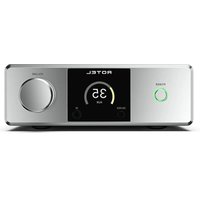
- English
- Français
- About Rotel
- Getting Started
- Key Features
- Unpacking
- Placement
- RR-969 Remote Control
- Using the RR-969 A
- Programming the RR-969 ✗
- Basic Controls
- POWER Switch 1 J
- Remote Sensor 2
- Front-panel Display 5
- Volume Control 12 L
- MUTE Button N
- Tone Controls 11
- MENU Button
- ENTER Button P
- Input Controls
- Input Source Buttons 6 F
- REC Button 20 ZONE Button S
- CH Input 17 EXT IN G
- Surround Sound Controls
- PRO LOGIC Button 15
- STEREO Button 14
- DSP Button 16
- 2CH Button 13
- SUR+ Button U
- Speaker Level Adjustment Selection Buttons C E R UP/DOWN Buttons D
- DYNAMIC RANGE Button 18 DWN Button D
- Tuner Controls
- BAND Button 4 M
- TUNING Buttons 3 K
- MEMORY Button 10
- NUMERIC Buttons: Station Presets 7 B
- DIRECT Button 8
- MONO Button 9
- PRESET Button T
- RDS and RBDS Broadcast Reception
- DISPLAY Button v
- PTY Button H
- TP Button W
- TA Button
- Connections: Overview
- Video Connections
- Audio Source Connections
- CD Inputs 34
- TAPE Inputs and Outputs 35
- Video Source Inputs
- VIDEO 1-5 Audio Inputs 36
- VIDEO 1-5 Composite Video Inputs 39
- VIDEO 1-5 S-Video Inputs 38
- VIDEO 1-2 Component Video Inputs 31
- Channel Audio Inputs 24
- Video Source Outputs
- VIDEO 1-3 Audio Outputs 37
- VIDEO 1-3 Composite Video Outputs 41
- VIDEO 1-3 S-Video Outputs 40
- Digital Source Connections
- Digital Inputs 23
- Digital Outputs 25
- Output Signal Connections
- TV Monitor Output 31 42
- Speaker Outputs 32
- RCA Preamp Outputs 33
- Antenna Connections
- AM Loop Antenna 22
- FM Wire Antenna 21
- Power and Miscellaneous Connections
- AC Input 43
- 12V TRIGGER Connections 30
- EXTERNAL REM IN 29
- Zone 2 Connection and Operation
- Zone 2 Power On/Off Operation
- Controlling Zone 2 from the Main Room ZONE Button 19
- To turn Zone 2 on or off:
- To change the Zone 2 input source:
- To change the Zone 2 volume:
- Controlling Zone 2 from the Remote Location
- Zone 2 Audio Outputs 26
- See Figure 5
- ZONE REM IN Jack 27
- IR OUT Jacks 28
- On-Screen Display / Configuration
- Navigation Buttons
- D O P Q
- SYSTEM STATUS Menu
- SYSTEM STATUS
- MAIN Menu
- INPUT Menu
- INPUT SETUP
- SPEAKER SETUP Menu
- SPEAKER SETUP
- DELAY SETUP Menu
- SUBWOOFER LEVEL Menu
- TEST TONE Menu
- OTHER OPTIONS Menu
- OTHER OPTIONS
- RESET Menu
- ZONE 2 SETUP Menu
- ZONE2 SETUP
- Specifications
- Audio
- Continuous Amplifier Power
- (all channels driven)
- Total Harmonic Distortion
- Frequency Response
- Signal to Noise Ratio (IHF A-weighted)
- Input Sensitivity/Impedance
- Tone Controls (Bass/Treble)
- Line Output Level
- Video
- Signal to Noise Ratio
- Input Impedance
- Output Impedance
- Output Level
- FM Tuner
- Usable Sensitivity
- Signal to Noise Ratio (at 65 dBf)
- Harmonic Distortion (at 65 dBf)
- Stereo Separation (1 kHz)
- Antenna Input
- AM Tuner
- Sensitivity
- General
- Power Consumption:
- Power Requirements (AC)
- Weight
- Dimensions (W x H x D)
- Sommaire
- Dimensions (L x H x P):
- Gesamtklirrfaktor
- In Lizenz der Dolby Laboratories Licensing
Brand : ROTEL
Model : RSX972
Category : Receiver